radio MERCEDES-BENZ S-Class 2012 W221 Owner's Guide
[x] Cancel search | Manufacturer: MERCEDES-BENZ, Model Year: 2012, Model line: S-Class, Model: MERCEDES-BENZ S-Class 2012 W221Pages: 536, PDF Size: 25.27 MB
Page 131 of 536
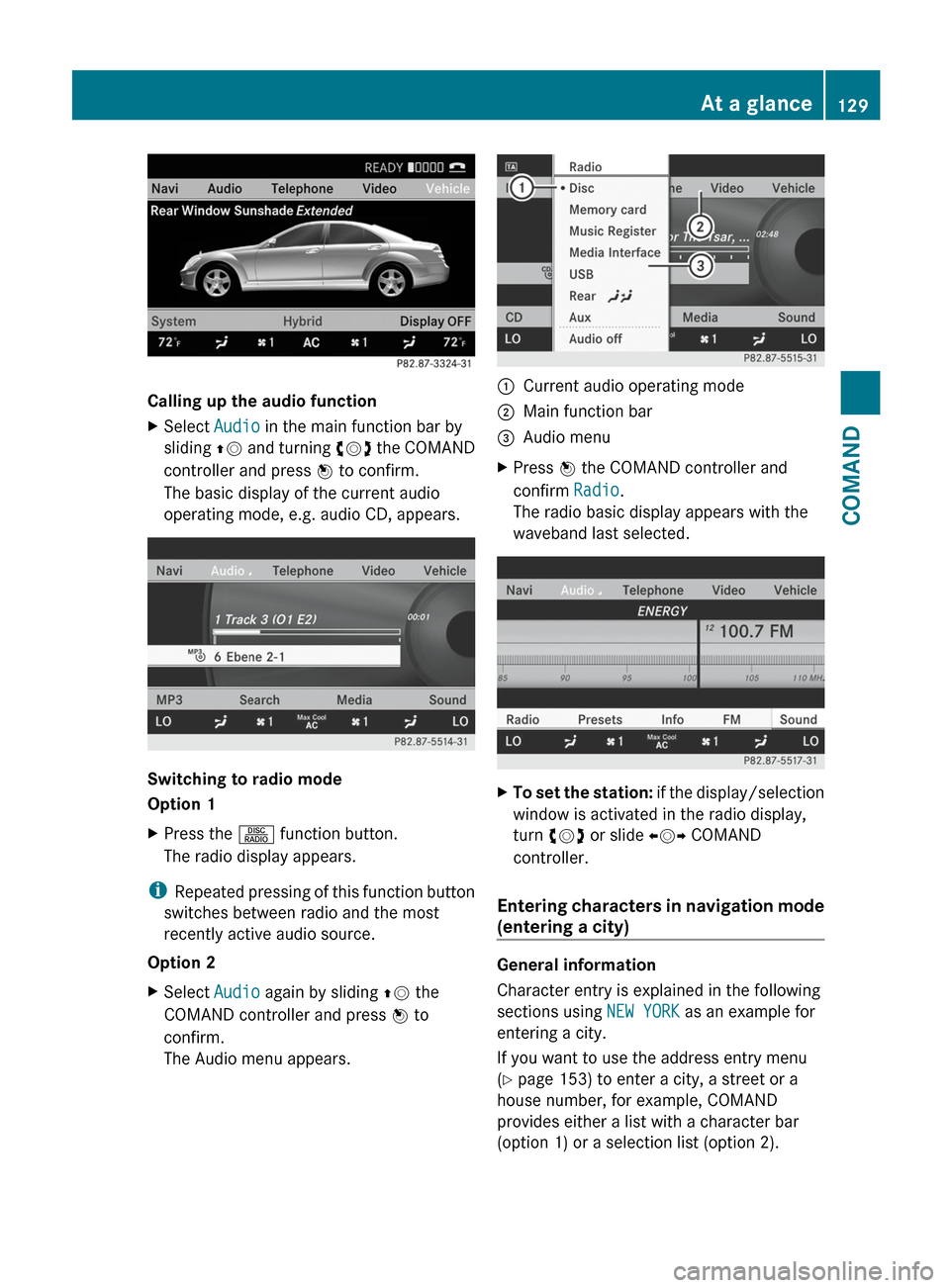
Calling up the audio function
XSelect Audio in the main function bar by
sliding ZV and turning cVd the COMAND
controller and press W to confirm.
The basic display of the current audio
operating mode, e.g. audio CD, appears.
Switching to radio mode
Option 1
XPress the R function button.
The radio display appears.
i Repeated pressing of this function button
switches between radio and the most
recently active audio source.
Option 2
XSelect Audio again by sliding ZV the
COMAND controller and press W to
confirm.
The Audio menu appears.:Current audio operating mode;Main function bar=Audio menuXPress W the COMAND controller and
confirm Radio.
The radio basic display appears with the
waveband last selected.XTo set the station: if the display/selection
window is activated in the radio display,
turn cVd or slide XVY COMAND
controller.
Entering characters in navigation mode
(entering a city)
General information
Character entry is explained in the following
sections using NEW YORK as an example for
entering a city.
If you want to use the address entry menu
( Y page 153) to enter a city, a street or a
house number, for example, COMAND
provides either a list with a character bar
(option 1) or a selection list (option 2).
At a glance129COMANDZ
Page 137 of 536
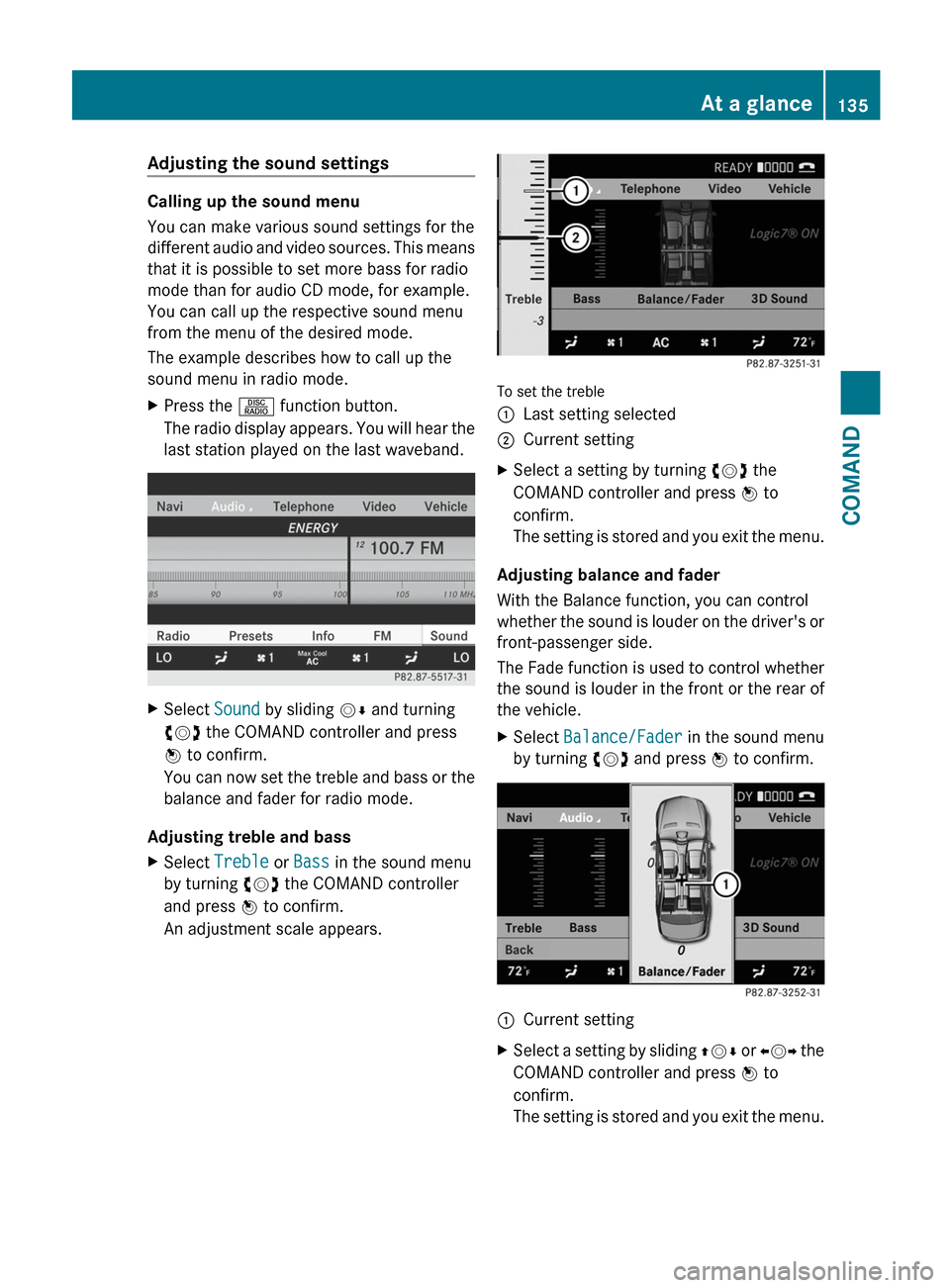
Adjusting the sound settings
Calling up the sound menu
You can make various sound settings for the
different audio and video sources. This means
that it is possible to set more bass for radio
mode than for audio CD mode, for example.
You can call up the respective sound menu
from the menu of the desired mode.
The example describes how to call up the
sound menu in radio mode.
XPress the R function button.
The radio display appears. You will hear the
last station played on the last waveband.XSelect Sound by sliding VÆ and turning
cVd the COMAND controller and press
W to confirm.
You can now set the treble and bass or the
balance and fader for radio mode.
Adjusting treble and bass
XSelect Treble or Bass in the sound menu
by turning cVd the COMAND controller
and press W to confirm.
An adjustment scale appears.
To set the treble
:Last setting selected;Current settingXSelect a setting by turning cVd the
COMAND controller and press W to
confirm.
The setting is stored and you exit the menu.
Adjusting balance and fader
With the Balance function, you can control
whether the sound is louder on the driver's or
front-passenger side.
The Fade function is used to control whether
the sound is louder in the front or the rear of
the vehicle.
XSelect Balance/Fader in the sound menu
by turning cVd and press W to confirm.:Current settingXSelect a setting by sliding ZVÆ or XVY the
COMAND controller and press W to
confirm.
The setting is stored and you exit the menu.At a glance135COMANDZ
Page 138 of 536
Surround sound
General information
If your vehicle is equipped with the harman/
kardon ®
Logic 7 ®
surround sound system,
you can set the optimum surround sound for
every passenger.
The harman/kardon ®
Logic 7 ®
surround
sound system is available for the following
operating modes:
R radio (FM only)
R satellite radio
R audio CD
R audio DVD (MLP, dts, PCM and Dolby
Digital audio formats)
R MP3 (including SD memory card)
R Media Interface
R video DVD (PCM, dts and Dolby Digital
audio formats)
R AUX
Because some DVDs contain both stereo and
multichannel audio formats, it may be
necessary to set the audio format
( Y page 227).
i The Logic7 ®
ON function enables
playback of, e.g. stereo recordings with a
surround sound experience for every
passenger. It enables optimum playback of
music and films on CD, audio DVD or video
DVD with multichannel audio formats, such
as MLP, dts or Dolby Digital. This results in
sound characteristics like those intended
by the sound engineer when the original
was recorded.
i If you select LOGIC7®
OFF , the sound
system plays the tracks as stored on the
medium. Due to the design of the
passenger compartment, an optimum
audio experience cannot be guaranteed for
all passengers.
i Discs which support the audio formats
mentioned have the following logos:
Dolby Digital
dts
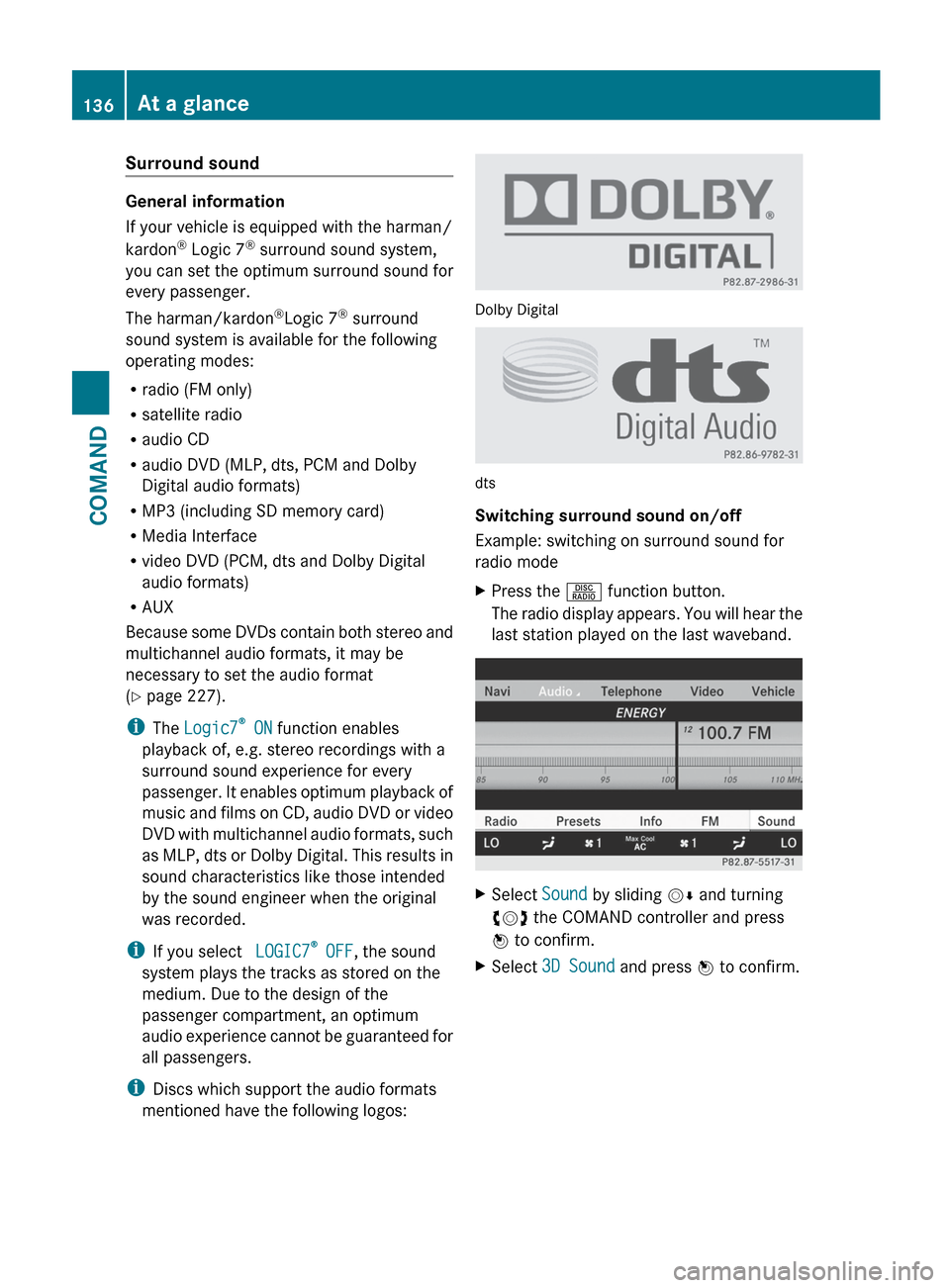
Switching surround sound on/off
Example: switching on surround sound for
radio mode
XPress the R function button.
The radio display appears. You will hear the
last station played on the last waveband.XSelect Sound by sliding VÆ and turning
cVd the COMAND controller and press
W to confirm.XSelect 3D Sound and press W to confirm.136At a glanceCOMAND
Page 139 of 536
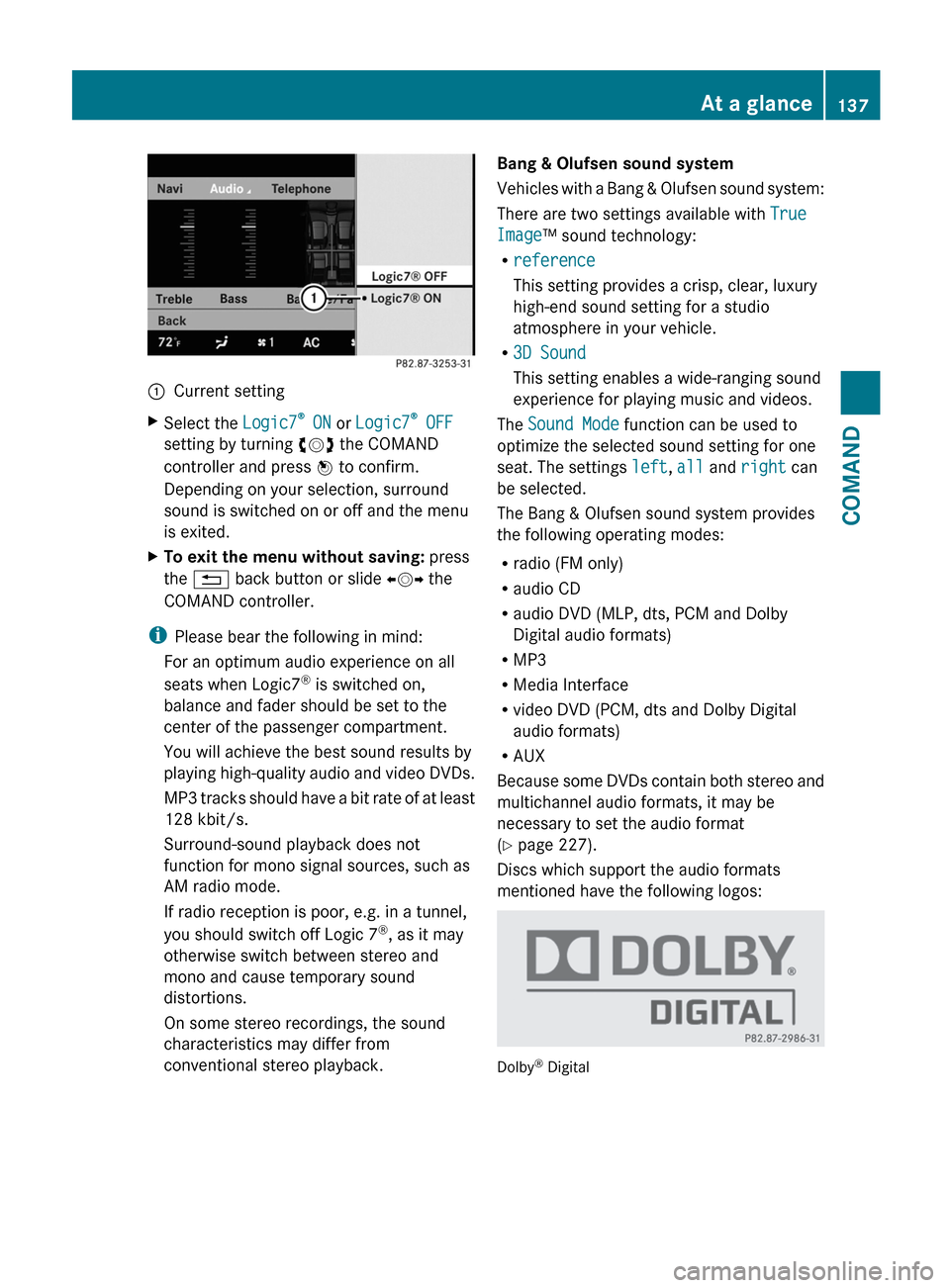
:Current settingXSelect the Logic7®
ON or Logic7 ®
OFF
setting by turning cVd the COMAND
controller and press W to confirm.
Depending on your selection, surround
sound is switched on or off and the menu
is exited.XTo exit the menu without saving: press
the % back button or slide XVY the
COMAND controller.
i Please bear the following in mind:
For an optimum audio experience on all
seats when Logic7 ®
is switched on,
balance and fader should be set to the
center of the passenger compartment.
You will achieve the best sound results by
playing high-quality audio and video DVDs.
MP3 tracks should have a bit rate of at least
128 kbit/s.
Surround-sound playback does not
function for mono signal sources, such as
AM radio mode.
If radio reception is poor, e.g. in a tunnel,
you should switch off Logic 7 ®
, as it may
otherwise switch between stereo and
mono and cause temporary sound
distortions.
On some stereo recordings, the sound
characteristics may differ from
conventional stereo playback.
Bang & Olufsen sound system
Vehicles with a Bang & Olufsen sound system:
There are two settings available with True
Image ™ sound technology:
R reference
This setting provides a crisp, clear, luxury
high-end sound setting for a studio
atmosphere in your vehicle.
R 3D Sound
This setting enables a wide-ranging sound
experience for playing music and videos.
The Sound Mode function can be used to
optimize the selected sound setting for one
seat. The settings left, all and right can
be selected.
The Bang & Olufsen sound system provides
the following operating modes:
R radio (FM only)
R audio CD
R audio DVD (MLP, dts, PCM and Dolby
Digital audio formats)
R MP3
R Media Interface
R video DVD (PCM, dts and Dolby Digital
audio formats)
R AUX
Because some DVDs contain both stereo and
multichannel audio formats, it may be
necessary to set the audio format
( Y page 227).
Discs which support the audio formats
mentioned have the following logos:
Dolby ®
Digital
At a glance137COMANDZ
Page 140 of 536
dts™
MLP™
Selecting settings for the Bang & Olufsen
sound system
Calling up the selection menu
XSelect Sound.XHighlight Bang & Olufsen .XPress W.
A selection menu appears.
A # dot in front of an entry indicates the
current setting.
Selecting the setting for True Image™
XTurn cVd or slide ZVÆ and highlight
reference or 3D Sound .XPress W.
Selecting sound mode
XSelect Sound Mode in the selection menu.XTurn cVd or slide ZVÆ and highlight left,
all or right .XPress W.XTo exit the menu: press the % back
button beside the COMAND controller.
or
XSlide XVY.
i
Please bear the following in mind:
You will achieve the best sound results on
your Bang & Olufsen sound system by
playing high-quality audio DVDs and CDs.
MP3 tracks should have a bit rate of at least
224 kbit/s.
When playing using an iPod ®
, the bit rate
should also be at least 224 kbit/s.
For optimum playback quality:XDeactivate the EQ setting on the
iPod ®
.
Surround-sound playback does not
function for mono signal sources, such as
the medium wave range (MW) in radio
mode.
On some stereo recordings, the sound
characteristics may differ from
conventional stereo playback.
Rear Seat Entertainment System
Components
Overview
The Rear Seat Entertainment System
comprises:
R two screens for the rear behind the front-
seat head restraints
R two remote controls
R a CD/DVD drive
R AUX jacks on both screens (display AUX)
and on the CD/DVD drive (drive AUX)
R two sets of cordless headphones
138At a glanceCOMAND
Page 147 of 536
XSelect Time Zone and press W to confirm.
You will see a list of time zones. The # dot
indicates the current setting.XSelect the time zone and press W to
confirm.XTo switch automatic changeover on/
off: select Automatic Daylight
Savings Time or Automatic Daylight
Savings Time by turning cVd the
COMAND controller and press W to
confirm.
The # dot indicates the current setting.
Text reader settings
Setting the text reader speed
XSelect Vehicle by turning cVd the
COMAND controller and press W to
confirm.XSelect System and press W to confirm.XSelect Text Reader and press W to
confirm.XSelect Set text reader speed and press
W to confirm.
A list appears. The # dot indicates the
current setting.XSelect a setting by turning cVd the
COMAND controller and press W to
confirm.
Voice Control System settings
Opening/closing the help window
In addition to the audible instructions, the
help window will show you other information
during voice control operation and the
individualization process.
XSelect Vehicle in the main function bar by
turning cVd the COMAND controller and
press W to confirm.XSelect System by turning cVd the
COMAND controller and press W to
confirm.XSelect Voice Control by turning cVd the
COMAND controller and press W to
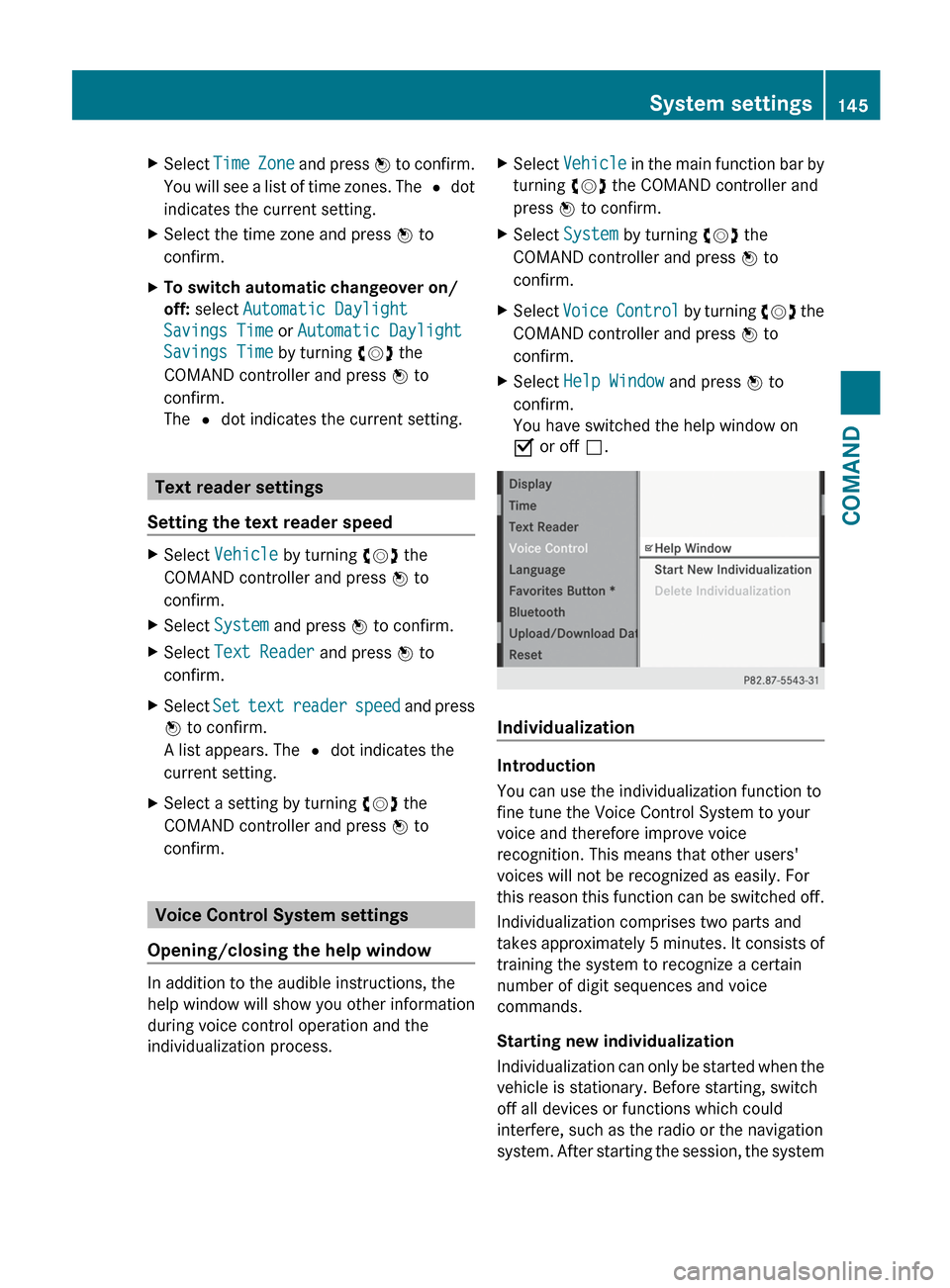
confirm.XSelect Help Window and press W to
confirm.
You have switched the help window on
O or off ª.
Individualization
Introduction
You can use the individualization function to
fine tune the Voice Control System to your
voice and therefore improve voice
recognition. This means that other users'
voices will not be recognized as easily. For
this reason this function can be switched off.
Individualization comprises two parts and
takes approximately 5 minutes. It consists of
training the system to recognize a certain
number of digit sequences and voice
commands.
Starting new individualization
Individualization can only be started when the
vehicle is stationary. Before starting, switch
off all devices or functions which could
interfere, such as the radio or the navigation
system. After starting the session, the system
System settings145COMANDZ
Page 176 of 536
Off-road during route guidance
Due to roadworks, for example, there may be
differences between the data on the digital
map and the actual course of the road.
In such cases, the system will temporarily be
unable to locate the vehicle position on the
digital map and thus considers the vehicle to
be in an off-road position.
In the display, you will see the Street
unknown message, an arrow and the distance
to the destination. The arrow shows the
compass heading to the last road you were
driving on.
As soon as the system can assign the vehicle
position to the map again, route guidance
continues in the usual way.
Route guidance on roads that are not
completely digitalized
COMAND attempts to avoid roads that have
not been completely digitalized. If the
vehicle's position or the destination is located
in an area that has not been completely
digitalized, then no active route guidance is
performed. Instead, the map shows a dashed
route along the roads and the target direction
is shown with an arrow. You hear the
announcement: "You will enter an area,
where turn-by-turn guidance can not be
provided. Please follow the arrow on the
display". Once these roads have been left,
regular route guidance is resumed.
Traffic reports
Prerequisite
i The SatRadio mode described below
requires optional satellite radio equipment
and a subscription to SIRIUS XM Satellite
Radio Traffic Message Service. Further
details on SatRadio are available in the
"SatRadio" section ( Y page 216).
COMAND can receive traffic reports via
SatRadio and incorporate them in the
navigation system. Traffic messages and map
symbols can then be shown in the COMAND
display.
COMAND uses high quality traffic data.
Nevertheless, there may be differences
between the traffic reports received and the
actual road and traffic conditions.
Switching traffic reports on/offXTo switch on: set the route type to
Dynamic Route 7
(Y page 152).XTo switch off: select the Fast Route or
Short Route route type (Y page 152).
i
COMAND calculates a new route if you
change the route type setting with route
guidance active. If you change the route
type setting when route guidance is
inactive, COMAND uses the new setting for
the next route guidance.
Real-time traffic reports on the map
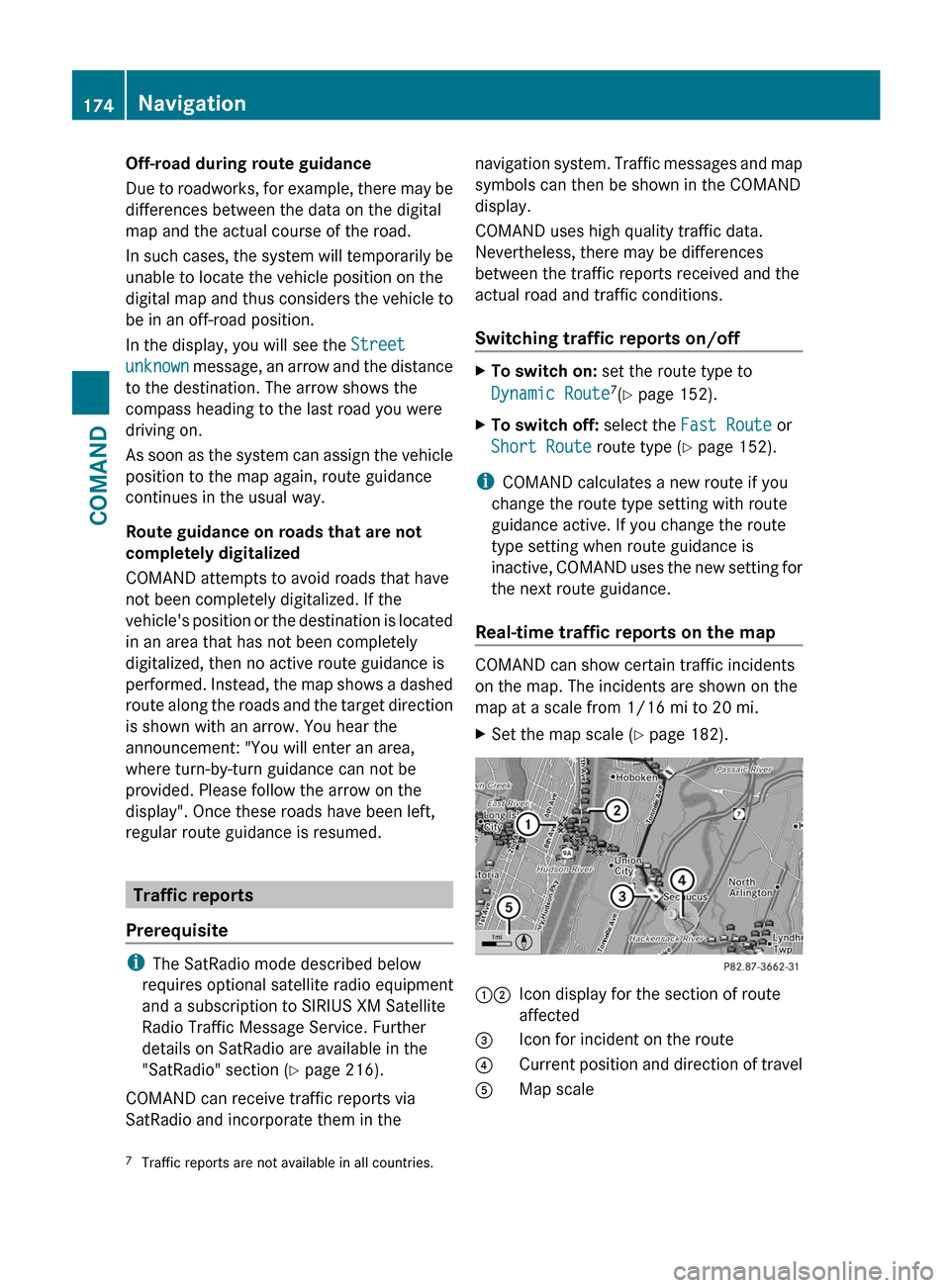
COMAND can show certain traffic incidents
on the map. The incidents are shown on the
map at a scale from 1/16 mi to 20 mi.
XSet the map scale ( Y page 182).12Icon display for the section of route
affected3Icon for incident on the route4Current position and direction of travel5Map scale7 Traffic reports are not available in all countries.174NavigationCOMAND
Page 189 of 536
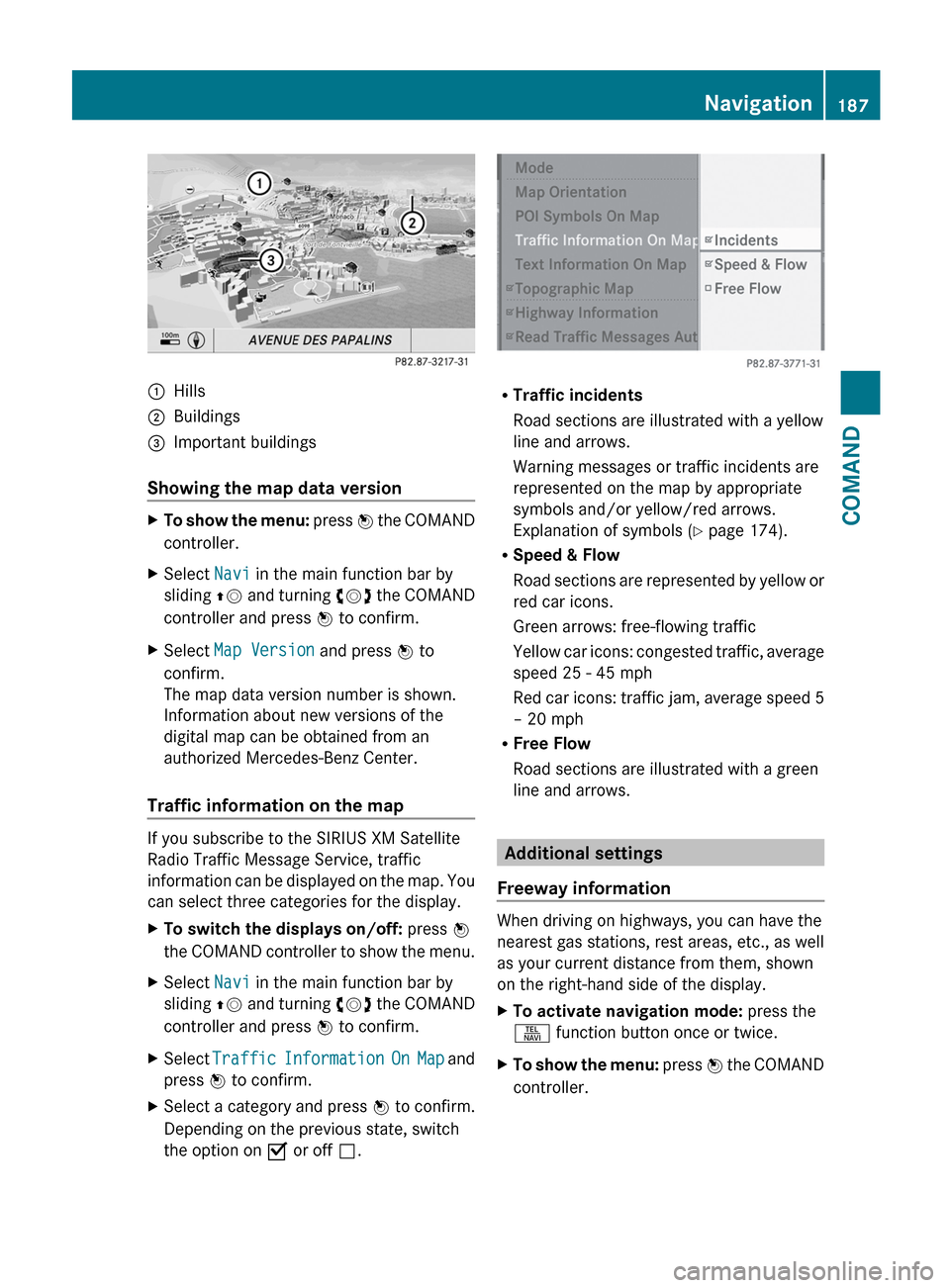
:Hills;Buildings=Important buildings
Showing the map data version
XTo show the menu: press W the COMAND
controller.XSelect Navi in the main function bar by
sliding ZV and turning cVd the COMAND
controller and press W to confirm.XSelect Map Version and press W to
confirm.
The map data version number is shown.
Information about new versions of the
digital map can be obtained from an
authorized Mercedes-Benz Center.
Traffic information on the map
If you subscribe to the SIRIUS XM Satellite
Radio Traffic Message Service, traffic
information can be displayed on the map. You
can select three categories for the display.
XTo switch the displays on/off: press W
the COMAND controller to show the menu.XSelect Navi in the main function bar by
sliding ZV and turning cVd the COMAND
controller and press W to confirm.XSelect Traffic Information On Map and
press W to confirm.XSelect a category and press W to confirm.
Depending on the previous state, switch
the option on O or off ª.
R
Traffic incidents
Road sections are illustrated with a yellow
line and arrows.
Warning messages or traffic incidents are
represented on the map by appropriate
symbols and/or yellow/red arrows.
Explanation of symbols ( Y page 174).
R Speed & Flow
Road sections are represented by yellow or
red car icons.
Green arrows: free-flowing traffic
Yellow car icons: congested traffic, average
speed 25 - 45 mph
Red car icons: traffic jam, average speed 5
– 20 mph
R Free Flow
Road sections are illustrated with a green
line and arrows.
Additional settings
Freeway information
When driving on highways, you can have the
nearest gas stations, rest areas, etc., as well
as your current distance from them, shown
on the right-hand side of the display.
XTo activate navigation mode: press the
S function button once or twice.XTo show the menu: press W the COMAND
controller.Navigation187COMANDZ
Page 190 of 536
XSelect Navi in the main function bar by
sliding ZV and turning cVd the COMAND
controller and press W to confirm.XSelect Highway Information and press
W to confirm.
Depending on the previous state, switch
the option on O or off ª.
SIRIUS XM service
Displaying SIRIUS XM service information
You can display the SIRIUS XM service
information.
XTo show the menu: press W the COMAND
controller.XSelect Navi in the main function bar by
sliding ZV and turning cVd the COMAND
controller and press W to confirm.XSelect SIRIUS Service and press W to
confirm.
Registering for the SIRIUS XM traffic
report service
XCall the traffic report provider's phone
number shown on the screen.
i You can also have the satellite service
activated online. To do so, visit the SIRIUS
XM Radio website at
http://www.sirius.com (USA) or
http://www.siriuscanada.com
(Canada).
Once the connection has been established:
XFollow the instructions of the operator.
The activation process may take up to ten
minutes.
If registration is not included when
purchasing the system, your credit card
details will be required to activate your
account.
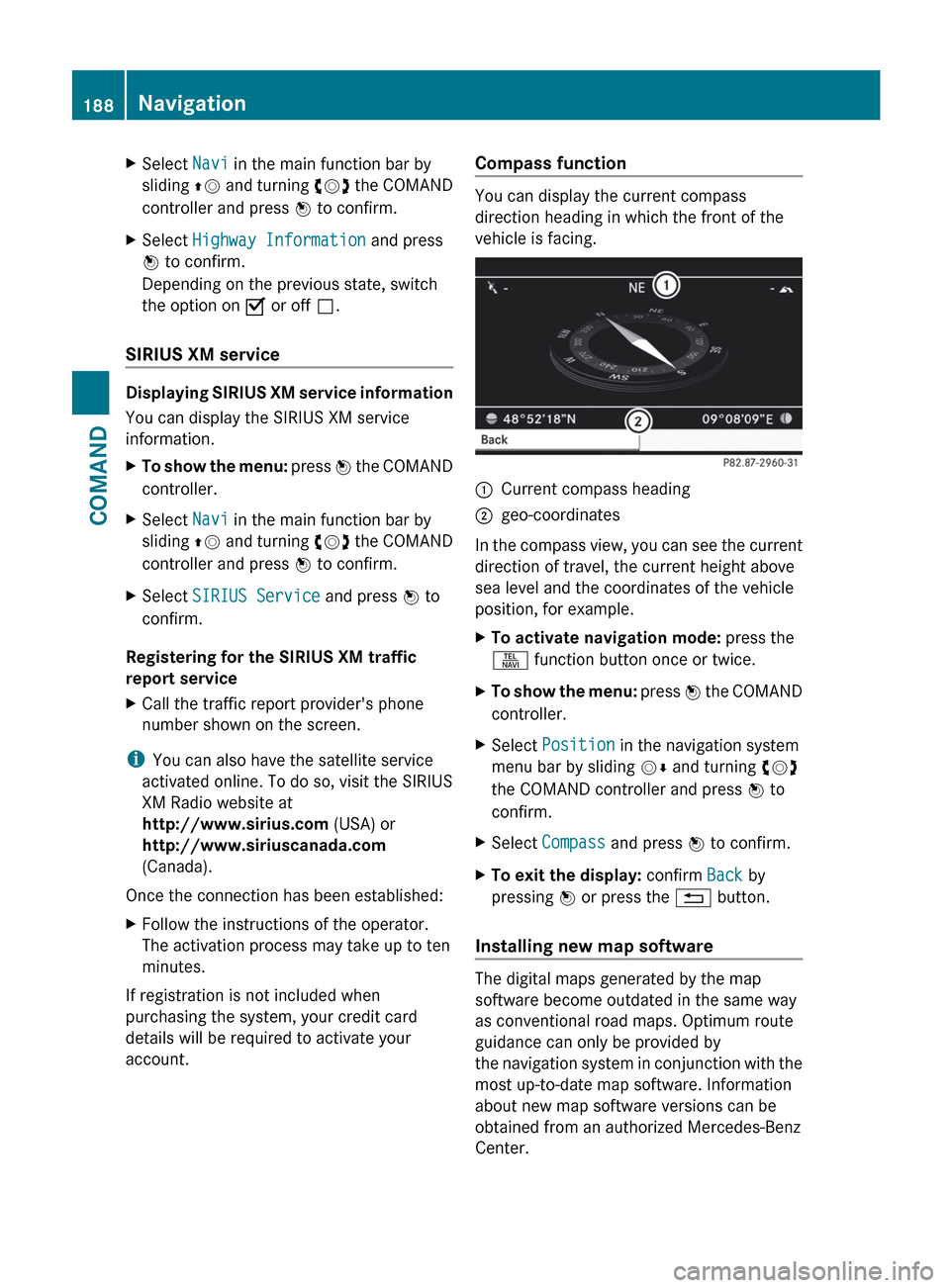
Compass function
You can display the current compass
direction heading in which the front of the
vehicle is facing.
:Current compass heading;geo-coordinates
In the compass view, you can see the current
direction of travel, the current height above
sea level and the coordinates of the vehicle
position, for example.
XTo activate navigation mode: press the
S function button once or twice.XTo show the menu: press W the COMAND
controller.XSelect Position in the navigation system
menu bar by sliding VÆ and turning cVd
the COMAND controller and press W to
confirm.XSelect Compass and press W to confirm.XTo exit the display: confirm Back by
pressing W or press the % button.
Installing new map software
The digital maps generated by the map
software become outdated in the same way
as conventional road maps. Optimum route
guidance can only be provided by
the navigation system in conjunction with the
most up-to-date map software. Information
about new map software versions can be
obtained from an authorized Mercedes-Benz
Center.
188NavigationCOMAND
Page 191 of 536
You can install new map software yourself
which, depending on the scope, may consist
of one or more DVDs.
The installation process can take between
10 and 120 minutes, depending on the scope
of the map software. If the radio is switched
on before you start the installation process,
you can still adjust the volume. You can also
use COMAND to operate automatic climate
control and to cancel the process. Other
functions are not operational. If possible,
carry out the installation when the vehicle is
stationary. The DVD read speed is higher
when the vehicle is stationary than when it is
in motion, so less time is required. If the
starter battery is not sufficiently charged,
COMAND may end the process automatically
in order to protect the battery. Therefore, let
the engine idle during the installation
process.GWARNING
Never leave the engine running in enclosed
spaces. The exhaust gases contain toxic
carbon monoxide. Breathing in exhaust fumes
is a health hazard and can lead to
unconsciousness or death.
Displaying information on the map
version currently in use
XTo activate navigation mode: press the
S function button once or twice.XTo show the menu: press W the COMAND
controller.XSelect Navi in the main function bar by
sliding VÆ and turning cVd the COMAND
controller and press W to confirm.XSelect Map Version and press W to
confirm.
Notes on handling DVDs
R Only hold DVDs by the edge.
R Handle DVDs carefully to prevent reading
errors.
R Avoid getting scratches, fingerprints and
dust on DVDs.
R Use a commercially-available cleaning
cloth to clean discs. When cleaning CDs,
you should wipe in straight lines from the
center outwards rather than in a circular
motion.
R Place DVDs back in their cases after use.
R Protect DVDs from heat and direct sunlight.
Map software copy protection
Map software for COMAND is subject to a
charge. The map software has just one
activation code which is usable in one vehicle
only, and is not transferable. You can obtain
the six-digit activation code from your
authorized Mercedes-Benz Center. If you
have lost the activation code, or if COMAND
does not accept the activation code that you
have received, contact your authorized
Mercedes-Benz Center.
Your vehicle is supplied with map software at
the factory. Depending on the country, map
software for your region is either pre-installed
(Europe/USA) or the map software is
supplied as a DVD (all other countries). You
do not require an activation code for the map
software that is provided with your vehicle.
If the map software on your vehicle has been
installed at the factory and you wish to
reinstall it, this also does not necessitate
entry of the activation code.
Installation processXLoad the map software DVD in the DVD
drive ( Y page 220).
COMAND checks the DVD and shows a
corresponding message in the display.
Map software is not compatible with the
navigation system
You will see a message that the map software
cannot be installed.
XTo confirm the message: press W.
COMAND ejects the DVD.XTake the DVD out of the slot.XInsert a DVD which is compatible with the
vehicle’s navigation system.Navigation189COMANDZ