lock MERCEDES-BENZ S-Class 2012 W221 Repair Manual
[x] Cancel search | Manufacturer: MERCEDES-BENZ, Model Year: 2012, Model line: S-Class, Model: MERCEDES-BENZ S-Class 2012 W221Pages: 536, PDF Size: 25.27 MB
Page 126 of 536
switch SPLITVIEW on and off
( Y page 125).
The SPLITVIEW screen remains on for
approximately 30 minutes after the SmartKey
has been turned to position 0 in the ignition
lock. After this time or after the SmartKey has
been removed, the settings on the front-
passenger side are saved for approximately
30 minutes longer. After this period,
reactivation on the front-passenger side
means that the settings from the driver's side
will be used.
Cordless headphones for the front
passenger
There are different cordless headphones for
the front passenger and the rear
compartment.
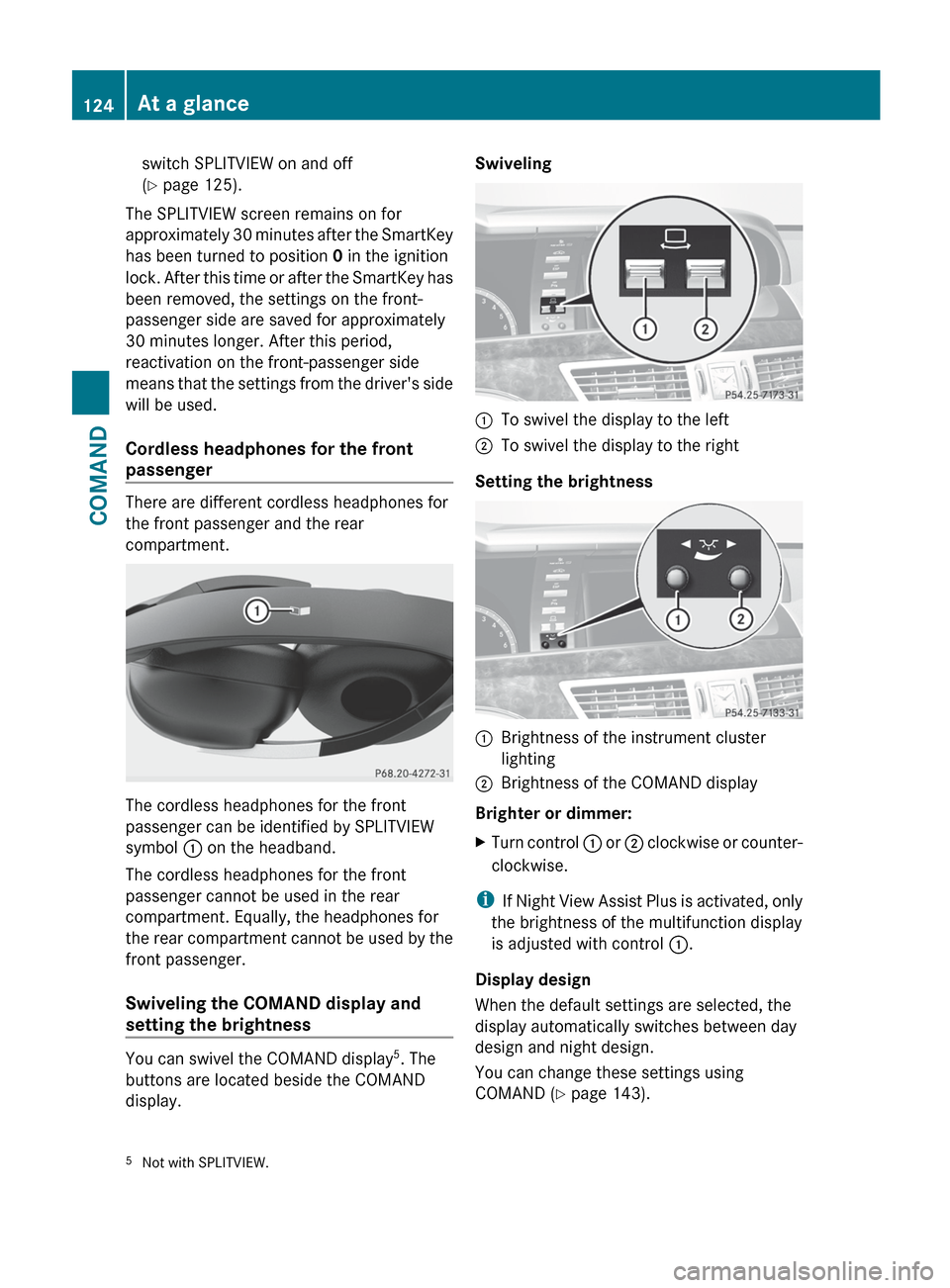
The cordless headphones for the front
passenger can be identified by SPLITVIEW
symbol : on the headband.
The cordless headphones for the front
passenger cannot be used in the rear
compartment. Equally, the headphones for
the rear compartment cannot be used by the
front passenger.
Swiveling the COMAND display and
setting the brightness
You can swivel the COMAND display 5
. The
buttons are located beside the COMAND
display.
Swiveling:To swivel the display to the left;To swivel the display to the right
Setting the brightness
:Brightness of the instrument cluster
lighting;Brightness of the COMAND display
Brighter or dimmer:
XTurn control : or ; clockwise or counter-
clockwise.
i If Night View Assist Plus is activated, only
the brightness of the multifunction display
is adjusted with control :.
Display design
When the default settings are selected, the
display automatically switches between day
design and night design.
You can change these settings using
COMAND ( Y page 143).
5
Not with SPLITVIEW.124At a glanceCOMAND
Page 128 of 536
ECOMAND: to select a station from
presets, select a track, enter directly,
enter a phone number, for example. Rear
Seat Entertainment System: to select a
track, enter directlyFTo exit a menu (back)XPoint the remote control at the
corresponding screen and execute the
functions by pressing the corresponding
buttons.
i The remote control's function may be
restricted depending on the angle at which
it is pointed at the respective screen.
Selecting the screen for the remote
control
XTurn thumbwheel = until the desired
display is highlighted in the window.
Switching the screen on/off (Rear Seat
Entertainment System only)
If the SmartKey is in the ignition lock in
position 0 or 1 or if the SmartKey is not in the
ignition lock, the rear screens will switch off
after 30 minutes. Before the screens switch
off, they show a message to this effect.
You can switch the screens back on.
However, this will discharge the starter
battery.
XPoint the remote control at the rear-
compartment screen which has been
selected for remote operation.XPress button : on the remote control.
The respective rear screen switches on or
off.
i You can only switch the screens on using
the remote control if the ignition is
switched on.
Switching the button lighting on/off
XPress button ; on the remote control.
Depending on the previous status, the
button lighting is switched on or off.i If you do not use the remote control for
about 15 seconds, the button lighting
switches off automatically.
MuteXPress button B on the remote control.
The sound is switched on/off.
Adjusting the volume
This function is available for SPLITVIEW and
for the Rear Seat Entertainment System in
conjunction with corded headphones.
XPress one of buttons C on the remote
control.
The volume of the currently selected audio
or video source changes.
For COMAND, you can also adjust the
volume for phone calls and navigation
messages.
Selecting a menu/menu item and
confirming your selection
XPress the =;9: buttons to
select the menu/menu item and press the
9 button to confirm.126At a glanceCOMAND
Page 142 of 536
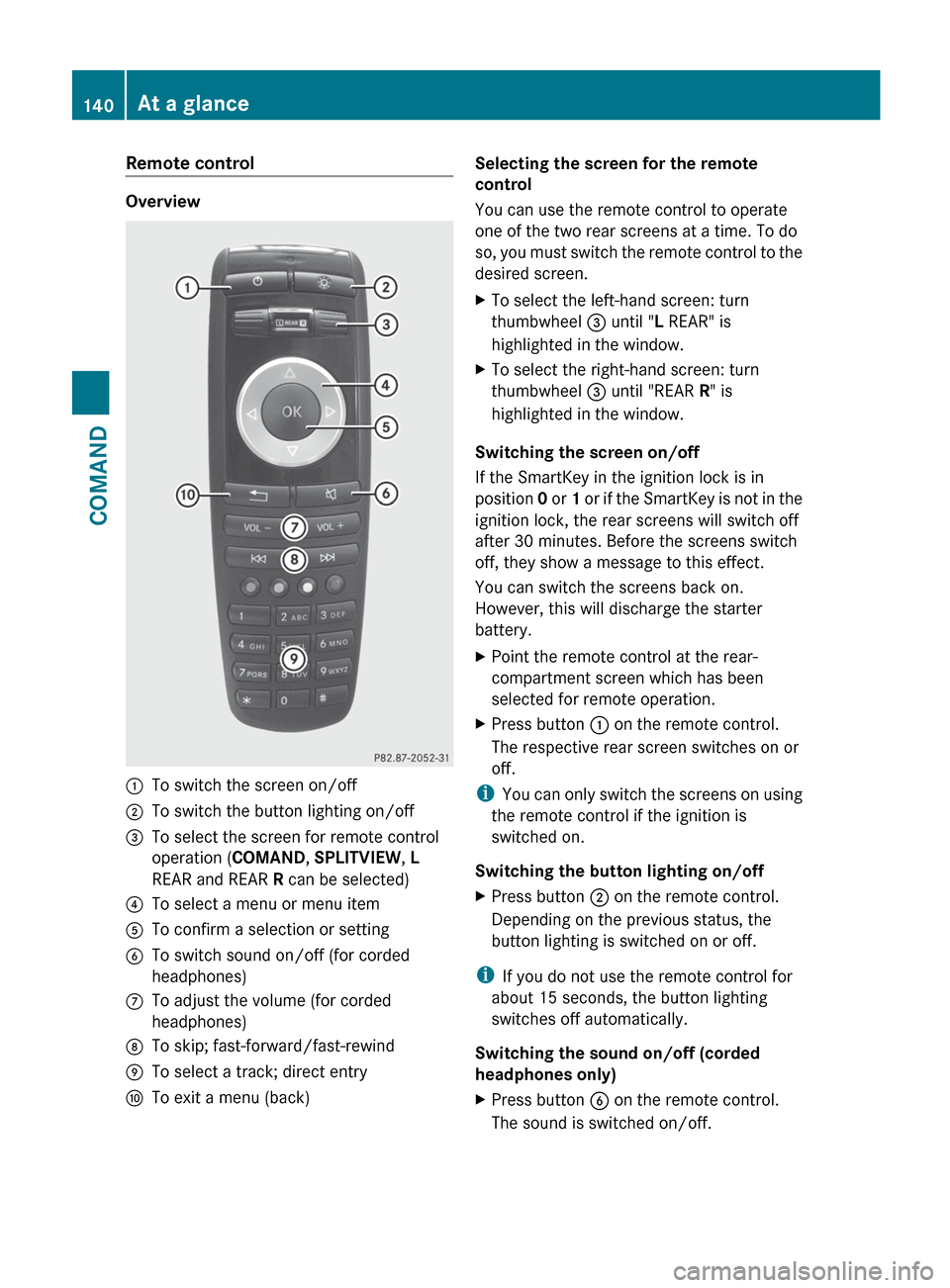
Remote control
Overview
:To switch the screen on/off;To switch the button lighting on/off=To select the screen for remote control
operation ( COMAND, SPLITVIEW , L
REAR and REAR R can be selected)?To select a menu or menu itemATo confirm a selection or settingBTo switch sound on/off (for corded
headphones)CTo adjust the volume (for corded
headphones)DTo skip; fast-forward/fast-rewindETo select a track; direct entryFTo exit a menu (back)Selecting the screen for the remote
control
You can use the remote control to operate
one of the two rear screens at a time. To do
so, you must switch the remote control to the
desired screen.XTo select the left-hand screen: turn
thumbwheel = until " L REAR" is
highlighted in the window.XTo select the right-hand screen: turn
thumbwheel = until "REAR R" is
highlighted in the window.
Switching the screen on/off
If the SmartKey in the ignition lock is in
position 0 or 1 or if the SmartKey is not in the
ignition lock, the rear screens will switch off
after 30 minutes. Before the screens switch
off, they show a message to this effect.
You can switch the screens back on.
However, this will discharge the starter
battery.
XPoint the remote control at the rear-
compartment screen which has been
selected for remote operation.XPress button : on the remote control.
The respective rear screen switches on or
off.
i You can only switch the screens on using
the remote control if the ignition is
switched on.
Switching the button lighting on/off
XPress button ; on the remote control.
Depending on the previous status, the
button lighting is switched on or off.
i If you do not use the remote control for
about 15 seconds, the button lighting
switches off automatically.
Switching the sound on/off (corded
headphones only)
XPress button B on the remote control.
The sound is switched on/off.140At a glanceCOMAND
Page 154 of 536
the route, changes of direction and lane
recommendations. Navigation
announcements guide you to your
destination.
"Route guidance inactive" means that no
destination has been entered and that no
route has been calculated.
Showing/hiding the menuXTo hide the menu: slide ZV the COMAND
controller over the map.
The Full Screen menu item is shown.XConfirm the Full Screen menu item
shown by pressing W.
The map can be seen in the full-screen
display.XTo show the menu: press W the COMAND
controller when the map is shown in full-
screen.
Basic settings
Route mode
Setting route type and route options
You can select the following route types:
R Fast Route : COMAND calculates the
route with the shortest (minimized) journey
time.
R Dynamic Route : same route type as Fast
Route . In addition, COMAND takes traffic
reports into account during route
guidance 6
. Thus, the navigation system is
able to guide you around a blocked section,
for example. If a faster route is determined
due to a received RDS-TMC traffic
announcement, the navigation system
changes the route. If possible, it will bypass
blocked roads.
R Eco Route : the ECO route is an economical
route that takes traffic announcements
into account (see dynamic route).
R Short Route : COMAND calculates the
route with the shortest possible
(minimized) route distance.
In addition to route types, route options can
also be set.
You can select the following route options:
R Use Carpool Lanes
R Minimize highways
R Minimize Toll Roads
R Minimize Tunnels
R Minimize Ferries
R Minimize Motorail Trains
If you select route options with a tick, the
corresponding types of roads will be avoided
in the route guidance where possible.XTo activate navigation mode: press the
S function button once or twice.XTo show the menu: press W the COMAND
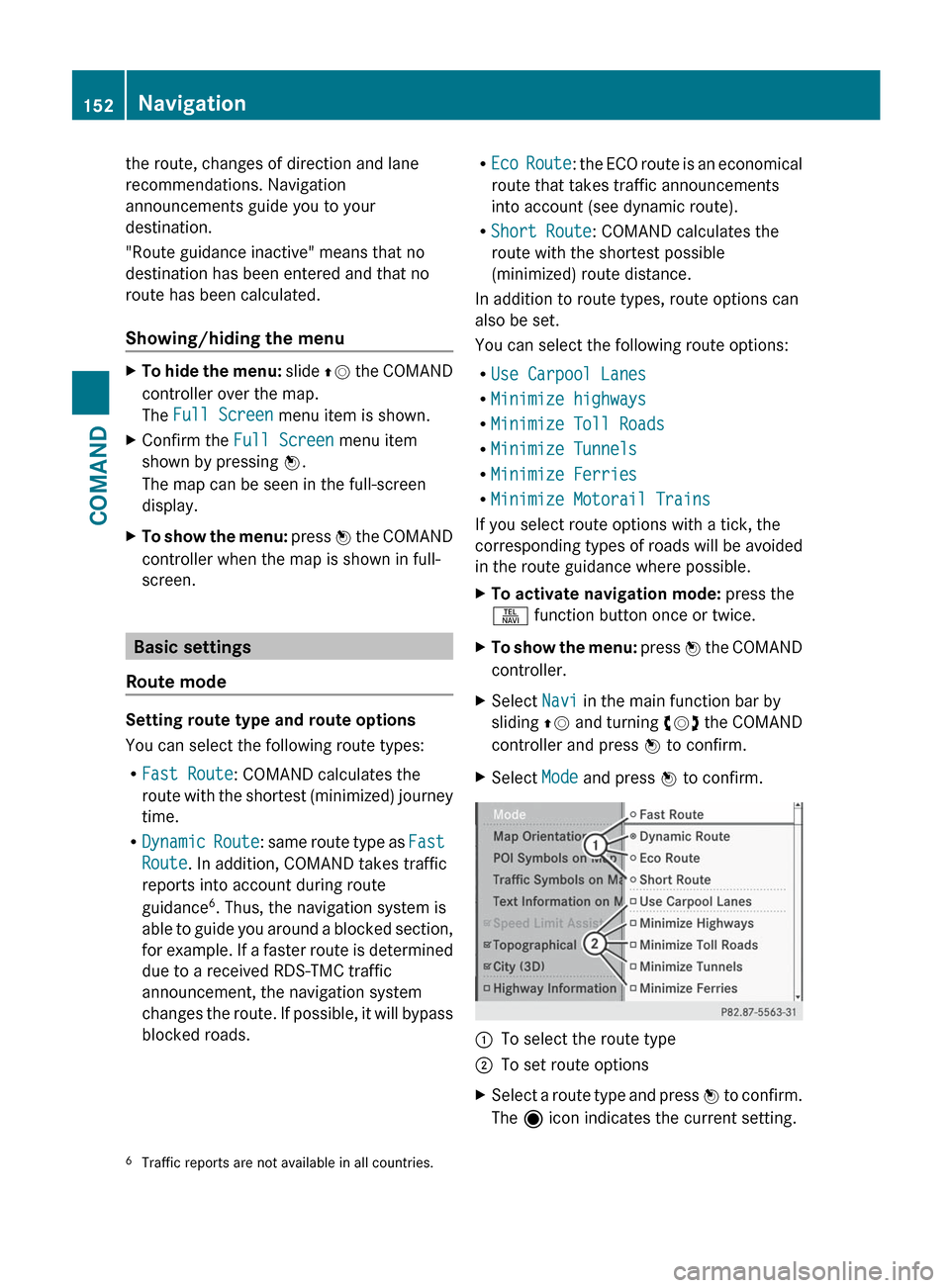
controller.XSelect Navi in the main function bar by
sliding ZV and turning cVd the COMAND
controller and press W to confirm.XSelect Mode and press W to confirm.:To select the route type;To set route optionsXSelect a route type and press W to confirm.
The ä icon indicates the current setting.6
Traffic reports are not available in all countries.152NavigationCOMAND
Page 162 of 536
on the same street: call up an address
destination from the last destinations.XSelect Change by turning cVd and sliding
ZV Æ the COMAND controller and press
W to confirm.
All destination entry functions are
available.XEdit/enter the destination as described for
destination entry ( Y page 153).
Entering a destination using the map
Calling up the map
XTo activate navigation mode: press the
S function button once or twice.XTo show the menu: press W the COMAND
controller.XSelect Destination in the navigation
system menu bar by turning cVd the
COMAND controller and pressing W to
confirm.XSelect Via Map and press W to confirm.
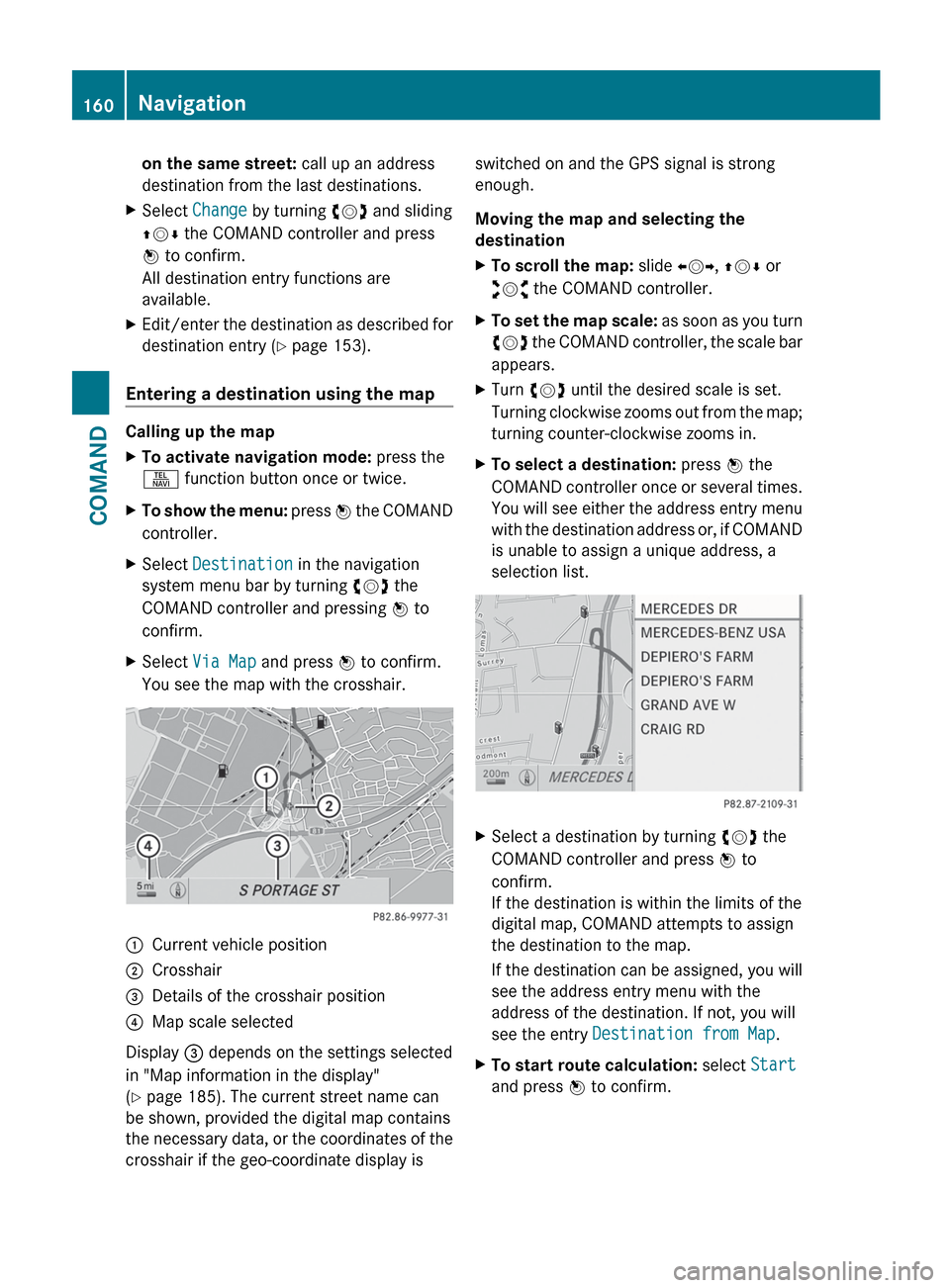
You see the map with the crosshair.:Current vehicle position;Crosshair=Details of the crosshair position?Map scale selected
Display = depends on the settings selected
in "Map information in the display"
( Y page 185). The current street name can
be shown, provided the digital map contains
the necessary data, or the coordinates of the
crosshair if the geo-coordinate display is
switched on and the GPS signal is strong
enough.
Moving the map and selecting the
destinationXTo scroll the map: slide XVY, ZV Æ or
aVb the COMAND controller.XTo set the map scale: as soon as you turn
cVd the COMAND controller, the scale bar
appears.XTurn cVd until the desired scale is set.
Turning clockwise zooms out from the map;
turning counter-clockwise zooms in.XTo select a destination: press W the
COMAND controller once or several times.
You will see either the address entry menu
with the destination address or, if COMAND
is unable to assign a unique address, a
selection list.XSelect a destination by turning cVd the
COMAND controller and press W to
confirm.
If the destination is within the limits of the
digital map, COMAND attempts to assign
the destination to the map.
If the destination can be assigned, you will
see the address entry menu with the
address of the destination. If not, you will
see the entry Destination from Map .XTo start route calculation: select Start
and press W to confirm.160NavigationCOMAND
Page 173 of 536
Avoiding a section of the route blocked
by a traffic jam
This function blocks a section of the route
ahead of you. You can set the length of the
blocked route section. If possible, COMAND
calculates a detour around the blocked
section of the route.
XTo activate navigation mode: press the
S function button once or twice.XTo show the menu: press W the COMAND
controller.XSelect Route in the navigation system
menu bar by turning cVd the COMAND
controller and press W to confirm.XSelect Detour and press W to confirm.XTo block a section of the route: select
More or Less repeatedly and confirm using
W until the desired section has been
selected.
i The total length of the section that can be
blocked is defined by the digital map. The
menu items are available accordingly.
XTo start route calculation: select Start
and press W to confirm.XTo delete the blocked section: select
Delete while the message is shown and
press W to confirm.
COMAND calculates the route without the
block.
Selecting an alternative route
With the "Alternative route" function, routes
other than the original one can be calculated.
XTo activate navigation mode: press the
S function button once or twice.XTo show the menu: press W the COMAND
controller.XSelect Route in the navigation system
menu bar by turning cVd the COMAND
controller and press W to confirm.XSelect Alternative Route and press W
to confirm.
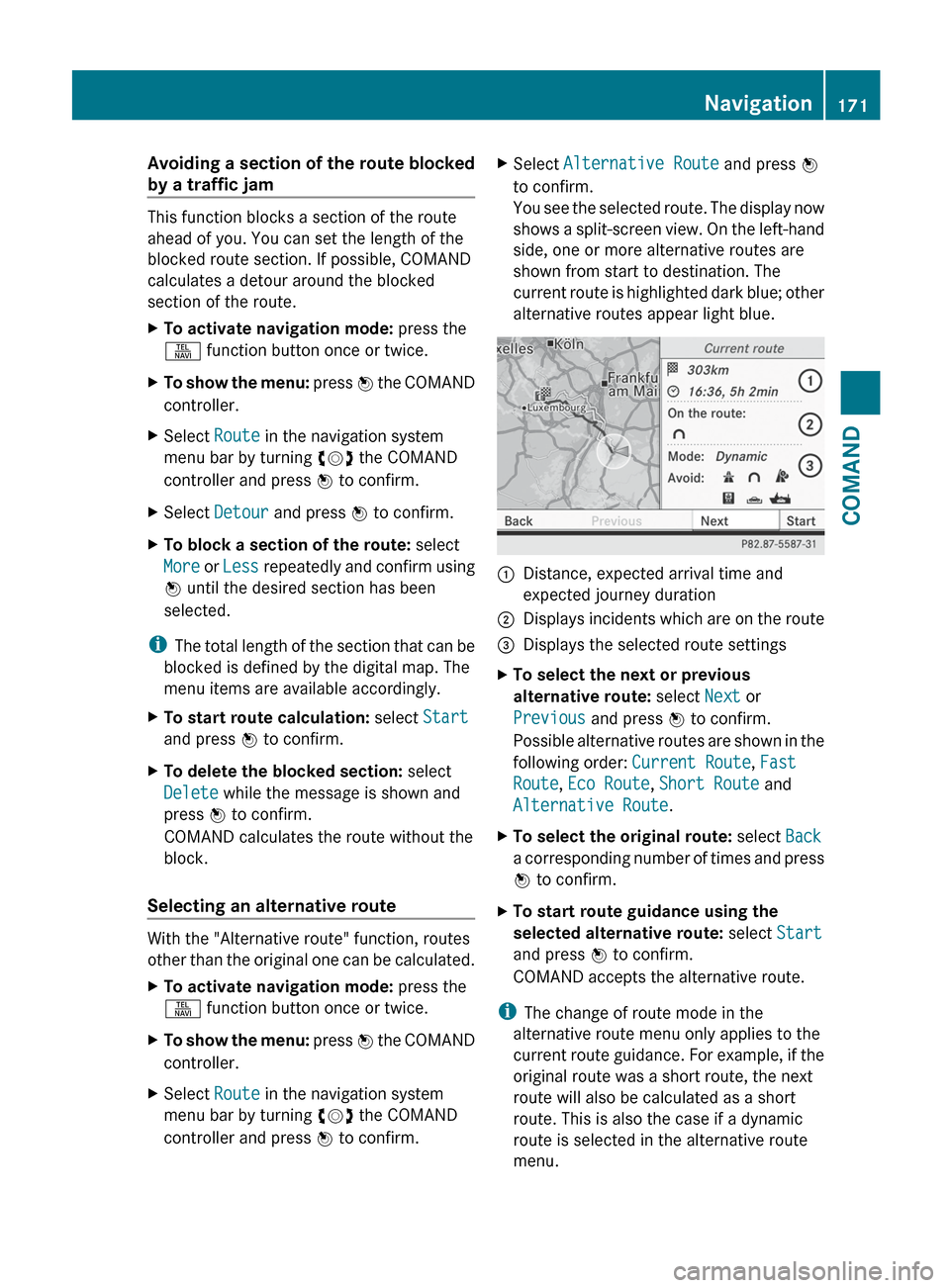
You see the selected route. The display now
shows a split-screen view. On the left-hand
side, one or more alternative routes are
shown from start to destination. The
current route is highlighted dark blue; other
alternative routes appear light blue.:Distance, expected arrival time and
expected journey duration;Displays incidents which are on the route=Displays the selected route settingsXTo select the next or previous
alternative route: select Next or
Previous and press W to confirm.
Possible alternative routes are shown in the
following order: Current Route, Fast
Route , Eco Route , Short Route and
Alternative Route .XTo select the original route: select Back
a corresponding number of times and press
W to confirm.XTo start route guidance using the
selected alternative route: select Start
and press W to confirm.
COMAND accepts the alternative route.
i The change of route mode in the
alternative route menu only applies to the
current route guidance. For example, if the
original route was a short route, the next
route will also be calculated as a short
route. This is also the case if a dynamic
route is selected in the alternative route
menu.
Navigation171COMANDZ
Page 178 of 536
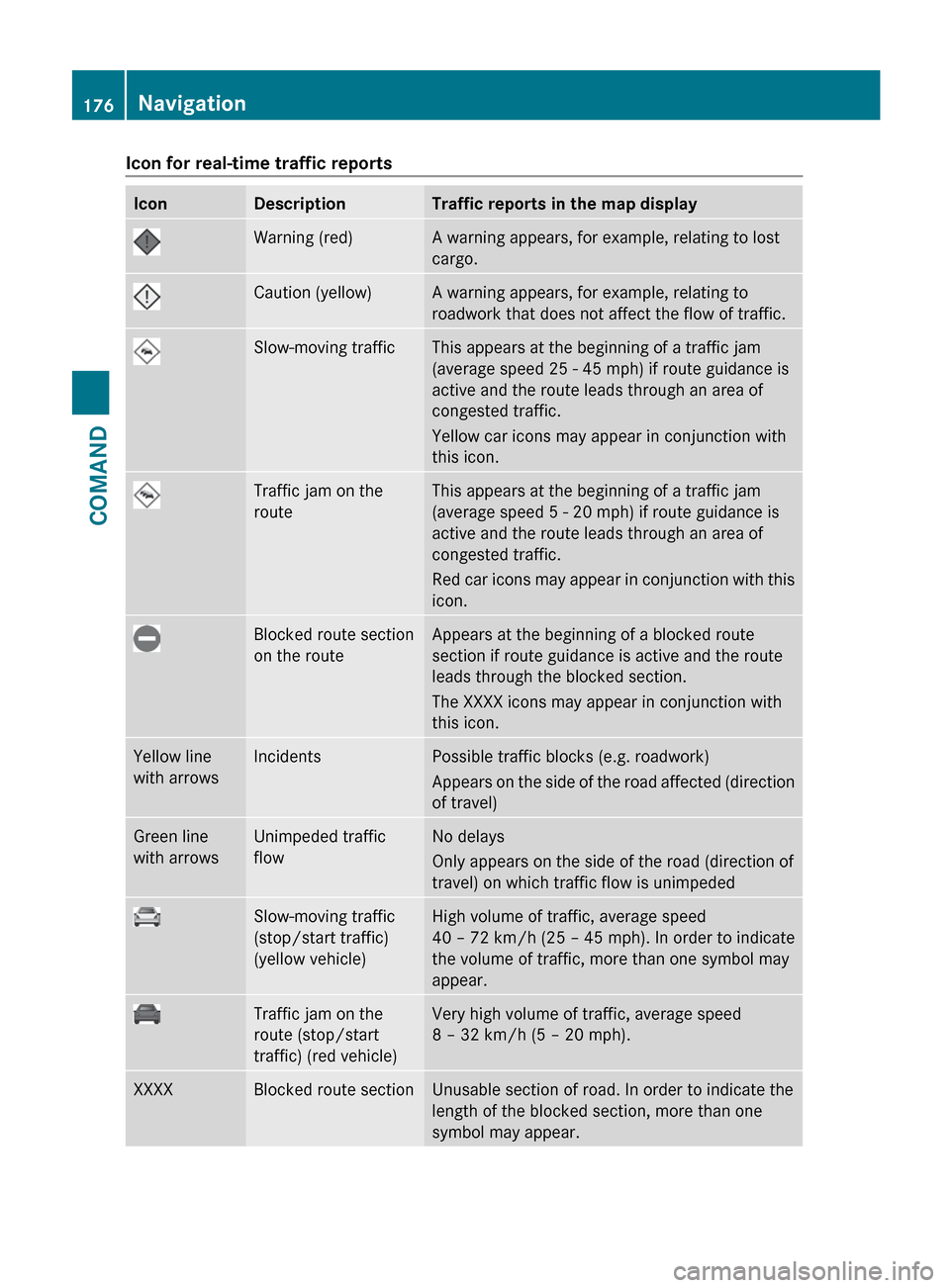
Icon for real-time traffic reportsIconDescriptionTraffic reports in the map displayWarning (red)A warning appears, for example, relating to lost
cargo.Caution (yellow)A warning appears, for example, relating to
roadwork that does not affect the flow of traffic.Slow-moving trafficThis appears at the beginning of a traffic jam
(average speed 25 - 45 mph) if route guidance is
active and the route leads through an area of
congested traffic.
Yellow car icons may appear in conjunction with
this icon.Traffic jam on the
routeThis appears at the beginning of a traffic jam
(average speed 5 - 20 mph) if route guidance is
active and the route leads through an area of
congested traffic.
Red car icons may appear in conjunction with this
icon.Blocked route section
on the routeAppears at the beginning of a blocked route
section if route guidance is active and the route
leads through the blocked section.
The XXXX icons may appear in conjunction with
this icon.Yellow line
with arrowsIncidentsPossible traffic blocks (e.g. roadwork)
Appears on the side of the road affected (direction
of travel)Green line
with arrowsUnimpeded traffic
flowNo delays
Only appears on the side of the road (direction of
travel) on which traffic flow is unimpededSlow-moving traffic
(stop/start traffic)
(yellow vehicle)High volume of traffic, average speed
40 – 72 km/h (25 – 45 mph). In order to indicate
the volume of traffic, more than one symbol may
appear.Traffic jam on the
route (stop/start
traffic) (red vehicle)Very high volume of traffic, average speed
8 – 32 km/h (5 – 20 mph).XXXXBlocked route sectionUnusable section of road. In order to indicate the
length of the blocked section, more than one
symbol may appear.176NavigationCOMAND
Page 196 of 536
Call disconnection while the vehicle is
in motion
A call may be disconnected if:
R there is insufficient network coverage in
certain areas.
R you move from one transmitter/receiver
area (cell) into another and no channels are
free.
R you use a SIM card which is not compatible
with the network available.
R you are using a mobile phone with
"Twincard" and the mobile phone with the
second SIM card is already logged into the
network.
Operating options
You can operate the telephone by:
R using the COMAND controller:
turn cVd .
slide XVY or ZV Æ.
press W.
R the 6 or ~ button on the telephone
keypad on the center console
R the 6 or ~ button on the
multifunction steering wheel
R using the Voice Control System (see the
separate Voice Control System operating
instructions)
Unless otherwise indicated, the descriptions
and illustrations in this section refer to
COMAND and the telephone keypad. This
also means that to carry out the functions
described here, you must always be in the
Telephone menu. The fastest way to access
the Telephone menu is to press the S
function button.
Function restrictions
You will not be able to use the telephone, will
no longer be able to use the telephone, or you
may have to wait before using it, in the
following situations:
R when the mobile phone is switched off
R when the "Bluetooth ®
" function is switched
off in COMAND
R when the "Bluetooth ®
" function is switched
off on the mobile phone
R if the mobile phone is not logged into a
mobile phone network
i The telephone automatically tries to log
on to a network. If no network is available,
you will not be able to make a " 911"
emergency call. If you attempt to make an
outgoing call, the NO SERVICE message will
appear for a short while.
R if you remove the SmartKey from the
ignition lock during an active conversation
in hands-free mode, the conversation may
be continued for up to 30 minutes. After
that time, it will be interrupted.
You can prevent this interruption by switching
to "private call" ("private mode") on the
mobile phone before deactivating COMAND
(see mobile phone operating instructions).
If you wish to switch off COMAND during an
active conversation in hands-free mode, the
following message will appear: You cannot
shut off COMAND until you have
finished your telephone call
911 emergency call
GWARNING
The 911 emergency call system is a public
service. Using it without due cause is a
criminal offense.
The following requirements must be fulfilled
for a 911 emergency call:
R the mobile phone must be switched on.
R a network must be available.
194TelephoneCOMAND
Page 219 of 536
Satellite radio mode may be temporarily
unavailable or interrupted for a variety of
reasons. These reasons include
environmental or topographical conditions
as well as other issues beyond the control
of Mercedes-Benz USA, LLC. Operation
may also be impaired in certain locations
(e.g. tunnels, multi-storey car parks or
within as well as close to buildings).
i SIRIUS XM Radio offers more than 130
digital-quality radio channels providing
100% commercial-free music, sport, news
and entertainment.
SIRIUS XM Radio employs a fleet of high-
performance satellites to broadcast around
the clock throughout the USA and Canada.
The satellite radio program is available for
a monthly fee. Details are available from
the SIRIUS XM Service Center and at
http://www.sirius.com (USA) or
http://www.siriuscanada.com
(Canada).
Registering satellite radioXSelect Audio in the main function bar by
sliding ZV and turning cVd the COMAND
controller and press W to confirm.XSelect Sat. Radio and press W to
confirm.
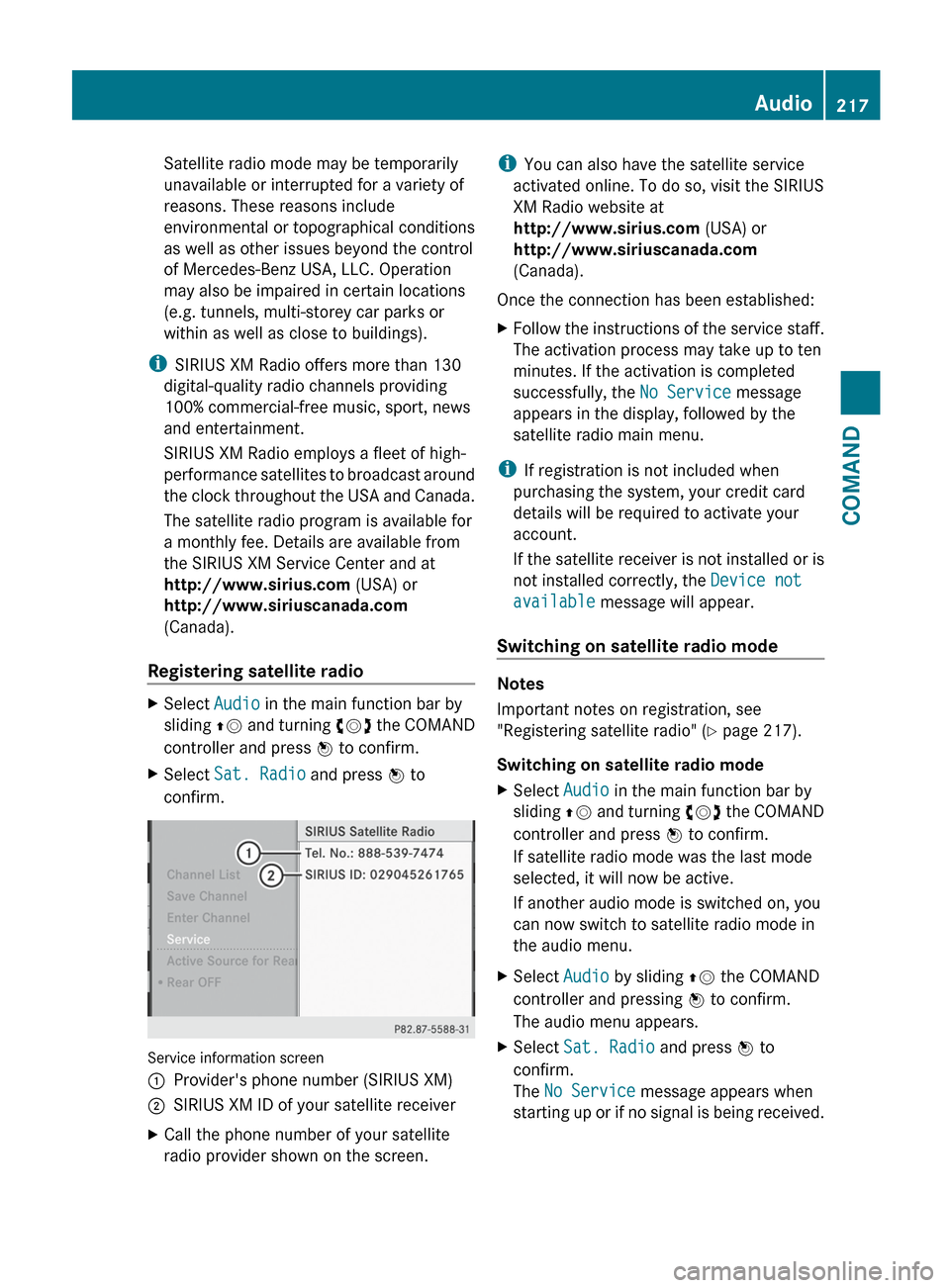
Service information screen
1Provider's phone number (SIRIUS XM)2SIRIUS XM ID of your satellite receiverXCall the phone number of your satellite
radio provider shown on the screen.i You can also have the satellite service
activated online. To do so, visit the SIRIUS
XM Radio website at
http://www.sirius.com (USA) or
http://www.siriuscanada.com
(Canada).
Once the connection has been established:XFollow the instructions of the service staff.
The activation process may take up to ten
minutes. If the activation is completed
successfully, the No Service message
appears in the display, followed by the
satellite radio main menu.
i If registration is not included when
purchasing the system, your credit card
details will be required to activate your
account.
If the satellite receiver is not installed or is
not installed correctly, the Device not
available message will appear.
Switching on satellite radio mode
Notes
Important notes on registration, see
"Registering satellite radio" ( Y page 217).
Switching on satellite radio mode
XSelect Audio in the main function bar by
sliding ZV and turning cVd the COMAND
controller and press W to confirm.
If satellite radio mode was the last mode
selected, it will now be active.
If another audio mode is switched on, you
can now switch to satellite radio mode in
the audio menu.XSelect Audio by sliding ZV the COMAND
controller and pressing W to confirm.
The audio menu appears.XSelect Sat. Radio and press W to
confirm.
The No Service message appears when
starting up or if no signal is being received.Audio217COMANDZ
Page 243 of 536
! Do not affix stickers or labels to the discs,
as they could peel off and damage
COMAND. Stickers can cause the disc to
bend, which can result in read errors and
disc recognition problems.
! COMAND is designed to accommodate
discs which comply with the EN 60908
standard. You can therefore only use discs
with a maximum thickness of 1.3 mm.
If you insert thicker discs, e.g. those that
contain data on both sides (DVD on one
side and audio data on the other), they
cannot be ejected and can damage
COMAND.
Use round discs with a diameter of 12 cm.
Do not use discs with a diameter of 8 cm,
even with an adapter.
DVD playback conditions
If video DVDs do not conform to the NTSC or
PAL TV standards, they may create picture,
sound or other problems during playback.
COMAND can play back video DVDs
produced according to the following
standards:
R region code 1 or region code 0 (no region
code)
i If you insert a video DVD with a different
region code, you will see a message to this
effect.
R PAL or NTSC standard
You will generally find the relevant details
either on the DVD itself or on the DVD case.
i COMAND is set to region code 1 at the
factory. This setting can be changed at an
authorized Mercedes-Benz Center. This will
allow you to play video DVDs with a
different region code, provided that they
are produced in accordance with the PAL
or NTSC standard. The region code can be
changed up to five times.
Function restrictions
Depending on the DVD, it is possible that
certain functions or actions will be
temporarily blocked or may not function at all.
As soon as you try to activate these functions
or actions, you will see the K symbol in the
display.
Inserting and removing DVDs
XProceed as described in the "Inserting and
ejecting CDs and DVDs" section
( Y page 220).
Activating video DVD mode
Option 1
XInsert a video DVD.
COMAND loads the medium inserted and
starts to play it.
Option 2
XSelect Video in the main function bar by
sliding ZV and turning cVd the COMAND
controller and press W to confirm.
Video DVD mode is switched on.
Hiding/showing the navigation menu
XTo show: turn cVd or slide ZVÆ the
COMAND controller.
i This function is not available while the
DVD's own menu ( Y page 244) is being
displayed.
XTo hide: slide ZVÆ the COMAND
controller.
or
XWait for approximately eight seconds.Video241COMANDZ