esp MERCEDES-BENZ S-Class 2013 W221 Repair Manual
[x] Cancel search | Manufacturer: MERCEDES-BENZ, Model Year: 2013, Model line: S-Class, Model: MERCEDES-BENZ S-Class 2013 W221Pages: 542, PDF Size: 7.97 MB
Page 213 of 542
0002
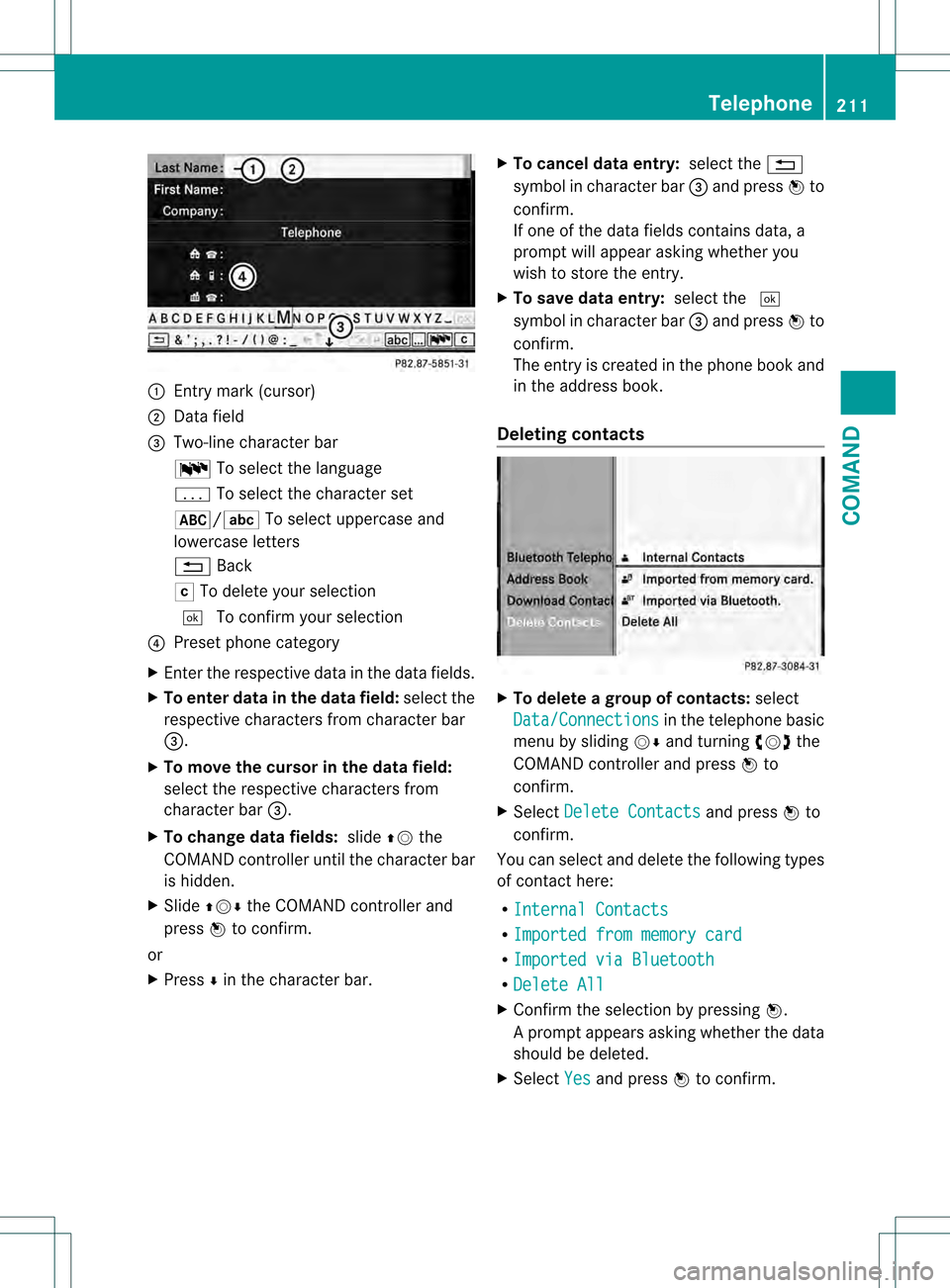
Entry mark (cursor)
0003 Data field
0026 Two-line character bar
001D To select the language
0001 To select the character set
002D/0003 To select uppercase and
lowercase letters
0001 Back
0004 To delete your selection
0003 To confirm your selection
0025 Prese tphone category
X Enter the respective data in the data fields.
X To enter data in the data field: select the
respective characters from character bar
0026.
X To move the cursor in the data field:
select the respective characters from
character bar 0026.
X To change data fields: slide002A001Cthe
COMAND controller until the character bar
is hidden.
X Slide 002A001C0006 the COMAND controller and
press 0021to confirm.
or
X Press 0006in the character bar. X
To cancel data entry: select the0001
symbol in character bar 0026and press 0021to
confirm.
If one of the data fields contains data, a
prompt will appeara sking whether you
wish to store the entry.
X To save data entry: select the0003
symbol in character bar 0026and press 0021to
confirm.
The entry is created in the phone book and
in the address book.
Deleting contacts X
To delete a group of contacts: select
Data/Connections in the telephone basic
menu by sliding 001C0006and turning 0031001C0032the
COMAND controller and press 0021to
confirm.
X Select Delete Contacts and press
0021to
confirm.
You can select and delete the following types
of contact here:
R Internal Contacts R
Imported from memory card R
Imported via Bluetooth R
Delete All X
Confirm the selection by pressing 0021.
Ap rompt appears asking whethe rthe data
should be deleted.
X Select Yes and press
0021to confirm. Telephone
211COMAND Z
Page 215 of 542
X
Select Navigate and press
0021to confirm.
X Select Start and press
0021to confirm.
Voice tags i
Voice tags are entered via the Voice
Control System; see the separate operating
instructions for the Voice Control System.
Adding or changing avoice tag
i You can add one voice tag per address
book entry.
X Search for an address book entry with or
without a voice tag ( ¦symbol).
X Select Options by sliding
001C003Dand turning
0031001C0032 the COMAND controller and press
0021 to confirm.
X Select Voice Name and press
0021to
confirm.
X Select Add or
Change and press
0021to
confirm.
Subsequen toperation is voice-controlled.
The Voice Control System guides you
through the menus.
Deleting avoice tag
X Search for an address book entry with a
voice tag.
X Select Options by sliding
001C003Dand turning
0031001C0032 the COMAND controller and press
0021 to confirm.
X Select Voice Name and press
0021to
confirm.
X Select Delete and press
0021to confirm.
Ad eletion prompt appears.
Listening to avoice tag
X Search for an address book entry with a
voice tag.
X Select Options by sliding
001C003Dand turning
0031001C0032 the COMAND controller and press
0021 to confirm. X
Select Voice Name and press
0021to
confirm.
X Select Listen and press
0021to confirm.
You will hear the voice tag. Using call lists
Introduction COMAND displays lists of calls received
(including missed calls) and made during
phone operation.
The respective menu ite
mcan only be
selected if:
R calls have already been made or received
in COMAND.
R the call lists have been imported from the
telephone.
Opening the call list and selecting an
entry X
To call up the telephone menu: press the
0011 function button.
X Select Call Lists in the telephone basic
menu by sliding 001C0006and turning 0031001C0032the
COMAND controller and press 0021to
confirm.
Am enu appears.
X Select Calls Received or
Calls Dialed and press
0021to confirm.
The corresponding list appears.
i The list of calls made can also be opened
by pressing the SEND button in the menu
or on the telephone keyboard. This is
possible as long as no phone numbers have
been entered in the basic menu. The list of
calls made can also be opened in the on-
board computer. Telephone
213COMAND Z
Page 219 of 542
X
Directly in the station presets: select
Presets by sliding
001C0006and turning 0031001C0032
the COMAND controller and press 0021to
confirm.
or
X Press 0021the COMAND controller when the
display/selection window is active.
The station preset memory appears .The
002C dot indicates under which preset the
currently selected station is stored.
X Select a station by turning 0031001C0032and
pressing 0021to confirm or press a number
key, e.g. 0034.
Using the multifunction steering wheel
X Press 0009or000C to select the Audio menu.
X Press 000Aor000B briefly.
Selecting stations by entering the
frequency manually
X Option 1: press the001Bbutton.
X Option 2: selectRadio in the radio display
by sliding 001C0006and turning 0031001C0032the
COMAND controller and press 0021to
confirm.
X Select Enter Frequency and press
0021to
confirm.
Irrespective of the option chosen, an input
menu will appear.
X Enter a frequency using the number keys.
COMAND tunes in to the frequency
entered. Waveband Frequency
AM (MF) 530 – 1700 kHz
FM (VHF) 87.7 – 107.9 MHz
WB (Weather Band) Weather report
channels
i
You can only enter currently permitted
numbers. i
If you enter a frequency in the FM or AM
wavebands which is outside the frequency
range, COMAND tunes in to the next lower
frequency.
Storing stations Storing stations manually
There are twenty presets available for the FM
and AM wavebands.
X
Quick save: press and hold a number key,
e.g. 0034, until you hear a tone.
The station is stored.
X Directly in the station presets: press0021
the COMAND controller when the display/
selection window is active.
or
X Select Presets by sliding
001C0006and turning
0031001C0032 the COMAND controller and press
0021 to confirm.
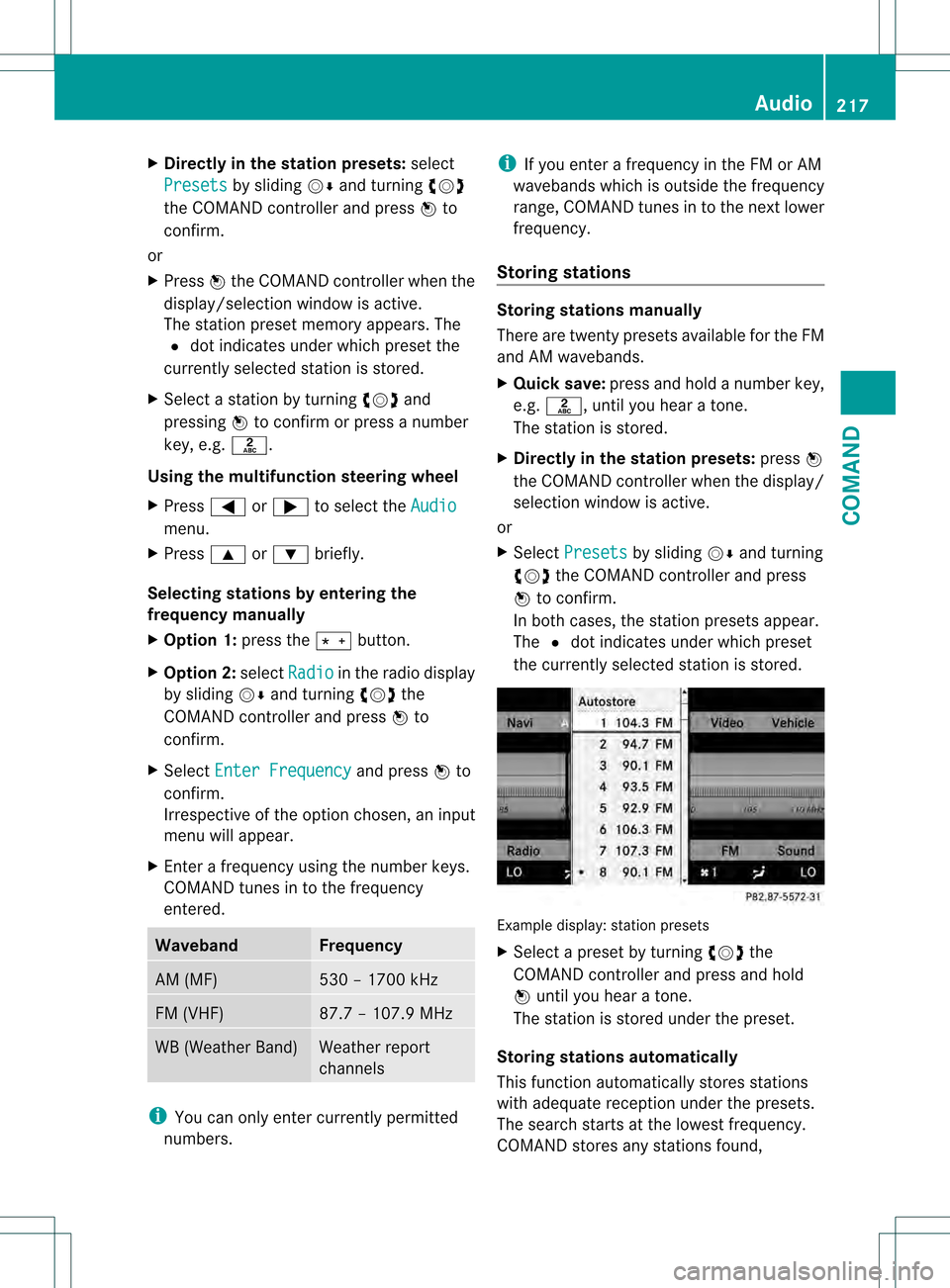
In both cases, the station presets appear.
The 002Cdot indicates under which preset
the currently selected station is stored. Example display:s
tation presets
X Select a preset by turning 0031001C0032the
COMAND controller and press and hold
0021 until you hear a tone.
The statio nis stored under the preset.
Storing stations automatically
This function automatically stores stations
with adequate reception under the presets.
The search starts at the lowest frequency.
COMAND stores any stations found, Audio
217COMAND Z
Page 220 of 542
beginning with preset 1. The storing process
ends once the highest frequency has been
reached or once ten stations have been
found. Any stations stored manually under
the presets will be lost. COMAND may not
occupy all memory slots when storing.
X
Option 1: press0021the COMAND controller
when the display/selection window is
active.
The station preset memory appears.
X Option 2: selectPresets by sliding
001C0006
and turning 0031001C0032the COMAND controller
and press 0021to confirm.
The station preset memory appears.
X Irrespective of the option, select
Autostore and press
0021to confirm.
In both cases, COMAND searches for
stations that can be received. You will see
a message to this effect. The available
stations are automatically stored in the
preset positions.
X To cancel storing: selectCancel and
press 0021to confirm.
Weather Band Switching on
X
Select the currently set waveband FM or
AM by sliding
001C0006and turning 0031001C0032the
COMAND controller and press 0021to
confirm.
X Select WB from the menu and press
0021to
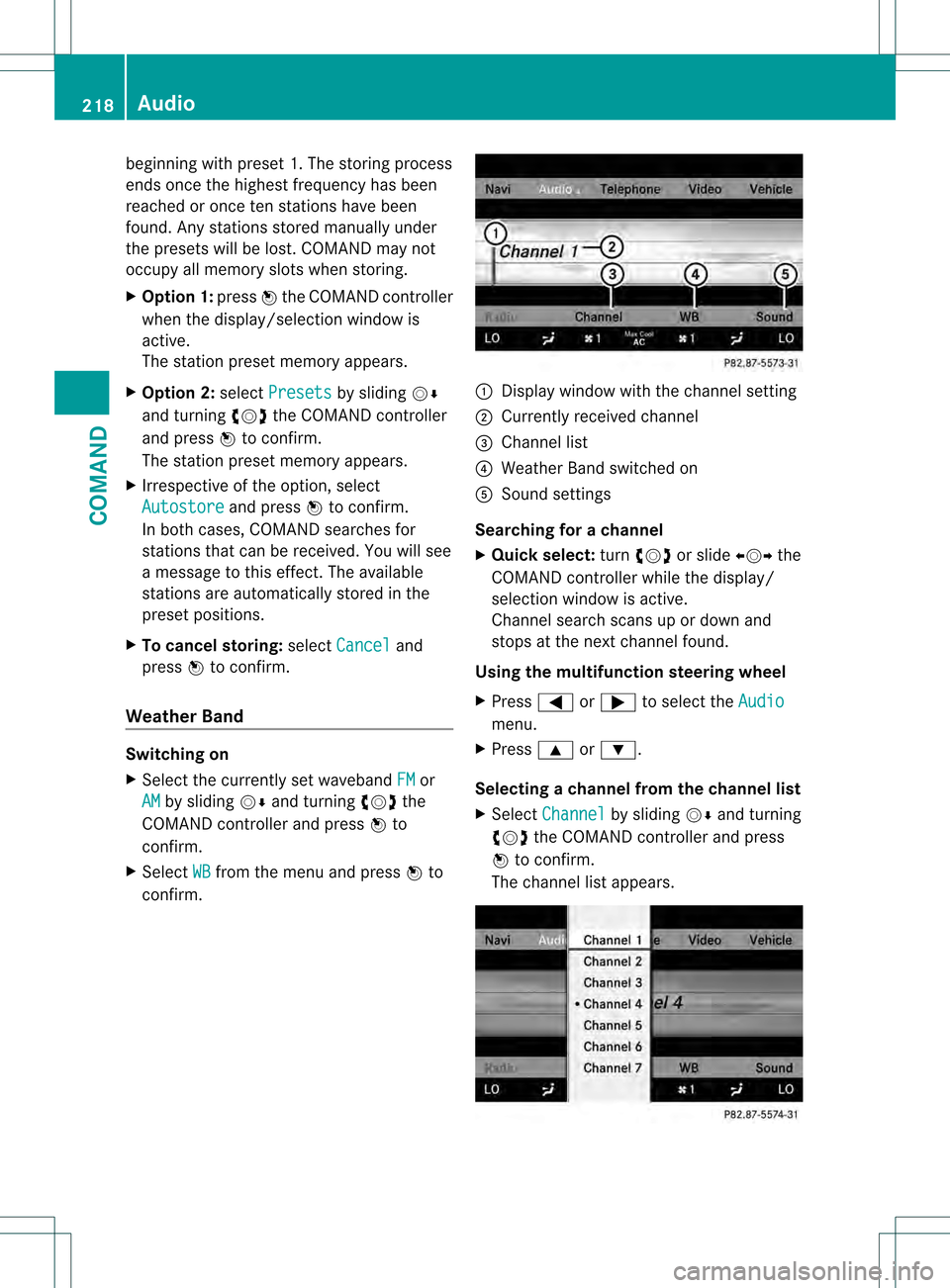
confirm. 0002
Display window with the channel setting
0003 Currently received channel
0026 Channel list
0025 Weather Band switched on
0023 Sound settings
Searching for achannel
X Quic kselect: turn0031001C0032 or slide 003C001C003Dthe
COMAND controller while th edisplay/
selection window is active.
Channel search scans up or down and
stops at the next channel found.
Using the multifunction steering wheel
X Press 0009or000C to selec tthe Audio menu.
X Press 000Aor000B.
Selecting achannel from the channel list
X Select Channel by sliding
001C0006and turning
0031001C0032 the COMAND controller and press
0021 to confirm.
The channel lis tappears. 218
AudioCOMAND
Page 221 of 542
X
Select a channel by turning 0031001C0032the
COMAND controlle rand press 0021to
confirm.
or
X Press a numbe rkey on the telephone
keypad, e.g. 4, at any time.
Displaying station information This function is only available for analog FM
and digital AM/FM programs (HD Radio).
Information relevant to the current station is
shown below the main function bar.
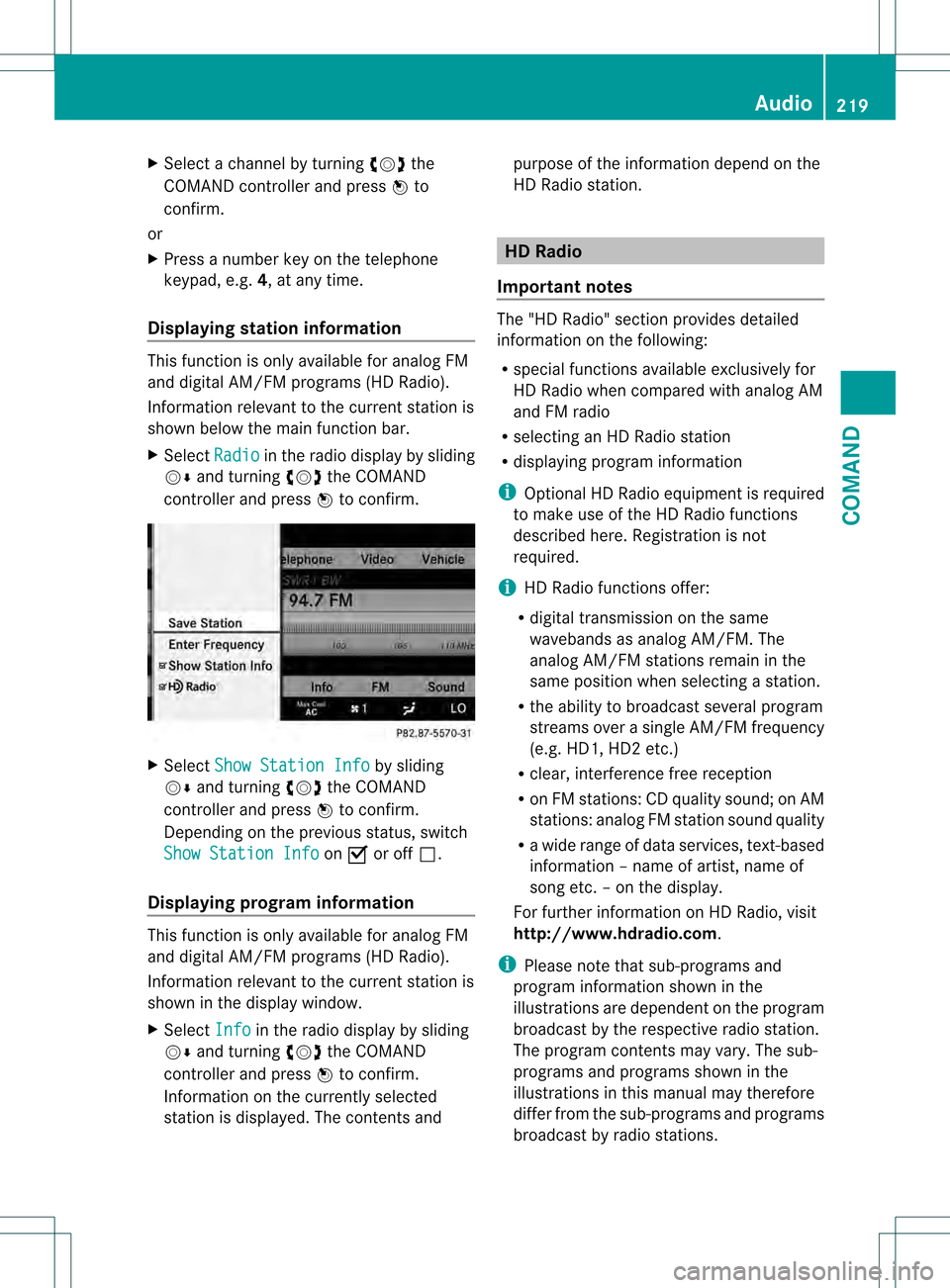
X Select Radio in the radio display by sliding
001C0006 and turning 0031001C0032the COMAND
controller and press 0021to confirm. X
Select Show Station Info by sliding
001C0006 and turning 0031001C0032the COMAND
controller and press 0021to confirm.
Depending on the previous status, switch
Show Station Info on
000A or off 0002.
Displaying program information This function is only available for analog FM
and digital AM/FM programs (HD Radio).
Information relevant to the current station is
shown in the display window.
X Select Info in the radio display by sliding
001C0006 and turning 0031001C0032the COMAND
controller and press 0021to confirm.
Information on the currently selected
station is displayed. The contents and purpose of the information depend on the
HD Radio station. HD Radio
Important notes The "HD Radio" section provides detailed
information on the following:
R
special functions available exclusively for
HD Radio when compared with analog AM
and FM radio
R selecting an HD Radio station
R displaying program information
i Optional HD Radio equipment is required
to make use of the HD Radio functions
described here. Registration is not
required.
i HD Radio functions offer:
R digital transmission on the same
wavebands as analog AM/FM. The
analog AM/FM stations remain in the
same position when selecting astation.
R the ability to broadcas tseveral program
streams over a single AM/FM frequency
(e.g. HD1, HD2 etc.)
R clear, interference free reception
R on FM stations: CD quality sound; on AM
stations: analog FM station sound quality
R a wide range of data services, text-based
information – name of artist, name of
song etc.–ont he display.
For further information on HD Radio, visit
http://www.hdradio.com .
i Please note that sub-programs and
program information shown in the
illustrations are dependent on the program
broadcast by the respective radio station.
The program contents may vary. The sub-
programs and programs shown in the
illustrations in this manual may therefore
differ from the sub-programs and programs
broadcast by radio stations. Audio
219COMAND Z
Page 225 of 542
Selecting
acategory
X To call up the category list: select
Category by turning
0031001C0032the COMAND
controller and press 0021to confirm.
The category lis tappears.
X To select acategory: select a category by
turning 0031001C0032the COMAND controller and
pressing 0021to confirm.
The category selected is show ninthe
display. You hear the station last selected
for this category.
The All Channels category is at the top
of the category list. This category is sorted
by channel number and allows you to
browse all available channels.
Selecting achannel
Channel search
X Turn 0031001C0032 or slide 003C001C003Dthe COMAND
controlle rwhile the display/selection
window in the SatRadio displayi s active.
COMAND searches in both directions
(ascending and descending) and stops at
the next channel found in the selected
category.
Using the multifunction steering wheel
X Press 0009or000C to select the Audio menu.
X Press and hold 000Aor000B.
SatRadio menu
X Select Sat. Radio in the submenu bar by
turning 0031001C0032the COMAND controller and
press 0021to confirm.
The SatRadio menu appears.
Entering channel numbers directly
Option 1
X Press the 001Bbutton.
An input menu appears. Option 2
X
Select Sat. Radio in the submenu bar by
turning 0031001C0032the COMAND controller and
press 0021to confirm.
X Select Enter Channel and press
0021to
confirm.
An input menu appears.
X To enter achannel: irrespective of the
option, press the corresponding number
keys on the control panel one after the
other.
COMAND sets the selected channel.
i You can only select currently permitted
digits.
Selecting a channel from the SatRadio
channel list
X Select Sat. Radio in the submenu bar by
turning 0031001C0032the COMAND controller and
press 0021to confirm.
X Select Channel List and press
0021to
confirm.
The channel lis tappears.
X Select a channel by turning 0031001C0032the
COMAND controller and press 0021to
confirm.
Memory functions
Storing channels
i There are ten presets available.
X Press 0021the COMAND controller when the
display/selection window is active.
or
X Select Presets in the submenu bar by
turning 0031001C0032the COMAND controller and
press 0021to confirm.
In both cases, the channel presets appear.
The Rdot in front of a preset position
indicates that the currently selected
channel is stored there. Audio
223COMAND Z
Page 227 of 542
Audio CD/DVD and MP3 mode
Important safety notes G
WARNING
COMAND is classified as a Class 1laser
product .You must not open the casing. If you
open the casing, or if the casing is faulty or
damaged, there is a risk of exposure to
invisible laser radiation. This may damage
your eyes, or those of others.
COMAND does not contain any parts that can
be serviced by the user. For safety reasons,
all maintenance work must be carried out by
qualified aftersales technicians. G
WARNING
Only when the vehicle is stationary should
you:
R load a disc
R eject a disc
There is a risk of being distracted from the
road and traffic conditions if this is done while
the vehicle is in motion.
Inserting/ejecting CDs/DVDs DVD changer
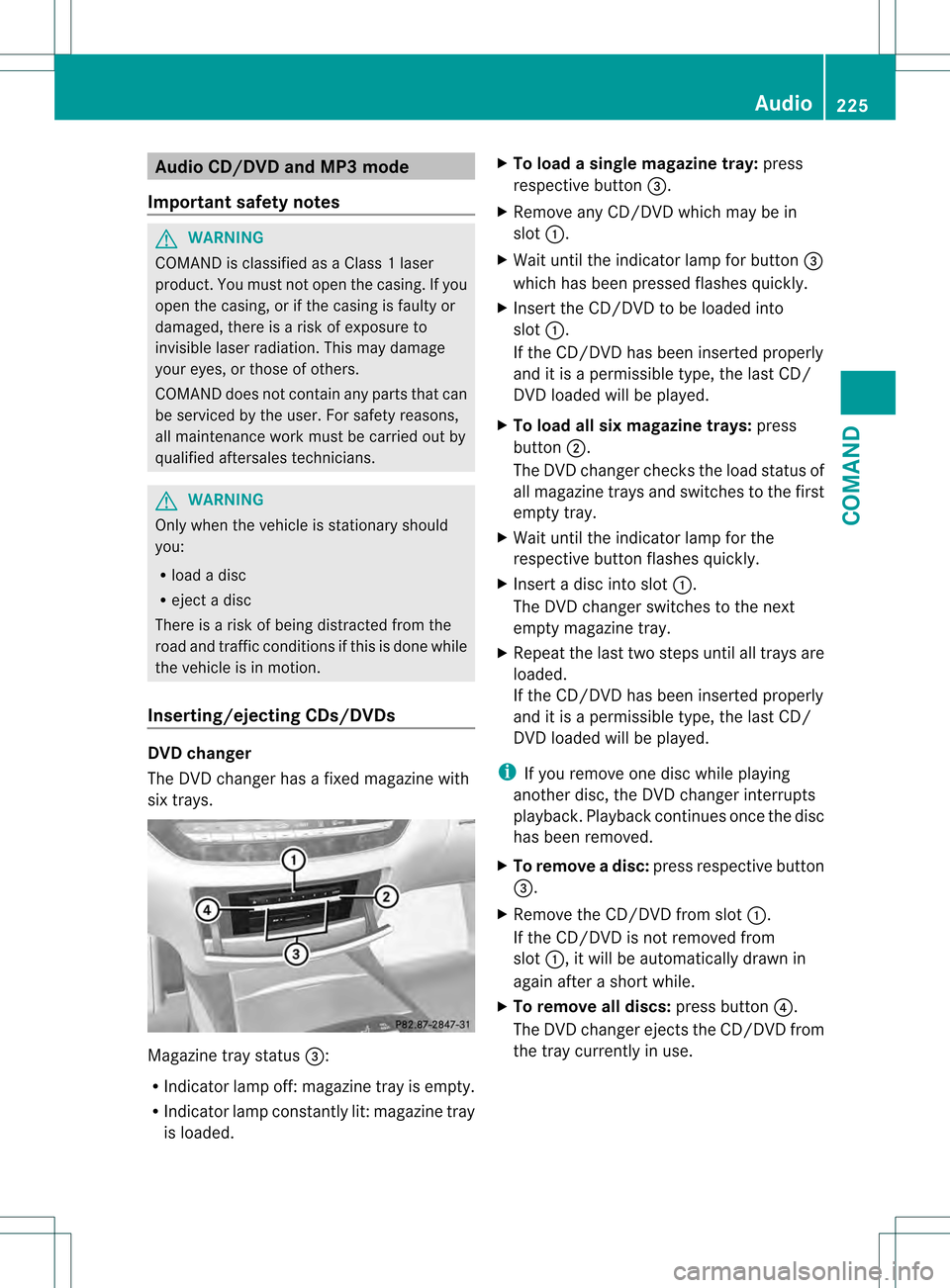
The DVD changer has a fixed magazine with
six trays. Magazine tray status
0026:
R Indicator lamp off: magazine tray is empty.
R Indicator lamp constantly lit: magazine tray
is loaded. X
To load a single magazine tray: press
respective button 0026.
X Remove any CD/DVD which may be in
slot 0002.
X Wait until the indicator lamp for button 0026
which has been pressed flashes quickly.
X Insert the CD/DVD to be loaded into
slot 0002.
If the CD/DVD has been inserted properly
and it is a permissible type, the last CD/
DVD loaded will be played.
X To load all six magazine trays: press
button 0003.
The DVD changer checks the load status of
all magazine trays and switches to the first
empty tray.
X Wait until the indicator lamp for the
respective button flashes quickly.
X Insert a disc into slot 0002.
The DVD changer switches to the next
empty magazine tray.
X Repeat the last two steps until all trays are
loaded.
If the CD/DVD has been inserted properly
and it is a permissible type, the last CD/
DVD loaded will be played.
i If you remove one disc while playing
another disc, the DVD changer interrupts
playback. Playback continues once the disc
has been removed.
X To remove adisc: press respective button
0026.
X Remove the CD/DVD from slot 0002.
If the CD/DVD is not removed from
slot 0002, it will be automatically drawn in
again afte rashort while.
X To remove all discs: press button0025.
The DVD changer ejects the CD/DVD from
the tray currently in use. Audio
225COMAND Z
Page 231 of 542
MUSIC REGISTER, position 3
Media Interface, position 4
USB, position 5
X
Select the data medium by turning 0031001C0032
the COMAND controller and press 0021to
confirm.
i If you select a video DVD, the system
switches to video DVD mode
(Y page 245).
Selecting atrac kusing the number
keypad
X Press a number button, e.g. 0035, when the
display/selection window is active.
The medium at the corresponding position
in the media list is loaded and then played.
Selects atrack Selecting by skipping to
atrack
X To skip forwards or back to a track: slide
003C001C003D or turn 0031001C0032the COMAND controller
when the display/selectio nwindow is
active.
The skip forward function skips to the next
track.
Skipping backwards restarts the current
track (if it has been playing for more than
8s econds) or starts the previous trac k(if
the current track has only been playing for
a shorter time).
If you activate the Medium Mix or
Track List Mix playback option (MP3 mode
only), the track order is random.
X On the multifunction steering wheel:
switch COMAND to audio CD, audio DV Dor
MP3 mode (Y page 226).
X Press 0009or000C to select the Audio menu.
X Press the 000Aor000B button on the
multifunction steering wheel. Selecting by track list
X
In audio mode, select Search by sliding
001C0006 or turning 0031001C0032the COMAND
controller and press 0021to confirm.
X Select Current Track List .
or
X Press 0021the COMAND controller in audio
mode when the display/selection window
is active.
X Select Current Track List by turning
0031001C0032 the COMAND controller and press
0021 to confirm.
X Select the track by turning 0031001C0032and press
0021 to confirm.
i In MP3 mode, the list shows all the tracks
in alphabetical order.
X On the multifunction steering wheel:
switch COMAND to audio CD, audio DVD or
MP3 mode (Y page 226).
X Press 0009or000C to select the Audio menu.
X Press and hold the 000Aor000B button
until the desired track has been reached.
If you hold down 000Aor000B, the system
runs through the list more quickly. Not all
audio drives or data carriers support this
function.
If track information is stored on the audio
drive or data storage device, the
multifunction display shows the number and
name of the track.
Selecting atrac kusing the number
keypad
X Press the 001Bbutton on the number
keypad.
An umerical entry field appears. The
number of positions offere dcorresponds to
the number of trackso n the CD/DVD. Only
numbers that correspond to a track
number on the CD/DVD can be entered.
X Enter the desired track number using the
numbe rkeys. Audio
229COMAND Z
Page 232 of 542
Fast forward/rewind
X
While the display/selection window is
active, slide 003C001C003Dand hold the COMAND
controller until the desired position has
been reached.
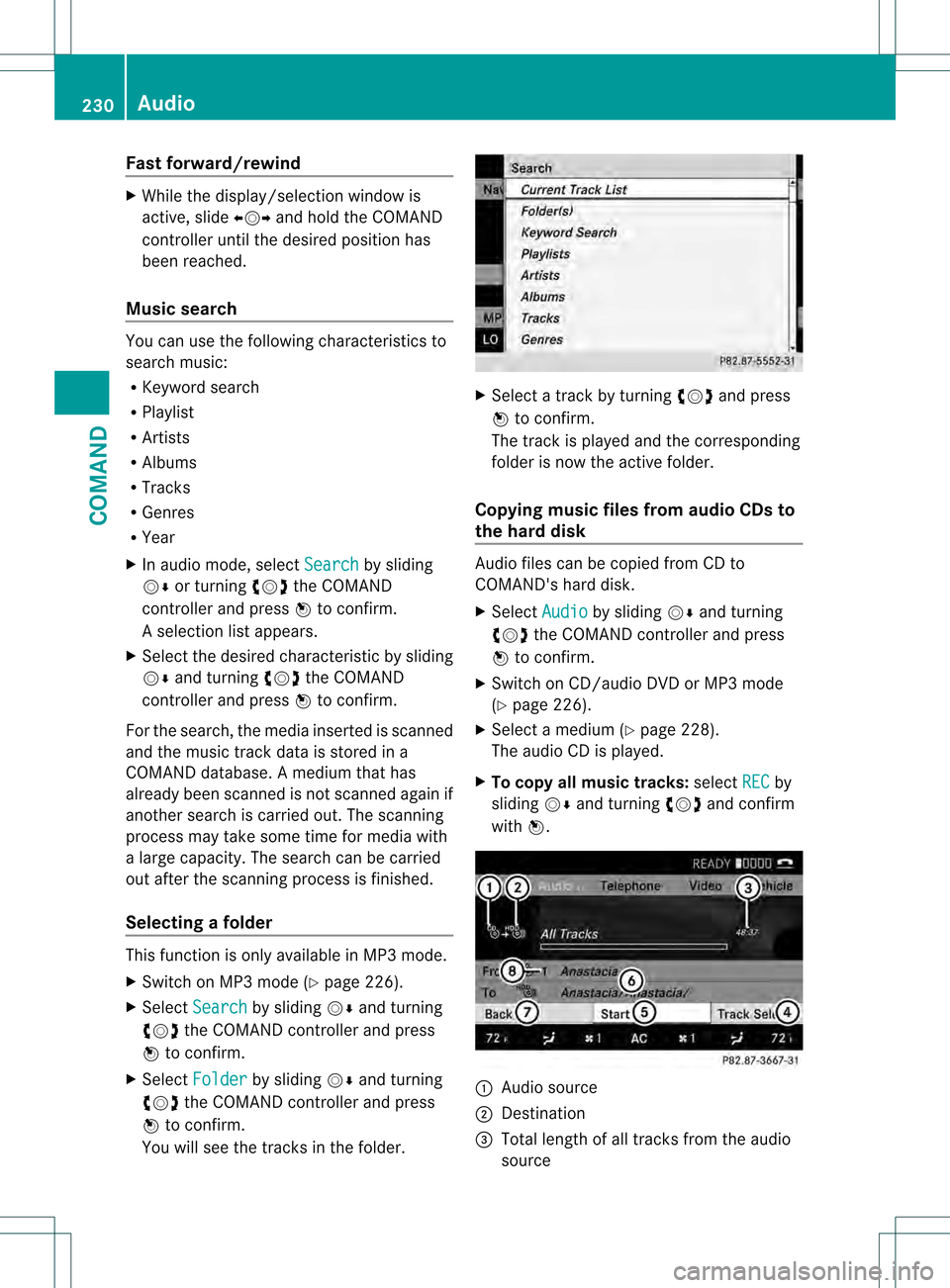
Music search You can use the following characteristics to
search music:
R
Keyword search
R Playlist
R Artists
R Albums
R Tracks
R Genres
R Year
X In audio mode, select Search by sliding
001C0006 or turning 0031001C0032the COMAND
controller and press 0021to confirm.
As election list appears.
X Select the desired characteristic by sliding
001C0006 and turning 0031001C0032the COMAND
controller and press 0021to confirm.
For the search, the media inserted is scanned
and the music track data is stored in a
COMAND database. Amedium that has
already been scanned is not scanned again if
another search is carried out. The scanning
process may take some time for media with
a large capacity. The search can be carried
out after the scanning process is finished.
Selecting afolder This function is only available in MP3 mode.
X
Switch on MP3 mode (Y page 226).
X Select Search by sliding
001C0006and turning
0031001C0032 the COMAND controller and press
0021 to confirm.
X Select Folder by sliding
001C0006and turning
0031001C0032 the COMAND controller and press
0021 to confirm.
You will see the tracks in the folder. X
Select a track by turning 0031001C0032and press
0021 to confirm.
The track is played and the corresponding
folder is now the active folder.
Copying music files from audio CDs to
the hard disk Audio files can be copied from CD to
COMAND's hard disk.
X
Select Audio by sliding
001C0006and turning
0031001C0032 the COMAND controller and press
0021 to confirm.
X Switch on CD/audio DVD or MP3 mode
(Y page 226).
X Select a medium (Y page 228).
The audio CD is played.
X To copy all music tracks: selectREC by
sliding 001C0006and turning 0031001C0032and confirm
with 0021. 0002
Audio source
0003 Destination
0026 Total length of all track sfrom the audio
source 230
AudioCOMAND
Page 233 of 542
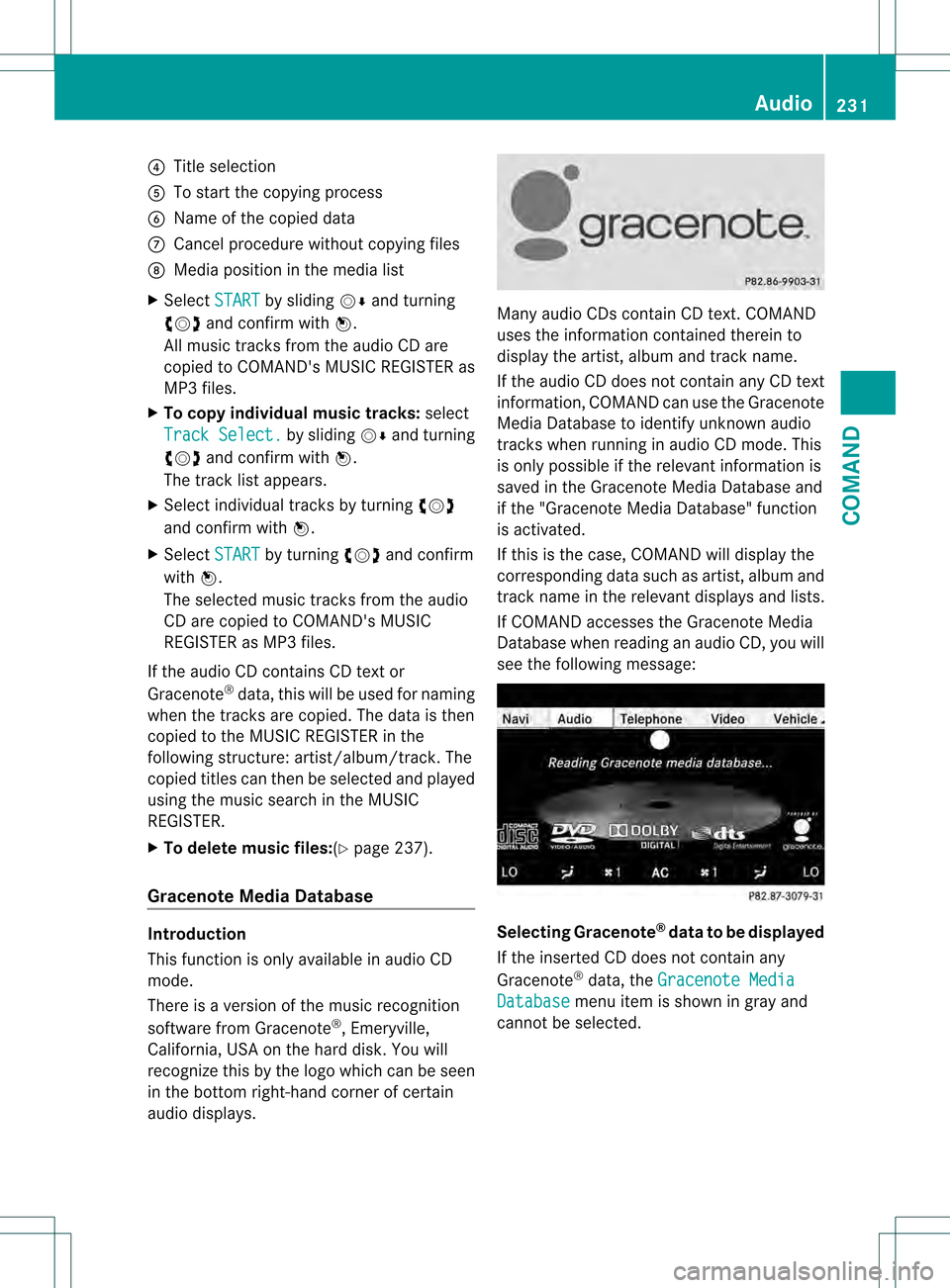
0025
Title selection
0023 To start the copying process
0024 Name of the copied data
0014 Cancel procedure without copying files
0015 Media position in the media list
X Select START by sliding
001C0006and turning
0031001C0032 and confirm with 0021.
All music tracks from the audio CD are
copied to COMAND's MUSIC REGISTER as
MP3 files.
X To copy individual music tracks: select
Track Select. by sliding
001C0006and turning
0031001C0032 and confirm with 0021.
The track list appears.
X Select individual tracks by turning 0031001C0032
and confirm with 0021.
X Select START by turning
0031001C0032and confirm
with 0021.
The selected music tracks from the audio
CD are copied to COMAND's MUSIC
REGISTER as MP3 files.
If the audio CD contains CD text or
Gracenote ®
data, this will be used for naming
when the tracks are copied. The data is then
copied to the MUSIC REGISTER in the
following structure: artist/album/track. The
copied titles can then be selected and played
using the music search in the MUSIC
REGISTER.
X To delete music files: (Ypage 237).
Gracenote Media Database Introduction
This function is only available in audio CD
mode.
There is a version of the music recognition
software from Gracenote ®
, Emeryville,
California, USA on the hard disk. You will
recognize this by the logo which can be seen
in the bottom right-hand corner of certain
audio displays. Many audio CDs contain CD text. COMAND
uses the information contained therein to
display the artist, album and track name.
If the audio CD does not contain any CD text
information, COMAND can use the Gracenote
Media Database to identify unknown audio
tracks when running in audio CD mode. This
is only possible if the relevant information is
saved in the Gracenote Media Database and
if the "Gracenote Media Database" function
is activated.
If this is the case, COMAND will display the
corresponding data such as artist, album and
track name in the relevant displays and lists.
If COMAND accesses the Gracenote Media
Database when reading an audio CD, you will
see the following message:
Selecting Gracenote
®
data to be displayed
If the inserted CD does not contain any
Gracenote ®
data, the Gracenote Media Database menu item is shown in gray and
cannot be selected. Audio
231COMAND Z