media MERCEDES-BENZ S-Class 2014 W222 Comand Manual
[x] Cancel search | Manufacturer: MERCEDES-BENZ, Model Year: 2014, Model line: S-Class, Model: MERCEDES-BENZ S-Class 2014 W222Pages: 278, PDF Size: 6.65 MB
Page 25 of 278
Controller
The controller is used to:
R
select menu items from the COMAND
display
R enter characters
R enter a destination on the map
R save entries
The controller can be:
R turned
R slid left or right 009500520096
R slid forwards or back 009700520064
R slid diagonally 009100520078
R pressed briefly or pressed and held Basic COMAND functions
Switching COMAND on/off
X Press the 008Bbutton on the center
console to the right of the controller.
When you switch on COMAND, a warning
message will appear. COMAND calls up the
previously selected menu.
If you switch off COMAND, playback of the
current media source will also be switched
off. Adjusting the volume
Adjusting the volume for media sources X
Turn the thumbwheel to the right of the
controller.
or
X Press the 0081or0082 button on the
multifunction steering wheel.
The volume of the media source currently
selected changes. Adjusting the volume for traffic
announcements and navigation
announcements During traffic or navigation announcements:
X
Turn the thumbwheel to the right of the
controller.
or
X Press the 0081or0082 button on the
multifunction steering wheel.
i You can set the volume for navigation
announcements to be different to the
volume of the respective media source.
Adjusting the volume for phone calls You can adjust the volume for hands-free
mode during a telephone call.
X
Turn the thumbwheel to the right of the
controller.
or
X Press the 0081or0082 button on the
multifunction steering wheel.
i Setting the volume for the Voice Control
System voice output, see the separate
operating instructions. Switching the sound on or off
Media source sound X
Press the thumbwheel beside the
controller.
or
X Press the 0063button on the multifunction
steering wheel.
i When the sound is switched off, you will
see the 006Bsymbol in the status bar. If you
change the media source or change the
volume, the sound is automatically
switched on.
i Even if the sound is switched off, you will
still hear navigation system
announcements. Basic COMAND functions
23At a glance
Page 26 of 278
Switching navigation announcements
off and on again
X
To switch off navigation
announcements: press the thumbwheel
beside the controller during the
announcement.
The Spoken Spoken driving
driving recommendations
recommendations
have been deactivated
have been deactivated message
appears.
X To switch navigation announcements
back on: switch COMAND off and then on
again (Y page 23).
or
X Start a new route calculation
(Y page 78).
or
X Select 006A: while route guidance is active,
show the menu and press the controller
(Y page 94). Calling up functions and their menus
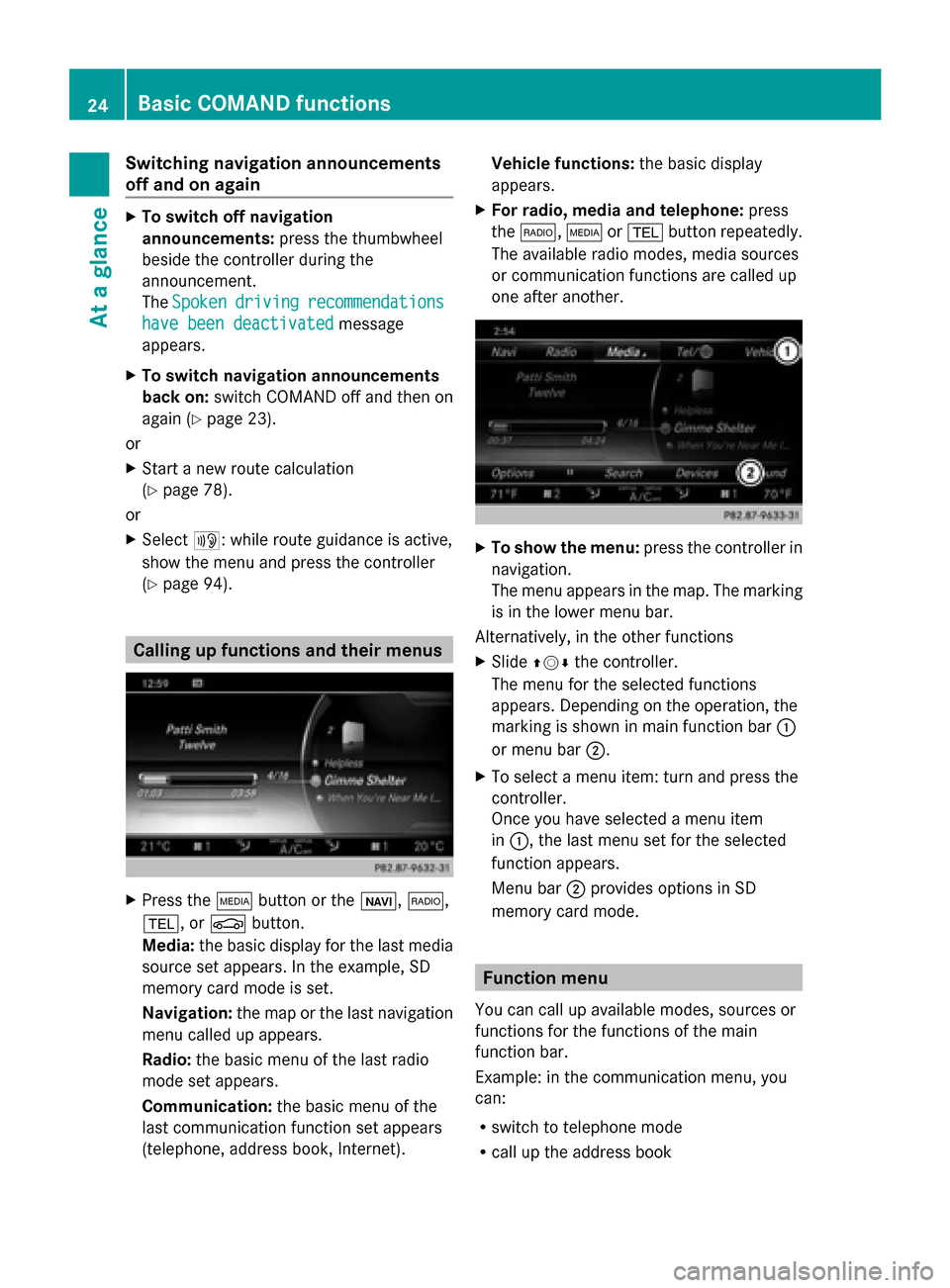
X
Press the 00FDbutton or the 00CB,002A,
002B, or 00D4button.
Media: the basic display for the last media
source set appears. In the example, SD
memory card mode is set.
Navigation: the map or the last navigation
menu called up appears.
Radio: the basic menu of the last radio
mode set appears.
Communication: the basic menu of the
last communication function set appears
(telephone, address book, Internet). Vehicle functions:
the basic display
appears.
X For radio, media and telephone: press
the 002A, 00FDor002B button repeatedly.
The available radio modes, media sources
or communication functions are called up
one after another. X
To show the menu: press the controller in
navigation.
The menu appears in the map. The marking
is in the lower menu bar.
Alternatively, in the other functions
X Slide 009700520064 the controller.
The menu for the selected functions
appears. Depending on the operation, the
marking is shown in main function bar 0043
or menu bar 0044.
X To select a menu item: turn and press the
controller.
Once you have selected a menu item
in 0043, the last menu set for the selected
function appears.
Menu bar 0044provides options in SD
memory card mode. Function menu
You can call up available modes, sources or
functions for the functions of the main
function bar.
Example: in the communication menu, you
can:
R switch to telephone mode
R call up the address book 24
Basic COMAND functionsAt a glance
Page 27 of 278
R
call up the Internet
R call up the digital operating instructions for
the telephone/00A7 X
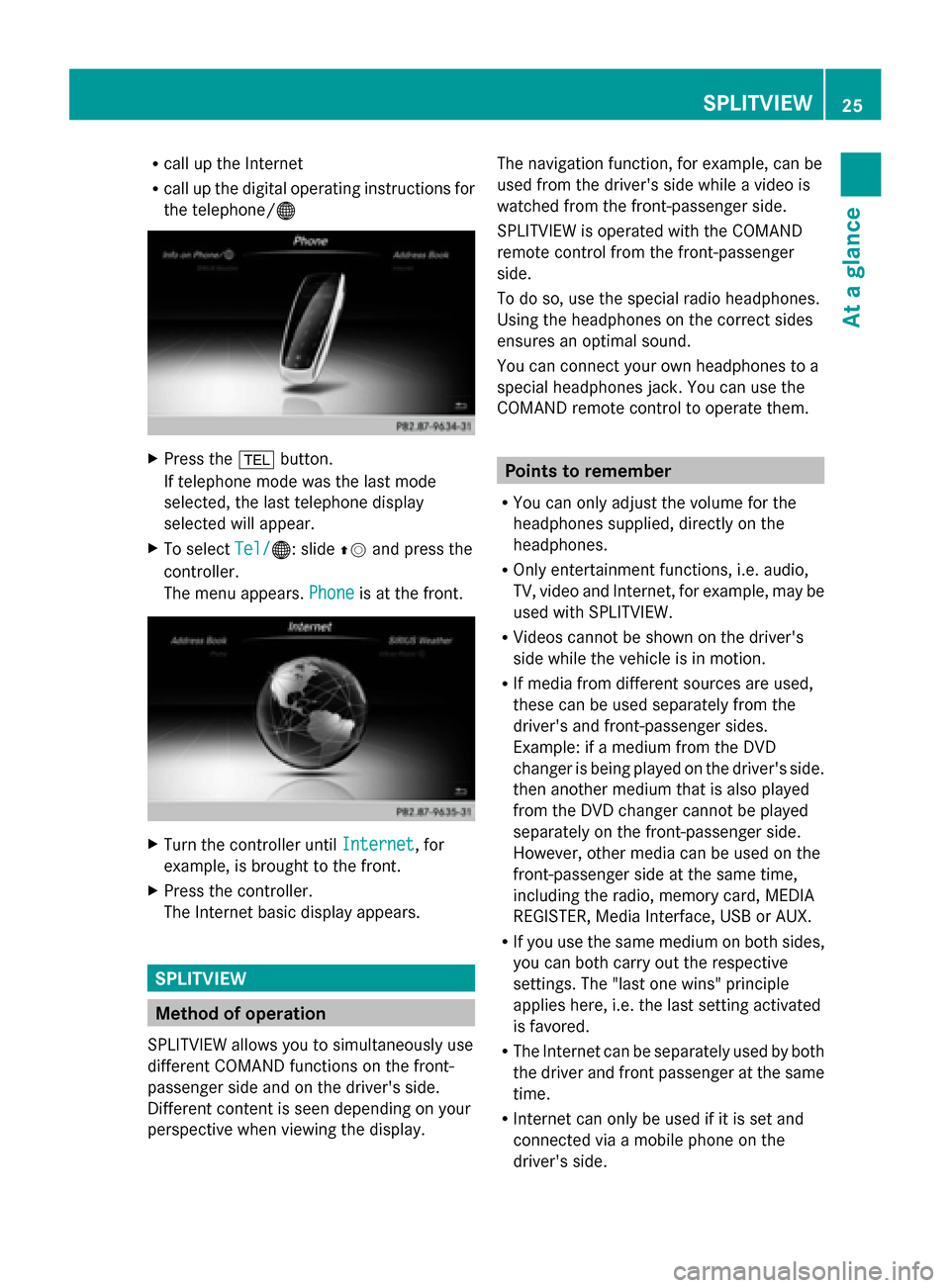
Press the 002Bbutton.
If telephone mode was the last mode
selected, the last telephone display
selected will appear.
X To select Tel/
Tel/ 00A7: slide 00970052and press the
controller.
The menu appears. Phone Phoneis at the front. X
Turn the controller until Internet
Internet, for
example, is brought to the front.
X Press the controller.
The Internet basic display appears. SPLITVIEW
Method of operation
SPLITVIEW allows you to simultaneously use
different COMAND functions on the front-
passenger side and on the driver's side.
Different content is seen depending on your
perspective when viewing the display. The navigation function, for example, can be
used from the driver's side while a video is
watched from the front-passenger side.
SPLITVIEW is operated with the COMAND
remote control from the front-passenger
side.
To do so, use the special radio headphones.
Using the headphones on the correct sides
ensures an optimal sound.
You can connect your own headphones to a
special headphones jack. You can use the
COMAND remote control to operate them.
Points to remember
R You can only adjust the volume for the
headphones supplied, directly on the
headphones.
R Only entertainment functions, i.e. audio,
TV, video and Internet, for example, may be
used with SPLITVIEW.
R Videos cannot be shown on the driver's
side while the vehicle is in motion.
R If media from different sources are used,
these can be used separately from the
driver's and front-passenger sides.
Example: if a medium from the DVD
changer is being played on the driver's side.
then another medium that is also played
from the DVD changer cannot be played
separately on the front-passenger side.
However, other media can be used on the
front-passenger side at the same time,
including the radio, memory card, MEDIA
REGISTER, Media Interface, USB or AUX.
R If you use the same medium on both sides,
you can both carry out the respective
settings. The "last one wins" principle
applies here, i.e. the last setting activated
is favored.
R The Internet can be separately used by both
the driver and front passenger at the same
time.
R Internet can only be used if it is set and
connected via a mobile phone on the
driver's side. SPLITVIEW
25At a glance
Page 29 of 278
If COMAND is switched on again after more
than 30 minutes, SPLITVIEW is not activated.
If SPLITVIEW is activated on the front-
passenger side, the settings from the driver's
side will be used.
From media mode SPLITVIEW can be switched on from any
media mode.
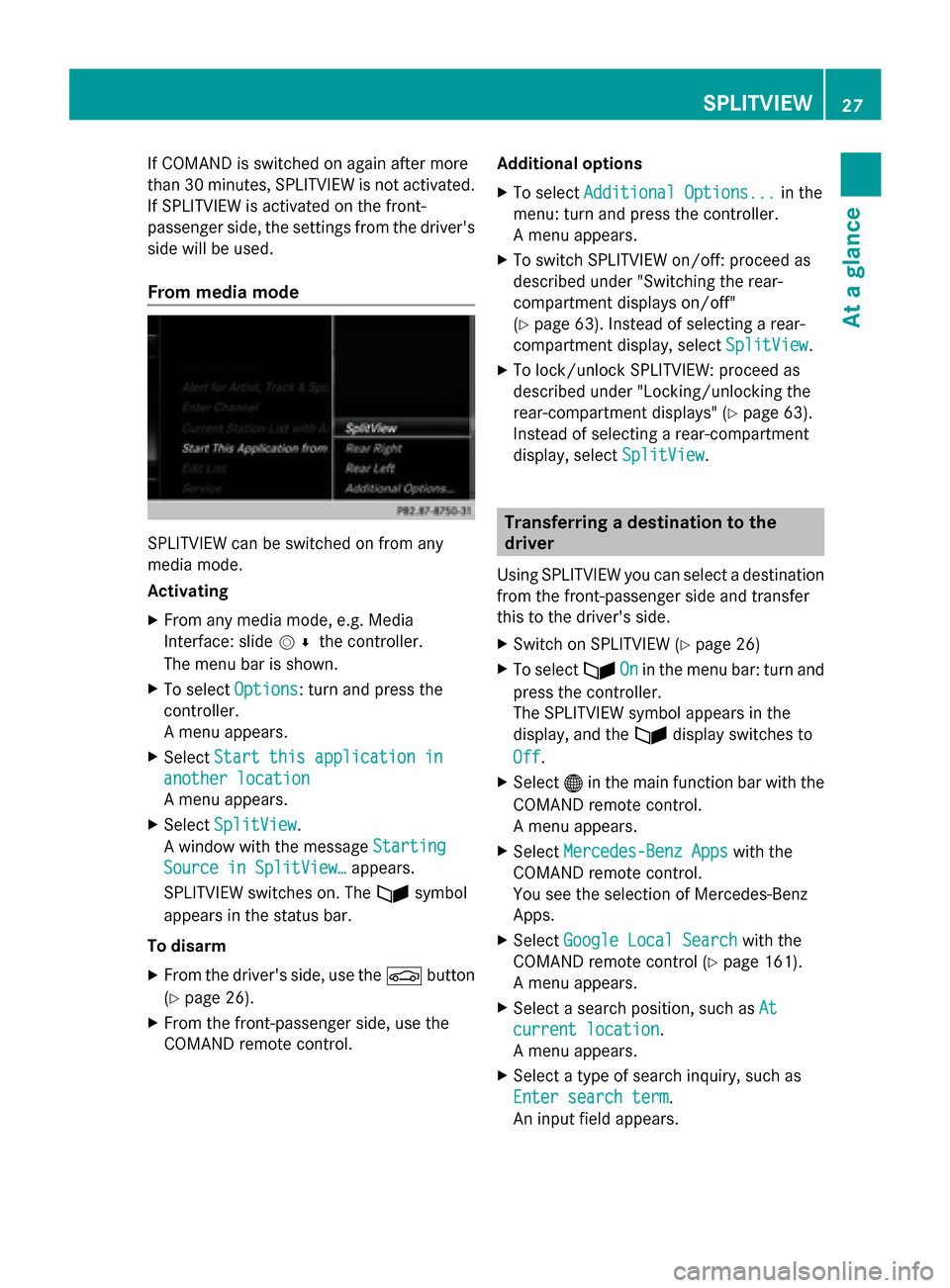
Activating
X From any media mode, e.g. Media
Interface: slide 005200C5the controller.
The menu bar is shown.
X To select Options
Options: turn and press the
controller.
A menu appears.
X Select Start this application in
Start this application in
another location
another location
A menu appears.
X Select SplitView
SplitView.
A window with the message Starting Starting
Source in SplitView…
Source in SplitView… appears.
SPLITVIEW switches on. The 00E9symbol
appears in the status bar.
To disarm
X From the driver's side, use the 00D4button
(Y page 26).
X From the front-passenger side, use the
COMAND remote control. Additional options
X
To select Additional Options...
Additional Options... in the
menu: turn and press the controller.
A menu appears.
X To switch SPLITVIEW on/off: proceed as
described under "Switching the rear-
compartment displays on/off"
(Y page 63). Instead of selecting a rear-
compartment display, select SplitView SplitView.
X To lock/unlock SPLITVIEW: proceed as
described under "Locking/unlocking the
rear-compartment displays" (Y page 63).
Instead of selecting a rear-compartment
display, select SplitView
SplitView. Transferring a destination to the
driver
Using SPLITVIEW you can select a destination
from the front-passenger side and transfer
this to the driver's side.
X Switch on SPLITVIEW (Y page 26)
X To select 00E9On Onin the menu bar: turn and
press the controller.
The SPLITVIEW symbol appears in the
display, and the 00E9display switches to
Off Off.
X Select 00A7in the main function bar with the
COMAND remote control.
A menu appears.
X Select Mercedes-Benz Apps
Mercedes-Benz Apps with the
COMAND remote control.
You see the selection of Mercedes-Benz
Apps.
X Select Google Local Search
Google Local Search with the
COMAND remote control (Y page 161).
A menu appears.
X Select a search position, such as At At
current location
current location.
A menu appears.
X Select a type of search inquiry, such as
Enter search term Enter search term.
An input field appears. SPLITVIEW
27At a glance
Page 30 of 278
X
Enter the destination using the COMAND
remote control and press the 0070button.
The Google™ results list appears.
X Select the destination using the COMAND
remote control.
A menu appears.
X Select Set as Destination
Set as Destination.
X The prompt Accept the navigation Accept the navigation
data from Mercedes-Benz Apps?
data from Mercedes-Benz Apps?
appears on the driver's side.
X Select Yes
Yes orNo
No.
If you select Yes
Yes, the navigation data is
used for route guidance. Multi-Seat Entertainment System
Media overview
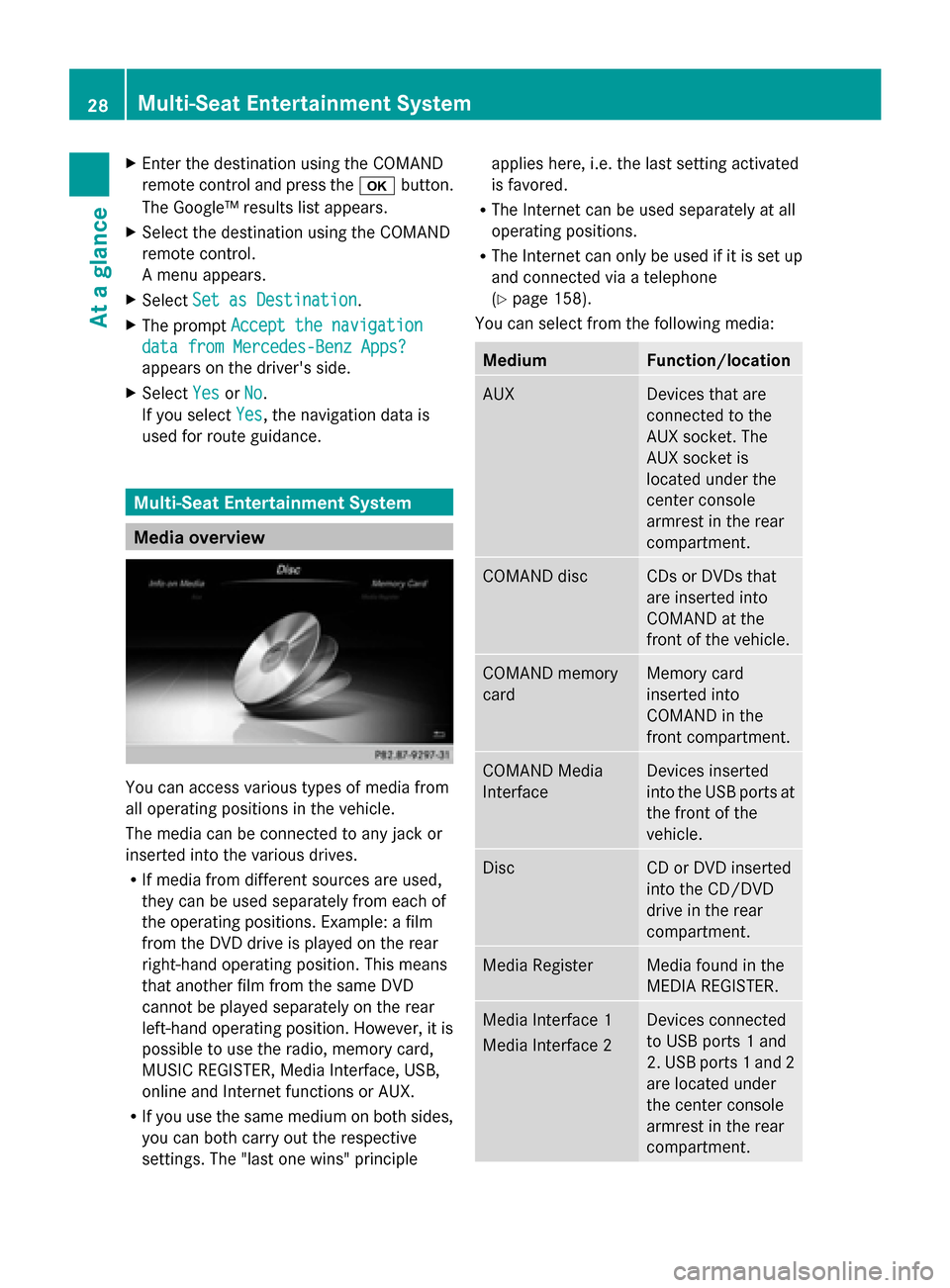
You can access various types of media from
all operating positions in the vehicle.
The media can be connected to any jack or
inserted into the various drives.
R If media from different sources are used,
they can be used separately from each of
the operating positions. Example: a film
from the DVD drive is played on the rear
right-hand operating position. This means
that another film from the same DVD
cannot be played separately on the rear
left-hand operating position. However, it is
possible to use the radio, memory card,
MUSIC REGISTER, Media Interface, USB,
online and Internet functions or AUX.
R If you use the same medium on both sides,
you can both carry out the respective
settings. The "last one wins" principle applies here, i.e. the last setting activated
is favored.
R The Internet can be used separately at all
operating positions.
R The Internet can only be used if it is set up
and connected via a telephone
(Y page 158).
You can select from the following media: Medium Function/location
AUX Devices that are
connected to the
AUX socket. The
AUX socket is
located under the
center console
armrest in the rear
compartment. COMAND disc CDs or DVDs that
are inserted into
COMAND at the
front of the vehicle.
COMAND memory
card Memory card
inserted into
COMAND in the
front compartment.
COMAND Media
Interface Devices inserted
into the USB ports at
the front of the
vehicle.
Disc CD or DVD inserted
into the CD/DVD
drive in the rear
compartment.
Media Register Media found in the
MEDIA REGISTER.
Media Interface 1
Media Interface 2 Devices connected
to USB ports 1 and
2. USB ports 1 and 2
are located under
the center console
armrest in the rear
compartment. 28
Multi-Seat Entertainment SystemAt a glance
Page 31 of 278
Medium Function/location
Bluetooth Audio R
Devices
connected with
COMAND via
Bluetooth ®
.
R Devices
connected with
COMAND as a
business
telephone. TV Television
Accessing media in the vehicle
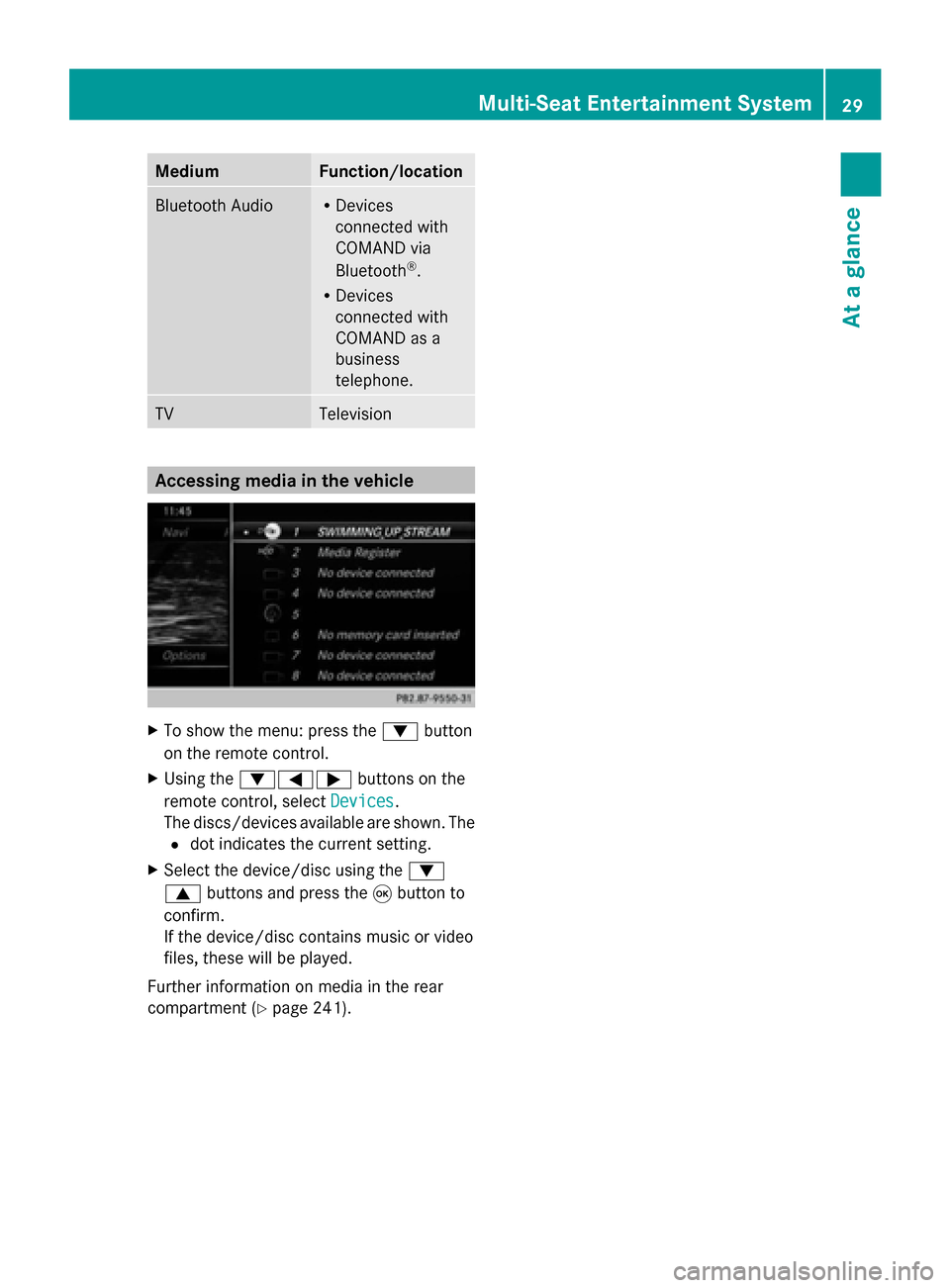
X
To show the menu: press the 0064button
on the remote control.
X Using the 006400590065 buttons on the
remote control, select Devices
Devices .
The discs/devices available are shown. The
0036 dot indicates the current setting.
X Select the device/disc using the 0064
0063 buttons and press the 008Bbutton to
confirm.
If the device/disc contains music or video
files, these will be played.
Further information on media in the rear
compartment (Y page 241). Multi-Seat Entertainment System
29At a glance
Page 41 of 278
Additional display area
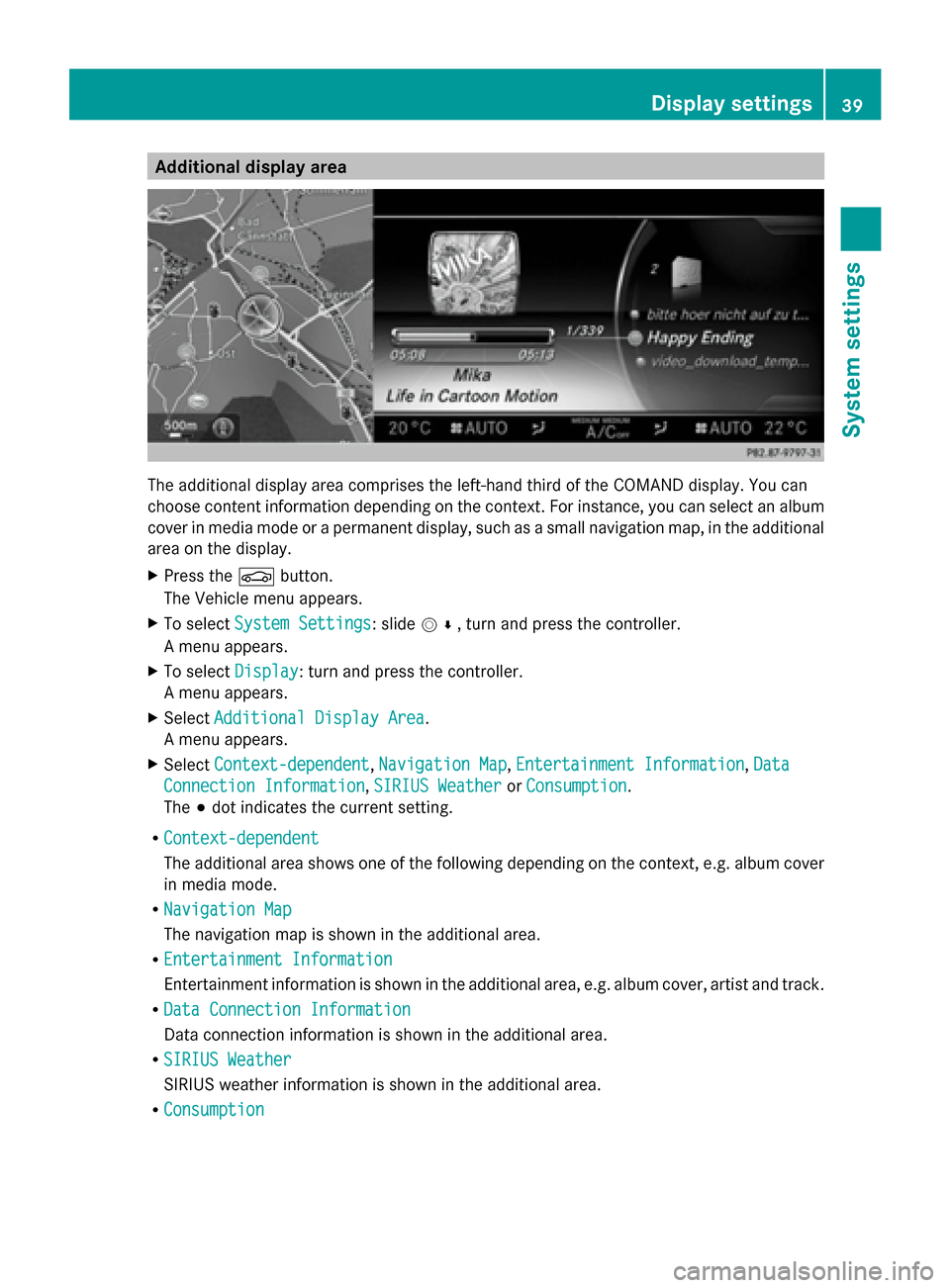
The additional display area comprises the left-hand third of the COMAND display. You can
choose content information depending on the context. For instance, you can select an album
cover in media mode or a permanent display, such as a small navigation map, in the additional
area on the display.
X Press the 00D4button.
The Vehicle menu appears.
X To select System Settings
System Settings: slide 005200C5, turn and press the controller.
A menu appears.
X To select Display
Display: turn and press the controller.
A menu appears.
X Select Additional Display Area
Additional Display Area.
A menu appears.
X Select Context-dependent
Context-dependent, Navigation Map Navigation Map,Entertainment Information
Entertainment Information, Data
Data
Connection Information
Connection Information, SIRIUS Weather
SIRIUS WeatherorConsumption
Consumption.
The 003Bdot indicates the current setting.
R Context-dependent
Context-dependent
The additional area shows one of the following depending on the context, e.g. album cover
in media mode.
R Navigation Map
Navigation Map
The navigation map is shown in the additional area.
R Entertainment Information
Entertainment Information
Entertainment information is shown in the additional area, e.g. album cover, artist and track.
R Data Connection Information
Data Connection Information
Data connection information is shown in the additional area.
R SIRIUS Weather
SIRIUS Weather
SIRIUS weather information is shown in the additional area.
R Consumption
Consumption Display settings
39System settings
Page 47 of 278
Bluetooth
®
technology is a standard for
short-range wireless data transmissions up to
approximately 10 meters. You can use
Bluetooth ®
to connect your mobile phone to
COMAND, to use the hands-free system,
establish an Internet connection, listen to
music using Bluetooth ®
Audio or to exchange
vCards, for example.
Bluetooth ®
is a registered trademark of
Bluetooth Special Interest Group (SIG) Inc. Activating/deactivating Bluetooth
®
X Press the 00D4button.
The Vehicle menu appears.
X To select System Settings
System Settings : slide005200C5,
turn and press the controller.
A menu appears.
X To select Activate Bluetooth
Activate Bluetooth: turn and
press the controller.
This switches Bluetooth ®
on 0073 or off 0053. Setting the system language
This function allows you to determine the
language for the menu displays and the
navigation messages. The selected language
affects the characters available for entry.
i The navigation announcements are not
available in all languages. If a language is
not available, the navigation
announcements will be in English.
i When you set the system language, the
language of the Voice Control System will
change accordingly. If it is not supported
by the Voice Control System, English will be
selected.
X Press the 00D4button.
The Vehicle menu appears.
X To select System Settings
System Settings : slide005200C5,
turn and press the controller.
A menu appears. X
To select Language Language : turn and press the
controller.
The list of languages appears. The 003Bdot
indicates the current setting.
X Select the desired language.
COMAND loads the selected language and
sets it. Assigning a favorites button
X Press the 00D4button.
The system menu appears.
X To select System Settings System Settings : slide005200C5
and press the controller.
A menu appears.
X To select Favorite Functions
Favorite Functions: turn and
press the controller.
A menu appears.
X To select Assign Function Assign Function : press the
controller.
The list of predefined functions appears.
X To select the desired function, e.g.
Entertainment Entertainment: turn and press the
controller.
A menu appears.
X Select the desired function, e.g. Play Play
More Like This
More Like This .
A menu with the prompt Please select
Please select
a favorites button:
a favorites button: appears.
X To select the desired button, e.g. 0083:
turn and press the controller.
A message appears stating that the button
has been assigned the selected function.
i A message appears for certain functions,
e.g. Assign station or media source Assign station or media source.
This explains how you can save the desired
station directly using the favorites function
menu in three steps.
i If you are in the favorite functions menu,
you can assign a desired favorites button
by pressing and holding the relevant
number key, e.g. 0089, on the telephone
keypad (Y page 22) until you hear a tone. Assigning a favorites button
45System settings
Page 50 of 278
X
To select System Settings
System Settings: slide 005200C5
and press the controller.
A menu appears.
X To select Data Import/Export
Data Import/Export: turn and
press the controller.
X Select Import Data
Import Data orExport Data Export Data.
i If you import data such as address data,
the existing data on COMAND is
overwritten. You will see a message to this
effect. COMAND is restarted after the data
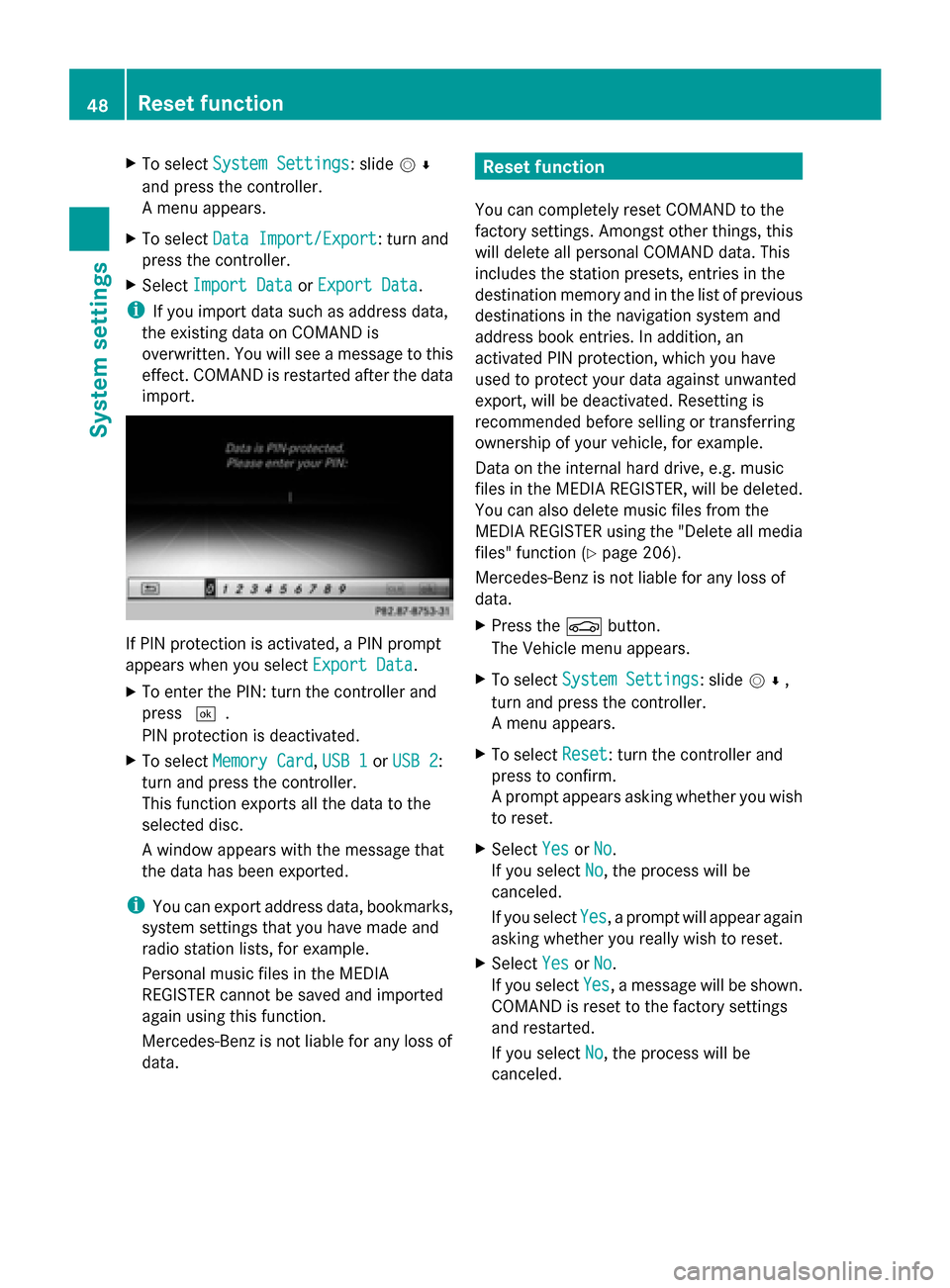
import. If PIN protection is activated, a PIN prompt
appears when you select Export Data Export Data.
X To enter the PIN: turn the controller and
press 0054.
PIN protection is deactivated.
X To select Memory Card
Memory Card, USB 1 USB 1orUSB 2
USB 2:
turn and press the controller.
This function exports all the data to the
selected disc.
A window appears with the message that
the data has been exported.
i You can export address data, bookmarks,
system settings that you have made and
radio station lists, for example.
Personal music files in the MEDIA
REGISTER cannot be saved and imported
again using this function.
Mercedes-Benz is not liable for any loss of
data. Reset function
You can completely reset COMAND to the
factory settings. Amongst other things, this
will delete all personal COMAND data. This
includes the station presets, entries in the
destination memory and in the list of previous
destinations in the navigation system and
address book entries. In addition, an
activated PIN protection, which you have
used to protect your data against unwanted
export, will be deactivated. Resetting is
recommended before selling or transferring
ownership of your vehicle, for example.
Data on the internal hard drive, e.g. music
files in the MEDIA REGISTER, will be deleted.
You can also delete music files from the
MEDIA REGISTER using the "Delete all media
files" function (Y page 206).
Mercedes-Benz is not liable for any loss of
data.
X Press the 00D4button.
The Vehicle menu appears.
X To select System Settings
System Settings: slide 005200C5,
turn and press the controller.
A menu appears.
X To select Reset Reset: turn the controller and
press to confirm.
A prompt appears asking whether you wish
to reset.
X Select Yes YesorNo
No.
If you select No No, the process will be
canceled.
If you select Yes Yes, a prompt will appear again
asking whether you really wish to reset.
X Select Yes
YesorNo
No.
If you select Yes
Yes, a message will be shown.
COMAND is reset to the factory settings
and restarted.
If you select No No, the process will be
canceled. 48
Reset functionSystem settings
Page 66 of 278
360° camera
Important notes
The 360° camera is only an aid. It is not a
replacement for your attention to your
immediate surroundings. You are always
responsible for safe maneuvering and
parking. Make sure that no persons or
animals are in the maneuvering range. Overview
The 360° camera surveys the vehicle
surroundings and assists you, for example
when parking or at exits with reduced
visibility.
For a detailed description of the 360°
camera, see the separate vehicle Operator's
Manual. Settings for the COMAND 360°
camera
Activating/deactivating using the reverse
gear:
X Press the 00D4button on the controller.
The vehicle menu is displayed.
X To switch to the menu bar: slide 005200C5the
controller.
X To select Settings
Settings: turn and press the
controller.
X Select 360° Camera
360° Camera .
X Select Activation by R gear Activation by R gear.
The function is switched on 0073or off 0053,
depending on the previous status.
i When you activate this function, the
image from the 360° camera is displayed
when you select reverse gear. The other
activation options are always available as
well.
Opening the camera cover:
X To select Open Camera Cover
Open Camera Cover: turn and
press the controller. Displaying the 360° camera image
The 360° camera image can be displayed if:
R your vehicle is equipped with a 360°
camera and
R COMAND is switched on (Y page 23) and
R the 360° Camera
360° Camera function is activated
Displaying the image of the 360° camera:
X Press the 00D4button on the controller.
A menu appears.
X Select 360° Camera
360° Camera .
The 360° camera image appears in split-
screen mode.
If the function is activated, the COMAND
display automatically switches back to the
previously selected display as soon as you
shift out of the forward or reverse gear, or if
the vehicle exceeds a speed of approx.
30 km/h.
Manually switching the display
X To select 0039: slide 005200C5and press the
controller. Rear view camera
The rear view camera is only an aid. It is not
a replacement for your attention to your
immediate surroundings. You are always
responsible for safe maneuvering and
parking. When maneuvering or parking, make
sure that there are no persons, animals or
objects in the area in which you are
maneuvering.
The image from the rear view camera is
shown in the COMAND display when reverse
gear is engaged if:
R your vehicle is equipped with a rear view
camera
R COMAND is switched on
R the Activation by R gear
Activation by R gear function is
activated
If the function is activated, the COMAND
display will automatically switch back to the 64
Rear view cameraVehicle functions