wheel MERCEDES-BENZ S-Class 2014 W222 Comand Manual
[x] Cancel search | Manufacturer: MERCEDES-BENZ, Model Year: 2014, Model line: S-Class, Model: MERCEDES-BENZ S-Class 2014 W222Pages: 278, PDF Size: 6.65 MB
Page 135 of 278
Putting a call through to the rear
compartment and retrieving it
You can put a call through to the Rear Seat
Entertainment System. The call is output
through the rear loudspeakers and the rear
microphones are used.
X To switch to the menu bar: slide 00520064the
controller.
X To select Send Call to Rear
Send Call to Rear: turn and
press the controller.
In the bottom menu bar, the Call to
Call to
COMAND
COMAND entry is now visible.
Retrieving the call:
X Select Call to COMAND Call to COMAND. Calls with several participants
Rejecting or accepting a waiting call The mobile phone network provider must
support and activate the call-waiting function.
Depending on the mobile phone used, the
system behavior differs when accepting a
call.
If you have a call in progress and receive
another call, a new window appears in the
display. You also hear a tone. You can accept
or reject the call.
Rejecting:
X To select Reject
Reject: turn the controller and
press to confirm.
or
X Press the 0076button on COMAND or on
the multifunction steering wheel.
Accepting:
X Press the 0061button on COMAND or on
the multifunction steering wheel.
The system behavior after accepting the
incoming call depends on your mobile phone.
R The mobile phone supports the call waiting
function (via Bluetooth ®
) when: The previously active call is held. You can
then switch back and forth between both
calls (toggling) (Y
page 134).
R The mobile phone does not support the call
waiting function (via Bluetooth ®
) when:
The previously active call is ended.
This is also the case if you accept the
waiting call using the Voice Control System
(see the separate operating instructions).
The COMAND display changes. If you
continue to operate functions on the mobile
phone, the COMAND display may differ from
that of the mobile phone.
Making a second call If the following requirements are met, you can
make another call while on the phone with
someone else. This action puts the previous
call on hold.
R
The function has to be supported by the
mobile phone network.
R The mobile phone has to support the
connection of a further call via Bluetooth ®
.
R The appropriate setting has to be activated
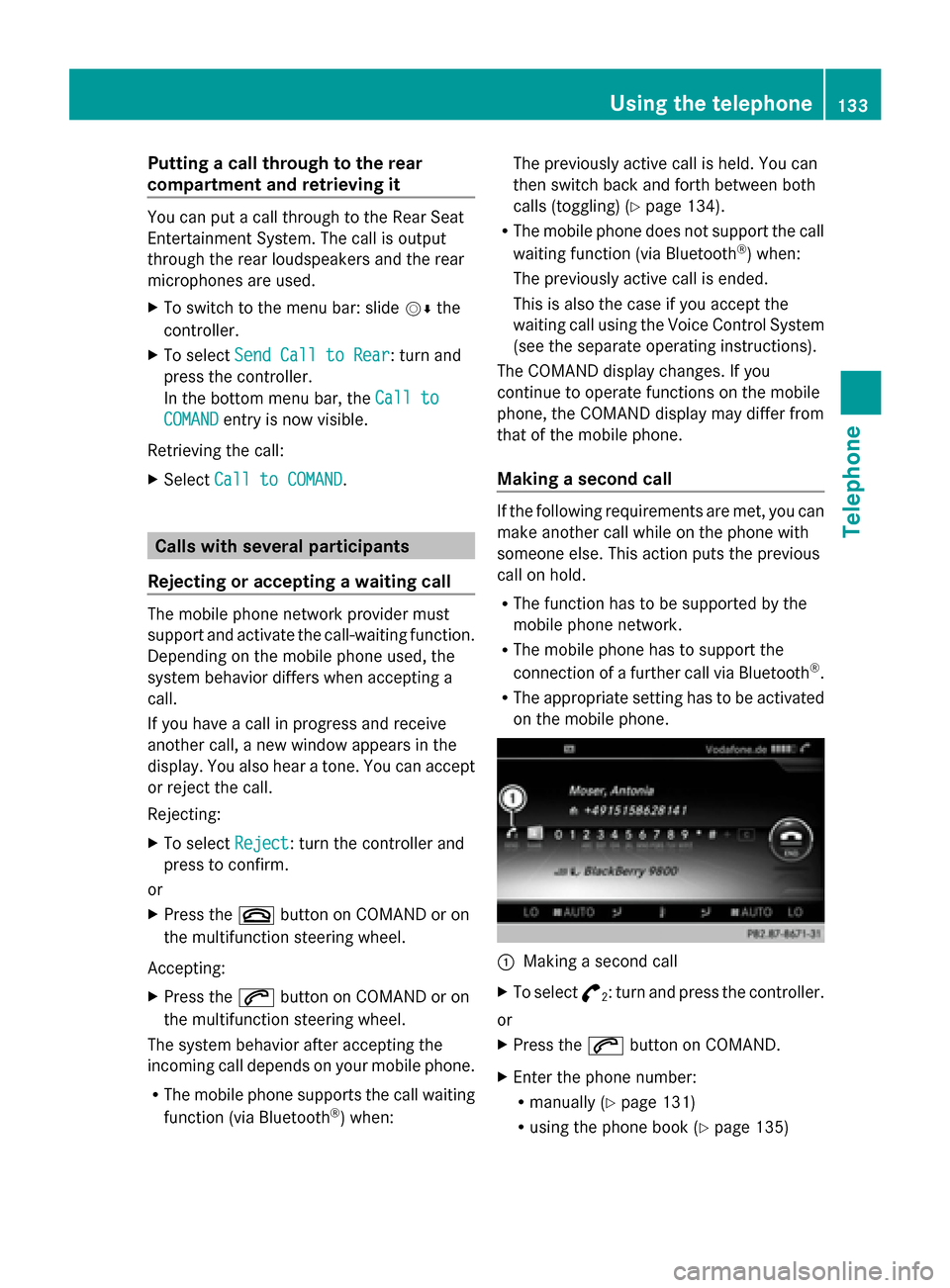
on the mobile phone. 0043
Making a second call
X To select °
2: turn and press the controller.
or
X Press the 0061button on COMAND.
X Enter the phone number:
R
manually (Y page 131)
R using the phone book (Y page 135) Using the telephone
133Telephone Z
Page 136 of 278
R
using the call lists ( Ypage 138)
R using speed dial (Y page 141)
Toggling You can switch back and forth between calls
with this function. The function is available if
your mobile phone supports the toggling
function (via Bluetooth ®
).
You can use the function if you are answering
a second call or making a second call. Both
discussions are marked with 1 or 2. The active
call is highlighted.
X To select °
1or
°
2: turn and press the
controller.
or
X Press the 0061button on COMAND or on
the multifunction steering wheel.
The previous call on hold is activated.
Ending the active call:
X Press the 0076button on COMAND or on
the multifunction steering wheel.
A prompt appears asking whether you
would like to continue the call on hold.
X Select Continue
Continue.
The call on hold is activated. If you select
Hang Up
Hang Up, the call on hold is also ended.
i On some mobile phones, the call on hold
is activated as soon as the active call is
ended.
Conference call You can interconnect calls (active and on
hold) on COMAND. This permits several
parties to hear one another and speak with
one another.
X Make a second call ( Ypage 133).
X To switch to the menu bar: slide 00520064the
controller.
X To select Conference
Conference: turn and press the
controller.
The new participant is included in the
conference call. Using the phone book
Introduction
The phone book displays the names and
phone numbers of all address book entries
saved in the COMAND address book. If an
address book entry does not have a
telephone number, it does not appear in the
phone book.
The mobile phone's telephone book is
automatically downloaded into COMAND on
connection (default setting). You can
deactivate automatic downloading
(Y page 153).
In the telephone book, you can:
R save phone numbers (Y page 137)
R search for entries (Y page 135)
R delete entries (Y page 136)
R import contacts (Y page 153)
R delete contacts (Y page 154)
R receive vCards ( Ypage 154)
i The stored phone book and the vCards
remain in COMAND even if you use
COMAND with another mobile phone. The
entries can be viewed without a mobile
phone. For this reason, you should delete
any phone book entries before handing
over or selling the vehicle. Calling up the phone book
Opening the phone book X
To call up the basic telephone menu: press
the 002B button one or more times.
X To select Name Namefrom the telephone basic
menu: turn the controller and press to
confirm.
If the phone book contains entries, they will
be displayed in alphabetical order. The
character bar at the bottom of the display
is active.
The character bar is used for fast selection
of an entry. 134
Using the phone bookTelephone
Page 137 of 278
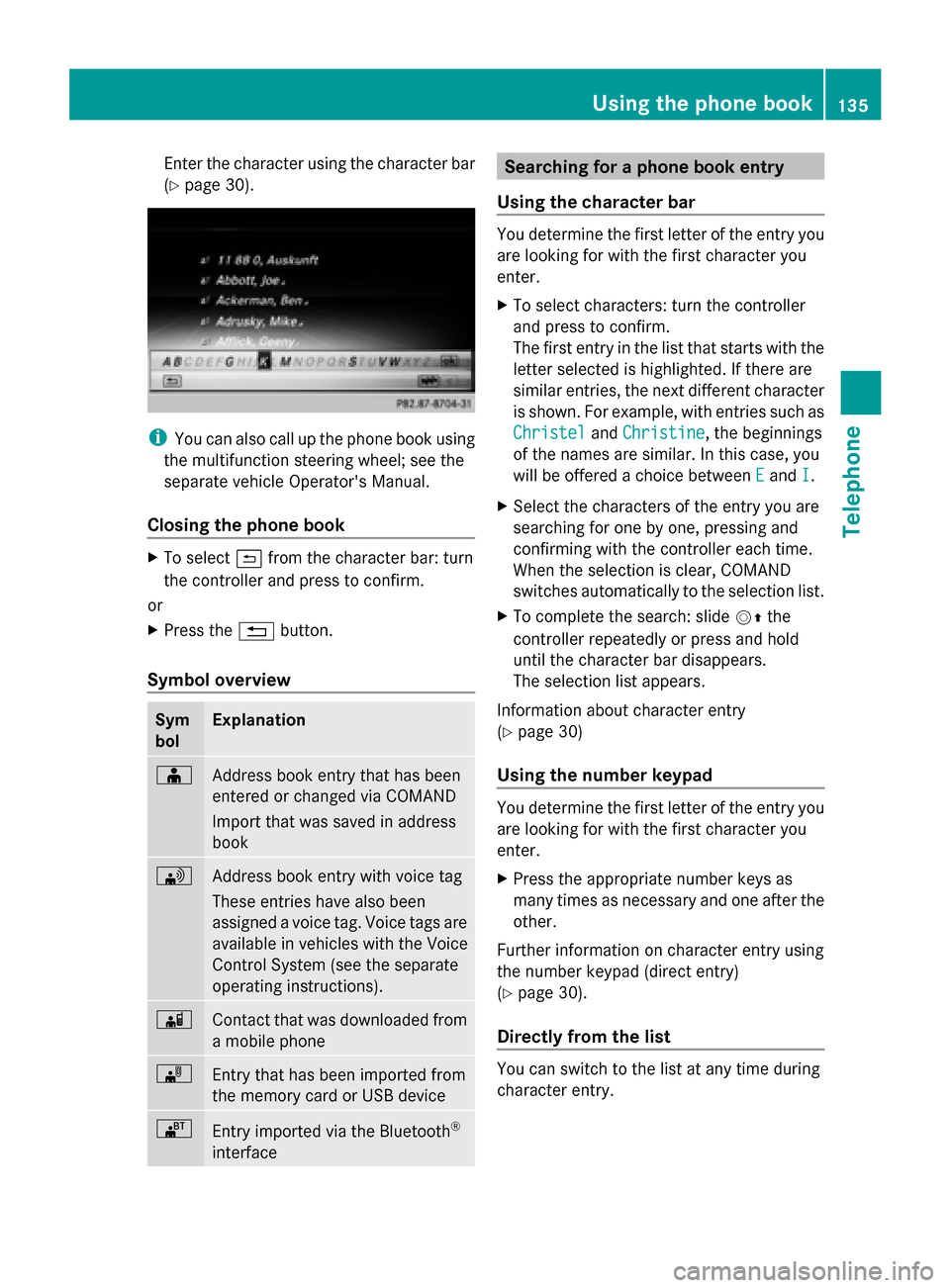
Enter the character using the character bar
(Y
page 30). i
You can also call up the phone book using
the multifunction steering wheel; see the
separate vehicle Operator's Manual.
Closing the phone book X
To select 0039from the character bar: turn
the controller and press to confirm.
or
X Press the 0038button.
Symbol overview Sym
bol Explanation
00D8
Address book entry that has been
entered or changed via COMAND
Import that was saved in address
book 0094
Address book entry with voice tag
These entries have also been
assigned a voice tag. Voice tags are
available in vehicles with the Voice
Control System (see the separate
operating instructions).
00D7
Contact that was downloaded from
a mobile phone
00BB
Entry that has been imported from
the memory card or USB device
00BA
Entry imported via the Bluetooth
®
interface Searching for a phone book entry
Using the character bar You determine the first letter of the entry you
are looking for with the first character you
enter.
X
To select characters: turn the controller
and press to confirm.
The first entry in the list that starts with the
letter selected is highlighted. If there are
similar entries, the next different character
is shown. For example, with entries such as
Christel Christel andChristine
Christine , the beginnings
of the names are similar. In this case, you
will be offered a choice between E
Eand I
I.
X Select the characters of the entry you are
searching for one by one, pressing and
confirming with the controller each time.
When the selection is clear, COMAND
switches automatically to the selection list.
X To complete the search: slide 00520097the
controller repeatedly or press and hold
until the character bar disappears.
The selection list appears.
Information about character entry
(Y page 30)
Using the number keypad You determine the first letter of the entry you
are looking for with the first character you
enter.
X
Press the appropriate number keys as
many times as necessary and one after the
other.
Further information on character entry using
the number keypad (direct entry)
(Y page 30).
Directly from the list You can switch to the list at any time during
character entry. Using the phone book
135Telephone Z
Page 215 of 278
X
To select Connect Last Used Player
Connect Last Used Player:
press the controller.
Depending on the Bluetooth ®
audio device
used, playback starts immediately or you
must start playback manually.
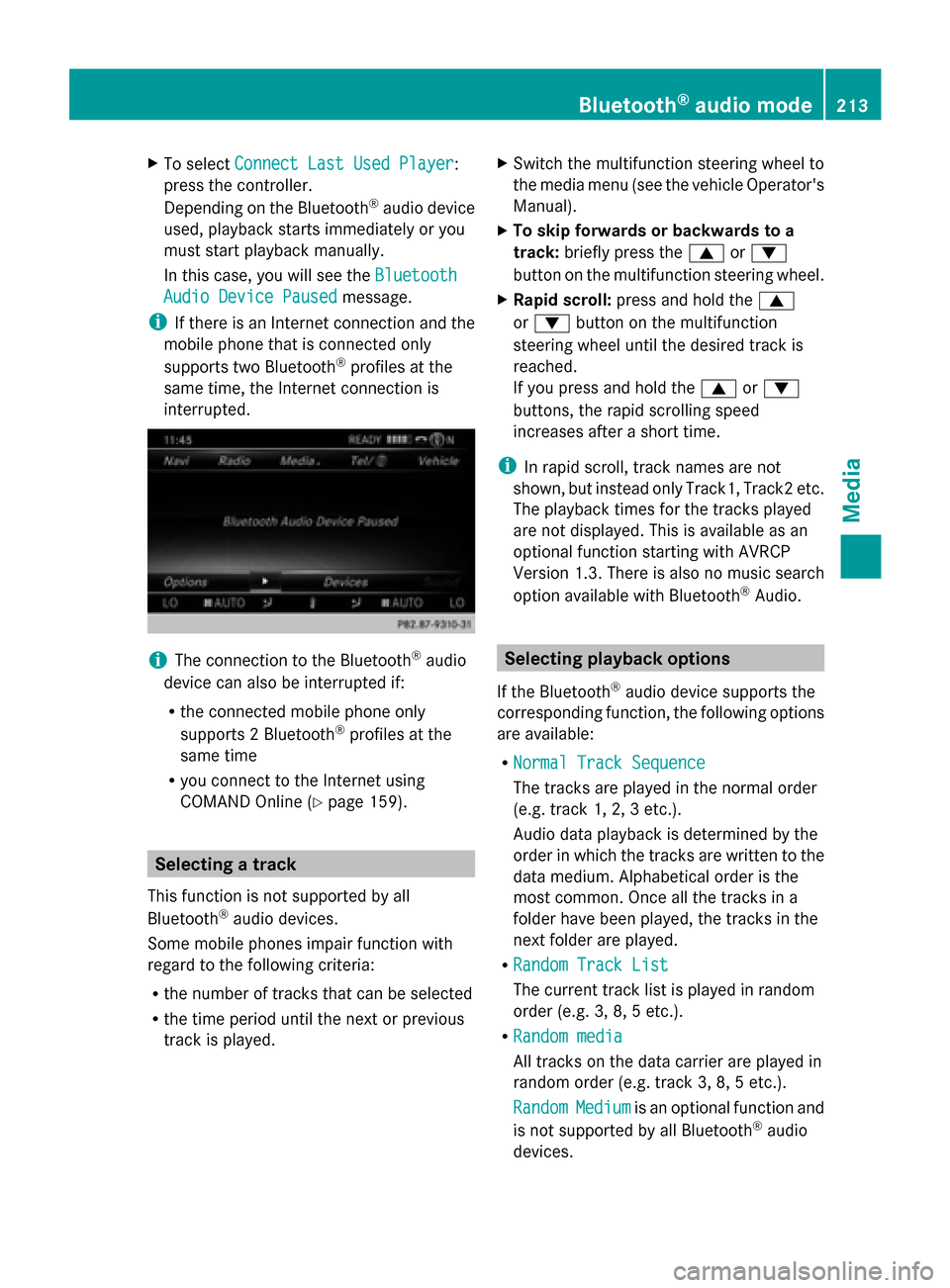
In this case, you will see the Bluetooth
Bluetooth
Audio Device Paused Audio Device Paused message.
i If there is an Internet connection and the
mobile phone that is connected only
supports two Bluetooth ®
profiles at the
same time, the Internet connection is
interrupted. i
The connection to the Bluetooth ®
audio
device can also be interrupted if:
R the connected mobile phone only
supports 2 Bluetooth ®
profiles at the
same time
R you connect to the Internet using
COMAND Online (Y page 159). Selecting a track
This function is not supported by all
Bluetooth ®
audio devices.
Some mobile phones impair function with
regard to the following criteria:
R the number of tracks that can be selected
R the time period until the next or previous
track is played. X
Switch the multifunction steering wheel to
the media menu (see the vehicle Operator's
Manual).
X To skip forwards or backwards to a
track: briefly press the 0063or0064
button on the multifunction steering wheel.
X Rapid scroll: press and hold the 0063
or 0064 button on the multifunction
steering wheel until the desired track is
reached.
If you press and hold the 0063or0064
buttons, the rapid scrolling speed
increases after a short time.
i In rapid scroll, track names are not
shown, but instead only Track1, Track2 etc.
The playback times for the tracks played
are not displayed. This is available as an
optional function starting with AVRCP
Version 1.3. There is also no music search
option available with Bluetooth ®
Audio. Selecting playback options
If the Bluetooth ®
audio device supports the
corresponding function, the following options
are available:
R Normal Track Sequence Normal Track Sequence
The tracks are played in the normal order
(e.g. track 1, 2, 3 etc.).
Audio data playback is determined by the
order in which the tracks are written to the
data medium. Alphabetical order is the
most common. Once all the tracks in a
folder have been played, the tracks in the
next folder are played.
R Random Track List Random Track List
The current track list is played in random
order (e.g. 3, 8, 5 etc.).
R Random media Random media
All tracks on the data carrier are played in
random order (e.g. track 3, 8, 5 etc.).
Random Random Medium
Mediumis an optional function and
is not supported by all Bluetooth ®
audio
devices. Bluetooth
®
audio mode 213Media Z
Page 243 of 278
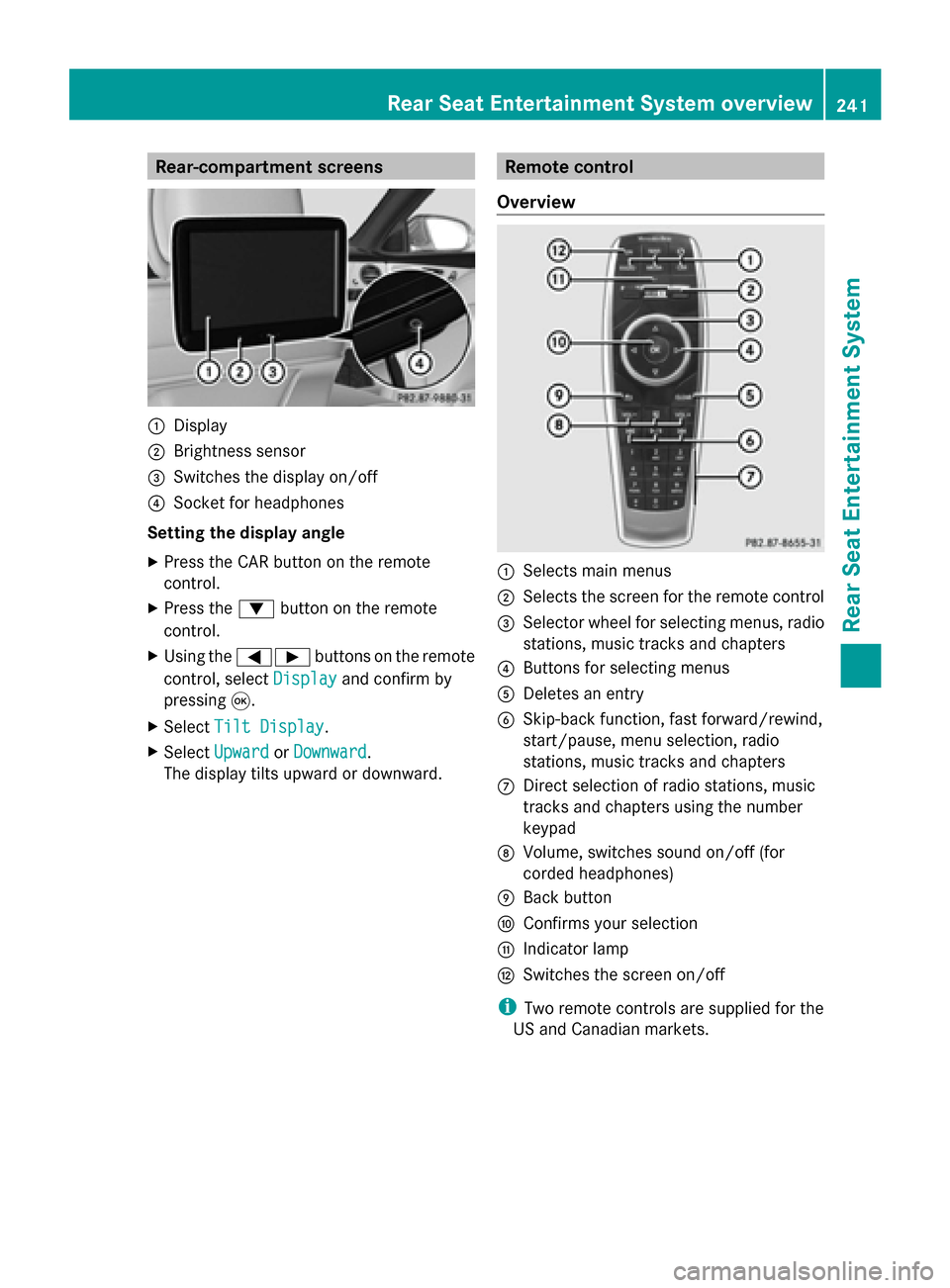
Rear-compartment screens
0043
Display
0044 Brightness sensor
0087 Switches the display on/off
0085 Socket for headphones
Setting the display angle
X Press the CAR button on the remote
control.
X Press the 0064button on the remote
control.
X Using the 005900D0 buttons on the remote
control, select Display
Display and confirm by
pressing 008B.
X Select Tilt Display Tilt Display.
X Select Upward
Upward orDownward
Downward .
The display tilts upward or downward. Remote control
Overview 0043
Selects main menus
0044 Selects the screen for the remote control
0087 Selector wheel for selecting menus, radio
stations, music tracks and chapters
0085 Buttons for selecting menus
0083 Deletes an entry
0084 Skip-back function, fast forward/rewind,
start/pause, menu selection, radio
stations, music tracks and chapters
006B Direct selection of radio stations, music
tracks and chapters using the number
keypad
006C Volume, switches sound on/off (for
corded headphones)
006D Back button
006E Confirms your selection
006F Indicator lamp
0070 Switches the screen on/off
i Two remote controls are supplied for the
US and Canadian markets. Rear Seat Entertainment System overview
241Rear Seat Entertainment System Z
Page 244 of 278
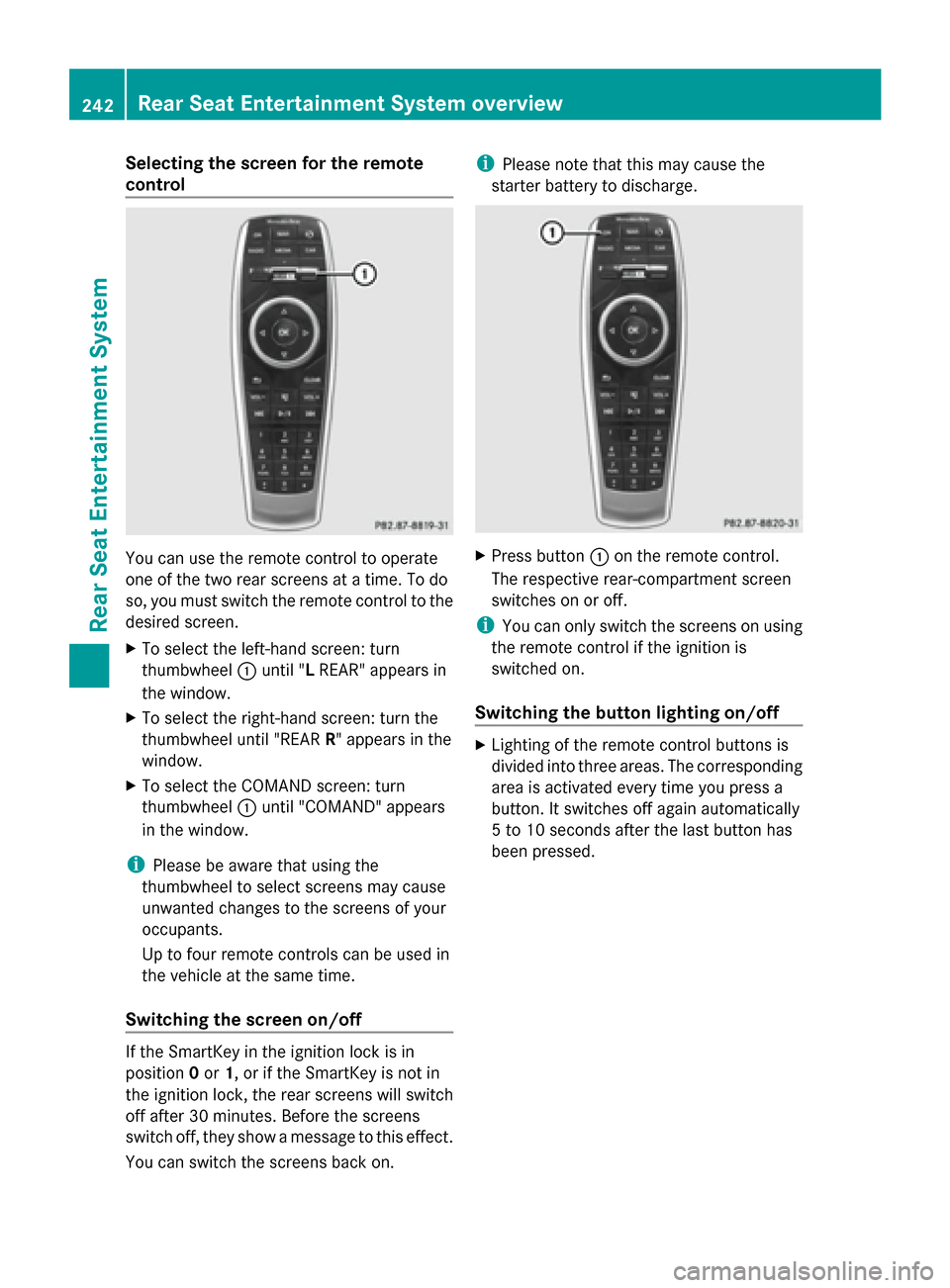
Selecting the screen for the remote
control
You can use the remote control to operate
one of the two rear screens at a time. To do
so, you must switch the remote control to the
desired screen.
X To select the left-hand screen: turn
thumbwheel 0043until "L REAR" appears in
the window.
X To select the right-hand screen: turn the
thumbwheel until "REAR R" appears in the
window.
X To select the COMAND screen: turn
thumbwheel 0043until "COMAND" appears
in the window.
i Please be aware that using the
thumbwheel to select screens may cause
unwanted changes to the screens of your
occupants.
Up to four remote controls can be used in
the vehicle at the same time.
Switching the screen on/off If the SmartKey in the ignition lock is in
position 0or 1, or if the SmartKey is not in
the ignition lock, the rear screens will switch
off after 30 minutes. Before the screens
switch off, they show a message to this effect.
You can switch the screens back on. i
Please note that this may cause the
starter battery to discharge. X
Press button 0043on the remote control.
The respective rear-compartment screen
switches on or off.
i You can only switch the screens on using
the remote control if the ignition is
switched on.
Switching the button lighting on/off X
Lighting of the remote control buttons is
divided into three areas. The corresponding
area is activated every time you press a
button. It switches off again automatically
5 to 10 seconds after the last button has
been pressed. 242
Rear Seat Entertainment System overviewRear Seat Entertainment System
Page 245 of 278
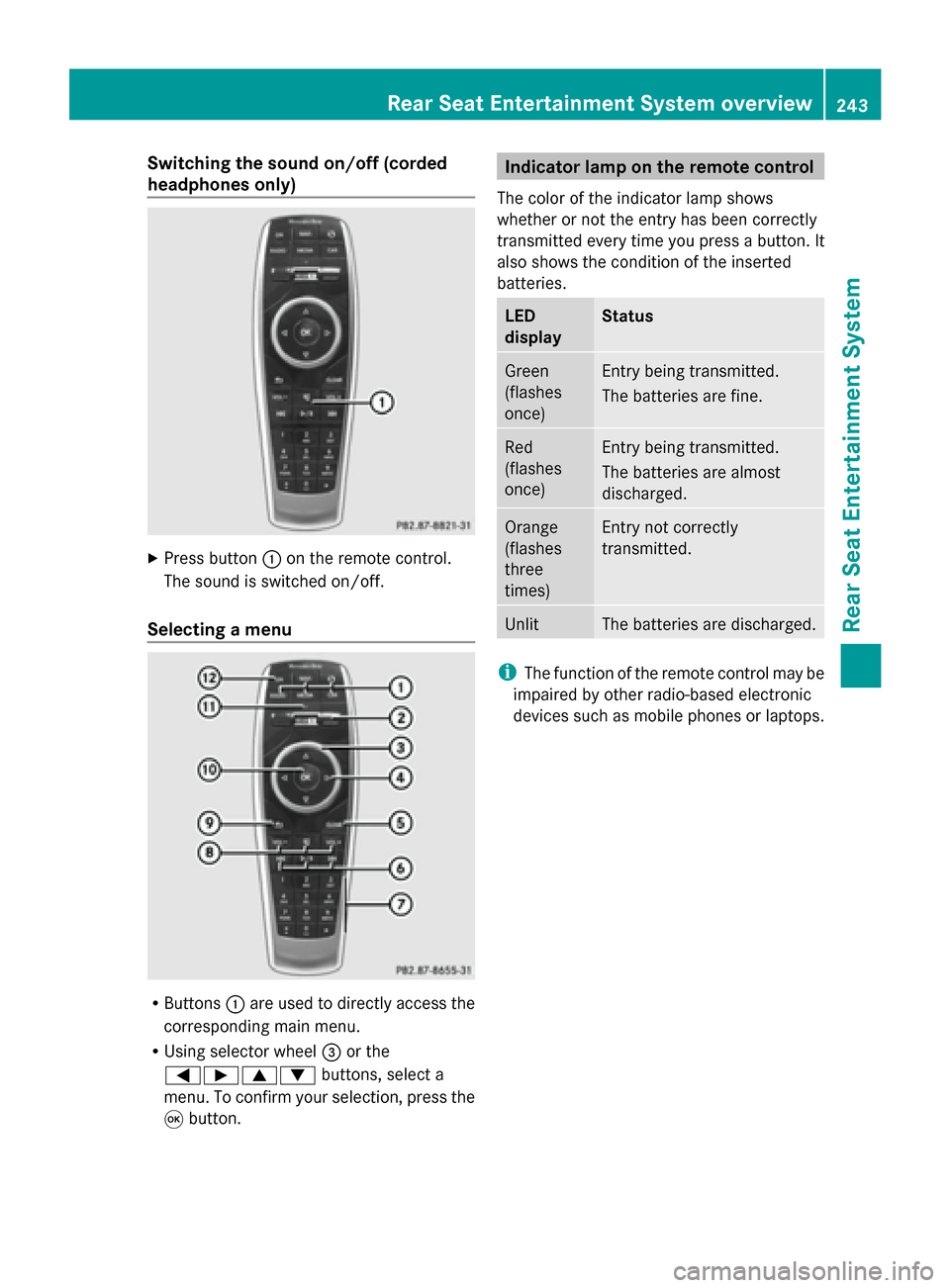
Switching the sound on/off (corded
headphones only)
X
Press button 0043on the remote control.
The sound is switched on/off.
Selecting a menu R
Buttons 0043are used to directly access the
corresponding main menu.
R Using selector wheel 0087or the
005900D000630064 buttons, select a
menu. To confirm your selection, press the
008B button. Indicator lamp on the remote control
The color of the indicator lamp shows
whether or not the entry has been correctly
transmitted every time you press a button. It
also shows the condition of the inserted
batteries. LED
display Status
Green
(flashes
once) Entry being transmitted.
The batteries are fine.
Red
(flashes
once) Entry being transmitted.
The batteries are almost
discharged.
Orange
(flashes
three
times) Entry not correctly
transmitted.
Unlit The batteries are discharged.
i
The function of the remote control may be
impaired by other radio-based electronic
devices such as mobile phones or laptops. Rear Seat Entertainment System overview
243Rear Seat Entertainment System Z
Page 252 of 278
X
Select a medium (e.g. audio CD mode)
(Y page 254).
X To show the menu: press the 0064button
on the remote control.
X Select Sound
Soundusing the 006400590065
buttons on the remote control and press
the 008Bbutton to confirm.
X Select Treble
Treble ,Mid
Mid orBass
Bass using
the 006400590065 buttons on the remote
control and press the 008Bbutton to confirm.
X Select the desired setting using the
selector wheel on the remote control.
X To exit the menu: press the 0038button on
the remote control. Picture settings
Overview You can select the picture settings in video
DVD and AUX mode.
Adjusting the brightness, contrast and
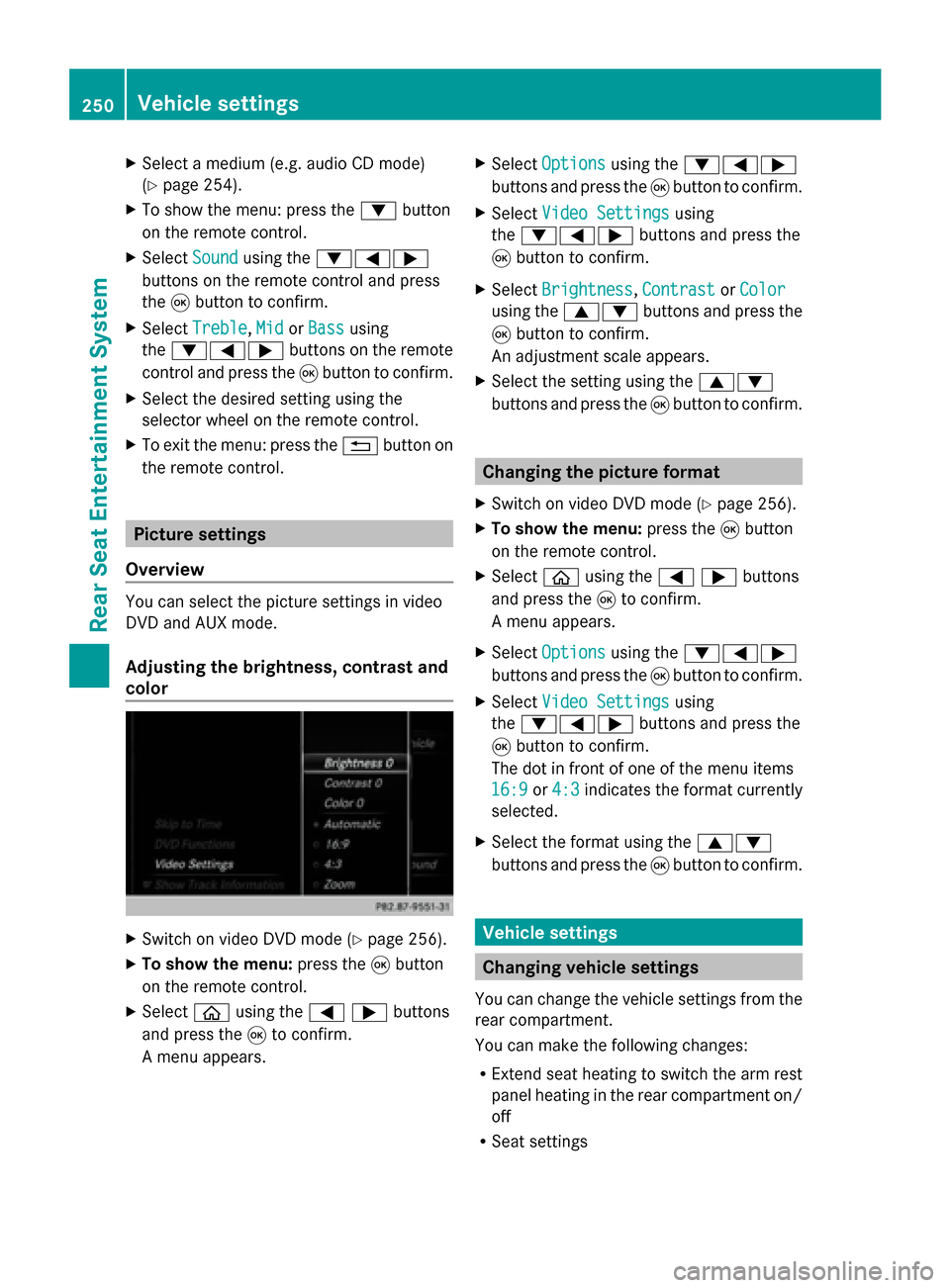
color X
Switch on video DVD mode ( Ypage 256).
X To show the menu: press the008Bbutton
on the remote control.
X Select 00E2using the 00590065buttons
and press the 008Bto confirm.
A menu appears. X
Select Options
Options using the 006400590065
buttons and press the 008Bbutton to confirm.
X Select Video Settings Video Settings using
the 006400590065 buttons and press the
008B button to confirm.
X Select Brightness Brightness, Contrast ContrastorColor
Color
using the 00630064 buttons and press the
008B button to confirm.
An adjustment scale appears.
X Select the setting using the 00630064
buttons and press the 008Bbutton to confirm. Changing the picture format
X Switch on video DVD mode (Y page 256).
X To show the menu: press the008Bbutton
on the remote control.
X Select 00E2using the 00590065buttons
and press the 008Bto confirm.
A menu appears.
X Select Options
Options using the 006400590065
buttons and press the 008Bbutton to confirm.
X Select Video Settings
Video Settings using
the 006400590065 buttons and press the
008B button to confirm.
The dot in front of one of the menu items
16:9 16:9 or4:3
4:3 indicates the format currently
selected.
X Select the format using the 00630064
buttons and press the 008Bbutton to confirm. Vehicle settings
Changing vehicle settings
You can change the vehicle settings from the
rear compartment.
You can make the following changes:
R Extend seat heating to switch the arm rest
panel heating in the rear compartment on/
off
R Seat settings 250
Vehicle settingsRear Seat Entertainment System
Page 255 of 278
X
To select the media source: turn the
selector wheel on the remote control.
or
X Press the 00590065 button on the remote
control.
The menu appears with the available media
sources.
X Press button 008Bon the remote control.
If the disc contains music or video files,
these will be played. The corresponding
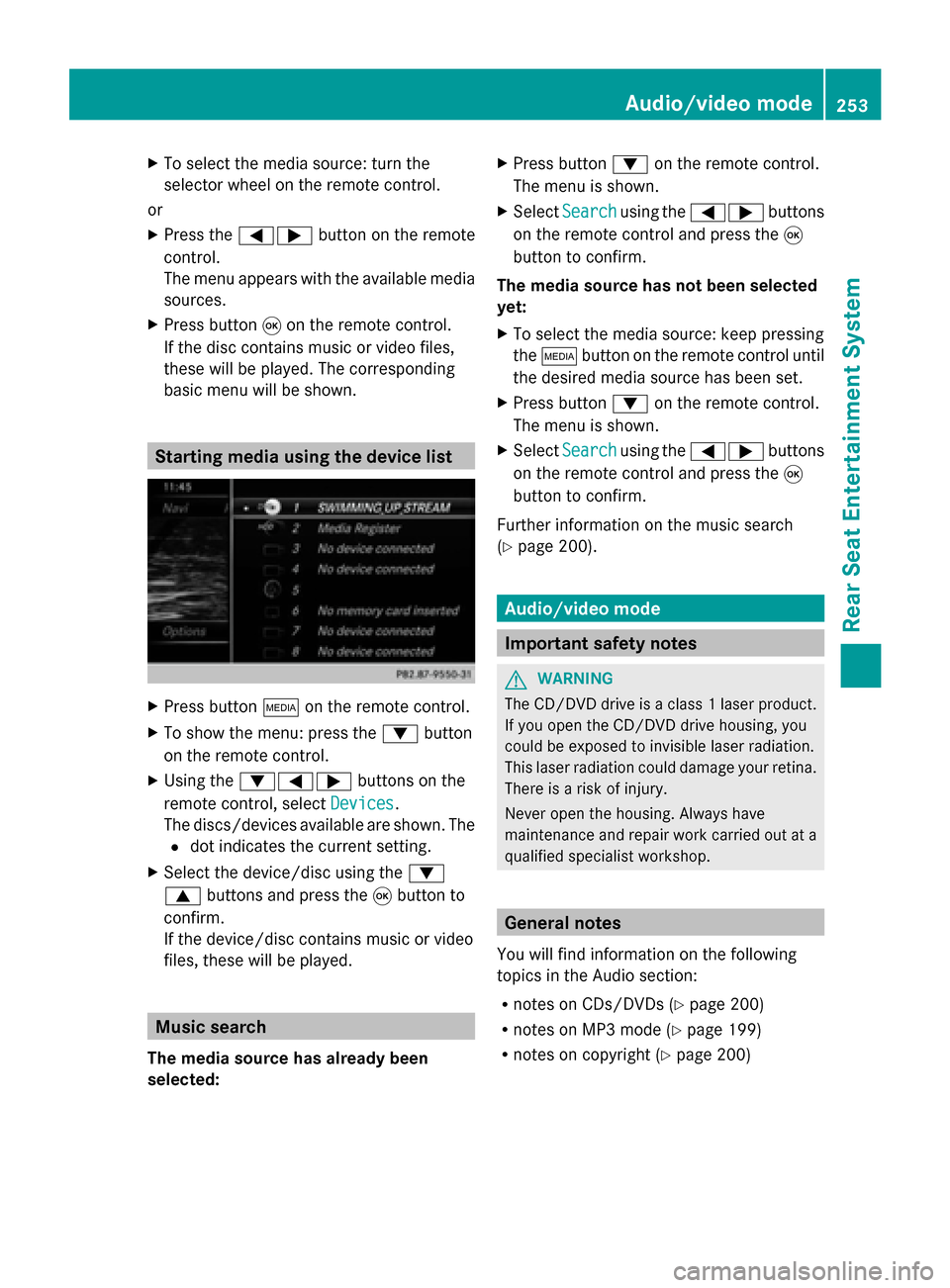
basic menu will be shown. Starting media using the device list
X
Press button 00FDon the remote control.
X To show the menu: press the 0064button
on the remote control.
X Using the 006400590065 buttons on the
remote control, select Devices
Devices.
The discs/devices available are shown. The
0036 dot indicates the current setting.
X Select the device/disc using the 0064
0063 buttons and press the 008Bbutton to
confirm.
If the device/disc contains music or video
files, these will be played. Music search
The media source has already been
selected: X
Press button 0064on the remote control.
The menu is shown.
X Select Search
Search using the 00590065 buttons
on the remote control and press the 008B
button to confirm.
The media source has not been selected
yet:
X To select the media source: keep pressing
the 00FD button on the remote control until
the desired media source has been set.
X Press button 0064on the remote control.
The menu is shown.
X Select Search
Search using the 00590065 buttons
on the remote control and press the 008B
button to confirm.
Further information on the music search
(Y page 200). Audio/video mode
Important safety notes
G
WARNING
The CD/DVD drive is a class 1 laser product.
If you open the CD/DVD drive housing, you
could be exposed to invisible laser radiation.
This laser radiation could damage your retina.
There is a risk of injury.
Never open the housing. Always have
maintenance and repair work carried out at a
qualified specialist workshop. General notes
You will find information on the following
topics in the Audio section:
R notes on CDs/DVDs (Y page 200)
R notes on MP3 mode (Y page 199)
R notes on copyright (Y page 200) Audio/video mode
253Rear Seat Entertainment System Z