audio MERCEDES-BENZ S-Class 2014 W222 Comand Manual
[x] Cancel search | Manufacturer: MERCEDES-BENZ, Model Year: 2014, Model line: S-Class, Model: MERCEDES-BENZ S-Class 2014 W222Pages: 278, PDF Size: 6.65 MB
Page 196 of 278
You then see the
Please insert disc
Please insert disc
X Insert a disc into the disc slot with the
printed side facing upwards. X
To load all empty magazine trays: press
the 0065 button
The magazine menu appears.
X To select Load Empty Slots
Load Empty Slots: slide 005200C5,
turn and press controller.
COMAND switches to the next empty
magazine tray.
You see the Please Wait... Please Wait... message.
You then see the Please insert disc
Please insert disc
X Insert a disc into the disc slot with the
printed side facing upwards.
Once the disc is loaded, the DVD changer
switches to the next empty tray.
X Repeat these steps until all magazine trays
are filled.
The DVD changer plays the last inserted
disc.
X To cancel the loading process: press the
0065 button.
or
X To select 0038in the magazine menu: turn
and press the controller. Ejecting discs from the DVD changer
i If you remove one disc while playing
another disc, the DVD changer interrupts
playback. Playback continues once the disc
has been ejected. X
To eject a single CD/DVD: press the
0065 button.
The magazine menu appears. The current
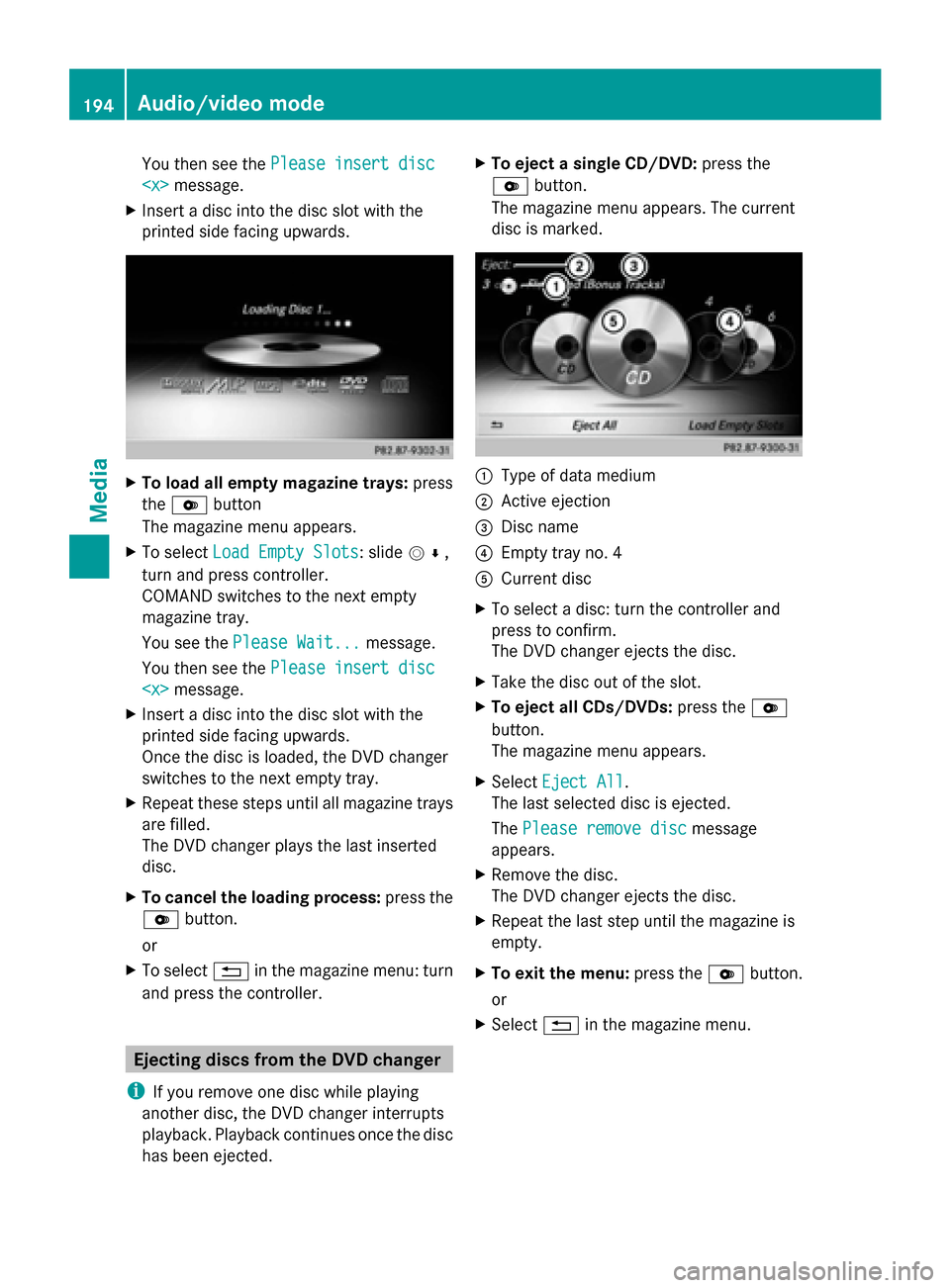
disc is marked. 0043
Type of data medium
0044 Active ejection
0087 Disc name
0085 Empty tray no. 4
0083 Current disc
X To select a disc: turn the controller and
press to confirm.
The DVD changer ejects the disc.
X Take the disc out of the slot.
X To eject all CDs/DVDs: press the0065
button.
The magazine menu appears.
X Select Eject All Eject All.
The last selected disc is ejected.
The Please remove disc Please remove disc message
appears.
X Remove the disc.
The DVD changer ejects the disc.
X Repeat the last step until the magazine is
empty.
X To exit the menu: press the0065button.
or
X Select 0038in the magazine menu. 194
Audio/video modeMedia
Page 197 of 278
Inserting and ejecting an SD memory
card
General information COMAND supports SD memory cards
(Secure Digital) and SDHC memory cards
(Secure DigitalHighCapacity).
i If you are no longer using the SD memory
card, you should remove it. High
temperatures can damage the card.
Inserting an SD memory card X
Insert the memory card into the slot on the
control panel until the SD memory card
engages into place. The side with the
contacts must face downwards.
The music is played while the files are
loaded in the background. If there are no
supported audio/video files, you will see a
message to this effect.
Ejecting an SD memory card X
Press the memory card.
The memory card is ejected.
X Remove the memory card. Connecting USB devices
There are two USB ports located in the
stowage compartment in the center console.
X Connect the USB device to the USB port.
The music is played while the files are
loaded in the background. If there are no
supported audio/video files, you will see a
message to this effect.
i MP3 players must support Media Transfer
Protocol (MTP). Activating media mode
Switching on automatically When an external media source is connected,
the media mode is automatically switched on
by COMAND and the basic display is shown.
If the CD/DVD is started using another
application (e.g. navigation), the display will
not change.
X Insert the CDs/DVDs (Y page 192)
or
X Insert a SD memory card: (Y page 195)
or
X Connect a USB device: (Y page 195)
COMAND loads the medium inserted and
starts to play it automatically.
Further options for switching on:
R Using the number keypad: (Y page 191)
R Using the main function bar: (Y page 190)
R Using the device list: (Y page 191)
R Using the 00FDbutton: (Y page 190) Options menu
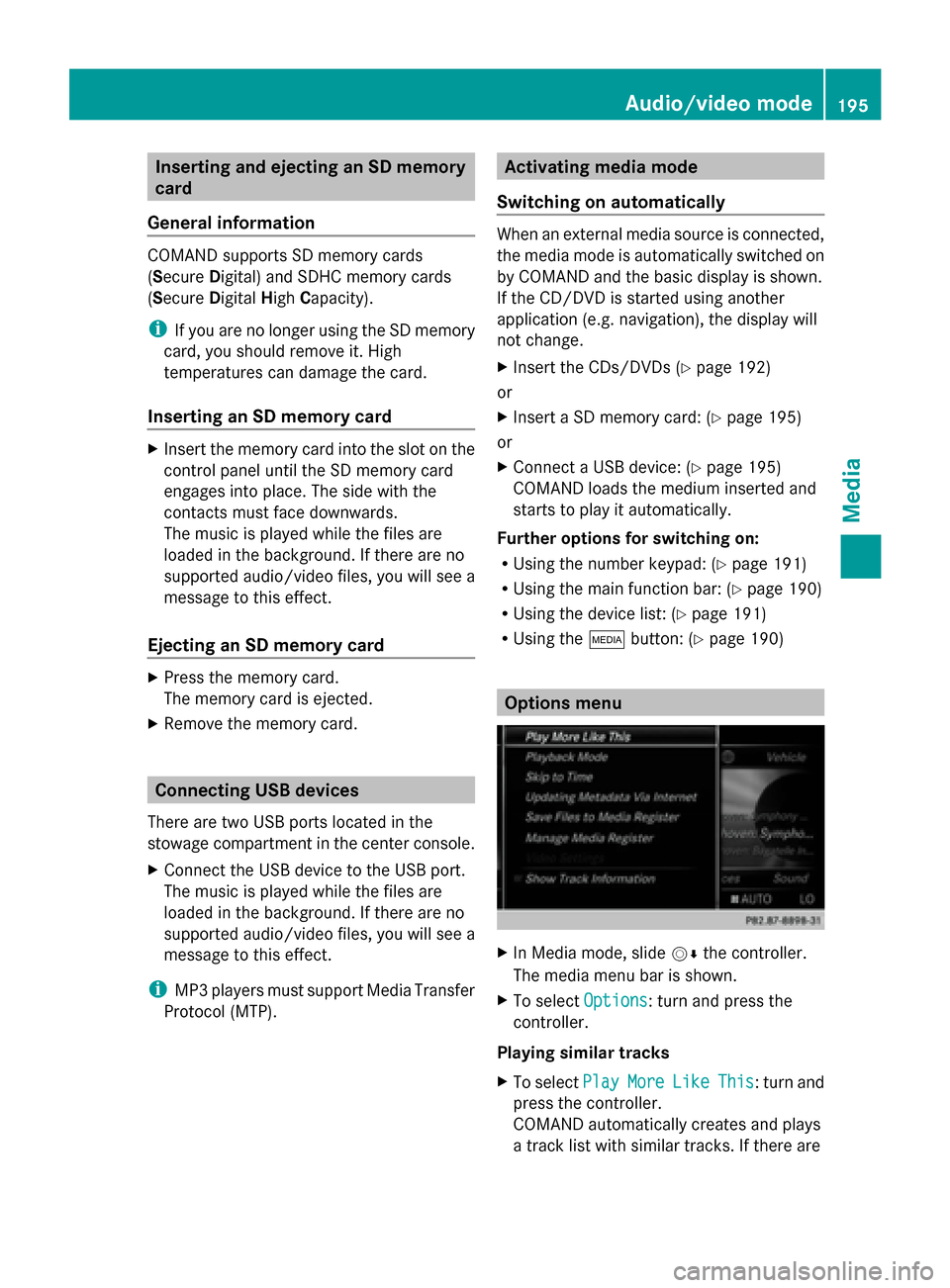
X
In Media mode, slide 00520064the controller.
The media menu bar is shown.
X To select Options Options: turn and press the
controller.
Playing similar tracks
X To select Play PlayMore
MoreLike
Like This
This: turn and
press the controller.
COMAND automatically creates and plays
a track list with similar tracks. If there are Audio/video mode
195Media Z
Page 198 of 278
no comparable tracks on the data carrier,
you will see a message to this effect.
X Select the required track. Play mode
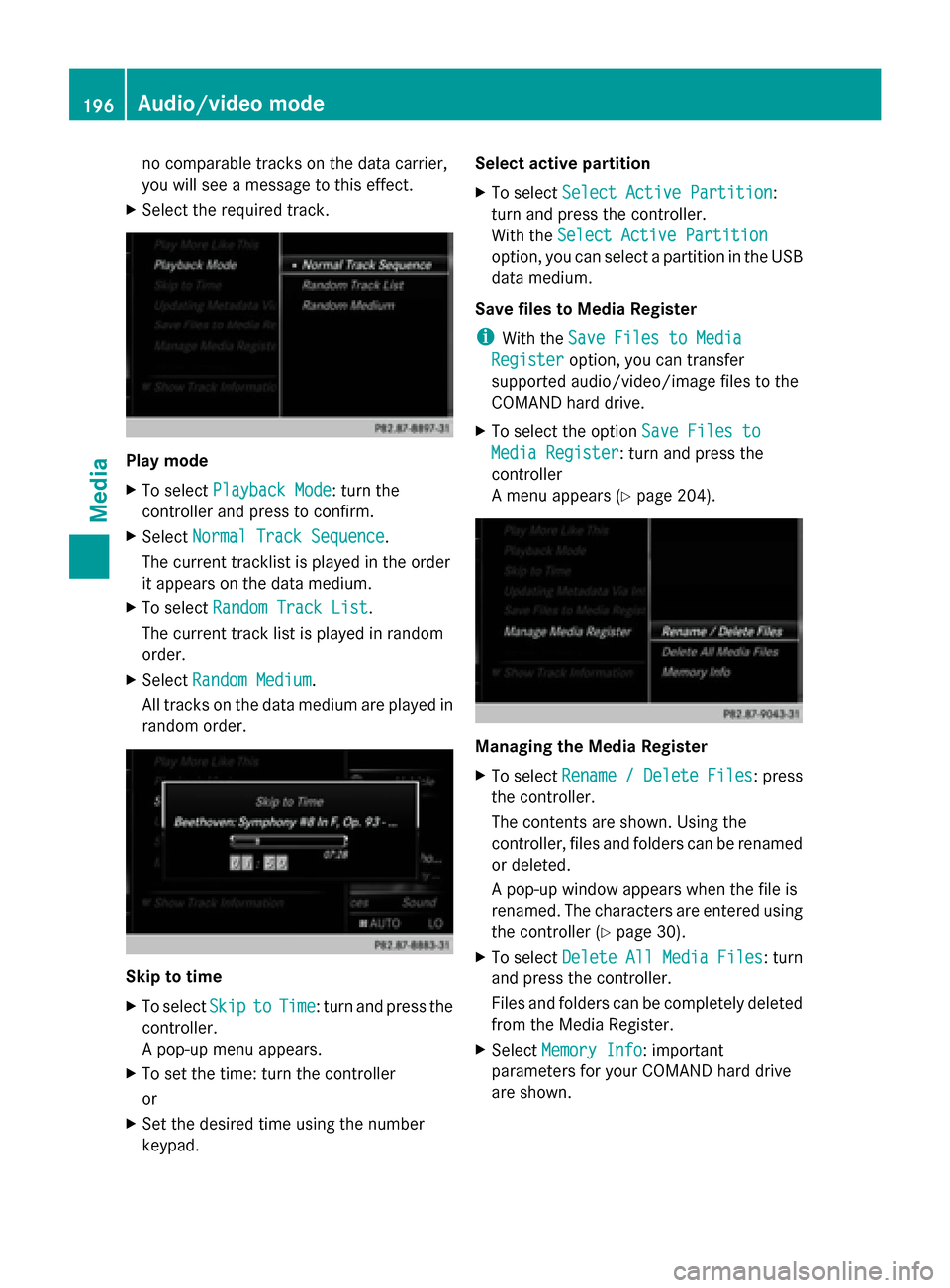
X
To select Playback Mode Playback Mode: turn the
controller and press to confirm.
X Select Normal Track Sequence
Normal Track Sequence.
The current tracklist is played in the order
it appears on the data medium.
X To select Random Track List
Random Track List.
The current track list is played in random
order.
X Select Random Medium
Random Medium .
All tracks on the data medium are played in
random order. Skip to time
X
To select Skip Skipto
toTime
Time : turn and press the
controller.
A pop-up menu appears.
X To set the time: turn the controller
or
X Set the desired time using the number
keypad. Select active partition
X
To select Select Active Partition
Select Active Partition :
turn and press the controller.
With the Select Active Partition Select Active Partition
option, you can select a partition in the USB
data medium.
Save files to Media Register
i With the Save Files to Media Save Files to Media
Register
Register option, you can transfer
supported audio/video/image files to the
COMAND hard drive.
X To select the option Save Files to Save Files to
Media Register
Media Register: turn and press the
controller
A menu appears (Y page 204). Managing the Media Register
X
To select Rename Rename/
/Delete
Delete Files
Files: press
the controller.
The contents are shown. Using the
controller, files and folders can be renamed
or deleted.
A pop-up window appears when the file is
renamed. The characters are entered using
the controller ( Ypage 30).
X To select Delete All Media Files Delete All Media Files : turn
and press the controller.
Files and folders can be completely deleted
from the Media Register.
X Select Memory Info Memory Info: important
parameters for your COMAND hard drive
are shown. 196
Audio/video modeMedia
Page 199 of 278
Start at a different seat
The media source can be played back at a
different seat: (Y page 191).
Show track information
Checking or unchecking the box before Show Show
Track Information
Track Information displays or hides the
information on the track, artist and album in
the main display field. Stop and playback function
X To stop playback: in audio/video mode,
slide 00520064the controller.
The media menu bar is shown.
X To activate 00CFin the media menu bar:
turn the controller and press to confirm
Playback is interrupted here. The display
changes to 00D0.
X To continue playback: in audio/video
mode, slide 00520064the controller.
The media menu bar is shown.
X To activate 00D0in the Media menu bar:
turn and press the controller.
Playback is continued from the point of
interruption. The symbol changes to 00CF. Selecting a track
Selecting using the current track list X
To display the current track list: press
the controller in the basic display.
The track list for the active data medium
appears.
X To select a track: turn the controller and
press to confirm.
Selecting by skipping to a track X
To skip forwards or backwards to a track:
turn or briefly slide 009500520096the controller in
the media basic display.
Selecting a track using the number
keypad X
Press the 0056key on the number keypad.
A numerical entry field appears. The
number of positions offered corresponds to
the number of tracks on the CD/DVD. Only
numbers that correspond to a track
number on the CD/DVD can be entered.
X To enter the track number using the
number keys: briefly press the desired
numbers on the number keypad.
The track plays after the last possible
number is entered.
i Pressing and holding a number key for
more than two seconds completes the
entry, and the corresponding track is
played. The search menu Audio/video mode
197Media Z
Page 200 of 278
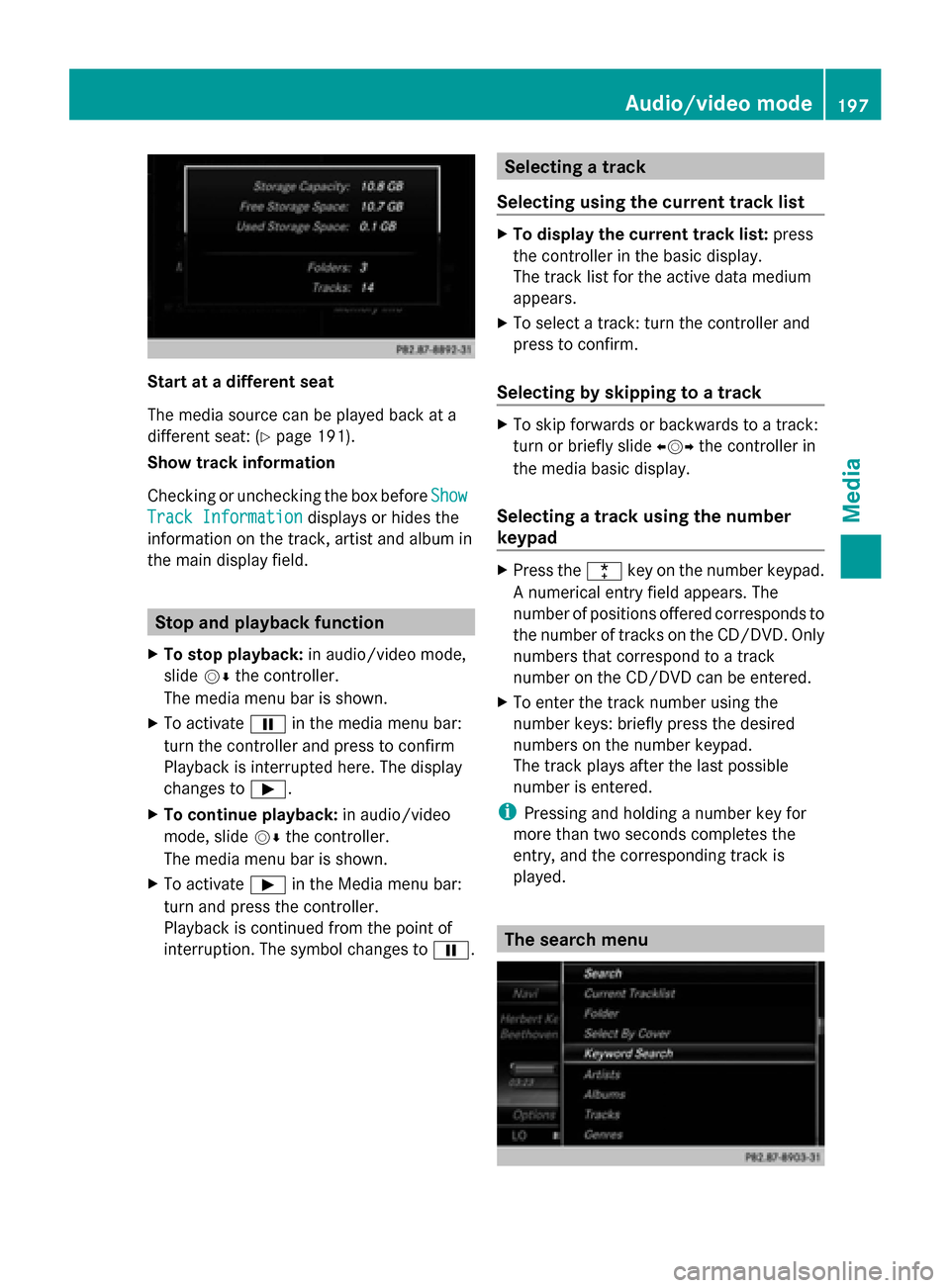
X
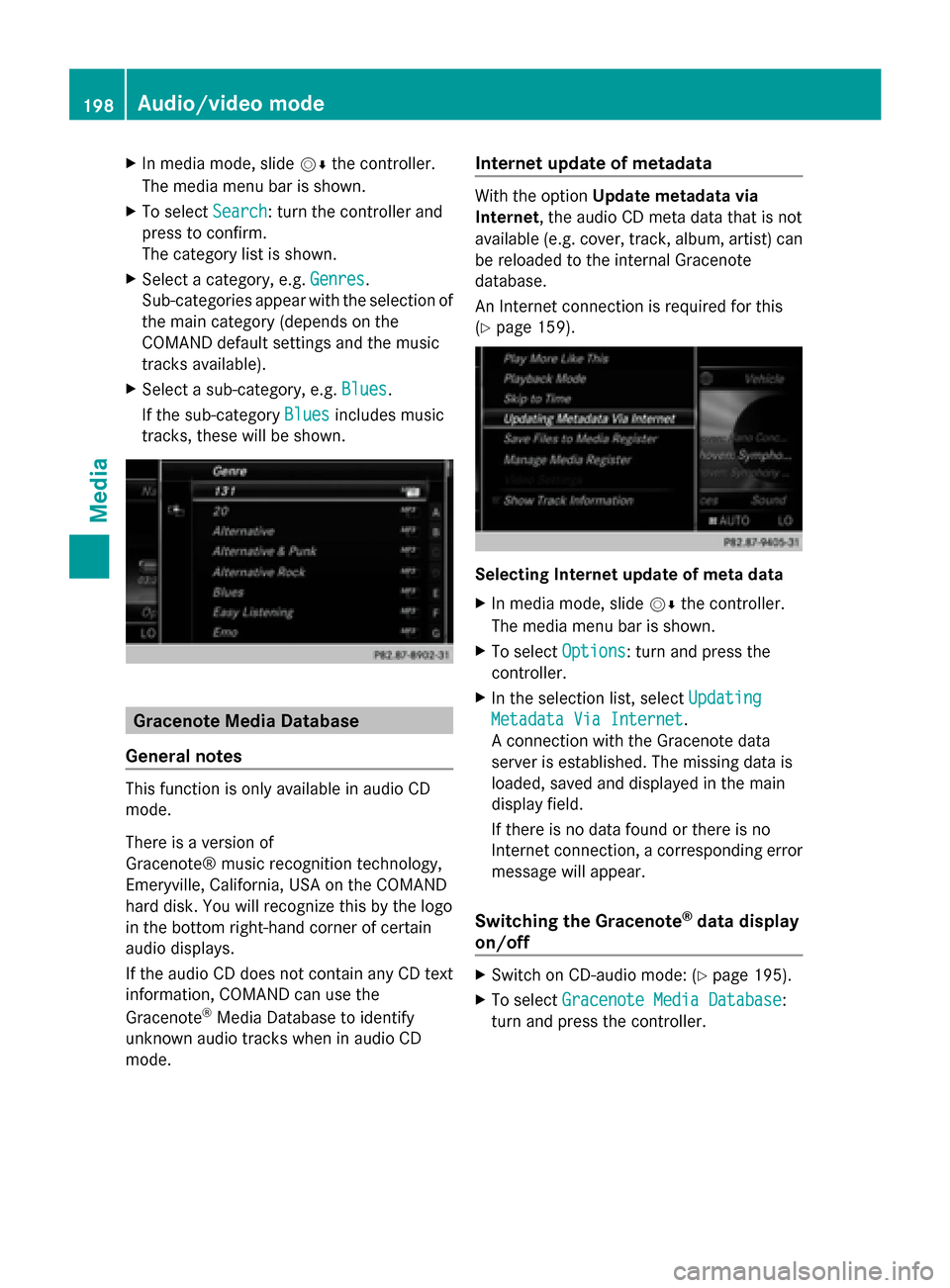
In media mode, slide 00520064the controller.
The media menu bar is shown.
X To select Search
Search: turn the controller and
press to confirm.
The category list is shown.
X Select a category, e.g. Genres Genres.
Sub-categories appear with the selection of
the main category (depends on the
COMAND default settings and the music
tracks available).
X Select a sub-category, e.g. Blues
Blues.
If the sub-category Blues Bluesincludes music
tracks, these will be shown. Gracenote Media Database
General notes This function is only available in audio CD
mode.
There is a version of
Gracenote® music recognition technology,
Emeryville, California, USA on the COMAND
hard disk. You will recognize this by the logo
in the bottom right-hand corner of certain
audio displays.
If the audio CD does not contain any CD text
information, COMAND can use the
Gracenote ®
Media Database to identify
unknown audio tracks when in audio CD
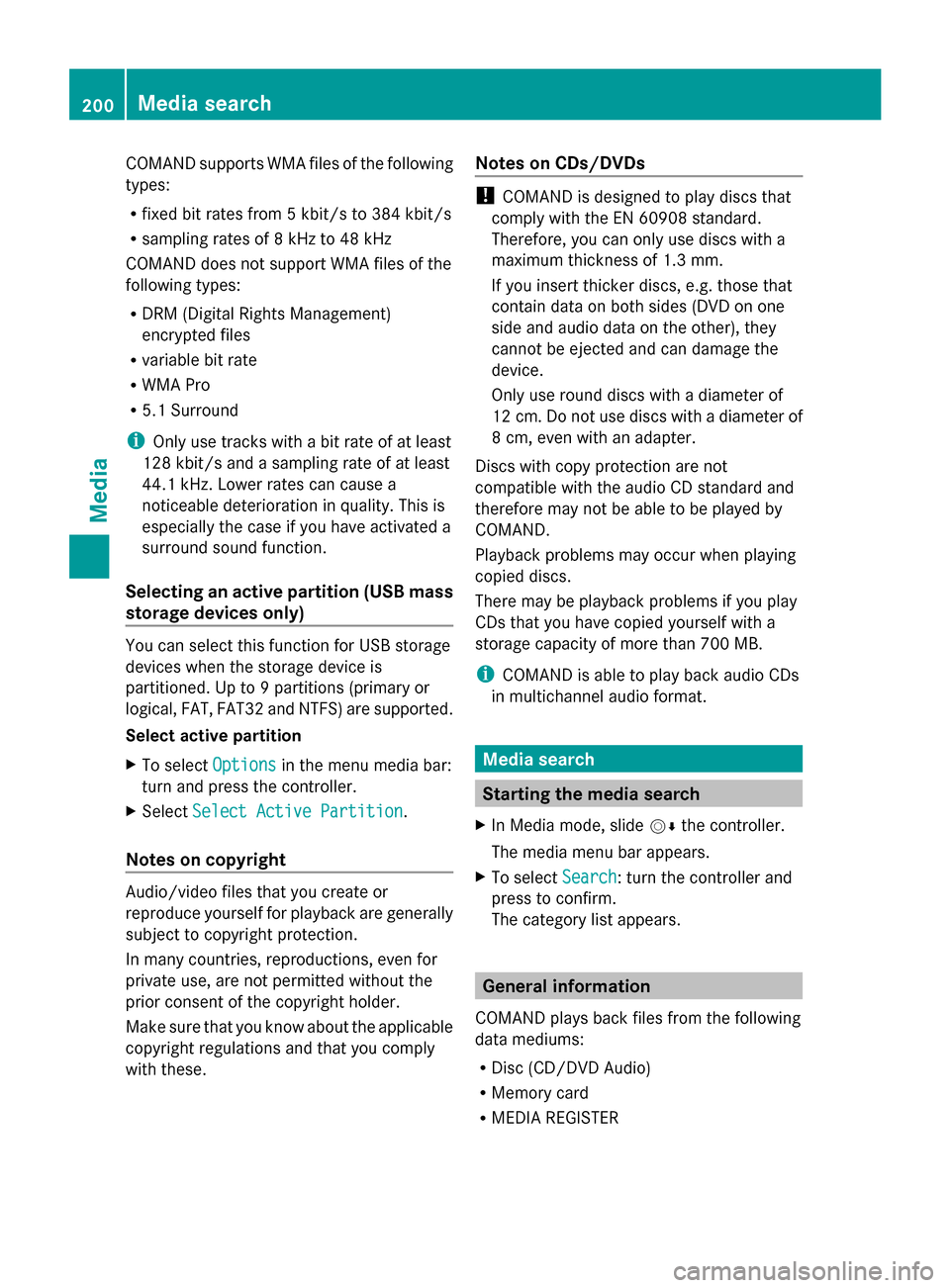
mode. Internet update of metadata With the option
Update metadata via
Internet, the audio CD meta data that is not
available (e.g. cover, track, album, artist) can
be reloaded to the internal Gracenote
database.
An Internet connection is required for this
(Y page 159). Selecting Internet update of meta data
X
In media mode, slide 00520064the controller.
The media menu bar is shown.
X To select Options Options: turn and press the
controller.
X In the selection list, select Updating
Updating
Metadata Via Internet
Metadata Via Internet.
A connection with the Gracenote data
server is established. The missing data is
loaded, saved and displayed in the main
display field.
If there is no data found or there is no
Internet connection, a corresponding error
message will appear.
Switching the Gracenote ®
data display
on/off X
Switch on CD-audio mode: (Y page 195).
X To select Gracenote Media Database Gracenote Media Database:
turn and press the controller. 198
Audio/video modeMedia
Page 201 of 278

X
To switch the display off: select None
None.
In the basic display, Track 1
Track 1 ,Track 2
Track 2 etc.
are shown instead of the Gracenote ®
data,
for example.
X To switch on the display: press the
controller. Notes on audio/video mode
Permissible data carriers R
CD-R, CD-A and CD-RW
R DVD-R, DVD-V and DVD-RW
R SD memory card
R USB storage device
Permissible file systems R
ISO 9660/Joliet standard for CDs
R UDF for video DVDs
R FAT16, FAT32, exFAT and NTFS for SD
memory card and USB storage media
Multisession CDs For multisession CDs, the content of the first
session determines how COMAND will
process the CD. COMAND plays only one
session and gives priority to the audio CD
session.
File structure of a data carrier When you create a disc with compressed
music files, the tracks can be organized in
folders. A folder may also contain subfolders.
The disc may contain no more than eight
directory levels. Files beyond the eighth level
will not be recognized by the system.
i COMAND supports up to 50,000 files
from one data medium. For data media with
more than 64 GB, only files in the following
folders are supported: music, pictures,
videos. Track and file names When you create a disc with compressed
music files, you can assign names to the
tracks and folders.
If MP3 or WMA files are stored in the root
directory itself, the root directory will also be
treated as a folder.
You should observe the following when
assigning track names:
R
track names must have at least one
character.
R track names must have the ending of a
supported audio/video format, e.g. mp3,
aac or m4v.
R there must be a dot between the track
name and the extension.
Example of a correct track name:
"Track1.mp3".
Permissible formats COMAND supports the following audio
formats:
R
MP3
R WMA
R CD-A
R AAC formats: .aac, .mp4, .m4a and .m4b
Copy-protected iTunes music files with
the .m4p file ending are not supported.
COMAND supports the following video
formats:
R DVD-V
R MPEG
R wmv
R M4V
R AVI up to 720p.
Permissible bit and sampling rates COMAND supports MP3 files of the following
types:
R
fixed and variable bit rates from 32 kbit/s
to 320 kbit/s
R sampling rates of 8 kHz to 48 kHz Audio/video mode
199Media Z
Page 202 of 278
COMAND supports WMA files of the following
types:
R fixed bit rates from 5 kbit/s to 384 kbit/s
R sampling rates of 8 kHz to 48 kHz
COMAND does not support WMA files of the
following types:
R DRM (Digital Rights Management)
encrypted files
R variable bit rate
R WMA Pro
R 5.1 Surround
i Only use tracks with a bit rate of at least
128 kbit/s and a sampling rate of at least
44.1 kH z.Lower rates can cause a
noticeable deterioration in quality. This is
especially the case if you have activated a
surround sound function.
Selecting an active partition (USB mass
storage devices only) You can select this function for USB storage
devices when the storage device is
partitioned. Up to 9 partitions (primary or
logical, FAT, FAT32 and NTFS) are supported.
Select active partition
X To select Options Optionsin the menu media bar:
turn and press the controller.
X Select Select Active Partition
Select Active Partition.
Notes on copyright Audio/video files that you create or
reproduce yourself for playback are generally
subject to copyright protection.
In many countries, reproductions, even for
private use, are not permitted without the
prior consent of the copyright holder.
Make sure that you know about the applicable
copyright regulations and that you comply
with these. Notes on CDs/DVDs !
COMAND is designed to play discs that
comply with the EN 60908 standard.
Therefore, you can only use discs with a
maximum thickness of 1.3 mm.
If you insert thicker discs, e.g. those that
contain data on both sides (DVD on one
side and audio data on the other), they
cannot be ejected and can damage the
device.
Only use round discs with a diameter of
12 cm. Do not use discs with a diameter of
8 cm, even with an adapter.
Discs with copy protection are not
compatible with the audio CD standard and
therefore may not be able to be played by
COMAND.
Playback problems may occur when playing
copied discs.
There may be playback problems if you play
CDs that you have copied yourself with a
storage capacity of more than 700 MB.
i COMAND is able to play back audio CDs
in multichannel audio format. Media search
Starting the media search
X In Media mode, slide 00520064the controller.
The media menu bar appears.
X To select Search Search: turn the controller and
press to confirm.
The category list appears. General information
COMAND plays back files from the following
data mediums:
R Disc (CD/DVD Audio)
R Memory card
R MEDIA REGISTER 200
Media searchMedia
Page 205 of 278
X
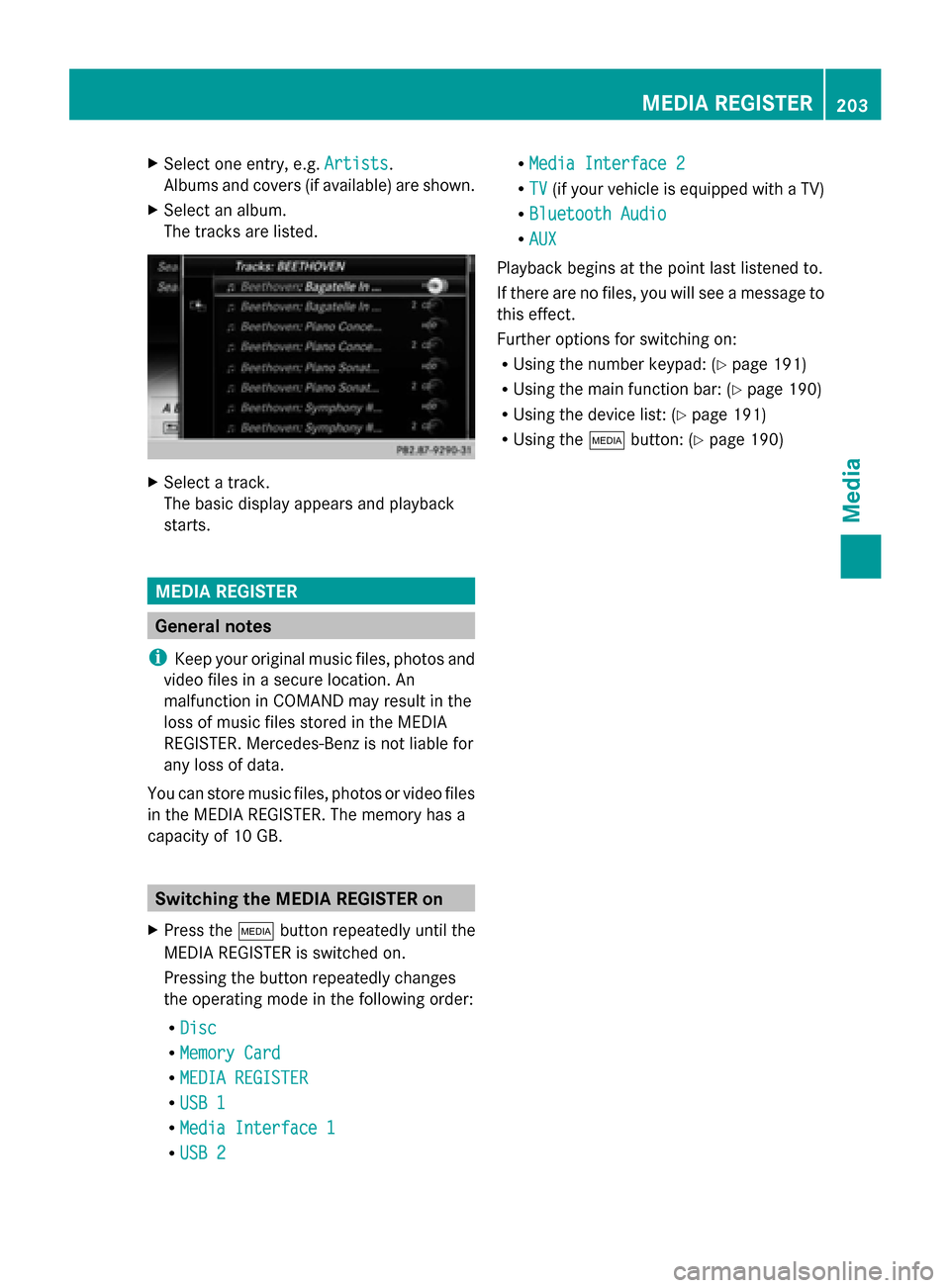
Select one entry, e.g. Artists
Artists.
Albums and covers (if available) are shown.
X Select an album.
The tracks are listed. X
Select a track.
The basic display appears and playback
starts. MEDIA REGISTER
General notes
i Keep your original music files, photos and
video files in a secure location. An
malfunction in COMAND may result in the
loss of music files stored in the MEDIA
REGISTER. Mercedes-Benz is not liable for
any loss of data.
You can store music files, photos or video files
in the MEDIA REGISTER. The memory has a
capacity of 10 GB. Switching the MEDIA REGISTER on
X Press the 00FDbutton repeatedly until the
MEDIA REGISTER is switched on.
Pressing the button repeatedly changes
the operating mode in the following order:
R Disc
Disc
R Memory Card Memory Card
R MEDIA REGISTER
MEDIA REGISTER
R USB 1
USB 1
R Media Interface 1
Media Interface 1
R USB 2
USB 2 R
Media Interface 2
Media Interface 2
R TV
TV (if your vehicle is equipped with a TV)
R Bluetooth Audio
Bluetooth Audio
R AUX
AUX
Playback begins at the point last listened to.
If there are no files, you will see a message to
this effect.
Further options for switching on:
R Using the number keypad: (Y page 191)
R Using the main function bar: (Y page 190)
R Using the device list: (Y page 191)
R Using the 00FDbutton: (Y page 190) MEDIA REGISTER
203Media Z
Page 210 of 278
The following options are available:
R
Normal Track Sequence Normal Track Sequence
The tracks are played in the normal order
(e.g. track 1, 2, 3, etc.).
R Random Medium
Random Medium
All the tracks on the medium are played in
random order.
R Random Track Mix
Random Track Mix
The tracks in the currently active track list
are played in random order. Bluetooth
®
audio mode Connecting Bluetooth
®
audio devices
Prerequisites Bluetooth
®
audio mode requires a
Bluetooth ®
-capable audio device.
Before using Bluetooth ®
audio mode, you
must check your Bluetooth ®
audio device for
the following (see the Bluetooth ®
audio
device's operating instructions):
R Bluetooth ®
audio profile
The Bluetooth ®
audio device must support
the A2DP and AVRCP Bluetooth ®
audio
profiles.
R Bluetooth ®
visibility
Certain Bluetooth ®
audio devices require
more than simply activating the
Bluetooth ®
function. In addition, your
device must be made "visible" to other
devices.
R Bluetooth ®
device name
This device name is predetermined but can
usually be changed. To make a clear
selection of the Bluetooth ®
device
possible, Mercedes-Benz recommends
that you customize the device name (see
the Bluetooth ®
audio device's operating
instructions). i
A2DP (Advanced AudioDistribution
Profile): Bluetooth ®
audio profile for audio
data transmission
AVRCP (Audio VideoRemote Control
Profile): Bluetooth ®
audio profile for audio
data playback.
i The Bluetooth ®
device must be visible for
authorization. After authorization,
COMAND even finds the Bluetooth ®
device
when it is not visible.
COMAND
X Activate the Bluetooth ®
function in
COMAND (Y page 45).
General notes Before using your Bluetooth
®
audio device
with COMAND for the first time, you will need
to authorize it.
When you authorize a new Bluetooth ®
audio
device, it is connected automatically.
Connection involves first searching for a
Bluetooth ®
audio device and then authorizing
it.
You can authorize up to fifteen Bluetooth ®
devices.
i If you authorize a mobile phone that
supports Bluetooth ®
audio, the A2DP and
AVRCP Bluetooth ®
audio profiles are
connected automatically.
The mobile phone is then entered:
R in the Bluetooth ®
telephone list
(Y page 124)
R in the Bluetooth ®
device list
(Y page 209)
Mercedes-Benz recommends authorizing a
mobile phone in Bluetooth ®
telephony
(Y page 125). 208
Bluetooth ®
audio modeMedia
Page 211 of 278
i
If the mobile phone that is connected only
supports two Bluetooth ®
profiles at the
same time, COMAND functions may
behave as follows:
R when connecting to the Internet,
playback is stopped on the Bluetooth ®
audio device (Y page 159).
R when starting playback on the
Bluetooth ®
audio device, the Internet
connection is ended (Y page 160).Searching for and authorizing a
Bluetooth ®
audio device
Switching to Bluetooth ®
audio mode
X Press the 00FDbutton.
X To select Bluetooth Audio
Bluetooth Audio from the
menu: turn and press the controller.
A menu appears.
If you see the No Bluetooth Audio No Bluetooth Audio
Device Authorized
Device Authorized message, you will
need to authorize the Bluetooth ®
audio
device first.
X To select Options
Options from the Bluetooth ®
audio menu: slide 005200C5and press the
controller.
X To select Bluetooth Audio Devices
Bluetooth Audio Devices:
press the controller.
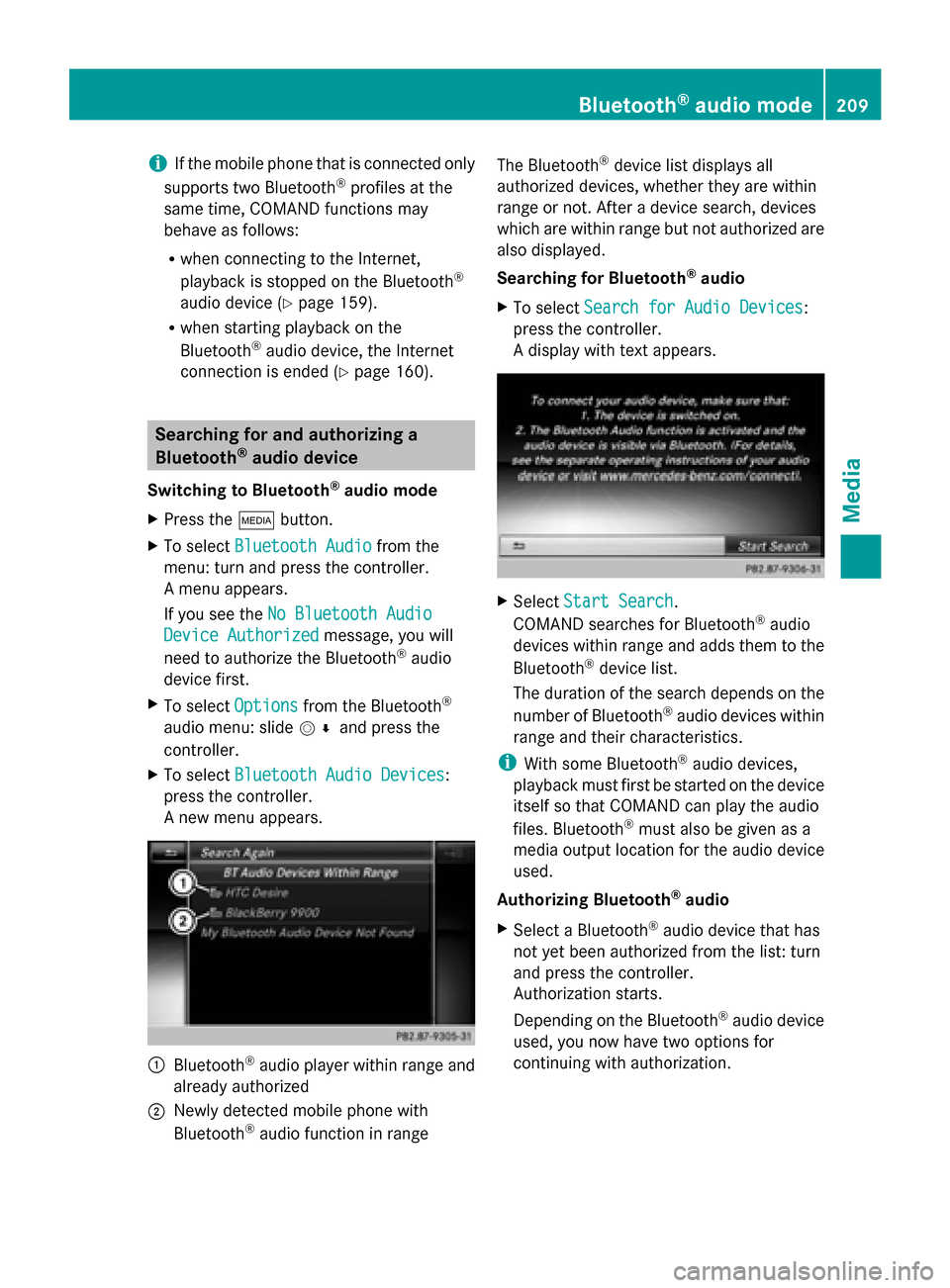
A new menu appears. 0043
Bluetooth ®
audio player within range and
already authorized
0044 Newly detected mobile phone with
Bluetooth ®
audio function in range The Bluetooth
®
device list displays all
authorized devices, whether they are within
range or not. After a device search, devices
which are within range but not authorized are
also displayed.
Searching for Bluetooth ®
audio
X To select Search for Audio Devices
Search for Audio Devices:
press the controller.
A display with text appears. X
Select Start Search Start Search.
COMAND searches for Bluetooth ®
audio
devices within range and adds them to the
Bluetooth ®
device list.
The duration of the search depends on the
number of Bluetooth ®
audio devices within
range and their characteristics.
i With some Bluetooth ®
audio devices,
playback must first be started on the device
itself so that COMAND can play the audio
files. Bluetooth ®
must also be given as a
media output location for the audio device
used.
Authorizing Bluetooth ®
audio
X Select a Bluetooth ®
audio device that has
not yet been authorized from the list: turn
and press the controller.
Authorization starts.
Depending on the Bluetooth ®
audio device
used, you now have two options for
continuing with authorization. Bluetooth
®
audio mode 209Media Z