audio MERCEDES-BENZ S-Class 2014 W222 Comand Manual
[x] Cancel search | Manufacturer: MERCEDES-BENZ, Model Year: 2014, Model line: S-Class, Model: MERCEDES-BENZ S-Class 2014 W222Pages: 278, PDF Size: 6.65 MB
Page 212 of 278
Option 1: entering the passkey
X
You can find information on this in the
"Authorizing (registering) a mobile phone"
section (Y page 125).
After successful authorization, the
Bluetooth ®
audio device is connected and
starts playing.
Option 2: Secure Simple Pairing
i The Bluetooth ®
audio device must
support Bluetooth ®
version 2.1 for
connection via Secure Simple Pairing.
COMAND creates a six-digit code, which is
displayed on both devices that are to be
connected
For some Bluetooth ®
audio devices, the
pairing must be confirmed within 10
seconds.
X If the number code displayed on
COMAND and on the Bluetooth ®
audio
device is the same, select Yes Yes: press the
controller.
If you select Yes
Yes, authorization continues
and the Bluetooth ®
audio device is
connected. Playback starts.
If you select No
No, authorization will be
canceled. External authorization
If COMAND does not find your Bluetooth ®
audio device, this may be due to particular
security settings on your Bluetooth ®
audio
device. In this case, check whether your
Bluetooth ®
audio device can locate
COMAND.
The Bluetooth ®
device name of COMAND is
MB Bluetooth
MB Bluetooth.
X
Switch on Bluetooth ®
audio mode
(Y page 212).
X To select Options Options: slide 005200C5and press
the controller. X
To select Bluetooth Audio Devices Bluetooth Audio Devices:
press the controller.
X To select Connect Via Audio Device Connect Via Audio Device:
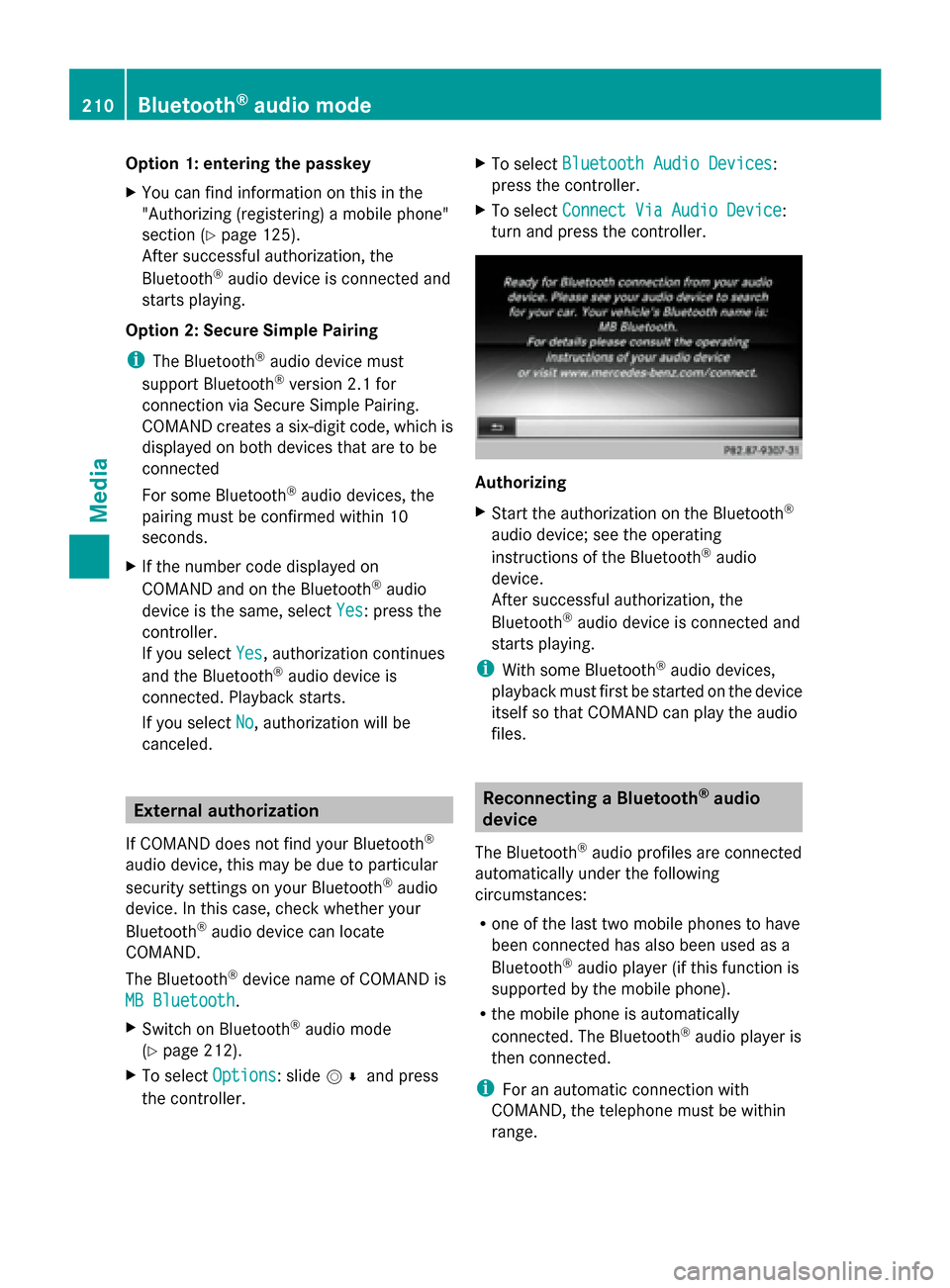
turn and press the controller. Authorizing
X
Start the authorization on the Bluetooth ®
audio device; see the operating
instructions of the Bluetooth ®
audio
device.
After successful authorization, the
Bluetooth ®
audio device is connected and
starts playing.
i With some Bluetooth ®
audio devices,
playback must first be started on the device
itself so that COMAND can play the audio
files. Reconnecting a Bluetooth
®
audio
device
The Bluetooth ®
audio profiles are connected
automatically under the following
circumstances:
R one of the last two mobile phones to have
been connected has also been used as a
Bluetooth ®
audio player (if this function is
supported by the mobile phone).
R the mobile phone is automatically
connected. The Bluetooth ®
audio player is
then connected.
i For an automatic connection with
COMAND, the telephone must be within
range. 210
Bluetooth ®
audio modeMedia
Page 213 of 278
For most Bluetooth
®
audio devices, the
"automatic connection" must be activated
by checking a box. Depending on the
device used, this prompt often takes place
when authorizing (see the Bluetooth ®
audio
device operating instructions).
If the No Bluetooth Audio Device
No Bluetooth Audio Device
Connected
Connected message appears, you have two
options to reconnect the Bluetooth ®
audio
device.
Option 1:
X To confirm Connect Last Device Connect Last Device in the
basic display: press the controller.
If COMAND can locate the Bluetooth ®
audio device, it will be connected and will
start playing.
Option 2:
X To select Options
Options: slide 005200C5and press
the controller.
X To select Bluetooth Audio Devices Bluetooth Audio Devices:
press the controller.
X To select a Bluetooth ®
audio device: turn
and press the controller.
If the Bluetooth ®
audio device has been
authorized, playback starts. Bluetooth
®
audio device and
simultaneous search for mobile
phones
i When searching for a mobile phone or a
new Bluetooth ®
audio device, the
connection to an already activated
Bluetooth ®
audio device is separated
(Y page 124).
In the Bluetooth ®
audio basic display, you will
see the No Bluetooth Audio Device
No Bluetooth Audio Device
Connected
Connected message and the Connect ConnectLast
Last
Device
Device menu item cannot be selected. Displaying details
X To select a Bluetooth ®
audio device from
the Bluetooth ®
device list: turn the
controller.
X To select the symbol to the right of the
Bluetooth ®
audio device: slide 00520096the
controller.
X To select Details
Details: turn and press the
controller.
The following information concerning the
selected mobile phone is shown:
R Bluetooth ®
name
R Bluetooth ®
address
R availability status (shown after an
update)
R authorization status
X To close the detailed display: press the
0038 button. De-authorizing (deregistering) a
Bluetooth
®
audio device
X To select a Bluetooth ®
audio device from
the Bluetooth ®
device list: turn the
controller.
X To select the symbol to the right of the
Bluetooth ®
audio device: slide 00520096and
press the controller.
X To select Deauthorize
Deauthorize: press the
controller.
A prompt appears asking whether you
really wish to de-authorize this device.
X To select Yes YesorNo
No: turn and press the
controller.
If you select Yes
Yes, the device will be deleted
from the Bluetooth ®
device list.
If you select No
No, the process will be
canceled.
i Before re-authorizing the Bluetooth ®
audio device, you should also delete the
device name MB Bluetooth MB Bluetooth from your
Bluetooth ®
audio device's Bluetooth ®
list Bluetooth
®
audio mode 211Media Z
Page 214 of 278
(see the Bluetooth
®
audio device's
operating instructions). Switching to Bluetooth
®
audio mode
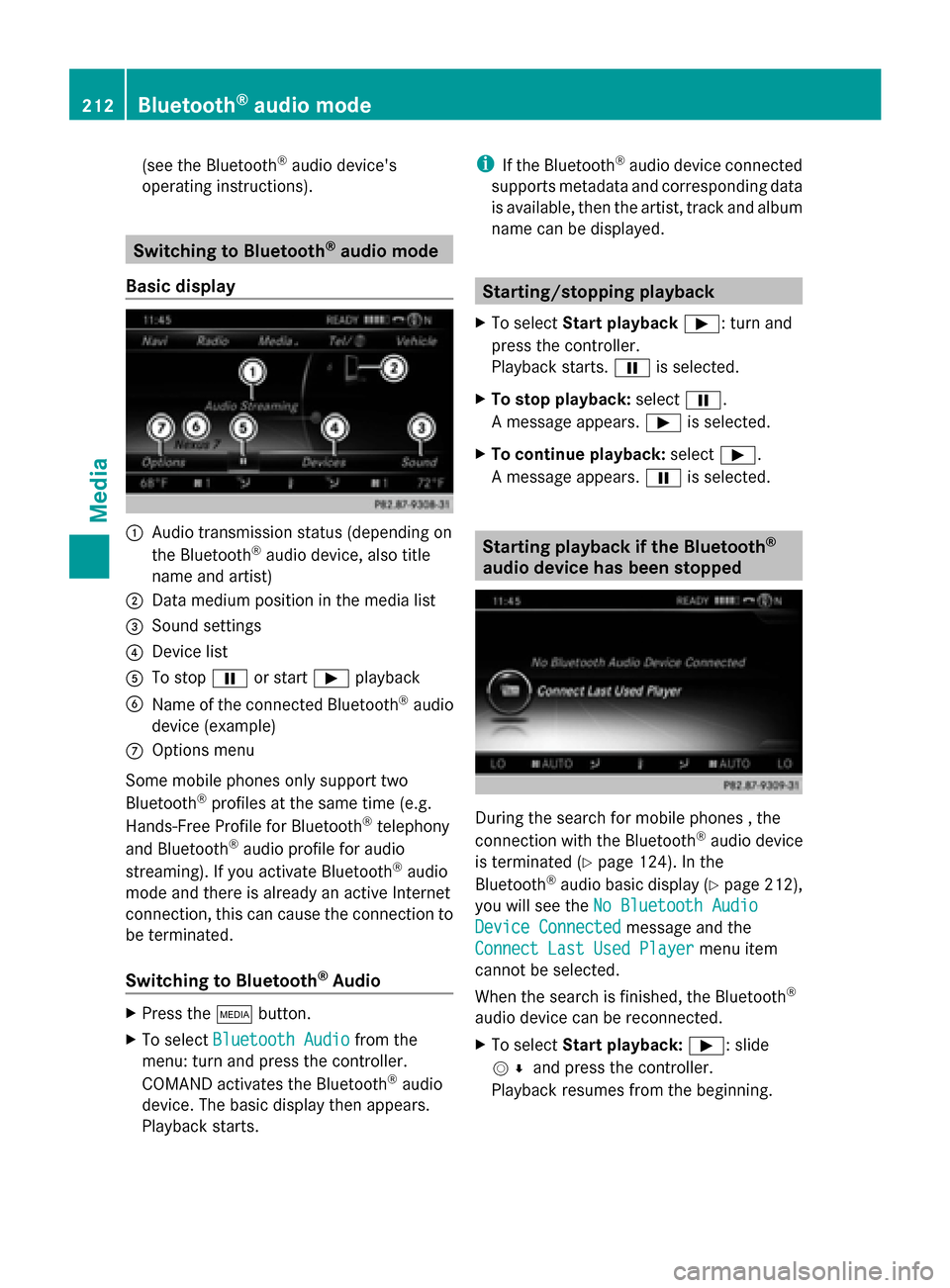
Basic display 0043
Audio transmission status (depending on
the Bluetooth ®
audio device, also title
name and artist)
0044 Data medium position in the media list
0087 Sound settings
0085 Device list
0083 To stop 00CFor start 00D0playback
0084 Name of the connected Bluetooth ®
audio
device (example)
006B Options menu
Some mobile phones only support two
Bluetooth ®
profiles at the same time (e.g.
Hands-Free Profile for Bluetooth ®
telephony
and Bluetooth ®
audio profile for audio
streaming). If you activate Bluetooth ®
audio
mode and there is already an active Internet
connection, this can cause the connection to
be terminated.
Switching to Bluetooth ®
Audio X
Press the 00FDbutton.
X To select Bluetooth Audio Bluetooth Audio from the
menu: turn and press the controller.
COMAND activates the Bluetooth ®
audio
device. The basic display then appears.
Playback starts. i
If the Bluetooth ®
audio device connected
supports metadata and corresponding data
is available, then the artist, track and album
name can be displayed. Starting/stopping playback
X To select Start playback 00D0: turn and
press the controller.
Playback starts. 00CFis selected.
X To stop playback: select00CF.
A message appears. 00D0is selected.
X To continue playback: select00D0.
A message appears. 00CFis selected. Starting playback if the Bluetooth
®
audio device has been stopped During the search for mobile phones , the
connection with the Bluetooth
®
audio device
is terminated (Y page 124). In the
Bluetooth ®
audio basic display (Y page 212),
you will see the No Bluetooth Audio No Bluetooth Audio
Device Connected
Device Connected message and the
Connect Last Used Player
Connect Last Used Player menu item
cannot be selected.
When the search is finished, the Bluetooth ®
audio device can be reconnected.
X To select Start playback: 00D0: slide
005200C5 and press the controller.
Playback resumes from the beginning. 212
Bluetooth ®
audio modeMedia
Page 215 of 278
X
To select Connect Last Used Player
Connect Last Used Player:
press the controller.
Depending on the Bluetooth ®
audio device
used, playback starts immediately or you
must start playback manually.
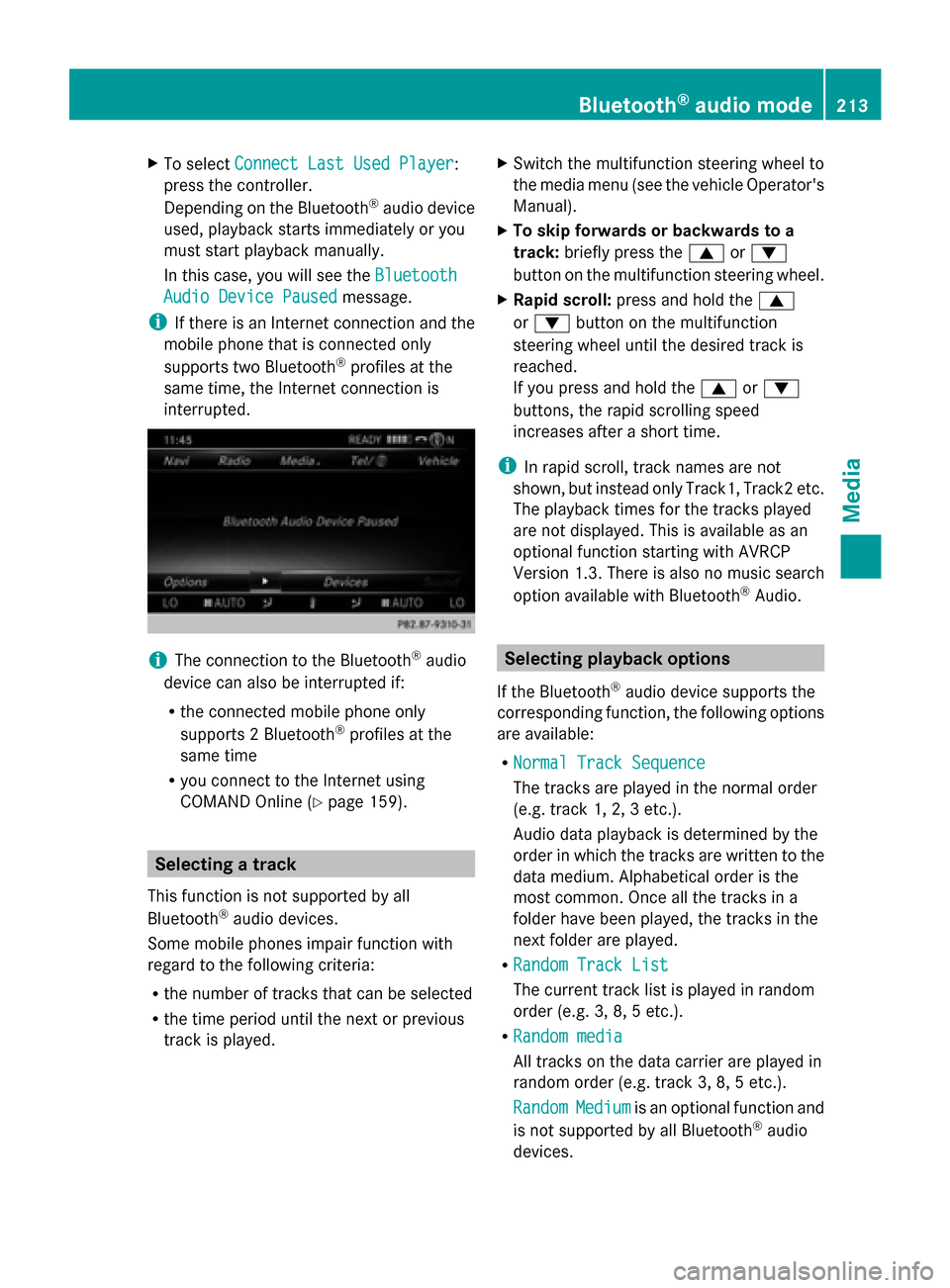
In this case, you will see the Bluetooth
Bluetooth
Audio Device Paused Audio Device Paused message.
i If there is an Internet connection and the
mobile phone that is connected only
supports two Bluetooth ®
profiles at the
same time, the Internet connection is
interrupted. i
The connection to the Bluetooth ®
audio
device can also be interrupted if:
R the connected mobile phone only
supports 2 Bluetooth ®
profiles at the
same time
R you connect to the Internet using
COMAND Online (Y page 159). Selecting a track
This function is not supported by all
Bluetooth ®
audio devices.
Some mobile phones impair function with
regard to the following criteria:
R the number of tracks that can be selected
R the time period until the next or previous
track is played. X
Switch the multifunction steering wheel to
the media menu (see the vehicle Operator's
Manual).
X To skip forwards or backwards to a
track: briefly press the 0063or0064
button on the multifunction steering wheel.
X Rapid scroll: press and hold the 0063
or 0064 button on the multifunction
steering wheel until the desired track is
reached.
If you press and hold the 0063or0064
buttons, the rapid scrolling speed
increases after a short time.
i In rapid scroll, track names are not
shown, but instead only Track1, Track2 etc.
The playback times for the tracks played
are not displayed. This is available as an
optional function starting with AVRCP
Version 1.3. There is also no music search
option available with Bluetooth ®
Audio. Selecting playback options
If the Bluetooth ®
audio device supports the
corresponding function, the following options
are available:
R Normal Track Sequence Normal Track Sequence
The tracks are played in the normal order
(e.g. track 1, 2, 3 etc.).
Audio data playback is determined by the
order in which the tracks are written to the
data medium. Alphabetical order is the
most common. Once all the tracks in a
folder have been played, the tracks in the
next folder are played.
R Random Track List Random Track List
The current track list is played in random
order (e.g. 3, 8, 5 etc.).
R Random media Random media
All tracks on the data carrier are played in
random order (e.g. track 3, 8, 5 etc.).
Random Random Medium
Mediumis an optional function and
is not supported by all Bluetooth ®
audio
devices. Bluetooth
®
audio mode 213Media Z
Page 216 of 278
Selecting playback options
X
To select Options Options: turn and press the
controller.
X Select Play back music
Play back music.
A 0036 dot indicates the current setting.
X Select the desired option.
If you select Random RandomTrack
Track List
List, you will
see a corresponding message in the
display/selection window. Increasing the volume using COMAND
X To select Options Options: slide 005200C5and press
the controller.
X To select Volume
Volume: turn and press the
controller.
A menu appears. The 0036dot indicates the
current setting.
X Select Standard
Standard orBoost
Boost.
Information on sound settings
(Y page 230).
Further information: "Audio AUX mode"
(Y page 218). 214
Bluetooth ®
audio modeMedia
Page 217 of 278
Operation with the Media Interface
Prerequisite
An iPod ®
, iPhone ®
, USB device or MP3 player must be connected to the Media Interface. You
will find two USB connection sockets in the center console stowage compartment.
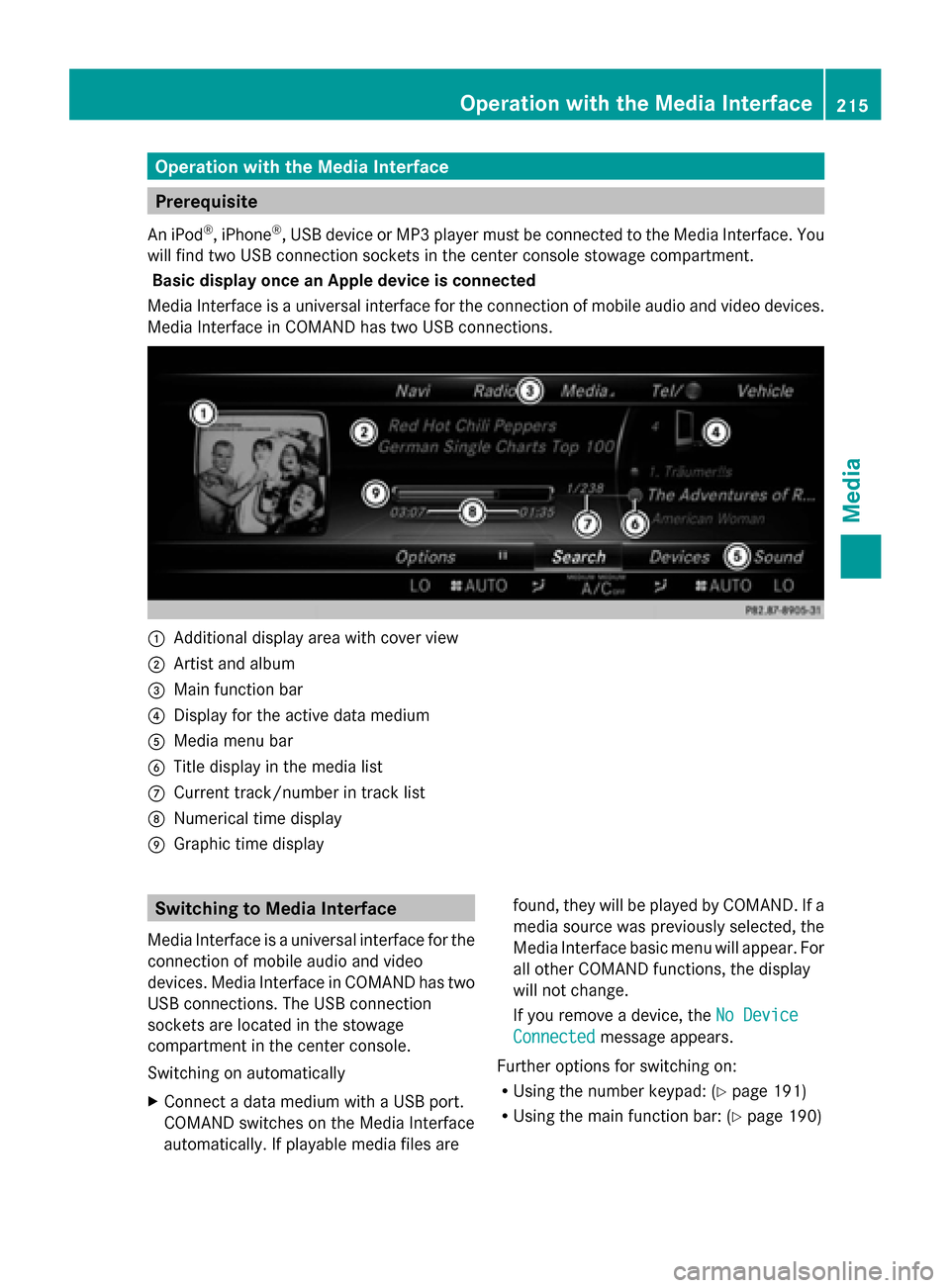
Basic display once an Apple device is connected
Media Interface is a universal interface for the connection of mobile audio and video devices.
Media Interface in COMAND has two USB connections. 0043
Additional display area with cover view
0044 Artist and album
0087 Main function bar
0085 Display for the active data medium
0083 Media menu bar
0084 Title display in the media list
006B Current track/number in track list
006C Numerical time display
006D Graphic time display Switching to Media Interface
Media Interface is a universal interface for the
connection of mobile audio and video
devices. Media Interface in COMAND has two
USB connections. The USB connection
sockets are located in the stowage
compartment in the center console.
Switching on automatically
X Connect a data medium with a USB port.
COMAND switches on the Media Interface
automatically. If playable media files are found, they will be played by COMAND. If a
media source was previously selected, the
Media Interface basic menu will appear. For
all other COMAND functions, the display
will not change.
If you remove a device, the
No Device
No Device
Connected Connected message appears.
Further options for switching on:
R Using the number keypad: (Y page 191)
R Using the main function bar: (Y page 190) Operation with the Media Interface
215Media Z
Page 218 of 278
R
Using the device list: (Y page 191)
R Using the 00FDbutton: (Y page 190) Supported devices
The following data media can be connected
to COMAND via the Media Interface:
R iPod ®
R iPhone ®
R iPad ®
R MP3
R USB devices
i iPod ®
, iPhone ®
and iPad ®
are registered
trademarks of Apple Inc., Cupertino,
California, USA.
i Audio files, photos and video files can be
played back.
For details and a list of supported devices,
visit http://www.mbusa-mobile.com. Or
call the Mercedes-Benz Customer Assistance
Center at
1-800-FOR-MERCedes(1-800-367-6372) (for
the USA) or Customer Relations at
1-800-387-0100 (for Canada). Supported data formats
Music mp3, wma
Video mpeg, wmv, mov,
avi, mp4
Images jpg, jpeg, bmp, png Selecting a music file
Selecting with the controller X
To display the current track list: press
the controller in the basic display.
The track list for the active data medium
appears.
X To select a track: turn the controller and
press to confirm.
X To skip forwards or backwards to a
track: turn the controller in the basic
display.
Three track titles are shown. The track to
the front is played.
Fast forward/rewind X
With the media source active in the basic
display, slide 009500520096the controller and hold
it until the desired position has been
reached. Search function
Selecting Search using media menu bar X
Slide 00520064the controller.
The media menu bar appears.
X To select Search Search: turn the controller and
press to confirm.
The category list appears.
Overview The following categories are listed:
R
Current Tracklist Current Tracklist
R Folder
Folder
R Select By Cover
Select By Cover
R Keyword Search
Keyword Search
R Playlists
Playlists
R Artists
Artists
R Albums
Albums
R Title
Title
R Genres
Genres
R Year
Year 216
Operation with the Media InterfaceMedia
Page 220 of 278
Audio AUX mode
Notes on audio AUX mode
External audio sources may have different
volumes, which can mean that system
messages such as traffic announcements and
navigation system announcements are much
louder. If necessary, deactivate the system
messages or adjust their volume manually.
AUX also provides the option of connecting a
Media Player to COMAND.
To connect an external audio source to the
audio AUX, you will require an audio AUX
cable.
i You will find further information online at
http://www.mbusa-mobile.com. Or call
the Mercedes-Benz Customer Assistance
Center at
1-800-FOR-MERCedes(1-800-367-6372)
(for the USA) or Customer Relations at
1-800-387-0100 (for Canada). Switching to audio AUX mode
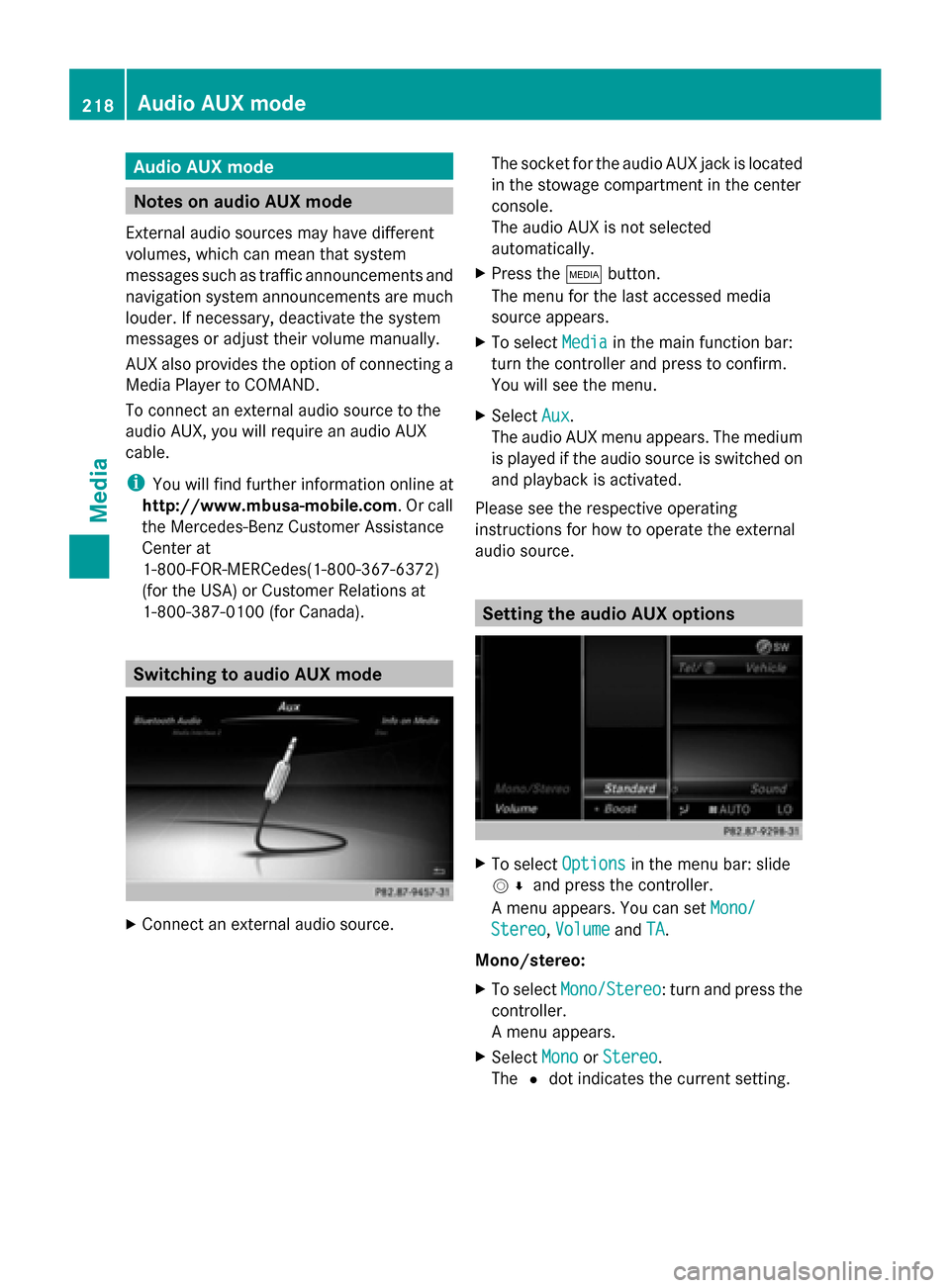
X
Connect an external audio source. The socket for the audio AUX jack is located
in the stowage compartment in the center
console.
The audio AUX is not selected
automatically.
X Press the 00FDbutton.
The menu for the last accessed media
source appears.
X To select Media
Media in the main function bar:
turn the controller and press to confirm.
You will see the menu.
X Select Aux Aux.
The audio AUX menu appears. The medium
is played if the audio source is switched on
and playback is activated.
Please see the respective operating
instructions for how to operate the external
audio source. Setting the audio AUX options
X
To select Options Optionsin the menu bar: slide
005200C5 and press the controller.
A menu appears. You can set Mono/
Mono/
Stereo
Stereo ,Volume
Volume andTA
TA.
Mono/stereo:
X To select Mono/Stereo Mono/Stereo: turn and press the
controller.
A menu appears.
X Select Mono
Mono orStereo Stereo .
The 0036dot indicates the current setting. 218
Audio AUX
modeMedia
Page 221 of 278
Volume:
X
To select Volume Volume: turn and press the
controller.
X Select Standard
Standard orBoost
Boost.
Standard
Standard: the volume of the external audio
source is adjusted to a standard value.
Boost
Boost: the volume of the external audio
source is raised by approximately 10 dB.
The 0036dot indicates the current setting.
Traffic announcement:
X To select TA
TA: turn the controller and press
to confirm.
You have switched traffic announcements
on 0073 or off 0053.
A device which is connected as an external
audio source may seem quieter or louder in
the vehicle, or the usual maximum volume
cannot be achieved. On some devices, it is
possible to adjust the volume separately. In
this case, start at a medium volume and
increase it gradually. This enables you to
determine whether the system is able to play
the music at high volume without distorting
it. AUX video mode
Connecting external video sources
G
WARNING
External video sources may have different
volumes, which can mean that system
messages such as traffic announcements and
navigation system announcements are much
louder. If necessary, please deactivate the
system messages or adjust their volume
manually.
Video AUX is a further option for showing
videos via COMAND.
To connect an external video source to the
video AUX, you will require a video AUX cable. i
If you only use an audio AUX cable, you
will only be able to hear the sound from the
video being played.
Videos cannot be shown on the driver's
side while the vehicle is in motion. Switching to AUX video mode
X Connect the external video source.
The socket for the video AUX jack is located
in the stowage compartment in the center
console.
The video AUX is not selected
automatically.
X Press the 00FDbutton.
The menu for the last accessed media
source appears.
X To select Media Mediain the main function bar:
turn the controller and press to confirm.
You will see the menu.
X Select AUX AUX.
The AUX video menu appears.
X To select Audio/Video Audio/Video in the menu bar:
slide 005200C5 and press the controller.
A Source Type Selection Source Type Selection menu
appears.
X Select Video
Video.
The 0036dot indicates the current setting.
If the video source is connected and
playback selected, the image from the
external video source will appear if Video
Video
is selected.
Please see the corresponding device
operating instructions for information on how
to operate the external video source.
Information on:
R Sound settings: (Y page 230) AUX video mode
219Media Z
Page 222 of 278
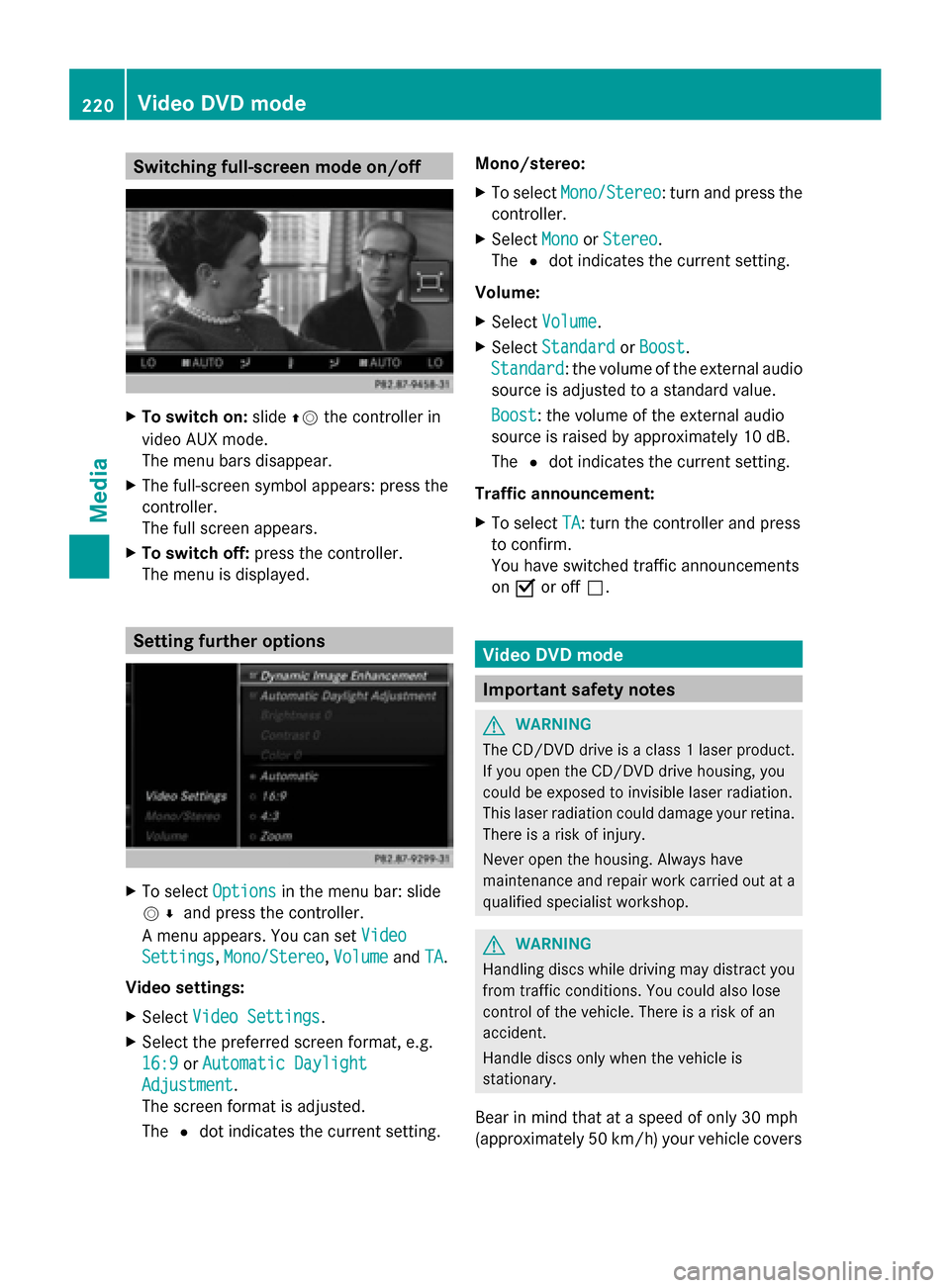
Switching full-screen mode on/off
X
To switch on: slide00970052the controller in
video AUX mode.
The menu bars disappear.
X The full-screen symbol appears: press the
controller.
The full screen appears.
X To switch off: press the controller.
The menu is displayed. Setting further options
X
To select Options Optionsin the menu bar: slide
005200C5 and press the controller.
A menu appears. You can set Video
Video
Settings
Settings, Mono/Stereo
Mono/Stereo, Volume
VolumeandTA
TA.
Video settings:
X Select Video Settings
Video Settings.
X Select the preferred screen format, e.g.
16:9
16:9 orAutomatic Daylight Automatic Daylight
Adjustment
Adjustment.
The screen format is adjusted.
The 0036dot indicates the current setting. Mono/stereo:
X
To select Mono/Stereo Mono/Stereo: turn and press the
controller.
X Select Mono
MonoorStereo
Stereo.
The 0036dot indicates the current setting.
Volume:
X Select Volume Volume.
X Select Standard
Standard orBoost
Boost.
Standard
Standard: the volume of the external audio
source is adjusted to a standard value.
Boost Boost: the volume of the external audio
source is raised by approximately 10 dB.
The 0036dot indicates the current setting.
Traffic announcement:
X To select TA TA: turn the controller and press
to confirm.
You have switched traffic announcements
on 0073 or off 0053. Video DVD mode
Important safety notes
G
WARNING
The CD/DVD drive is a class 1 laser product.
If you open the CD/DVD drive housing, you
could be exposed to invisible laser radiation.
This laser radiation could damage your retina.
There is a risk of injury.
Never open the housing. Always have
maintenance and repair work carried out at a
qualified specialist workshop. G
WARNING
Handling discs while driving may distract you
from traffic conditions. You could also lose
control of the vehicle. There is a risk of an
accident.
Handle discs only when the vehicle is
stationary.
Bear in mind that at a speed of only 30 mph
(approximately 50 km/h) your vehicle covers220
Video DVD
modeMedia