139 MERCEDES-BENZ S-Class 2014 W222 Comand Manual
[x] Cancel search | Manufacturer: MERCEDES-BENZ, Model Year: 2014, Model line: S-Class, Model: MERCEDES-BENZ S-Class 2014 W222Pages: 278, PDF Size: 6.65 MB
Page 7 of 278
Changing the loudspeaker source
.233
Equalizer ........................................ 233
Equipment ..................................... 232
Surround sound ............................. 234
Buttons and controller ........................22 C
Call Accepting/ending/rejecting .......... 130
Connecting .................................... 131
see Telephone
Call lists
Displaying details ........................... 139
Opening and selecting an entry .....138
Saving an entry in the address
book .............................................. 139
Car pool lanes ...................................... 73
Category list (music search) ............201
CD Inserting ........................................ 192
Inserting/loading (DVD changer) ...193
Inserting/loading (Rear Seat
Entertainment System) ..................254
Notes on discs ............................... 200
Removing/ejecting (Rear Seat
Entertainment System) ..................254
Selecting a track ............................ 197
Sound settings (balance, bass,
fader, treble ).................................. 230
Characters
Entering (address book, phone
book) ............................................... 30
Entering (navigation) ........................33
Climate control
COMAND ......................................... 59
Cooling with air dehumidification
(COMAND) ....................................... 60
Ionization (COMAND) .......................62
Perfume atomizer (COMAND) ..........62
Rear-compartment climate
control (COMAND) ...........................60
Setting the air distribution
(COMAND) ....................................... 61
Setting the airflow (COMAND) .........61
Setting the climate mode
(COMAND) ....................................... 61Setting the departure time
(COMAND)
....................................... 62
Setting the footwell temperature
(COMAND) ....................................... 61
Setting the temperature
(COMAND) ....................................... 60
Switching on/off (COMAND) ...........59
Switching the synchronizing
function on/off (COMAND) ..............59
COMAND
Active multicontour sea t.................. 56
Basic functions ................................ 23
Controller ......................................... 23
Display ............................................. 20
Multicontour seat ............................ 56
Seat functions .................................. 55
Settings ......................................... 175
Switching on/off .............................. 23
Telephone keypad overview .............22
COMAND display
Additional display area ..................... 39
Cleaning instructions .......................21
Setting ............................................. 38
Contacts
Deleting ......................................... 154
Importing ....................................... 153
Cordless headphones
Setting the volume ......................... 246
Country-specific information
(navigation) ........................................ 113 D
Date format, setting ............................40
Day design, setting .............................38
Delayed switch-off time Setting (COMAND) ...........................53
Deleting
Call lists ......................................... 140
Destination
Storing in the address book ...........106
Destination (navigation)
Entering a destination using the
map ................................................. 85
Entering a point of interest ..............81
Entering using geo-coordinates .......88
Entering using Mercedes-Benz
Apps ................................................ 88 Index
5
Page 141 of 278
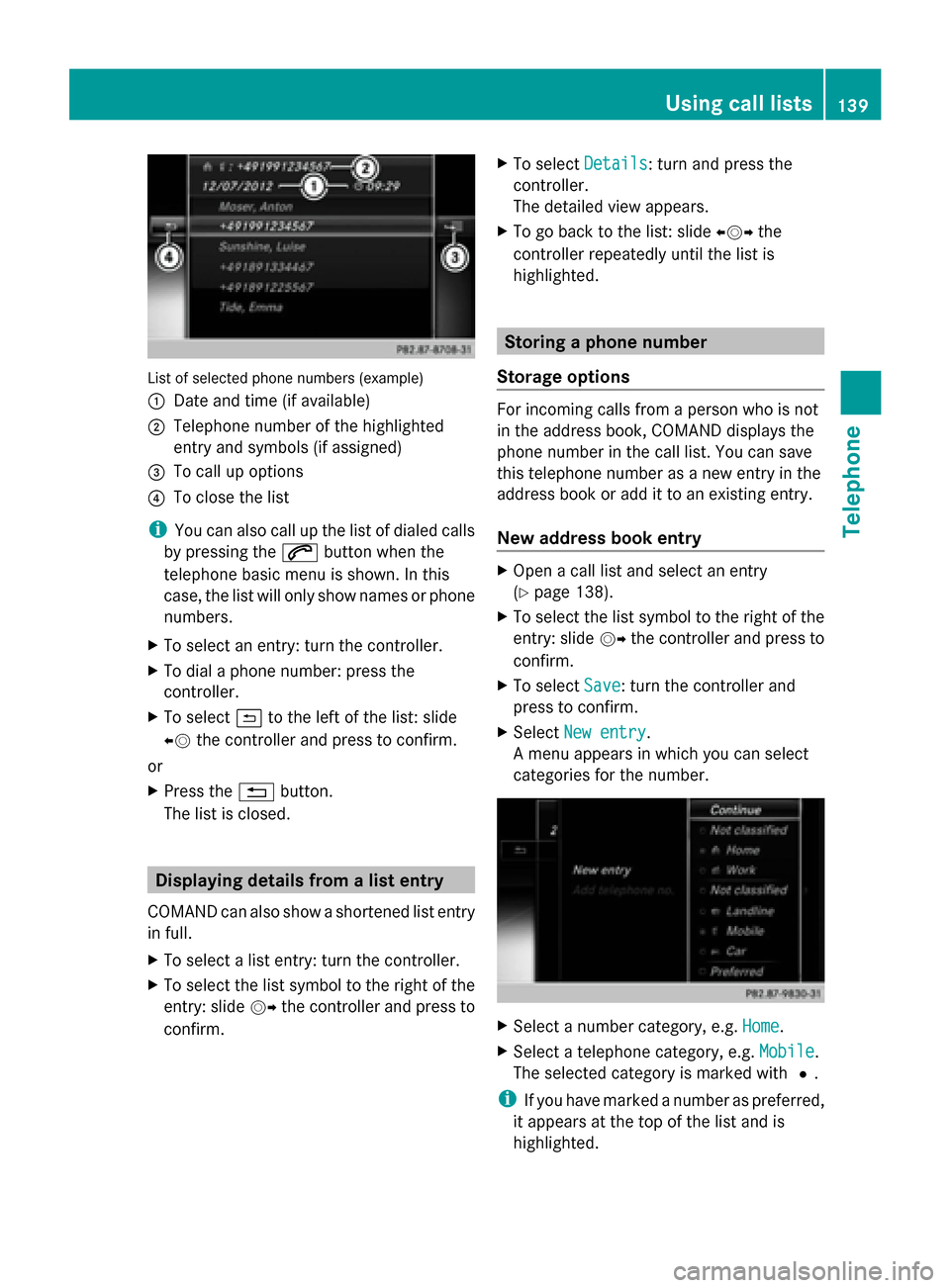
List of selected phone numbers (example)
0043 Date and time (if available)
0044 Telephone number of the highlighted
entry and symbols (if assigned)
0087 To call up options
0085 To close the list
i You can also call up the list of dialed calls
by pressing the 0061button when the
telephone basic menu is shown. In this
case, the list will only show names or phone
numbers.
X To select an entry: turn the controller.
X To dial a phone number: press the
controller.
X To select 0039to the left of the list: slide
00950052 the controller and press to confirm.
or
X Press the 0038button.
The list is closed. Displaying details from a list entry
COMAND can also show a shortened list entry
in full.
X To select a list entry: turn the controller.
X To select the list symbol to the right of the
entry: slide 00520096the controller and press to
confirm. X
To select Details Details: turn and press the
controller.
The detailed view appears.
X To go back to the list: slide 009500520096the
controller repeatedly until the list is
highlighted. Storing a phone number
Storage options For incoming calls from a person who is not
in the address book, COMAND displays the
phone number in the call list. You can save
this telephone number as a new entry in the
address book or add it to an existing entry.
New address book entry
X
Open a call list and select an entry
(Y page 138).
X To select the list symbol to the right of the
entry: slide 00520096the controller and press to
confirm.
X To select Save Save: turn the controller and
press to confirm.
X Select New entry
New entry.
A menu appears in which you can select
categories for the number. X
Select a number category, e.g. Home Home.
X Select a telephone category, e.g. Mobile Mobile.
The selected category is marked with 0036.
i If you have marked a number as preferred,
it appears at the top of the list and is
highlighted. Using call lists
139Telephone Z
Page 149 of 278
Editing a template:
X
To select the template: turn the controller.
X To call up options: slide 00520096the controller.
X To select Edit Edit: turn and press the
controller.
The Edit menu appears with the character
bar.
X To save the template: select 0054in the
character bar.
Replying to a message X
Display the message (Y page 144).
X Press the controller.
A menu appears.
X To select Reply
Reply: turn and press the
controller.
The input menu appears. The addressee's
details are automatically filled in using the
details in the original message.
For further options such as sending a new
message, see (Y page 144).
i When replying to an e-mail, you can also
select Reply all Reply all instead ofReply
Reply. In this
case, the reply is sent not just to the sender
but to all those who received the original
message.
Forwarding messages X
Display the message (Y page 144).
X Press the controller.
A menu appears.
X To select Forward
Forward: turn and press the
controller.
The input menu appears. The subject line
is automatically filled in with the same
details as those in the original message.
For further options such as sending a new
message, see (Y page 144). Managing messages
Calling a text message sender X
Press 0098the controller while the text
message is being displayed.
X To select Call Callsender
sender: turn and press the
controller.
The telephone makes the call to the sender.
Using phone numbers in the text Numbers in text messages that are
highlighted can be used.
X
To select a usable phone number while the
message is displayed: turn and press the
controller.
X To select Use Use: turn and press the controller.
X Select Call Call.
The phone makes the call.
i It is possible that a highlighted numerical
sequence may not contain a telephone
number.
i You can use the "New entry" or "Add no."
functions to save this telephone number or
to add it to an existing entry.
Storing a sender as a new entry in the
address book X
Press the controller while the message is
being displayed.
X Text messages:
To select Save SaveNumber
Number: turn and press the
controller.
X E-mails:
To select Save Sender's E-Mail
Save Sender's E-Mail
Address Address: turn and press the controller.
X To select New Entry
New Entry: turn the controller
and press to confirm.
X Text messages: save the telephone
number (Y page 139)
X E-mails: save the e-mail address
(Y page 150) Messages (text messages and e-mails)
147Telephone Z