Media display MERCEDES-BENZ S-Class 2015 W222 Comand Manual
[x] Cancel search | Manufacturer: MERCEDES-BENZ, Model Year: 2015, Model line: S-Class, Model: MERCEDES-BENZ S-Class 2015 W222Pages: 298, PDF Size: 6.39 MB
Page 47 of 298
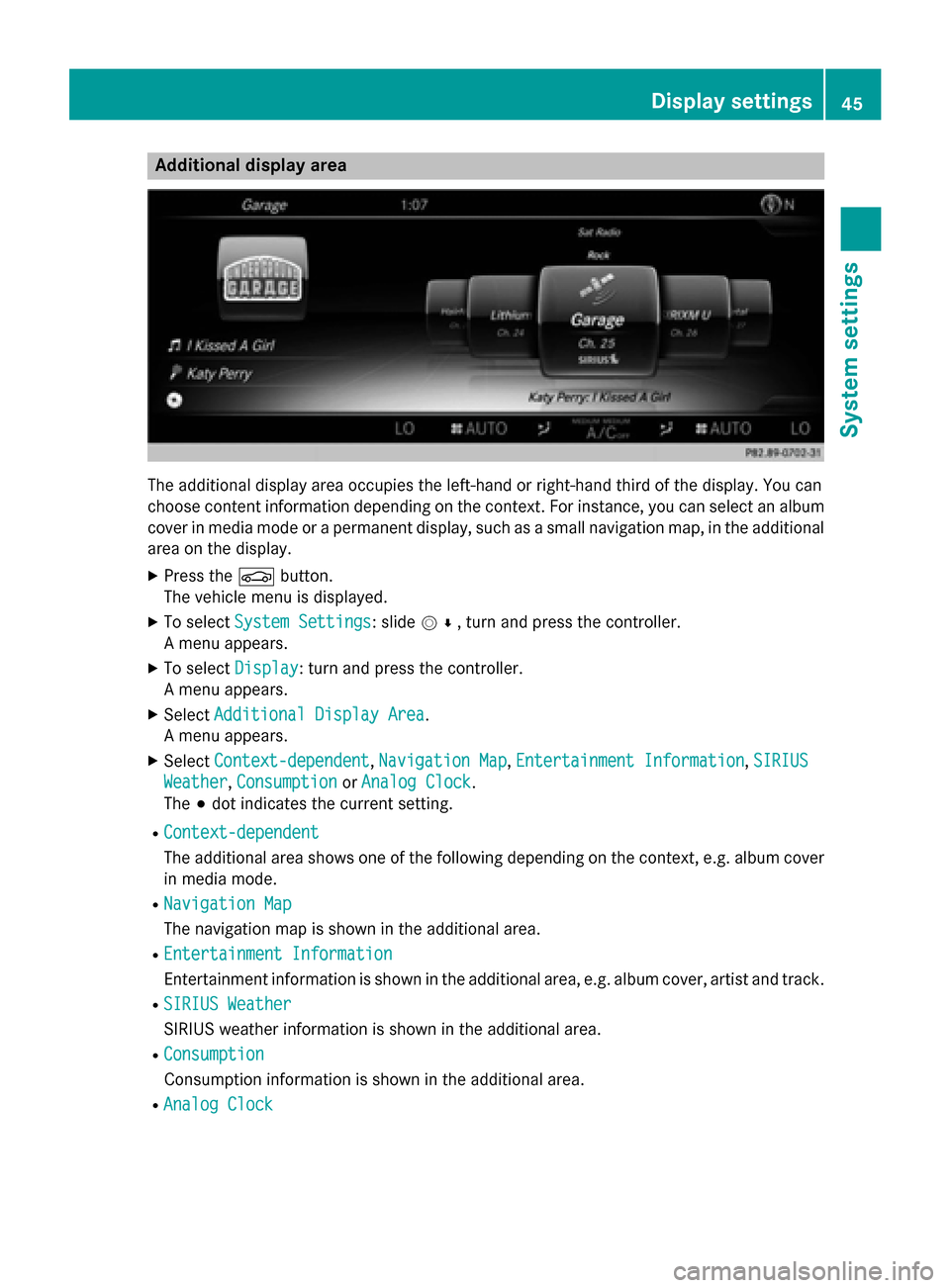
Additional display area
The additional display area occupies the left-hand or right-hand third of the display. You can
choose content information depending on the context. For instance, you can select an album
cover in media mode or a permanent display, such as a small navigation map, in the additional area on the display.
X Press the 00D4button.
The vehicle menu is displayed.
X To select System Settings
System Settings: slide 005200C5, turn and press the controller.
A menu appears.
X To select Display Display: turn and press the controller.
A menu appears.
X Select Additional Display Area
Additional Display Area.
A menu appears.
X Select Context-dependent
Context-dependent, Navigation Map Navigation Map,Entertainment Information
Entertainment Information, SIRIUS
SIRIUS
Weather
Weather, Consumption
Consumption orAnalog Clock
Analog Clock.
The 003Bdot indicates the current setting.
R Context-dependent
Context-dependent
The additional area shows one of the following depending on the context, e.g. album cover in media mode.
R Navigation Map
Navigation Map
The navigation map is shown in the additional area.
R Entertainment Information
Entertainment Information
Entertainment information is shown in the additional area, e.g. album cover, artist and track.
R SIRIUS Weather SIRIUS Weather
SIRIUS weather information is shown in the additional area.
R Consumption Consumption
Consumption information is shown in the additional area.
R Analog Clock Analog Clock Display settings
45System settings
Page 55 of 298
X
Press the 00D4button.
The vehicle menu is displayed.
X To select System Settings
System Settings: slide 005200C5
and press the controller.
A menu appears.
X To select Favorite Functions
Favorite Functions : press the
controller.
A menu appears.
X To select Assign Function
Assign Function: press the
controller.
The list of predefined functions appears.
X To select the desired function, e.g. Enter‐
Enter‐
tainment tainment: turn and press the controller.
A menu appears.
X Select the desired function, e.g. Play Play
More Like This
More Like This.
A menu appears with the prompt Please Please
select a favorites button:
select a favorites button:.
X To select the desired button, e.g. 0083:
turn and press the controller.
A message appears stating that the button
has been assigned the selected function.
i For certain functions, e.g.
Assign Chan‐
Assign Chan‐
nel/Station or Media Source
nel/Station or Media Source, a mes-
sage appears. This explains how you can
save the desired station/channel directly
from the respective function menu in three
steps.
Overview of all current favorites:
X Press the 00D4button.
The vehicle menu is displayed.
X To select System Settings System Settings: slide 005200C5
and press the controller.
A menu appears.
X To select Favorite Functions
Favorite Functions : press the
controller.
A menu appears.
X Select Overview of Current Favor‐ Overview of Current Favor‐
ites
ites.
An overview of all the current favorites
appears. To change the alias:
X Press the 00D4button.
The vehicle menu is displayed.
X To select System Settings System Settings: slide 005200C5
and press the controller.
A menu appears.
X To select Favorite Functions Favorite Functions : press the
controller.
A menu appears.
X Select Change Alias Change Alias.
A menu appears with the prompt Please
Please
select a favorites button:
select a favorites button:.
X To select the desired favorite, e.g. 0084:
turn and press the controller.
X Enter the desired alias and select 0070.
The alias is changed.
i Up to six characters are available for the
alias. An entry with fewer characters is also
possible.
To call up a favorite:
X Press the 007Dbutton.
You call up the favorites functions menu.
The 007D symbol lights up.
X Press a favorites button, e.g. 0084.
This calls up the predefined function.
X To exit the favorites function menu:
press the 007Dbutton.
The favorite functions menu is closed.
i If you have pressed the
007Dbutton and
do not press any other buttons, the favor-
ites functions menu is exited automatically
after 16 seconds.
You can select the following predefined func- tions in a menu, for example:
R Spoken Driving Recomm. On/Off
Spoken Driving Recomm. On/Off: to
switch the current driving recommenda-
tions on/off.
R Sound Menu Sound Menu : to call up the sound settings.
R From Mercedes-Benz Apps
From Mercedes-Benz Apps: to call up
apps for online and Internet functions. Assigning a favorites button
53System settings
Page 57 of 298
PIN protection for you. Alternatively, you
can deactivate PIN protection by resetting
your personal COMAND data
(Y page 55). Importing/exporting data
X
Insert the SD memory card (Y page 215).
or
X Connect a USB device (e.g. a USB memory
stick) (Y page 215).
X Press the 00D4button.
The vehicle menu is displayed.
X To select System Settings
System Settings: slide 005200C5
and press the controller.
A menu appears.
X To select Data Import/Export
Data Import/Export: turn and
press the controller.
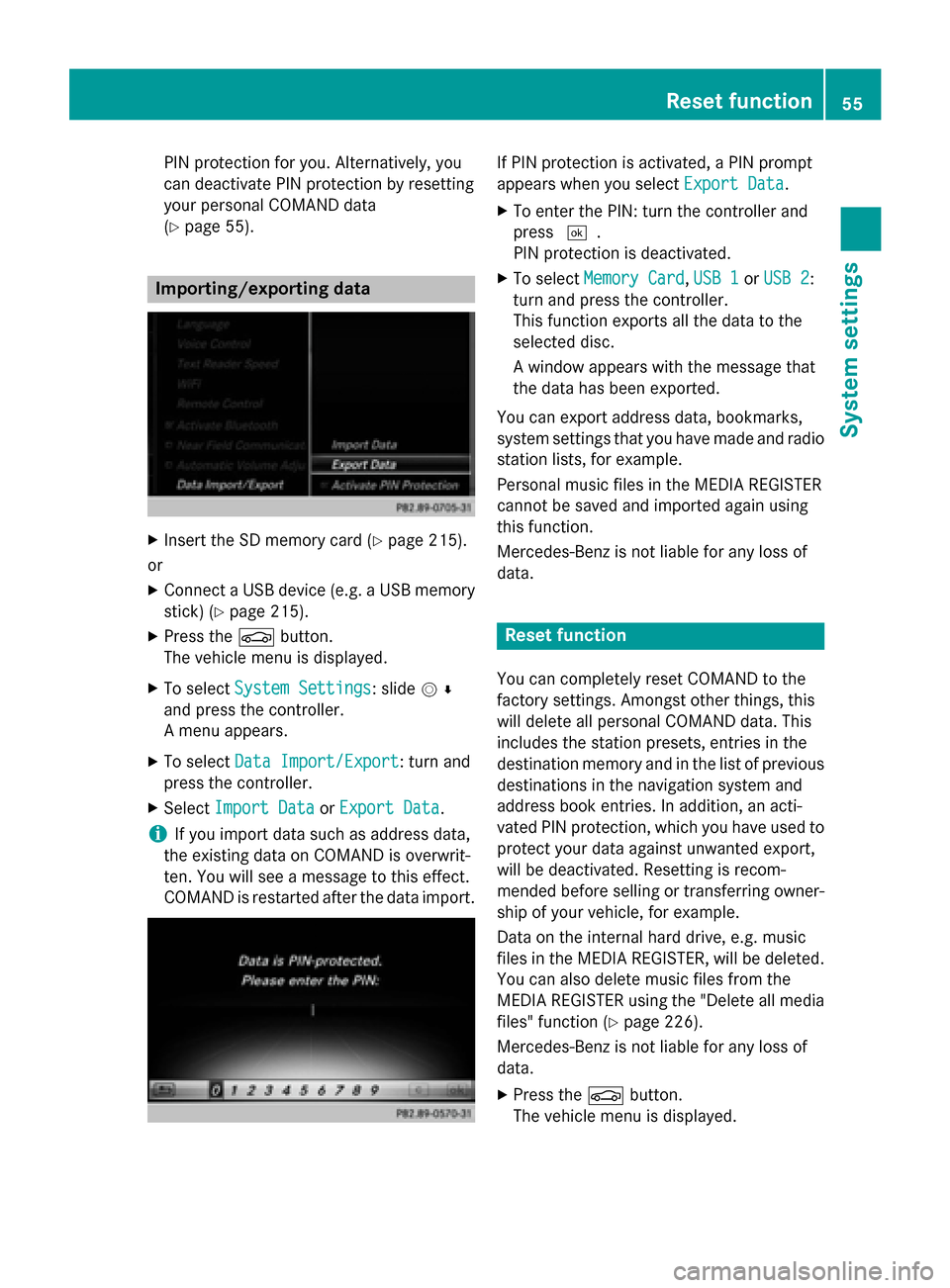
X Select Import Data Import Data orExport Data
Export Data.
i If you import data such as address data,
the existing data on COMAND is overwrit-
ten. You will see a message to this effect.
COMAND is restarted after the data import. If PIN protection is activated, a PIN prompt
appears when you select
Export Data Export Data.
X To enter the PIN: turn the controller and
press 0054.
PIN protection is deactivated.
X To select Memory Card Memory Card, USB 1
USB 1 orUSB 2
USB 2:
turn and press the controller.
This function exports all the data to the
selected disc.
A window appears with the message that
the data has been exported.
You can export address data, bookmarks,
system settings that you have made and radio
station lists, for example.
Personal music files in the MEDIA REGISTER
cannot be saved and imported again using
this function.
Mercedes-Benz is not liable for any loss of
data. Reset function
You can completely reset COMAND to the
factory settings. Amongst other things, this
will delete all personal COMAND data. This
includes the station presets, entries in the
destination memory and in the list of previous
destinations in the navigation system and
address book entries. In addition, an acti-
vated PIN protection, which you have used to
protect your data against unwanted export,
will be deactivated. Resetting is recom-
mended before selling or transferring owner-
ship of your vehicle, for example.
Data on the internal hard drive, e.g. music
files in the MEDIA REGISTER, will be deleted.
You can also delete music files from the
MEDIA REGISTER using the "Delete all media files" function (Y page 226).
Mercedes-Benz is not liable for any loss of
data.
X Press the 00D4button.
The vehicle menu is displayed. Reset function
55System settings
Page 75 of 298
X
To switch to the menu bar: slide 6the
controller.
X To select System Settings
System Settings: turn and
press the controller.
X Select 360° Camera
360° Camera.
X Select Activation by R gear
Activation by R gear.
The function is switched on 0073or off 0053,
depending on the previous status. Displaying the 360° camera image
The 360° camera image can be displayed if:
R your vehicle is equipped with a 360° cam-
era
R COMAND is switched on (Y page 25)
R the 360° Camera
360° Camera function is switched on
Displaying the image of the 360° camera:
X Press the 00D4button in the center con-
sole.
A menu appears.
X Select 360° Camera 360° Camera.
The 360° camera image appears in split-
screen mode.
You will see the previous view on the display if you have switched the function on:
R and turn the key to position 1in the ignition
lock
R select transmission position P
R the vehicle exceeds a speed of approx.
30 km/h
Manually switching the display
X To select 0039: slide 6and press the con-
troller.
Automatically switching the display: X You can automatically switch the 360 cam-
era display using reverse gear (Y page 72). Opening the camera cover for clean-
ing
X To select Open OpenCamera
Camera Cover
Coverin the 360°
camera menu: turn the controller and press
to confirm.
The Please Please Wait...
Wait... message appears for
approximately three seconds.
The camera cover opens.
The camera cover closes automatically if:
R the ignition is switched off.
R the vehicle exceeds a speed of approx.
30 km/h Rear view camera
Important notes
The rear view camera is only an aid. It is not a replacement for your attention to your imme- diate surroundings. You are always responsi-
ble for safe maneuvering and parking. When
maneuvering or parking, make sure that there are no persons, animals or objects in the area
in which you are maneuvering. Overview
The rear view camera covers the immediate
surroundings of the vehicle and assists you
when parking.
You can find further information about the
rear view camera in the vehicle Operator's
Manual. Settings for the rear view camera
When you activate the Activation by R Activation by R
gear
gear function, the image from the rear view
camera is displayed when you select reverse
gear. Rear view camera
73Vehicle functions
Page 84 of 298
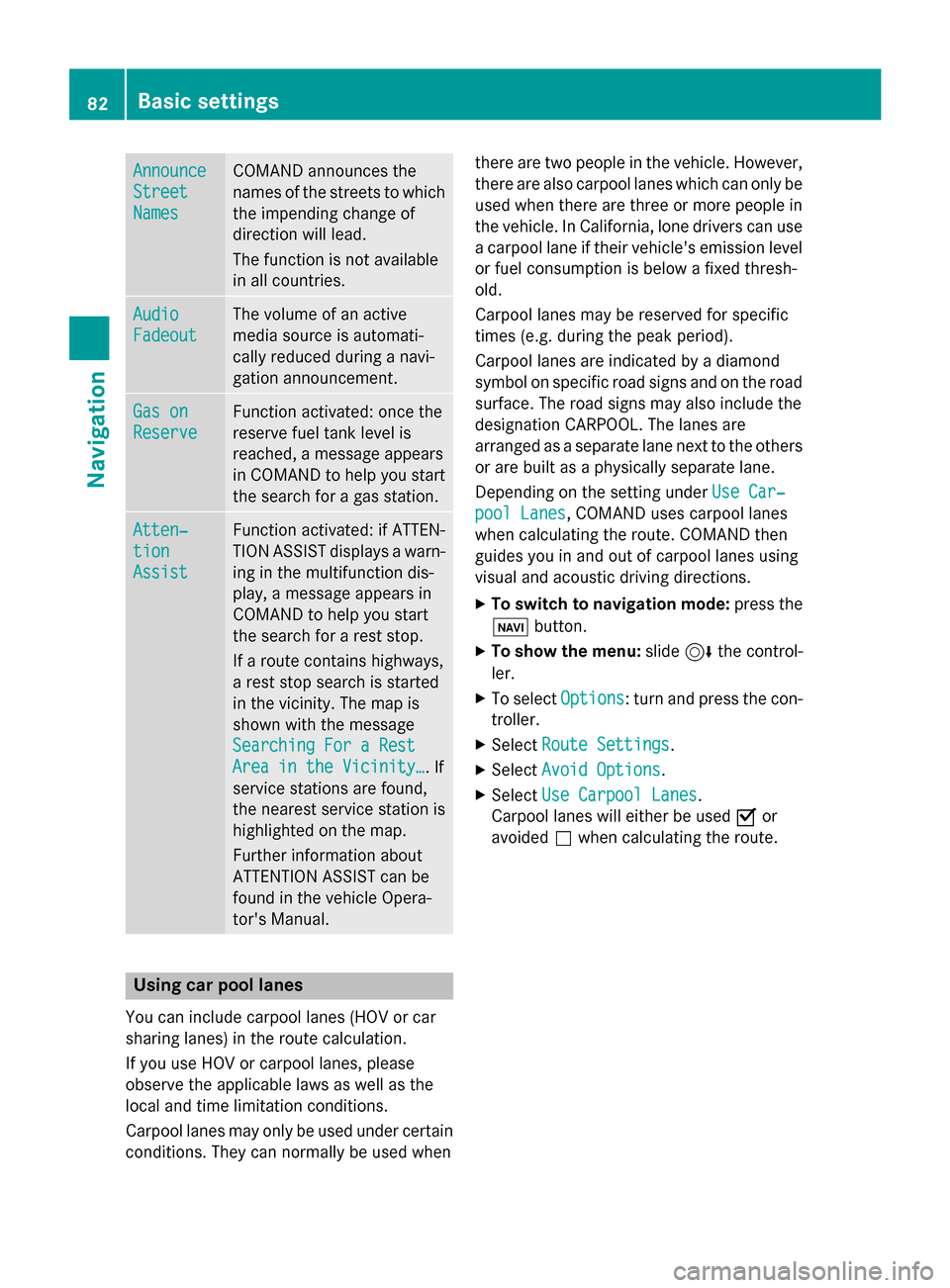
Announce
Announce
Street Street
Names Names COMAND announces the
names of the streets to which the impending change of
direction will lead.
The function is not available
in all countries. Audio Audio
Fadeout Fadeout The volume of an active
media source is automati-
cally reduced during a navi-
gation announcement.
Gas on Gas on
Reserve Reserve Function activated: once the
reserve fuel tank level is
reached, a message appears
in COMAND to help you start the search for a gas station. Atten‐ Atten‐
tion tion
Assist Assist Function activated: if ATTEN-
TION ASSIST displays a warn-
ing in the multifunction dis-
play, a message appears in
COMAND to help you start
the search for a rest stop.
If a route contains highways,
a rest stop search is started
in the vicinity. The map is
shown with the message
Searching For a Rest Searching For a Rest
Area in the Vicinity… Area in the Vicinity…. If
service stations are found,
the nearest service station is
highlighted on the map.
Further information about
ATTENTION ASSIST can be
found in the vehicle Opera-
tor's Manual. Using car pool lanes
You can include carpool lanes (HOV or car
sharing lanes) in the route calculation.
If you use HOV or carpool lanes, please
observe the applicable laws as well as the
local and time limitation conditions.
Carpool lanes may only be used under certain
conditions. They can normally be used when there are two people in the vehicle. However,
there are also carpool lanes which can only be
used when there are three or more people in
the vehicle. In California, lone drivers can use
a carpool lane if their vehicle's emission level or fuel consumption is below a fixed thresh-
old.
Carpool lanes may be reserved for specific
times (e.g. during the peak period).
Carpool lanes are indicated by a diamond
symbol on specific road signs and on the road surface. The road signs may also include the
designation CARPOOL. The lanes are
arranged as a separate lane next to the others
or are built as a physically separate lane.
Depending on the setting under Use Car‐ Use Car‐
pool Lanes
pool Lanes, COMAND uses carpool lanes
when calculating the route. COMAND then
guides you in and out of carpool lanes using
visual and acoustic driving directions.
X To switch to navigation mode: press the
00CB button.
X To show the menu: slide6the control-
ler.
X To select Options Options: turn and press the con-
troller.
X Select Route Settings
Route Settings.
X Select Avoid Options
Avoid Options.
X Select Use Carpool Lanes
Use Carpool Lanes.
Carpool lanes will either be used 0073or
avoided 0053when calculating the route. 82
Basic settingsNavigation
Page 88 of 298
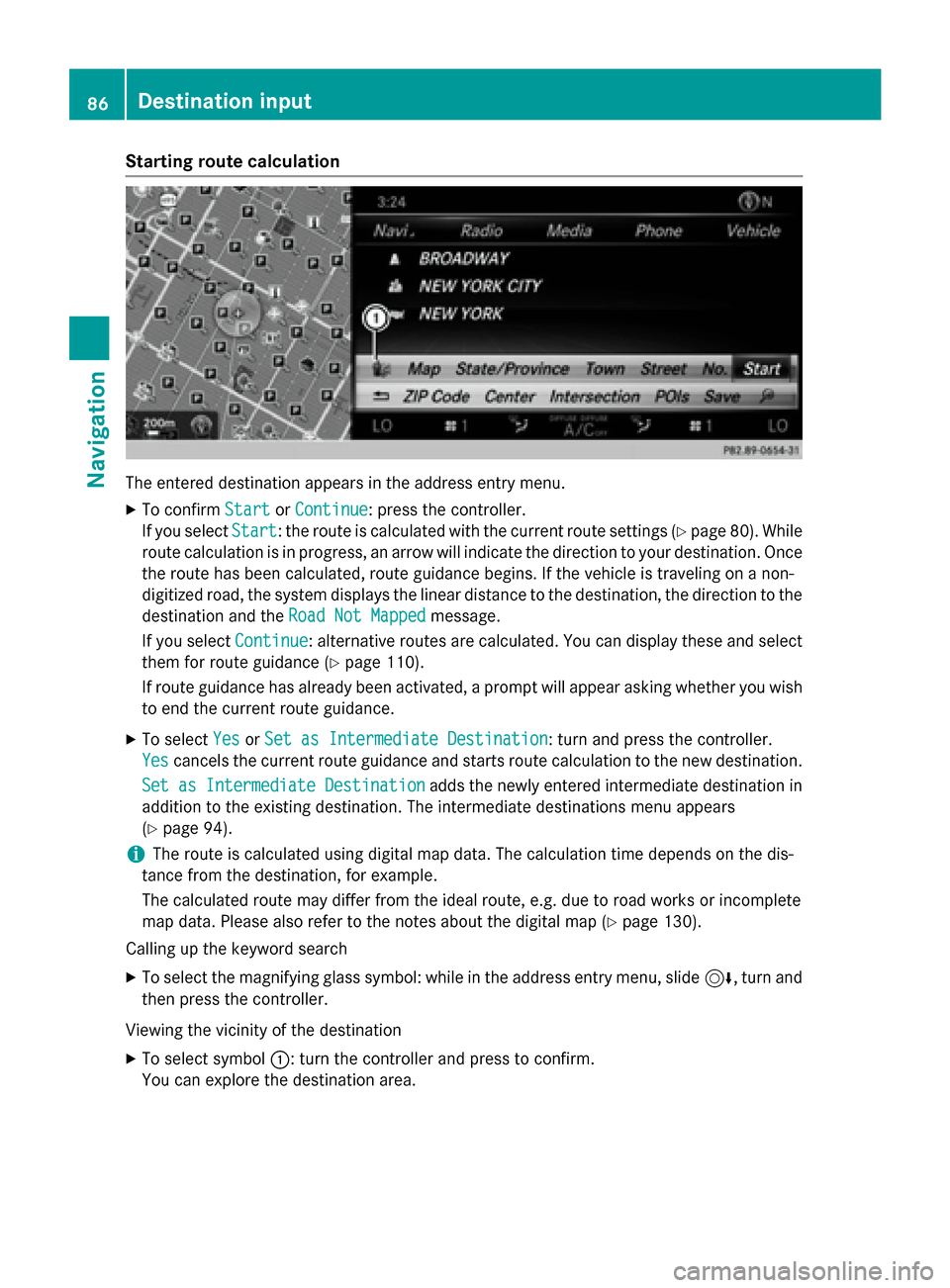
Starting route calculation
The entered destination appears in the address entry menu.
X To confirm Start StartorContinue Continue: press the controller.
If you select Start
Start: the route is calculated with the current route settings (Y page 80). While
route calculation is in progress, an arrow will indicate the direction to your destination. Once the route has been calculated, route guidance begins. If the vehicle is traveling on a non-
digitized road, the system displays the linear distance to the destination, the direction to the
destination and the Road Not Mapped
Road Not Mapped message.
If you select Continue
Continue: alternative routes are calculated. You can display these and select
them for route guidance (Y page 110).
If route guidance has already been activated, a prompt will appear asking whether you wish to end the current route guidance.
X To select Yes
YesorSet as Intermediate Destination
Set as Intermediate Destination: turn and press the controller.
Yes
Yes cancels the current route guidance and starts route calculation to the new destination.
Set as Intermediate Destination
Set as Intermediate Destination adds the newly entered intermediate destination in
addition to the existing destination. The intermediate destinations menu appears
(Y page 94).
i The route is calculated using digital map data. The calculation time depends on the dis-
tance from the destination, for example.
The calculated route may differ from the ideal route, e.g. due to road works or incomplete
map data. Please also refer to the notes about the digital map (Y page 130).
Calling up the keyword search
X To select the magnifying glass symbol: while in the address entry menu, slide 6, turn and
then press the controller.
Viewing the vicinity of the destination
X To select symbol 0043: turn the controller and press to confirm.
You can explore the destination area. 86
Destination inputNavigation
Page 96 of 298
X
To select a destination from the selection list: turn and press the controller.
If the digital map provides navigable address data, you will see the destination address in the address entry menu.
X To start route calculation: selectStart
Start (Ypage 86). Entering intermediate destinations
Introduction You can also map the route to the destination
yourself by entering up to four intermediate
destinations. The sequence of the intermedi-ate destinations can be changed at any time.
COMAND provides a selection of predefined
destinations in eight categories for this pur-
pose, e.g. GAS STATION
GAS STATION orRESTAURANT RESTAURANT . You
can also use the destination entry options to
enter intermediate destinations.
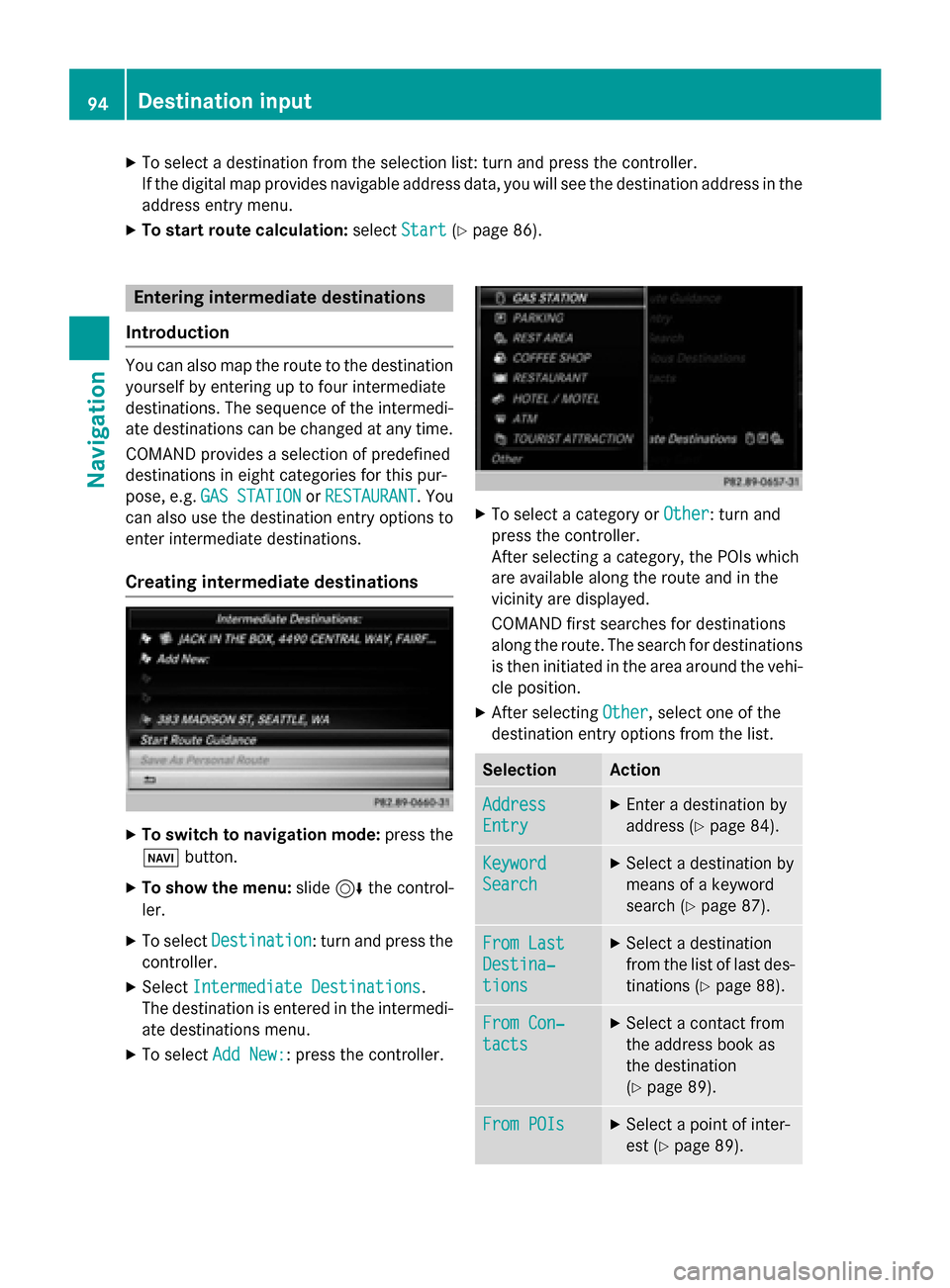
Creating intermediate destinations X
To switch to navigation mode: press the
00BE button.
X To show the menu: slide6the control-
ler.
X To select Destination
Destination: turn and press the
controller.
X Select Intermediate Destinations
Intermediate Destinations.
The destination is entered in the intermedi-
ate destinations menu.
X To select Add New:
Add New:: press the controller. X
To select a category or Other
Other: turn and
press the controller.
After selecting a category, the POIs which
are available along the route and in the
vicinity are displayed.
COMAND first searches for destinations
along the route. The search for destinations
is then initiated in the area around the vehi- cle position.
X After selecting Other Other, select one of the
destination entry options from the list. Selection Action
Address
Address
Entry Entry X
Enter a destination by
address (Y page 84). Keyword Keyword
Search Search X
Select a destination by
means of a keyword
search (Y page 87). From Last From Last
Destina‐ Destina‐
tions tions X
Select a destination
from the list of last des-
tinations (Y page 88). From Con‐ From Con‐
tacts tacts X
Select a contact from
the address book as
the destination
(Y page 89). From POIs From POIs X
Select a point of inter-
est (Y page 89). 94
Destination inputNavigation
Page 97 of 298
Selection Action
Using Map
Using Map X
Enter a destination
using the map
(Y page 93). From Memory From Memory
Card Card X
Select a personal POI
(Y page 99). From From
Mercedes- Mercedes-
Benz Apps Benz Apps X
Enter a destination
from Mercedes-Benz
Apps (Y page 96). Using Geo- Using Geo-
Coordinates Coordinates X
Enter a destination
using the geo-coordi-
nates (Y page 97). X
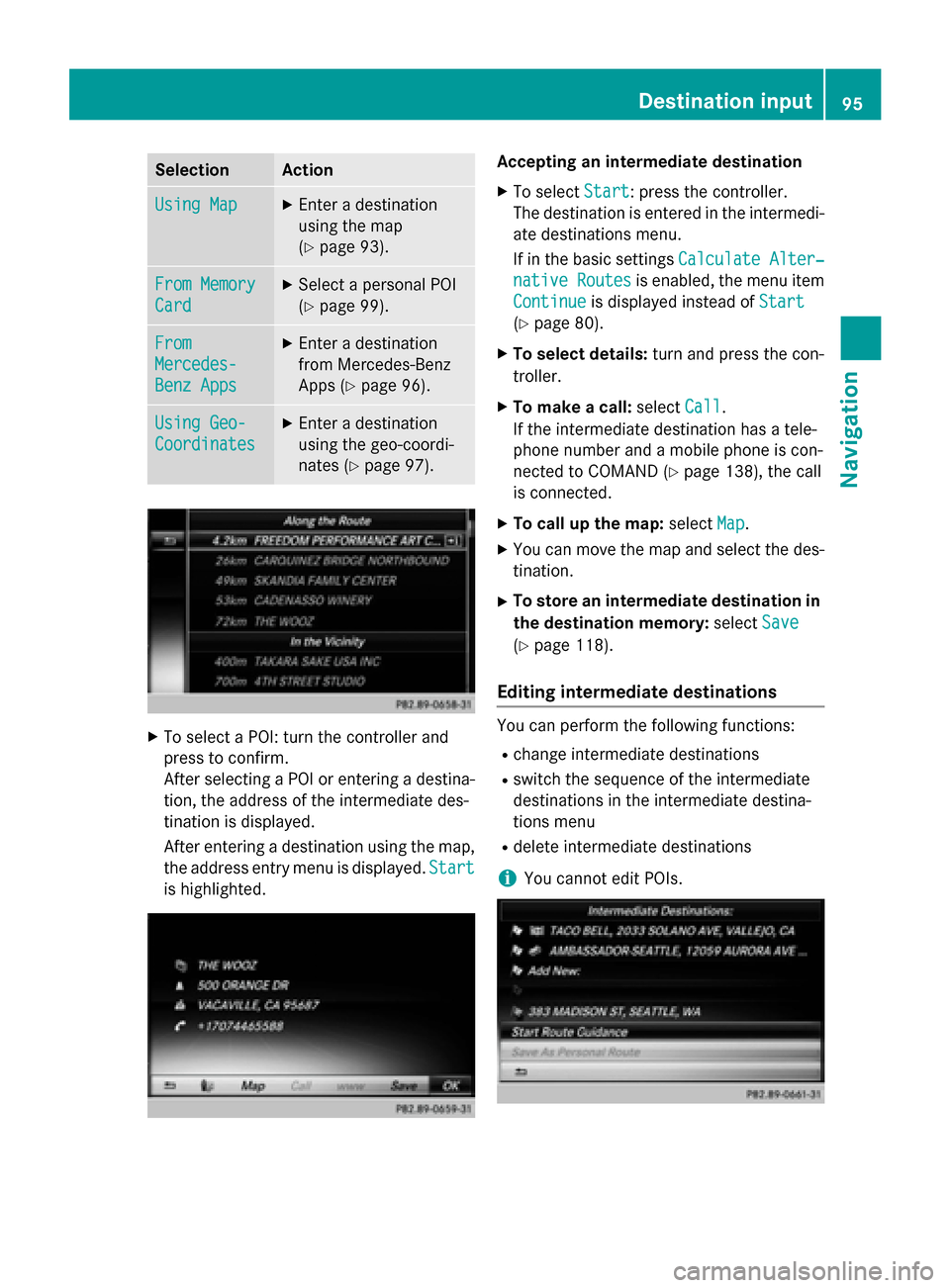
To select a POI: turn the controller and
press to confirm.
After selecting a POI or entering a destina- tion, the address of the intermediate des-
tination is displayed.
After entering a destination using the map,
the address entry menu is displayed. Start
Start
is highlighted. Accepting an intermediate destination
X To select Start
Start: press the controller.
The destination is entered in the intermedi-
ate destinations menu.
If in the basic settings Calculate Alter‐ Calculate Alter‐
native Routes
native Routes is enabled, the menu item
Continue Continue is displayed instead of Start Start
(Y page 80).
X To select details: turn and press the con-
troller.
X To make a call: selectCall
Call.
If the intermediate destination has a tele-
phone number and a mobile phone is con-
nected to COMAND (Y page 138), the call
is connected.
X To call up the map: selectMap
Map.
X You can move the map and select the des-
tination.
X To store an intermediate destination in
the destination memory: selectSave Save
(Y page 118).
Editing intermediate destinations You can perform the following functions:
R
change intermediate destinations
R switch the sequence of the intermediate
destinations in the intermediate destina-
tions menu
R delete intermediate destinations
i You cannot edit POIs. Destination input
95Navigation Z
Page 98 of 298
X
To select an intermediate destination in the
intermediate destinations menu: turn and
press the controller.
A menu appears.
X To change an intermediate destination:
select Edit
Edit in the menu.
X Change the address, e.g. the city and
street.
X To select OK OK: turn and press the controller.
The intermediate destinations menu
appears and displays the changed inter-
mediate destination.
You can change the sequence of the inter-
mediate destinations entered and the desti-
nation. To change the sequence, at least one
intermediate destination and the destination
must have been entered.
X To change the order: in the menu, select
Move
Move.
X Turn the controller and move the intermedi-
ate destination or destination to the
desired position.
X Press the controller.
X To delete an intermediate destination:
select Delete
Delete in the menu.
Accepting intermediate destinations
for the route X
To select Start Route Guidance Start Route Guidance in the
intermediate destinations menu: press the
controller.
The route is calculated with the entered
intermediate destinations.
If an intermediate destination was passed
during route guidance, the intermediate
destination will be displayed in the inter-
mediate destinations menu with a green
tick mark. Once the route has been recal-
culated, the intermediate destination is
deleted from the intermediate destinations
menu. Searching for a gas station when the
fuel level is low Requirement: the setting
Gas on Reserve Gas on Reserve
must be enabled (Y page 81).
If the fuel tank reserve level is displayed, you
will see the Gas
Gason
onReserve
Reserve Do
Doyou
you want
want
to start a search for surrounding
to start a search for surrounding
gas stations? gas stations? message.
X To select Yes YesorNo
No: turn and press the con-
troller.
If you select Yes Yes, the gas station search
starts. When the search is complete, a list
of the gas stations available along the route or in the vicinity is displayed.
If you select No No, the search is canceled.
X Select the gas station.
The address of the gas station is displayed.
X To select Start
Start: press the controller.
The selected gas station is entered into
position 1 of the intermediate destinations menu. Route guidance begins.
If the intermediate destinations menu
already contains four intermediate desti-
nations, a prompt will be displayed, asking
you whether you wish to enter the gas sta-
tion into position 1. If you select Yes
Yes, the
gas station is transferred into the list and
intermediate destination 4 is deleted. Entering a destination from
Mercedes-Benz Apps
Requirement: mbrace must be activated for
the Mercedes-Benz Apps (Y page 173).
X To switch to navigation mode: press the
00BE button.
X To show the menu: slide6the control-
ler.
X To select Destination Destination: turn and press the
controller.
X Select From Mercedes-Benz Apps
From Mercedes-Benz Apps.
A list shows the available destinations that have been transmitted to the vehicle up to
this point (Y page 181).96
Destination inputNavigation
Page 101 of 298
R
From Last Destinations
From Last Destinations
(Y page 88)
R From Contacts From Contacts (Ypage 89)
Personal route from a tour including
intermediate destinations X
Insert the SD memory card (Y page 215).
X To switch to navigation mode: press the
00CB button.
X Enter a destination, e.g. by address
(Y page 83).
X Start route calculation (Y page 86).
X Create intermediate destinations
(Y page 94).
X To select Save SaveAs
AsPersonal
Personal Route
Routein the
intermediate destinations menu: turn and
press the controller.
The route is saved in the "Personal routes" file on the SD memory card. Importing personal destinations and
routes via Mercedes-Benz Apps
You can use Mercedes-Benz Apps (e. g. Down-
load POI, Local Search) to import destinations
to navigation (Y page 181). These have their
own symbol and are filed in the Mercedes-
Mercedes-
Benz Apps Benz Apps category.
You can save the imported destinations and
routes as personal POIs and routes
(Y page 98).
When importing routes, please note:
R The Mercedes-Benz Apps may generate a
route based on a different map from the
one used by COMAND. Points on the route
may therefore be situated off the digital
roads. For this reason an imported route
commenced in COMAND may deviate from the original route from the Mercedes-Benz
Apps.
R The Mercedes-Benz Apps minimize the
number of route points offered. For this
reason an imported route commenced in COMAND may deviate from the original
route from the Mercedes-Benz Apps. Selecting and editing personal POIs
and routes
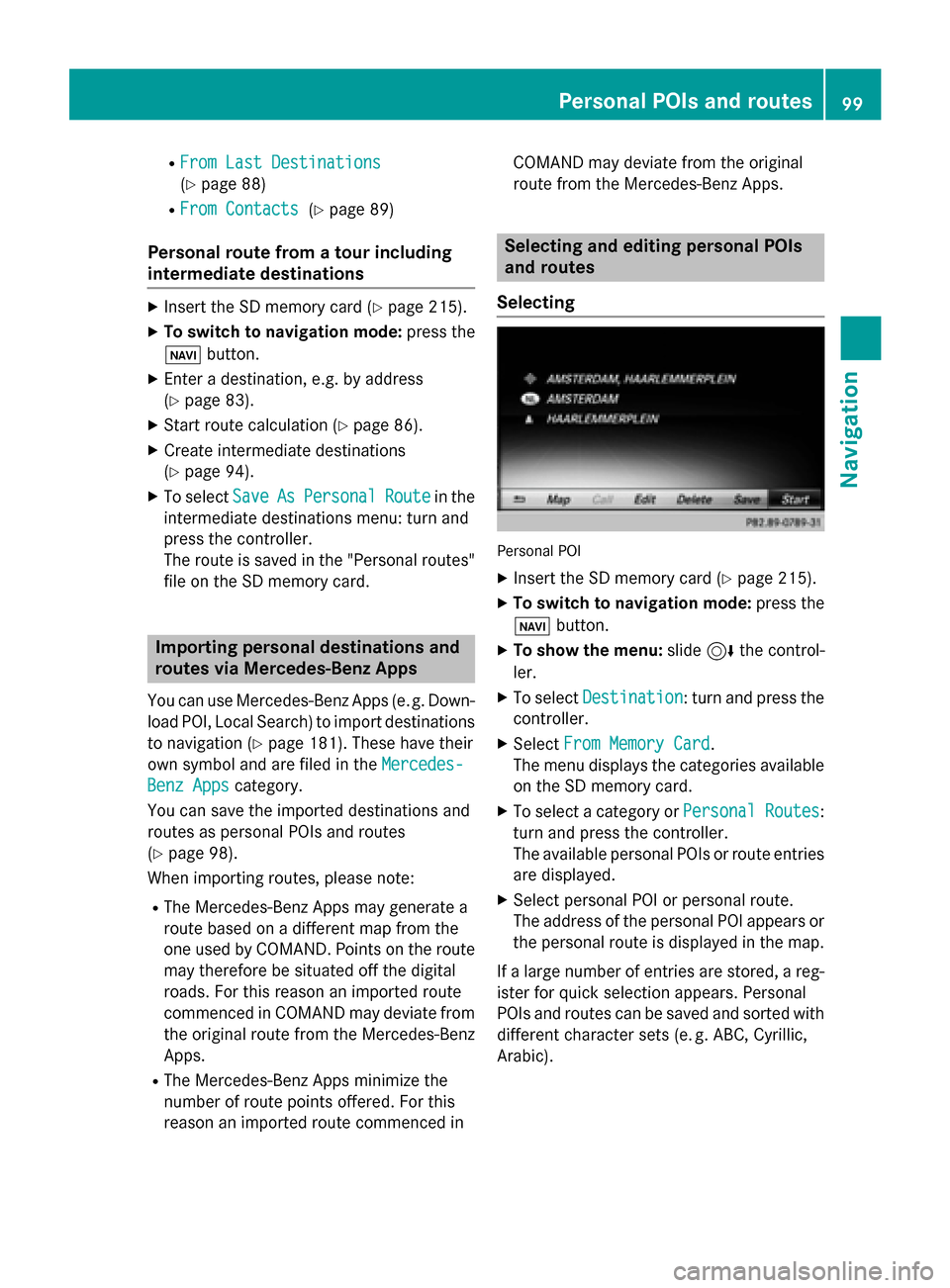
Selecting Personal POI
X Insert the SD memory card (Y page 215).
X To switch to navigation mode: press the
00CB button.
X To show the menu: slide6the control-
ler.
X To select Destination Destination: turn and press the
controller.
X Select From Memory Card
From Memory Card.
The menu displays the categories available on the SD memory card.
X To select a category or Personal Routes
Personal Routes:
turn and press the controller.
The available personal POIs or route entries
are displayed.
X Select personal POI or personal route.
The address of the personal POI appears or
the personal route is displayed in the map.
If a large number of entries are stored, a reg-
ister for quick selection appears. Personal
POIs and routes can be saved and sorted with different character sets (e. g. ABC, Cyrillic, Arabic). Personal POIs and routes
99Navigation Z