Media display MERCEDES-BENZ S-Class 2015 W222 Comand Manual
[x] Cancel search | Manufacturer: MERCEDES-BENZ, Model Year: 2015, Model line: S-Class, Model: MERCEDES-BENZ S-Class 2015 W222Pages: 298, PDF Size: 6.39 MB
Page 105 of 298
Displays during route guidance
Change of direction Changes of direction have three phases:
R preparation phase
R announcement phase
R change-of-direction phase
Changes in direction are also shown in the multifunction display (see the vehicle Operator's
Manual).
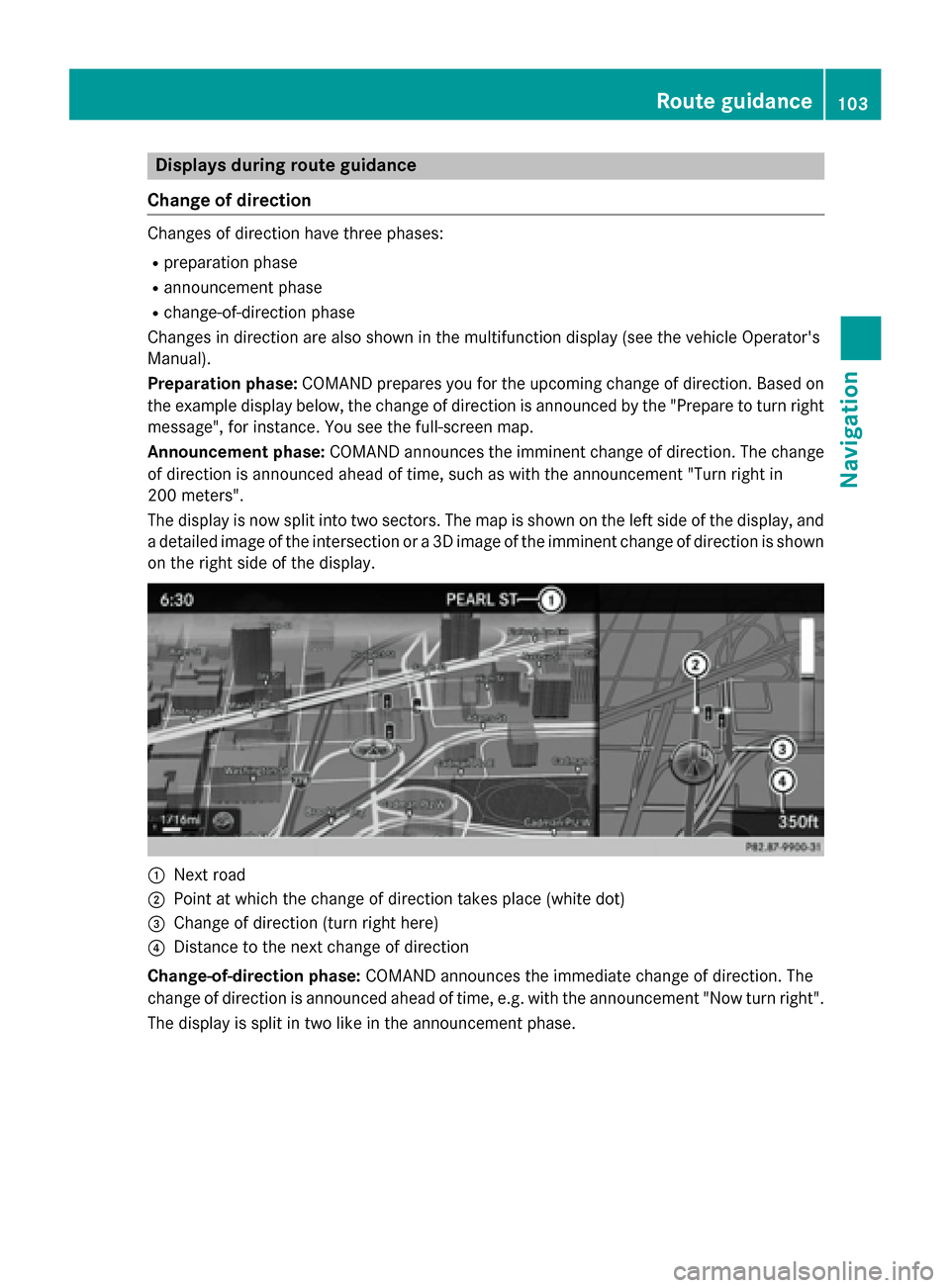
Preparation phase: COMAND prepares you for the upcoming change of direction. Based on
the example display below, the change of direction is announced by the "Prepare to turn right message", for instance. You see the full-screen map.
Announcement phase: COMAND announces the imminent change of direction. The change
of direction is announced ahead of time, such as with the announcement "Turn right in
200 meters".
The display is now split into two sectors. The map is shown on the left side of the display, and
a detailed image of the intersection or a 3D image of the imminent change of direction is shown on the right side of the display. 0043
Next road
0044 Point at which the change of direction takes place (white dot)
0087 Change of direction (turn right here)
0085 Distance to the next change of direction
Change-of-direction phase: COMAND announces the immediate change of direction. The
change of direction is announced ahead of time, e.g. with the announcement "Now turn right".
The display is split in two like in the announcement phase. Route guidance
103Navigation Z
Page 108 of 298
Once the destination is reached, you will see the checkered flag. Route guidance is finished.
Highway information Requirement: the map content
Highway Information
Highway Informationmust be enabled.
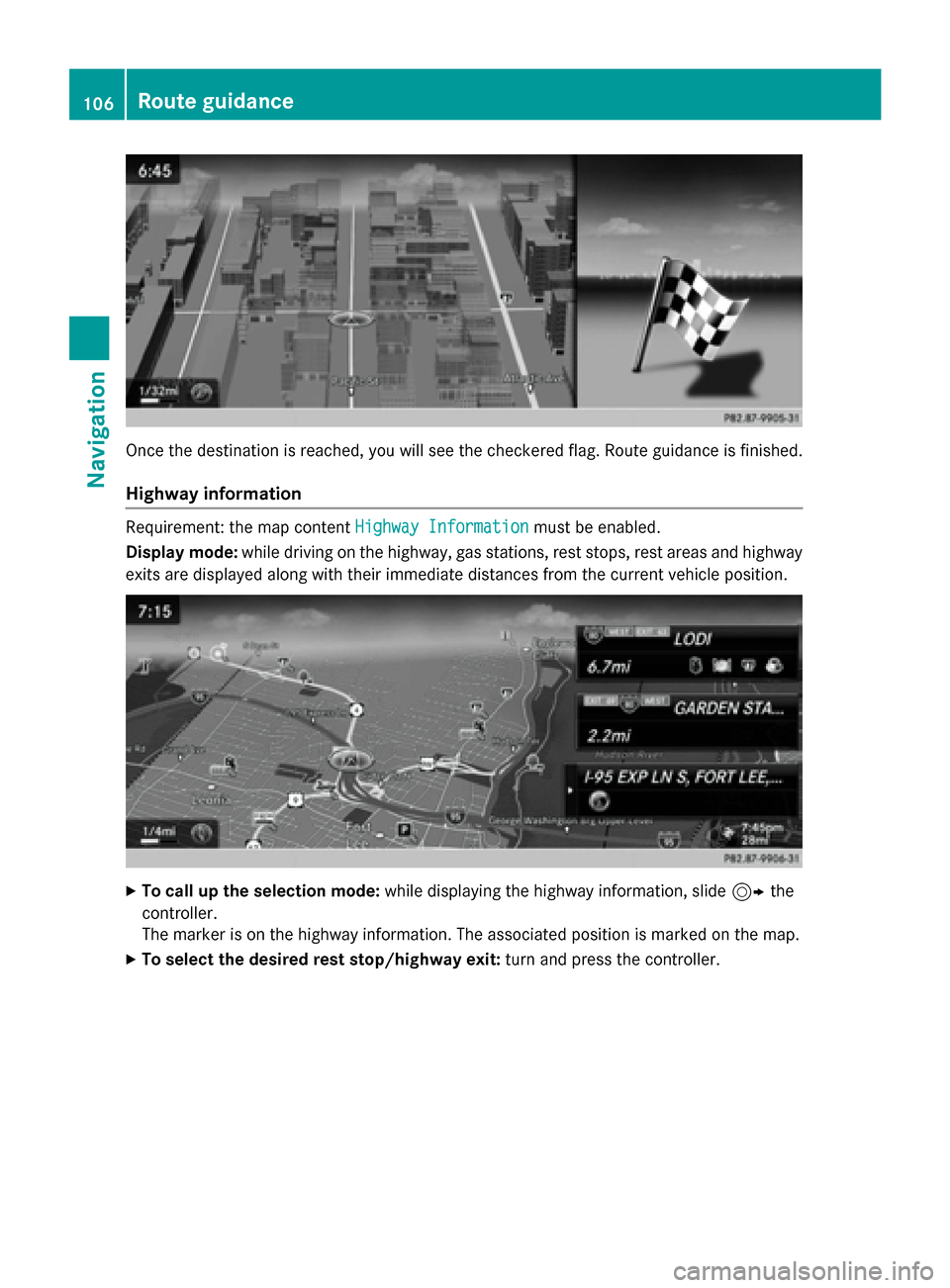
Display mode: while driving on the highway, gas stations, rest stops, rest areas and highway
exits are displayed along with their immediate distances from the current vehicle position. X
To call up the selection mode: while displaying the highway information, slide 9the
controller.
The marker is on the highway information. The associated position is marked on the map.
X To select the desired rest stop/highway exit: turn and press the controller.106
Route guidanceNavigation
Page 112 of 298
X
To switch to navigation mode: press the00BEbutton.
X To show the menu: slide6the controller.
X To select Route
Route: turn and press the controller.
X Select Destination Information
Destination Information.
The destination and existing intermediate destinations are displayed with distances, travel
time and arrival time.
X To select destination or intermediate destination: turn and press the controller.
The address appears.
X Select Save
Save.
The destination or intermediate destination can be saved as:
R a navigable contact in the address book
R My Address
X To call up a map: select Map
Map.
X Move the map, change the map scale and select the destination or the intermediate desti-
nation (Y page 93).
X To call the destination or intermediate destination: select Call
Call.
If a phone is connected and a phone number is available, COMAND switches to the tele-
phone function.
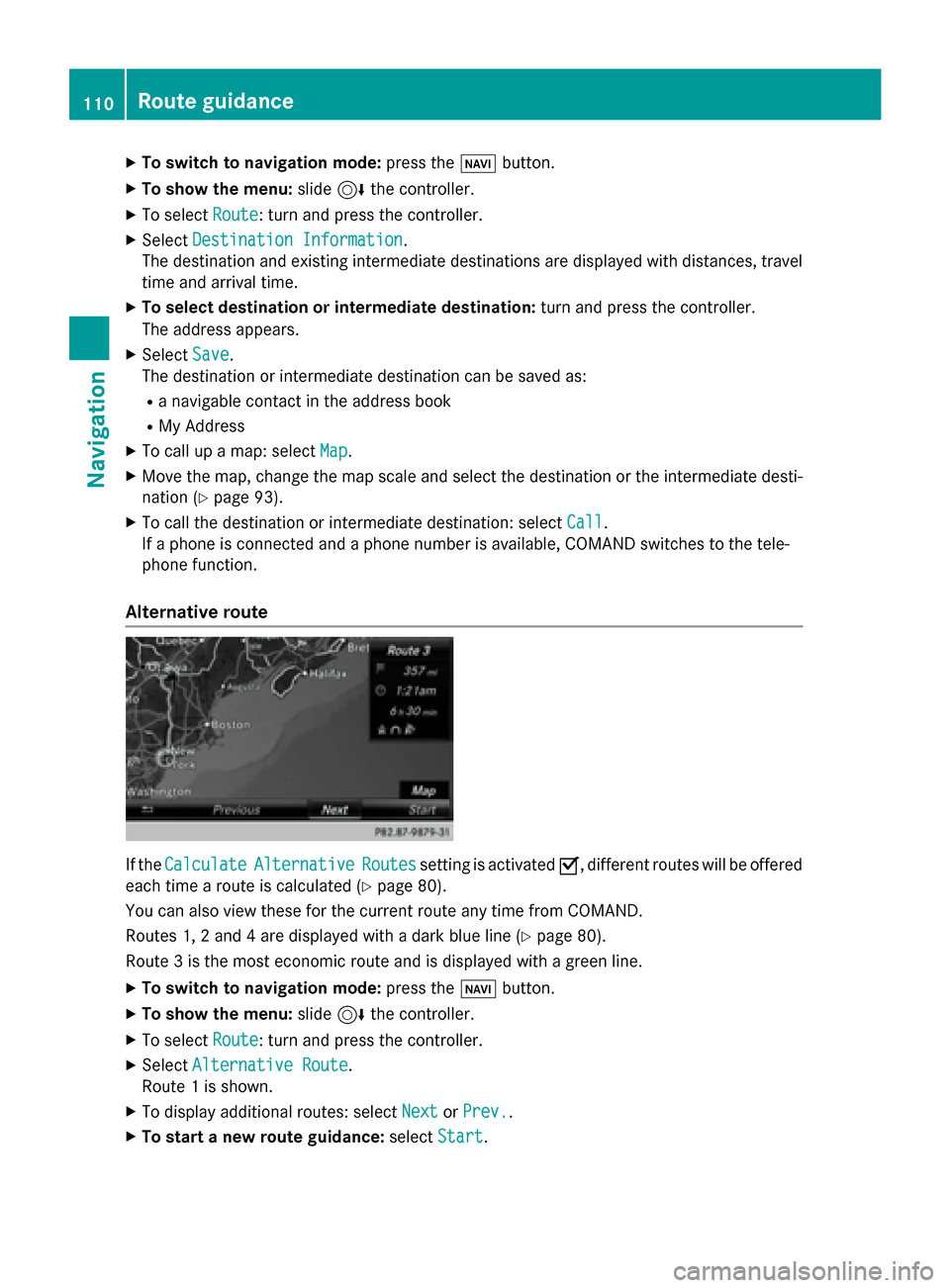
Alternative route If the
Calculate
Calculate Alternative
Alternative Routes
Routessetting is activated 0073, different routes will be offered
each time a route is calculated (Y page 80).
You can also view these for the current route any time from COMAND.
Routes 1, 2 and 4 are displayed with a dark blue line (Y page 80).
Route 3 is the most economic route and is displayed with a green line.
X To switch to navigation mode: press the00BEbutton.
X To show the menu: slide6the controller.
X To select Route
Route: turn and press the controller.
X Select Alternative Route
Alternative Route.
Route 1 is shown.
X To display additional routes: select Next
Next orPrev.
Prev..
X To start a new route guidance: selectStart
Start. 110
Route guidanceNavigation
Page 113 of 298
Route list
X
To switch to navigation mode: press the00BEbutton.
X To show the menu: slide6the controller.
X To select Route
Route: turn and press the controller.
X Select Route List
Route List .
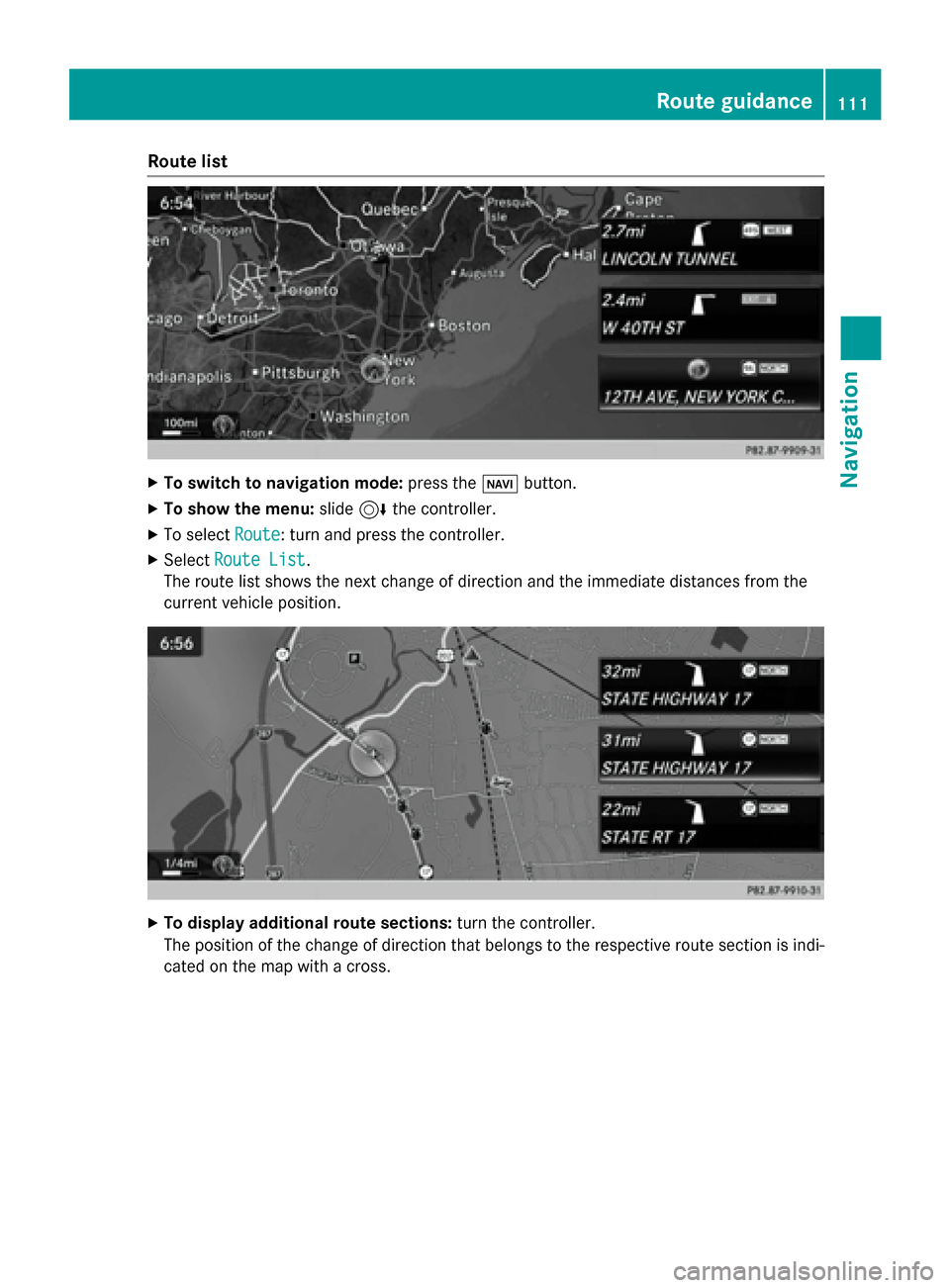
The route list shows the next change of direction and the immediate distances from the
current vehicle position. X
To display additional route sections: turn the controller.
The position of the change of direction that belongs to the respective route section is indi- cated on the map with a cross. Route guidance
111Navigation Z
Page 115 of 298
factors such as time of day, time of year and
immediate weather conditions that cannot be judged or taken into consideration by the
COMAND system.
Route guidance to an off-road destina-
tion COMAND can guide you to destinations
which are within the area of the digital map,
but which are not themselves on the map.
These destinations are known as off-road
destinations, which you can enter using the
map, for example. In these cases, COMAND
guides you for as long as possible with navi-
gation announcements and displays on roads
known to the system.
If the vehicle reaches an area which is not part
of the digital map, the display appears as a
split-screen view. On the right, an arrow
appears that points to the off-road destina-
tion. You will hear the announcement: "Please follow the arrow on the display". As the vehi-
cle approaches the destination, you will see a
display to this effect.
Route guidance from an off-road loca-
tion to a destination Off-road location: the vehicle's position is on
the digital map, but the map does not contain
any information about that location.
COMAND is also able to guide you to a des-
tination even from an off-road location.
At the start of route guidance, you will see the
Road Not Mapped
Road Not Mapped message, an arrow and
the distance to the destination. The arrow
shows the compass heading to the actual
destination.
As soon as the vehicle is back on a road
known to the system, route guidance contin- ues in the usual way.
Off-road during route guidance Due to road works, for example, there may be
differences between the data on the digital
map and the actual course of the road. In such cases, the system will temporarily be
unable to locate the vehicle position on the
digital map. The vehicle is therefore in an off- road position.
In the display, you will then see the Road
Road Not Not
Mapped
Mapped message, an arrow and the distance
to the destination. The direction arrow shows
the compass heading to the destination.
As soon as the system can assign the vehicle
position to the map again, route guidance
continues in the usual way. Real-time traffic reports
Prerequisites
i This function is currently not available for
Canada.
In order to receive real-time traffic reports via satellite radio, you need to subscribe to SIR-
IUS XM Satellite Radio Traffic Message
Service.
Further information on satellite radio
(Y page 202).
COMAND can receive traffic reports via sat-
ellite radio and take account of these for
route guidance in the navigation system.
Received traffic reports are displayed on the
map either as text or as symbols. Real-time traffic reports
113Navigation Z
Page 119 of 298
X
To select Traffic
Traffic: turn and press the con-
troller.
X To select Traffic
Traffic Information
Information On
OnMap
Map:
turn and press the controller.
X Select Incidents
Incidents,Speed Speed&
&Flow
Flow orFree
Free
Flow
Flow.
The display is activated 0073or deactivated
0053. Reading out traffic reports on the
route
Introduction The read-aloud function is only available while
route guidance is active. It reads out traffic
reports affecting the current route.
You can select from the following text reader
properties:
R Language (Y page 52)
R Text reader speed (Y page 48)
You can start the text reader function man-
ually or set it to automatic.
Starting the text reader function man-
ually X
To switch to navigation mode: press the
00BE button.
X To show the menu: slide6the control-
ler.
X To select Traffic
Traffic: turn and press the con-
troller.
X Select Read Out All Messages on Read Out All Messages on
Route
Route.
COMAND reads out the reports in
sequence.
If there are no reports for the route, the
Read
Read Out OutAll
AllMessages
Messages on
onRoute
Route menu
item is gray and cannot be selected.
X To cancel the read-aloud function: select
Cancel Read-Aloud Function
Cancel Read-Aloud Function.
COMAND reads out the current report and
then exits the read-aloud function. Automatic read-aloud function X
To switch to navigation mode: press the
00BE button.
X To show the menu: slide6the control-
ler.
X To select Traffic
Traffic: turn and press the con-
troller.
X Select Read Traffic Announcements
Read Traffic Announcements
Automatically
Automatically.
Depending on the previous status, switch
the option on 0073or off 0053. Recalculating the route dynamically
The Dynamic Traffic Route Dynamic Traffic Route route type
takes into account all of the traffic reports it
receives for the current route when calculat-
ing the route (Y page 80).
If you have selected Dynamic Traffic Dynamic Traffic
Route
Route as the route type, COMAND guides you
to your destination along the updated route. Storing destinations
General notes
If a route to a destination has been calculated,
COMAND saves the destination to the last
destinations memory. If the memory is full,
COMAND overwrites the oldest destination.
When you save the current vehicle position or a crosshair position, this position is stored in
the "Last destinations" memory.
You can save destinations permanently in the
address book and on an SD memory card. For instance, this is possible immediately after
entering an address. Storing destinations
117Navigation Z
Page 123 of 298
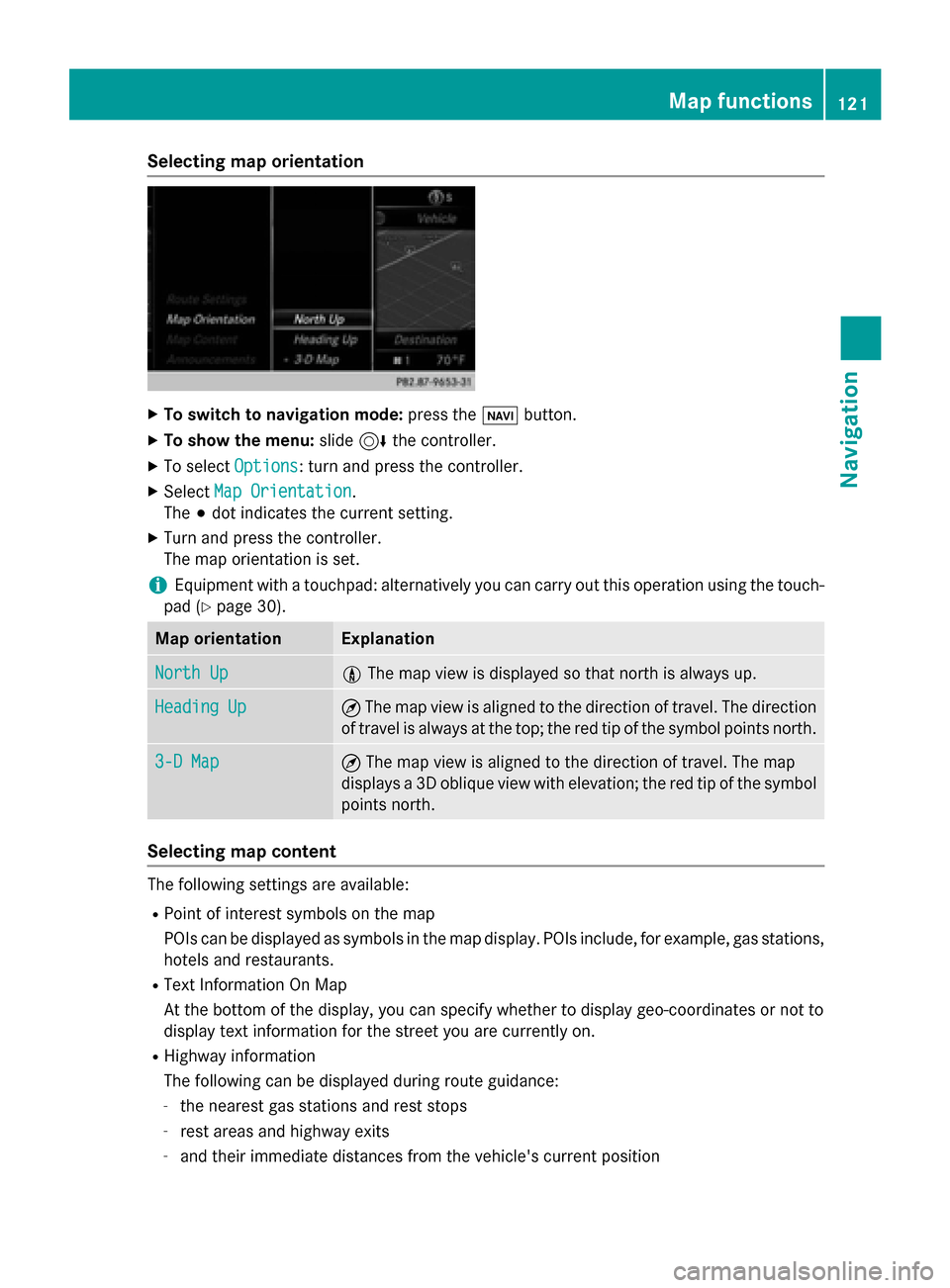
Selecting map orientation
X
To switch to navigation mode: press the00CBbutton.
X To show the menu: slide6the controller.
X To select Options
Options: turn and press the controller.
X Select Map Orientation
Map Orientation.
The 003Bdot indicates the current setting.
X Turn and press the controller.
The map orientation is set.
i Equipment with a touchpad: alternatively you can carry out this operation using the touch-
pad (Y page 30). Map orientation Explanation
North Up North Up 005B
The map view is displayed so that north is always up. Heading Up
Heading Up ¤
The map view is aligned to the direction of travel. The direction
of travel is always at the top; the red tip of the symbol points north. 3-D Map
3-D Map ¤
The map view is aligned to the direction of travel. The map
displays a 3D oblique view with elevation; the red tip of the symbol points north. Selecting map content
The following settings are available:
R
Point of interest symbols on the map
POIs can be displayed as symbols in the map display. POIs include, for example, gas stations,
hotels and restaurants.
R Text Information On Map
At the bottom of the display, you can specify whether to display geo-coordinates or not to
display text information for the street you are currently on.
R Highway information
The following can be displayed during route guidance:
- the nearest gas stations and rest stops
- rest areas and highway exits
- and their immediate distances from the vehicle's current position Map functions
121Navigation Z
Page 212 of 298
Your COMAND equipment
These operating instructions describe all
standard and optional equipment available
for your COMAND system at the time of pur-
chase. Country-specific differences are pos-
sible. Please note that your COMAND system may not be equipped with all the features
described. This also applies to safety-relevant
systems and functions. Therefore, the equip-
ment on your COMAND system may differ
from that in the descriptions and illustrations. Should you have any questions concerning
equipment and operation, please consult an
authorized Mercedes-Benz Center. Activating media mode
General notes
There are several ways to activate media
sources using COMAND.
The relevant sections of the Operator's Man-
ual describe the simplest way to activate a
media source.
This section describes all options for activat-
ing media sources. Using the MEDIA button
X Press the 00FDbutton.
The menu appears with the available media sources.
X To select media sources: turn the controller
until the desired media source is in the
center. Press the controller.
The media sources appear in the following
order:
R CD/DVD
R Memory card
R Media Register
R Vehicles without Media Interface: USB 1
and USB 2
R Vehicles with Media Interface: Media
Interface 1 and Media Interface 2 R
BT audio
R TV (if your vehicle is equipped with a TV)
R AUX
If playable music files are found, they will be played by COMAND.
X To display the function bars: slide 00520064the
controller. Switching on automatically
After an external media source has been con-
nected, COMAND will only activate the cor-
responding media mode automatically in the
case of CDs and SD cards. When using USB
devices, depending on the vehicle's equip-
ment, the relevant Media Interface 1, 2 or
USB 1, 2 basic display must already be acti-
vated.
External media sources:
R Apple devices (e.g. iPhone ®
)
R USB devices (e.g. USB stick, MP3 player)
R CD
R DVD
R SD cards
R via AUX cable (automatic activation
depends on the device connected)
R via devices connected by Bluetooth ®
If playable music files are found, they will be
played by COMAND.
i If a media function is already switched on
in COMAND, this will be interrupted and the
basic display of the newly connected
device will appear.
If another function, such as navigation, is
operating, the basic display will not change.
Only the music from the newly connected
media source will play 210
Activa
ting media modeMedia
Page 213 of 298
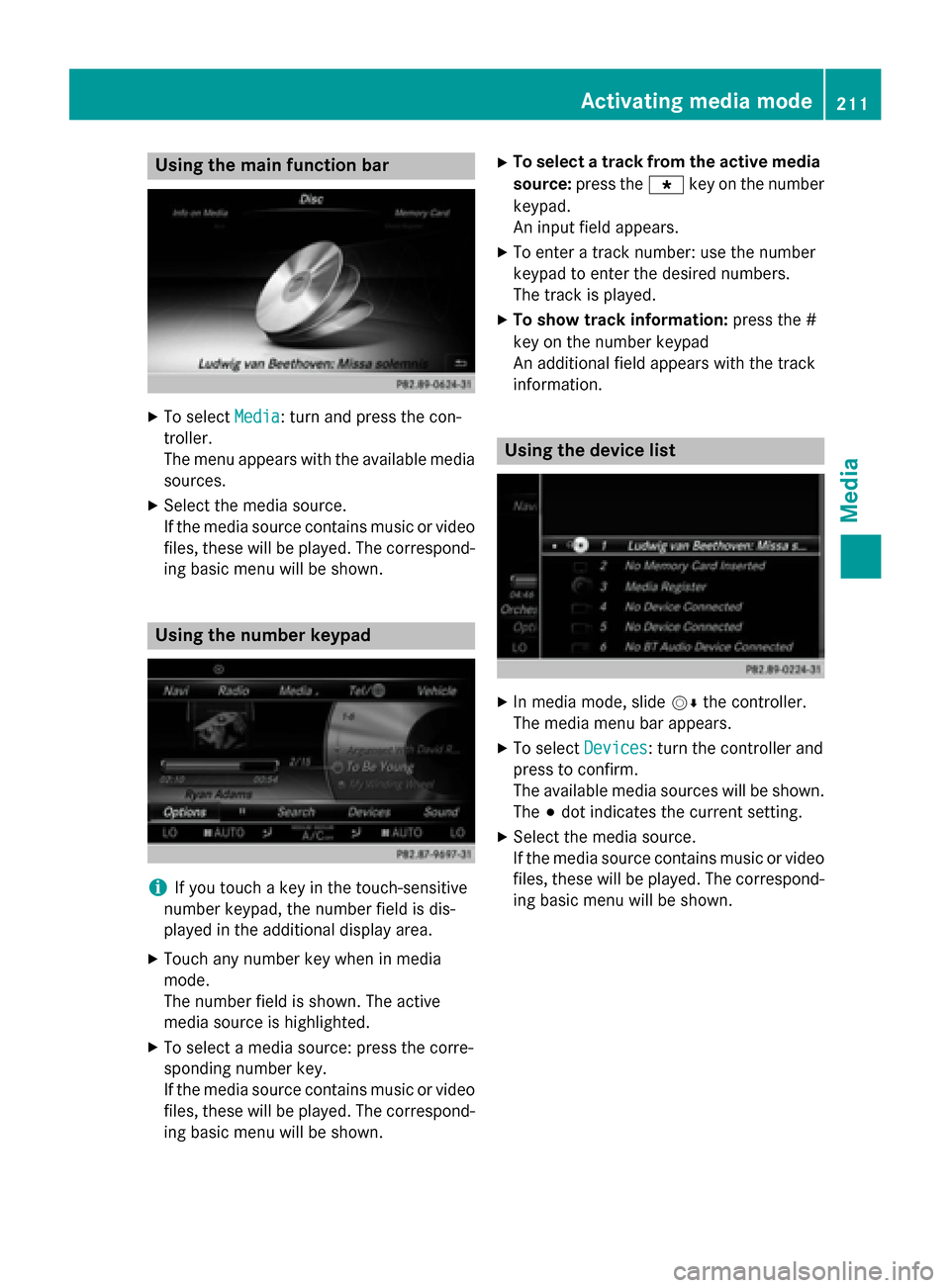
Using the main function bar
X
To select Media
Media: turn and press the con-
troller.
The menu appears with the available media
sources.
X Select the media source.
If the media source contains music or video
files, these will be played. The correspond- ing basic menu will be shown. Using the number keypad
i
If you touch a key in the touch-sensitive
number keypad, the number field is dis-
played in the additional display area.
X Touch any number key when in media
mode.
The number field is shown. The active
media source is highlighted.
X To select a media source: press the corre-
sponding number key.
If the media source contains music or video
files, these will be played. The correspond- ing basic menu will be shown. X
To select a track from the active media
source: press the 007Dkey on the number
keypad.
An input field appears.
X To enter a track number: use the number
keypad to enter the desired numbers.
The track is played.
X To show track information: press the #
key on the number keypad
An additional field appears with the track
information. Using the device list
X
In media mode, slide 00520064the controller.
The media menu bar appears.
X To select Devices Devices: turn the controller and
press to confirm.
The available media sources will be shown.
The 003Bdot indicates the current setting.
X Select the media source.
If the media source contains music or video
files, these will be played. The correspond- ing basic menu will be shown. Activating media mode
211Media
Page 214 of 298
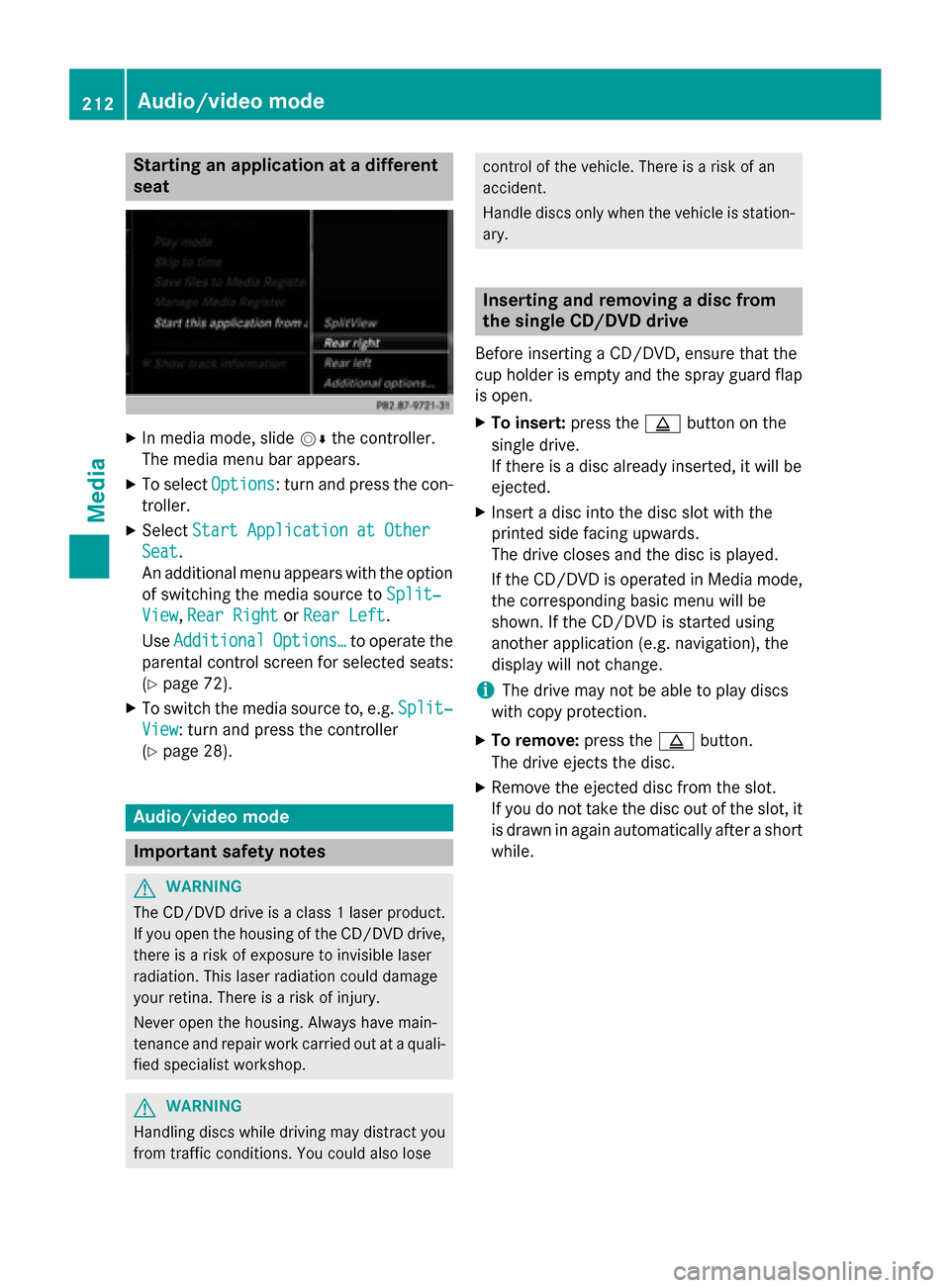
Starting an application at a different
seat
X
In media mode, slide 00520064the controller.
The media menu bar appears.
X To select Options
Options: turn and press the con-
troller.
X Select Start Application at Other Start Application at Other
Seat
Seat.
An additional menu appears with the option of switching the media source to Split‐ Split‐
View
View, Rear Right
Rear Right orRear Left
Rear Left.
Use Additional
Additional Options…
Options…to operate the
parental control screen for selected seats:
(Y page 72).
X To switch the media source to, e.g. Split‐ Split‐
View
View: turn and press the controller
(Y page 28). Audio/video mode
Important safety notes
G
WARNING
The CD/DVD drive is a class 1 laser product. If you open the housing of the CD/DVD drive,
there is a risk of exposure to invisible laser
radiation. This laser radiation could damage
your retina. There is a risk of injury.
Never open the housing. Always have main-
tenance and repair work carried out at a quali- fied specialist workshop. G
WARNING
Handling discs while driving may distract you from traffic conditions. You could also lose control of the vehicle. There is a risk of an
accident.
Handle discs only when the vehicle is station- ary. Inserting and removing a disc from
the single CD/DVD drive
Before inserting a CD/DVD, ensure that the
cup holder is empty and the spray guard flap is open.
X To insert: press the00F8button on the
single drive.
If there is a disc already inserted, it will be
ejected.
X Insert a disc into the disc slot with the
printed side facing upwards.
The drive closes and the disc is played.
If the CD/DVD is operated in Media mode,
the corresponding basic menu will be
shown. If the CD/DVD is started using
another application (e.g. navigation), the
display will not change.
i The drive may not be able to play discs
with copy protection.
X To remove: press the00F8button.
The drive ejects the disc.
X Remove the ejected disc from the slot.
If you do not take the disc out of the slot, it
is drawn in again automatically after a short
while. 212
Audio/video modeMedia