Memory card MERCEDES-BENZ S-Class 2015 W222 Comand Manual
[x] Cancel search | Manufacturer: MERCEDES-BENZ, Model Year: 2015, Model line: S-Class, Model: MERCEDES-BENZ S-Class 2015 W222Pages: 298, PDF Size: 6.39 MB
Page 119 of 298
X
To select Traffic
Traffic: turn and press the con-
troller.
X To select Traffic
Traffic Information
Information On
OnMap
Map:
turn and press the controller.
X Select Incidents
Incidents,Speed Speed&
&Flow
Flow orFree
Free
Flow
Flow.
The display is activated 0073or deactivated
0053. Reading out traffic reports on the
route
Introduction The read-aloud function is only available while
route guidance is active. It reads out traffic
reports affecting the current route.
You can select from the following text reader
properties:
R Language (Y page 52)
R Text reader speed (Y page 48)
You can start the text reader function man-
ually or set it to automatic.
Starting the text reader function man-
ually X
To switch to navigation mode: press the
00BE button.
X To show the menu: slide6the control-
ler.
X To select Traffic
Traffic: turn and press the con-
troller.
X Select Read Out All Messages on Read Out All Messages on
Route
Route.
COMAND reads out the reports in
sequence.
If there are no reports for the route, the
Read
Read Out OutAll
AllMessages
Messages on
onRoute
Route menu
item is gray and cannot be selected.
X To cancel the read-aloud function: select
Cancel Read-Aloud Function
Cancel Read-Aloud Function.
COMAND reads out the current report and
then exits the read-aloud function. Automatic read-aloud function X
To switch to navigation mode: press the
00BE button.
X To show the menu: slide6the control-
ler.
X To select Traffic
Traffic: turn and press the con-
troller.
X Select Read Traffic Announcements
Read Traffic Announcements
Automatically
Automatically.
Depending on the previous status, switch
the option on 0073or off 0053. Recalculating the route dynamically
The Dynamic Traffic Route Dynamic Traffic Route route type
takes into account all of the traffic reports it
receives for the current route when calculat-
ing the route (Y page 80).
If you have selected Dynamic Traffic Dynamic Traffic
Route
Route as the route type, COMAND guides you
to your destination along the updated route. Storing destinations
General notes
If a route to a destination has been calculated,
COMAND saves the destination to the last
destinations memory. If the memory is full,
COMAND overwrites the oldest destination.
When you save the current vehicle position or a crosshair position, this position is stored in
the "Last destinations" memory.
You can save destinations permanently in the
address book and on an SD memory card. For instance, this is possible immediately after
entering an address. Storing destinations
117Navigation Z
Page 120 of 298
Storing the destination in the address
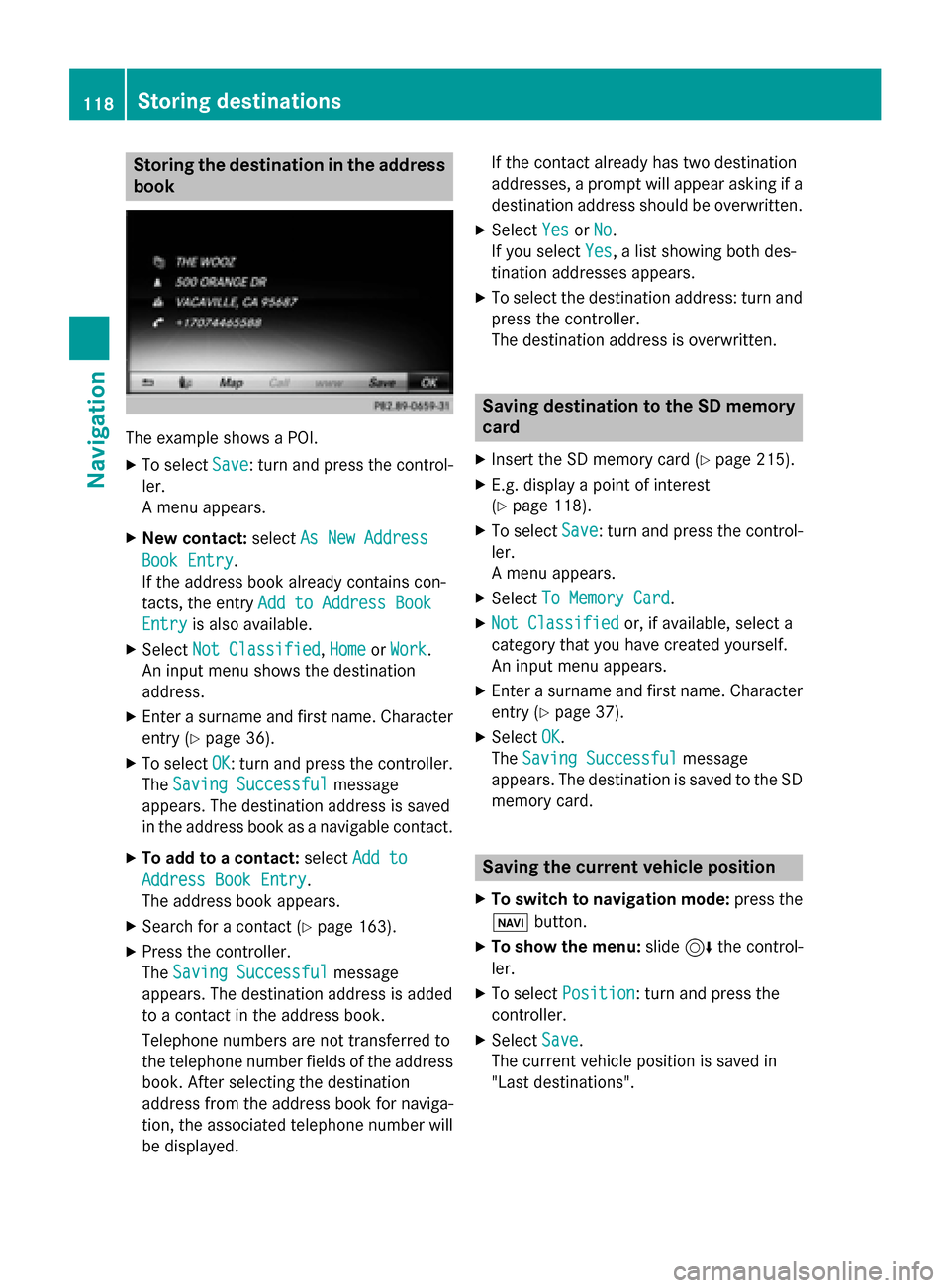
book The example shows a POI.
X To select Save
Save: turn and press the control-
ler.
A menu appears.
X New contact: selectAs New Address
As New Address
Book Entry Book Entry.
If the address book already contains con-
tacts, the entry Add to Address Book Add to Address Book
Entry
Entry is also available.
X Select Not Classified
Not Classified, Home
HomeorWork
Work.
An input menu shows the destination
address.
X Enter a surname and first name. Character
entry (Y page 36).
X To select OK
OK: turn and press the controller.
The Saving Successful
Saving Successful message
appears. The destination address is saved
in the address book as a navigable contact.
X To add to a contact: selectAdd to
Add to
Address Book Entry
Address Book Entry.
The address book appears.
X Search for a contact (Y page 163).
X Press the controller.
The Saving Successful Saving Successful message
appears. The destination address is added
to a contact in the address book.
Telephone numbers are not transferred to
the telephone number fields of the address book. After selecting the destination
address from the address book for naviga-
tion, the associated telephone number will
be displayed. If the contact already has two destination
addresses, a prompt will appear asking if a destination address should be overwritten.
X Select Yes YesorNo
No.
If you select Yes
Yes, a list showing both des-
tination addresses appears.
X To select the destination address: turn and
press the controller.
The destination address is overwritten. Saving destination to the SD memory
card
X Insert the SD memory card (Y page 215).
X E.g. display a point of interest
(Y page 118).
X To select Save Save: turn and press the control-
ler.
A menu appears.
X Select To Memory Card To Memory Card.
X Not Classified
Not Classified or, if available, select a
category that you have created yourself.
An input menu appears.
X Enter a surname and first name. Character
entry (Y page 37).
X Select OK
OK.
The Saving Successful Saving Successful message
appears. The destination is saved to the SD memory card. Saving the current vehicle position
X To switch to navigation mode: press the
00CB button.
X To show the menu: slide6the control-
ler.
X To select Position
Position: turn and press the
controller.
X Select Save
Save.
The current vehicle position is saved in
"Last destinations". 118
Storing destinationsNavigation
Page 150 of 298
When you import, save, edit or add contacts,
they will be permanently saved in COMAND.
These contacts will remain there even when
you connect COMAND to a different mobile
phone. You can view these contacts even
without a mobile phone. Calling up the phone book
X
To call up the telephone menu: press the
002B button.
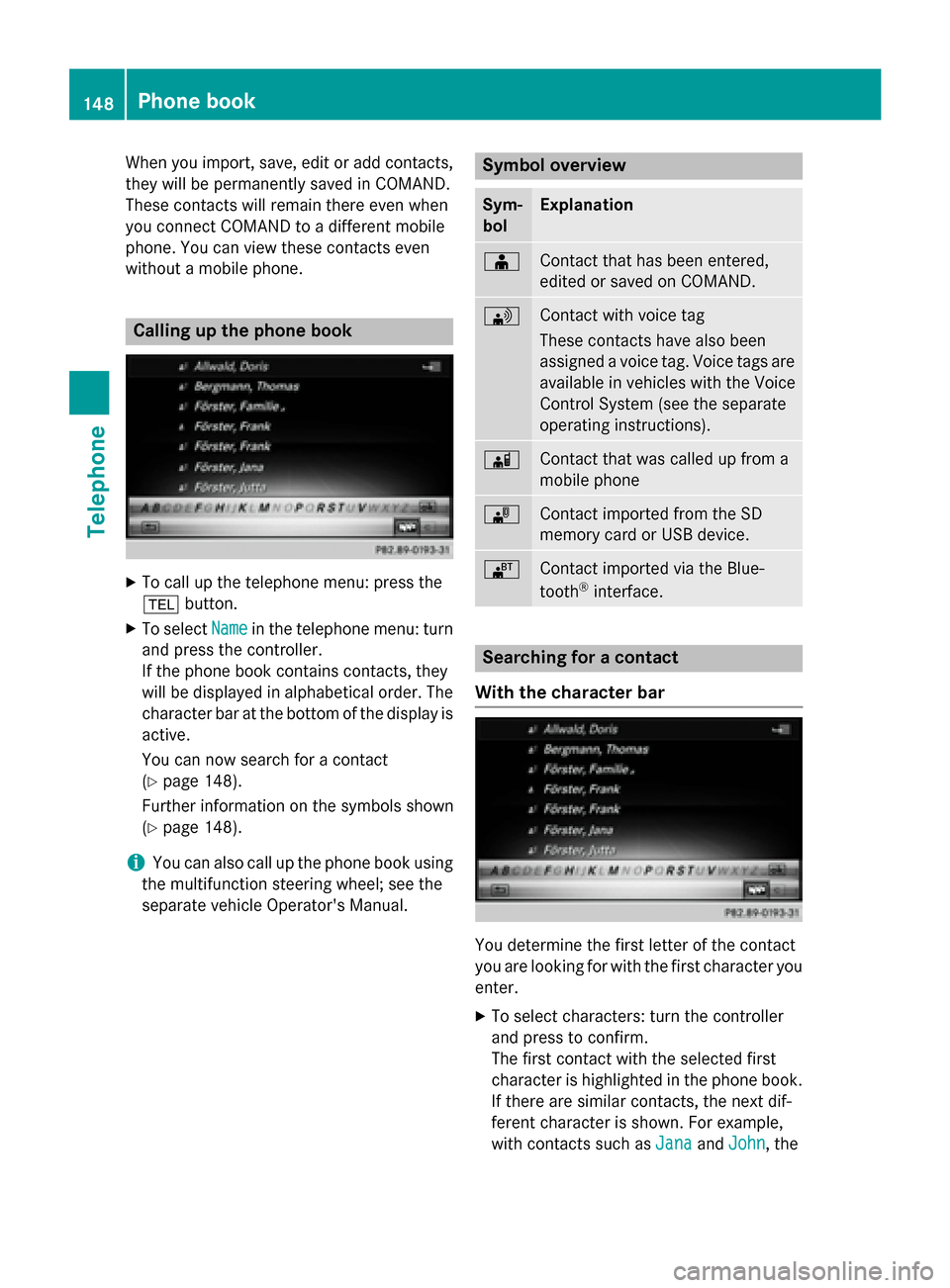
X To select Name Namein the telephone menu: turn
and press the controller.
If the phone book contains contacts, they
will be displayed in alphabetical order. The character bar at the bottom of the display is
active.
You can now search for a contact
(Y page 148).
Further information on the symbols shown
(Y page 148).
i You can also call up the phone book using
the multifunction steering wheel; see the
separate vehicle Operator's Manual. Symbol overview
Sym-
bol Explanation
00D8
Contact that has been entered,
edited or saved on COMAND.
0094
Contact with voice tag
These contacts have also been
assigned a voice tag. Voice tags are
available in vehicles with the Voice
Control System (see the separate
operating instructions). 00D7
Contact that was called up from a
mobile phone
00BB
Contact imported from the SD
memory card or USB device.
00BA
Contact imported via the Blue-
tooth
®
interface. Searching for a contact
With the character bar You determine the first letter of the contact
you are looking for with the first character you
enter.
X To select characters: turn the controller
and press to confirm.
The first contact with the selected first
character is highlighted in the phone book. If there are similar contacts, the next dif-
ferent character is shown. For example,
with contacts such as Jana JanaandJohn
John, the 148
Phone bookTelephone
Page 164 of 298
Adding the sender to an address book
entry
Storing the sender of a text message X
To call up the menu when a text message is
displayed: press the controller.
X To select Save
Save Number
Number : turn and press the
controller.
X To select Add Phone No.
Add Phone No. : turn and press
the controller.
X To select a category for the number, e.g.
Home
Home: turn the controller and press to con-
firm.
X To select a telephone category, e.g.
Mobile Phone
Mobile Phone: turn the controller and
press to confirm.
X To select Continue
Continue: turn and press the
controller.
The address book is displayed.
X Search for the desired entry (Y page 163).
X Press the controller when you have finished
searching.
The telephone number has been added.
A maximum of five telephone numbers can
be saved for one contact.
Saving the sender of an e-mail Up to two e-mail addresses can be saved for
one contact.
X To call up the menu when an e-mail is dis-
played: press the controller.
X To select Save Sender's E-Mail
Save Sender's E-Mail
Address Address: turn and press the controller.
X To select Add
Add: turn and press the controller.
The address book is displayed.
X Search for the desired entry (Y page 163).
X Press the controller when you have finished
searching.
The e-mail address has been added. Deleting messages
X Call up the message folder (Y page 157).
X To select the message: turn and press the
controller.
X To select G: slide 9the controller.
X To select Delete Delete: turn and press the con-
troller.
X To select Yes
Yes: turn and press the controller.
The message is deleted.
or
X To select No
No: turn and press the controller.
The process is canceled.
i This delete function is not supported by all
mobile phones. The Delete
Deletefailed.
failed. mes-
sage then appears. Address book
Introduction
Always pay attention to traffic conditions.
Familiarize yourself with the address book
functions before beginning your journey.
You can use COMAND when the road and
traffic conditions permit. You could otherwise become involved in an accident in which you
or others could be injured.
The address book displays all the contacts
from the various sources (mobile phone,
memory card, USB device, COMAND phone
book, navigation).
You can use the contacts to make telephone
calls, navigate and to write messages.
If a mobile phone is connected to COMAND
and automatic calling up is activated
(Y page 167), the mobile phone's contacts
are displayed in the address book. If you dis-
connect the mobile phone from COMAND,
these contacts are no longer displayed in the address book.
When you import, save, edit or add contacts,they will be saved in COMAND. These con-
tacts will remain there even when you con-
nect COMAND to a different mobile phone. 162
Address bookTelephone
Page 170 of 298
Saving or editing the contact data on
COMAND does not change the contacts on
the mobile phone. If automatic download-
ing of phone contacts is activated,
COMAND displays the copy ¥with the
changed data. To add additional data, such as additional phone numbers or e-mail
addresses, select this contact. In this way,
you avoid creating additional copies of the
mobile phone entry. Deleting the contact
X Call up the address book (Y page 163).
X Search for a contact (Y page 163).
X To select G: slide 9the controller.
X To select Delete Entry Delete Entry: turn and press
the controller.
X To select Yes
Yes: turn and press the controller.
The contact is deleted.
or
X To select No
No: turn and press the controller.
The process is canceled. Importing contacts
Information and requirements Contacts can be imported as vCards (vcf
files). A vCard is an electronic business card.
A memory card, USB device or a Bluetooth ®
connection can be used for importing.
i Up to 2000 entries can be imported into
the address book. A message notifies you
when the maximum number is reached. In
order to be able to then import new con-
tacts, you have to delete existing contacts
(Y page 168). Source Prerequisites
Memory card The SD memory card is
inserted. It contains
importable contact details. USB device The USB device is inserted
into the USB port. It con-
tains importable contact
details.
Bluetooth
®
connection If the sending of vCards is
supported via Bluetooth
®
,
vCards can be received on
mobile phones or net-
books, for example.
Bluetooth ®
must be acti-
vated in COMAND and on
the respective device (see
the manufacturer's operat-
ing instructions). Importing from the memory card or USB
device Contacts imported from the memory card or
from a USB device are identified by the 00BB
symbol.
The following conditions must be fulfilled in
order to import vCards:
R vCards (vcf files) may be located in the main
directory or in folders. COMAND allows you
to select the relevant folders directly.
R vCards must have the file extension ".vcf".
i COMAND supports vCards in versions 2.1
and 3.0. X
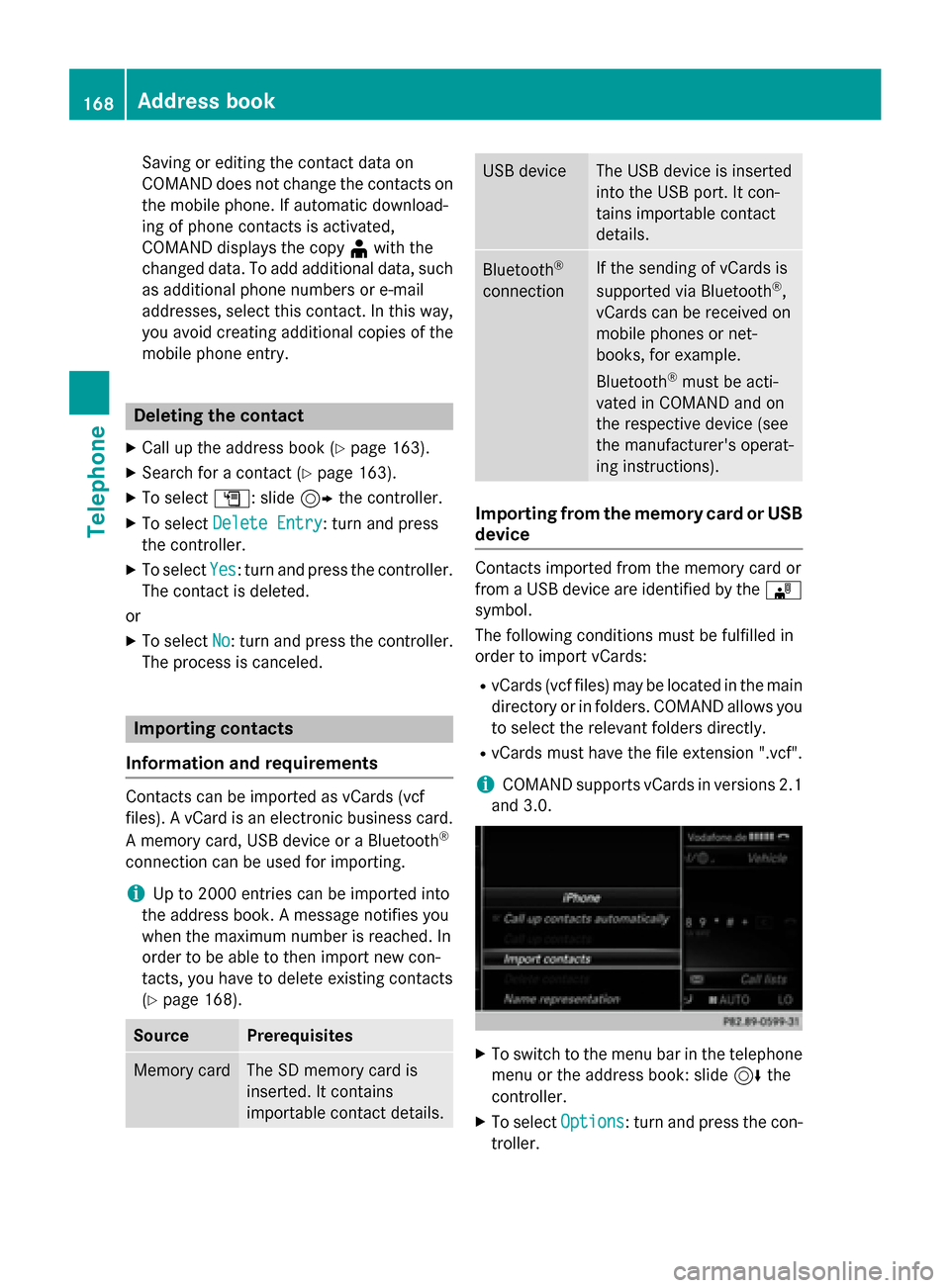
To switch to the menu bar in the telephone
menu or the address book: slide 6the
controller.
X To select Options Options: turn and press the con-
troller. 168
Address bookTelephone
Page 171 of 298
X
To select Download Contacts
Download Contacts: turn and
press the controller.
X To select From
From Memory
Memory Card
CardorFrom
From USB
USB
device
device: turn and press the controller.
Receiving vCards via Bluetooth ®COMAND
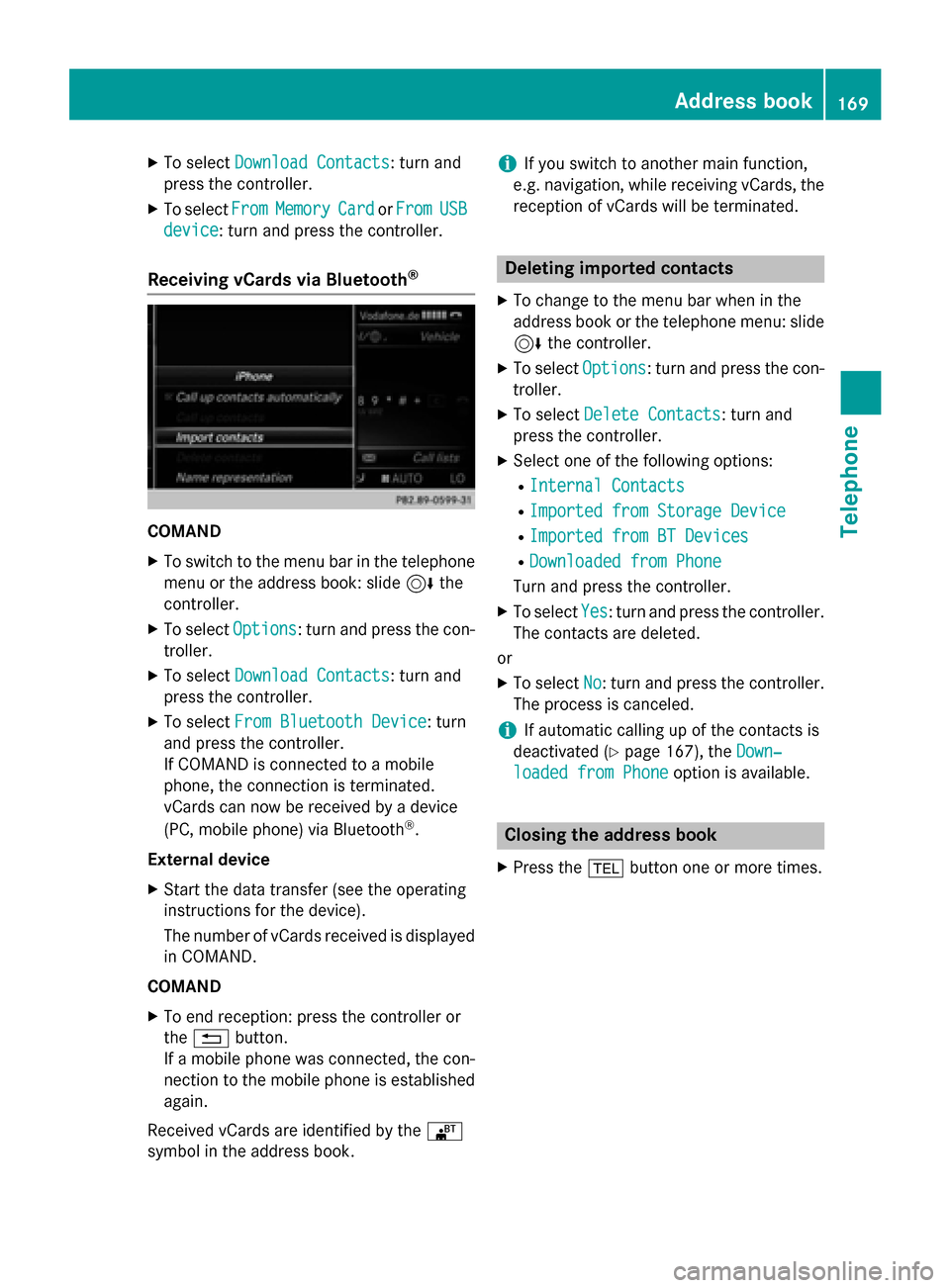
X To switch to the menu bar in the telephone
menu or the address book: slide 6the
controller.
X To select Options
Options: turn and press the con-
troller.
X To select Download Contacts
Download Contacts: turn and
press the controller.
X To select From Bluetooth Device
From Bluetooth Device: turn
and press the controller.
If COMAND is connected to a mobile
phone, the connection is terminated.
vCards can now be received by a device
(PC, mobile phone) via Bluetooth ®
.
External device
X Start the data transfer (see the operating
instructions for the device).
The number of vCards received is displayed
in COMAND.
COMAND
X To end reception: press the controller or
the 0038 button.
If a mobile phone was connected, the con-
nection to the mobile phone is established again.
Received vCards are identified by the 00BA
symbol in the address book. i
If you switch to another main function,
e.g. navigation, while receiving vCards, the reception of vCards will be terminated. Deleting imported contacts
X To change to the menu bar when in the
address book or the telephone menu: slide
6 the controller.
X To select Options Options: turn and press the con-
troller.
X To select Delete Contacts
Delete Contacts: turn and
press the controller.
X Select one of the following options:
R Internal Contacts
Internal Contacts
R Imported from Storage Device
Imported from Storage Device
R Imported from BT Devices
Imported from BT Devices
R Downloaded from Phone
Downloaded from Phone
Turn and press the controller.
X To select Yes
Yes: turn and press the controller.
The contacts are deleted.
or
X To select No
No: turn and press the controller.
The process is canceled.
i If automatic calling up of the contacts is
deactivated (Y page 167), the Down‐
Down‐
loaded from Phone
loaded from Phone option is available. Closing the address book
X Press the 002Bbutton one or more times. Address book
169Telephone Z
Page 185 of 298
Using destinations
Displaying details X
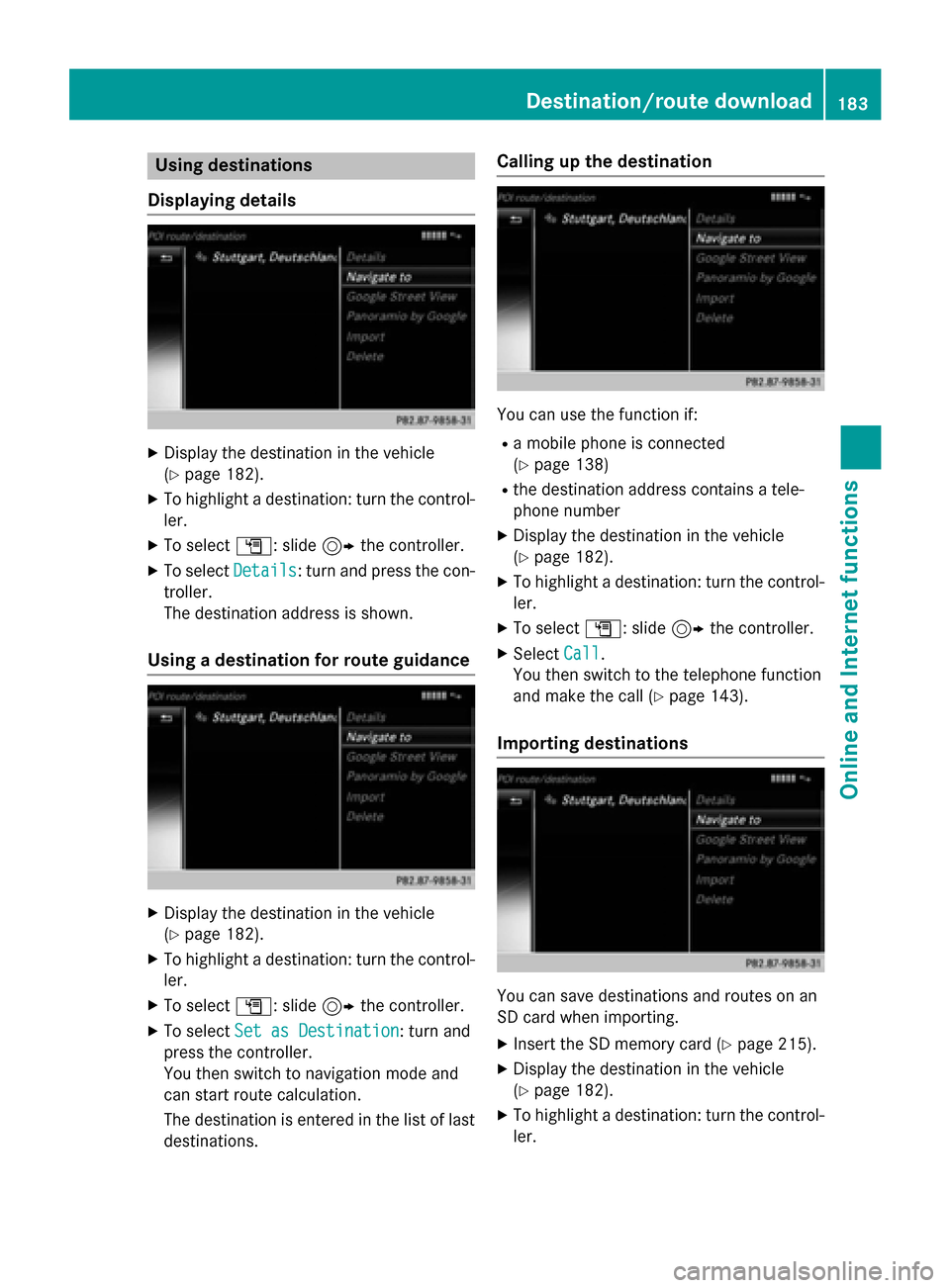
Display the destination in the vehicle
(Y page 182).
X To highlight a destination: turn the control-
ler.
X To select G: slide 9the controller.
X To select Details
Details: turn and press the con-
troller.
The destination address is shown.
Using a destination for route guidance X
Display the destination in the vehicle
(Y page 182).
X To highlight a destination: turn the control-
ler.
X To select G: slide 9the controller.
X To select Set as Destination Set as Destination: turn and
press the controller.
You then switch to navigation mode and
can start route calculation.
The destination is entered in the list of last
destinations. Calling up the destination
You can use the function if:
R a mobile phone is connected
(Y page 138)
R the destination address contains a tele-
phone number
X Display the destination in the vehicle
(Y page 182).
X To highlight a destination: turn the control-
ler.
X To select G: slide 9the controller.
X Select Call Call.
You then switch to the telephone function
and make the call (Y page 143).
Importing destinations You can save destinations and routes on an
SD card when importing.
X Insert the SD memory card (Y page 215).
X Display the destination in the vehicle
(Y page 182).
X To highlight a destination: turn the control-
ler. Destination/route download
183Online and Internet functions Z
Page 212 of 298
Your COMAND equipment
These operating instructions describe all
standard and optional equipment available
for your COMAND system at the time of pur-
chase. Country-specific differences are pos-
sible. Please note that your COMAND system may not be equipped with all the features
described. This also applies to safety-relevant
systems and functions. Therefore, the equip-
ment on your COMAND system may differ
from that in the descriptions and illustrations. Should you have any questions concerning
equipment and operation, please consult an
authorized Mercedes-Benz Center. Activating media mode
General notes
There are several ways to activate media
sources using COMAND.
The relevant sections of the Operator's Man-
ual describe the simplest way to activate a
media source.
This section describes all options for activat-
ing media sources. Using the MEDIA button
X Press the 00FDbutton.
The menu appears with the available media sources.
X To select media sources: turn the controller
until the desired media source is in the
center. Press the controller.
The media sources appear in the following
order:
R CD/DVD
R Memory card
R Media Register
R Vehicles without Media Interface: USB 1
and USB 2
R Vehicles with Media Interface: Media
Interface 1 and Media Interface 2 R
BT audio
R TV (if your vehicle is equipped with a TV)
R AUX
If playable music files are found, they will be played by COMAND.
X To display the function bars: slide 00520064the
controller. Switching on automatically
After an external media source has been con-
nected, COMAND will only activate the cor-
responding media mode automatically in the
case of CDs and SD cards. When using USB
devices, depending on the vehicle's equip-
ment, the relevant Media Interface 1, 2 or
USB 1, 2 basic display must already be acti-
vated.
External media sources:
R Apple devices (e.g. iPhone ®
)
R USB devices (e.g. USB stick, MP3 player)
R CD
R DVD
R SD cards
R via AUX cable (automatic activation
depends on the device connected)
R via devices connected by Bluetooth ®
If playable music files are found, they will be
played by COMAND.
i If a media function is already switched on
in COMAND, this will be interrupted and the
basic display of the newly connected
device will appear.
If another function, such as navigation, is
operating, the basic display will not change.
Only the music from the newly connected
media source will play 210
Activa
ting media modeMedia
Page 217 of 298
Inserting and ejecting an SD memory
card
Important safety notes G
WARNING
SD memory cards are small parts. They can be swallowed and cause asphyxiation. This
poses an increased risk of injury or even fatal injury.
Keep SD memory cards out of the reach of
children. If an SD memory card is swallowed,
seek immediate medical attention.
! If you are no longer using the SD memory
card, you should remove it and take it out of
the vehicle. High temperatures can dam-
age the card.
COMAND supports SD memory cards
(Secure Digital), SDHC memory cards
(Secure DigitalHighCapacity), and SDXC
memory cards ( SecureDigital e Xtended
C apacity.
Inserting an SD memory card X
Insert the SD memory card into the SD card
slot in the stowage space under the arm-
rest until the SD memory card engages into place. The side with the contacts must face
downwards.
The music is played while the files are
loaded in the background. If there are no
supported audio/video files, you will see a message to this effect.
Ejecting an SD memory card X
Press the memory card.
The memory card is ejected.
X Remove the memory card. Connecting USB devices
There are two USB ports located in the stow-
age compartment in the center console. X
Connect the USB device to the USB port.
The data medium will only be played and
the files will only be loaded in the back-
ground if the corresponding media display
is visible. Otherwise, the system does not
automatically switch to USB. If there are no
supported audio/video files, you will see a message to this effect.
i MP3 players must support Media Transfer
Protocol (MTP). Activating media mode
Switching on automatically After an external media source has been con-
nected, COMAND will only activate the cor-
responding media mode automatically and
show the basic display in the case of CDs and SD cards. If the CD/DVD is started using
another application (e.g. navigation), the dis-
play will not change.
When using USB devices, depending on the
vehicle's equipment, the relevant Media
Interface 1, 2 or USB 1, 2 basic display must
already be activated.
X Insert the CDs/DVDs (Y page 212)
or X Insert an SD memory card: (Y page 215)
or
X Connect a USB device: (Y page 215)
COMAND loads the medium inserted and
playback starts automatically if the basic
display is set to the correct USB media
source.
Further options for switching on R
Using the number keypad: (Y page 211)
R Using the main function bar: (Y page 211)
R Using the device list: (Y page 211)
R Using the 00FDbutton: (Y page 210) Audio/video mode
215Media Z
Page 221 of 298
Selecting Internet update of metadata
X In media mode, slide 00520064the controller.
The media menu bar is shown.
X To select Options
Options: turn and press the con-
troller.
X Select Updating Metadata Via Inter‐
Updating Metadata Via Inter‐
net
net in the selection list.
A connection with the Gracenote ®
data
server is established. The missing data is
loaded, saved and displayed in the main
display field.
If there is no data found or there is no Inter- net connection, a corresponding error mes-sage will appear.
Switching the Gracenote ®
data display
on/off X
Switch on CD mode (Y page 215).
X To select Gracenote Media Database Gracenote Media Database:
turn and press the controller.
X To switch the display off: select None
None.
In the basic display, Track 1 Track 1,Track 2 Track 2etc.
are shown instead of the Gracenote ®
data,
for example.
X To switch on the display: press the control-
ler. Notes on audio/video mode
Permissible data carriers R
CD-R, CD-A and CD-RW
R DVD-R, DVD-V and DVD-RW
R SD memory card
R USB storage device
Permissible file systems R
ISO 9660/Joliet standard for CDs
R UDF for video DVDs
R FAT16, FAT32, exFAT and NTFS for SD
memory card and USB storage media Multisession CDs For multisession CDs, the content of the first
session determines how COMAND will proc-
ess the CD. COMAND plays only one session
and gives priority to the audio CD session.
File structure of a data carrier When you create a disc with compressed
music files, the tracks can be organized in
folders. A folder may also contain subfolders.
The disc may contain no more than eight
directory levels. Files beyond the eighth level
will not be recognized by the system.
i COMAND supports up to 50,000 files
from one data medium. For data media with
more than 64 GB, only files in the following
folders are supported: music, pictures, vid-
eos.
Track and file names When you create a disc with compressed
music files, you can assign names to the
tracks and folders.
If MP3 or WMA files are stored in the root
directory itself, the root directory will also be
treated as a folder.
You should observe the following when
assigning track names:
R track names must have at least one char-
acter.
R track names must have the ending of a
supported audio/video format, e.g. mp3,
aac or m4v.
R there must be a dot between the track
name and the extension.
Example of a correct track name:
"Track1.mp3".
Permissible formats COMAND supports the following audio for-
mats:
R MP3
R WMA Audio/video mode
219Media Z