change time MERCEDES-BENZ S-Class 2015 W222 Comand Manual
[x] Cancel search | Manufacturer: MERCEDES-BENZ, Model Year: 2015, Model line: S-Class, Model: MERCEDES-BENZ S-Class 2015 W222Pages: 298, PDF Size: 6.39 MB
Page 67 of 298
X
To select Dynamic Multicontour Seat
Dynamic Multicontour Seat:
turn and press the controller.
You can select:
R 0
0: Off
R 1
1: Level 1 (weak)
R 2
2: Level 2 (strong)
X To select the setting: turn the controller.
X To exit the menu: press the0038button.
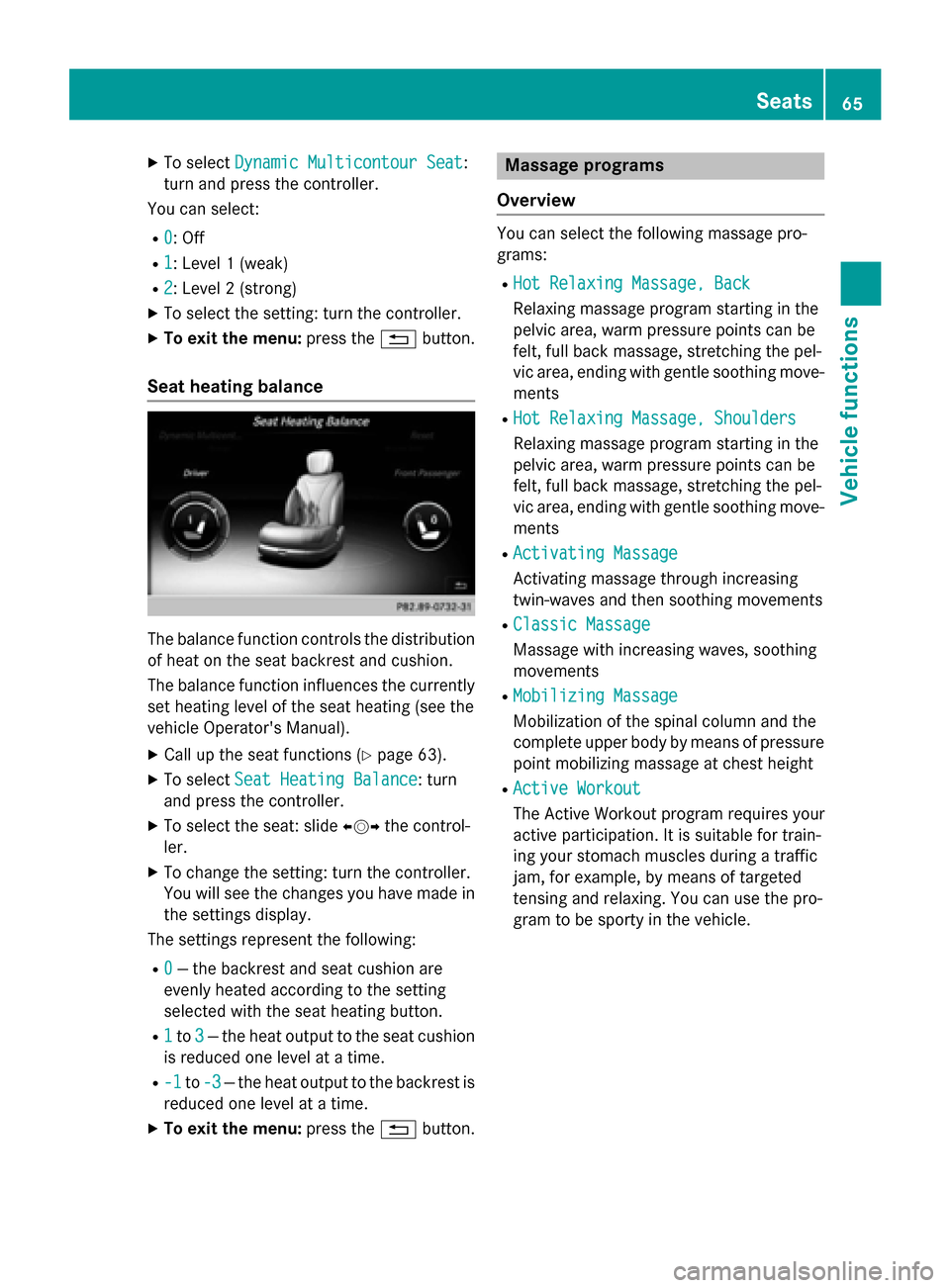
Seat heating balance The balance function controls the distribution
of heat on the seat backrest and cushion.
The balance function influences the currently
set heating level of the seat heating (see the
vehicle Operator's Manual).
X Call up the seat functions (Y page 63).
X To select Seat Heating Balance
Seat Heating Balance: turn
and press the controller.
X To select the seat: slide 009500520096the control-
ler.
X To change the setting: turn the controller.
You will see the changes you have made in
the settings display.
The settings represent the following:
R 0
0 — the backrest and seat cushion are
evenly heated according to the setting
selected with the seat heating button.
R 1 1to 3
3— the heat output to the seat cushion
is reduced one level at a time.
R -1
-1 to-3
-3 — the heat output to the backrest is
reduced one level at a time.
X To exit the menu: press the0038button. Massage programs
Overview You can select the following massage pro-
grams:
R
Hot Relaxing Massage, Back
Hot Relaxing Massage, Back
Relaxing massage program starting in the
pelvic area, warm pressure points can be
felt, full back massage, stretching the pel-
vic area, ending with gentle soothing move-
ments
R Hot Relaxing Massage, Shoulders
Hot Relaxing Massage, Shoulders
Relaxing massage program starting in the
pelvic area, warm pressure points can be
felt, full back massage, stretching the pel-
vic area, ending with gentle soothing move-
ments
R Activating Massage Activating Massage
Activating massage through increasing
twin-waves and then soothing movements
R Classic Massage Classic Massage
Massage with increasing waves, soothing
movements
R Mobilizing Massage Mobilizing Massage
Mobilization of the spinal column and the
complete upper body by means of pressure
point mobilizing massage at chest height
R Active Workout Active Workout
The Active Workout program requires your
active participation. It is suitable for train-
ing your stomach muscles during a traffic
jam, for example, by means of targeted
tensing and relaxing. You can use the pro-
gram to be sporty in the vehicle. Seats
65Vehicle functions
Page 68 of 298
As soon as you feel a pressure point in the
backrest cushion, this indicates that you
should press against this point.
- As soon as you feel pressure on your
back, press against it.
- Keep the pressure under your feet even.
Do not wedge yourself against the ped-
als.
- You will feel how your stomach muscles
tense.
- Continue to breathe normally, do not
hold your breath.
- When the pressure in the backrest cush-
ion stops, stop pressing against it and
relax briefly.
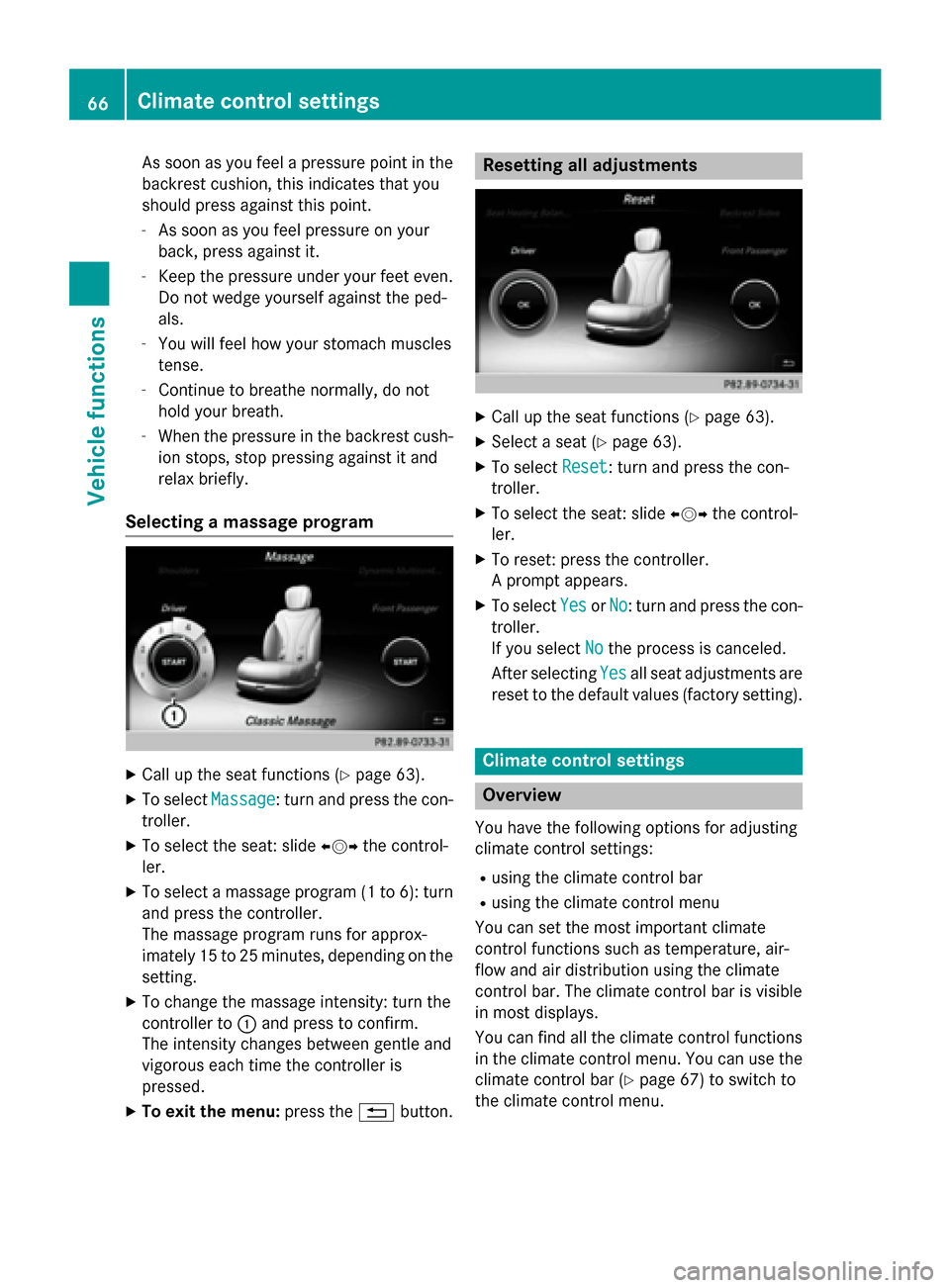
Selecting a massage program X
Call up the seat functions (Y page 63).
X To select Massage
Massage: turn and press the con-
troller.
X To select the seat: slide 009500520096the control-
ler.
X To select a massage program (1 to 6): turn
and press the controller.
The massage program runs for approx-
imately 15 to 25 minutes, depending on the
setting.
X To change the massage intensity: turn the
controller to 0043and press to confirm.
The intensity changes between gentle and
vigorous each time the controller is
pressed.
X To exit the menu: press the0038button. Resetting all adjustments
X
Call up the seat functions (Y page 63).
X Select a seat (Y page 63).
X To select Reset Reset: turn and press the con-
troller.
X To select the seat: slide 009500520096the control-
ler.
X To reset: press the controller.
A prompt appears.
X To select Yes
YesorNo
No: turn and press the con-
troller.
If you select No Nothe process is canceled.
After selecting Yes
Yesall seat adjustments are
reset to the default values (factory setting). Climate control settings
Overview
You have the following options for adjusting
climate control settings:
R using the climate control bar
R using the climate control menu
You can set the most important climate
control functions such as temperature, air-
flow and air distribution using the climate
control bar. The climate control bar is visible
in most displays.
You can find all the climate control functions
in the climate control menu. You can use the climate control bar (Y page 67) to switch to
the climate control menu. 66
Climate control settingsVehicle functions
Page 71 of 298
i
Activating the cooling with air dehumidi-
fication facilitates the cooling of the vehicle
interior even with high outside tempera-
tures.
X Call up the climate control menu
(Y page 68).
X To switch to the footer: slide 6the con-
troller.
X To select A/C A/C: turn and press the controller.
X Switch cooling with air dehumidification on
0073 or off 0053.
i The current status of the cooling function
is displayed in the climate control bar: A/C ON – activated, A/C OFF – deactivated
(Y page 67).
i Deactivating the cooling with air dehu-
midification function reduces fuel con-
sumption.
Synchronizing the climate control set-
tings This setting is made in the bottom bar of the
climate control menu.
With the 0073
0073 Sync Sync (synchronization) option,
you can decide whether you wish to activate
the climate control settings for all zones
together or separately.
X Call up the climate control menu
(Y page 68).
X To switch to the footer: slide 6the con-
troller.
X To select 0073
0073Sync
Sync: turn and press the con-
troller.
X Switch the synchronization function on 0073
or off 0053. With the synchronization function switched
off, you can alternate between driver and
front passenger.
X To switch from the footer to the main area:
slide 5the controller.
X To switch between left and right: slide
1 the controller.
Not all climate control functions allow
switching between the driver and front
passenger.
Further information (see the vehicle Opera-
tor's Manual).
Rear-compartment air conditioning set-
tings This setting is made in the bottom bar of the
climate control menu.
You can also set the rear-compartment air
conditioning from the front.
X Call up the climate control menu
(Y page 68).
X To switch to the footer: slide 005200C5the con-
troller.
X To select Rear Setting Rear Setting: turn and press
the controller.
Activate the rear-compartment climate
control settings. The vehicle interior dis-
play changes accordingly.
X To switch the setting back to the front
again: select Return to Front Return to Front.
After a short time, COMAND automatically switches the adjustment functions back to
the front. Climate control settings
69Vehicle functions
Page 73 of 298
Switching the ionization on/off
This setting is made in the main area of the
climate control menu.
The ionization has a cleansing effect on the air in the vehicle interior. Further information
(see the vehicle Operator's Manual).
X Call up the climate control menu
(Y page 68).
X To select Ionization Ionization: turn and press the
controller.
The setting element is active.
X To switch the ionization on/off: press the
controller.
Exiting a menu X Press the 0038button.
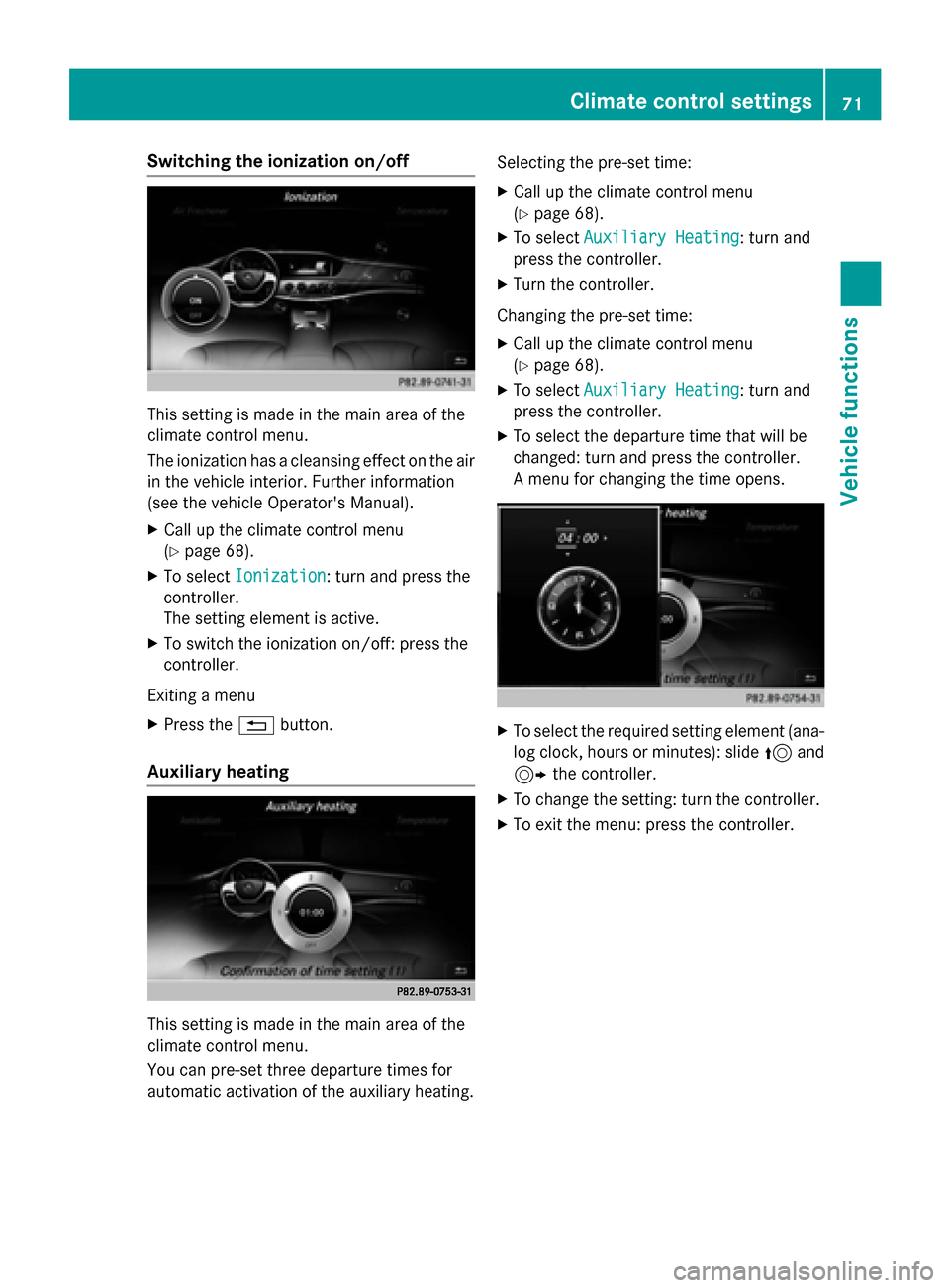
Auxiliary heating This setting is made in the main area of the
climate control menu.
You can pre-set three departure times for
automatic activation of the auxiliary heating. Selecting the pre-set time:
X Call up the climate control menu
(Y page 68).
X To select Auxiliary Heating
Auxiliary Heating: turn and
press the controller.
X Turn the controller.
Changing the pre-set time:
X Call up the climate control menu
(Y page 68).
X To select Auxiliary Heating Auxiliary Heating: turn and
press the controller.
X To select the departure time that will be
changed: turn and press the controller.
A menu for changing the time opens. X
To select the required setting element (ana-
log clock, hours or minutes): slide 5and
9 the controller.
X To change the setting: turn the controller.
X To exit the menu: press the controller. Climate control settings
71Vehicle functions
Page 78 of 298
Your COMAND equipment
These operating instructions describe all
standard and optional equipment available
for your COMAND system at the time of pur-
chase. Country-specific differences are pos-
sible. Please note that your COMAND system may not be equipped with all the features
described. This also applies to safety-relevant
systems and functions. Therefore, the equip-
ment on your COMAND system may differ
from that in the descriptions and illustrations. Should you have any questions concerning
equipment and operation, please consult an
authorized Mercedes-Benz Center. Introduction
Important safety notes
G
WARNING
If you operate information systems and com-
munication equipment integrated in the vehi- cle while driving, you will be distracted from
traffic conditions. You could also lose control of the vehicle. There is a risk of an accident.
Only operate the equipment when the traffic
situation permits. If you are not sure that this
is possible, park the vehicle paying attention
to traffic conditions and operate the equip-
ment when the vehicle is stationary.
You must observe the legal requirements for
the country in which you are currently driving when operating COMAND.
COMAND calculates the route to the destina-
tion without taking account of the following,
for example:
R traffic lights
R stop and yield signs
R merging lanes
R parking or stopping in a no parking/no
stopping zone
R other road and traffic rules and regulations
R narrow bridges COMAND can give incorrect navigation com-
mands if the actual street/traffic situation
does not correspond with the digital map's
data. Digital maps do not cover all areas nor
all routes in an area. For example, a route may
have been diverted or the direction of a one-
way street may have changed.
For this reason, you must always observe
road and traffic rules and regulations during
your journey. Road and traffic rules and reg-
ulations always have priority over the sys-
tem's driving recommendations.
Navigation announcements are intended to
direct you while driving without diverting your attention from the road and driving.
Please always use this feature instead of con-sulting the map display for directions. Look-
ing at the icons or map display can distract
you from traffic conditions and driving, and
increase the risk of an accident. General notes
Operational readiness of the navigation system The navigation system must determine the
position of the vehicle before first use or
whenever operational status is restored.
Therefore, you may have to drive for a while
before precise route guidance is possible.
GPS reception Among other things, correct functioning of
the navigation system depends on GPS recep-
tion. In certain situations, GPS reception may
be impaired, there may be interference or
there may be no reception at all, e.g. in tun-
nels or parking garages.
i Using roof carriers may impair the correct
functioning of a roof antenna (phone, sat-
ellite radio, GPS). 76
Int
roductionNavigation
Page 84 of 298
Announce
Announce
Street Street
Names Names COMAND announces the
names of the streets to which the impending change of
direction will lead.
The function is not available
in all countries. Audio Audio
Fadeout Fadeout The volume of an active
media source is automati-
cally reduced during a navi-
gation announcement.
Gas on Gas on
Reserve Reserve Function activated: once the
reserve fuel tank level is
reached, a message appears
in COMAND to help you start the search for a gas station. Atten‐ Atten‐
tion tion
Assist Assist Function activated: if ATTEN-
TION ASSIST displays a warn-
ing in the multifunction dis-
play, a message appears in
COMAND to help you start
the search for a rest stop.
If a route contains highways,
a rest stop search is started
in the vicinity. The map is
shown with the message
Searching For a Rest Searching For a Rest
Area in the Vicinity… Area in the Vicinity…. If
service stations are found,
the nearest service station is
highlighted on the map.
Further information about
ATTENTION ASSIST can be
found in the vehicle Opera-
tor's Manual. Using car pool lanes
You can include carpool lanes (HOV or car
sharing lanes) in the route calculation.
If you use HOV or carpool lanes, please
observe the applicable laws as well as the
local and time limitation conditions.
Carpool lanes may only be used under certain
conditions. They can normally be used when there are two people in the vehicle. However,
there are also carpool lanes which can only be
used when there are three or more people in
the vehicle. In California, lone drivers can use
a carpool lane if their vehicle's emission level or fuel consumption is below a fixed thresh-
old.
Carpool lanes may be reserved for specific
times (e.g. during the peak period).
Carpool lanes are indicated by a diamond
symbol on specific road signs and on the road surface. The road signs may also include the
designation CARPOOL. The lanes are
arranged as a separate lane next to the others
or are built as a physically separate lane.
Depending on the setting under Use Car‐ Use Car‐
pool Lanes
pool Lanes, COMAND uses carpool lanes
when calculating the route. COMAND then
guides you in and out of carpool lanes using
visual and acoustic driving directions.
X To switch to navigation mode: press the
00CB button.
X To show the menu: slide6the control-
ler.
X To select Options Options: turn and press the con-
troller.
X Select Route Settings
Route Settings.
X Select Avoid Options
Avoid Options.
X Select Use Carpool Lanes
Use Carpool Lanes.
Carpool lanes will either be used 0073or
avoided 0053when calculating the route. 82
Basic settingsNavigation
Page 96 of 298
X
To select a destination from the selection list: turn and press the controller.
If the digital map provides navigable address data, you will see the destination address in the address entry menu.
X To start route calculation: selectStart
Start (Ypage 86). Entering intermediate destinations
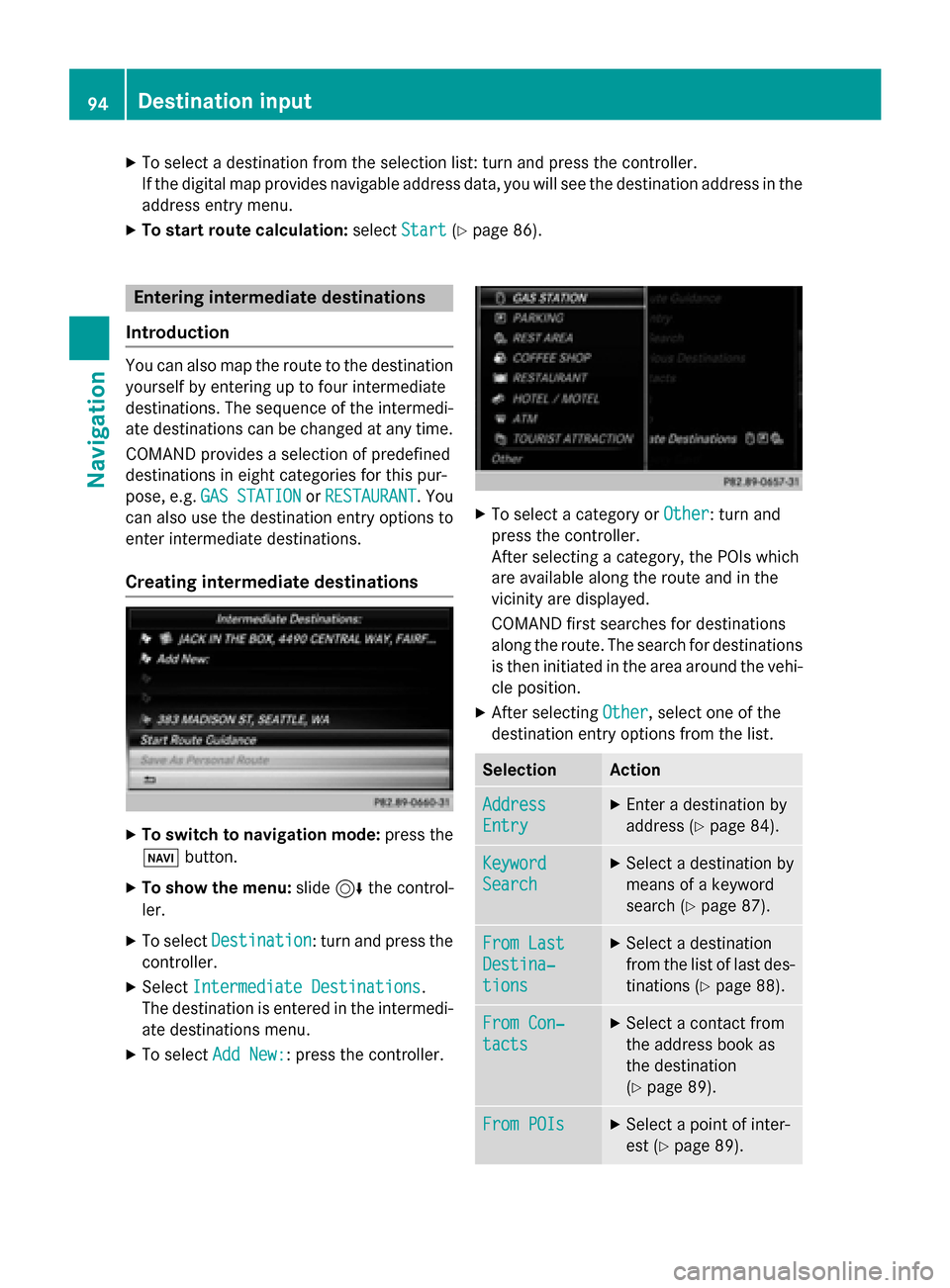
Introduction You can also map the route to the destination
yourself by entering up to four intermediate
destinations. The sequence of the intermedi-ate destinations can be changed at any time.
COMAND provides a selection of predefined
destinations in eight categories for this pur-
pose, e.g. GAS STATION
GAS STATION orRESTAURANT RESTAURANT . You
can also use the destination entry options to
enter intermediate destinations.
Creating intermediate destinations X
To switch to navigation mode: press the
00BE button.
X To show the menu: slide6the control-
ler.
X To select Destination
Destination: turn and press the
controller.
X Select Intermediate Destinations
Intermediate Destinations.
The destination is entered in the intermedi-
ate destinations menu.
X To select Add New:
Add New:: press the controller. X
To select a category or Other
Other: turn and
press the controller.
After selecting a category, the POIs which
are available along the route and in the
vicinity are displayed.
COMAND first searches for destinations
along the route. The search for destinations
is then initiated in the area around the vehi- cle position.
X After selecting Other Other, select one of the
destination entry options from the list. Selection Action
Address
Address
Entry Entry X
Enter a destination by
address (Y page 84). Keyword Keyword
Search Search X
Select a destination by
means of a keyword
search (Y page 87). From Last From Last
Destina‐ Destina‐
tions tions X
Select a destination
from the list of last des-
tinations (Y page 88). From Con‐ From Con‐
tacts tacts X
Select a contact from
the address book as
the destination
(Y page 89). From POIs From POIs X
Select a point of inter-
est (Y page 89). 94
Destination inputNavigation
Page 105 of 298
Displays during route guidance
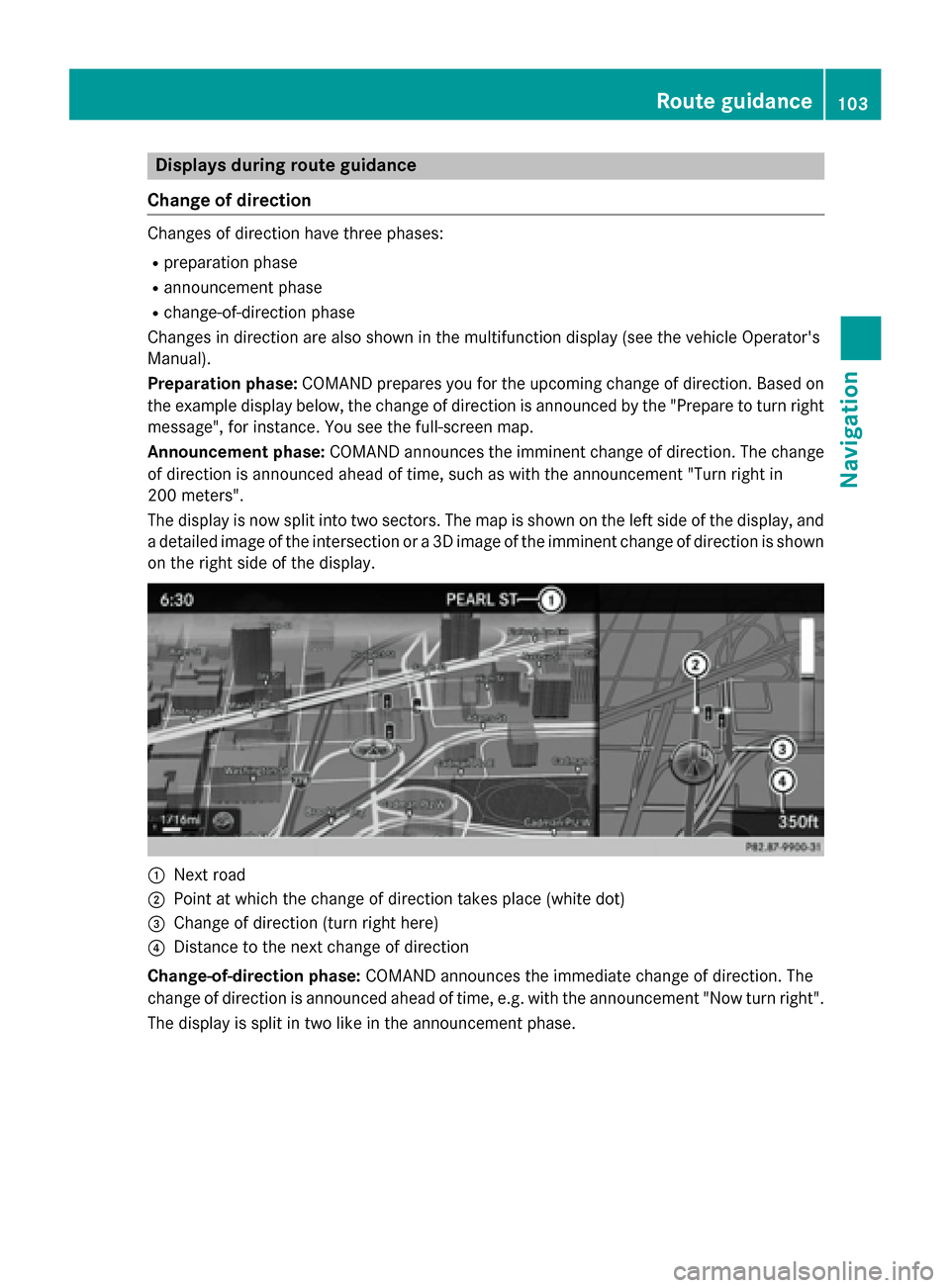
Change of direction Changes of direction have three phases:
R preparation phase
R announcement phase
R change-of-direction phase
Changes in direction are also shown in the multifunction display (see the vehicle Operator's
Manual).
Preparation phase: COMAND prepares you for the upcoming change of direction. Based on
the example display below, the change of direction is announced by the "Prepare to turn right message", for instance. You see the full-screen map.
Announcement phase: COMAND announces the imminent change of direction. The change
of direction is announced ahead of time, such as with the announcement "Turn right in
200 meters".
The display is now split into two sectors. The map is shown on the left side of the display, and
a detailed image of the intersection or a 3D image of the imminent change of direction is shown on the right side of the display. 0043
Next road
0044 Point at which the change of direction takes place (white dot)
0087 Change of direction (turn right here)
0085 Distance to the next change of direction
Change-of-direction phase: COMAND announces the immediate change of direction. The
change of direction is announced ahead of time, e.g. with the announcement "Now turn right".
The display is split in two like in the announcement phase. Route guidance
103Navigation Z
Page 112 of 298
X
To switch to navigation mode: press the00BEbutton.
X To show the menu: slide6the controller.
X To select Route
Route: turn and press the controller.
X Select Destination Information
Destination Information.
The destination and existing intermediate destinations are displayed with distances, travel
time and arrival time.
X To select destination or intermediate destination: turn and press the controller.
The address appears.
X Select Save
Save.
The destination or intermediate destination can be saved as:
R a navigable contact in the address book
R My Address
X To call up a map: select Map
Map.
X Move the map, change the map scale and select the destination or the intermediate desti-
nation (Y page 93).
X To call the destination or intermediate destination: select Call
Call.
If a phone is connected and a phone number is available, COMAND switches to the tele-
phone function.
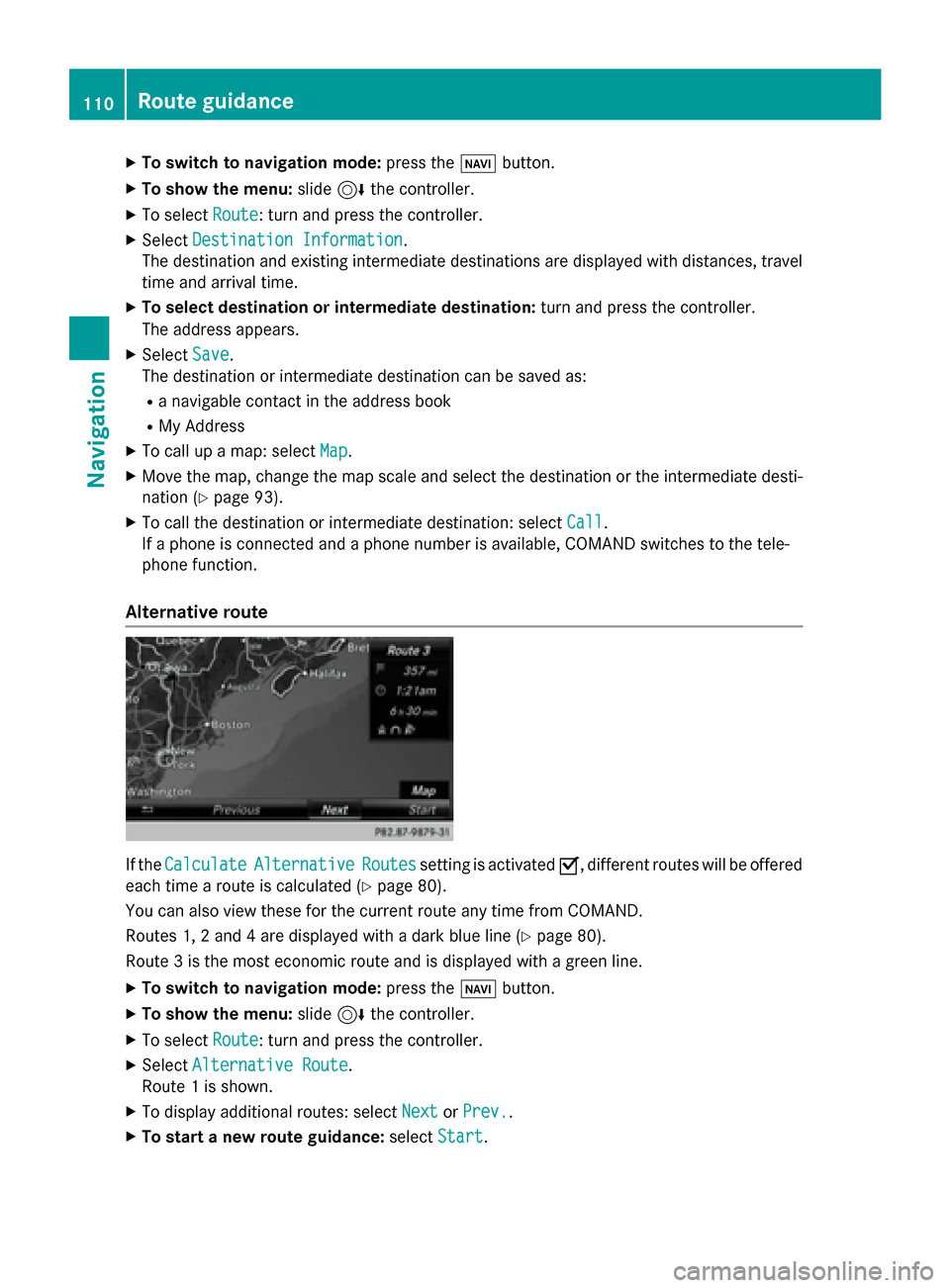
Alternative route If the
Calculate
Calculate Alternative
Alternative Routes
Routessetting is activated 0073, different routes will be offered
each time a route is calculated (Y page 80).
You can also view these for the current route any time from COMAND.
Routes 1, 2 and 4 are displayed with a dark blue line (Y page 80).
Route 3 is the most economic route and is displayed with a green line.
X To switch to navigation mode: press the00BEbutton.
X To show the menu: slide6the controller.
X To select Route
Route: turn and press the controller.
X Select Alternative Route
Alternative Route.
Route 1 is shown.
X To display additional routes: select Next
Next orPrev.
Prev..
X To start a new route guidance: selectStart
Start. 110
Route guidanceNavigation
Page 140 of 298
Symbol
0044shows the current signal strength
of the mobile phone network. If all bars are
filled, you have optimum reception.
If no bars are shown, reception is either very
poor or there is none at all.
i Receiver icon shows whether a call is
active/being connected 0075or not 0071.
Calling up the telephone menu:
X Press 002B.
Showing the menu bar:
X Slide 6the controller.
If the mobile phone connected supports the
MAP Bluetooth ®
profile (Message Access
Profile), the 0083menu item is available. Fur-
ther information on text messages and e-mail
(Y page 155).
If you have an unread text message or e-mail, the 0082 mail symbol is displayed in the sta-
tus bar. The symbol disappears once you have
read the text message or e-mail. The ú
symbol is displayed as soon as the message
memory on the connected mobile phone is
full. The symbol disappears once you delete
at least one message. Connecting/disconnecting a mobile
phone Prerequisites
For telephony via the Bluetooth ®
interface,
you require a Bluetooth ®
-capable mobile
phone. The mobile phone must support
Hands-Free Profile 1.0 or above.
On COMAND
X Activate Bluetooth ®
(Y page 51).
On the mobile phone X Switch on the mobile phone and enter the
PIN when prompted to do so (see the man-
ufacturer's operating instructions).
X Activate Bluetooth ®
and, if necessary,
Bluetooth ®
visibility for other devices (see
the manufacturer's operating instructions). This visibility is for restricted periods of
time on some mobile phones (see the man-
ufacturer's operating instructions).
X Set the Bluetooth ®
device name for the
mobile phone if necessary.
The device names for all of one manufactur-
er's products might be identical. To make it
possible to clearly identify your mobile phone,
change the device name (see the manufac-
turer's operating instructions). The name can be freely selected.
If the mobile phone supports the PBAP
(Phone BookAccess Profile) and MAP
(Message AccessProfile) Bluetooth ®
pro-
files, the following information will be trans-
mitted after you connect:
R Phone book
R Call lists
R Messages
The battery of the mobile phone should
always be kept sufficiently charged in order to prevent malfunctions.
i Not all mobile phones available on the
market are equally suitable. You can obtain more detailed information about suitable
mobile phones and about the connection
between the mobile phone and COMAND
on the Internet at
www.mercedes-benz-mobile.com .
You can also obtain more information by
calling.
In the USA, you can get in touch with the
Mercedes-Benz Customer Assistance
Center on 1-800-FOR-MERCedes
(1-800-367-6372).
In Canada, you can get in touch with the
Customer Relations Center on
1-800-387-0100.
i Some displays (e.g. the signal strength)
depend on the supported version of the
Hands-Free Profile. 138
Connecting/disconnecting a mobile phoneTelephone