change time MERCEDES-BENZ S-Class 2015 W222 Comand Manual
[x] Cancel search | Manufacturer: MERCEDES-BENZ, Model Year: 2015, Model line: S-Class, Model: MERCEDES-BENZ S-Class 2015 W222Pages: 298, PDF Size: 6.39 MB
Page 145 of 298
X
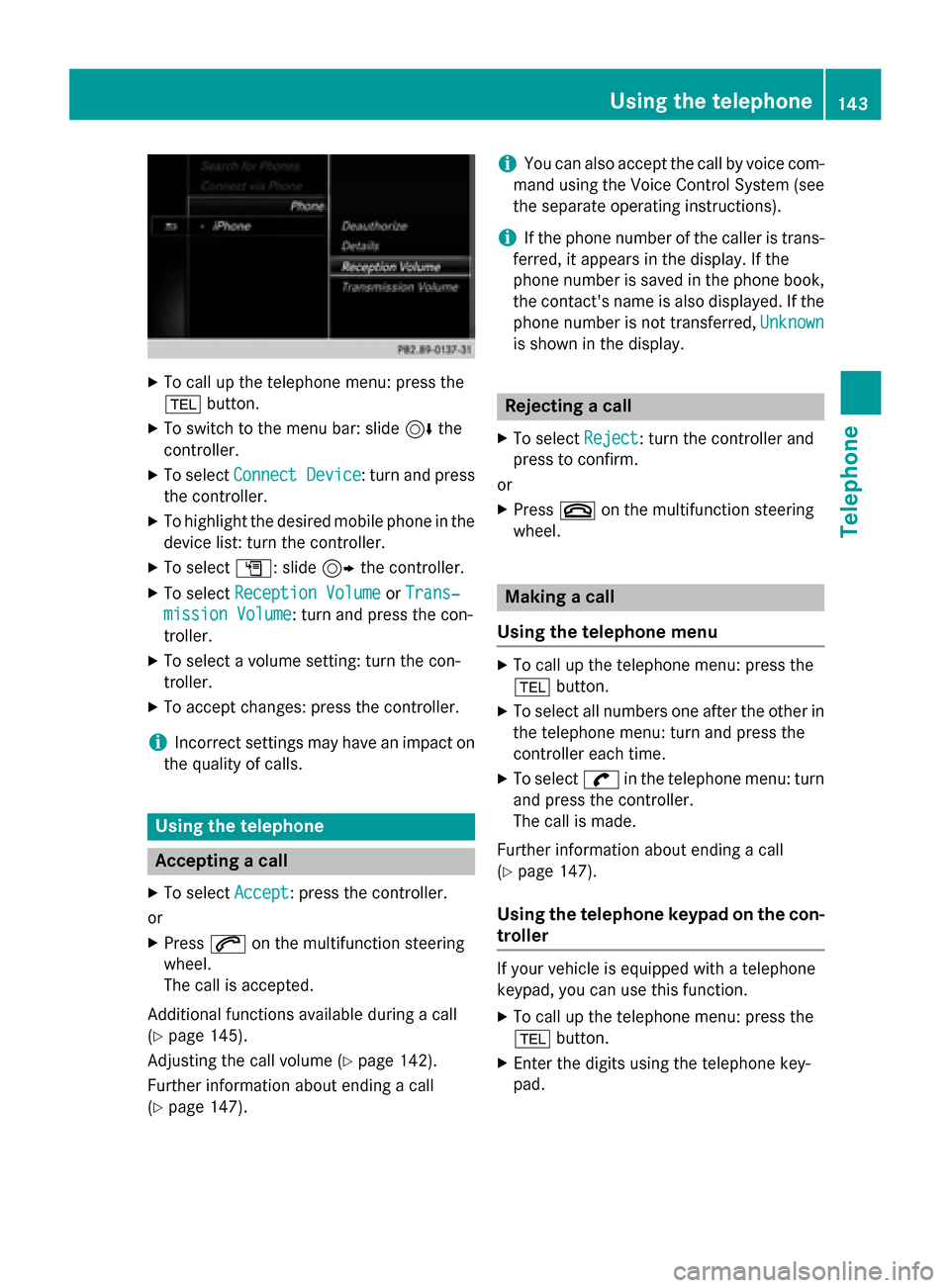
To call up the telephone menu: press the
002B button.
X To switch to the menu bar: slide 6the
controller.
X To select Connect Device
Connect Device : turn and press
the controller.
X To highlight the desired mobile phone in the
device list: turn the controller.
X To select G: slide 9the controller.
X To select Reception Volume
Reception Volume orTrans‐
Trans‐
mission Volume
mission Volume: turn and press the con-
troller.
X To select a volume setting: turn the con-
troller.
X To accept changes: press the controller.
i Incorrect settings may have an impact on
the quality of calls. Using the telephone
Accepting a call
X To select Accept
Accept: press the controller.
or
X Press 0061on the multifunction steering
wheel.
The call is accepted.
Additional functions available during a call
(Y page 145).
Adjusting the call volume (Y page 142).
Further information about ending a call
(Y page 147). i
You can also accept the call by voice com-
mand using the Voice Control System (see
the separate operating instructions).
i If the phone number of the caller is trans-
ferred, it appears in the display. If the
phone number is saved in the phone book,
the contact's name is also displayed. If the
phone number is not transferred, Unknown
Unknown
is shown in the display. Rejecting a call
X To select Reject Reject: turn the controller and
press to confirm.
or
X Press 0076on the multifunction steering
wheel. Making a call
Using the telephone menu X
To call up the telephone menu: press the
002B button.
X To select all numbers one after the other in
the telephone menu: turn and press the
controller each time.
X To select 0097in the telephone menu: turn
and press the controller.
The call is made.
Further information about ending a call
(Y page 147).
Using the telephone keypad on the con-
troller If your vehicle is equipped with a telephone
keypad, you can use this function.
X To call up the telephone menu: press the
002B button.
X Enter the digits using the telephone key-
pad. Using the telephone
143Telephone Z
Page 151 of 298
beginnings of the names are identical. The
next different character
A Aand O
Oare offered
for selection.
X Select the characters of the contact you are
searching for one by one, pressing and con- firming with the controller each time.
X To end the search: select 0054.
The contacts in the phone book are dis-
played.
X To select a contact: turn and press the con-
troller.
The 0043symbol indicates that a contact con-
tains more than one phone number.
X To select a contact with the 0043symbol:
turn the controller and press to confirm.
The phone numbers are displayed. The 0043
symbol changes to 0045.
X To call a telephone number: turn and press
the controller.
Back to the character bar:
X Press the 0038button repeatedly until the
character bar is displayed.
Information about character entry
(Y page 36)
Using the telephone keypad on the con-
troller If your vehicle is equipped with a telephone
keypad, you can use this function.
You determine the first letter of the contact
you are looking for with the first character you enter.
X For example, to enter the letter C
C: press the
0082 number key briefly three times in suc-
cession.
As soon as you touch the number key, the
number is highlighted in the additional dis- play area.
The character appears at the bottom of the
display the first time the key is pressed and
shows all the available characters. It
switches to the next character each time
the key is pressed. Using the touchpad If your vehicle is equipped with a touchpad,
you can use this function.
You determine the first letter of the contact
you are looking for with the first character you
enter.
X Draw the letter on the touchpad surface.
The first contact with the selected first
character is highlighted in the phone book.
Further information on handwriting recog-
nition on the touchpad (Y page 32).
X Draw additional letters on the touchpad
surface one after another.
X To complete the search and return to the
phone book: press the touchpad.
X To select and call the contact: glide up or
down and press. Displaying the details of a contact
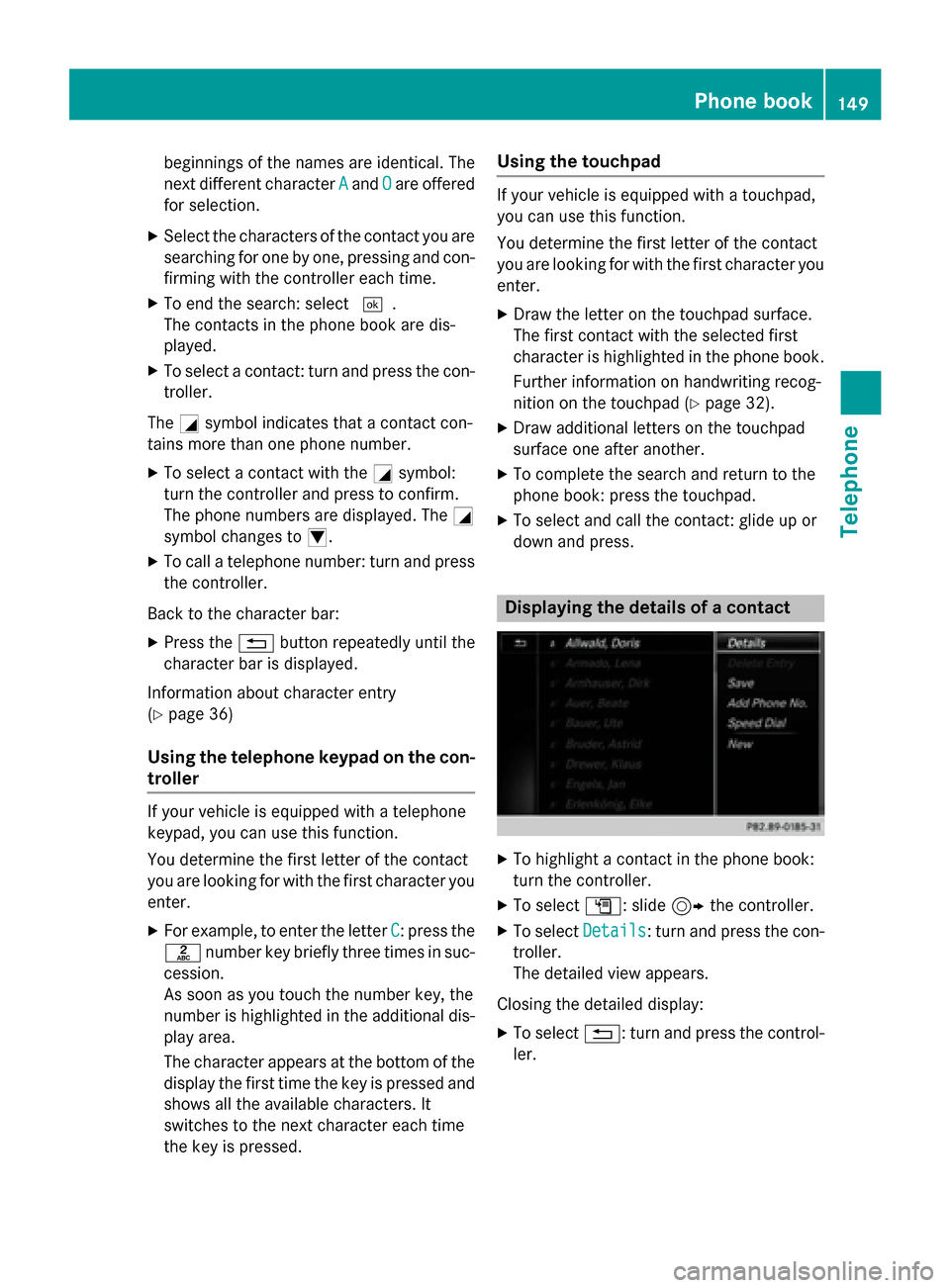
X
To highlight a contact in the phone book:
turn the controller.
X To select G: slide 9the controller.
X To select Details Details: turn and press the con-
troller.
The detailed view appears.
Closing the detailed display: X To select 0038: turn and press the control-
ler. Phone book
149Telephone Z
Page 171 of 298
X
To select Download Contacts
Download Contacts: turn and
press the controller.
X To select From
From Memory
Memory Card
CardorFrom
From USB
USB
device
device: turn and press the controller.
Receiving vCards via Bluetooth ®COMAND
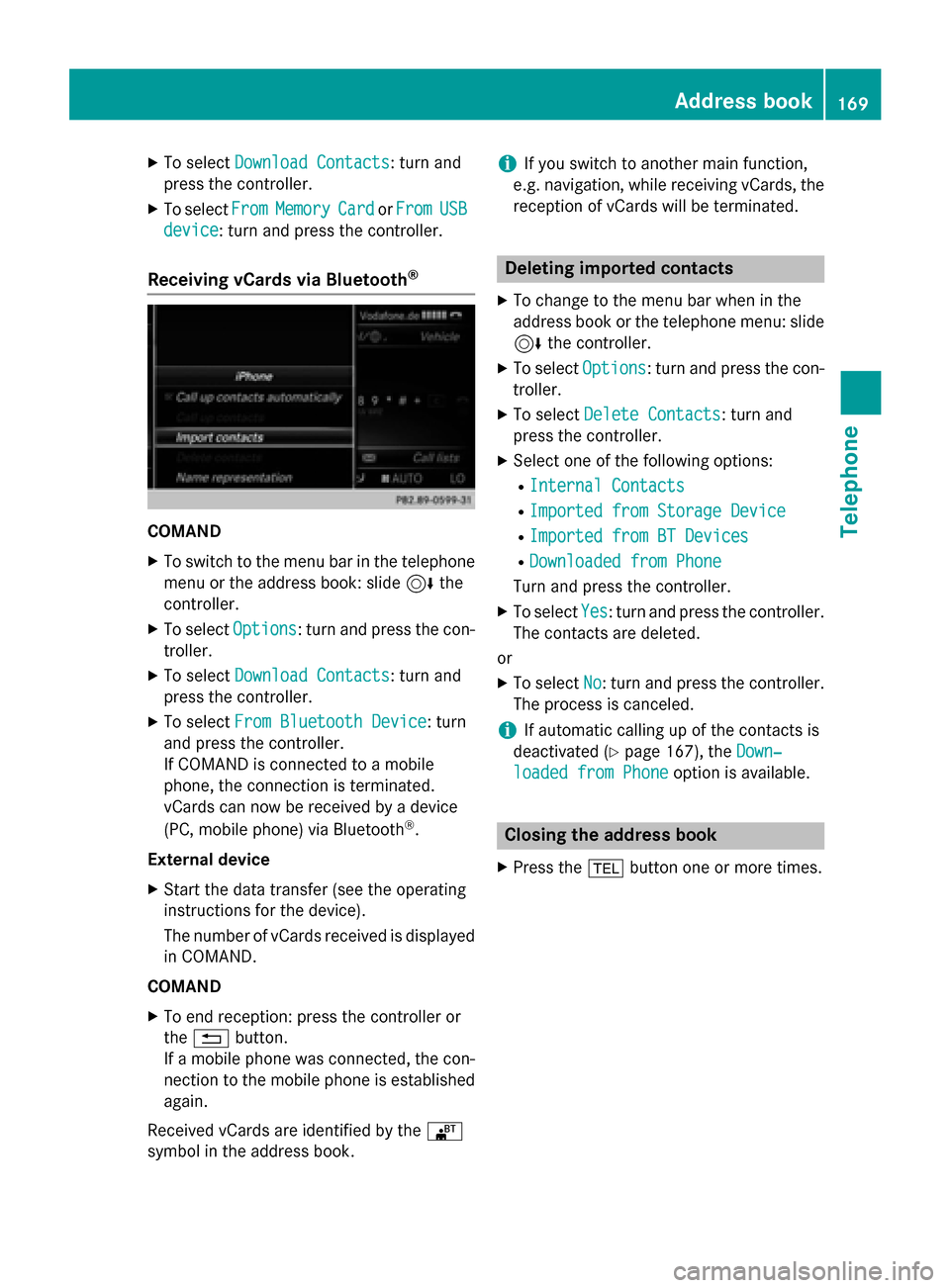
X To switch to the menu bar in the telephone
menu or the address book: slide 6the
controller.
X To select Options
Options: turn and press the con-
troller.
X To select Download Contacts
Download Contacts: turn and
press the controller.
X To select From Bluetooth Device
From Bluetooth Device: turn
and press the controller.
If COMAND is connected to a mobile
phone, the connection is terminated.
vCards can now be received by a device
(PC, mobile phone) via Bluetooth ®
.
External device
X Start the data transfer (see the operating
instructions for the device).
The number of vCards received is displayed
in COMAND.
COMAND
X To end reception: press the controller or
the 0038 button.
If a mobile phone was connected, the con-
nection to the mobile phone is established again.
Received vCards are identified by the 00BA
symbol in the address book. i
If you switch to another main function,
e.g. navigation, while receiving vCards, the reception of vCards will be terminated. Deleting imported contacts
X To change to the menu bar when in the
address book or the telephone menu: slide
6 the controller.
X To select Options Options: turn and press the con-
troller.
X To select Delete Contacts
Delete Contacts: turn and
press the controller.
X Select one of the following options:
R Internal Contacts
Internal Contacts
R Imported from Storage Device
Imported from Storage Device
R Imported from BT Devices
Imported from BT Devices
R Downloaded from Phone
Downloaded from Phone
Turn and press the controller.
X To select Yes
Yes: turn and press the controller.
The contacts are deleted.
or
X To select No
No: turn and press the controller.
The process is canceled.
i If automatic calling up of the contacts is
deactivated (Y page 167), the Down‐
Down‐
loaded from Phone
loaded from Phone option is available. Closing the address book
X Press the 002Bbutton one or more times. Address book
169Telephone Z
Page 187 of 298
X
To select Internet
Internet: turn and press the
controller.
The menu with the Internet functions is dis-
played.
X To select Mercedes-Benz Apps
Mercedes-Benz Apps: turn and
press the controller.
X To highlight Download POI Download POI: turn the con-
troller.
X To select G: slide 9the controller.
X To select ID
ID: turn and press the controller.
The vehicle identification number is dis-
played.
X Enter an e-mail address.
X Select 0054after entry.
An e-mail will be sent to your e-mail address
shortly afterwards. You must confirm it
within 48 hours. Otherwise, your previous
vehicle ID will continue to be used.
X To confirm the changed vehicle ID: check
the mailbox of your e-mail address and fol-
low the link in the e-mail.
Exiting a menu
X Press the 0038button. Deleting destinations automatically
after importing to the server
Destinations on the server are automatically
deleted after seven days. X Select the Options menu for the Download
Download
POI POI App (Y page 188).
The menu shows the current settings.
X To select Delete after importing to
Delete after importing to
the
the server
server: turn and press the controller.
Switch the setting on 0073or off 0053.
Exiting a menu
X Press the 0038button. Weather forecast
Introduction
You can call up the weather forecasts for a
location of your choice. The weather forecast can be displayed in an information chart for
the current day or as a 5-day forecast. Alter-
natively, the weather forecast can be dis-
played in a weather map. Calling up the weather forecast
X To call up the telephone menu: press the
002B button.
X To switch to the main function bar: slide
5 the controller.
X To select TEL/ TEL/00A7: press the controller.
X To select Internet
Internet: turn and press the
controller.
The menu with the Internet functions is dis-
played.
X To select Mercedes-Benz Apps Mercedes-Benz Apps: turn and
press the controller.
X Select Weather
Weather. Information chart overview
X Call up the weather forecast (Y page 185).
The following information is displayed:
R the time when the weather report was
updated
R the current temperature
R information on the weather (e.g. cloudy,
rain)
R the maximum daytime temperature
R the minimum daytime temperature
R the probability of rain
R the forecast for the current day (three
time intervals) Weather forecast
185Online and Internet functions Z
Page 195 of 298
X
To show the menu: press the0038but-
ton.
X To select 0057: turn and press the control-
ler.
A menu appears.
X Select Settings
Settings.
You can activate/deactivate the following
settings:
R Download Images Automatically
Download Images Automatically
It may take some time to download the
contents of websites that contain a large
amount of images. Therefore, it may be
useful to deactivate this option.
R Block Pop-Ups Block Pop-Ups
Pop-ups are windows (usually with adver-
tisements) which are displayed automati-
cally when you call up a website. You can
block these displays.
R Activate Javascript
Activate Javascript
Javascript makes it possible to display and
interact with dynamic content on the web-
site.
R Allow Cookies
Allow Cookies
Some websites save information in small
text files (cookies) in your system. You can
determine whether cookies may be stored.
R Enable Internet Audio Enable Internet Audio
You can switch the browser's audio play-
back on or off here.
R Hide Scroll Bars Hide Scroll Bars
You can show or hide the scroll bar here.
R Show Link Target Show Link Target
You can display the link's URL here.
R Character Size Character Size
You can select the font size which is used
when displaying the website.
R Character Code Character Code
You can select a different character set
here, e.g. if the characters of a website
appear distorted. Changing settings X
To select the desired setting: turn and
press the controller.
Switch the setting on 0073or off 0053.
Changing the character size or character code.
X Select Character Size Character Size orCharacter
Character
Code
Code.
X To select the setting you require: turn and
press the controller.
i If you change the settings, the websites
may not be displayed correctly.
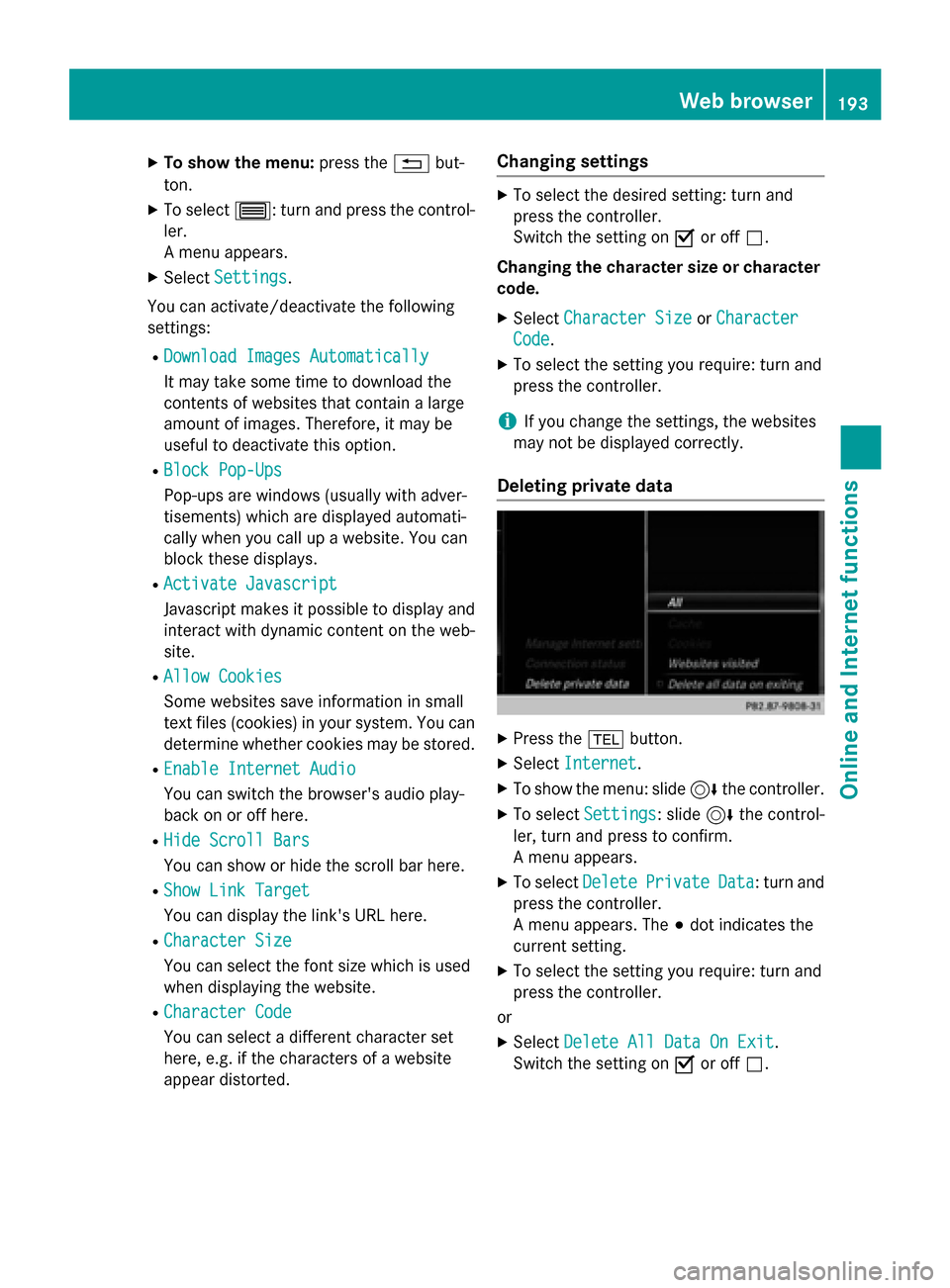
Deleting private data X
Press the 002Bbutton.
X Select Internet Internet.
X To show the menu: slide 6the controller.
X To select Settings
Settings: slide 6the control-
ler, turn and press to confirm.
A menu appears.
X To select Delete DeletePrivate
Private Data
Data: turn and
press the controller.
A menu appears. The 003Bdot indicates the
current setting.
X To select the setting you require: turn and
press the controller.
or
X Select Delete All Data On Exit Delete All Data On Exit.
Switch the setting on 0073or off 0053. Web browser
193Online and Internet functions Z
Page 212 of 298
Your COMAND equipment
These operating instructions describe all
standard and optional equipment available
for your COMAND system at the time of pur-
chase. Country-specific differences are pos-
sible. Please note that your COMAND system may not be equipped with all the features
described. This also applies to safety-relevant
systems and functions. Therefore, the equip-
ment on your COMAND system may differ
from that in the descriptions and illustrations. Should you have any questions concerning
equipment and operation, please consult an
authorized Mercedes-Benz Center. Activating media mode
General notes
There are several ways to activate media
sources using COMAND.
The relevant sections of the Operator's Man-
ual describe the simplest way to activate a
media source.
This section describes all options for activat-
ing media sources. Using the MEDIA button
X Press the 00FDbutton.
The menu appears with the available media sources.
X To select media sources: turn the controller
until the desired media source is in the
center. Press the controller.
The media sources appear in the following
order:
R CD/DVD
R Memory card
R Media Register
R Vehicles without Media Interface: USB 1
and USB 2
R Vehicles with Media Interface: Media
Interface 1 and Media Interface 2 R
BT audio
R TV (if your vehicle is equipped with a TV)
R AUX
If playable music files are found, they will be played by COMAND.
X To display the function bars: slide 00520064the
controller. Switching on automatically
After an external media source has been con-
nected, COMAND will only activate the cor-
responding media mode automatically in the
case of CDs and SD cards. When using USB
devices, depending on the vehicle's equip-
ment, the relevant Media Interface 1, 2 or
USB 1, 2 basic display must already be acti-
vated.
External media sources:
R Apple devices (e.g. iPhone ®
)
R USB devices (e.g. USB stick, MP3 player)
R CD
R DVD
R SD cards
R via AUX cable (automatic activation
depends on the device connected)
R via devices connected by Bluetooth ®
If playable music files are found, they will be
played by COMAND.
i If a media function is already switched on
in COMAND, this will be interrupted and the
basic display of the newly connected
device will appear.
If another function, such as navigation, is
operating, the basic display will not change.
Only the music from the newly connected
media source will play 210
Activa
ting media modeMedia
Page 215 of 298
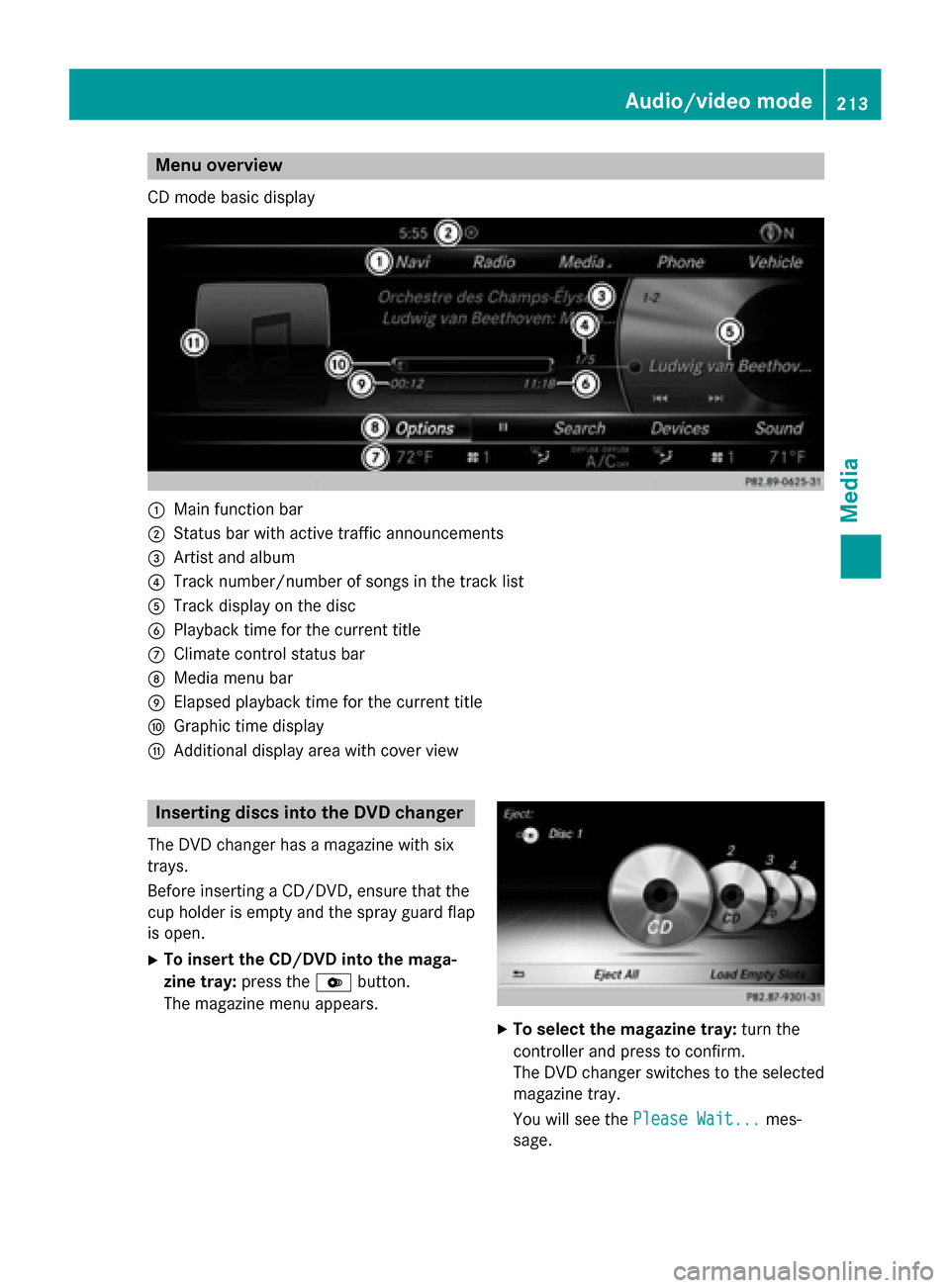
Menu overview
CD mode basic display 0043
Main function bar
0044 Status bar with active traffic announcements
0087 Artist and album
0085 Track number/number of songs in the track list
0083 Track display on the disc
0084 Playback time for the current title
006B Climate control status bar
006C Media menu bar
006D Elapsed playback time for the current title
006E Graphic time display
006F Additional display area with cover view Inserting discs into the DVD changer
The DVD changer has a magazine with six
trays.
Before inserting a CD/DVD, ensure that the
cup holder is empty and the spray guard flap is open.
X To insert the CD/DVD into the maga-
zine tray: press the0065button.
The magazine menu appears. X
To select the magazine tray: turn the
controller and press to confirm.
The DVD changer switches to the selected magazine tray.
You will see the Please Wait... Please Wait... mes-
sage. Audio/video mode
213Media Z
Page 226 of 298
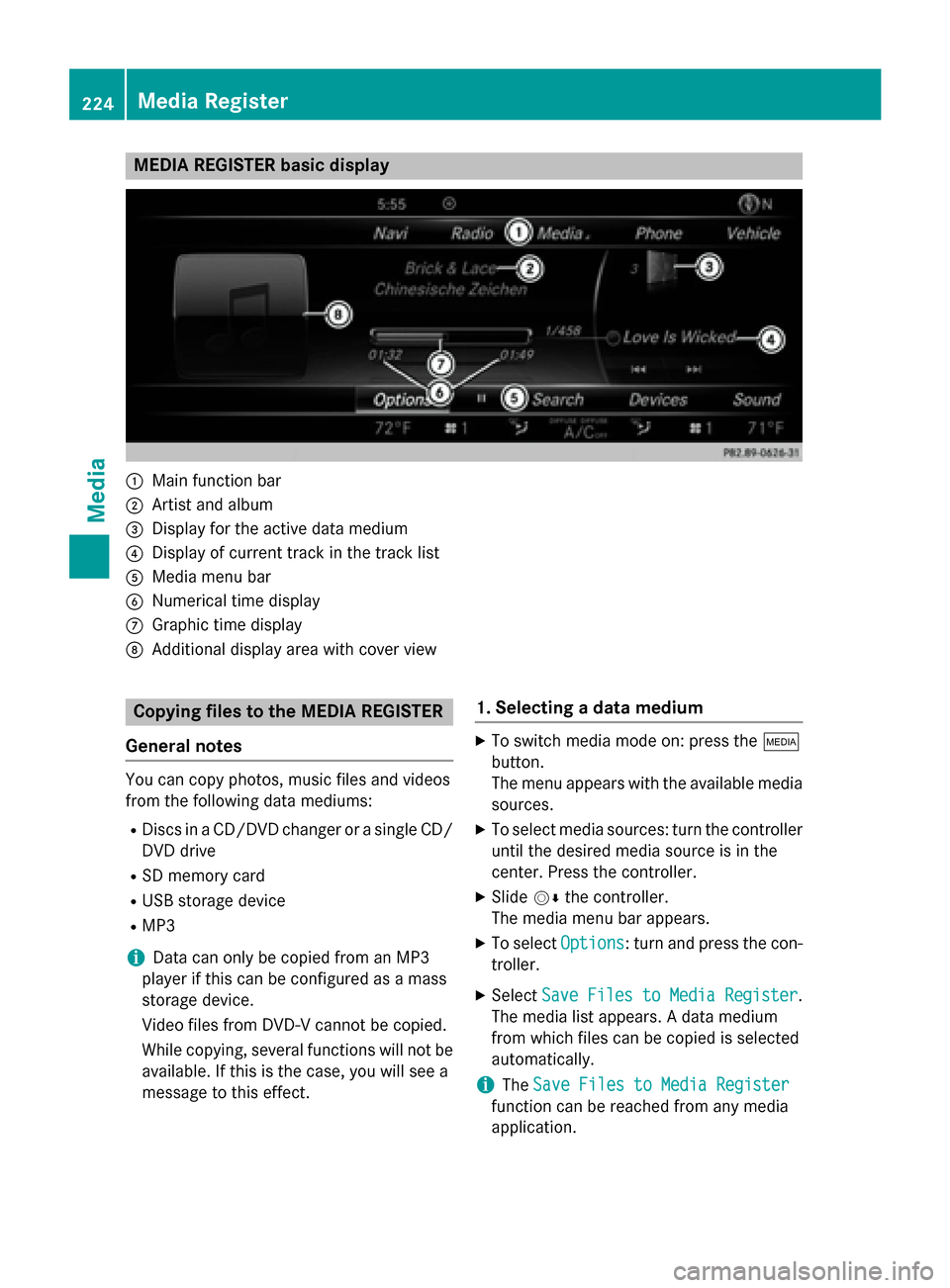
MEDIA REGISTER basic display
0043
Main function bar
0044 Artist and album
0087 Display for the active data medium
0085 Display of current track in the track list
0083 Media menu bar
0084 Numerical time display
006B Graphic time display
006C Additional display area with cover view Copying files to the MEDIA REGISTER
General notes You can copy photos, music files and videos
from the following data mediums:
R Discs in a CD/DVD changer or a single CD/
DVD drive
R SD memory card
R USB storage device
R MP3
i Data can only be copied from an MP3
player if this can be configured as a mass
storage device.
Video files from DVD-V cannot be copied.
While copying, several functions will not be
available. If this is the case, you will see a
message to this effect. 1. Selecting a data medium X
To switch media mode on: press the 00FD
button.
The menu appears with the available media sources.
X To select media sources: turn the controller
until the desired media source is in the
center. Press the controller.
X Slide 00520064the controller.
The media menu bar appears.
X To select Options
Options : turn and press the con-
troller.
X Select Save Files to Media Register Save Files to Media Register .
The media list appears. A data medium
from which files can be copied is selected
automatically.
i The
Save Files to Media Register Save Files to Media Register
function can be reached from any media
application. 224
Media RegisterMedia
Page 227 of 298
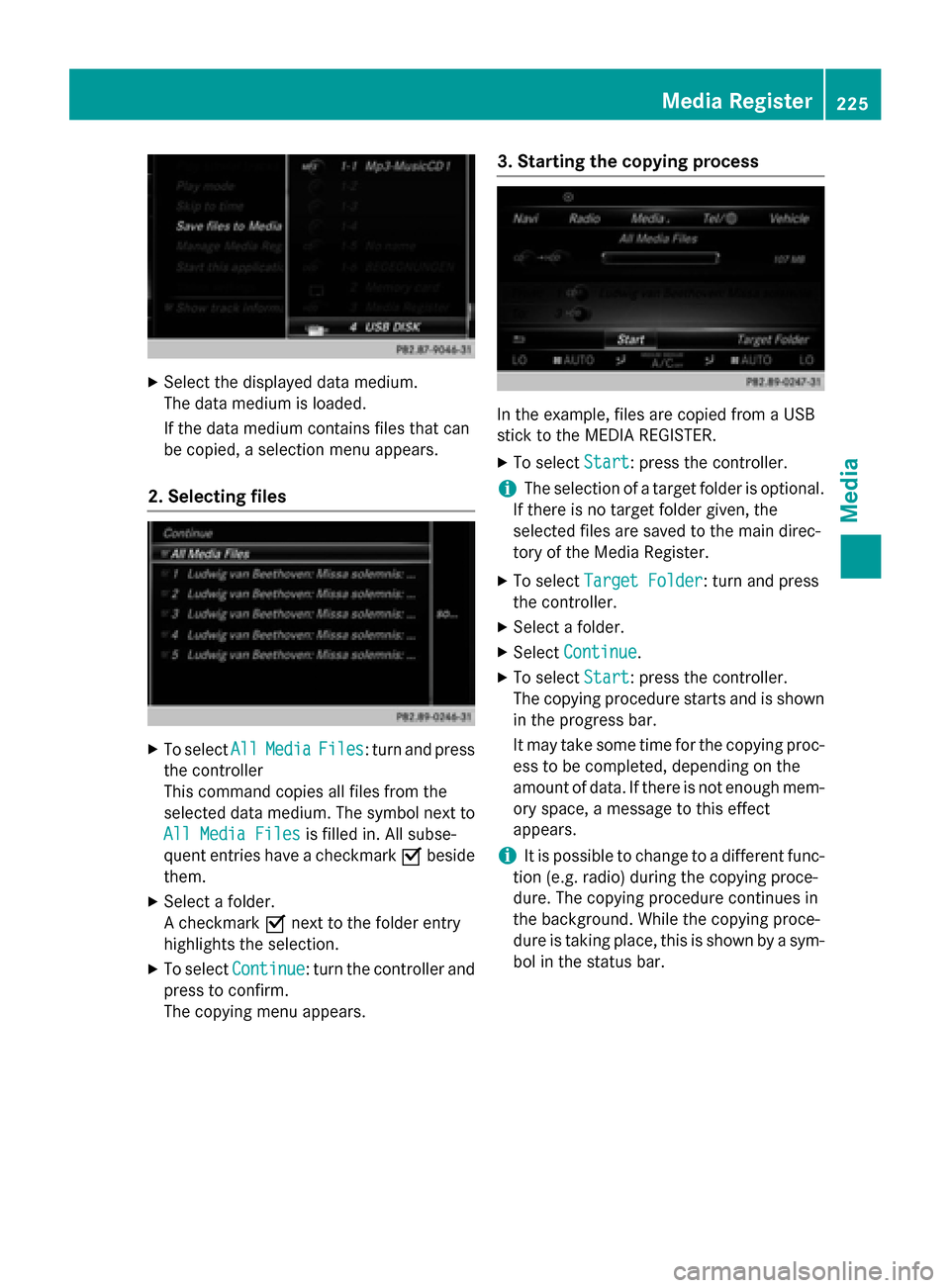
X
Select the displayed data medium.
The data medium is loaded.
If the data medium contains files that can
be copied, a selection menu appears.
2. Selecting files X
To select All
AllMedia
Media Files
Files: turn and press
the controller
This command copies all files from the
selected data medium. The symbol next to
All Media Files All Media Files is filled in. All subse-
quent entries have a checkmark 0073beside
them.
X Select a folder.
A checkmark 0073next to the folder entry
highlights the selection.
X To select Continue
Continue: turn the controller and
press to confirm.
The copying menu appears. 3. Starting the copying process In the example, files are copied from a USB
stick to the MEDIA REGISTER.
X To select Start Start: press the controller.
i The selection of a target folder is optional.
If there is no target folder given, the
selected files are saved to the main direc-
tory of the Media Register.
X To select Target Folder
Target Folder : turn and press
the controller.
X Select a folder.
X Select Continue Continue.
X To select Start
Start: press the controller.
The copying procedure starts and is shown in the progress bar.
It may take some time for the copying proc-
ess to be completed, depending on the
amount of data. If there is not enough mem-
ory space, a message to this effect
appears.
i It is possible to change to a different func-
tion (e.g. radio) during the copying proce-
dure. The copying procedure continues in
the background. While the copying proce-
dure is taking place, this is shown by a sym-
bol in the status bar. Media Register
225Media Z
Page 228 of 298
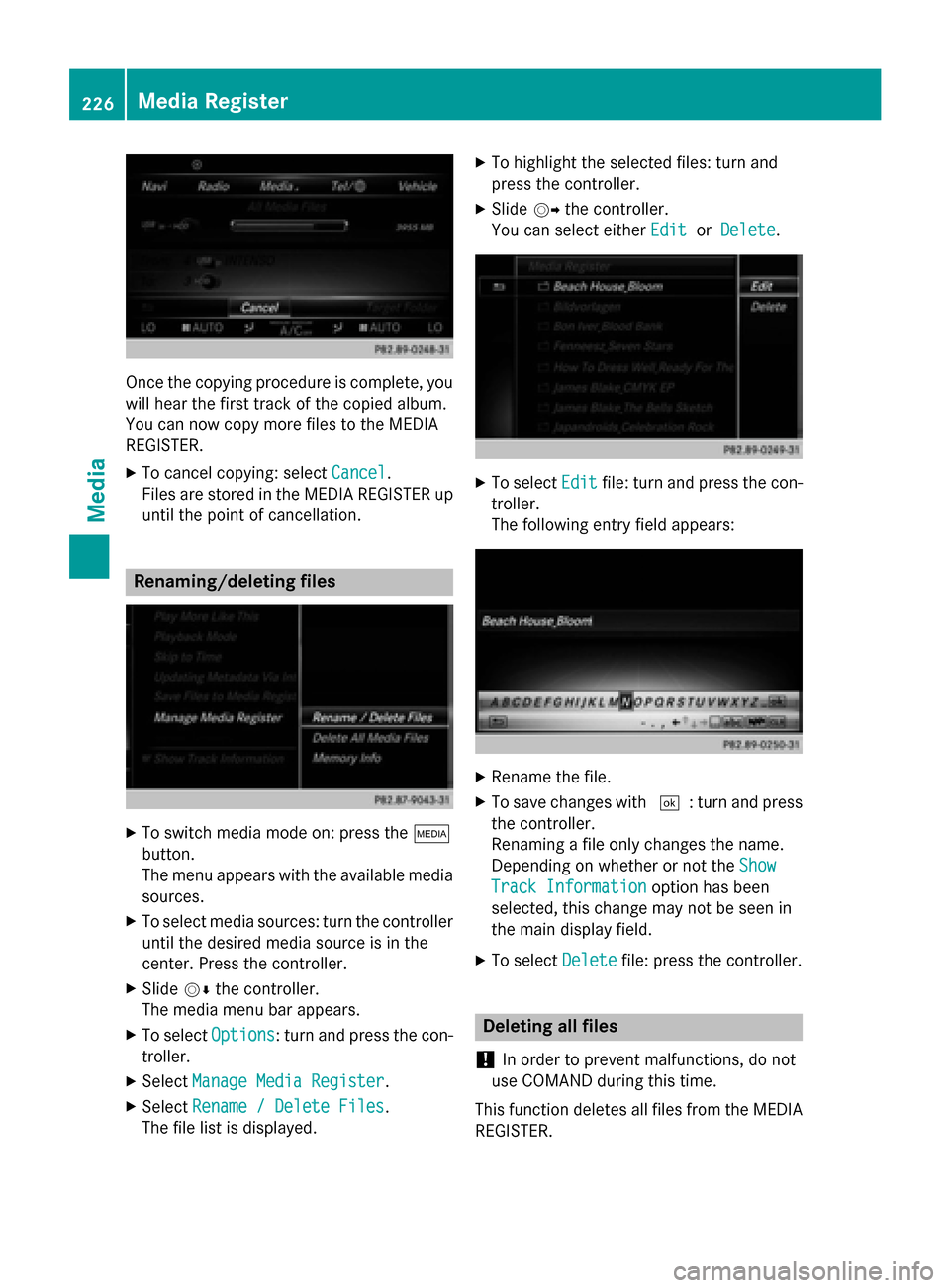
Once the copying procedure is complete, you
will hear the first track of the copied album.
You can now copy more files to the MEDIA
REGISTER.
X To cancel copying: select Cancel Cancel.
Files are stored in the MEDIA REGISTER up
until the point of cancellation. Renaming/deleting files
X
To switch media mode on: press the 00FD
button.
The menu appears with the available media sources.
X To select media sources: turn the controller
until the desired media source is in the
center. Press the controller.
X Slide 00520064the controller.
The media menu bar appears.
X To select Options
Options: turn and press the con-
troller.
X Select Manage Media Register Manage Media Register.
X Select Rename / Delete Files
Rename / Delete Files.
The file list is displayed. X
To highlight the selected files: turn and
press the controller.
X Slide 00520096the controller.
You can select either Edit EditorDelete
Delete. X
To select Edit
Editfile: turn and press the con-
troller.
The following entry field appears: X
Rename the file.
X To save changes with 0054: turn and press
the controller.
Renaming a file only changes the name.
Depending on whether or not the Show Show
Track Information
Track Information option has been
selected, this change may not be seen in
the main display field.
X To select Delete Deletefile: press the controller. Deleting all files
! In order to prevent malfunctions, do not
use COMAND during this time.
This function deletes all files from the MEDIA
REGISTER. 226
Media RegisterMedia