lock MERCEDES-BENZ S-Class 2015 W222 Comand Manual
[x] Cancel search | Manufacturer: MERCEDES-BENZ, Model Year: 2015, Model line: S-Class, Model: MERCEDES-BENZ S-Class 2015 W222Pages: 298, PDF Size: 6.39 MB
Page 62 of 298
The panel heating function warms the surfa-
ces with which the vehicle occupants fre-
quently come into contact. Activation of the
panel heating using COMAND as described
below only works if seat heating is activated
(see the vehicle Operator's Manual).
X Call up Vehicle Settings Vehicle Settings (Ypage 58).
X To select Panel Heating
Panel Heating: turn and press
the controller.
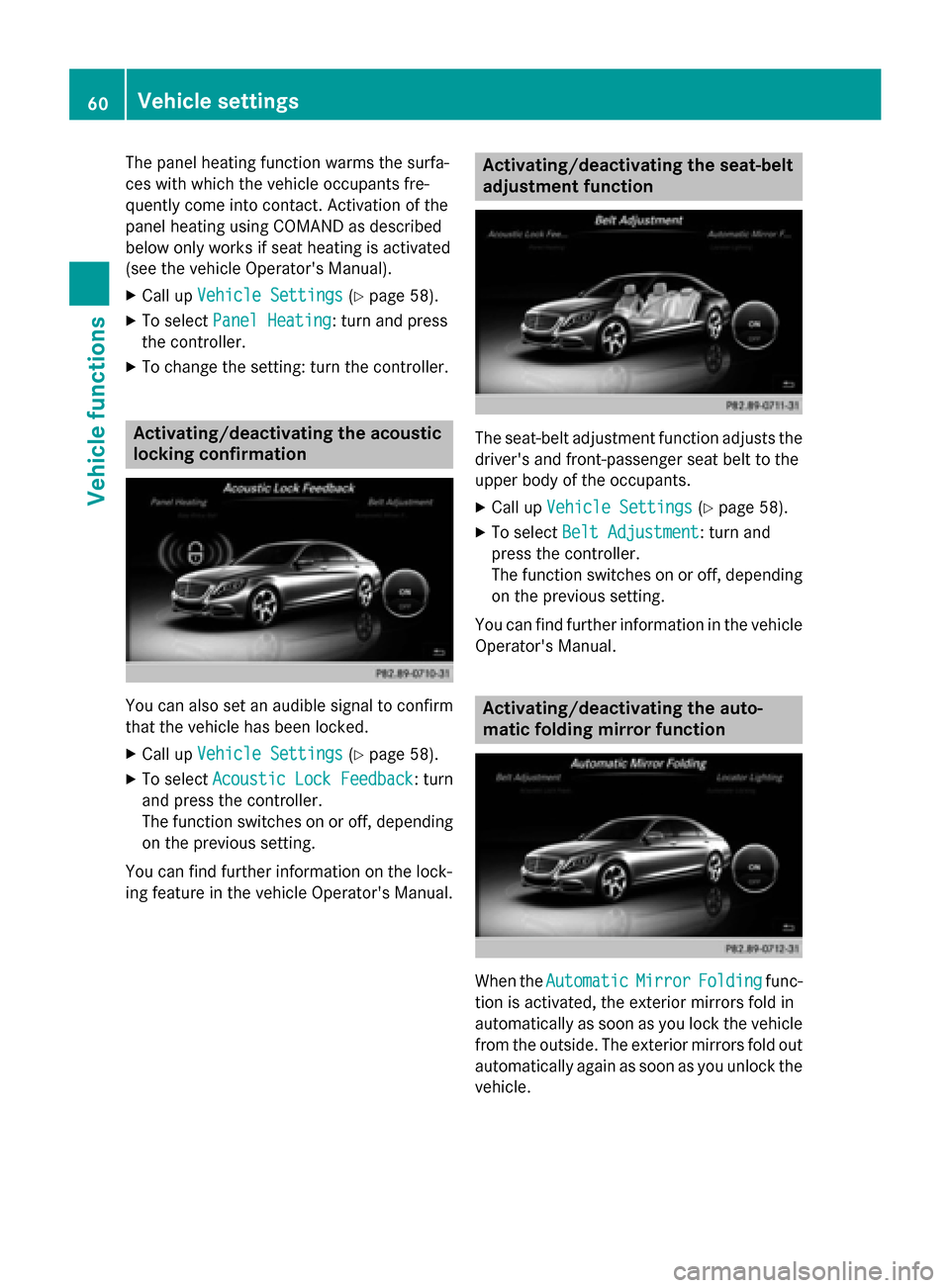
X To change the setting: turn the controller. Activating/deactivating the acoustic
locking confirmation
You can also set an audible signal to confirm
that the vehicle has been locked.
X Call up Vehicle Settings Vehicle Settings (Ypage 58).
X To select Acoustic Lock Feedback
Acoustic Lock Feedback : turn
and press the controller.
The function switches on or off, depending on the previous setting.
You can find further information on the lock-
ing feature in the vehicle Operator's Manual. Activating/deactivating the seat-belt
adjustment function
The seat-belt adjustment function adjusts the
driver's and front-passenger seat belt to the
upper body of the occupants.
X Call up Vehicle Settings Vehicle Settings (Ypage 58).
X To select Belt Adjustment
Belt Adjustment : turn and
press the controller.
The function switches on or off, depending on the previous setting.
You can find further information in the vehicle
Operator's Manual. Activating/deactivating the auto-
matic folding mirror function
When the
Automatic Automatic Mirror
MirrorFolding
Folding func-
tion is activated, the exterior mirrors fold in
automatically as soon as you lock the vehicle
from the outside. The exterior mirrors fold out automatically again as soon as you unlock the
vehicle. 60
Vehicle settingsVehicle functions
Page 63 of 298
X
Call up Vehicle Settings
Vehicle Settings (Ypage 58).
X To select Automatic Mirror Folding
Automatic Mirror Folding:
turn and press the controller.
The function switches on or off, depending on the previous setting.
You can find further information in the vehicle
Operator's Manual. Switching locator lighting on/off
If you switch on the Locator
Locator Lighting
Lighting func-
tion, the exterior lighting is switched on for a short time when it is dark. The light switch
must be set to 0058.
The exterior lighting remains on for
40 seconds after the vehicle is unlocked.
When you start the engine, the locator light-
ing is switched off and automatic headlamp
mode is activated.
You can find further information on the auto-
matic headlamp mode in the vehicle Opera-
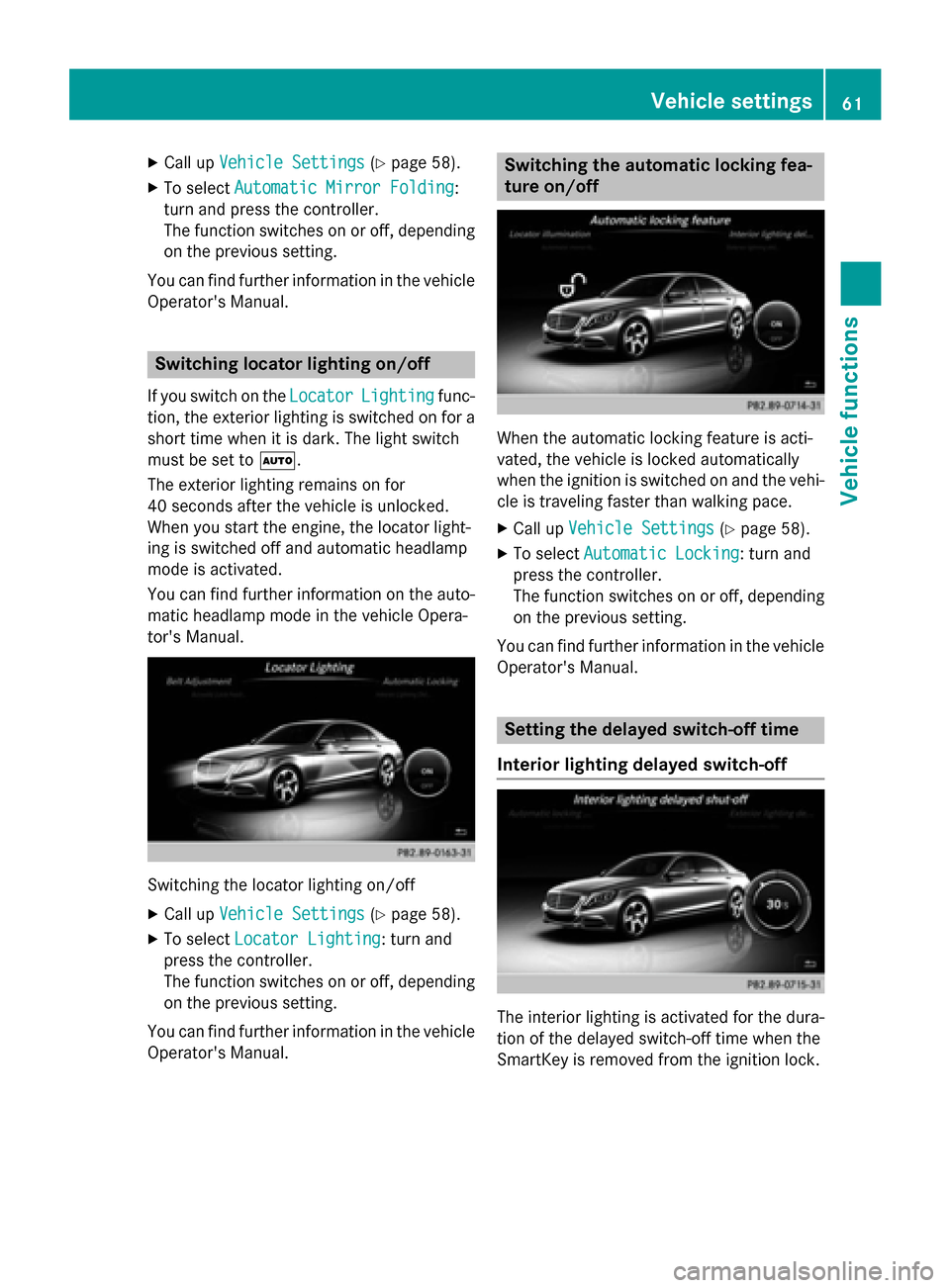
tor's Manual. Switching the locator lighting on/off
X Call up Vehicle Settings Vehicle Settings (Ypage 58).
X To select Locator Lighting
Locator Lighting: turn and
press the controller.
The function switches on or off, depending on the previous setting.
You can find further information in the vehicle
Operator's Manual. Switching the automatic locking fea-
ture on/off
When the automatic locking feature is acti-
vated, the vehicle is locked automatically
when the ignition is switched on and the vehi-
cle is traveling faster than walking pace.
X Call up Vehicle Settings Vehicle Settings (Ypage 58).
X To select Automatic Locking
Automatic Locking: turn and
press the controller.
The function switches on or off, depending on the previous setting.
You can find further information in the vehicle
Operator's Manual. Setting the delayed switch-off time
Interior lighting delayed switch-off The interior lighting is activated for the dura-
tion of the delayed switch-off time when the
SmartKey is removed from the ignition lock. Vehicle settings
61Vehicle functions
Page 73 of 298
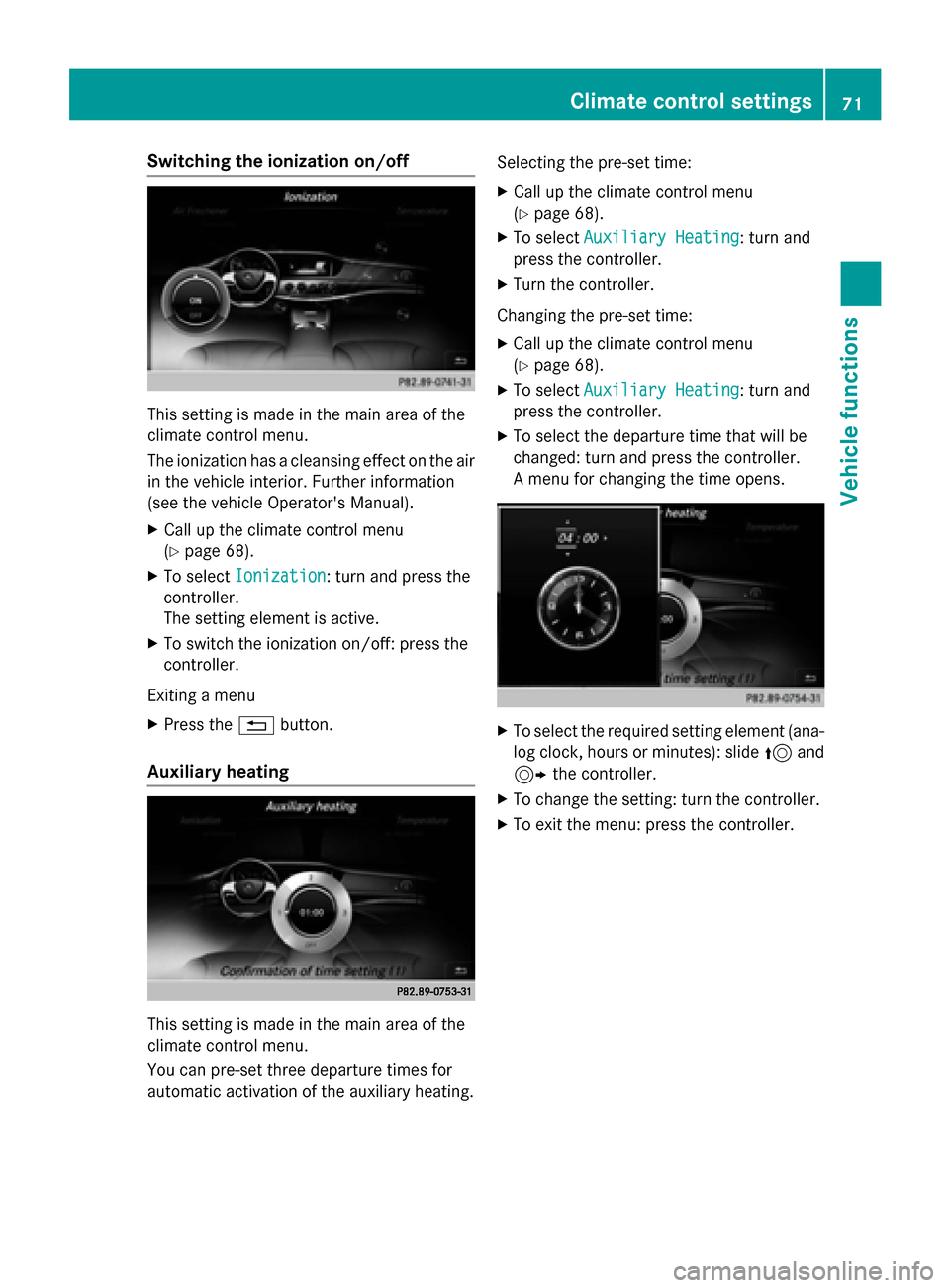
Switching the ionization on/off
This setting is made in the main area of the
climate control menu.
The ionization has a cleansing effect on the air in the vehicle interior. Further information
(see the vehicle Operator's Manual).
X Call up the climate control menu
(Y page 68).
X To select Ionization Ionization: turn and press the
controller.
The setting element is active.
X To switch the ionization on/off: press the
controller.
Exiting a menu X Press the 0038button.
Auxiliary heating This setting is made in the main area of the
climate control menu.
You can pre-set three departure times for
automatic activation of the auxiliary heating. Selecting the pre-set time:
X Call up the climate control menu
(Y page 68).
X To select Auxiliary Heating
Auxiliary Heating: turn and
press the controller.
X Turn the controller.
Changing the pre-set time:
X Call up the climate control menu
(Y page 68).
X To select Auxiliary Heating Auxiliary Heating: turn and
press the controller.
X To select the departure time that will be
changed: turn and press the controller.
A menu for changing the time opens. X
To select the required setting element (ana-
log clock, hours or minutes): slide 5and
9 the controller.
X To change the setting: turn the controller.
X To exit the menu: press the controller. Climate control settings
71Vehicle functions
Page 74 of 298
Child-proof locks
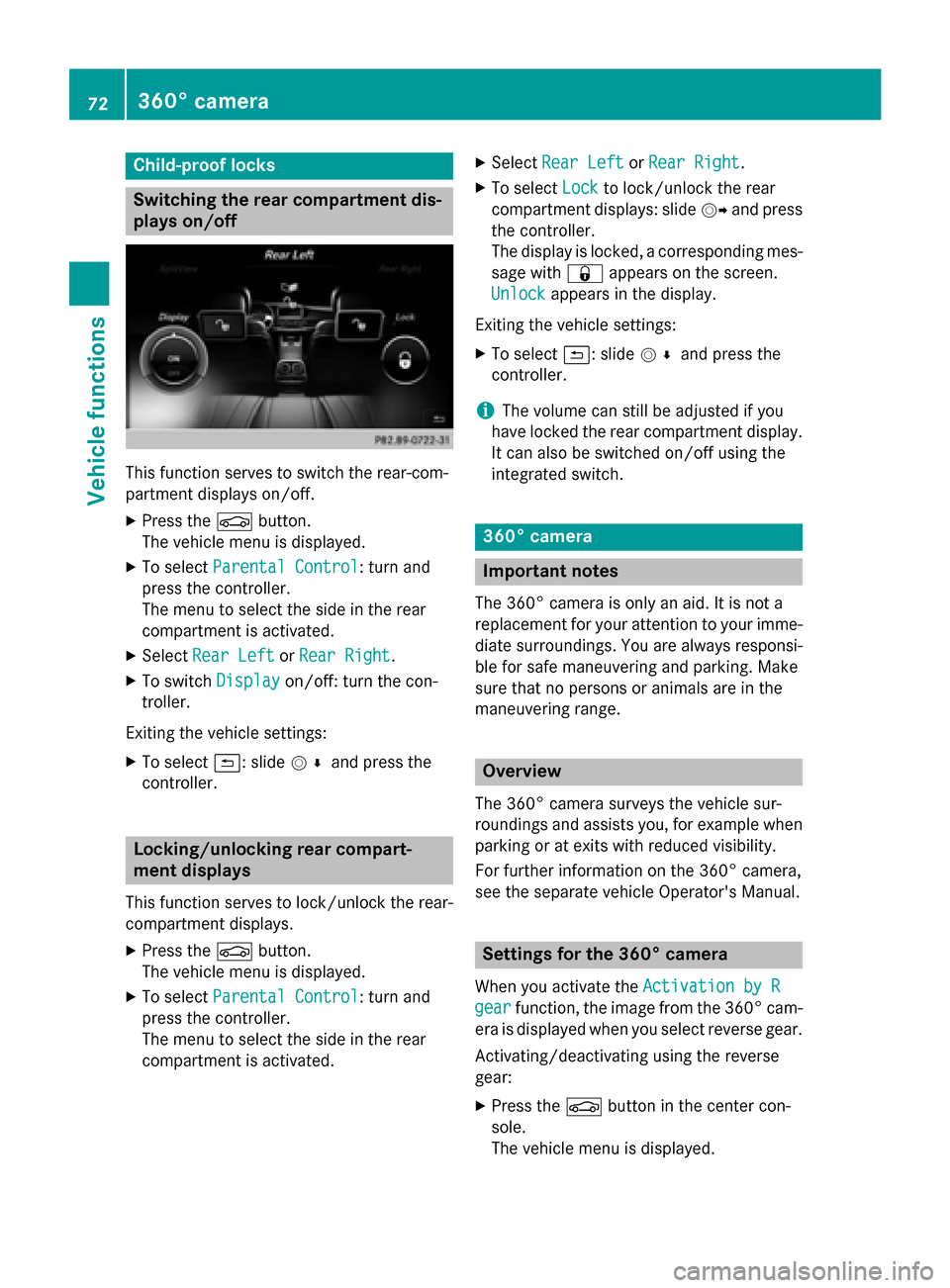
Switching the rear compartment dis-
plays on/off This function serves to switch the rear-com-
partment displays on/off.
X Press the 00D4button.
The vehicle menu is displayed.
X To select Parental Control
Parental Control: turn and
press the controller.
The menu to select the side in the rear
compartment is activated.
X Select Rear Left Rear Left orRear Right
Rear Right.
X To switch Display
Display on/off: turn the con-
troller.
Exiting the vehicle settings: X To select 0039: slide 005200C5and press the
controller. Locking/unlocking rear compart-
ment displays
This function serves to lock/unlock the rear-
compartment displays.
X Press the 00D4button.
The vehicle menu is displayed.
X To select Parental Control
Parental Control: turn and
press the controller.
The menu to select the side in the rear
compartment is activated. X
Select Rear Left Rear Left orRear Right
Rear Right.
X To select Lock
Lockto lock/unlock the rear
compartment displays: slide 00520096and press
the controller.
The display is locked, a corresponding mes- sage with 0037appears on the screen.
Unlock Unlock appears in the display.
Exiting the vehicle settings: X To select 0039: slide 005200C5and press the
controller.
i The volume can still be adjusted if you
have locked the rear compartment display. It can also be switched on/off using the
integrated switch. 360° camera
Important notes
The 360° camera is only an aid. It is not a
replacement for your attention to your imme- diate surroundings. You are always responsi-
ble for safe maneuvering and parking. Make
sure that no persons or animals are in the
maneuvering range. Overview
The 360° camera surveys the vehicle sur-
roundings and assists you, for example when
parking or at exits with reduced visibility.
For further information on the 360° camera,
see the separate vehicle Operator's Manual. Settings for the 360° camera
When you activate the Activation by R Activation by R
gear
gear function, the image from the 360° cam-
era is displayed when you select reverse gear.
Activating/deactivating using the reverse
gear:
X Press the 00D4button in the center con-
sole.
The vehicle menu is displayed. 72
360° cameraVehicle functions
Page 75 of 298
X
To switch to the menu bar: slide 6the
controller.
X To select System Settings
System Settings: turn and
press the controller.
X Select 360° Camera
360° Camera.
X Select Activation by R gear
Activation by R gear.
The function is switched on 0073or off 0053,
depending on the previous status. Displaying the 360° camera image
The 360° camera image can be displayed if:
R your vehicle is equipped with a 360° cam-
era
R COMAND is switched on (Y page 25)
R the 360° Camera
360° Camera function is switched on
Displaying the image of the 360° camera:
X Press the 00D4button in the center con-
sole.
A menu appears.
X Select 360° Camera 360° Camera.
The 360° camera image appears in split-
screen mode.
You will see the previous view on the display if you have switched the function on:
R and turn the key to position 1in the ignition
lock
R select transmission position P
R the vehicle exceeds a speed of approx.
30 km/h
Manually switching the display
X To select 0039: slide 6and press the con-
troller.
Automatically switching the display: X You can automatically switch the 360 cam-
era display using reverse gear (Y page 72). Opening the camera cover for clean-
ing
X To select Open OpenCamera
Camera Cover
Coverin the 360°
camera menu: turn the controller and press
to confirm.
The Please Please Wait...
Wait... message appears for
approximately three seconds.
The camera cover opens.
The camera cover closes automatically if:
R the ignition is switched off.
R the vehicle exceeds a speed of approx.
30 km/h Rear view camera
Important notes
The rear view camera is only an aid. It is not a replacement for your attention to your imme- diate surroundings. You are always responsi-
ble for safe maneuvering and parking. When
maneuvering or parking, make sure that there are no persons, animals or objects in the area
in which you are maneuvering. Overview
The rear view camera covers the immediate
surroundings of the vehicle and assists you
when parking.
You can find further information about the
rear view camera in the vehicle Operator's
Manual. Settings for the rear view camera
When you activate the Activation by R Activation by R
gear
gear function, the image from the rear view
camera is displayed when you select reverse
gear. Rear view camera
73Vehicle functions
Page 85 of 298
Destination input
Important safety notes
G
WARNING
If you operate information systems and communication equipment integrated in the vehicle while driving, you will be distracted from traffic conditions. You could also lose control of the vehicle.
There is a risk of an accident.
Only operate the equipment when the traffic situation permits. If you are not sure that this is
possible, park the vehicle paying attention to traffic conditions and operate the equipment when
the vehicle is stationary.
You must observe the legal requirements for the country in which you are currently driving
when operating COMAND.
i Destination entry may be blocked while driving, depending on the country specifications. As an address
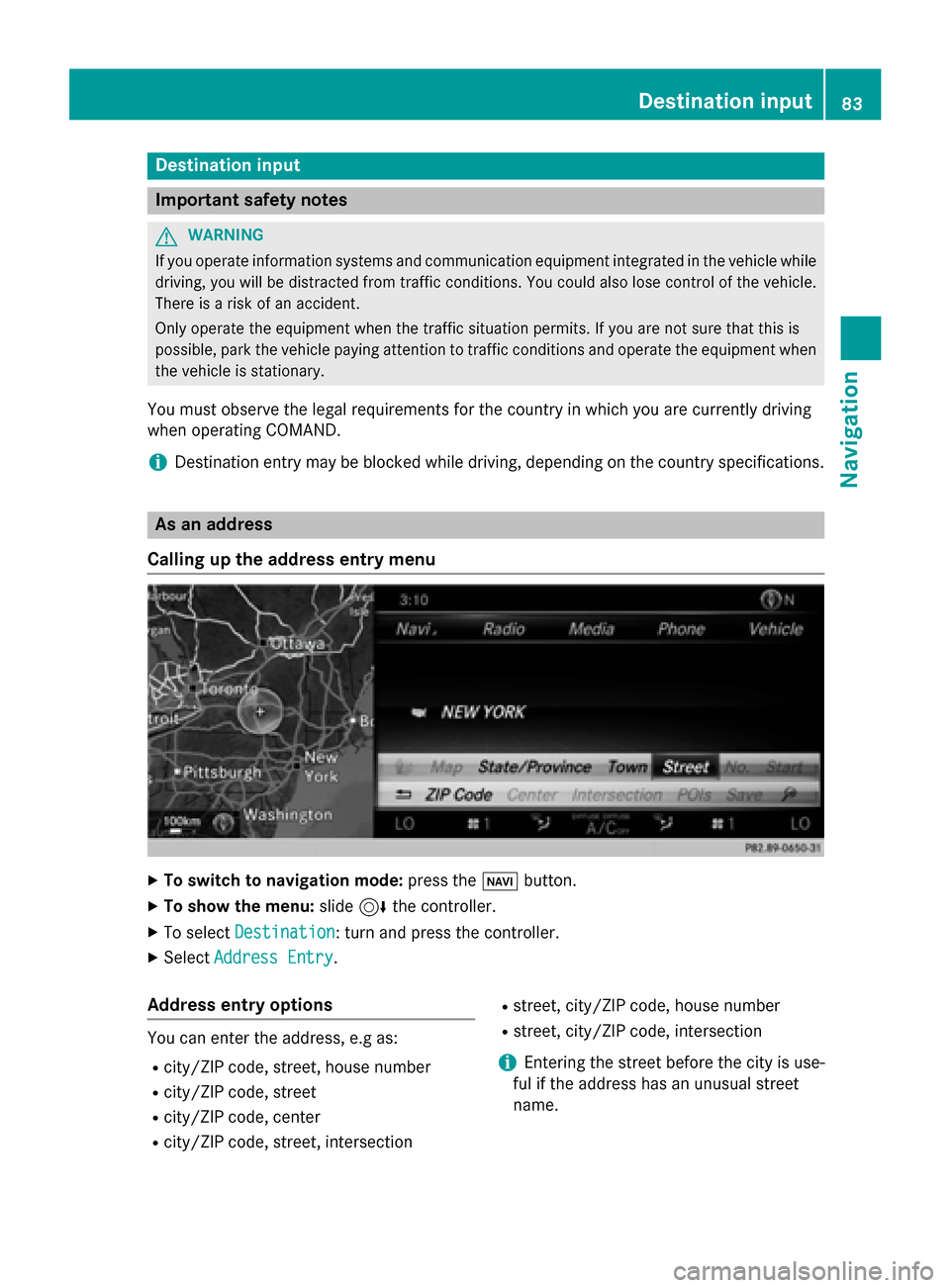
Calling up the address entry menu X
To switch to navigation mode: press the00BEbutton.
X To show the menu: slide6the controller.
X To select Destination Destination: turn and press the controller.
X Select Address Entry
Address Entry.
Address entry options You can enter the address, e.g as:
R city/ZIP code, street, house number
R city/ZIP code, street
R city/ZIP code, center
R city/ZIP code, street, intersection R
street, city/ZIP code, house number
R street, city/ZIP code, intersection
i Entering the street before the city is use-
ful if the address has an unusual street
name. Destination input
83Navigation Z
Page 95 of 298
Using the map
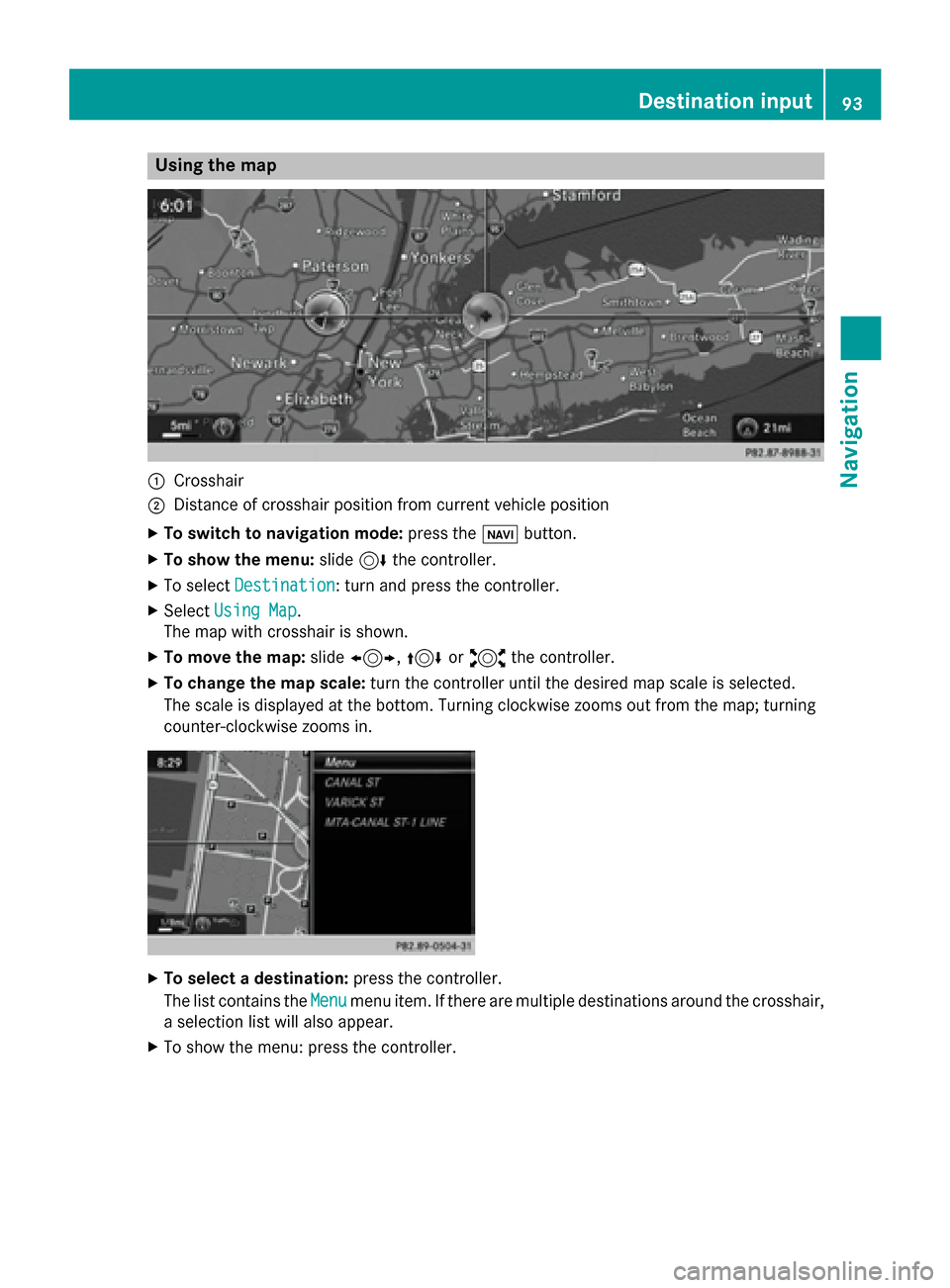
0043
Crosshair
0044 Distance of crosshair position from current vehicle position
X To switch to navigation mode: press the00CBbutton.
X To show the menu: slide6the controller.
X To select Destination
Destination: turn and press the controller.
X Select Using Map
Using Map.
The map with crosshair is shown.
X To move the map: slide1, 4or2 the controller.
X To change the map scale: turn the controller until the desired map scale is selected.
The scale is displayed at the bottom. Turning clockwise zooms out from the map; turning
counter-clockwise zooms in. X
To select a destination: press the controller.
The list contains the Menu Menumenu item. If there are multiple destinations around the crosshair,
a selection list will also appear.
X To show the menu: press the controller. Destination input
93Navigation Z
Page 109 of 298
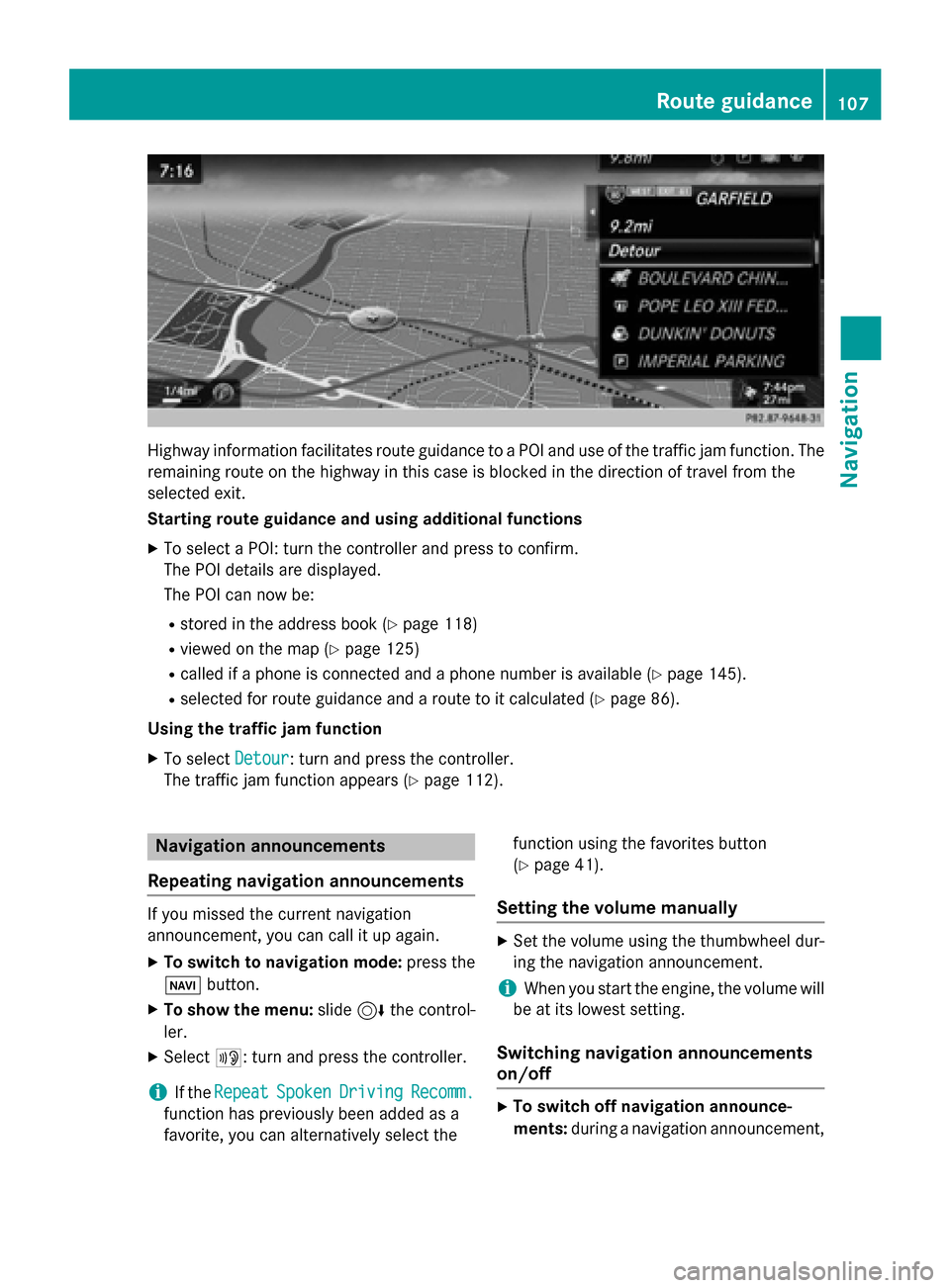
Highway information facilitates route guidance to a POI and use of the traffic jam function. The
remaining route on the highway in this case is blocked in the direction of travel from the
selected exit.
Starting route guidance and using additional functions
X To select a POI: turn the controller and press to confirm.
The POI details are displayed.
The POI can now be:
R stored in the address book (Y page 118)
R viewed on the map (Y page 125)
R called if a phone is connected and a phone number is available (Y page 145).
R selected for route guidance and a route to it calculated (Y page 86).
Using the traffic jam function X To select Detour
Detour: turn and press the controller.
The traffic jam function appears (Y page 112).Navigation announcements
Repeating navigation announcements If you missed the current navigation
announcement, you can call it up again.
X To switch to navigation mode: press the
00BE button.
X To show the menu: slide6the control-
ler.
X Select 006A: turn and press the controller.
i If the
Repeat
Repeat Spoken SpokenDriving
Driving Recomm.
Recomm.
function has previously been added as a
favorite, you can alternatively select the function using the favorites button
(Y
page 41).
Setting the volume manually X
Set the volume using the thumbwheel dur-
ing the navigation announcement.
i When you start the engine, the volume will
be at its lowest setting.
Switching navigation announcements
on/off X
To switch off navigation announce-
ments: during a navigation announcement, Route guidance
107Navigation Z
Page 116 of 298
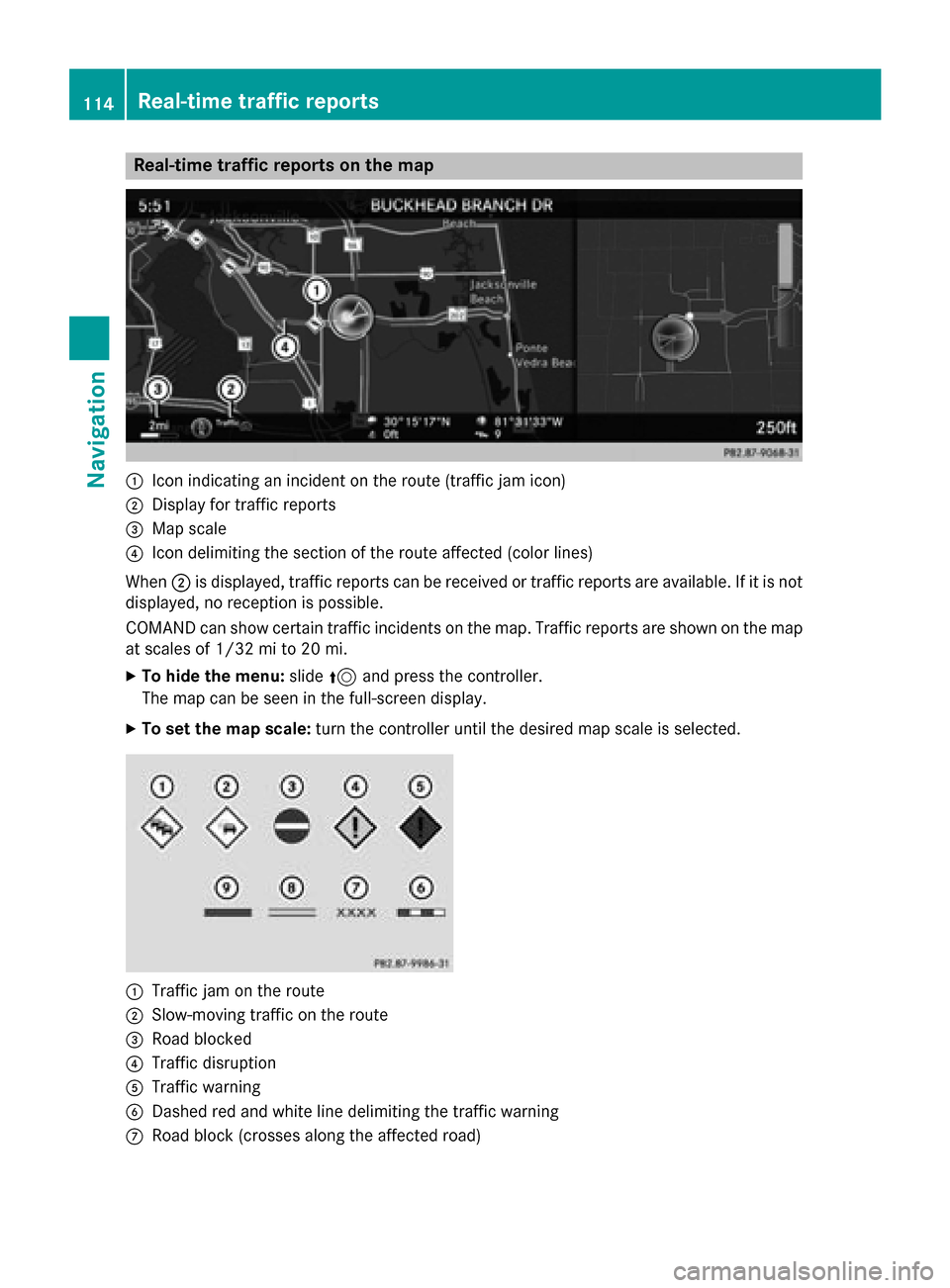
Real-time traffic reports on the map
0043
Icon indicating an incident on the route (traffic jam icon)
0044 Display for traffic reports
0087 Map scale
0085 Icon delimiting the section of the route affected (color lines)
When 0044is displayed, traffic reports can be received or traffic reports are available. If it is not
displayed, no reception is possible.
COMAND can show certain traffic incidents on the map. Traffic reports are shown on the map
at scales of 1/32 mi to 20 mi.
X To hide the menu: slide5and press the controller.
The map can be seen in the full-screen display.
X To set the map scale: turn the controller until the desired map scale is selected.0043
Traffic jam on the route
0044 Slow-moving traffic on the route
0087 Road blocked
0085 Traffic disruption
0083 Traffic warning
0084 Dashed red and white line delimiting the traffic warning
006B Road block (crosses along the affected road) 114
Real-time traffic reportsNavigation
Page 129 of 298
Avoiding an area
General information COMAND enables you to avoid areas you do not wish to drive through.
If you activate or deactivate a route block while route guidance is active, COMAND will cal-
culate a new route. If you activate or deactivate a route block while route guidance is inactive, COMAND will use the new setting for the next route guidance.
The calculated route may include an area to be avoided if:
R your destination is located in such an area.
R there is no alternative route of comparable length available
Highways within blocked areas are always taken into consideration in the route calculation.
Avoiding a new area X
To switch to navigation mode: press the00CBbutton.
X To show the menu: slide6the controller.
X To select Options
Options: turn and press the controller.
X Select Route Settings
Route Settings.
X Select Avoid Options
Avoid Options.
X Select Avoid Area Avoid Area.
X Select Avoid New Area Avoid New Area.
A menu appears.
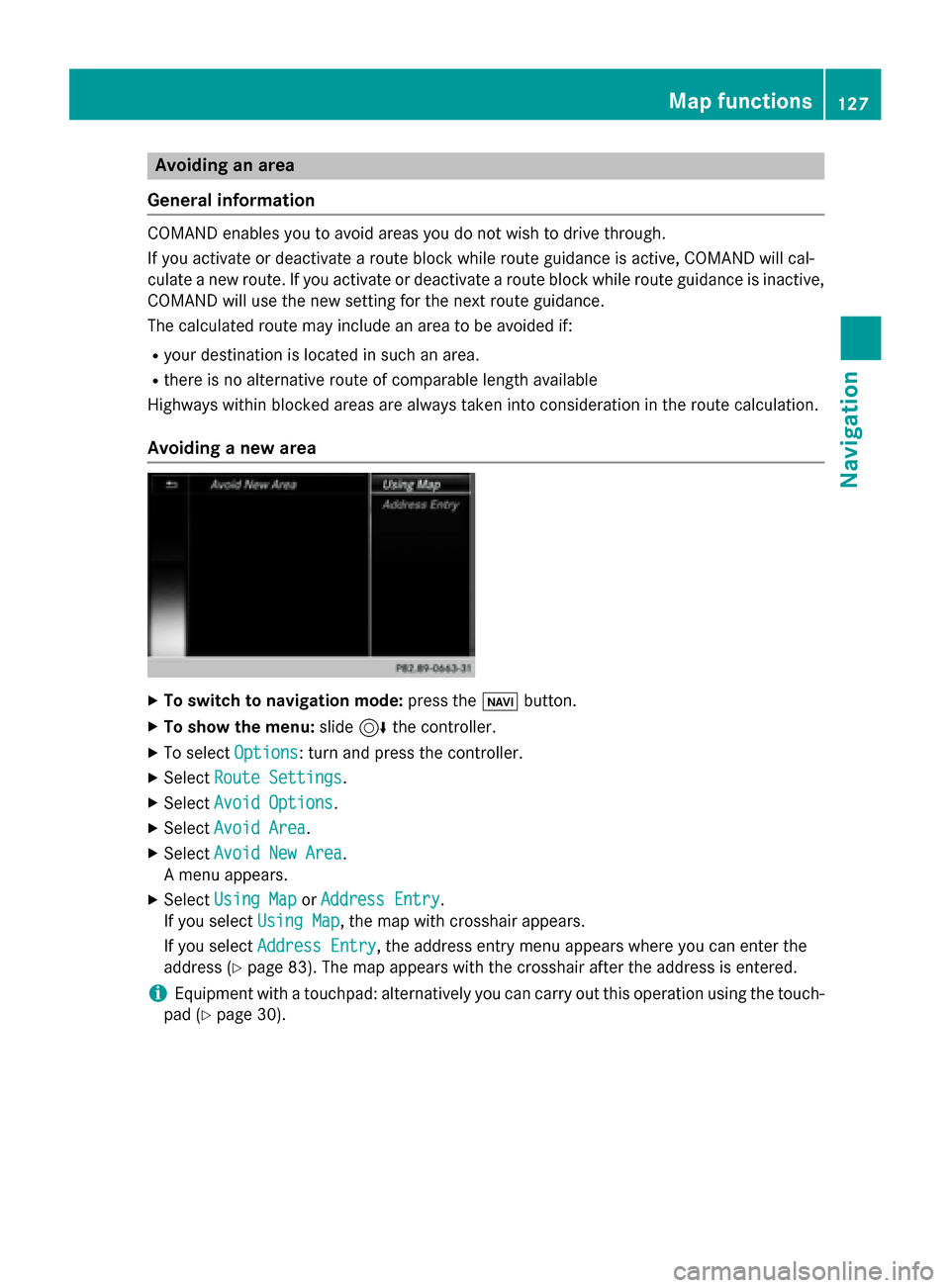
X Select Using Map
Using Map orAddress Entry
Address Entry.
If you select Using Map
Using Map , the map with crosshair appears.
If you select Address Entry
Address Entry, the address entry menu appears where you can enter the
address (Y page 83). The map appears with the crosshair after the address is entered.
i Equipment with a touchpad: alternatively you can carry out this operation using the touch-
pad (Y page 30). Map functions
127Navigation Z