lock MERCEDES-BENZ S-Class 2015 W222 Comand Manual
[x] Cancel search | Manufacturer: MERCEDES-BENZ, Model Year: 2015, Model line: S-Class, Model: MERCEDES-BENZ S-Class 2015 W222Pages: 298, PDF Size: 6.39 MB
Page 130 of 298
X
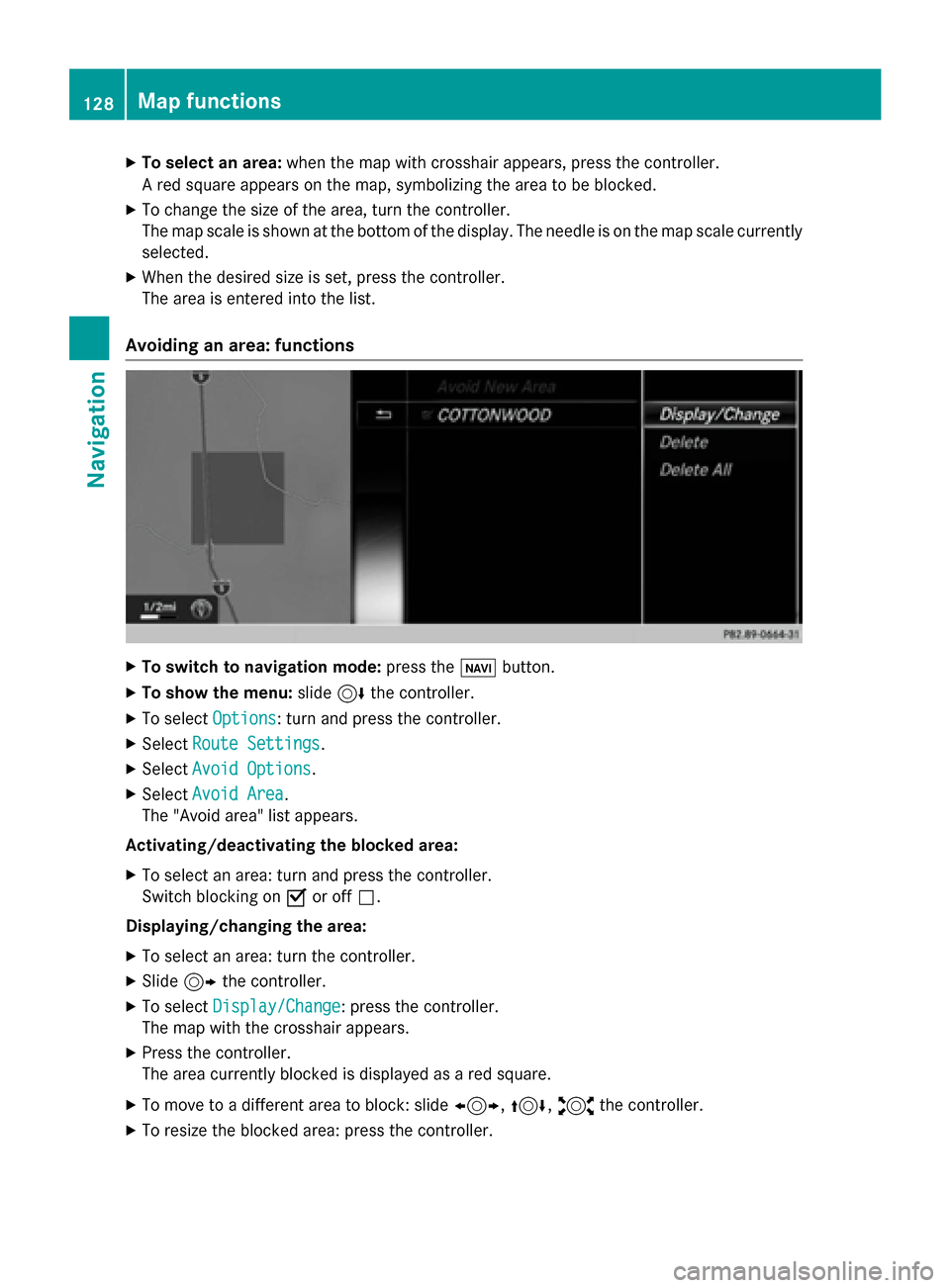
To select an area: when the map with crosshair appears, press the controller.
A red square appears on the map, symbolizing the area to be blocked.
X To change the size of the area, turn the controller.
The map scale is shown at the bottom of the display. The needle is on the map scale currently
selected.
X When the desired size is set, press the controller.
The area is entered into the list.
Avoiding an area: functions X
To switch to navigation mode: press the00CBbutton.
X To show the menu: slide6the controller.
X To select Options
Options: turn and press the controller.
X Select Route Settings Route Settings.
X Select Avoid Options
Avoid Options.
X Select Avoid Area
Avoid Area.
The "Avoid area" list appears.
Activating/deactivating the blocked area: X To select an area: turn and press the controller.
Switch blocking on 0073or off 0053.
Displaying/changing the area: X To select an area: turn the controller.
X Slide 9the controller.
X To select Display/Change
Display/Change: press the controller.
The map with the crosshair appears.
X Press the controller.
The area currently blocked is displayed as a red square.
X To move to a different area to block: slide 1,4,2the controller.
X To resize the blocked area: press the controller. 128
Map functionsNavigation
Page 131 of 298
X
Turn the controller.
The size of the blocked area changes.
X To accept changes: press the controller.
A message appears stating that the area has been set.
Deleting an area: X To select an area: turn the controller.
X Slide 9the controller.
X Select Delete
Delete.
A prompt appears asking whether you wish to delete the area.
X Select Yes
Yes orNo No.
After selecting Yes
Yes, the area is deleted.
Deleting all areas: X Slide 9and press the controller while the list is shown.
X Select Delete All
Delete All.
A prompt appears asking whether you wish to delete all areas.
X Select Yes
Yes orNo
No.
After selecting Yes
Yes, all areas are deleted.
i Equipment with a touchpad: alternatively you can carry out this operation using the touch-
pad (Y page 30). SIRIUS XM service
Displaying SIRIUS XM service informa-
tion You can display the SIRIUS XM service infor-
mation.
X To switch to navigation mode: press the
00BE button.
X To show the menu: press the controller.
X To select Traffic
Traffic: turn and press the con-
troller.
X Select SIRIUS Service
SIRIUS Service.
The window on the right half of the display shows the telephone number of the pro-
vider (SIRIUS XM) and the serial number of
your service module.
i Equipment with a touchpad: alternatively
you can carry out this operation using the
touchpad (Y page 30). Registering for the SIRIUS XM traffic
report service X
Call the provider telephone number shown
on the COMAND display.
i You can also have the satellite service
activated online. To do so, visit the SIRIUS
XM Radio website at
http://www.sirius.com (USA).
Once the connection has been established: X Follow the service employee's instructions.
The activation process may take up to ten
minutes.
If registration is not included when purchas-
ing the system, your credit card details will be required to activate your account. Map functions
129Navigation Z
Page 157 of 298
Messages (text messages and e-
mails) General notes
New messages are identified by the 008F
symbol in the COMAND display and an audi-
ble signal. Once you have read all the mes-
sages, the symbol is no longer displayed.
COMAND displays the 100 newest text mes-
sages and e-mails.
The ú symbol is displayed when the
mobile phone's message memory is full. The
symbol is no longer displayed if you delete
messages. Prerequisites
To use the message functions, the connected
mobile phone must support the Bluetooth ®
MAP profile. When connecting the mobile
phone, you may have to accept the prompt for
the MAP Bluetooth ®
profile.
With some mobile phones, some settings still
have to be made after connecting to
COMAND (see the manufacturer's operating
instructions). The messages are displayed the next time you connect to COMAND.
An e-mail account must be set up on the
mobile phone for the e-mail function (see the manufacturer’s operating instructions).
To read and write e-mails in COMAND, the e-
mail account first needs to be configured
(Y page 156).
Some mobile phones with the MAP Blue-
tooth ®
profile:
R only show new text messages.
R do not support the deleting or editing of
text messages.
R do not support the drafts folder for text
messages.
R do not support the sending of text mes-
sages.
R do not support the e-mail function.
R do not send messages in a locked status. Not all mobile phones available on the market
are equally suitable. You can obtain further
information about settings and supported
functions of Bluetooth ®
-capable mobile
phones on the Internet at
www.mercedes-benz-mobile.com .
You can also obtain more information by call-
ing.
In the USA, you can get in touch with the
Mercedes-Benz Customer Assistance Center
on 1-800-FOR-MERCedes (1-800-367-6372).
In Canada, you can get in touch with the Cus-
tomer Relations Center on 1-800-387-0100. Settings
Calling up the settings menu for mes-
sages X
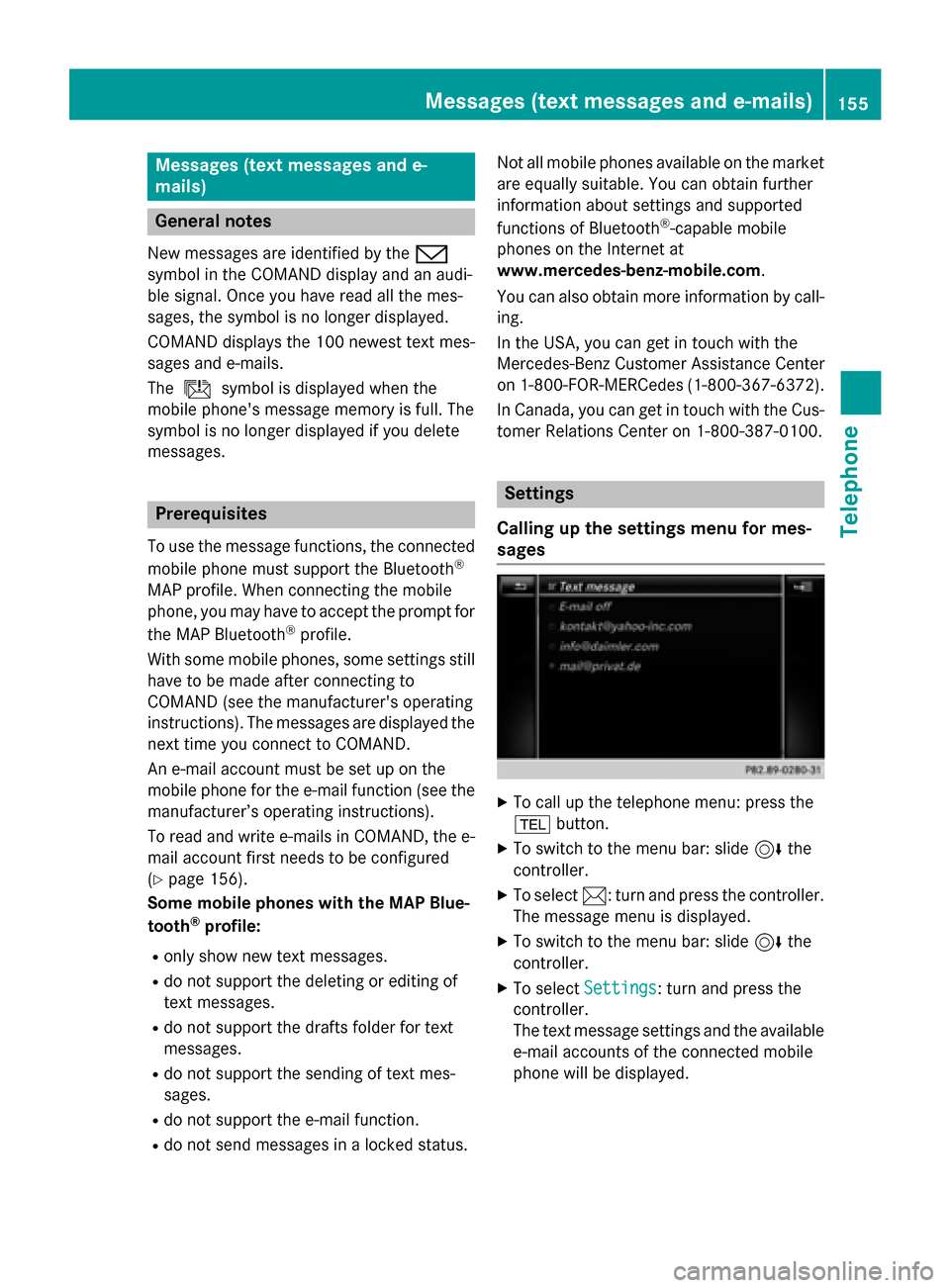
To call up the telephone menu: press the
002B button.
X To switch to the menu bar: slide 6the
controller.
X To select 0083: turn and press the controller.
The message menu is displayed.
X To switch to the menu bar: slide 6the
controller.
X To select Settings Settings: turn and press the
controller.
The text message settings and the available e-mail accounts of the connected mobile
phone will be displayed. Messages (text messages and e-mails)
155Telephone Z
Page 195 of 298
X
To show the menu: press the0038but-
ton.
X To select 0057: turn and press the control-
ler.
A menu appears.
X Select Settings
Settings.
You can activate/deactivate the following
settings:
R Download Images Automatically
Download Images Automatically
It may take some time to download the
contents of websites that contain a large
amount of images. Therefore, it may be
useful to deactivate this option.
R Block Pop-Ups Block Pop-Ups
Pop-ups are windows (usually with adver-
tisements) which are displayed automati-
cally when you call up a website. You can
block these displays.
R Activate Javascript
Activate Javascript
Javascript makes it possible to display and
interact with dynamic content on the web-
site.
R Allow Cookies
Allow Cookies
Some websites save information in small
text files (cookies) in your system. You can
determine whether cookies may be stored.
R Enable Internet Audio Enable Internet Audio
You can switch the browser's audio play-
back on or off here.
R Hide Scroll Bars Hide Scroll Bars
You can show or hide the scroll bar here.
R Show Link Target Show Link Target
You can display the link's URL here.
R Character Size Character Size
You can select the font size which is used
when displaying the website.
R Character Code Character Code
You can select a different character set
here, e.g. if the characters of a website
appear distorted. Changing settings X
To select the desired setting: turn and
press the controller.
Switch the setting on 0073or off 0053.
Changing the character size or character code.
X Select Character Size Character Size orCharacter
Character
Code
Code.
X To select the setting you require: turn and
press the controller.
i If you change the settings, the websites
may not be displayed correctly.
Deleting private data X
Press the 002Bbutton.
X Select Internet Internet.
X To show the menu: slide 6the controller.
X To select Settings
Settings: slide 6the control-
ler, turn and press to confirm.
A menu appears.
X To select Delete DeletePrivate
Private Data
Data: turn and
press the controller.
A menu appears. The 003Bdot indicates the
current setting.
X To select the setting you require: turn and
press the controller.
or
X Select Delete All Data On Exit Delete All Data On Exit.
Switch the setting on 0073or off 0053. Web browser
193Online and Internet functions Z
Page 205 of 298
SIRIUS XM Satellite Radio employs a fleet of
high-performance satellites to broadcast
around the clock throughout the USA and
Canada.
The satellite radio program is available for a
monthly fee. Details are available from the
SIRIUS XM Service Center and at
http://www.siriusxm.com (USA) or
http://www.siriusxm.ca (Canada).
Your new Mercedes-Benz vehicle comes with SIRIUS XM Satellite Radio pre-installed at the
factory. This service is free for a six-month
trial period. About a month before the trial
period ends, information will be provided on
how to extend this subscription. An acoustic
signal sounds and a message is shown,
describing how the subscription can be
extended. Registering SatRadio
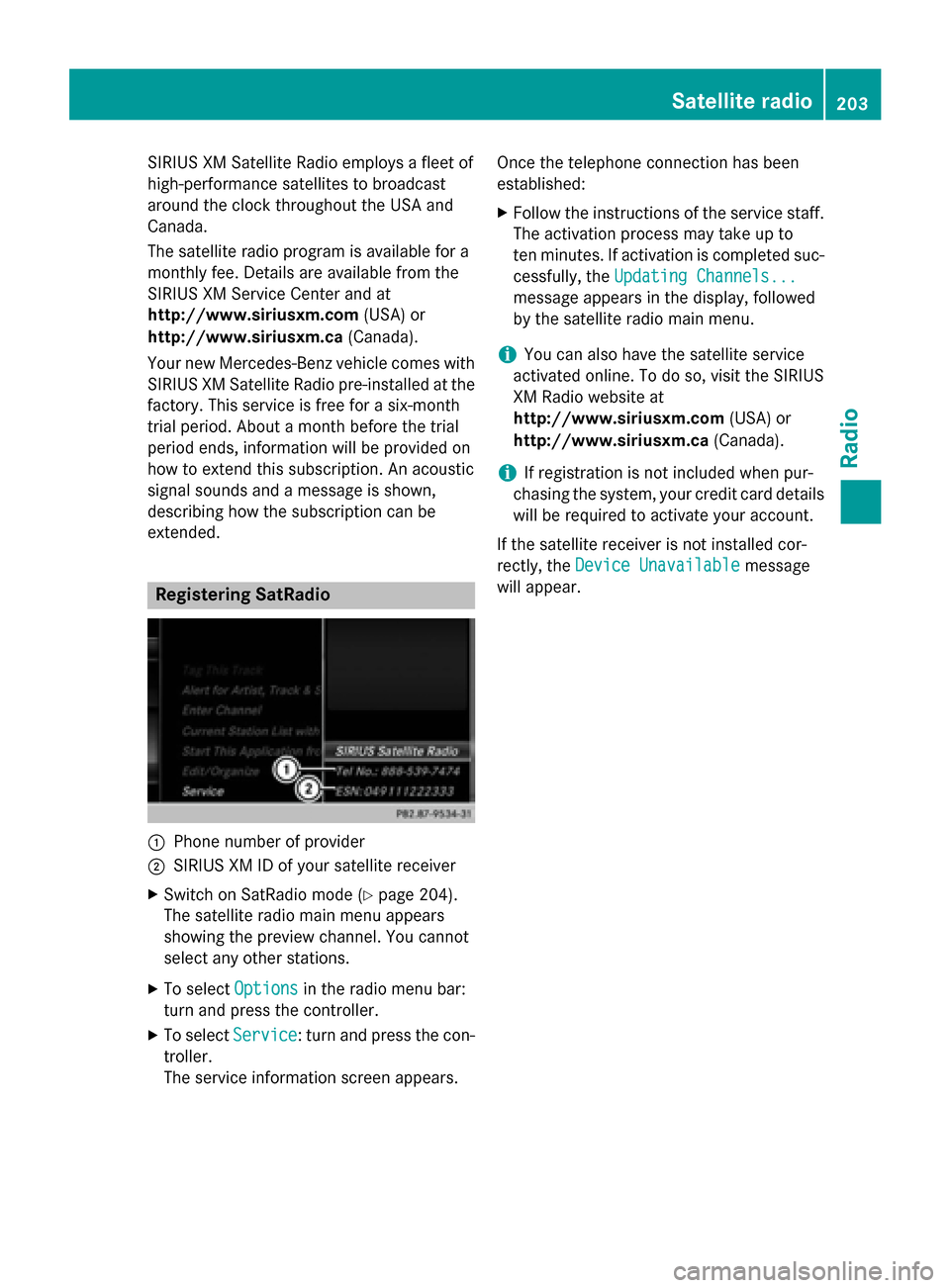
0043
Phone number of provider
0044 SIRIUS XM ID of your satellite receiver
X Switch on SatRadio mode (Y page 204).
The satellite radio main menu appears
showing the preview channel. You cannot
select any other stations.
X To select Options Optionsin the radio menu bar:
turn and press the controller.
X To select Service
Service: turn and press the con-
troller.
The service information screen appears. Once the telephone connection has been
established:
X Follow the instructions of the service staff.
The activation process may take up to
ten minutes. If activation is completed suc-
cessfully, the Updating Channels... Updating Channels...
message appears in the display, followed
by the satellite radio main menu.
i You can also have the satellite service
activated online. To do so, visit the SIRIUS
XM Radio website at
http://www.siriusxm.com (USA) or
http://www.siriusxm.ca (Canada).
i If registration is not included when pur-
chasing the system, your credit card details
will be required to activate your account.
If the satellite receiver is not installed cor-
rectly, the Device Unavailable
Device Unavailable message
will appear. Satellite radio
203Radio
Page 246 of 298
Showing the DVD's control menu
X To select Menu
Menufrom the DVD functions
menu: turn and press the controller.
The DVD functions menu is hidden and the
DVD's menu entries (e.g. scenes, language,
trailers) are displayed.
X To select a menu entry: turn and press the
controller. Video menu
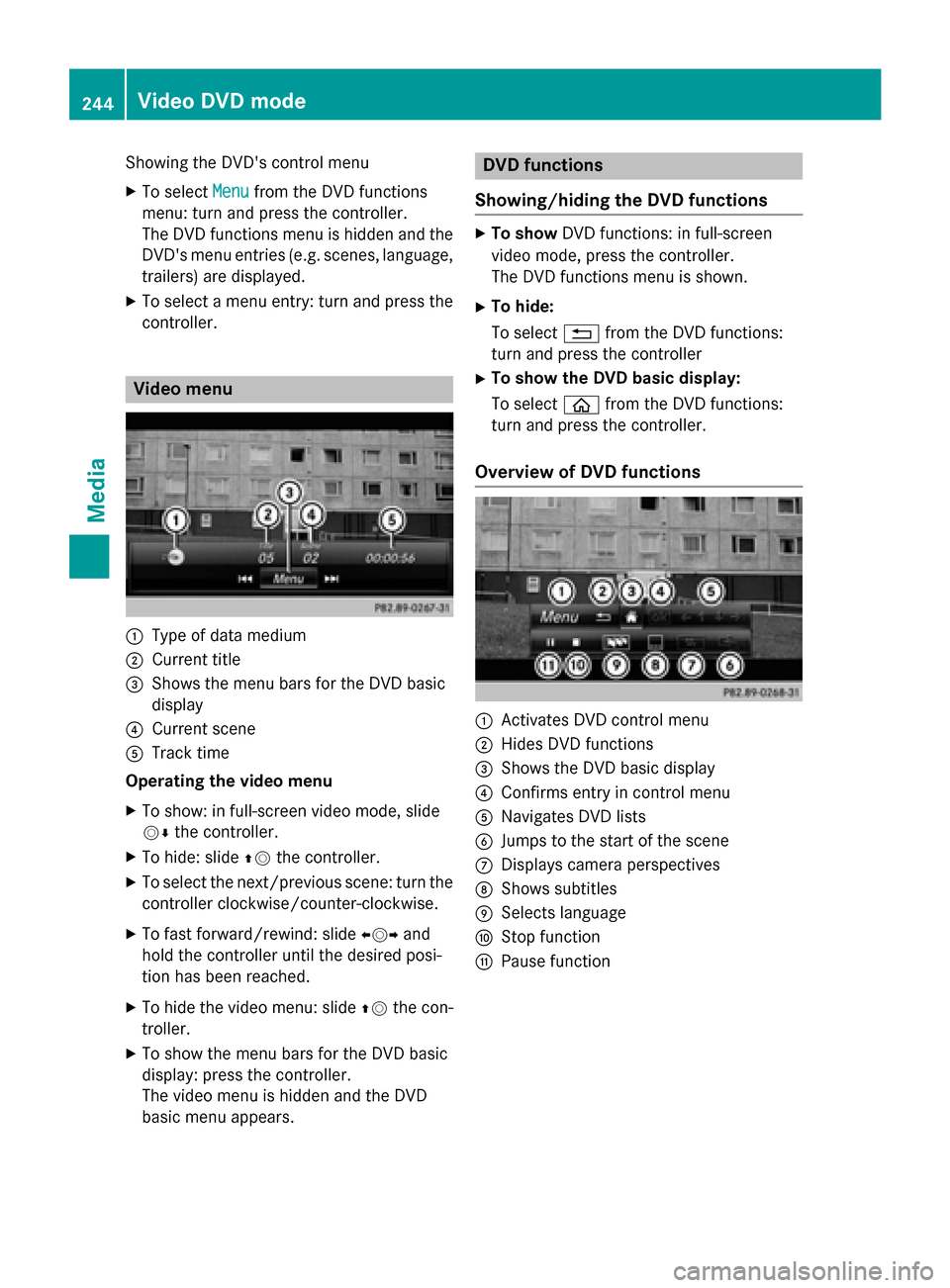
0043
Type of data medium
0044 Current title
0087 Shows the menu bars for the DVD basic
display
0085 Current scene
0083 Track time
Operating the video menu
X To show: in full-screen video mode, slide
00520064 the controller.
X To hide: slide 00970052the controller.
X To select the next/previous scene: turn the
controller clockwise/counter-clockwise.
X To fast forward/rewind: slide 009500520096and
hold the controller until the desired posi-
tion has been reached.
X To hide the video menu: slide 00970052the con-
troller.
X To show the menu bars for the DVD basic
display: press the controller.
The video menu is hidden and the DVD
basic menu appears. DVD functions
Showing/hiding the DVD functions X
To show DVD functions: in full-screen
video mode, press the controller.
The DVD functions menu is shown.
X To hide:
To select 0038from the DVD functions:
turn and press the controller
X To show the DVD basic display:
To select 00E2from the DVD functions:
turn and press the controller.
Overview of DVD functions 0043
Activates DVD control menu
0044 Hides DVD functions
0087 Shows the DVD basic display
0085 Confirms entry in control menu
0083 Navigates DVD lists
0084 Jumps to the start of the scene
006B Displays camera perspectives
006C Shows subtitles
006D Selects language
006E Stop function
006F Pause function 244
Video DVD modeMedia
Page 249 of 298
Changing the picture view
X
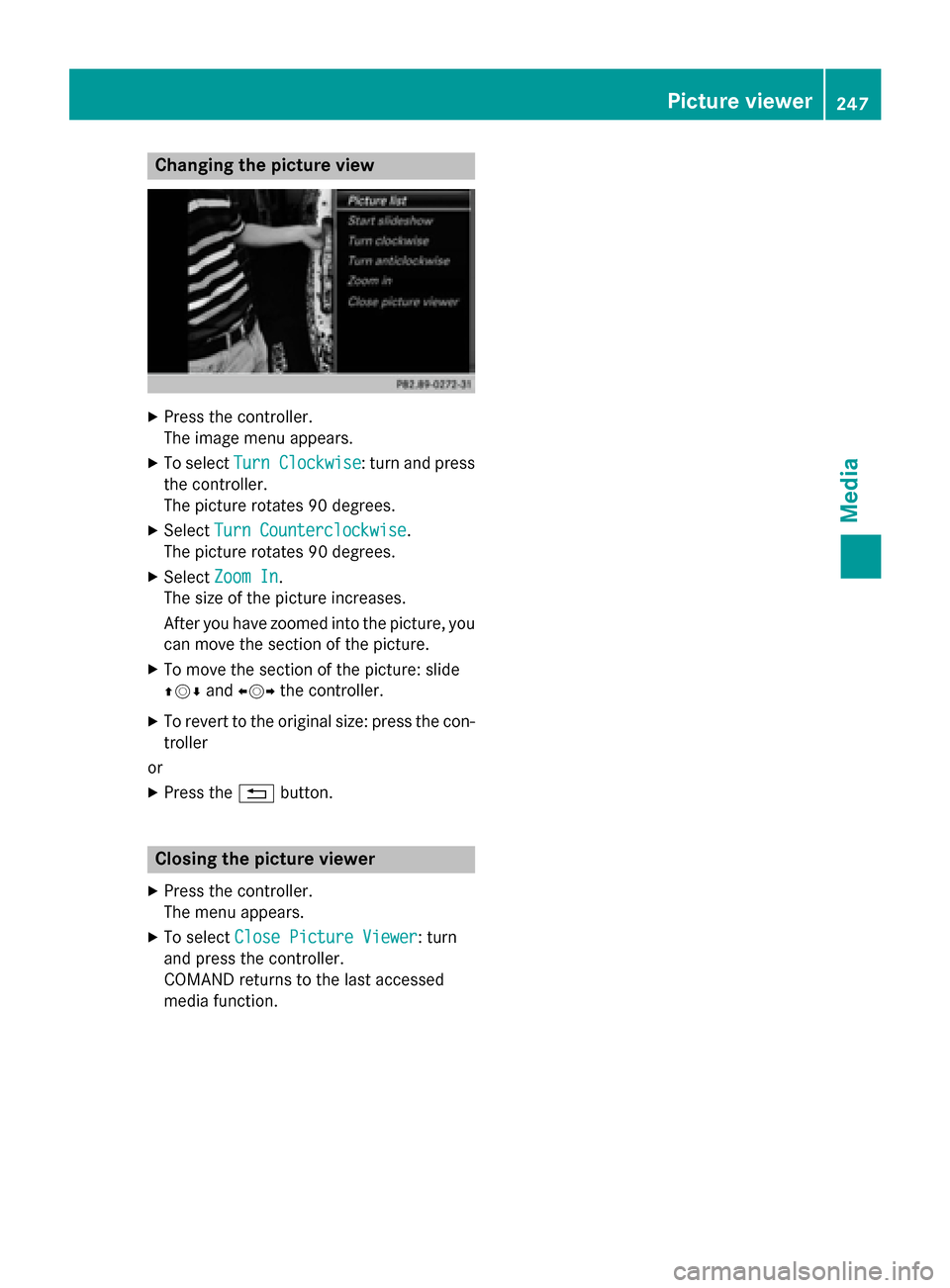
Press the controller.
The image menu appears.
X To select Turn Clockwise
Turn Clockwise : turn and press
the controller.
The picture rotates 90 degrees.
X Select Turn Counterclockwise Turn Counterclockwise.
The picture rotates 90 degrees.
X Select Zoom In
Zoom In.
The size of the picture increases.
After you have zoomed into the picture, you
can move the section of the picture.
X To move the section of the picture: slide
009700520064 and009500520096 the controller.
X To revert to the original size: press the con-
troller
or X Press the 0038button. Closing the picture viewer
X Press the controller.
The menu appears.
X To select Close Picture Viewer
Close Picture Viewer : turn
and press the controller.
COMAND returns to the last accessed
media function. Picture viewer
247Media Z
Page 262 of 298
Your COMAND equipment
These operating instructions describe all
standard and optional equipment available
for your COMAND system at the time of pur-
chase. Country-specific differences are pos-
sible. Please note that your COMAND system may not be equipped with all the features
described. This also applies to safety-relevant
systems and functions. Therefore, the equip-
ment on your COMAND system may differ
from that in the descriptions and illustrations. Should you have any questions concerning
equipment and operation, please consult an
authorized Mercedes-Benz Center. Rear Seat Entertainment System
overview
Important safety notes
G
WARNING
The CD/DVD drive is a class 1 laser product. If you open the housing of the CD/DVD drive,
there is a risk of exposure to invisible laser
radiation. This laser radiation could damage
your retina. There is a risk of injury.
Never open the housing. Always have main-
tenance and repair work carried out at a quali- fied specialist workshop. G
WARNING
If objects such as headphones/headsets or
external audio/video sources are not secured in the passenger compartment, they can be
flung around and hit vehicle occupants. There
is a risk of injury, for example in the event of
sudden braking or a sudden change in direc-
tion.
Always stow these items or similar objects
carefully so that they cannot be flung around, for example in a lockable vehicle stowage
compartment. Components
The Rear Seat Entertainment System
includes:
R two screens for the rear behind the front-
seat head restraints
R two remote controls for the rear compart-
ment
R a CD/DVD drive in the rear compartment
R AUX jacks
R two USB ports
R two sets of cordless headphones General notes
R You can only adjust the volume for the
headphones supplied, directly on the head-
phones.
R If media from different sources are used,
they can be used separately from each of
the operating positions. Example: a film
from the DVD drive is played on the rear
right-hand operating position. This means
that another film from the same DVD can-
not be played separately on the rear left-
hand operating position. However, on the
rear left-hand operating position, it is pos-
sible to use the radio, TV, memory card,
MUSIC REGISTER, media interface, USB,
online and Internet functions or AUX.
R If you use the same medium on both sides,
you can both carry out the respective set-
tings. The "last one wins" principle applies
here, i.e. the last setting activated is
favored.
R The Internet can be used separately at all
operating positions.
R The Internet can only be used if it is set up
and connected via a telephone
(Y page 173). 260
Rea
r Seat Entertainment System overviewRear Seat Entertainment System
Page 264 of 298
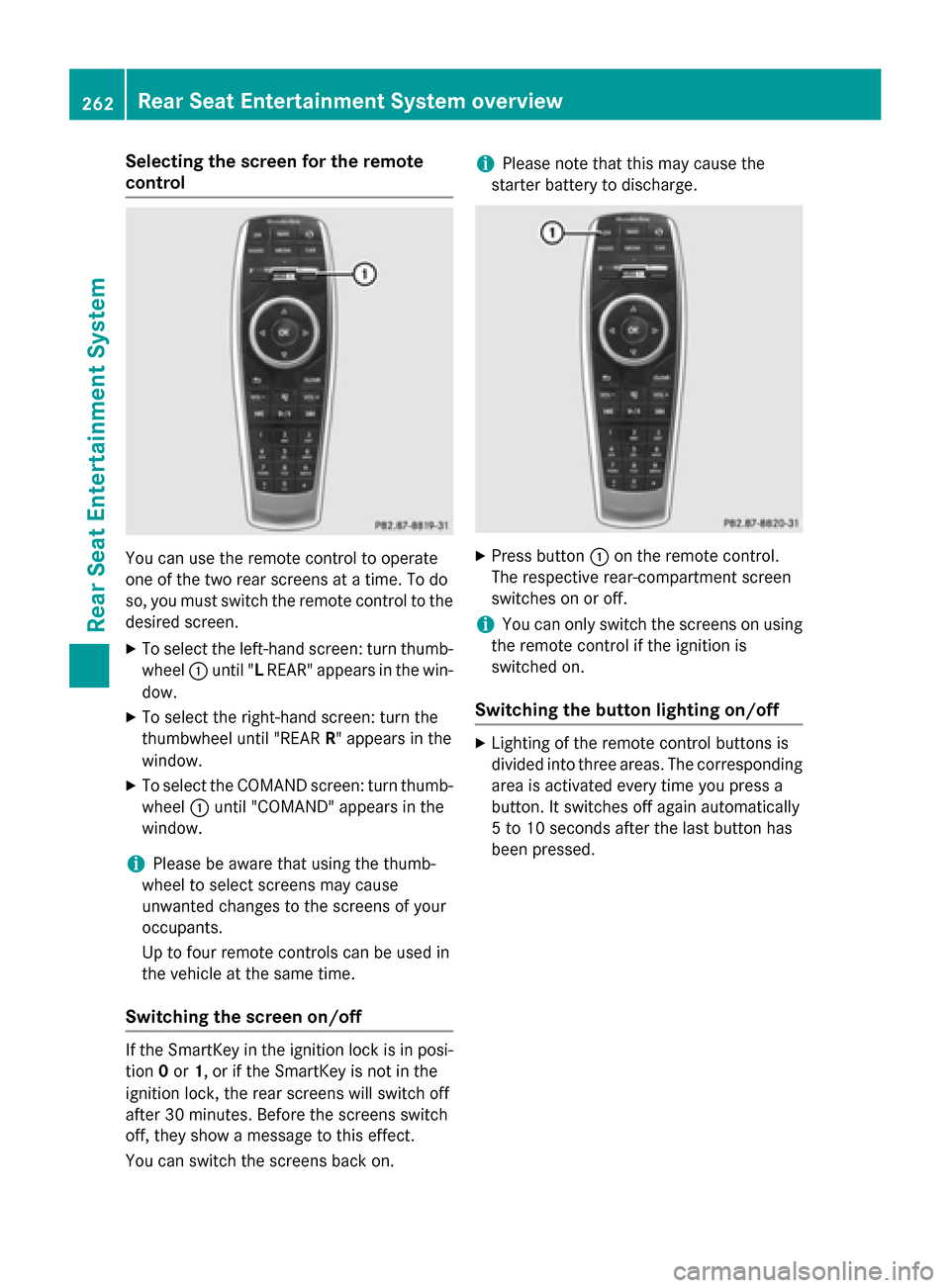
Selecting the screen for the remote
control
You can use the remote control to operate
one of the two rear screens at a time. To do
so, you must switch the remote control to the
desired screen.
X To select the left-hand screen: turn thumb-
wheel 0043until "L REAR" appears in the win-
dow.
X To select the right-hand screen: turn the
thumbwheel until "REAR R" appears in the
window.
X To select the COMAND screen: turn thumb-
wheel 0043until "COMAND" appears in the
window.
i Please be aware that using the thumb-
wheel to select screens may cause
unwanted changes to the screens of your
occupants.
Up to four remote controls can be used in
the vehicle at the same time.
Switching the screen on/off If the SmartKey in the ignition lock is in posi-
tion 0or 1, or if the SmartKey is not in the
ignition lock, the rear screens will switch off
after 30 minutes. Before the screens switch
off, they show a message to this effect.
You can switch the screens back on. i
Please note that this may cause the
starter battery to discharge. X
Press button 0043on the remote control.
The respective rear-compartment screen
switches on or off.
i You can only switch the screens on using
the remote control if the ignition is
switched on.
Switching the button lighting on/off X
Lighting of the remote control buttons is
divided into three areas. The corresponding
area is activated every time you press a
button. It switches off again automatically
5 to 10 seconds after the last button has
been pressed. 262
Rear Seat Entertainment System overviewRear Seat Entertainment System
Page 270 of 298
0085
Retaining lugs
0083 Batteries
The remote control contains two type AAA,
1.5 V batteries.
X To open the battery compartment:
remove battery compartment cover 0087on
the back of the remote control.
X Push catch tab 0044down and take off bat-
tery compartment cover 0087.
X Remove discharged batteries 0083from the
tray.
X Insert the new batteries. Observe the polar-
ity markings on the batteries and battery
compartment when doing so.
Left-hand battery: the positive pole (+)
must face upwards.
Right-hand battery: the positive pole (+)
must face downwards.
X To close the battery compartment:
insert battery compartment cover 0087start-
ing with retaining lugs 0085into the battery
compartment and allow catch tab 0044to
engage in place.
Replacing cordless headphone batter-
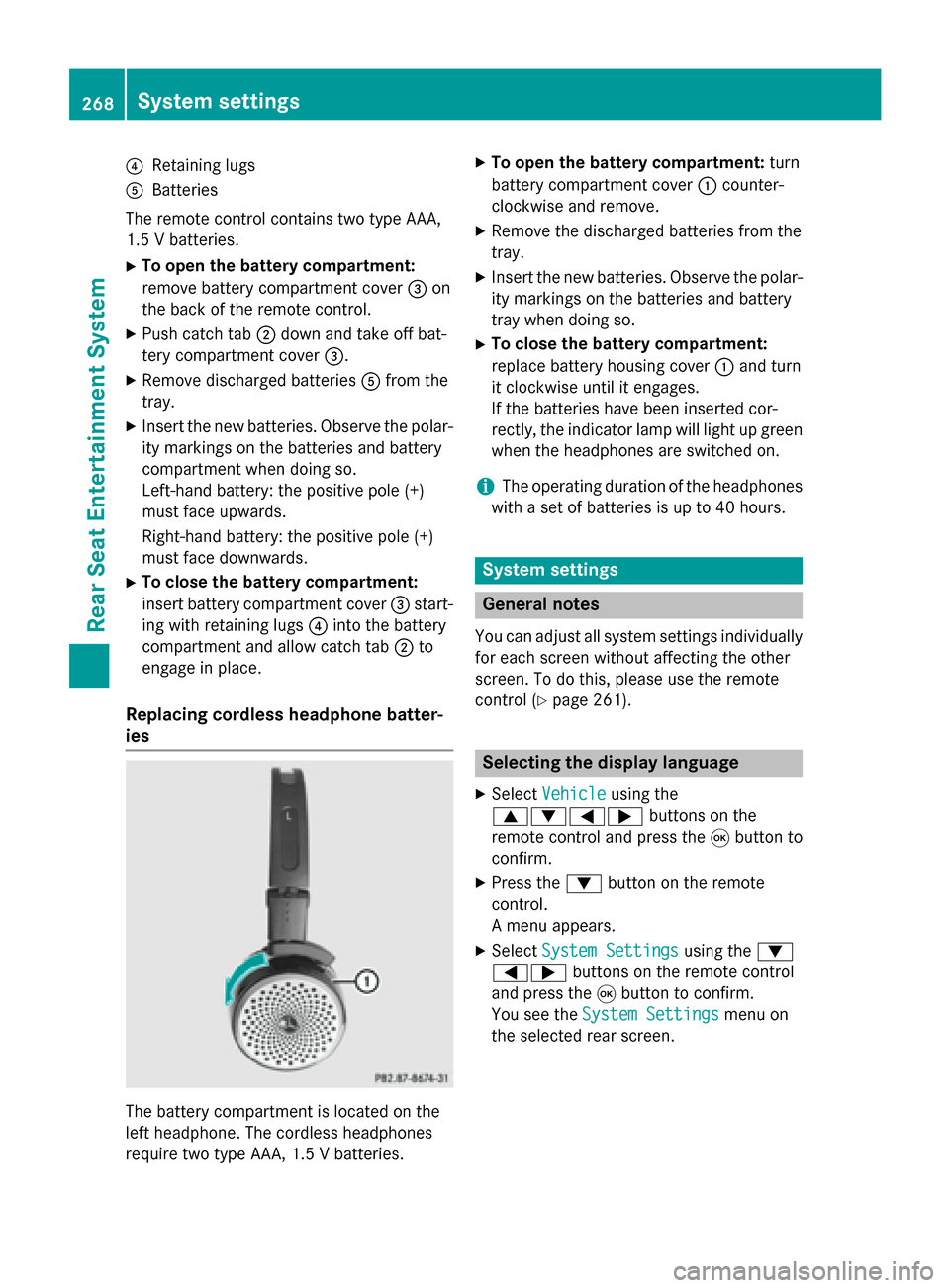
ies The battery compartment is located on the
left headphone. The cordless headphones
require two type AAA, 1.5 V batteries. X
To open the battery compartment: turn
battery compartment cover 0043counter-
clockwise and remove.
X Remove the discharged batteries from the
tray.
X Insert the new batteries. Observe the polar-
ity markings on the batteries and battery
tray when doing so.
X To close the battery compartment:
replace battery housing cover 0043and turn
it clockwise until it engages.
If the batteries have been inserted cor-
rectly, the indicator lamp will light up green
when the headphones are switched on.
i The operating duration of the headphones
with a set of batteries is up to 40 hours. System settings
General notes
You can adjust all system settings individually
for each screen without affecting the other
screen. To do this, please use the remote
control (Y page 261). Selecting the display language
X Select Vehicle Vehicle using the
006300640059 buttons on the
remote control and press the 008Bbutton to
confirm.
X Press the 0064button on the remote
control.
A menu appears.
X Select System Settings System Settings using the0064
00590065 buttons on the remote control
and press the 008Bbutton to confirm.
You see the System Settings System Settings menu on
the selected rear screen. 268
System settingsRea
r Seat Entertainment System