display MERCEDES-BENZ S-Class 2015 W222 Comand Manual
[x] Cancel search | Manufacturer: MERCEDES-BENZ, Model Year: 2015, Model line: S-Class, Model: MERCEDES-BENZ S-Class 2015 W222Pages: 298, PDF Size: 6.39 MB
Page 32 of 298
X
Select a type of search inquiry, such as
Enter search term
Enter search term.
An input field appears.
X Enter the destination using the COMAND
remote control and press the 0070button.
The Google™ results list appears.
X Select the destination using the COMAND
remote control.
A menu appears.
X Select Set as Destination Set as Destination.
X The prompt Accept the navigation
Accept the navigation
data from Mercedes-Benz Apps?
data from Mercedes-Benz Apps?
appears on the driver's side.
X Select Yes
YesorNo
No.
If you select Yes
Yes, the navigation data is
used for route guidance. Touchpad
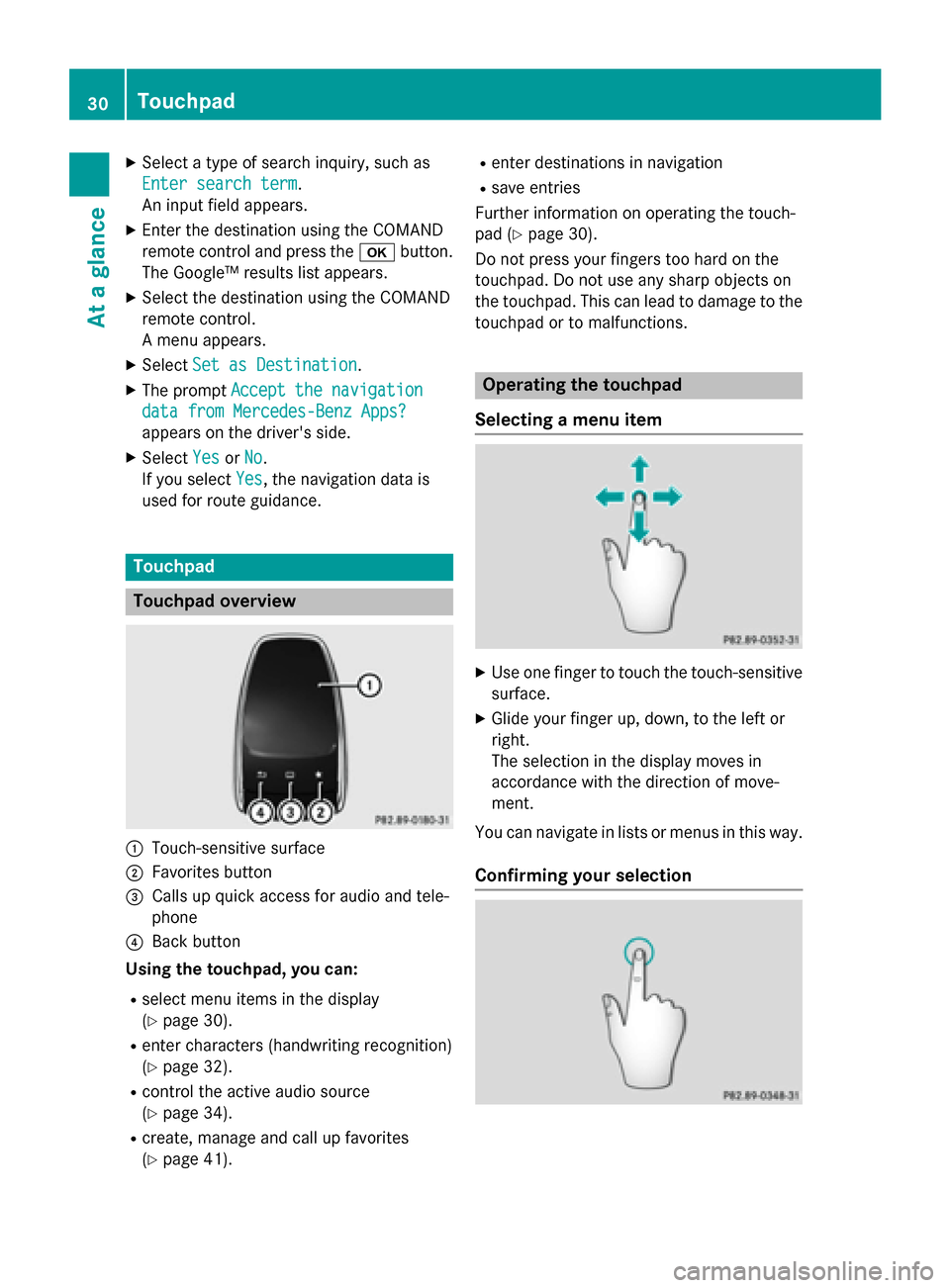
Touchpad overview
0043
Touch-sensitive surface
0044 Favorites button
0087 Calls up quick access for audio and tele-
phone
0085 Back button
Using the touchpad, you can:
R select menu items in the display
(Y page 30).
R enter characters (handwriting recognition)
(Y page 32).
R control the active audio source
(Y page 34).
R create, manage and call up favorites
(Y page 41). R
enter destinations in navigation
R save entries
Further information on operating the touch-
pad (Y page 30).
Do not press your fingers too hard on the
touchpad. Do not use any sharp objects on
the touchpad. This can lead to damage to the
touchpad or to malfunctions. Operating the touchpad
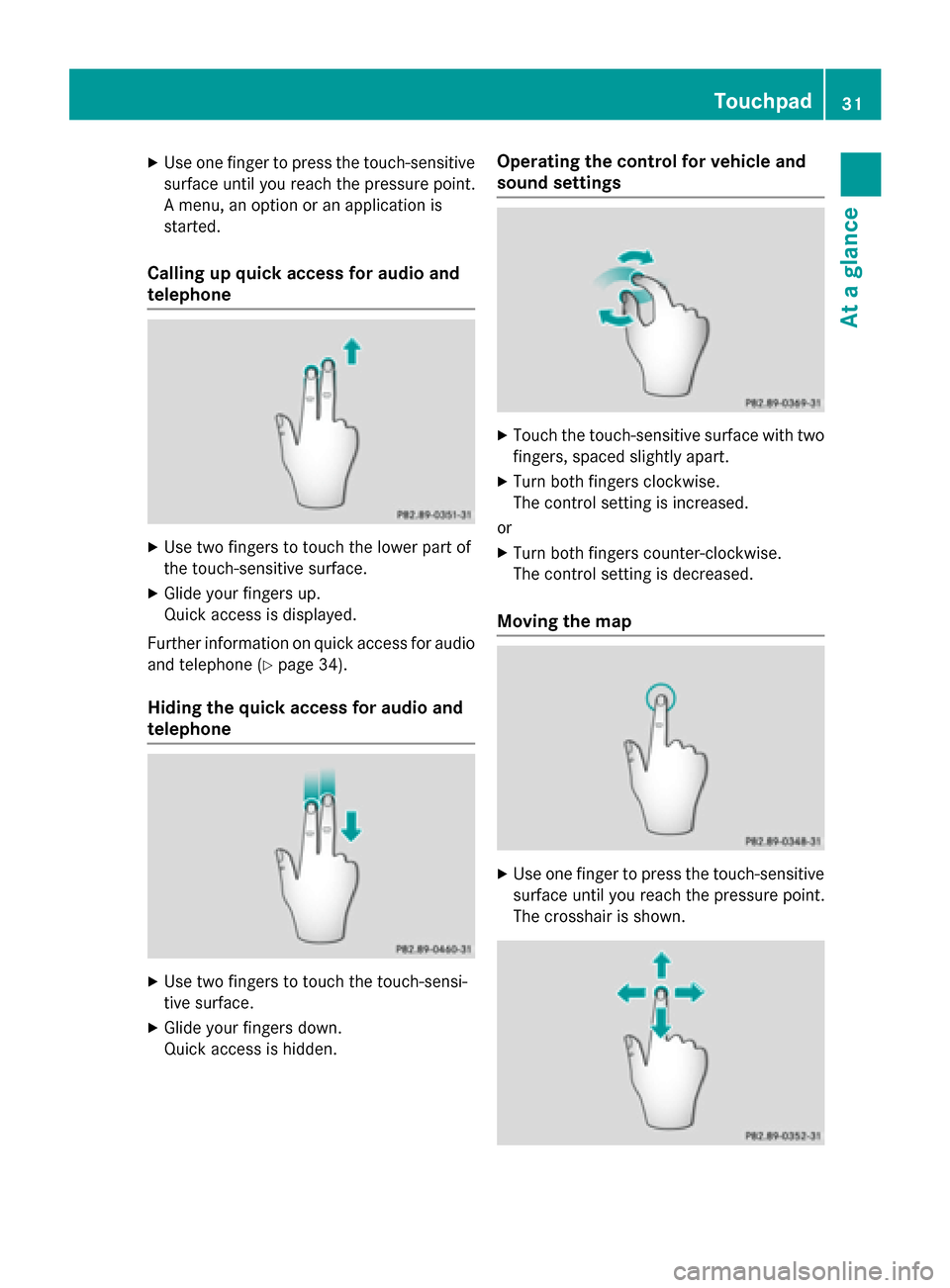
Selecting a menu item X
Use one finger to touch the touch-sensitive
surface.
X Glide your finger up, down, to the left or
right.
The selection in the display moves in
accordance with the direction of move-
ment.
You can navigate in lists or menus in this way.
Confirming your selection 30
TouchpadAt a glance
Page 33 of 298
X
Use one finger to press the touch-sensitive
surface until you reach the pressure point.
A menu, an option or an application is
started.
Calling up quick access for audio and
telephone X
Use two fingers to touch the lower part of
the touch-sensitive surface.
X Glide your fingers up.
Quick access is displayed.
Further information on quick access for audio
and telephone (Y page 34).
Hiding the quick access for audio and
telephone X
Use two fingers to touch the touch-sensi-
tive surface.
X Glide your fingers down.
Quick access is hidden. Operating the control for vehicle and
sound settings
X
Touch the touch-sensitive surface with two
fingers, spaced slightly apart.
X Turn both fingers clockwise.
The control setting is increased.
or X Turn both fingers counter-clockwise.
The control setting is decreased.
Moving the map X
Use one finger to press the touch-sensitive
surface until you reach the pressure point.
The crosshair is shown. Touchpad
31At a glance
Page 34 of 298
X
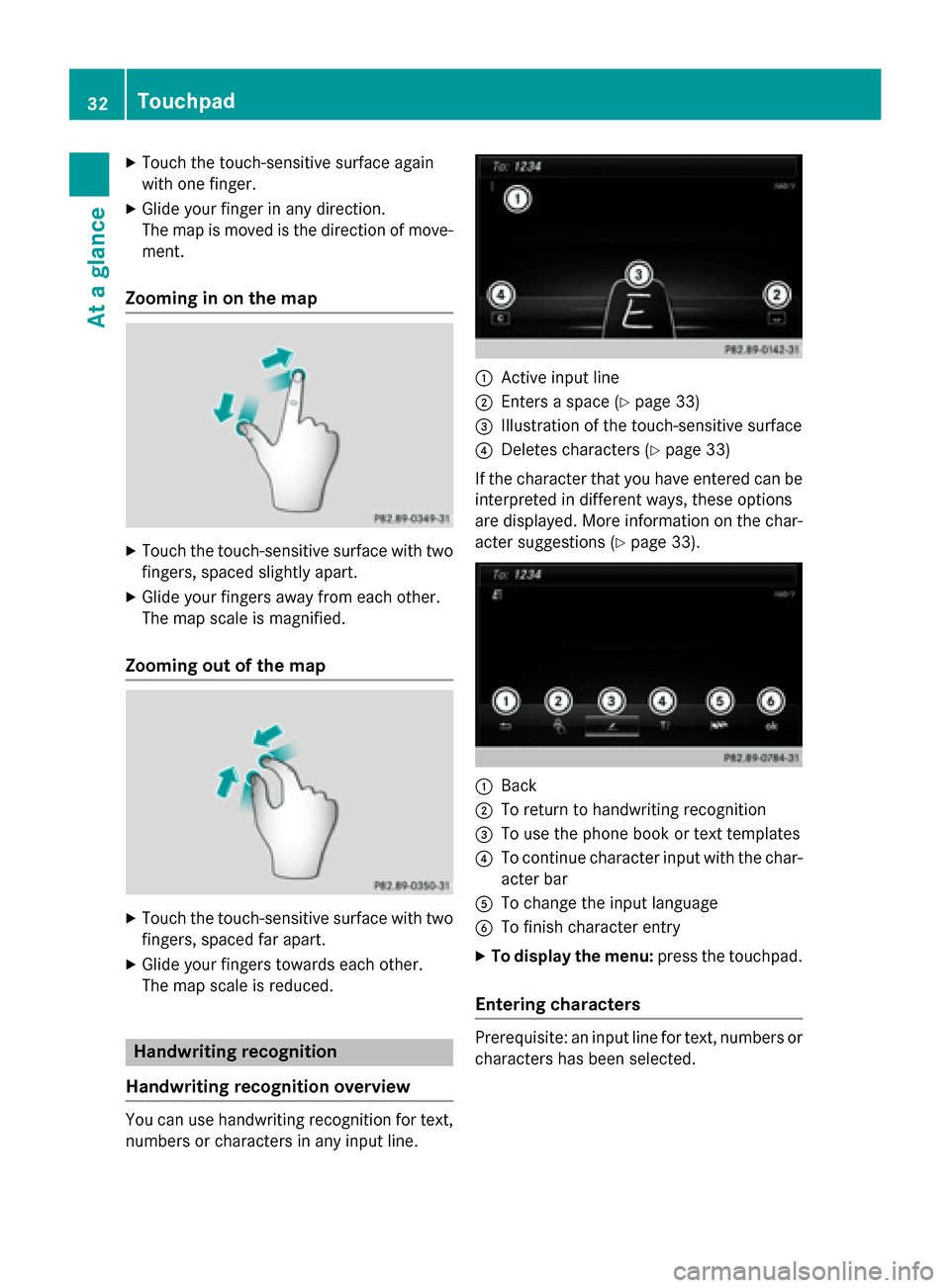
Touch the touch-sensitive surface again
with one finger.
X Glide your finger in any direction.
The map is moved is the direction of move-
ment.
Zooming in on the map X
Touch the touch-sensitive surface with two
fingers, spaced slightly apart.
X Glide your fingers away from each other.
The map scale is magnified.
Zooming out of the map X
Touch the touch-sensitive surface with two
fingers, spaced far apart.
X Glide your fingers towards each other.
The map scale is reduced. Handwriting recognition
Handwriting recognition overview You can use handwriting recognition for text,
numbers or characters in any input line. 0043
Active input line
0044 Enters a space (Y page 33)
0087 Illustration of the touch-sensitive surface
0085 Deletes characters (Y page 33)
If the character that you have entered can be interpreted in different ways, these options
are displayed. More information on the char-
acter suggestions (Y page 33). 0043
Back
0044 To return to handwriting recognition
0087 To use the phone book or text templates
0085 To continue character input with the char-
acter bar
0083 To change the input language
0084 To finish character entry
X To display the menu: press the touchpad.
Entering characters Prerequisite: an input line for text, numbers or
characters has been selected. 32
TouchpadAt a glance
Page 35 of 298
X
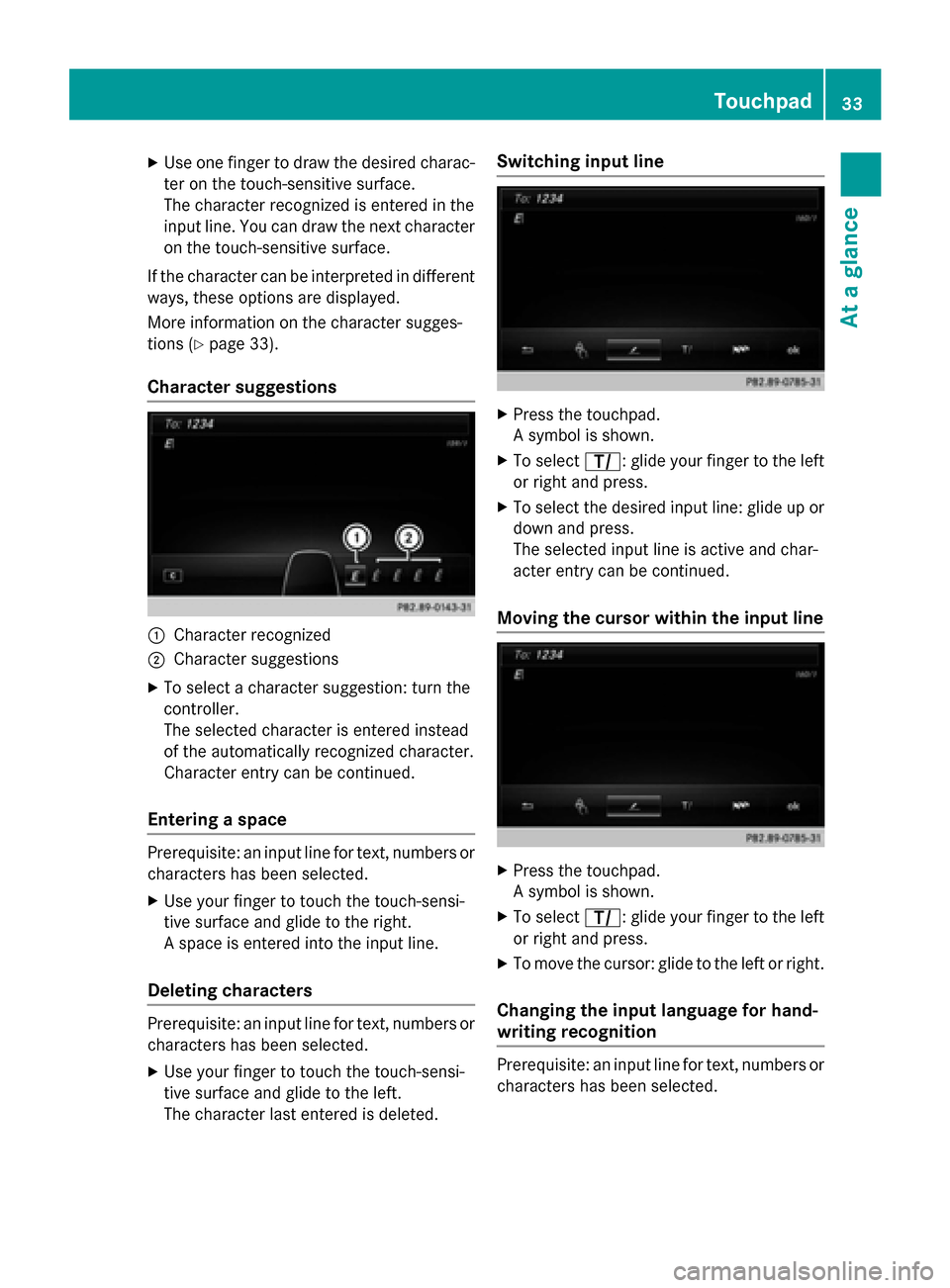
Use one finger to draw the desired charac-
ter on the touch-sensitive surface.
The character recognized is entered in the
input line. You can draw the next character on the touch-sensitive surface.
If the character can be interpreted in different
ways, these options are displayed.
More information on the character sugges-
tions (Y page 33).
Character suggestions 0043
Character recognized
0044 Character suggestions
X To select a character suggestion: turn the
controller.
The selected character is entered instead
of the automatically recognized character.
Character entry can be continued.
Entering a space Prerequisite: an input line for text, numbers or
characters has been selected.
X Use your finger to touch the touch-sensi-
tive surface and glide to the right.
A space is entered into the input line.
Deleting characters Prerequisite: an input line for text, numbers or
characters has been selected.
X Use your finger to touch the touch-sensi-
tive surface and glide to the left.
The character last entered is deleted. Switching input line
X
Press the touchpad.
A symbol is shown.
X To select p: glide your finger to the left
or right and press.
X To select the desired input line: glide up or
down and press.
The selected input line is active and char-
acter entry can be continued.
Moving the cursor within the input line X
Press the touchpad.
A symbol is shown.
X To select p: glide your finger to the left
or right and press.
X To move the cursor: glide to the left or right.
Changing the input language for hand-
writing recognition Prerequisite: an input line for text, numbers or
characters has been selected. Touchpad
33At a glance
Page 36 of 298
X
Press the touchpad.
A symbol is shown.
X To select 0054: glide your finger to the left
or right and press.
The list of available input languages
appears.
X To select a language: glide up or down and
press.
The input language for handwriting recog-
nition has been changed.
Searching in lists The phone book search is used as an exam-
ple.
You determine the first letter of the contact
you are looking for with the first character you enter.
X Draw the letter on the touchpad surface.
The first contact with the selected first
character is highlighted in the phone book.
Further information on handwriting recog-
nition on the touchpad (Y page 32).
X Draw additional letters on the touchpad
surface one after another.
X To complete the search and return to the
phone book: press the touchpad.
Switching between the controller and
the touchpad as input device Prerequisite: an input line for text, numbers or
characters has been selected.
X To switch from character entry using
the controller to handwriting recogni-
tion on the touchpad: use one finger to
press the touchpad.
Handwriting recognition on the touchpad is
active.
X To switch from handwriting recognition
on the touchpad to character entry
using the controller: press the controller.
Character entry using the controller is
active. Quick access for audio and telephone
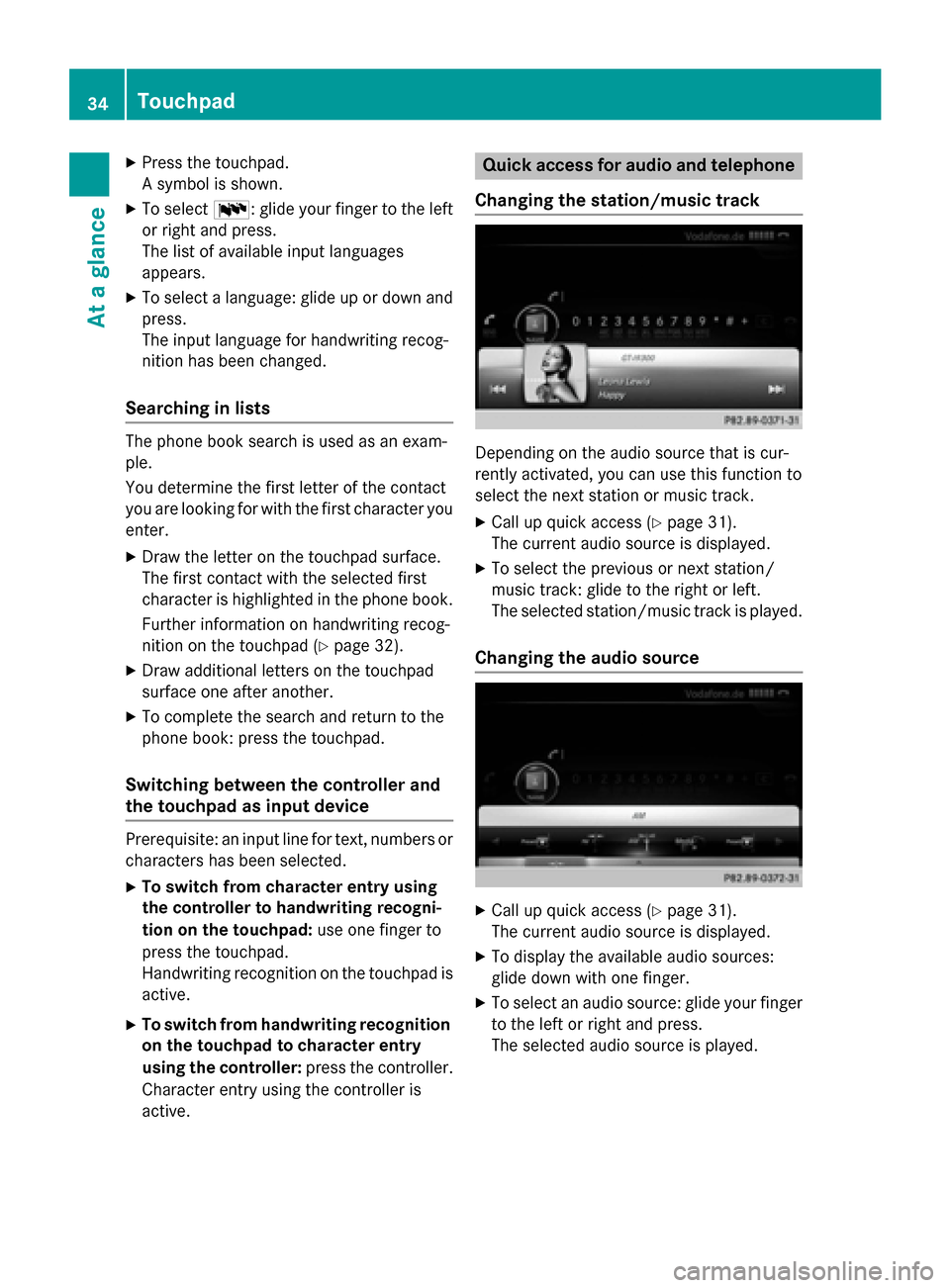
Changing the station/music track Depending on the audio source that is cur-
rently activated, you can use this function to
select the next station or music track.
X Call up quick access (Y page 31).
The current audio source is displayed.
X To select the previous or next station/
music track: glide to the right or left.
The selected station/music track is played.
Changing the audio source X
Call up quick access (Y page 31).
The current audio source is displayed.
X To display the available audio sources:
glide down with one finger.
X To select an audio source: glide your finger
to the left or right and press.
The selected audio source is played. 34
TouchpadAt a glance
Page 39 of 298
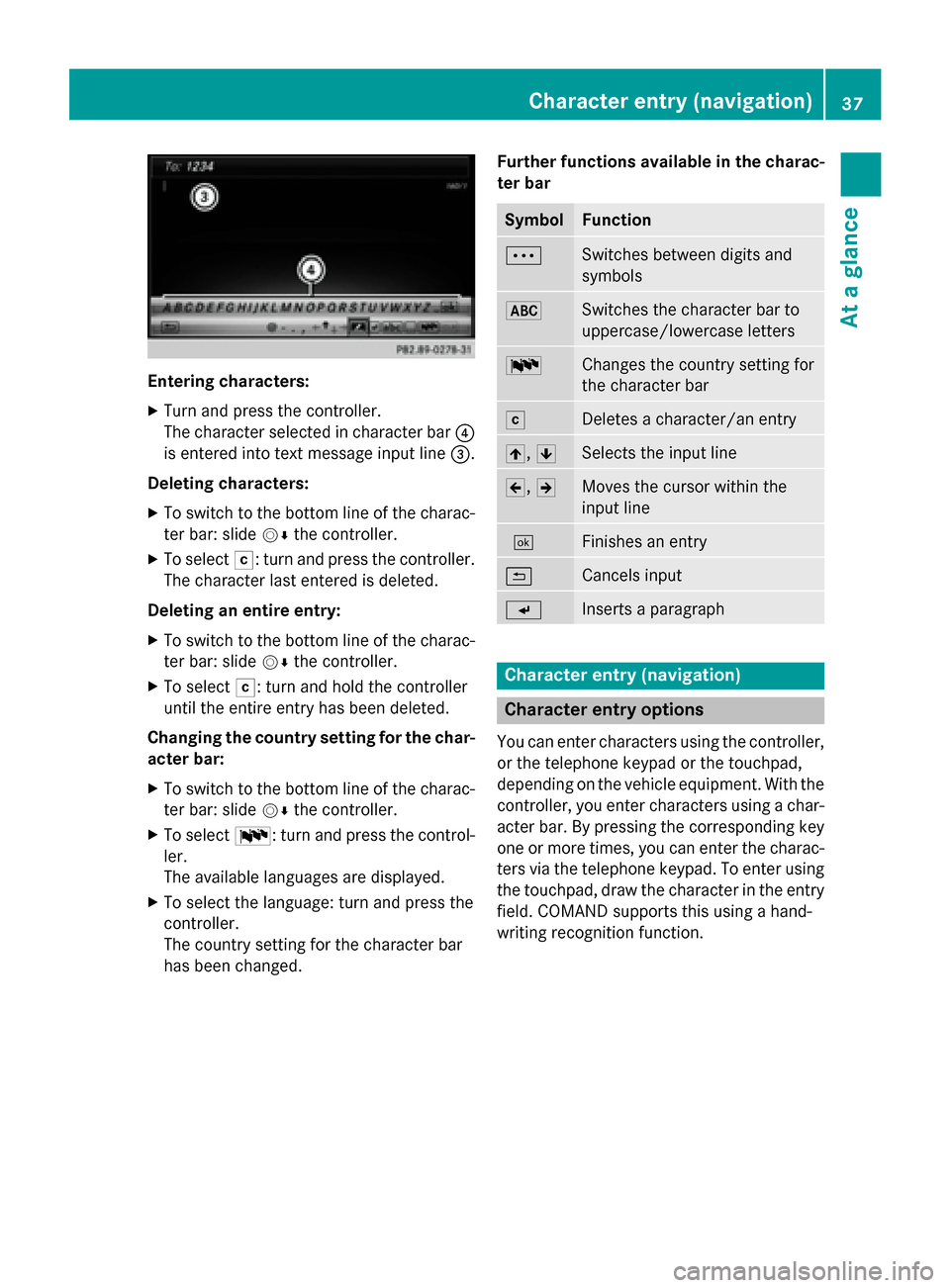
Entering characters:
X Turn and press the controller.
The character selected in character bar 0085
is entered into text message input line 0087.
Deleting characters:
X To switch to the bottom line of the charac-
ter bar: slide 00520064the controller.
X To select 0042: turn and press the controller.
The character last entered is deleted.
Deleting an entire entry:
X To switch to the bottom line of the charac-
ter bar: slide 00520064the controller.
X To select 0042: turn and hold the controller
until the entire entry has been deleted.
Changing the country setting for the char- acter bar:
X To switch to the bottom line of the charac-
ter bar: slide 00520064the controller.
X To select 0054: turn and press the control-
ler.
The available languages are displayed.
X To select the language: turn and press the
controller.
The country setting for the character bar
has been changed. Further functions available in the charac-
ter bar Symbol Function
0062
Switches between digits and
symbols
0069
Switches the character bar to
uppercase/lowercase letters
0054
Changes the country setting for
the character bar
0042
Deletes a character/an entry
005F,
0060 Selects the input line
005D,
005E Moves the cursor within the
input line
0054
Finishes an entry
0039
Cancels input
007D
Inserts a paragraph
Character entry (navigation)
Character entry options
You can enter characters using the controller, or the telephone keypad or the touchpad,
depending on the vehicle equipment. With thecontroller, you enter characters using a char-
acter bar. By pressing the corresponding key
one or more times, you can enter the charac- ters via the telephone keypad. To enter using the touchpad, draw the character in the entry
field. COMAND supports this using a hand-
writing recognition function. Character entry (navigation)
37At a glance
Page 42 of 298
Entering characters using the telephone keypad
If your vehicle is equipped with a telephone keypad, you can also use this to enter characters. X For example, to enter the letter I
I: press the 0084number key briefly three times in suc-
cession.
As soon as you touch the number key, the number is highlighted in the additional display
area.
The character appears at the bottom of the display the first time the key is pressed and
shows all the available characters. It switches to the next character each time the key is
pressed.
X Wait until the character display goes out.
The selected character is entered in the input line.
X To delete the character: press the0037button.
X To delete an entire entry: press and hold the0037button until the entire entry is deleted. Entering characters using the touch-
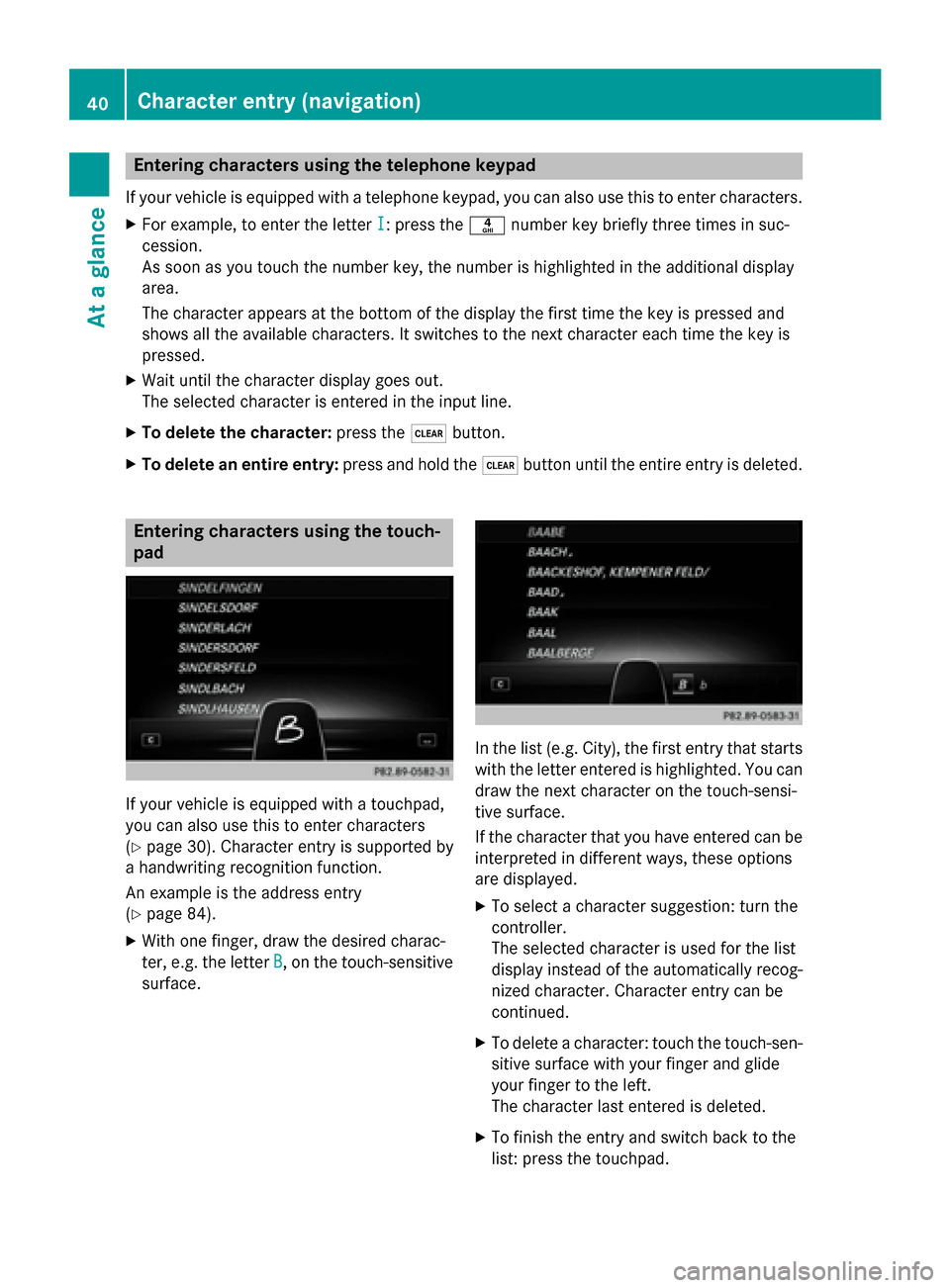
pad If your vehicle is equipped with a touchpad,
you can also use this to enter characters
(Y page 30). Character entry is supported by
a handwriting recognition function.
An example is the address entry
(Y page 84).
X With one finger, draw the desired charac-
ter, e.g. the letter B
B, on the touch-sensitive
surface. In the list (e.g. City), the first entry that starts
with the letter entered is highlighted. You can
draw the next character on the touch-sensi-
tive surface.
If the character that you have entered can be interpreted in different ways, these options
are displayed.
X To select a character suggestion: turn the
controller.
The selected character is used for the list
display instead of the automatically recog-
nized character. Character entry can be
continued.
X To delete a character: touch the touch-sen-
sitive surface with your finger and glide
your finger to the left.
The character last entered is deleted.
X To finish the entry and switch back to the
list: press the touchpad. 40
Character entry (navigation)At a glance
Page 43 of 298
Favorites
Overview of favorites
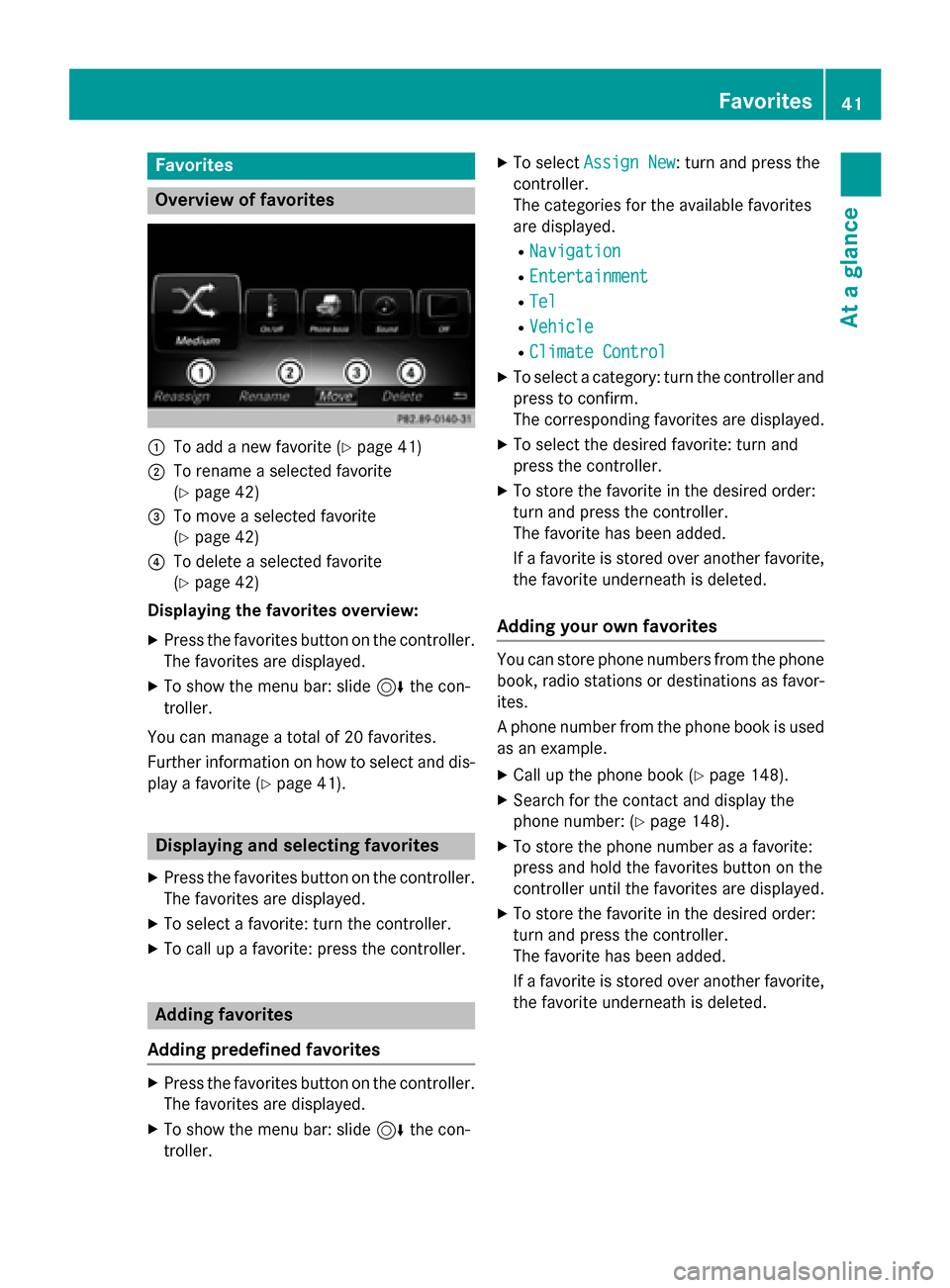
0043
To add a new favorite (Y page 41)
0044 To rename a selected favorite
(Ypage 42)
0087 To move a selected favorite
(Ypage 42)
0085 To delete a selected favorite
(Ypage 42)
Displaying the favorites overview:
X Press the favorites button on the controller.
The favorites are displayed.
X To show the menu bar: slide 6the con-
troller.
You can manage a total of 20 favorites.
Further information on how to select and dis-
play a favorite (Y page 41). Displaying and selecting favorites
X Press the favorites button on the controller.
The favorites are displayed.
X To select a favorite: turn the controller.
X To call up a favorite: press the controller. Adding favorites
Adding predefined favorites X
Press the favorites button on the controller.
The favorites are displayed.
X To show the menu bar: slide 6the con-
troller. X
To select Assign New
Assign New : turn and press the
controller.
The categories for the available favorites
are displayed.
R Navigation Navigation
R Entertainment
Entertainment
R Tel
Tel
R Vehicle
Vehicle
R Climate Control
Climate Control
X To select a category: turn the controller and
press to confirm.
The corresponding favorites are displayed.
X To select the desired favorite: turn and
press the controller.
X To store the favorite in the desired order:
turn and press the controller.
The favorite has been added.
If a favorite is stored over another favorite,
the favorite underneath is deleted.
Adding your own favorites You can store phone numbers from the phone
book, radio stations or destinations as favor- ites.
A phone number from the phone book is used as an example.
X Call up the phone book (Y page 148).
X Search for the contact and display the
phone number: (Y page 148).
X To store the phone number as a favorite:
press and hold the favorites button on the
controller until the favorites are displayed.
X To store the favorite in the desired order:
turn and press the controller.
The favorite has been added.
If a favorite is stored over another favorite,
the favorite underneath is deleted. Favorites
41At a glance
Page 44 of 298
Renaming favorites
X Press the favorites button on the controller.
The favorites are displayed.
X To select the favorite to be renamed: turn
the controller.
X To show the menu bar: slide 6the con-
troller.
X To select Rename Rename: turn and press the con-
troller.
X Enter characters using the controller
(Y page 36) or the touchpad (Y page 32).
X To finish the entry: select OK OK.
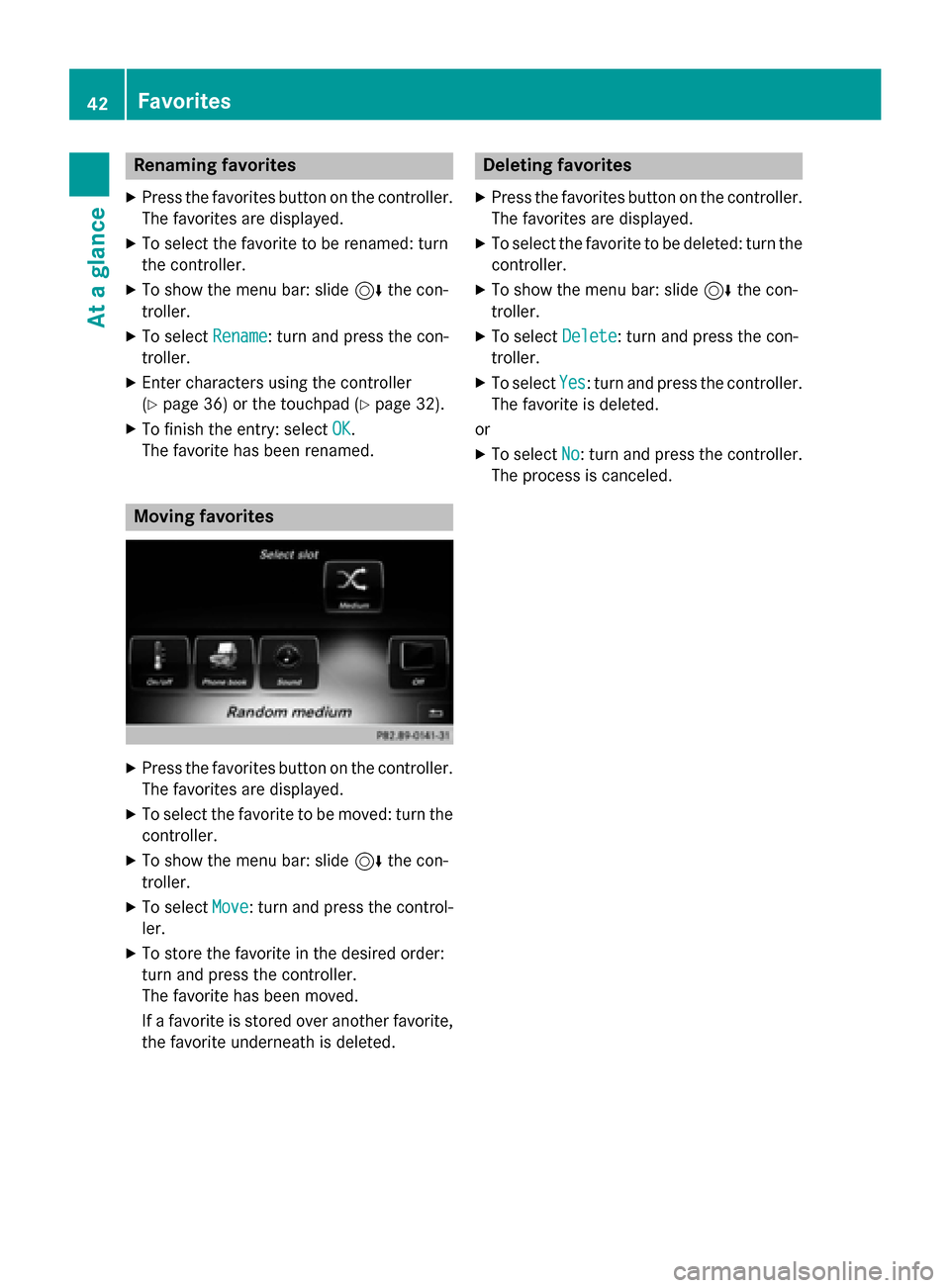
The favorite has been renamed. Moving favorites
X
Press the favorites button on the controller.
The favorites are displayed.
X To select the favorite to be moved: turn the
controller.
X To show the menu bar: slide 6the con-
troller.
X To select Move
Move: turn and press the control-
ler.
X To store the favorite in the desired order:
turn and press the controller.
The favorite has been moved.
If a favorite is stored over another favorite,
the favorite underneath is deleted. Deleting favorites
X Press the favorites button on the controller.
The favorites are displayed.
X To select the favorite to be deleted: turn the
controller.
X To show the menu bar: slide 6the con-
troller.
X To select Delete Delete: turn and press the con-
troller.
X To select Yes
Yes: turn and press the controller.
The favorite is deleted.
or
X To select No
No: turn and press the controller.
The process is canceled. 42
FavoritesAt a glance
Page 45 of 298
Your COMAND equipment
..................44
Display settings .................................. 44
Time settings ....................................... 46
Text reader settings ............................48
Voice Control System settings ..........48
WiFi ...................................................... 48
Bluetooth ®
settings ............................ 51
Automatic volume adjustment ..........51
Setting the system language .............52
Assigning a favorites button ..............52
Importing/exporting data ..................54
Reset function ..................................... 55 43Sys
tem settings