key MERCEDES-BENZ S-Class 2015 W222 Comand Manual
[x] Cancel search | Manufacturer: MERCEDES-BENZ, Model Year: 2015, Model line: S-Class, Model: MERCEDES-BENZ S-Class 2015 W222Pages: 298, PDF Size: 6.39 MB
Page 264 of 298
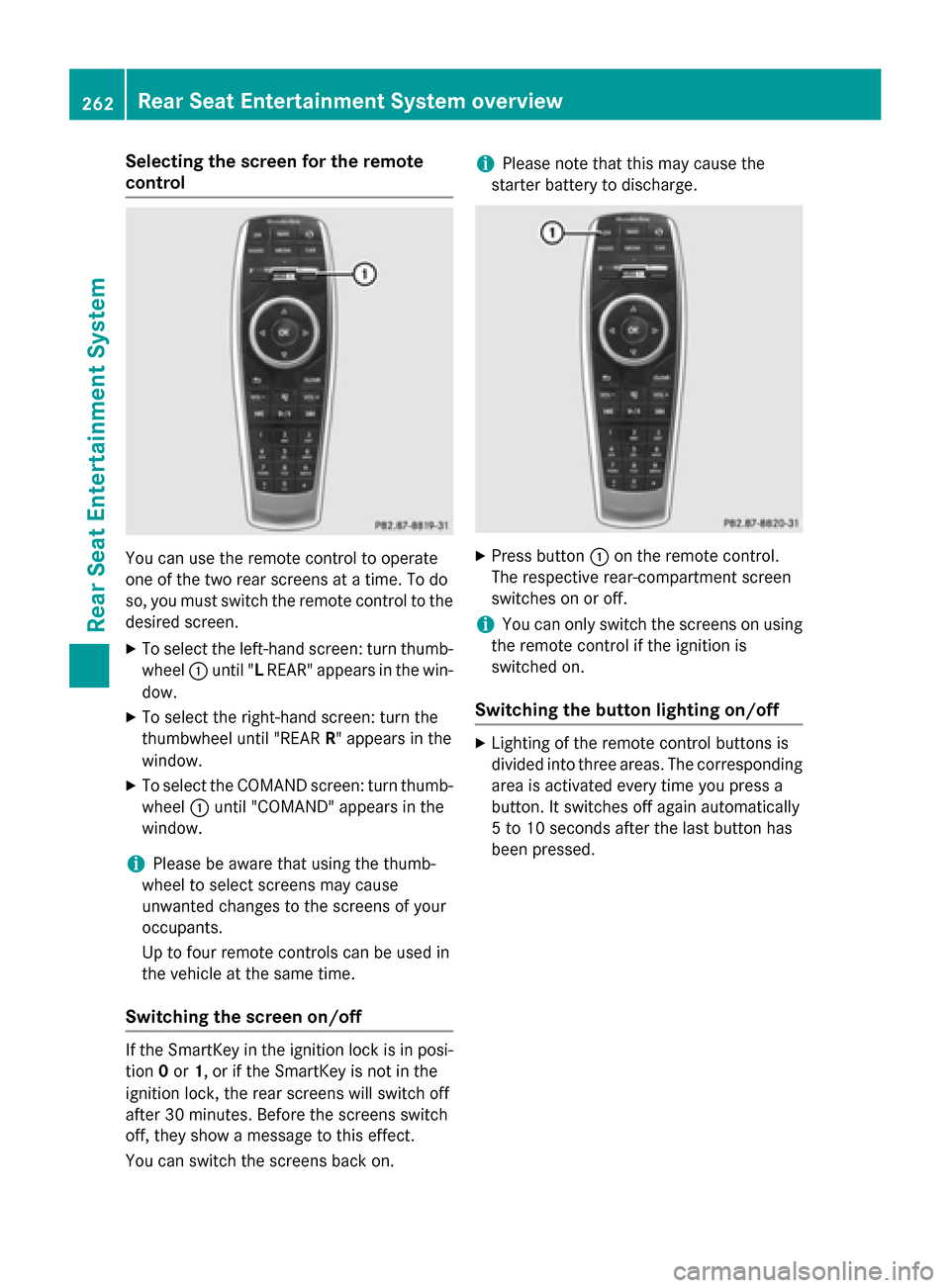
Selecting the screen for the remote
control
You can use the remote control to operate
one of the two rear screens at a time. To do
so, you must switch the remote control to the
desired screen.
X To select the left-hand screen: turn thumb-
wheel 0043until "L REAR" appears in the win-
dow.
X To select the right-hand screen: turn the
thumbwheel until "REAR R" appears in the
window.
X To select the COMAND screen: turn thumb-
wheel 0043until "COMAND" appears in the
window.
i Please be aware that using the thumb-
wheel to select screens may cause
unwanted changes to the screens of your
occupants.
Up to four remote controls can be used in
the vehicle at the same time.
Switching the screen on/off If the SmartKey in the ignition lock is in posi-
tion 0or 1, or if the SmartKey is not in the
ignition lock, the rear screens will switch off
after 30 minutes. Before the screens switch
off, they show a message to this effect.
You can switch the screens back on. i
Please note that this may cause the
starter battery to discharge. X
Press button 0043on the remote control.
The respective rear-compartment screen
switches on or off.
i You can only switch the screens on using
the remote control if the ignition is
switched on.
Switching the button lighting on/off X
Lighting of the remote control buttons is
divided into three areas. The corresponding
area is activated every time you press a
button. It switches off again automatically
5 to 10 seconds after the last button has
been pressed. 262
Rear Seat Entertainment System overviewRear Seat Entertainment System
Page 266 of 298
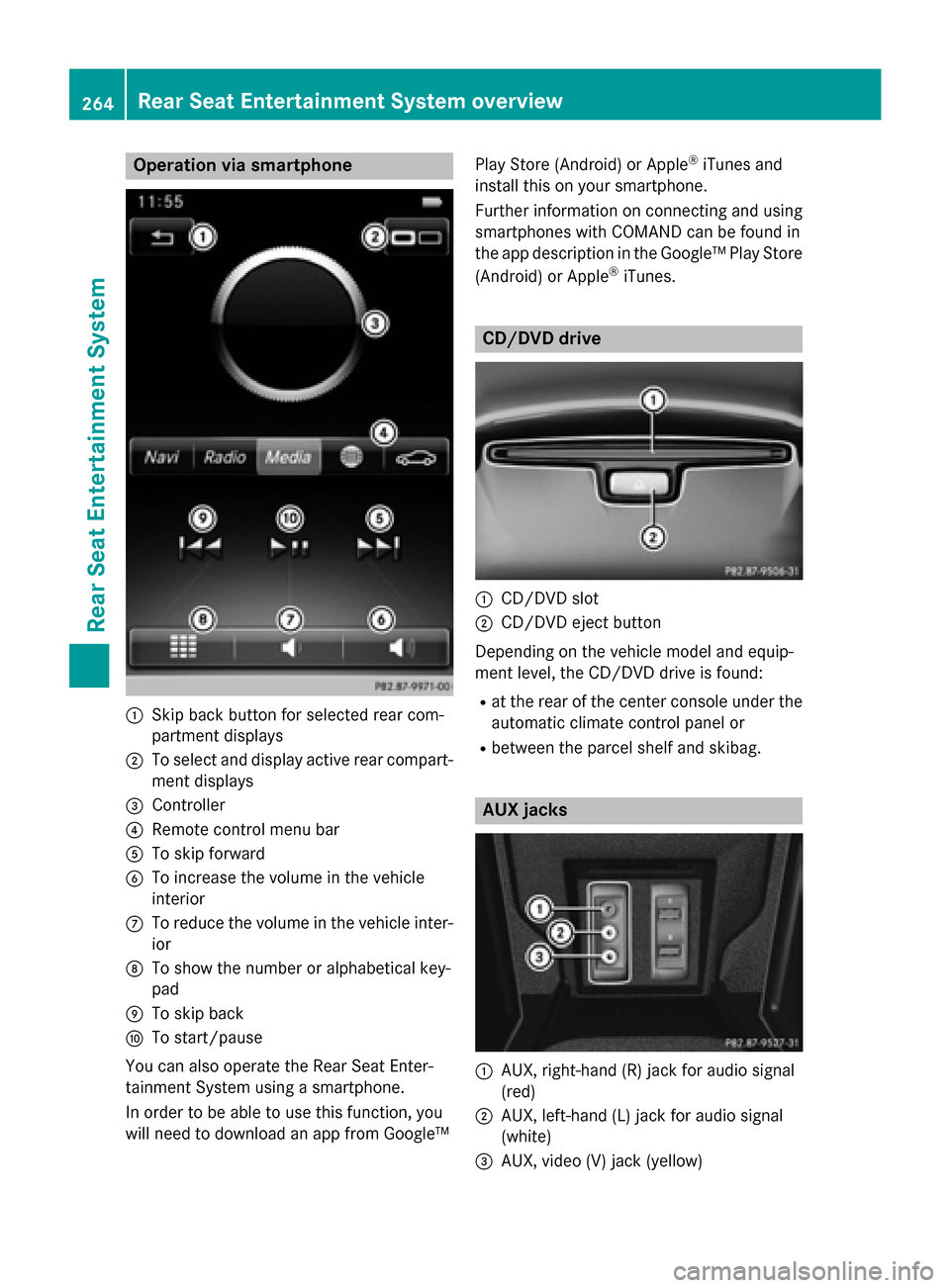
Operation via smartphone
0043
Skip back button for selected rear com-
partment displays
0044 To select and display active rear compart-
ment displays
0087 Controller
0085 Remote control menu bar
0083 To skip forward
0084 To increase the volume in the vehicle
interior
006B To reduce the volume in the vehicle inter-
ior
006C To show the number or alphabetical key-
pad
006D To skip back
006E To start/pause
You can also operate the Rear Seat Enter-
tainment System using a smartphone.
In order to be able to use this function, you
will need to download an app from Google™ Play Store (Android) or Apple
®
iTunes and
install this on your smartphone.
Further information on connecting and using
smartphones with COMAND can be found in
the app description in the Google™ Play Store
(Android) or Apple ®
iTunes. CD/DVD drive
0043
CD/DVD slot
0044 CD/DVD eject button
Depending on the vehicle model and equip-
ment level, the CD/DVD drive is found:
R at the rear of the center console under the
automatic climate control panel or
R between the parcel shelf and skibag. AUX jacks
0043
AUX, right-hand (R) jack for audio signal
(red)
0044 AUX, left-hand (L) jack for audio signal
(white)
0087 AUX, video (V) jack (yellow) 264
Rear Seat Entertainment System overviewRear Seat Entertainment System
Page 273 of 298
the remote control and press the
008Bbutton
to confirm.
You will see a menu with the available vehi-
cle functions.
X Select Vehicle Settings
Vehicle Settings orSeat Set‐ Seat Set‐
tings
tings using the 00590065 buttons.
X Press the 008Bbutton on the remote control.
Further information on seat settings
(Y page 63).
Further information on panel heating
(Y page 59).
i The panel heating in the rear compart-
ment is available if the key in the ignition
lock is in position 1or 2. Navigation mode
Navigation functions such as the compass
can be used in the rear compartment.
Calling up Drive Information
X Press the 00BEbutton on the remote
control.
You will see the current navigation infor-
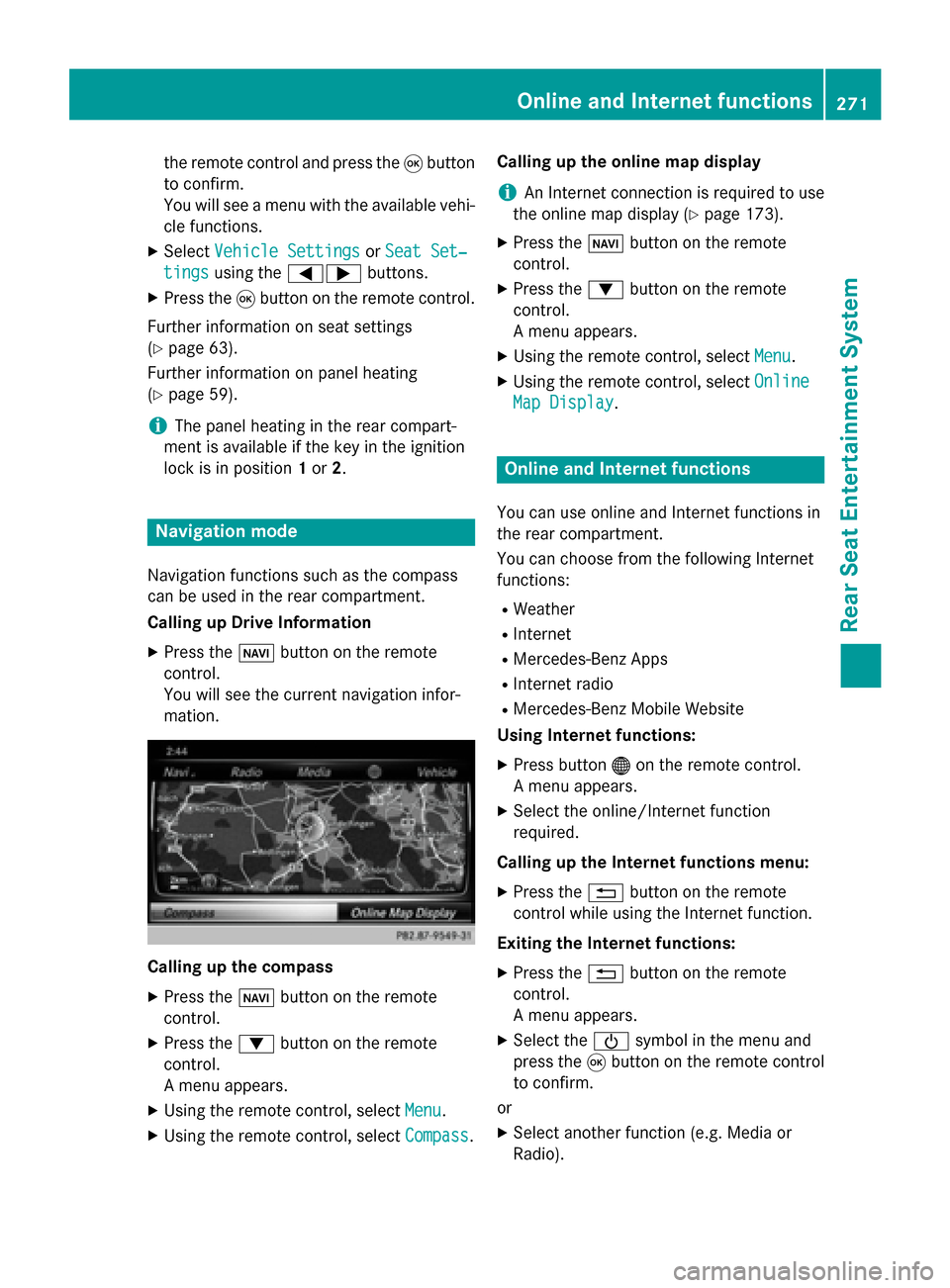
mation. Calling up the compass
X
Press the 00BEbutton on the remote
control.
X Press the 0064button on the remote
control.
A menu appears.
X Using the remote control, select Menu
Menu.
X Using the remote control, select Compass Compass.Calling up the online map display
i
An Internet connection is required to use
the online map display (Y page 173).
X Press the 00BEbutton on the remote
control.
X Press the 0064button on the remote
control.
A menu appears.
X Using the remote control, select Menu Menu.
X Using the remote control, select Online
Online
Map Display
Map Display. Online and Internet functions
You can use online and Internet functions in
the rear compartment.
You can choose from the following Internet
functions:
R Weather
R Internet
R Mercedes-Benz Apps
R Internet radio
R Mercedes-Benz Mobile Website
Using Internet functions:
X Press button 00A7on the remote control.
A menu appears.
X Select the online/Internet function
required.
Calling up the Internet functions menu:
X Press the 0038button on the remote
control while using the Internet function.
Exiting the Internet functions: X Press the 0038button on the remote
control.
A menu appears.
X Select the 00D0symbol in the menu and
press the 008Bbutton on the remote control
to confirm.
or
X Select another function (e.g. Media or
Radio). Online and Internet functions
271Rear Seat Entertainment System Z
Page 277 of 298
Example: track 2
X
Press number button 2.
Example: track 12 X Press the corresponding number keys in
rapid succession.
X Wait for approximately three seconds after
making the entry.
You will hear the track which has been
entered. The corresponding basic menu
then reappears.
i It is not possible to enter numbers that
exceed the number of tracks on the CD or in
the currently active folder. Fast forwarding/rewinding
X With the display/selection window active,
press the 0059or0065 button on the
remote control repeatedly until you reach
the desired position.
or
X Press and hold the 0048or0049 button
until the desired position is reached. Selecting a folder
This function is only available in MP3 mode.
X Select Search
Search using the 006400590065
buttons on the remote control and press
the 008Bbutton to confirm.
X Select Folder
Folder using the 006400590065
buttons and press the 008Bbutton to confirm.
The folder content appears.
X To switch to the next folder up: press the
0059 button on the remote control.
The display shows the next folder up.
X Select the folder with the 00630064but-
tons and press the 008Bbutton to confirm.
You will see the tracks in the folder.
X Select the track using the 00630064but-
tons and press the 008Bbutton to confirm.
The track is played and the corresponding
folder is now the active folder. Pause/Playback
X To pause playback: press the0065/
00CF button on the remote control.
The 00CF display changes to 00D0.
X To continue playback: press the0065/
00CF button.
The 00D0 display changes to 00CF. Playback options
X Select Options Options using the 006400590065
buttons and press the 008Bbutton to confirm.
X The options list appears. The 0036dot indi-
cates the option currently selected.
X Select Normal Normal Track
TrackSequence
Sequence ,Random
Random
Tracks
Tracks orRandom Folder
Random Folder using the
00630064 buttons and press the 008Bbutton
to confirm.
The option is switched on. For all options
except Normal Track Sequence
Normal Track Sequence, you will
see a corresponding display in the display/
selection window.
i If you switch the data carrier which you
are currently listening to, the Normal
Normal
Track Sequence Track Sequence option is activated auto-
matically. If an option is selected, it
remains selected after the system is
switched on or off. Switching track information on/off
If the function is switched on, the information saved in the audio files, such as track, artist or
album, will be shown (if available).
If the function is switched off, the names of
the files and folders on the disc are shown.
X Select Options Options using the 006400590065
buttons and press the 008Bbutton to confirm.
X Select Show Track Information
Show Track Information using
the 00630064 buttons and press the 008B
button to confirm.
The function is switched on 0073or off 0053,
depending on the previous status. Audio/video mode
275Rear Seat Entertainment System Z
Page 280 of 298
X
Option 1: while the film is playing, press
the 007E button on the remote control.
X Press the corresponding number key, such
as 5.
X Option 2: while the film is playing, press
the 008Bbutton on the remote control and
show the menu.
X Select Menu
Menu and press the 008Bbutton to
confirm.
The DVD menu appears.
X Select Scene
Scene Selection Selection and press the 008B
button to confirm.
X Using button 0063or0064, select 5
5and
press the 008Bbutton to confirm.
In both cases, playback will begin from the 5th scene/chapter after a brief pause. Selecting a film/track
Option 1:
X Press the 008Bbutton on the remote control
and show the menu.
X Select Menu
Menuusing the 0063006400590065
buttons on the remote control and press
the 008Bbutton to confirm.
The DVD menu appears.
X Select Track Selection
Track Selection using the
0063006400590065 buttons on the
remote control and press the 008Bbutton to
confirm.
X To call up the selection list: press the008B
button.
X Select a film/track.
Option 2:
Example: selecting film 2
X Press button 2.
After a brief pause, the second film is
played. DVD menu
Calling up the DVD menu The DVD menu is the menu stored on the DVD
itself. It is structured in various ways accord-
ing to the individual DVD and permits certain
actions and settings.
In the case of multi-language DVDs, for exam- ple, you can change the DVD language in the
DVD menu.
X Press the 008Bbutton on the remote control
and show the menu.
X Select Menu Menuusing the 0063006400590065
buttons on the remote control and press
the 008Bbutton to confirm.
The DVD menu appears.
Selecting menu items in the DVD menu X
Select a menu item using the
0063006400590065 buttons on the
remote control and press the 008Bbutton to
confirm.
X Select Select Select using the
0063006400590065 buttons on the
remote control and press the 008Bbutton to
confirm.
The system executes the function or shows a submenu.
X If available, additional options can now be
selected.
The system then switches back to the DVD
menu.
i Menu items which cannot be selected are
shown in gray.
i Depending on the DVD, certain menu
items may not function. For example, the
menu items:
R Back (to film) Back (to film)
R Play
Play
R Stop
Stop
R 0048
R 0049
R Go Up
Go Up. 278
Video DVD modeRear Seat Entertainment System
Page 287 of 298
ter bar. You can limit the search using the
character bar.
X To select state/province or city: enter the
first few letters by turning and pressing the
controller.
X To switch to the list without the character
bar: slide 5or select ok
ok.
X To delete an entry: select 0084in the char-
acter bar and press the controller.
Pressing briefly deletes the last letter
entered.
Pressing and holding longer deletes the
entire entry.
X To select the state/province or city from
the list: turn and press the controller.
After selecting a state (or province) the list of locations appears.
After selecting a location, the information
chart displays the weather forecast for the
selected location. The data is supplied by
the nearest weather station.
Option 2: selecting the area in the
weather map X
Call up the weather map (Y page 286).
X Move the weather map so that the cross-
hair is over the desired area (Y page 286).
X Press the controller.
The information chart shows the weather
forecast for the selected area. The data is
supplied by the nearest weather station. Memory functions
Storing the area in the weather memory You can save locations that are called up fre-
quently in ten preset positions (0, 1-9) in the
weather memory. X
In the weather memory: select the area
for the weather forecast (Y page 283).
The selected location appears at the top in
the status bar.
X To select Position Position in the information
chart: turn and press the controller.
X Select Presets
Presets.
X Select a preset using the controller.
X Press and hold the controller until you hear
a tone.
The area is entered on the selected preset.
Equipment with telephone keypad
X To store rapidly: in the daily forecast
(Y page 282 )press and hold a number key,
e.g. 0082, until the preset position number
is shown in the status bar in front of the
area name.
i You can also use this function in the five-
day forecast (Y page 282), and in the
detailed information view (Y page 283).
Selecting an area from the weather
memory X
Directly from the weather memory:
select Position Position from the information
chart: turn and press the controller.
X Select Presets Presets.
X Select the memory position which contains
the location you require.
The weather data for the selected area is
displayed.
Equipment with telephone keypad X Quick select: if a location is stored in the
weather memory, for example when the
current forecast display is active, briefly
press a number key, e.g. 0082.
The weather data for the selected area is
displayed. SIRIUS Weather
285SIRIUS Weather