lock MERCEDES-BENZ S CLASS 2016 Owners Manual
[x] Cancel search | Manufacturer: MERCEDES-BENZ, Model Year: 2016, Model line: S CLASS, Model: MERCEDES-BENZ S CLASS 2016Pages: 438, PDF Size: 13.22 MB
Page 239 of 438
Either no braking application, or a course-cor-
recting brake application adapted to the driving
situation occurs if: R
there are vehicles or obstacles, e.g. crash
barriers, located on both sides of your vehicle. R
a vehicle approaches you too closely at the
side. R
you have adopted a sporty driving style with
high cornering speeds. R
you clearly brake or accelerate. R
a driving safety system intervenes, e.g. ESP ®
or PRE-SAFE ®
Brake.R
ESP ®
is switched off.R
a loss of tire pressure or a defective tire is
detected.
Switching on Active Blind Spot Assist X
Make sure that Active Blind Spot Assist is
activated in the on-board computer
( Y
page 271). X
Turn the SmartKey to position 2 in the ignition
lock.
Warning lamps C in the exterior mirrors light
up red for approximately 1.5 second s. Gray
radar waves propagating backwards appear
next to the vehicle in the assistance display in
the multifunction display.
Active Lane Keeping Assist
General notes
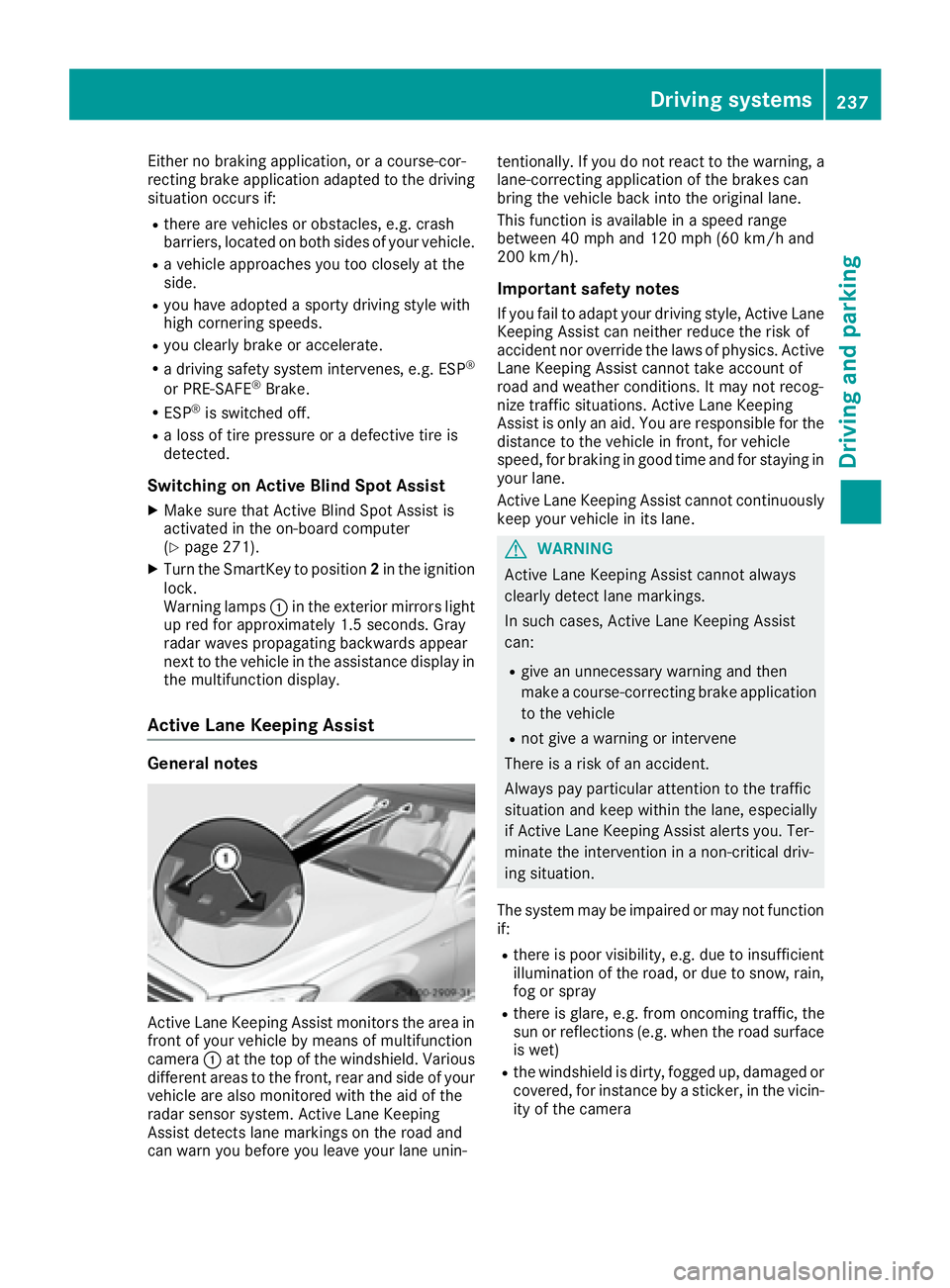
Active Lane Keeping Assist monitors the area in
front of your vehicle by means of multifunction
camera C at the top of the windshield. Various
different areas to the front, rear and side of your
vehicle are also monitored with the aid of the
radar sensor system. Active Lane Keeping
Assist detects lane markings on the road and
can warn you before you leave your lane unin- tentionally. If you do not react to the warning, a
lane-correcting application of the brakes can
bring the vehicle back into the original lane.
This function is available in a speed range
between 40 mph and 120 mph (60 km/h and
200 km/h).
Important safety notes If you fail to adapt your driving style, Active Lane
Keeping Assist can neither reduce the risk of
accident nor override the laws of physics. Active
Lane Keeping Assist cannot take account of
road and weather conditions. It may not recog-
nize traffic situations. Active Lane Keeping
Assist is only an aid. You are responsible for the
distance to the vehicle in front, for vehicle
speed, for braking in good time and for staying in
your lane.
Active Lane Keeping Assist cannot continuously
keep your vehicle in its lane.
G WARNING
Active Lane Keeping Assist cannot always
clearly detect lane markings.
In such cases, Active Lane Keeping Assist
can: R
give an unnecessary warning and then
make a course-correcting brake application
to the vehicle R
not give a warning or intervene
There is a risk of an accident.
Always pay particular attention to the traffic
situation and keep within the lane, especially
if Active Lane Keeping Assist alerts you. Ter-
minate the intervention in a non-critical driv-
ing situation.
The system may be impaired or may not function
if: R
there is poor visibility, e.g. due to insufficient
illumination of the road, or due to snow, rain,
fog or spray R
there is glare, e.g. from oncoming traffic, the
sun or reflections (e.g. when the road surface
is wet) R
the windshield is dirty, fogged up, damaged or
covered, for instance by a sticker, in the vicin-
ity of the cameraDriving systems 237
Driving and parking Z
Page 258 of 438
Useful information
i This Operator's Manual describes all models
and all standard and optional equipment of
your vehicle available at the time of publica-
tion of the Operator's Manual. Country-spe-
cific differences are possible. Please note
that your vehicle may not be equipped with all
features described. This also applies to
safety-related systems and functions.
i Read the information on qualified specialist
workshops ( Y
page 28).
Important safety notes
G WARNING
If you operate information systems and com-
munication equipment integrated in the vehi-
cle while driving, you will be distracted from
traffic conditions. You could also lose control
of the vehicle. There is a risk of an accident.
Only operate the equipment when the traffic
situation permits. If you are not sure that this
is possible, park the vehicle paying attention
to traffic conditions and operate the equip-
ment when the vehicle is stationary.
You must observe the legal requirements for the
country in which you are currently driving when
operating the on-board computer.
PLUG-IN HYBRID vehicles only:
G WARNING
If the instrument cluster has failed or mal-
functioned, you may not recognize function
restrictions in systems relevant to safety. The
operating safety of your vehicle may be
impaired. There is a risk of an accident.
Pull over as soon as it is safe to do so and
consult a qualified specialist workshop.
All vehicles, except PLUG-IN HYBRID vehi-
cles:
G WARNING
If the instrument cluster has failed or mal-
functioned, you may not recognize function
restrictions in systems relevant to safety. The operating safety of your vehicle may be
impaired. There is a risk of an accident.
Drive on carefully. Have the vehicle checked
at a qualified specialist workshop immedi-
ately.
If the operating safety of your vehicle is
impaired, pull over as soon as it is safe to do so.
Contact a qualified specialist workshop.
The on-board computer only shows messages or
warnings from certain systems in the multifunc-
tion display. You should therefore make sure
your vehicle is operating safely at all times.
For an overview, see the instrument panel illus-
tration ( Y
page 33).
Displays and operation
Instrument cluster lighting The light sensor in the instrument cluster auto-
matically controls the brightness of the multi-
function display. In daylight, the displays in the
instrument cluster are illuminated. A dimming
function is not possible in daylight.
The lighting in the instrument cluster, in the dis-
plays and the controls in the vehicle interior can
be adjusted using the brightness control knob.
The brightness control is located between the
instrument cluster and the multimedia system
display ( Y
page 35). X
Turn the brightness control knob clockwise or
counter-clockwise.
If you turn the light switch ( Y
page 130) to the
` , X or X position, the brightness
will depend upon the brightness of the ambi-
ent light.
Tachometer
! Do not drive in the overrevving range, as this
could damage the engine.
The red band in the tachometer indicates the
engine's overrevving range.
The fuel supply is interrupted to protect the
engine when the red band is reached.
PLUG-IN HYBRID vehicles: if you select the oper-
ating mode E-MODE , the display in the instru-
ment cluster changes from tachometer to power
meter ( Y
page 242).256
Displays and operation
On-board computer and displays
Page 261 of 438
Head-up display
General notes The head-up display projects information from
the navigation system and the driver assistance
system above the dashboard into the driver's
field of vision. The head-up display allows the
driver to see all of the information without hav-
ing to take their eyes off the road.
A requirement for the display of the contents is
that the following functions are available in the
vehicle and are switched on: R
Cruise control R
DISTRONIC PLUS R
Traffic Sign Assist R
Navigation
Important safety notes The head-up display is only an aid and is not a
substitute for attentive driving.
Speed limits and overtaking restrictions are not
always correctly displayed. Traffic signs always
have priority over the Traffic Sign Assist display.
The visibility of the head-up display is influenced
by the following conditions: R
the driver's seat position R
the positioning of the display image R
the general ambient light R
sunglasses with polarization filters R
wet roads R
blocking of sunlight by objects on the display
cover
In the event of extreme sunlight, sections of the
display may fade. This can be reversed by
switching the head-up display off and on again.
i Vehicles with the head-up display are equip-
ped with a special windshield. Should repairs
be necessary, have the windshield replaced at
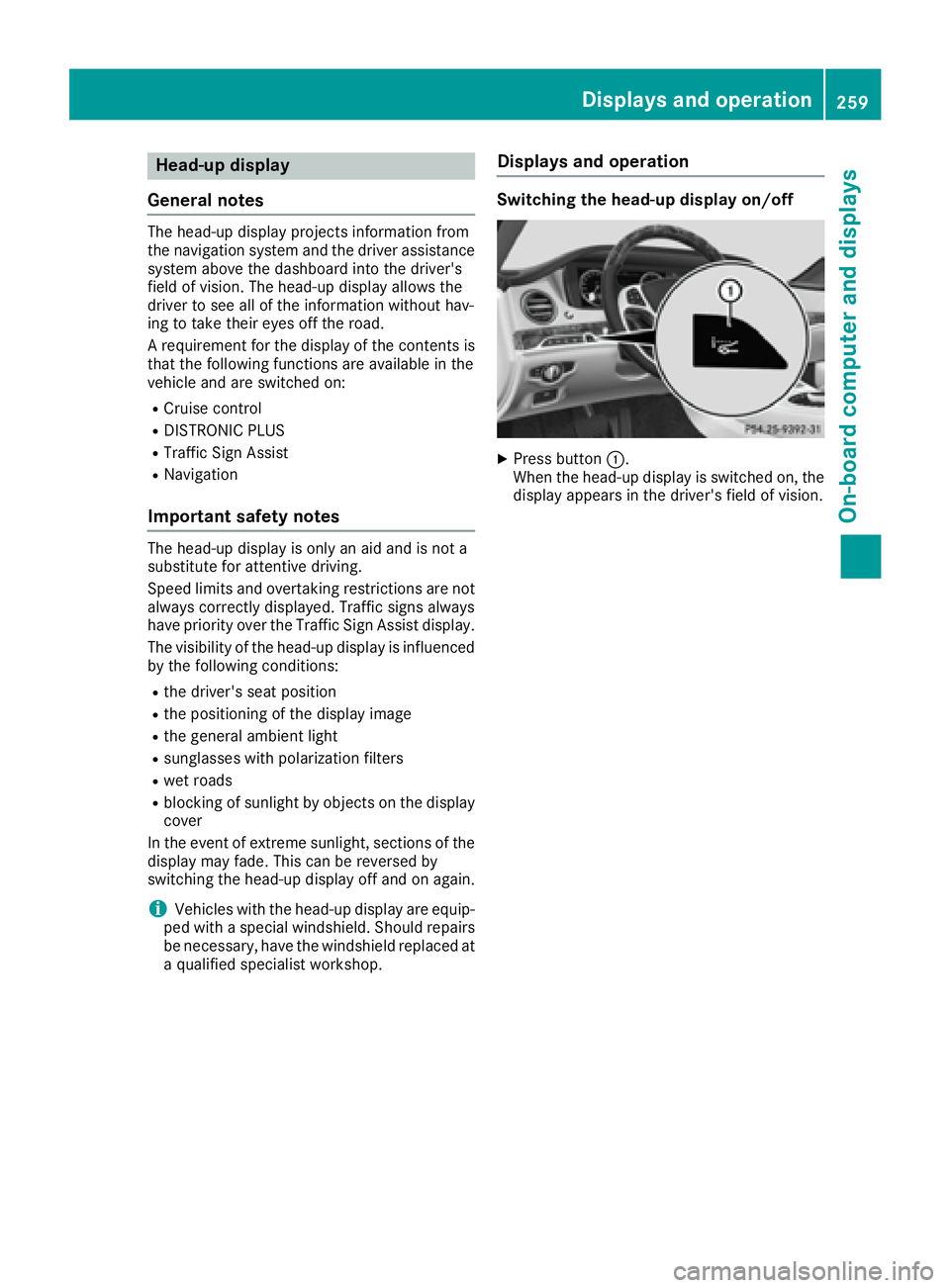
a qualified specialist workshop. Displays and operation Switching the head-up display on/off X
Press button C .
When the head-up display is switched on, the
display appears in the driver's field of vision.Displays and operation 259
On-board computer and displays Z
Page 288 of 438
Display messages
Possible causes/consequences and P Solutions
The seat belt buckl e extender on th e right or lef t of th e rear compart-
men t is no t in th e predefine d position . The seat belt buckl e extender
may be jammed .
G WARNIN G
If th e seat belt buckl e extender is no t in th e predefine d position , th e
seat belt canno t provid e th e intended level of protection .
There is an increased ris k of injury.X
Mov e th e seat cushion forward s ( Y
page 107) and remove th e caus e
of th e jam . X
Repeat th e seat belt fastenin g procedure .
The seat belt buckl e extender on th e right or lef t of th e rear compart-
men t is no t in th e predefine d position . The seat belt may be locked.
G WARNIN G
If th e seat belt buckl e extender is no t in th e predefine d position , th e
seat belt canno t provid e th e intended level of protection .
There is an increased ris k of injury.X
Completely tak e off your seat belt .X
Repeat th e seat belt fastenin g procedure .
The seat belt buckl e extender on th e right or lef t of th e rear compart-
men t is no t in th e predefine d position . There is no t enough belt slac k
in th e system.
G WARNIN G
If th e seat belt buckl e extender is no t in th e predefine d position , th e
seat belt canno t provid e th e intended level of protection .
There is an increased ris k of injury.X
Loosen th e seat belt .X
Repeat th e seat belt fastenin g procedure .
The seat belt buckl e extender on th e right or lef t of th e rear compart-
men t is no t in th e predefine d position . The assistanc e measures
specified hav e been carrie d out . There is still a malfunction .
G WARNIN G
If th e seat belt buckl e extender is no t in th e predefine d position , th e
seat belt canno t provid e th e intended level of protection .
There is an increased ris k of injury.X
Visit a qualified specialist workshop immediately.286
Display messages
On-board computer and displays
Page 318 of 438
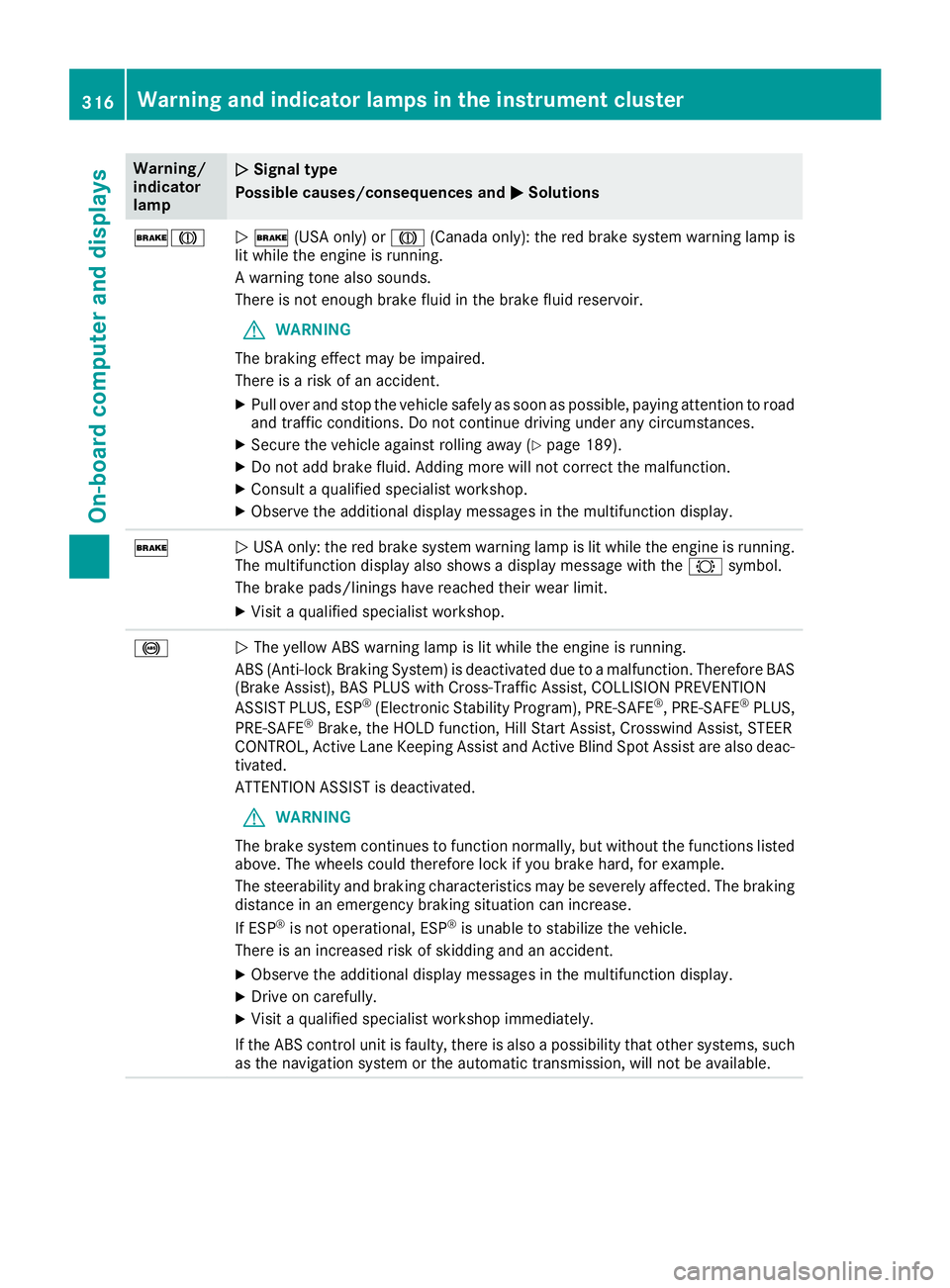
Warning/
indicator
lamp Q Signal type
Possible causes/consequences and P Solutions
'M
Q ' (USA only) or M (Canada only): the red brake system warning lamp is
lit while the engine is running.
A warning tone also sounds.
There is not enough brake fluid in the brake fluid reservoir.
G WARNING
The braking effect may be impaired.
There is a risk of an accident. X
Pull over and stop the vehicle safely as soon as possible, paying attention to road
and traffic conditions. Do not continue driving under any circumstances. X
Secure the vehicle against rolling away ( Y
page 189).X
Do not add brake fluid. Adding more will not correct the malfunction. X
Consult a qualified specialist workshop. X
Observe the additional display messages in the multifunction display.
'
Q USA only: the red brake system warning lamp is lit while the engine is running.
The multifunction display also shows a display message with the & symbol.
The brake pads/linings have reached their wear limit. X
Visit a qualified specialist workshop.
%
Q The yellow ABS warning lamp is lit while the engine is running.
ABS (Anti-lock Braking System) is deactivated due to a malfunction. Therefore BAS
(Brake Assist), BAS PLUS with Cross-Traffic Assist, COLLISION PREVENTION
ASSIST PLUS, ESP ®
(Electronic Stability Program), PRE ‑ SAFE ®
, PRE ‑ SAFE ®
PLUS,
PRE ‑ SAFE ®
Brake, the HOLD function, Hill Start Assist, Crosswind Assist, STEER
CONTROL, Active Lane Keeping Assist and Active Blind Spot Assist are also deac-
tivated.
ATTENTION ASSIST is deactivated.
G WARNING
The brake system continues to function normally, but without the functions listed
above. The wheels could therefore lock if you brake hard, for example.
The steerability and braking characteristics may be severely affected. The braking
distance in an emergency braking situation can increase.
If ESP ®
is not operational, ESP ®
is unable to stabilize the vehicle.
There is an increased risk of skidding and an accident. X
Observe the additional display messages in the multifunction display. X
Drive on carefully. X
Visit a qualified specialist workshop immediately.
If the ABS control unit is faulty, there is also a possibility that other systems, such
as the navigation system or the automatic transmission, will not be available.316
Warning and indicator lamps in the instrument cluster
On-board computer and displays
Page 319 of 438
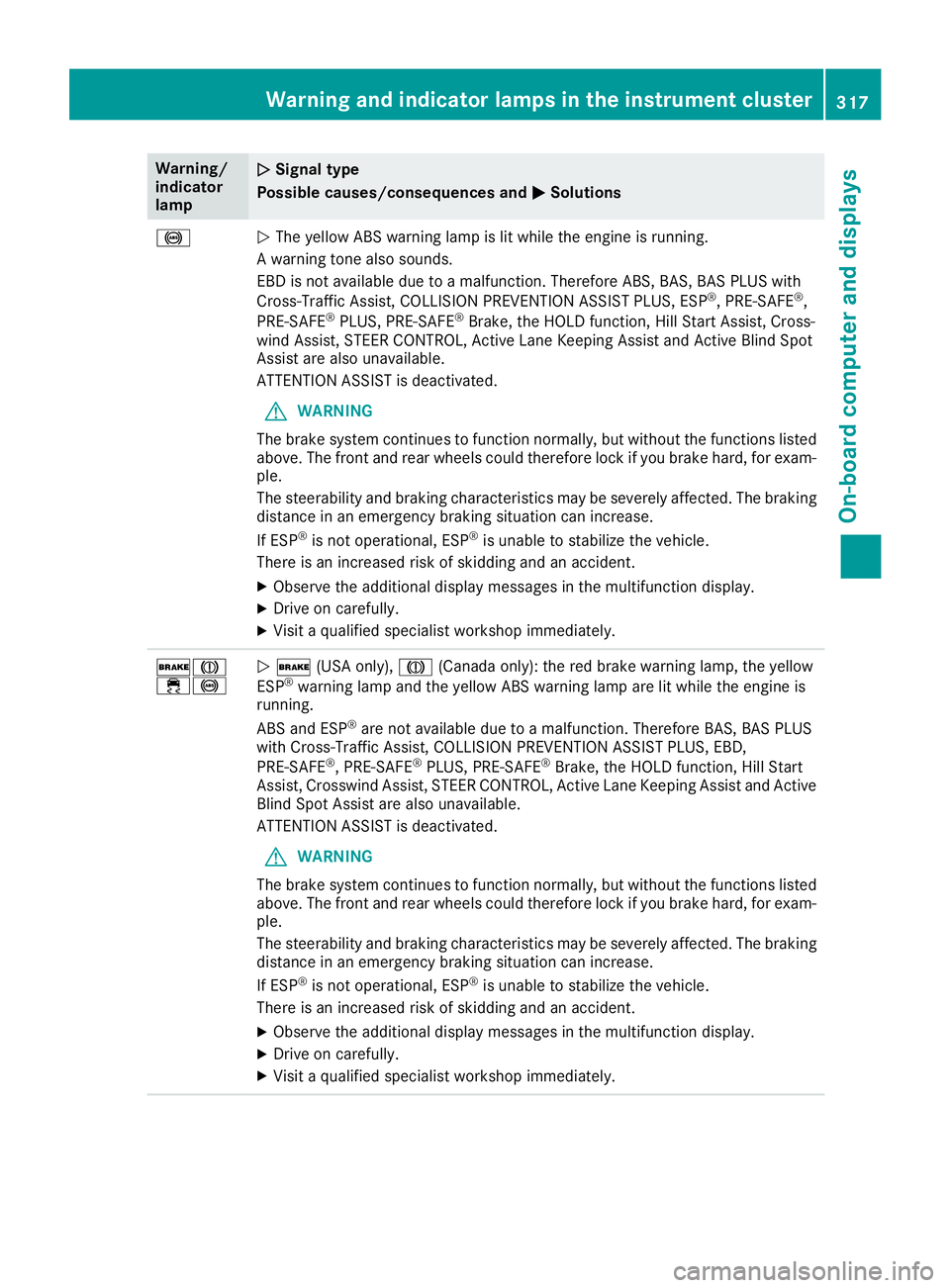
Warning/
indicator
lamp Q Signal type
Possible causes/consequences and P Solutions
%
Q The yellow ABS warning lamp is lit while the engine is running.
A warning tone also sounds.
EBD is not available due to a malfunction. Therefore ABS, BAS, BAS PLUS with
Cross-Traffic Assist, COLLISION PREVENTION ASSIST PLUS, ESP ®
, PRE ‑ SAFE ®
,
PRE ‑ SAFE ®
PLUS, PRE ‑ SAFE ®
Brake, the HOLD function, Hill Start Assist, Cross-
wind Assist, STEER CONTROL, Active Lane Keeping Assist and Active Blind Spot
Assist are also unavailable.
ATTENTION ASSIST is deactivated.
G WARNING
The brake system continues to function normally, but without the functions listed
above. The front and rear wheels could therefore lock if you brake hard, for exam-
ple.
The steerability and braking characteristics may be severely affected. The braking
distance in an emergency braking situation can increase.
If ESP ®
is not operational, ESP ®
is unable to stabilize the vehicle.
There is an increased risk of skidding and an accident. X
Observe the additional display messages in the multifunction display. X
Drive on carefully. X
Visit a qualified specialist workshop immediately.
'M
Page 328 of 438
R
Close the lockab le stowage spaces before
starting a jo urney.R
Alwa ys stow and secure heavy, hard, poin -
te d, sharp-edged, fragile or bulk y objects in
the trunk.
Observe the loadin g guidelines ( Y
page 325).
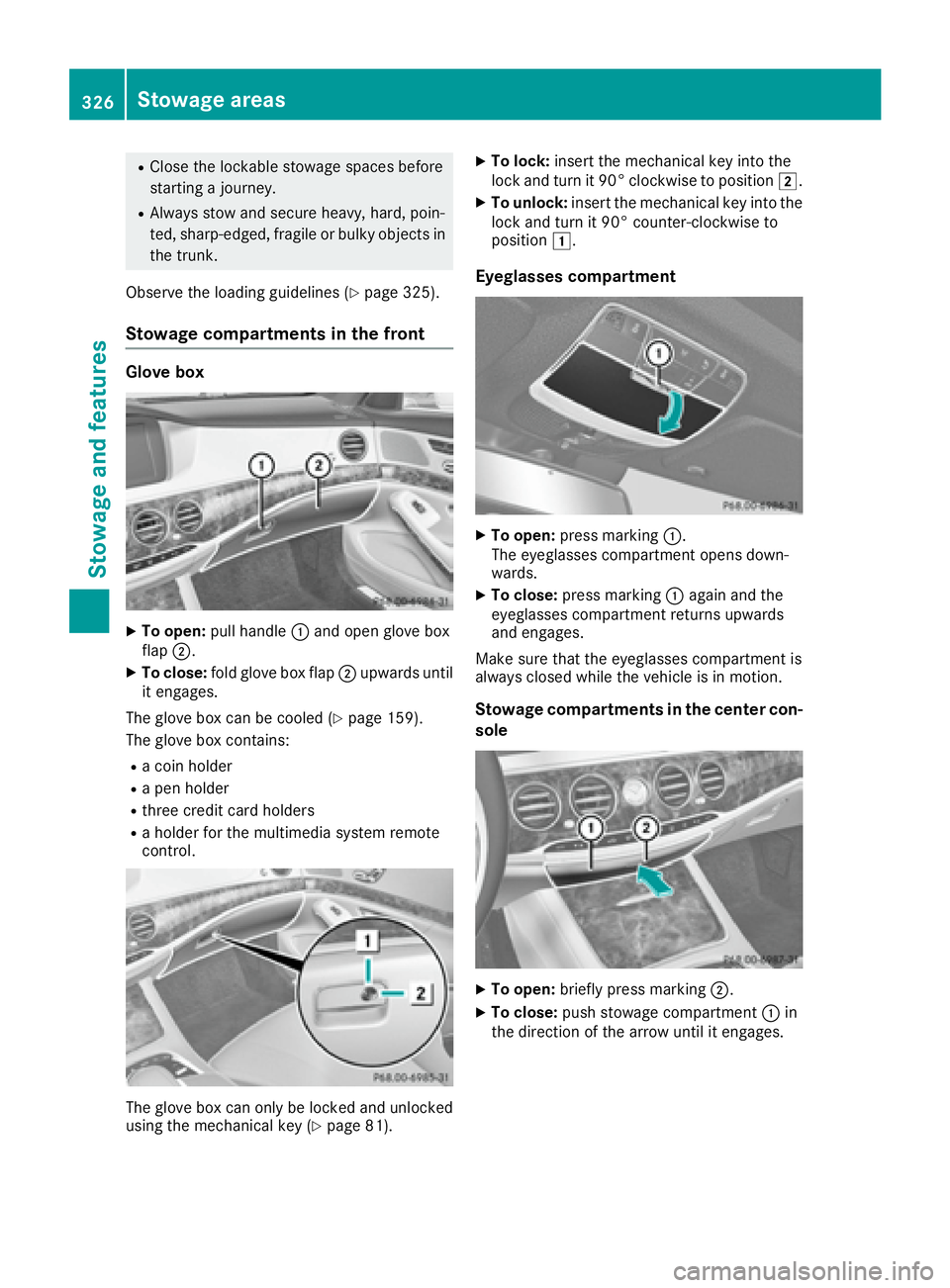
Stowage compartments in the front Glove box
X
To open: pull han dle C and open glove box
flap D .X
To close: fold glove box flap D upwards unt il
it engages.
The glove box can be cooled ( Y
page 159).
The glove box contains: R
a co in holderR
a pen holder R
three cr edit card holdersR
a holder for the multimed ia system remote
control.
The glove box can on ly be locked and unlocked
using the mechanical key ( Y
page 81). X
To lock: insert the mechanical key into the
lock and turn it 90° clockwise to position H .X
To unlock: insert the mechanical key into the
lock and turn it 90° counter-clockwise to
position G .
Eyeglasses compartment X
To open: press marking C .
The eyeglasses compartment opens down-
wards. X
To close: press marking C again and the
eyeglasses compartment returns upwards
and engages.
Make sure that the eyeglasses compartment is
always closed while the vehicle is in motion.
Stowage compartments in the center con-
sole
X
To open: briefly press marking D .X
To close: push stowage compartment C in
the direction of the arrow until it engages.326
Stowage areas
Stowage and features
Page 333 of 438
retain all objects they contain. There is a risk
of injury, particularly in the event of sudden
braking or a sudden change in direction. R
Always stow objects so that they cannot be
thrown around in such situations. R
Always make sure that objects do not pro-
trude from stowage spaces, parcel nets or
stowage nets. R
Close the lockable stowage spaces before
starting a journey. R
Always stow and secure heavy, hard, poin-
ted, sharp-edged, fragile or bulky objects in
the trunk.
Observe the loading guidelines ( Y
page 325).
Mercedes-Maybach vehicles equipped with
champagne glasses: for your own safety, when
using champagne glasses, please observe the
following: R
do not use the champagne glasses while the
vehicle is in motion R
do not use champagne glasses made of
breakable glass, and store them in the trunk if
possible
! Only use the cup holders for containers of
the right size and which have lids. The drinks
could otherwise spill.
! Do not expose drinks bottles in the cup
holder in the center console to continuous,
strong and direct sunlight. The passenger
compartment in the area of the center con-
sole can otherwise be damaged by the con-
centrated and reflected sunlight.
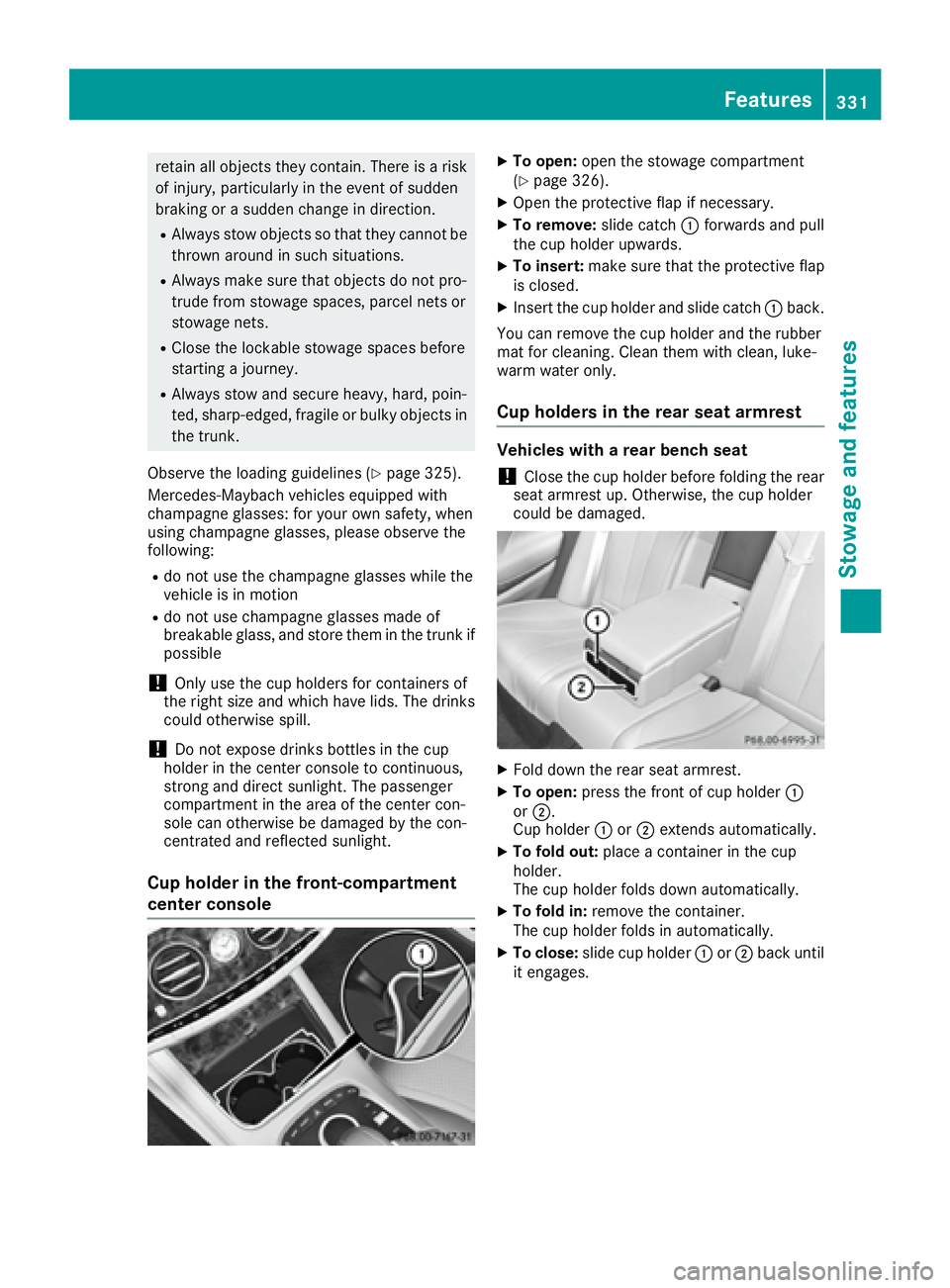
Cup holder in the front-compartment
center console X
To open: open the stowage compartment
( Y
page 326). X
Open the protective flap if necessary. X
To remove: slide catch C forwards and pull
the cup holder upwards. X
To insert: make sure that the protective flap
is closed. X
Insert the cup holder and slide catch C back.
You can remove the cup holder and the rubber
mat for cleaning. Clean them with clean, luke-
warm water only.
Cup holders in the rear seat armrest Vehicles with a rear bench seat
! Close the cup holder before folding the rear
seat armrest up. Otherwise, the cup holder
could be damaged.
X
Fold down the rear seat armrest. X
To open: press the front of cup holder C
or D .
Cup holder C or D extends automatically.X
To fold out: place a container in the cup
holder.
The cup holder folds down automatically. X
To fold in: remove the container.
The cup holder folds in automatically. X
To close: slide cup holder C or D back until
it engages. Features 331
Stowage and features Z
Page 338 of 438
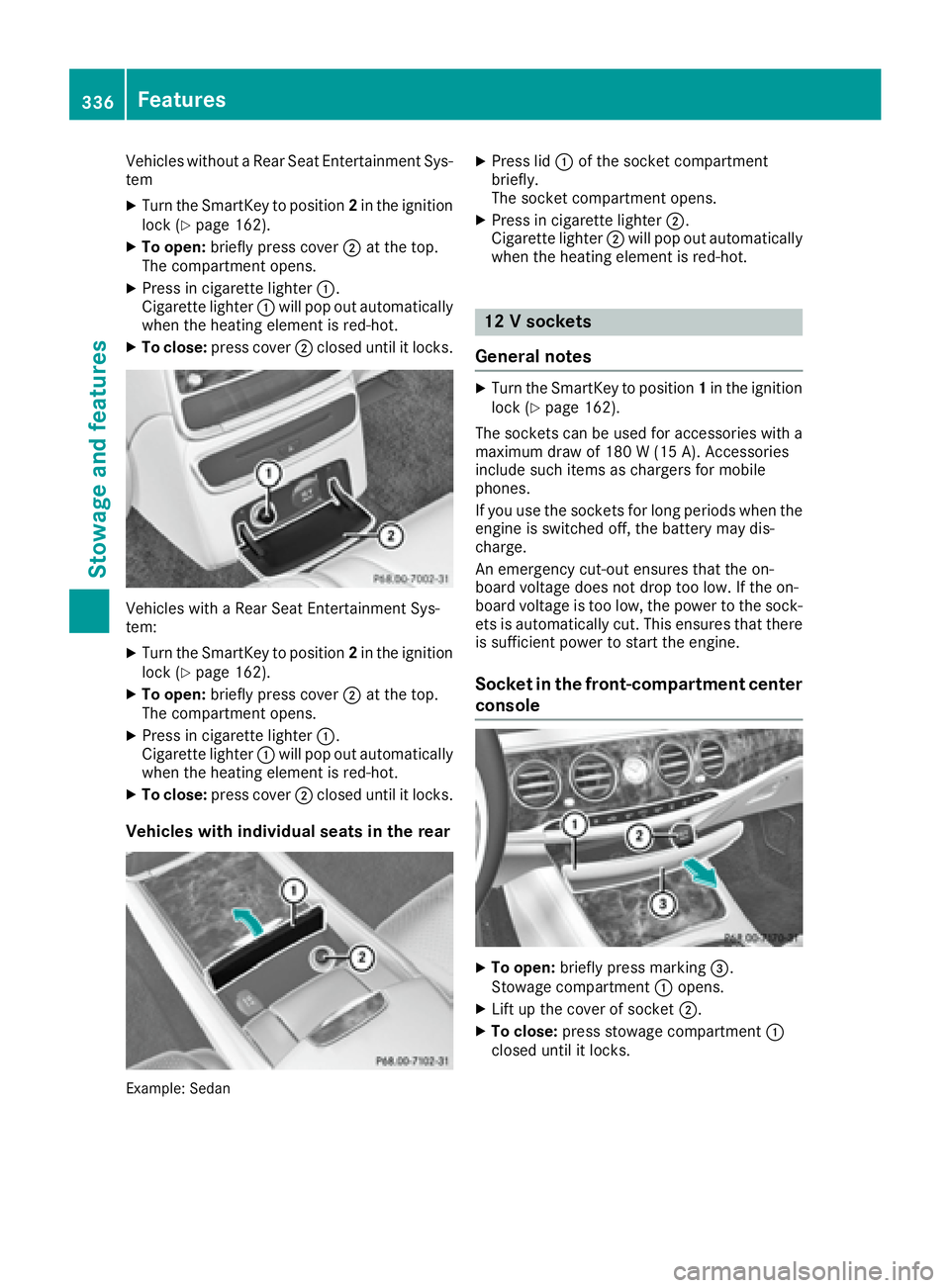
Vehicles without a Rear Seat Entertainment Sys-
tem X
Turn the SmartKey to position 2 in the ignition
lock ( Y
page 162).X
To open: briefly press cover D at the top.
The compartment opens. X
Press in cigarette lighter C .
Cigarette lighter C will pop out automatically
when the heating element is red-hot. X
To close: press cover D closed until it locks.
Vehicles with a Rear Seat Entertainment Sys-
tem: X
Turn the SmartKey to position 2 in the ignition
lock ( Y
page 162).X
To open: briefly press cover D at the top.
The compartment opens. X
Press in cigarette lighter C .
Cigarette lighter C will pop out automatically
when the heating element is red-hot. X
To close: press cover D closed until it locks.
Vehicles with individual seats in the rear
Example: Sedan X
Press lid C of the socket compartment
briefly.
The socket compartment opens. X
Press in cigarette lighter D .
Cigarette lighter D will pop out automatically
when the heating element is red-hot.
12 V sockets
General notes X
Turn the SmartKey to position 1 in the ignition
lock ( Y
page 162).
The sockets can be used for accessories with a
maximum draw of 180 W (15 A). Accessories
include such items as chargers for mobile
phones.
If you use the sockets for long periods when the
engine is switched off, the battery may dis-
charge.
An emergency cut-out ensures that the on-
board voltage does not drop too low. If the on-
board voltage is too low, the power to the sock-
ets is automatically cut. This ensures that there
is sufficient power to start the engine.
Socket in the front-compartment center
console
X
To open: briefly press marking
Page 339 of 438
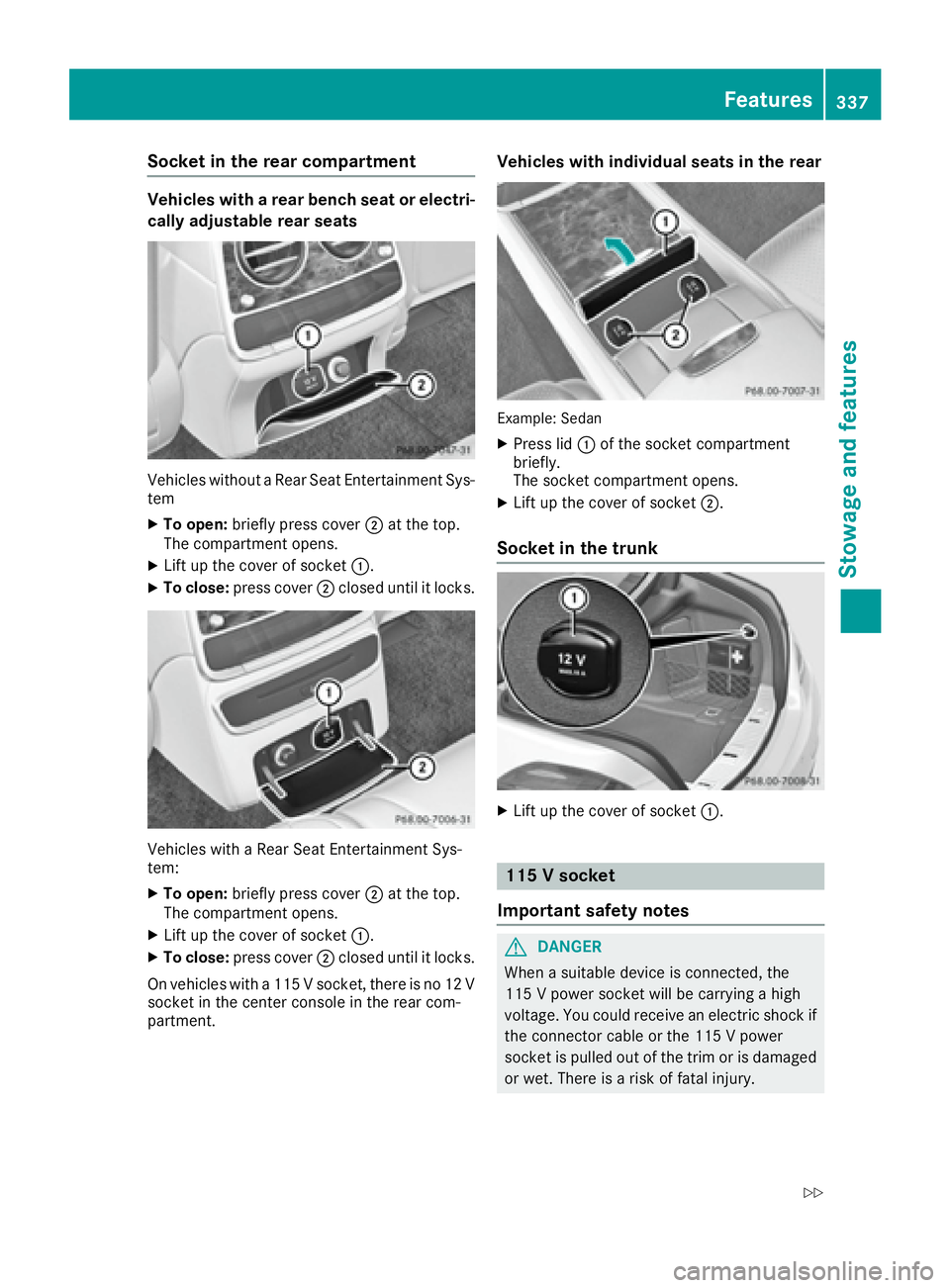
Socket in the rear compartment Vehicles with a rear bench seat or electri-
cally adjustable rear seats
Vehicles without a Rear Seat Entertainment Sys-
tem X
To open: briefly press cover D at the top.
The compartment opens. X
Lift up the cover of socket C .X
To close: press cover D closed until it locks.
Vehicles with a Rear Seat Entertainment Sys-
tem: X
To open: briefly press cover D at the top.
The compartment opens. X
Lift up the cover of socket C .X
To close: press cover D closed until it locks.
On vehicles with a 115 V socket, there is no 12 V
socket in the center console in the rear com-
partment. Vehicles with individual seats in the rear
Example: Sedan X
Press lid C of the socket compartment
briefly.
The socket compartment opens. X
Lift up the cover of socket D .
Socket in the trunk
X
Lift up the cover of socket C .
115 V socket
Important safety notes
G DANGER
When a suitable device is connected, the
115 V power socket will be carrying a high
voltage. You could receive an electric shock if
the connector cable or the 115 V power
socket is pulled out of the trim or is damaged
or wet. There is a risk of fatal injury. Features 337
Stowage and features Z