warning light MERCEDES-BENZ S-CLASS COUPE 2014 Repair Manual
[x] Cancel search | Manufacturer: MERCEDES-BENZ, Model Year: 2014, Model line: S-CLASS COUPE, Model: MERCEDES-BENZ S-CLASS COUPE 2014Pages: 413, PDF Size: 12.76 MB
Page 219 of 413
vehicle parallel to the direction of travel using
Active Parking Assist.
i If PARKTRONIC detects obstacles, Active
Parking Assist brakes automatically whilst
the vehicle exits the parking space. You are
responsible for braking in good time.
X Start the engine.
X Switch on the turn signal in the direction
you are pulling away.
X Shift the transmission to position Dor R.
The Start Park Assist? Yes: OK No: Start Park Assist? Yes: OK No:
% message appears in the multifunction
display.
X To cancel the procedure: press the%
button on the multifunction steering wheel
or pull away.
or X To exit a parking space using Active
Parking Assist: press theabutton on
the multifunction steering wheel.
The Park Assist active Accelerate
Park Assist active Accelerate
and and brake
brake Observe
Observe surroundings
surroundings mes-
sage appears in the multifunction display.
X Release the multifunction steering wheel.
X Pull away, being ready to brake at all times.
Do not exceed a maximum speed of
approximately 10 km/h when exiting a
parking space. Otherwise, Active Parking
Assist will be cancelled.
X Shift the transmission to position Dor Ras
required or according to the message while
the vehicle is stationary.
Active Parking Assist immediately steers in
the other direction. The Park Assist
Park Assist
active Accelerate and brake active Accelerate and brake
Observe Observe surroundings
surroundings message appears
in the multifunction display.
i You will achieve the best results by wait-
ing for the steering procedure to complete before pulling away. If you reverse after activation, the steering
wheel is moved to the straight-ahead posi- tion.
X Drive forwards and reverse as prompted by
the PARKTRONIC warning displays, several
times if necessary.
Once you have exited the parking space com- pletely, the steering wheel is moved to the
straight-ahead position. You hear a tone and
the Park Assist switched off Park Assist switched off message
appears in the multifunction display. You will
then have to steer and merge into traffic on
your own. PARKTRONIC is still available. You
can take over the steering before the vehicle has exited the parking space completely. This
is useful, for example when you recognise
that it is already possible to pull out of the
parking space.
Cancelling Active Parking Assist X
Stop the movement of the multifunction
steering wheel or steer yourself.
Active Parking Assist will be cancelled at
once. The Park Assist cancelled Park Assist cancelled mes-
sage appears in the multifunction display.
or
X Press the PARKTRONIC button
(Y page 211).
PARKTRONIC is switched off and Active
Parking Assist is immediately cancelled.
The Park Assist cancelled
Park Assist cancelled message
appears in the multifunction display.
Active Parking Assist is cancelled automati-
cally if:
R the electric parking brake is engaged
R transmission position Pis selected
R parking using Active Parking Assist is no
longer possible
R you are driving faster than 10 km/h
R a wheel spins and ESP ®
intervenes or fails.
The ÷ warning lamp lights up in the
instrument cluster.
A warning tone sounds. The parking symbol
disappears and the multifunction display 216
Driving systemsDriving and parking
Page 222 of 413
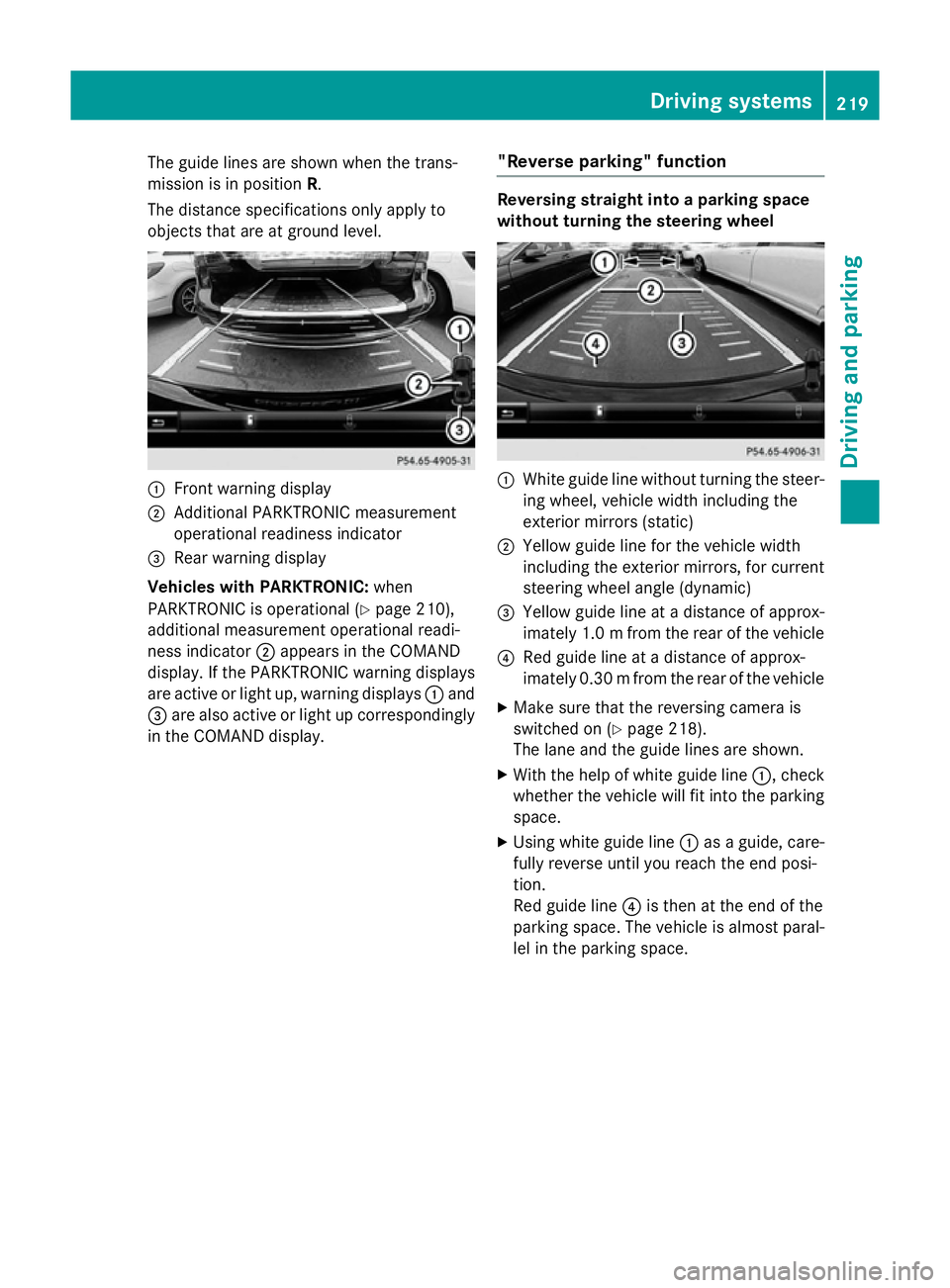
The guide lines are shown when the trans-
mission is in position R.
The distance specifications only apply to
objects that are at ground level. :
Front warning display
; Additional PARKTRONIC measurement
operational readiness indicator
= Rear warning display
Vehicles with PARKTRONIC: when
PARKTRONIC is operational (Y page 210),
additional measurement operational readi-
ness indicator ;appears in the COMAND
display. If the PARKTRONIC warning displays
are active or light up, warning displays :and
= are also active or light up correspondingly
in the COMAND display. "Reverse parking" function Reversing straight into a parking space
without turning the steering wheel
:
White guide line without turning the steer-
ing wheel, vehicle width including the
exterior mirrors (static)
; Yellow guide line for the vehicle width
including the exterior mirrors, for current
steering wheel angle (dynamic)
= Yellow guide line at a distance of approx-
imately 1.0 mfrom the rear of the vehicle
? Red guide line at a distance of approx-
imately 0.30 mfrom the rear of the vehicle
X Make sure that the reversing camera is
switched on (Y page 218).
The lane and the guide lines are shown.
X With the help of white guide line :, check
whether the vehicle will fit into the parking space.
X Using white guide line :as a guide, care-
fully reverse until you reach the end posi-
tion.
Red guide line ?is then at the end of the
parking space. The vehicle is almost paral-
lel in the parking space. Driving systems
219Driving and parking Z
Page 224 of 413
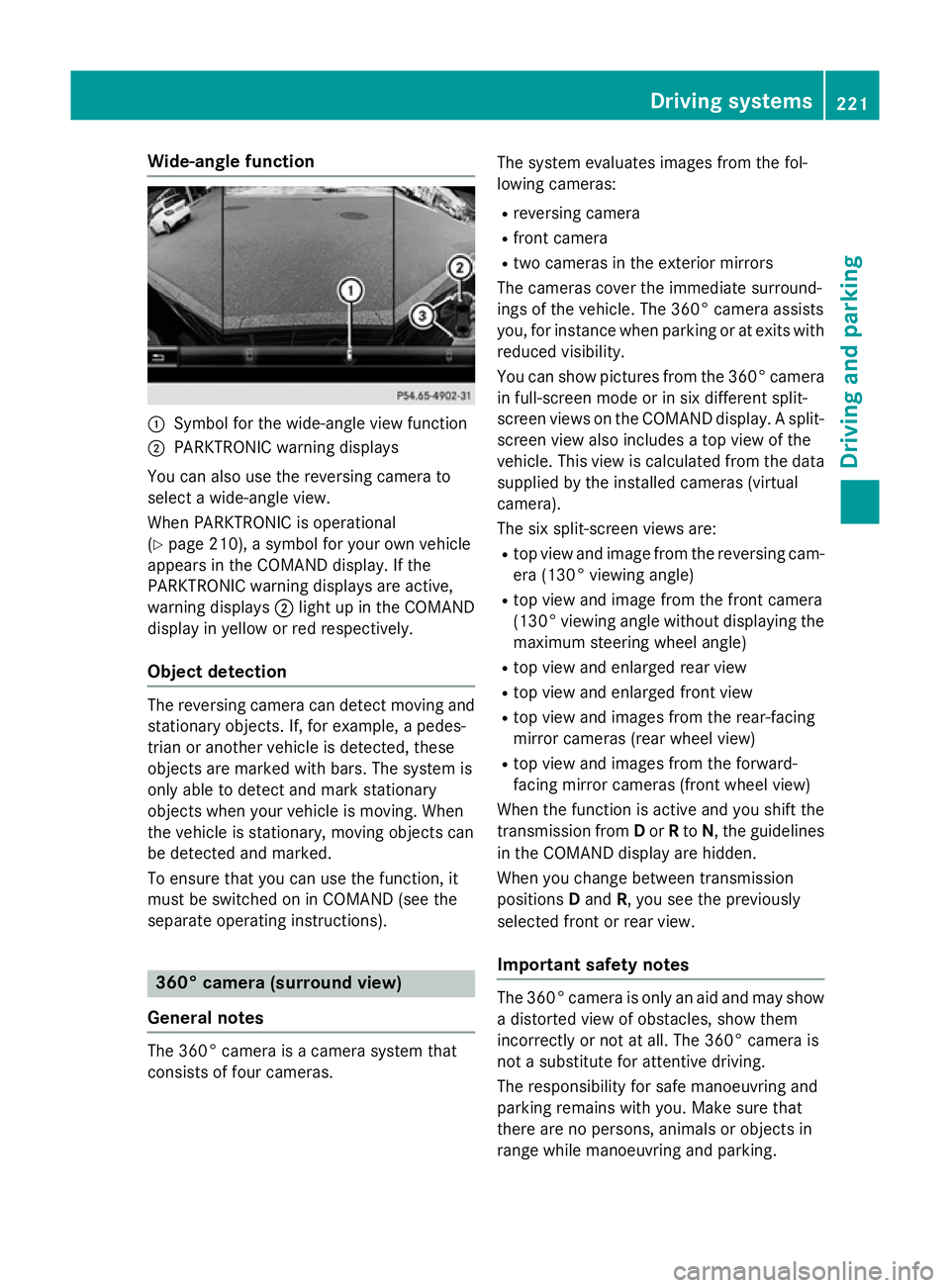
Wide-angle function
:
Symbol for the wide-angle view function
; PARKTRONIC warning displays
You can also use the reversing camera to
select a wide-angle view.
When PARKTRONIC is operational
(Y page 210), a symbol for your own vehicle
appears in the COMAND display. If the
PARKTRONIC warning displays are active,
warning displays ;light up in the COMAND
display in yellow or red respectively.
Object detection The reversing camera can detect moving and
stationary objects. If, for example, a pedes-
trian or another vehicle is detected, these
objects are marked with bars. The system is
only able to detect and mark stationary
objects when your vehicle is moving. When
the vehicle is stationary, moving objects can
be detected and marked.
To ensure that you can use the function, it
must be switched on in COMAND (see the
separate operating instructions). 360° camera (surround view)
General notes The 360° camera is a camera system that
consists of four cameras. The system evaluates images from the fol-
lowing cameras:
R reversing camera
R front camera
R two cameras in the exterior mirrors
The cameras cover the immediate surround-
ings of the vehicle. The 360° camera assists
you, for instance when parking or at exits with reduced visibility.
You can show pictures from the 360° camera
in full-screen mode or in six different split-
screen views on the COMAND display. A split- screen view also includes a top view of the
vehicle. This view is calculated from the data supplied by the installed cameras (virtual
camera).
The six split-screen views are:
R top view and image from the reversing cam-
era (130° viewing angle)
R top view and image from the front camera
(130° viewing angle without displaying the
maximum steering wheel angle)
R top view and enlarged rear view
R top view and enlarged front view
R top view and images from the rear-facing
mirror cameras (rear wheel view)
R top view and images from the forward-
facing mirror cameras (front wheel view)
When the function is active and you shift the
transmission from Dor Rto N, the guidelines
in the COMAND display are hidden.
When you change between transmission
positions Dand R, you see the previously
selected front or rear view.
Important safety notes The 360° camera is only an aid and may show
a distorted view of obstacles, show them
incorrectly or not at all. The 360° camera is
not a substitute for attentive driving.
The responsibility for safe manoeuvring and
parking remains with you. Make sure that
there are no persons, animals or objects in
range while manoeuvring and parking. Driving systems
221Driving and parking Z
Page 225 of 413
You are always responsible for safety, and
must always pay attention to your surround-
ings when parking and manoeuvring. This
applies to the areas behind, in front of and
beside the vehicle. You could otherwise
endanger yourself and others.
The 360° camera will not function or will
function only in a limited manner:
R if the doors are open
R if the exterior mirrors are folded in
R if the boot lid is open
R in heavy rain, snow or fog
R at night or in very dark places
R if the cameras are exposed to very bright
light
R if the area is lit by fluorescent bulbs or LED
lighting (the display may flicker)
R if the camera lenses mist up, e.g. when
driving into a heated garage in winter, caus- ing a rapid change in temperature
R if the camera lenses are dirty or covered.
Observe the notes on cleaning
(Y page 347)
R if the vehicle components in which the
cameras are fitted are damaged. In this
event, have the camera position and setting
checked at a qualified specialist workshop.
Do not use the 360° camera in this case. You
could otherwise injure others or damage
objects when parking the vehicle.
The guide lines in the COMAND display show the distances to your vehicle. The distances
only apply to road level.
i The camera in the rear area is protected
from raindrops and dust by means of a flap. This flap opens when the 360° camera is
activated.
The flap closes again when:
R you have finished the manoeuvring proc-
ess
R you switch off the engine
R you open the boot
Observe the notes on cleaning
(Y page 347). For technical reasons, the flap may remain
open briefly after the 360° camera has
been deactivated.
Activation conditions The 360° camera image can be displayed if:
R COMAND Online is switched on (see the
separate operating instructions)
R the 360° camera 360° camera function is switched on.
i If the 360° camera is activated at speeds
above approximately 30 km/h, a warning
message appears.
The warning message disappears if:
R the vehicle's speed falls below approx-
imately 30 km/h. The 360° camera is
then activated.
R the message is confirmed with the %
button.
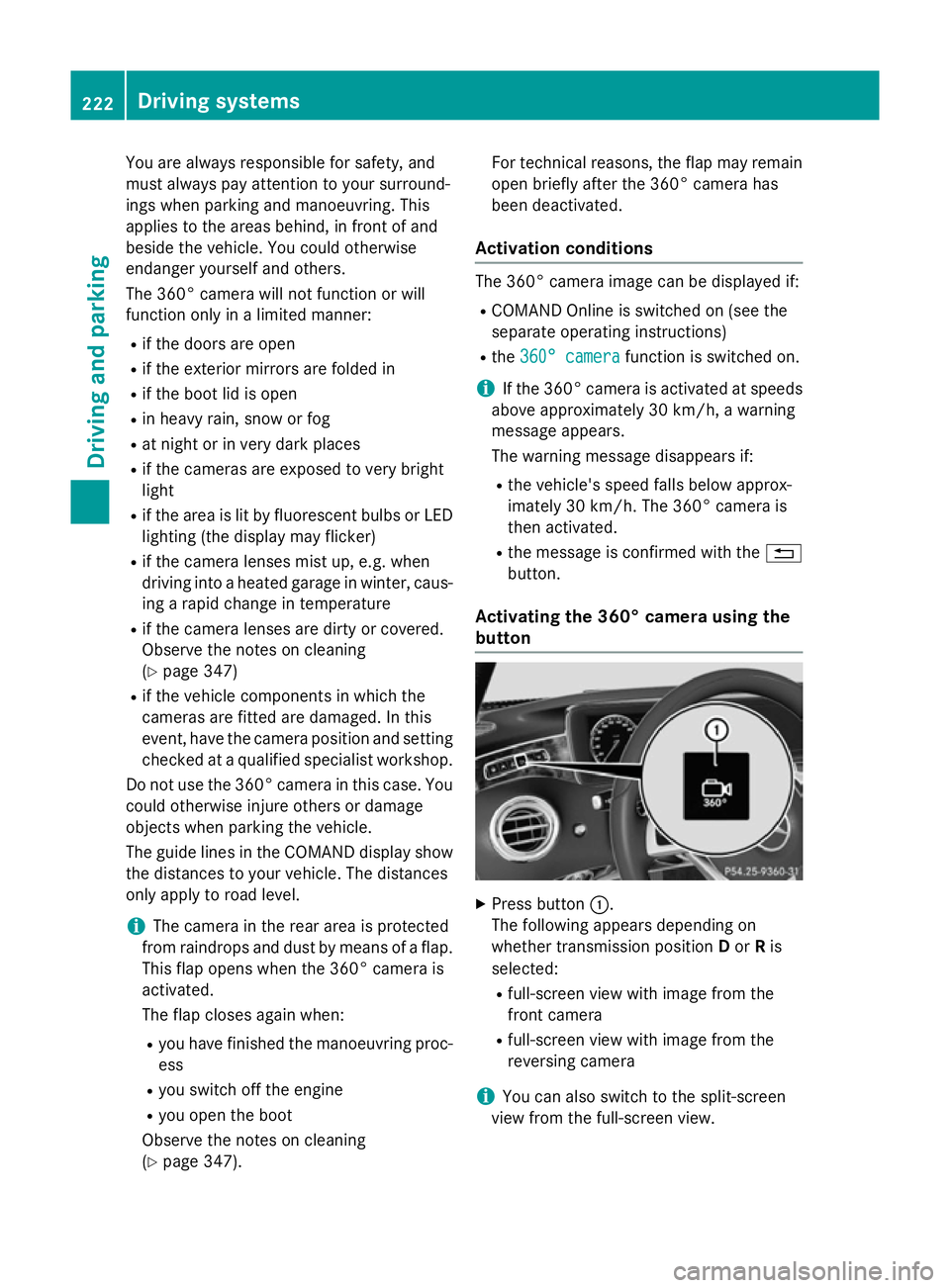
Activating the 360° camera using the
button X
Press button :.
The following appears depending on
whether transmission position Dor Ris
selected:
R full-screen view with image from the
front camera
R full-screen view with image from the
reversing camera
i You can also switch to the split-screen
view from the full-screen view. 222
Driving systemsDriving and parking
Page 228 of 413
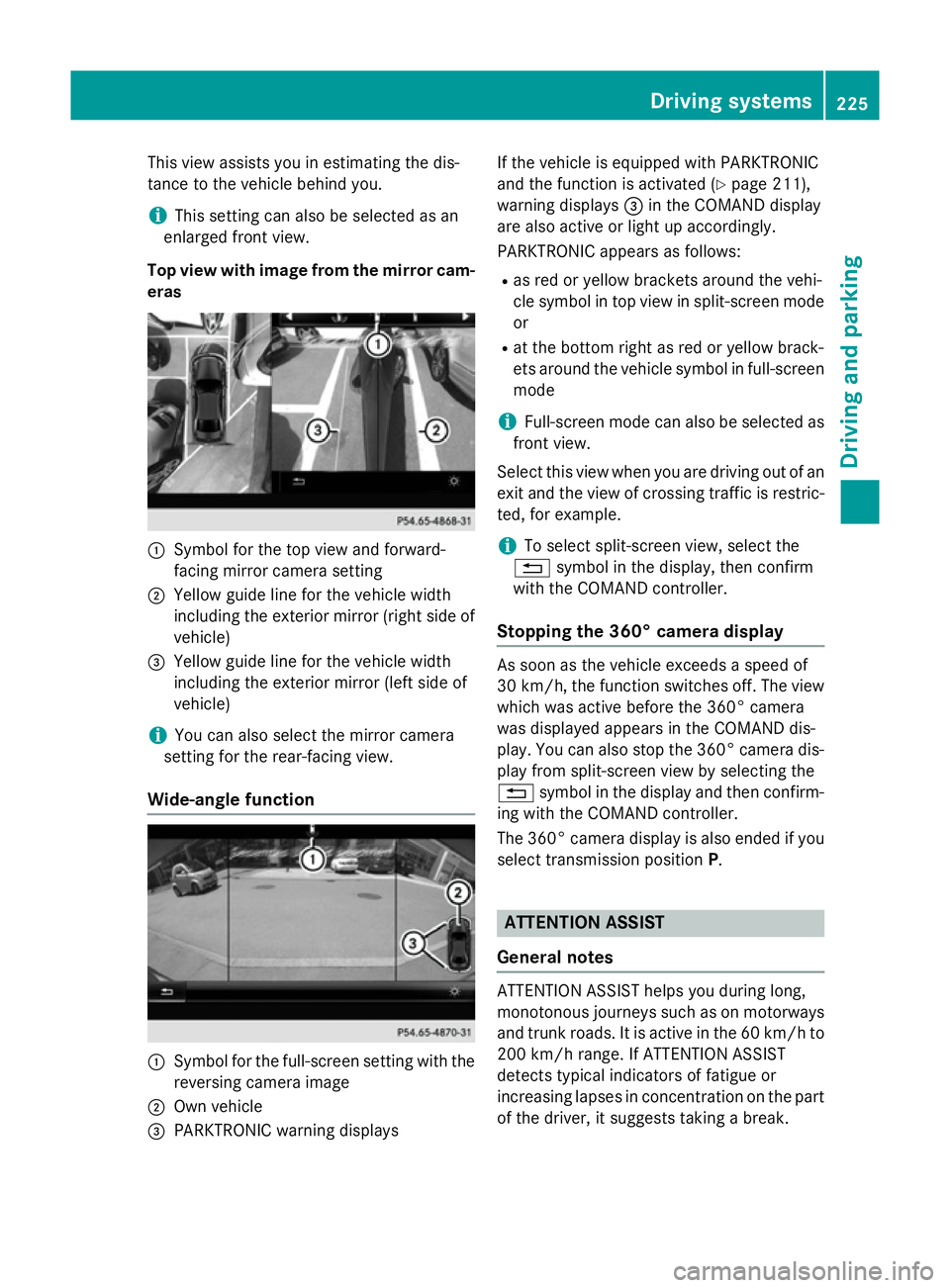
This view assists you in estimating the dis-
tance to the vehicle behind you.
i This setting can also be selected as an
enlarged front view.
Top view with image from the mirror cam- eras :
Symbol for the top view and forward-
facing mirror camera setting
; Yellow guide line for the vehicle width
including the exterior mirror (right side of
vehicle)
= Yellow guide line for the vehicle width
including the exterior mirror (left side of
vehicle)
i You can also select the mirror camera
setting for the rear-facing view.
Wide-angle function :
Symbol for the full-screen setting with the
reversing camera image
; Own vehicle
= PARKTRONIC warning displays If the vehicle is equipped with PARKTRONIC
and the function is activated (Y
page 211),
warning displays =in the COMAND display
are also active or light up accordingly.
PARKTRONIC appears as follows:
R as red or yellow brackets around the vehi-
cle symbol in top view in split-screen mode
or
R at the bottom right as red or yellow brack-
ets around the vehicle symbol in full-screen
mode
i Full-screen mode can also be selected as
front view.
Select this view when you are driving out of an exit and the view of crossing traffic is restric-
ted, for example.
i To select split-screen view, select the
% symbol in the display, then confirm
with the COMAND controller.
Stopping the 360° camera display As soon as the vehicle exceeds a speed of
30 km/h,
the function switches off. The view
which was active before the 360° camera
was displayed appears in the COMAND dis-
play. You can also stop the 360° camera dis-
play from split-screen view by selecting the
% symbol in the display and then confirm-
ing with the COMAND controller.
The 360° camera display is also ended if you
select transmission position P. ATTENTION ASSIST
General notes ATTENTION ASSIST helps you during long,
monotonous journeys such as on motorways
and trunk roads. It is active in the 60 km/h to
200 km/h range. If ATTENTION ASSIST
detects typical indicators of fatigue or
increasing lapses in concentration on the part
of the driver, it suggests taking a break. Driving systems
225Driving and parking Z
Page 238 of 413
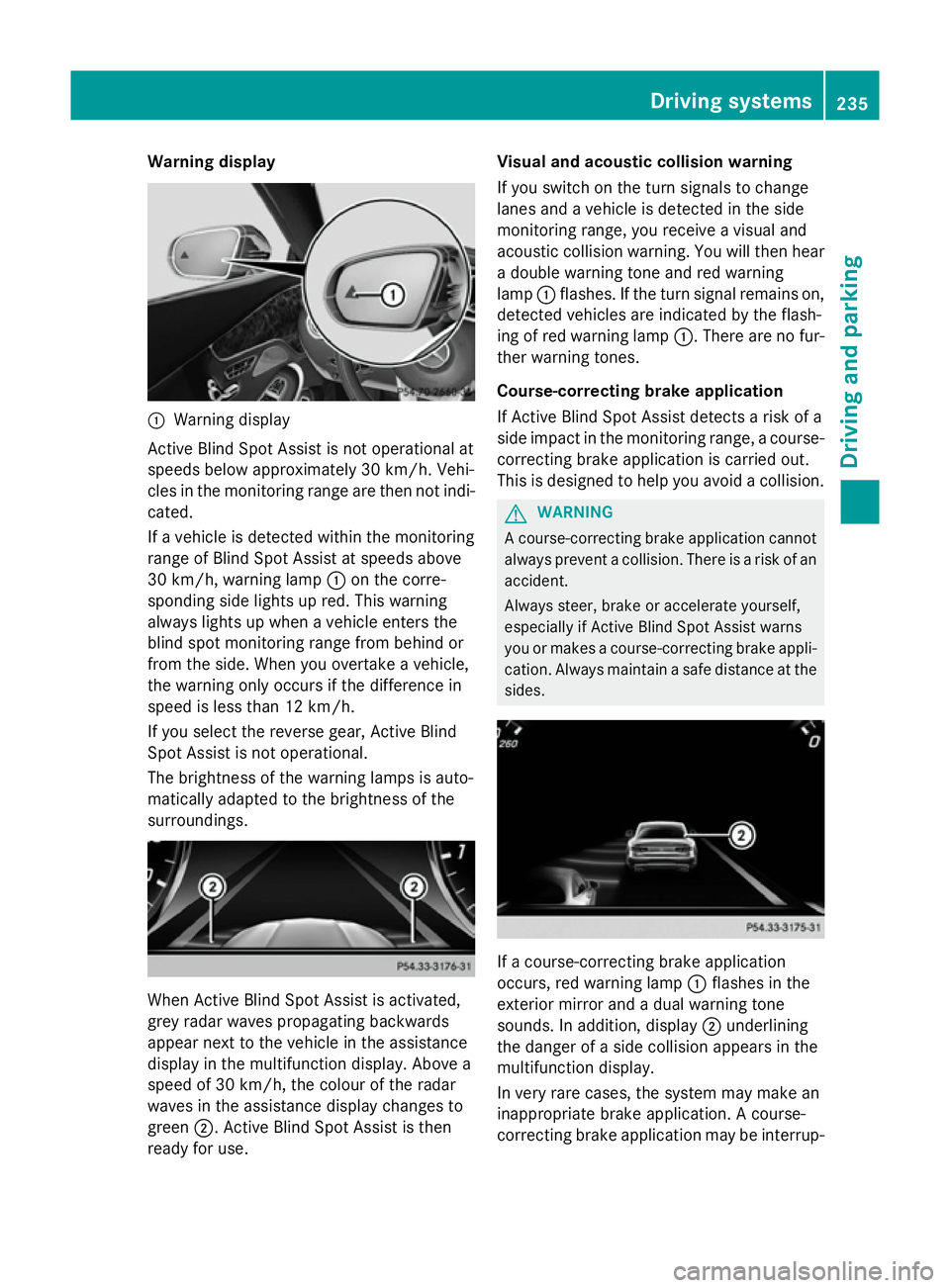
Warning display
:
Warning display
Active Blind Spot Assist is not operational at
speeds below approximately 30 km/h. Vehi-
cles in the monitoring range are then not indi-
cated.
If a vehicle is detected within the monitoring
range of Blind Spot Assist at speeds above
30 km/h, warning lamp :on the corre-
sponding side lights up red. This warning
always lights up when a vehicle enters the
blind spot monitoring range from behind or
from the side. When you overtake a vehicle,
the warning only occurs if the difference in
speed is less than 12 km/h.
If you select the reverse gear, Active Blind
Spot Assist is not operational.
The brightness of the warning lamps is auto-
matically adapted to the brightness of the
surroundings. When Active Blind Spot Assist is activated,
grey radar waves propagating backwards
appear next to the vehicle in the assistance
display in the multifunction display. Above a
speed of 30 km/h, the colour of the radar
waves in the assistance display changes to
green ;. Active Blind Spot Assist is then
ready for use. Visual and acoustic collision warning
If you switch on the turn signals to change
lanes and a vehicle is detected in the side
monitoring range, you receive a visual and
acoustic collision warning. You will then hear
a double warning tone and red warning
lamp :flashes. If the turn signal remains on,
detected vehicles are indicated by the flash-
ing of red warning lamp :. There are no fur-
ther warning tones.
Course-correcting brake application
If Active Blind Spot Assist detects a risk of a
side impact in the monitoring range, a course- correcting brake application is carried out.
This is designed to help you avoid a collision. G
WARNING
A course-correcting brake application cannot always prevent a collision. There is a risk of an
accident.
Always steer, brake or accelerate yourself,
especially if Active Blind Spot Assist warns
you or makes a course-correcting brake appli-
cation. Always maintain a safe distance at the sides. If a course-correcting brake application
occurs, red warning lamp
:flashes in the
exterior mirror and a dual warning tone
sounds. In addition, display ;underlining
the danger of a side collision appears in the
multifunction display.
In very rare cases, the system may make an
inappropriate brake application. A course-
correcting brake application may be interrup- Driving systems
235Driving and parking Z
Page 239 of 413
ted at any time if you steer slightly in the
opposite direction or accelerate.
The course-correcting brake application is
available in the speed range between
30 km/h and 200 km/h.
Either a course-correcting brake application
appropriate to the driving situation, or none at all, may occur if:
R there are vehicles or obstacles, e.g. crash
barriers, on both sides of your vehicle
R a vehicle approaches too closely on the
side
R you have adopted a sporty driving style with
high cornering speeds
R you clearly brake or accelerate
R a driving safety system intervenes, such as
ESP ®
or PRE-SAFE ®
Brake
R ESP ®
is deactivated
R a loss of tyre pressure or a defective tyre is
detected
Activating Active Blind Spot Assist
X Make sure that Active Blind Spot Assist is
activated in the on-board computer
(Y page 259).
X Turn the key to position 2in the ignition
lock.
Warning lamps :in the exterior mirrors
light up red for approximately 1.5 second s.
Grey radar waves propagating backwards
appear next to the vehicle in the assistance
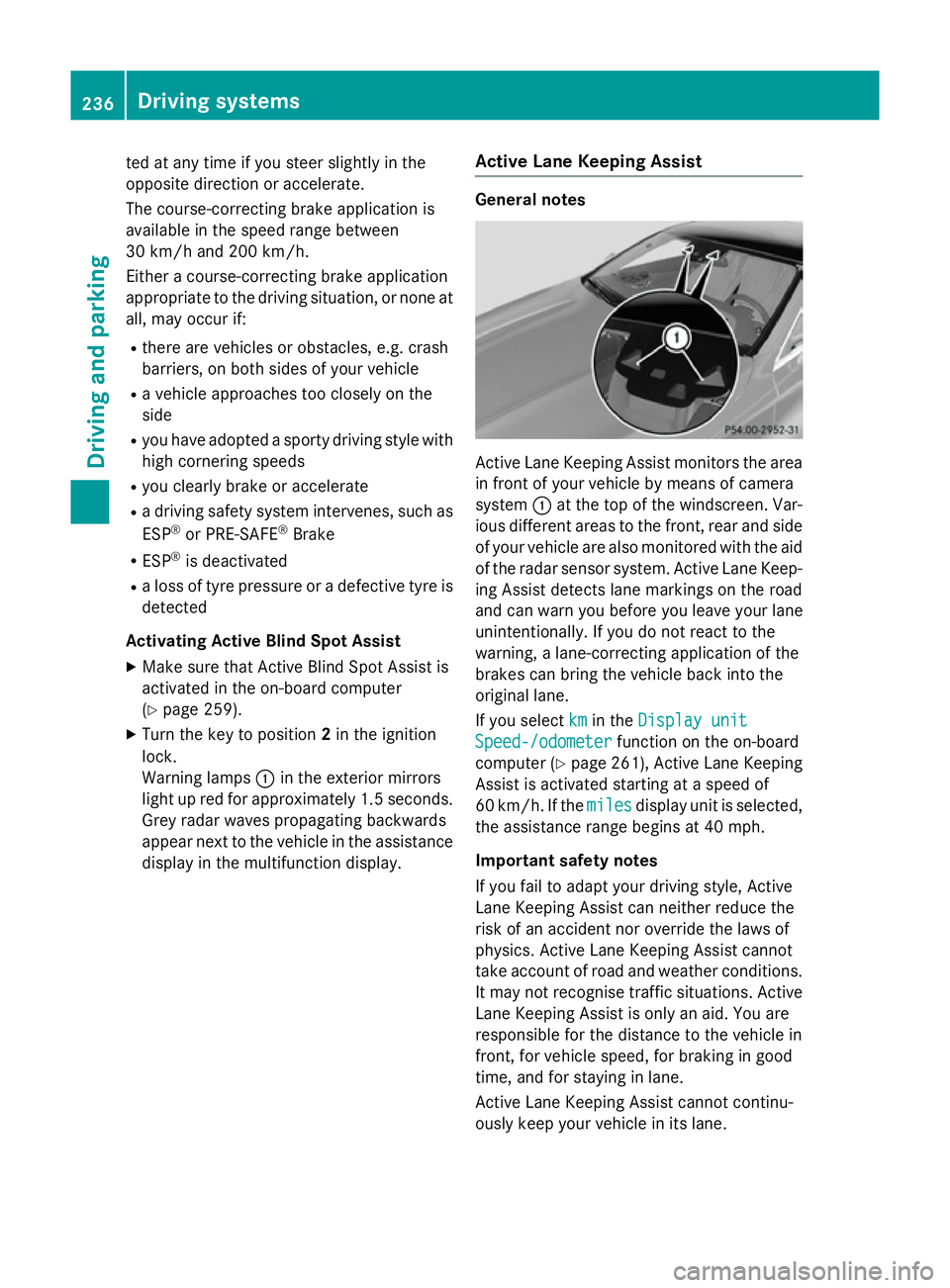
display in the multifunction display. Active Lane Keeping Assist General notes
Active Lane Keeping Assist monitors the area
in front of your vehicle by means of camera
system :at the top of the windscreen. Var-
ious different areas to the front, rear and side
of your vehicle are also monitored with the aid
of the radar sensor system. Active Lane Keep-
ing Assist detects lane markings on the road
and can warn you before you leave your lane
unintentionally. If you do not react to the
warning, a lane-correcting application of the
brakes can bring the vehicle back into the
original lane.
If you select km kmin the Display unit
Display unit
Speed-/odometer
Speed-/odometer function on the on-board
computer (Y page 261), Active Lane Keeping
Assist is activated starting at a speed of
60 km/h. If the miles milesdisplay unit is selected,
the assistance range begins at 40 mph.
Important safety notes
If you fail to adapt your driving style, Active
Lane Keeping Assist can neither reduce the
risk of an accident nor override the laws of
physics. Active Lane Keeping Assist cannot
take account of road and weather conditions. It may not recognise traffic situations. Active Lane Keeping Assist is only an aid. You are
responsible for the distance to the vehicle in
front, for vehicle speed, for braking in good
time, and for staying in lane.
Active Lane Keeping Assist cannot continu-
ously keep your vehicle in its lane. 236
Driving systemsDriving and pa
rking
Page 240 of 413
G
WARNING
Active Lane Keeping Assist cannot always
clearly detect lane markings.
In such cases, Active Lane Keeping Assist
can:
R give an unnecessary warning and then
make a course-correcting brake application
to the vehicle
R neither give a warning nor intervene
There is a risk of an accident.
Always pay particular attention to the traffic
situation and keep within the lane, especially
if Active Lane Keeping Assist alerts you. Ter-
minate the intervention in a non-critical driv-
ing situation.
The system may be impaired or may not func-
tion if:
R there is poor visibility, e.g. due to insuffi-
cient illumination of the road, or due to
snow, rain, fog or spray
R there is glare, e.g. from oncoming traffic,
the sun or reflection from other vehicles
(e.g. if the road surface is wet)
R the windscreen is dirty, misted up, dam-
aged or covered, for instance by a sticker,
in the vicinity of the camera
R the radar sensors in the front or rear bump-
ers or the radiator trim are dirty, e.g.
obscured by snow
R no, or several, unclear lane markings are
present for one lane, e.g. in a construction
area
R the lane markings are worn away, dark or
covered up, e.g. by dirt or snow
R the distance to the vehicle in front is too
small and the lane markings thus cannot be
detected
R the lane markings change quickly, e.g.
lanes branch off, cross one another or
merge
R the road is narrow and winding
R there are highly variable shade conditions
on the road If no vehicle is detected in the adjacent lane
and broken lane markings are detected, no
lane-correcting brake application is made.
Warning vibration through the steering
wheel
A warning may be given if a front wheel
passes over a lane marking. It will warn you by means of intermittent vibration in the steer-
ing wheel for up to 1.5 seconds.
Lane-correcting brake application
If you leave your lane under certain circum-
stances, the vehicle will brake briefly on one
side. This is intended to help you return the
vehicle to the original lane. G
WARNING
A lane-correcting brake application cannot
always bring the vehicle back into the original lane. There is a risk of an accident.
Always steer, brake or accelerate yourself,
especially if Active Lane Keeping Assist warns
you or makes a lane-correcting brake appli-
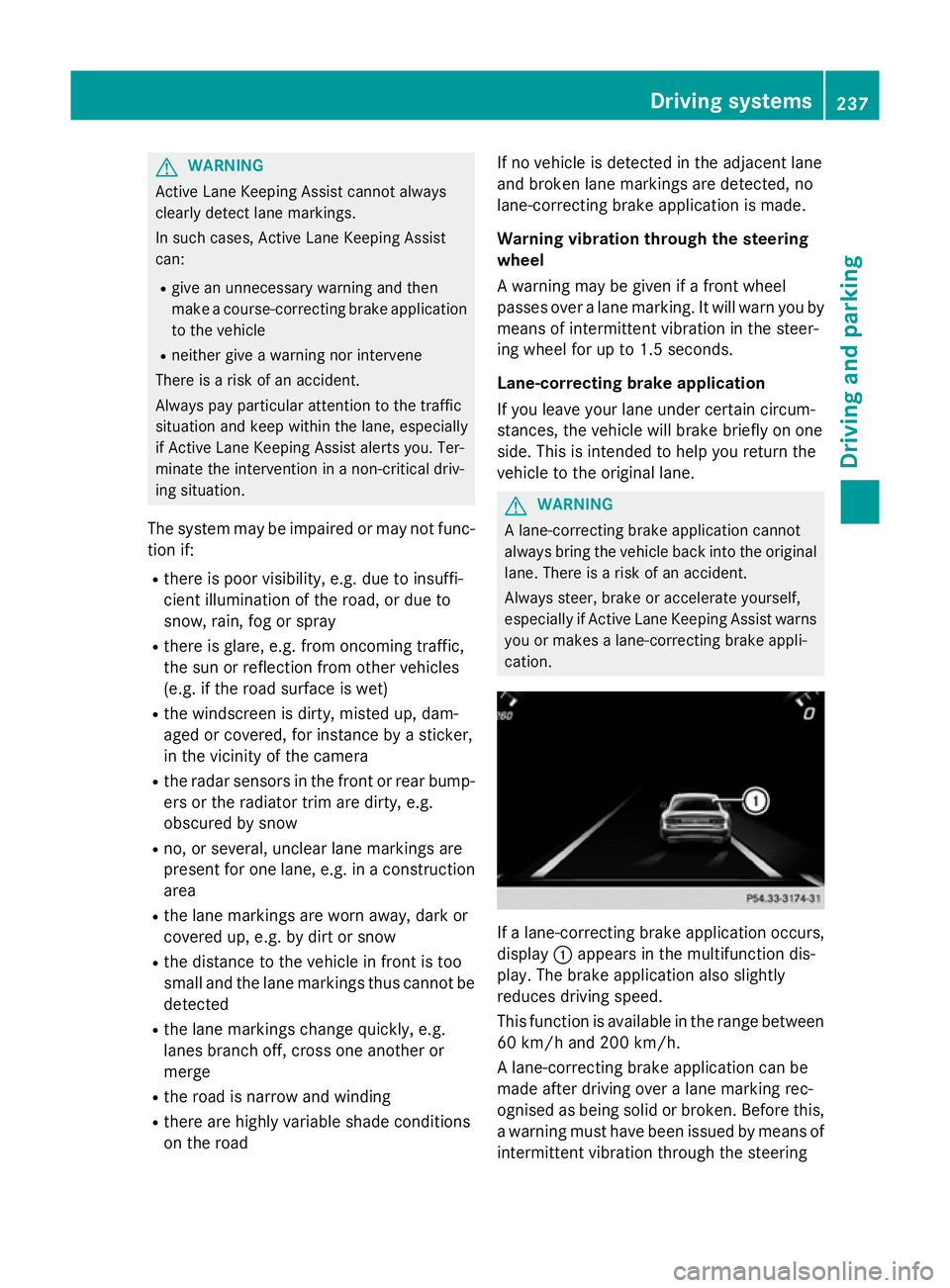
cation. If a lane-correcting brake application occurs,
display :appears in the multifunction dis-
play. The brake application also slightly
reduces driving speed.
This function is available in the range between
60 km/h and 200 km/h.
A lane-correcting brake application can be
made after driving over a lane marking rec-
ognised as being solid or broken. Before this,
a warning must have been issued by means of
intermittent vibration through the steering Driving systems
237Driving and parking Z
Page 241 of 413
wheel. In addition, a lane with lane markings
on both sides must be recognised.
In the case of a broken lane marking being
detected, a lane-correcting brake application can only be made if a vehicle has been detec-
ted in the adjacent lane. Oncoming vehicles,
overtaking vehicles and vehicles in adjacent
lanes can be detected.
i A further lane-correcting brake applica-
tion can only occur after your vehicle has
returned to the original lane.
No lane-correcting brake application occurs
if:
R you clearly and actively steer, brake or
accelerate
R you cut the corner on a sharp bend
R you have switched on the turn signal
R a driving safety system intervenes, such as
ESP ®
, PRE-SAFE ®
Brake or Active Blind
Spot Assist
R you have adopted a sporty driving style with
high cornering speeds or high rates of
acceleration
R ESP ®
is deactivated
R the transmission is not in position D
R a loss of tyre pressure or a defective tyre
has been detected and displayed
R an obstacle in the lane in which you are
driving has been detected
Active Lane Keeping Assist may not detect
other road users or traffic situations. An inap- propriate brake application may be interrup-
ted at any time if:
R you steer slightly in the opposite direction
R you switch on the turn signal
R you clearly brake or accelerate
A lane-correcting brake application is inter-
rupted automatically if:
R a driving safety system intervenes, such as
ESP ®
, PRE-SAFE ®
Brake or Active Blind
Spot Assist
R lane markings are no longer detected Activating Active Lane Keeping Assist
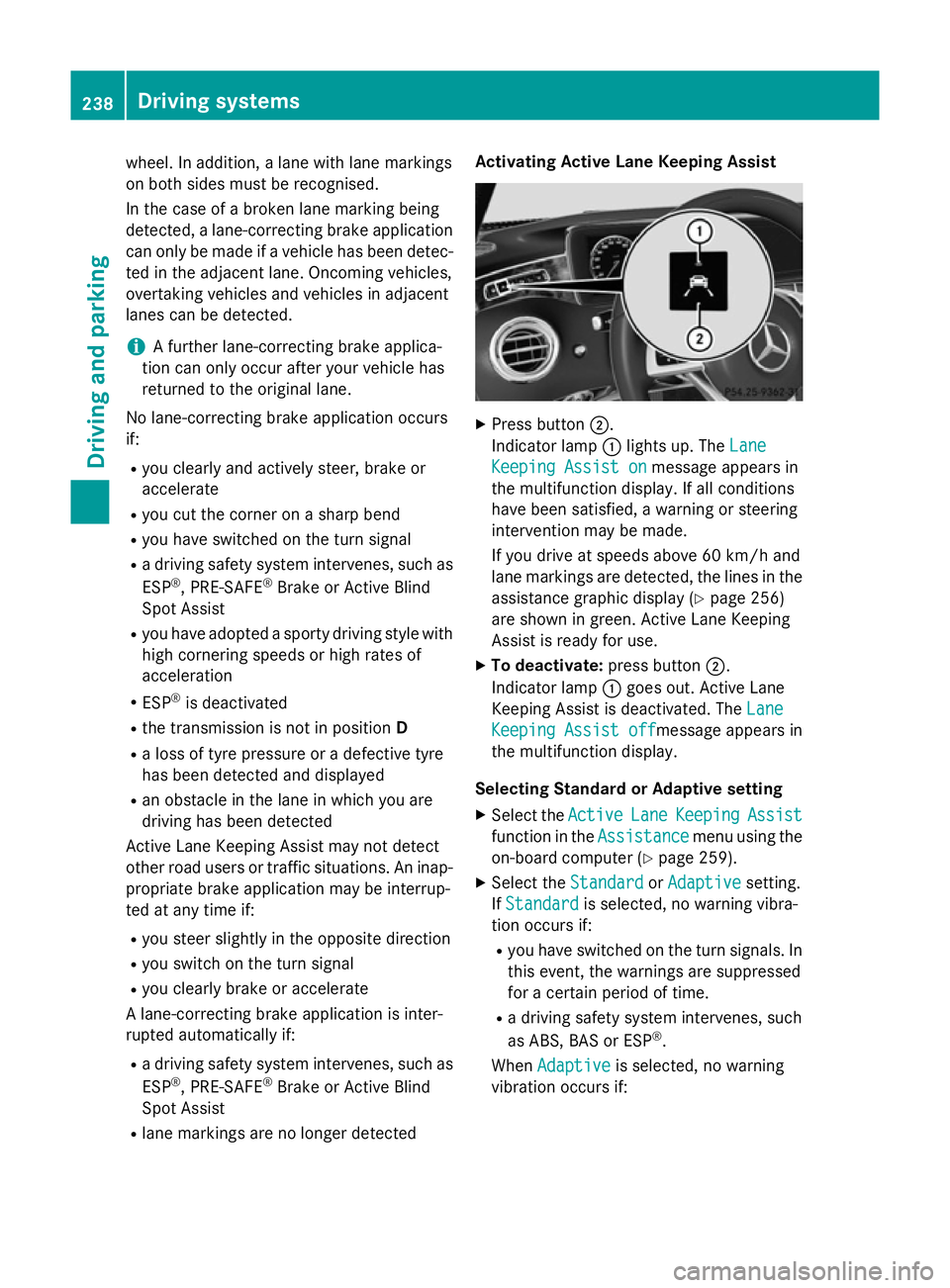
X
Press button ;.
Indicator lamp :lights up. The Lane Lane
Keeping Assist on
Keeping Assist on message appears in
the multifunction display. If all conditions
have been satisfied, a warning or steering
intervention may be made.
If you drive at speeds above 60 km/h and
lane markings are detected, the lines in the assistance graphic display (Y page 256)
are shown in green. Active Lane Keeping
Assist is ready for use.
X To deactivate: press button;.
Indicator lamp :goes out. Active Lane
Keeping Assist is deactivated. The Lane Lane
Keeping Assist off
Keeping Assist off message appears in
the multifunction display.
Selecting Standard or Adaptive setting
X Select the Active
ActiveLane
LaneKeeping
Keeping Assist
Assist
function in the Assistance
Assistancemenu using the
on-board computer (Y page 259).
X Select the Standard
StandardorAdaptive
Adaptive setting.
If Standard
Standard is selected, no warning vibra-
tion occurs if:
R you have switched on the turn signals. In
this event, the warnings are suppressed
for a certain period of time.
R a driving safety system intervenes, such
as ABS, BAS or ESP ®
.
When Adaptive Adaptive is selected, no warning
vibration occurs if: 238
Driving systemsDriving and parking
Page 259 of 413
X
Press the 6button to switch to the
redial memory.
X Press the :or9 button to select the
desired name or number.
X Press the 6ora button to start dial-
ling.
or X To exit the redial memory: press the
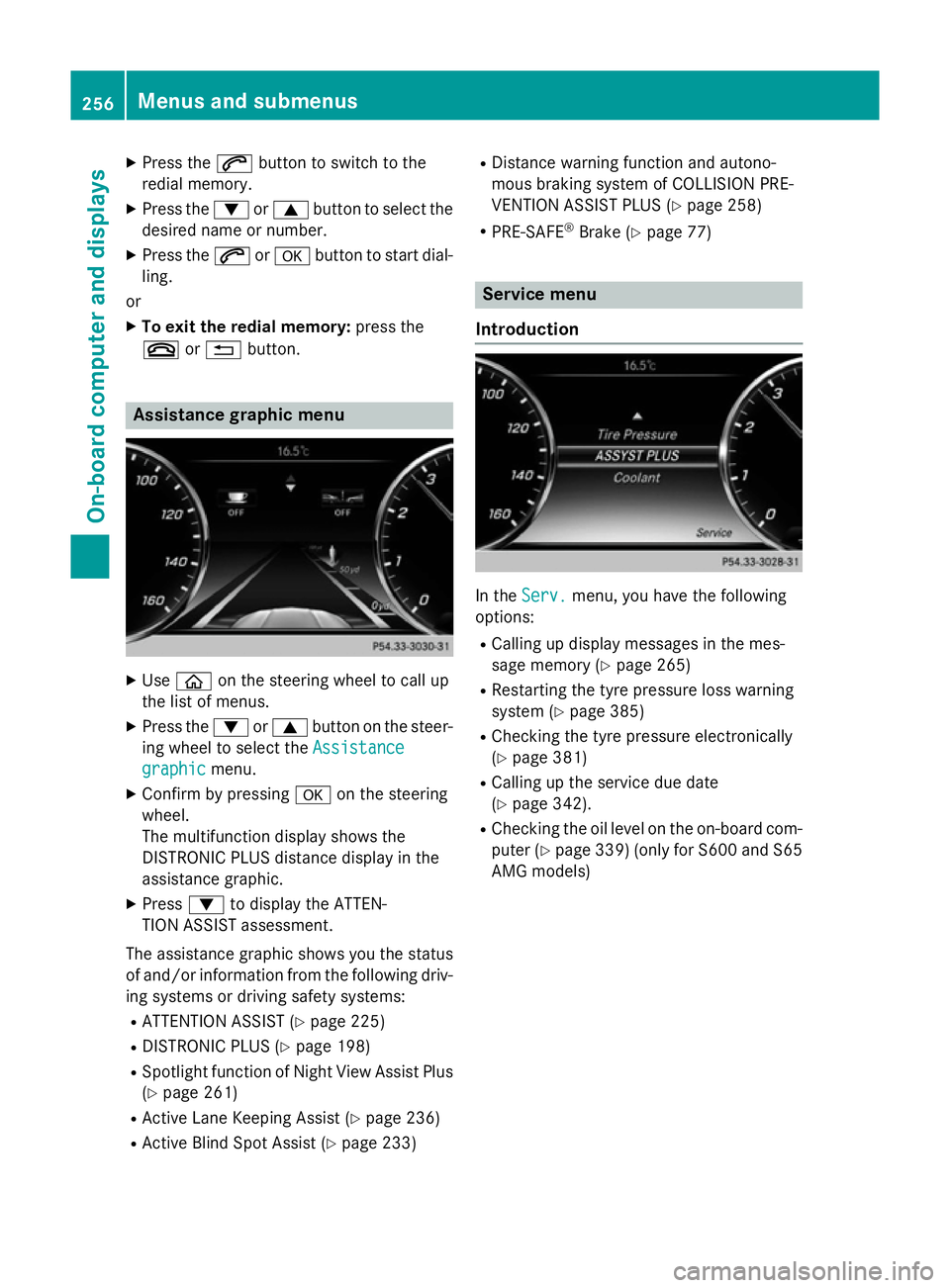
~ or% button. Assistance graphic menu
X
Use ò on the steering wheel to call up
the list of menus.
X Press the :or9 button on the steer-
ing wheel to select the Assistance
Assistance
graphic
graphic menu.
X Confirm by pressing aon the steering
wheel.
The multifunction display shows the
DISTRONIC PLUS distance display in the
assistance graphic.
X Press :to display the ATTEN-
TION ASSIST assessment.
The assistance graphic shows you the status of and/or information from the following driv-ing systems or driving safety systems:
R ATTENTION ASSIST (Y page 225)
R DISTRONIC PLUS (Y page 198)
R Spotlight function of Night View Assist Plus
(Y page 261)
R Active Lane Keeping Assist (Y page 236)
R Active Blind Spot Assist (Y page 233)R
Distance warning function and autono-
mous braking system of COLLISION PRE-
VENTION ASSIST PLUS (Y page 258)
R PRE-SAFE ®
Brake (Y page 77) Service menu
Introduction In the
Serv. Serv. menu, you have the following
options:
R Calling up display messages in the mes-
sage memory (Y page 265)
R Restarting the tyre pressure loss warning
system (Y page 385)
R Checking the tyre pressure electronically
(Y page 381)
R Calling up the service due date
(Y page 342).
R Checking the oil level on the on-board com-
puter (Y page 339) (only for S600 and S65
AMG models) 256
Menus and submenusOn-board computer and displays