steering MERCEDES-BENZ S-CLASS COUPE 2015 Repair Manual
[x] Cancel search | Manufacturer: MERCEDES-BENZ, Model Year: 2015, Model line: S-CLASS COUPE, Model: MERCEDES-BENZ S-CLASS COUPE 2015Pages: 417, PDF Size: 13.42 MB
Page 225 of 417
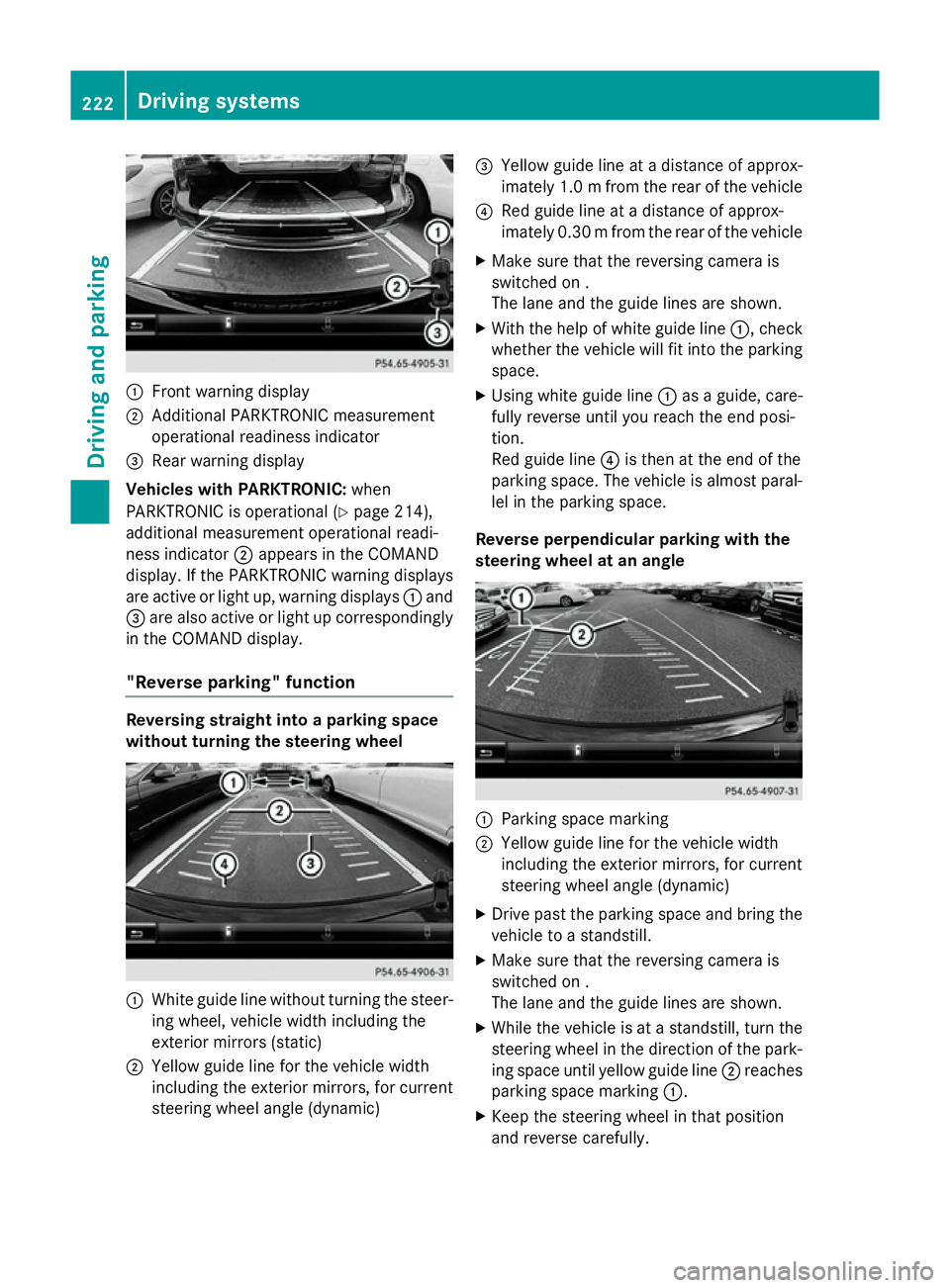
:
Front warning display
; Additional PARKTRONIC measurement
operational readiness indicator
= Rear warning display
Vehicles with PARKTRONIC: when
PARKTRONIC is operational (Y page 214),
additional measurement operational readi-
ness indicator ;appears in the COMAND
display. If the PARKTRONIC warning displays
are active or light up, warning displays :and
= are also active or light up correspondingly
in the COMAND display.
"Reverse parking" function Reversing straight into a parking space
without turning the steering wheel :
White guide line without turning the steer-
ing wheel, vehicle width including the
exterior mirrors (static)
; Yellow guide line for the vehicle width
including the exterior mirrors, for current
steering wheel angle (dynamic) =
Yellow guide line at a distance of approx-
imately 1.0 mfrom the rear of the vehicle
? Red guide line at a distance of approx-
imately 0.30 mfrom the rear of the vehicle
X Make sure that the reversing camera is
switched on .
The lane and the guide lines are shown.
X With the help of white guide line :, check
whether the vehicle will fit into the parking
space.
X Using white guide line :as a guide, care-
fully reverse until you reach the end posi-
tion.
Red guide line ?is then at the end of the
parking space. The vehicle is almost paral-
lel in the parking space.
Reverse perpendicular parking with the
steering wheel at an angle :
Parking space marking
; Yellow guide line for the vehicle width
including the exterior mirrors, for current
steering wheel angle (dynamic)
X Drive past the parking space and bring the
vehicle to a standstill.
X Make sure that the reversing camera is
switched on .
The lane and the guide lines are shown.
X While the vehicle is at a standstill, turn the
steering wheel in the direction of the park-ing space until yellow guide line ;reaches
parking space marking :.
X Keep the steering wheel in that position
and reverse carefully. 222
Driving systemsDriving and parking
Page 226 of 417
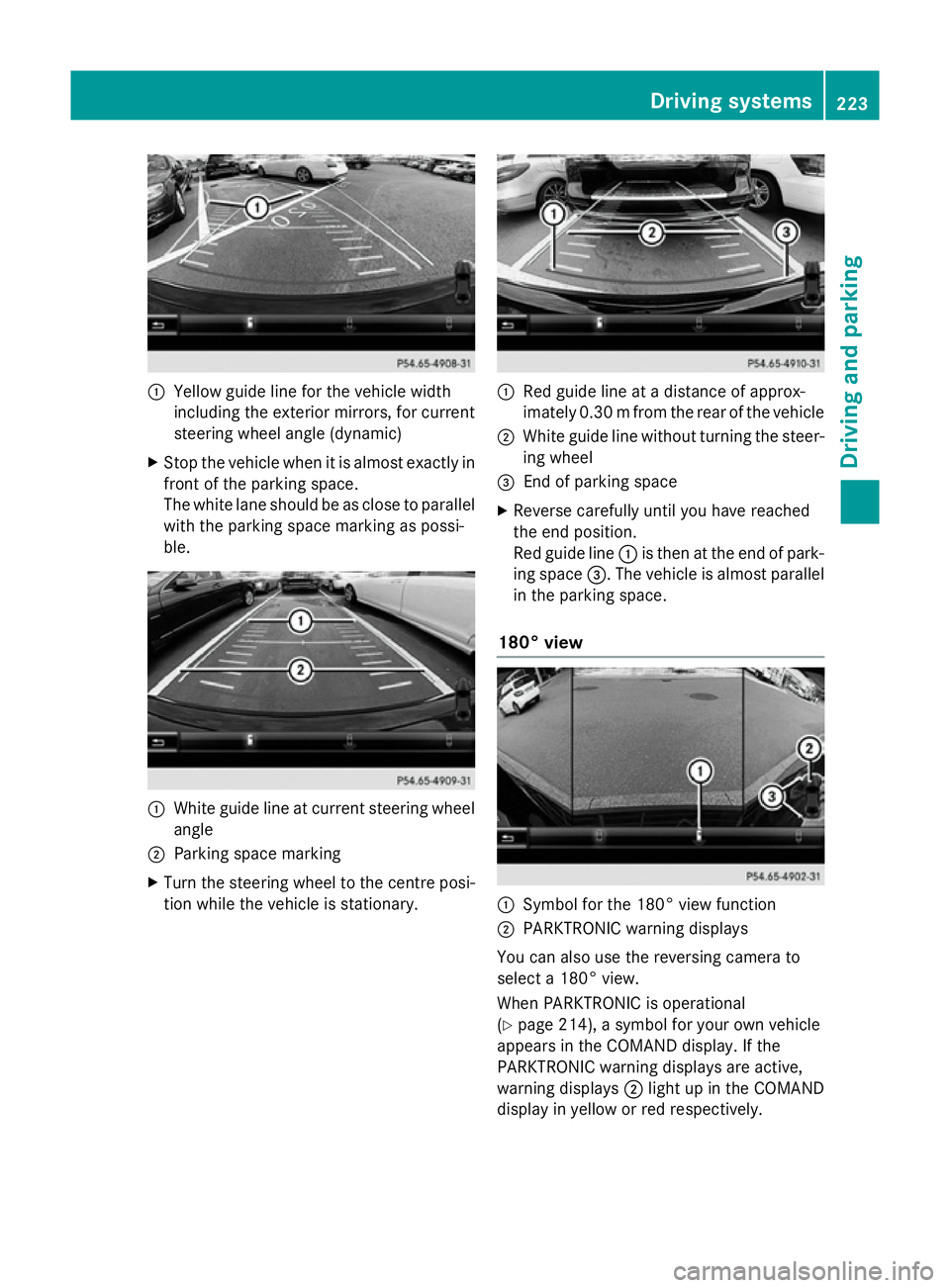
:
Yellow guide line for the vehicle width
including the exterior mirrors, for current
steering wheel angle (dynamic)
X Stop the vehicle when it is almost exactly in
front of the parking space.
The white lane should be as close to parallel
with the parking space marking as possi-
ble. :
White guide line at current steering wheel
angle
; Parking space marking
X Turn the steering wheel to the centre posi-
tion while the vehicle is stationary. :
Red guide line at a distance of approx-
imately 0.30 mfrom the rear of the vehicle
; White guide line without turning the steer-
ing wheel
= End of parking space
X Reverse carefully until you have reached
the end position.
Red guide line :is then at the end of park-
ing space =. The vehicle is almost parallel
in the parking space.
180° view :
Symbol for the 180° view function
; PARKTRONIC warning displays
You can also use the reversing camera to
select a 180° view.
When PARKTRONIC is operational
(Y page 214), a symbol for your own vehicle
appears in the COMAND display. If the
PARKTRONIC warning displays are active,
warning displays ;light up in the COMAND
display in yellow or red respectively. Driving systems
223Driving and parking Z
Page 227 of 417
Object detection
The reversing camera can detect moving and
stationary objects. If, for example, a pedes-
trian or another vehicle is detected, these
objects are marked with bars. The system is
only able to detect and mark stationary
objects when your vehicle is moving. When
the vehicle is stationary, moving objects can
be detected and marked.
To ensure that you can use the function, it
must be switched on in COMAND Online (see
the separate operating instructions). 360° camera (surround view)
General notes The 360° camera is a camera system that
consists of four cameras.
The system evaluates images from the fol-
lowing cameras:
R reversing camera
R front camera
R two side cameras in the exterior mirrors
The cameras cover the immediate surround-
ings of the vehicle. The 360° camera assists
you, for instance when parking or at exits with reduced visibility.
You can show pictures from the 360° camera
in full-screen mode or in six different split-
screen views on the COMAND display. A split- screen view also includes a top view of the
vehicle. This view is calculated from the data supplied by the installed cameras (virtual
camera).
The six split-screen views are:
R top view and image from the reversing cam-
era (130° viewing angle)
R top view and image from the front camera
(130° viewing angle without displaying the
maximum steering wheel angle)
R top view and enlarged rear view
R top view and enlarged front view R
top view and images from the rear-facing
side cameras (rear wheel view)
R top view and images from the forward-
facing side cameras (front wheel view)
When the function is active and you shift the
transmission from Dor Rto N, the guidelines
in the COMAND display are hidden.
When you change between transmission
positions Dand R, you see the previously
selected front or rear view.
Distances measured by PARKTRONIC will
also be optically displayed:
R as red or yellow brackets around the vehi-
cle symbol in top view in split-screen mode
or
R at the bottom right as red or yellow brack-
ets around the vehicle symbol in full-screen
mode
The line thickness and colour of the brackets show how far the vehicle is from an object.
R yellow brackets with thin lines:
PARKTRONIC is active
R yellow brackets with normal lines: an
object is present in close range of the vehi-
cle
R red line: an object is present in the imme-
diate close range of the vehicle
Important safety notes The 360° camera is only an aid and may show
a distorted view of obstacles, show them
incorrectly or not at all. The 360° camera is
not a substitute for attentive driving.
The responsibility for safe manoeuvring and
parking remains with you. Make sure that
there are no persons, animals or objects in
range while manoeuvring and parking.
You are always responsible for safety, and
must always pay attention to your surround-
ings when parking and manoeuvring. This
applies to the areas behind, in front of and
beside the vehicle. You could otherwise
endanger yourself and others. 224
Driving systemsDriving and parking
Page 230 of 417
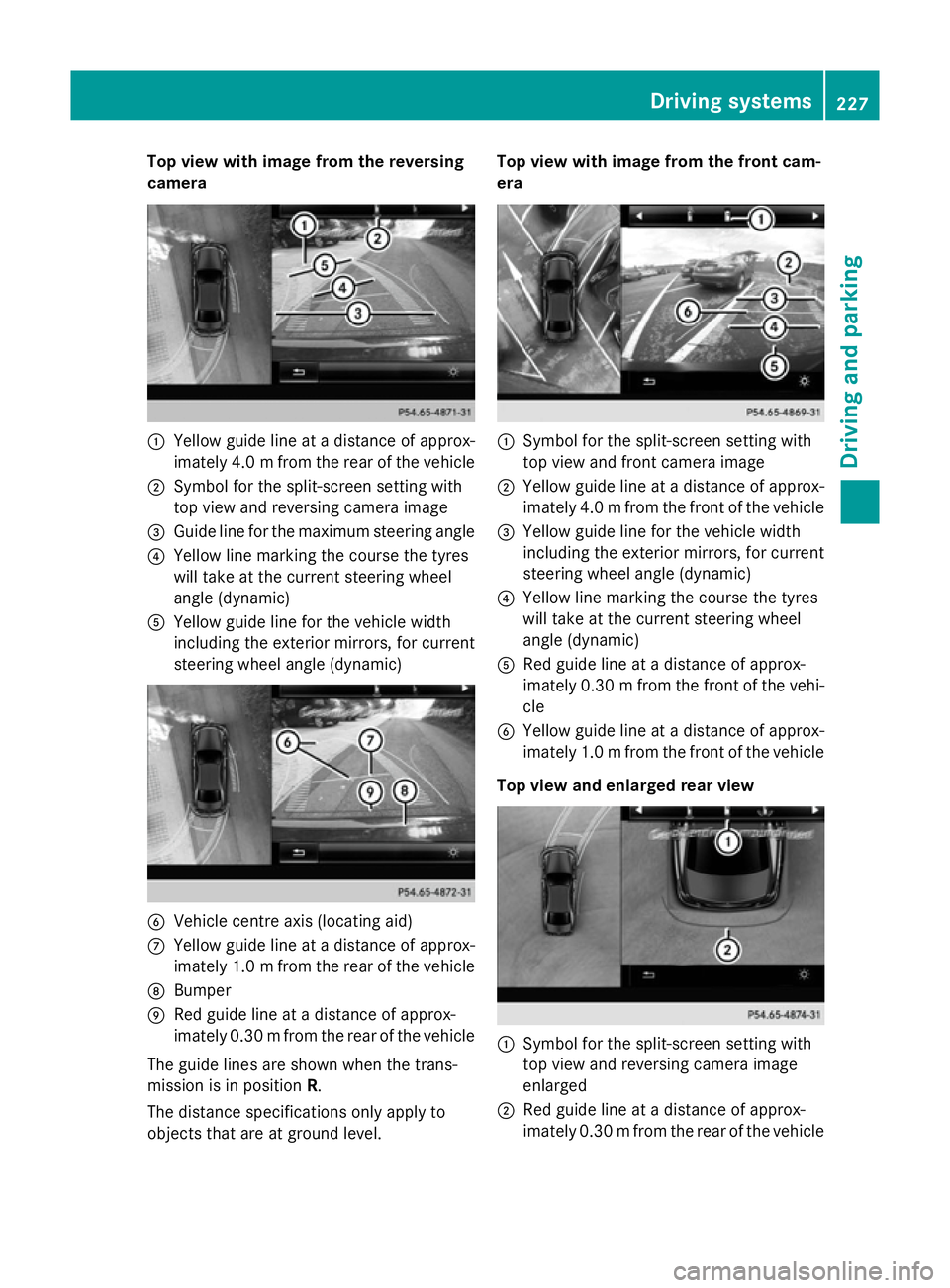
Top view with image from the reversing
camera :
Yellow guide line at a distance of approx-
imately 4.0 mfrom the rear of the vehicle
; Symbol for the split-screen setting with
top view and reversing camera image
= Guide line for the maximum steering angle
? Yellow line marking the course the tyres
will take at the current steering wheel
angle (dynamic)
A Yellow guide line for the vehicle width
including the exterior mirrors, for current
steering wheel angle (dynamic) B
Vehicle centre axis (locating aid)
C Yellow guide line at a distance of approx-
imately 1.0 mfrom the rear of the vehicle
D Bumper
E Red guide line at a distance of approx-
imately 0.30 mfrom the rear of the vehicle
The guide lines are shown when the trans-
mission is in position R.
The distance specifications only apply to
objects that are at ground level. Top view with image from the front cam-
era
:
Symbol for the split-screen setting with
top view and front camera image
; Yellow guide line at a distance of approx-
imately 4.0 mfrom the front of the vehicle
= Yellow guide line for the vehicle width
including the exterior mirrors, for current
steering wheel angle (dynamic)
? Yellow line marking the course the tyres
will take at the current steering wheel
angle (dynamic)
A Red guide line at a distance of approx-
imately 0.30 mfrom the front of the vehi-
cle
B Yellow guide line at a distance of approx-
imately 1.0 mfrom the front of the vehicle
Top view and enlarged rear view :
Symbol for the split-screen setting with
top view and reversing camera image
enlarged
; Red guide line at a distance of approx-
imately 0.30 mfrom the rear of the vehicle Driving systems
227Driving and parking Z
Page 232 of 417
R
if you have adopted a sporty driving style
with high cornering speeds or high rates of
acceleration
R if you are predominantly driving at a speed
below 60 km/h or above 200 km/h
R if you are driving with the active Steer
Assist of DISTRONIC PLUS
R if the time has been set incorrectly
R in active driving situations, such as when
you change lanes or change your speed
The ATTENTION ASSIST tiredness assess-
ment is deleted and restarted when continu-
ing the journey, if:
R you switch off the engine
R you take off your seat belt and open the
driver's door, e.g. for a change of drivers or
to take a break
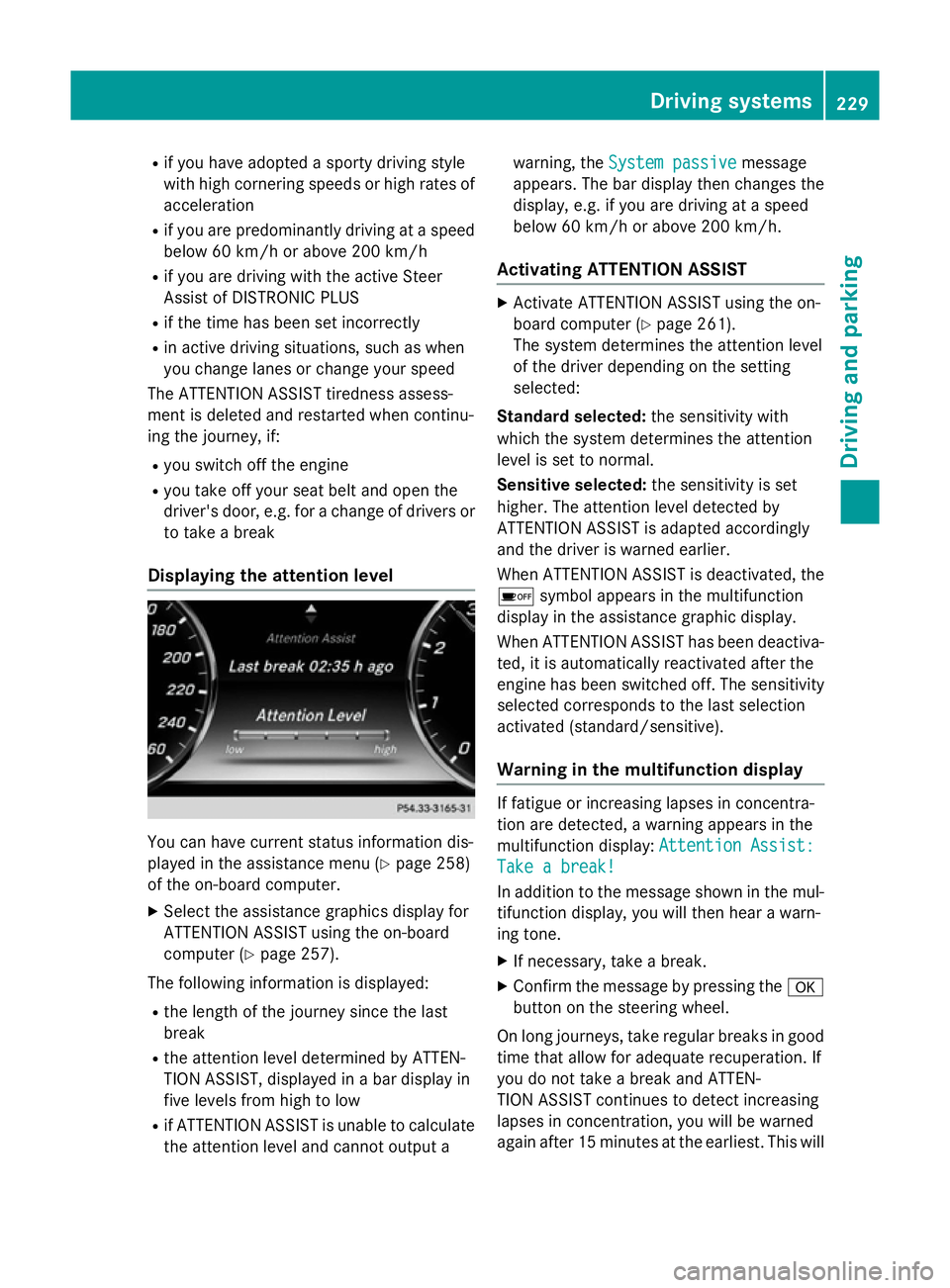
Displaying the attention level You can have current status information dis-
played in the assistance menu (Y
page 258)
of the on-board computer.
X Select the assistance graphics display for
ATTENTION ASSIST using the on-board
computer (Y page 257).
The following information is displayed: R the length of the journey since the last
break
R the attention level determined by ATTEN-
TION ASSIST, displayed in a bar display in
five levels from high to low
R if ATTENTION ASSIST is unable to calculate
the attention level and cannot output a warning, the
System passive
System passive message
appears. The bar display then changes the
display, e.g. if you are driving at a speed
below 60 km/h or above 200 km/h.
Activating ATTENTION ASSIST X
Activate ATTENTION ASSIST using the on-
board computer (Y page 261).
The system determines the attention level
of the driver depending on the setting
selected:
Standard selected: the sensitivity with
which the system determines the attention
level is set to normal.
Sensitive selected: the sensitivity is set
higher. The attention level detected by
ATTENTION ASSIST is adapted accordingly
and the driver is warned earlier.
When ATTENTION ASSIST is deactivated, the
é symbol appears in the multifunction
display in the assistance graphic display.
When ATTENTION ASSIST has been deactiva- ted, it is automatically reactivated after the
engine has been switched off. The sensitivity
selected corresponds to the last selection
activated (standard/sensitive).
Warning in the multifunction display If fatigue or increasing lapses in concentra-
tion are detected, a warning appears in the
multifunction display:
Attention Assist: Attention Assist:
Take a break!
Take a break!
In addition to the message shown in the mul-
tifunction display, you will then hear a warn-
ing tone.
X If necessary, take a break.
X Confirm the message by pressing the a
button on the steering wheel.
On long journeys, take regular breaks in good
time that allow for adequate recuperation. If
you do not take a break and ATTEN-
TION ASSIST continues to detect increasing
lapses in concentration, you will be warned
again after 15 minutes at the earliest. This will Driving systems
229Driving and parking Z
Page 243 of 417
In such cases, Active Lane Keeping Assist
can:
R give an unnecessary warning and then
make a course-correcting brake application
to the vehicle
R neither give a warning nor intervene
There is a risk of an accident.
Always pay particular attention to the traffic
situation and keep within the lane, especially
if Active Lane Keeping Assist alerts you. Ter-
minate the intervention in a non-critical driv-
ing situation.
The system may be impaired or may not func-
tion if:
R there is poor visibility, e.g. due to insuffi-
cient illumination of the road, or due to
snow, rain, fog or spray
R there is glare, e.g. from oncoming traffic,
the sun or reflection from other vehicles
(e.g. if the road surface is wet)
R the windscreen is dirty, misted up, dam-
aged or covered, for instance by a sticker,
in the vicinity of the camera
R the radar sensors in the front or rear bump-
ers or the radiator trim are dirty, e.g.
obscured by snow
R no or several, unclear lane markings are
present for one lane, e.g. in a construction
area
R the lane markings are worn away, dark or
covered up, e.g. by dirt or snow
R the distance to the vehicle in front is too
small and the lane markings thus cannot be
detected
R the lane markings change quickly, e.g.
lanes branch off, cross one another or
merge
R the road is narrow and winding
R there are highly variable shade conditions
on the road
If no vehicle is detected in the adjacent lane
and broken lane markings are detected, no
lane-correcting brake application is made. Warning vibration through the steering
wheel
A warning may be given if a front wheel
passes over a lane marking. It will warn you by
means of intermittent vibration in the steer-
ing wheel for up to 1.5 seconds.
In order that you are warned only when nec-
essary and in good time if you cross the lane marking, the system detects certain condi-
tions and warns you accordingly.
The warning vibration occurs earlier if:
R you approach the outer lane marking on a
bend
R the road has very wide lanes, e.g. a motor-
way
R the system detects solid lane markings
The warning vibration occurs later if:
R the road has narrow lanes
R you cut the corner on a bend
Lane-correcting brake application
If you leave your lane under certain circum-
stances, the vehicle will brake briefly on one
side. This is intended to help you return the
vehicle to the original lane. G
WARNING
A lane-correcting brake application cannot
always bring the vehicle back into the original lane. There is a risk of an accident.
Always steer, brake or accelerate yourself,
especially if Active Lane Keeping Assist warns
you or makes a lane-correcting brake appli-
cation. G
WARNING
Active Lane Keeping Assist does not detect
traffic conditions or road users. In very rare
cases, the system may make an inappropriate brake application, e.g. after intentionally driv-
ing over a solid lane marking. There is a risk of an accident.
An inappropriate brake application may be
interrupted at any time if you steer slightly in
the opposite direction. Always make sure that 240
Driving systemsDriving and parking
Page 244 of 417
there is sufficient distance to the side for
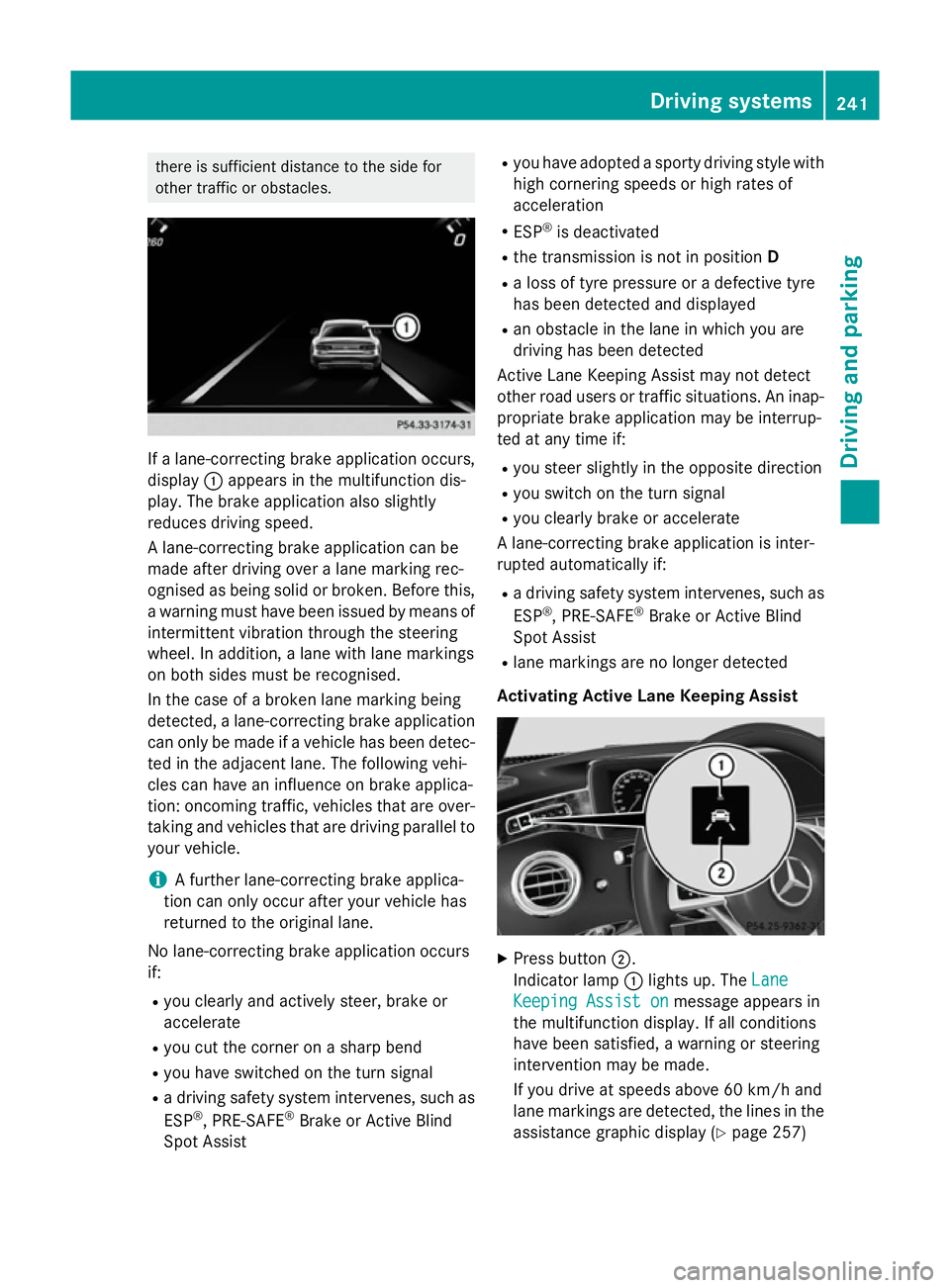
other traffic or obstacles. If a lane-correcting brake application occurs,
display :appears in the multifunction dis-
play. The brake application also slightly
reduces driving speed.
A lane-correcting brake application can be
made after driving over a lane marking rec-
ognised as being solid or broken. Before this,
a warning must have been issued by means of
intermittent vibration through the steering
wheel. In addition, a lane with lane markings
on both sides must be recognised.
In the case of a broken lane marking being
detected, a lane-correcting brake application can only be made if a vehicle has been detec-
ted in the adjacent lane. The following vehi-
cles can have an influence on brake applica-
tion: oncoming traffic, vehicles that are over-
taking and vehicles that are driving parallel to
your vehicle.
i A further lane-correcting brake applica-
tion can only occur after your vehicle has
returned to the original lane.
No lane-correcting brake application occurs
if:
R you clearly and actively steer, brake or
accelerate
R you cut the corner on a sharp bend
R you have switched on the turn signal
R a driving safety system intervenes, such as
ESP ®
, PRE-SAFE ®
Brake or Active Blind
Spot Assist R
you have adopted a sporty driving style with
high cornering speeds or high rates of
acceleration
R ESP ®
is deactivated
R the transmission is not in position D
R a loss of tyre pressure or a defective tyre
has been detected and displayed
R an obstacle in the lane in which you are
driving has been detected
Active Lane Keeping Assist may not detect
other road users or traffic situations. An inap- propriate brake application may be interrup-
ted at any time if:
R you steer slightly in the opposite direction
R you switch on the turn signal
R you clearly brake or accelerate
A lane-correcting brake application is inter-
rupted automatically if:
R a driving safety system intervenes, such as
ESP ®
, PRE-SAFE ®
Brake or Active Blind
Spot Assist
R lane markings are no longer detected
Activating Active Lane Keeping Assist X
Press button ;.
Indicator lamp :lights up. The Lane Lane
Keeping Assist on
Keeping Assist on message appears in
the multifunction display. If all conditions
have been satisfied, a warning or steering
intervention may be made.
If you drive at speeds above 60 km/h and
lane markings are detected, the lines in the assistance graphic display (Y page 257) Driving systems
241Driving and parking Z
Page 248 of 417
The red band in the rev counter indicates the
engine's overrevving range.
The fuel supply is interrupted to protect the
engine when the red band is reached. Outside temperature display
You should pay special attention to road con-
ditions when temperatures are around freez-
ing point.
Bear in mind that the outside temperature
display indicates the measured air tempera-
ture and not the road surface temperature.
The outside temperature display is in the mul- tifunction display (Y page 246).
There is a short delay before a change in out- side temperature is shown in the multifunc-
tion display. Coolant temperature gauge
G
WARNING
If you open the bonnet while the engine is
overheating or while there is a fire in the
engine compartment, you could come into
contact with hot gases or other leaking ser-
vice products. There is a danger of injury.
Allow an overheating engine to cool down
before opening the bonnet. If there is a fire in the engine compartment, leave the bonnet
closed and notify the fire brigade.
The multifunction display shows the coolant
temperature gauge in the lower section of the rev counter (Y page 32).
At high outside temperatures and when driv-
ing uphill, the coolant temperature may rise.
Under normal operating conditions and with
the specified coolant level, the coolant tem-
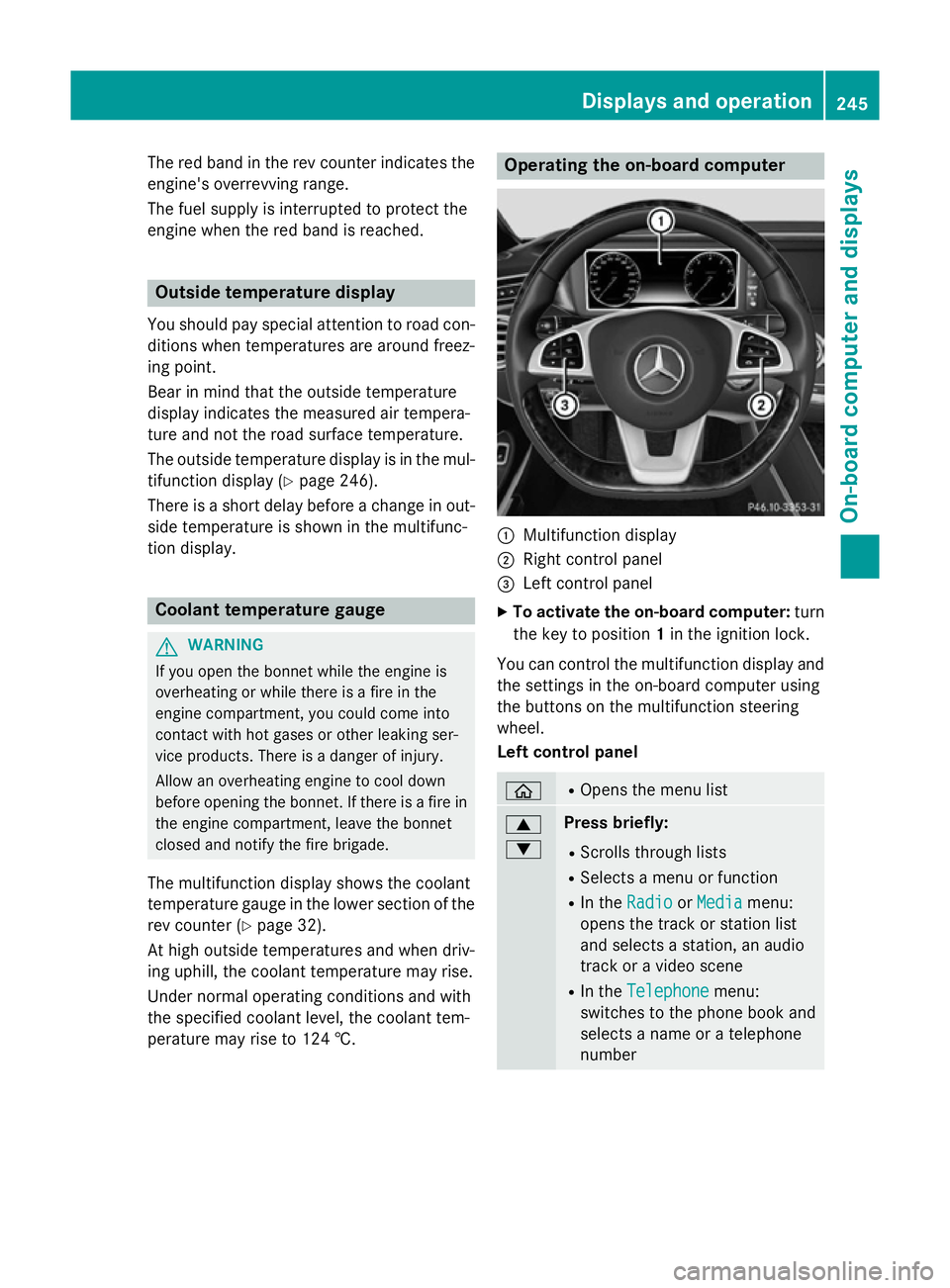
perature may rise to 124 †. Operating the on-board computer
:
Multifunction display
; Right control panel
= Left control panel
X To activate the on-board computer: turn
the key to position 1in the ignition lock.
You can control the multifunction display and
the settings in the on-board computer using
the buttons on the multifunction steering
wheel.
Left control panel ò R
Opens the menu list 9
: Press briefly:
R Scrolls through lists
R Selects a menu or function
R In the Radio Radio orMedia
Media menu:
opens the track or station list
and selects a station, an audio
track or a video scene
R In the Telephone
Telephone menu:
switches to the phone book and
selects a name or a telephone
number Displays and operation
245On-board computer and displays Z
Page 249 of 417
9
: Press and hold:
R Scrolls rapidly through all lists
R In the Radio
Radio orMedia Media menu:
selects a station, audio track or
video scene using rapid scrolling
R In the Telephone Telephone menu: starts
rapid scrolling if the phone book is open a R
In all menus: confirms the selec-
ted entry in the list
R In the Radio
Radio orMedia
Media menu:
opens the list of available radio
sources or media
R In the Telephone Telephone menu:
switches to the phone book and
starts dialling the selected num-
ber ñ R
Switches off LINGUATRONIC
(see the separate operating
instructions) % Press briefly:
R Back
R In the Radio Radio orMedia
Media menu:
deselects the track or station list or list of available radio sources
or media
R Hides display messages
R Exits the telephone book/redial
memory % Press and hold:
R Calls up the standard display in
the Trip Trip menu Right control panel
~ R
Rejects or ends a call
R Exits the telephone book/redial
memory 6 R
Makes or accepts a call
R Switches to the redial memory W
X R
Adjusts the volume 8 R
Mute ó R
Switches on LINGUATRONIC
(see the separate operating
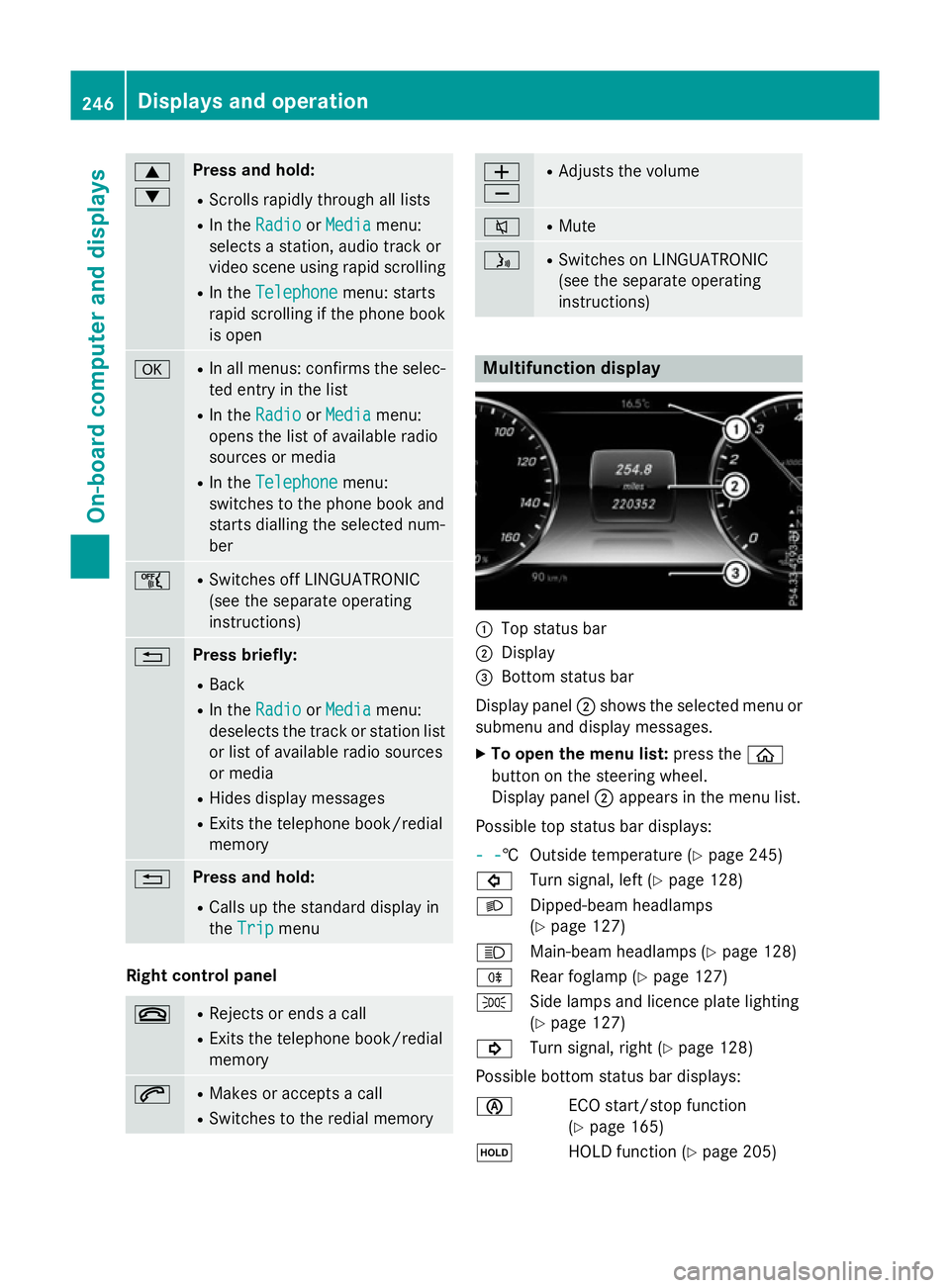
instructions) Multifunction display
:
Top status bar
; Display
= Bottom status bar
Display panel ;shows the selected menu or
submenu and display messages.
X To open the menu list: press theò
button on the steering wheel.
Display panel ;appears in the menu list.
Possible top status bar displays:
- - - -† Outside temperature (Y
page 245)
# Turn signal, left (Y page 128)
L Dipped-beam headlamps
(Ypage 127)
K Main-beam headlamps (Y page 128)
R Rear foglamp (Y page 127)
T Side lamps and licence plate lighting
(Ypage 127)
! Turn signal, right (Y page 128)
Possible bottom status bar displays:
è ECO start/stop function
(Ypage 165)
ë HOLD function (Y page 205)246
Displays and operationOn-board computer and displays
Page 250 of 417
j
Active Parking Assist
(Ypage 215)
_ Adaptive Highbeam Assist Plus
(Ypage 130)
a DISTRONIC PLUS Steering
Assist and Stop&Go Pilot
(Ypage 203)
- - - mph - - - mph Additional speedometer
(Y
page 264)
120 km/h! 120 km/h! Maximum permissible speed
exceeded (only for certain coun-
tries) Head-up display
General notes The head-up display projects information
from the navigation system and the driver
assistance system above the dashboard into
the driver's field of vision.
A requirement for the display of the contents
is that the following functions are available in the vehicle and are switched on:
R Cruise control and SPEEDTRONIC
R DISTRONIC PLUS
R Traffic Sign Assist
R Navigation
The head-up display allows the driver to see
all of the information without having to take
their eyes off the road.
Important safety notes The head-up display is only an aid and is not a
substitute for attentive driving.
Speed limits and overtaking restrictions are
not always correctly displayed. Traffic signs
always have priority over the Traffic Sign
Assist display.
The visibility of the head-up display is influ-
enced by the following conditions:
R the driver's seat position
R the positioning of the display image
R the general light conditions R
sunglasses with polarisation filters
R wet road surfaces
R blocking of sunlight by objects on the dis-
play cover
In the event of extreme sunlight, sections of
the display may fade. This can be reversed by
switching the head-up display off and on
again.
i Vehicles with the head-up display are
equipped with a special windscreen.
Should repairs be necessary, have the
windscreen replaced at a qualified special-
ist workshop.
Displays and operation Switching the head-up display on/off
X
Press button :.
When the head-up display is switched on,
the display appears in the driver's field of
vision. Displays and operation
247On-board computer and displays Z