audio MERCEDES-BENZ S-CLASS COUPE 2017 Owner's Manual
[x] Cancel search | Manufacturer: MERCEDES-BENZ, Model Year: 2017, Model line: S-CLASS COUPE, Model: MERCEDES-BENZ S-CLASS COUPE 2017Pages: 533, PDF Size: 10.75 MB
Page 346 of 533
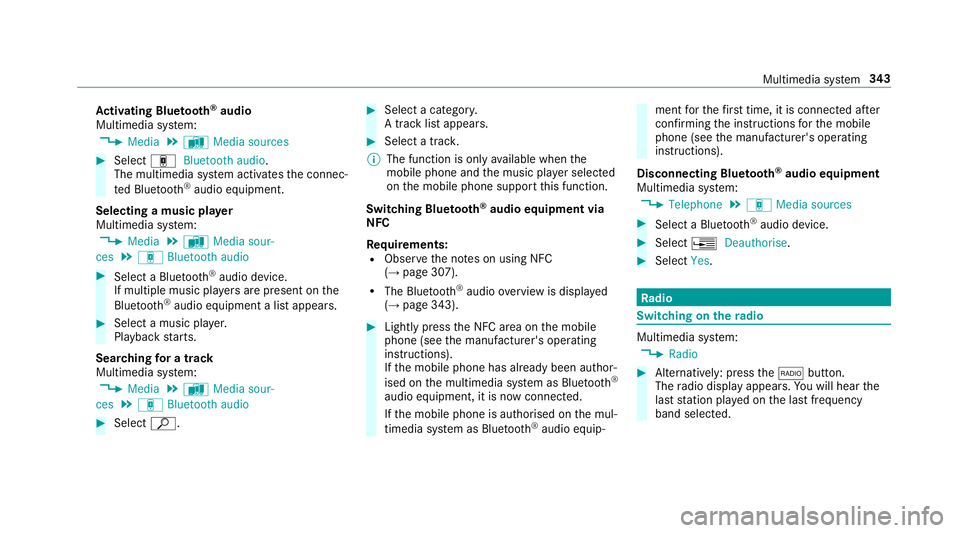
Ac
tivatin gBluetooth ®
audio
Multimedi asystem:
, Media .
à Media sources #
Select áBluetoot haudio.
The multimedia sy stem activates thec onnec‐
te dB luetooth ®
audio equipment.
Selecting amusic pla yer
Multimedia sy stem:
, Media .
à Media sour-
ces .
á Bluetoot haudio #
Select aBluetooth ®
audio device.
If multiple music pla yers arep resen tont he
Blue tooth ®
audio equipment alista ppears. #
Select amusic pla yer.
Playbac kstarts.
Sear ching forat rack
Multimedia sy stem:
, Media .
à Media sour-
ces .
á Bluetoot haudio #
Select ª. #
Select acategor y.
At rack list appears. #
Select atrac k.
% The function is onl yavailable when the
mobil ephone and them usic pla yers elected
on them obile phone suppor tthis function.
Switching Blue tooth ®
audio equipment via
NFC
Requ irements:
R Obser vethen otes on using NFC
(→ pag e307).
R The Blue tooth®
audio overvie wisd isplayed
( → pag e343). #
Lightl ypress theN FC area on them obile
phone (see them anufacturer's operating
instructions).
If th em obile phone has already been author‐
ised on them ultimedia sy stem as Blue tooth®
audio equipment ,itisnowconnec ted.
If th em obile phone is authorised on them ul‐
timedia sy stem as Blue tooth ®
audio equip‐ men
tfor thef irst time, it is connected af ter
confirming thei nstruction sfor them obile
phone (see them anufacturer's operating
instructions).
Disconnecting Blue tooth ®
audio equipment
Multimedi asystem:
, Telephone .
á Media sources #
Select aBluetooth ®
audio device. #
Select ¥Deauthorise. #
Select Yes. Ra
dio Switchin
gontheradio Multimedia sy
stem:
, Radio #
Alternatively: press the$ button.
The radio displa yappears. Youw ill hear the
las tstatio np laye dont he las tfrequ ency
band selected. Multimedia sy
stem 343
Page 349 of 533
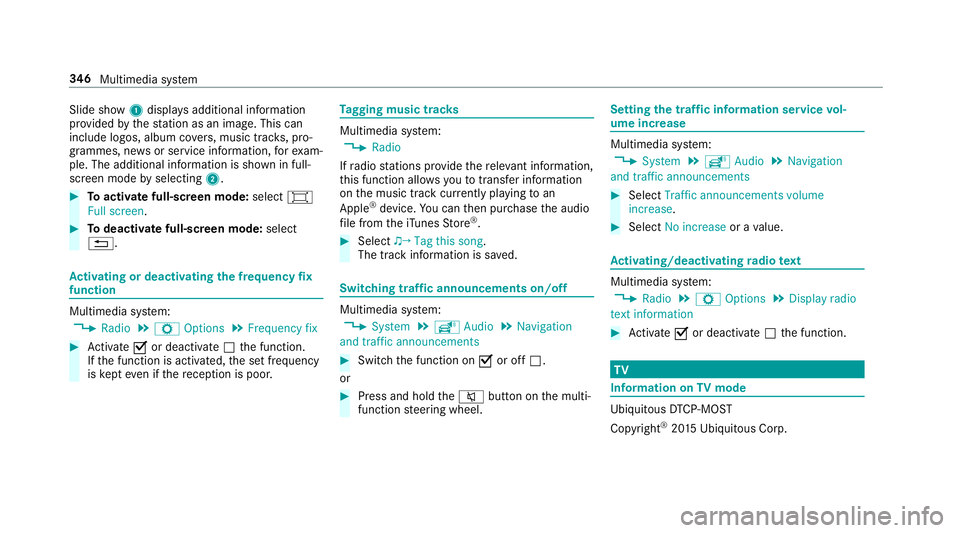
Slide show
1displ aysa dditional information
pr ov ided bythes tatio nasani mage. This can
include logos ,album co vers,m usic trac ks,p ro‐
grammes, ne wsor service information, fore xam‐
ple. The additional information is shown in full-
sc reen mode byselecting 2. #
Toactivat efull-screenm ode:select #
Full screen. #
Todeactivat efull-sc reen mode: select
%. Ac
tivatin gordeactivatin gthe frequency fix
function Multimedia sy
stem:
, Radio .
Z Options .
Frequenc yfix #
Activate Oor deacti vate ª thef unction.
If th ef unction is activated, thes etfrequency
is ke pt eve nifthereception is poo r. Ta
gging music trac ks Multimedia sy
stem:
, Radio
If ra dio stations pr ovide ther ele vant information,
th is function allo wsyoutot rans feri nformation
on them usic trac kcurrently pl aying toan
Apple ®
device. Youc an then pur chase thea udio
fi le from thei Tune sS tore ®
. #
Select ♫→ Tag this song.
The trac kinformation is sa ved. Switching traf
fica nnouncement son/off Multimedia sy
stem:
, System .
õ Audio .
Navigation
and traffic announcements #
Switc hthe function on Oor off ª.
or #
Press and hold the8 button on them ulti‐
function steering wheel. Setting
thet raffic information service vol‐
um eincrease Multimedia sy
stem:
, System .
õ Audio .
Navigation
and traffic announcements #
Select Traffic announcements volume
increase. #
Select No increase orav alue. Ac
tivating/deactivatin gradio text Multimedia sy
stem:
, Radio .
Z Options .
Display radio
texti nformation #
Activate Oor deacti vate ª thef unction. TV
Information on
TVmode Ubiquitou
sDTCP-MO ST
Copyright ®
20 15 Ubiquitous Corp. 346
Multimedia sy stem
Page 350 of 533
The
TVtune renables reception of digital chan‐
nel saccordin gtothefollowing standards:
R DVB-T
R DVB-T2
In some countries ,the standards ma ynotbe
av ailable, or ma ynotbe available in all areas.
ACAm odule (Conditional Access Module),
whi chis no tincluded in thes cope of deliver y,is
used todecryp tHDprogramme saccording to
th eC I+standard. In som ecountries, an addi‐
tional smar tcardisr equired, whic hisinserted
int ot he CA module (see them anufacturer's
operating manual).
The TVtune risInt he boot, beneat hthe rear
shelf. The CAmodule is inser tedi ntot he TV
tune r.
* NO
TEDama getotheCAm odule and
Smar tCard The
CAmodule is designed foru se in the
home. When used on them ove,the CA mod‐
ule ma yoverheat in consis tentl yh igho utside
te mp eratures and ma ybedamaged. #
Mak esuret hat theCAm odule is not
subject tohigh temp eratures fore xten‐
de dp eriods of time.
If th eCAm odule is dama ged, no
enc rypte dchannels can be recei ved. The
TVtune rcan recei veprogrammes in Dolby
Digital Plus. Manufactured under licens
efromD olbyLabora‐
to ries. Dolb y,Dol byAudio and thed ouble-D sym‐
bol ar etrademar ksof Dolb yLaboratories.
The TVtune rautomatically sets theTVs tandard.
TV reception is dependent on thef ollowing fac‐
to rs:
R Speed
R Characteristics of thes elected TVchannel
TV reception ma ybeinfluenced bythef ollowing
fa ctors:
R Electronic device swhich aret aken in tothe
ve hicle ma yimp air TV reception.
R The conditions forr eceptio nmaychange
whils tthe vehicle is in motion.
Po or reception conditions can ha vethef ollowing
ef fect:
R The TVtune rswitche stoana lternativechan‐
nel wit hbette rr eceptio nwhich is digitally
broadcastin gthe same programme content
R The TVtune rmutes thes ound, freezes the
screen or hides it. The tsymbol appears
in thed ispla y. Multimedia sy
stem 347
Page 353 of 533
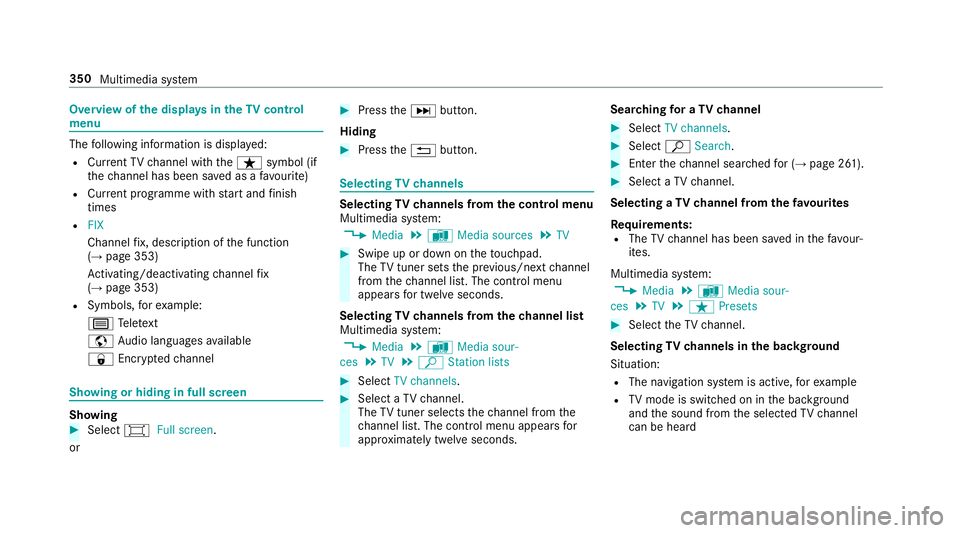
Overvie
wofthe dis play sint heTV cont rol
menu The
following informatio nisdisplayed:
R Cur rent TV channel wit hthe ß symbol (if
th ec hannel has been sa vedasaf avourite)
R Cur rent programme wi thstar ta nd finish
times
R FIX
Channe lfix, desc ript ionoft he function
(→ pag e353)
Ac tivating/deactivating channel fix
( → pag e353)
R Symbols, fore xamp le:
p Telete xt
z Audio languages available
r Encryp tedc hannel Showing or hiding in full screen
Showing
#
Select #Full screen.
or #
Press theD button.
Hiding #
Press the% button. Selecting
TVchannels Selecting
TVchannels from thec ontrol menu
Multimedia sy stem:
, Media .
à Media sources .
TV #
Swipe up or down on thet ouchpad.
The TVtune rsetst he pr evious/n extc hannel
from thec hannel list. The control menu
appear sfor twelv eseconds.
Selecting TVchannels from thec hanne llist
Multimedi asystem:
, Media .
à Media sour-
ces .
TV .
ª Station lists #
Select TV channels. #
Select aTVchannel.
The TVtune rselect sthe channel from the
ch annel list. The control men uappear sfor
appr oximatel ytwe lves econds. Sear
ching foraTVc hannel #
Select TV channels . #
Select ªSearch . #
Enter thec hannel sear ched for( → pag e261). #
Select aTVchannel.
Selecting aTVchanne lfro mt hefavo urites
Re quirements:
R The TVchannel has been sa vedint hefavo ur‐
ites.
Multimedia sy stem:
, Media .
à Media sour-
ces .
TV .
ß Presets #
Select theTVc hannel.
Selecting TVchannels in theb ackg round
Situation: R The navigation sy stem is active, fore xamp le
R TVmode is switched on in theb ackg round
and thes ound from thes elected TVchannel
can be heard 350
Multimedia sy stem
Page 355 of 533
Quic
k-saving aTVchannel
Multimedi asystem:
, Media .
à Media sources .
TV #
In full-screen mode, press thet ouchpad for
longer than thre es econds.
The cur rent TV channel is stored in the
fa vo urites in then exta vailable position.
St oring TVchannels
Multimedi asystem:
, Media .
à Media sour-
ces .
TV .
ß Presets #
Select Store curren tstation in the presets .
The cur rent channel is stored in thef avo ur‐
ites in then exta vailable position. #
Alternatively: highlight thec hannel in the
ch annel lis tand stor easaf avourite.
Moving channels in thef avo urites #
Highlight achannel in thef avo urites. #
Select ¥Movehighlighted station. #
Highligh tthe ne wposition. #
Confir mthe position. Deleting
channels #
Highlight achannel in thef avo urites. #
Select ¥Deletehighlighted station. #
Select Yes. TV
prog ramme Overvi
ewof audio languag eand subtitles
Au dio language
R It is possible tochoose between se veral
audio languages when aprogramme is broad‐
cas tinm ultiple languages.
R If,fore xamp le, En glish is se tasthe sy stem
languag eand aTVc hannel is broadcasting in
th is language, En glish is selec teda utomati‐
cally.
The prog ramme transmission ma ybeindica ted
wit hthe following symbols:
m Programme wit haudioexplanation sfor
th ev isuall yimp aired
o Stereo broadcast
n Programme fort he hearing impaired 5.1
Broadcas
tinsurround sound
If as ymbol is no tshown, thep rogramme
is either broadcas tinmonoort he trans‐
mission properties ar eunknow n.
Subtitles
R The functio niss witched on: subtitle sare
shown in thes elected languag efor thec ur‐
re nt programme (i favailable).
Setting theTVa udio language
Multimedi asystem:
, Media .
à Media sour-
ces .
TV .
Z Options #
Select Audio/subtitles. #
Select one of thea vailable audio languages.
The audio languag eselec tedo nlya pplies to
th ec urrent programme.
Settin gthe TV subtitles
Multimedia sy stem:
, Media .
à Media sour-
ces .
TV .
Z Options #
Select Audio/subtitles. 352
Multimedia sy stem
Page 358 of 533
Ad
justin gtreble, mid- rang ea nd bass set‐
tings
Multimedia sy stem:
, Media .
à Sound .
Equaliser #
Select Treble, MidorBass. #
Chang ethe settings.
Ac tivating/deactivatin gautomati cvolume
adjustment
Multimedia sy stem:
, Media .
à Sound .
Automatic vol-
ume adjustment
Au tomatic volume adjustment compensates for
dif fering volumes when changing between audio
sources. #
Activate Oor deacti vate ª thef unction.
Ad justin gthe balance/ fader
Multimedia sy stem:
, Media .
à Sound .
Balance and
Fader #
Adjus tthe balance and fader. #
Toexitth em enu: press the% button. Burmes
ter®
sur round soun dsystem Information abou
tthe Burmes ter®
sur round
soun dsystem
The Burmes ter®
sur round soun dsystemh as a
to ta lo utput of 590 watts and is equipped wi th
13 speakers. It is available fora ll functions in the
ra dio and media modes.
Calling up thes ound menu in the
Bu rm ester ®
sur round soun dsystem
Multimedia sy stem:
, Media .
à Sound
The following function sareavailable:
R Equaliser
R Balance and Fader
R Automatic volum eadjustment
R Surroun dsound
R Soun dfocus
R Other soun dsettings #
Select afunction. Ad
justin gthe treble ,mid and bas ssettings
on the Burmes ter®
sur round soun dsystem
Multimedia sy stem:
, Media .
à Sound .
Equaliser #
Select Treble, MidorBass. #
Setthe desired values.
Ac tivating/deactivatin gvolum eadjustment
in theB urme ster ®
sur round soun dsystem
Multimedia sy stem:
, Media .
à Sound .
Automatic vol-
ume adjustment
Au tomatic volume adjustment compensates for
dif fering volumes when changing between audio
sources. #
Activate Oor deacti vate ª thef unction.
Ad justin gthe balance/ fader in the
Burmes ter®
sur round soun dsystem
Multimedia sy stem:
, Media .
à Sound .
Balance and
Fader #
Adjus tthe balance and fader. Multimedia sy
stem 355
Page 359 of 533
#
Toexitth em enu: press the% button.
Switching sur round soun don/of fint he
Burmes ter®
sur round soun dsystem
Multimedia sy stem:
, Media .
à Sound .
Surround
sound #
Switc hthe function on Oor off ª.
Ad justin gthe sound focus in theB urme ster ®
sur round soun dsystem
Multimedia sy stem:
, Media .
à Sound .
Sound focus #
Adjus tthe sound focus. Burmes
ter®
high-end 3D sur round sound
sy stem Information on
theB urme ster ®
high-end 3D
sur round soun dsystem
The Burmes ter®
high-end 3D sur round sound
sy stem has atotal output of 1560 watts and is
equippe dwith25s peakers.Itisa vailable fora ll
functions in ther adio and media modes. Calling up the sound menu in
the
Bu rm ester ®
high-end 3D sur round sound
sy stem
Multimedia sy stem:
, Media .
à Sound
The following function sareavailable:
R Equaliser
R Balance and Fader
R Automatic volum eadjustment
R VIP seat (seat-based soun doptimisation)
R Soun dprofiles
R Other soun dsettings #
Select asoun dm enu.
Ad justin gthe treble ,mid-rang ea nd bass set‐
tings on theB urme ster ®
high-end 3D sur‐
ro und soun dsystem
Multimedia sy stem:
, Media .
à Sound .
Equaliser #
Select Treble, MidorBass. #
Setthe desired values. Ac
tivating/deactivatin gvolum eadjustment
in theB urme ster ®
high-end 3D sur round
soun dsystem
Multimedia sy stem:
, Media .
à Sound .
Automatic vol-
ume adjustment
Au tomatic volume adjustment compensates for
dif fering volumes when changing between audio
sources. #
Activate Oor deacti vate ª thef unction.
Ad justin gthe balance/ fader in the
Burmes ter®
high-end 3D sur round sound
sy stem
Multimedia sy stem:
, Media .
à Sound .
Balance and
Fader #
Adjus tthe balance and fader. #
Toexitth em enu: press the% button. 356
Multimedia sy stem
Page 495 of 533
Belt
see Sea tbelt
Blind Spo tAssist ..................................... 225
Ac tivating/deactivating ...................... .227
Fu nctio n.............................................. 225
Sy stem limitations ...............................2 25
Blue tooth ®
Ac tivating/deactivating ...................... .265
Setting up an Interne tconnection ....... 325
Settings ............................................... 264
Switching profile (DUN/PAN) .............. 326
Blue tooth ®
audio
Ac tivating ............................................ 343
De-authorising (de-regis tering) the
device .................................................. 343
Information .......................................... 340
Overvie w............................................. .341
Sear ching forat rack ........................... 343
Sear ching fora nd auth orisingthe
device .................................................. 342
Selecting amusic pla yer. .................... 343
Switching device via NFC .................... 343 Boo
tlid
Ac tivating/deactivating theb ootlid
opening limiter ...................................... 77
Closin g................................................. .72
HANDS-FREE ACCES S........................... 74
Locking separa tely ................................. 76
Opening .................................................71
Opening dimensions ............................4 26
Po we rclosing function ......................... .72
Unlocking (emergency key) .................... 76
Brak eAssis tSystem
see BAS(Brak eAssistSystem)
Brak efluid
No tes. ................................................. 425
Brak eforce distribution
EB D( Elect ronic Brak eforce Distribu‐
tion) ..................................................... 175
Brakes ABS (Anti-lo ckBraking Sy stem) ........... 171
Ac tiveB rake Assi st.............................. 175
Ad aptiv ebrake light s........................... 180
BA S(Brak eAssistSystem) ...................1 71
Driving tip s........................................... 151EBD (Electroni
cBrake forc eD istribu‐
tion )..................................................... 175
HOLD functio n.................................... .196
Limi tedb raking ef fect (salt-trea ted
ro ads) .................................................. 151
New/replaced brak elinings/brake
discs .................................................... 15 0
Ru nning-in no tes. .................................1 50
Braking assi stance
see BAS(Brak eAssistSystem)
Breakdown Assis tance overview. ............................ .16
To w- startin g....................................... .392
To wing away ........................................ 388
Tr ansportin gthe vehicle ......................3 89
Whee lchang e..................................... .408
Breakdown see Flat tyre
Breakdown assistance call see Servic ecall
Breakdown management see Servic ecall 492
Index
Page 513 of 533
N
Na vigation
Calling up theD igital Owner's Man‐
ual .......................................................3 01
Menu (on-boar dcomputer) .................. 236
Showing/hiding them enu ...................2 76
Switching on ........................................ 276
Up dating them ap dat a........................ 299
Vo ice command s(LINGU ATRO NIC) .....2 45
Na vigation
see Destination
see Destination entry
see Map
see Route
see Routeg uidance
see Traf fici nformation
Na vigation announcements
Ac tivating/deactivating ...................... .288
Ad justing thev olume ........................... 289
Re peating ............................................ 289
Switching audio fadeout on/of f......... .289
Switching on/of fduring aphone call .. 288
Na vigation messages
On-boar dcomputer ............................. 236 Ne
arField Communication (NFC) .......... 307
Connecting them obile phone tothe
multimedia sy stem .............................. 307
Information .......................................... 306
Locking thev ehicle (mobile phone) .......67
St artin gthe vehicle (Digital Car Key
st icke r) ................................................ 14 8
St artin gthe vehicle (mobile phone) ..... 14 8
Switching Blu etoo th®
audio equip‐
men t................................................... .343
Swit ching mobile phones .................... 307
Un lockin gthe vehicle (mobile phone) ....67
Ne utral
Selecting ............................................. 157
NFC see Nea rField Communicatio n(NFC)
Night vi ew
see Night View Assi st
Night View Assist .................................... 223
Ac tivating/deactivating ...................... .224
Au tomatic activation ............................ 224
Care .................................................... 369
Fu nctio n.............................................. 223
Pe destrian de tection ........................... 223 Spotlight function ................................ 224 O
Occupan tsafety
Pe ts in thev ehicle ................................. 60
Occupant saf ety
see Airbag
see Automatic front passenger air‐
bag shutoff
see PRE-SAFE ®
(anticipator yoccu‐
pant pr otection)
see PRE-SAFE ®
PLUS (anticipatory
occupant pr otection plus)
see Restra int sy stem
see Seat belt
Odome ter
see Totald ista nce recorder
Oil see Engine oil
On-boar dcom puter
Assis tance graphi cmenu .................... 234
Displaying thes ervice due dat e........... 358
Head-up Displa ymenu ........................ 239
Media menu ........................................2 3751 0
Index
Page 523 of 533
To
uchpad
Ac tivating/deactivating ...................... .256
Ac tivating/deactivating ha ptic oper‐
ation feedbac k.....................................2 57
Operating ............................................ 256
Re adin gthe handwriting recognition
alou d................................................... 257
Selecting astatio na nd trac k............... 257
Settin gthe sensitivity .......................... 257
To w- aw ay protection
Ac tivating/deactivating ......................... 86
Fu nctio n................................................ 86
To w- starting ............................................. 392
To wing away ............................................ 388
To wing eye
Ins talling .............................................. 391
St orag elocation ..................................3 91
To wing me thods ...................................... 387
Tr ack
Selecting (audio mode )....................... 335
Tr af fica nnouncements
Swit ching on/of f................................. 346 Tr
af fica nnouncement svolume
increase
Setting ................................................ .346
Tr af fici nformation .................................. 292
Displaying thet raffic map .................. .294
Displ aying traf fici ncidents .................. 294
Issuing hazar dalerts. .......................... 295
Liv eT raffic In form ation ....................... 293
Overvie w............................................. 292
Tr af ficm ap
see Map
Tr af ficS ign Assist .................................. .220
Fu nction/no tes. .................................. 220
Setting. ................................................2 22
Sy stem limitations ...............................2 20
Tr ansfer redv ehicle data
And roid Au to ........................................ 317
Apple CarPl ay™. .................................. 317
Tr ansmissio nposition display ................15 6
Tr anspo rting
Loading guidelines .............................. .102
Ve hicle ................................................ 389
Tr im element (Care) .................................371 Tr
ip
Menu (on-boar dcomputer) .................. 234
Tr ip computer
Displaying ............................................ 234
Re setting. ............................................ 235
Tr ip distance ............................................ 234
Displaying ............................................ 234
Re setting. ............................................ 235
Tr ip me ter
see Trip dis tance
Tu rn signal indicator
see Turn signal light
Tu rn signal light ....................................... 121
Ac tivating/deactivating ...................... .121
TV .............................................................. 24 9
Callin gupt he menu (C Amodule) ........ 354
Displaying telete xt ............................... 353
Displa ysintheTVc ontrol menu .......... 350
Fu nction/no tes( audio language,
subtitles) ............................................. 352
Information .......................................... 346
Inserting theCAm odule ...................... 354
Overvie w............................................. 349
Pictur esettings ................................... 353 520
Index