lock MERCEDES-BENZ S-Class MAYBACH 2017 W222 Comand Manual
[x] Cancel search | Manufacturer: MERCEDES-BENZ, Model Year: 2017, Model line: S-Class MAYBACH, Model: MERCEDES-BENZ S-Class MAYBACH 2017 W222Pages: 230, PDF Size: 8.27 MB
Page 109 of 230
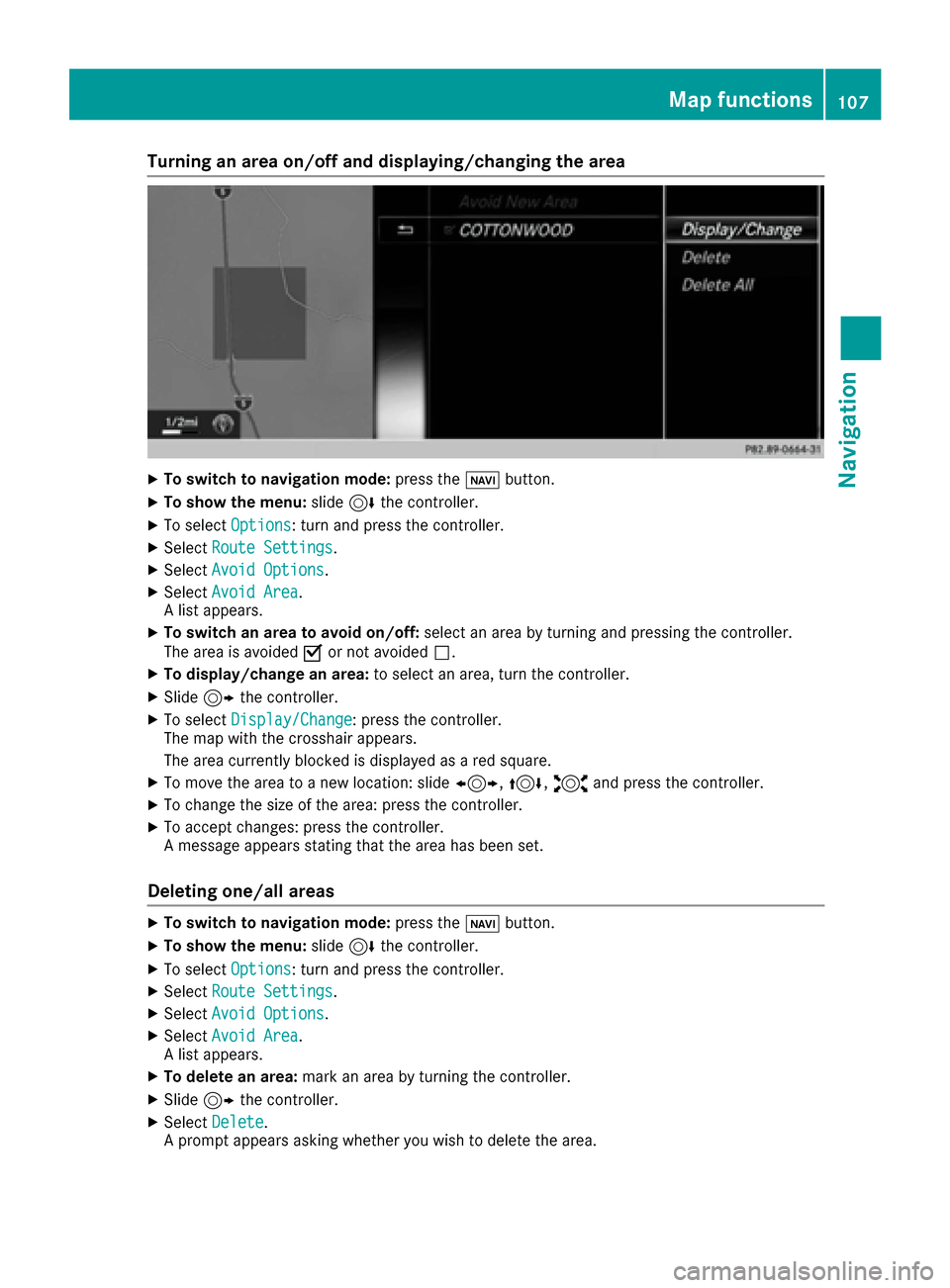
Turning an area on/off and displaying/changing the area
XTo switch to navigation mode:press theßbutton.
XTo show the menu: slide6the controller.
XTo select Options: turn and press the controller.
XSelectRoute Settings.
XSelectAvoid Options.
XSelectAvoid Area.
A list appears.
XTo switch an area to avoid on/off: select an area by turning and pressing the controller.
The area is avoided Oor not avoided ª.
XTo display/change an area: to select an area, turn the controller.
XSlide9the controller.
XTo select Display/Change: press the controller.
The map with the crosshair appears.
The area currently blocked is displayed as a red square.
XTo move the area to a new location: slide 1,4,2and press the controller.
XTo change the size of the area: press the controller.
XTo accept changes: press the controller.
A message appears stating that the area has been set.
Deleting one/all areas
XTo switch to navigation mode: press theßbutton.
XTo show the menu: slide6the controller.
XTo select Options: turn and press the controller.
XSelectRoute Settings.
XSelectAvoid Options.
XSelectAvoid Area.
A list appears.
XTo delete an area: mark an area by turning the controller.
XSlide9the controller.
XSelect Delete.
A prompt appears asking whether you wish to delete the area.
Map functions107
Navigation
Z
Page 117 of 230
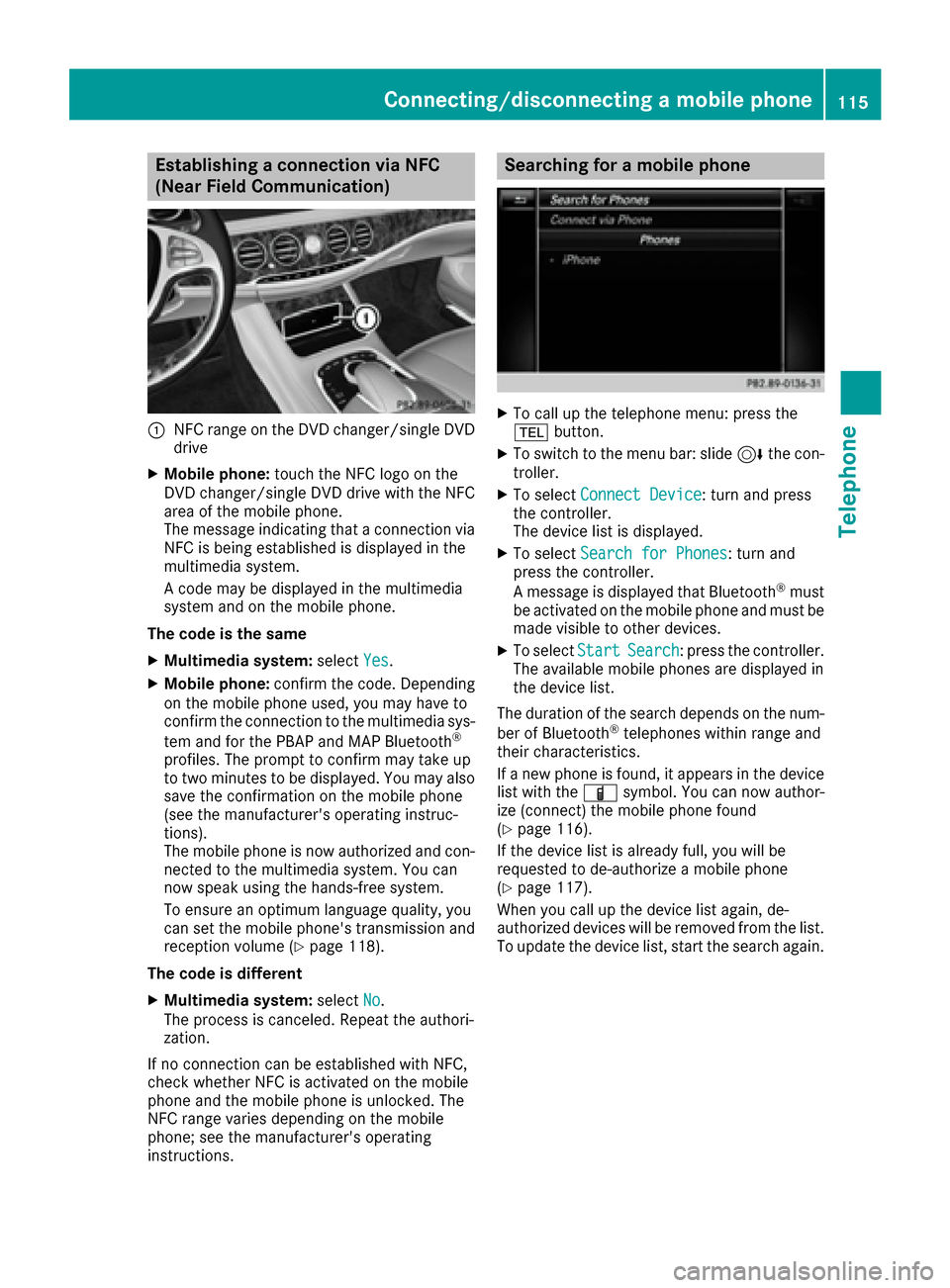
Establishing a connection via NFC
(Near Field Communication)
:NFC range on the DVD changer/single DVD
drive
XMobile phone:touch the NFC logo on the
DVD changer/single DVD drive with the NFC
area of the mobile phone.
The message indicating that a connection via
NFC is being established is displayed in the
multimedia system.
A code may be displayed in the multimedia
system and on the mobile phone.
The code is the same
XMultimedia system: selectYes.
XMobile phone: confirm the code. Depending
on the mobile phone used, you may have to
confirm the connection to the multimedia sys-
tem and for the PBAP and MAP Bluetooth
®
profiles. The prompt to confirm may take up
to two minutes to be displayed. You may also
save the confirmation on the mobile phone
(see the manufacturer's operating instruc-
tions).
The mobile phone is now authorized and con-
nected to the multimedia system. You can
now speak using the hands-free system.
To ensure an optimum language quality, you
can set the mobile phone's transmission and
reception volume (
Ypage 118).
The code is different
XMultimedia system: selectNo.
The process is canceled. Repeat the authori-
zation.
If no connection can be established with NFC,
check whether NFC is activated on the mobile
phone and the mobile phone is unlocked. The
NFC range varies depending on the mobile
phone; see the manufacturer's operating
instructions.
Searching for a mobile phone
XTo call up the telephone menu: press the
% button.
XTo switch to the menu bar: slide 6the con-
troller.
XTo select Connect Device: turn and press
the controller.
The device list is displayed.
XTo select Search for Phones: turn and
press the controller.
A message is displayed that Bluetooth
®must
be activated on the mobile phone and must be
made visible to other devices.
XTo select StartSearch: press the controller.
The available mobile phones are displayed in
the device list.
The duration of the search depends on the num- ber of Bluetooth
®telephones within range and
their characteristics.
If a new phone is found, it appears in the device list with the Ïsymbol. You can now author-
ize (connect) the mobile phone found
(
Ypage 116).
If the device list is already full, you will be
requested to de-authorize a mobile phone
(
Ypage 117).
When you call up the device list again, de-
authorized devices will be removed from the list.
To update the device list, start the search again.
Connecting/disconnecting a mobile phone115
Telephone
Z
Page 131 of 230
Deleting all speed dial presets
XTo call up the telephonemenu: press the
% button.
XTo call up the menu bar: slide 6thecon-
troller.
XTo select CallLists:turn and press th e
controller.
XSelect Speed Dia lPreset Lis t.
The speed dial list is displayed.
XTo highlight the desired memory position:
turn th econtroller.
XTo select G: slide 9thecontroller.
XTo select Delete All Speed Dia lPre ‐sets:turn and press th econtroller.
XTo select Yes:turn and press th econtroller.
Al l speed dials are deleted.
Messages (text messages and e-
mails)
Requirements
To use the message functions, theconnecte d
mobile phone must support theMA P Bluetooth®
profile. When connecting the mobile phone, you
may have to accept the prompt forth eMA P
Bluetooth
®profile.
With somemobile phones, some settings still
have to be made after connecting to th e multi-
media system (see the manufacturer's operat-
ing instructions). The messages are then dis-
played thenext time you connect to the multi-
media system.
An e-mail account must be set up on the mobile
phone fo rth e e-mail function (see the manufac-
turer’s operating instructions).
To read and write e-mails in the multimedia sys-
tem, th e e-mail account first needs to be con-
figure d(
Ypage 130).
Some mobile phones with theMA P Bluetooth®
profile:
Ronly sho wne wtext messages
Rdo not support the deleting or editing of text
messages
Rdo not support thedraft s folder for text mes-
sages
Rdo not support the sending of text messages
Rdo not support the e-mail function
Rdo not send messages when in a locked sta-
tu s
Not all mobile phones avai lable o
n themarke t
are equally suitable. Further information about
setting sand supporte dfunction s of Bluetooth
®-
capable mobile phones can be found on the
Internet at
http://www.mercedes-benz.com/connect.
You can also obtain more information by calling.
In th e USA, you can get in touch with the
Mercedes-Benz Customer Assistanc e Centeron
1-800-FOR-MERCedes (1-800-367-6372).
In Canada, you can get in touch with the Cus-
tomer Relations Center on 1-800-387-0100.
Function restrictions
Text messages cannot be written while the vehi-
cle is in motion.
General notes
New messages are identified by the /sym-
bol in the display of the multimedia system and
an audible signal. Once you have read all the
messages, the symbol is no longer displayed.
The multimedia system displays the 100 newest
text messages and e-mails.
The ú symbol is displayed when the mobile
phone's message memory is full. The symbol is
no longer displayed if you delete messages.
Settings
Calling up the settings menu for mes-
sages
XTo call up the telephone menu: press the
% button.
XTo switch to the menu bar: slide 6the con-
troller.
XTo select 1: turn and press the controller.
The message menu is displayed.
Messages (text messages and e-mails)129
Telephone
Z
Page 154 of 230
You can activate/deactivate the following set-
tings:
RDownload Images Automatically
It may take some time to download the con-
tents of websites that contain a large amount
of images. Therefore, it may be useful to deac-
tivate this option.
RBlock Pop-Ups
Popups are windows (usually with advertise-
ments) which are displayed automatically
when you call up a website. You can block
these displays.
RActivate Javascript
Javascript makes it possible to display and
interact with dynamic content on the website.
RAllow Cookies
Some websites save information in small text
files (cookies) on your system. You can deter-
mine whether cookies may be stored.
REnable Internet Audio
You can switch the browser's audio playback
on or off here.
RHide Scroll Bars
You can show or hide the scroll bar here.
RShow Link Target
You can display the link's URL here.
RCharacter Size
You can select the font size which is used
when displaying the website.
RCharacter Code
You can select a different character set here,
e.g. if the characters of a website appear dis-
torted.
Changing settings
XTo select the desired setting: turn and press
the controller.
Switch the setting onOor off ª.
Changing the character size or character
code
XSelect CharacterSizeorCharacterCode.
XTo select the setting you require: turn and
press the controller.
iIf you change the settings, the websites may
not be displayed correctly.
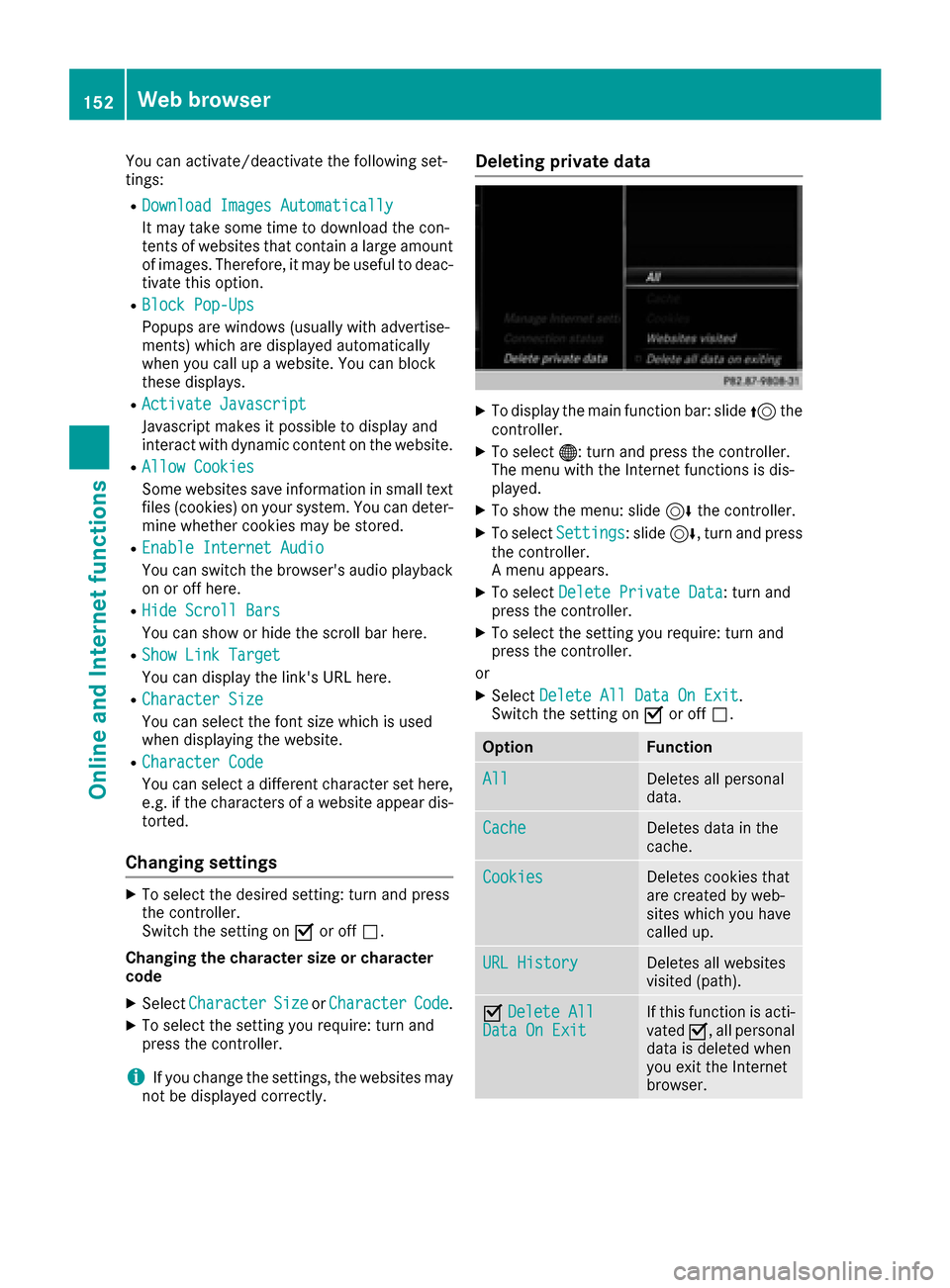
Deleting private data
XTo display the main function bar: slide 5the
controller.
XTo select ®: turn and press the controller.
The menu with the Internet functions is dis-
played.
XTo show the menu: slide 6the controller.
XTo select Settings: slide6, turn and press
the controller.
A menu appears.
XTo select Delete Private Data: turn and
press the controller.
XTo select the setting you require: turn and
press the controller.
or
XSelect Delete All Data On Exit.
Switch the setting on Oor off ª.
OptionFunction
AllDeletes all personal
data.
CacheDeletes data in the
cache.
CookiesDeletes cookies that
are created by web-
sites which you have
called up.
URL HistoryDeletes all websites
visited (path).
ODelete AllData On ExitIf this function is acti-
vated O, all personal
data is deleted when
you exit the Internet
browser.
152Web browser
Online and Internet functions
Page 192 of 230
Setting the picture format
XSelectVideo Settings(Ypage 189).
The following screen format options are availa-
ble for the DVD currently being played:
RAuto
R16:9
R4:3
RZoom
XTo set the picture format: turn and press the
controller.
The dot before the menu entry shows the
selected format.
Showing the DVD's control menu
Most DVDs have their own control menuwhich
can be operated using the controller.
Showing the DVD's control menu
XTo show DVD functions: in full screen video
mode, press the controller.
The DVD functions menu is shown.
XTo select Menufrom the DVD functions menu:
turn and press the controller.
The DVD functions menu is hidden and the
DVD's menu entries (e.g. scenes, language,
trailers) are displayed.
XTo select a menu entry: turn and press the
controller.
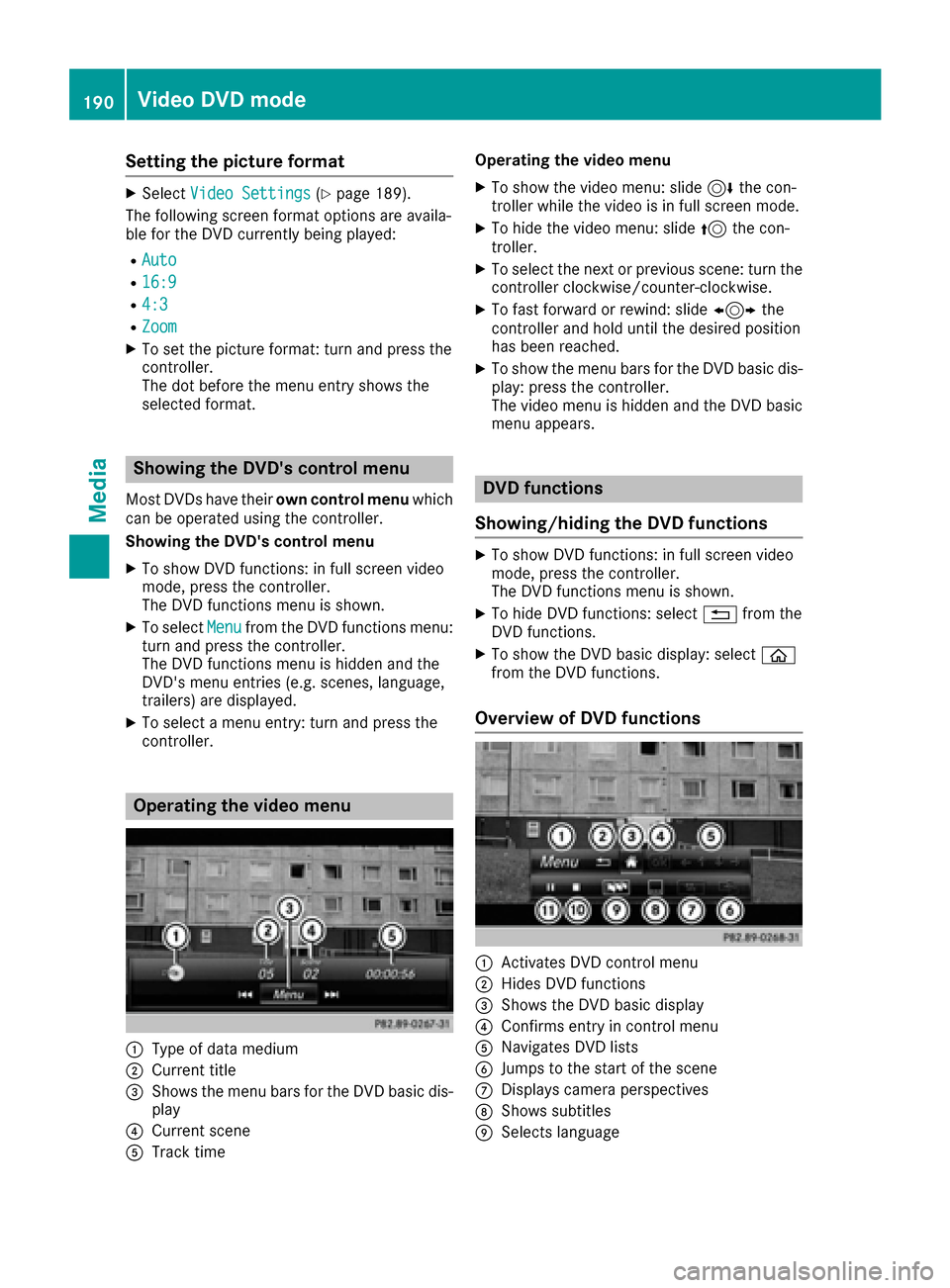
Operating the video menu
:Type of data medium
;Current title
=Shows the menu bars for the DVD basic dis- play
?Current scene
ATrack time Operating the video menu
XTo show the video menu: slide
6the con-
troller while the video is in full screen mode.
XTo hide the video menu: slide 5the con-
troller.
XTo select the next or previous scene: turn the controller clockwise/counter-clockwise.
XTo fast forward or rewind: slide 1the
controller and hold until the desired position
has been reached.
XTo show the menu bars for the DVD basic dis-
play: press the controller.
The video menu is hidden and the DVD basic
menu appears.
DVD functions
Showing/hiding the DVD functions
XTo show DVD functions: in full screen video
mode, press the controller.
The DVD functions menu is shown.
XTo hide DVD functions: select %from the
DVD functions.
XTo show the DVD basic display: select ò
from the DVD functions.
Overview of DVD functions
:Activates DVD control menu
;Hides DVD functions
=Shows the DVD basic display
?Confirms entry in control menu
ANavigates DVD lists
BJumps to the start of the scene
CDisplays camera perspectives
DShows subtitles
ESelects language
190Video DVD mode
Media
Page 194 of 230
The maximum image resolution is 20 megapix-
els.
It is not possible to view a picture from the driv-
er's side while the vehicle is in motion.
Displaying pictures
XIn media mode, slide6the controller.
The media menu bar is shown.
XTo select Search: turn and press the control-
ler.
The category list appears.
XTo select Photos: turn and press the control-
ler.
A directory list appears. Folders and picture
files can be shown.
XSelect a folder or picture.
If there is no picture on the data medium, an
empty list is shown.
Searching for pictures on other data media
XYou can search for pictures on other data
media.
In the directory list, slide 8the controller.
The device list appears.
XTo select a data medium with picture files:
turn the controller and press to confirm.
A directory list appears. Folders and picture
files can be shown.
XSelect a folder or picture.
Starting a slide show
XWhile viewing a picture, press the controller.
The image menu appears.
XTo select Start Slideshow: turn and press
the controller.
The slide show starts.
XTo end the slide show: press the controller.
The image menu appears.
XSelect End Slide Show.
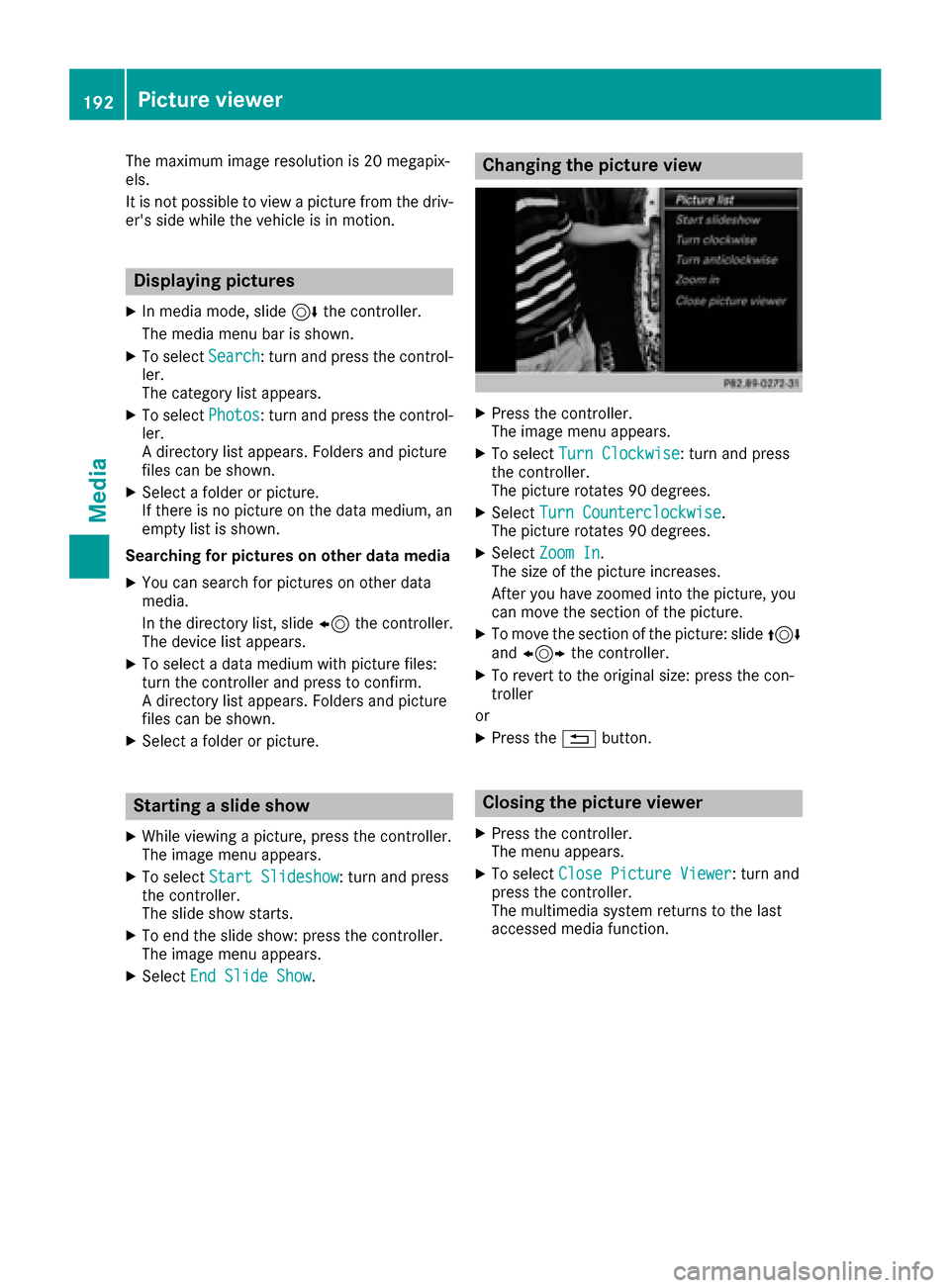
Changing the picture view
XPress the controller.
The image menu appears.
XTo select Turn Clockwise: turn and press
the controller.
The picture rotates 90 degrees.
XSelect Turn Counterclockwise.
The picture rotates 90 degrees.
XSelect Zoom In.
The size of the picture increases.
After you have zoomed into the picture, you
can move the section of the picture.
XTo move the section of the picture: slide 4
and 1 the controller.
XTo revert to the original size: press the con-
troller
or
XPress the %button.
Closing the picture viewer
XPress the controller.
The menu appears.
XTo select Close Picture Viewer: turn and
press the controller.
The multimedia system returns to the last
accessed media function.
192Picture viewer
Media
Page 211 of 230
Your multimediasystem equipment
These operating instructions describe all the
standard and optional equipment of your multi-
media system, as available at the time of going
to press. Country-specifi cdifferences are pos-
sible. Bear in mind that your vehicle may not
feature all functions described here. This also
applies to safety-relevant systems andfunc-
tions.
Read the information on qualified specialist
workshop s in the vehicle Operator's Manual.
Rear Seat Entertainment System
overview
Important safety notes
GWARNING
The CD/DVD drive is a class1 laser product.
If you ope nth e housing of the CD/DVD drive,
there is a risk of exposure to invisible laser
radiation. This laser radiation could damage
your retina. There is a risk of injury.
Never open the housing. Always have main-
tenanc e and repair work carried out at a quali-
fied specialist workshop.
GWARNING
If objects such as headphones/headsets or
external audio/video sources are not secured
in the passenger compartment, they can be
flung around and hit vehicle occupants. There
is a risk of injury, fo r example in the event of
sudden braking or a sudden change in direc-
tion .
Always stow these items or similar objects
carefully so that they cannot be flung around,
fo r example in a lockable vehicle stowage
compartment.
Components
The Rear Seat Entertainment System includes:
Rtwoscreens fo rth e rear behind the front-seat
head restraints
Rtw oremot econtrols fo rth e rear compart -
ment
Ra CD/DVD drive in th e rearcompartmen t
RAUXjack s
RtwoUS B ports
Rtwo sets of cordless headphones
General notes
RYou can only adjust the volume forth e head-
phone s supplied, directly on the headphones.
RIf media from differentsources are used,they
can be used separately from each of theoper-
ating positions. Example: a film from theDV D
drive is played on the rear right-hand operat-
ing position. This means that another film
from th e same DVDcanno t be played sepa-
rately on the rear left-hand operating position. However, all other media sources (e.g. radio,
Media Interface ) or the online and Internet
function s can be used.
RIf you use th e same medium on both sides,
you can both carry out the respective set-
tings. The "last one wins" principle applies
here, i.e. the last setting activated is favored.
RThe Internet can be used separately at all
operating positions.
RThe Internet can only be used if it is set up and
connecte d via a telephone(Ypage 142).
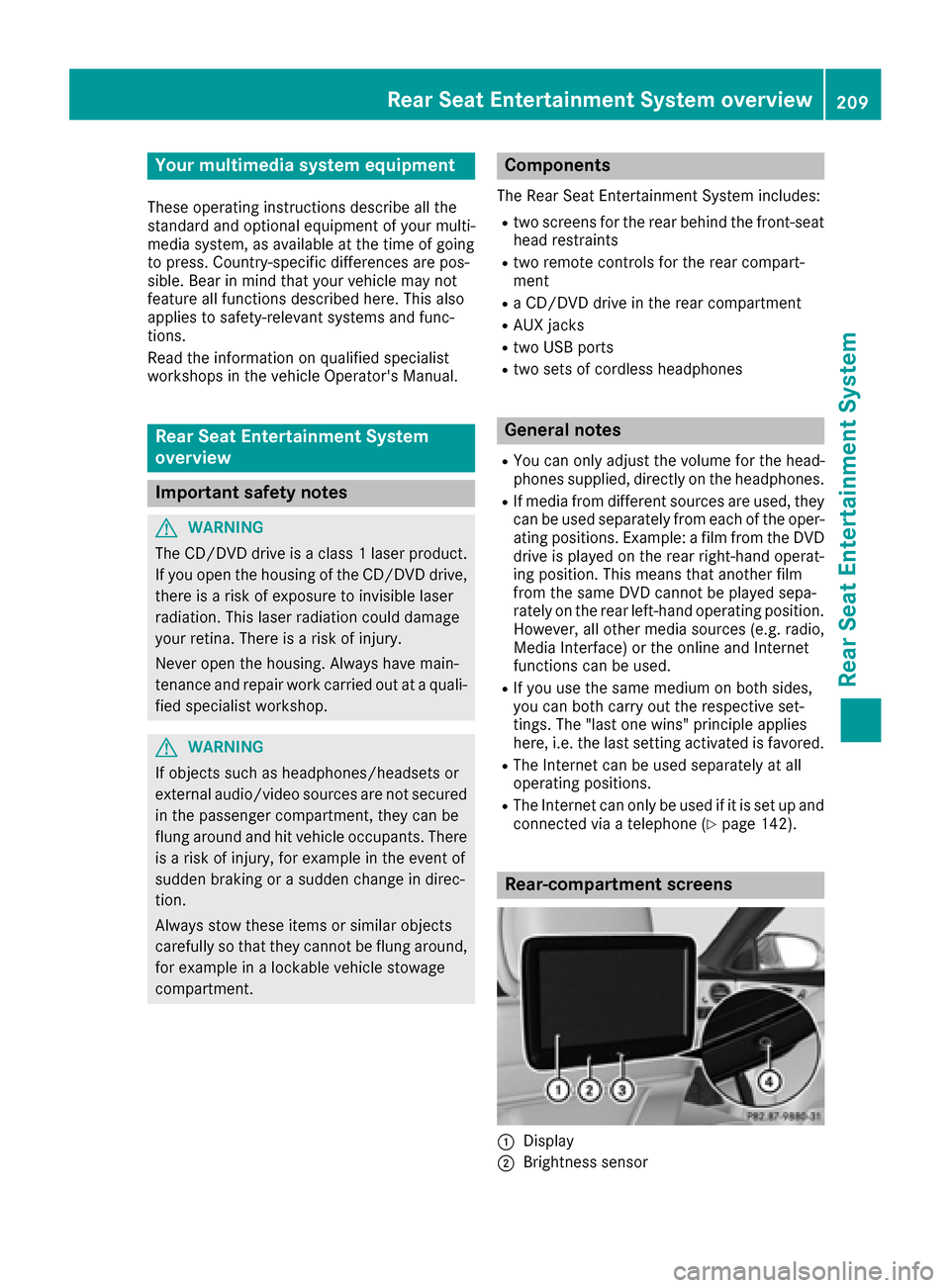
Rear-compartment screens
:Display
;Brightness sensor
Rear Seat Entertainment System overview209
Rear Seat Entertainment System
Z
Page 213 of 230
Switching the screen on/off
The switched-on rear compartment screens
switch off after 30 minutes if:
Rthe SmartKey is in position0or 1in the igni-
tion lock
Rthe SmartKey is not inserted
Before the screens switch off, they show a mes-
sage to this effect.
You can switch the screens back on. Please note
that this may cause the starter battery to dis-
charge.
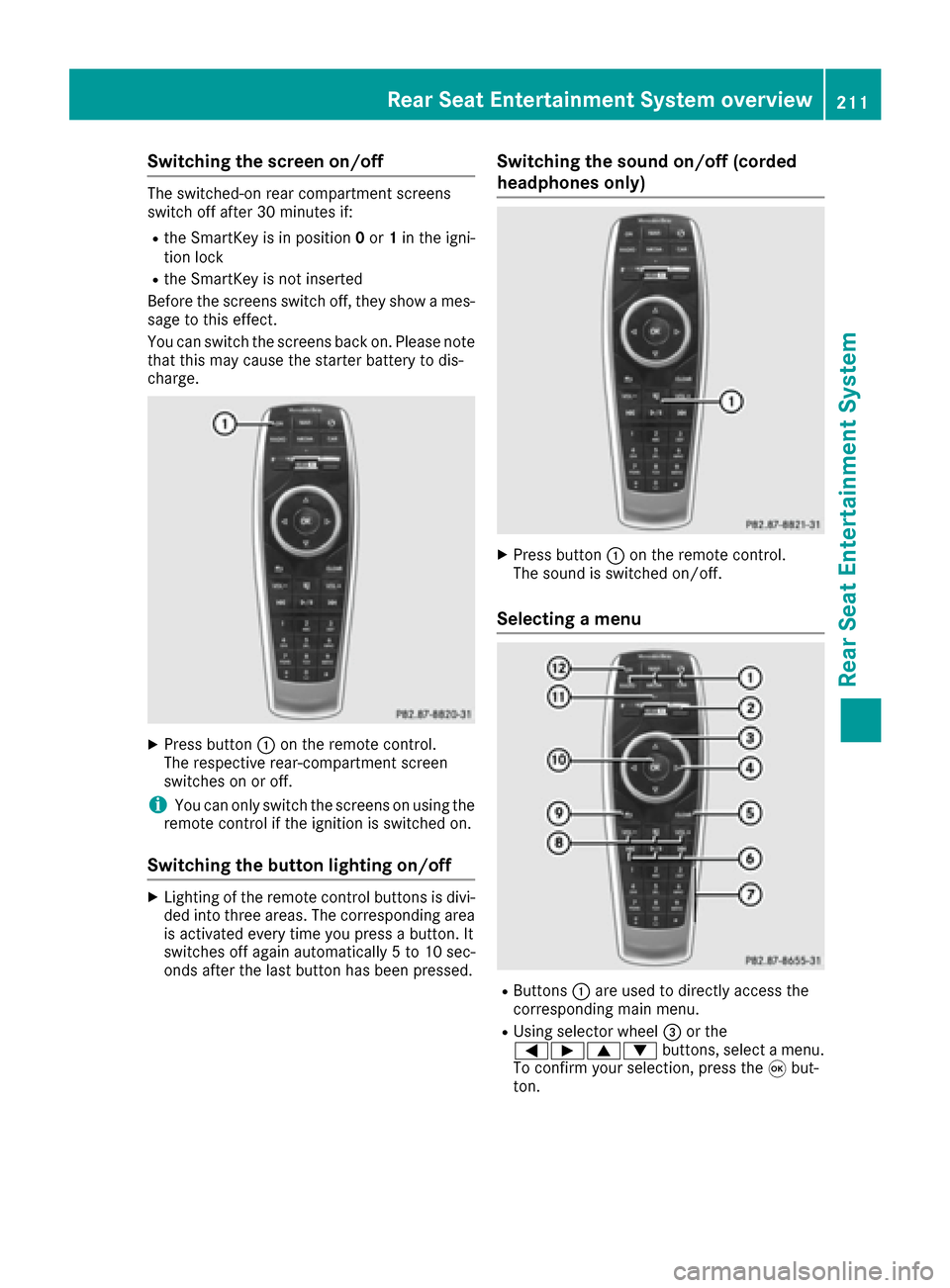
XPress button :on the remote control.
The respective rear-compartment screen
switches on or off.
iYou can only switch the screens on using the
remote control if the ignition is switched on.
Switching the button lighting on/off
XLighting of the remote control buttons is divi-
ded into three areas. The corresponding area
is activated every time you press a button. It
switches off again automatically 5 to 10 sec-
onds after the last button has been pressed.
Switching the sound on/off (corded
headphones only)
XPress button :on the remote control.
The sound is switched on/off.
Selecting a menu
RButtons :are used to directly access the
corresponding main menu.
RUsing selector wheel =or the
=Ì9: buttons, select a menu.
To confirm your selection, press the 9but-
ton.
Rear Seat Entertainment System overview211
Rear Seat Entertainment System
Z
Page 218 of 230
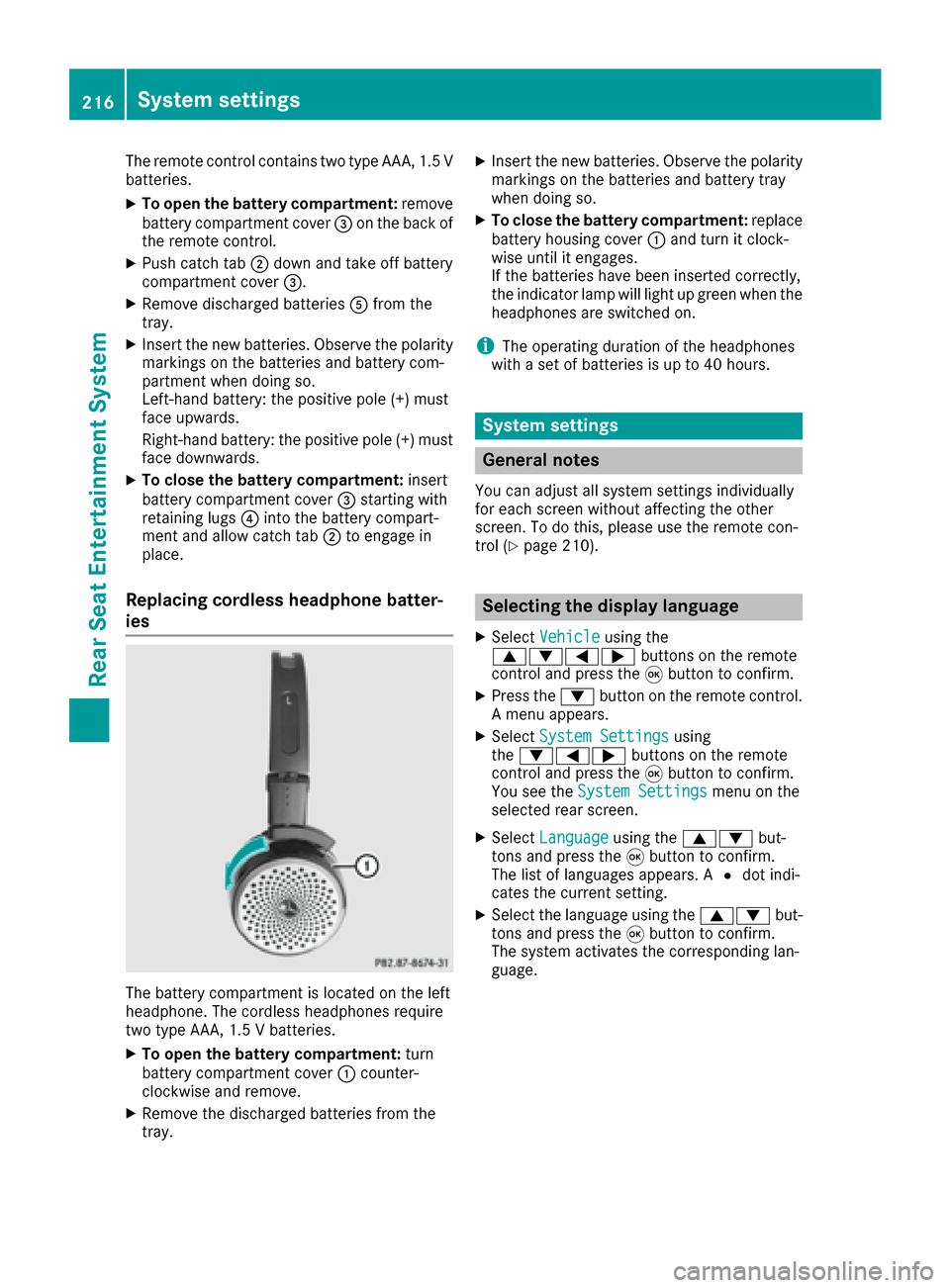
The remote control contains two type AAA, 1.5 V
batteries.
XTo open the battery compartment:remove
battery compartment cover =on the back of
the remote control.
XPush catch tab ;down and take off battery
compartment cover =.
XRemove discharged batteries Afrom the
tray.
XInsert the new batteries. Observe the polarity
markings on the batteries and battery com-
partment when doing so.
Left-hand battery: the positive pole (+) must
face upwards.
Right-hand battery: the positive pole (+) must
face downwards.
XTo close the battery compartment: insert
battery compartment cover =starting with
retaining lugs ?into the battery compart-
ment and allow catch tab ;to engage in
place.
Replacing cordless headphone batter-
ies
The battery compartment is located on the left
headphone. The cordless headphones require
two type AAA, 1.5 V batteries.
XTo open the battery compartment: turn
battery compartment cover :counter-
clockwise and remove.
XRemove the discharged batteries from the
tray.
XInsert the new batteries. Observe the polarity
markings on the batteries and battery tray
when doing so.
XTo close the battery compartment: replace
battery housing cover :and turn it clock-
wise until it engages.
If the batteries have been inserted correctly,
the indicator lamp will light up green when the
headphones are switched on.
iThe operating duration of the headphones
with a set of batteries is up to 40 hours.
System settings
General notes
You can adjust all system settings individually
for each screen without affecting the other
screen. To do this, please use the remote con-
trol (
Ypage 210).
Selecting the display language
XSelect Vehicleusing the
9:=; buttons on the remote
control and press the 9button to confirm.
XPress the :button on the remote control.
A menu appears.
XSelect System Settingsusing
the :=; buttons on the remote
control and press the 9button to confirm.
You see the System Settings
menu on the
selected rear screen.
XSelect Languageusing the 9: but-
tons and press the 9button to confirm.
The list of languages appears. A #dot indi-
cates the current setting.
XSelect the language using the 9:but-
tons and press the 9button to confirm.
The system activates the corresponding lan-
guage.
216System settings
Rear Seat Entertainment System
Page 220 of 230
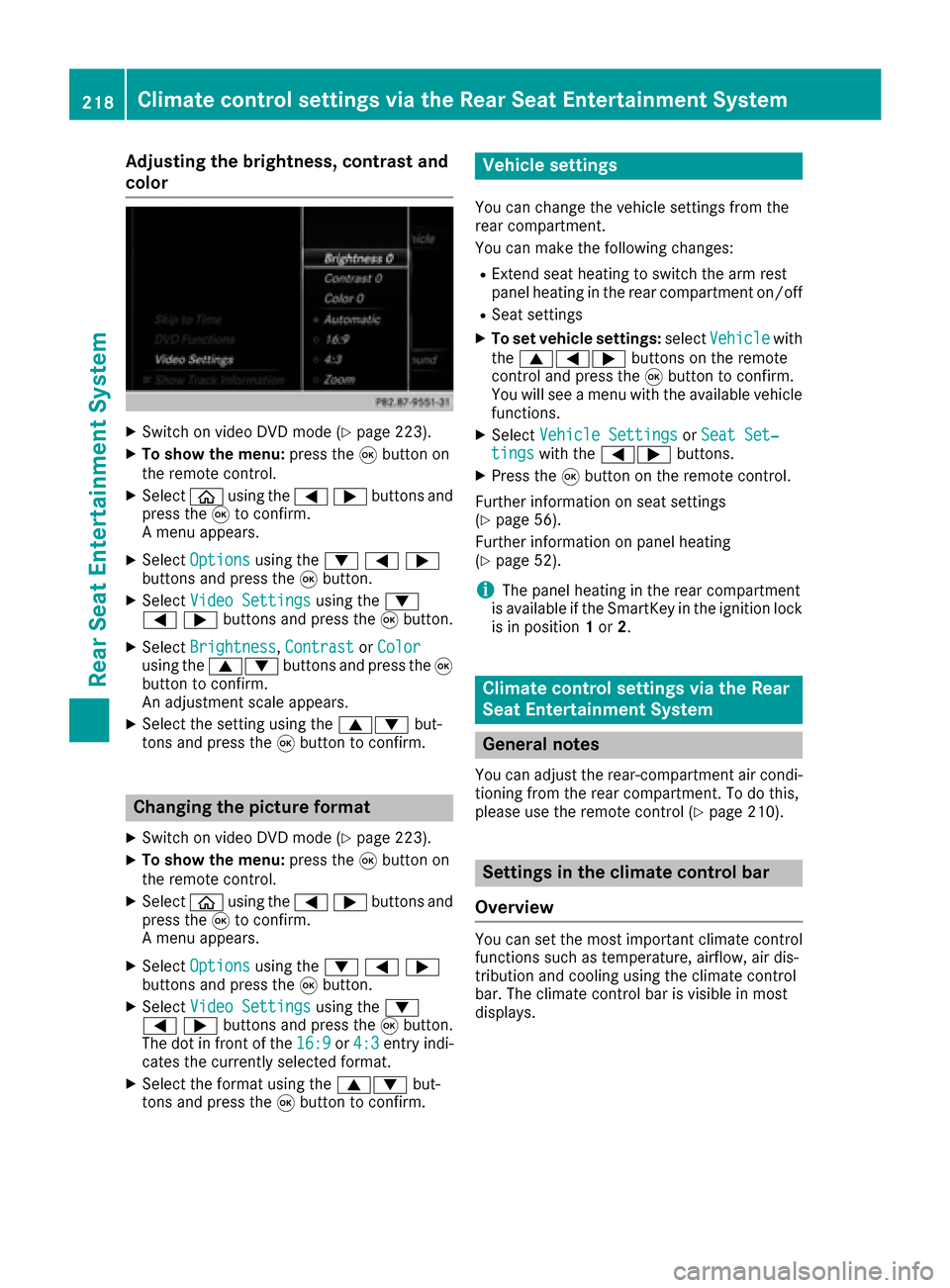
Adjusting the brightness, contrast and
color
XSwitc h on video DVD mod e(Ypage 223).
XTo showthemenu: press th e9 button on
th e remote control.
XSelectòusing the=;buttons and
press the 9to confirm.
A menu appears.
XSelect Optionsusing the :=;
buttons and press the 9button.
XSelect Video Settingsusing the :
=;buttons and press the 9button.
XSelect Brightness,Contrastor Colorusing the 9: buttons and press the 9
button to confirm.
An adjustment scale appears.
XSelect the setting using the 9:but-
tons and press the 9button to confirm.
Changing the picture format
XSwitch on video DVD mode (Ypage 223).
XTo show the menu: press the9button on
the remote control.
XSelect òusing the =;buttons and
press the 9to confirm.
A menu appears.
XSelect Optionsusing the :=;
buttons and press the 9button.
XSelect Video Settingsusing the :
=;buttons and press the 9button.
The dot in front of the 16:9
or4:3entry indi-
cates the currently selected format.
XSelect the format using the 9:but-
tons and press the 9button to confirm.
Vehicle settings
You can change the vehicle settings from the
rear compartment.
You can make the following changes:
RExtend seat heating to switch the arm rest
panel heating in the rear compartment on/off
RSeat settings
XTo set vehicle settings: selectVehiclewith
the 9=; buttons on the remote
control and press the 9button to confirm.
You will see a menu with the available vehicle
functions.
XSelect Vehicle SettingsorSeat Set‐tingswith the =; buttons.
XPress the9button on the remote control.
Further information on seat settings
(
Ypage 56).
Further information on panel heating
(
Ypage 52).
iThe panel heating in the rear compartment
is available if the SmartKey in the ignition lock
is in position 1or 2.
Climate control settings via the Rear
Seat Entertainment System
General notes
You can adjust the rear-compartment air condi-
tioning from the rear compartment. To do this,
please use the remote control (
Ypage 210).
Settings in the climate control bar
Overview
You can set the most important climate control
functions such as temperature, airflow, air dis-
tribution and cooling using the climate control
bar. The climate control bar is visible in most
displays.
218Climate control settings via the Rear Seat Entertainment System
Rear Seat Entertainment System