navigation MERCEDES-BENZ S-Class MAYBACH 2017 W222 Comand Manual
[x] Cancel search | Manufacturer: MERCEDES-BENZ, Model Year: 2017, Model line: S-Class MAYBACH, Model: MERCEDES-BENZ S-Class MAYBACH 2017 W222Pages: 230, PDF Size: 8.27 MB
Page 42 of 230
Additional display area
Gene ral information
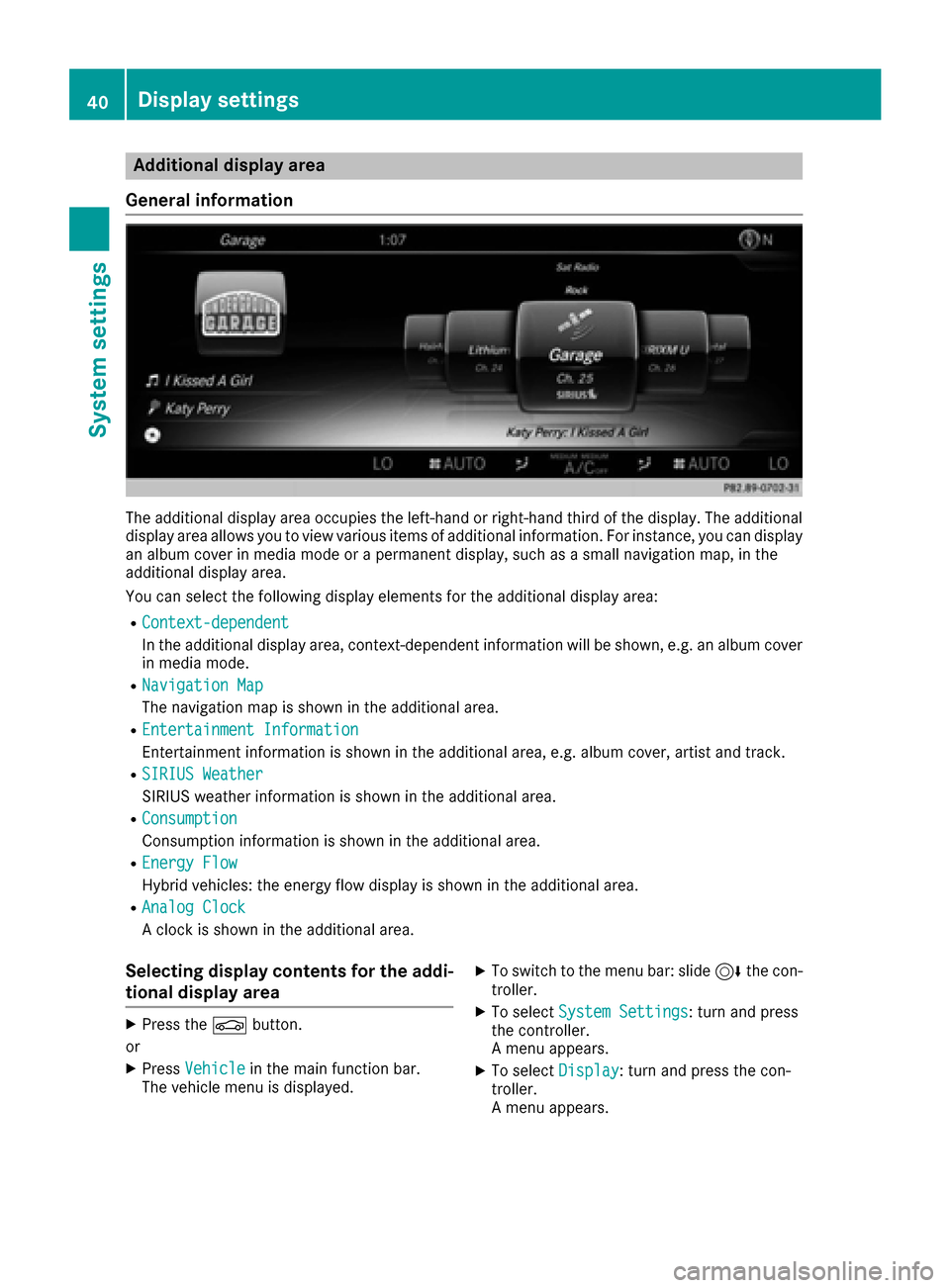
The additional display area occupies the left-hand or right-hand third of the display. The additional
display area allows you to view various items of additional information. Forinstance , you can display
an album cover in media mode or a permanent display, such as a small navigation map, in the
additional display area.
You can select the following display elements for the additional display area:
RContext-dependent
In th e additional display area, context-dependent information will be shown, e.g. an album cover
in media mode.
RNavigatio nMap
The navigation map is shown in the additional area.
REntertainmen tInformation
Entertainment information is shown in the additional area, e.g. album cover, artist and track.
RSIRIUS Weathe r
SIRIUS weather information is shown in the additional area.
RConsumption
Consumption information is shown in the additional area.
REnergy Flow
Hybrid vehicles: the energy flow display is shown in the additional area.
RAnalog Clock
A clock is shown in the additional area.
Selecting display contents for the addi-
tional display area
XPress theØ button.
or
XPress Vehicl ein the main function bar.
The vehicle menu is displayed.
XTo switch to th e menu bar: slide 6thecon-
troller.
XTo select System Settings: turnand press
th econtroller.
A menu appears.
XTo select Display: turnand press th econ-
troller.
A menu appears.
40Display settings
System settings
Page 43 of 230
XSelectAdditional Display Area.
A menu appears.
XTo select the desired display element: turn
and press the controller.
The #dot indicates the current setting.
Switching the display on/off
XPress the Øbutton.
or
XPress Vehiclein the main function bar.
The vehicle menu is displayed.
XSlide 6the controller.
XTo select Display Off: turn and press the
controller.
The display goes out.
XTo switch the display on again: press the
controller.
Time settings
General information
The multimedia system can automatically set
the time and date.
The following navigation system functions
require the time, time zone and summer/stand-
ard time to be set correctly in order to work
properly:
Rroute guidance on routes with time-depend-
ent traffic guidance
Rcalculation of expected time of arrival
Switching automatic time on and off
The Automatic Time Settingsfunction is
used to activate or deactivate the automatic
setting of the time and date. This function is
activated when the vehicle leaves the factory.
XPress the Øbutton.
or
XPress Vehiclein the main function bar.
The vehicle menu is displayed.
XTo switch to the menu bar: slide 6the con-
troller.
XTo select Time: turn and press the controller.
A menu appears.
XTo switch AutomaticTimeSettingsonO
or off ª: turn and press the controller.
Setting the time zone
To set the time zone, the Automatic TimeSettingsfunction must be activated
(Ypage 41).
XPress the Øbutton.
or
XPress Vehiclein the main function bar.
The vehicle menu is displayed.
XTo switch to the menu bar: slide 6the con-
troller.
XTo select Time: turn and press the controller.
A menu appears.
XTo select Time Zone:: turn and press the
controller.
A list of countries appears. The #dot indi-
cates the current setting.
XSelect the country you are currently in by
turning and pressing the controller.
The country is accepted. A time zone list may
also be displayed, depending on the country
selected.
XTo select the desired time zone: turn and
press the controller.
The time zone is accepted.
A list of available options for setting summer
time appears (
Ypage 41).
Setting summer and standard time
Using the Daylight Saving Timefunction,
you can set the automatic changeover to sum-
mer time or switch the summer time settings on and off. The changeover to summer time advan-
ces the time by one hour.
The Daylight
SavingTimefunction or Auto‐maticoption is not available in all countries.
XPress theØbutton.
or
XPress Vehiclein the main function bar.
The vehicle menu is displayed.
Time settings41
System settings
Z
Page 48 of 230
Switching Near Field Communication
on/off
XPress theØbutton.
The Vehiclemenu appears.
XTo switch to the menu bar: slide 6the con-
troller.
XTo select System Settings: turn and press
the controller.
A menu appears.
XTo switch Near Field Communicationon
O or off ª: turn and press the controller.
Automatic volume adjustment
General information
With the AutomaticVolumeAdjustmentfunc-
tion, the volumes of different audio sources are
adjusted for each other, to compensate for rel-
ative differences in volume.
For example: changing from a relatively quiet to
a relatively loud radio station. The volume for
both stations sounds the same. Manual read-
justment of the volume is not required.
The Automatic Volume Adjustment
function
is deactivated ªwhen the vehicle leaves the
factory. Using this function, the dynamic range
of the music is slightly reduced. To make the
most of the audiophile sound quality, it is rec-
ommended to leave it off.
Switching the automatic volume
adjustment on/off
XPress the Øbutton.
or
XPress Vehiclein the main function bar.
The vehicle menu is displayed.
XTo switch to the menu bar: slide 6the con-
troller.
XTo select System Settings: turn and press
the controller.
A menu appears.
XTo select Automatic Volume Adjustment:
turn and press the controller.
Switch the Automatic Volume Adjustment
function on Oor off ª.
Setting the system language
General information
This function allows you to determine the lan-
guage for the menu displays and the navigation
messages. The selected language affects the
characters available for entry.
iThe navigation announcements are not
available in all languages. If a language is not
available, the navigation announcements will
be in English.
iWhen you set the system language, the lan-
guage of the Voice Control System will
change accordingly. If it is not supported by
the Voice Control System, English will be
selected.
Setting the system language
XPress the Øbutton.
or
XPress Vehiclein the main function bar.
The vehicle menu is displayed.
XTo switch to the menu bar: slide 6the con-
troller.
XTo select System Settings: turn and press
the controller.
A menu appears.
XTo select Language: turn and press the con-
troller.
The list of languages appears. The #dot indi-
cates the current setting.
XSelect the desired language.
The multimedia system loads the selected
language and sets it.
Assigning a favorites button
On vehicles with a touchpad, the FavoriteFunctionsfunction can be called up via the
system menu or via the favorites button on the
touchpad.
Calling up the Favorites function via the sys-
tem menu
XPress the Øbutton.
or
XPress Vehiclein the main function bar.
The vehicle menu is displayed.
46Assigning a favorites button
System settings
Page 51 of 230
XTo switchActivatePINProtectiononO
or off ª: turn and press the controller.
When activating PIN protection, you will be
prompted to enter a PIN.
XTo enter the 4-digit PIN and select ¬: turn
and press the controller.
You will be prompted to enter the PIN again.
XEnter the PIN again and select ¬.
The PIN prompt now protects your personal
data from unwanted export.
iIf you deactivate your PIN protection, you
will first be prompted to enter your PIN. If you
have forgotten your PIN, an authorized
Mercedes-Benz Center can deactivate your
PIN protection for you. Alternatively, you can
deactivate PIN protection by resetting your
personal data (
Ypage 50).
Importing/exporting data
The following data can be exported:
Raddress data
Rsystem settings that you have made
Rbookmarks
Rradio station lists
iPersonal music files in the MEDIA REGISTER
cannot be saved and imported again using
this function.
Mercedes-Benz is not liable for any loss of
data.
Connecting a USB storage device
XInsert the SD memory card (Ypage 170).
or
XConnect a USB device (e.g. a USB memory
stick) (Ypage 170).
Importing or exporting data
iIf you import data such as address data, the
existing data on the multimedia system is
overwritten. You will see a message to this
effect. The multimedia system is restarted
after the data import.
XPress the Øbutton.
or
XPress Vehiclein the main function bar.
The vehicle menu is displayed.
XTo switch to the menu bar: slide 6the con-
troller.
XTo select System Settings: turn and press
the controller.
A menu appears.
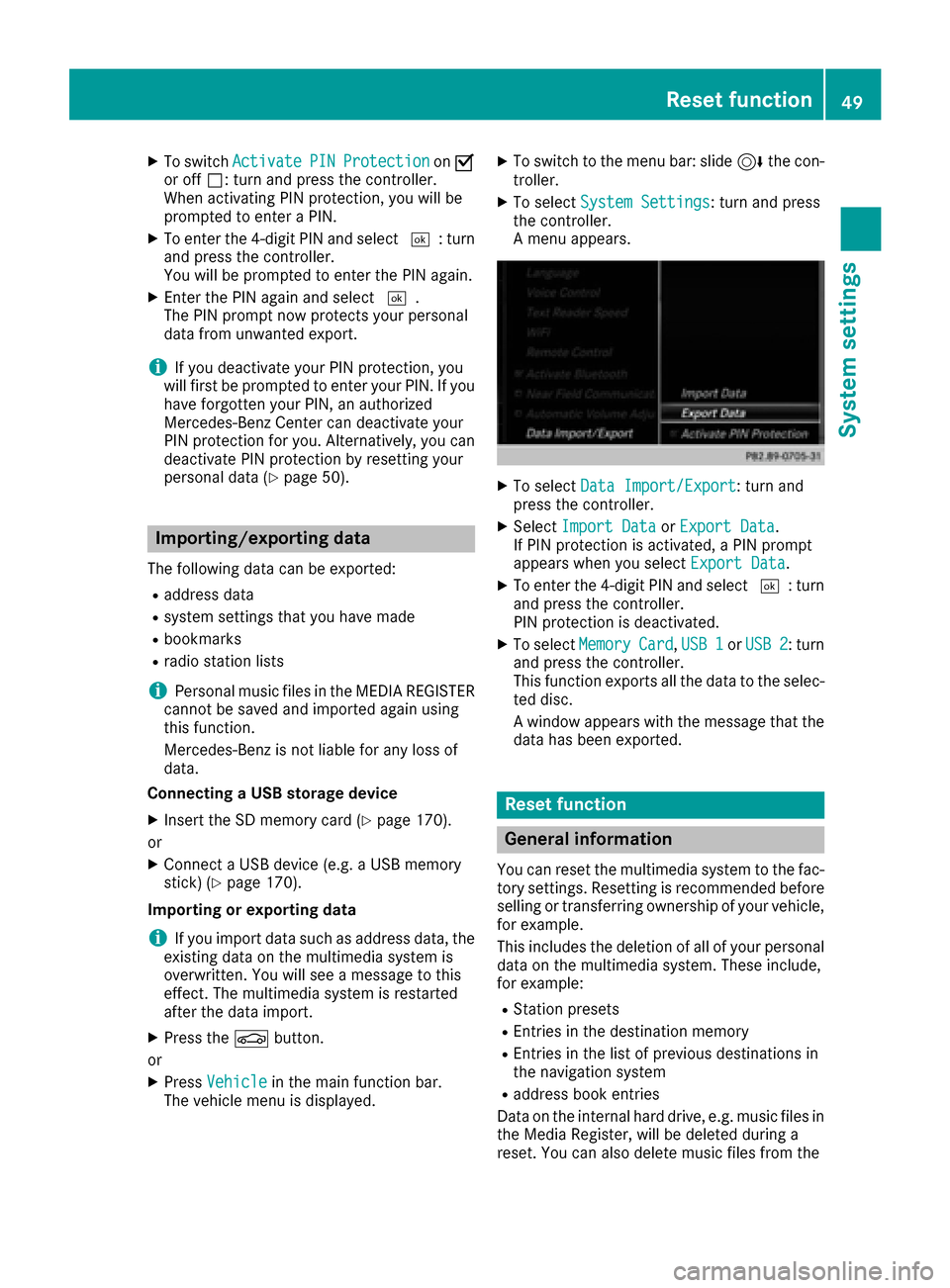
XTo select Data Import/Export: turn and
press the controller.
XSelect Import DataorExport Data.
If PIN protection is activated, a PIN prompt
appears when you select Export Data
.
XTo enter the 4-digit PIN and select ¬: turn
and press the controller.
PIN protection is deactivated.
XTo select MemoryCard,USB 1or USB 2: turn
and press the controller.
This function exports all the data to the selec-
ted disc.
A window appears with the message that the
data has been exported.
Reset function
General information
You can reset the multimedia system to the fac-
tory settings. Resetting is recommended before selling or transferring ownership of your vehicle,
for example.
This includes the deletion of all of your personal
data on the multimedia system. These include,
for example:
RStation presets
REntries in the destination memory
REntries in the list of previous destinations in
the navigation system
Raddress book entries
Data on the internal hard drive, e.g. music files in
the Media Register, will be deleted during a
reset. You can also delete music files from the
Reset function49
System settings
Z
Page 68 of 230
Your multimediasystem equipment
These operating instructions describe all the
standard and optional equipment of your multi-
media system, as available at the time of going
to press. Country-specifi cdifferences are pos-
sible. Bear in mind that your vehicle may not
feature all functions described here. This also
applies to safety-relevant systems andfunc-
tions.
Read the information on qualified specialist
workshop s in the vehicle Operator's Manual.
Introduction
Important safety notes
GWARNING
If you operate information systems and com-
munication equipment integrated in the vehi-
cl e while driving, you will be distracted from
traffic conditions. You could also lose control
of th e vehicle. There is a risk of an accident.
Only operate the equipment when the traffic
situation permits. If you are not sure that this
is possible, park the vehicle paying attention
to traffic condition s and operatethe equip-
ment when the vehicle is stationary.
You must observe the legal requirements for the
country in which you are currently driving when
operating the multimedia system.
The multimedia system calculates the routeto
th edestination without taking accoun tof th e
following, for example:
Rtraffic lights
Rstop and yield signs
Rmerging lanes
Rparking or stopping in a no parking/no stop-
ping zone
Rother road and traffic rules and regulations
Rnarrow bridges
The multimedia system can give incorrect navi-
gation commands if the actual street/traffic sit-
uation does notcorrespon d withthe digital
map's data. Digital maps do not cover all areas
no r all routes in an area. For example, a
route
may have been diverted or the direction of a one-
way street may have changed. Fo
rthis reason , you must always observe road
and traffic rules and regulations during your
journey. Road and traffic rules and regulations
always have priority over the system's driving
recommendations.
Navigation announcements are intended to
direct you while driving without diverting your
attention from th e road anddriving.
Please always use this feature instead of con-
sulting the map display for directions. Looking
at the icons or map display can distract you from
traffic conditions and driving, and increase the
risk of an accident.
General notes
Operational readiness of the navigation syste m
The navigation system must determine the posi-
tion of the vehicle before first use or whenever
operational status is restored. Therefore, you
may have to drive fo rawhile before precise
rout e guidance is possible.
GPS reception
Amon g other things, correct functioning of the
navigation system depends on GPS reception. In
certain situations, GPS reception may be
impaired, there may be interference or there
may be no reception at all, e.g. in tunnels or
parking garages.
Using roof carriers may impair th ecorrect func-
tioning of a roof antenna (phone, satellite radio,
GPS).
Entry restriction
In certain countries, dat a entry is restricted if
th e vehicle is traveling at more than approx-
imately 3 mph (5 km/h). The restriction is deac- tivated as soo n as the vehicle speed drops
below about 2 mph (3 km/h).
When the restriction is active, certain entries
canno t be made. This will be indicated by the
fact that certain menu items are grayed out and
canno t be selected.
The following entries are not possible, for exam-
ple:
Rentering thedestination city an d street
Renteringadestination via the map
66Introduction
Navigation
Page 69 of 230
Rentering POIs in the vicinity of a city or via a
name search
Rediting entries
Rdirect entry via the telephone keypad (if avail-able) Other entries are possible, such as entering
points of interest in the vicinity of the destina-
tion or current position.
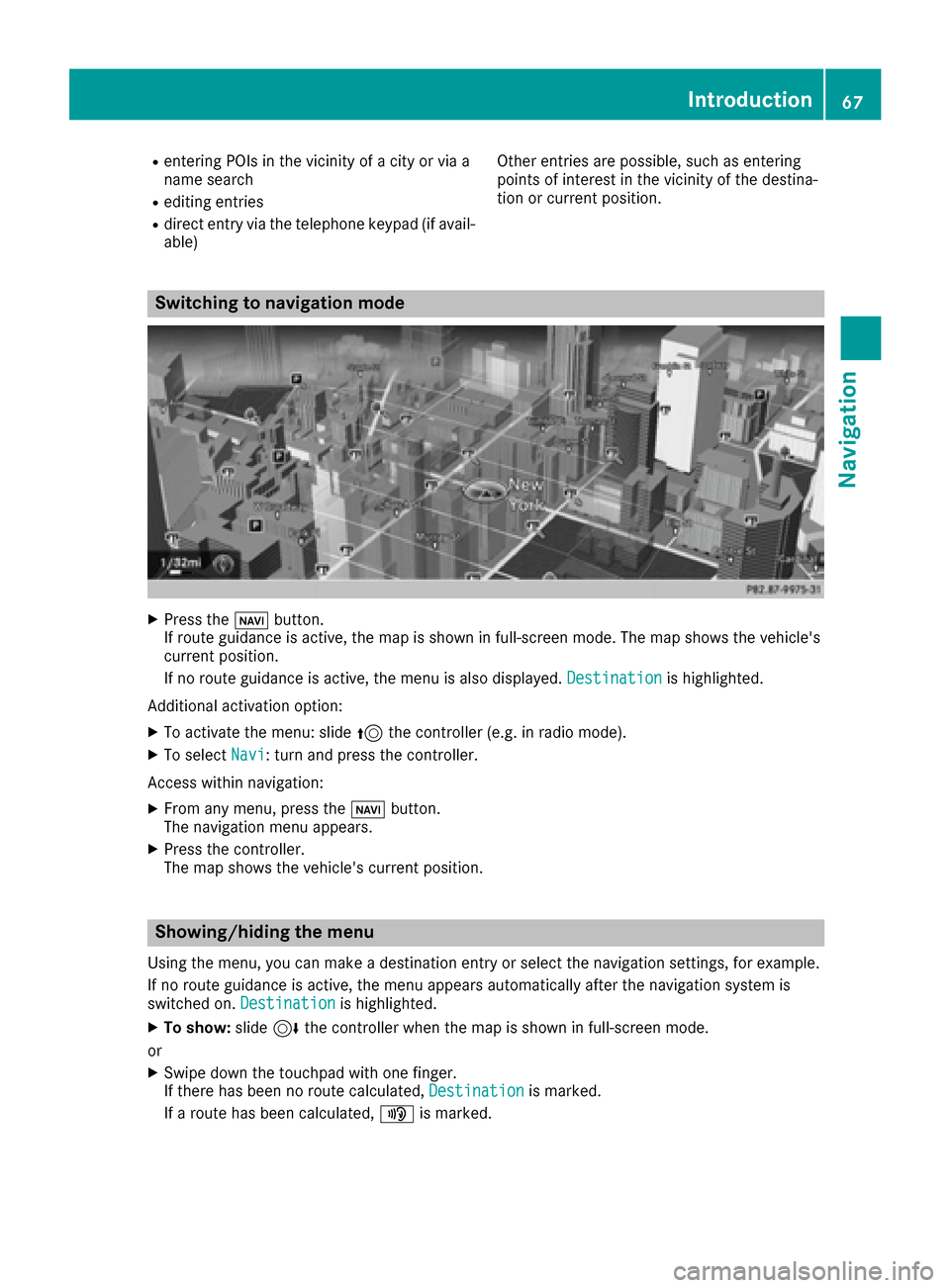
Switching to navigation mode
XPress the
ßbutton.
If route guidance is active, the map is shown in full-screen mode. The map shows the vehicle's
current position.
If no route guidance is active, the menu is also displayed. Destination
is highlighted.
Additional activation option:
XTo activate the menu: slide 5the controller (e.g. in radio mode).
XTo select Navi: turn and press the controller.
Access within navigation:
XFrom any menu, press the ßbutton.
The navigation menu appears.
XPress the controller.
The map shows the vehicle's current position.
Showing/hiding the menu
Using the menu, you can make a destination entry or select the navigation settings, for example.
If no route guidance is active, the menu appears automatically after the navigation system is
switched on. Destination
is highlighted.
XTo show:slide6the controller when the map is shown in full-screen mode.
or
XSwipe down the touchpad with one finger.
If there has been no route calculated, Destinationis marked.
If a route has been calculated, yis marked.
Introduction67
Navigation
Z
Page 70 of 230
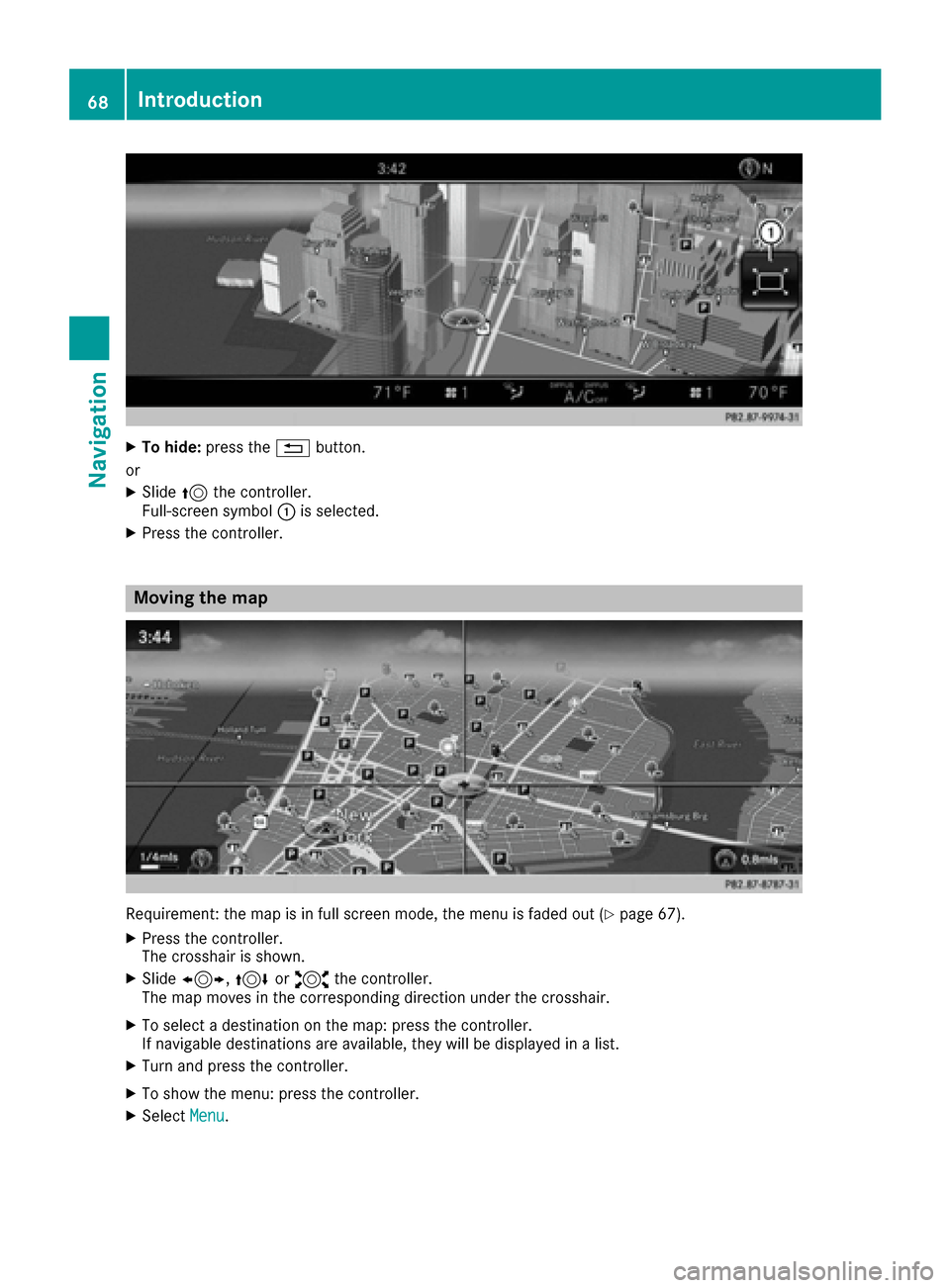
XTo hide:press the %button.
or
XSlide 5the controller.
Full-screen symbol :is selected.
XPress the controller.
Moving the map
Requirement: the map is in full screen mode, the menu is faded out (Ypage 67).
XPress the controller.
The crosshair is shown.
XSlide 1, 4or2 the controller.
The map moves in the corresponding direction under the crosshair.
XTo select a destination on the map: press the controller.
If navigable destinations are available, they will be displayed in a list.
XTurn and press the controller.
XTo show the menu: press the controller.
XSelect Menu.
68Introduction
Navigation
Page 71 of 230
Basic settings
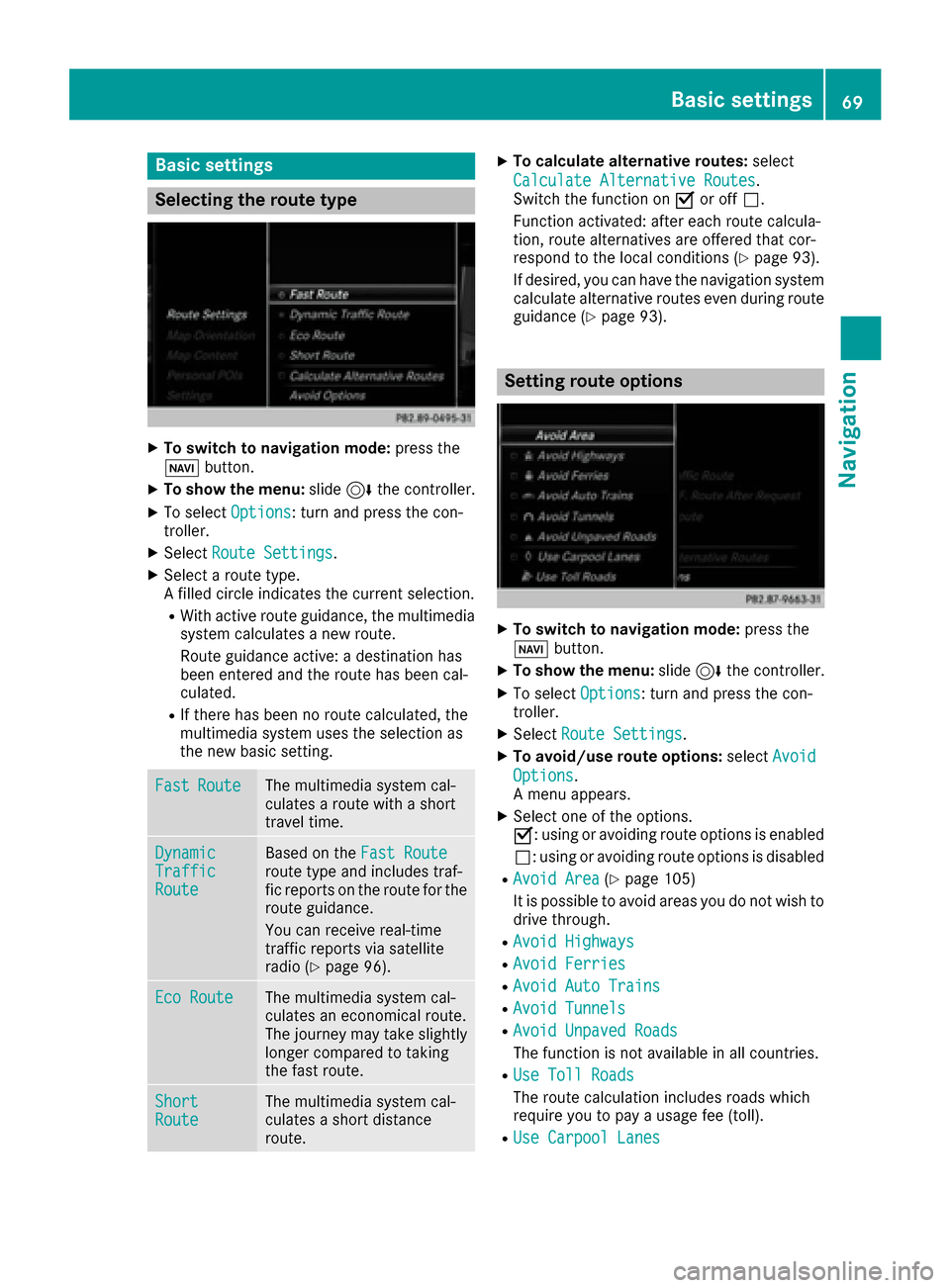
Selecting the route type
XTo switch to navigation mode:press the
Ø button.
XTo show the menu: slide6the controller.
XTo select Options: turn and press the con-
troller.
XSelect Route Settings.
XSelect a route type.
A filled circle indicates the current selection.
RWith active route guidance, the multimedia
system calculates a new route.
Route guidance active: a destination has
been entered and the route has been cal-
culated.
RIf there has been no route calculated, the
multimedia system uses the selection as
the new basic setting.
FastRouteThe multimedia system cal-
culates a route with a short
travel time.
DynamicTrafficRoute
Based on the Fast Routeroute type and includes traf-
fic reports on the route for the
route guidance.
You can receive real-time
traffic reports via satellite
radio (
Ypage 96).
Eco RouteThe multimedia system cal-
culates an economical route.
The journey may take slightly
longer compared to taking
the fast route.
ShortRouteThe multimedia system cal-
culates a short distance
route.
XTo calculate alternative routes: select
Calculate Alternative Routes
.
Switch the function on Oor off ª.
Function activated: after each route calcula-
tion, route alternatives are offered that cor-
respond to the local conditions (
Ypage 93).
If desired, you can have the navigation system calculate alternative routes even during route
guidance (
Ypage 93).
Setting route options
XTo switch to navigation mode: press the
Ø button.
XTo show the menu: slide6the controller.
XTo select Options: turn and press the con-
troller.
XSelect Route Settings.
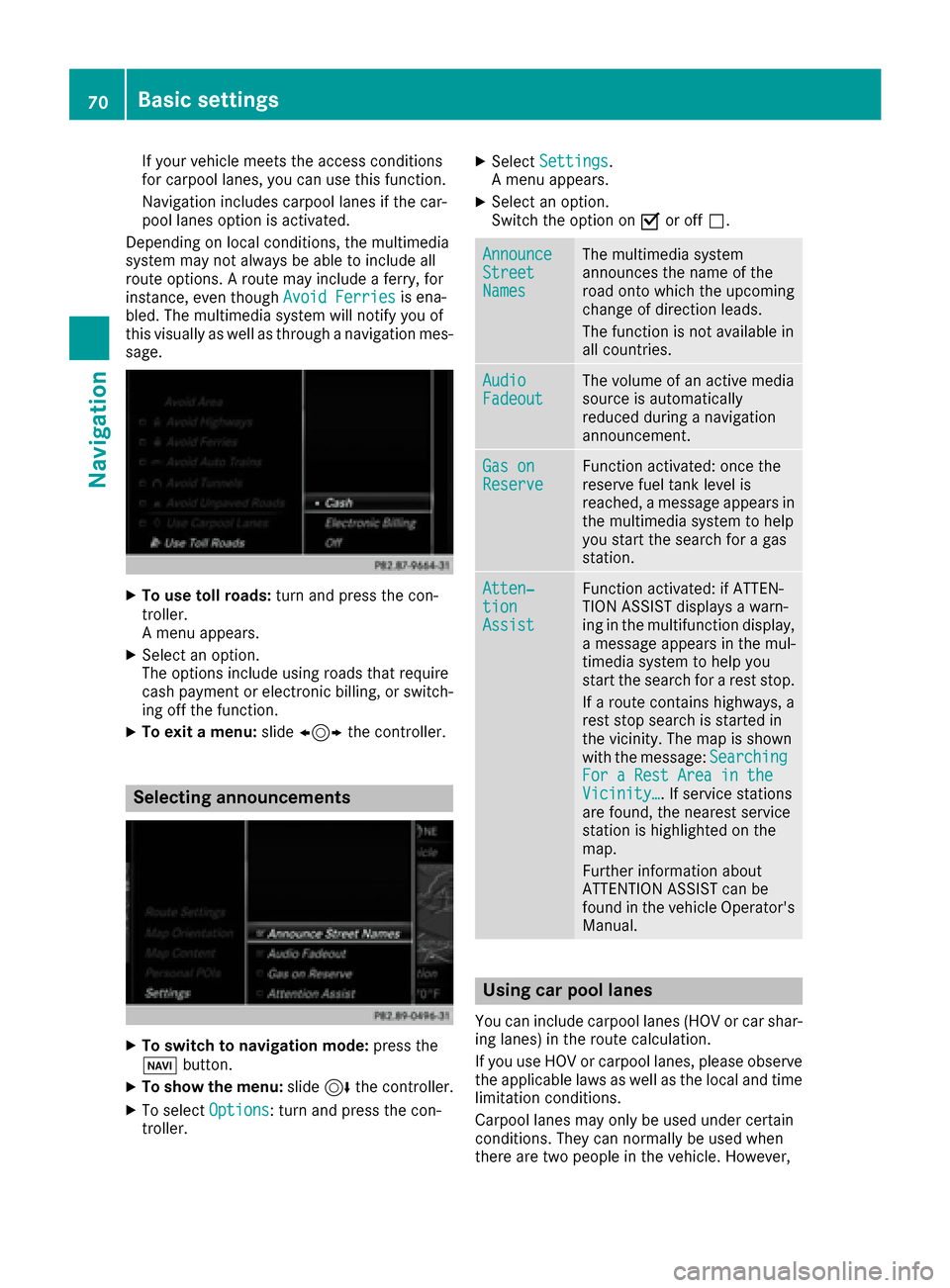
XTo avoid/use route options: selectAvoid
Options.
A menu appears.
XSelect one of the options.
O: using or avoiding route options is enabled
ª: using or avoiding route options is disabled
RAvoid Area(Ypage 105)
It is possible to avoid areas you do not wish to
drive through.
RAvoid Highways
RAvoid Ferries
RAvoid Auto Trains
RAvoid Tunnels
RAvoid Unpaved Roads
The function is not available in all countries.
RUse Toll Roads
The route calculation includes roads which
require you to pay a usage fee (toll).
RUse Carpool Lanes
Basic settings69
Navigation
Z
Page 72 of 230
If your vehicle meets the access conditions
for carpool lanes, you can use this function.
Navigation includes carpool lanes if the car-
pool lanes option is activated.
Depending on local conditions, the multimedia
system may not always be able to include all
route options. A route may include a ferry, for
instance, even though Avoid Ferries
is ena-
bled. The multimedia system will notify you of
this visually as well as through a navigation mes-
sage.
XTo use toll roads: turn and press the con-
troller.
A menu appears.
XSelect an option.
The options include using roads that require
cash payment or electronic billing, or switch-
ing off the function.
XTo exit a menu: slide1 the controller.
Selecting announcements
XTo switch to navigation mode: press the
Ø button.
XTo show the menu: slide6the controller.
XTo select Options: turn and press the con-
troller.
XSelect Settings.
A menu appears.
XSelect an option.
Switch the option on Oor off ª.
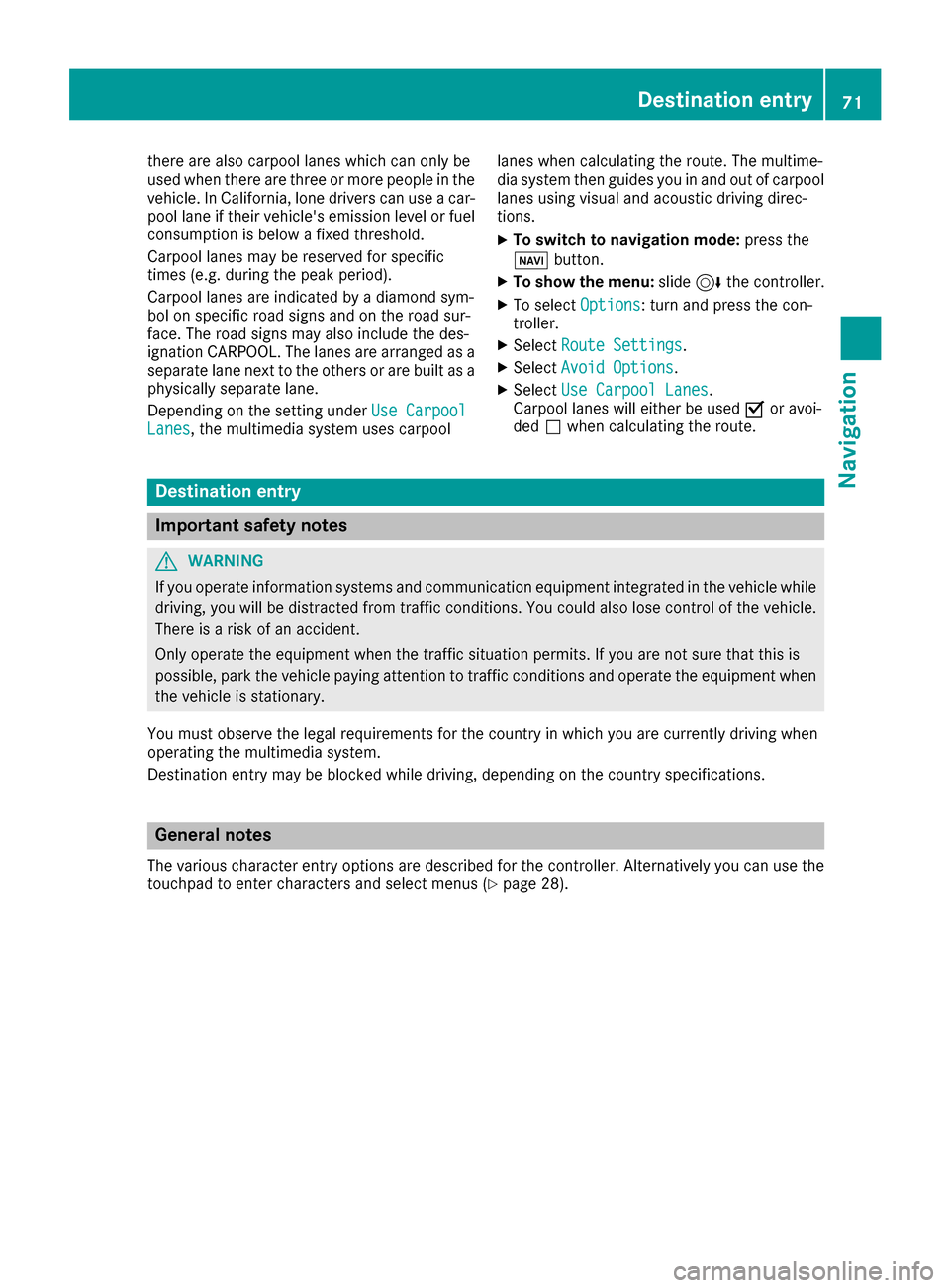
AnnounceStreetNames
The multimedia system
announces the name of the
road onto which the upcoming
change of direction leads.
The function is not available in
all countries.
AudioFadeoutThe volume of an active media
source is automatically
reduced during a navigation
announcement.
Gas onReserveFunction activated: once the
reserve fuel tank level is
reached, a message appears in
the multimedia system to help
you start the search for a gas
station.
Atten‐tionAssist
Function activated: if ATTEN-
TION ASSIST displays a warn-
ing in the multifunction display,
a message appears in the mul-
timedia system to help you
start the search for a rest stop.
If a route contains highways, a
rest stop search is started in
the vicinity. The map is shown
with the message: Searching
For a Rest Area in theVicinity…. If service stations
are found, the nearest service
station is highlighted on the
map.
Further information about
ATTENTION ASSIST can be
found in the vehicle Operator's
Manual.
Using car pool lanes
You can include carpool lanes (HOV or car shar-
ing lanes) in the route calculation.
If you use HOV or carpool lanes, please observe
the applicable laws as well as the local and time
limitation conditions.
Carpool lanes may only be used under certain
conditions. They can normally be used when
there are two people in the vehicle. However,
70Basic settings
Navigation
Page 73 of 230
there are also carpool lanes which can only be
used when there are three or more people in the
vehicle. In California, lone drivers can use a car-
pool lane if their vehicle's emission level or fuel
consumption is below a fixed threshold.
Carpool lanes may be reserved for specific
times (e.g. during the peak period).
Carpool lanes are indicated by a diamond sym-
bol on specific road signs and on the road sur-
face. The road signs may also include the des-
ignation CARPOOL. The lanes are arranged as a
separate lane next to the others or are built as a
physically separate lane.
Depending on the setting underUse Carpool
Lanes, the multimedia system uses carpool lanes when calculating the route. The multime-
dia system then guides you in and out of carpool
lanes using visual and acoustic driving direc-
tions.
XTo switch to navigation mode:
press the
ß button.
XTo show the menu: slide6the controller.
XTo select Options: turn and press the con-
troller.
XSelect Route Settings.
XSelectAvoid Options.
XSelectUse Carpool Lanes.
Carpool lanes will either be used Oor avoi-
ded ªwhen calculating the route.
Destination entry
Important safety notes
GWARNING
If you operate information systems and communication equipment integrated in the vehicle while driving, you will be distracted from traffic conditions. You could also lose control of the vehicle.
There is a risk of an accident.
Only operate the equipment when the traffic situation permits. If you are not sure that this is
possible, park the vehicle paying attention to traffic conditions and operate the equipment when
the vehicle is stationary.
You must observe the legal requirements for the country in which you are currently driving when
operating the multimedia system.
Destination entry may be blocked while driving, depending on the country specifications.
General notes
The various character entry options are described for the controller. Alternatively you can use the
touchpad to enter characters and select menus (Ypage 28).
Destination entry71
Navigation
Z