reset MERCEDES-BENZ S-Class MAYBACH 2017 W222 Comand Manual
[x] Cancel search | Manufacturer: MERCEDES-BENZ, Model Year: 2017, Model line: S-Class MAYBACH, Model: MERCEDES-BENZ S-Class MAYBACH 2017 W222Pages: 230, PDF Size: 8.27 MB
Page 161 of 230
XSwitch on satellite radio mode (Ypage 159).
The satellite radio main menu appears show-
ing the preview channel. You cannot select
any other stations.
XIn satellite radio mode, slide 6the control-
ler.
XTo select Options: turn and press the con-
troller.
XTo select Service: turn and press the con-
troller.
The service information screen appears.
Once the telephone connection has been estab-
lished:
XFollow the instructions of the service staff.
The activation process may take up to
10 minutes. If the activation is completed successfully, the
Updating Channels...
message appears in the display, followed by
the satellite radio main menu.
iYou can also have the satellite service acti-
vated online. To do this, visit
http://www.siriusxm.com (USA) or
http://www.siriusxm.ca (Canada).
iIf registration is not included when purchas-
ing the system, your credit card details will be
required to activate your account.
If the satellite receiver is not installed correctly,
the Device
Unavailablemessage will appear.
Switching to satellite radio
XTo show the main function bar: slide 5the controller.
XTo select Radio: turn and press the controller.
The radio display appears. You will hear the last station played on the last waveband selected.
XTo select Radioin radio mode: slide 5and press the controller.
The menu with the available radio modes appears.
XTo select Sat Radio: turn and press the controller.
The No Service
message appears if there is no signal.
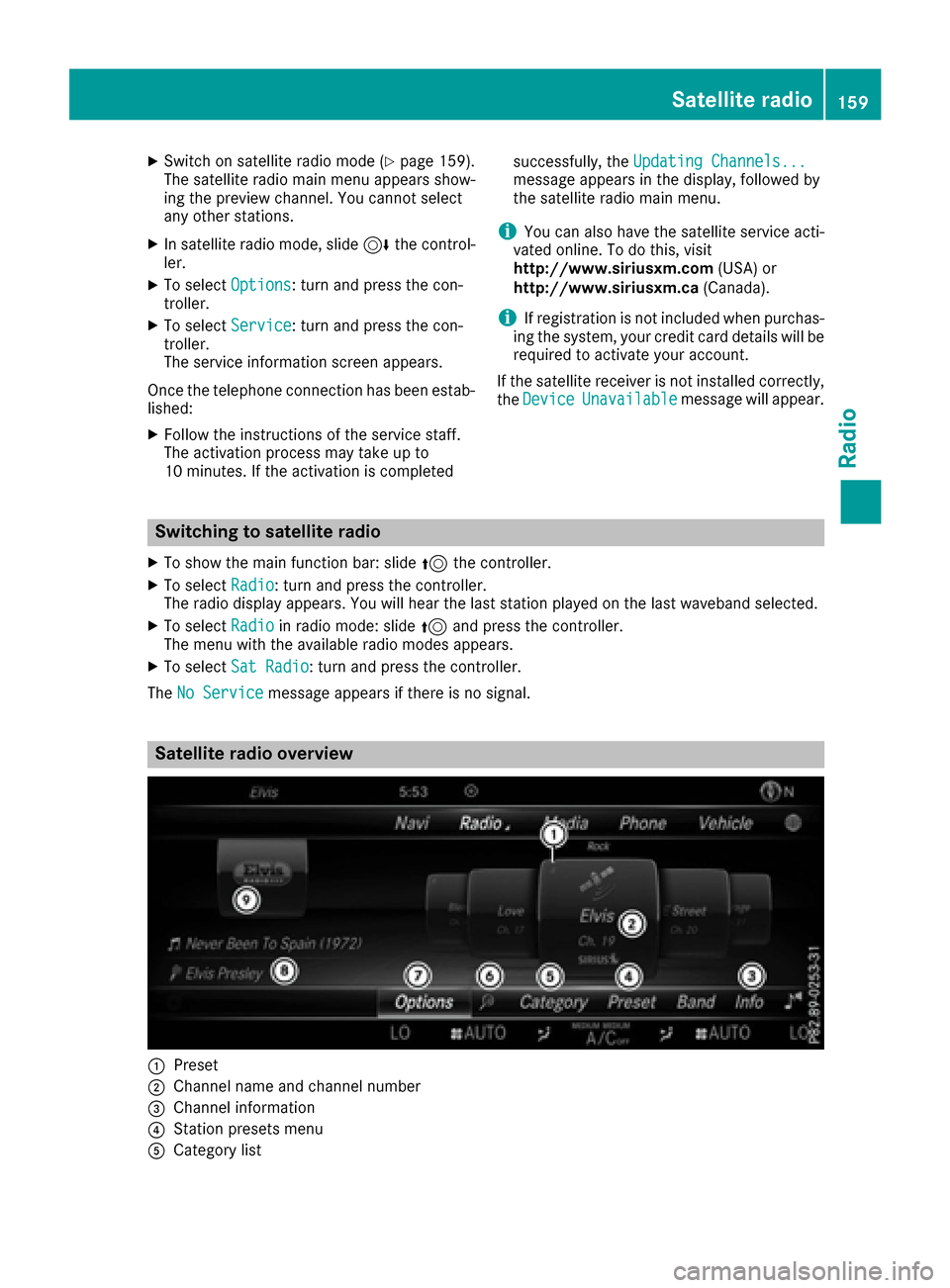
Satellite radio overview
:Preset
;Channel name and channel number
=Channel information
?Station presets menu
ACategory list
Satellite radio159
Radio
Page 163 of 230
Keyword search
XIn satellite radio mode, slide6thecontrol -
ler.
XTo select the keyword search èin the
menu bar: turn and press thecontroller.
XTo enter the required search term : turn and
press th econtroller.
Direc t and indirect results are shown.
XSelect the required result.
The relevant channel is played.
Memory functions
Quick save:
XSe tth e desired channel in satellite radio
mode.
XPress and hold the controller until the preset
list appears.
XTo select the preset number: turn and press
th econtroller.
A tone confirm sthat th estoring process was
successful.
Saving a channel using the edit function:
XIn satellite radio mode, slide 6thecontrol -
ler.
XTo select Preset: turnand press th econtrol -
ler.
XTo select EditStatio nPreset: turn and
press th econtroller.
The list of saved channels appears.
XTo select the preset: turn the controller and
press for about 2 seconds.
The newly saved channel overwrites the exist-
ing preset.
iThere are 100 presets available.
Presets menu view
You can use this function to change to the sta-
tion presets display.
Activating
XIn radio mode: slide 6thecontroller.
XTo select Preset: turnand press th econtrol -
ler.
XTo select StationPreset View: On: turn
and press th econtroller.
The station preset display appears.
XTo switch between the stored stations: turn
th econtroller.
Deactivating
XIn radio mode: slide 6thecontroller.
XTo select Preset: turnand press th econtrol -
ler.
XTo select StationPresetView:Off: turn
and press th econtroller.
A view of the last waveband you listened to
appears.
Music and sports alerts
Gene ral notes
This function makes it possible to storea pro-
gram alert for your favorite artists, tracks or
sporting events.
You can store up to 30 music and sports alerts
(favorites).
Music alerts can only be saved whils tatrack is
being played. You can also specify sports alerts
via th e menu option. The system then continu-
ously searches through all the channels. Ifa
match is found withasaved message, you will
be informed. A window appears with the respec-
tive information.
Setting a music alert
XIn satellite radio mode, slide 6thecontrol -
ler.
XTo select Options: turnand press th econ-
troller.
XTo select Alert for Artist ,Track &SportsEvent: turnand press th econtroller.
A menu appears.
XSelect Add New Alert.
A window wit haprompt appears.
XSelectArtistorTrack.
The alert is set for the current artist or track.
iIf an alert cannot be set, theNo AlertsAvailablemessage appears.
Satellite radio161
Radio
Page 173 of 230
Playing similar tracks
XTo selectPlay More Like This: turn and
press the controller.
The multimedia system automatically creates
and plays a track list with similar tracks. If
there are no comparable tracks on the data
carrier, you will see a message to this effect.
XSelect the required track.
Selecting Play mode
XTo select PlaybackMode: turn and press the
controller.
XSelect Normal Track Sequence.
The current track list is played in the order it is
stored on the data medium.
XSelect Random Track List.
The current track list is played in random
order.
XSelect Random Medium.
All tracks on the data medium are played in
random order.
Skip to time
XTo select Skip to Time: turn and press the
controller.
A menu appears.
XTo set the time: turn the controller.
or
XSet the desired time using the number key-
pad.
Selecting an active partition
XTo select Select Active Partition: turn
and press the controller.
With the Select
ActivePartitionoption,
you can select a partition in the USB data car-
rier.
Saving files to Media Register
iWith the SaveFilestoMediaRegisteroption, you can transfer supported audio,
image or video files to the multimedia system
hard drive.
XTo select the Save Files to Media Reg‐isteroption: turn and press the controller.
A menu appears (Ypage 175). Managing Media Register
XDelete or rename individual files in the Media
Register (Ypage 176).
XDelete all files in the Media Register
(Ypage 177).
XCall up information on the preset
(Ypage 177).
Starting the media source from a different
seat
XTo select the Start Application atOtherSeatfunction: turn and press the con-
troller.
The media source can be played back at a dif-
ferent seat: (
Ypage 166).
Showing track information
XTo switch the function Show Track Infor‐mationonO or off ª: turn and press the
controller.
You display or hide information for Track,
Artist and Album in the main display field.
Continuing/stopping playback
XTo stop playback: in audio or video mode,
slide 6the controller.
The media menu bar is shown.
XTo select Ëin the media menu bar: turn
and press the controller.
Playback is interrupted. The display changes
to Ì.
XTo continue playback: in audio or video
mode, slide 6the controller.
The media menu bar is shown.
XTo select Ìin the media menu bar: turn
and press the controller.
Playback is continued from the point of inter-
ruption. The symbol changes to Ë.
Audio/video mode171
Media
Z
Page 204 of 230
Option 2: selecting the area in the
weather map
XCall up the weather map (Ypage 202).
XMove the weather map so that the crosshair isover the desired area (Ypage 202).
XPress the controller.
The information chart shows the weather
forecast for the selected area. The data is
supplied by the nearest weather station.
Memory functions
Storing the area in the weather memory
You can save locations that are called up fre-
quently in ten preset positions (0, 1-9) in the
weather memory.
XIn the weather memory: select the area for
the weather forecast (Ypage 200).
The selected location appears at the top in the status bar.
XTo select Positionin the information chart:
turn and press the controller.
XSelect Presets.
XSelect a preset using the controller.
XPress and hold the controller until you hear a
tone.
The area is entered on the selected preset.
Equipment with telephone keypad
XTo store rapidly: in the daily forecast
(Ypage 199) press and hold a number key,
e.g. l, until the preset position number is
shown in the status bar in front of the area
name.
iYou can also use this function in the five-day
forecast (Ypage 199), and in the detailed
information view (Ypage 200).
Selecting an area from the weather
memory
XDirectly from the weather memory: select
Position
from the information chart: turn
and press the controller.
XSelect Presets.
XSelect the memory position which contains
the location you require.
The weather data for the selected area is dis-
played. Equipment with telephone keypad
XQuick select:
if a location is stored in the
weather memory, for example when the cur-
rent forecast display is active, briefly press a
number key, e.g. l.
The weather data for the selected area is dis-
played.
Weather map
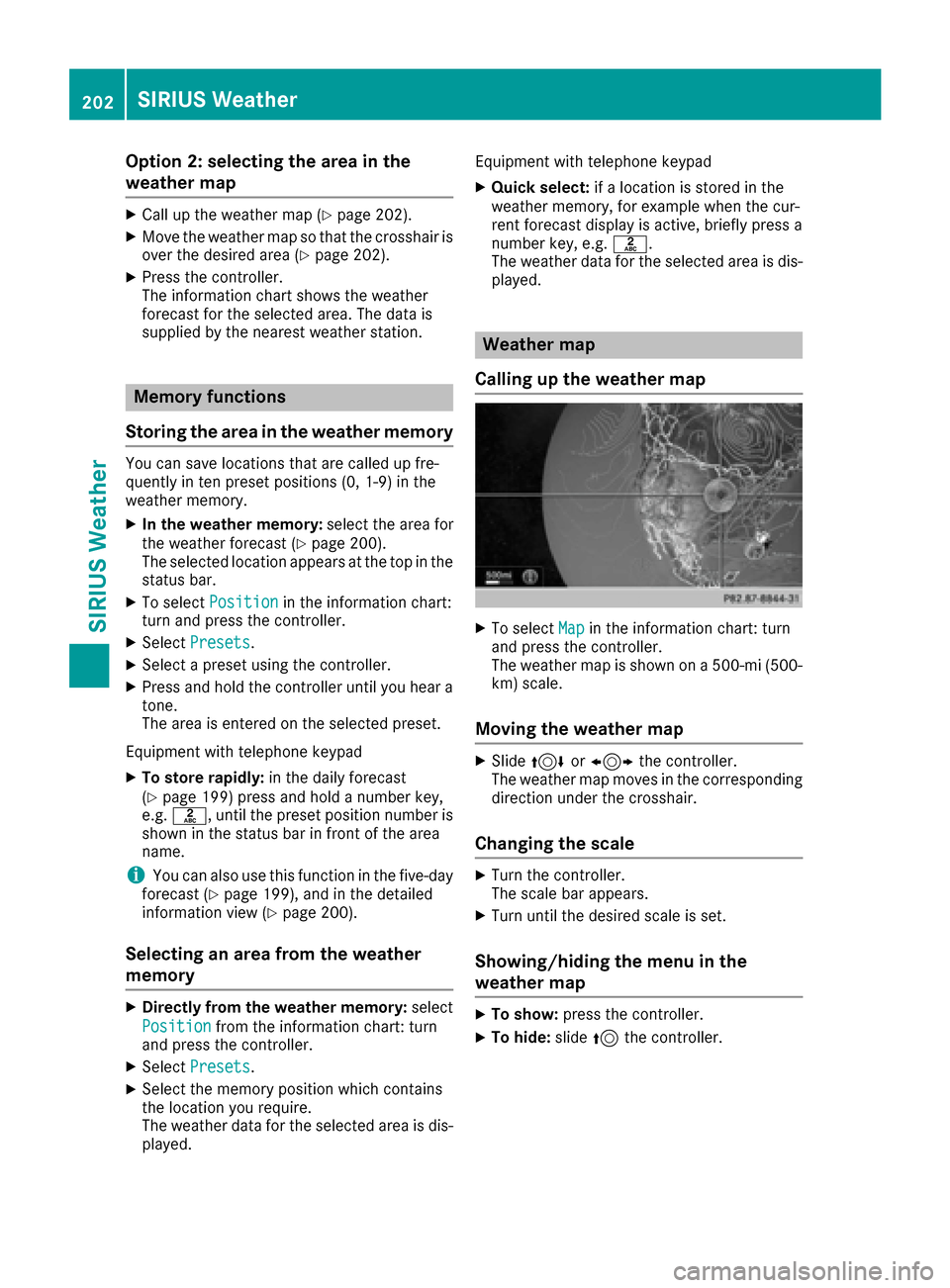
Calling up the weather map
XTo select Mapin the information chart: turn
and press the controller.
The weather map is shown on a 500-mi (500-
km) scale.
Moving the weather map
XSlide 4 or1 the controller.
The weather map moves in the corresponding
direction under the crosshair.
Changing the scale
XTurn the controller.
The scale bar appears.
XTurn until the desired scale is set.
Showing/hiding the menu in the
weather map
XTo show: press the controller.
XTo hide:slide5the controller.
202SIRIUS Weather
SIRIUS Weather