lights MERCEDES-BENZ S-Class MAYBACH 2017 W222 Comand Manual
[x] Cancel search | Manufacturer: MERCEDES-BENZ, Model Year: 2017, Model line: S-Class MAYBACH, Model: MERCEDES-BENZ S-Class MAYBACH 2017 W222Pages: 230, PDF Size: 8.27 MB
Page 9 of 230
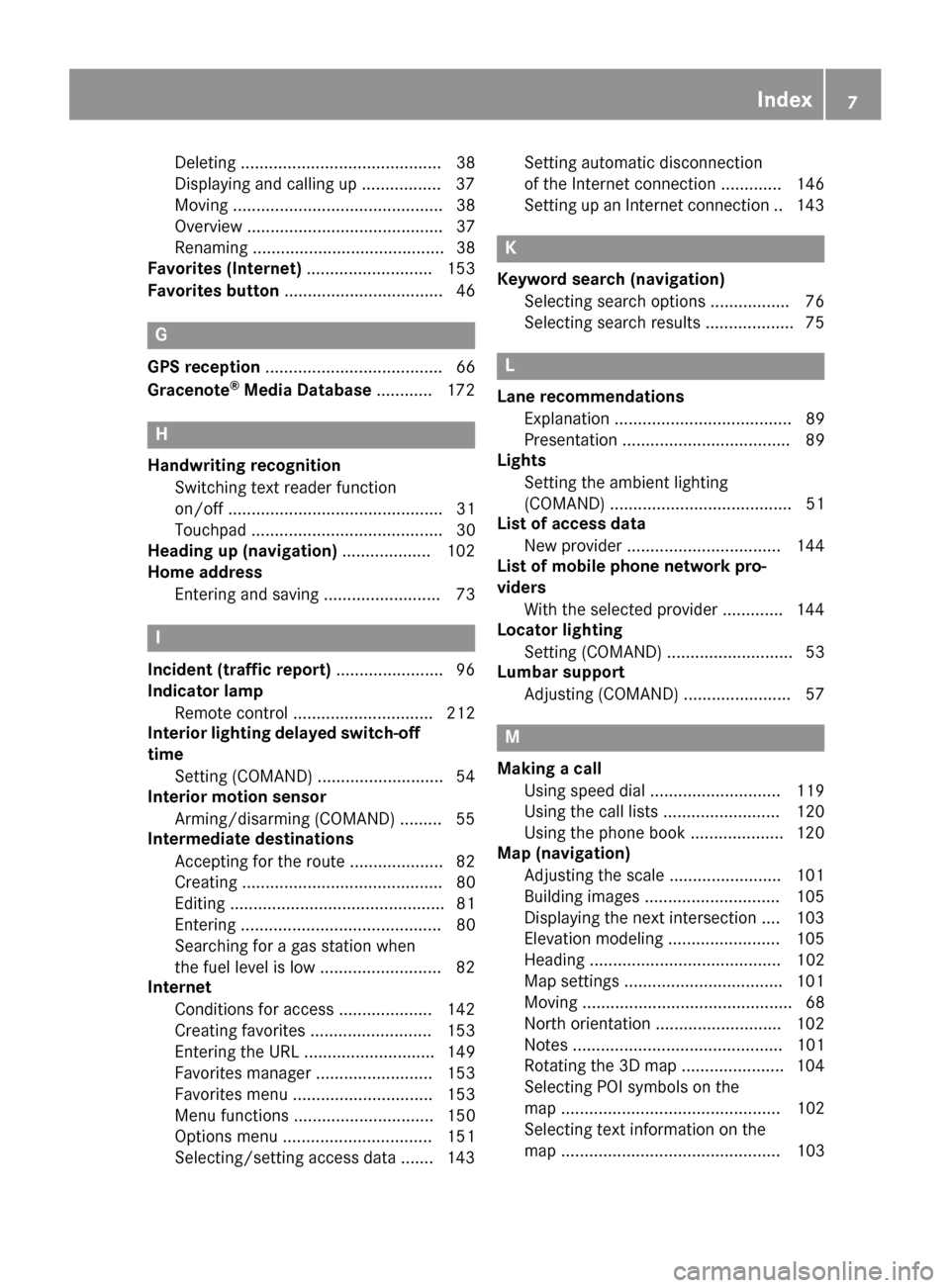
Deleting ........................................... 38
Displaying and calling up ................. 37
Moving ............................................. 38
Overview .......................................... 37
Renaming ......................................... 38
Favorites (Internet) ........................... 153
Favorites button .................................. 46
G
GPS reception...................................... 66
Gracenote®Media Database ............ 172
H
Handwriting recognition
Switching text reader function
on/off .............................................. 31
Touchpad ......................................... 30
Heading up (navigation) ................... 102
Home address
Entering and saving ......................... 73
I
Incident (traffic report) ....................... 96
Indicator lamp
Remote control .............................. 212
Interior lighting delayed switch-off
time
Setting (COMAND) ........................... 54
Interior motion sensor
Arming/disarming (COMAND) ......... 55
Intermediate destinations
Accepting for the route .................... 82
Creating ........................................... 80
Editing .............................................. 81
Entering ........................................... 80
Searching for a gas station when
the fuel level is low .......................... 82
Internet
Conditions for access .................... 142
Creating favorites .......................... 153
Entering the URL ............................ 149
Favorites manager ......................... 153
Favorites menu .............................. 153
Menu functions .............................. 150
Options menu ................................ 151
Selecting/setting access data ....... 143 Setting automatic disconnection
of the Internet connection ............. 146
Setting up an Internet connection .. 143
K
Keyword search (navigation)
Selecting search options ................. 76
Selecting search results ................... 75
L
Lane recommendationsExplanation ...................................... 89
Presentation .................................... 89
Lights
Setting the ambient lighting
(COMAND) ....................................... 51
List of access data
New provider ................................. 144
List of mobile phone network pro-
viders
With the selected provider ............. 144
Locator lighting
Setting (COMAND) ........................... 53
Lumbar support
Adjusting (COMAND) ....................... 57
M
Making a callUsing speed dial ............................ 119
Using the call lists ......................... 120
Using the phone book .................... 120
Map (navigation)
Adjusting the scale ........................ 101
Building images ............................. 105
Displaying the next intersection .... 103
Elevation modeling ........................ 105
Heading ......................................... 102
Map settings .................................. 101
Moving ............................................. 68
North orientation ........................... 102
Notes ............................................. 101
Rotating the 3D map ...................... 104
Selecting POI symbols on the
map ............................................... 102
Selecting text information on the
map ............................................... 103
Index7
Page 17 of 230
Operating safety
Important safety notes
GWARNING
If you operate information systems and com-
munication equipment integrated in the vehi-
cle while driving, you will be distracted from
traffic conditions. You could also lose control
of the vehicle. There is a risk of an accident.
Only operate the equipment when the traffic
situation permits. If you are not sure that this
is possible, park the vehicle paying attention
to traffic conditions and operate the equip-
ment when the vehicle is stationary.
You must observe the legal requirements for the
country in which you are currently driving when
operating the multimedia system.
The multimedia system calculates the route to
the destination without taking account of the
following, for example:
Rtraffic lights
Rstop and yield signs
Rmerging lanes
Rparking or stopping in a no parking/no stop-
ping zone
Rother road and traffic rules and regulations
Rnarrow bridges
The multimedia system can give incorrect navi-
gation commands if the actual street/traffic sit-
uation does not correspond with the digital
map's data. Digital maps do not cover all areas
nor all routes in an area. For example, a route
may have been diverted or the direction of a one-
way street may have changed.
For this reason, you must always observe road
and traffic rules and regulations during your
journey. Road and traffic rules and regulations
always have priority over the system's driving
recommendations.
Navigation announcements are intended to
direct you while driving without diverting your
attention from the road and driving.
Please always use this feature instead of con-
sulting the map display for directions. Looking
at the icons or map display can distract you from
traffic conditions and driving, and increase the
risk of an accident. Bear in mind that at a speed of only 30 mph
(approximately 50 km/h)
, your vehicle covers a
distance of 44 feet (approximately 14 m) every
second.
This equipment complies with FCC radiation
exposure limits set forth for uncontrolled equip-
ment and meet st
he FCC radio frequency (RF)
Exposure Guidelines in Supplement C to OET65.
This equipment has very low levels of RF energy
that is deemed to comply without maximum
permissive exposure evaluation (MPE). How-
ever, it is recommended to install it at a distance
of at least 8 inches (approx. 20 cm) between the
radiation source and a person's body (not
including limbs such as hands, wrists, feet and
legs).
GWARNING
Modifications to electronic components, their software as well as wiring can impair their
function and/or the function of other net-
worked components. In particular, systems
relevant to safety could also be affected. As a
result, these may no longer function as inten-
ded and/or jeopardize the operating safety of
the vehicle. There is an increased risk of an
accident and injury.
Never tamper with the wiring as well as elec-
tronic components or their software. You
should have all work to electrical and elec-
tronic equipment carried out at a qualified
specialist workshop.
Declarations of conformity
Vehicle components which receive
and/or transmit radio waves
USA only: The wireless devices of this vehicle
comply with Part 15 of the FCC Rules. Operation
is subject to the following two conditions:
1) These devices may not cause interference,
and
2) These devices must accept any interference,
including interference that may cause undesired
operation of the device.
Changes or modifications not expressly
approved by the party responsible for compli-
ance could void the user's authority to operate
the equipment.
Introduction15
Z
Page 18 of 230
Canada only:The wireless devices of this vehi-
cle comply with Industry Canada license-
exempt RSS standard(s). Operation is subject to the following two conditions:
1) These devices may not cause interference,
and
2) These devices must accept any interference,
including interference that may cause undesired
operation of the device.
Correct use
You need to observe the following information
when using the multimedia system:
Rthe safety notes in this manual
Rtraffic rules and regulations
Rlaws and safety standards pertaining to motorvehicles
Using roof carriers may impair the correct func-
tioning of a roof antenna (phone, satellite radio,
GPS).
Attaching metalized retrofit film to the wind-
shield may affect radio reception. This can have
a negative impact on all other antennas (e.g.
emergency call antenna) in the vehicle interior.
Protection against theft: this device is equip-
ped with technical provisions to protect it
against theft. Further information on protection
against theft can be obtained from an author-
ized Mercedes-Benz Center.
Qualified specialist workshop
Read the information on qualified specialist
workshops in the vehicle Operator's Manual.
Function restrictions
For safety reasons, some functions are restric-
ted or unavailable while the vehicle is in motion.
You will notice this, for example, because either you will not be able to select certain menu items
or a message will appear to this effect.
Data stored in the vehicle
Data recording
A wide range of electronic components in your
vehicle contain data memories.
These data memories temporarily or perma-
nently store technical information about:
Rthe vehicle's operating state
Revents
Rmalfunctions
In general, this technical information docu-
ments the state of a component, a module, a
system or the surroundings.
These include, for example:
Roperating conditions of system components,
e.g. fluid levels
Rthe vehicle's status messages and those of its
individual components, e.g. number of wheel
revolutions/speed, deceleration in move-
ment, lateral acceleration, accelerator pedal
position
Rmalfunctions and defects in important system
components, e.g. lights, brakes
Rvehicle reactions and operating conditions in
special driving situations, e.g. air bag deploy-
ment, intervention of stability control sys-
tems
Rambient conditions, e.g. outside temperature
This data is of an exclusively technical nature
and can be used to:
Rassist in detecting and rectifying faults and
defects
Ranalyze vehicle functions, e.g. after an acci-
dent
Roptimize vehicle function
The data cannot be used to trace the vehicle's
movements.
When your vehicle is serviced, technical infor-
mation can be read from the event data memory
and fault data memory.
Services include, for example:
Rrepair services
Rservice processes
Rwarranty events
Rquality assurance
The vehicle is read out by employees of the ser-
vice network (including the manufacturer) using
special diagnostic testers. You can obtain more
information there, if required.
16Introduction
Page 50 of 230
Calling up a favorite
XPress thegbutton.
You call up the favorites functions menu. The
g symbol lights up.
XPress a favorites button, e.g. n.
This calls up the predefined function.
XTo exit the favorites function menu: press
the g button.
The favorite functions menu is closed.
iIf you only press the gbutton, you auto-
matically exit the favorites function menu
after 16 seconds.
Selecting predefined functions, for example:
RSpoken Driving Recommendations On/Off: to switch the current driving recommen-
dations on/off.
RSound Menu: to call up the sound settings.
RMercedes-Benz Apps: to call up apps for
online and Internet functions.
Resetting favorites
XPress the Øbutton.
or
XPress Vehiclein the main function bar.
The vehicle menu is displayed.
XTo switch to the menu bar: slide 6the con-
troller.
XTo select System Settings: turn and press
the controller.
A menu appears.
XTo select Favorite Functions: press the
controller.
A menu appears.
XSelect Reset Favorite(s).
A menu appears with the prompt Please
select a favorites button:.
XSelect the desired favorites, e.g.por
Reset All.
A prompt appears asking whether you wish to reset.
XSelect YesorNo.
If you select Yes, the favorite is reset to its
pre-installed favorite function.
If you select No
the process is canceled.
iYou can also assign the Favorites button
directly from a relevant function, such as in
the radio menu (
Ypage 156).
Importing/exporting data
General notes
!
Never remove the stick or card when writing
data to the USB stick or the memory card. You may otherwise lose data.
Using this function you can do the following with
your personal data:
Rtransfer your data from one multimedia sys-
tem to another multimedia system
The transfer may be limited or not possible,
depending on the vehicle's equipment.
Rmake a backup copy of your personal data
(export data) and load it again (import data)
Rprotect your data from unwanted export by
activating a pin prompt (presetting: deactiva-
ted ª)
You can either use an SD card or a USB storage
device (e.g. a USB stick) as temporary storage.
You can obtain further information on data
import and export from an authorized
Mercedes-Benz Center.
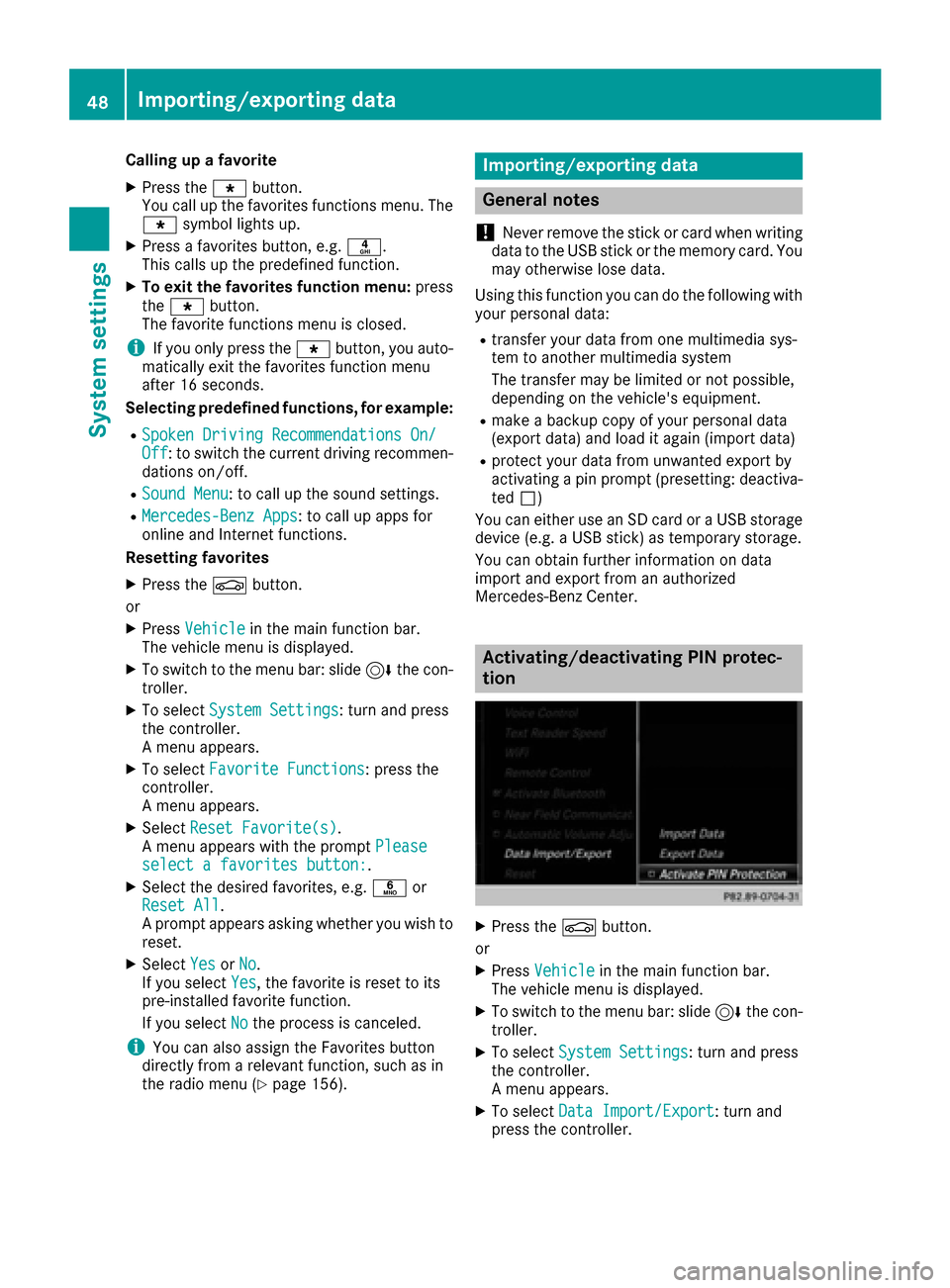
Activating/deactivating PIN protec-
tion
XPress the Øbutton.
or
XPress Vehiclein the main function bar.
The vehicle menu is displayed.
XTo switch to the menu bar: slide 6the con-
troller.
XTo select System Settings: turn and press
the controller.
A menu appears.
XTo select Data Import/Export: turn and
press the controller.
48Importing/exporting data
System settings
Page 55 of 230
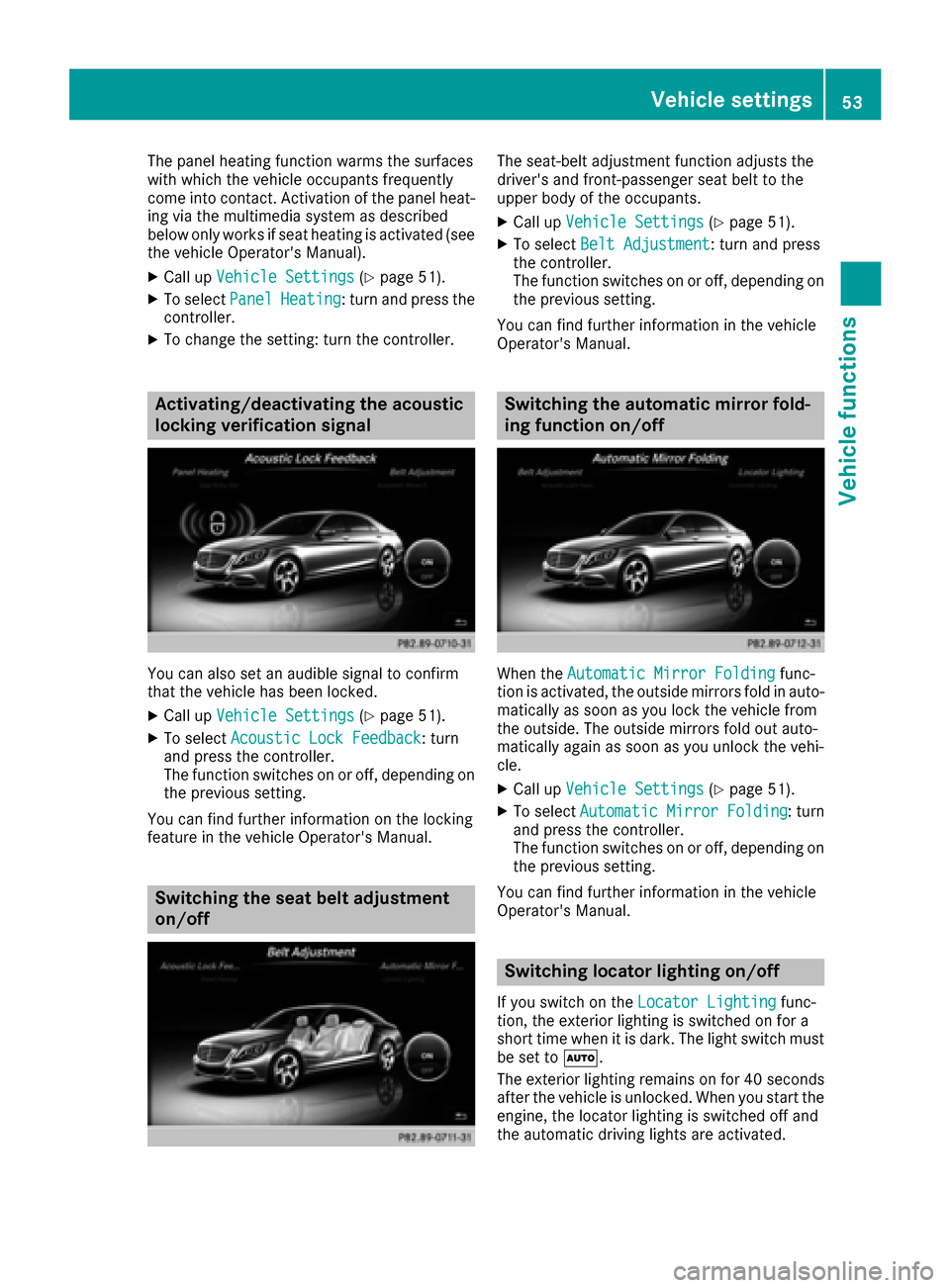
The panel heating function warms the surfaces
with which the vehicle occupants frequently
come into contact. Activation of the panel heat-
ing via the multimedia system as described
below only works if seat heating is activated (see
the vehicle Operator's Manual).
XCall upVehicle Settings(Ypage 51).
XTo select PanelHeating: turn and press the
controller.
XTo change the setting: turn the controller.
Activating/deactivating the acoustic
locking verification signal
You can also set an audible signal to confirm
that the vehicle has been locked.
XCall up Vehicle Settings(Ypage 51).
XTo select Acoustic Lock Feedback: turn
and press the controller.
The function switches on or off, depending on
the previous setting.
You can find further information on the locking
feature in the vehicle Operator's Manual.
Switching the seat belt adjustment
on/off
The seat-belt adjustment function adjusts the
driver's and front-passenger seat belt to the
upper body of the occupants.
XCall up Vehicle Settings(Ypage 51).
XTo select Belt Adjustment: turn and press
the controller.
The function switches on or off, depending on
the previous setting.
You can find further information in the vehicle
Operator's Manual.
Switching the automatic mirror fold-
ing function on/off
When the Automatic Mirror Foldingfunc-
tion is activated, the outside mirrors fold in auto-
matically as soon as you lock the vehicle from
the outside. The outside mirrors fold out auto-
matically again as soon as you unlock the vehi-
cle.
XCall up Vehicle Settings(Ypage 51).
XTo select Automatic Mirror Folding: turn
and press the controller.
The function switches on or off, depending on
the previous setting.
You can find further information in the vehicle
Operator's Manual.
Switching locator lighting on/off
If you switch on the Locator Lightingfunc-
tion, the exterior lighting is switched on for a
short time when it is dark. The light switch must
be set to Ã.
The exterior lighting remains on for 40 seconds
after the vehicle is unlocked. When you start the
engine, the locator lighting is switched off and
the automatic driving lights are activated.
Vehicle settings53
Vehicle functions
Z
Page 68 of 230
Your multimediasystem equipment
These operating instructions describe all the
standard and optional equipment of your multi-
media system, as available at the time of going
to press. Country-specifi cdifferences are pos-
sible. Bear in mind that your vehicle may not
feature all functions described here. This also
applies to safety-relevant systems andfunc-
tions.
Read the information on qualified specialist
workshop s in the vehicle Operator's Manual.
Introduction
Important safety notes
GWARNING
If you operate information systems and com-
munication equipment integrated in the vehi-
cl e while driving, you will be distracted from
traffic conditions. You could also lose control
of th e vehicle. There is a risk of an accident.
Only operate the equipment when the traffic
situation permits. If you are not sure that this
is possible, park the vehicle paying attention
to traffic condition s and operatethe equip-
ment when the vehicle is stationary.
You must observe the legal requirements for the
country in which you are currently driving when
operating the multimedia system.
The multimedia system calculates the routeto
th edestination without taking accoun tof th e
following, for example:
Rtraffic lights
Rstop and yield signs
Rmerging lanes
Rparking or stopping in a no parking/no stop-
ping zone
Rother road and traffic rules and regulations
Rnarrow bridges
The multimedia system can give incorrect navi-
gation commands if the actual street/traffic sit-
uation does notcorrespon d withthe digital
map's data. Digital maps do not cover all areas
no r all routes in an area. For example, a
route
may have been diverted or the direction of a one-
way street may have changed. Fo
rthis reason , you must always observe road
and traffic rules and regulations during your
journey. Road and traffic rules and regulations
always have priority over the system's driving
recommendations.
Navigation announcements are intended to
direct you while driving without diverting your
attention from th e road anddriving.
Please always use this feature instead of con-
sulting the map display for directions. Looking
at the icons or map display can distract you from
traffic conditions and driving, and increase the
risk of an accident.
General notes
Operational readiness of the navigation syste m
The navigation system must determine the posi-
tion of the vehicle before first use or whenever
operational status is restored. Therefore, you
may have to drive fo rawhile before precise
rout e guidance is possible.
GPS reception
Amon g other things, correct functioning of the
navigation system depends on GPS reception. In
certain situations, GPS reception may be
impaired, there may be interference or there
may be no reception at all, e.g. in tunnels or
parking garages.
Using roof carriers may impair th ecorrect func-
tioning of a roof antenna (phone, satellite radio,
GPS).
Entry restriction
In certain countries, dat a entry is restricted if
th e vehicle is traveling at more than approx-
imately 3 mph (5 km/h). The restriction is deac- tivated as soo n as the vehicle speed drops
below about 2 mph (3 km/h).
When the restriction is active, certain entries
canno t be made. This will be indicated by the
fact that certain menu items are grayed out and
canno t be selected.
The following entries are not possible, for exam-
ple:
Rentering thedestination city an d street
Renteringadestination via the map
66Introduction
Navigation
Page 88 of 230
XTo return to the menu: press the%button.
XTo place a call to the personal POI: select
Call
.
If a mobile phone is connected to the multi-
media system and the telephone number is
available, the call is connected (
Ypage 120).
XTo change the name and symbol: select
Edit
.
XSelect Change NameorEdit Icon.
XTo change name: enter character (Ypage 34).
XTo change symbol: select a symbol.
The symbol is saved.
XTo delete a personal POI or route: select
Delete
.
A prompt will appear.
XSelect YesorNo.
If you select Yes, the personal destination or
personal route is deleted.
XTo select the outward and return route:
select Swap
.
The starting and destination positions of your
personal route, and thus the direction for
route guidance, are switched round. One-way
streets or restricted intersections are taken
into consideration. Therefore, the outward
and return routes may differ from each other.
XTo save a personal POI: selectSave.
XContinue saving (Ypage 99).
XTo start route guidance: selectStart.
Recording the route
General notes
Routes are recorded using the SD card.
Requirements: the SD card has the FAT data
system format (e.g. FAT32).
When recording the route, bear in mind the fol-
lowing:
RIf the SD card is inserted, it must not be
removed during recording.
RIf route recording is started manually, it must
be finished manually before the multimedia
system is switched off (e. g. when the engine
is switched off).
RThe multimedia system minimizes the num-
ber of route points recorded. Therefore when
the recorded route is subsequently com-
menced, it may differ from the route that was
originally recorded.
Starting/finishing route recording
XInsert the SD memory card (Ypage 170).
XTo switch to navigation mode: press the
ß button.
XTo show the menu: slide6the controller.
XTo select Destination: turn and press the
controller.
XSelect From Memory Card.
XSelectStart Route Recording.
The route is recorded and REC appears at the
bottom edge of the screen.
XTo stop recording, select End RouteRecordingfrom the menu.
The route is stored under Personal Routes.
Displaying/editing the recorded route
XInsert the SD memory card (Ypage 170).
XTo switch to navigation mode: press the
ß button.
XTo show the menu: slide6the controller.
XTo select Destination: turn and press the
controller.
XSelect From Memory Card.
XSelectPersonal Routes.
Previously recorded routes are displayed.
XTo select a route: turn and press the control-
ler.
The map appears with a menu. The recorded
route is shown on the map in blue.
XTo start route calculation: selectStart.
XTo change the name and symbol: select
Edit
.
XSelect Change NameorEdit Icon.
XTo change name: enter character (Ypage 34).
XTo change symbol: select a symbol.
The symbol is saved.
Route guidance
General notes
The multimedia system calculates the route to
the destination without taking account of the
following, for example:
Rtraffic lights
Rstop and yield signs
Rparking or stopping restrictions
86Route guidance
Navigation
Page 133 of 230
XTo switch to the menu bar: slide6the con-
troller.
XTo select Download: turn and press the con-
troller.
Downloading text messages and e-mails
from the phone
XSelect From the Phone.
The messages are downloaded. If you have
selected Automatic Download
in the e-mail
settings, manual downloading is not possible.
Updating from the e-mail server by the
mobile phone
XSelect From the E-Mail Server.
The e-mails in the mobile phone are updated.
This function is not supported by all mobile
phones.
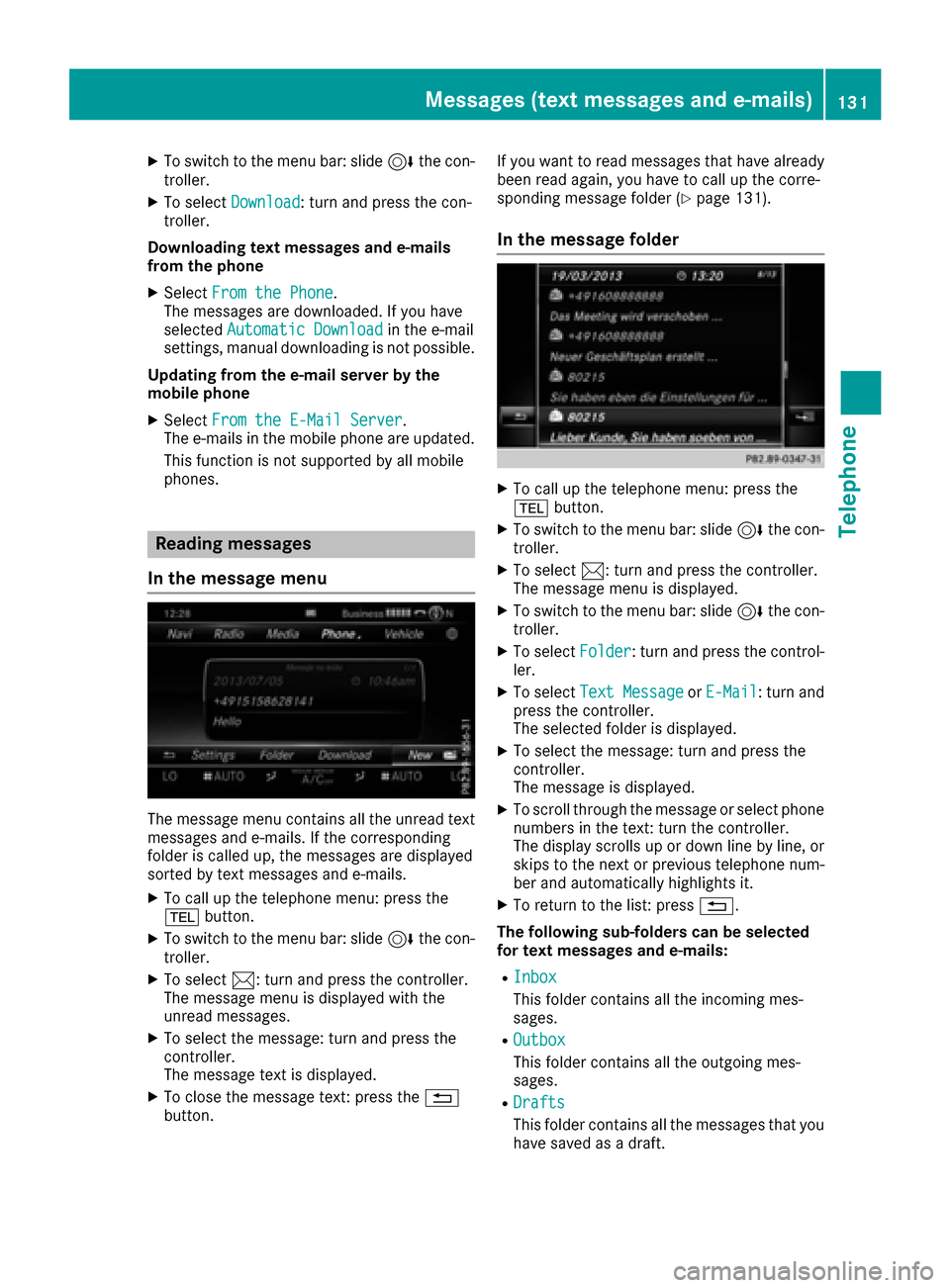
Reading messages
In the message menu
The message menu contains all the unread text
messages and e-mails. If the corresponding
folder is called up, the messages are displayed
sorted by text messages and e-mails.
XTo call up the telephone menu: press the
% button.
XTo switch to the menu bar: slide 6the con-
troller.
XTo select 1: turn and press the controller.
The message menu is displayed with the
unread messages.
XTo select the message: turn and press the
controller.
The message text is displayed.
XTo close the message text: press the %
button. If you want to read messages that have already
been read again, you have to call up the corre-
sponding message folder (
Ypage 131).
In the message folder
XTo call up the telephone menu: press the
%
button.
XTo switch to the menu bar: slide 6the con-
troller.
XTo select 1: turn and press the controller.
The message menu is displayed.
XTo switch to the menu bar: slide 6the con-
troller.
XTo select Folder: turn and press the control-
ler.
XTo select Text MessageorE-Mail: turn and
press the controller.
The selected folder is displayed.
XTo select the message: turn and press the
controller.
The message is displayed.
XTo scroll through the message or select phone numbers in the text: turn the controller.
The display scrolls up or down line by line, or
skips to the next or previous telephone num-ber and automatically highlights it.
XTo return to the list: press %.
The following sub-folders can be selected
for text messages and e-mails:
RInbox
This folder contains all the incoming mes-
sages.
ROutbox
This folder contains all the outgoing mes-
sages.
RDrafts
This folder contains all the messages that you
have saved as a draft.
Messages (text messages and e-mails)131
Telephone
Z
Page 152 of 230
XTo selectwww: turn and press the controller.
An input menu for the web address is dis-
played.
XEnter characters using the controller
(Ypage 34) or the number keypad.
XTo finish entry and call up a website: select
¬.
Selecting a web address from the list
XWhen the character bar is displayed, slide
5 the controller.
XTo select the desired web address: turn and
press the controller.
The web address can still be changed as
desired.
XTo call up a website: select ¬.
The website is called up.
Navigating the website
StepResult
XTurn the controller.Navigates from one
selectable item (e.g.
link, text field or
menu) to the next and
highlights the respec-
tive element on the
website.
Sliding the controller:
XLeft or right 1
XUp or down4
XDiagonally2
Moves the pointer on
the page.
XPress the control-
ler.Opens the selected
item.
XPress%.Calls up the menu.
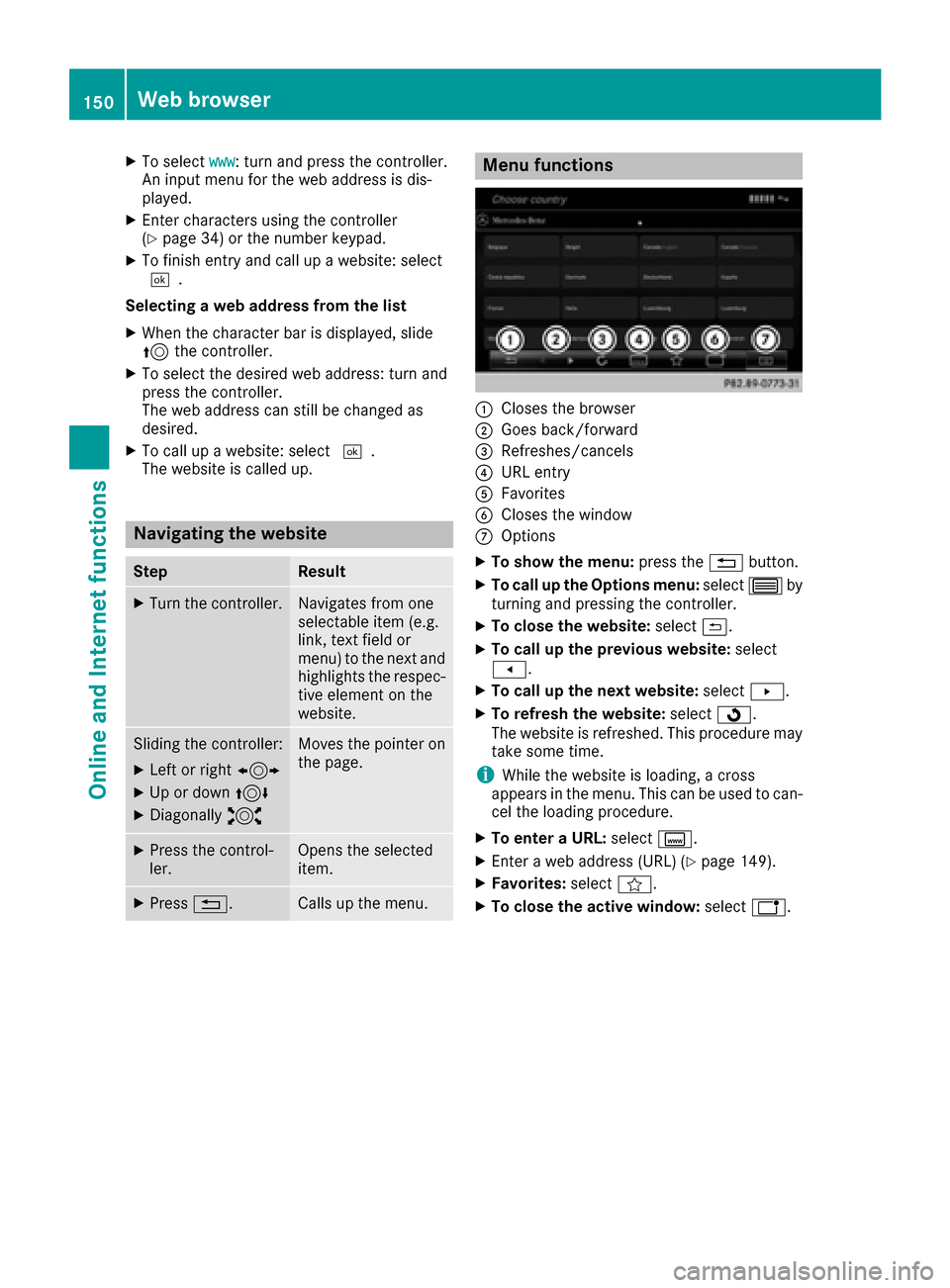
Menu functions
:Closes the browser
;Goes back/forward
=Refreshes/cancels
?URL entry
AFavorites
BCloses the window
COptions
XTo show the menu: press the%button.
XTo call up the Options menu: select3by
turning and pressing the controller.
XTo close the website: select&.
XTo call up the previous website: select
t.
XTo call up the next website: selectu.
XTo refresh the website: selectÎ.
The website is refreshed. This procedure may
take some time.
iWhile the website is loading, a cross
appears in the menu. This can be used to can-
cel the loading procedure.
XTo enter a URL: selectg.
XEnter a web address (URL) (Ypage 149).
XFavorites: selectf.
XTo close the active window: selecth.
150Web browser
Online and Internet functions
Page 178 of 230
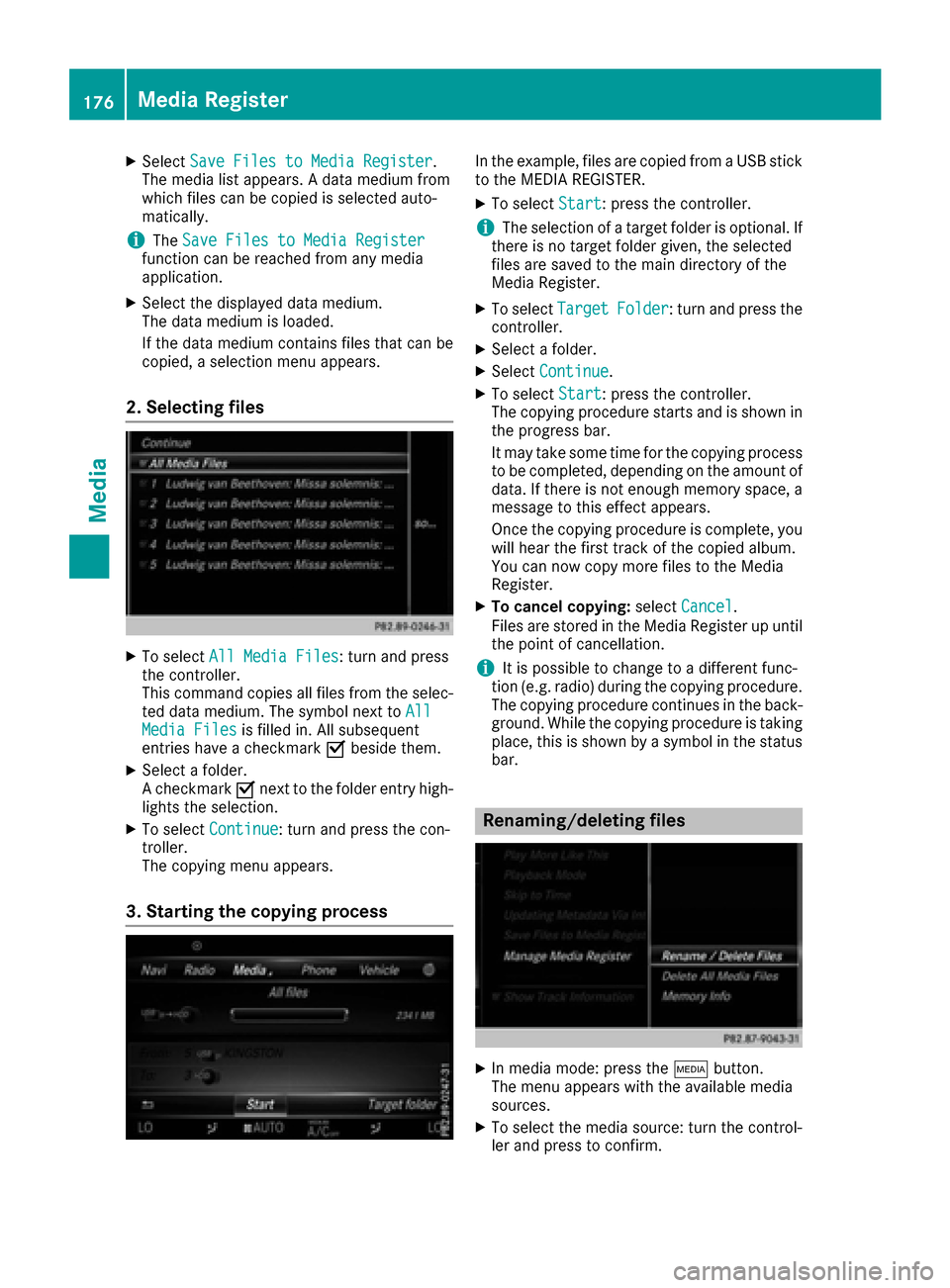
XSelectSave Files to Media Register.
The media list appears. A data medium from
which files can be copied is selected auto-
matically.
iThe Save Files to Media Registerfunction can be reached from any media
application.
XSelect the displayed data medium.
The data medium is loaded.
If the data medium contains files that can be
copied, a selection menu appears.
2. Selecting files
XTo select All Media Files: turn and press
the controller.
This command copies all files from the selec-
ted data medium. The symbol next to All
Media Filesis filled in. All subsequent
entries have a checkmark Obeside them.
XSelect a folder.
A checkmark Onext to the folder entry high-
lights the selection.
XTo select Continue: turn and press the con-
troller.
The copying menu appears.
3. Starting the copying process
In the example, files are copied from a USB stick
to the MEDIA REGISTER.
XTo select Start: press the controller.
iThe selection of a target folder is optional. If
there is no target folder given, the selected
files are saved to the main directory of the
Media Register.
XTo select TargetFolder: turn and press the
controller.
XSelect a folder.
XSelect Continue.
XTo select Start: press the controller.
The copying procedure starts and is shown in
the progress bar.
It may take some time for the copying process
to be completed, depending on the amount of
data. If there is not enough memory space, a
message to this effect appears.
Once the copying procedure is complete, you
will hear the first track of the copied album.
You can now copy more files to the Media
Register.
XTo cancel copying: selectCancel.
Files are stored in the Media Register up until
the point of cancellation.
iIt is possible to change to a different func-
tion (e.g. radio) during the copying procedure.
The copying procedure continues in the back-
ground. While the copying procedure is taking
place, this is shown by a symbol in the status bar.
Renaming/deleting files
XIn media mode: press the Õbutton.
The menu appears with the available media
sources.
XTo select the media source: turn the control-
ler and press to confirm.
176Media Register
Media