ECO mode MERCEDES-BENZ S-CLASS SEDAN 2012 User Guide
[x] Cancel search | Manufacturer: MERCEDES-BENZ, Model Year: 2012, Model line: S-CLASS SEDAN, Model: MERCEDES-BENZ S-CLASS SEDAN 2012Pages: 536, PDF Size: 39.39 MB
Page 128 of 536
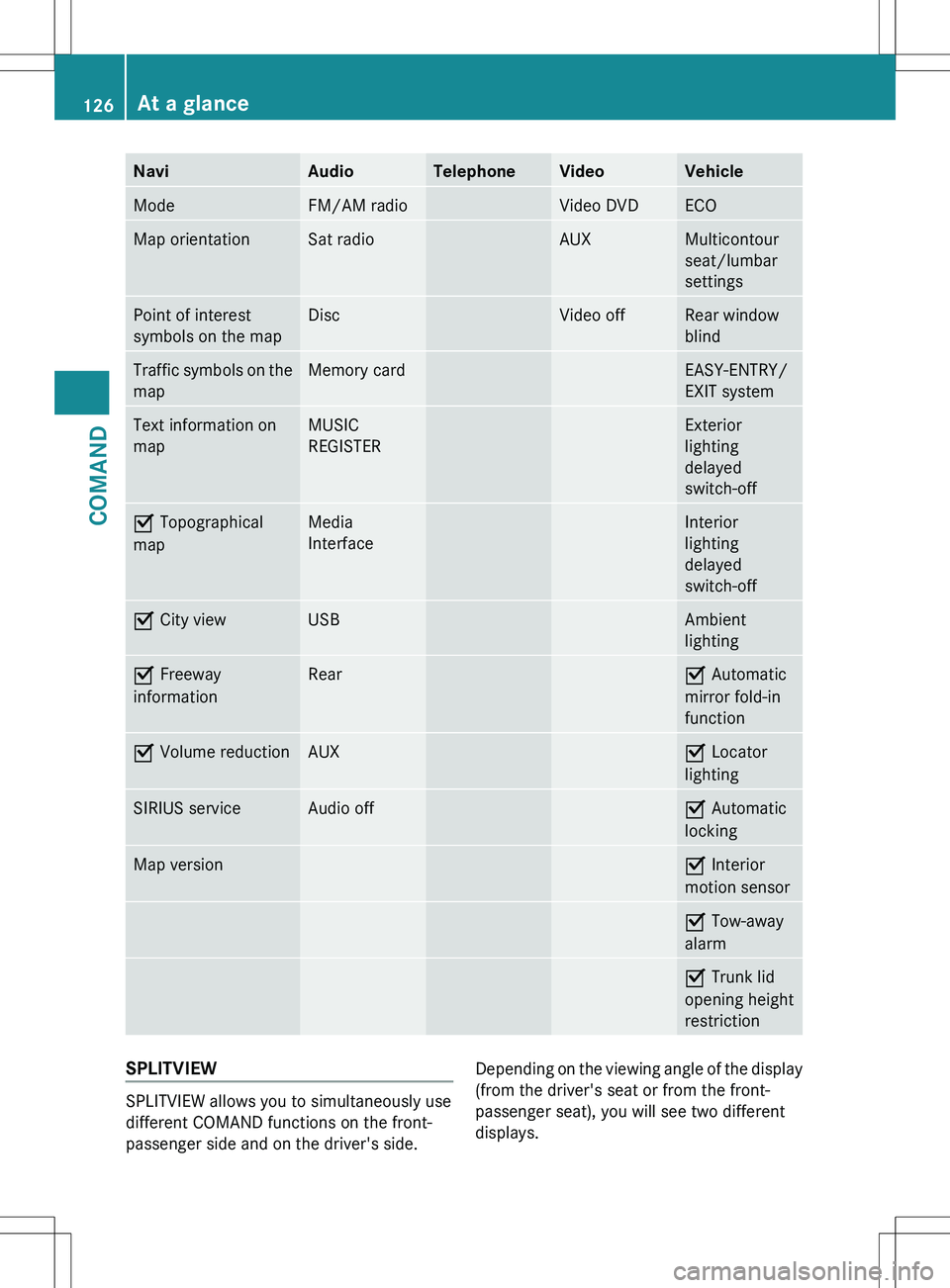
NaviAudioTelephoneVideoVehicleModeFM/AM radioVideo DVDECOMap orientationSat radioAUXMulticontour
seat/lumbar
settingsPoint of interest
symbols on the mapDiscVideo offRear window
blindTraffic symbols on the
mapMemory cardEASY-ENTRY/
EXIT systemText information on
mapMUSIC
REGISTERExterior
lighting
delayed
switch-offO Topographical
mapMedia
InterfaceInterior
lighting
delayed
switch-offO City viewUSBAmbient
lightingO Freeway
informationRearO Automatic
mirror fold-in
functionO Volume reductionAUXO Locator
lightingSIRIUS serviceAudio offO Automatic
lockingMap versionO Interior
motion sensorO Tow-away
alarmO Trunk lid
opening height
restrictionSPLITVIEW
SPLITVIEW allows you to simultaneously use
different COMAND functions on the front-
passenger side and on the driver's side.
Depending on the viewing angle of the display
(from the driver's seat or from the front-
passenger seat), you will see two different
displays.126At a glanceCOMAND
Page 134 of 536
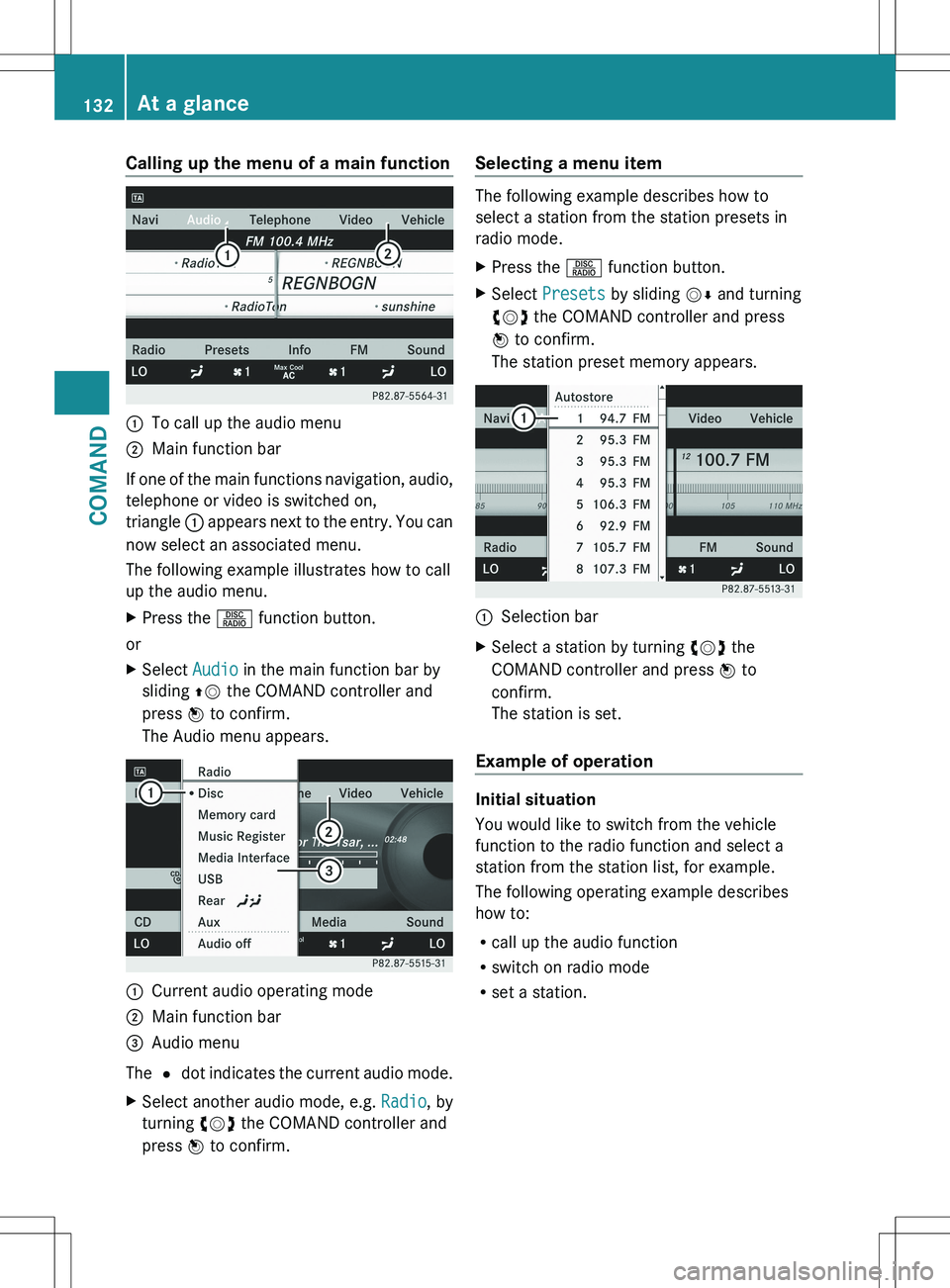
Calling up the menu of a main function:To call up the audio menu;Main function bar
If one of the main functions navigation, audio,
telephone or video is switched on,
triangle : appears next to the entry. You can
now select an associated menu.
The following example illustrates how to call
up the audio menu.
XPress the R function button.
or
XSelect Audio in the main function bar by
sliding ZV the COMAND controller and
press W to confirm.
The Audio menu appears.:Current audio operating mode;Main function bar=Audio menu
The # dot indicates the current audio mode.
XSelect another audio mode, e.g. Radio, by
turning cVd the COMAND controller and
press W to confirm.Selecting a menu item
The following example describes how to
select a station from the station presets in
radio mode.
XPress the R function button.XSelect Presets by sliding VÆ and turning
cVd the COMAND controller and press
W to confirm.
The station preset memory appears.:Selection barXSelect a station by turning cVd the
COMAND controller and press W to
confirm.
The station is set.
Example of operation
Initial situation
You would like to switch from the vehicle
function to the radio function and select a
station from the station list, for example.
The following operating example describes
how to:
R call up the audio function
R switch on radio mode
R set a station.
132At a glanceCOMAND
Page 140 of 536
Switching the sound on or off
Switching audio and video sources on/off
XPress the 8 button on the multifunction
steering wheel.
The sound from the respective audio or
video source is switched on or off.
i When the sound is off, the system
displays the , symbol in the status line.
When you change the audio or video
source, or adjust the volume, sound
automatically switches on again.
i Even if the sound is switched off, you will
still hear traffic and navigation system
announcements.
Switching off traffic and navigation
announcements completely
XTraffic announcements: press the 8
button until the . message disappears
from the status bar of the display.
A confirmation tone sounds.XNavigation announcements: during an
announcement, press the 8 button on
the multifunction steering wheel.
Switching traffic and navigation
announcements on again
XTraffic announcements: press and hold
down the 8 button until the . display
appears in the status bar.
A confirmation tone sounds.XNavigation announcements: select the
y symbol in the navigation menu bar
and press W to confirm.
i
The navigation announcements are
activated again if you switch COMAND off
and on again or start a new route guidance.
Adjusting the volume
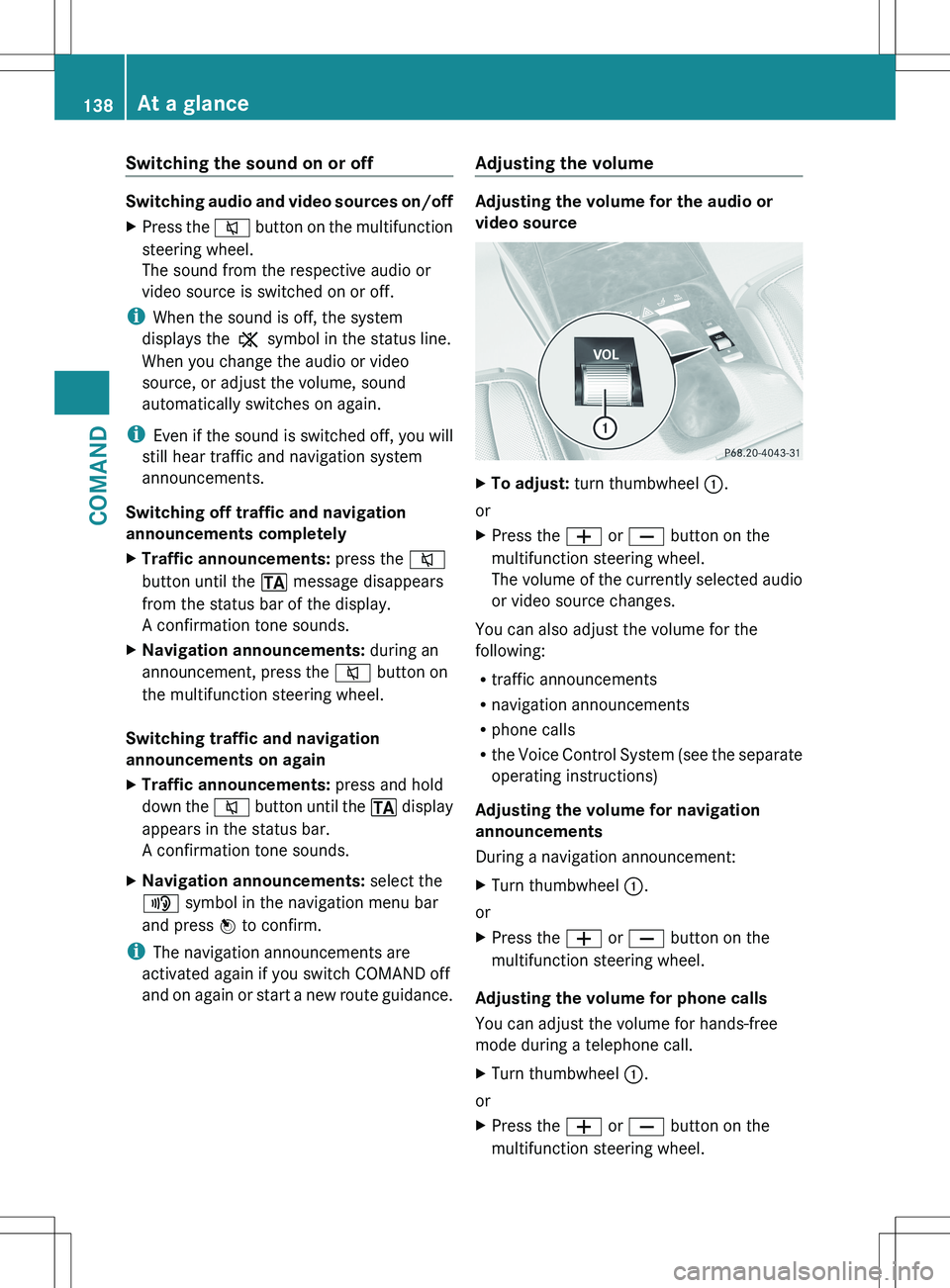
Adjusting the volume for the audio or
video source
XTo adjust: turn thumbwheel :.
or
XPress the W or X button on the
multifunction steering wheel.
The volume of the currently selected audio
or video source changes.
You can also adjust the volume for the
following:
R traffic announcements
R navigation announcements
R phone calls
R the Voice Control System (see the separate
operating instructions)
Adjusting the volume for navigation
announcements
During a navigation announcement:
XTurn thumbwheel :.
or
XPress the W or X button on the
multifunction steering wheel.
Adjusting the volume for phone calls
You can adjust the volume for hands-free
mode during a telephone call.
XTurn thumbwheel :.
or
XPress the W or X button on the
multifunction steering wheel.138At a glanceCOMAND
Page 142 of 536
Surround sound
General information
If your vehicle is equipped with the harman/
kardon ®
Logic 7 ®
surround sound system,
you can provide the optimum sound
experience for every passenger.
The harman/kardon ®
Logic7 ®
surround
sound system is available for the following
operating modes:
R radio (FM only)
R satellite radio
R audio CD
R audio DVD (MLP™, dts™, PCM and
Dolby ®
Digital audio formats)
R MP3
R Media Interface
R video DVD (PCM, dts™ and Dolby ®
Digital
audio formats)
R AUX
Because some DVDs contain both stereo and
multichannel audio formats, it may be
necessary to set the audio format
( Y page 232).
i The Logic7 ®
ON function enables
playback of stereo recordings, for instance,
with a surround sound experience for every
passenger. It enables optimum playback of
music and films on CDs, audio DVDs or
video DVDs with multichannel audio
formats, such as MLP™, dts™ or Dolby ®
Digital. This results in sound
characteristics like those intended by the
sound engineer when the original was
recorded.
i If you select Logic7®
OFF , the sound
system plays all playable formats as stored
on the medium. Due to the design of the
passenger compartment, an optimum
audio experience cannot be guaranteed for
all passengers.
i Discs which support the audio formats
mentioned have the following logos:
Dolby ®
Digital
dts™
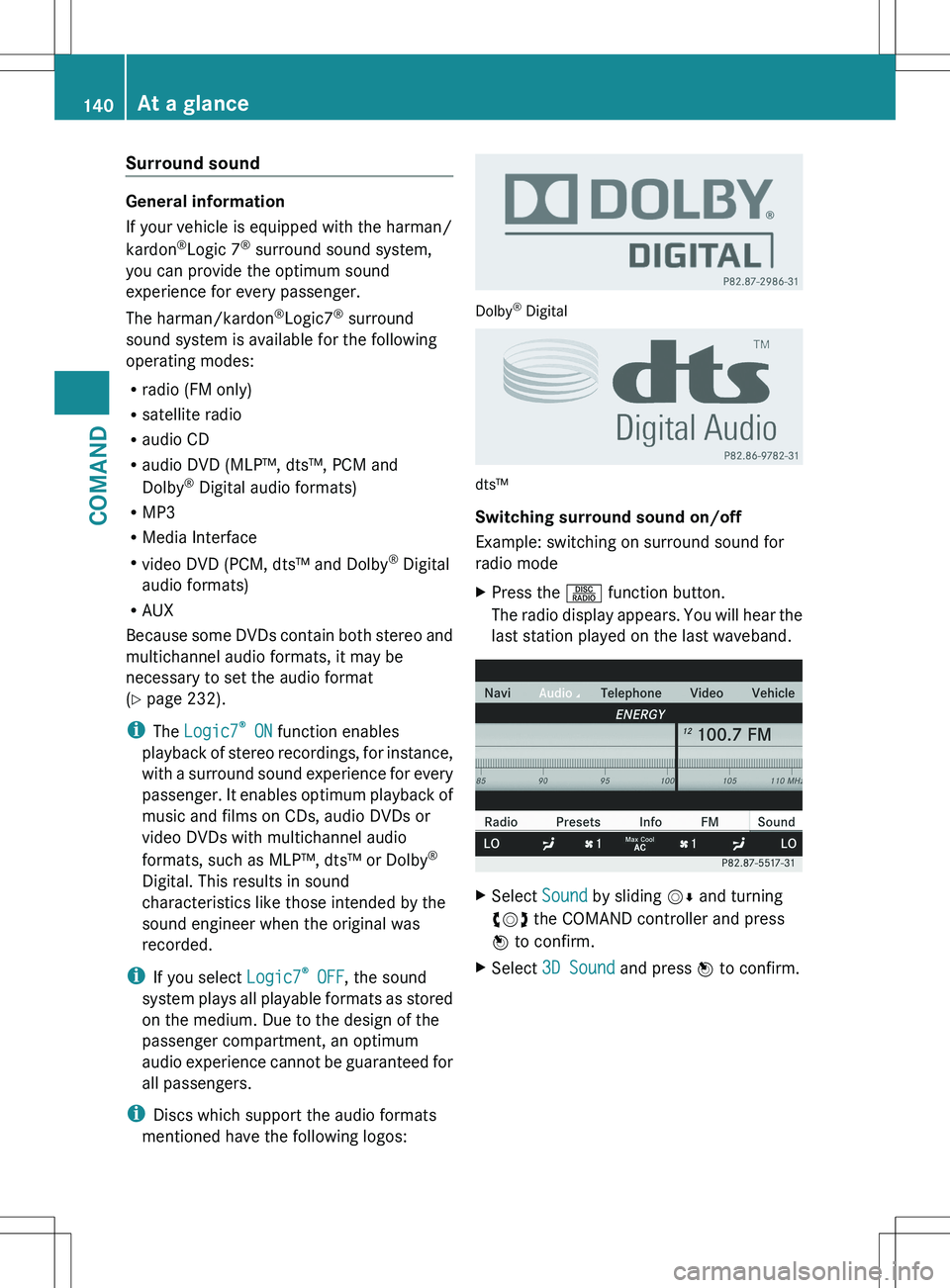
Switching surround sound on/off
Example: switching on surround sound for
radio mode
XPress the R function button.
The radio display appears. You will hear the
last station played on the last waveband.XSelect Sound by sliding VÆ and turning
cVd the COMAND controller and press
W to confirm.XSelect 3D Sound and press W to confirm.140At a glanceCOMAND
Page 143 of 536
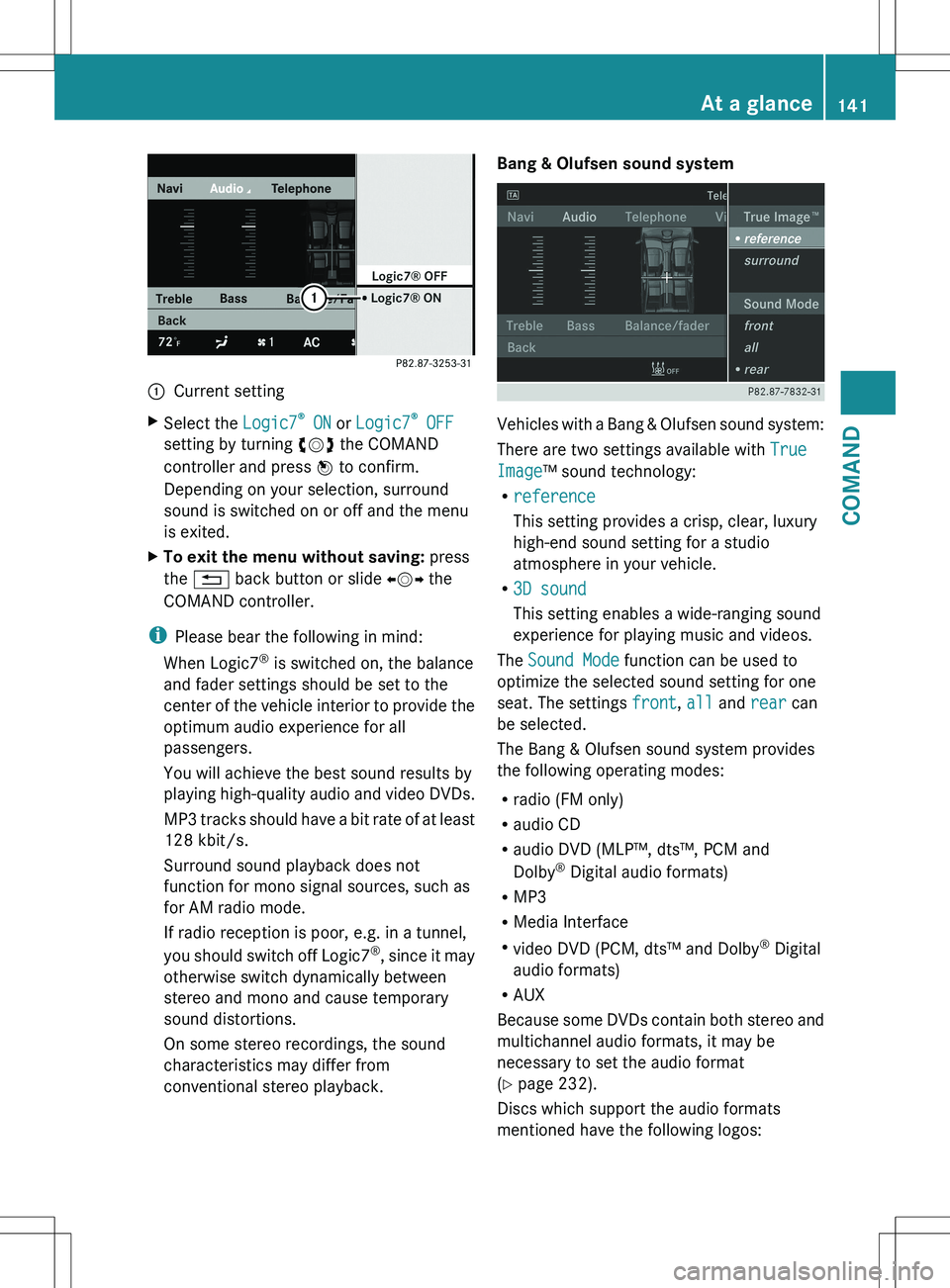
:Current settingXSelect the Logic7®
ON or Logic7 ®
OFF
setting by turning cVd the COMAND
controller and press W to confirm.
Depending on your selection, surround
sound is switched on or off and the menu
is exited.XTo exit the menu without saving: press
the % back button or slide XVY the
COMAND controller.
i Please bear the following in mind:
When Logic7 ®
is switched on, the balance
and fader settings should be set to the
center of the vehicle interior to provide the
optimum audio experience for all
passengers.
You will achieve the best sound results by
playing high-quality audio and video DVDs.
MP3 tracks should have a bit rate of at least
128 kbit/s.
Surround sound playback does not
function for mono signal sources, such as
for AM radio mode.
If radio reception is poor, e.g. in a tunnel,
you should switch off Logic7®
, since it may
otherwise switch dynamically between
stereo and mono and cause temporary
sound distortions.
On some stereo recordings, the sound
characteristics may differ from
conventional stereo playback.
Bang & Olufsen sound system
Vehicles with a Bang & Olufsen sound system:
There are two settings available with True
Image ™ sound technology:
R reference
This setting provides a crisp, clear, luxury
high-end sound setting for a studio
atmosphere in your vehicle.
R 3D sound
This setting enables a wide-ranging sound
experience for playing music and videos.
The Sound Mode function can be used to
optimize the selected sound setting for one
seat. The settings front, all and rear can
be selected.
The Bang & Olufsen sound system provides
the following operating modes:
R radio (FM only)
R audio CD
R audio DVD (MLP™, dts™, PCM and
Dolby ®
Digital audio formats)
R MP3
R Media Interface
R video DVD (PCM, dts™ and Dolby ®
Digital
audio formats)
R AUX
Because some DVDs contain both stereo and
multichannel audio formats, it may be
necessary to set the audio format
( Y page 232).
Discs which support the audio formats
mentioned have the following logos:
At a glance141COMANDZ
Page 144 of 536
Dolby®
Digital
dts™
MLP™
Selecting settings for the Bang & Olufsen
sound system
Calling up the menu
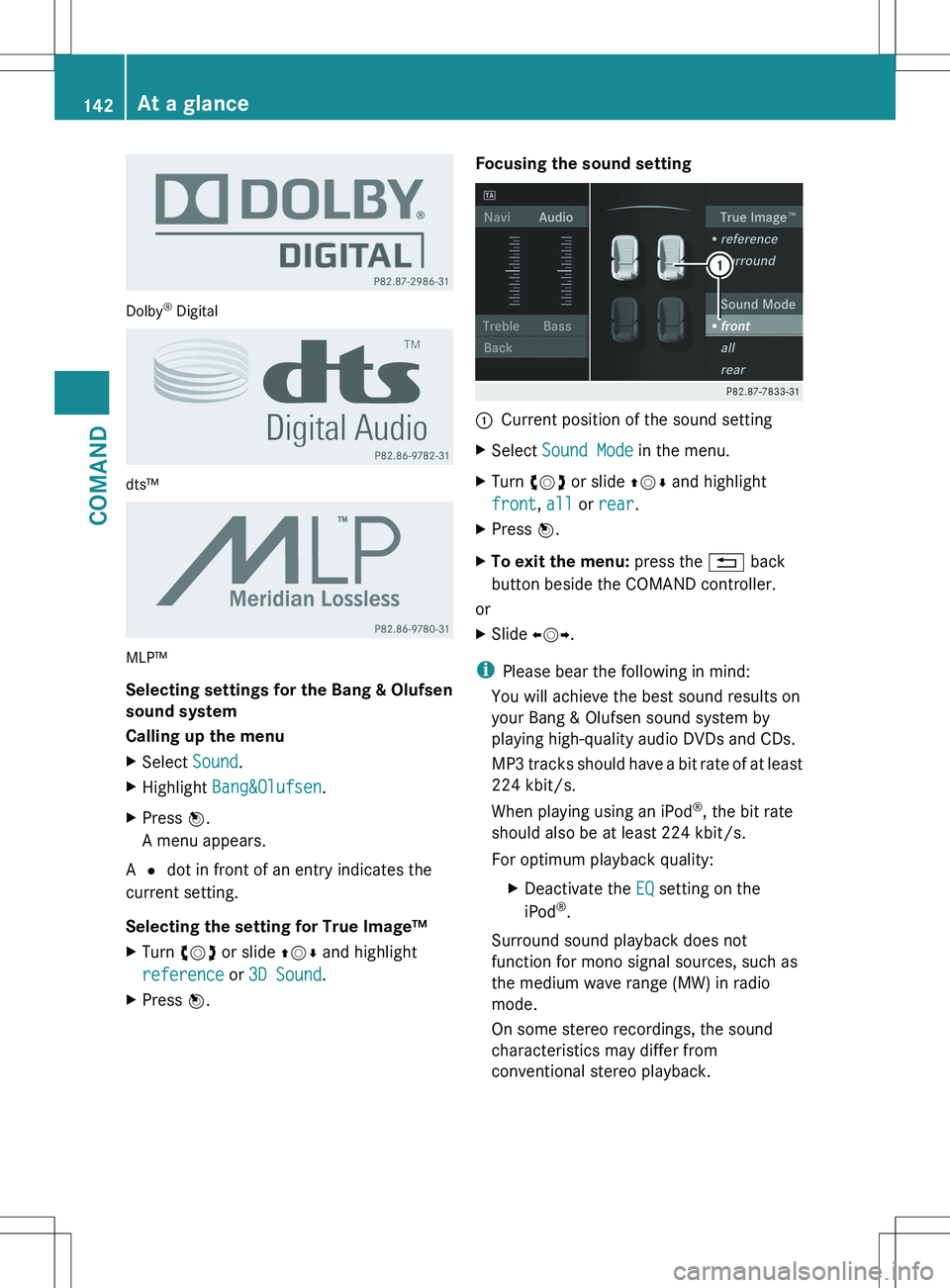
XSelect Sound.XHighlight Bang&Olufsen .XPress W.
A menu appears.
A # dot in front of an entry indicates the
current setting.
Selecting the setting for True Image™
XTurn cVd or slide ZVÆ and highlight
reference or 3D Sound .XPress W.Focusing the sound setting:Current position of the sound settingXSelect Sound Mode in the menu.XTurn cVd or slide ZVÆ and highlight
front , all or rear .XPress W.XTo exit the menu: press the % back
button beside the COMAND controller.
or
XSlide XVY.
i
Please bear the following in mind:
You will achieve the best sound results on
your Bang & Olufsen sound system by
playing high-quality audio DVDs and CDs.
MP3 tracks should have a bit rate of at least
224 kbit/s.
When playing using an iPod ®
, the bit rate
should also be at least 224 kbit/s.
For optimum playback quality:
XDeactivate the EQ setting on the
iPod ®
.
Surround sound playback does not
function for mono signal sources, such as
the medium wave range (MW) in radio
mode.
On some stereo recordings, the sound
characteristics may differ from
conventional stereo playback.
142At a glanceCOMAND
Page 157 of 536
GWARNING
Navigation announcements are intended to
direct you while driving without diverting your
attention from the road and driving.
Please always use this feature instead of
consulting the map display for directions.
Looking at the icons or map display can
distract you from traffic conditions and
driving, and increase the risk of an accident.
General information
Operational readiness of the navigation
system
The navigation system must determine the
position of the vehicle before first use or
whenever operational status is restored.
Therefore, you may have to drive for a while
before precise route guidance is possible.
GPS reception
Correct functioning of the navigation system
depends, amongst other things, on GPS
reception. In certain situations, GPS
reception may be impaired, there may be
interference or there may be no reception at
all, e.g. in tunnels or parking garages.
Entry restriction
On vehicles for certain countries, there is a
restriction on entering data.
The restriction is active from a vehicle speed
of over approximately 3 mph (5 km/h). As
soon as speed falls below approximately
2 mph (3 km/h), the restriction becomes
inactive.
When the restriction is active, certain entries
cannot be made. This will be indicated by the
fact that certain menu items are grayed out
and cannot be selected.
The following functions, for example, may
therefore not be available while the vehicle is
in motion:
R entering the destination city and street
R entering a destination via the map
Rentering points of interest in the vicinity of
a city or via a name search
R editing entries
R using the number keypad for direct entry
Switching to navigation modeXPress the S function button once or
twice.
or
XSelect Navi in the main function bar by
sliding ZV and turning cVd the COMAND
controller and press W to confirm.
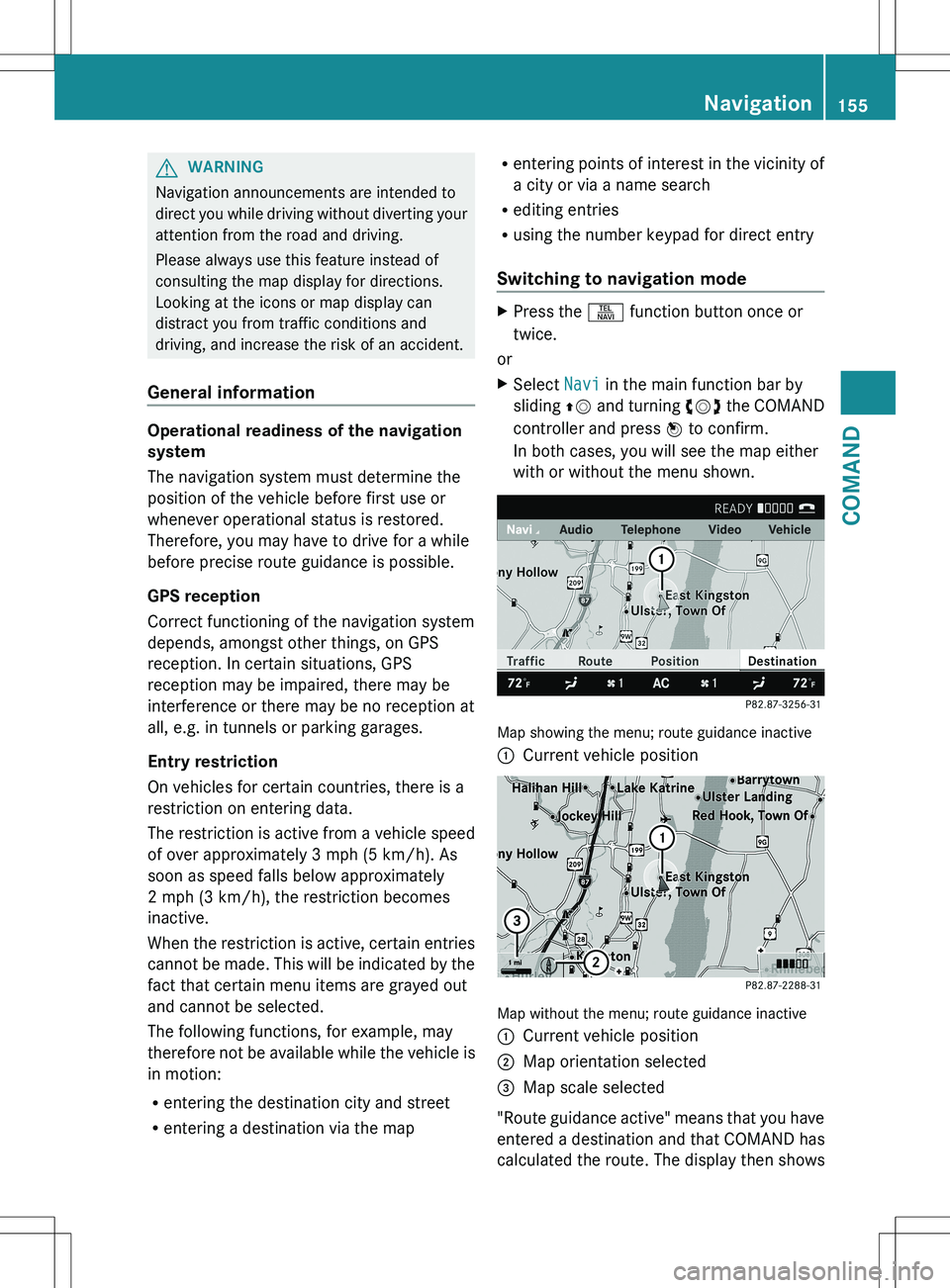
In both cases, you will see the map either
with or without the menu shown.
Map showing the menu; route guidance inactive
:Current vehicle position
Map without the menu; route guidance inactive
:Current vehicle position;Map orientation selected=Map scale selected
" Route guidance active" means that you have
entered a destination and that COMAND has
calculated the route. The display then shows
Navigation155COMANDZ
Page 158 of 536
the route, changes of direction and lane
recommendations. Navigation
announcements guide you to your
destination.
"Route guidance inactive" means that no
destination has been entered and that no
route has been calculated.
Showing/hiding the menuXTo hide the menu: slide ZV the COMAND
controller over the map.
The Full Screen menu item is shown.XConfirm the Full Screen menu item
shown by pressing W.
The map can be seen in the full-screen
display.XTo show the menu: press W the COMAND
controller when the map is shown in full-
screen.
Basic settings
Route mode
Setting route type and route options
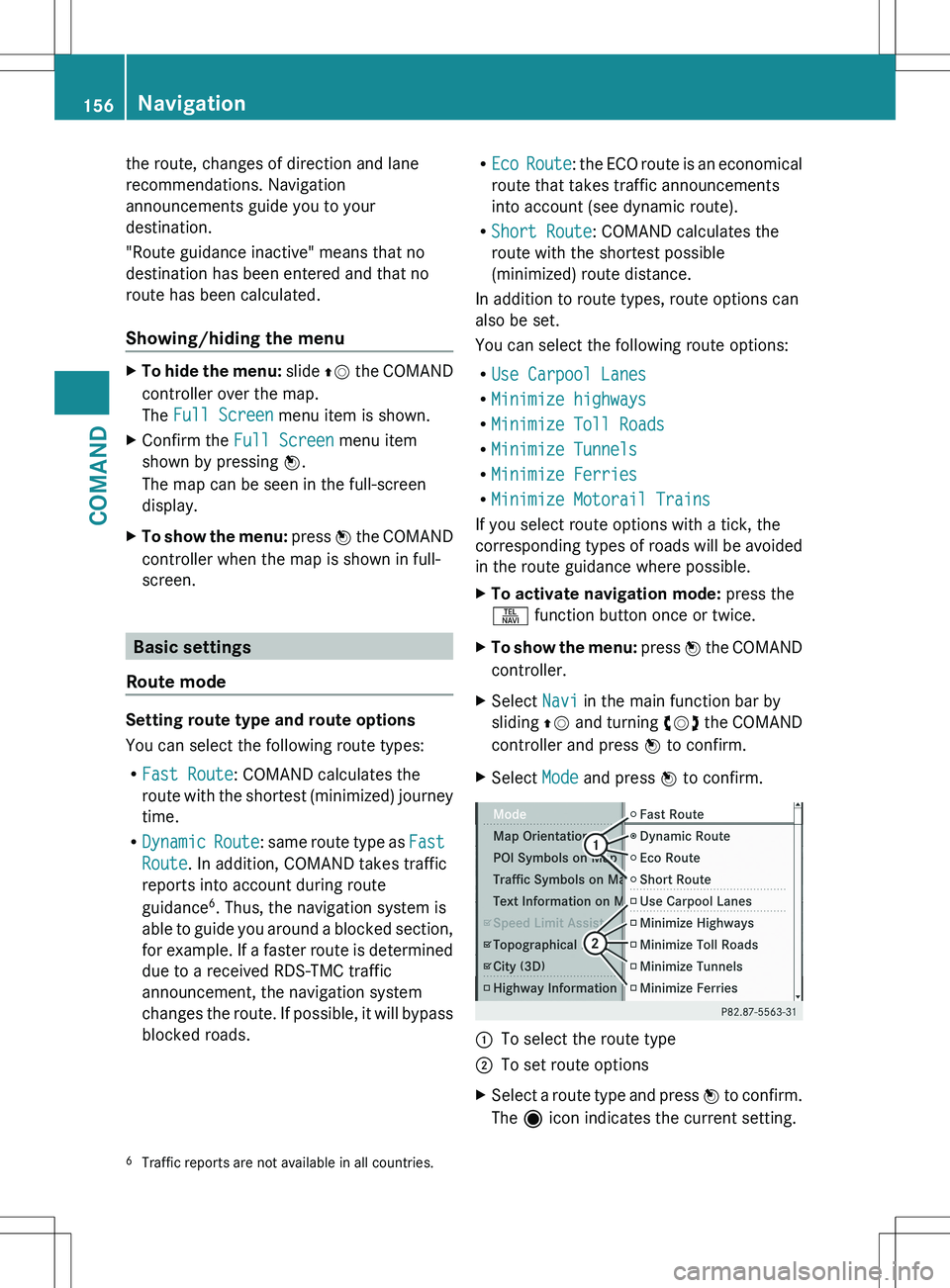
You can select the following route types:
R Fast Route : COMAND calculates the
route with the shortest (minimized) journey
time.
R Dynamic Route : same route type as Fast
Route . In addition, COMAND takes traffic
reports into account during route
guidance 6
. Thus, the navigation system is
able to guide you around a blocked section,
for example. If a faster route is determined
due to a received RDS-TMC traffic
announcement, the navigation system
changes the route. If possible, it will bypass
blocked roads.
R Eco Route : the ECO route is an economical
route that takes traffic announcements
into account (see dynamic route).
R Short Route : COMAND calculates the
route with the shortest possible
(minimized) route distance.
In addition to route types, route options can
also be set.
You can select the following route options:
R Use Carpool Lanes
R Minimize highways
R Minimize Toll Roads
R Minimize Tunnels
R Minimize Ferries
R Minimize Motorail Trains
If you select route options with a tick, the
corresponding types of roads will be avoided
in the route guidance where possible.XTo activate navigation mode: press the
S function button once or twice.XTo show the menu: press W the COMAND
controller.XSelect Navi in the main function bar by
sliding ZV and turning cVd the COMAND
controller and press W to confirm.XSelect Mode and press W to confirm.:To select the route type;To set route optionsXSelect a route type and press W to confirm.
The ä icon indicates the current setting.6
Traffic reports are not available in all countries.156NavigationCOMAND
Page 175 of 536
Display and description of lane recommendations
The colors used in the lane recommendation display vary depending on whether day or night
design is switched on.LaneDay designNight designRecommended lane C
In this lane, you will be able to complete the
next two changes of direction without
changing lanes.Dark blueLight bluePossible lane B
In this lane, you will only be able to complete
the next change of direction without
changing lanes.Light blueDark blueLane not recommended D
In this lane, you will not be able to complete
the next change of direction without
changing lane.GrayGrayDisplay in the multifunction display
The lane recommendations are also shown in
the multifunction display. You will find further
information in the "On-board computer"
section ( Y page 379).
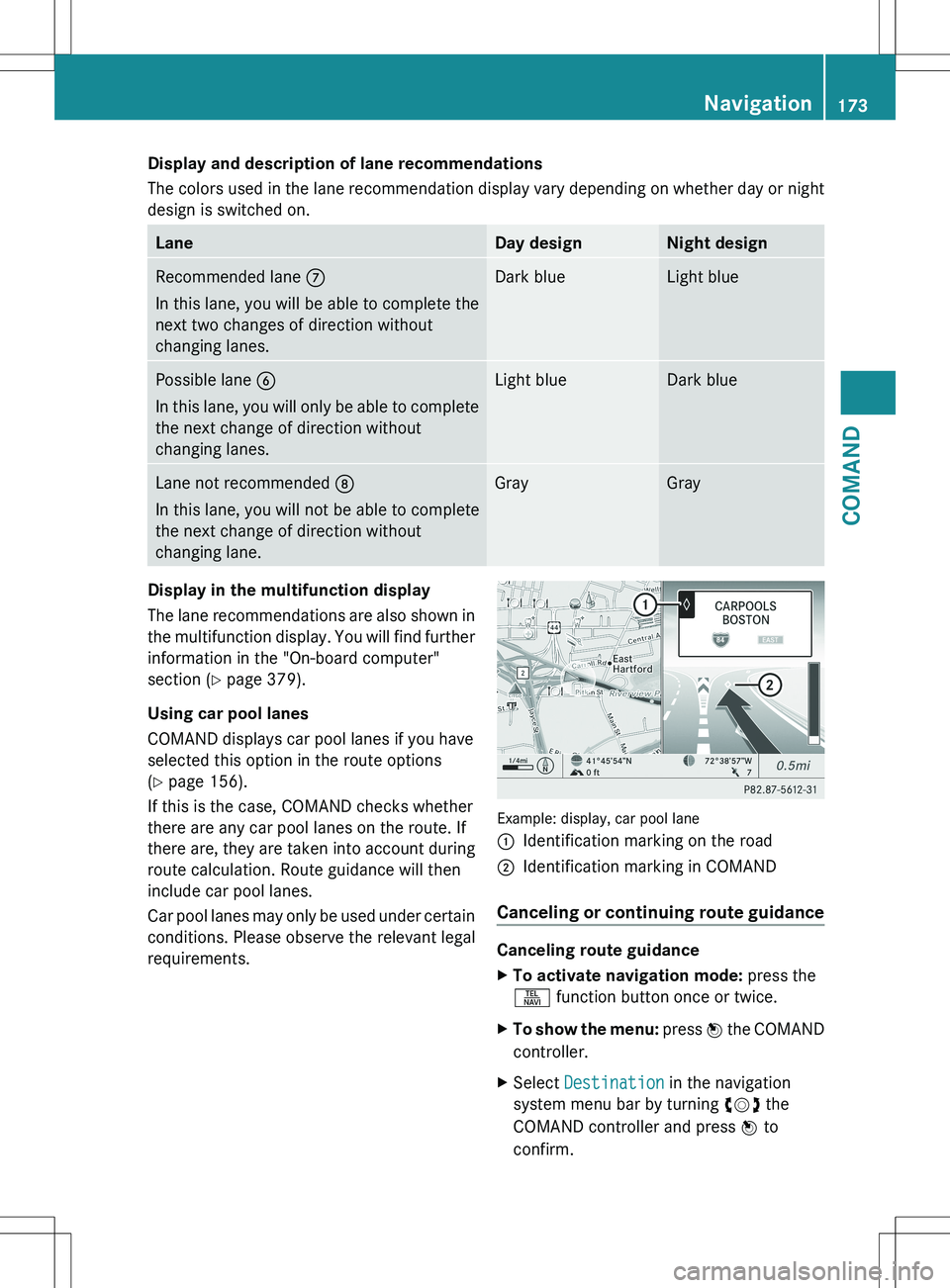
Using car pool lanes
COMAND displays car pool lanes if you have
selected this option in the route options
( Y page 156).
If this is the case, COMAND checks whether
there are any car pool lanes on the route. If
there are, they are taken into account during
route calculation. Route guidance will then
include car pool lanes.
Car pool lanes may only be used under certain
conditions. Please observe the relevant legal
requirements.
Example: display, car pool lane
:Identification marking on the road;Identification marking in COMAND
Canceling or continuing route guidance
Canceling route guidance
XTo activate navigation mode: press the
S function button once or twice.XTo show the menu: press W the COMAND
controller.XSelect Destination in the navigation
system menu bar by turning cVd the
COMAND controller and press W to
confirm.Navigation173COMANDZ
Page 177 of 536
Avoiding a section of the route blocked
by a traffic jam
This function blocks a section of the route
ahead of you. You can set the length of the
blocked route section. If possible, COMAND
calculates a detour around the blocked
section of the route.
XTo activate navigation mode: press the
S function button once or twice.XTo show the menu: press W the COMAND
controller.XSelect Route in the navigation system
menu bar by turning cVd the COMAND
controller and press W to confirm.XSelect Detour and press W to confirm.XTo block a section of the route: select
More or Less repeatedly and confirm using
W until the desired section has been
selected.
i The total length of the section that can be
blocked is defined by the digital map. The
menu items are available accordingly.
XTo start route calculation: select Start
and press W to confirm.XTo delete the blocked section: select
Delete while the message is shown and
press W to confirm.
COMAND calculates the route without the
block.
Selecting an alternative route
With the "Alternative route" function, routes
other than the original one can be calculated.
XTo activate navigation mode: press the
S function button once or twice.XTo show the menu: press W the COMAND
controller.XSelect Route in the navigation system
menu bar by turning cVd the COMAND
controller and press W to confirm.XSelect Alternative Route and press W
to confirm.
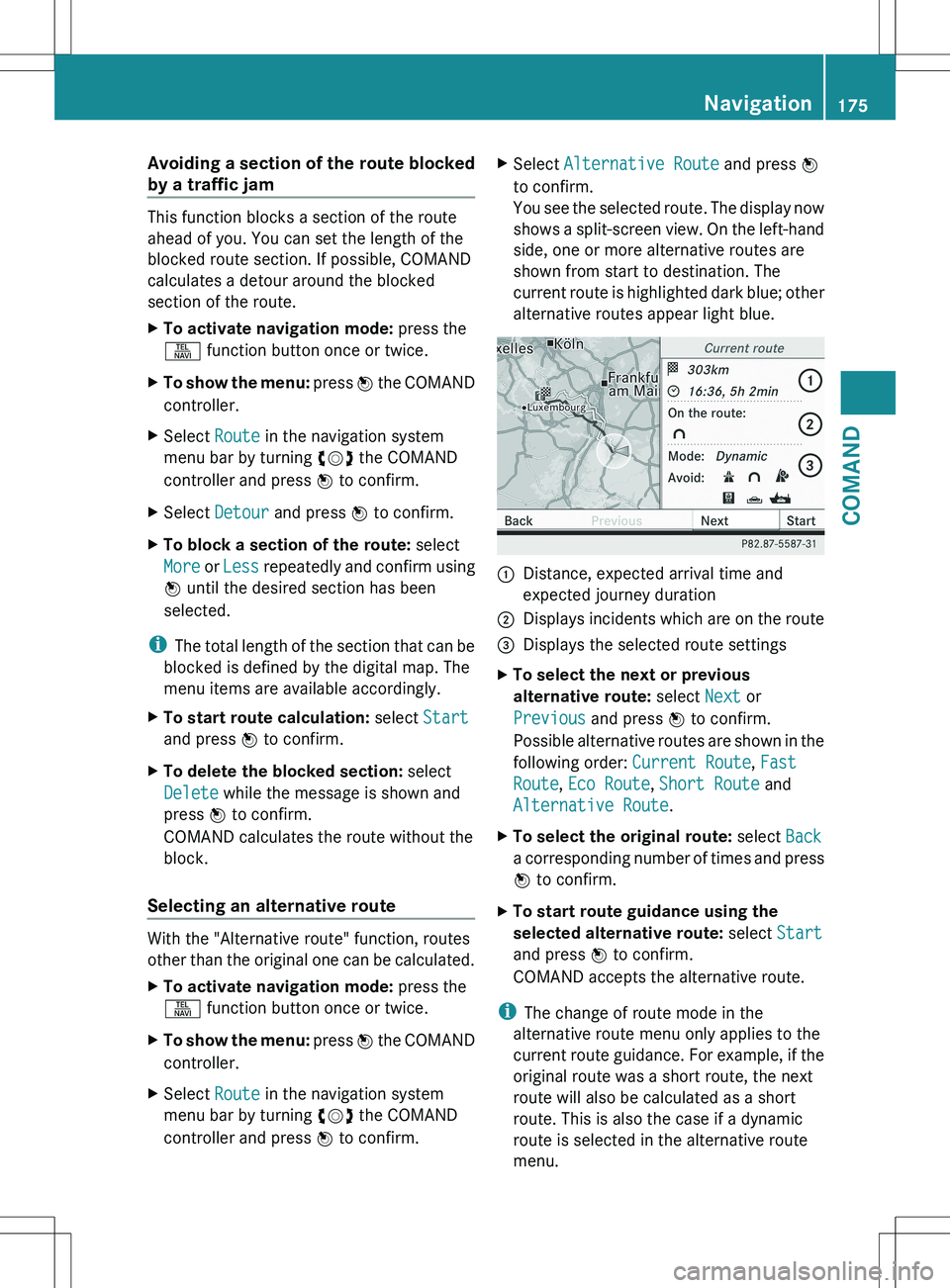
You see the selected route. The display now
shows a split-screen view. On the left-hand
side, one or more alternative routes are
shown from start to destination. The
current route is highlighted dark blue; other
alternative routes appear light blue.:Distance, expected arrival time and
expected journey duration;Displays incidents which are on the route=Displays the selected route settingsXTo select the next or previous
alternative route: select Next or
Previous and press W to confirm.
Possible alternative routes are shown in the
following order: Current Route, Fast
Route , Eco Route , Short Route and
Alternative Route .XTo select the original route: select Back
a corresponding number of times and press
W to confirm.XTo start route guidance using the
selected alternative route: select Start
and press W to confirm.
COMAND accepts the alternative route.
i The change of route mode in the
alternative route menu only applies to the
current route guidance. For example, if the
original route was a short route, the next
route will also be calculated as a short
route. This is also the case if a dynamic
route is selected in the alternative route
menu.
Navigation175COMANDZ