change time MERCEDES-BENZ S-CLASS SEDAN 2012 User Guide
[x] Cancel search | Manufacturer: MERCEDES-BENZ, Model Year: 2012, Model line: S-CLASS SEDAN, Model: MERCEDES-BENZ S-CLASS SEDAN 2012Pages: 536, PDF Size: 39.39 MB
Page 129 of 536
For example, the "Navi" function can be used
from the driver's side while the "Video"
function is used on the front-passenger side.
Use the remote control to operate COMAND
from the front-passenger side with
SPLITVIEW.
Please bear the following in mind
R Your vehicle may be equipped with
SPLITVIEW, depending on its date of
production. The use of SPLITVIEW is
currently not permitted in the following
states: AL, AZ, CO, IL, LA, MA, MD, NH, PA,
VA, VT, WA, WI, and WV or in the Canadian
provinces of Manitoba, Newfoundland,
New Brunswick, and Prince Edward Island.
It is the driver's responsibility to observe
ALL regional legally prescribed regulations.
If your vehicle is registered in a state or
province in which SPLITVIEW is not
approved, this function must be
deactivated. Please contact an authorized
specialist dealer to check whether
SPLITVIEW is approved in your state or
province.
R Volume adjustment for the cordless
headphones can be carried out on the
headphones. Before putting on the
headphones, make sure that the volume
has not been set too high.
R The remote control can be used for the
volume adjustment of corded headphones.
R You can only use media from the driver's
and front-passenger sides separately if the
media are from different sources. Example:
on the driver's side, an audio CD is being
played by the DVD changer. This means
that on the front-passenger side, the DVD
changer cannot be used to play a different
disc type, for instance a video DVD.
However, other media can be used at the
same time on the front-passenger side,
including radio, memory card, MUSIC
REGISTER, Media Interface, USB or AUX.
R If you use the same medium on both sides,
settings for this medium can be carried out
from either side.R There must be intervisibility between the
headphones and the display so that
COMAND can optimally transmit music and
speech via the infrared signal on the front-
passenger's headphones. For this reason,
please also observe that the headphones
have left and right sides, and use them
correctly.
R Only entertainment functions, i.e. audio
and video, can be used separately via
SPLITVIEW.
R The multifunction steering wheel can only
be used for functions which relate to the
driver's side.
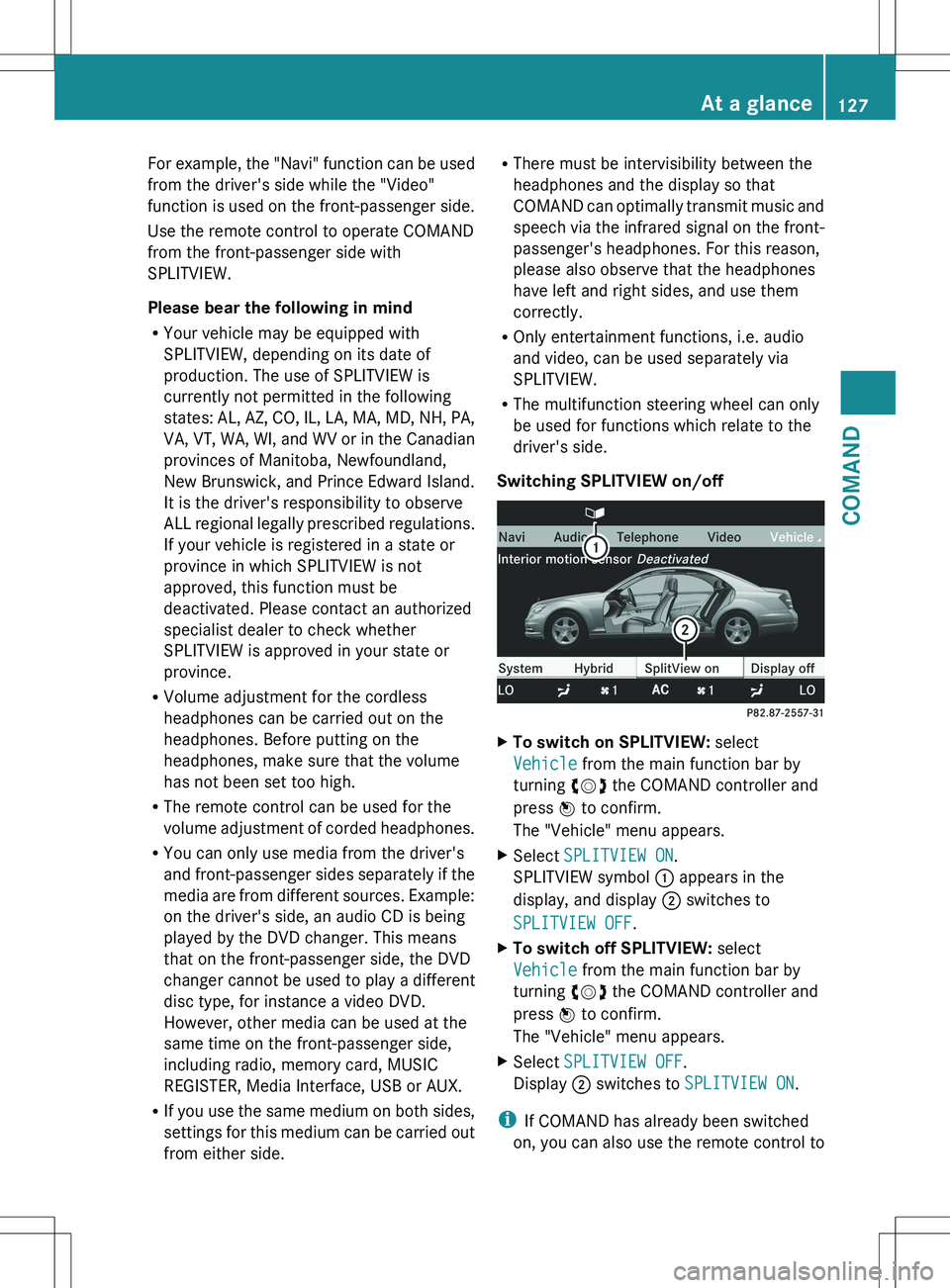
Switching SPLITVIEW on/offXTo switch on SPLITVIEW: select
Vehicle from the main function bar by
turning cVd the COMAND controller and
press W to confirm.
The "Vehicle" menu appears.XSelect SPLITVIEW ON .
SPLITVIEW symbol : appears in the
display, and display ; switches to
SPLITVIEW OFF .XTo switch off SPLITVIEW: select
Vehicle from the main function bar by
turning cVd the COMAND controller and
press W to confirm.
The "Vehicle" menu appears.XSelect SPLITVIEW OFF .
Display ; switches to SPLITVIEW ON .
i
If COMAND has already been switched
on, you can also use the remote control to
At a glance127COMANDZ
Page 130 of 536
switch SPLITVIEW on and off
( Y page 129).
The SPLITVIEW screen remains on for
approximately 30 minutes after the SmartKey
has been turned to position 0 in the ignition
lock. After this time or after the SmartKey has
been removed, the settings on the front-
passenger side are saved for approximately
30 minutes longer. After this period,
reactivation on the front-passenger side
means that the settings from the driver's side
will be used.
Cordless headphones for the front
passenger
There are different cordless headphones for
the front passenger and the rear
compartment.
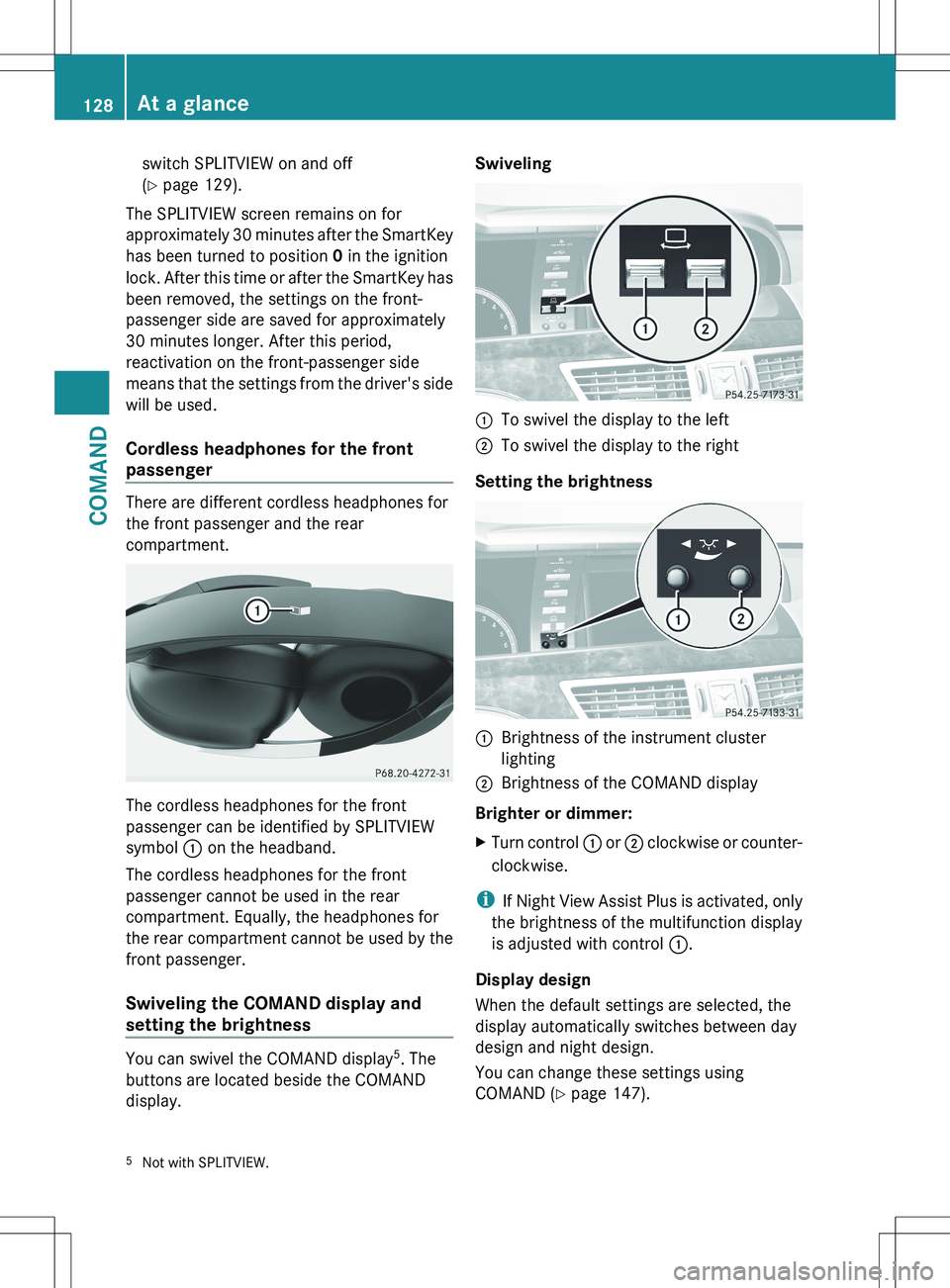
The cordless headphones for the front
passenger can be identified by SPLITVIEW
symbol : on the headband.
The cordless headphones for the front
passenger cannot be used in the rear
compartment. Equally, the headphones for
the rear compartment cannot be used by the
front passenger.
Swiveling the COMAND display and
setting the brightness
You can swivel the COMAND display 5
. The
buttons are located beside the COMAND
display.
Swiveling:To swivel the display to the left;To swivel the display to the right
Setting the brightness
:Brightness of the instrument cluster
lighting;Brightness of the COMAND display
Brighter or dimmer:
XTurn control : or ; clockwise or counter-
clockwise.
i If Night View Assist Plus is activated, only
the brightness of the multifunction display
is adjusted with control :.
Display design
When the default settings are selected, the
display automatically switches between day
design and night design.
You can change these settings using
COMAND ( Y page 147).
5
Not with SPLITVIEW.128At a glanceCOMAND
Page 149 of 536
Indicator lamp displays
The indicator lamp displays the following
possible stati for the batteries and
headphones:DisplayStatusGreenThe batteries are fine.RedThe batteries are almost
discharged.Continuou
sly lit
either
green or
redThe headphones are switched
on and connected to a screen.Flashes
either
green or
redThe headphones are
searching for the connection
to a screen.No display
(dark)The headphones are switched
off or the batteries are
discharged.
Connecting additional headphones
You can connect an additional set of corded
headphones to each rear-compartment
screen ( Y page 144).
Changing batteries
Batteries are required for the remote control
and for the two sets of cordless headphones.
Changing batteries ( Y page 251)
System settings
Display settings
Switching the display on/off
XSelect Vehicle by turning cVd the
COMAND controller and press W to
confirm.XSelect Display OFF by turning cVd the
COMAND controller and press W to
confirm.XTo switch on the display: press W or
cVd turn the COMAND controller.
Display design
Your COMAND display features optimized
designs for operation during daytime and
night-time hours. You can customize the
design to suit your personal preferences by
manually selecting day or night design or opt
for an automatic setting.
XSelect Vehicle by turning cVd the
COMAND controller and press W to
confirm.XSelect System by turning cVd the
COMAND controller and press W to
confirm.XSelect Display and press W to confirm.XSelect Day Mode , Night Mode or
Automatic by turning cVd the COMAND
controller and press W to confirm.
The # icon indicates the current setting.DesignExplanationDay ModeThe display is set
permanently to day
design.Night ModeThe display is set
permanently to night
design.AutomaticThe display design
changes depending on
the brightness around
the vehicle.
i In the Automatic setting, COMAND
evaluates the readings from the automatic
vehicle light sensor and switches between
the display designs automatically.
System settings147COMANDZ
Page 150 of 536
Time settings
General information
If COMAND is equipped with a navigation
system and has GPS reception, COMAND
automatically sets the time and date. You can
also adjust the time yourself in 30-minute
increments, but the date cannot be changed.
i If you set the time in 30-minute
increments, any time zone settings and
settings for changing between summer and
standard time are lost ( Y page 148).
i The following navigation system functions
require the time, time zone and summer/
standard time to be set correctly in order
to work properly:
R route guidance on routes with time-
dependent traffic guidance
R calculation of expected time of arrival
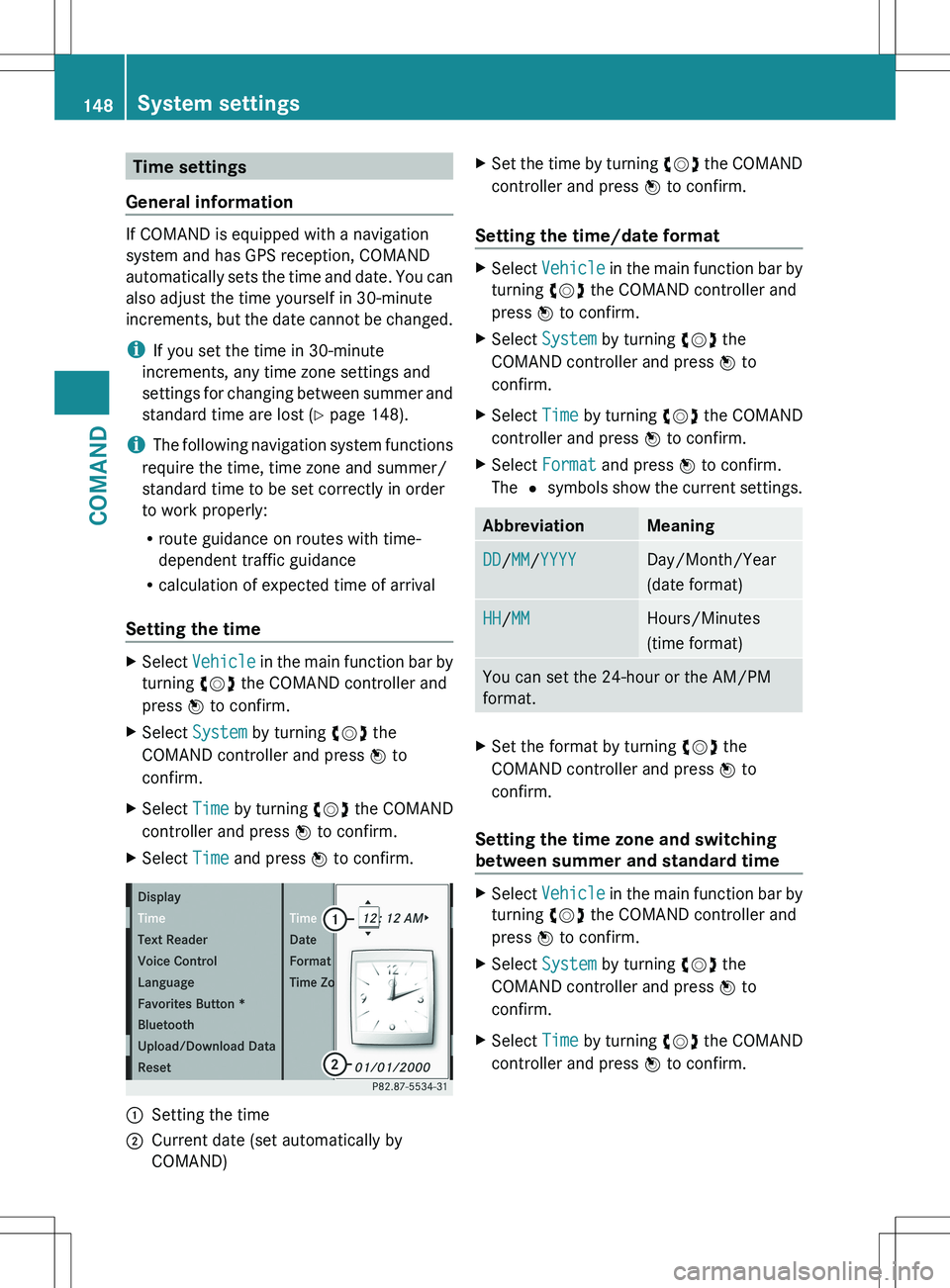
Setting the time
XSelect Vehicle in the main function bar by
turning cVd the COMAND controller and
press W to confirm.XSelect System by turning cVd the
COMAND controller and press W to
confirm.XSelect Time by turning cVd the COMAND
controller and press W to confirm.XSelect Time and press W to confirm.:Setting the time;Current date (set automatically by
COMAND)XSet the time by turning cVd the COMAND
controller and press W to confirm.
Setting the time/date format
XSelect Vehicle in the main function bar by
turning cVd the COMAND controller and
press W to confirm.XSelect System by turning cVd the
COMAND controller and press W to
confirm.XSelect Time by turning cVd the COMAND
controller and press W to confirm.XSelect Format and press W to confirm.
The # symbols show the current settings.AbbreviationMeaningDD/MM /YYYYDay/Month/Year
(date format)HH /MMHours/Minutes
(time format)You can set the 24-hour or the AM/PM
format.XSet the format by turning cVd the
COMAND controller and press W to
confirm.
Setting the time zone and switching
between summer and standard time
XSelect Vehicle in the main function bar by
turning cVd the COMAND controller and
press W to confirm.XSelect System by turning cVd the
COMAND controller and press W to
confirm.XSelect Time by turning cVd the COMAND
controller and press W to confirm.148System settingsCOMAND
Page 151 of 536
XSelect Time Zone and press W to confirm.
You will see a list of time zones. The # dot
indicates the current setting.XSelect the time zone and press W to
confirm.XTo switch automatic changeover on/
off: select Automatic Daylight
Savings Time or Automatic Daylight
Savings Time by turning cVd the
COMAND controller and press W to
confirm.
The # dot indicates the current setting.
Text reader settings
Setting the text reader speed
XSelect Vehicle by turning cVd the
COMAND controller and press W to
confirm.XSelect System and press W to confirm.XSelect Text Reader and press W to
confirm.XSelect Set text reader speed and press
W to confirm.
A list appears. The # dot indicates the
current setting.XSelect a setting by turning cVd the
COMAND controller and press W to
confirm.
Voice Control System settings
Opening/closing the help window
In addition to the audible instructions, the
help window will show you other information
during voice control operation and the
individualization process.
XSelect Vehicle in the main function bar by
turning cVd the COMAND controller and
press W to confirm.XSelect System by turning cVd the
COMAND controller and press W to
confirm.XSelect Voice Control by turning cVd the
COMAND controller and press W to
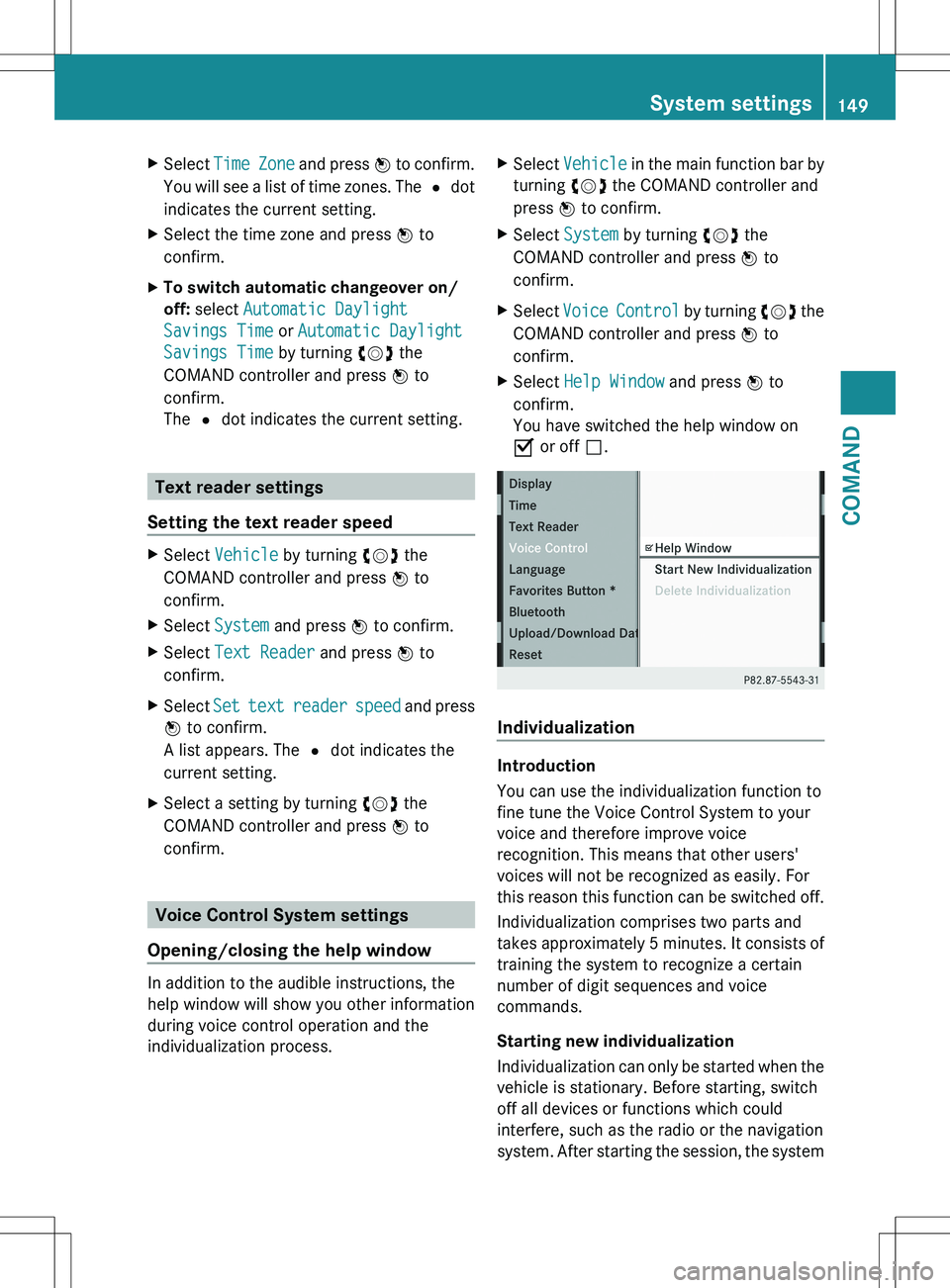
confirm.XSelect Help Window and press W to
confirm.
You have switched the help window on
O or off ª.
Individualization
Introduction
You can use the individualization function to
fine tune the Voice Control System to your
voice and therefore improve voice
recognition. This means that other users'
voices will not be recognized as easily. For
this reason this function can be switched off.
Individualization comprises two parts and
takes approximately 5 minutes. It consists of
training the system to recognize a certain
number of digit sequences and voice
commands.
Starting new individualization
Individualization can only be started when the
vehicle is stationary. Before starting, switch
off all devices or functions which could
interfere, such as the radio or the navigation
system. After starting the session, the system
System settings149COMANDZ
Page 153 of 536
XSelect Yes or No and press W to confirm.
If you select No, the process will be aborted.
If you select Yes, the individualization is
deleted. You will see a message to this
effect.
Bluetooth ®
settings
General information about Bluetooth ®
Bluetooth
®
technology is the standard for
short-range wireless data transmission of up
to approximately 10 meters. Bluetooth ®
allows, for example, the exchange of vCards.
Bluetooth ®
is a registered trademark of
Bluetooth Special Interest Group (SIG) Inc.
Requirements for a Bluetooth ®
connection
You can connect mobile phones and
notebooks to COMAND.
To do so, the following conditions need to be
met:
R Bluetooth ®
-capable devices, e.g. mobile
phones, must comply with a certain profile
in order to be connected to COMAND.
Every Bluetooth ®
device has its own
specific Bluetooth ®
name.
R Bluetooth ®
must be activated in COMAND
and on the respective Bluetooth ®
device;
see the separate operating instructions.
R the Bluetooth ®
device must be "visible" to
COMAND in order for COMAND to find and
display it. For the setting procedures,
please see the operating instructions for
the Bluetooth ®
device.
i Once a mobile phone has been
connected, reception and transmission
volume may change.
Activating/deactivating Bluetooth ®XSelect
Vehicle in the main function bar by
turning cVd the COMAND controller and
press W to confirm.XSelect System by turning cVd the
COMAND controller and press W to
confirm.XSelect Bluetooth by turning cVd the
COMAND controller and press W to
confirm.XSelect Bluetooth activated and press
W to confirm.
This switches Bluetooth ®
on O or off ª.
Connecting Bluetooth ®
devices
General information
Before using your Bluetooth ®
device with
COMAND for the first time, you will need to
connect it.
Connecting comprises:
R searching for a Bluetooth ®
device
R subsequently authorizing it
i A maximum of 15 devices can be available
for selection from the device list.
More detailed information on suitable mobile
phones and on connecting Bluetooth ®
-
capable mobile phones to COMAND can be
found on the Internet at http://
www.mbusa-mobile.com . Or call the
Mercedes-Benz Customer Assistance Center
on 1-800-FOR-MERCedes(1-800-367-6372)
(for the USA) or Customer Relations on
1-800-387-0100 (for Canada).
System settings151COMANDZ
Page 158 of 536
the route, changes of direction and lane
recommendations. Navigation
announcements guide you to your
destination.
"Route guidance inactive" means that no
destination has been entered and that no
route has been calculated.
Showing/hiding the menuXTo hide the menu: slide ZV the COMAND
controller over the map.
The Full Screen menu item is shown.XConfirm the Full Screen menu item
shown by pressing W.
The map can be seen in the full-screen
display.XTo show the menu: press W the COMAND
controller when the map is shown in full-
screen.
Basic settings
Route mode
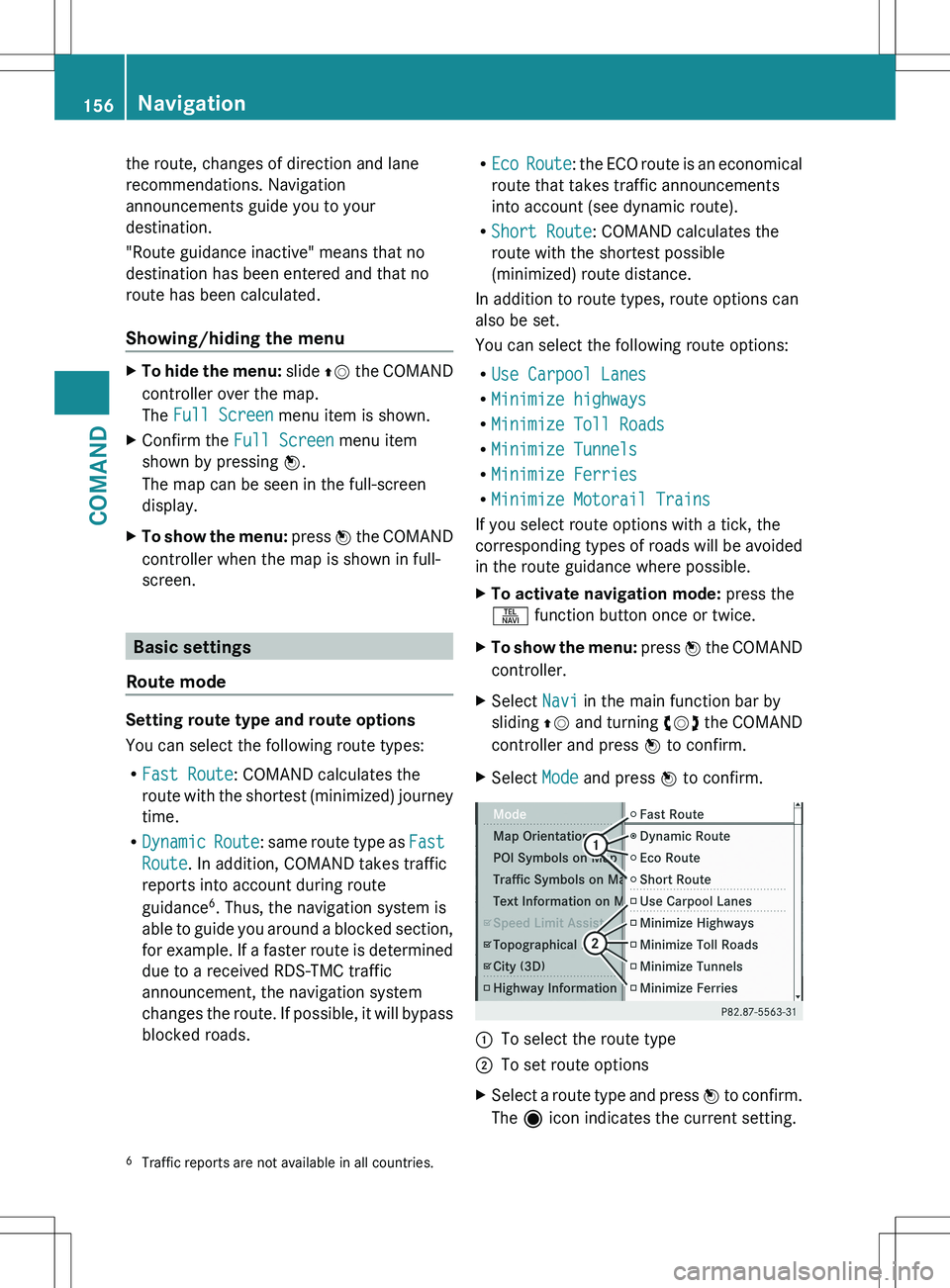
Setting route type and route options
You can select the following route types:
R Fast Route : COMAND calculates the
route with the shortest (minimized) journey
time.
R Dynamic Route : same route type as Fast
Route . In addition, COMAND takes traffic
reports into account during route
guidance 6
. Thus, the navigation system is
able to guide you around a blocked section,
for example. If a faster route is determined
due to a received RDS-TMC traffic
announcement, the navigation system
changes the route. If possible, it will bypass
blocked roads.
R Eco Route : the ECO route is an economical
route that takes traffic announcements
into account (see dynamic route).
R Short Route : COMAND calculates the
route with the shortest possible
(minimized) route distance.
In addition to route types, route options can
also be set.
You can select the following route options:
R Use Carpool Lanes
R Minimize highways
R Minimize Toll Roads
R Minimize Tunnels
R Minimize Ferries
R Minimize Motorail Trains
If you select route options with a tick, the
corresponding types of roads will be avoided
in the route guidance where possible.XTo activate navigation mode: press the
S function button once or twice.XTo show the menu: press W the COMAND
controller.XSelect Navi in the main function bar by
sliding ZV and turning cVd the COMAND
controller and press W to confirm.XSelect Mode and press W to confirm.:To select the route type;To set route optionsXSelect a route type and press W to confirm.
The ä icon indicates the current setting.6
Traffic reports are not available in all countries.156NavigationCOMAND
Page 166 of 536
on the same street: call up an address
destination from the last destinations.XSelect Change by turning cVd and sliding
ZV Æ the COMAND controller and press
W to confirm.
All destination entry functions are
available.XEdit/enter the destination as described for
destination entry ( Y page 157).
Entering a destination using the map
Calling up the map
XTo activate navigation mode: press the
S function button once or twice.XTo show the menu: press W the COMAND
controller.XSelect Destination in the navigation
system menu bar by turning cVd the
COMAND controller and pressing W to
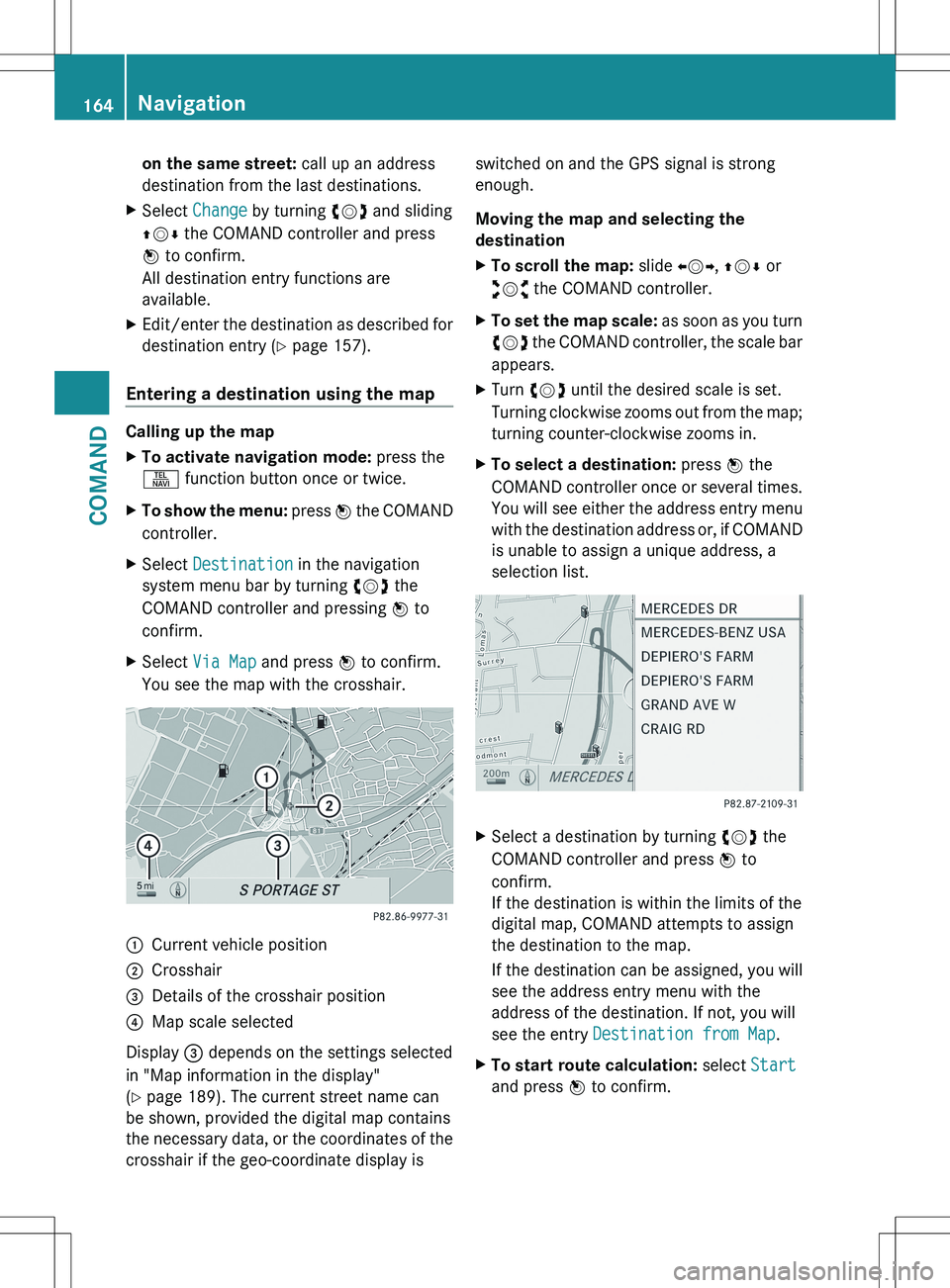
confirm.XSelect Via Map and press W to confirm.
You see the map with the crosshair.:Current vehicle position;Crosshair=Details of the crosshair position?Map scale selected
Display = depends on the settings selected
in "Map information in the display"
( Y page 189). The current street name can
be shown, provided the digital map contains
the necessary data, or the coordinates of the
crosshair if the geo-coordinate display is
switched on and the GPS signal is strong
enough.
Moving the map and selecting the
destinationXTo scroll the map: slide XVY, ZV Æ or
aVb the COMAND controller.XTo set the map scale: as soon as you turn
cVd the COMAND controller, the scale bar
appears.XTurn cVd until the desired scale is set.
Turning clockwise zooms out from the map;
turning counter-clockwise zooms in.XTo select a destination: press W the
COMAND controller once or several times.
You will see either the address entry menu
with the destination address or, if COMAND
is unable to assign a unique address, a
selection list.XSelect a destination by turning cVd the
COMAND controller and press W to
confirm.
If the destination is within the limits of the
digital map, COMAND attempts to assign
the destination to the map.
If the destination can be assigned, you will
see the address entry menu with the
address of the destination. If not, you will
see the entry Destination from Map .XTo start route calculation: select Start
and press W to confirm.164NavigationCOMAND
Page 173 of 536
e.g. roads closed to through traffic and non-
residents.
R roads that have time restrictions (e.g.
closed on Sundays and public holidays) are
avoided for route guidance.
Change of direction
Introduction
Changes of direction have three phases:
R preparation phase
R announcement phase
R change-of-direction phase
Preparation phase
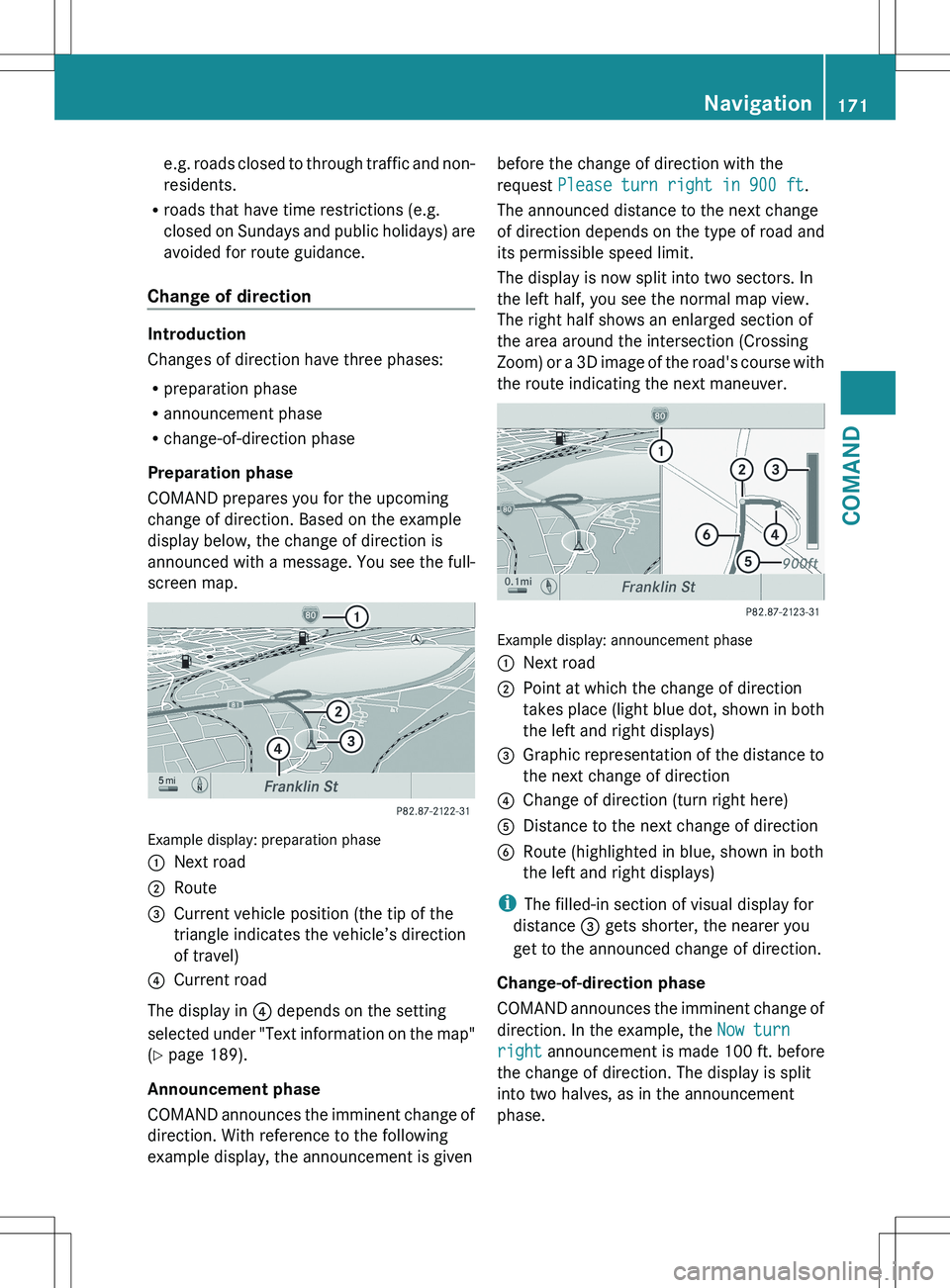
COMAND prepares you for the upcoming
change of direction. Based on the example
display below, the change of direction is
announced with a message. You see the full-
screen map.
Example display: preparation phase
:Next road;Route=Current vehicle position (the tip of the
triangle indicates the vehicle’s direction
of travel)?Current road
The display in ? depends on the setting
selected under "Text information on the map"
( Y page 189).
Announcement phase
COMAND announces the imminent change of
direction. With reference to the following
example display, the announcement is given
before the change of direction with the
request Please turn right in 900 ft .
The announced distance to the next change
of direction depends on the type of road and
its permissible speed limit.
The display is now split into two sectors. In
the left half, you see the normal map view.
The right half shows an enlarged section of
the area around the intersection (Crossing
Zoom) or a 3D image of the road's course with
the route indicating the next maneuver.
Example display: announcement phase
:Next road;Point at which the change of direction
takes place (light blue dot, shown in both
the left and right displays)=Graphic representation of the distance to
the next change of direction?Change of direction (turn right here)ADistance to the next change of directionBRoute (highlighted in blue, shown in both
the left and right displays)
i The filled-in section of visual display for
distance = gets shorter, the nearer you
get to the announced change of direction.
Change-of-direction phase
COMAND announces the imminent change of
direction. In the example, the Now turn
right announcement is made 100 ft. before
the change of direction. The display is split
into two halves, as in the announcement
phase.
Navigation171COMANDZ
Page 177 of 536
Avoiding a section of the route blocked
by a traffic jam
This function blocks a section of the route
ahead of you. You can set the length of the
blocked route section. If possible, COMAND
calculates a detour around the blocked
section of the route.
XTo activate navigation mode: press the
S function button once or twice.XTo show the menu: press W the COMAND
controller.XSelect Route in the navigation system
menu bar by turning cVd the COMAND
controller and press W to confirm.XSelect Detour and press W to confirm.XTo block a section of the route: select
More or Less repeatedly and confirm using
W until the desired section has been
selected.
i The total length of the section that can be
blocked is defined by the digital map. The
menu items are available accordingly.
XTo start route calculation: select Start
and press W to confirm.XTo delete the blocked section: select
Delete while the message is shown and
press W to confirm.
COMAND calculates the route without the
block.
Selecting an alternative route
With the "Alternative route" function, routes
other than the original one can be calculated.
XTo activate navigation mode: press the
S function button once or twice.XTo show the menu: press W the COMAND
controller.XSelect Route in the navigation system
menu bar by turning cVd the COMAND
controller and press W to confirm.XSelect Alternative Route and press W
to confirm.
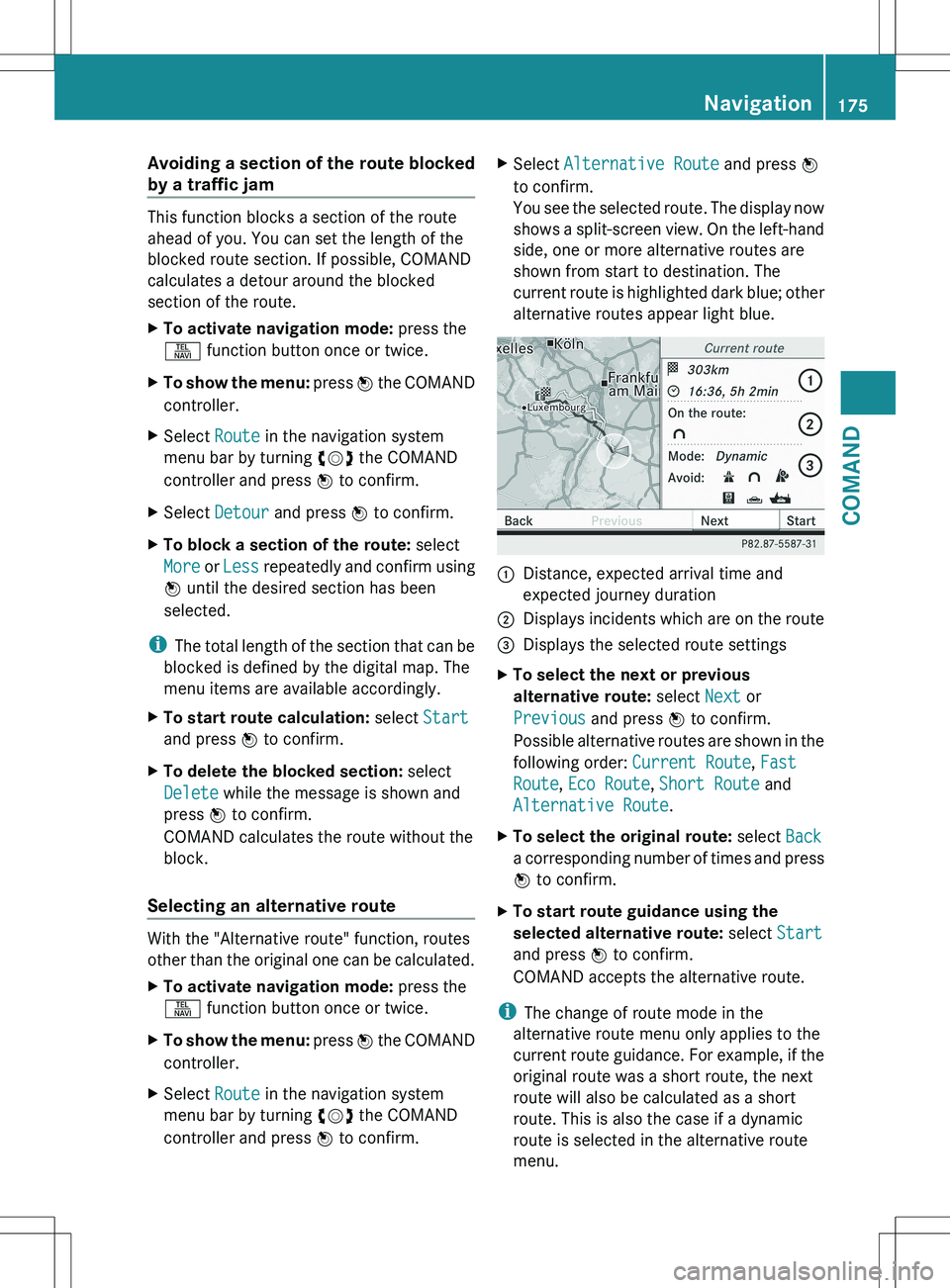
You see the selected route. The display now
shows a split-screen view. On the left-hand
side, one or more alternative routes are
shown from start to destination. The
current route is highlighted dark blue; other
alternative routes appear light blue.:Distance, expected arrival time and
expected journey duration;Displays incidents which are on the route=Displays the selected route settingsXTo select the next or previous
alternative route: select Next or
Previous and press W to confirm.
Possible alternative routes are shown in the
following order: Current Route, Fast
Route , Eco Route , Short Route and
Alternative Route .XTo select the original route: select Back
a corresponding number of times and press
W to confirm.XTo start route guidance using the
selected alternative route: select Start
and press W to confirm.
COMAND accepts the alternative route.
i The change of route mode in the
alternative route menu only applies to the
current route guidance. For example, if the
original route was a short route, the next
route will also be calculated as a short
route. This is also the case if a dynamic
route is selected in the alternative route
menu.
Navigation175COMANDZ