wheel MERCEDES-BENZ S-CLASS SEDAN 2012 Repair Manual
[x] Cancel search | Manufacturer: MERCEDES-BENZ, Model Year: 2012, Model line: S-CLASS SEDAN, Model: MERCEDES-BENZ S-CLASS SEDAN 2012Pages: 536, PDF Size: 39.39 MB
Page 231 of 536
MUSIC REGISTER, position 3Media Interface, position 4USB, position 5XSelect the data medium by turning cVd
the COMAND controller and press W to
confirm.
i If you select a video DVD, the system
switches to video DVD mode
( Y page 245).
Selecting a track using the number
keypad
XPress a number button, e.g. n, when the
display/selection window is active.
The medium at the corresponding position
in the media list is loaded and then played.
Selects a track
Selecting by skipping to a track
XTo skip forwards or back to a track: slide
XVY or turn cVd the COMAND controller
when the display/selection window is
active.
The skip forward function skips to the next
track.
Skipping backwards restarts the current
track (if it has been playing for more than
8 seconds) or starts the previous track (if
the current track has only been playing for
a shorter time).
If you activate the Medium Mix or Track
List Mix playback option (MP3 mode
only), the track order is random.XOn the multifunction steering wheel:
switch COMAND to audio CD, audio DVD or
MP3 mode ( Y page 226).XPress = or ; to select the Audio
menu.XPress the 9 or : button on the
multifunction steering wheel.Selecting by track listXIn audio mode, select Search by sliding
V Æ or turning cVd the COMAND
controller and press W to confirm.XSelect Current Track List .
or
XPress W the COMAND controller in audio
mode when the display/selection window
is active.XSelect Current Track List by turning
cVd the COMAND controller and press
W to confirm.XSelect the track by turning cVd and press
W to confirm.
i
In MP3 mode, the list shows all the tracks
in alphabetical order.
XOn the multifunction steering wheel:
switch COMAND to audio CD, audio DVD or
MP3 mode ( Y page 226).XPress = or ; to select the Audio
menu.XPress and hold the 9 or : button
until the desired track has been reached.
If you hold down 9 or : , the system
runs through the list more quickly. Not all
audio drives or data carriers support this
function.
If track information is stored on the audio
drive or data storage device, the
multifunction display shows the number and
name of the track.
Selecting a track using the number
keypad
XPress the Ä button on the number
keypad.
A numerical entry field appears. The
number of positions offered corresponds to
the number of tracks on the CD/DVD. Only
numbers that correspond to a track
number on the CD/DVD can be entered.XEnter the desired track number using the
number keys.Audio229COMANDZ
Page 242 of 536
under the corresponding position and
press W to confirm.
COMAND activates the connected device.
You will see a message to this effect. The
basic display then appears.
If no device is connected, you will see the
Media Interface entry instead of a
device name.
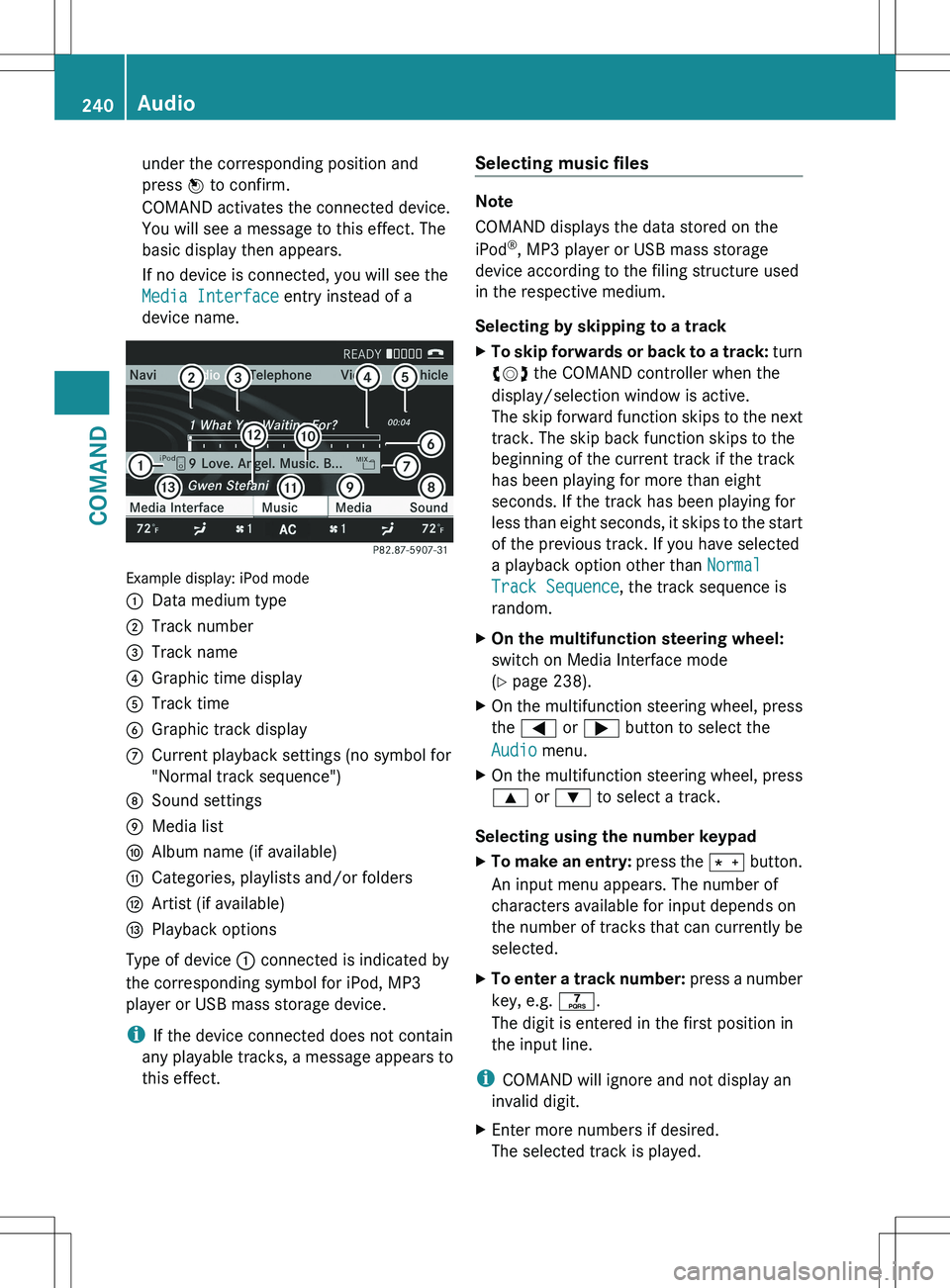
Example display: iPod mode
:Data medium type;Track number=Track name?Graphic time displayATrack timeBGraphic track displayCCurrent playback settings (no symbol for
"Normal track sequence")DSound settingsEMedia listFAlbum name (if available)GCategories, playlists and/or foldersHArtist (if available)IPlayback options
Type of device : connected is indicated by
the corresponding symbol for iPod, MP3
player or USB mass storage device.
i If the device connected does not contain
any playable tracks, a message appears to
this effect.
Selecting music files
Note
COMAND displays the data stored on the
iPod ®
, MP3 player or USB mass storage
device according to the filing structure used
in the respective medium.
Selecting by skipping to a track
XTo skip forwards or back to a track: turn
cVd the COMAND controller when the
display/selection window is active.
The skip forward function skips to the next
track. The skip back function skips to the
beginning of the current track if the track
has been playing for more than eight
seconds. If the track has been playing for
less than eight seconds, it skips to the start
of the previous track. If you have selected
a playback option other than Normal
Track Sequence , the track sequence is
random.XOn the multifunction steering wheel:
switch on Media Interface mode
( Y page 238).XOn the multifunction steering wheel, press
the = or ; button to select the
Audio menu.XOn the multifunction steering wheel, press
9 or : to select a track.
Selecting using the number keypad
XTo make an entry: press the Ä button.
An input menu appears. The number of
characters available for input depends on
the number of tracks that can currently be
selected.XTo enter a track number: press a number
key, e.g. q.
The digit is entered in the first position in
the input line.
i COMAND will ignore and not display an
invalid digit.
XEnter more numbers if desired.
The selected track is played.240AudioCOMAND
Page 250 of 536
It may also be possible to select the scene/
chapter from within the menu stored on the
DVD.XTo skip forwards or back: turn cVd or
slide XVY the COMAND controller.
The control menu (Y page 246) appears for
approximately eight seconds.XOn the multifunction steering wheel:
switch on video DVD mode in COMAND
( Y page 246).XUse the = or ; button to select the
Audio menu.XPress 9 or : to select a scene/
chapter.
If you press and hold 9 or : for an
extended period, rapid scroll begins.
Selecting a film/title
This function is only available if the DVD is
divided into several films/tracks. If the DVD
contains several films, these can be selected
directly. A film can be selected either when
the DVD is being played back or when it is
stopped.
The film can also be selected from the menu
on the DVD itself.
XPress W the COMAND controller to show
the menu.XSelect DVD-V by turning cVd the COMAND
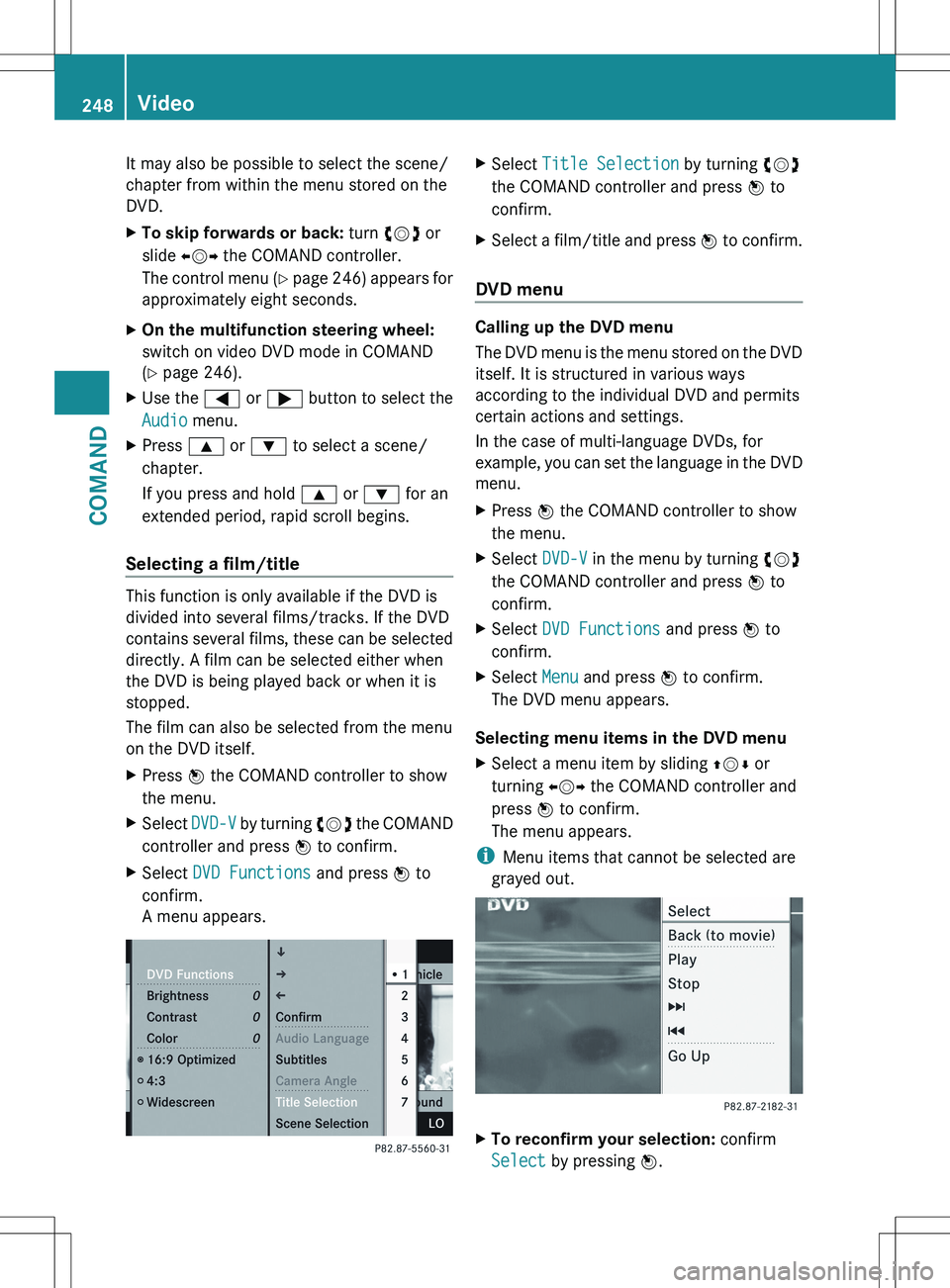
controller and press W to confirm.XSelect DVD Functions and press W to
confirm.
A menu appears.XSelect Title Selection by turning cVd
the COMAND controller and press W to
confirm.XSelect a film/title and press W to confirm.
DVD menu
Calling up the DVD menu
The DVD menu is the menu stored on the DVD
itself. It is structured in various ways
according to the individual DVD and permits
certain actions and settings.
In the case of multi-language DVDs, for
example, you can set the language in the DVD
menu.
XPress W the COMAND controller to show
the menu.XSelect DVD-V in the menu by turning cVd
the COMAND controller and press W to
confirm.XSelect DVD Functions and press W to
confirm.XSelect Menu and press W to confirm.
The DVD menu appears.
Selecting menu items in the DVD menu
XSelect a menu item by sliding ZVÆ or
turning XVY the COMAND controller and
press W to confirm.
The menu appears.
i Menu items that cannot be selected are
grayed out.
XTo reconfirm your selection: confirm
Select by pressing W.248VideoCOMAND
Page 268 of 536
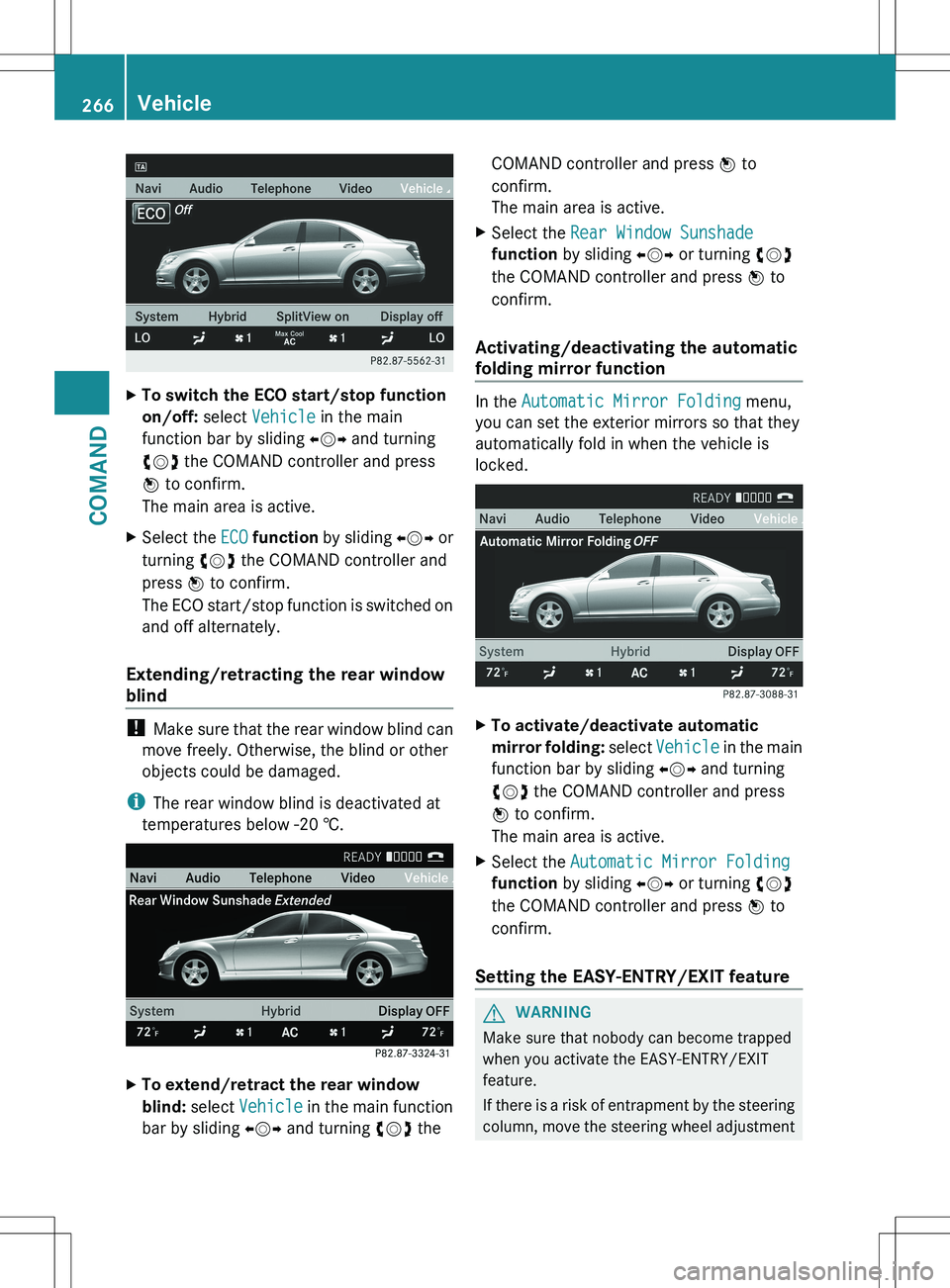
XTo switch the ECO start/stop function
on/off: select Vehicle in the main
function bar by sliding XVY and turning
cVd the COMAND controller and press
W to confirm.
The main area is active.XSelect the ECO function by sliding XVY or
turning cVd the COMAND controller and
press W to confirm.
The ECO start/stop function is switched on
and off alternately.
Extending/retracting the rear window
blind
! Make sure that the rear window blind can
move freely. Otherwise, the blind or other
objects could be damaged.
i The rear window blind is deactivated at
temperatures below -20 †.
XTo extend/retract the rear window
blind: select Vehicle in the main function
bar by sliding XVY and turning cVd theCOMAND controller and press W to
confirm.
The main area is active.XSelect the Rear Window Sunshade
function by sliding XVY or turning cVd
the COMAND controller and press W to
confirm.
Activating/deactivating the automatic
folding mirror function
In the Automatic Mirror Folding menu,
you can set the exterior mirrors so that they
automatically fold in when the vehicle is
locked.
XTo activate/deactivate automatic
mirror folding: select Vehicle in the main
function bar by sliding XVY and turning
cVd the COMAND controller and press
W to confirm.
The main area is active.XSelect the Automatic Mirror Folding
function by sliding XVY or turning cVd
the COMAND controller and press W to
confirm.
Setting the EASY-ENTRY/EXIT feature
GWARNING
Make sure that nobody can become trapped
when you activate the EASY-ENTRY/EXIT
feature.
If there is a risk of entrapment by the steering
column, move the steering wheel adjustment
266VehicleCOMAND
Page 269 of 536
lever or press the position button of the
memory function.
If there is a risk of entrapment by the seat, you
can also cancel the adjustment procedure by
moving the switch for seat adjustment. The
steering column and driver's seat stop moving
immediately.
Never leave children unsupervised in the
vehicle. They could open the driver's door and
thereby unintentionally activate the EASY-
ENTRY/EXIT feature and become trapped.
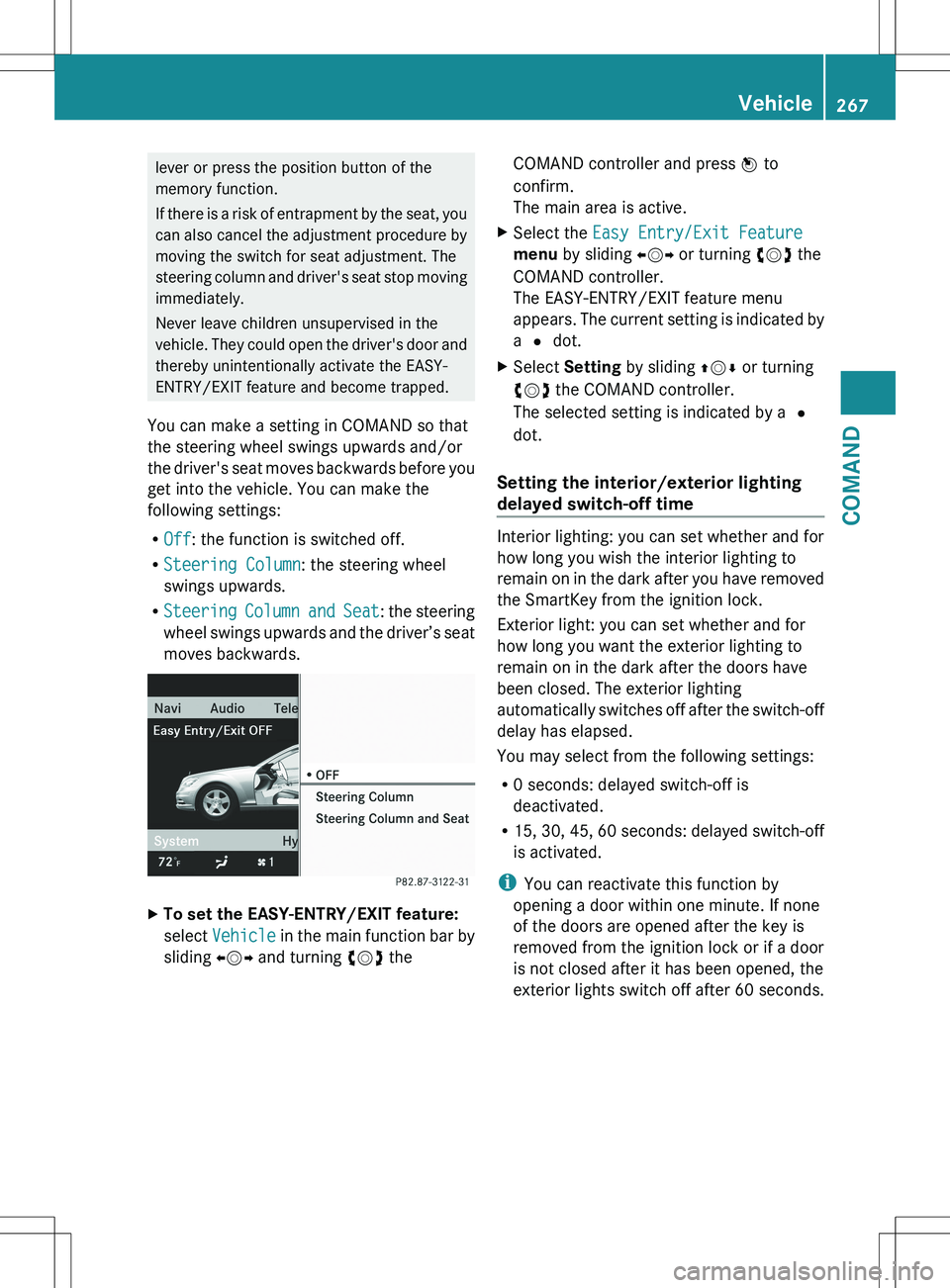
You can make a setting in COMAND so that
the steering wheel swings upwards and/or
the driver's seat moves backwards before you
get into the vehicle. You can make the
following settings:
R Off : the function is switched off.
R Steering Column : the steering wheel
swings upwards.
R Steering Column and Seat : the steering
wheel swings upwards and the driver’s seat
moves backwards.XTo set the EASY-ENTRY/EXIT feature:
select Vehicle in the main function bar by
sliding XVY and turning cVd theCOMAND controller and press W to
confirm.
The main area is active.XSelect the Easy Entry/Exit Feature
menu by sliding XVY or turning cVd the
COMAND controller.
The EASY-ENTRY/EXIT feature menu
appears. The current setting is indicated by
a # dot.XSelect Setting by sliding ZVÆ or turning
cVd the COMAND controller.
The selected setting is indicated by a #
dot.
Setting the interior/exterior lighting
delayed switch-off time
Interior lighting: you can set whether and for
how long you wish the interior lighting to
remain on in the dark after you have removed
the SmartKey from the ignition lock.
Exterior light: you can set whether and for
how long you want the exterior lighting to
remain on in the dark after the doors have
been closed. The exterior lighting
automatically switches off after the switch-off
delay has elapsed.
You may select from the following settings:
R 0 seconds: delayed switch-off is
deactivated.
R 15, 30, 45, 60 seconds: delayed switch-off
is activated.
i You can reactivate this function by
opening a door within one minute. If none
of the doors are opened after the key is
removed from the ignition lock or if a door
is not closed after it has been opened, the
exterior lights switch off after 60 seconds.
Vehicle267COMANDZ
Page 286 of 536
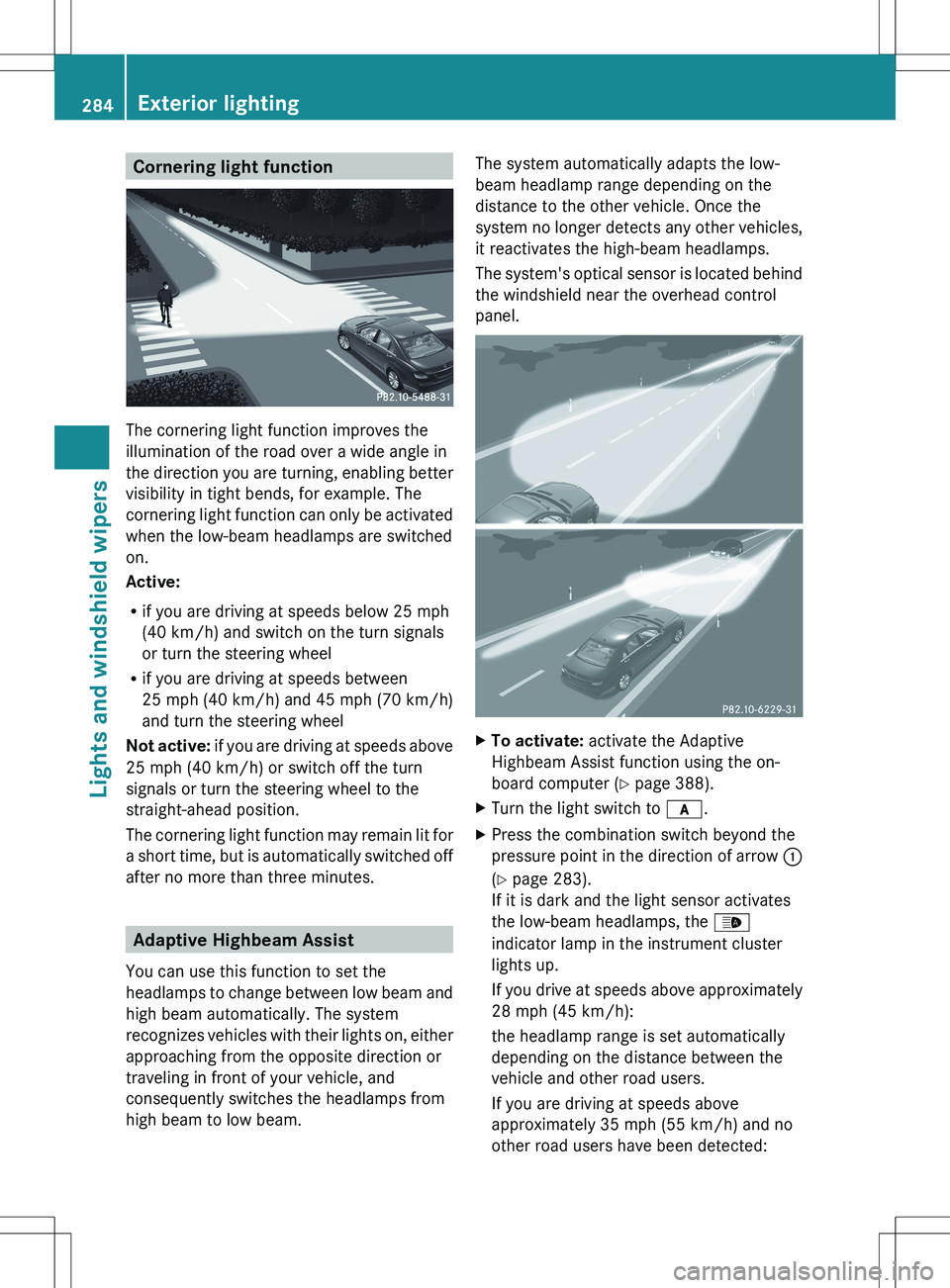
Cornering light function
The cornering light function improves the
illumination of the road over a wide angle in
the direction you are turning, enabling better
visibility in tight bends, for example. The
cornering light function can only be activated
when the low-beam headlamps are switched
on.
Active:
R if you are driving at speeds below 25 mph
(40 km/h) and switch on the turn signals
or turn the steering wheel
R if you are driving at speeds between
25 mph (40 km/h) and 45 mph (70 km/h)
and turn the steering wheel
Not active: if you are driving at speeds above
25 mph (40 km/h) or switch off the turn
signals or turn the steering wheel to the
straight-ahead position.
The cornering light function may remain lit for
a short time, but is automatically switched off
after no more than three minutes.
Adaptive Highbeam Assist
You can use this function to set the
headlamps to change between low beam and
high beam automatically. The system
recognizes vehicles with their lights on, either
approaching from the opposite direction or
traveling in front of your vehicle, and
consequently switches the headlamps from
high beam to low beam.
The system automatically adapts the low-
beam headlamp range depending on the
distance to the other vehicle. Once the
system no longer detects any other vehicles,
it reactivates the high-beam headlamps.
The system's optical sensor is located behind
the windshield near the overhead control
panel.XTo activate: activate the Adaptive
Highbeam Assist function using the on-
board computer ( Y page 388).XTurn the light switch to c.XPress the combination switch beyond the
pressure point in the direction of arrow :
( Y page 283).
If it is dark and the light sensor activates
the low-beam headlamps, the _
indicator lamp in the instrument cluster
lights up.
If you drive at speeds above approximately
28 mph (45 km/h):
the headlamp range is set automatically
depending on the distance between the
vehicle and other road users.
If you are driving at speeds above
approximately 35 mph (55 km/h) and no
other road users have been detected:284Exterior lightingLights and windshield wipers
Page 304 of 536
iAir-recirculation mode deactivates
automatically:
R after approximately five minutes at
outside temperatures below
approximately 41 ‡ (5 †)
R after approximately five minutes if
cooling with air dehumidification is
deactivated
R after approximately 30 minutes at
outside temperatures above
approximately 41 ‡ (5 †)
Activating/deactivating the residual
heat function
It is possible to make use of the residual heat
of the engine to continue heating the
stationary vehicle for up to 30 minutes after
the engine has been switched off. The heating
time depends on the temperature that has
been set.
i The blower will run at a low speed
regardless of the airflow setting.
i If you activate the residual heat function
at high temperatures, only the ventilation
will be activated. The blower runs at
medium speed.
XTurn the SmartKey to position 0 in the
ignition lock or remove it.XTo activate: press the Ì rocker switch
up or down.
The indicator lamp in the Ì rocker
switch lights up.XTo deactivate: press the Ì rocker
switch up or down.
The indicator lamp in the Ì rocker
switch goes out.
i Residual heat is deactivated
automatically:
R after about 30 minutes
R when the ignition is switched on
R if the battery voltage drops
R if the coolant temperature is too low
Setting the air vents
Important safety notes
GWARNING
When operating the climate control, the air
that enters the passenger compartment
through the air vents can be very hot or very
cold (depending on the set temperature). This
could cause burns or frostbite to unprotected
skin in the immediate area of the air vents.
Always keep sufficient distance between
unprotected parts of the body and the air
vents. If necessary, use the air distribution
adjustment to direct the air to air vents in the
vehicle interior that are not in the immediate
area of unprotected skin.
In order to ensure the direct flow of fresh air
through the air vents into the vehicle interior,
please observe the following notes:
R keep the air intake grille on the hood free
of blockages, such as ice, snow or leaves
R never cover the air vents or air intake grille
in the vehicle interior.
i For virtually draft-free ventilation, adjust
the sliders of the air vents to the center
position.
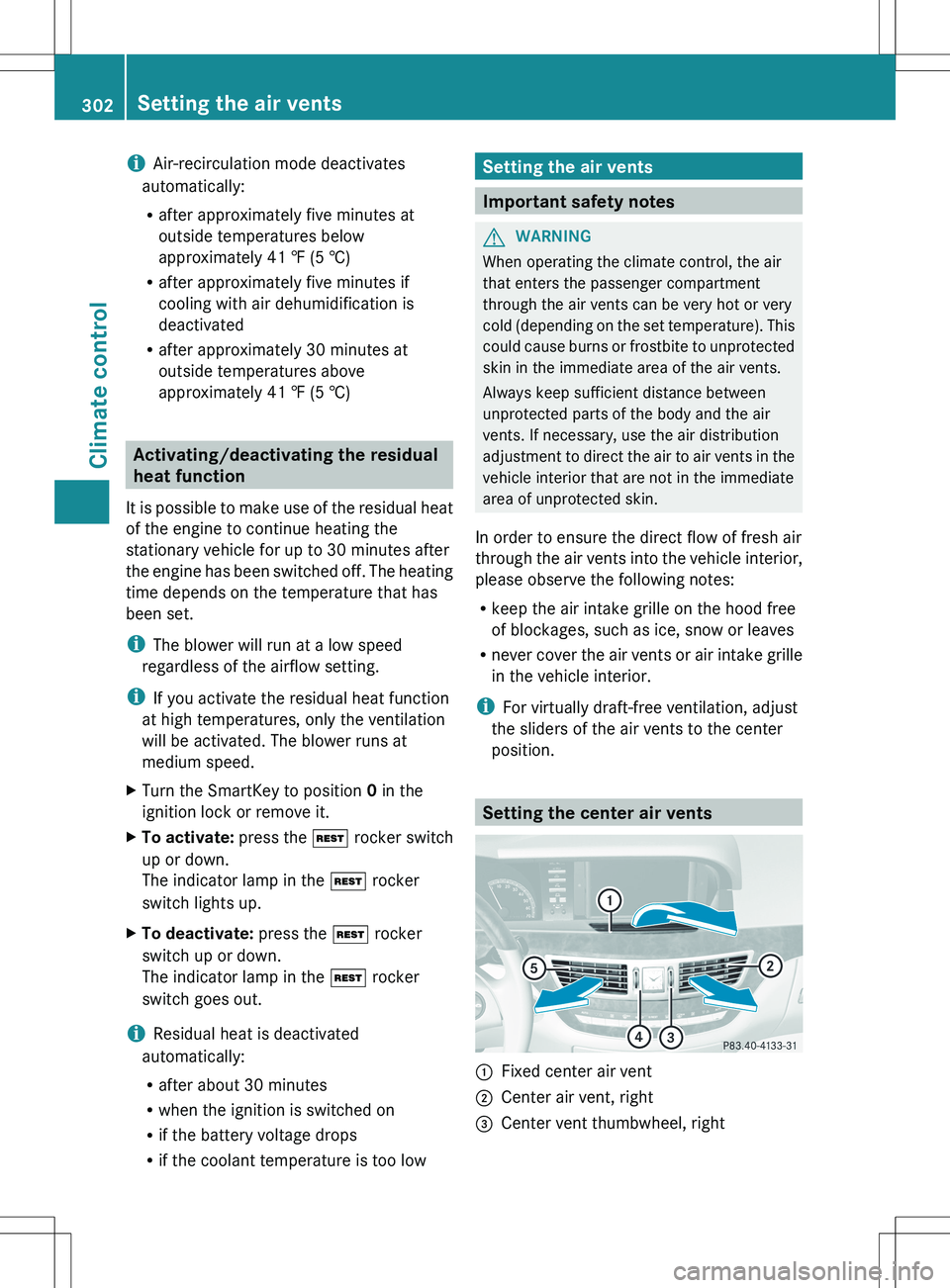
Setting the center air vents
:Fixed center air vent;Center air vent, right=Center vent thumbwheel, right302Setting the air ventsClimate control
Page 305 of 536
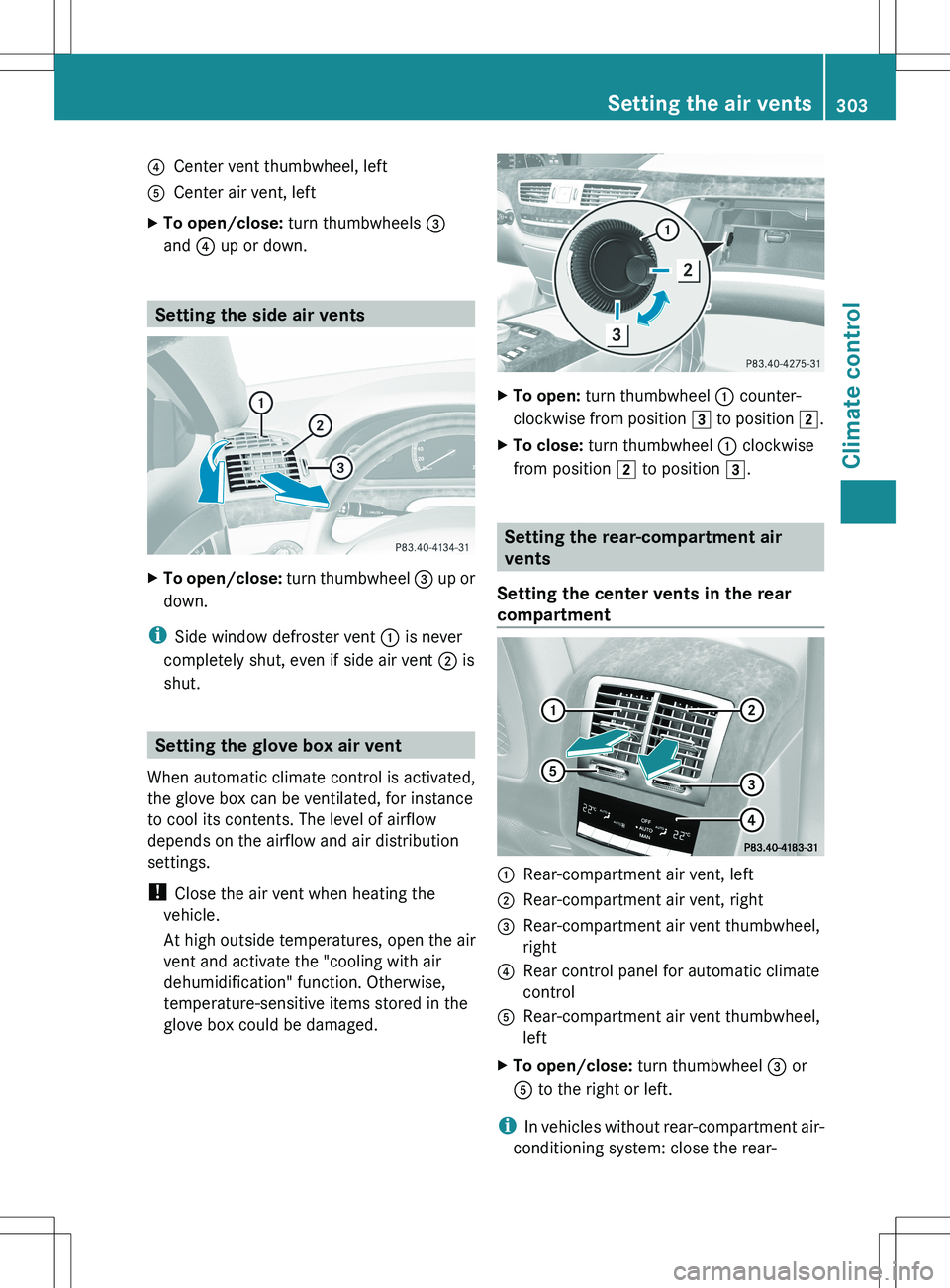
?Center vent thumbwheel, leftACenter air vent, leftXTo open/close: turn thumbwheels =
and ? up or down.
Setting the side air vents
XTo open/close: turn thumbwheel = up or
down.
i Side window defroster vent : is never
completely shut, even if side air vent ; is
shut.
Setting the glove box air vent
When automatic climate control is activated,
the glove box can be ventilated, for instance
to cool its contents. The level of airflow
depends on the airflow and air distribution
settings.
! Close the air vent when heating the
vehicle.
At high outside temperatures, open the air
vent and activate the "cooling with air
dehumidification" function. Otherwise,
temperature-sensitive items stored in the
glove box could be damaged.
XTo open: turn thumbwheel : counter-
clockwise from position 3 to position 2.XTo close: turn thumbwheel : clockwise
from position 2 to position 3.
Setting the rear-compartment air
vents
Setting the center vents in the rear
compartment
:Rear-compartment air vent, left;Rear-compartment air vent, right=Rear-compartment air vent thumbwheel,
right?Rear control panel for automatic climate
controlARear-compartment air vent thumbwheel,
leftXTo open/close: turn thumbwheel = or
A to the right or left.
i
In vehicles without rear-compartment air-
conditioning system: close the rear-
Setting the air vents303Climate controlZ
Page 306 of 536
compartment air vents when heating mode
is activated, as no warm air flows through
the rear vents in the basic heating setting.
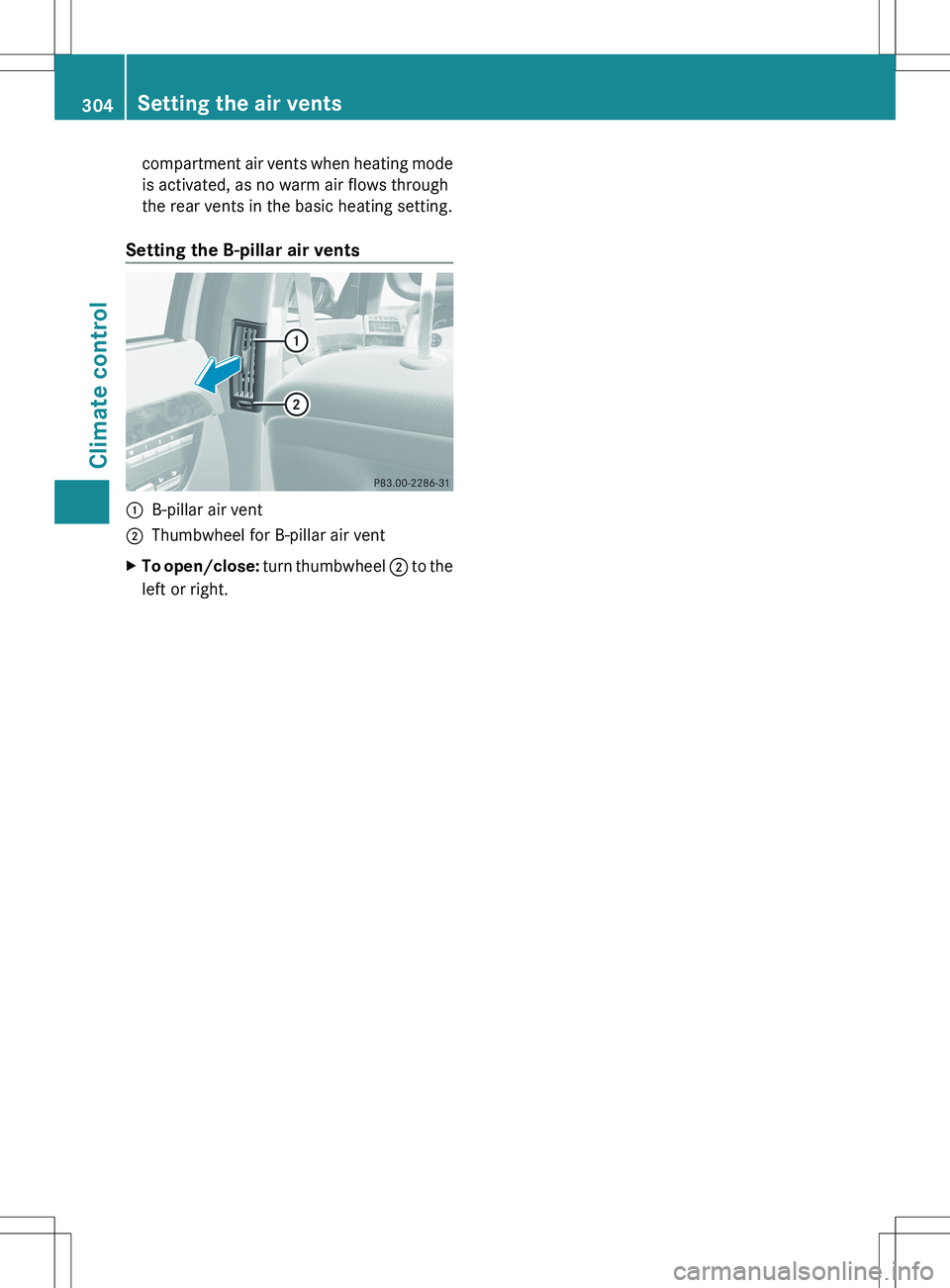
Setting the B-pillar air vents:B-pillar air vent;Thumbwheel for B-pillar air ventXTo open/close: turn thumbwheel ; to the
left or right.304Setting the air ventsClimate control
Page 308 of 536
Useful information
i This Operator's Manual describes all
models and all standard and optional
equipment of your vehicle available at the
time of publication of the Operator's
Manual. Country-specific differences are
possible. Please note that your vehicle may
not be equipped with all features
described. This also applies to safety-
related systems and functions.
i Please read the information on qualified
specialist workshops ( Y page 31).
Breaking-in notes
The first 1,000miles (1,500 km)
The more you look after the engine when it is
new, the more satisfied you will be with its
performance in the future.
R You should therefore drive at varying
vehicle and engine speeds for the first
1,000miles (1,500km).
R Avoid overstraining the vehicle during this
period, e.g. driving at full throttle.
R Change gear in good time, before the
tachometer needle is Ô of the way to the
red area of the tachometer.
R Do not manually shift to a lower gear to
brake the vehicle.
R If possible, do not depress the accelerator
pedal past the point of resistance
(kickdown).
R Only select shift ranges 3, 2 or 1 when
driving slowly, e.g. in mountainous terrain.
R If possible, for the first 1,000miles
(1,500km), drive in drive program E (in
AMG vehicles in drive program C).
After 1,000 miles (1,500km), you can
increase the engine speed gradually and bring
the vehicle up to full speed.
Additional breaking-in notes for AMG
vehicles:
R do not drive faster than 85 mph
(140 km/h) for the first 1,000 miles
(1,500 km).
R only allow the engine to reach a maximum
engine speed of 4,500 rpm briefly.
R change gear in good time.
i You should also observe these breaking-
in notes if the engine or parts of the drive
train on your vehicle have been replaced.
i Always observe the respective speed
restrictions.
Driving
Important safety notes
GWARNING
Make sure absolutely no objects are
obstructing the pedals' range of movement.
Keep the driver's footwell clear of all
obstacles. If there are any floormats or
carpets in the footwell, make sure the pedals
still have sufficient clearance.
During sudden driving or braking maneuvers
the objects could get caught between the
pedals. You could then no longer brake or
accelerate. This could lead to accidents and
injury.
GWARNING
On slippery road surfaces, never downshift in
order to obtain braking action. This could
result in drive wheel slip and reduced vehicle
control. Your vehicle's ABS will not prevent
this type of loss of control.
GWARNING
It is dangerous to shift the automatic
transmission out of parking position P or
neutral position N if the engine speed is
higher than idle speed. If your foot is not firmly
on the brake pedal, the vehicle could
accelerate quickly forward or in reverse. You
306DrivingDriving and parking