navigation system MERCEDES-BENZ S-COUPE 2016 Owners Manual
[x] Cancel search | Manufacturer: MERCEDES-BENZ, Model Year: 2016, Model line: S-COUPE, Model: MERCEDES-BENZ S-COUPE 2016Pages: 410, PDF Size: 8.62 MB
Page 15 of 410
Mechanical keyFunction/notes ................................ 85
General notes .................................. 85
Inserting .......................................... 85
Locking vehicle ................................ 91
Removing .........................................8 5
Unlocking the driver's door .............. 90
Media Interface
USB port in the armrest of the
center console ...............................3 02
see Separate operating instructions
Memory card (audio) ......................... 240
Memory function
Seats, steering wheel, exterior
mirrors ...........................................1 20
Mercedes-Benz Intelligent Drive
360°camera .................................. 211
ABS (Anti-lock Brake System) .......... 68
Active Blind Spot Assist ................. 222
Active Lane Keeping Assist ............ 225
Active Parking Assist ..................... 202
ATTENTION ASSIST ........................ 215
BAS (Brake Assist) ........................... 68
BAS PLUS (Brake Assist PLUS)
with Cross-Traffic Assist .................. 69
Crosswind Assist (vehicles with
MAGIC BODY CONTROL) ...............1 94
Crosswind Assist (vehicles with-
out MAGIC BODY CONTROL) ........... 74
DISTRONIC PLUS ........................... 182
DISTRONIC PLUS with Steering
Assist and Stop&Go Pilot ...............1 90
ESP
®(Electronic Stability Pro-
gram) ............................................... 73
General notes ................................ 179
MAGIC BODY CONTROL ................ 194
Night View Assist Plus ................... 219
PARKTRONIC ................................. 199
PRE-SAFE
®(anticipatory occu-
pant protection) ............................... 61
PRE-SAFE
®Brake .............................7 5
PRE-SAFE®PLUS (anticipatory
occupant protection PLUS) .............. 61
Rear view camera .......................... 207
ROAD SURFACE SCAN .................. 196
Traffic Sign Assist .......................... 217 Message memory (on-board com-
puter)
.................................................. 251
Messages
see D
isplay messages
see Warning and indicator lamps
Mirror turn signal
Cleaning ......................................... 335
Mirrors
see Exterior mirrors
see Rear-view mirror
see Vanity mirror (in the sun visor)
Mobile phone
Frequencies ................................... 398
Installation .....................................3 98
Menu (on-board computer) ............ 241
Transmission output (maximum) .... 398
Modifying the programming
(SmartKey) ...........................................8 4
MOExtended tires .............................. 343
Mounting wheels
Lowering the vehicle ...................... 388
Mounting a new wheel ................... 387
Preparing the vehicle .....................3 84
Raising the vehicle ......................... 385
Removing a wheel .......................... 387
Securing the vehicle against roll-
ing away ........................................ 384
MP3
Operation ....................................... 240
Multifunction display
Function/notes .............................2 32
Multifunction steering wheel
Operating the on-board computer .. 231
Overview .......................................... 35
N
NavigationMenu (on-board computer) ............ 237
Night View Assist Plus
Activating/deactivating ................. 220
Cleaning ......................................... 337
Display message ............................ 275
Function/notes .............................2 19
Pedestrian and animal recogni-
tion ................................................ 219
Problem (malfunction) ................... 222
Index13
Page 16 of 410
Switching automatic activation
on/off ............................................ 244
Notes on breaking-in a new vehi-
cle ....................................................... 150
O
Occupant Classification System
(OCS)
Conditions ....................................... 54
Faults ............................................... 58
Operation ......................................... 54
System self-test ............................... 56
Occupant safety
Automatic measures after an acci-
dent ................................................. 62
Children in the vehicle ..................... 62
Important safety notes .................... 45
Introduction to the restraint sys-
tem .................................................. 44
Occupant Classification System
(OCS) ............................................... 53
PASSENGER AIR BAG indicator
lamps ............................................... 45
Pets in the vehicle ........................... 67
PRE-SAFE
®(anticipatory occu-
pant protection) ............................... 61
PRE-SAFE
®PLUS (anticipatory
occupant protection PLUS) .............. 61
Restraint system warning lamp ........ 45
OCS
Conditions ....................................... 54
Faults ............................................... 58
Operation ......................................... 54
System self-test ............................... 56
Odometer ........................................... 235
Oil
see Engine oil
On-board computer
AMG menu ..................................... 249
Assistance graphic menu ............... 243
Assistance menu ........................... 244
Display messages .......................... 251
Displaying a service message ........ 330
DISTRONIC PLUS ........................... 187
Factory settings ............................. 249
Head-up display ............................. 233
Important safety notes .................. 230 Instrument cluster menu ............... 248
Lights menu ................................... 247
Media menu ................................... 240
Menu overview .............................. 235
Message memory .......................... 251
Navigation menu ............................ 237
Operation ....................................... 231
Radio menu ................................... 239
Service menu ................................. 243
Settings menu ............................... 244
Standard display ............................ 235
Telephone menu ............................ 241
Trip menu ...................................... 235
Video DVD operation ..................... 241
Operating safety
Declaration of conformity ................ 26
Important safety notes .................... 25
Operating system
see On-board computer
Operator's Manual
Overview .......................................... 23
Vehicle eq uip
ment ........................... 23
Outside temperature display ........... 231
Overhead control panel ...................... 39
P
Paint code number............................ 399
Paintwork (cleaning instructions) ... 333
Panic alarm .......................................... 44
Panorama roof ................................... 101
Parcel net hooks ............................... 303
Parking
Important safety notes .................. 170
Parking brake ................................ 172
Position of exterior mirror, front-
passenger side ............................... 119
Rear view camera .......................... 207
Switching off the engine ................ 171
see PARKTRONIC
Parking aid
see 360° camera
see Active Parking Assist
see Exterior mirrors
see PARKTRONIC
see Rear view camera
Parking assistance
see PARKTRONIC
14Index
Page 219 of 410
When ATTENTION ASSIST is deactivated, the
ésymbol appears in the multifunction
display in the assistance graphic display.
When ATTENTION ASSIST has been deactiva-
ted, it is automatically reactivated after the
engine has been stopped. The sensitivity
selected corresponds to the last selection
activated (standard/sensitive).
Warning in the multifunction display
If fatigue or increasing lapses in concentra-
tion are detected, a warning appears in the
multifunction display: Attention Assist:
Take a Break!
In addition to the message shown in the mul-
tifunction display, you will then hear a warn-
ing tone.
XIf necessary, take a break.
XConfirm the message by pressing the a
button on the steering wheel.
On long journeys, take regular breaks in good
time to allow yourself to rest properly. If you
do not take a break and ATTENTION ASSIST
continues to detect increasing lapses in con-
centration, you will be warned again after
15 minutes at the earliest. This will only hap-
pen if ATTENTION ASSIST still detects typical
indicators of fatigue or increasing lapses in
concentration.
If a warning is output in the multifunction dis-
play, COMAND performs a service station
search. You can select a service station and
navigation to this service station will then
begin. This function can be activated and
deactivated in COMAND.
Traffic Sign Assist
General notes
Traffic Sign Assist displays the maximum
speed permitted to the driver in the instru-
ment cluster. The data and general traffic reg-
ulations stored in the navigation system are
used to determine the current speed limit. As Traffic Sign Assist is a map-based system,
traffic signs put up temporarily (e.g. near
roadworks) are not detected.
If a traffic sign that is relevant to your vehicle
is passed, the display of the speed limits is
updated.
Traffic signs with a restriction indicated by an
additional sign (e.g. in wet conditions) are
also shown.
The traffic signs are only displayed with the
restrictions if:
Rthe regulation must be observed with the
restriction, or
RTraffic Sign Assist is unable to determine
whether the restriction applies
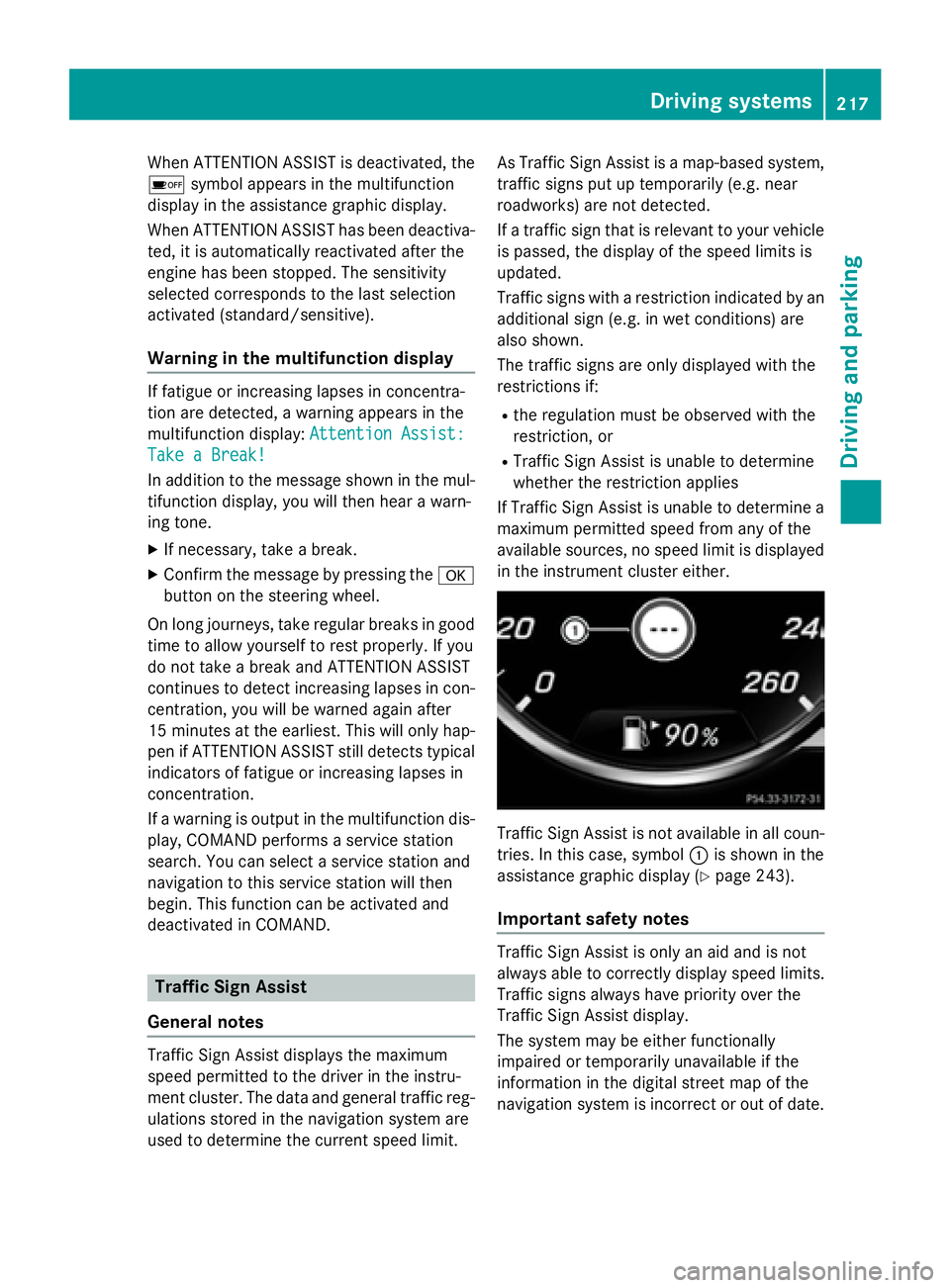
If Traffic Sign Assist is unable to determine a maximum permitted speed from any of the
available sources, no speed limit is displayed
in the instrument cluster either.
Traffic Sign Assist is not available in all coun-
tries. In this case, symbol :is shown in the
assistance graphic display (
Ypage 243).
Important safety notes
Traffic Sign Assist is only an aid and is not
always able to correctly display speed limits.
Traffic signs always have priority over the
Traffic Sign Assist display.
The system may be either functionally
impaired or temporarily unavailable if the
information in the digital street map of the
navigation system is incorrect or out of date.
Driving systems217
Driving and parking
Z
Page 235 of 410
_Adaptive Highbeam Assist Plus
(
Ypage 127)
a DISTRONIC PLUS Steering Assist
and Stop&Go Pilot (
Ypage 190)
---
km/h
Additional speedometer
(
Ypage 248)
Head-up display
General notes
The head-up display projects information
from the navigation system and the driver
assistance system above the dashboard into
the driver's field of vision.
A requirement for the display of the contents
is that the following functions are available in
the vehicle and are switched on:
RCruise control
RDISTRONIC PLUS
RTraffic Sign Assist
RNavigation
The head-up display allows the driver to see
all of the information without having to take
his eyes off the road.
Important safety notes
The head-up display is only an aid and is not a
substitute for attentive driving.
Speed limits and overtaking restrictions are
not always correctly displayed. Traffic signs
always have priority over the Traffic Sign
Assist display.
The visibility of the head-up display is influ-
enced by the following conditions:
Rthe driver's seat position
Rthe positioning of the display image
Rthe general ambient light
Rsunglasses with polarization filters
Rwet roads
Rblocking of sunlight by objects on the dis-
play cover In the event of extreme sunlight, sections of
the display may fade. This can be reversed by
switching the head-up display off and on
again.
iVehicles with the head-up display are
equipped with a special windshield. Should
repairs be necessary, have the windshield
replaced at a qualified specialist workshop.
Displays and operation
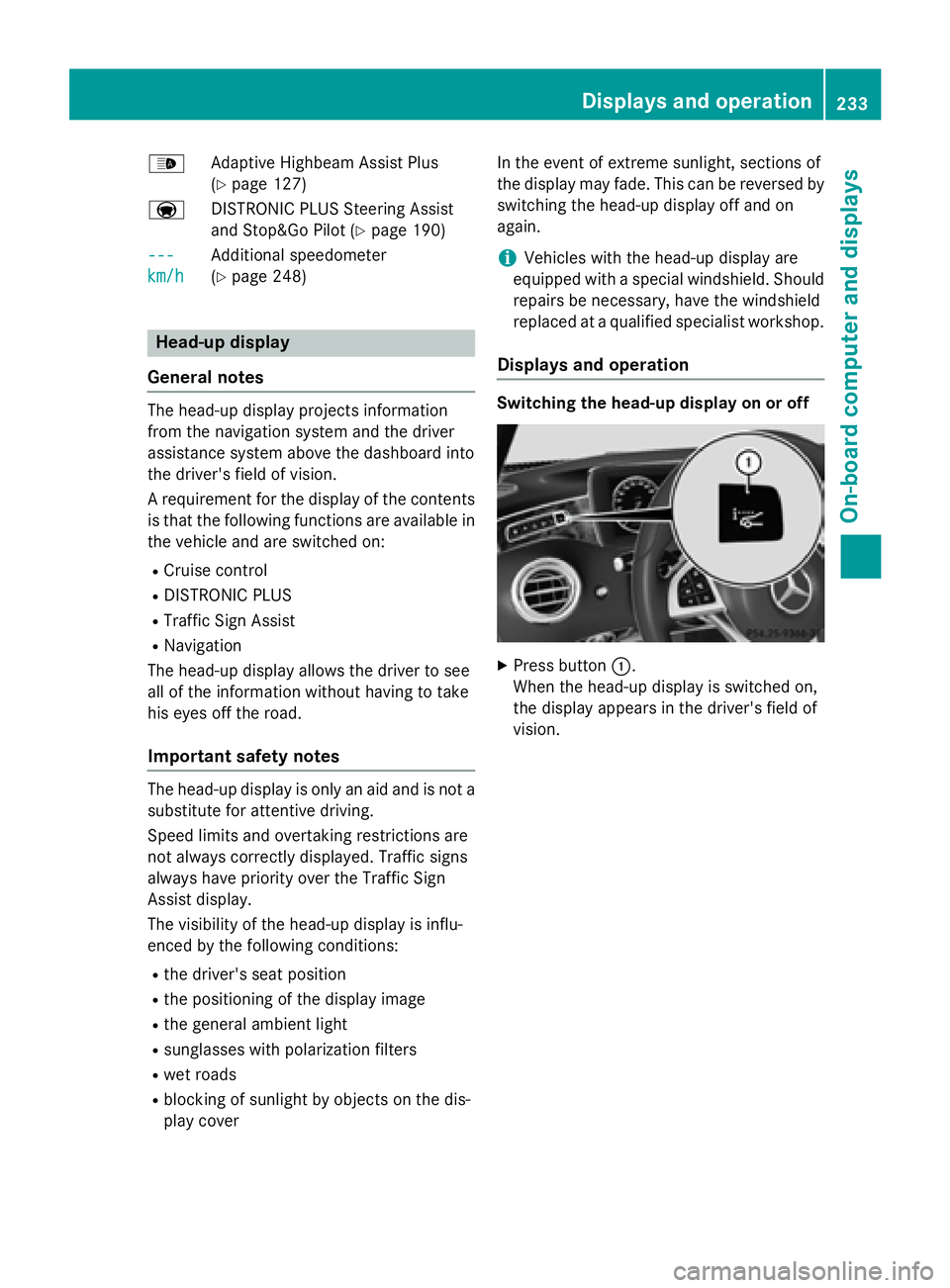
Switching the head-up display on or off
XPress button :.
When the head-up display is switched on,
the display appears in the driver's field of
vision.
Displays and operation233
On-board computer and displays
Z
Page 239 of 410
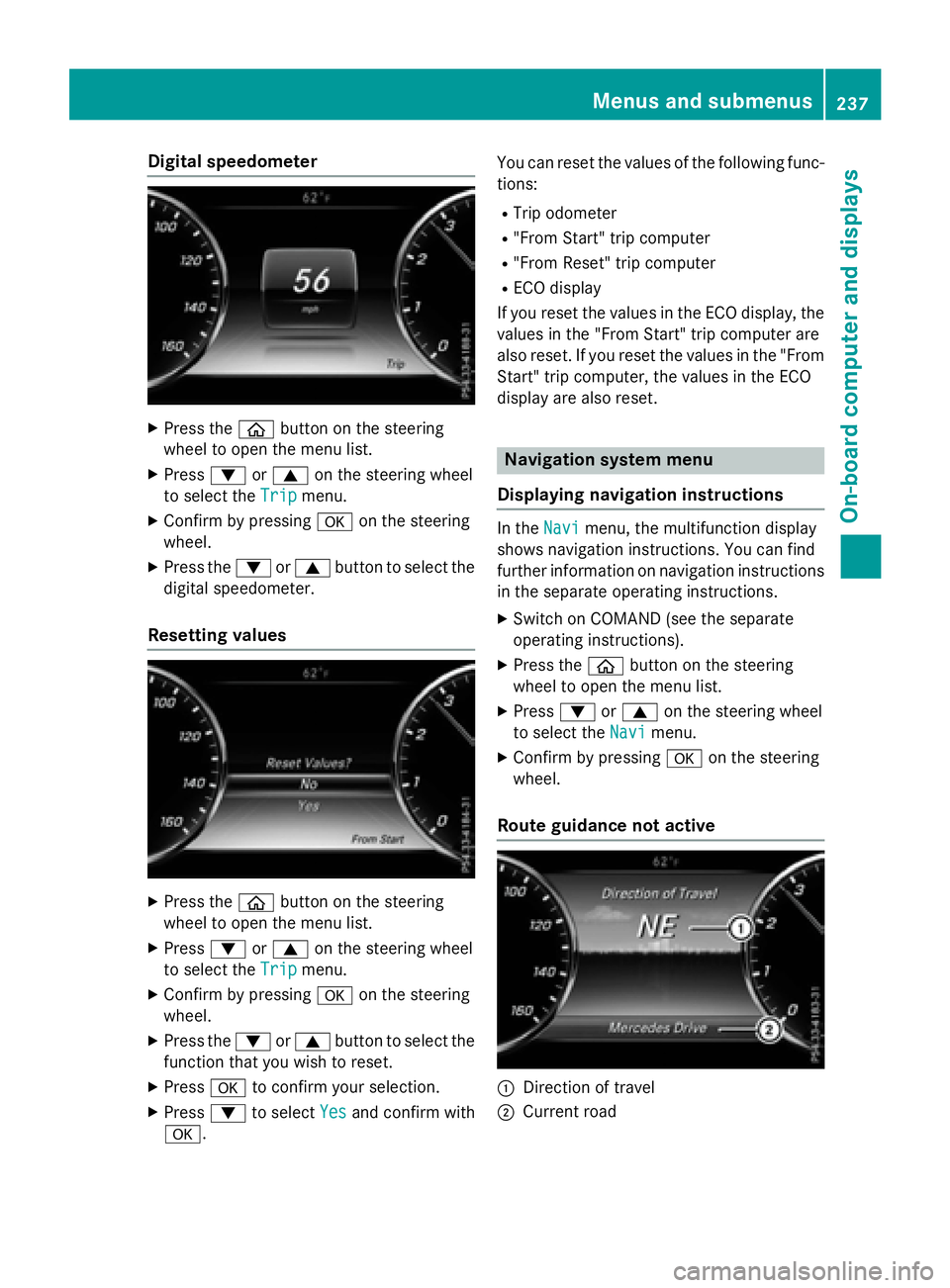
Digital speedometer
XPress theò buttonon th esteerin g
whee lto ope nth emen ulist .
XPress :or9 on thesteerin gwhee l
to selec tth eTri p
menu.
XConfir mby pressing aon thesteerin g
wheel.
XPress th e: or9 buttonto selec tth e
digita lspeedometer.
Resetting value s
XPress theò buttonon th esteerin g
whee lto ope nth emen ulist .
XPress :or9 on thesteerin gwhee l
to selec tth eTri p
menu.
XConfir mby pressing aon thesteerin g
wheel.
XPress th e: or9 buttonto selec tth e
function that you wish to reset .
XPressato confirm your selection .
XPress:to selec tYesand confirm wit h
a. You can reset th
evalues of th efollowing func-
tions:
RTrip odometer
R"From Start "trip compute r
R"From Reset" trip compute r
RECOdisplay
If you reset th evalues in th eEC Odisplay, th e
values in th e"From Start "trip compute rare
also reset .If you reset th evalues in th e"From
Start "trip computer, th evalues in th eEC O
display are also reset .
Navigation systemmenu
Displaying navigation instructions
In th eNav imenu, th emultifunction display
shows navigation instructions. You can fin d
further information on navigation instruction s
in th eseparat eoperatin ginstructions.
XSwitc hon COMAN D(se eth eseparat e
operatin ginstructions).
XPress th eò buttonon th esteerin g
whee lto ope nth emen ulist .
XPress :or9 on thesteerin gwhee l
to selec tth eNav i
menu.
XConfir mby pressing aon thesteerin g
wheel.
Route guidance not active
:Direction of trave l
;Currentroad
Menus and submenus237
On-board computer and displays
Z
Page 290 of 410
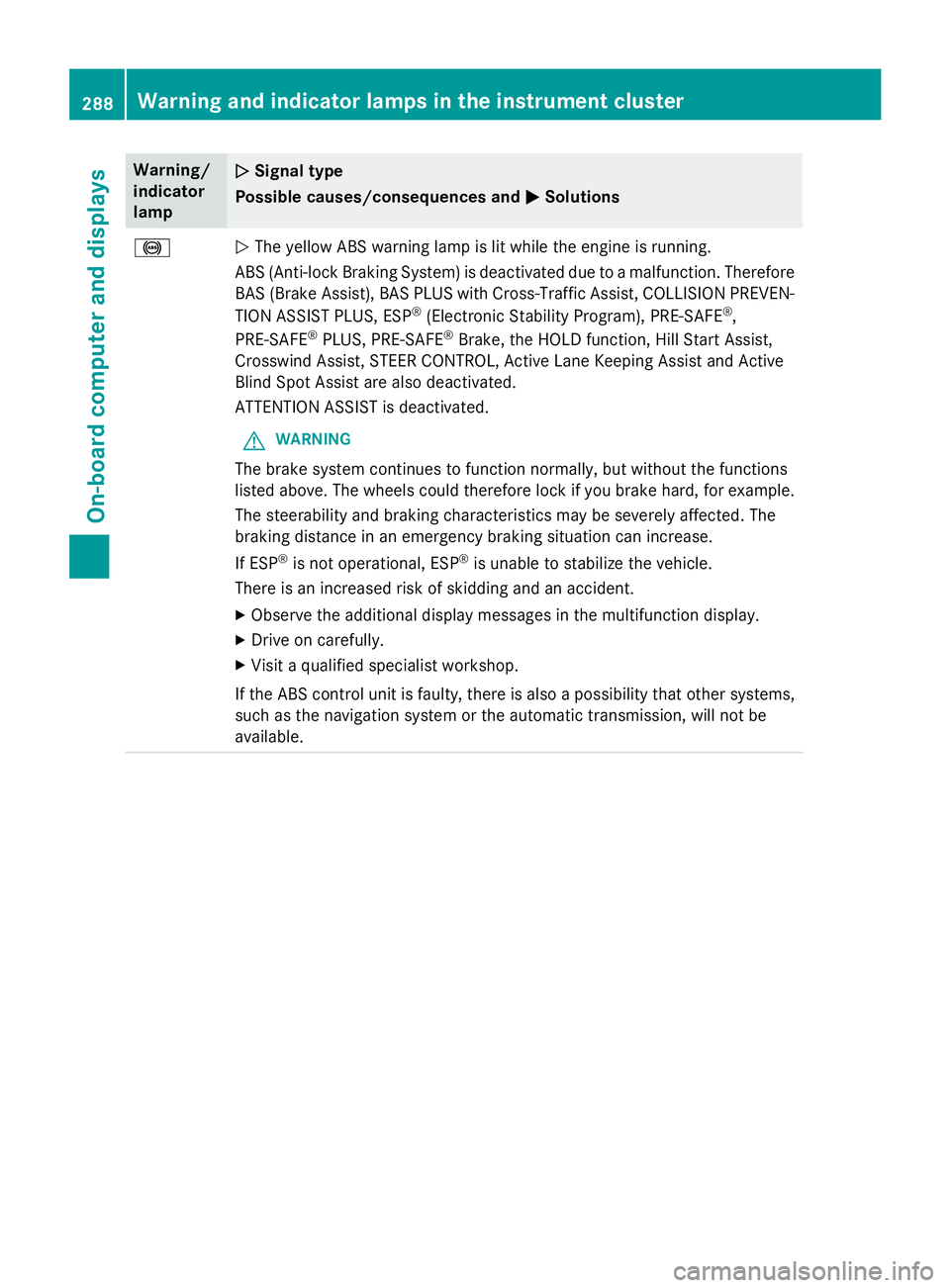
Warning/
indicator
lampNSignal type
Possible causes/consequences and M
Solutions
!NThe yellow ABS warning lamp is lit while the engine is running.
ABS (Anti-lock Braking System) is deactivated due to a malfunction. Therefore
BAS (Brake Assist), BAS PLUS with Cross-Traffic Assist, COLLISION PREVEN-
TION ASSIST PLUS, ESP
®(Electronic Stability Program), PRE‑SAFE®,
PRE‑SAFE®PLUS, PRE‑SAFE®Brake, the HOLD function, Hill Start Assist,
Crosswind Assist, STEER CONTROL, Active Lane Keeping Assist and Active
Blind Spot Assist are also deactivated.
ATTENTION ASSIST is deactivated.
GWARNING
The brake system continues to function normally, but without the functions
listed above. The wheels could therefore lock if you brake hard, for example.
The steerability and braking characteristics may be severely affected. The
braking distance in an emergency braking situation can increase.
If ESP
®is not operational, ESP®is unable to stabilize the vehicle.
There is an increased risk of skidding and an accident.
XObserve the additional display messages in the multifunction display.
XDrive on carefully.
XVisit a qualified specialist workshop.
If the ABS control unit is faulty, there is also a possibility that other systems,
such as the navigation system or the automatic transmission, will not be
available.
288Warning and indicator lamps in the instrument cluster
On-board computer and displays
Page 314 of 410
If a mobile phone network and GPS reception
are available, the system transfers data to the
Mercedes-Benz Customer Assistance Center,
for example:
Rcurrent location of the vehicle
Rvehicle identification number
The COMAND display indicates that a call is
active. During the call, you can change to the
navigation menu by pressing the NAVI button
on COMAND, for example.
Voice output is not available in this case.
A voice connection is established between
the Mercedes-Benz Customer Assistance
Center and the vehicle occupants.
From the remote malfunction diagnosis, the
Mercedes-Benz Customer Assistance Center
can ascertain the nature of the problem
(
Ypage 315).
The Mercedes-Benz Customer Assistance
Center either sends a qualified Mercedes-
Benz technician or makes arrangements for
your vehicle to be transported to the nearest
authorized Mercedes-Benz Center.
You may be charged for services such as
repair work and/or towing.
You can find more information in the separate
mbrace manual.
The system has not been able to initiate a
Roadside Assistance call, if:
Rthe indicator lamp for Roadside Assistance
call button Fis flashing continuously.
Rno voice connection to the Mercedes-Benz
Customer Assistance Center was estab-
lished.
This can occur if the relevant mobile phone
network is not available, for example.
The Call Failed
message appears in the
multifunction display.
XTo end a call: press the~button on the
multifunction steering wheel.
or
XPress the corresponding COMAND button
for ending a phone call.
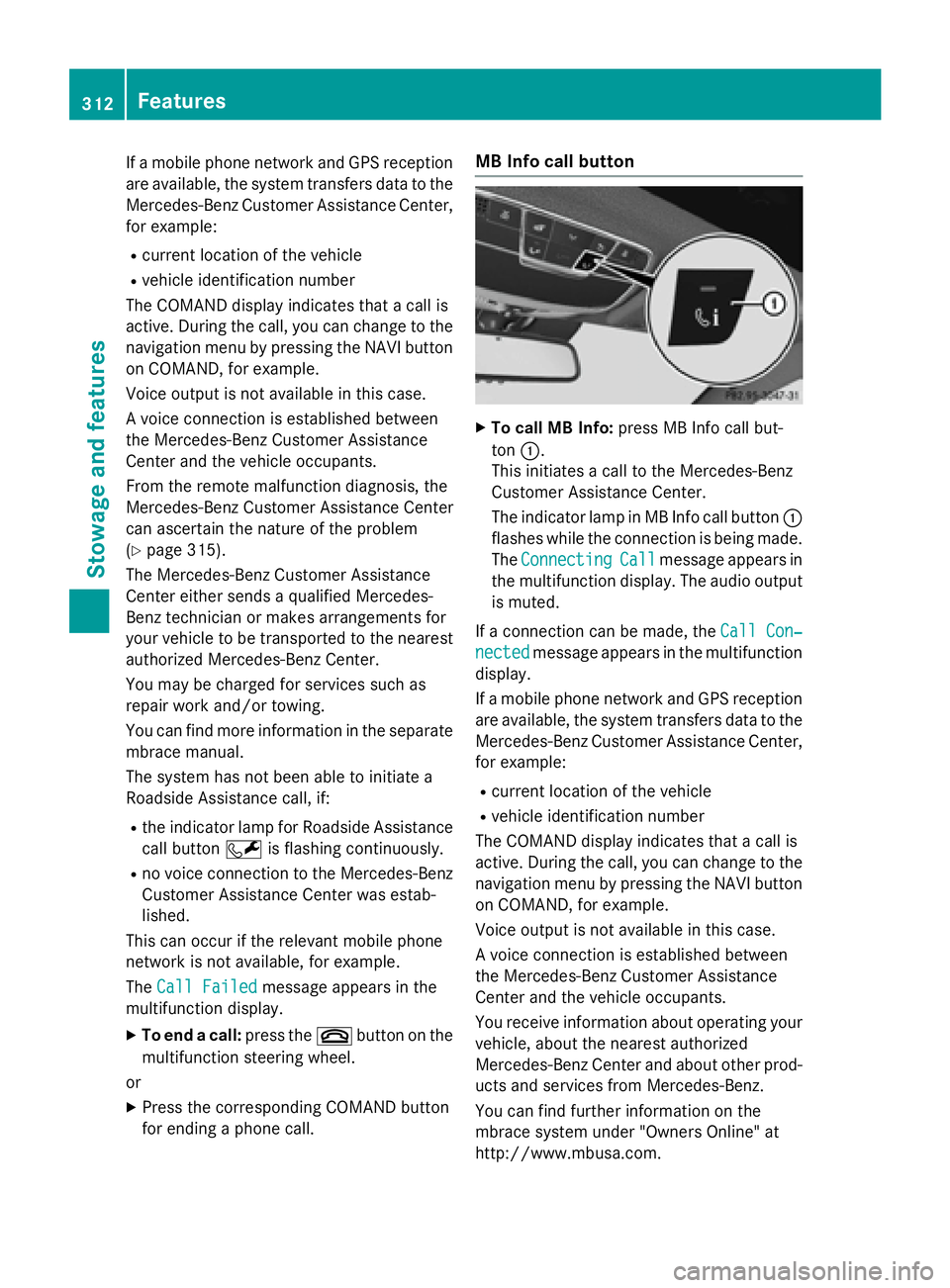
MB Info call button
XTo call MB Info: press MB Info call but-
ton :.
This initiates a call to the Mercedes-Benz
Customer Assistance Center.
The indicator lamp in MB Info call button :
flashes while the connection is being made.
The Connecting
Callmessage appears in
the multifunction display. The audio output
is muted.
If a connection can be made, the Call Con‐
nectedmessage appears in the multifunction
display.
If a mobile phone network and GPS reception
are available, the system transfers data to the
Mercedes-Benz Customer Assistance Center,
for example:
Rcurrent location of the vehicle
Rvehicle identification number
The COMAND display indicates that a call is
active. During the call, you can change to the
navigation menu by pressing the NAVI button
on COMAND, for example.
Voice output is not available in this case.
A voice connection is established between
the Mercedes-Benz Customer Assistance
Center and the vehicle occupants.
You receive information about operating your
vehicle, about the nearest authorized
Mercedes-Benz Center and about other prod-
ucts and services from Mercedes-Benz.
You can find further information on the
mbrace system under "Owners Online" at
http://www.mbusa.com.
312Features
Stowage and features
Page 315 of 410
The system has not been able to initiate an
MB Info call, if:
Rthe indicator lamp in MB Info call button
ïis flashing continuously.
Rno voice connection to the Mercedes-Benz
Customer Assistance Center was estab-
lished.
This can occur if the relevant mobile phone
network is not available, for example.
The Call Failed
message appears in the
multifunction display.
XTo end a call: press the~button on the
multifunction steering wheel.
or
XPress the corresponding COMAND button
for ending a phone call.
Call priority
When service calls are active, e.g. Roadside
Assistance or MB Info calls, an emergency
call can still be initiated. In this case, an emer-
gency call will take priority and override all
other active calls.
The indicator lamp of the respective button
flashes until the call is ended.
An emergency call can only be terminated by the Mercedes-Benz Customer Assistance
Center.
All other calls can be ended by pressing:
Rthe ~ button on the multifunction steer-
ing wheel
Rthe corresponding button in COMAND to
end the voice call
When a call is initiated, the audio system is
muted.
The mobile phone is no longer connected to
COMAND.
However, if you want to use your mobile
phone, do so only when the vehicle is station-
ary and in a safe location.
Downloading destinations
Downloading destinations
Downloading destinations gives you access
to a database with over 15 million points of
interest (POIs). These can be downloaded on
the navigation system in your vehicle. If you
know the destination, the address can be
downloaded. Alternatively, you can obtain the
location of Points of Interest (POIs)/impor-
tant destinations in the vicinity.
Furthermore, you can download routes with
up to four way points.
You are prompted to confirm route guidance
to the address entered.
XSelect Yesby turning 3or sliding 1
the controller and confirm with 7.
The system calculates the route and sub-
sequently starts the route guidance with
the address entered.
If you select No
the address can be stored in
the address book.
The destination download function is availa-
ble if:
Rthe vehicle is equipped with a navigation
system.
Rthe relevant mobile phone network is avail- able and data transfer is possible.
Route Assistance
This service is part of the mbrace PLUS Pack-
age and cannot be purchased separately.
You can use the route assistance function
even if the vehicle is not equipped with a nav-
igation system.
Within the framework of this service, you
receive a professional and reliable form of
navigation support without having to leave
your vehicle.
The customer service representative finds a
suitable route depending on your vehicle's
current position and the desired destination.
You will then be guided live through the cur-
rent route section.
Features313
Stowage and features
Z
Page 316 of 410
Search & Send
General notes
To use "Search & Send", your vehicle must be
equipped with mbrace and a navigation sys-
tem. Additionally, an mbrace service sub-
scription must be completed.
"Search & Send" is a destination entry ser-
vice. A destination address which is found on
Google Maps
®can be transferred via mbrace
directly to your vehicle's navigation system.
Specifying and sending the destination
address
XGo to the website http://
maps.google.com and enter a destination
address into the entry field.
XTo send the destination address to the
e-mail address of your mbrace account:
click on the corresponding button on the
website.
Example:
If you select 'Send to vehicle' and then
'Mercedes-Benz', the destination address
will be sent to your vehicle.
XWhen the "Send" dialog window appears:
Enter the e-mail address you specified
when setting up your mbrace account into
the corresponding field.
XClick "Send".
Information on specific commands such as
"Address entry" or "Send" can be found on the
website.
Calling up a transmitted destination
address
XTurn the SmartKey to position 2in the igni-
tion lock (
Ypage 151).
The transmitted destination address is loa-
ded into the vehicle's navigation system. A display message appears, asking
whether navigation should be started.
XSelectYesby turning
3or sliding 1
the controller and confirm with 7.
The system calculates the route and sub-
sequently starts the route guidance with
the address entered.
If you select No
the address can be stored in
the address book.
If you have sent more than one destination
address, each individual destination must
be confirmed separately.
Destination addresses are loaded in the same
order as the order in which they were sent.
If you own multiple Mercedes-Benz vehicles
with mbrace and activated mbrace accounts:
If multiple vehicles are registered under the
same e-mail address, the destination will be
sent to all the vehicles.
Vehicle remote opening
You can use the vehicle remote opening if you
have unintentionally locked your vehicle and
a replacement SmartKey is not available.
The vehicle can be opened by the Mercedes-
Benz Customer Assistance Center.
The vehicle can be immediately opened
remotely within four days of the ignition being turned off. After this time, the remote unlock-
ing may be delayed by 15 to 60 minutes. After
30 days, the vehicle can no longer be opened
remotely.
The vehicle remote unlocking feature is avail-
able if the relevant mobile phone network is
available and a data connection is possible.
XContact the following service hotlines:
Mercedes-Benz Customer Assistance Cen-
ter at 1-800-FOR-MERCedes
(1-800-367-6372) or 1-866-990-9007
You will be asked for your password.
XReturn to your vehicle at the time agreed
upon with the Mercedes-Benz Customer
Assistance Center.
314Features
Stowage and features
Page 318 of 410
XPress theYesbutton to confirm the mes-
sage.
XWhen the Vehicle Diagnostics
Please Start Ignitionmessage
appears: turn the SmartKey to position 2in
the ignition lock (
Ypage 151).
XIf the Please follow the instruc‐
tions received by phone and move
your vehicle to a safe position.
message appears: please follow the
instructions received by phone and move
your vehicle to a safe position.
The message in the display disappears.
The vehicle operating state check begins.
During this procedure, you will see the
Vehicle
DiagnosticsActivemessage.
If you select Cancel
, the Vehicle Health
Check is canceled completely.
When the check is complete, the Sending
vehicle diagnostics data. (Voice
connection may be interrupted dur‐
ingdatatransfer)message appears. The
vehicle data can now be sent.
XPress the OKbutton to confirm the mes-
sage.
The voice connection with the Customer
Assistance Center is terminated.
The Vehicle Diagnostics: Transfer‐
ring Data...message appears.
The vehicle data is sent to the Customer
Assistance Center.
Depending on what the customer service rep-
resentative agreed with you, the voice con-
nection is re-established after the transfer is
complete. If necessary, you will be contacted
at a later time by another means, e.g. by e-
mail or phone.
Another function of the Vehicle Health Check
is the transfer of service data to the Customer
Assistance Center. If a service is due, the dis-
play shows a message to this effect together
with information about any special offers at
your workshop.
This information can also be called up under
"Owners Online" at http://www.mbusa.com. Information on the data stored in the vehicle
(
Ypage 28).
Information on Roadside Assistance
(
Ypage 24).
Downloading routes
Downloading routes allows you to transfer
and save predefined routes in the navigation
system.
A route can be prepared and sent by either a
customer service representative or under
"Owners Online" at http://www.mbusa.com.
Each route can include up to four way points.
Once a route has been received by the navi-
gation system, you will see the The
to "Previous Destinations". Would
youliketostartnavigation?message
on the COMAND display.
The route is saved.
XTo start route guidance: selectYes.
An overview of the route is shown in the
display.
If you select No
the saved route can be
called up later in the navigation menu.
XSelect Start.
Route guidance starts.
Downloaded and saved routes can be called
up again.
You can find further information in the sepa-
rate COMAND/Audio 20 operating instruc-
tions.
Speed alert
You can define the upper speed limit, which
must not be exceeded by the vehicle.
If this selected speed is exceeded by the vehi-
cle, a message will be sent to the Customer
Assistance Center. The Customer Assistance Center then forwards this information to you.
You can select the way in which you receive
this information beforehand. Possible options
include text message, e-mail or an automated
call.
316Features
Stowage and features