navigation system MERCEDES-BENZ SL-Class 2013 R131 User Guide
[x] Cancel search | Manufacturer: MERCEDES-BENZ, Model Year: 2013, Model line: SL-Class, Model: MERCEDES-BENZ SL-Class 2013 R131Pages: 590, PDF Size: 9.73 MB
Page 228 of 590
R
The ignition has been switched off for more
than four hours.
R 999 hours have been exceeded.
R 9,999 miles have been exceeded.
The From Reset trip computer is
automatically reset if the value exceeds
9,999 hours or 99,999 miles.
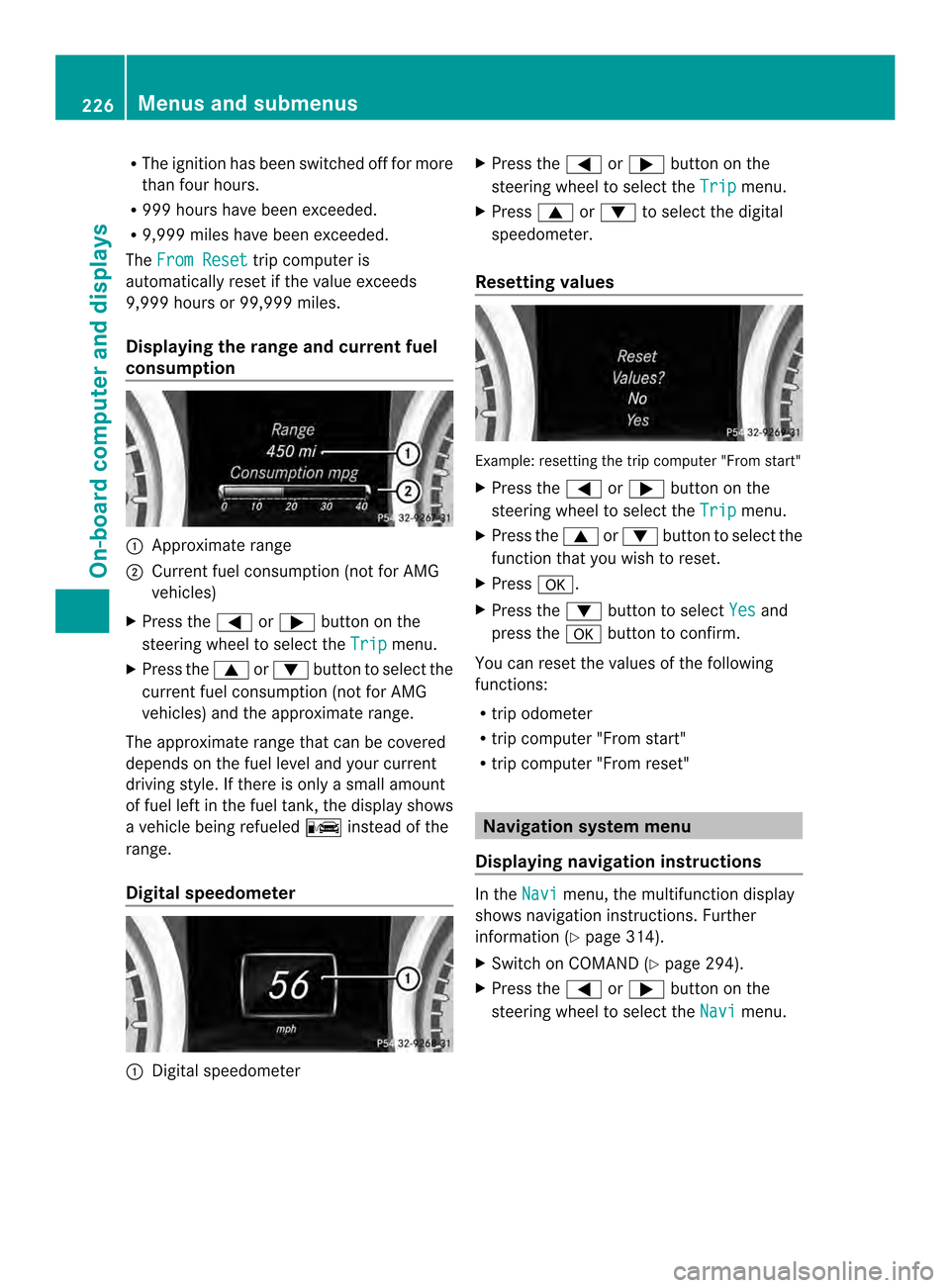
Displaying the range and current fuel
consumption 0002
Approximate range
0003 Current fuel consumption (not for AMG
vehicles)
X Press the 0004or0008 button on the
steering wheel to select the Trip menu.
X Press the 0006or0007 button to select the
current fuel consumption (not for AMG
vehicles) and the approximate range.
The approximate range that can be covered
depends on the fuel level and your current
driving style. If there is only a small amount
of fuel left in the fuel tank, the display shows
a vehicle being refueled 000Dinstead of the
range.
Digital speedometer 0002
Digital speedometer X
Press the 0004or0008 button on the
steering wheel to select the Trip menu.
X Press 0006or0007 to select the digital
speedometer.
Resetting values Example: resetting the trip computer "From start"
X
Press the 0004or0008 button on the
steering wheel to select the Trip menu.
X Press the 0006or0007 button to select the
function that you wish to reset.
X Press 000F.
X Press the 0007button to select Yes and
press the 000Fbutton to confirm.
You can reset the values of the following
functions:
R trip odometer
R trip computer "From start"
R trip computer "From reset" Navigation system menu
Displaying navigation instructions In the
Navi menu, the multifunction display
shows navigation instructions .Further
information (Y page 314).
X Switch on COMAND (Y page 294).
X Press the 0004or0008 button on the
steering wheel to select the Navi menu.226
Menus and submenusOn-board computer and displays
Page 229 of 590
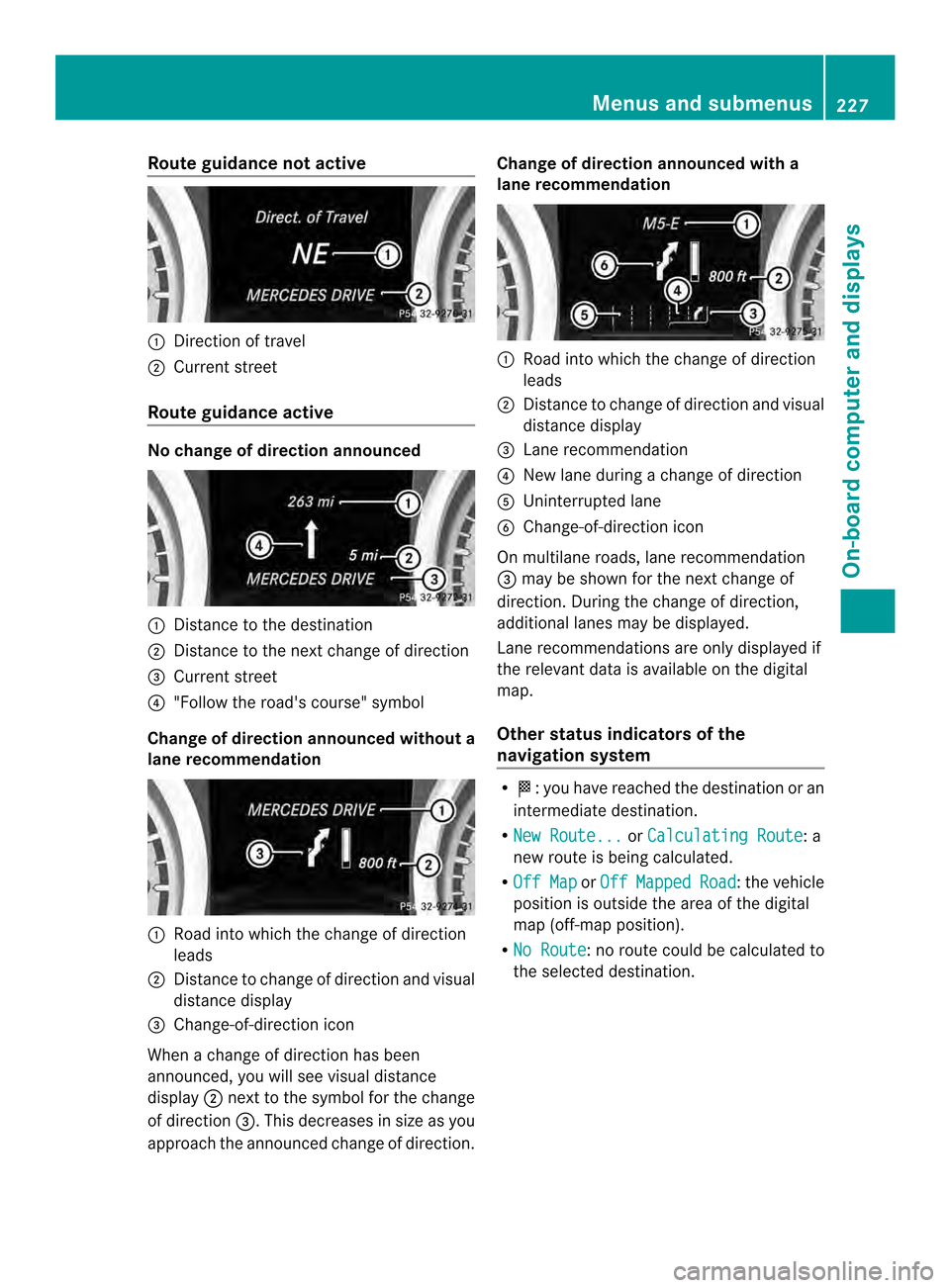
Route guidance no
tactive 0002
Direction of travel
0003 Current street
Route guidance active No change of direction announced
0002
Distance to the destination
0003 Distance to the next change of direction
0027 Current street
0026 "Follow the road's course "symbol
Change of direction announced withou ta
lane recommendation 0002
Road into which the change of direction
leads
0003 Distance to change of direction and visual
distance display
0027 Change-of-direction icon
When a change of direction has been
announced, you will see visual distance
display 0003nex tto the symbol for the change
of direction 0027.This decreases in size as you
approach the announced change of direction. Change of direction announced with a
lane recommendation
0002
Road into which the change of direction
leads
0003 Distance to change of direction and visual
distance display
0027 Lane recommendation
0026 New lane during a change of direction
0024 Uninterrupted lane
0025 Change-of-direction icon
On multilane roads, lane recommendation
0027 may be shown for the next change of
direction. During the change of direction,
additional lanes may be displayed.
Lane recommendations are only displayed if
the relevant data is available on the digital
map.
Other status indicators of the
navigation system R
000B:y ou have reached the destination or an
intermediate destination.
R New Route... or
Calculating Route : a
new route is being calculated.
R Off Map or
Off Mapped Road :t
he vehicle
position is outside the area of the digital
map (off-map position).
R No Route :n
o route could be calculated to
the selected destination. Menus and submenus
227On-board computer and displays Z
Page 234 of 590
In the
Serv menu, you have the following
options:
R call up display messages (Y page 240)
R restart the tire pressure loss warning
system (Y page 551)
R check the tire pressure electronically
(Y page 552)
R call up the service due date Settings menu
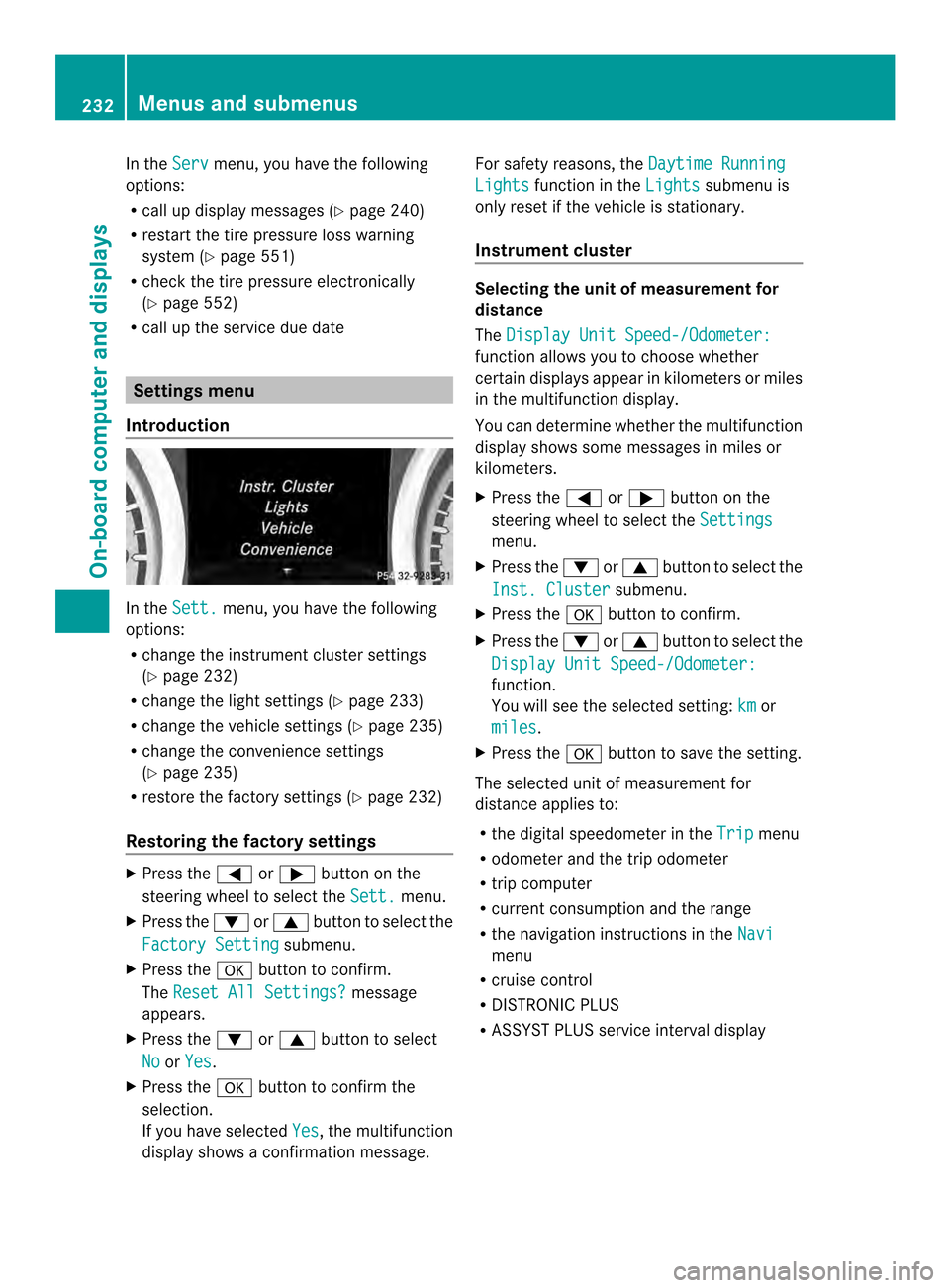
Introduction In the
Sett. menu, you have the following
options:
R change the instrument cluster settings
(Y page 232)
R change the lights ettings (Ypage 233)
R change the vehicle settings (Y page 235)
R change the convenience settings
(Y page 235)
R restore the factory settings (Y page 232)
Restoring the factory settings X
Press the 0004or0008 button on the
steering wheel to select the Sett. menu.
X Press the 0007or0006 button to select the
Factory Setting submenu.
X Press the 000Fbutton to confirm.
The Reset All Settings? message
appears.
X Press the 0007or0006 button to select
No or
Yes .
X Press the 000Fbutton to confirm the
selection.
If you have selected Yes , the multifunction
display shows a confirmation message. For safety reasons, the
Daytime Running Lights function in the
Lights submenu is
only reset if the vehicle is stationary.
Instrument cluster Selecting the unit of measurement for
distance
The
Display Unit Speed-/Odometer: function allows you to choose whether
certain displays appear in kilometers or miles
in the multifunction display.
You can determine whether the multifunction
display shows some messages in miles or
kilometers.
X Press the 0004or0008 button on the
steering wheel to select the Settings menu.
X Press the 0007or0006 button to select the
Inst. Cluster submenu.
X Press the 000Fbutton to confirm.
X Press the 0007or0006 button to select the
Display Unit Speed-/Odometer: function.
You will see the selected setting:
km or
miles .
X Press the 000Fbutton to save the setting.
The selected unit of measuremen tfor
distance applies to:
R the digital speedometer in the Trip menu
R odometer and the trip odometer
R trip computer
R current consumption and the range
R the navigation instructions in the Navi menu
R cruise control
R DISTRONIC PLUS
R ASSYST PLUS service interval display 232
Menus and submenusOn-board computer and displays
Page 273 of 590
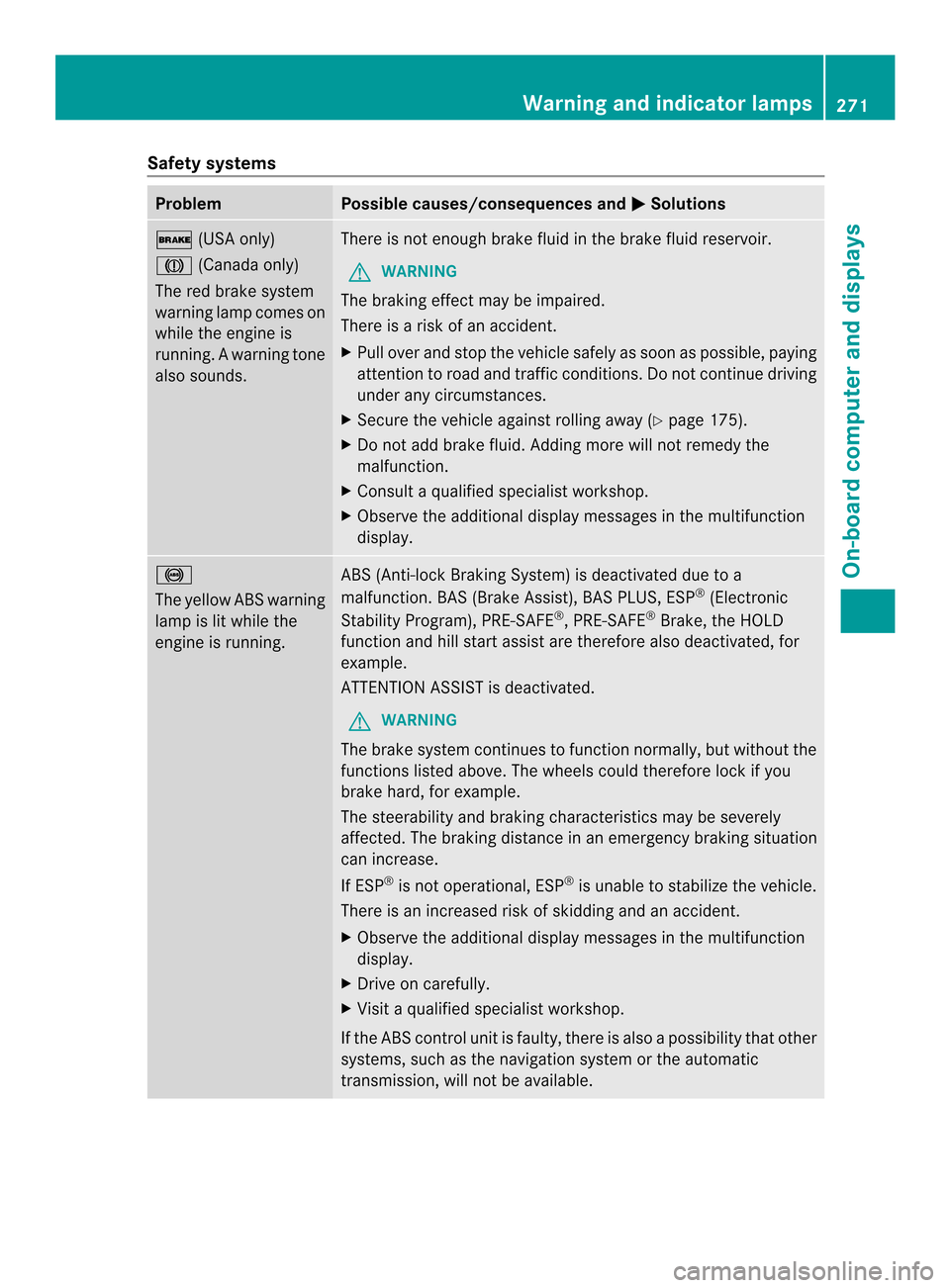
Safety systems
Problem Possible causes/consequences and
0003 Solutions
000E
(USA only)
0007 (Canada only)
The red brake system
warning lamp comes on
while the engine is
running. A warning tone
also sounds. There is not enough brake fluid in the brake fluid reservoir.
G WARNING
The braking effect may be impaired.
There is a risk of an accident.
X Pull over and stop the vehicle safely as soon as possible, paying
attention to road and traffic conditions. Do not continue driving
under any circumstances.
X Secure the vehicle against rolling away (Y page 175).
X Do not add brake fluid. Adding more will not remedy the
malfunction.
X Consult a qualified specialist workshop.
X Observe the additional display messages in the multifunction
display. 0015
The yellow ABS warning
lamp is lit while the
engine is running.
ABS (Anti-lock Braking System) is deactivated due to a
malfunction. BAS (Brake Assist), BAS PLUS, ESP
®
(Electronic
Stability Program), PRE-SAFE ®
, PRE-SAFE ®
Brake, the HOLD
function and hill start assist are therefore also deactivated, for
example.
ATTENTION ASSIST is deactivated.
G WARNING
The brake system continues to function normally, but without the
functions listed above. The wheels could therefore lock if you
brake hard, for example.
The steerability and braking characteristics may be severely
affected. The braking distance in an emergency braking situation
can increase.
If ESP ®
is not operational, ESP ®
is unable to stabilize the vehicle.
There is an increased risk of skidding and an accident.
X Observe the additional display messages in the multifunction
display.
X Drive on carefully.
X Visit a qualified specialist workshop.
If the ABS control unit is faulty, there is also a possibility that other
systems, such as the navigation system or the automatic
transmission, will not be available. Warning and indicator lamps
271On-board computer and displays Z
Page 283 of 590
Useful information
............................282
Operating safety ............................... 282
At ag lance ......................................... 284
System settings ................................ 303
Vehicle functions .............................. 308
Navigation ......................................... 314
Telephone .......................................... 376
Online and Internet functions ..........406
Audio .................................................. 426
Video .................................................. 468
SIRIUS Weather ................................ 476 281COMAND
Page 284 of 590
Useful information
i These operating instructions describe all
the standard and optional equipment of
your COMAND system, as available at the
time of going to print. Country-specific
differences are possible. Please note that
your COMAND system may not be
equipped with all the features described.
This also applies to safety-related systems
and functions.
i Read the information on qualified
specialist workshops: (Y page 38).Operating safety
Important safety notes
G
WARNING
Making alterations to electronic components
can cause malfunctions.
Radio, satellite radio, amplifier, DVD changer,
navigation module, phone and voice control
are networked. If one component is not
functional or if it has been incorrectly
removed/replaced, this could impair the
operatio nofothercomponents.
This could seriously jeopardize the
operational safety of your vehicle.
We recommend that you always have
maintenance work on electronic components
carried out at an authorized Mercedes-Benz
Center. G
WARNING
In order to avoid distraction which could lead
to an accident, the driver should only enter
system settings with the vehicle at a standstill
and operate the system only when road,
weather and traffic conditions permit.
Bear in mind that at a speed of only 30 mph
(approximately 50 km/h), the vehicle covers
a distance of 44 feet (approximately 14 m) per
second. COMAND delivers information to simplify
your choice of route and guide you
comfortably and safely to your destination.
For safety reasons, we recommend that you
bring your vehicle to a standstill, paying
attention to road and traffic conditions,
before making or acceptin
gatelephone call
or viewing navigation maps ,instructions or
downloaded informatio nonthe COMAND
screen. G
WARNING
While the navigation system provides
directional assistance, the driver must remain
focused on safe driving behavior, especially
attention to traffic and street signs, and
should utilize the system's audio cues while
driving.
The navigation system does not supply any
information on stop signs, yield signs, traffic
regulations or traffic safety rules. Their
observance always remains in the driver's
personal responsibility. DVD maps do not
cover all areas nor all routes within an area. G
WARNING
This equipment complies with FCC radiation
exposure limits set forth for uncontrolled
equipment and meets the FCC radio
frequency (RF) Exposure Guidelines in
Supplement C to OET65.
This equipment has very low levels of RF
energy that is deemed to comply without
maximum permissive exposure evaluation
(MPE). But it is desirable that it should be
installed and operated with at least 8inches
(20 cm) and more between the radiator and a
person's body (excluding extremities: hands,
wrists, fee tand legs.) 282
Operating safetyCOMAND
Page 287 of 590
You can use COMAND to operate the
following main functions:
R the navigation system
R the audio function
R the telephone function
R the video function
R the system settings
R the online and Internet functions
R the Digital Operator's Manual
(available depending on the vehicle model)
You can call up the main functions:
R using the corresponding function buttons
R using the main function bar in the COMAND
display
COMAND display General notes
!
Do not use the space in front of the
display to stow anything .Objects placed
here could damage the display or impair its
function .Avoid touching the surface of the
display.P ressure exerted on the surface of
the display can have an irreversible,
detrimental effect on the display.
Wearing polarized sunglasses may impair
youra bility to read the display.
The display has an automatic temperature-
controlled switch-of ffeature. The brightness
is automatically reduced if the temperature is
too high. The display may temporarily switch
off completely. At
ag lance
285COMAND Z
Page 292 of 590
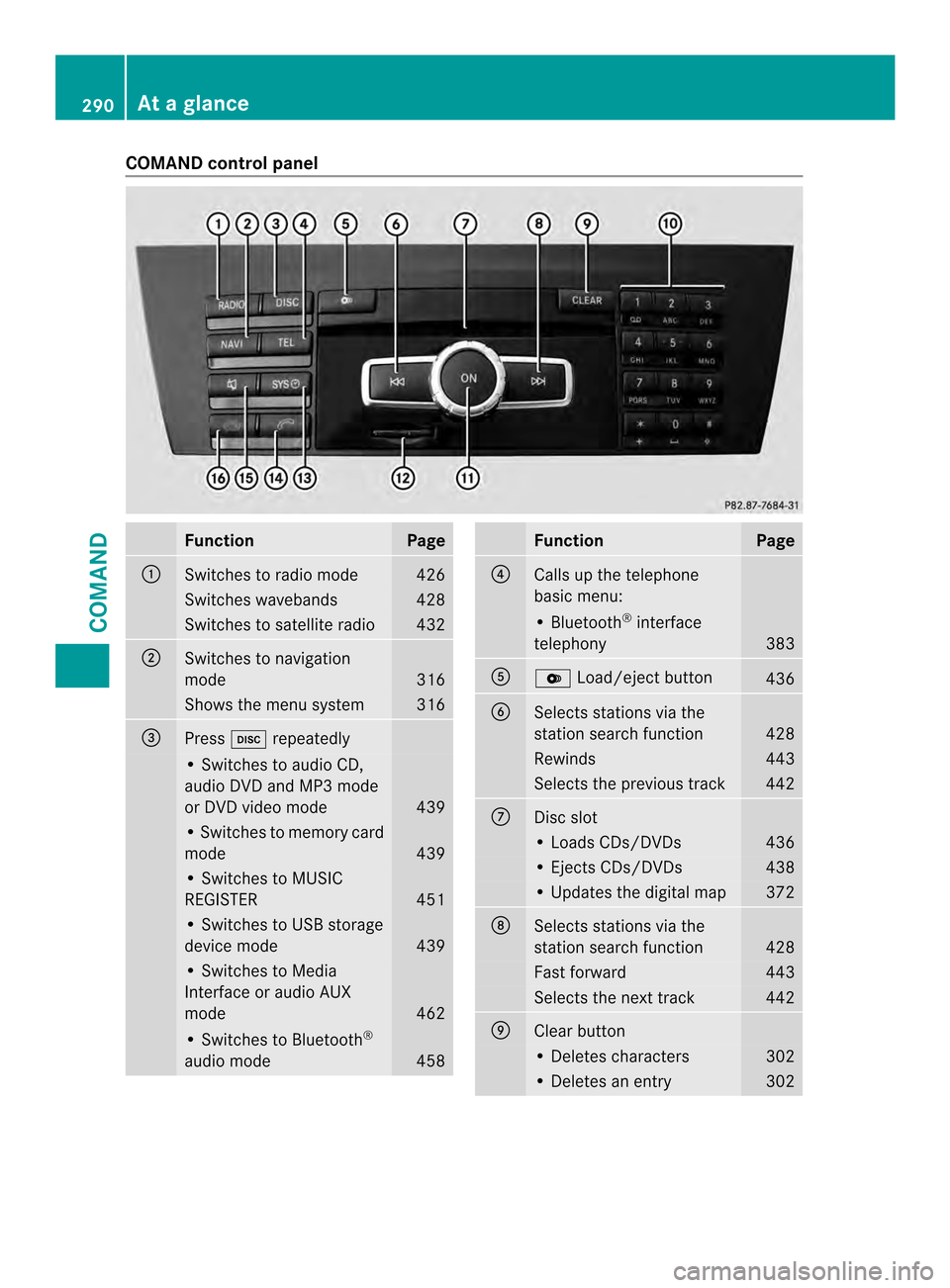
COMAND control panel
Function Page
0002
Switches to radio mode 426
Switches wavebands 428
Switches to satellite radio 432
0003
Switches to navigation
mode
316
Shows the menu system 316
0027
Press
0009repeatedly • Switches to audio CD,
audio DV
Dand MP3 mode
or DVD video mode 439
• Switches to memory card
mode
439
• Switches to MUSIC
REGISTER
451
• Switches to USB storage
device mode
439
• Switches to Media
Interface or audio AUX
mode
462
• Switches to Bluetooth
®
audio mode 458 Function Page
0026
Calls up the telephone
basi
cmenu: • Bluetooth
®
interface
telephony 383
0024
000B
Load/eject button 436
0025
Selects stations via the
station search function
428
Rewinds 443
Selects the previous track 442
0016
Disc slot
• Loads CDs/DVDs 436
• Ejects CDs/DVDs 438
• Updates the digital map 372
0017
Selects stations via the
station search function
428
Fast forward 443
Selects the next track 442
0018
Clear button
• Deletes characters 302
• Deletes an entry 302290
At
ag lanceCOMAND
Page 293 of 590

Function Page
0019
Number pad
• Selects stations via the
statio
npresets 428
• Stores stations manually 429
• Mobile phone
authorization
380
• Telephone number entry 384
• Sends DTMF tones 386
• Character entry 301
• Selects a location for the
weather forecast from the
memory
480
0033
Displays the current
track being played 445
001A
Selects stations by
entering the frequency
manually 428
001A
Selects a track 442
001A
Switches COMAND on/off 294
Adjusts the volume
294 Function Page
001D
SD memory card slot 439
001E
Calls up the system menu 303
001F
Accepts a call 384
Dials a number 384
Redials 385
Accepts a waiting call 386
0020
Switches the sound on or
off
294
Switches the hands-free
microphone on/off
386
Cancels the text message
read-aloud function
396
Switches off navigation
announcements
294
0022
Rejects a call 384
Ends an active call 387
Rejects a waiting call 386
COMAND controller
Overview
0002
COMAND controller
You can use the COMAND controller to select
the menu items in the COMAND display. You can:
R
call up menus or lists
R scroll withi nmenus or lists and
R exit menus or lists
Operation Example: operating the COMAND controller At
ag lance
291COMAND Z
Page 295 of 590
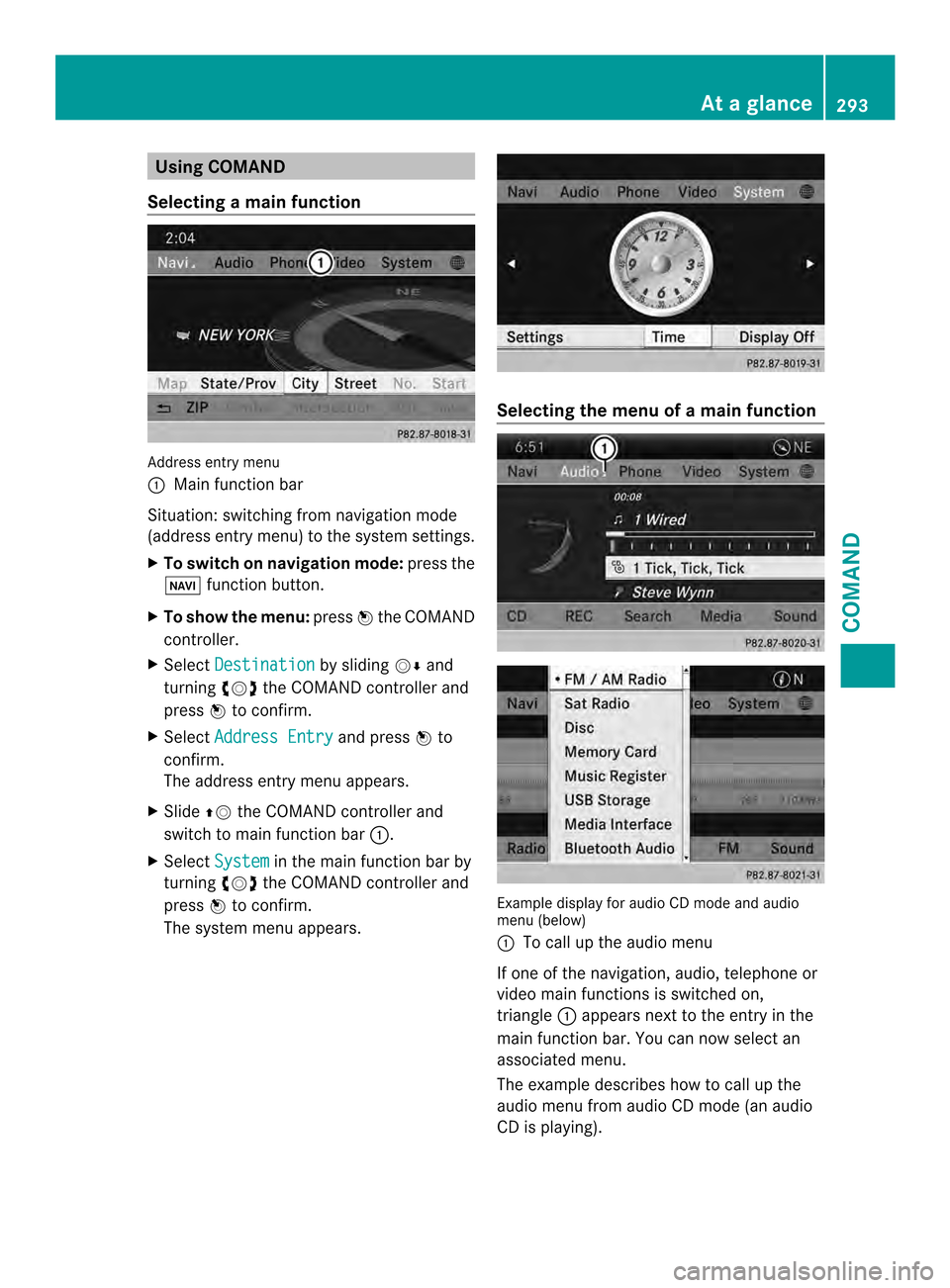
Using COMAND
Selecting amain function Address entry menu
0002
Mai nfunction bar
Situation :switching fro mnavigation mode
(address entry menu) to the system settings.
X To switch on navigation mode: press the
0014 function button.
X To show the menu: press0039the COMAND
controller.
X Select Destination by sliding
0012000Aand
turning 003E0012003Fthe COMAND controller and
press 0039to confirm.
X Select Address Entry and press
0039to
confirm.
The address entry menu appears.
X Slide 00380012the COMAND controller and
switch to main function bar 0002.
X Select System in the main function bar by
turning 003E0012003Fthe COMAND controller and
press 0039to confirm.
The system menu appears. Selecting the men
uofamain function Example display for audio CD mode and audio
menu (below)
0002
To call up the audio menu
If one of the navigation, audio, telephone or
video mai nfunctions is switched on,
triangle 0002appears next to the entry in the
main function bar. You can now select an
associated menu.
The example describes how to call up the
audio menu from audio CD mode (an audio
CD is playing). At
ag lance
293COMAND Z