steering wheel MERCEDES-BENZ SL-Class 2015 R131 Service Manual
[x] Cancel search | Manufacturer: MERCEDES-BENZ, Model Year: 2015, Model line: SL-Class, Model: MERCEDES-BENZ SL-Class 2015 R131Pages: 610, PDF Size: 12.21 MB
Page 206 of 610
space on the driver's side, the indicator on
the driver's side must remain on. The turn
signal must remain switched on until you
acknowledge the use of Active Parking Assist by pressing the 0076button on the multi-
function steering wheel.
Active Parking Assist will only detect parking
spaces:
R that are parallel to the direction of travel
R that are at least 59 in (1.5 m) wide
R that are at least 40 in (1.0 m) longer than
your vehicle
A parking space is displayed while you are
driving past it, and until you are approx-
imately 50 ft (15 m) away from it.
Backing up into the parking space
X Stop the vehicle when the parking space
symbol shows the desired parking space in
the instrument cluster.
X Shift the transmission to position R.
The Start Park Assist? Yes: OK No:
Start Park Assist? Yes: OK No:
0038 message appears in the multifunction
display.
X To cancel the procedure: press the0038
button on the multifunction steering wheel
or pull away.
or
X To park using Active Parking Assist:
press the 0076button on the multifunction
steering wheel.
The Park Assist Active Accelerate
Park Assist Active Accelerate
and and Brake
Brake Observe
Observe Surroundings
Surroundings mes-
sage appears in the multifunction display.
X Let go of the multifunction steering wheel.
X Back up the vehicle, being ready to brake at
all times. Do not exceed a maximum speed of approximately 6 mph (10 km/h) when
backing up. Otherwise Active Parking
Assist will be canceled.
i When parking in tight spaces, you will
achieve the best results by backing up as far as possible. When doing so, also
observe the PARKTRONIC messages.
X Stop as soon as PARKTRONIC sounds the
continuous warning tone, if not before.
Additional maneuvering may be required in
tight parking spaces.
The Park Assist Active Select D
Park Assist Active Select D
Observe Observe Surroundings
Surroundings message appears in
the multifunction display.
X Shift the transmission to position Dwhile
the vehicle is stationary.
Active Parking Assist immediately steers in
the other direction.
The Park Assist Active Accelerate Park Assist Active Accelerate
and
and Brake
Brake Observe
Observe Surroundings
Surroundings mes-
sage appears in the multifunction display.
i You will achieve the best results by wait-
ing for the steering procedure to complete before pulling away.
X Drive forwards and be ready to brake at all
times.
X Stop as soon as PARKTRONIC sounds the
continuous warning tone, if not before.
The Park Assist Active Select R
Park Assist Active Select R
Observe
Observe Surroundings
Surroundings message appears in
the multifunction display.
X Drive forwards and back up according to
the information shown in the multifunction
display.
As soon as the parking procedure is com-
plete, the Park Assist Finished Park Assist Finished message
appears in the multifunction display. PARK-
TRONIC continues to be available.
X Maneuver if necessary.
X Always observe the warning messages dis-
played by PARKTRONIC (Y page 200).
Parking tips: R On narrow roads, drive as close to the park-
ing space as possible.
R Parking spaces that are littered, overgrown
or partially occupied by trailer drawbars
might be identified incorrectly or not at all. 204
Driving systemsDriving and parking
Page 207 of 610
R
Snowfall or heavy rain may lead to a parking
space being measured inaccurately.
R The way your vehicle is positioned in the
parking space after parking is dependent
on various factors. These include the posi-
tion and shape of the vehicles parked in
front and behind it and the conditions of the location. In some cases, Active Parking
Assist may guide you too far into a parking
space, or not far enough into it. In some
cases, it may also lead you across or onto
the curb. If necessary, you should cancel
the parking procedure with Active Parking
Assist.
R You can also engage forward gear prema-
turely. The vehicle redirects and does not
drive as far into the parking space. Should a
gear be changed too early, the parking pro- cedure will be canceled. A sensible parking
position can no longer be achieved from
this position.
Exiting a parking space Active Parking Assist can only assist you with
exiting a parking space if you have parked thevehicle using Active Parking Assist.
X Start the engine.
X Switch on the turn signal on the side facing
the street.
X Shift the transmission to position Dor R.
The Start Park Assist? Yes: OK No:
Start Park Assist? Yes: OK No:
0038 message appears in the multifunction
display.
X To cancel the procedure: press the0038
button on the multifunction steering wheel or pull away.
or
X To exit a parking space using Active
Parking Assist: press the0076button on
the multifunction steering wheel.
The Park Assist Active Accelerate
Park Assist Active Accelerate
and and Brake
Brake Observe
Observe Surroundings
Surroundings mes-
sage appears in the multifunction display. X
Let go of the multifunction steering wheel.
X Reverse the vehicle or drive forwards, being
ready to brake at all times. Do not exceed a maximum speed of approximately 6 mph
(10 km/h) when exiting a parking space.
Otherwise Active Parking Assist will be can-
celed.
X Stop as soon as PARKTRONIC sounds the
continuous warning tone, if not before.
X Shift the transmission to position Dor Ras
required while the vehicle is stationary.
Active Parking Assist immediately steers in
the other direction.
i You will achieve the best results by wait-
ing for the steering procedure to complete before pulling away.
If you back up after activation, the steeringwheel is moved to the straight-ahead posi-
tion.
X Drive forwards or back up the vehicle, being
ready to brake at all times.
X Stop as soon as PARKTRONIC sounds the
continuous warning tone, if not before.
X Drive forwards and back up as instructed
by the PARKTRONIC warning displays.
Once you have exited the parking space com- pletely, the steering wheel is moved to the
straight-ahead position. You hear a tone and
the Park Assist Finished
Park Assist Finished message
appears in the multifunction display. You will
then have to steer and merge into traffic on
your own. PARKTRONIC is still available.
Canceling Active Parking Assist You can cancel Active Parking Assist at any
time. Driving systems
205Driving and parking Z
Page 208 of 610
X
Stop the movement of the multifunction
steering wheel or steer yourself.
Active Parking Assist will be canceled at
once. The Park Assist Canceled
Park Assist Canceled mes-
sage appears in the multifunction display.
or X Press the PARKTRONIC button on the cen-
ter console (Y page 201).
PARKTRONIC is switched off and Active
Parking Assist is immediately canceled.
The Park Assist Canceled
Park Assist Canceled message
appears in the multifunction display.
Active Parking Assist is canceled automati-
cally if: R parking using Active Parking Assist is no
longer possible
R you are driving faster than 6 mph (10 km/h)
R a wheel spins, ESP ®
intervenes or fails. The
00E5 ESP warning lamp lights up in the
instrument cluster
A warning tone sounds. The parking symbol
goes out and the Park Assist Canceled
Park Assist Canceled
message appears in the multifunction dis-
play.
If Active Parking Assist is canceled, you must
steer again yourself. Rear view camera
General notes Rear view camera
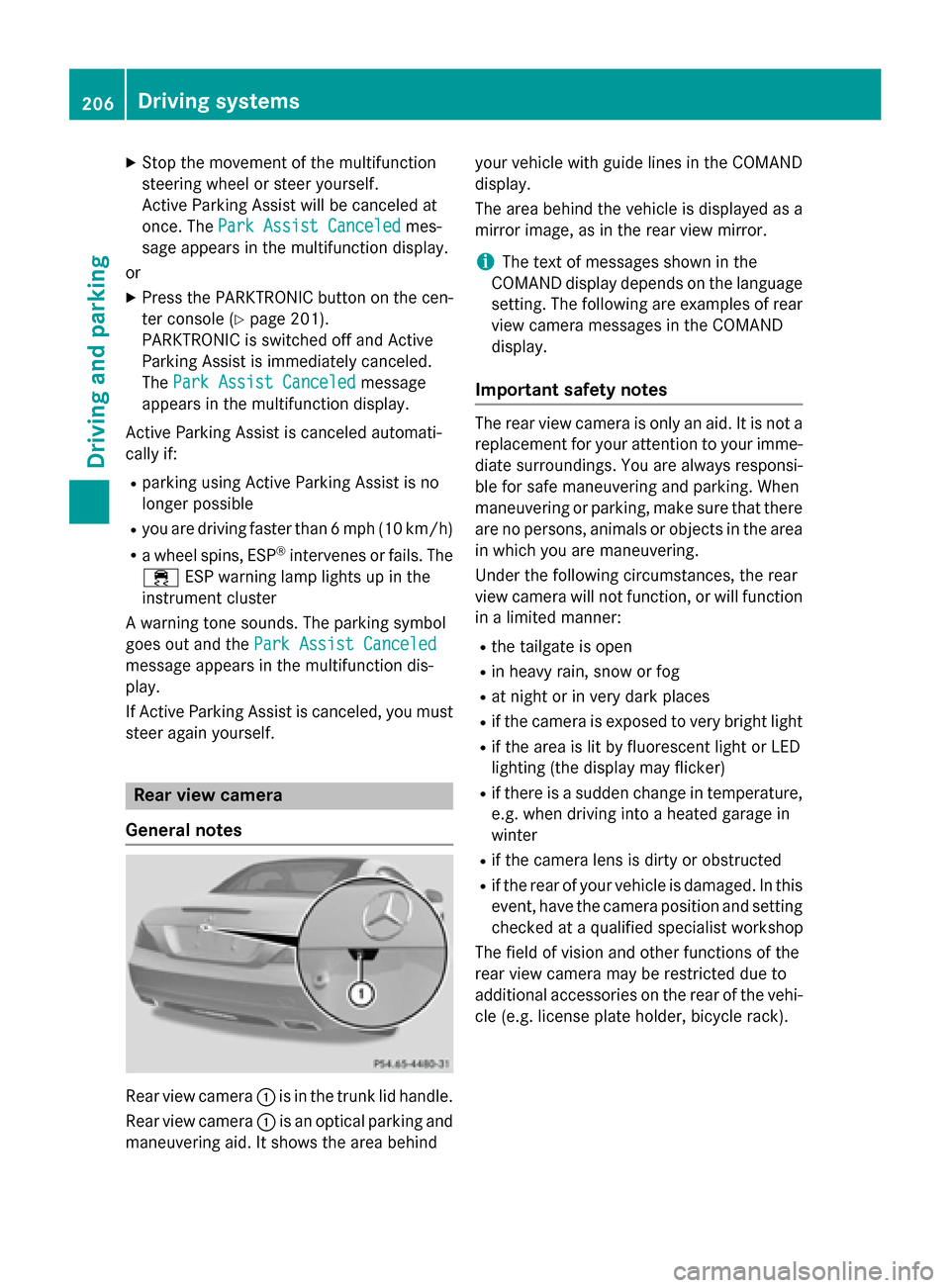
0043is in the trunk lid handle.
Rear view camera 0043is an optical parking and
maneuvering aid. It shows the area behind your vehicle with guide lines in the COMAND
display.
The area behind the vehicle is displayed as a
mirror image, as in the rear view mirror.
i The text of messages shown in the
COMAND display depends on the language
setting. The following are examples of rear view camera messages in the COMAND
display.
Important safety notes The rear view camera is only an aid. It is not a
replacement for your attention to your imme-
diate surroundings. You are always responsi-
ble for safe maneuvering and parking. When
maneuvering or parking, make sure that there are no persons, animals or objects in the area
in which you are maneuvering.
Under the following circumstances, the rear
view camera will not function, or will function in a limited manner:
R the tailgate is open
R in heavy rain, snow or fog
R at night or in very dark places
R if the camera is exposed to very bright light
R if the area is lit by fluorescent light or LED
lighting (the display may flicker)
R if there is a sudden change in temperature,
e.g. when driving into a heated garage in
winter
R if the camera lens is dirty or obstructed
R if the rear of your vehicle is damaged. In this
event, have the camera position and setting checked at a qualified specialist workshop
The field of vision and other functions of the
rear view camera may be restricted due to
additional accessories on the rear of the vehi-
cle (e.g. license plate holder, bicycle rack). 206
Driving systemsDriving and parking
Page 210 of 610
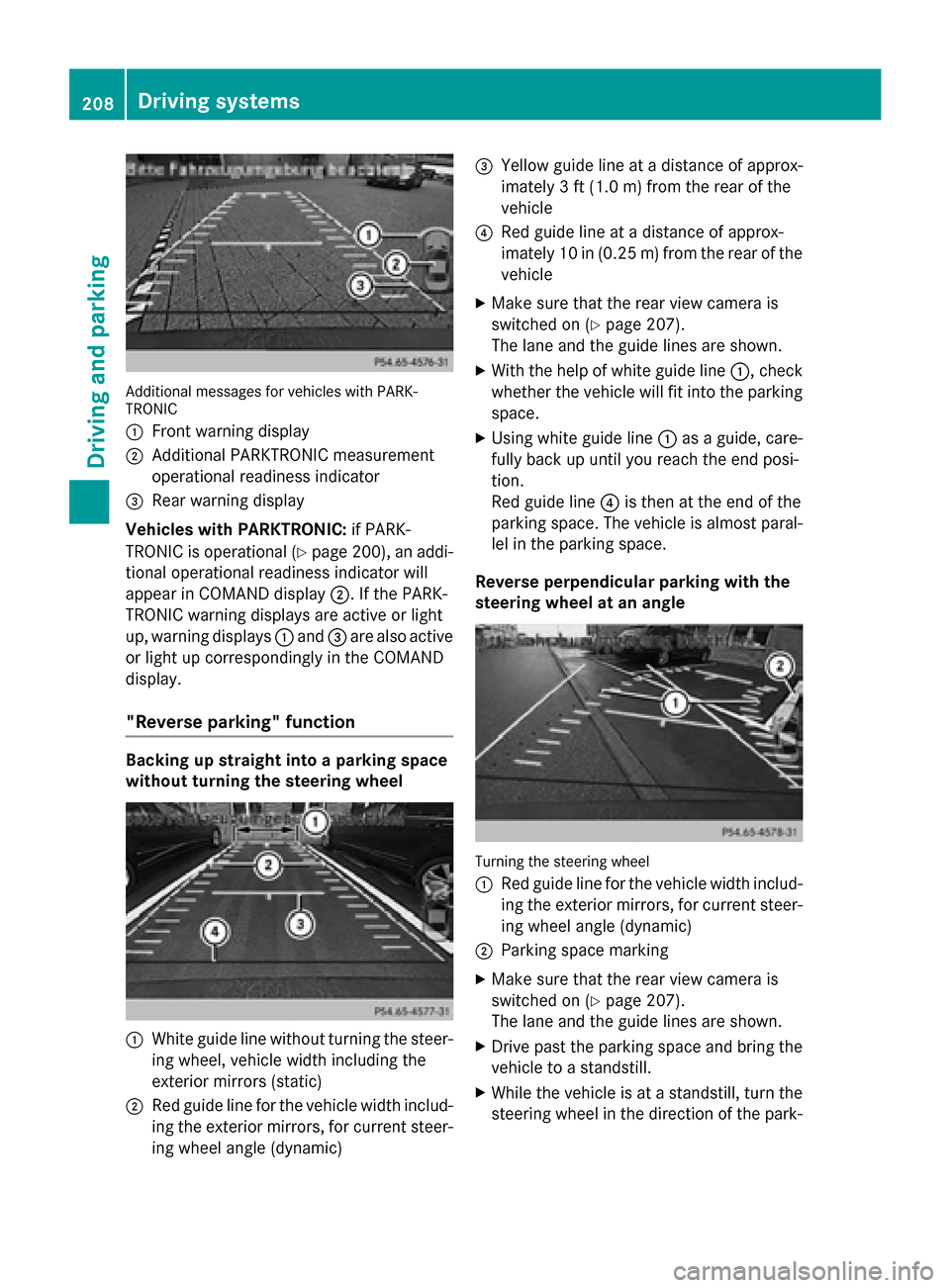
Additional messages for vehicles with PARK-
TRONIC
0043 Front warning display
0044 Additional PARKTRONIC measurement
operational readiness indicator
0087 Rear warning display
Vehicles with PARKTRONIC: if PARK-
TRONIC is operational (Y page 200), an addi-
tional operational readiness indicator will
appear in COMAND display 0044. If the PARK-
TRONIC warning displays are active or light
up, warning displays 0043and 0087are also active
or light up correspondingly in the COMAND
display.
"Reverse parking" function Backing up straight into a parking space
without turning the steering wheel 0043
White guide line without turning the steer-
ing wheel, vehicle width including the
exterior mirrors (static)
0044 Red guide line for the vehicle width includ-
ing the exterior mirrors, for current steer-
ing wheel angle (dynamic) 0087
Yellow guide line at a distance of approx-
imately 3 ft (1.0 m) fromthe rear of the
vehicle
0085 Red guide line at a distance of approx-
imately 10 in (0.25 m) fromthe rear of the
vehicle
X Make sure that the rear view camera is
switched on (Y page 207).
The lane and the guide lines are shown.
X With the help of white guide line 0043, check
whether the vehicle will fit into the parking space.
X Using white guide line 0043as a guide, care-
fully back up until you reach the end posi-
tion.
Red guide line 0085is then at the end of the
parking space. The vehicle is almost paral-
lel in the parking space.
Reverse perpendicular parking with the
steering wheel at an angle Turning the steering wheel
0043
Red guide line for the vehicle width includ-
ing the exterior mirrors, for current steer-
ing wheel angle (dynamic)
0044 Parking space marking
X Make sure that the rear view camera is
switched on (Y page 207).
The lane and the guide lines are shown.
X Drive past the parking space and bring the
vehicle to a standstill.
X While the vehicle is at a standstill, turn the
steering wheel in the direction of the park- 208
Driving systemsDriving an
d parking
Page 211 of 610
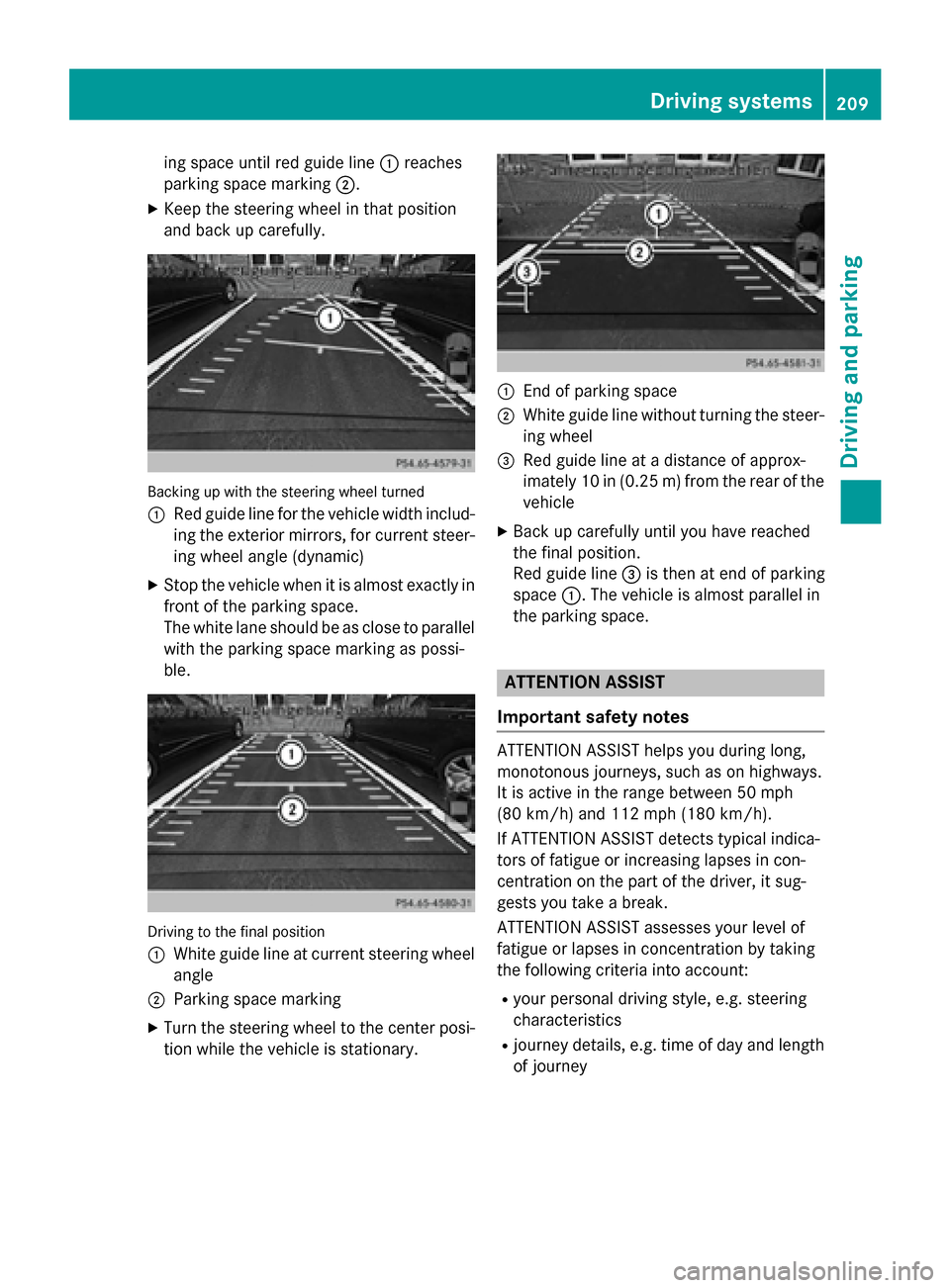
ing space until red guide line
0043reaches
parking space marking 0044.
X Keep the steering wheel in that position
and back up carefully. Backing up with the steering wheel turned
0043
Red guide line for the vehicle width includ-
ing the exterior mirrors, for current steer-
ing wheel angle (dynamic)
X Stop the vehicle when it is almost exactly in
front of the parking space.
The white lane should be as close to parallel with the parking space marking as possi-
ble. Driving to the final position
0043
White guide line at current steering wheel
angle
0044 Parking space marking
X Turn the steering wheel to the center posi-
tion while the vehicle is stationary. 0043
End of parking space
0044 White guide line without turning the steer-
ing wheel
0087 Red guide line at a distance of approx-
imately 10 in (0.25 m) from the rear of the
vehicle
X Back up carefully until you have reached
the final position.
Red guide line 0087is then at end of parking
space 0043. The vehicle is almost parallel in
the parking space. ATTENTION ASSIST
Important safety notes ATTENTION ASSIST helps you during long,
monotonous journeys, such as on highways.
It is active in the range between 50 mph
(80 km/h) and 112 mph (180 km/h).
If ATTENTION ASSIST detects typical indica-
tors of fatigue or increasing lapses in con-
centration on the part of the driver, it sug-
gests you take a break.
ATTENTION ASSIST assesses your level of
fatigue or lapses in concentration by taking
the following criteria into account:
R your personal driving style, e.g. steering
characteristics
R journey details, e.g. time of day and length
of journey Driving systems
209Driving and parking Z
Page 220 of 610
lane unintentionally. If you do not react to the
warning, a lane-correcting application of the
brakes can bring the vehicle back into the
original lane.
If you select km
km on the on-board computer in
the Display Unit Speed-/Odometer
Display Unit Speed-/Odometer func-
tion (Y page 232), Active Lane Keeping Assist
is activated starting at a speed of 60 km/h. If
the miles
miles display unit is selected, the assis-
tance range begins at 40 mph.
Important safety notes
If you fail to adapt your driving style, Active
Lane Keeping Assist can neither reduce the
risk of accident nor override the laws of phys- ics. Lane Keeping Assist cannot take into
account the road, traffic and weather condi-
tions. Lane Keeping Assist is merely an aid.
You are responsible for the distance to the
vehicle in front, for vehicle speed, for braking in good time and for staying in your lane.
Active Lane Keeping Assist cannot continu-
ously keep your vehicle in its lane. G
WARNING
Active Lane Keeping Assist cannot always
clearly detect lane markings.
In such cases, Active Lane Keeping Assist
can:
R give an unnecessary warning and then
make a course-correcting brake application
to the vehicle
R not give a warning or intervene
There is a risk of an accident.
Always pay particular attention to the traffic
situation and keep within the lane, especially
if Active Lane Keeping Assist alerts you. Ter-
minate the intervention in a non-critical driv-
ing situation. The system may be impaired or may not func-
tion if:
R there is poor visibility, e.g. due to insuffi-
cient illumination of the road, or due to
snow, rain, fog or spray
R there is glare, e.g. from oncoming traffic,
the sun or reflections (e.g. when the road
surface is wet)
R the windshield is dirty, fogged up, damaged
or covered, for instance by a sticker, in the
vicinity of the camera
R there are no, several or unclear lane mark-
ings for a lane, e.g. in areas with road con- struction work
R the lane markings are worn away, dark or
covered up, e.g. by dirt or snow
R the distance to the vehicle in front is too
small and the lane markings thus cannot be
detected
R the lane markings change quickly, e.g.
lanes branch off, cross one another or
merge
R the road is narrow and winding
R there are strong shadows cast on the lane
Warning vibration in the steering wheel
A warning may be given if a front wheel
passes over a lane marking. It will warn you by means of intermittent vibration in the steer-
ing wheel for up to 1.5 seconds.
In order that you are warned only when nec-
essary and in good time if you cross the lane marking, the system recognizes certain con-
ditions and warns you accordingly.
The warning vibration occurs earlier if:
R you approach the outer lane marking on a
bend.
R the road has very wide lanes, e.g. a high-
way.
R the system recognizes solid lane markings.
The warning vibration occurs later if:
R the road has narrow lanes.
R you cut the corner on a bend. 218
Driving systemsDriving and parking
Page 221 of 610
Lane-correcting brake application
G
WARNING
A lane-correcting brake application cannot
always bring the vehicle back into the original lane. There is a risk of an accident.
Always steer, brake or accelerate yourself,
especially if Active Lane Keeping Assist warns
you or makes a lane-correcting brake appli-
cation. G
WARNING
Active Lane Keeping Assist does not detect
traffic conditions or road users. In very rare
cases, the system may make an inappropriate brake application, e.g. after intentionally driv-
ing over a solid lane marking. There is a risk of an accident.
An inappropriate brake application may be
interrupted at any time if you steer slightly in
the opposite direction. Always make sure that
there is sufficient distance on the side for
other traffic or obstacles.
In rare cases, Active Lane Keeping Assist can
recognize unclear markings or particular
structures on the roadway as solid lane mark-
ings. An inappropriate brake application may
be interrupted at any time if you steer slightly in the opposite direction. If a lane-correcting brake application occurs,
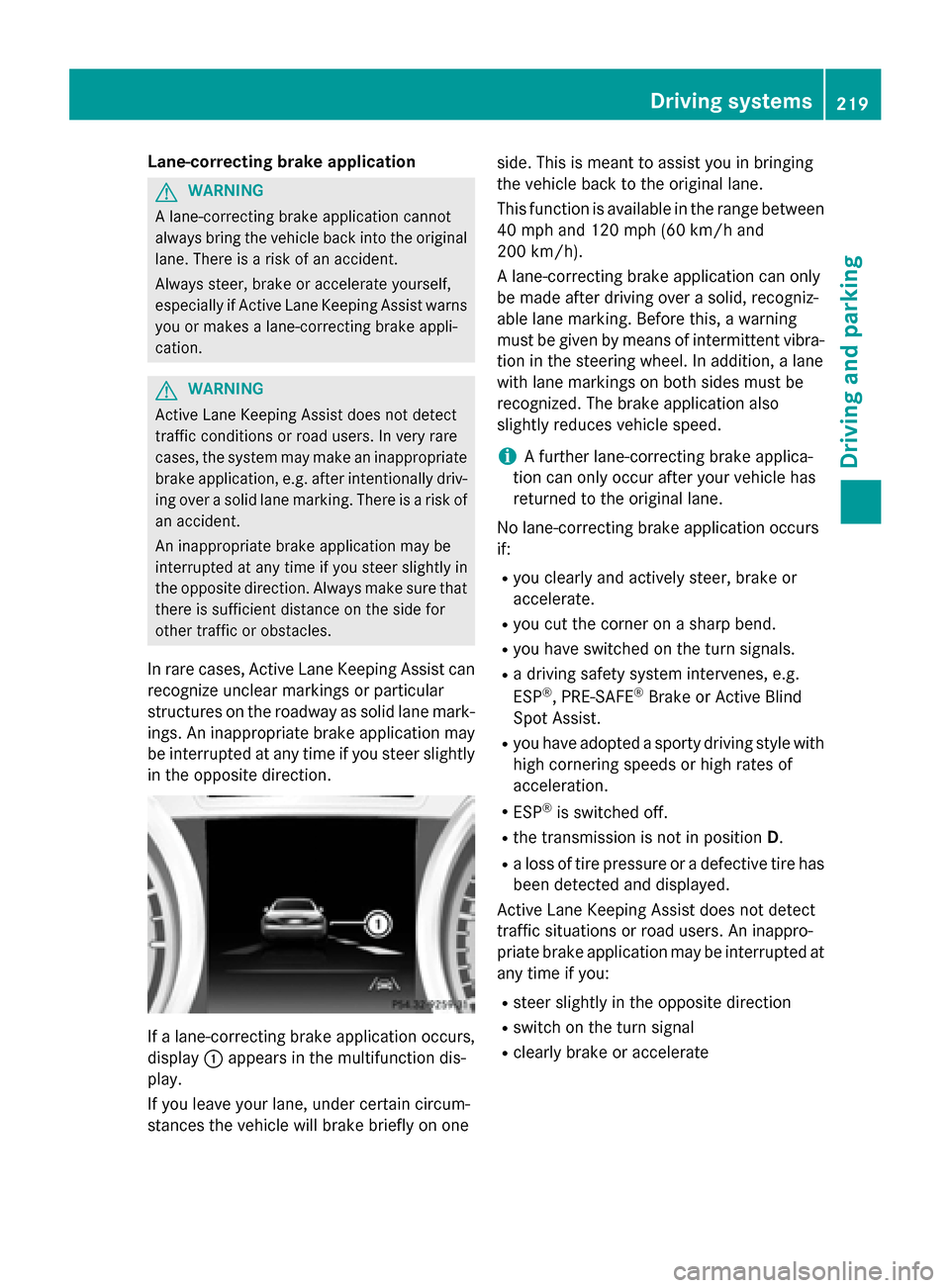
display 0043appears in the multifunction dis-
play.
If you leave your lane, under certain circum-
stances the vehicle will brake briefly on one side. This is meant to assist you in bringing
the vehicle back to the original lane.
This function is available in the range between
40 mph and 120 mph (60 km/hand
200 km/h).
A lane-correcting brake application can only
be made after driving over a solid, recogniz-
able lane marking. Before this, a warning
must be given by means of intermittent vibra-
tion in the steering wheel. In addition, a lane
with lane markings on both sides must be
recognized. The brake application also
slightly reduces vehicle speed.
i A further lane-correcting brake applica-
tion can only occur after your vehicle has
returned to the original lane.
No lane-correcting brake application occurs
if:
R you clearly and actively steer, brake or
accelerate.
R you cut the corner on a sharp bend.
R you have switched on the turn signals.
R a driving safety system intervenes, e.g.
ESP ®
, PRE-SAFE ®
Brake or Active Blind
Spot Assist.
R you have adopted a sporty driving style with
high cornering speeds or high rates of
acceleration.
R ESP ®
is switched off.
R the transmission is not in position D.
R a loss of tire pressure or a defective tire has
been detected and displayed.
Active Lane Keeping Assist does not detect
traffic situations or road users. An inappro-
priate brake application may be interrupted at
any time if you:
R steer slightly in the opposite direction
R switch on the turn signal
R clearly brake or accelerate Driving systems
219Driving and parking Z
Page 225 of 610
If the coolant temperature is over 248 ‡
(120 †), do not continue driving. The
engine will otherwise be damaged.
The coolant temperature gauge is in the
instrument cluster on the right-hand side
(Y page 41).
Under normal operating conditions and with
the specified coolant level, the coolant tem-
perature may rise to 248 ‡ (120 †). Tachometer
! Do not drive in the overrevving range, as
this could damage the engine.
The red band in the tachometer indicates the
engine's overrevving range.
The fuel supply is interrupted to protect the
engine when the red band is reached. Outside temperature display
You should pay special attention to road con-
ditions when temperatures are around freez-
ing point.
Bear in mind that the outside temperature
display indicates the temperature measured
and does not record the road temperature.
The outside temperature display is in the mul- tifunction display (Y page 224).
Changes in the outside temperature are dis-
played after a short delay. Speedometer with segments
The segments in the speedometer indicate
which speed range is available.
R Cruise control activated (Y page 180):
The segments light up from the stored
speed to the maximum speed.
R DISTRONIC PLUS activated (Y page 182):
One or two segments in the set speed
range light up.
R DISTRONIC PLUS detects a vehicle in front: The segments between the speed of the
vehicle in front and the stored speed light
up. Operating the on-board computer
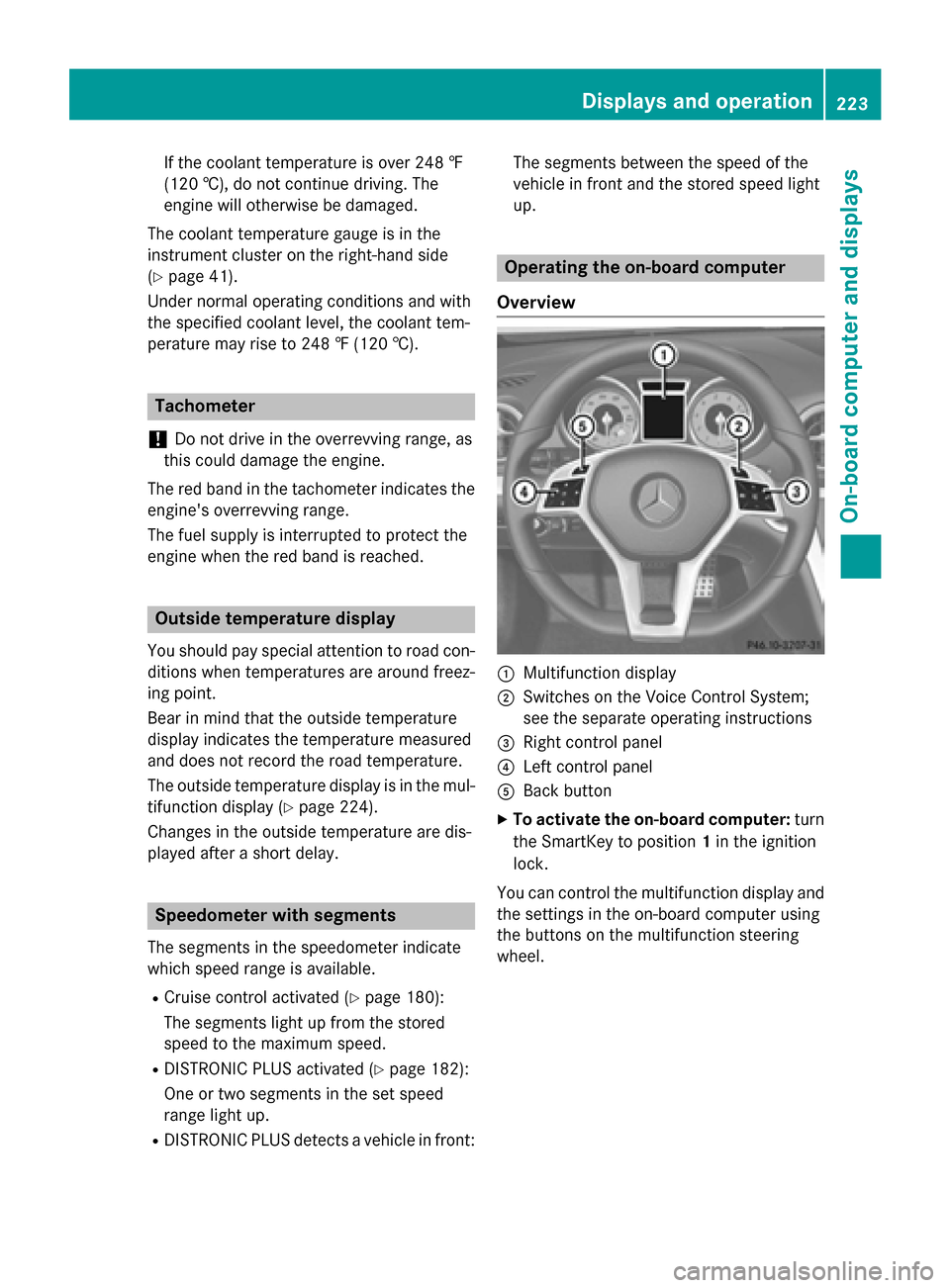
Overview 0043
Multifunction display
0044 Switches on the Voice Control System;
see the separate operating instructions
0087 Right control panel
0085 Left control panel
0083 Back button
X To activate the on-board computer: turn
the SmartKey to position 1in the ignition
lock.
You can control the multifunction display and
the settings in the on-board computer using
the buttons on the multifunction steering
wheel. Displays and operation
223On-board computer and displays Z
Page 227 of 610
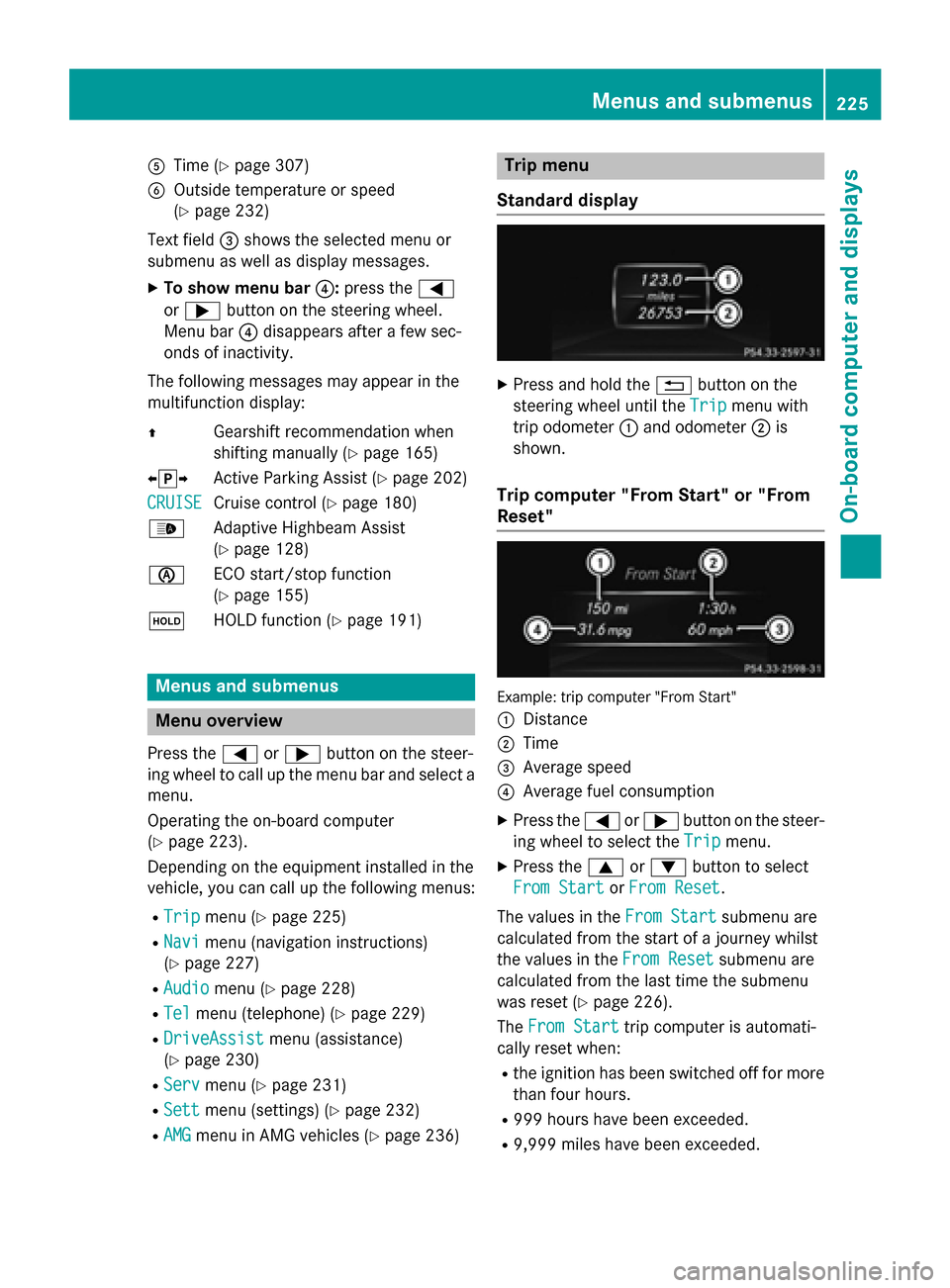
0083
Time (Y page 307)
0084 Outside temperature or speed
(Ypage 232)
Text field 0087shows the selected menu or
submenu as well as display messages.
X To show menu bar 0085:press the 0059
or 0065 button on the steering wheel.
Menu bar 0085disappears after a few sec-
onds of inactivity.
The following messages may appear in the
multifunction display:
0097 Gearshift recommendation when
shifting manually (Y page 165)
0095005D0096 Active Parking Assist (Y page 202)
CRUISE
CRUISE Cruise control (Y
page 180)
00CE Adaptive Highbeam Assist
(Ypage 128)
00D6 ECO start/stop function
(Ypage 155)
00D9 HOLD function (Y page 191) Menus and submenus
Menu overview
Press the 0059or0065 button on the steer-
ing wheel to call up the menu bar and select a
menu.
Operating the on-board computer
(Y page 223).
Depending on the equipment installed in the
vehicle, you can call up the following menus:
R Trip Trip menu (Y page 225)
R Navi
Navi menu (navigation instructions)
(Y page 227)
R Audio
Audio menu (Y page 228)
R Tel
Tel menu (telephone) (Y page 229)
R DriveAssist
DriveAssist menu (assistance)
(Y page 230)
R Serv
Serv menu (Y page 231)
R Sett
Sett menu (settings) (Y page 232)
R AMG
AMG menu in AMG vehicles (Y page 236) Trip menu
Standard display X
Press and hold the 0038button on the
steering wheel until the Trip
Tripmenu with
trip odometer 0043and odometer 0044is
shown.
Trip computer "From Start" or "From
Reset" Example: trip computer "From Start"
0043 Distance
0044 Time
0087 Average speed
0085 Average fuel consumption
X Press the 0059or0065 button on the steer-
ing wheel to select the Trip Tripmenu.
X Press the 0063or0064 button to select
From Start From Start orFrom Reset
From Reset.
The values in the From Start
From Startsubmenu are
calculated from the start of a journey whilst
the values in the From Reset From Resetsubmenu are
calculated from the last time the submenu
was reset (Y page 226).
The From Start From Start trip computer is automati-
cally reset when:
R the ignition has been switched off for more
than four hours.
R 999 hours have been exceeded.
R 9,999 miles have been exceeded. Menus and submenus
225On-board computer and displays Z
Page 231 of 610
If track information is stored on the audio
device or medium, the multifunction display
will show the number and title of the track.
The current track does not appear in audio
AUX mode (Auxiliary audio mode: external
audio source connected).
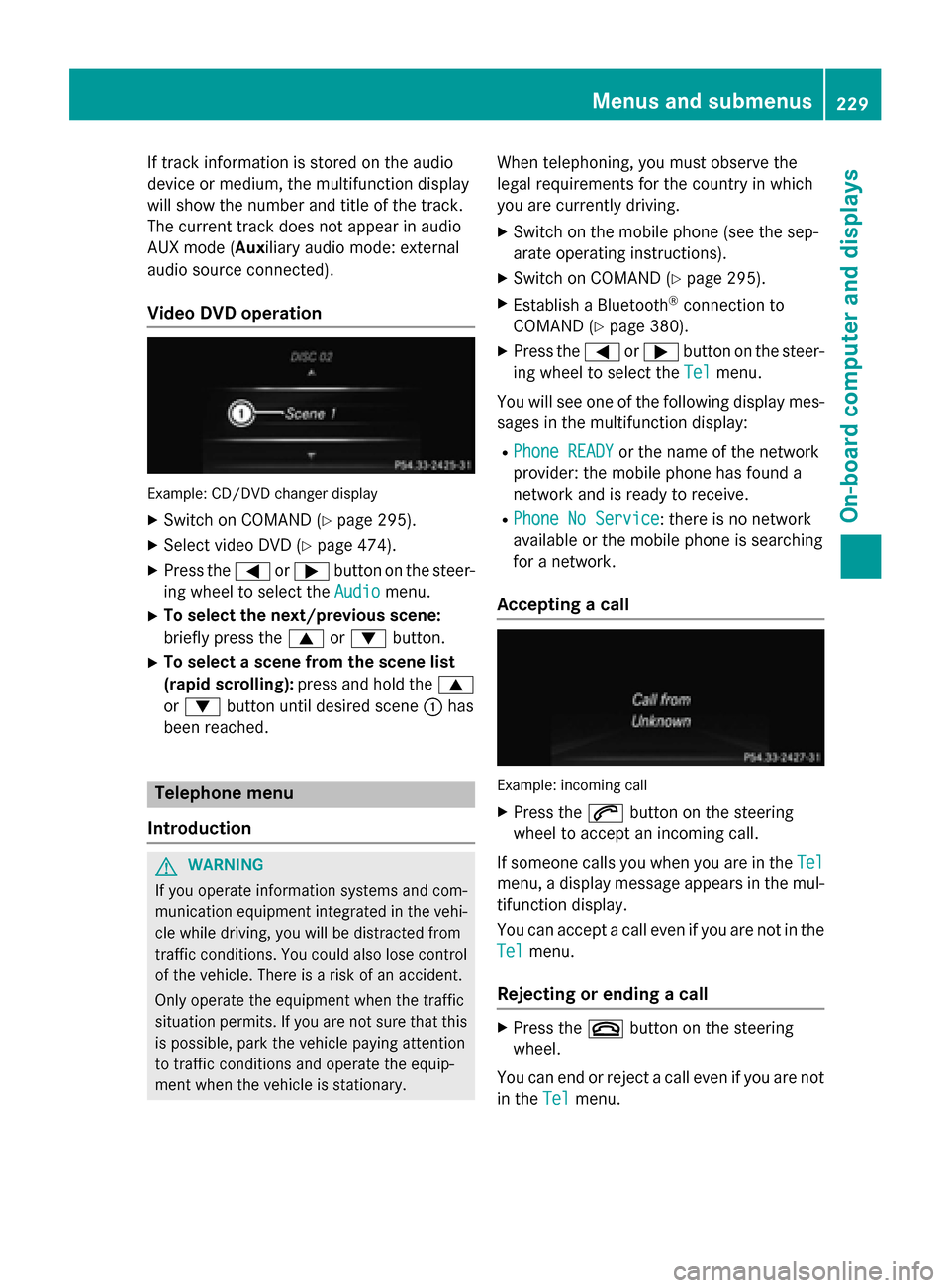
Video DVD operation Example: CD/DVD changer display
X Switch on COMAND (Y page 295).
X Select video DVD (Y page 474).
X Press the 0059or0065 button on the steer-
ing wheel to select the Audio
Audiomenu.
X To select the next/previous scene:
briefly press the 0063or0064 button.
X To select a scene from the scene list
(rapid scrolling): press and hold the 0063
or 0064 button until desired scene 0043has
been reached. Telephone menu
Introduction G
WARNING
If you operate information systems and com-
munication equipment integrated in the vehi- cle while driving, you will be distracted from
traffic conditions. You could also lose control of the vehicle. There is a risk of an accident.
Only operate the equipment when the traffic
situation permits. If you are not sure that this
is possible, park the vehicle paying attention
to traffic conditions and operate the equip-
ment when the vehicle is stationary. When telephoning, you must observe the
legal requirements for the country in which
you are currently driving.
X Switch on the mobile phone (see the sep-
arate operating instructions).
X Switch on COMAND (Y page 295).
X Establish a Bluetooth ®
connection to
COMAND (Y page 380).
X Press the 0059or0065 button on the steer-
ing wheel to select the Tel
Tel menu.
You will see one of the following display mes-
sages in the multifunction display:
R Phone READY Phone READY or the name of the network
provider: the mobile phone has found a
network and is ready to receive.
R Phone No Service Phone No Service: there is no network
available or the mobile phone is searching
for a network.
Accepting a call Example: incoming call
X Press the 0061button on the steering
wheel to accept an incoming call.
If someone calls you when you are in the Tel Tel
menu, a display message appears in the mul- tifunction display.
You can accept a call even if you are not in the
Tel Tel menu.
Rejecting or ending a call X
Press the 0076button on the steering
wheel.
You can end or reject a call even if you are not
in the Tel
Telmenu. Menus and submenus
229On-board computer and displays Z