phone MERCEDES-BENZ SL-CLASS ROADSTER 2013 Owner's Manual
[x] Cancel search | Manufacturer: MERCEDES-BENZ, Model Year: 2013, Model line: SL-CLASS ROADSTER, Model: MERCEDES-BENZ SL-CLASS ROADSTER 2013Pages: 572, PDF Size: 9.23 MB
Page 215 of 572
X
Switch on the mobile phone (see the
separate operating instructions).
X Switch on COMAND (Y page 275).
X Establish a Bluetooth ®
connection to
COMAND (Y page 358).
X Press the = or ; button on the
steering wheel to select the Tel menu.
You will see one of the following display
messages in the multifunction display:
R Phone READY or the name of the network
provider: the mobile phone has found a
network and is ready to receive.
R Phone No Service: there is no network
available or the mobile phone is searching
for a network.
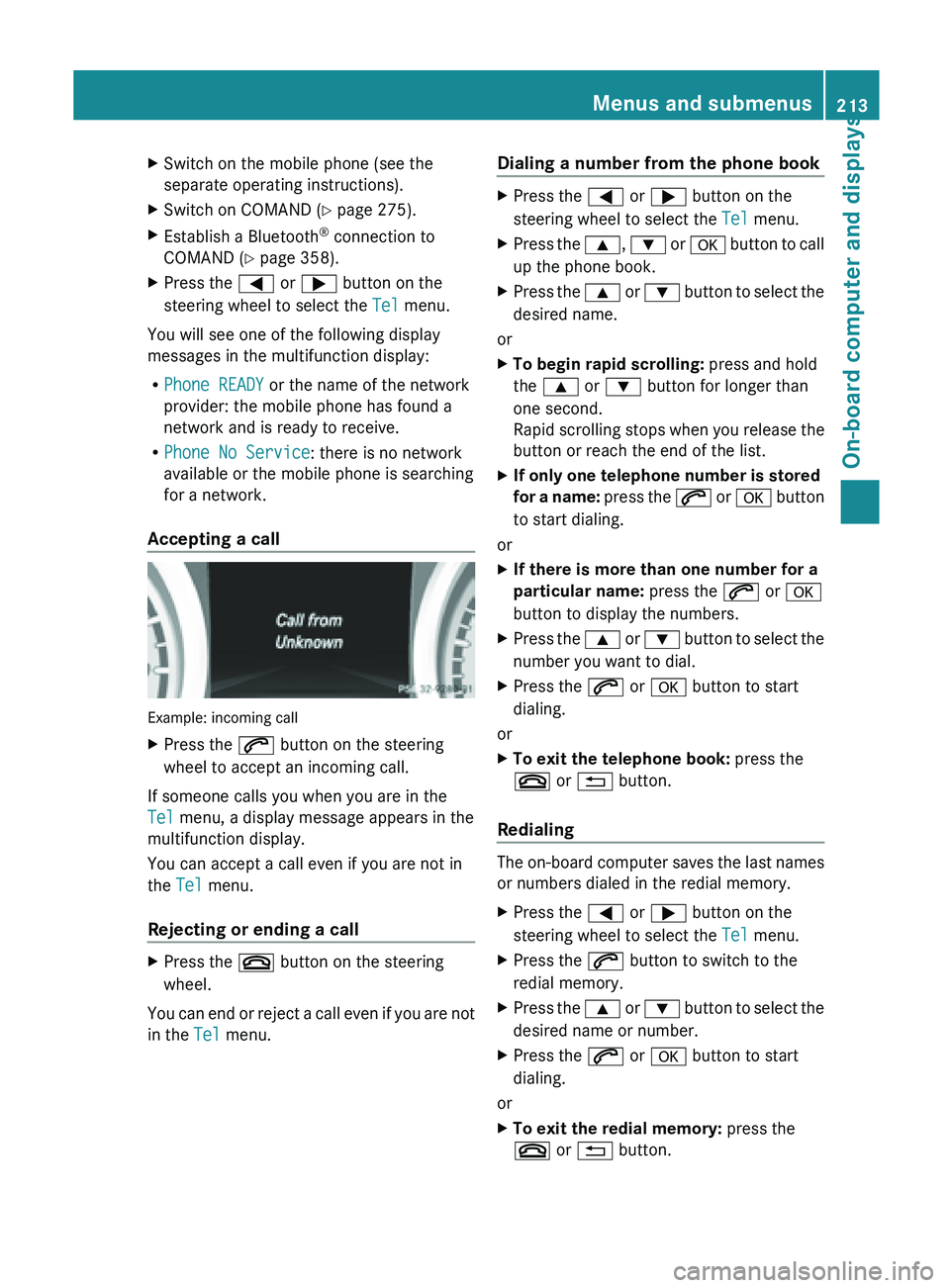
Accepting a call Example: incoming call
X
Press the 6 button on the steering
wheel to accept an incoming call.
If someone calls you when you are in the
Tel menu, a display message appears in the
multifunction display.
You can accept a call even if you are not in
the Tel menu.
Rejecting or ending a call X
Press the ~ button on the steering
wheel.
You can end or reject a call even if you are not
in the Tel menu. Dialing a number from the phone book X
Press the = or ; button on the
steering wheel to select the Tel menu.
X Press the 9, : or a button to call
up the phone book.
X Press the 9 or :
button to select the
desired name.
or
X To begin rapid scrolling: press and hold
the 9 or : button for longer than
one second.
Rapid scrolling
stops when you release the
button or reach the end of the list.
X If only one telephone number is stored
for a
name: press the 6 or a button
to start dialing.
or
X If there is more than one number for a
particular name: press the 6 or a
button to display the numbers.
X Press the 9
or :
button to select the
number you want to dial.
X Press the 6 or a button to start
dialing.
or
X To exit the telephone book: press the
~ or % button.
Redialing The on-board computer saves the last names
or numbers dialed in the redial memory.
X
Press the = or ; button on the
steering wheel to select the Tel menu.
X Press the 6 button to switch to the
redial memory.
X Press the 9
or :
button to select the
desired name or number.
X Press the 6 or a button to start
dialing.
or
X To exit the redial memory: press the
~ or % button. Menus and submenus
213
On-board computer and displays Z
Page 254 of 572
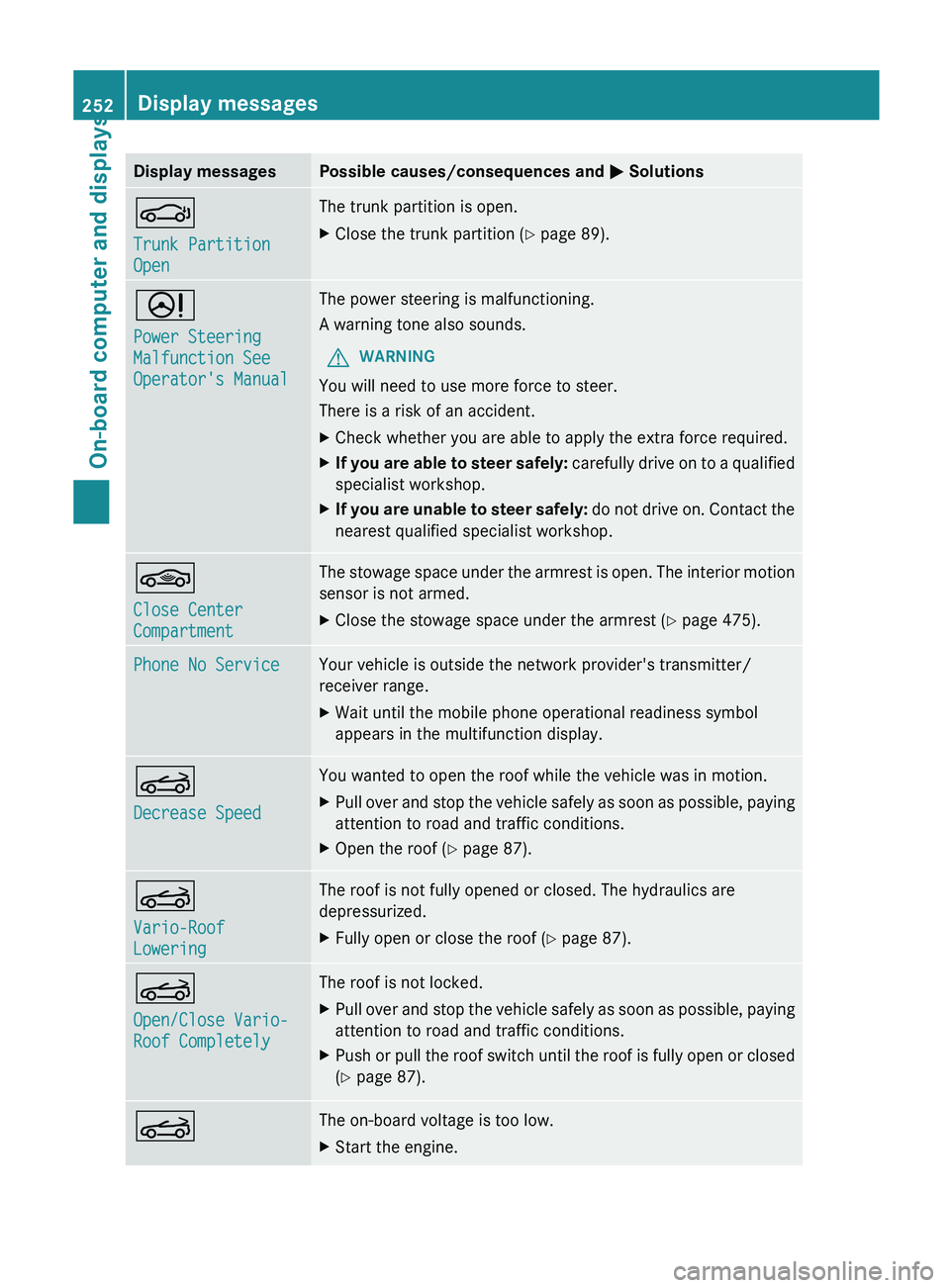
Display messages Possible causes/consequences and
M SolutionsJ
Trunk Partition
Open The trunk partition is open.
X
Close the trunk partition (Y page 89). D
Power Steering
Malfunction See
Operator's Manual The power steering is malfunctioning.
A warning tone also sounds.
G WARNING
You will need to use more force to steer.
There is a risk of an accident.
X Check whether you are able to apply the extra force required.
X If you are able to steer safely:
carefully drive on to a qualified
specialist workshop.
X If you are unable to steer safely: do
not drive on. Contact the
nearest qualified specialist workshop. *
Close Center
Compartment The stowage space under the armrest is open. The interior motion
sensor is not armed.
X
Close the stowage space under the armrest ( Y page 475).Phone No Service Your vehicle is outside the network provider's transmitter/
receiver range.
X
Wait until the mobile phone operational readiness symbol
appears in the multifunction display. K
Decrease Speed You wanted to open the roof while the vehicle was in motion.
X
Pull over and stop the vehicle safely as soon as possible, paying
attention to road and traffic conditions.
X Open the roof (Y page 87). K
Vario-Roof
Lowering The roof is not fully opened or closed. The hydraulics are
depressurized.
X
Fully open or close the roof (Y page 87). K
Open/Close Vario-
Roof Completely The roof is not locked.
X
Pull over and stop the vehicle safely as soon as possible, paying
attention to road and traffic conditions.
X Push or pull the roof switch until the roof is fully open or closed
(Y page 87). K The on-board voltage is too low.
X
Start the engine.252
Display messages
On-board computer and displays
Page 269 of 572
Useful information ............................
268
Operating safety ............................... 268
At a glance ......................................... 271
System settings ................................ 289
Navigation ......................................... 295
Telephone .......................................... 357
Online and Internet functions ..........385
Audio .................................................. 411
Video .................................................. 452
SIRIUS Weather ................................ 461 267COMAND
Page 270 of 572
Useful information
i These operating instructions describe all
the standard and optional equipment of
your COMAND system, as available at the
time of going to print. Country-specific
differences are possible. Please note that
your COMAND system may not be
equipped with all the features described.
This also applies to safety-related systems
and functions.
i Read the information on qualified
specialist workshops: ( Y page 31).
Operating safety
Important safety notes
G
WARNING
Making alterations to electronic components
can cause malfunctions.
Radio, satellite
radio, amplifier, DVD changer,
navigation module, phone and voice control
are networked. If one component is not
functional or if it has been incorrectly
removed/replaced, this could impair the
operation of other components.
This could seriously jeopardize the
operational safety of your vehicle.
We recommend that you always have
maintenance work on electronic components
carried out at an authorized Mercedes-Benz
Center. G
WARNING
In
order to avoid distraction which could lead
to an accident, the driver should only enter
system settings
with the vehicle at a standstill
and operate the system only when road,
weather and traffic conditions permit.
Bear in mind that at a speed of only 30 mph
(approximately 50 km/h), the vehicle covers
a distance of 44 feet (approximately 14 m) per
second. COMAND delivers information to simplify
your choice of route and guide you
comfortably and safely to your destination.
For safety reasons, we recommend that you
bring your vehicle to a standstill, paying
attention to road and traffic conditions,
before making or accepting a telephone call
or viewing navigation maps, instructions or
downloaded information on the COMAND
screen.
G
WARNING
While the navigation system provides
directional assistance,
the driver must remain
focused on safe driving behavior, especially
attention to traffic and street signs, and
should utilize the system's audio cues while
driving.
The navigation system does not supply any
information on stop signs, yield signs, traffic
regulations or traffic safety rules. Their
observance always remains in the driver's
personal responsibility. DVD maps do not
cover all areas nor all routes within an area. G
WARNING
This equipment complies with FCC radiation
exposure limits set forth for uncontrolled
equipment and meets the FCC radio
frequency (RF) Exposure Guidelines in
Supplement C to OET65.
This equipment has very low levels of RF
energy that is deemed to comply without
maximum permissive exposure evaluation
(MPE). But it is desirable that it should be
installed and operated with at least 8
inches
(20 cm)
and more between the radiator and a
person's body (excluding extremities: hands,
wrists, feet and legs.) 268
Operating safety
COMAND
Page 271 of 572
Declarations of conformity
Vehicle components which receive
and/or transmit radio waves i
USA only: The wireless devices of this
vehicle comply with Part 15 of the FCC
Rules.
Operation is subject to the following
two conditions:
1. These devices may not cause harmful
interference, and
2. These devices must accept any
interference received, including
interference that may cause undesired
operation.
Changes or modifications not expressly
approved by the party responsible for
compliance could void the user’s authority
to operate the equipment.
i Canada only: The wireless devices of this
vehicle comply with RSS-210 of Industry
Canada. Operation is subject to the
following two conditions:
1. These devices may not cause harmful
interference, and
2. These devices must accept any
interference received, including
interference that may cause undesired
operation. Correct use
Observe the
following information when using
COMAND:
R the safety notes in this manual
R traffic rules and regulations
R laws and safety standards pertaining to
motor vehicles
i Work improperly carried out on electronic
components or systems (e.g. radio, DVD
changer) and associated software could
cause them to cease functioning. Even
systems that have not been modified could
be affected because the electronic
systems are connected. Electronic malfunctions can seriously jeopardize the
operational safety of your vehicle.
i Roof antenna functionality (telephone,
satellite radio,
GPS) can be affected by the
use of roof carrier systems.
Attaching metalized retrofit film to the
windshield may affect radio reception and
have a negative impact on all other
antennas (e.g. emergency antenna) in the
vehicle interior.
i Therefore, have all work on or
modifications to electronic components
carried out at a qualified specialist
workshop. This workshop should have the
necessary specialist knowledge and tools
to carry out the work required. Mercedes-
Benz recommends that you use an
authorized Mercedes-Benz Center for this
purpose. In particular, work relevant to
safety or on safety-related systems must
be carried out at a qualified specialist
workshop.
i Protection against theft: this device is
equipped with technical provisions to
protect it against theft. Further information
on protection against theft can be obtained
from an authorized Mercedes-Benz Center. Information on copyright
General information You can find information on licenses for free
and open-source software used in COMAND
and its components here as soon as the
website goes live:
http://www.mercedes-
benz.com/opensource .
Registered trademarks Registered trademarks:
R
Bluetooth ®
is a registered trademark of
Bluetooth SIG Inc.
R DTS is a registered trademark of DTS, Inc. Operating safety
269
COMAND Z
Page 272 of 572
R
Dolby and MLP are registered trademarks
of DOLBY Laboratories.
R BabySmart™, ESP ®
and PRE-SAFE ®
are
registered trademarks of Daimler AG.
R HomeLink ®
is a registered trademark of
Prince.
R iPod ®
and iTunes ®
are registered
trademarks of Apple Inc.
R Logic7 ®
is a registered trademark of
Harman International Industries.
R Microsoft ®
and Windows media ®
are
registered trademarks of Microsoft
Corporation.
R SIRIUS is a registered trademark of Sirius
XM radio Inc.
R HD Radio is a registered trademark of
iBiquity Digital Corporation.
R Gracenote ®
is a registered trademark of
Gracenote, Inc.
R ZAGATSurvey ®
and related brands are
registered trademarks of ZagatSurvey,
LLC.
Macrovision This product incorporates copyright
protection technology that is protected by
U.S. patents and other intellectual property
rights. Use of this copyright protection
technology must be authorized by Rovi
Corporation, and is intended for home and
other limited viewing uses only unless
otherwise authorized by Rovi Corporation.
Reverse engineering or disassembly is
prohibited.
libjpeg
This software is based in part on the work of
the Independent JPEG Group.
Free Type
Portions of this software are
copyright© 2005The FreeType Project
(www.freetype.org). All rights reserved.
©1996-2000 by David Turner, Robert Wilhelm,
and Werner Lemberg.
NetFront™
This product contains NetFront Browser
software of ACCESS Co., Ltd. Copyright
©
1996-2010 ACCESS Co., Ltd. All rights
reserved.
The NetFront Browser software is based in
part on the work of the Independent JPEG
Group.
Camellia Copyright © 2006, 2007 NTT (Nippon
Telegraph and Telephone Corporation).
All rights reserved.
The conditions
and disclaimers in connection
with use of Camellia are available at http://
info.isl.ntt.co.jp/crypt/eng/index.html .
Flash ®
Lite™ This product contains Flash
®
Lite™
technology by Adobe Systems Incorporated.
This product contains Adobe ®
Flash ®
player
software under license from Adobe Systems
Incorporated, Copyright
© 1995-2010 Adobe
Macromedia Software LLC. All rights
reserved. Adobe and Flash are registered
trademarks of Adobe Systems Incorporated
in the United States and/or other countries. Your COMAND equipment
These operating instructions describe all
standard and optional equipment available
for your COMAND system at the time of
purchase. Country-specific differences are
possible. Please note that your COMAND
system may not be equipped with all the
features described. This also applies to
safety-related systems and functions.
Therefore, the equipment on your COMAND
system may differ from that in the
descriptions and illustrations. Contact an 270
Operating safety
COMAND
Page 273 of 572
authorized Mercedes-Benz Center if you have
any
questions
about equipment or operation.Function restrictions
For safety
reasons, some COMAND functions
are restricted or unavailable while the vehicle
is in motion. You will notice this, for example,
because either you will not be able to select
certain menu items or COMAND will display
a message to this effect. At a glance
COMAND operating system
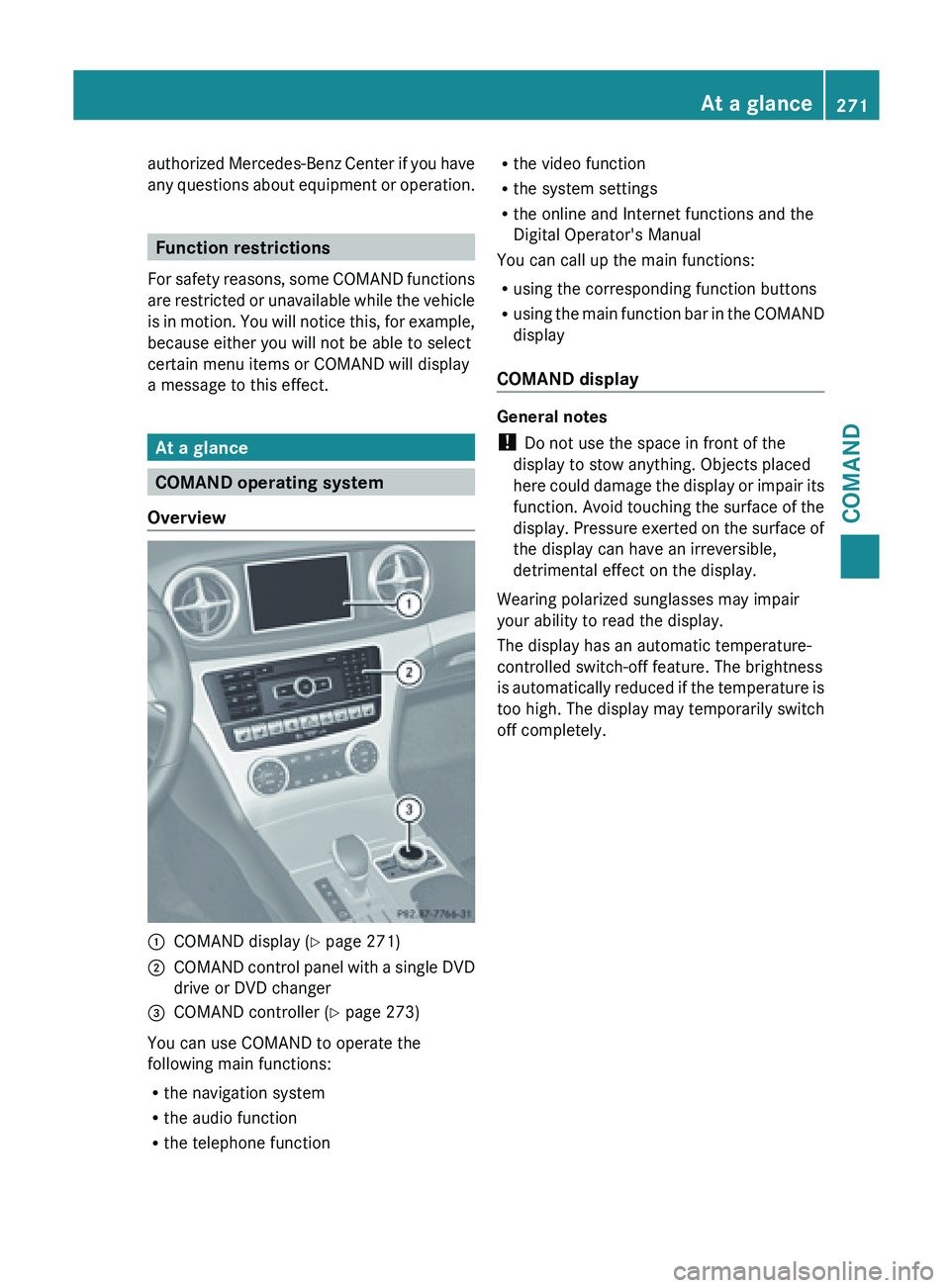
Overview :
COMAND display ( Y page 271)
; COMAND control panel with a single DVD
drive or DVD changer
= COMAND controller (Y page 273)
You can use COMAND to operate the
following main functions:
R the navigation system
R the audio function
R the telephone function R
the video function
R the system settings
R the online and Internet functions and the
Digital Operator's Manual
You can call up the main functions:
R using the corresponding function buttons
R using the
main function bar in the COMAND
display
COMAND display General notes
!
Do not use the space in front of the
display to stow anything. Objects placed
here could
damage the display or impair its
function. Avoid touching the surface of the
display. Pressure exerted on the surface of
the display can have an irreversible,
detrimental effect on the display.
Wearing polarized sunglasses may impair
your ability to read the display.
The display has an automatic temperature-
controlled switch-off feature. The brightness
is automatically reduced if the temperature is
too high. The display may temporarily switch
off completely. At a glance
271
COMAND Z
Page 274 of 572
Display overview
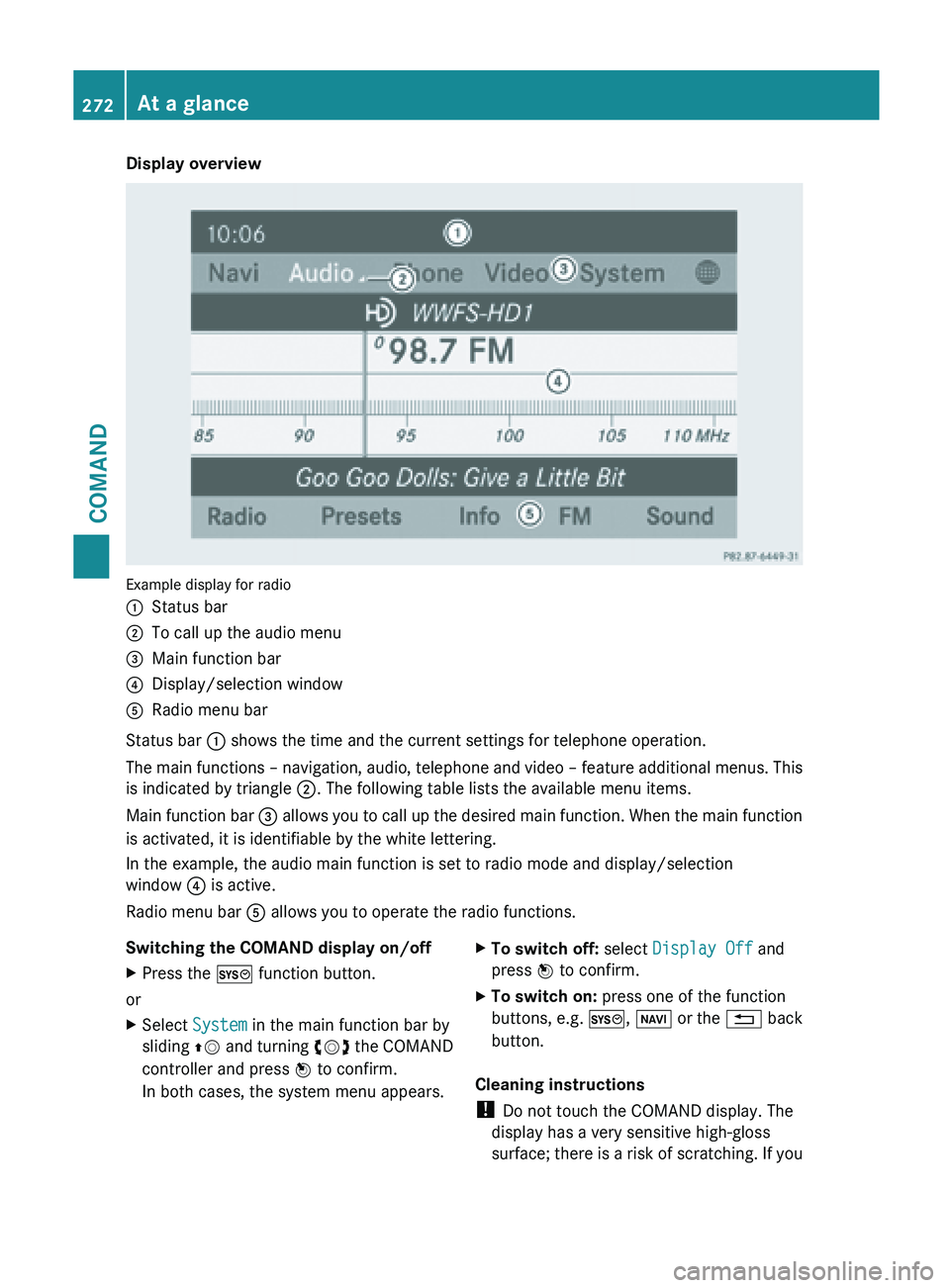
Example display for radio
:
Status bar
; To call up the audio menu
= Main function bar
? Display/selection window
A Radio menu bar
Status bar : shows the time and the current settings for telephone operation.
The main
functions – navigation, audio, telephone and video – feature additional menus. This
is indicated by triangle ;. The following table lists the available menu items.
Main function bar = allows you to call up the desired main function. When the main function
is activated, it is identifiable by the white lettering.
In the example, the audio main function is set to radio mode and display/selection
window ? is active.
Radio menu bar A allows you to operate the radio functions.
Switching the COMAND display on/off
X Press the W function button.
or
X Select System in the main function bar by
sliding ZV and
turning cVd the COMAND
controller and press W to confirm.
In both cases, the system menu appears. X
To switch off: select Display Off and
press W to confirm.
X To switch on: press one of the function
buttons, e.g. W, Ø or
the % back
button.
Cleaning instructions
! Do not touch the COMAND display. The
display has a very sensitive high-gloss
surface; there
is a risk of scratching. If you272
At a glance
COMAND
Page 277 of 572
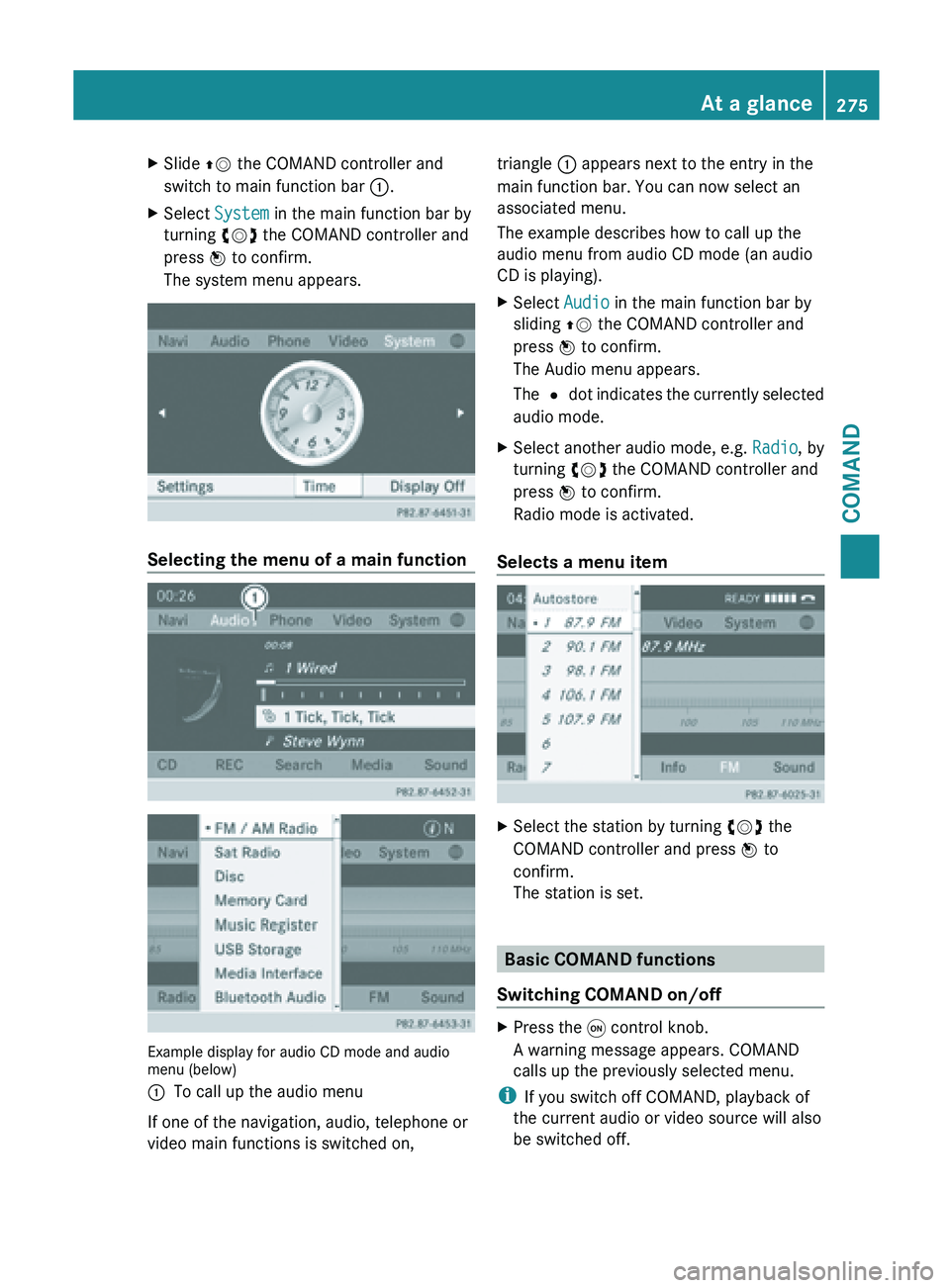
X
Slide ZV the COMAND controller and
switch to main function bar :.
X Select System in the main function bar by
turning cVd the COMAND controller and
press W to confirm.
The system menu appears. Selecting the menu of a main function
Example display for audio CD mode and audio
menu (below)
:
To call up the audio menu
If one of the navigation, audio, telephone or
video main functions is switched on, triangle : appears next to the entry in the
main function bar. You can now select an
associated menu.
The example describes how to call up the
audio menu from audio CD mode (an audio
CD is playing).
X
Select Audio in the main function bar by
sliding ZV the COMAND controller and
press W to confirm.
The Audio menu appears.
The # dot
indicates the currently selected
audio mode.
X Select another audio mode, e.g. Radio, by
turning cVd the COMAND controller and
press W to confirm.
Radio mode is activated.
Selects a menu item X
Select the station by turning cVd the
COMAND controller and press W to
confirm.
The station is set. Basic COMAND functions
Switching COMAND on/off X
Press the q control knob.
A warning message appears. COMAND
calls up the previously selected menu.
i If you switch off COMAND, playback of
the current audio or video source will also
be switched off. At a glance
275
COMAND Z
Page 279 of 572
X
Select Rear View Camera and press W to
confirm.
X Select Activation by R gear and press
W to confirm.
The function is switched on O or off ª,
depending on the previous status.
Switching the sound on or off Audio/video source sound
X
Press the 8 button on COMAND or on
the multifunction steering wheel.
The sound from the respective audio or
video source is switched on or off.
i When the sound is off, the system
displays the , icon in the status line.
When you change the audio or video
source, or adjust the volume, sound
automatically switches on again.
i Even if
the sound is switched off, you will
still hear navigation system
announcements.
Switching off navigation announcements
X Navigation announcements: press the
8 button during the announcement.
Switching navigation announcements
back on
X Press the 8 button again.
The navigation announcements are active
again:
R
if COMAND is switched off/on with the
q control knob.
R or after starting route guidance Adjusting the volume Adjusting the volume for the audio or
video source
X
Turn the q control knob
or
X Press the W or X button on the
multifunction steering wheel.
The volume
of the currently selected audio
or video source changes.
You can also adjust the volume for the
following:
R navigation announcements
R phone calls
R voice output of the Voice Control System
(see the separate operating instructions)
Adjusting the volume for navigation
announcements
During a navigation announcement:
X Turn the q control knob
or
X Press the W or X button on the
multifunction steering wheel.
Adjusting the volume for phone calls
You can adjust the volume for hands-free
mode during a telephone call.
X Turn the q control knob
or
X Press the W or X button on the
multifunction steering wheel. At a glance
277
COMAND Z