navigation system MERCEDES-BENZ SL ROADSTER 2016 Owners Manual
[x] Cancel search | Manufacturer: MERCEDES-BENZ, Model Year: 2016, Model line: SL ROADSTER, Model: MERCEDES-BENZ SL ROADSTER 2016Pages: 333, PDF Size: 11.85 MB
Page 17 of 333
Reversing camera .......................... 187
Traffic Sign Assist .......................... 191
Mercedes-Benz Service Centre
see Qualified specialist workshop
Message memory (on-board com-
puter) .................................................. 216
Messages
see Display messages
Mirrors
see Exterior mirrors
see Rear-view mirror
Mobile phone
Connecting (Bluetooth ®
inter-
face) .............................................. 256
Connecting another mobile
phone ............................................ 257
Connecting the telephone module
with Bluetooth ®
(SAP profile ) ......... 259
Freq uencies .................................. .320
Installation ..................................... 320
Menu (on-board computer) ............ 205
Notes/placing in the bracket ......... 268
Transmission output (maximum) .... 320
Modifying the programming (key) ..... 78
MOExtended tyres .............................289
Motorway mode ................................ 116
MP3
Operating ....................................... 205
See also Digital Owner's Manual ... 253
Multifunction display
Function/notes ............................ .201
Permanent display ......................... 209
Multifunction steering wheel
Operating the on-board computer .. 200
Overview .......................................... 33
Music files
See also Digital Owner's Manual ... 253 N
Navigation Menu (on-board computer) ............ 203
See also Digital Owner's Manual ... 253
NECK-PRO head restraints
Important safety notes .................... 52
Operation ......................................... 53
Resetting triggered .......................... 53
Notes on running in a new vehicle .. 131 O
Occupant safety Airbags ............................................ 43
Automatic front-passenger front
airbag deactivatio n .......................... 46
Automatic measures after an acci-
dent ................................................. 54
Children in the vehicle ..................... 54
Important safety notes .................... 39
PASSENGER AIRBAG indicator
lamp ................................................. 40
Pets in the vehicle ........................... 61
PRE-SAFE ®
(anticipatory occu-
pant protection) ............................... 53
PRE-SAFE ®
PLUS (anticipatory
occupant protection PLUS) .............. 53
Restraint system introduction .......... 39
Restraint system warning lamp ....... .40
Odometer
see Total distance recorder
see Trip meter
Oil
see Engine oil
On-board computer
AMG menu .....................................2 13
Assistance menu ........................... 207
Audio menu ................................... 204
Convenience submenu .................. 211
Display messages .......................... 216
Displaying a service message ....... .281
Factory setting submenu .............. .212
Important safety notes .................. 199
Instrument cluster submenu .......... 209
Light submenu ............................... 209
Menu overview .............................. 202
Message memory .......................... 216
Navigation menu ............................ 203
Operating the TV ............................ 205
Operating video DVD ..................... 205
Operation ....................................... 200
RACETIMER ................................... 213
Service menu ................................. 208
Settings menu ............................... 208
Standard display ............................ 202
Telephone menu ............................ 205
Trip menu ...................................... 202
Vehicle submenu ........................... 211 14
Index
Page 168 of 333
i
The following function is not operational in
all countries.
Distance Pilot DISTRONIC uses additional infor- mation from your navigation system so that it
can adapt to certain traffic situations. This is the
case if, while following a vehicle, Distance Pilot
DISTRONIC is active and you:
R approach or drive around a roundabout
R approach a T-junction
R turn off at a motorway exit
Even if the vehicle in front leaves the detection
range, Distance Pilot DISTRONIC temporarily
maintains the current driving speed and does
not accelerate. This is based on the current map
data in the navigation system.
Afterwards, the vehicle accelerates back to the
speed you set.
The system takes into account the fact that
overtaking on the right is not permitted on
motorways or high-speed major roads at speeds
above 80 km/h. The driving speed is adjusted to the speed of the queue of vehicles in the adja-
cent lane to the left.
i Prevention of overtaking on the right applies
to countries where traffic drives on the right.
In countries where traffic drives on the left,
overtaking on the left is prevented accord-
ingly.
Stopping If Distance Pilot DISTRONIC detects that the
vehicle in front is stopping, it brakes your vehicle
until it is stationary.
Once your vehicle is stationary, it remains sta-
tionary and you do not need to depress the
brake. After a short period, the vehicle is
secured by the electric parking brake, thus
relieving the service brake.
Depending on the specified minimum distance,
your vehicle will come to a standstill at a suffi-
cient distance behind the vehicle in front. The
specified minimum distance is set using the
control on the cruise control lever.
The electric parking brake secures the vehicle
automatically if Distance Pilot DISTRONIC is
activated and:
R the driver's door is open and the driver's seat
belt is unfastened
R the engine is switched off, unless it is auto-
matically switched off by the ECO start/stop
function R
a system fault occurs
R the power supply is insufficient
If a malfunction in the electric parking brake
occurs, then the transmission may also be shif-
ted into position Pautomatically.
Setting a speed Bear in mind that it may take a brief moment
until the vehicle has accelerated or braked to
the set speed.
X Press the cruise control lever up :for a
higher speed or down Afor a lower speed.
X Keep the cruise control lever pressed until the
desired speed is reached or press the cruise
control lever repeatedly until the desired
speed is reached.
X Release the cruise control lever.
The new speed is stored. Distance Pilot
DISTRONIC is activated and adjusts the vehi-
cle's speed to the new speed stored.
X To adjust the set speed in 1 km/h incre-
ments:
briefly press the cruise control lever
up : to the pressure point for a higher speed
or down Afor a lower speed.
The last speed stored is increased or reduced.
X To adjust the set speed in 10 km/h incre-
ments: briefly press the cruise control lever
up : beyond the pressure point for a higher
speed, or down Afor a lower speed.
The last speed stored is increased or reduced.
Setting the specified minimum distance You can set the specified minimum distance for
Distance Pilot DISTRONIC by varying the time
span between one and two seconds. With this
function you can set the minimum distance that Distance Pilot DISTRONIC maintains to the vehi-
cle in front, dependent on vehicle speed. You
can see this distance in the multifunction dis-
play (Y page 166).
The specified minimum distance can be
changed when Distance Pilot DISTRONIC is acti- vated or deactivated.
Make sure that you maintain a sufficient and
safe distance from the vehicle in front. Adjust
the distance to the vehicle in front if necessary. Driving systems
165Driving and parking Z
Page 194 of 333
Displaying the attention level
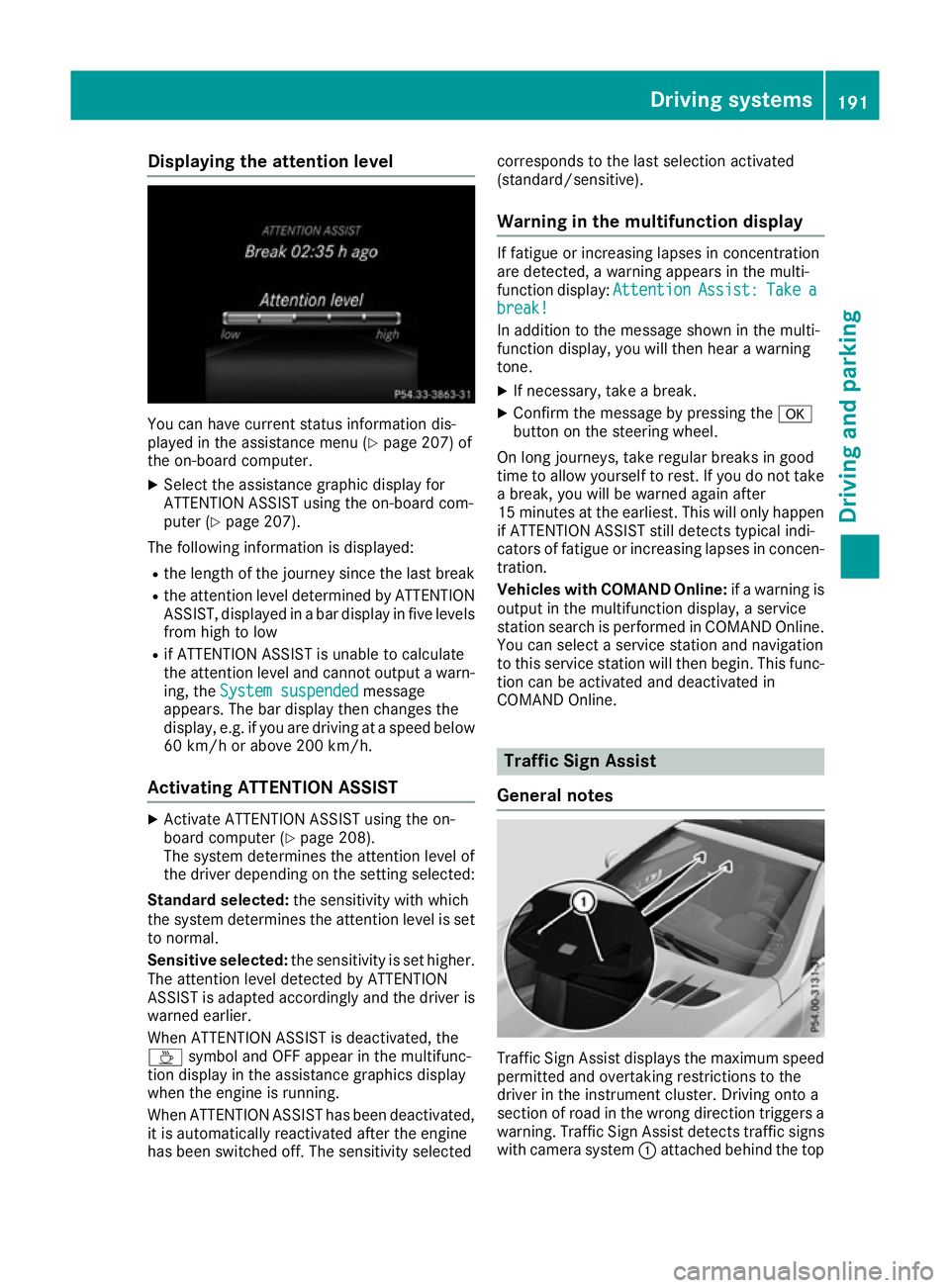
You can have current status information dis-
played in the assistance menu (Y
page 207) of
the on-board computer.
X Select the assistance graphic display for
ATTENTION ASSIST using the on-board com-
puter (Y page 207).
The following information is displayed:
R the length of the journey since the last break
R the attention level determined by ATTENTION
ASSIST, displayed in a bar display in five levels from high to low
R if ATTENTION ASSIST is unable to calculate
the attention level and cannot output a warn-
ing, the System suspended
System suspended message
appears. The bar display then changes the
display, e.g. if you are driving at a speed below
60 km/h or above 200 km/h.
Activating ATTENTION ASSIST X
Activate ATTENTION ASSIST using the on-
board computer (Y page 208).
The system determines the attention level of
the driver depending on the setting selected:
Standard selected: the sensitivity with which
the system determines the attention level is set
to normal.
Sensitive selected: the sensitivity is set higher.
The attention level detected by ATTENTION
ASSIST is adapted accordingly and the driver is
warned earlier.
When ATTENTION ASSIST is deactivated, the
À symbol and OFF appear in the multifunc-
tion display in the assistance graphics display
when the engine is running.
When ATTENTION ASSIST has been deactivated, it is automatically reactivated after the engine
has been switched off. The sensitivity selected corresponds to the last selection activated
(standard/sensitive).
Warning in the multifunction display If fatigue or increasing lapses in concentration
are detected, a warning appears in the multi-
function display:
Attention AttentionAssist:
Assist:Take
Takea
a
break!
break!
In addition to the message shown in the multi-
function display, you will then hear a warning
tone.
X If necessary, take a break.
X Confirm the message by pressing the a
button on the steering wheel.
On long journeys, take regular breaks in good
time to allow yourself to rest. If you do not take a break, you will be warned again after
15 minutes at the earliest. This will only happen
if ATTENTION ASSIST still detects typical indi-
cators of fatigue or increasing lapses in concen- tration.
Vehicles with COMAND Online: if a warning is
output in the multifunction display, a service
station search is performed in COMAND Online. You can select a service station and navigation
to this service station will then begin. This func-
tion can be activated and deactivated in
COMAND Online. Traffic Sign Assist
General notes Traffic Sign Assist displays the maximum speed
permitted and overtaking restrictions to the
driver in the instrument cluster. Driving onto a
section of road in the wrong direction triggers a
warning. Traffic Sign Assist detects traffic signs with camera system :attached behind the top Driving syste
ms
191Driving an d parking Z
Page 195 of 333
of the windscreen. The data and general traffic
regulations stored in the navigation system are
also used to determine the current speed limit.
If a traffic sign that is relevant to your vehicle is passed, the display of the speed limits and over-
taking restrictions is updated.
The display can also be updated without a visible traffic sign if:
R the vehicle changes roads (e.g. motorway exit
or slip road)
R a village or town boundary is passed which is
stored in the digital map
R the last traffic sign detected by the camera
has not been repeated
If a sign indicating the end of a restriction (speed limit or overtaking restriction) is passed, the
sign is displayed for five seconds. The currently
applicable traffic regulation continues to be
shown in the assistance graphic display.
The camera also detects traffic signs with a
restriction indicated by an additional sign (e.g. in wet conditions).
The traffic signs are only displayed with the
restrictions if:
R the regulation must be observed with the
restriction, or
R Traffic Sign Assist is unable to determine
whether the restriction applies
If Traffic Sign Assist is unable to determine a
maximum permitted speed from any of the avail-
able sources, no speed limit is displayed in the
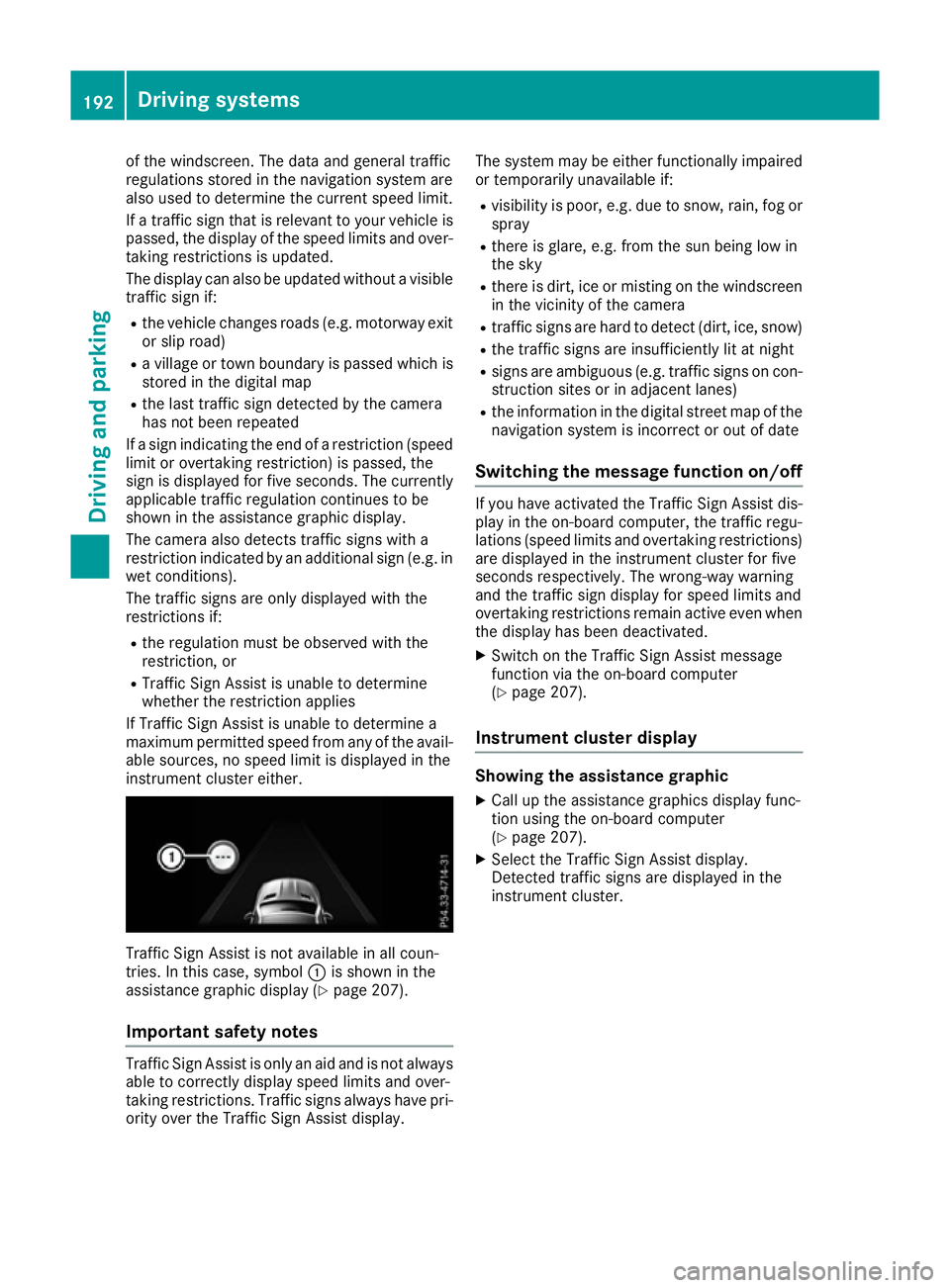
instrument cluster either. Traffic Sign Assist is not available in all coun-
tries. In this case, symbol :is shown in the
assistance graphic display (Y page 207).
Important safety notes Traffic Sign Assist is only an aid and is not always
able to correctly display speed limits and over-
taking restrictions. Traffic signs always have pri-
ority over the Traffic Sign Assist display. The system may be either functionally impaired
or temporarily unavailable if:
R visibility is poor, e.g. due to snow, rain, fog or
spray
R there is glare, e.g. from the sun being low in
the sky
R there is dirt, ice or misting on the windscreen
in the vicinity of the camera
R traffic signs are hard to detect (dirt, ice, snow)
R the traffic signs are insufficiently lit at night
R signs are ambiguous (e.g. traffic signs on con-
struction sites or in adjacent lanes)
R the information in the digital street map of the
navigation system is incorrect or out of date
Switching the message function on/off If you have activated the Traffic Sign Assist dis-
play in the on-board computer, the traffic regu-
lations (speed limits and overtaking restrictions)
are displayed in the instrument cluster for five
seconds respectively. The wrong-way warning
and the traffic sign display for speed limits and
overtaking restrictions remain active even when
the display has been deactivated.
X Switch on the Traffic Sign Assist message
function via the on-board computer
(Y page 207).
Instrument cluster display Showing the assistance graphic
X Call up the assistance graphics display func-
tion using the on-board computer
(Y page 207).
X Select the Traffic Sign Assist display.
Detected traffic signs are displayed in the
instrument cluster. 192
Driving systemsDriving and parking
Page 206 of 333
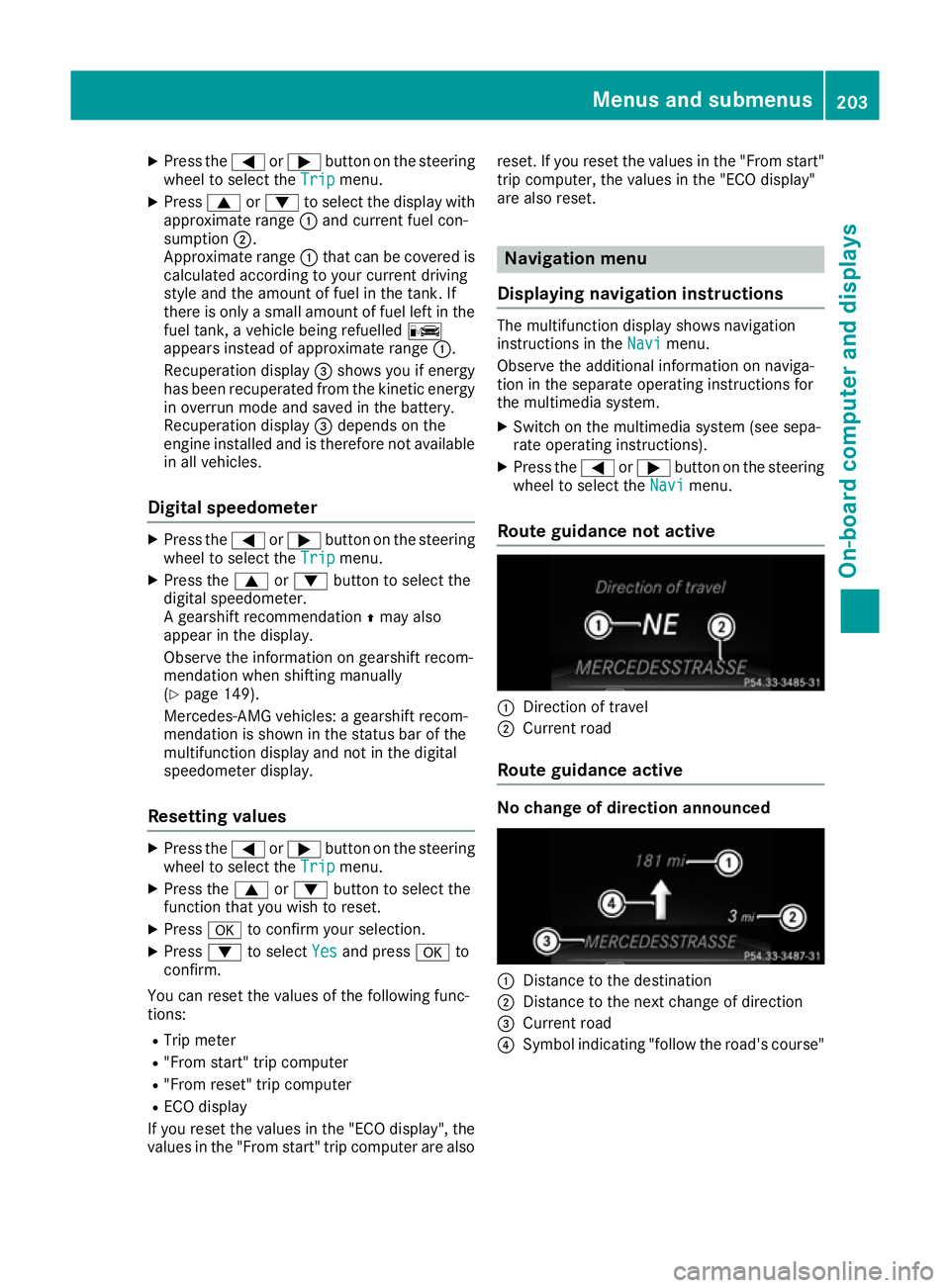
X
Press the =or; button on the steering
wheel to select the Trip
Trip menu.
X Press 9or: to select the display with
approximate range :and current fuel con-
sumption ;.
Approximate range :that can be covered is
calculated according to your current driving
style and the amount of fuel in the tank. If
there is only a small amount of fuel left in the
fuel tank, a vehicle being refuelled C
appears instead of approximate range :.
Recuperation display =shows you if energy
has been recuperated from the kinetic energy in overrun mode and saved in the battery.
Recuperation display =depends on the
engine installed and is therefore not available in all vehicles.
Digital speedometer X
Press the =or; button on the steering
wheel to select the Trip
Trip menu.
X Press the 9or: button to select the
digital speedometer.
A gearshift recommendation Zmay also
appear in the display.
Observe the information on gearshift recom-
mendation when shifting manually
(Y page 149).
Mercedes-AMG vehicles: a gearshift recom-
mendation is shown in the status bar of the
multifunction display and not in the digital
speedometer display.
Resetting values X
Press the =or; button on the steering
wheel to select the Trip
Trip menu.
X Press the 9or: button to select the
function that you wish to reset.
X Press ato confirm your selection.
X Press :to select Yes
Yes and press ato
confirm.
You can reset the values of the following func-
tions: R Trip meter
R "From start" trip computer
R "From reset" trip computer
R ECO display
If you reset the values in the "ECO display", the
values in the "From start" trip computer are also reset. If you reset the values in the "From start"
trip computer, the values in the "ECO display"
are also reset. Navigation menu
Displaying navigation instructions The multifunction display shows navigation
instructions in the
Navi Navimenu.
Observe the additional information on naviga-
tion in the separate operating instructions for
the multimedia system.
X Switch on the multimedia system (see sepa-
rate operating instructions).
X Press the =or; button on the steering
wheel to select the Navi
Navi menu.
Route guidance not active :
Direction of travel
; Current road
Route guidance active No change of direction announced
:
Distance to the destination
; Distance to the next change of direction
= Current road
? Symbol indicating "follow the road's course" Menus and submenus
203On-board computer and displays Z
Page 207 of 333
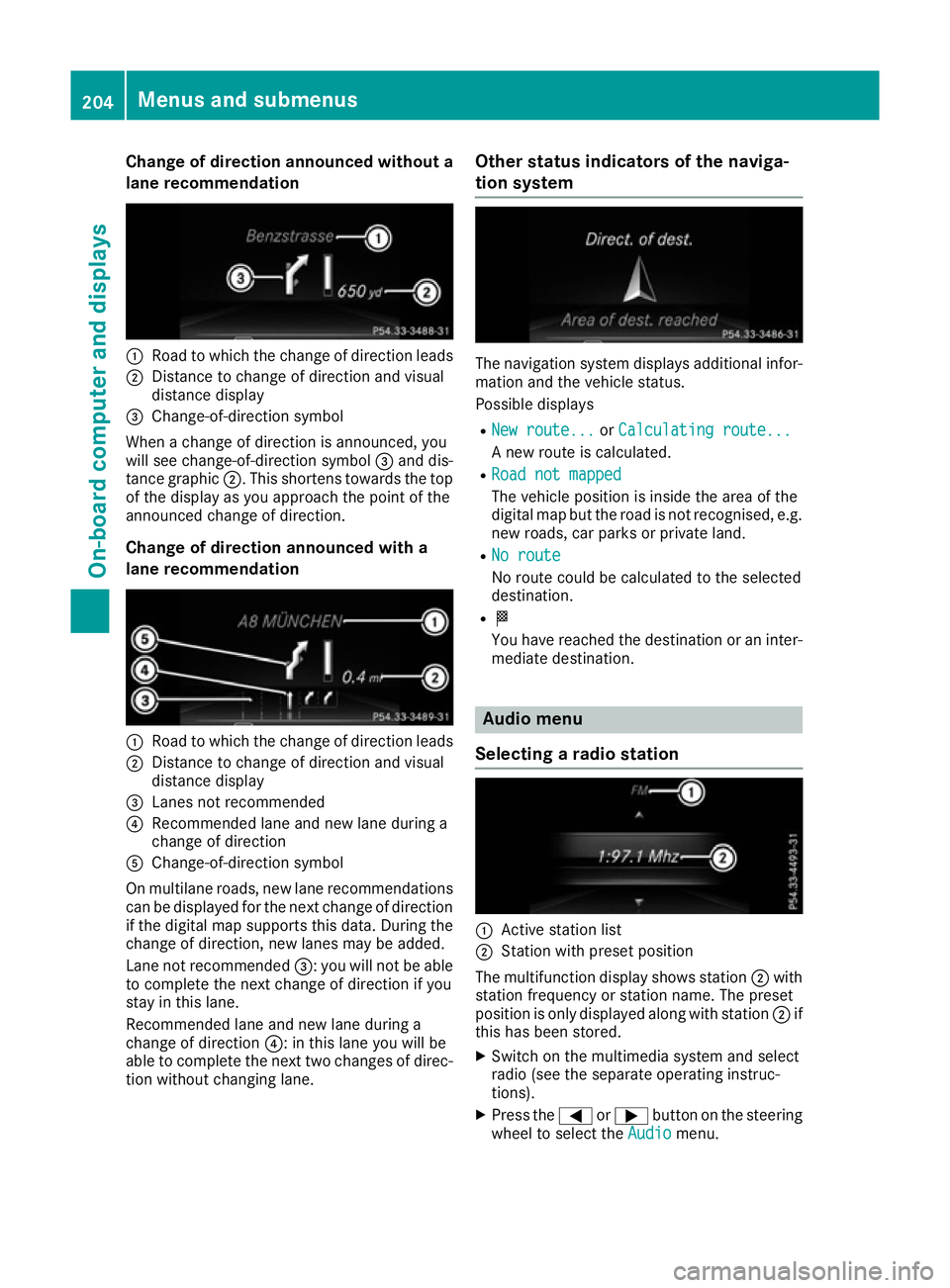
Change of direction announced without a
lane recommendation :
Road to which the change of direction leads
; Distance to change of direction and visual
distance display
= Change-of-direction symbol
When a change of direction is announced, you
will see change-of-direction symbol =and dis-
tance graphic ;. This shortens towards the top
of the display as you approach the point of the
announced change of direction.
Change of direction announced with a
lane recommendation :
Road to which the change of direction leads
; Distance to change of direction and visual
distance display
= Lanes not recommended
? Recommended lane and new lane during a
change of direction
A Change-of-direction symbol
On multilane roads, new lane recommendations
can be displayed for the next change of direction
if the digital map supports this data. During the change of direction, new lanes may be added.
Lane not recommended =: you will not be able
to complete the next change of direction if you
stay in this lane.
Recommended lane and new lane during a
change of direction ?: in this lane you will be
able to complete the next two changes of direc- tion without changing lane. Other status indicators of the naviga-
tion system The navigation system displays additional infor-
mation and the vehicle status.
Possible displays
R New route... New route... orCalculating route...
Calculating route...
A new route is calculated.
R Road not mapped
Road not mapped
The vehicle position is inside the area of the
digital map but the road is not recognised, e.g.
new roads, car parks or private land.
R No route No route
No route could be calculated to the selected
destination.
R O
You have reached the destination or an inter-
mediate destination. Audio menu
Selecting a radio station :
Active station list
; Station with preset position
The multifunction display shows station ;with
station frequency or station name. The preset
position is only displayed along with station ;if
this has been stored.
X Switch on the multimedia system and select
radio (see the separate operating instruc-
tions).
X Press the =or; button on the steering
wheel to select the Audio Audiomenu. 204
Menus and submenusOn-board computer and displays
Page 212 of 333
Instrument cluster
Selecting the distance unit
The Display unit Speed-/odometer:
Display unit Speed-/odometer: func-
tion allows you to choose whether certain dis-
plays appear in kilometres or miles in the mul-
tifunction display.
X Press the =or; button on the steering
wheel to select the Settings Settingsmenu.
X Press the :or9 button to select the
Instrument cluster
Instrument cluster submenu.
X Press ato confirm.
X Press the :or9 button to select the
Display unit Speed-/odometer
Display unit Speed-/odometer function.
The current setting km
km ormiles
miles appears.
X Press the abutton to save the setting.
The selected unit of measurement for distance
applies to the: R digital speedometer in the Trip Tripmenu
R total distance recorder and trip meter
R trip computer
R current consumption and the range
R navigation instructions in the Navi
Navimenu
R cruise control
R speed limiter
R Distance Pilot DISTRONIC
R ASSYST PLUS service interval display
Selecting permanent display United Kingdom: this function is unavailable.
The Permanent display:
Permanent display: function allows you
to choose whether the multifunction display
always shows the outside temperature or the
speed.
The speed display is inverse to your speedome-
ter.
X Press the =or; button on the steering
wheel to select the Settings Settingsmenu.
X Press the :or9 button to select the
Instrument cluster
Instrument cluster submenu.
X Press ato confirm.
X Press the :or9 button to select the
Permanent display:
Permanent display: function.
The current setting, outside temperature
outside temperature
or Dig. speedo [mph]:
Dig. speedo [mph]: , appears.
X To change the setting: pressaagain. Lights Setting the daytime driving lights
The Daytime driving lights
Daytime driving lights function can
only be switched on with the engine switched
off.
X Press the =or; button on the steering
wheel to select the Settings Settingsmenu.
X Press the :or9 button to select the
Lights
Lights submenu.
X Press ato confirm.
X Press the :or9 button to select the
Daytime driving lights
Daytime driving lights function.
If the Daytime
Daytime driving
drivinglights
lightsfunction has
been switched on, the cone of light and the
W symbol in the multifunction display are
shown in orange.
X Press the abutton to save the setting.
Further information on daytime driving lights
(Y page 113).
Switching the Intelligent Light System
on/off
X Press the =or; button on the steering
wheel to select the Settings Settingsmenu.
X Press the :or9 button to select the
Lights
Lights submenu.
X Press ato confirm.
X Press the :or9 button to select the
Intell. Light System
Intell. Light System function.
If the Intell. Light System
Intell. Light System function has
been switched on, the multifunction display
shows the cone of light and the Lsymbol
in orange.
X Press the abutton to save the setting.
When you activate the Intell.
Intell. Light LightSystem
System ,
you activate the following functions:
R Motorway mode
R Active light function
R Cornering light function
R Extended range foglamps
If you set the dipped-beam headlamps for driv-
ing on the right/left, the multifunction display
shows the Intell. Light System: System
Intell. Light System: System
inoperative Inactive for left-side inoperative Inactive for left-side
traffic traffic orIntell.
Intell. Light
LightSystem:
System: System
System
inoperative Inactive for right-side
inoperative Inactive for right-side
traffic
traffic display message instead of the
Intell. Light Sys.
Intell. Light Sys. function in theLight
Light
submenu (Y page 210). This display message
will only appear if the setting for driving on the Menus and submenus
209On-board computer and displays Z
Page 249 of 333
Warning/
indicator
lamp
N N
Signal type
Possible causes/consequences and M
M Solutions !
N
The yellow ABS warning lamp is lit while the engine is running.
ABS (Anti-lock Braking System) is faulty.
An additional warning tone indicates that EBD (electronic brake force distribution) is faulty.
Other driving and driving safety systems may also be faulty.
G WARNING
The brake system continues to function normally, but without the functions listed above. The front and rear wheels could therefore lock, for example, if you brake
hard.
The steerability and braking characteristics may be severely affected. The braking
distance may increase in an emergency braking situation.
If ESP ®
is not operational, ESP ®
is unable to stabilise the vehicle.
There is an increased danger of skidding and risk of an accident.
X Observe the additional display messages in the multifunction display.
X Drive on carefully.
X Consult a qualified specialist workshop immediately.
If the ABS control unit is faulty, there is also a possibility that other systems, such as the navigation system or the automatic transmission, will be unavailable. J÷
å!
N
The red brake system warning lamp and the yellow ESP ®
, ESP ®
OFF and ABS
warning lamps are lit while the engine is running.
ABS and ESP ®
are faulty.
Other driving and driving safety systems may also be faulty.
G WARNING
The brake system continues to function normally, but without the functions listed above. The front and rear wheels could therefore lock, for example, if you brake
hard.
The steerability and braking characteristics may be severely affected. The braking
distance may increase in an emergency braking situation.
If ESP ®
is not operational, ESP ®
is unable to stabilise the vehicle.
There is an increased danger of skidding and risk of an accident.
X Observe the additional display messages in the multifunction display.
X Drive on carefully.
X Consult a qualified specialist workshop immediately. 246
Warning and indicator lampsOn-board computer and displays
Page 257 of 333
Adjusting the volume
X
Turn the qcontrol knob.
The volume is adjusted:
R for the currently selected media source
R during traffic or navigation announcements
R in hands-free mode during a phone call
Switching the sound on/off X
Press the 8button on the control panel.
If the audio output is switched off, the status
line will show the 8symbol. If you switch
the media source or set the volume, the sound
is automatically switched on.
i Navigation messages will be heard even if
the sound is muted.
Functions The multimedia system has the following func-
tions:
R Radio mode
R Media mode with media search
R Sound systems
R Navigation system
COMAND Online: navigation via the hard drive
Audio 20: navigation via SD card
R Communication functions
R Vehicle functions with system settings
R Favourites functions
Controller The controller in the centre console lets you:
R select menu items on the display
R enter characters
R select a destination on the map
R save entries
The controller can be:
R turned 3
R slid left or right 1
R slid forwards or back 4
R slid diagonally 2
R pressed briefly or pressed and held 7Back button You can use the
%button to exit a menu or to
call up the basic display of the current operating mode.
X To exit the menu: briefly press the%
button.
The multimedia system changes to the next
higher menu level in the current operating
mode.
X To call up the basic display: press the%
button for longer than two seconds.
The multimedia system changes to the basic
display of the current operating mode. Favourites
Calling up and exiting favourites X
To call up: press theòbutton on the con-
troller.
X Select a favourite, e. g. Vehicle Vehicle.
The favourites are displayed.
X To exit: press the òbutton again.
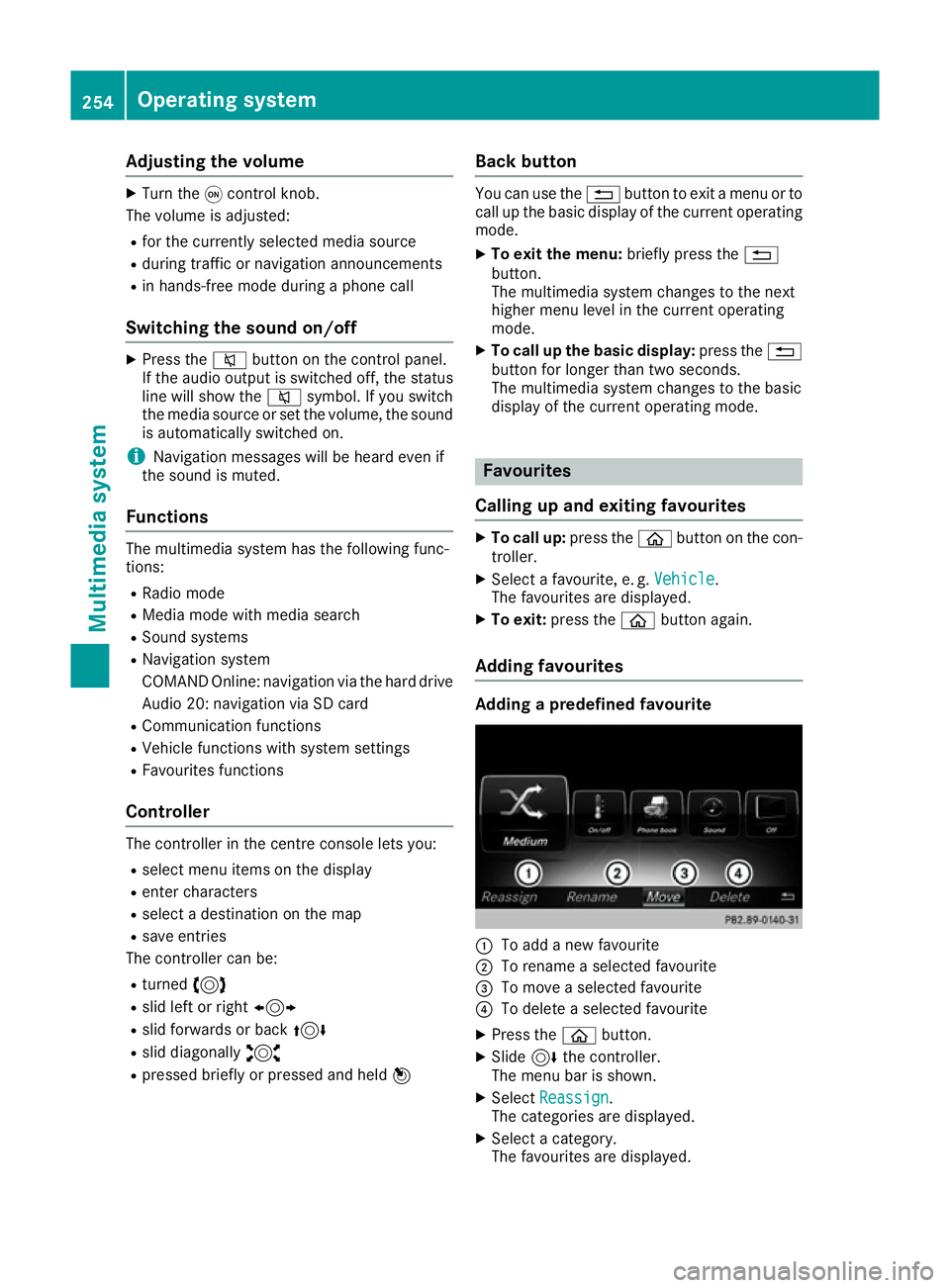
Adding favourites Adding a predefined favourite
:
To add a new favourite
; To rename a selected favourite
= To move a selected favourite
? To delete a selected favourite
X Press the òbutton.
X Slide 6the controller.
The menu bar is shown.
X Select Reassign
Reassign.
The categories are displayed.
X Select a category.
The favourites are displayed. 254
Operating systemMultimedia system
Page 258 of 333
X
Select a favourite.
X Add a favourite at the desired position.
If a favourite has already been added at this
position, it will be overwritten.
Adding your own favourite
X Select Vehicle VehicleQ Climate control Climate control.
X Press and hold the òbutton until the
favourites are displayed.
X Add a favourite at the desired position.
If a favourite has already been added at this
position, it will be overwritten. Navigation mode
Important safety notes G
WARNING
Operating the integrated information systems and communications equipment in the vehicle
while driving will distract you from traffic con-
ditions. You could then lose control of the
vehicle. There is a risk of an accident.
Only operate these devices if road traffic con-
ditions permit. If you are unsure about the
surrounding conditions, pull over to a safe
location and make entries only while the vehi-
cle is stationary.
You must observe the legal requirements for the country in which you are currently driving whenoperating the navigation system.
General notes Correct functioning of the navigation system
depends, amongst other things, on GPS recep-
tion. In certain situations, GPS reception may be
impaired, there may be interference or there
may be no reception at all, e.g. in tunnels or
multi-storey car parks.
Audio 20 is equipped with Garmin ®
MAP PILOT
(see the manufacturer's operating instructions).
The Garmin ®
MAP PILOT operating instructions
are stored on the SD memory card as a PDF file. The SD card box contains a quick guide.
The following descriptions apply to navigation
with COMAND Online. Further information can
be found in the Digital Owner's Manual. Selecting a route type and route options Multimedia system:
X Select Navi
Navi QNavigationNavigation.
The map displays the current vehicle position.
X Slide 6the controller.
X Select Options OptionsQ Route settings
Route settings .
Notes for route types:
R Eco route
Eco route
R Dynamic route
Dynamic route
Traffic reports on the route for the route guid-
ance are taken into account.
R Dynamic route only after request Dynamic route only after request
You can decide whether or not current traffic
reports should be taken into account for route
calculation.
R Calculate alternative routes
Calculate alternative routes
Different routes are being calculated. In order
to do so, instead of Start
Start, select the menu
item Continue Continue .
Notes for route options:
R Use toll roads
Use toll roads
The route calculation includes roads which
require you to pay a usage fee (toll).
R Use vignette roads
Use vignette roads (not available in all
countries)
The route calculation includes roads which
require you to pay a time-based fee (vignette). A vignette allows temporary use of the route
network, e. g. 10 days or 1 year.
Entering an address Multimedia system:
X Select Navi NaviQNavigationNavigation.
The map displays the current vehicle position.
X Slide 6the controller.
X Select Destination
DestinationQ Address entry
Address entry.
Enter an address, e.g. as follows:
R town or postcode, street, house number
R country, town or postcode
R town or postcode, centre
R street, town or postcode, junction
X Select Town
Town.
The town in which the vehicle is currently
located (current vehicle position) is at the top.
Below this, you will see locations for which
route guidance has already been carried out. Operating system
255Multimedia system Z