light mode MERCEDES-BENZ SLK-Class 2015 R172 Comand Manual
[x] Cancel search | Manufacturer: MERCEDES-BENZ, Model Year: 2015, Model line: SLK-Class, Model: MERCEDES-BENZ SLK-Class 2015 R172Pages: 270, PDF Size: 5.82 MB
Page 12 of 270
Changing the picture format .......... 243
Cordless headphones .................... 239
Multiple user
s................................ 242
Operating with the headphones ..... 241
Picture settings .............................. 242
System settings ............................. 243
Using the main loudspeaker .......... 241
Video DVD mode ........................... 247
Rear view camera
Displaying the image ........................ 55
Rear-compartment screens .............. 237
Receiving vCards ............................... 153
Redialing (telephone) ........................ 133
Remote control
Button lighting ............................... 238
Rear Seat Entertainment System ... 237
Reset function ..................................... 47
Resetting (factory settings) ............... 47
Route
Estimated time of arrival .................. 94
Route (navigation)
Calling up the "Routes" menu .......... 96
Displaying the distance to the des-tination ............................................ 94
Recording ........................................ 95
Route overview ................................ 94
Selecting an alternative route .......... 93
Setting route options (avoiding:
highways, toll roads, tunnels, fer-
ries) ................................................. 62
Setting the route type (short
route, fast route, dynamic route or
economic route) ............................... 62
Starting calculation .......................... 69
Route demonstration .......................... 95
Route guidance
Canceling ......................................... 92
Continuing ....................................... 92
Destination reached ......................... 92
General notes .................................. 87
Lane recommendations ................... 89
Off-road ........................................... 97
Traffic reports .................................. 99 S
Safety notes Audio CD and MP3 mode ............... 195 Using the telephone ....................... 124
Video DVD mode ........................... 226
Satellite radio
Displaying information ................... 195
Registering .................................... 191
Switching to ................................... 191
SatRadio
Notes ............................................. 190
Selecting a category ...................... 192
Saving the crosshair position .......... 108
Screen
Selecting for the remote control .... 237
SD memory card
Ejecting .......................................... 196
Inserting ........................................ 196
Search & Send ...................................... 86
Seats
Active multicontour seat .................. 52
Adjusting the lumbar support
(COMAND) ....................................... 53
Balance (seat heating) ..................... 54
Multicontour seat ............................ 52
Resetting settings ............................ 55
Seat functions (COMAND) ............... 52
Selecting for adjustment
(COMAND) ....................................... 52
Selecting a province ........................... 64
Selecting a state .................................. 64
Selecting stations
Radi o............................................. 188
Sending DTMF tones ......................... 134
Setting the audio format
Rear Seat Entertainment System ... 251
Setting the language
COMAND ......................................... 45
Rear Seat Entertainment System ... 251
Setting the night design ..................... 42
Setting the text reader speed ............ 44
Setting the volume
Telephone calls ................................ 30
Video AUX ..................................... 232
Settings
Menu overview ................................. 22
Picture (COMAND) ......................... 226
Sound settings ................................. 30
SIRIUS weather display
5-day forecast ................................ 259 10
Index
Page 44 of 270
Your COMAND equipment
These operating instructions describe all the
standard and optional equipment for your
COMAND system, as available at the time of
going to print. Country-specific differences
are possible. Please note that your
COMAND system may not be equipped with
all the features described. Display settings
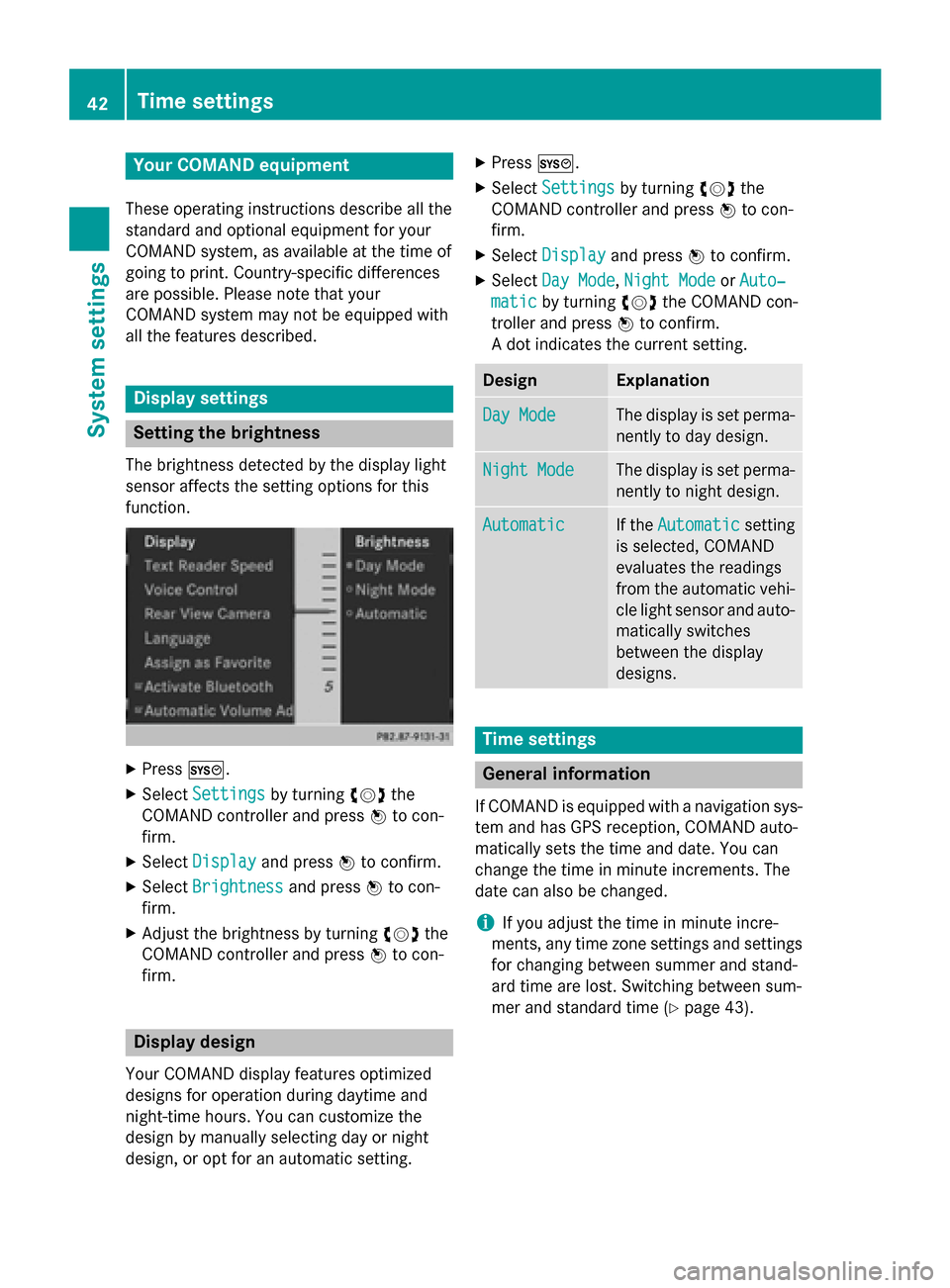
Setting the brightness
The brightness detected by the display light
sensor affects the setting options for this
function. X
Press 0066.
X Select Settings Settings by turning 00790052the
COMAND controller and press 0098to con-
firm.
X Select Display
Display and press 0098to confirm.
X Select Brightness
Brightness and press0098to con-
firm.
X Adjust the brightness by turning 00790052the
COMAND controller and press 0098to con-
firm. Display design
Your COMAND display features optimized
designs for operation during daytime and
night-time hours. You can customize the
design by manually selecting day or night
design, or opt for an automatic setting. X
Press 0066.
X Select Settings Settings by turning 00790052the
COMAND controller and press 0098to con-
firm.
X Select Display
Display and press 0098to confirm.
X Select Day Mode
Day Mode ,Night Mode
Night Mode orAuto‐
Auto‐
matic
matic by turning 00790052the COMAND con-
troller and press 0098to confirm.
A dot indicates the current setting. Design Explanation
Day Mode
Day Mode The display is set perma-
nently to day design. Night Mode
Night Mode The display is set perma-
nently to night design. Automatic
Automatic If the
Automatic
Automatic setting
is selected, COMAND
evaluates the readings
from the automatic vehi- cle light sensor and auto-
matically switches
between the display
designs. Time settings
General information
If COMAND is equipped with a navigation sys- tem and has GPS reception, COMAND auto-
matically sets the time and date. You can
change the time in minute increments. The
date can also be changed.
i If you adjust the time in minute incre-
ments, any time zone settings and settings for changing between summer and stand-
ard time are lost. Switching between sum-
mer and standard time (Y page 43).42
Time settingsSystem settings
Page 83 of 270

Depending on your selection, you can select
all available points of interest on the digital
map or the points of interest in the vicinity of the selected position.
X Proceed as described in "Searching for a
phone book entry" (Y page 137).
If COMAND can assign the characters
entered to one entry unambiguously, the
address entry appears automatically.
X To start route calculation: selectStart
Start
and press 0098to confirm. ZAGAT
®
survey service The Z icon before a search result shows that a
ZAGAT ®
rating is available for this entry. 0043
ZAGAT ratings
0044 To display details
X Select an entry with the "Z" icon by turning
00790052007A the COMAND controller and press 0098
to confirm.
The ZAGAT evaluations appear. ZAGAT example description
X To show the information: selectDetails Details
and press 0098to confirm. Selecting a POI using the map
Point of interest on the map
You can select points of interest that are
available in the selected (visible) section of
the map. The POI is highlighted on the map,
you will see further information on the upper
edge of the display.
X To switch to navigation mode: press the
00BE button.
X To show the menu: press0098the COMAND
controller.
X Select Guide Guidein the navigation system
menu bar by turning 00790052007Athe COMAND
controller and press 0098to confirm.
If points of interest are available:
Depending on the map scale selected,
point of interest icons appear on the map.
The scale at which the icons are displayed Entering a POI
81Navigation Z
Page 90 of 270

COMAND may give differing navigation com-
mands if the actual street/traffic situation
does not correspond with the digital map's
data. For example, if the road layout or the
direction of a one-way street has been
changed.
For this reason, you must always observe
road and traffic rules and regulations during
your journey. Road and traffic rules and reg-
ulations always have priority over the sys-
tem's driving recommendations.
Route guidance begins once a route has been calculated (Y page 69).
COMAND guides you to your destination by
means of navigation announcements in the
form of audible navigation announcements
and route guidance displays.
The route guidance displays can be seen if the
display is switched to navigation mode.
If you do not follow the navigation announce- ments or if you leave the calculated route,
COMAND automatically calculates a new
route to the destination.
If the digital map contains the corresponding
information, the following applies:
R during route guidance, COMAND tries to
avoid roads with restricted access. Those
roads, for example, that are closed to
through-traffic.
R roads that have time restrictions (e.g.
closed on Sundays and public holidays) are considered for route guidance on days
when they are open. For this purpose, the
relevant times must be correctly stored in
the database. Displays during route guidance
Change of direction Changes of direction have three phases:
R preparation phase
R announcement phase
R change-of-direction phase Example: preparation phase
0043
Next road
0044 Point at which the change of direction
takes place (light blue dot)
0087 Current vehicle position (the tip of the tri-
angle indicates the vehicle’s direction of
travel)
0085 Current road
Display 0085depends on the setting selected
for "Map information in the display"
(Y page 111).
COMAND prepares you for the upcoming
change of direction. Based on the example
display below, the change of direction is
announced by the Prepare to turn right Prepare to turn right
message. You see the full-screen map. Example: announcement phase
0043
Next road
0044 Change of direction (turn right here)
0087 Graphic representation of the distance to
the next change of direction
0085 Distance to the next change of direction 88
Route guidanceNavigation
Page 92 of 270

0085
Graphic representation of the distance to
the next change of direction
0083 Distance to the next change of direction
0084 Possible lane (light blue)
006B Recommended lane (dark blue)
006C Lane not recommended (gray)
006D Current vehicle position, the tip of the tri-
angle indicating the vehicle’s direction of
travel
On multi-lane roads, COMAND can display
lane recommendations for the next change of direction. The corresponding data must be
available in the digital map.
COMAND displays lane recommendation 006B
based on the next two changes of direction.
The number of lanes applies to the point at
which the next change of direction is
required.
i The multifunction display also shows lane
recommendations.
Only the recommended lanes are displayed here, see the separate vehicle Operator's
Manual. Display and description of lane recom-
mendations Lane Day
mode Night
mode
Recommended lane
In this lane, you will
be able to complete
the next two
changes of direction
without changing
lanes. Dark
blue Light
blue
Possible lane
In this lane, you will
only be able to com-
plete the next
change of direction
without changing
lanes. Light
blue Dark
blue
Lane not recom-
mended
In this lane, you will
not be able to com-
plete the next
change of direction
without changing
lanes. Light
brown or
light gray Gray
i
The colors used in the lane recommenda-
tion display vary depending on whether day
or night mode is switched on. 90
Route guidanceNavigation
Page 96 of 270
Menu functions
X To select the next or previous alterna-
tive route: selectNext NextorPrevious
Previous and
press 0098to confirm.
X To start route guidance using the selec-
ted alternative route: selectStart
Start and
press 0098to confirm.
COMAND begins route guidance on the
selected alternative route. Route information
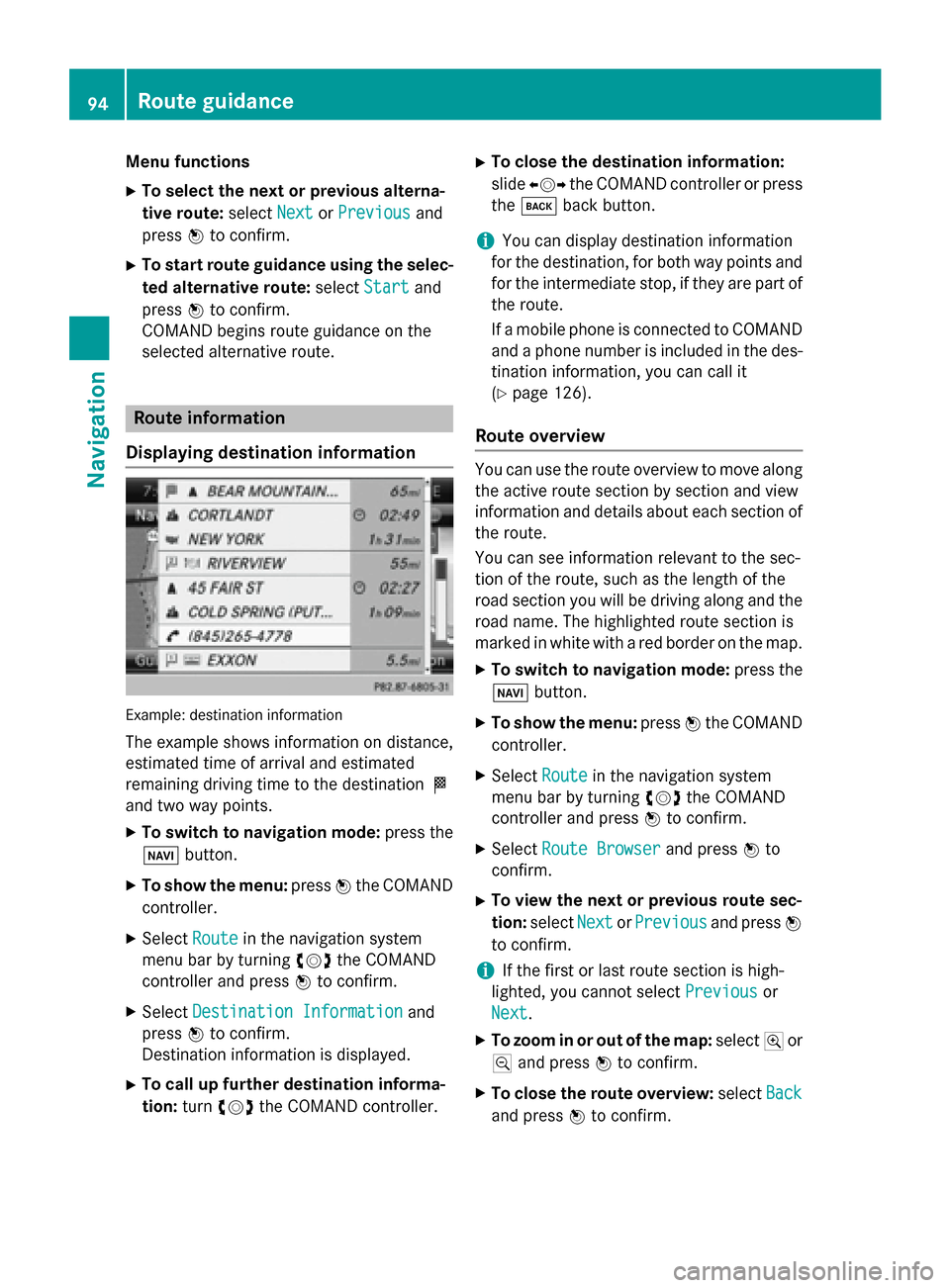
Displaying destination information Example: destination information
The example shows information on distance,
estimated time of arrival and estimated
remaining driving time to the destination 004B
and two way points.
X To switch to navigation mode: press the
00BE button.
X To show the menu: press0098the COMAND
controller.
X Select Route Routein the navigation system
menu bar by turning 00790052007Athe COMAND
controller and press 0098to confirm.
X Select Destination Information
Destination Information and
press 0098to confirm.
Destination information is displayed.
X To call up further destination informa-
tion: turn00790052007A the COMAND controller. X
To close the destination information:
slide 009500520096 the COMAND controller or press
the 003D back button.
i You can display destination information
for the destination, for both way points and
for the intermediate stop, if they are part of the route.
If a mobile phone is connected to COMANDand a phone number is included in the des- tination information, you can call it
(Y page 126).
Route overview You can use the route overview to move along
the active route section by section and view
information and details about each section of the route.
You can see information relevant to the sec-
tion of the route, such as the length of the
road section you will be driving along and the road name. The highlighted route section is
marked in white with a red border on the map.
X To switch to navigation mode: press the
00BE button.
X To show the menu: press0098the COMAND
controller.
X Select Route Routein the navigation system
menu bar by turning 00790052007Athe COMAND
controller and press 0098to confirm.
X Select Route Browser Route Browser and press0098to
confirm.
X To view the next or previous route sec-
tion: select Next NextorPrevious
Previous and press0098
to confirm.
i If the first or last route section is high-
lighted, you cannot select Previous
Previousor
Next
Next.
X To zoom in or out of the map: select004Aor
0049 and press 0098to confirm.
X To close the route overview: selectBack
Back
and press 0098to confirm. 94
Route guidanceNavigation
Page 97 of 270
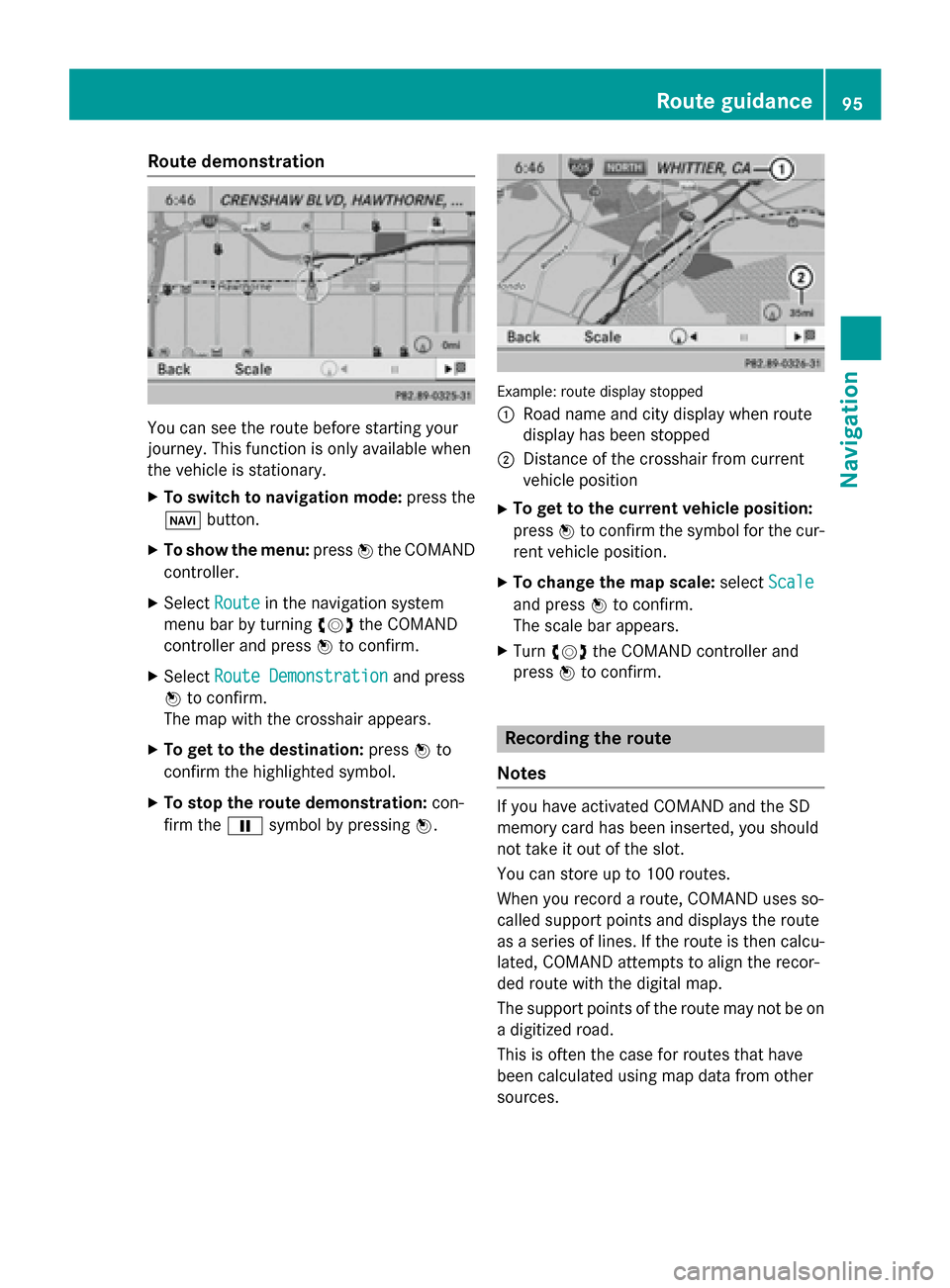
Route demonstration
You can see the route before starting your
journey. This function is only available when
the vehicle is stationary.
X To switch to navigation mode: press the
00BE button.
X To show the menu: press0098the COMAND
controller.
X Select Route Routein the navigation system
menu bar by turning 00790052007Athe COMAND
controller and press 0098to confirm.
X Select Route Demonstration
Route Demonstration and press
0098 to confirm.
The map with the crosshair appears.
X To get to the destination: press0098to
confirm the highlighted symbol.
X To stop the route demonstration: con-
firm the 00CFsymbol by pressing 0098. Example: route display stopped
0043
Road name and city display when route
display has been stopped
0044 Distance of the crosshair from current
vehicle position
X To get to the current vehicle position:
press 0098to confirm the symbol for the cur-
rent vehicle position.
X To change the map scale: selectScale Scale
and press 0098to confirm.
The scale bar appears.
X Turn 00790052007A the COMAND controller and
press 0098to confirm. Recording the route
Notes If you have activated COMAND and the SD
memory card has been inserted, you should
not take it out of the slot.
You can store up to 100 routes.
When you record a route, COMAND uses so-
called support points and displays the route
as a series of lines. If the route is then calcu-
lated, COMAND attempts to align the recor-
ded route with the digital map.
The support points of the route may not be on
a digitized road.
This is often the case for routes that have
been calculated using map data from other
sources. Route guidance
95Navigation Z
Page 103 of 270
X
Select Traffic
Traffic in the navigation system
menu bar by turning 00790052007Athe COMAND
controller and press 0098to confirm.
X Select Traffic Symbol Information
Traffic Symbol Information by
turning 00790052007Athe COMAND controller and
press 0098to confirm.
X Select Next
Next orPrevious
Previous by turning 00790052007A
the COMAND controller and press 0098to
confirm in order to continue highlighting
traffic symbols.
X To change the map scale: selectMap
Map by
sliding 00970052the COMAND controller and
press 0098to confirm.
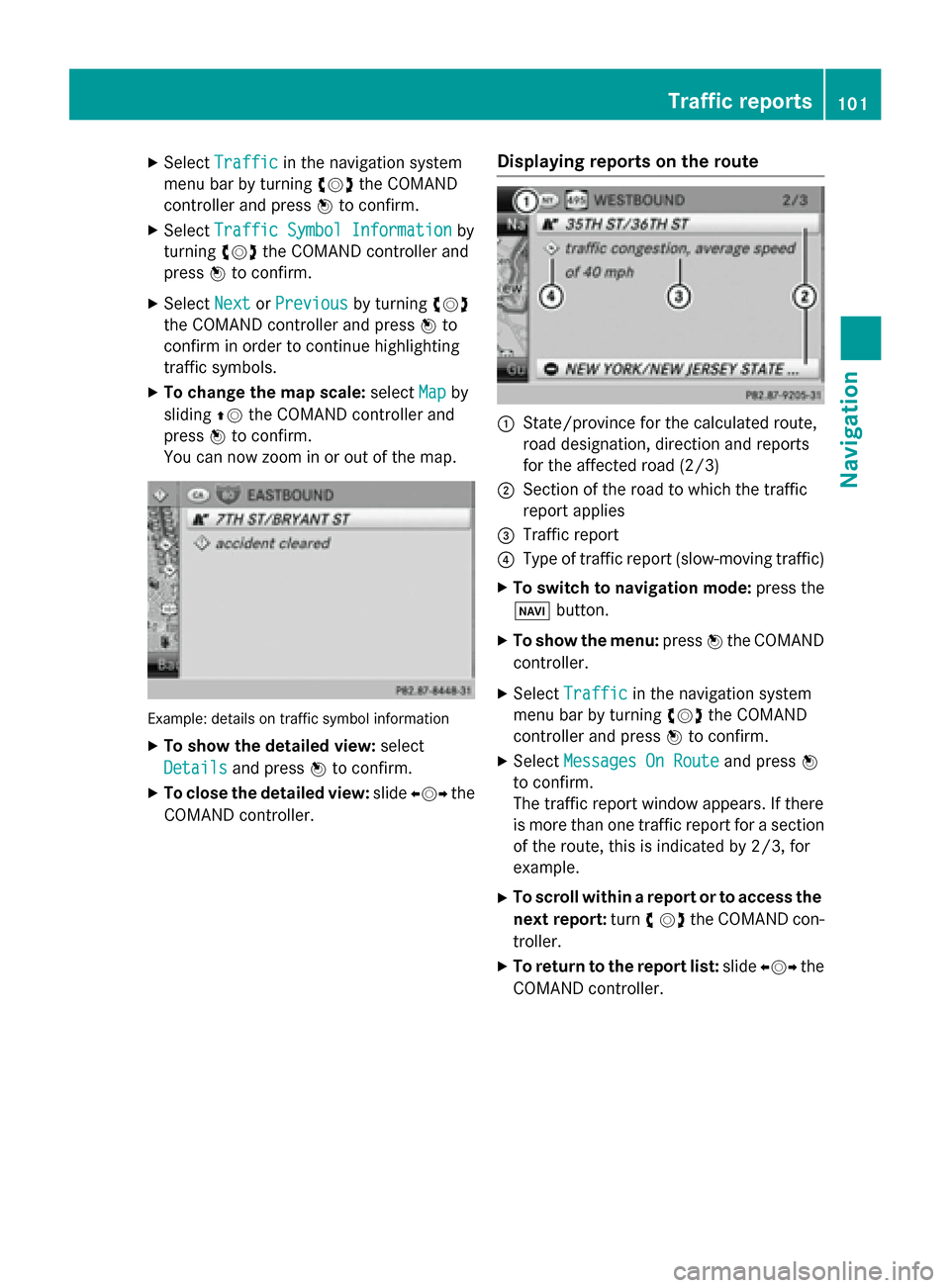
You can now zoom in or out of the map. Example: details on traffic symbol information
X To show the detailed view: select
Details
Details and press 0098to confirm.
X To close the detailed view: slide009500520096 the
COMAND controller. Displaying reports on the route 0043
State/province for the calculated route,
road designation, direction and reports
for the affected road (2/3)
0044 Section of the road to which the traffic
report applies
0087 Traffic report
0085 Type of traffic report (slow-moving traffic)
X To switch to navigation mode: press the
00BE button.
X To show the menu: press0098the COMAND
controller.
X Select Traffic Traffic in the navigation system
menu bar by turning 00790052007Athe COMAND
controller and press 0098to confirm.
X Select Messages On Route
Messages On Route and press0098
to confirm.
The traffic report window appears. If there
is more than one traffic report for a section of the route, this is indicated by 2/3, for
example.
X To scroll within a report or to access the
next report: turn00790052the COMAND con-
troller.
X To return to the report list: slide009500520096 the
COMAND controller. Traffic reports
101Navigation Z
Page 142 of 270
X
Select Yes
YesorNo
No and press 0098to confirm.
If you select Yes
Yes, a selection list will appear
containing the five existing numbers.
If you select No
No, the process will be can-
celed.
X Select the number to be overwritten by
turning 00790052007Athe COMAND controller and
press 0098to confirm.
An input menu appears. The data field for
entering the new phone number is high-
lighted.
X Enter characters (Y page 33)
X Store the entry (Y page 34)Using call lists
Introduction
While the telephone is being used, COMAND
stores individual lists for both incoming and
outgoing calls (including missed calls). Call
lists are not available unless a mobile phone is connected to COMAND.
COMAND supports the PBAP Bluetooth ®
pro-
file. How COMAND processes call lists
depends on the model of the mobile phone
connected:
R Bluetooth ®
telephone with PBAP Blue-
tooth ®
profile:
The call lists are downloaded automatically from the mobile phone by COMAND as
soon as the mobile phone is connected to
COMAND.
R Bluetooth ®
telephone without PBAP Blue-
tooth ®
profile:
COMAND creates the call lists from both
incoming and outgoing calls (including
missed calls) as soon as the mobile phone
is connected to COMAND.
i For Bluetooth ®
telephones without the
PBAP Bluetooth ®
profile, the call lists in
COMAND are not synchronized with those
on your mobile phone. These calls may or may not be listed on your mobile phone,
depending on the model.
i If no mobile phone is connected, then the
Call Lists
Call Lists menu item is grayed out and
cannot be selected. If you connect a mobile phone other than the previous one to
COMAND, the previously available call listsand their entries will be deleted automati-
cally. They are still available on the mobile
phone itself.
i You will only be able to select the respec-
tive menu items once calls have been
received or dialed from COMAND.
Displaying missed calls in the COMAND
display is not supported by all mobile
phones. Opening the call list and selecting an
entry
X Press the 002Bfunction button.
X Select Call Lists Call Lists in the telephone basic
menu by sliding 00520064and turning 00790052007Athe
COMAND controller and press 0098to con-
firm.
A menu appears.
X Select Calls Received Calls Received orCalls Dialed
Calls Dialed
by turning 00790052007Aand press 0098to confirm.
The corresponding list appears.
i You can also call up the list of dialed calls
by pressing the 0061button when the tele-
phone basic menu is shown. In this case,
the list will only show phone numbers.
X Select an entry by turning 00790052007Athe
COMAND controller.
X To dial a phone number: press0098.
X To close the list: select the0039symbol
and press 0098to confirm.
or X Press the 003Dback button. 140
Using call listsTelephone
Page 213 of 270
X
Select Options
Options by sliding 00520096and press 0098
to confirm.
X Select Delete
Delete and press 0098to confirm.
A prompt appears. No
Nois highlighted.
If you select Yes
Yes, the folders/tracks are
deleted. You see the Please Wait...
Please Wait...
message. You will then see the Data
Data
deleted
deleted message.
If you select No
No, the process will be can-
celed. Playback options
The following options are available:
R Normal Track Sequence
Normal Track Sequence
The tracks are played in the normal order
(e.g. track 1, 2, 3, etc.).
R Random Medium Random Medium
All the tracks on the medium are played in
random order.
R Random Track List
Random Track List (MP3 mode only)
The tracks in the currently active folder or
the current track list are played in a random order.
X To select options: switch to the MUSIC
REGISTER (Y page 207).
X Select Music Music Register
Register by sliding00520064and
turning 00790052007Athe COMAND controller and
press 0098to confirm.
The options list appears. The 003Bdot indi-
cates the option selected.
X Select an option and press 0098to confirm.
The option is switched on. For all options
except Normal Track Sequence
Normal Track Sequence, you will
see a corresponding display in the display/ selection window.
i The
Normal Track Sequence
Normal Track Sequence option is
automatically selected when you change
the disc you are currently listening to or
when you select a different medium. If an
option is selected, it remains selected after COMAND is switched on or off. Bluetooth
®
audio mode Preconditions for the Bluetooth
®
audio device
Bluetooth ®
audio mode requires a Blue-
tooth ®
-capable audio device. Observe the
information in the Bluetooth ®
audio device's
operating instructions.
Before using Bluetooth ®
audio mode, you
should check your Bluetooth ®
audio device
for the following:
R Bluetooth ®
audio profile
The Bluetooth ®
audio device must support
the A2DP and AVRCP Bluetooth ®
audio
profiles.
R Bluetooth ®
visibility
Certain Bluetooth ®
audio devices do not
just require activation of the Bluetooth ®
function. In addition, your device must be
made "visible" to other devices.
R Bluetooth ®
device name
This device name is predetermined but can
usually be changed. To make a clear selec-
tion of the Bluetooth ®
device possible,
Mercedes-Benz recommends that you cus- tomize the device name.
i A2DP (
Advanced AudioDistribution
Profile): Bluetooth ®
audio profile for audio
data transmission
AVRCP (Audio VideoRemote Control
Profile): Bluetooth ®
audio profile for audio
data playback.
i Not all Bluetooth ®
audio devices available
on the market are equally suitable. To
obtain more information about suitable
Bluetooth ®
audio devices and about con-
necting Bluetooth ®
audio devices to
COMAND, visit
http://www.mbusa-mobile.com (USA).
Or call the Mercedes-Benz Customer Assis-
tance center at 1-800-FOR-MERCedes
(1-800-367-6372) (USA) or Customer Rela-
tions at 1-800-387-0100 (Canada). Bluetooth
®
audio mode 211Audio Z