reset MERCEDES-BENZ SLS 2011 C197 User Guide
[x] Cancel search | Manufacturer: MERCEDES-BENZ, Model Year: 2011, Model line: SLS, Model: MERCEDES-BENZ SLS 2011 C197Pages: 436, PDF Size: 20.86 MB
Page 101 of 436
Rear View Camera
COMAND shows the camera picture on the
display when
Rthe function is switched on in the System
Settings menu and
Rthe vehicle is shifted into reverse gear
As soon as you shift out of reverse gear, the
previous display is shown.
Switching On/Off the Display of the
Rear View Camera
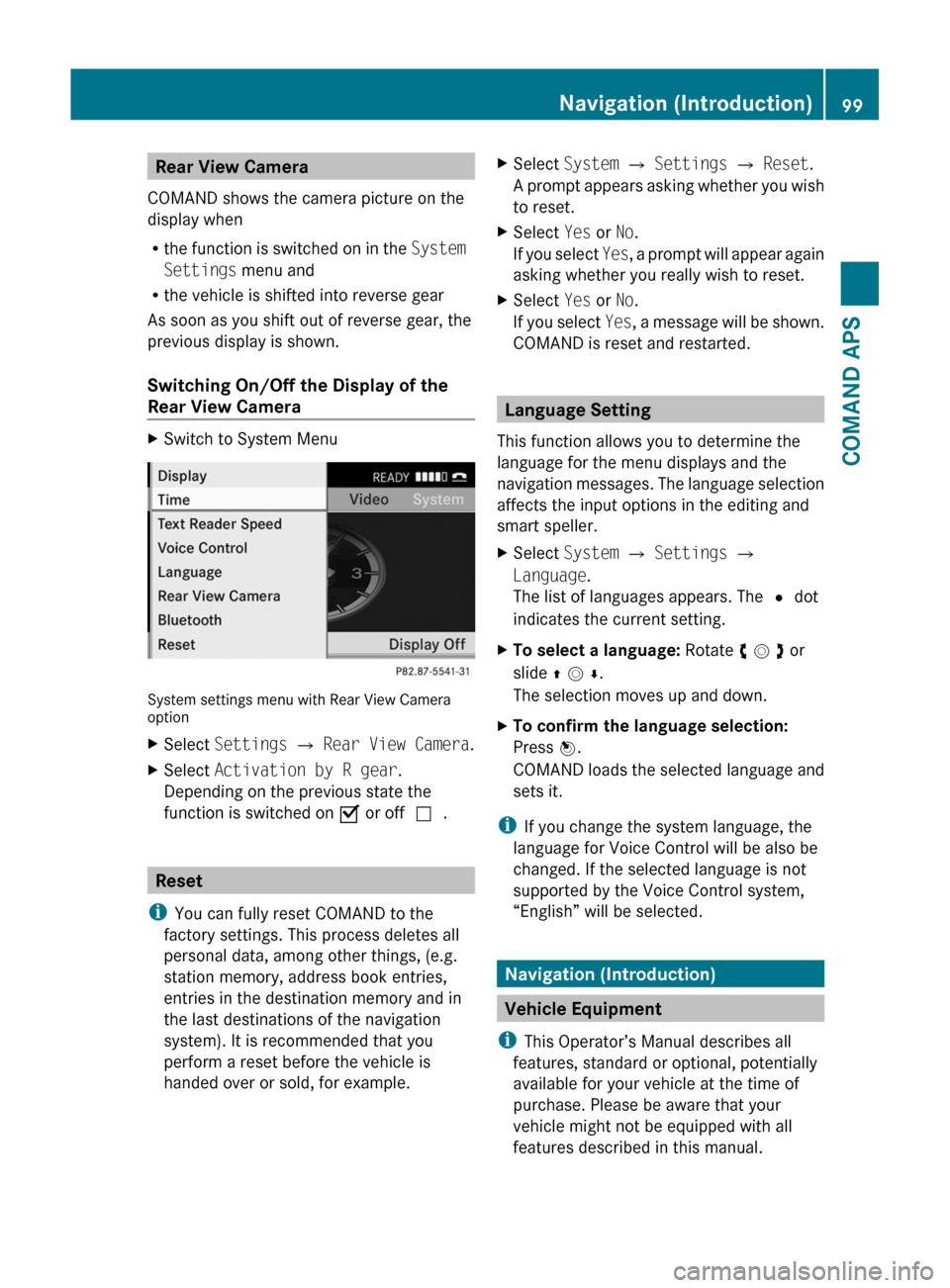
XSwitch to System Menu
System settings menu with Rear View Cameraoption
XSelect Settings £ Rear View Camera.XSelect Activation by R gear.
Depending on the previous state the
function is switched on Ç or offc.
Reset
iYou can fully reset COMAND to the
factory settings. This process deletes all
personal data, among other things, (e.g.
station memory, address book entries,
entries in the destination memory and in
the last destinations of the navigation
system). It is recommended that you
perform a reset before the vehicle is
handed over or sold, for example.
XSelect System £ Settings £ Reset.
A prompt appears asking whether you wish
to reset.
XSelect Yes or No.
If you select Yes, a prompt will appear again
asking whether you really wish to reset.
XSelect Yes or No.
If you select Yes, a message will be shown.
COMAND is reset and restarted.
Language Setting
This function allows you to determine the
language for the menu displays and the
navigation messages. The language selection
affects the input options in the editing and
smart speller.
XSelect System £ Settings £
Language.
The list of languages appears. The R dot
indicates the current setting.
XTo select a language: Rotate y m z or
slide q m r.
The selection moves up and down.
XTo confirm the language selection:
Press n.
COMAND loads the selected language and
sets it.
iIf you change the system language, the
language for Voice Control will be also be
changed. If the selected language is not
supported by the Voice Control system,
“English” will be selected.
Navigation (Introduction)
Vehicle Equipment
iThis Operator’s Manual describes all
features, standard or optional, potentially
available for your vehicle at the time of
purchase. Please be aware that your
vehicle might not be equipped with all
features described in this manual.
Navigation (Introduction)99COMAND APSBA 197 USA, CA Edition A 2011; 1; 27, en-UShereepeVersion: 3.0.3.52010-03-24T15:31:10+01:00 - Seite 99Z
Page 163 of 436
Only use the COMAND when road and traffic
conditions permit you to do so. Otherwise you
could be involved in an accident in which you
or others could be injured.
General Information
The entries of the address book can be used
for making phone calls and for setting
navigation destinations.
iYou should delete your personal data
before selling your vehicle, using the Reset
function (Y page 99).
Opening the Address Book
From Another Main Function
XSelect Phone £ Phone £ Address
Book.
iIf the address book was last open in the
telephone function, you only need to select
Phone.
Within the Phone Function
XSelect Phone £ Address Book.
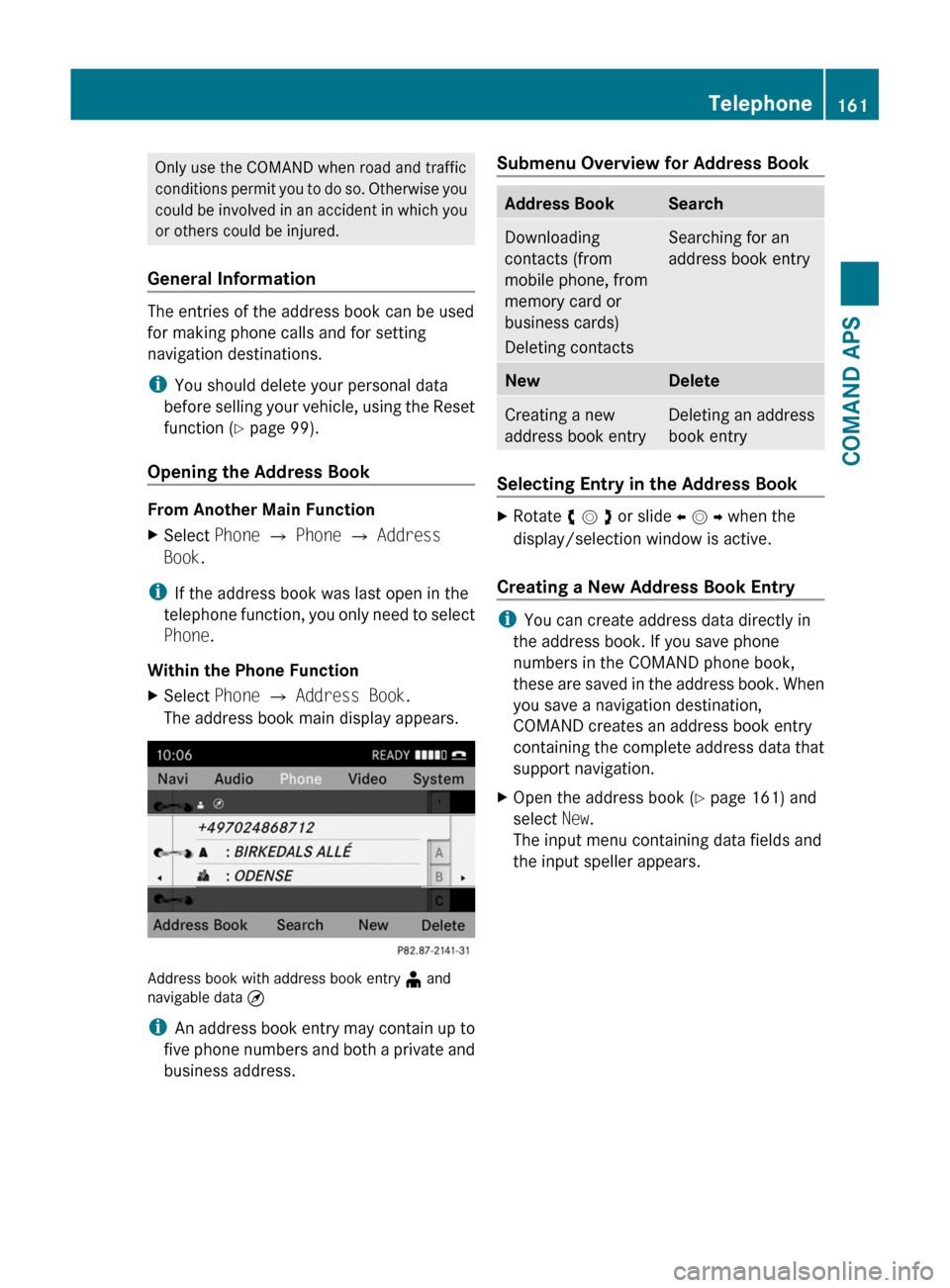
The address book main display appears.
Address book with address book entry ¥ andnavigable data ¤
iAn address book entry may contain up to
five phone numbers and both a private and
business address.
Submenu Overview for Address BookAddress BookSearchDownloading
contacts (from
mobile phone, from
memory card or
business cards)
Deleting contacts
Searching for an
address book entry
NewDeleteCreating a new
address book entry
Deleting an address
book entry
Selecting Entry in the Address Book
XRotate y m z or slide o m p when the
display/selection window is active.
Creating a New Address Book Entry
iYou can create address data directly in
the address book. If you save phone
numbers in the COMAND phone book,
these are saved in the address book. When
you save a navigation destination,
COMAND creates an address book entry
containing the complete address data that
support navigation.
XOpen the address book (Y page 161) and
select New.
The input menu containing data fields and
the input speller appears.
Telephone161COMAND APSBA 197 USA, CA Edition A 2011; 1; 27, en-UShereepeVersion: 3.0.3.52010-03-24T15:31:10+01:00 - Seite 161Z
Page 171 of 436
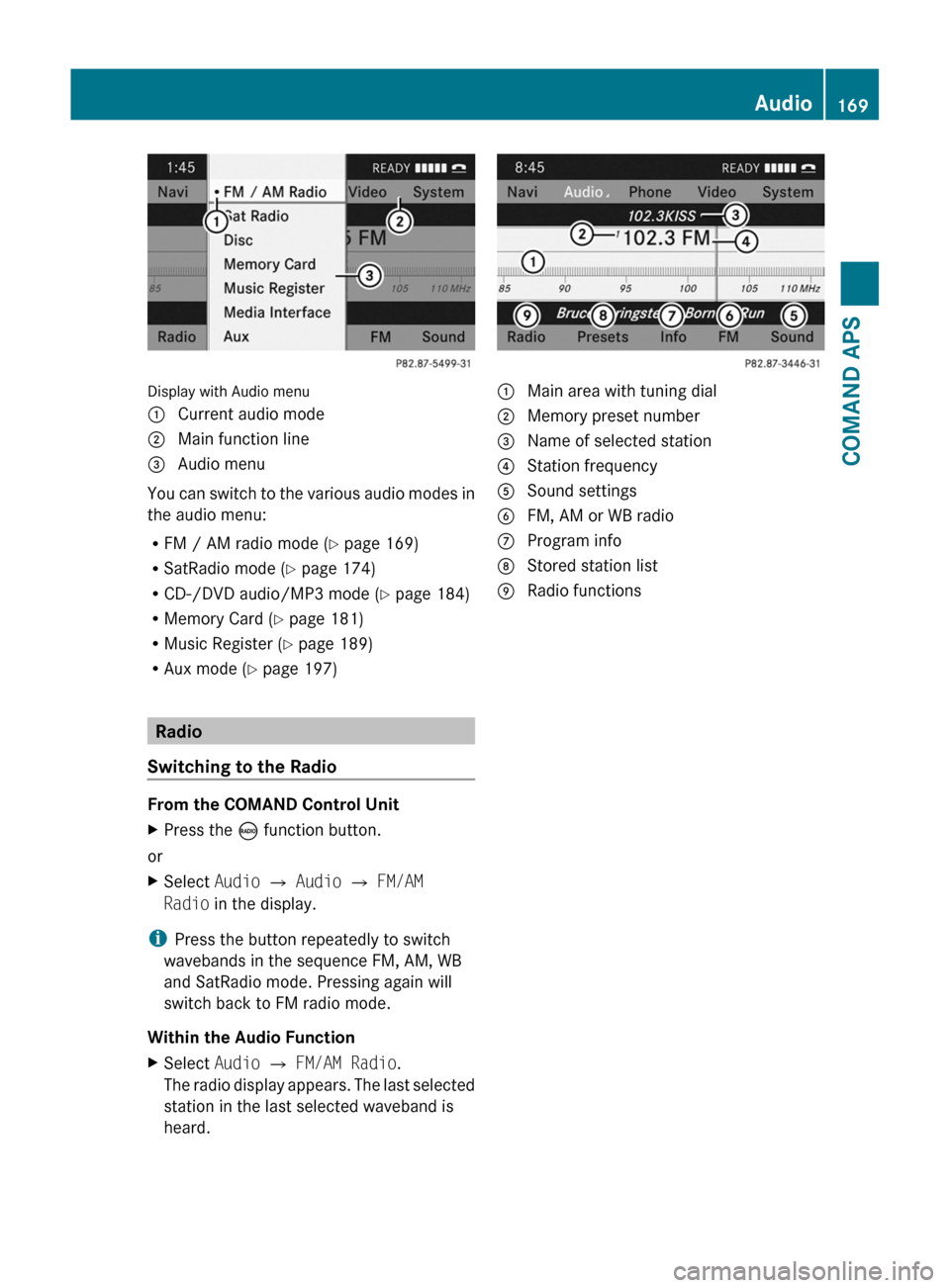
Display with Audio menu
1 Current audio mode2 Main function line3 Audio menu
You can switch to the various audio modes in
the audio menu:
RFM / AM radio mode (Y page 169)
RSatRadio mode (Y page 174)
RCD-/DVD audio/MP3 mode (Y page 184)
RMemory Card (Y page 181)
RMusic Register (Y page 189)
RAux mode (Y page 197)
Radio
Switching to the Radio
From the COMAND Control Unit
XPress the ó function button.
or
XSelect Audio £ Audio £ FM/AM
Radio in the display.
iPress the button repeatedly to switch
wavebands in the sequence FM, AM, WB
and SatRadio mode. Pressing again will
switch back to FM radio mode.
Within the Audio Function
XSelect Audio £ FM/AM Radio.
The radio display appears. The last selected
station in the last selected waveband is
heard.
1 Main area with tuning dial2 Memory preset number3 Name of selected station4 Station frequency5 Sound settings6 FM, AM or WB radio7 Program info8 Stored station list9 Radio functionsAudio169COMAND APSBA 197 USA, CA Edition A 2011; 1; 27, en-UShereepeVersion: 3.0.3.52010-03-24T15:31:10+01:00 - Seite 169Z
Page 172 of 436
Submenu OverviewRadio (FM
and AM
only)
Presets
(FM and
AM only)
Channel
(WB only)
InfoFMSoundEnter
Frequency
AutostoreList of
receivable
channels
Program
Information
FMTrebleÇ Show
Station
Information
List of
stored
stations
AMBassWBBalanceBang &
Olufsen
Sound
System
Switching Wavebands
You can switch the radio between the FM,
AM, and WB wavebands.
XPress the ó function button on the control
unit repeatedly until the desired band is
selected.
iPress the button ó repeatedly to switch
waveband in the sequence of FM, AM, WB
and SatRadio mode. Pressing again will
switch back to FM radio mode.
or
XPress : to highlight the submenu.XTo select a waveband: Rotate y m z or
slide o m p until the currently set
waveband is highlighted (FM, AM or WB).
XPress 9.
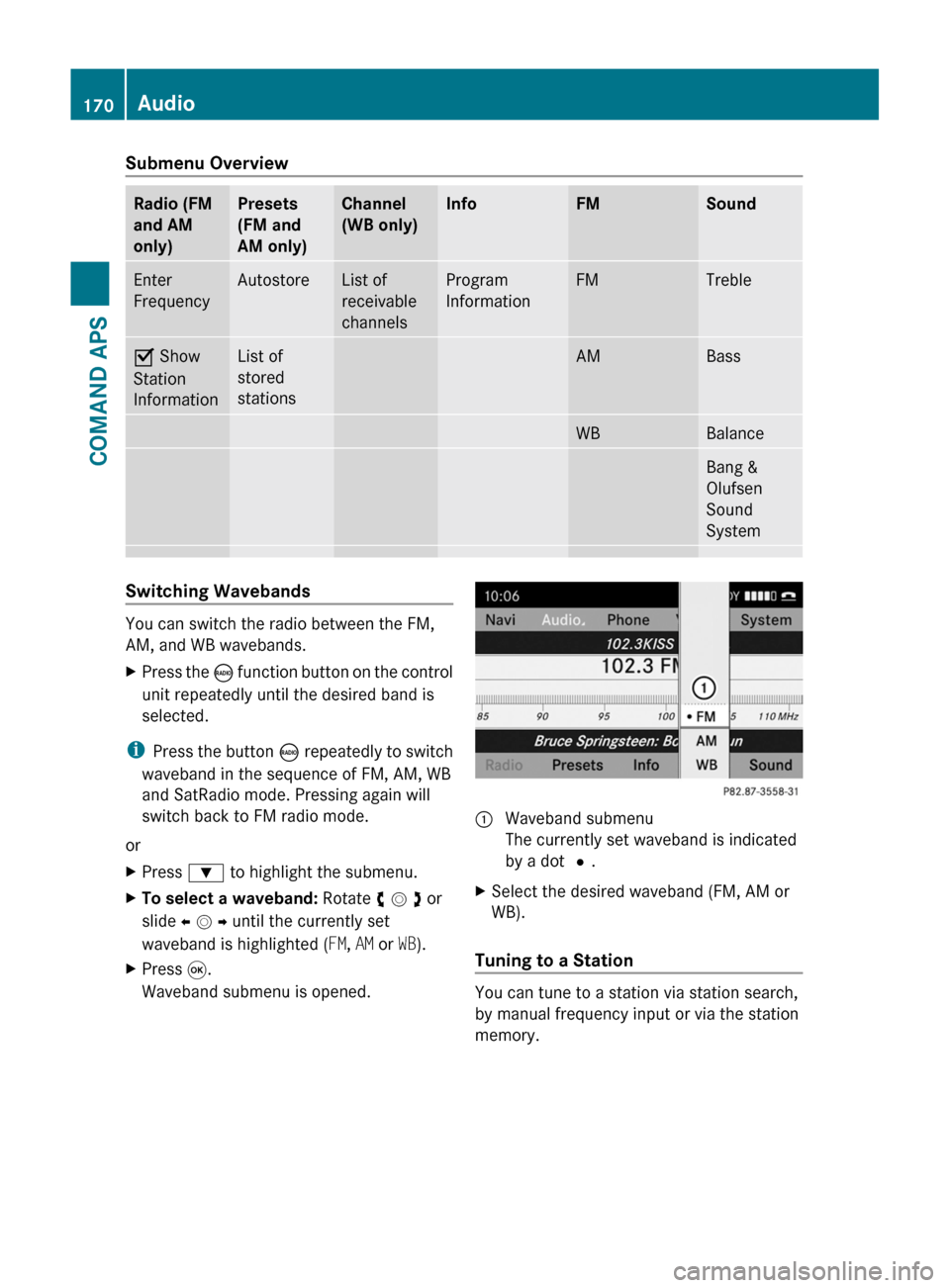
Waveband submenu is opened.
1 Waveband submenu
The currently set waveband is indicated
by a dot #.
XSelect the desired waveband (FM, AM or
WB).
Tuning to a Station
You can tune to a station via station search,
by manual frequency input or via the station
memory.
170AudioCOMAND APS
BA 197 USA, CA Edition A 2011; 1; 27, en-UShereepeVersion: 3.0.3.52010-03-24T15:31:10+01:00 - Seite 170
Page 173 of 436
Tuning to a Station via Station SearchXRotate y m z or slide o m p when the main
area is highlighted.
or
XPress E or F on the COMAND
control unit.
The search proceeds upwards or
downwards and stops at the next
receivable station.
Tuning to a Station via Manual Frequency
Input
XSelect Radio £ Enter Frequency in the
radio display.
An input menu appears.
or
XPress õ on the control unit.XTo enter a frequency: Press number
buttons on the control unit.
iYou can only select numbers that are
currently permissible.
COMAND will tune to the frequency entered.
iIf in the FM or AM wavebands you enter a
frequency outside the frequency sub-
range, COMAND will select the next
frequency down.
Tuning to a Station via the Station
Memory
XSelect Presets in the radio display.
or
XPress n when the main area is highlighted.
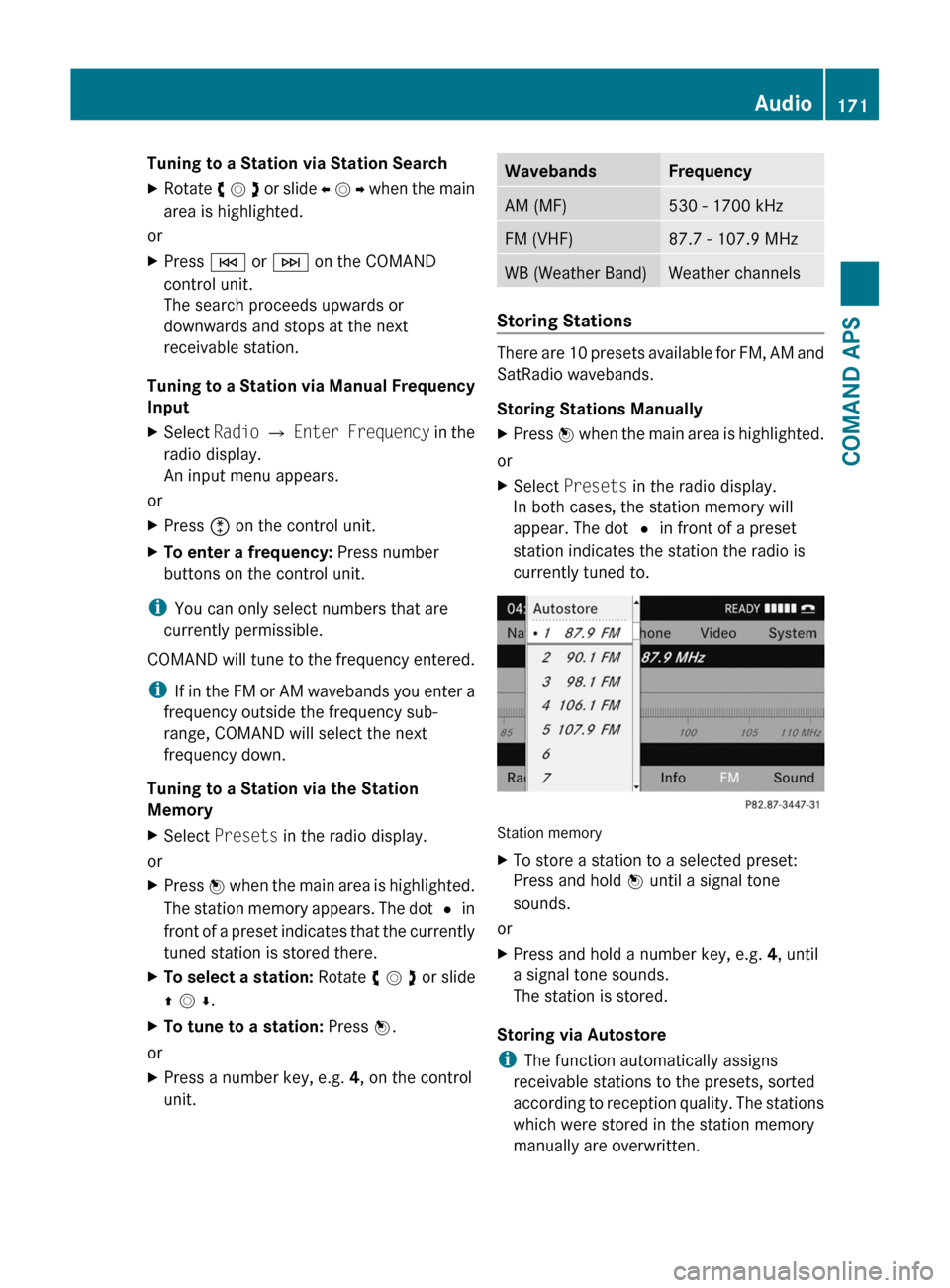
The station memory appears. The dot R in
front of a preset indicates that the currently
tuned station is stored there.
XTo select a station: Rotate y m z or slide
q m r.
XTo tune to a station: Press n.
or
XPress a number key, e.g. 4, on the control
unit.
WavebandsFrequencyAM (MF)530 - 1700 kHzFM (VHF)87.7 - 107.9 MHzWB (Weather Band)Weather channels
Storing Stations
There are 10 presets available for FM, AM and
SatRadio wavebands.
Storing Stations Manually
XPress n when the main area is highlighted.
or
XSelect Presets in the radio display.
In both cases, the station memory will
appear. The dot R in front of a preset
station indicates the station the radio is
currently tuned to.
Station memory
XTo store a station to a selected preset:
Press and hold n until a signal tone
sounds.
or
XPress and hold a number key, e.g. 4, until
a signal tone sounds.
The station is stored.
Storing via Autostore
iThe function automatically assigns
receivable stations to the presets, sorted
according to reception quality. The stations
which were stored in the station memory
manually are overwritten.
Audio171COMAND APSBA 197 USA, CA Edition A 2011; 1; 27, en-UShereepeVersion: 3.0.3.52010-03-24T15:31:10+01:00 - Seite 171Z
Page 174 of 436
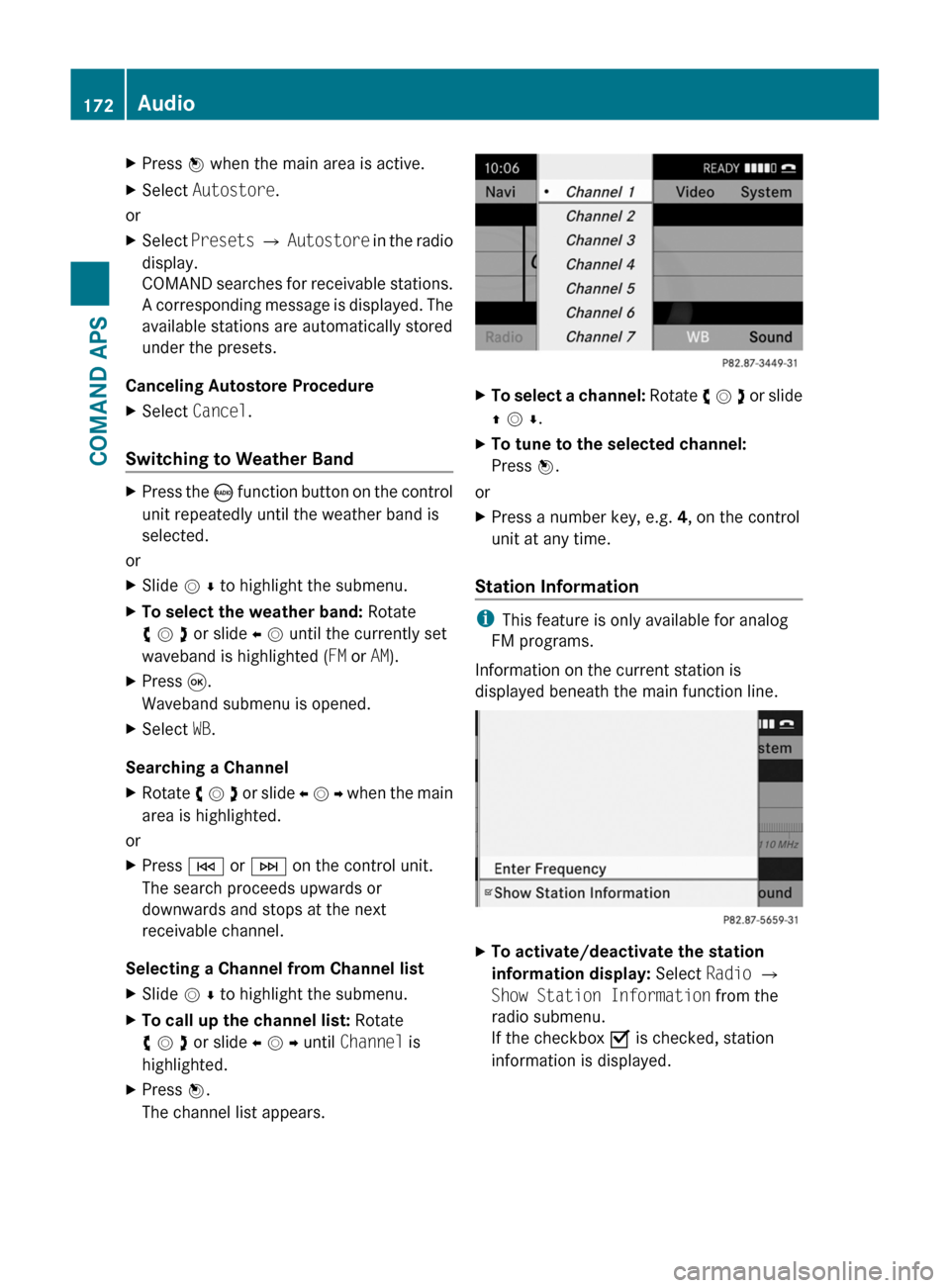
XPress n when the main area is active.XSelect Autostore.
or
XSelect Presets £ Autostore in the radio
display.
COMAND searches for receivable stations.
A corresponding message is displayed. The
available stations are automatically stored
under the presets.
Canceling Autostore Procedure
XSelect Cancel.
Switching to Weather Band
XPress the ó function button on the control
unit repeatedly until the weather band is
selected.
or
XSlide m r to highlight the submenu.XTo select the weather band: Rotate
y m z or slide o m until the currently set
waveband is highlighted (FM or AM).
XPress 9.
Waveband submenu is opened.
XSelect WB.
Searching a Channel
XRotate y m z or slide o m p when the main
area is highlighted.
or
XPress E or F on the control unit.
The search proceeds upwards or
downwards and stops at the next
receivable channel.
Selecting a Channel from Channel list
XSlide m r to highlight the submenu.XTo call up the channel list: Rotate
y m z or slide o m p until Channel is
highlighted.
XPress n.
The channel list appears.
XTo select a channel: Rotate y m z or slide
q m r.
XTo tune to the selected channel:
Press n.
or
XPress a number key, e.g. 4, on the control
unit at any time.
Station Information
iThis feature is only available for analog
FM programs.
Information on the current station is
displayed beneath the main function line.
XTo activate/deactivate the station
information display: Select Radio £
Show Station Information from the
radio submenu.
If the checkbox O is checked, station
information is displayed.
172AudioCOMAND APS
BA 197 USA, CA Edition A 2011; 1; 27, en-UShereepeVersion: 3.0.3.52010-03-24T15:31:10+01:00 - Seite 172
Page 177 of 436
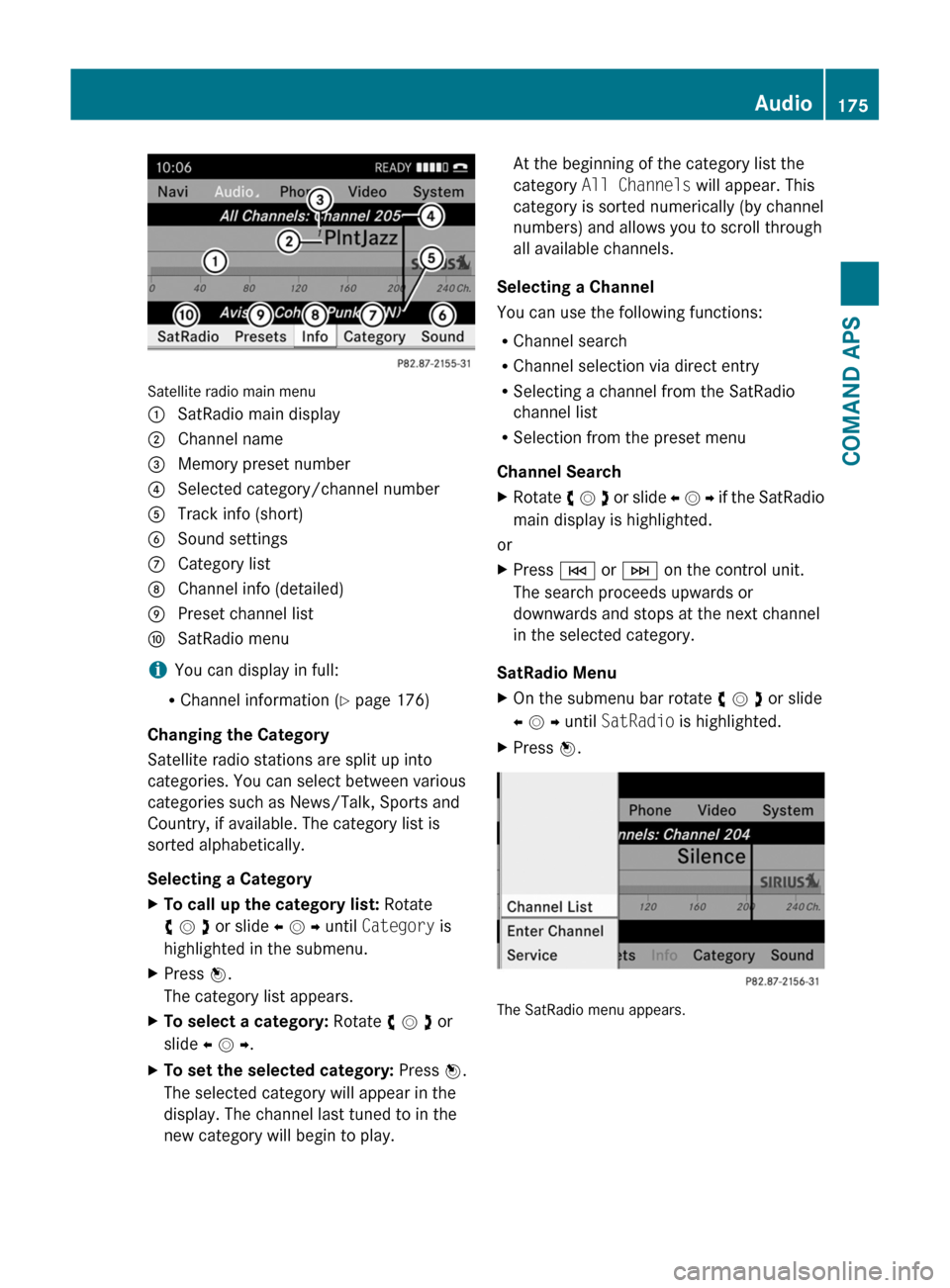
Satellite radio main menu
1 SatRadio main display2 Channel name3 Memory preset number4 Selected category/channel number5 Track info (short)6 Sound settings7 Category list8 Channel info (detailed)9 Preset channel lista SatRadio menu
iYou can display in full:
RChannel information (Y page 176)
Changing the Category
Satellite radio stations are split up into
categories. You can select between various
categories such as News/Talk, Sports and
Country, if available. The category list is
sorted alphabetically.
Selecting a Category
XTo call up the category list: Rotate
y m z or slide o m p until Category is
highlighted in the submenu.
XPress n.
The category list appears.
XTo select a category: Rotate y m z or
slide o m p.
XTo set the selected category: Press n.
The selected category will appear in the
display. The channel last tuned to in the
new category will begin to play.
At the beginning of the category list the
category All Channels will appear. This
category is sorted numerically (by channel
numbers) and allows you to scroll through
all available channels.
Selecting a Channel
You can use the following functions:
RChannel search
RChannel selection via direct entry
RSelecting a channel from the SatRadio
channel list
RSelection from the preset menu
Channel Search
XRotate y m z or slide o m p if the SatRadio
main display is highlighted.
or
XPress E or F on the control unit.
The search proceeds upwards or
downwards and stops at the next channel
in the selected category.
SatRadio Menu
XOn the submenu bar rotate y m z or slide
o m p until SatRadio is highlighted.
XPress n.
The SatRadio menu appears.
Audio175COMAND APSBA 197 USA, CA Edition A 2011; 1; 27, en-UShereepeVersion: 3.0.3.52010-03-24T15:31:10+01:00 - Seite 175Z
Page 178 of 436
Entering a Channel Number DirectlyXSelect SatRadio £ Enter Channel in
the SatRadio menu.
An input dialog appears.
or
XPress õ on the control unit.XTo enter a channel: Press corresponding
number buttons on the control unit.
COMAND will tune to the channel entered.
iYou can only select numbers that are
currently permissible.
Selecting a Channel from the SatRadio
Channel List
XSelect SatRadio £ Channel List in the
SatRadio menu.
The channel list appears.
XTo select a channel: Rotate y m z or slide
q m r
XTo tune to the selected channel:
Press n.
Memory Functions
iThere are 10 presets available.
You can use the following functions:
RStoring channels
RSelecting a channel from the Satellite
preset memory
Storing Channels
XPress n if the main area is highlighted.
or
XSelect Presets on the SatRadio submenu
bar.
In both cases, the channel memory will
appear. The dot R in front of a preset
indicates that the currently tuned channel
is stored there.
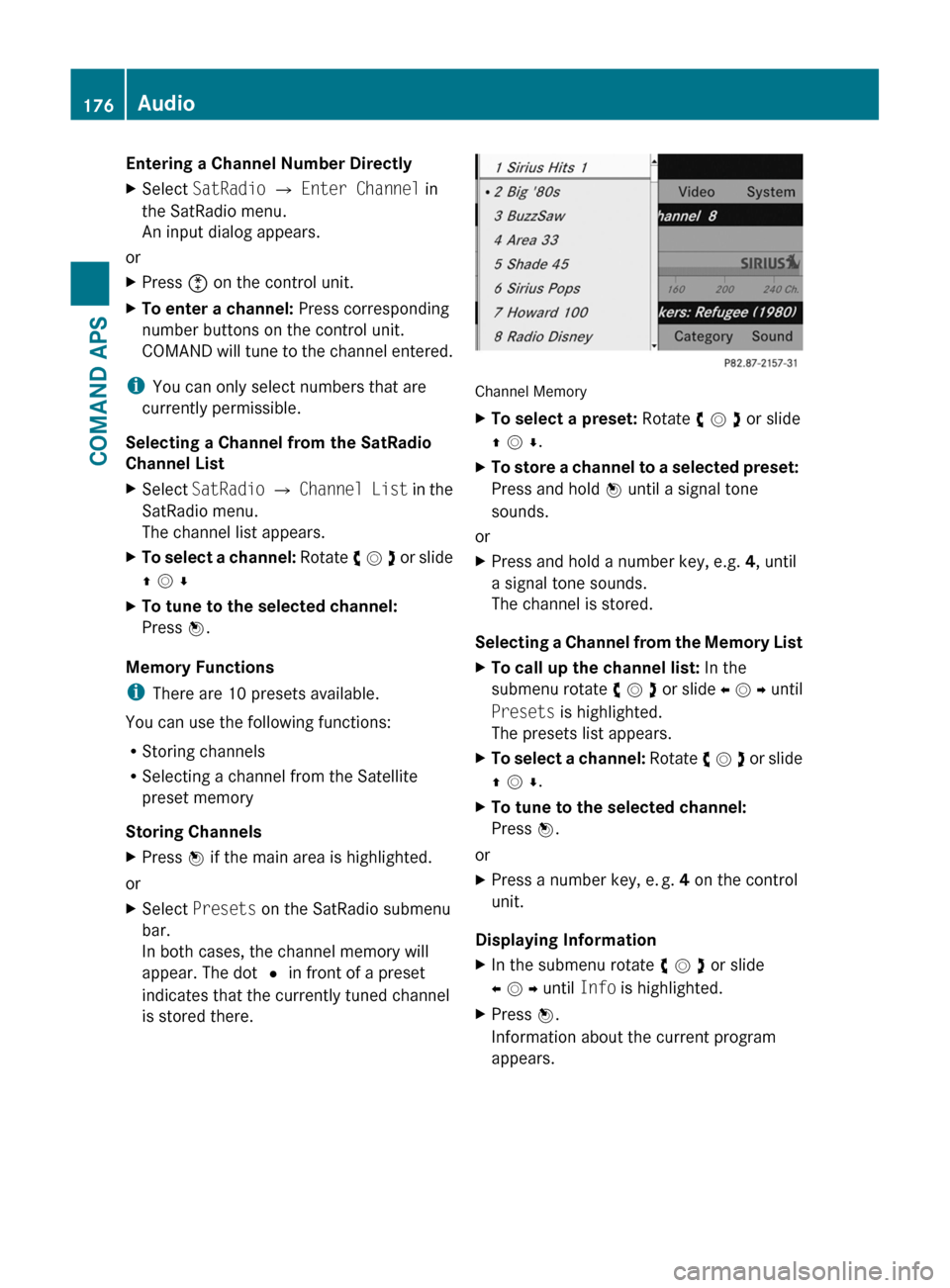
Channel Memory
XTo select a preset: Rotate y m z or slide
q m r.
XTo store a channel to a selected preset:
Press and hold n until a signal tone
sounds.
or
XPress and hold a number key, e.g. 4, until
a signal tone sounds.
The channel is stored.
Selecting a Channel from the Memory List
XTo call up the channel list: In the
submenu rotate y m z or slide o m p until
Presets is highlighted.
The presets list appears.
XTo select a channel: Rotate y m z or slide
q m r.
XTo tune to the selected channel:
Press n.
or
XPress a number key, e. g. 4 on the control
unit.
Displaying Information
XIn the submenu rotate y m z or slide
o m p until Info is highlighted.
XPress n.
Information about the current program
appears.
176AudioCOMAND APS
BA 197 USA, CA Edition A 2011; 1; 27, en-UShereepeVersion: 3.0.3.52010-03-24T15:31:10+01:00 - Seite 176
Page 241 of 436
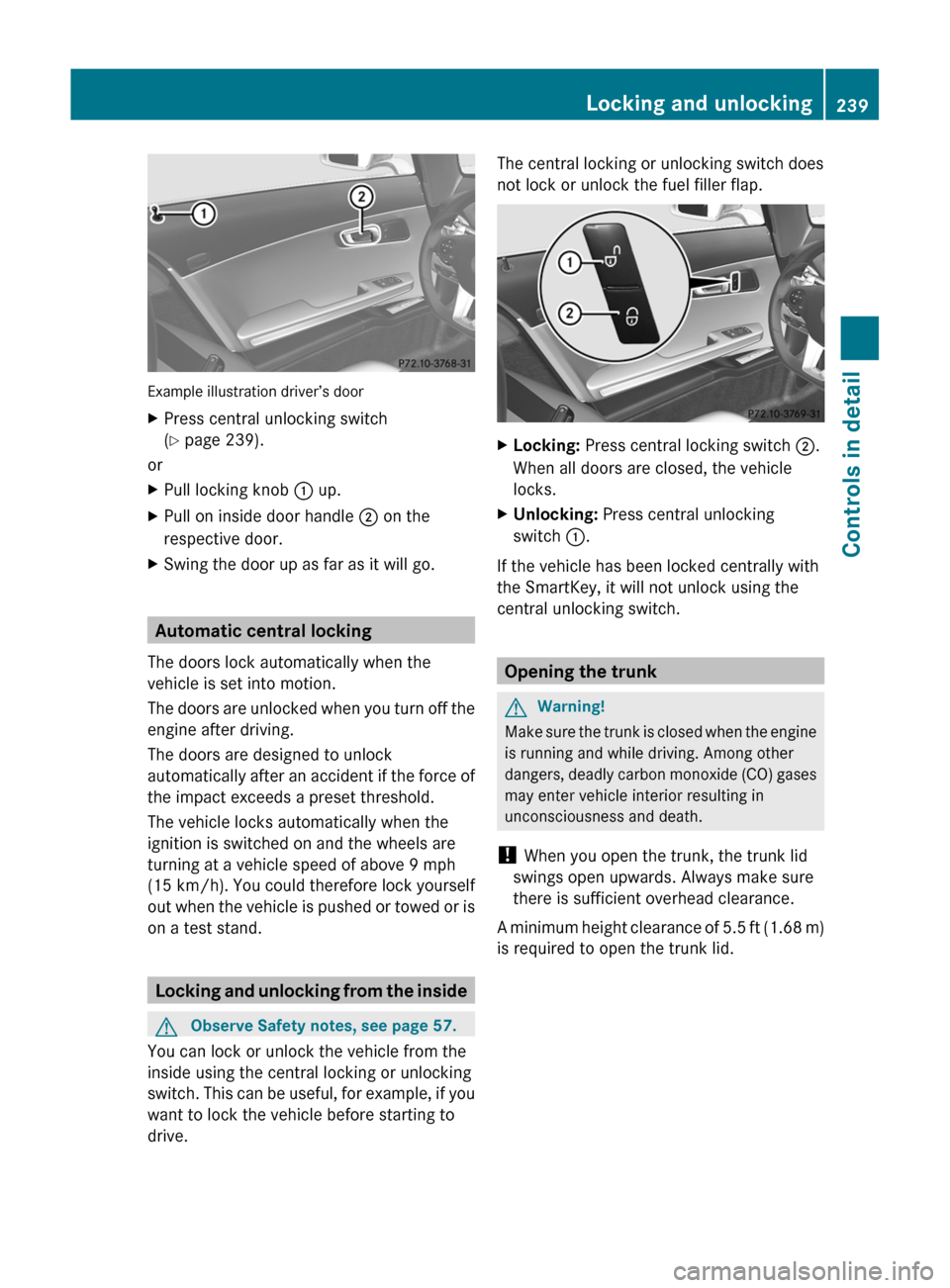
Example illustration driver’s door
XPress central unlocking switch
( Y page 239).
or
XPull locking knob : up.XPull on inside door handle ; on the
respective door.XSwing the door up as far as it will go.
Automatic central locking
The doors lock automatically when the
vehicle is set into motion.
The doors are unlocked when you turn off the
engine after driving.
The doors are designed to unlock
automatically after an accident if the force of
the impact exceeds a preset threshold.
The vehicle locks automatically when the
ignition is switched on and the wheels are
turning at a vehicle speed of above 9 mph
(15 km/h) . You could therefore lock yourself
out when the vehicle is pushed or towed or is
on a test stand.
Locking and unlocking from the inside
GObserve Safety notes, see page 57.
You can lock or unlock the vehicle from the
inside using the central locking or unlocking
switch. This can be useful, for example, if you
want to lock the vehicle before starting to
drive.
The central locking or unlocking switch does
not lock or unlock the fuel filler flap.XLocking: Press central locking switch ;.
When all doors are closed, the vehicle
locks.XUnlocking: Press central unlocking
switch :.
If the vehicle has been locked centrally with
the SmartKey, it will not unlock using the
central unlocking switch.
Opening the trunk
GWarning!
Make sure the trunk is closed when the engine
is running and while driving. Among other
dangers, deadly carbon monoxide (CO) gases
may enter vehicle interior resulting in
unconsciousness and death.
! When you open the trunk, the trunk lid
swings open upwards. Always make sure
there is sufficient overhead clearance.
A minimum height clearance of 5.5 ft (1.68 m)
is required to open the trunk lid.
Locking and unlocking239Controls in detailBA 197 USA, CA Edition A 2011; 1; 27, en-UShereepeVersion: 3.0.3.52010-03-24T15:31:10+01:00 - Seite 239Z
Page 253 of 436
Once the low-beam headlamps are on, the
high-beam headlamps are also available.
Daytime running lamp mode
In Canada, the daytime running lamp mode is
mandatory and therefore in a constant mode.
In the USA, the daytime running lamp mode
is activated by default.
XMake sure the daytime running lamp mode
is activated in the control system, see
“Switching daytime running lamp mode on
or off (USA only)” ( Y page 284).XTurn the exterior lamp switch to position
c .
When the engine is running and the
ambient light is bright, the daytime running
lamps come on.
In low ambient lighting conditions, the
following lamps will come on additionally:
R Low-beam headlamps
R Parking lamps 5
R green indicator lamp L in the
instrument cluster
You can only switch on the high-beam
headlamps when the low-beam headlamps
are on.
The high-beam flasher is available at all times.
Canada only
When the engine is running, and you
R shift from a driving position to park
position P with the vehicle at a standstill,
the daytime running lamps or the low-beam
headlamps will go out with a delay of
3 minutes
R turn the exterior lamp switch to position
T , the daytime running lamps and the
parking lamps 5
come on in bright ambient
lighting conditions.
R turn the exterior lamp switch to position
L , the manual headlamp mode has
priority over the daytime running lamp
mode
The corresponding exterior lamps come on
( Y page 250).
USA only
When the engine is running, and you turn the
exterior lamp switch to position T or
L , the manual headlamp mode has
priority over the daytime running lamp mode.
The corresponding exterior lamps come on
( Y page 250).
Locator lighting
The locator lighting is described in the
“Control system” section, see “Switching
locator lighting on or off” ( Y page 285).
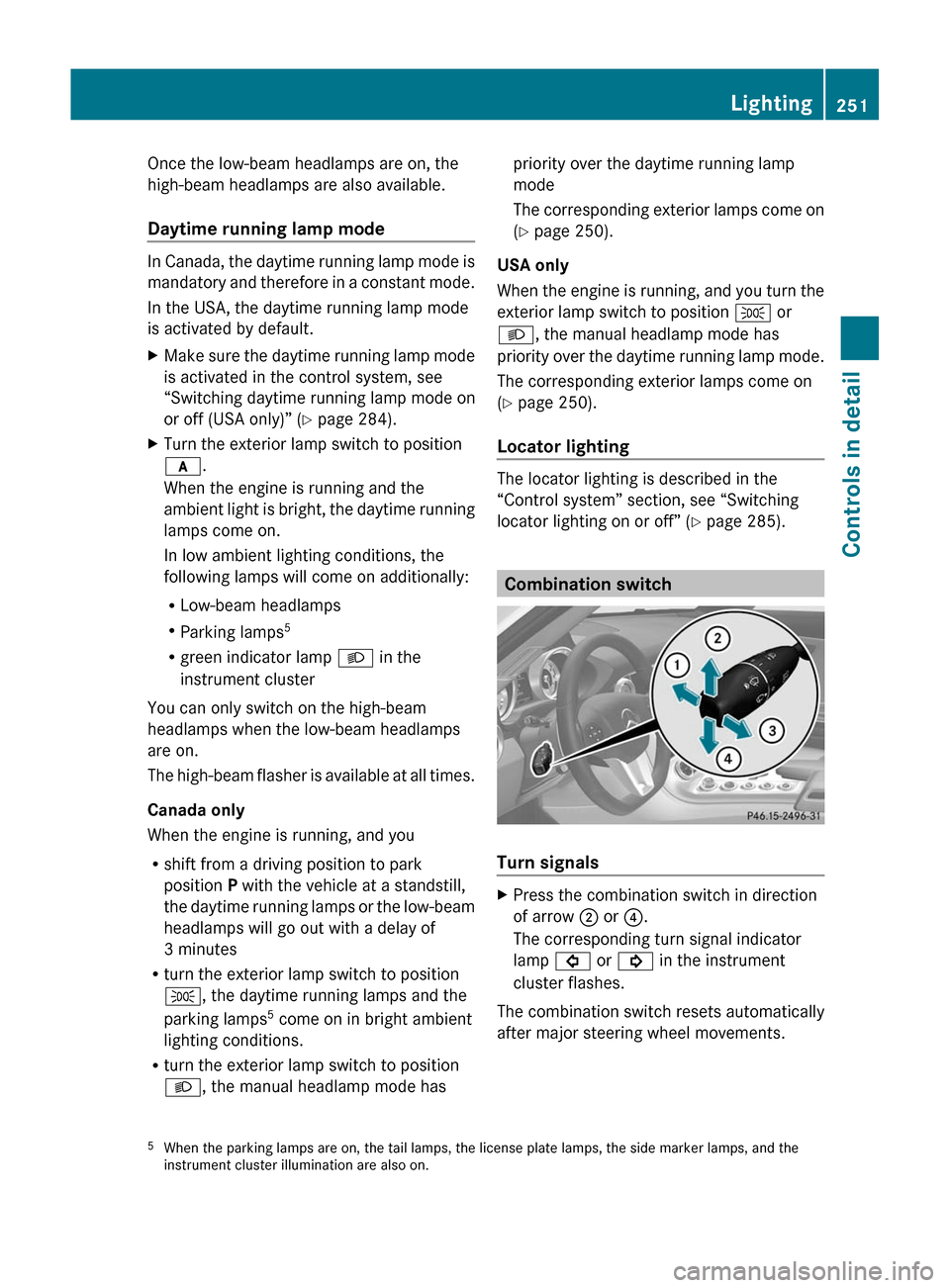
Combination switch
Turn signals
XPress the combination switch in direction
of arrow ; or ?.
The corresponding turn signal indicator
lamp # or ! in the instrument
cluster flashes.
The combination switch resets automatically
after major steering wheel movements.
5 When the parking lamps are on, the tail lamps, the license plate lamps, the side marker lamps, and the
instrument cluster illumination are also on.Lighting251Controls in detailBA 197 USA, CA Edition A 2011; 1; 27, en-UShereepeVersion: 3.0.3.52010-03-24T15:31:10+01:00 - Seite 251Z