reset MERCEDES-BENZ SLS AMG 2011 User Guide
[x] Cancel search | Manufacturer: MERCEDES-BENZ, Model Year: 2011, Model line: SLS AMG, Model: MERCEDES-BENZ SLS AMG 2011Pages: 436, PDF Size: 17.73 MB
Page 163 of 436
Only use the COMAND when road and traffic
conditions permit you to do so. Otherwise you
could be involved in an accident in which you
or others could be injured.
General Information
The entries of the address book can be used
for making phone calls and for setting
navigation destinations.
iYou should delete your personal data
before selling your vehicle, using the Reset
function (Y page 99).
Opening the Address Book
From Another Main Function
XSelect Phone £ Phone £ Address
Book.
iIf the address book was last open in the
telephone function, you only need to select
Phone.
Within the Phone Function
XSelect Phone £ Address Book.
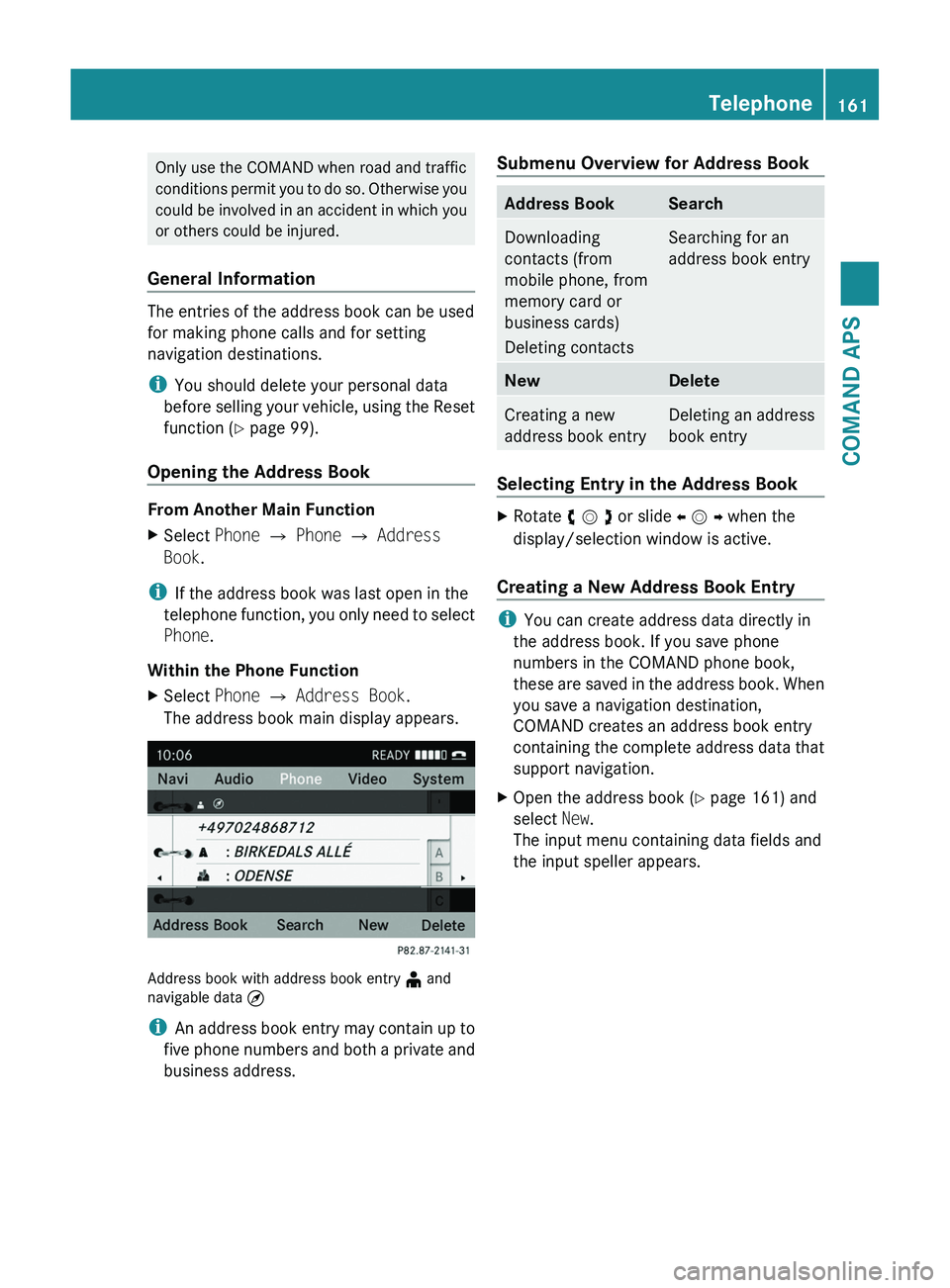
The address book main display appears.
Address book with address book entry ¥ andnavigable data ¤
iAn address book entry may contain up to
five phone numbers and both a private and
business address.
Submenu Overview for Address BookAddress BookSearchDownloading
contacts (from
mobile phone, from
memory card or
business cards)
Deleting contacts
Searching for an
address book entry
NewDeleteCreating a new
address book entry
Deleting an address
book entry
Selecting Entry in the Address Book
XRotate y m z or slide o m p when the
display/selection window is active.
Creating a New Address Book Entry
iYou can create address data directly in
the address book. If you save phone
numbers in the COMAND phone book,
these are saved in the address book. When
you save a navigation destination,
COMAND creates an address book entry
containing the complete address data that
support navigation.
XOpen the address book (Y page 161) and
select New.
The input menu containing data fields and
the input speller appears.
Telephone161COMAND APSBA 197 USA, CA Edition A 2011; 1; 27, en-UShereepeVersion: 3.0.3.52010-03-24T15:31:10+01:00 - Seite 161Z
Page 172 of 436
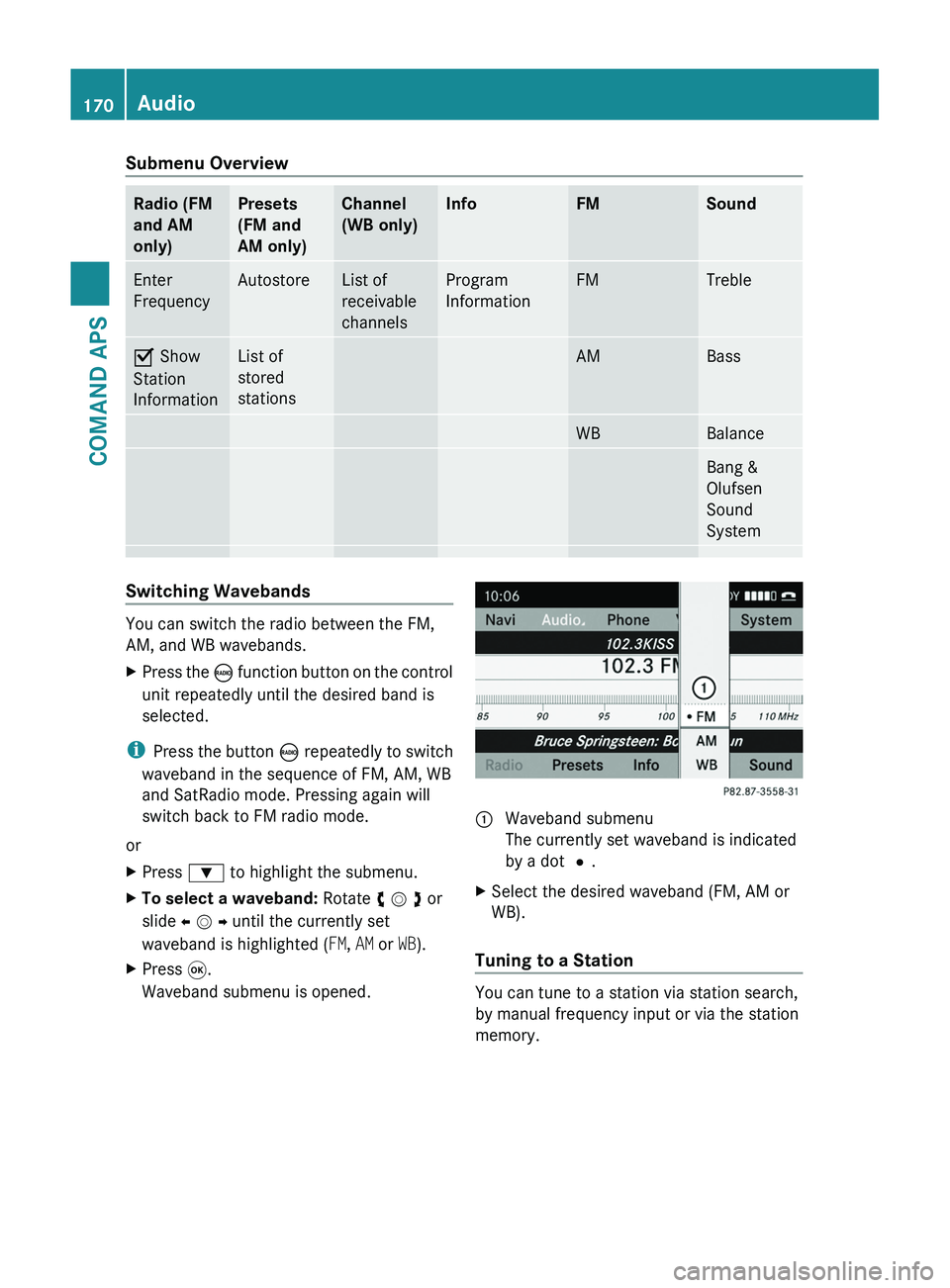
Submenu OverviewRadio (FM
and AM
only)
Presets
(FM and
AM only)
Channel
(WB only)
InfoFMSoundEnter
Frequency
AutostoreList of
receivable
channels
Program
Information
FMTrebleÇ Show
Station
Information
List of
stored
stations
AMBassWBBalanceBang &
Olufsen
Sound
System
Switching Wavebands
You can switch the radio between the FM,
AM, and WB wavebands.
XPress the \000
Page 174 of 436
XPress n when the main area is active.XSelect Autostore.
or
XSelect Presets £ Autostore in the radio
display.
COMAND searches for receivable stations.
A corresponding message is displayed. The
available stations are automatically stored
under the presets.
Canceling Autostore Procedure
XSelect Cancel.
Switching to Weather Band
XPress the \000
Page 177 of 436
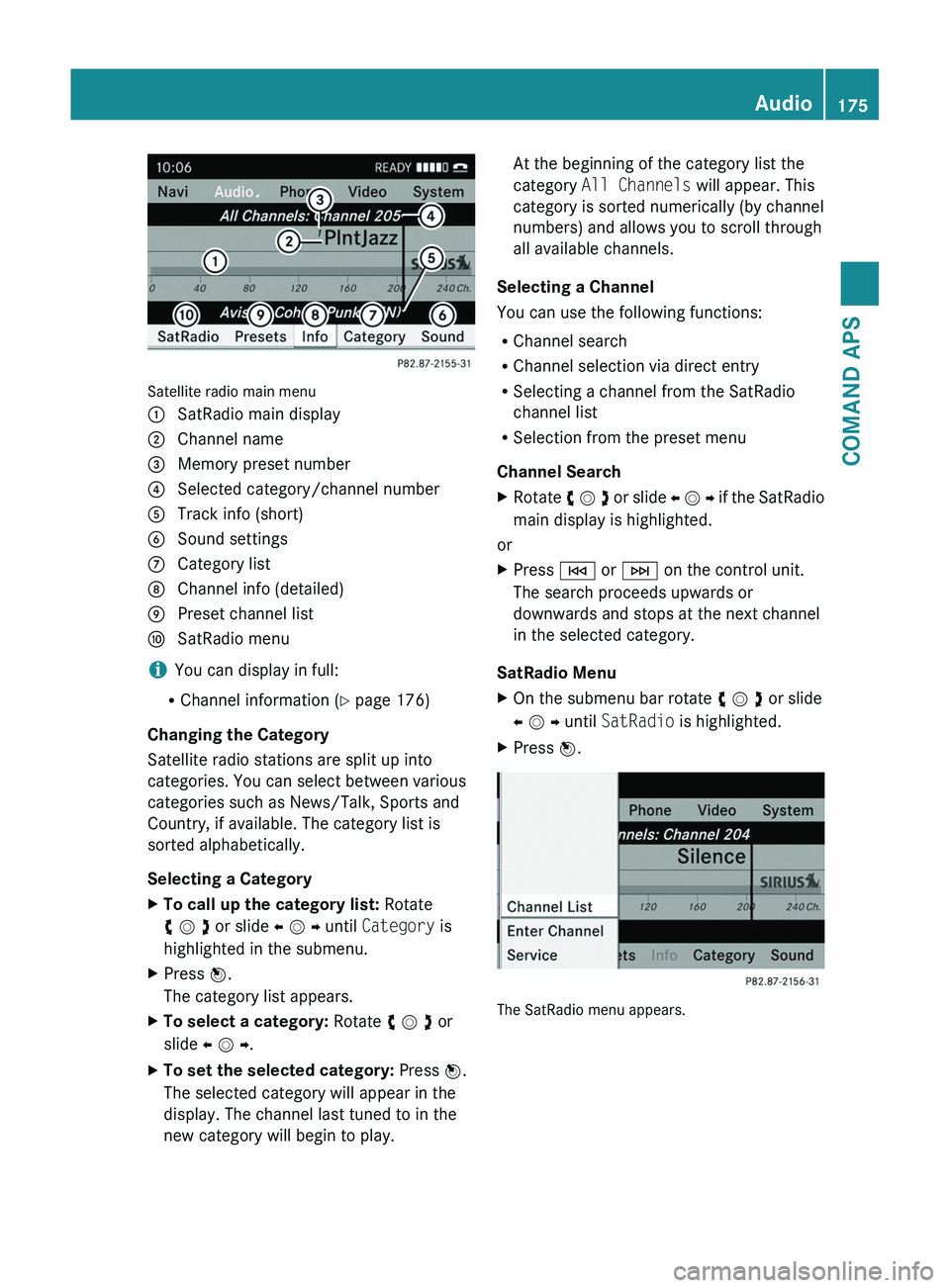
Satellite radio main menu
1 SatRadio main display2 Channel name3 Memory preset number4 Selected category/channel number5 Track info (short)6 Sound settings7 Category list8 Channel info (detailed)9 Preset channel lista SatRadio menu
iYou can display in full:
RChannel information (Y page 176)
Changing the Category
Satellite radio stations are split up into
categories. You can select between various
categories such as News/Talk, Sports and
Country, if available. The category list is
sorted alphabetically.
Selecting a Category
XTo call up the category list: Rotate
y m z or slide o m p until Category is
highlighted in the submenu.
XPress n.
The category list appears.
XTo select a category: Rotate y m z or
slide o m p.
XTo set the selected category: Press n.
The selected category will appear in the
display. The channel last tuned to in the
new category will begin to play.
At the beginning of the category list the
category All Channels will appear. This
category is sorted numerically (by channel
numbers) and allows you to scroll through
all available channels.
Selecting a Channel
You can use the following functions:
RChannel search
RChannel selection via direct entry
RSelecting a channel from the SatRadio
channel list
RSelection from the preset menu
Channel Search
XRotate y m z or slide o m p if the SatRadio
main display is highlighted.
or
XPress \000H or \000I on the control unit.
The search proceeds upwards or
downwards and stops at the next channel
in the selected category.
SatRadio Menu
XOn the submenu bar rotate y m z or slide
o m p until SatRadio is highlighted.
XPress n.
The SatRadio menu appears.
Audio175COMAND APSBA 197 USA, CA Edition A 2011; 1; 27, en-UShereepeVersion: 3.0.3.52010-03-24T15:31:10+01:00 - Seite 175Z
Page 241 of 436
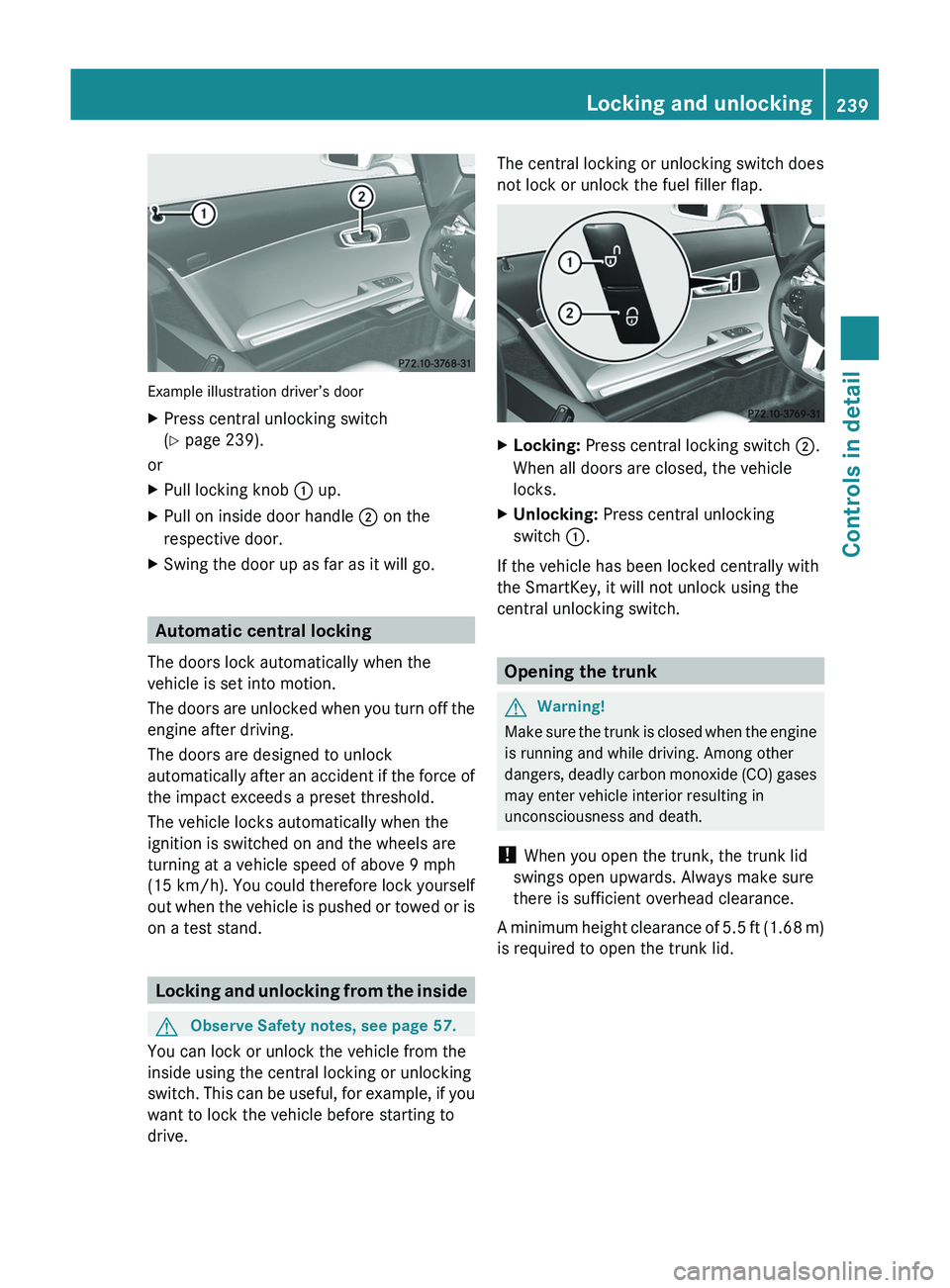
Example illustration driver’s door
XPress central unlocking switch
( Y page 239).
or
XPull locking knob 0046 up.XPull on inside door handle 0047 on the
respective door.XSwing the door up as far as it will go.
Automatic central locking
The doors lock automatically when the
vehicle is set into motion.
The doors are unlocked when you turn off the
engine after driving.
The doors are designed to unlock
automatically after an accident if the force of
the impact exceeds a preset threshold.
The vehicle locks automatically when the
ignition is switched on and the wheels are
turning at a vehicle speed of above 9 mph
(15 km/h) . You could therefore lock yourself
out when the vehicle is pushed or towed or is
on a test stand.
Locking and unlocking from the inside
GObserve Safety notes, see page 57.
You can lock or unlock the vehicle from the
inside using the central locking or unlocking
switch. This can be useful, for example, if you
want to lock the vehicle before starting to
drive.
The central locking or unlocking switch does
not lock or unlock the fuel filler flap.XLocking: Press central locking switch 0047.
When all doors are closed, the vehicle
locks.XUnlocking: Press central unlocking
switch 0046.
If the vehicle has been locked centrally with
the SmartKey, it will not unlock using the
central unlocking switch.
Opening the trunk
GWarning!
Make sure the trunk is closed when the engine
is running and while driving. Among other
dangers, deadly carbon monoxide (CO) gases
may enter vehicle interior resulting in
unconsciousness and death.
! When you open the trunk, the trunk lid
swings open upwards. Always make sure
there is sufficient overhead clearance.
A minimum height clearance of 5.5 ft (1.68 m)
is required to open the trunk lid.
Locking and unlocking239Controls in detailBA 197 USA, CA Edition A 2011; 1; 27, en-UShereepeVersion: 3.0.3.52010-03-24T15:31:10+01:00 - Seite 239Z
Page 253 of 436
Once the low-beam headlamps are on, the
high-beam headlamps are also available.
Daytime running lamp mode
In Canada, the daytime running lamp mode is
mandatory and therefore in a constant mode.
In the USA, the daytime running lamp mode
is activated by default.
XMake sure the daytime running lamp mode
is activated in the control system, see
“Switching daytime running lamp mode on
or off (USA only)” ( Y page 284).XTurn the exterior lamp switch to position
0066 .
When the engine is running and the
ambient light is bright, the daytime running
lamps come on.
In low ambient lighting conditions, the
following lamps will come on additionally:
R Low-beam headlamps
R Parking lamps 5
R green indicator lamp 0064 in the
instrument cluster
You can only switch on the high-beam
headlamps when the low-beam headlamps
are on.
The high-beam flasher is available at all times.
Canada only
When the engine is running, and you
R shift from a driving position to park
position P with the vehicle at a standstill,
the daytime running lamps or the low-beam
headlamps will go out with a delay of
3 minutes
R turn the exterior lamp switch to position
006C , the daytime running lamps and the
parking lamps 5
come on in bright ambient
lighting conditions.
R turn the exterior lamp switch to position
0064 , the manual headlamp mode has
priority over the daytime running lamp
mode
The corresponding exterior lamps come on
( Y page 250).
USA only
When the engine is running, and you turn the
exterior lamp switch to position 006C or
0064 , the manual headlamp mode has
priority over the daytime running lamp mode.
The corresponding exterior lamps come on
( Y page 250).
Locator lighting
The locator lighting is described in the
“Control system” section, see “Switching
locator lighting on or off” ( Y page 285).
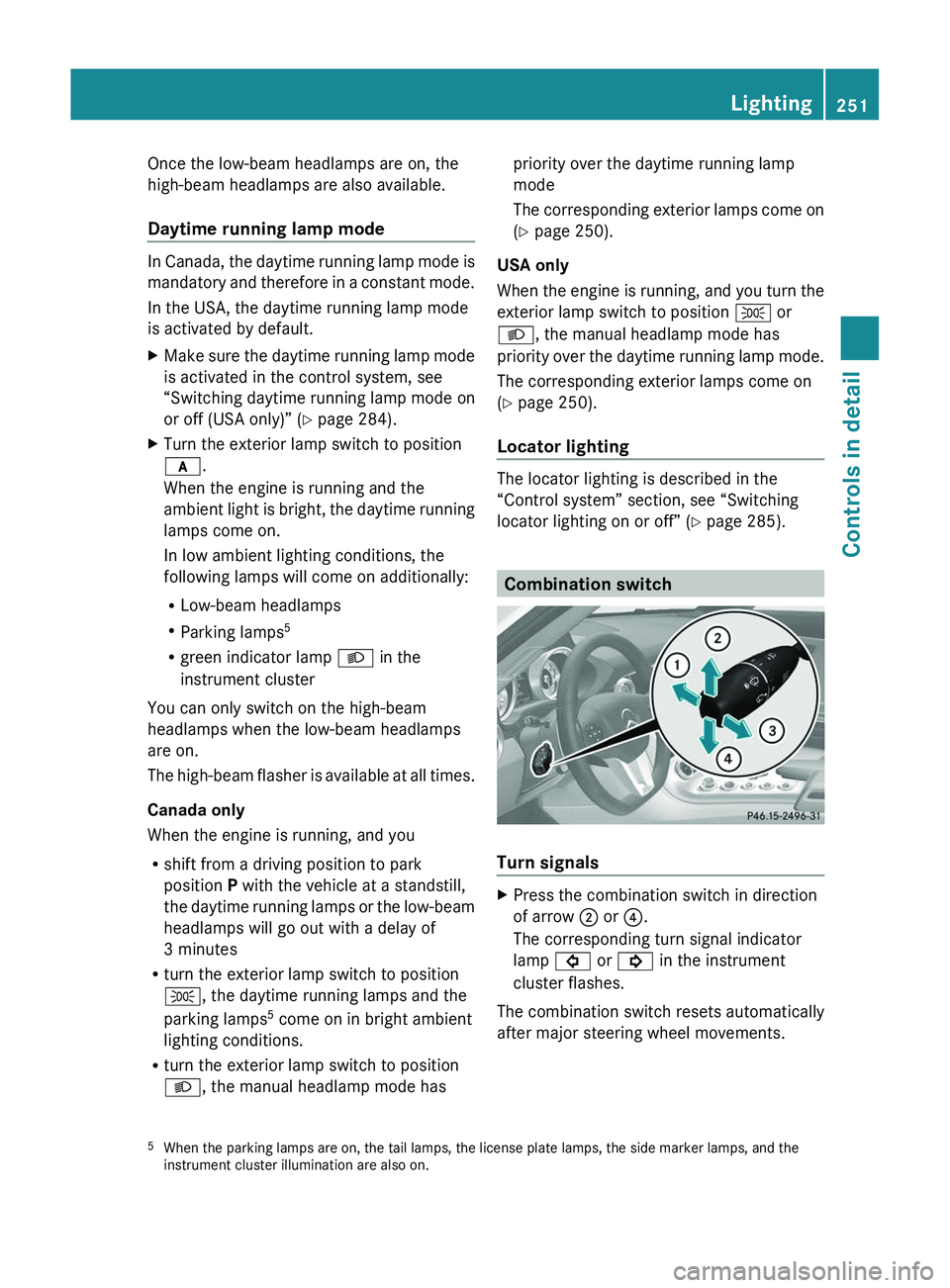
Combination switch
Turn signals
XPress the combination switch in direction
of arrow 0047 or 0088.
The corresponding turn signal indicator
lamp 0026 or 0024 in the instrument
cluster flashes.
The combination switch resets automatically
after major steering wheel movements.
5 When the parking lamps are on, the tail lamps, the license plate lamps, the side marker lamps, and the
instrument cluster illumination are also on.Lighting251Controls in detailBA 197 USA, CA Edition A 2011; 1; 27, en-UShereepeVersion: 3.0.3.52010-03-24T15:31:10+01:00 - Seite 251Z
Page 277 of 436
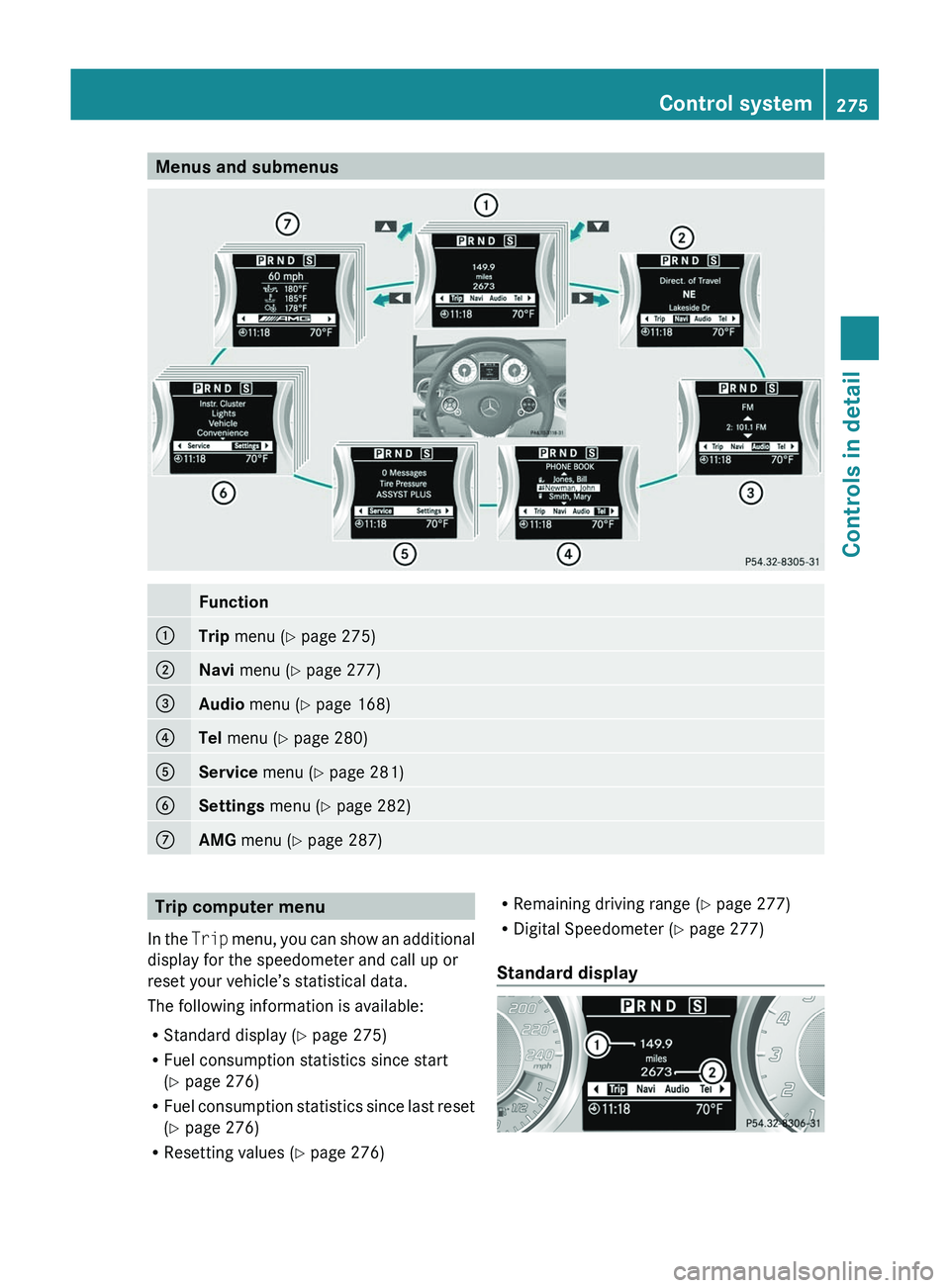
Menus and submenusFunction0046Trip menu ( Y page 275)0047Navi menu ( Y page 277)008AAudio menu ( Y page 168)0088Tel menu ( Y page 280)0086Service menu (Y page 281)0087Settings menu (Y page 282)006EAMG menu ( Y page 287)Trip computer menu
In the Trip menu, you can show an additional
display for the speedometer and call up or
reset your vehicle’s statistical data.
The following information is available:
R Standard display ( Y page 275)
R Fuel consumption statistics since start
( Y page 276)
R Fuel consumption statistics since last reset
( Y page 276)
R Resetting values ( Y page 276)R
Remaining driving range ( Y page 277)
R Digital Speedometer ( Y page 277)
Standard display Control system275Controls in detailBA 197 USA, CA Edition A 2011; 1; 27, en-UShereepeVersion: 3.0.3.52010-03-24T15:31:10+01:00 - Seite 275Z
Page 278 of 436
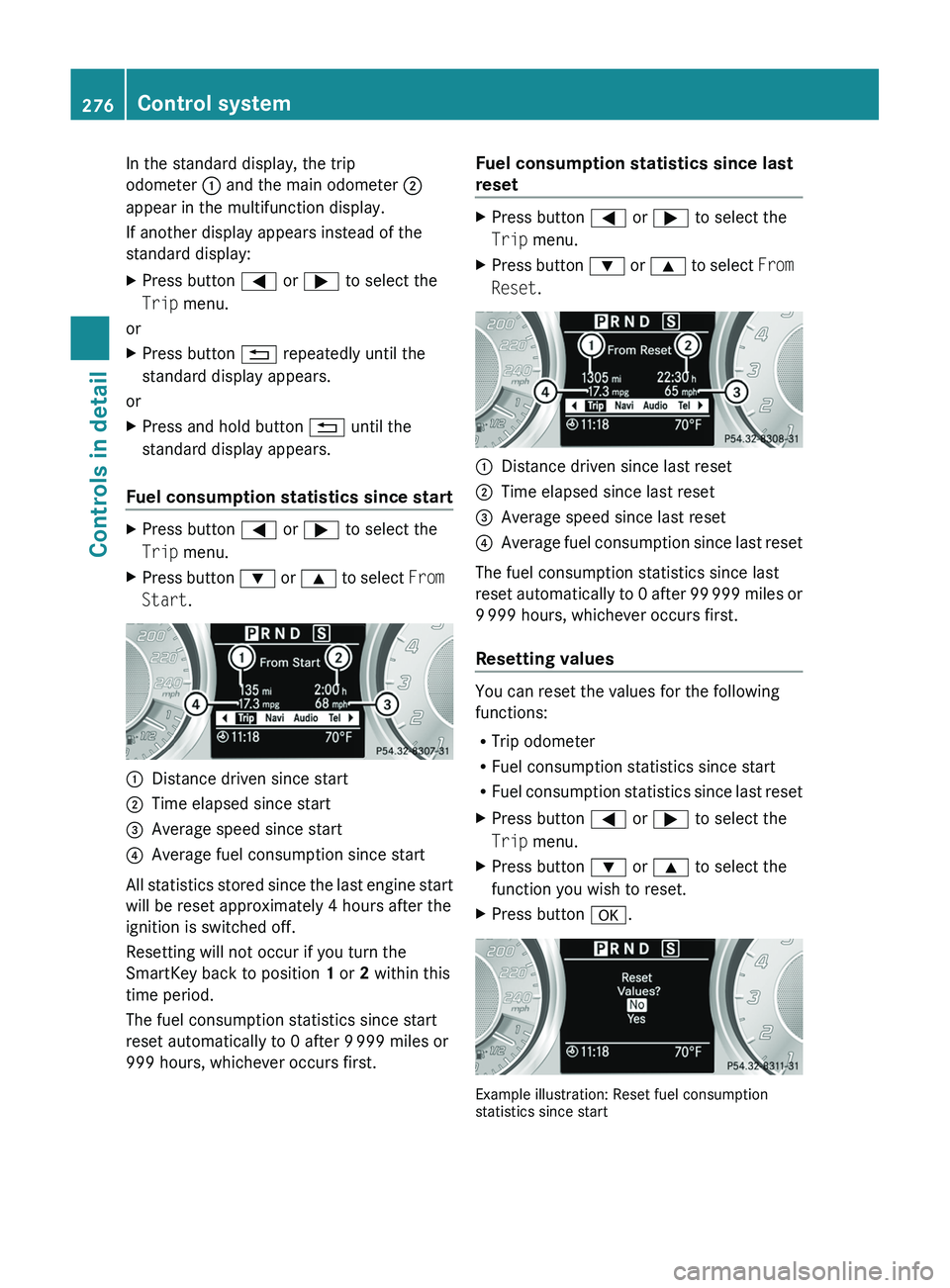
In the standard display, the trip
odometer 0046 and the main odometer 0047
appear in the multifunction display.
If another display appears instead of the
standard display:XPress button 0040 or 003E to select the
Trip menu.
or
XPress button 0041 repeatedly until the
standard display appears.
or
XPress and hold button 0041 until the
standard display appears.
Fuel consumption statistics since start
XPress button 0040 or 003E to select the
Trip menu.XPress button 003D or 003C to select From
Start .0046Distance driven since start0047Time elapsed since start008AAverage speed since start0088Average fuel consumption since start
All statistics stored since the last engine start
will be reset approximately 4 hours after the
ignition is switched off.
Resetting will not occur if you turn the
SmartKey back to position 1 or 2 within this
time period.
The fuel consumption statistics since start
reset automatically to 0 after 9 999 miles or
999 hours, whichever occurs first.
Fuel consumption statistics since last
resetXPress button 0040 or 003E to select the
Trip menu.XPress button 003D or 003C to select From
Reset .0046Distance driven since last reset0047Time elapsed since last reset008AAverage speed since last reset0088Average fuel consumption since last reset
The fuel consumption statistics since last
reset automatically to 0 after 99 999 miles or
9 999 hours, whichever occurs first.
Resetting values
You can reset the values for the following
functions:
R Trip odometer
R Fuel consumption statistics since start
R Fuel consumption statistics since last reset
XPress button 0040 or 003E to select the
Trip menu.XPress button 003D or 003C to select the
function you wish to reset.XPress button 0064.
Example illustration: Reset fuel consumption
statistics since start
276Control systemControls in detail
BA 197 USA, CA Edition A 2011; 1; 27, en-UShereepeVersion: 3.0.3.52010-03-24T15:31:10+01:00 - Seite 276
Page 284 of 436
RVehicle status message memory
( Y page 282)
R Checking tire inflation pressure
electronically with the Advanced TPMS
( Y page 329)
R Calling up the maintenance service
indicator display ( Y page 353)
Vehicle status message memory
Use the vehicle status message memory
function to scan malfunction and warning
messages that may be stored in the system.
Such messages appear in the multifunction
display and are based on conditions or
system status the vehicle’s system has
recorded.
GWarning!
Malfunction and warning messages are only
indicated for certain systems and are
intentionally not very detailed. The
malfunction and warning messages are
simply a reminder with respect to the
operation of certain systems. They do not
replace the owner’s and/or driver’s
responsibility to maintain the vehicle’s
operating safety. Have all required
maintenance and safety checks performed on
the vehicle. Bring the vehicle to an authorized
Mercedes-Benz Center to address the
malfunction and warning messages.
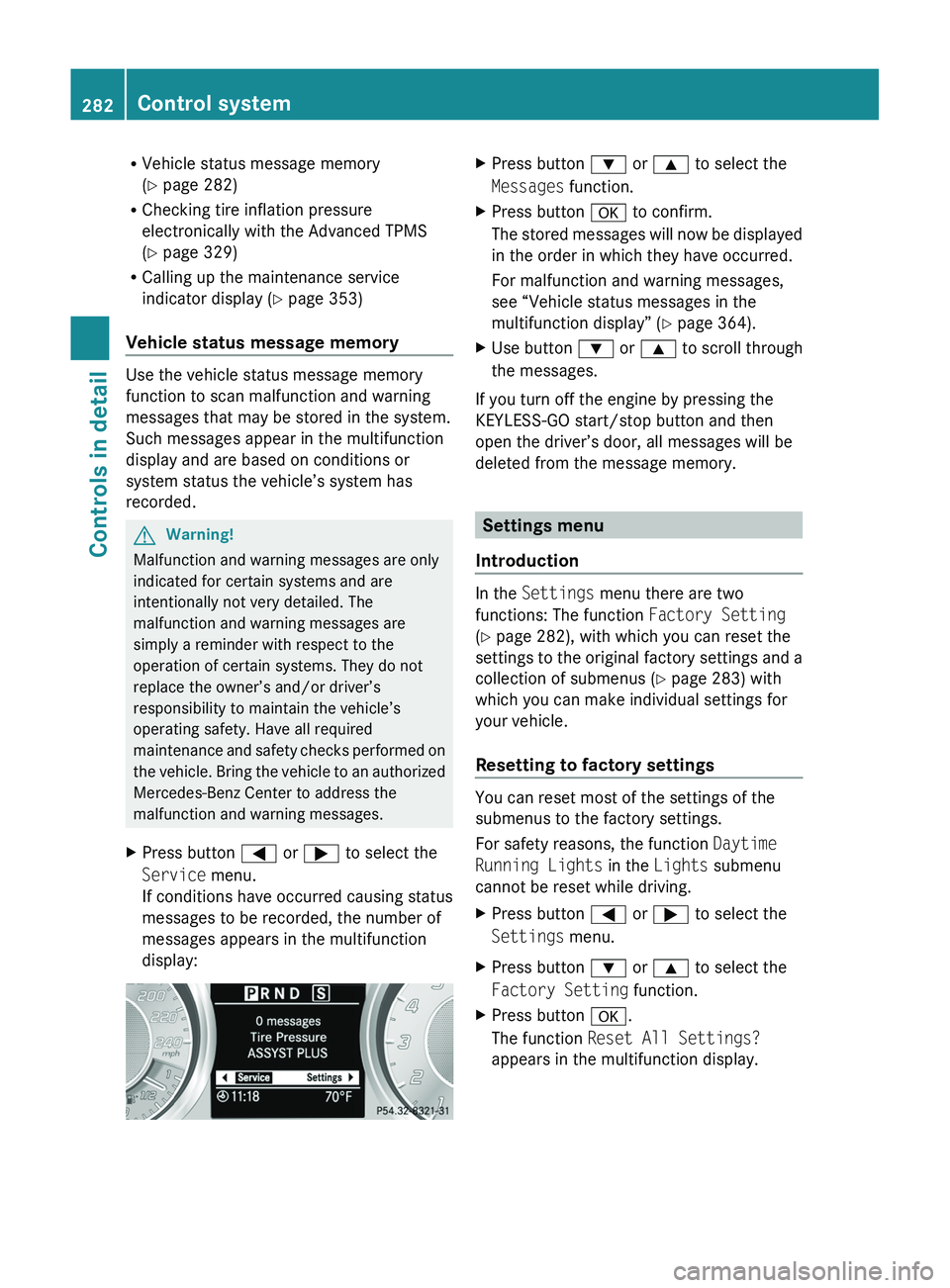
XPress button 0040 or 003E to select the
Service menu.
If conditions have occurred causing status
messages to be recorded, the number of
messages appears in the multifunction
display:XPress button 003D or 003C to select the
Messages function.XPress button 0064 to confirm.
The stored messages will now be displayed
in the order in which they have occurred.
For malfunction and warning messages,
see “Vehicle status messages in the
multifunction display” ( Y page 364).XUse button 003D or 003C to scroll through
the messages.
If you turn off the engine by pressing the
KEYLESS-GO start/stop button and then
open the driver’s door, all messages will be
deleted from the message memory.
Settings menu
Introduction
In the Settings menu there are two
functions: The function Factory Setting
( Y page 282), with which you can reset the
settings to the original factory settings and a
collection of submenus ( Y page 283) with
which you can make individual settings for
your vehicle.
Resetting to factory settings
You can reset most of the settings of the
submenus to the factory settings.
For safety reasons, the function Daytime
Running Lights in the Lights submenu
cannot be reset while driving.
XPress button 0040 or 003E to select the
Settings menu.XPress button 003D or 003C to select the
Factory Setting function.XPress button 0064.
The function Reset All Settings?
appears in the multifunction display.282Control systemControls in detail
BA 197 USA, CA Edition A 2011; 1; 27, en-UShereepeVersion: 3.0.3.52010-03-24T15:31:10+01:00 - Seite 282
Page 285 of 436
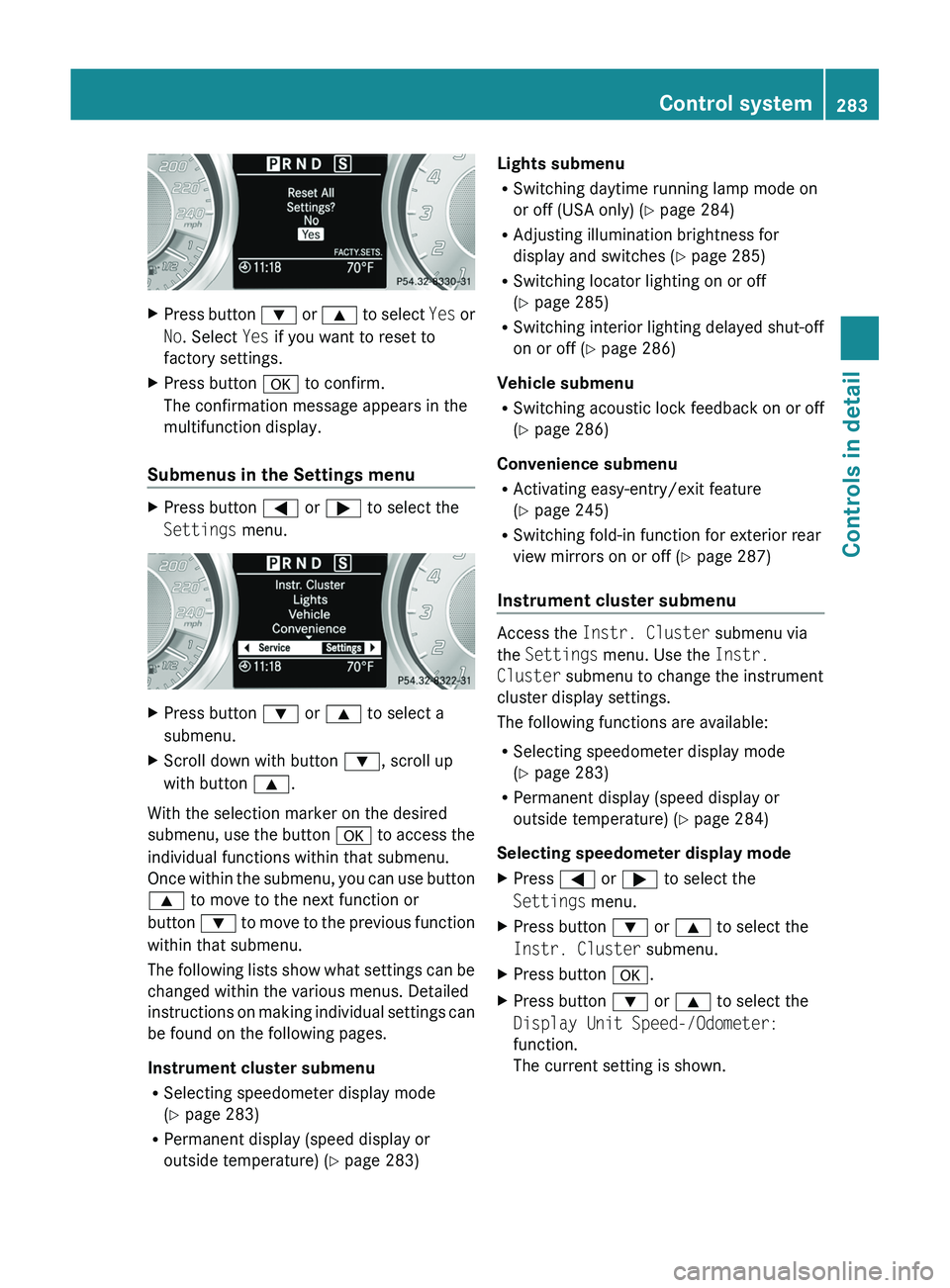
XPress button 003D or 003C to select Yes or
No . Select Yes if you want to reset to
factory settings.XPress button 0064 to confirm.
The confirmation message appears in the
multifunction display.
Submenus in the Settings menu
XPress button 0040 or 003E to select the
Settings menu.XPress button 003D or 003C to select a
submenu.XScroll down with button 003D, scroll up
with button 003C.
With the selection marker on the desired
submenu, use the button 0064 to access the
individual functions within that submenu.
Once within the submenu, you can use button
003C to move to the next function or
button 003D to move to the previous function
within that submenu.
The following lists show what settings can be
changed within the various menus. Detailed
instructions on making individual settings can
be found on the following pages.
Instrument cluster submenu
R Selecting speedometer display mode
( Y page 283)
R Permanent display (speed display or
outside temperature) ( Y page 283)
Lights submenu
R Switching daytime running lamp mode on
or off (USA only) ( Y page 284)
R Adjusting illumination brightness for
display and switches ( Y page 285)
R Switching locator lighting on or off
( Y page 285)
R Switching interior lighting delayed shut-off
on or off ( Y page 286)
Vehicle submenu
R Switching acoustic lock feedback on or off
( Y page 286)
Convenience submenu
R Activating easy-entry/exit feature
( Y page 245)
R Switching fold-in function for exterior rear
view mirrors on or off ( Y page 287)
Instrument cluster submenu
Access the Instr. Cluster submenu via
the Settings menu. Use the Instr.
Cluster submenu to change the instrument
cluster display settings.
The following functions are available:
R Selecting speedometer display mode
( Y page 283)
R Permanent display (speed display or
outside temperature) ( Y page 284)
Selecting speedometer display mode
XPress 0040 or 003E to select the
Settings menu.XPress button 003D or 003C to select the
Instr. Cluster submenu.XPress button 0064.XPress button 003D or 003C to select the
Display Unit Speed-/Odometer:
function.
The current setting is shown.Control system283Controls in detailBA 197 USA, CA Edition A 2011; 1; 27, en-UShereepeVersion: 3.0.3.52010-03-24T15:31:10+01:00 - Seite 283Z