display MERCEDES-BENZ SLS-CLASS 2013 Workshop Manual
[x] Cancel search | Manufacturer: MERCEDES-BENZ, Model Year: 2013, Model line: SLS-CLASS, Model: MERCEDES-BENZ SLS-CLASS 2013Pages: 286, PDF Size: 3.6 MB
Page 143 of 286
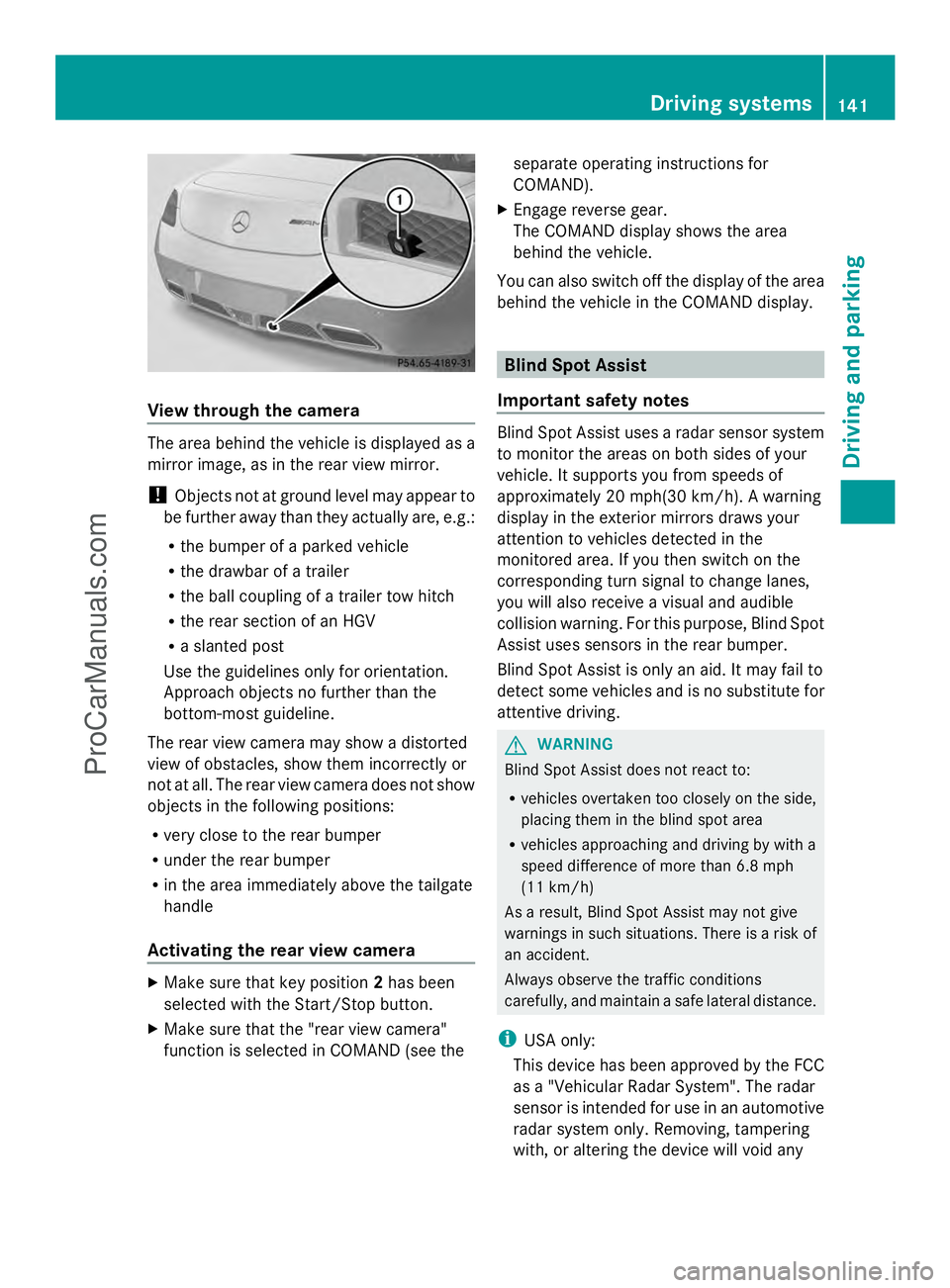
View through the camera
The area behind the vehicle is displayed as a
mirror image, as in the rear view mirror.
! Objects not at ground level may appear to
be further away than they actually are, e.g.:
R the bumper of a parked vehicle
R the drawbar of a trailer
R the ball coupling of a trailer tow hitch
R the rear section of an HGV
R a slanted post
Use the guidelines only for orientation.
Approach objects no further than the
bottom-most guideline.
The rear view camera may show a distorted
view of obstacles, show them incorrectly or
not at all. The rear view camera does not show
objects in the following positions:
R very close to the rear bumper
R under the rear bumper
R in the area immediately above the tailgate
handle
Activating the rear view camera X
Make sure that key position 2has been
selected with the Start/Stop button.
X Make sure that the "rear view camera"
function is selected in COMAND (see the separate operating instructions for
COMAND).
X Engage reverse gear.
The COMAND display shows the area
behind the vehicle.
You can also switch off the display of the area
behind the vehicle in the COMAND display. Blind Spot Assist
Important safety notes Blind Spot Assist uses a radar sensor system
to monitor the areas on both sides of your
vehicle. It supports you from speeds of
approximately 20 mph(30 km/h). A warning
display in the exterior mirrors draws your
attention to vehicles detected in the
monitored area. If you then switch on the
corresponding turn signal to change lanes,
you will also receive a visual and audible
collision warning. For this purpose, Blind Spot
Assist uses sensors in the rear bumper.
Blind Spot Assist is only an aid. It may fail to
detect some vehicles and is no substitute for
attentive driving.
G
WARNING
Blind Spot Assist does not react to:
R vehicles overtaken too closely on the side,
placing them in the blind spot area
R vehicles approaching and driving by with a
speed difference of more than 6.8 mph
(11 km/h)
As a result, Blind Spot Assist may not give
warnings in such situations. There is a risk of
an accident.
Always observe the traffic conditions
carefully, and maintain a safe lateral distance.
i USA only:
This device has been approved by the FCC
as a "Vehicular Radar System". The radar
sensor is intended for use in an automotive
radar system only. Removing, tampering
with, or altering the device will void any Driving systems
141Driving and parking Z
ProCarManuals.com
Page 144 of 286
warranties, and is not permitted by the
FCC. Do not tamper with, alter, or use in
any non-approved way.
Any unauthorized modification to this
device could void the user’s authority to
operate the equipment.
Monitoring range of the sensors In particular, the detection of obstacles can
be impaired if:
R there is dirt on the sensors or anything else
covering the sensors.
R there is poor visibility, e.g. due to fog, heavy
rain or snow.
R a narrow vehicle, e.g. a motorbike or
bicycle, is traveling in front.
R the road has very wide lanes.
R the road has narrow lanes.
R you are not driving in the middle of the lane.
R there are barriers or similar lane borders.
Vehicles in the monitoring range are then not
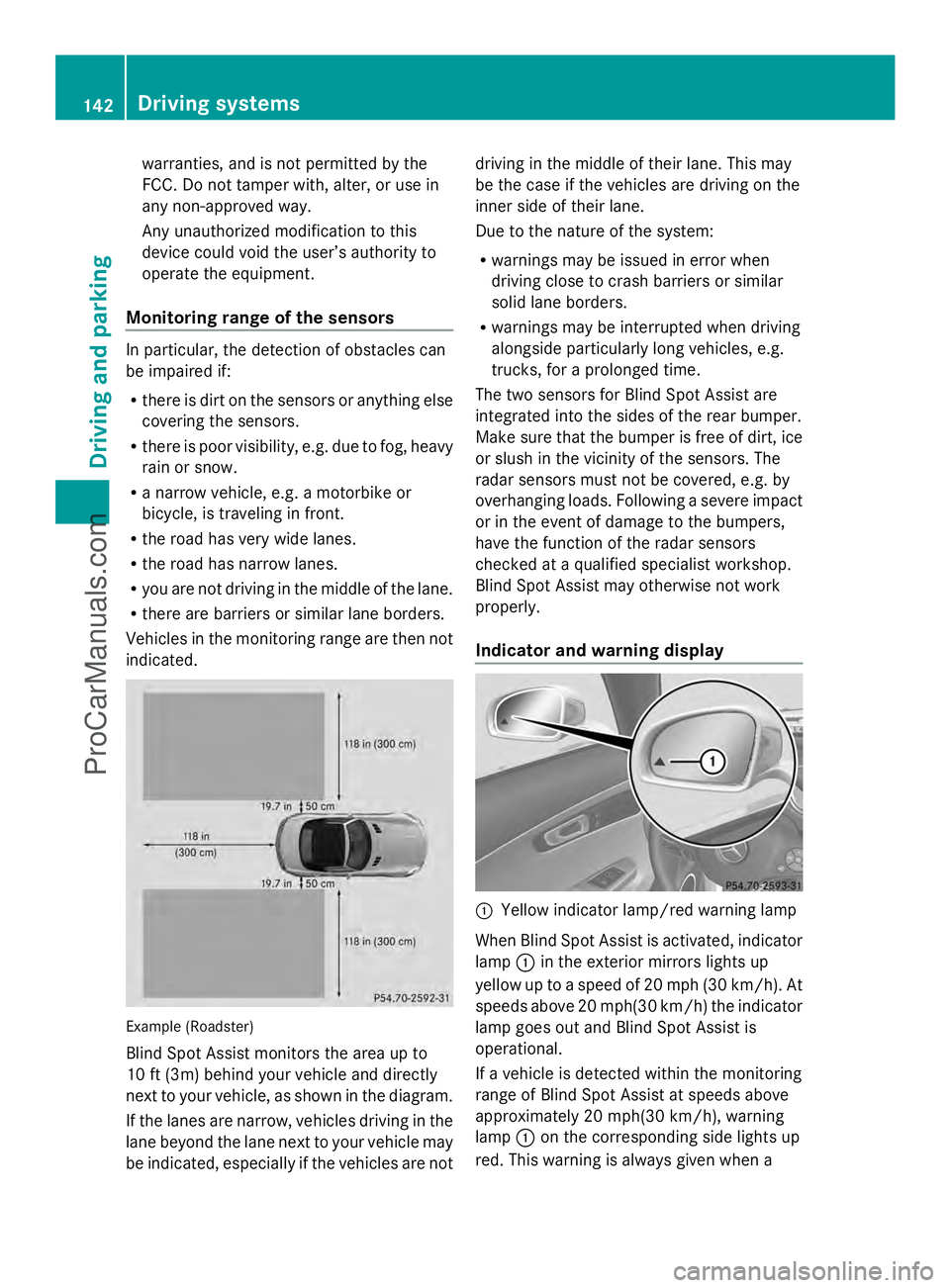
indicated. Example (Roadster)
Blind Spot Assist monitors the area up to
10 ft (3m) behind your vehicle and directly
next to your vehicle, as shown in the diagram.
If the lanes are narrow, vehicles driving in the
lane beyond the lane next to your vehicle may
be indicated, especially if the vehicles are not driving in the middle of their lane. This may
be the case if the vehicles are driving on the
inner side of their lane.
Due to the nature of the system:
R
warnings may be issued in error when
driving close to crash barriers or similar
solid lane borders.
R warnings may be interrupted when driving
alongside particularly long vehicles, e.g.
trucks, for a prolonged time.
The two sensors for Blind Spot Assist are
integrated into the sides of the rear bumper.
Make sure that the bumper is free of dirt, ice
or slush in the vicinity of the sensors. The
radar sensors must not be covered, e.g. by
overhanging loads. Following a severe impact
or in the event of damage to the bumpers,
have the function of the radar sensors
checked at a qualified specialist workshop.
Blind Spot Assist may otherwise not work
properly.
Indicator and warning display :
Yellow indicator lamp/red warning lamp
When Blind Spot Assist is activated, indicator
lamp :in the exterior mirrors lights up
yellow up to a speed of 20 mph (30 km/h). At
speeds above 20 mph(30 km/h) the indicator
lamp goes out and Blind Spot Assist is
operational.
If a vehicle is detected within the monitoring
range of Blind Spot Assist at speeds above
approximately 20 mph(30 km/h), warning
lamp :on the corresponding side lights up
red. This warning is always given when a 142
Driving systemsDriving and parking
ProCarManuals.com
Page 147 of 286
Useful information
............................146
Important safety notes ....................146
Displays and operation ....................146 145On-board computer and displays
ProCarManuals.com
Page 148 of 286
Useful information
i This Operator's Manual describes all
models and all standard and optional
equipment of your vehicle available at the
time of publication of the Operator's
Manual. Country-specific differences are
possible. Please note that your vehicle may
not be equipped with all features
described. This also applies to safety-
related systems and functions.
i Please read the information on qualified
specialist workshops (Y page 22).Important safety notes
You will find an illustration of the instrument
cluster in the "At a glance" section
(Y page 27). G
WARNING
A driver's attention to the road and traffic
conditions must always be his/her primary
focus when driving.
For your safety and the safety of others,
selecting features through the multifunction
steering wheel should only be done by the
driver when traffic and road conditions permit
it to be done safely.
Bear in mind that at a speed of just 30 mph
(approximately 50 km/h ), your vehicle is
covering a distance of 44 feet (approximately
14 m) every second. G
WARNING
No messages will be displayed if either the
instrument cluster or the multifunction
display is inoperative.
As a result, you will not be able to see
information about your driving conditions,
such as
R speed
R outside temperature
R warning/indicator lamps R
malfunction/warning messages
R failure of any systems
Driving characteristics may be impaired.
If you must continue to drive, do so with added
caution. Contact an authorized Mercedes-
Benz Center as soon as possible. G
WARNING
Malfunction and warning messages are only
indicated for certain systems and are
intentionally not very detailed. The
malfunction and warning messages are
simply a reminder with respect to the
operation of certain systems. They do not
replace the owner's and/or driver's
responsibility to maintain the vehicle's
operating safety. Have all required
maintenance and safety checks performed on
the vehicle. Bring the vehicle to an authorized
Mercedes-Benz Center to address the
malfunction and warning messages. Displays and operation
Engine oil temperature display
The engine oil temperature gauge is in the
instrument cluster on the right-hand side.
Under normal operating conditions, the
temperature may rise to 140 †.
The transmission fluid temperature and the
coolant temperature are displayed in the
AMG menu (Y page 157). Tachometer
The red band in the tachometer indicates the
engine's overrevving range.
! Do not drive in the overrevving range, as
this could damage the engine.
The fuel supply is interrupted to protect the
engine when the red band is reached. 146
Displays and operationOn-board computer and displays
ProCarManuals.com
Page 149 of 286
Outside temperature display
G
WARNING
The outside temperature indicator is not
designed to serve as an ice-warning device
and is therefore unsuitable for that purpose.
Indicated temperatures just above the
freezing point do not guarantee that the road
surface is free of ice. The road may still be icy,
especially in wooded areas or on bridges.
The outside temperature display is in the
multifunction display (Y page 147).
Changes in the outside temperature are
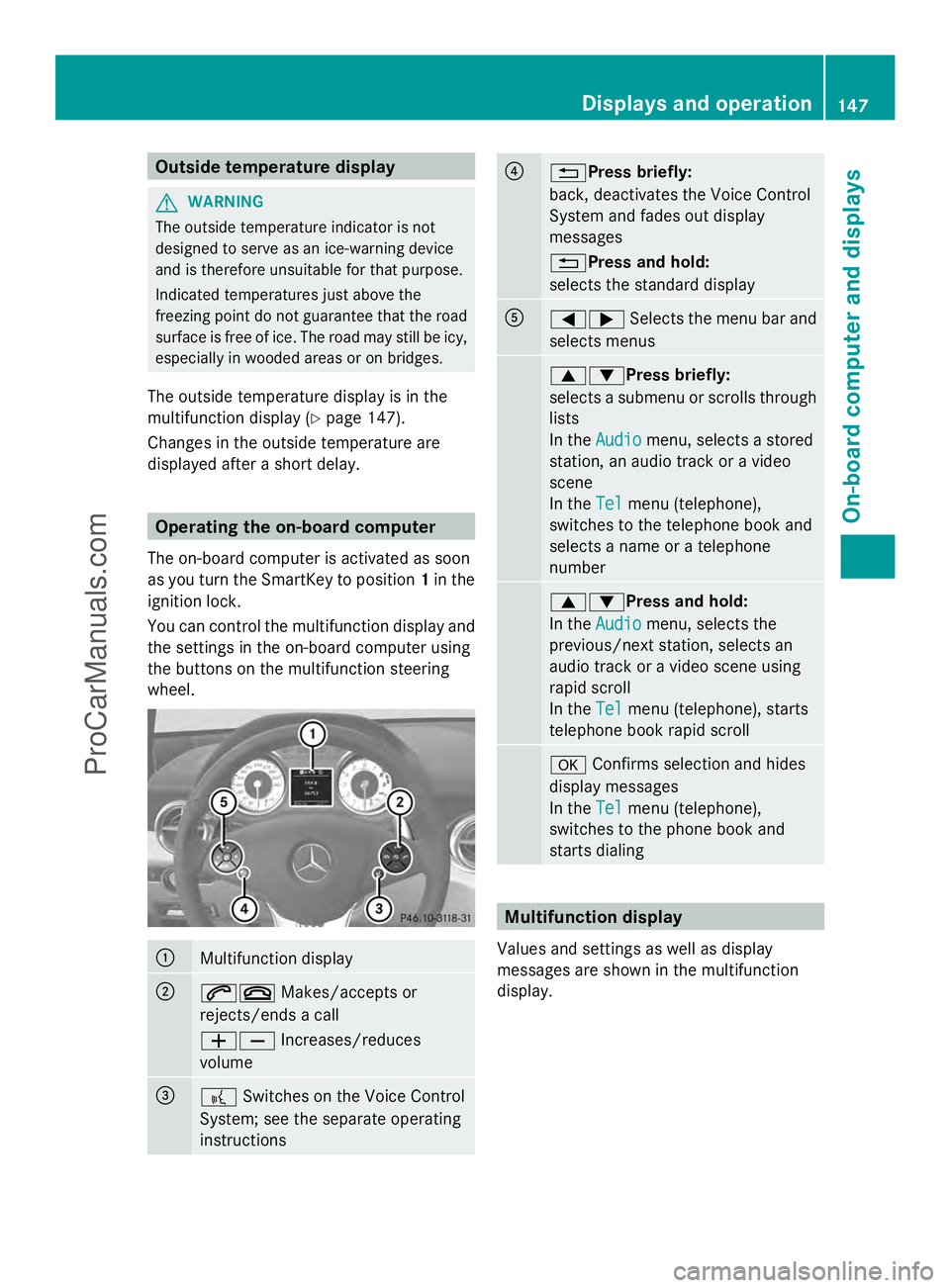
displayed after a short delay. Operating the on-board computer
The on-board computer is activated as soon
as you turn the SmartKey to position 1in the
ignition lock.
You can control the multifunction display and
the settings in the on-board computer using
the buttons on the multifunction steering
wheel. :
Multifunction display
;
6~
Makes/accepts or
rejects/ends a call
WX Increases/reduces
volume =
?
Switches on the Voice Control
System; see the separate operating
instructions ?
%Press briefly:
back, deactivates the Voice Control
System and fades out display
messages
%Press and hold:
selects the standard display
A
=;
Selects the menu bar and
selects menus 9:Press briefly:
selects a submenu or scrolls through
lists
In the
Audio Audio menu, selects a stored
station, an audio track or a video
scene
In the Tel Telmenu (telephone),
switches to the telephone book and
selects a name or a telephone
number 9:Press and hold:
In the
Audio Audio menu, selects the
previous/next station, selects an
audio track or a video scene using
rapid scroll
In the Tel Telmenu (telephone), starts
telephone book rapid scroll a
Confirms selection and hides
display messages
In the Tel
Tel menu (telephone),
switches to the phone book and
starts dialing Multifunction display
Values and settings as well as display
messages are shown in the multifunction
display. Displays and operation
147On-board computer and displays Z
ProCarManuals.com
Page 150 of 286
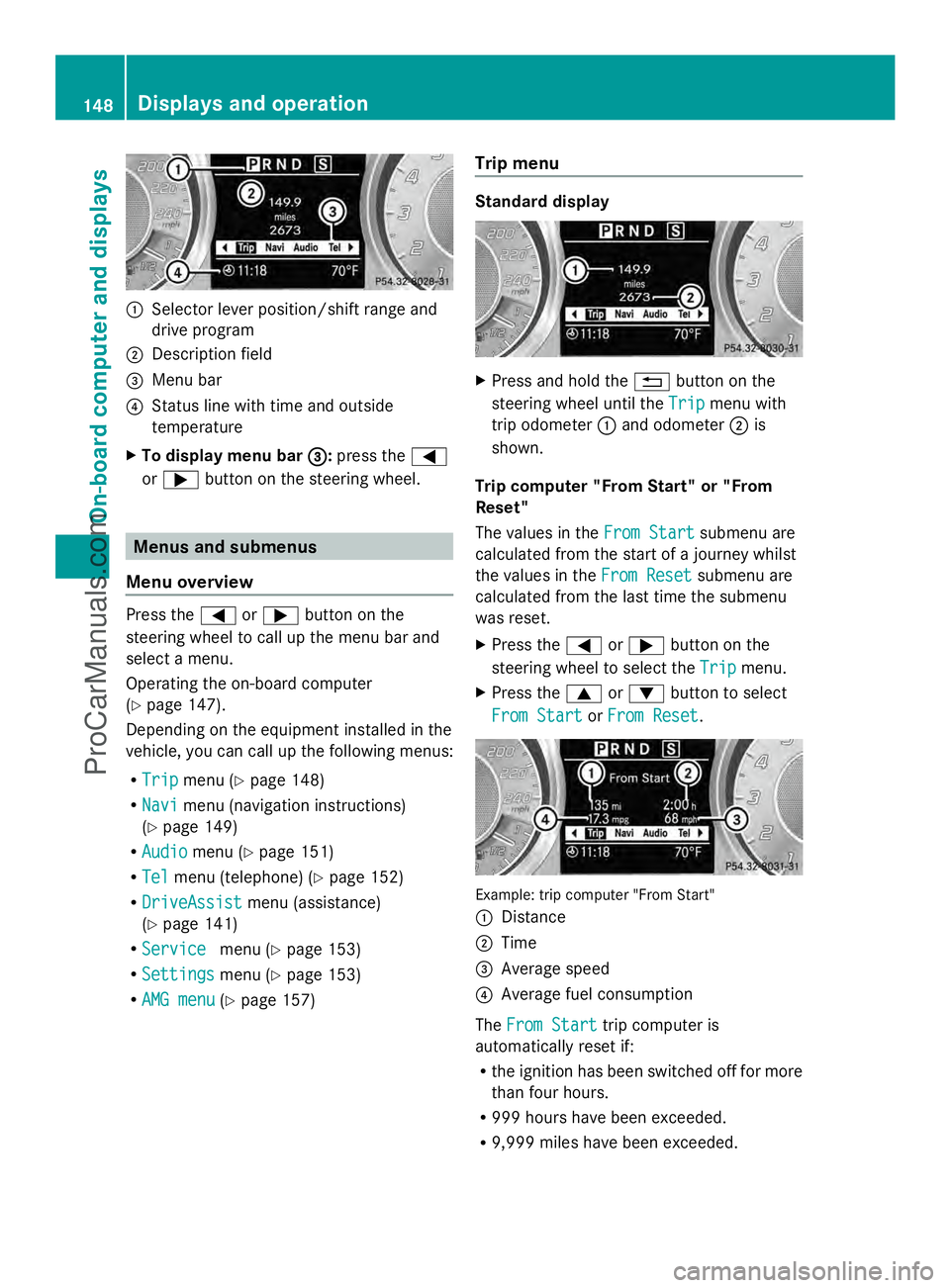
:
Selector lever position/shift range and
drive program
; Description field
= Menu bar
? Status line with time and outside
temperature
X To display menu bar = =:press the =
or ; button on the steering wheel. Menus and submenus
Menu overview Press the
=or; button on the
steering wheel to call up the menu bar and
select a menu.
Operating the on-board computer
(Y page 147).
Depending on the equipment installed in the
vehicle, you can call up the following menus:
R Trip Trip menu (Y page 148)
R Navi
Navi menu (navigation instructions)
(Y page 149)
R Audio Audio menu (Y page 151)
R Tel Tel menu (telephone) (Y page 152)
R DriveAssist
DriveAssist menu (assistance)
(Y page 141)
R Service
Service menu (Ypage 153)
R Settings Settings menu (Ypage 153)
R AMG menu AMG menu (Ypage 157) Trip menu Standard display
X
Press and hold the %button on the
steering wheel until the Trip
Tripmenu with
trip odometer :and odometer ;is
shown.
Trip computer "From Start" or "From
Reset"
The values in the From Start From Startsubmenu are
calculated from the start of a journey whilst
the values in the From Reset
From Reset submenu are
calculated from the last time the submenu
was reset.
X Press the =or; button on the
steering wheel to select the Trip Tripmenu.
X Press the 9or: button to select
From Start
From Start orFrom Reset
From Reset . Example: trip computer "From Start"
:
Distance
; Time
= Average speed
? Average fuel consumption
The From Start From Start trip computer is
automatically reset if:
R the ignition has been switched off for more
than four hours.
R 999 hours have been exceeded.
R 9,999 miles have been exceeded. 148
Displays and operationOn-board computer and displays
ProCarManuals.com
Page 151 of 286
The
From Reset
From Reset trip computer is
automatically reset if the value exceeds
9,999 hours or 99,999 miles.
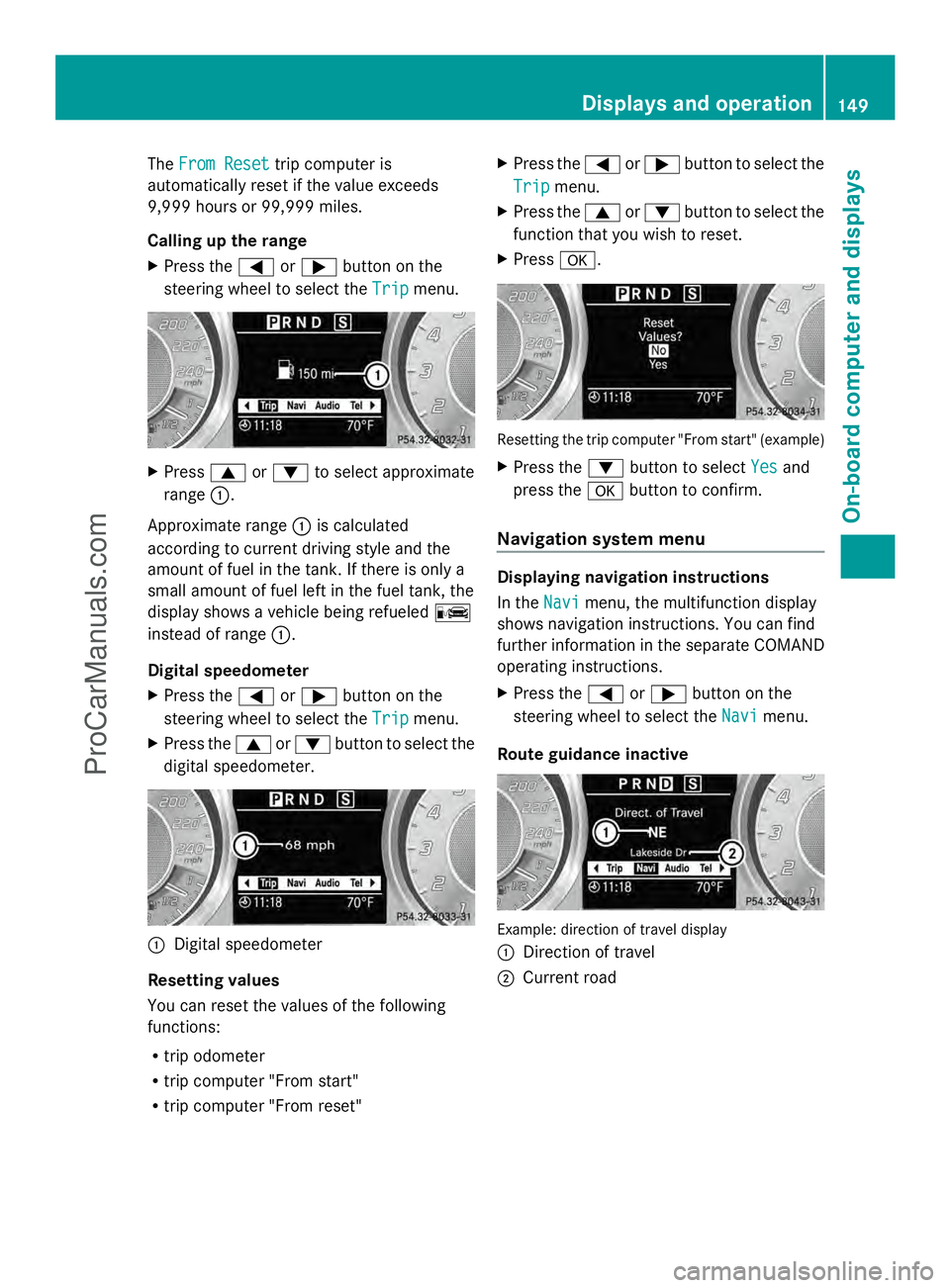
Calling up the range
X Press the =or; button on the
steering wheel to select the Trip Tripmenu. X
Press 9or: to select approximate
range :.
Approximate range :is calculated
according to current driving style and the
amount of fuel in the tank. If there is only a
small amount of fuel left in the fuel tank, the
display shows a vehicle being refueled C
instead of range :.
Digital speedometer
X Press the =or; button on the
steering wheel to select the Trip
Trip menu.
X Press the 9or: button to select the
digital speedometer. :
Digital speedometer
Resetting values
You can reset the values of the following
functions:
R trip odometer
R trip computer "From start"
R trip computer "From reset" X
Press the =or; button to select the
Trip Trip menu.
X Press the 9or: button to select the
function that you wish to reset.
X Press a. Resetting the trip computer "From start" (example)
X
Press the :button to select Yes Yesand
press the abutton to confirm.
Navigation system menu Displaying navigation instructions
In the
Navi Navimenu, the multifunction display
shows navigation instructions. You can find
further information in the separate COMAND
operating instructions.
X Press the =or; button on the
steering wheel to select the Navi
Navi menu.
Route guidance inactive Example: direction of travel display
:
Direction of travel
; Current road Displays and operation
149On-board computer and displays Z
ProCarManuals.com
Page 152 of 286
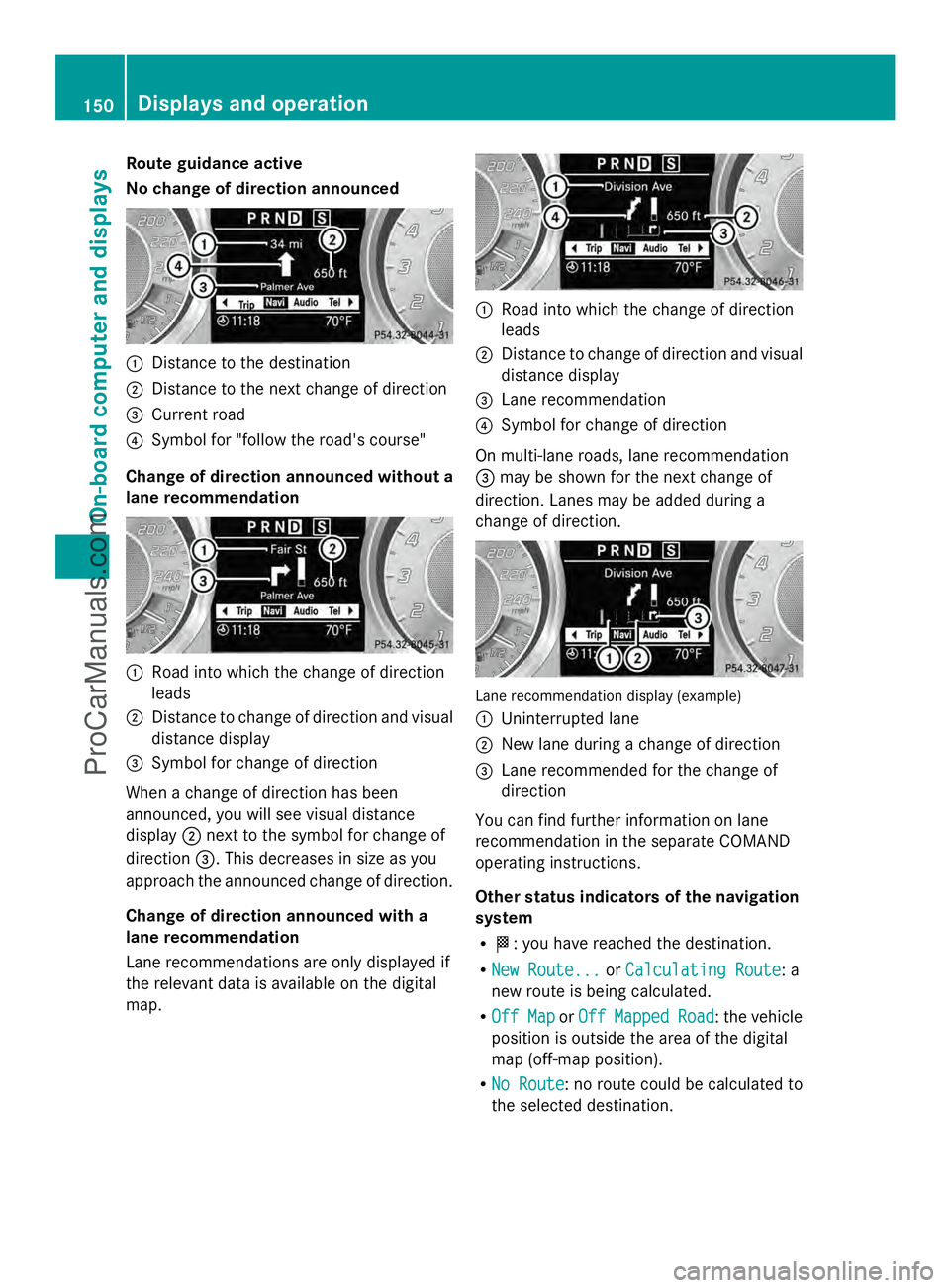
Route guidance active
No change of direction announced
:
Distance to the destination
; Distance to the next change of direction
= Current road
? Symbol for "follow the road's course"
Change of direction announced without a
lane recommendation :
Road into which the change of direction
leads
; Distance to change of direction and visual
distance display
= Symbol for change of direction
When a change of direction has been
announced, you will see visual distance
display ;next to the symbol for change of
direction =. This decreases in size as you
approach the announced change of direction.
Change of direction announced with a
lane recommendation
Lane recommendations are only displayed if
the relevant data is available on the digital
map. :
Road into which the change of direction
leads
; Distance to change of direction and visual
distance display
= Lane recommendation
? Symbol for change of direction
On multi-lane roads, lane recommendation
= may be shown for the next change of
direction. Lanes may be added during a
change of direction. Lane recommendation display (example)
:
Uninterrupted lane
; New lane during a change of direction
= Lane recommended for the change of
direction
You can find further information on lane
recommendation in the separate COMAND
operating instructions.
Other status indicators of the navigation
system
R O: you have reached the destination.
R New Route...
New Route... orCalculating Route Calculating Route: a
new route is being calculated.
R Off Map
Off Map orOff
Off Mapped
Mapped Road
Road: the vehicle
position is outside the area of the digital
map (off-map position).
R No Route No Route : no route could be calculated to
the selected destination. 150
Displays and operationOn-board computer and displays
ProCarManuals.com
Page 153 of 286
You can find further information on status
indicators in the separate COMAND
operating instructions.
Audio menu Selecting a radio station
You can only change the waveband and store
new stations using COMAND.
X Press the =or; button on the
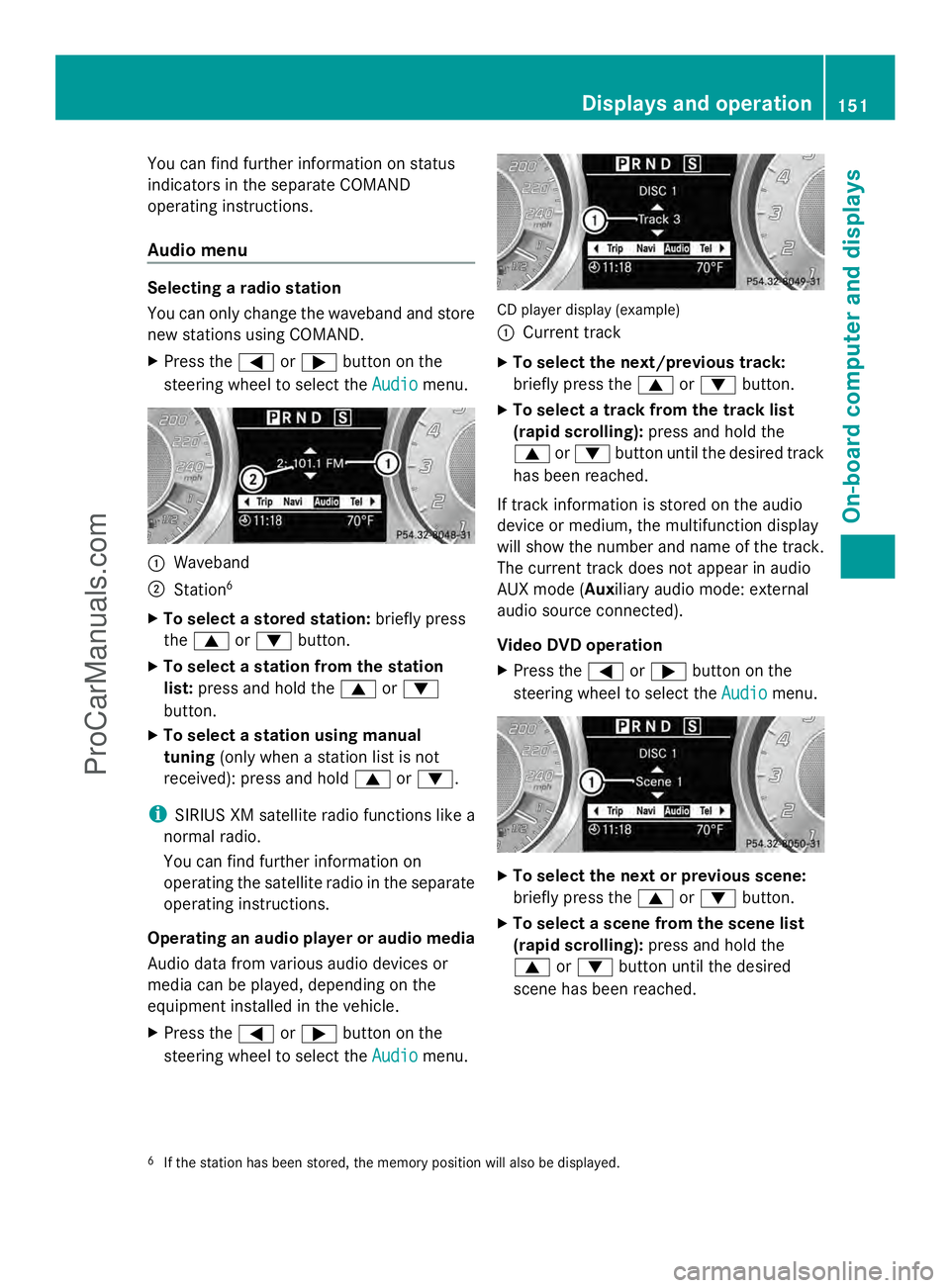
steering wheel to select the Audio Audiomenu. :
Waveband
; Station 6
X To select a stored station: briefly press
the 9 or: button.
X To select a station from the station
list: press and hold the 9or:
button.
X To select a station using manual
tuning (only when a station list is not
received): press and hold 9or:.
i SIRIUS XM satellite radio functions like a
normal radio.
You can find further information on
operating the satellite radio in the separate
operating instructions.
Operating an audio player or audio media
Audio data from various audio devices or
media can be played, depending on the
equipment installed in the vehicle.
X Press the =or; button on the
steering wheel to select the Audio
Audio menu. CD player display (example)
:
Current track
X To select the next/previous track:
briefly press the 9or: button.
X To select a track from the track list
(rapid scrolling): press and hold the
9 or: button until the desired track
has been reached.
If track information is stored on the audio
device or medium, the multifunction display
will show the number and name of the track.
The current track does not appear in audio
AUX mode (Auxiliary audio mode: external
audio source connected).
Video DVD operation
X Press the =or; button on the
steering wheel to select the Audio
Audio menu. X
To select the next or previous scene:
briefly press the 9or: button.
X To select a scene from the scene list
(rapid scrolling): press and hold the
9 or: button until the desired
scene has been reached.
6 If the station has been stored, the memory position will also be displayed. Displays and operation
151On-board computer and displays Z
ProCarManuals.com
Page 154 of 286
Telephone menu
Introduction
G
WARNING
A driver's attention to the road must always
be his/her primary focus when driving. For
your safety and the safety of others, we
recommend that you pull over to a safe
location and stop before placing or taking a
telephone call. If you choose to use the
telephone while driving, please use the hands-
free device and only use the telephone when
weather, road and traffic conditions permit.
Some jurisdictions prohibit the driver from
using a mobile phone while driving a vehicle.
Bear in mind that at a speed of just 30 mph
(approximately 50 km/h ), your vehicle is
covering a distance of 44 feet (approximately
14 m) every second.
Functions and displays are dependent on the
optional equipment installed in your vehicle.
You can establish a Bluetooth ®
connection to
COMAND (see the separate operating
instructions).
X Switch on the mobile phone and COMAND.
X Press the =or; button on the
steering wheel to select the Tel
Tel menu.
You will see one of the following display
messages in the multifunction display:
R Enter PIN Enter PIN : the mobile phone has been
placed in the mobile phone bracket and the
PIN has not been entered.
X Enter the PIN using the mobile phone,
Voice Control System or COMAND.
The mobile phone will search for a network.
In the meantime, the Phone No Service Phone No Service
display message appears in the
multifunction display.
R Phone Ready Phone Ready or the name of the network
provider: the mobile phone has found a
network and is ready to receive.
R Phone No Service Phone No Service: there is no network
available or the mobile phone is searching
for a network. Accepting a call
If someone calls you when you are in the
Tel Tel
menu, a display message appears in the
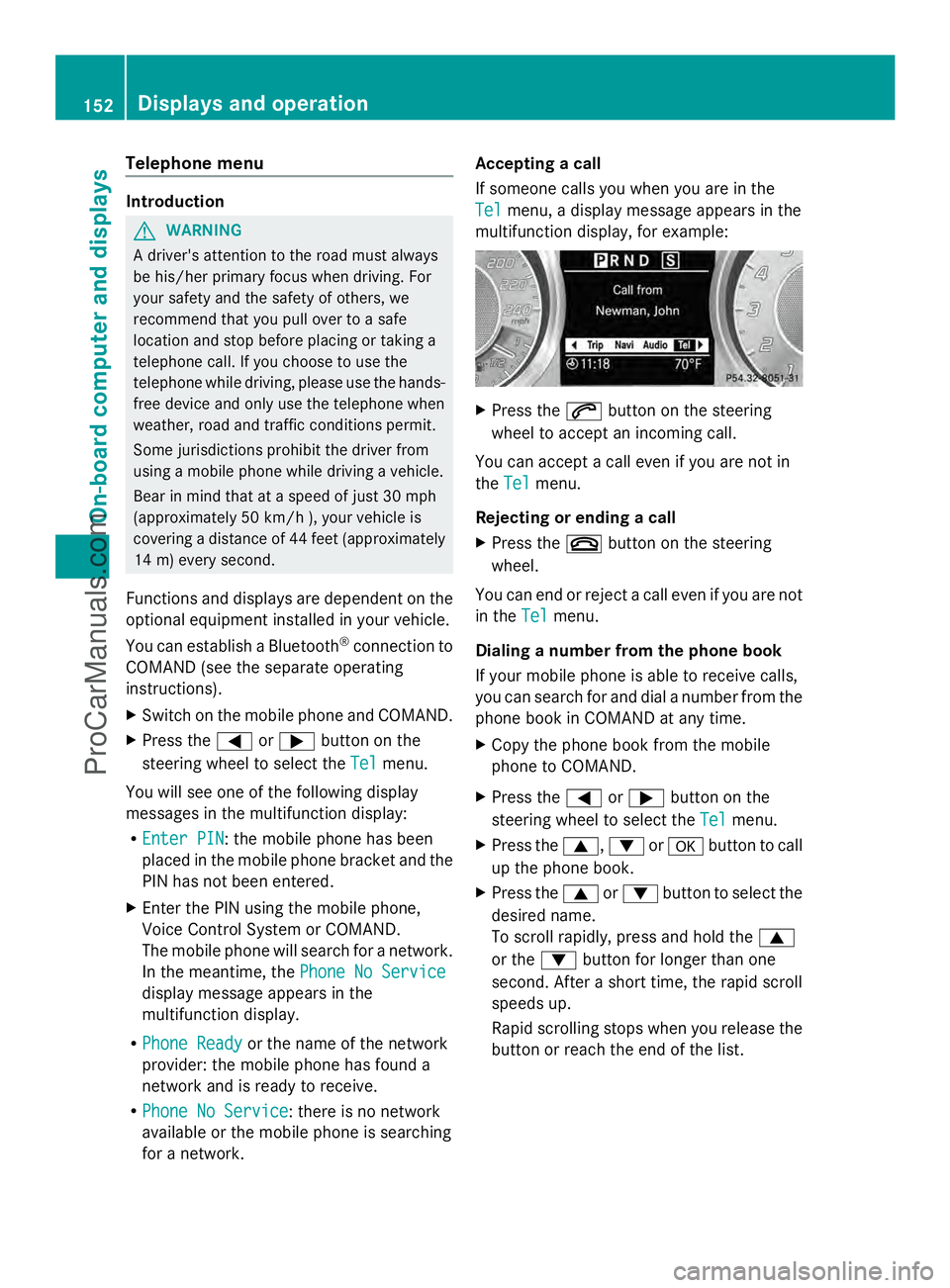
multifunction display, for example: X
Press the 6button on the steering
wheel to accept an incoming call.
You can accept a call even if you are not in
the Tel Tel menu.
Rejecting or ending a call
X Press the ~button on the steering
wheel.
You can end or reject a call even if you are not
in the Tel Telmenu.
Dialing a number from the phone book
If your mobile phone is able to receive calls,
you can search for and dial a number from the
phone book in COMAND at any time.
X Copy the phone book from the mobile
phone to COMAND.
X Press the =or; button on the
steering wheel to select the Tel Telmenu.
X Press the 9,:ora button to call
up the phone book.
X Press the 9or: button to select the
desired name.
To scroll rapidly, press and hold the 9
or the :button for longer than one
second. After a short time, the rapid scroll
speeds up.
Rapid scrolling stops when you release the
button or reach the end of the list. 152
Displays and operationOn-boa
rdcompu ter and displays
ProCarManuals.com