navigation system MERCEDES-BENZ SLS COUPE 2010 User Guide
[x] Cancel search | Manufacturer: MERCEDES-BENZ, Model Year: 2010, Model line: SLS COUPE, Model: MERCEDES-BENZ SLS COUPE 2010Pages: 361, PDF Size: 6.32 MB
Page 66 of 361
Function
0014
0001
Press briefly: selects the next men ulevel up (back), deactivates voice control
(LINGUATRONIC; see the separate operating instructions), or fades out dis-
play messages
0001 Press and hold: selects the standard display 0012
0008
000E
Calls up the menu line and selects menus
000F
000C Press briefly:
selects submenus or scrolls through lists. In the Audiomenu,
selects a stored station, an audio trac koravideoscene.
In the Tel(telephone) menu, switches to the phone boo kand selects a name
or telephone number.
000F
000C Press and hold:
in theAudio menu, selects the next or previous statio nand
selects an audio trac korvideo scene by rapid scrolling.
In the Telmenu (telephone), start srapid scrolling in the telephone book.
000A Confirms selections and fade sout messages Operating COMAND
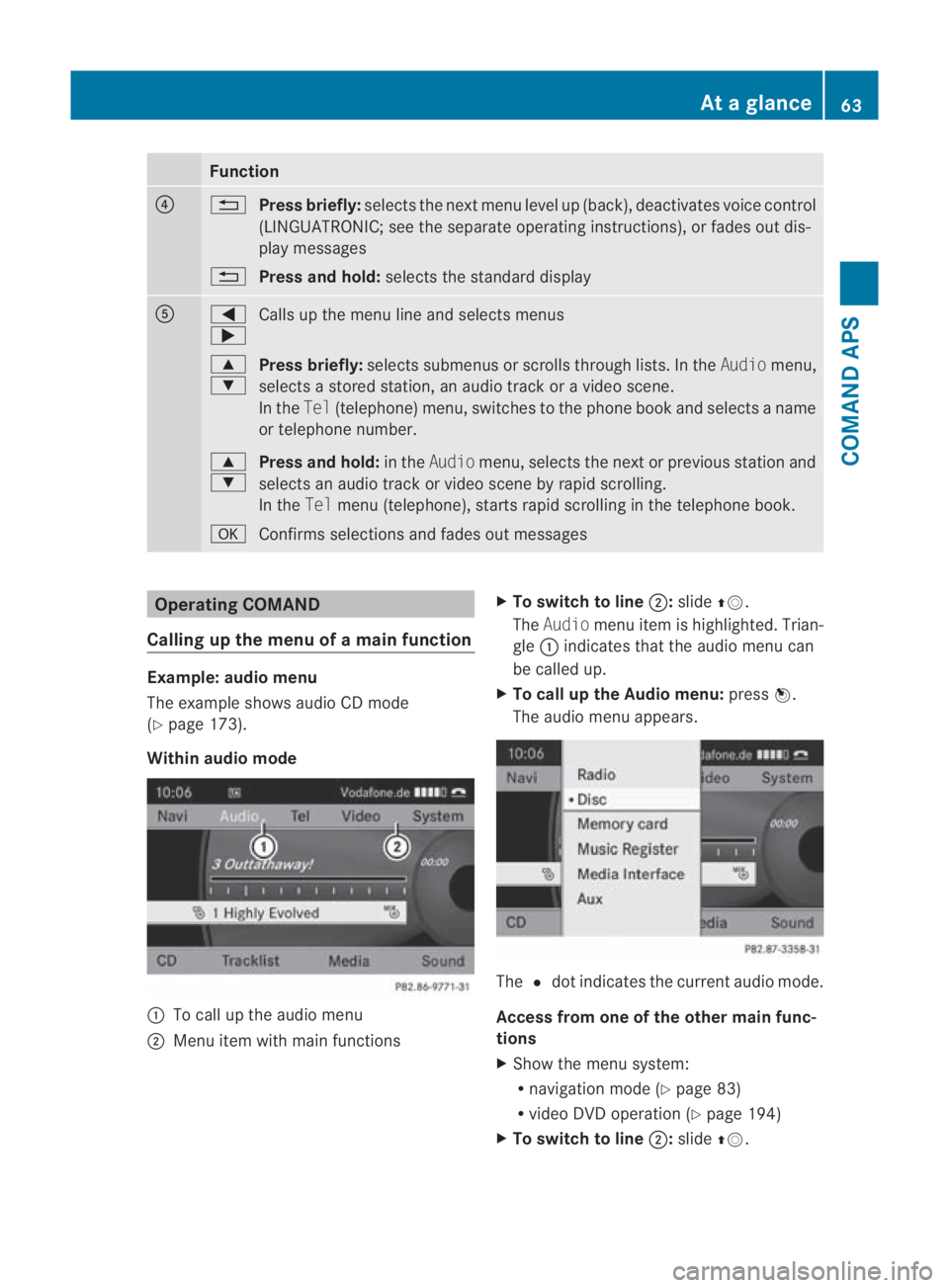
Calling up the menu of a main function Example: audio menu
The example shows audio CD mode
(Y page 173).
Within audio mode 0001
To call up the audio menu
0002 Menu item with main functions X
To switch to line 0002:slide 001F0013.
The Audio menu item is highlighted. Trian-
gle 0001indicates that the audio menu can
be called up.
X To call up the Audio menu: press0017.
The audio menu appears. The
0023dot indicates the curren taudio mode.
Access from one of the other main func-
tions
X Show the menu system:
R
navigation mode (Y page 83)
R video DV Doperation (Y page 194)
X To switch to line 0002:slide 001F0013. At
ag lance
63COMAND APS
BA 197 ECE RE 2010/6a; 1; 2, en-GB
sabbaeu Version: 3.0.3.6 2010-05-07T14:19:43+02:00 - Seite63 Z
Page 70 of 361
X
To select the desire dstation: turn002800130029
or slide 001F0013000D.
X To confirm your selection: press0017.
The selected statio nis played. The radio
basic display appears. Basic functions of COMAND
i You can find the components of COMAND
under (Y page 55). Examples for operation
can be found under (Y page 63).
Switching COMAND on/off X
Press the 0002control knob.
The cover folds open and the COMAND dis-
play extends. Awarning message appears.
COMAND calls up the previously selected
menu.
i If you switch off COMAND, playbac kof
the current audio or vide osource will also
be switched off.
Mute function X
To switch on/off: press the000Bbutton.
The sound from the respective audio or
video source is switched on or muted.
i When the sound is off, the system dis-
plays the 0026symbol in the status line.
When you change the audio or video
source, or adjust the volume, sound auto-
matically switches on again.
i Even if the sound is switched off you will
still hear traffic and navigation system
announcements.
Switching off Traffic Programme and nav-
igation announcements completely
X Traffic announcements: press and hold
the 000Bbutton until the 0021icon in the sta-
tus line of the COMAND display
(Y page 55) goes out.
A confirmation tone sounds. X
Navigation announcements: press the
000B button during the announcement.
i The navigation announcementsa re active
again if you start a new route guidance or
if you switch COMAND on again.
Adjusting the volume X
To set: turn the 0002control knob.
or
X Press the 0005or0009 button on the mul-
tifunction steering wheel.
The volume of the currently selected audio
or video source changes.
Volume of traffic and navigation
announcements
You can adjust the volume of traffic and nav-
igation announcements independently of the
volume of the audio or video source.
During traffic or navigation announcements:
X Turn the 0002control knob.
or
X Press the 0005or0009 button on the mul-
tifunction steering wheel.
Phone calls
You can adjust the volume for hands-free
mode during a telephone call:
X Turn the 0002control knob.
or
X Press the 0005or0009 button on the mul-
tifunction steering wheel.
Adjusting the soun dsettings You can make various sound settings for the
differen
taudio and video sources .You can
call up the respective sound menu from the
menu of the desired mode.
Examples:
R Audio0004Radio0004 Sound
R Audio0004Disc0004Sound At
ag lance
67COMAND APS
BA 197 ECE RE 2010/6a; 1; 2, en-GB
sabbaeu Version: 3.0.3.6 2010-05-07T14:19:43+02:00 - Seite67 Z
Page 75 of 361
Display settings
Setting the brightness i
The brightness detected by the COMAND
ligh tsensor affects the setting options for
this function.
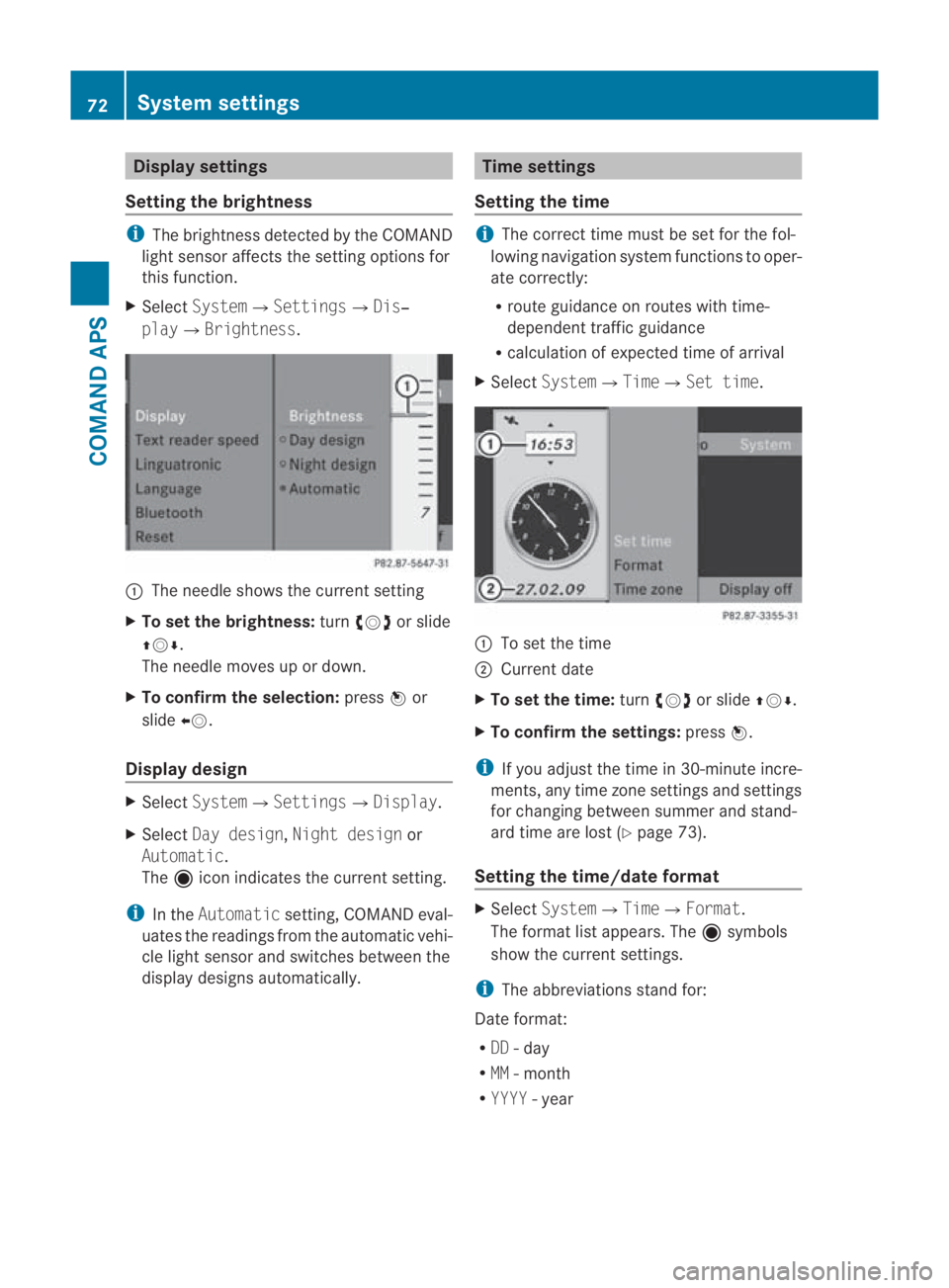
X Select System0004 Settings0004Dis‐
play0004Brightness. 0001
The needle shows the curren tsetting
X To set the brightness: turn002800130029 or slide
001F0013000D.
The needle moves up or down.
X To confirm the selection: press0017or
slide 002B0013.
Display design X
Select System0004 Settings0004Display.
X Select Day design, Night design or
Automatic.
The äicon indicates the current setting.
i In the Automatic setting, COMAND eval-
uates the readings from the automatic vehi-
cle light sensor and switches between the
display designs automatically. Time settings
Setting the time i
The correct time must be set for the fol-
lowing navigation system functions to oper-
ate correctly:
R route guidance on routes with time-
dependen ttraffic guidance
R calculation of expected time of arrival
X Select System0004Time0004Set time. 0001
To set the time
0002 Current date
X To set the time: turn002800130029 or slide 001F0013000D.
X To confirm the settings: press0017.
i If you adjust the time in 30-minute incre-
ments, any time zone settings and settings
for changing between summe rand stand-
ard time are lost (Y page 73).
Setting the time/date format X
Select System 0004Time0004 Format.
The format list appears. The äsymbols
show the current settings.
i The abbreviations stand for:
Date format:
R DD - day
R MM - month
R YYYY -year 72
System settingsCOMAND APS
BA 197 ECE RE 2010/6a; 1; 2, en-GB
sabbaeu
Version: 3.0.3.6 2010-05-07T14:19:43+02:00 - Seite 72
Page 76 of 361
Clock format:
R
HH -hour
R MM - minute
This setting applies for both the 24-hour
and the AM/PM format.
X To change the format: turn002800130029 or slide
001F0013000D.
X To confirm the change: press0017.
Setting the time zone and switching
between summer and standard time i
The correct time zone and summer/
standard time must be set for the following
navigation system functions to operate cor-
rectly:
R route guidance on routes with time-
dependent traffic guidance
R calculation of expected time of arrival
X To set the time zone: Sys‐
tem0004Time0004Time zone.
The country list appears. The 0023dot indi-
cates the current setting.
X Select the country in which you are cur-
rently driving.
Depending on the country you select, a
time zone list may also appear.
X Select the desired time zone.
Subsequent operation depends on:
R whether your navigation system has GPS
reception
R the country you have previously selected
You may either:
R switch between Summer timeandStand‐
ard time manually in a list
or
R switch automatic summer to standard time
changeover (and vice versa) on or off
X To switch manually: selectSummer
time orStandard time.
The 0023dot indicates the current setting. X
To switch automatic changeover on/
off: select Autom. Summer / Winter
time on orAutom. Summer / Winter
time off.
The 0023dot indicates the current setting.
X To store the setting and exit the menu:
press 0017.
X To exit the menu without saving: press
the 0001 back button next to the COMAND
controller or slide 002B0013002C.
i If you have switched off the automatic
changeover function, you must change
from summer to standard time and vice
versa manually using the "Set time" func-
tion (Y page 72). Read-aloud settings
Setting the read-aloud speed X
Select System0004Settings0004Text
reader speed.
The list of possible settings appears. The
0023 dot indicates the current setting.
X To select asetting: turn002800130029 or slide
001F0013000D .
X To confir myour selection: press0017. LINGUATRONIC settings
Activating/deactivating the help win-
dow X
Select System 0004Settings 0004Lingua‐
tronic .
X Select Help window .
You have switched the help window on
0019 or off 0004. System settings
73COMAND APS
BA 197 ECE RE 2010/6a; 1; 2, en-GB
sabbaeuV ersion: 3.0.3.6
2010-05-07T14:19:43+02:00 - Seite 73 Z
Page 81 of 361
X
Select COMAND ("MB Bluetooth").
X Whe nprompted, enter the passkey on the
Bluetooth ®
device and then on COMAND. System language settings
This function allows you to determine the lan-
guage for the menu displays and the naviga-
tion messages. The language selection
affects the inpu toptions in the editing and
smart speller.
X Select System 0004Settings0004Language .
The list of languages appears. The 0023dot
indicates the current setting.
X To select alanguage: turn002800130029 or slide
001F0013000D.
The selection moves up and down.
X To confirm the language selection: press
0017.
COMAND loads the selected language and
sets it.
i The language selection affects the input
options in the editing and smart speller.
i If you change the system language, the
language for LINGUATRONIC will be also be
changed. If the selected language is not
supported by LINGUATRONIC, "English"
will be selected.
X To cancel language selection: slide
002B0013002C. Reset
i You can reset COMAND to the factory
settings. This includes the deletion of all of
you rpersonal data.
Personal data can include the following:
R phone numbers
R address book entries
R music files in the MUSIC REGISTER
R entries in the destination memory
R station presets Resetting is recommended before selling or
transferring ownership of your vehicle, for
example.
X
Select System0004 Settings0004Reset .
Ap rompt appears asking whethe ryou wish
to reset.
X Select YesorNo.
If you select Yes, a prompt will appear again
asking whether you really wish to reset.
X Select YesorNo.
If you select Yes, a message will be shown.
COMAND is reset and restarted. Navigation system (introduction)
Safety notes
G
Risk of accident
For safety reasons, only enter a new destina-
tion when the vehicle is stationary. You may
otherwise be distracted from the traffic con-
ditions, cause an accident and injure yourself
and others.
COMAND calculates the route to the destina-
tion without taking account of the following,
for example:
R traffic lights
R stop and give way signs
R parking or stopping restrictions
R lane narrowing
R other road and traffic rules and regulations
COMAND may give incorrect driving recom-
mendations if the data on the digital map does
not correspond to the actual conditions. For
example, a route may have been diverted or
the direction of a one-way street may have
changed.
For this reason, you must always observe the
respective road and traffic rules and regula-
tions during your journey. Road and traffic
rules and regulations always have priority
over system driving recommendations. 78
Navigation system (introduction)COMAND APS
BA 197 ECE RE 2010/6a; 1; 2, en-GB
sabbaeu
Version: 3.0.3.6 2010-05-07T14:19:43+02:00 - Seite 78
Page 82 of 361
General notes
Operational readiness of the navigation
system After delivery of the vehicle
In vehicles for certain countries, the naviga-
tion system is not operational immediately
after delivery because the map software is
not pre-installed there.
If this is the case, the following message
appears in the display when you press the
0015 function button to switch to navigation
mode: Please insert the map DVD to
activate navigation.
X To install the map software: proceed as
described in the "Update process" section
(Y page 91).
i Please note that in this case, the update
must be allowed to run to the end. If you
cancel the update, the navigation system
will continue to be non-operational.
After updating the system software
After a system software update at a
Mercedes-Benz Service Centre, the installed
map software may no longer be compatible.
If this is the case, the navigation system will
not be operational.
X To update the map software: proceed as
described in the "Update process" section
(Y page 91). Use map software which is
compatible with the system software.
i Please note that in this case, the update
must be allowed to run to the end. If you
cancel it, the navigation system will con-
tinue to be non-operational.
The navigation system must determine the
position of the vehicle before first use or
wheneve roperational status is restored.
Therefore, you may have to drive for a while
before precise route guidance is possible. GPS reception Amongst other things, correct functioning of
the navigation system depends on GPS recep-
tion
.Inc ertain situations, GPS reception may
be impaired, there may be interference or
there may be no reception at all, e.g. in tun-
nels or multi-storey car parks.
Route guidance after vehicle transpor-
tation COMAND has to redetermine the position of
the vehicle if the vehicle has been transported
(e.g. by ferry, by motorail or after towing).
The position is determined automatically
when the vehicle pulls away again, even if
COMAND is switched off. The duration will
vary from one situation to another.
Route guidance may be restricted as follows
during vehicle positioning:
R navigation announcements, route guid-
ance displays and displayed street names
are not consisten twith the actual location
of the vehicle.
R COMAND does not generate navigation
announcements.
R instead of the route guidance displays, you
see the Off road display and a directional
arrow. The direction arrow shows the com-
pass heading to the destination.
When positioning is complete ,route guidance
is resumed with navigation announcements
and route guidance displays.
Interrupting the journey during route
guidance The following applies if you interrupt the jour-
ney during route guidance and continue the
journey later on:
R
COMAND resumes route guidance auto-
matically if you continue the journey within
two hours.
R route guidance is cancelled if you continue
the journey after more than two hours. It Navigation system (introduction)
79COMAND APS
BA 197 ECE RE 2010/6a; 1; 2, en-GB
sabbaeu Version: 3.0.3.6 2010-05-07T14:19:43+02:00 - Seite 79 Z
Page 83 of 361
will be necessary to resum
ethe cancelled
route guidance manually (Y page 119).
i Interrupting the journey means parking
the vehicle and switching off COMAND.
Continuing the journey means switching
COMAND on again and driving on.
Hard disk COMAND has an integrated hard disk on
which the map software is stored.
If an area of the hard disk has a fault,
COMAND can no longer access the map data
in this area, for example when calculating a
route.
The Navigation unavailable message
then appears.
X To hide the message: switch COMAND off
and then on again.
i If you switch the navigation system off/
on, it will be operational again until it has
to access the faulty area of the hard disk
again. The message will then reappear.
Consult a Mercedes-Benz Service Centre.
Units of measurement The units of measurement displayed in navi-
gation mode are identical to those set in the
instrument cluster. Input restriction
On vehicles for certain countries, there is a
restriction on entering data.
The restriction is active above a vehicle speed
of about 5 km/h. The restriction is deactiva-
ted as soon as the vehicle speed drops below
about 3 km/h.
When the restriction is active, certain entries
cannot be made. You will be aware of this
because certain menu items are greyed out
and cannot, therefore, be selected. The following entries may not be possible, for
example:
R
entering the destination town and street
R entering the destination via the map and
the map moving function
R entering in the vicinity of a town or via a
name search
R editing entries
R direct entry using the number keypad
Other entries are possible, such as entering
special destinations in the vicinity of the des-
tination or current position. 80
Navigation system (introduction)COMAND APS
BA 197 ECE RE 2010/6a; 1; 2, en-GB
sabbaeu
Version: 3.0.3.6 2010-05-07T14:19:43+02:00 - Seite 80
Page 84 of 361
Menu overview
Navi
Selecting a map display
Setting route calculation mode
Avoiding an area
Selecting text information on the map
0019
Switching motorway information on/off 0019
Reading out the TMC messages automatically 0019
Volume limiter Available when route guidance is active and inactive:
Guide TMC Position Destination
Selecting a special
destination from the
map view shown, (if
available) R
Displaying TMC
icon information
R Calling up RDS-
TMC traffic reports
R Reading out mes-
sages on route
(only if route guid-
ance is active) R
Storing the vehicle
position or cross-
hairp osition
i You can store the
crosshair position
when the crosshair
position is shown
on the map
(Y page 83).
R Centring the map
on the vehicle’s
position
R Moving the map to
the destination
(only if route guid-
ance is active) Switching route guid-
ance on/off
Entering a destina-
tion:
R as an address
R from the memory
R from the From
last destina‐
tions memory
R from special desti-
nations
R from the map
R as intermediate
stop (only if route
guidance is active)
Saving a destination
(only if route guid-
ance is active) Navigation system (introduction)
81COMAND APS
BA 197 ECE RE 2010/6a; 1; 2, en-GB
sabbaeu Version: 3.0.3.6 2010-05-07T14:19:43+02:00 - Seite 81 Z
Page 85 of 361
Also available when route guidance is active:
Route 0025
Calling up the traffic jam function
Alternative route
Calling up destination information
Calling up route browser Playing back the current navigation
announcement
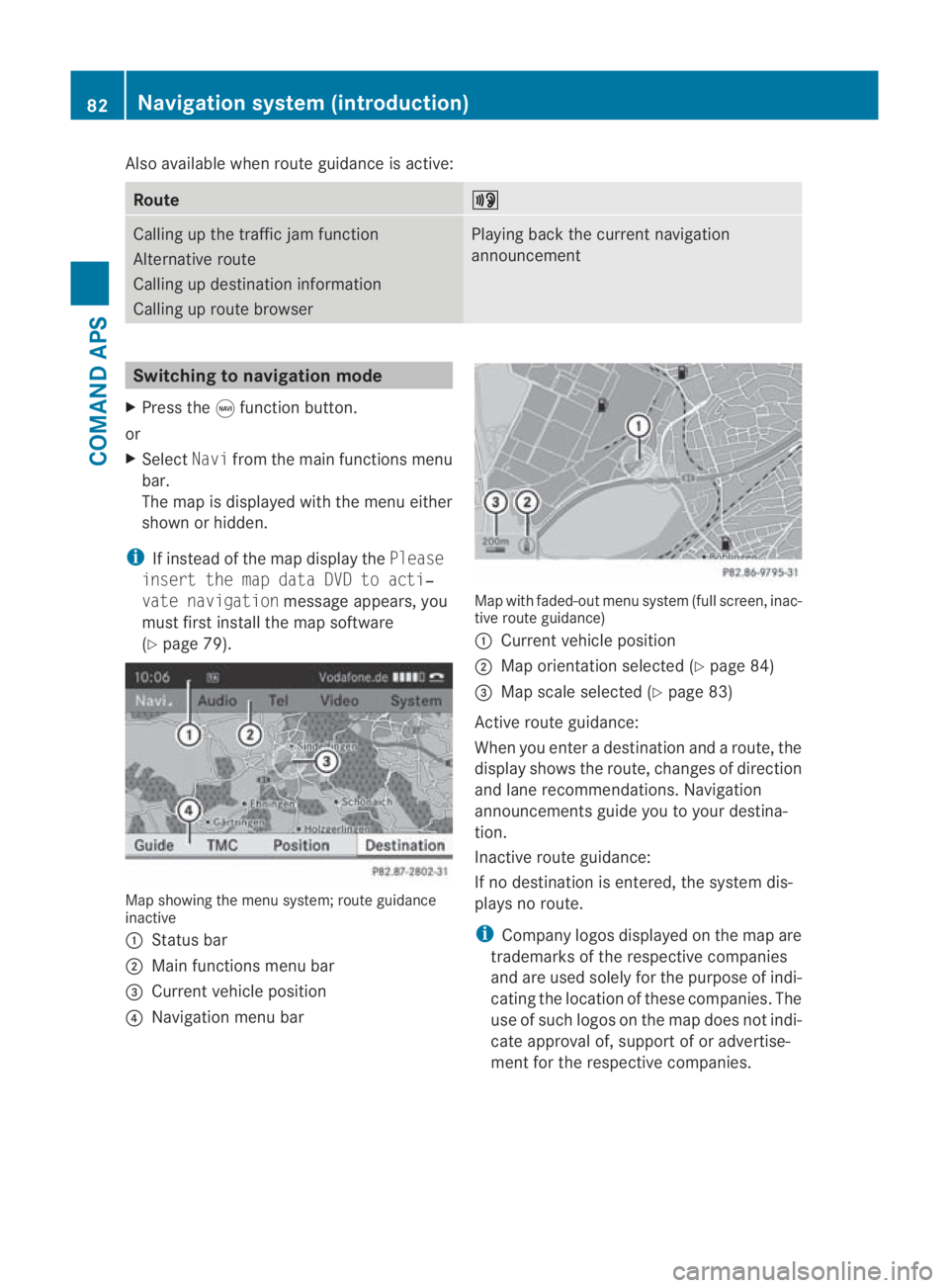
Switching to navigation mode
X Press the 0015function button.
or
X Select Navifrom the main functions menu
bar.
The map is displayed with the menu either
shown or hidden.
i If instead of the map display the Please
insert the map data DVD to acti‐
vate navigation message appears, you
must first install the map software
(Y page 79). Map showing the menu system; route guidance
inactive
0001 Status bar
0002 Main functions menu bar
0015 Current vehicle position
0014 Navigation menu bar Map with faded-out menu system (full screen, inac-
tive route guidance)
0001
Current vehicle position
0002 Map orientatio nselected (Y page 84)
0015 Map scale selected (Y page 83)
Active route guidance:
When you enter a destination and a route, the
display shows the route, changes of direction
and lane recommendations. Navigation
announcements guide you to your destina-
tion.
Inactive route guidance:
If no destination is entered, the system dis-
plays no route.
i Company logos displayed on the map are
trademarks of the respective companies
and are used solely for the purpose of indi-
cating the location of these companies. The
use of such logos on the map does not indi-
cate approval of, support of or advertise-
ment for the respective companies. 82
Navigation system (introduction)COMAND APS
BA 197 ECE RE 2010/6a; 1; 2, en-GB
sabbaeu
Version: 3.0.3.6 2010-05-07T14:19:43+02:00 - Seite 82
Page 86 of 361
Showing/hiding the menu system
X
To hide: slide001F0013and press 0017when the
Full screen menu item is shown.
or
X Press the 0001back button next to the
COMAND controller.
The menu system is hidden. The map can
be seen in the full-screen display.
X To show: press0017in the full-screen map
display. Map functions
Adjusting the map scale i
It is only possible to adjust the map scale
with the menu system hidden (full-screen
map display).
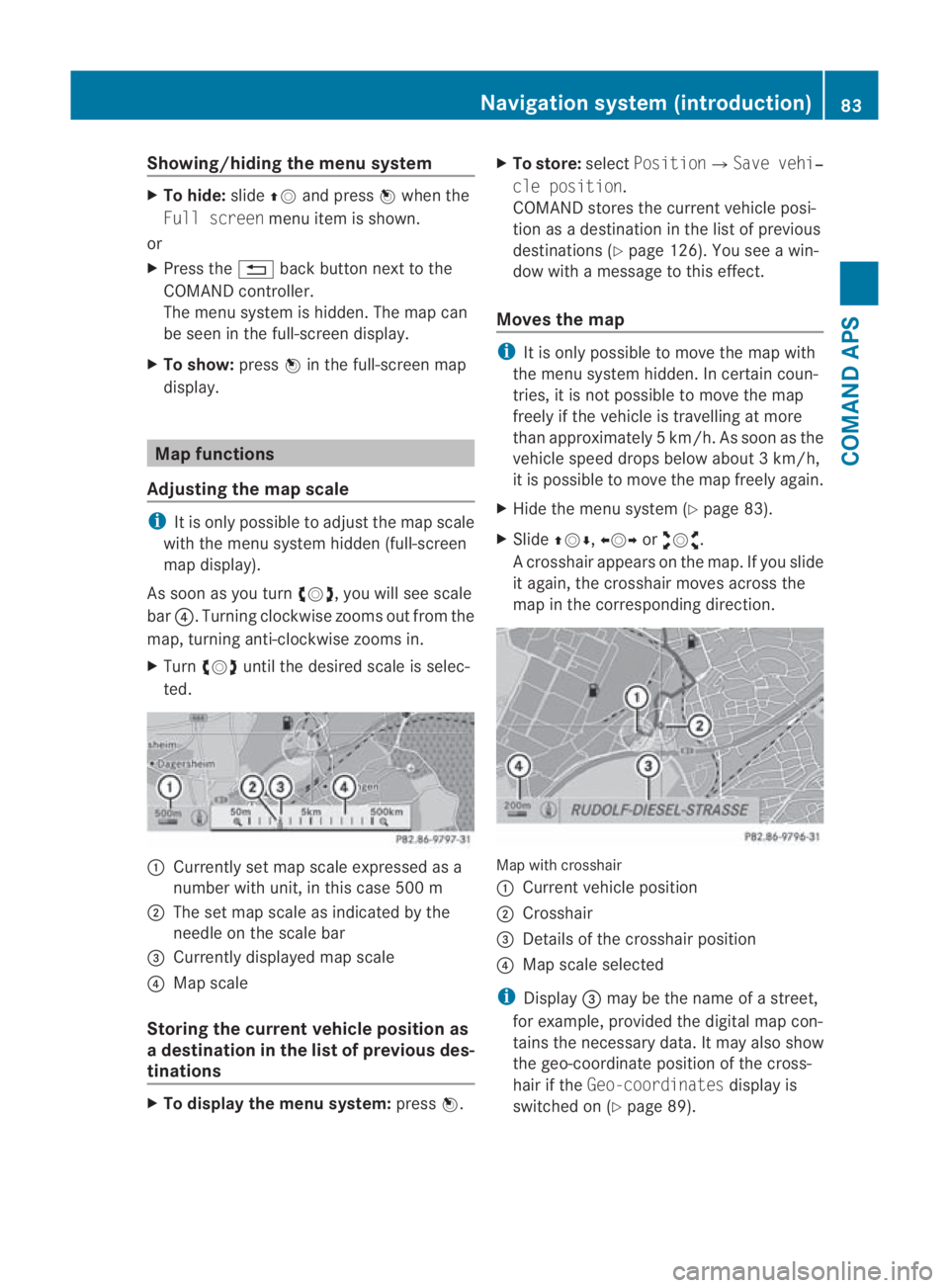
As soon as you turn 002800130029, you will see scale
bar 0014.T urning clockwise zooms out from the
map, turning anti-clockwise zooms in.
X Turn 002800130029 until the desired scale is selec-
ted. 0001
Currently set map scale expressed as a
number with unit, in this case 500 m
0002 The set map scale as indicated by the
needle on the scale bar
0015 Currently displayed map scale
0014 Map scale
Storing the curren tvehicle position as
ad estination in the list of previous des-
tinations X
To display the menu system: press0017. X
To store: selectPosition0004 Save vehi‐
cle position.
COMAND stores the curren tvehicle posi-
tion as a destination in the list of previous
destinations (Y page 126). You see a win-
dow with a message to this effect.
Moves the map i
It is only possible to move the map with
the menu system hidden. In certain coun-
tries, it is not possible to move the map
freely if the vehicle is travelling at more
than approximately 5km/h. As soon as the
vehicle speed drops below about 3km/h,
it is possible to move the map freely again.
X Hide the menu system (Y page 83).
X Slide 001F0013000D, 002B0013002Cor002A00130027.
Ac rosshair appears on the map. If you slide
it again, the crosshair moves across the
map in the corresponding direction. Map with crosshair
0001
Current vehicle position
0002 Crosshair
0015 Details of the crosshair position
0014 Map scale selected
i Display 0015may be the name of a street,
for example, provided the digital map con-
tains the necessary data .Itmay also show
the geo-coordinate positio nofthe cross-
hair if the Geo-coordinates display is
switched on (Y page 89). Navigation system (introduction)
83COMAND APS
BA 197 ECE RE 2010/6a; 1; 2, en-GB
sabbaeu Version: 3.0.3.6 2010-05-07T14:19:43+02:00 - Seite 83 Z