navigation system MERCEDES-BENZ SLS COUPE 2010 Owner's Guide
[x] Cancel search | Manufacturer: MERCEDES-BENZ, Model Year: 2010, Model line: SLS COUPE, Model: MERCEDES-BENZ SLS COUPE 2010Pages: 361, PDF Size: 6.32 MB
Page 97 of 361
R
entering characters
R deleting an entry
R accepting the first list entry
R cancelling an entry
as described in "Town list with input
speller" (Y page 94).
X To switch to the list without input
speller: slide001F0013until the list without the
smar tspeller appears.
or
X Select 0005and press 0017. X
To select a country: turn002800130029or slide
001F0013000D .
X Press 0017.
The address input menu reappears. The
country selected is automatically entered.
Entering the town i
You can only enter towns that are stored
on the digital map. Entering a town will, for
example, delete a previously entered post-
code.
X Select Townin the address input menu.
The display shows the town list with input
speller ( Ypage 94) or without input
speller ( Ypage 95). Whether or not the
input speller is displayed depends on how
many towns are available for the country
selected. List of towns with the input speller
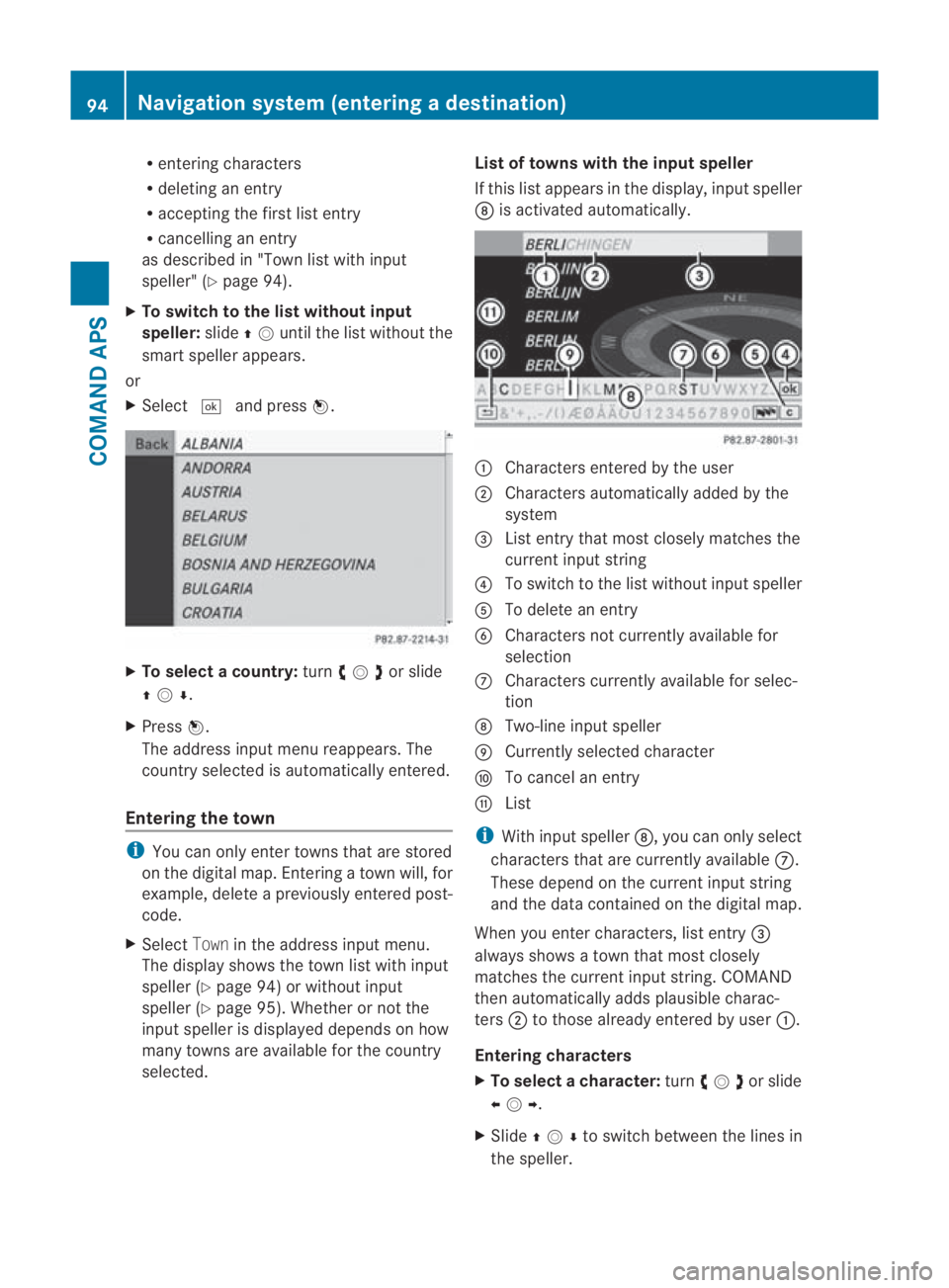
If this list appears in the display, input speller
000B
is activated automatically. 0001
Characters entered by the user
0002 Characters automatically added by the
system
0015 List entry that most closely matches the
current input string
0014 To switch to the list without input speller
0012 To delete an entry
0013 Characters not currently available for
selection
000A Characters currently availabl efor selec-
tion
000B Two-line input speller
000C Currently selected character
000D To cancel an entry
000E List
i With input speller 000B, you can only select
characters that are currently available 000A.
These depend on the current input string
and the data contained on the digital map.
When you enter characters, list entry 0015
always shows a town that most closely
matches the current input string. COMAND
then automatically adds plausible charac-
ters 0002to those already entered by user 0001.
Entering characters
X To select acharacter: turn002800130029or slide
002B0013002C .
X Slide 001F0013000D to switch between the lines in
the speller. 94
Navigation syste
m(entering adestination)COMAND APS
BA 197 ECE RE 2010/6a; 1; 2, en-GB
sabbaeu Version: 3.0.3.6
2010-05-07T14:19:43+02:00 - Seite 94
Page 98 of 361
X
To confirm the character selection:
press 0017.
It is possible, in some cases:
X To change the character set for the
input speller: select0014.
Deleting an entry
X To delete single characters: select0004on
the bottom right-hand side of the speller
and press 0017.
or
X Press the 0013button next to the
COMAND controller.
X To delete an entire entry: select0004and
press and hold down 0017until the entire
entry has been deleted.
or
X Press and hold down the 0013button until
the entire entry is deleted.
Cancelling an entry
X Select the 0002iconont he left-hand side in
the speller and press 0017.
or
X Press the 0001back button next to the
COMAND controller.
The address input menu appears.
Accepting the first list entry
X Press and hold 0017until the address input
menu appears.
The accepted list entry appears.
i If COMAND is able to unambiguously
assign the characters entered to one town,
the address entry menu automatically
shows the selected list entry.
Changing to the town list without the
input speller
If there are several entries for a town or if the
name is stored several times, then 0005is
highlighted in the speller.
X Press 0017. It is also possible to change to the list at any
time during character input.
X
Slide 001F0013repeatedly until the list is dis-
played without the speller.
or
X Select 0005and press 0017.
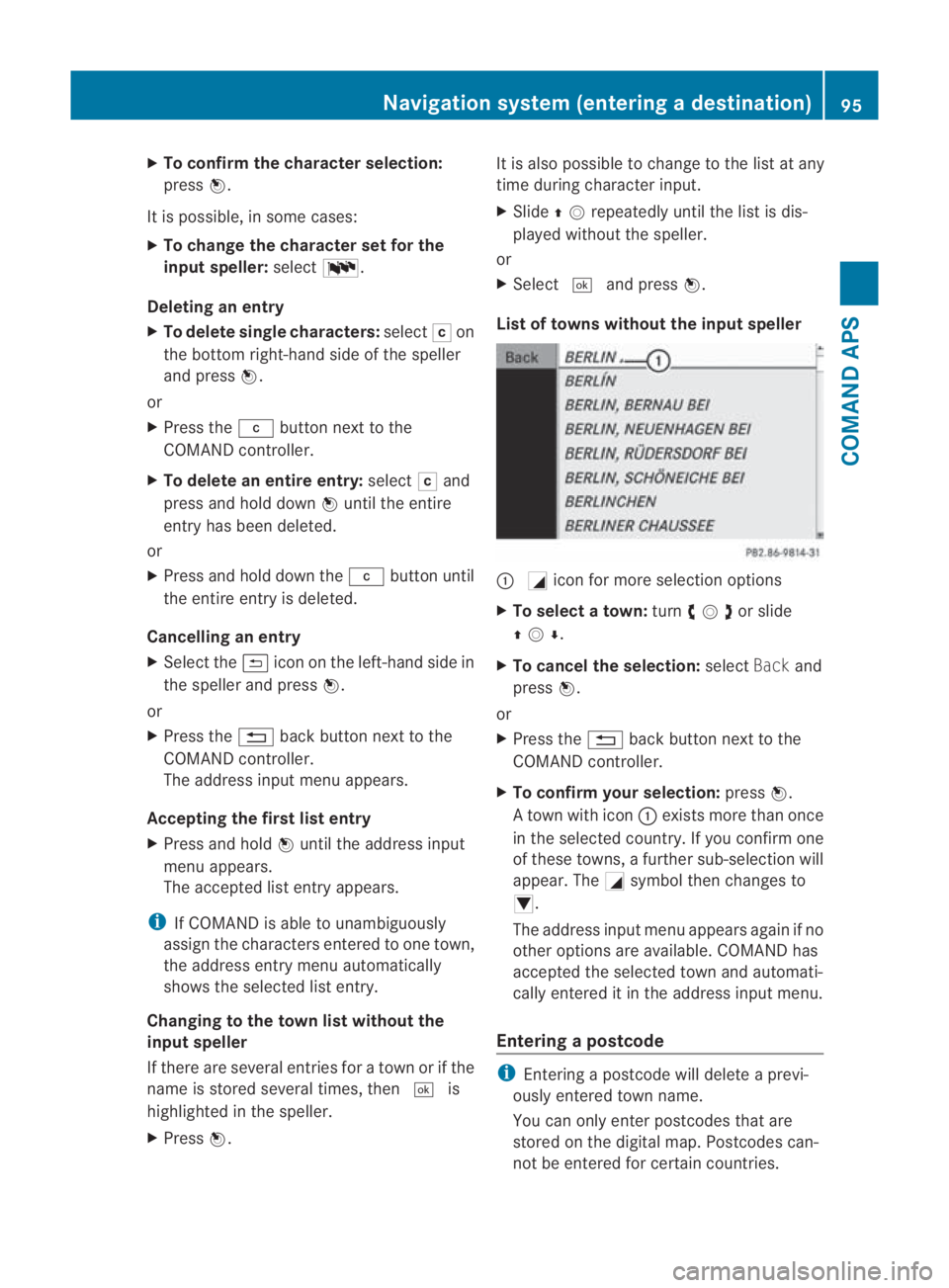
Listoft owns without the inpu tspeller 0001
0005icon for more selection options
X To select atown: turn002800130029or slide
001F0013000D .
X To cancel the selection: selectBackand
press 0017.
or
X Press the 0001back button next to the
COMAND controller.
X To confirm your selection: press0017.
At own with icon 0001exists more than once
in the selected country. If you confirm one
of these towns, a further sub-selection will
appear. The 0005symbol then changes to
0006.
The address input menu appears again if no
other options are available. COMAND has
accepted the selected town and automati-
cally entered it in the address input menu.
Entering apostcode i
Entering a postcode will delete a previ-
ously entered town name.
You can only enter postcodes that are
stored on the digital map. Postcodes can-
not be entered for certain countries. Navigation system (entering
adestination)
95COMAND APS
BA 197 ECE RE 2010/6a; 1; 2, en-GB
sabbaeu Version: 3.0.3.6
2010-05-07T14:19:43+02:00 - Seite 95 Z
Page 99 of 361
X
Select Postcode in the address input menu
(Y page 93).
The display shows the postcode list either
with the input speller or withou tthe input
speller (Y page 97). Whether or not the
input speller is displayed depends on how
many postcodes are available for the coun-
try selected.
Postcode list with the input speller
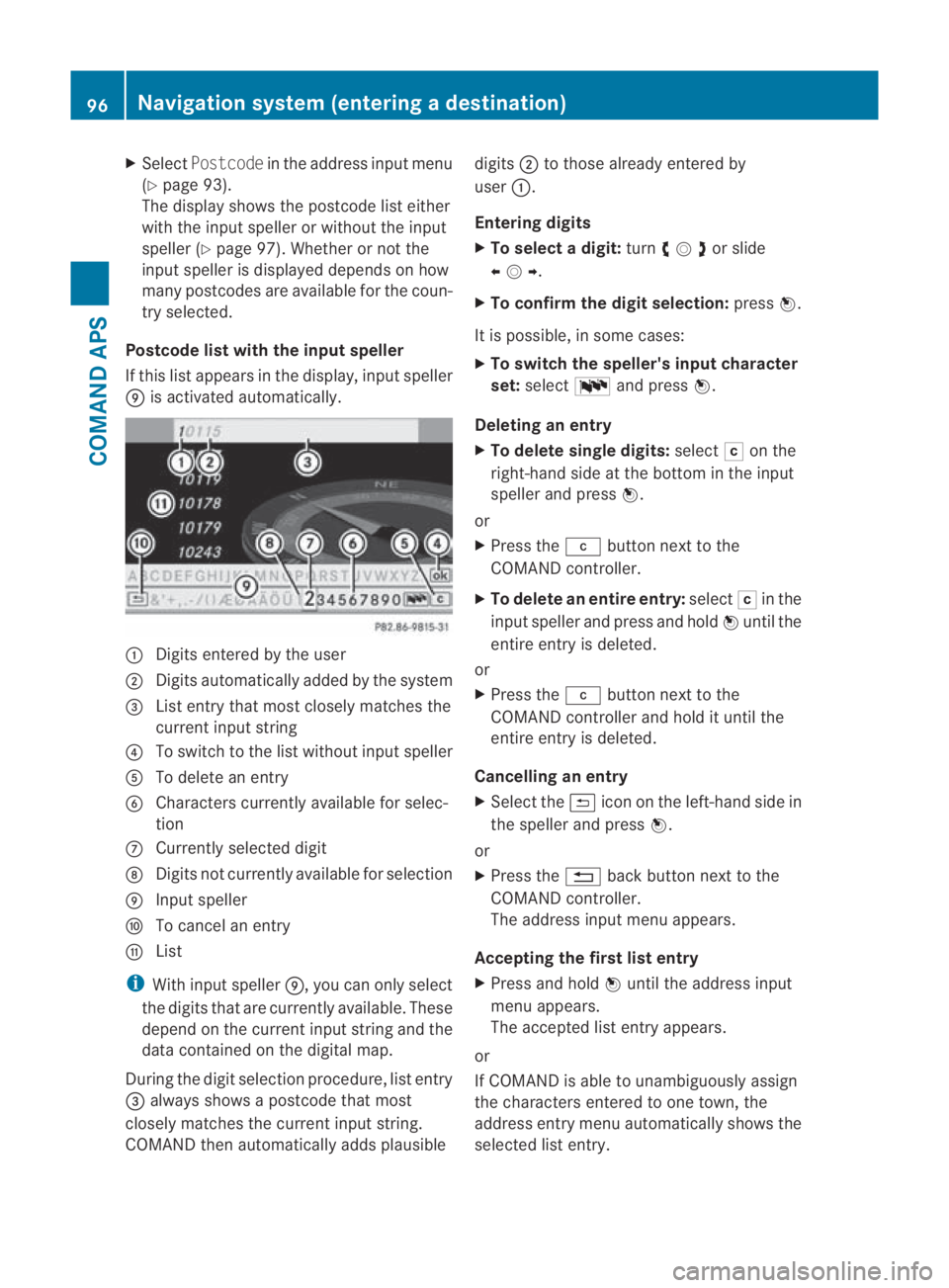
If this list appears in the display, input speller
000C is activated automatically. 0001
Digits entered by the user
0002 Digits automatically added by the system
0015 List entry that most closely matches the
current input string
0014 To switch to the list without input speller
0012 To delete an entry
0013 Characters currently available for selec-
tion
000A Currently selected digit
000B Digits not currently available for selection
000C Input speller
000D To cancel an entry
000E List
i With input speller 000C, you can only select
the digits that are currently available. These
depend on the current input string and the
data contained on the digital map.
During the digit selection procedure, list entry
0015 always shows a postcode that most
closely matches the current input string.
COMAND then automatically adds plausible digits
0002to those already entered by
user 0001.
Entering digits
X To selectad igit:turn002800130029or slide
002B0013002C .
X To confirm the digit selection: press0017.
It is possible, in some cases:
X To switch the speller's input character
set: select 0014and press 0017.
Deleting an entry
X To delete single digits: select0004on the
right-hand side at the bottom in the input
speller and press 0017.
or
X Press the 0013button next to the
COMAND controller.
X To delete an entire entry: select0004in the
input speller and press and hold 0017until the
entire entry is deleted.
or
X Press the 0013button next to the
COMAND controller and hold it until the
entire entry is deleted.
Cancelling an entry
X Select the 0002iconont he left-hand side in
the speller and press 0017.
or
X Press the 0001back button next to the
COMAND controller.
The address input menu appears.
Accepting the first list entry
X Press and hold 0017until the address input
menu appears.
The accepted list entry appears.
or
If COMAND is able to unambiguously assign
the characters entered to one town, the
address entry menu automatically shows the
selected list entry. 96
Navigation system (entering
adestination)COMAND APS
BA 197 ECE RE 2010/6a; 1; 2, en-GB
sabbaeu Version: 3.0.3.6
2010-05-07T14:19:43+02:00 - Seite 96
Page 100 of 361
Changing to the postcode list without the
input speller
It is also possible to chang
eto the list at any
time during character input.
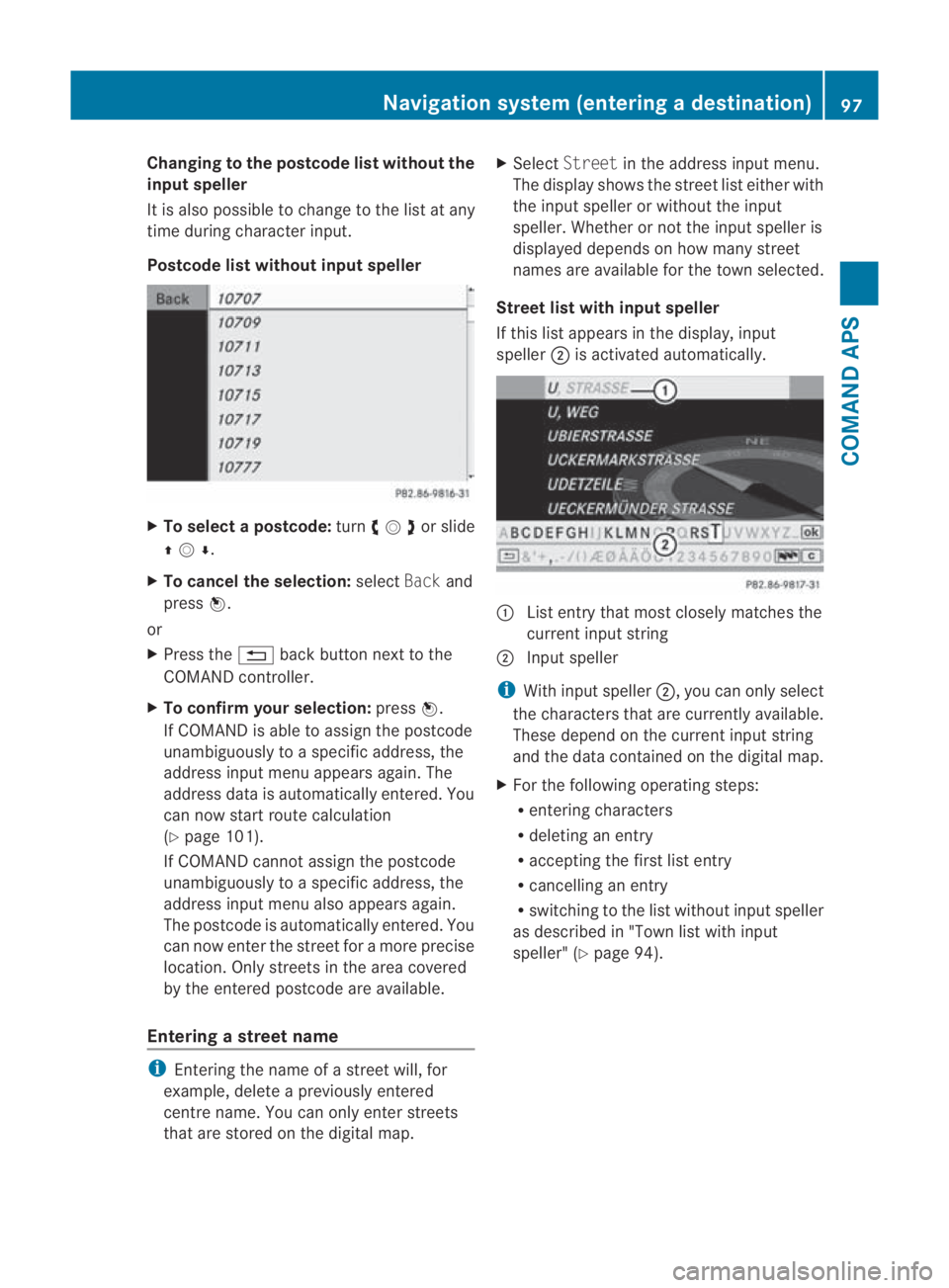
Postcode list without input speller X
To select apostcode: turn002800130029 or slide
001F0013000D .
X To cancel the selection: selectBackand
press 0017.
or
X Press the 0001back button next to the
COMAND controller.
X To confirm your selection: press0017.
If COMAND is able to assign the postcode
unambiguously to a specifi caddress, the
address input menu appears again. The
address data is automatically entered. You
can now start route calculation
(Y page 101).
If COMAND cannot assign the postcode
unambiguously to a specific address, the
address input menu also appears again.
The postcode is automatically entered. You
can now enter the street for a more precise
location .Only streets in the area covered
by the entered postcode ar eavailable.
Entering a street name i
Entering the name of a street will, for
example, delete a previously entered
centre name. You can only enter streets
that are stored on the digital map. X
Select Street in the address inpu tmenu.
The display shows the street list either with
the input speller or without the input
speller. Whether or not the input speller is
displayed depends on how many street
names are available for the town selected.
Street list with input speller
If this list appears in the display, input
speller 0002is activated automatically. 0001
List entry that most closely matches the
current input string
0002 Input speller
i With input speller 0002, you can only select
the characters that are currently available.
These depend on the curren tinpu tstring
and the data contained on the digital map.
X For the following operating steps:
R
entering characters
R deleting an entry
R accepting the first list entry
R cancelling an entry
R switching to the list without input speller
as described in "Tow nlist with input
speller" (Y page 94). Navigation system (entering
adestination)
97COMAND APS
BA 197 ECE RE 2010/6a; 1; 2, en-GB
sabbaeu Version: 3.0.3.6
2010-05-07T14:19:43+02:00 - Seite 97 Z
Page 101 of 361
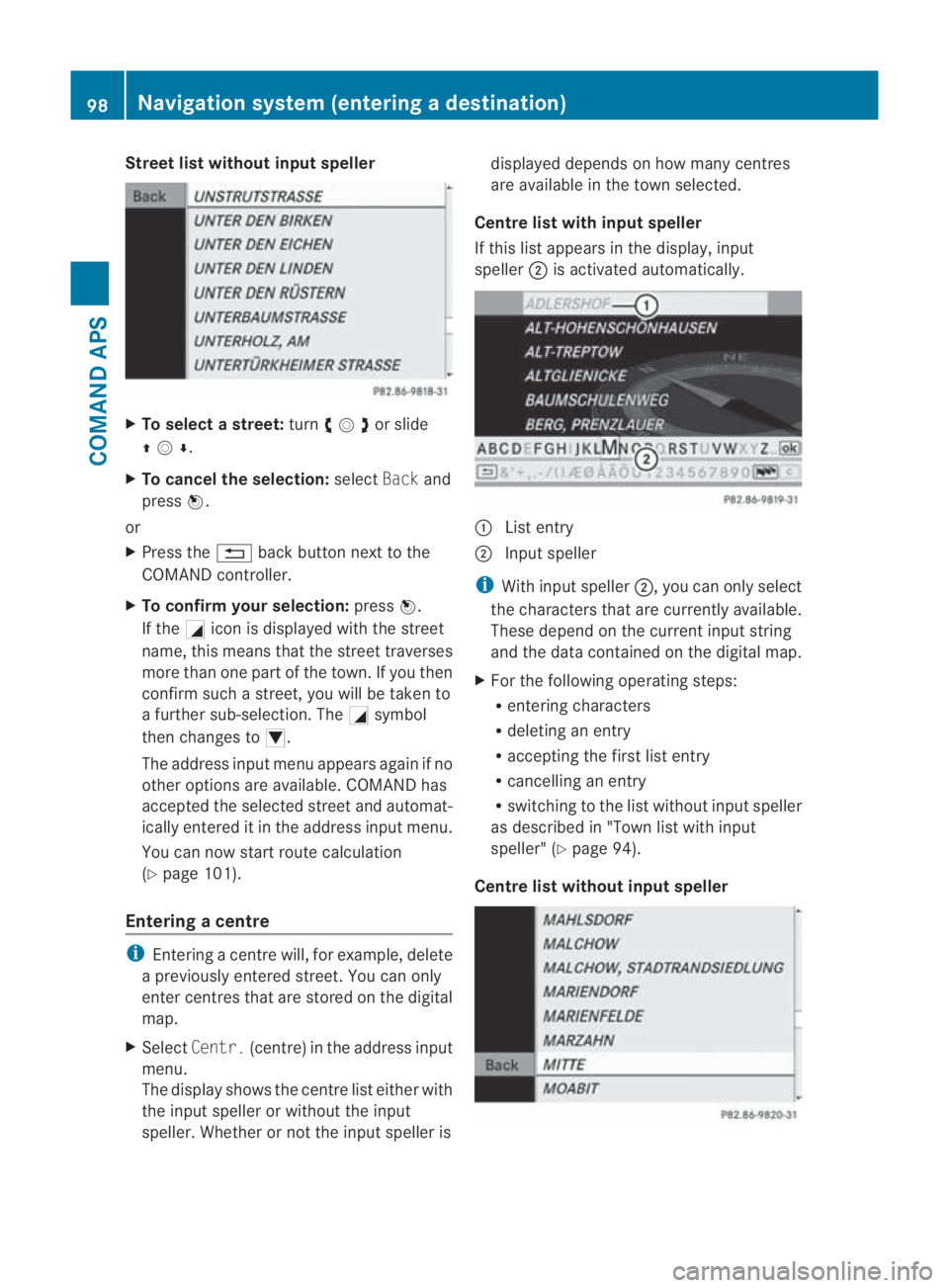
Street list without input speller
X
To selectas treet:turn002800130029or slide
001F0013000D .
X To cancel the selection: selectBackand
press 0017.
or
X Press the 0001back button next to the
COMAND controller.
X To confirm your selection: press0017.
If the 0005iconis displayed with the street
name, this means that the street traverses
more than one part of the town. If you then
confirm such a street, you will be taken to
a further sub-selection. The 0005symbol
then changes to 0006.
The address input menu appears againifno
other options are available. COMAND has
accepted the selected street and automat-
ically entered it in the address input menu.
You can now start route calculation
(Y page 101).
Entering acentre i
Entering a centre will, for example, delete
a previously entered street .You can only
enter centres that are stored on the digital
map.
X Select Centr. (centre) in the address input
menu.
The display shows the centre list either with
the input speller or without the input
speller. Whether or not the input speller is displayed depends on how many centres
are available in the town selected.
Centre list with input speller
If this list appears in the display, input
speller 0002is activated automatically. 0001
List entry
0002 Input speller
i With input speller 0002, you can only select
the characters that are currently available.
These depend on the current input string
and the data contained on the digital map.
X For the following operating steps:
R
entering characters
R deleting an entry
R accepting the first list entry
R cancelling an entry
R switching to the list without input speller
as described in "Town list with input
speller" (Y page 94).
Centre list without input speller 98
Navigation system (entering
adestination)COMAND APS
BA 197 ECE RE 2010/6a; 1; 2, en-GB
sabbaeu Version: 3.0.3.6
2010-05-07T14:19:43+02:00 - Seite 98
Page 103 of 361
X
To cancel the selection: selectBackand
press 0017.
or
X Press the 0001back button next to the
COMAND controller.
X To confirm your selection: press0017.
After you have confirme dyour selection,
the address input menu appears again.
COMAND has accepted the selected house
number and automatically entered it in the
address input menu.
You can now start route calculation
(Y page 101).
Entering ajunction name i
You can only select a junction after having
entered a road (Y page 97). You can only
enter junctions that are stored on the digi-
tal map.
Entering a junction wil ldelete a previously
entered house number.
X Select Junct. (junction) in the address
input menu.
The display shows the junction list either
with the input speller or without the input
speller ( Ypage 100). Whether or not the
input speller is displayed depends on how
many junctions are available for the street
selected.
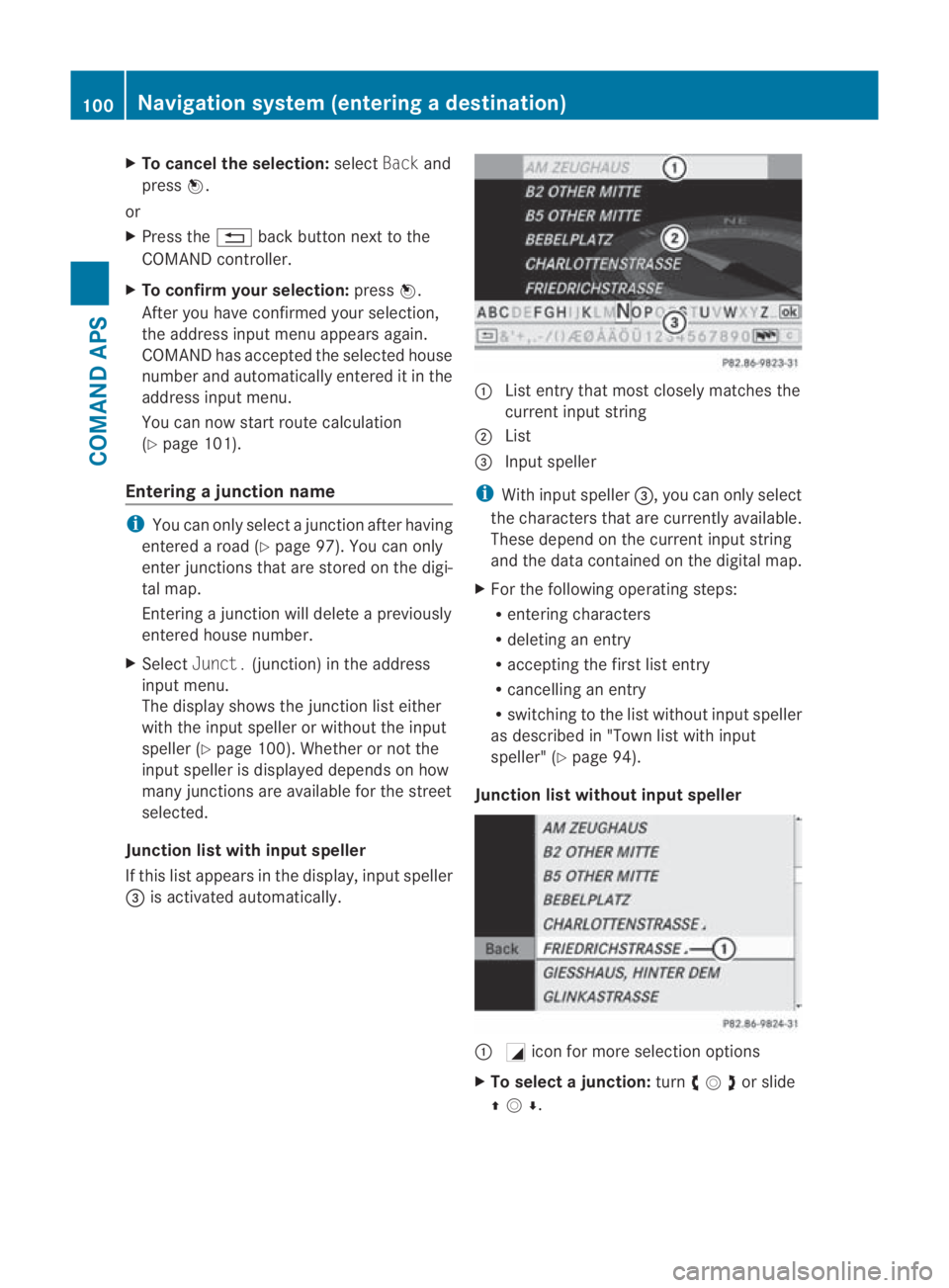
Junction list with input speller
If this list appears in the display, input speller
0015 is activated automatically. 0001
List entry that most closely matches the
current input string
0002 List
0015 Input speller
i With input speller 0015, you can only select
the characters that are currently available.
These depend on the curren tinpu tstring
and the data contained on the digital map.
X For the following operating steps:
R
entering characters
R deleting an entry
R accepting the first list entry
R cancelling an entry
R switching to the list without input speller
as described in "Tow nlist with input
speller" (Y page 94).
Junction list withou tinput speller 0001
0005icon for more selection options
X To select ajunction: turn002800130029or slide
001F0013000D . 100
Navigation system (entering
adestination)COMAND APS
BA 197 ECE RE 2010/6a; 1; 2, en-GB
sabbaeu Version: 3.0.3.6
2010-05-07T14:19:43+02:00 - Seite 100
Page 104 of 361
X
To cancel the selection: selectBackand
press 0017.
or
X Press the 0001back button next to the
COMAND controller.
X To confirm your selection: press0017.
After you have confirme dyour selection,
the address input menu appears again.
COMAND has accepted the selected junc-
tion and automatically entered it in the
address input menu. You can now start
route calculation.
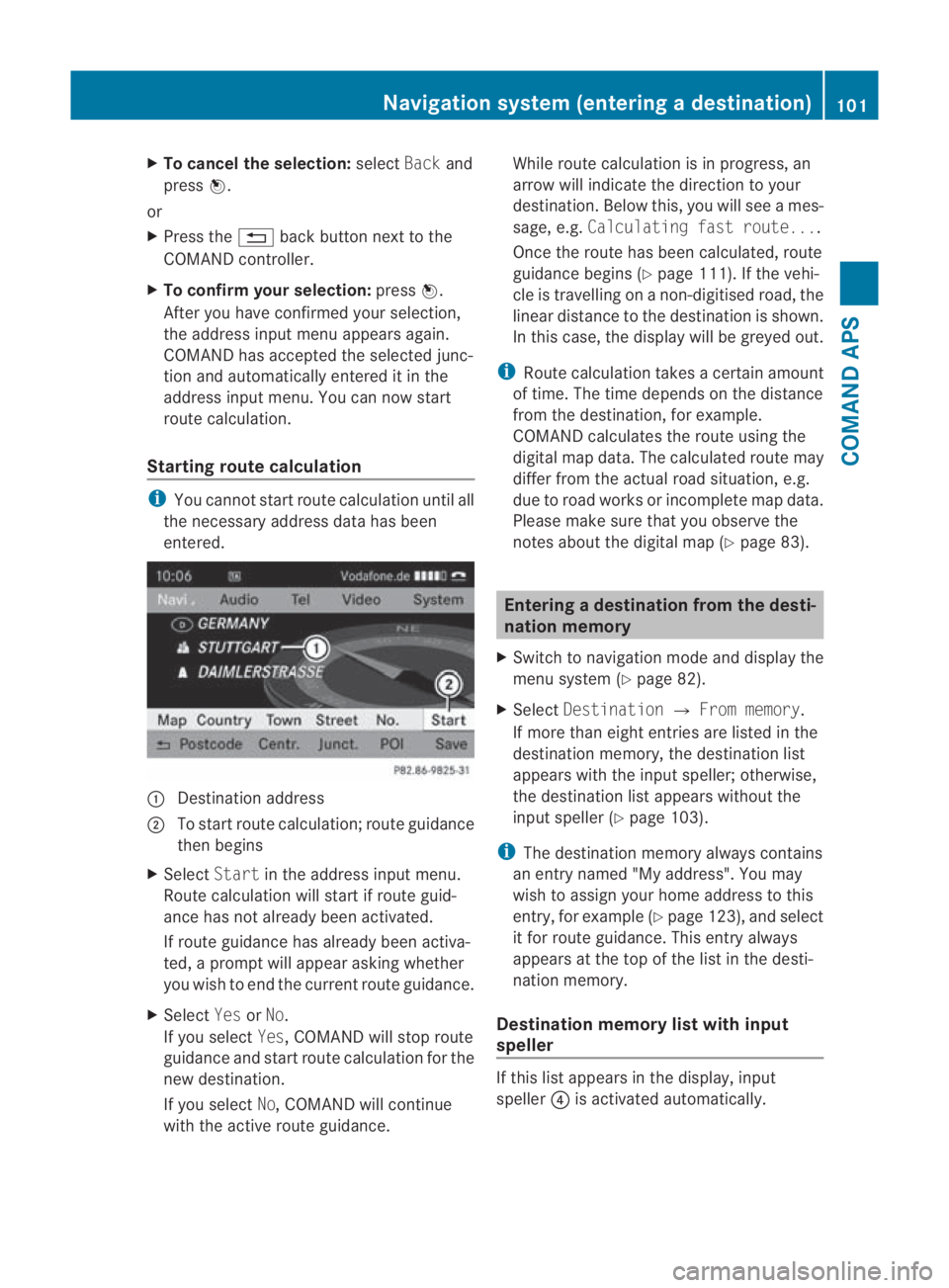
Starting route calculation i
You cannot start route calculation until all
the necessary address data has been
entered. 0001
Destination address
0002 To start route calculation; route guidance
then begins
X Select Startin the address input menu.
Route calculation will start if route guid-
ance has not already been activated.
If route guidance has already been activa-
ted, a prompt will appear asking whether
you wish to end the current route guidance.
X Select YesorNo.
If you select Yes, COMAND will stop route
guidance and start route calculation for the
new destination.
If you select No, COMAND will continue
with the active route guidance. While route calculation is in progress, an
arrow will indicate the direction to your
destination .Below this, you will see a mes-
sage, e.g. Calculating fast route....
Once the route has been calculated, route
guidance begins (Y page 111). If the vehi-
cle is travelling on a non-digitised road, the
linear distance to the destination is shown.
In this case, the display will be greyed out.
i Route calculation takes a certain amount
of time. The time depends on the distance
from the destination, for example.
COMAND calculates the route using the
digital map data. The calculated route may
differ from the actual road situation, e.g.
due to road works or incomplete map data.
Please make sure that you observe the
notes about the digital map (Y page 83). Entering
adestination from the desti-
nation memory
X Switch to navigation mode and display the
menu system (Y page 82).
X Select Destination 0004From memory .
If more than eight entries are listed in the
destination memory, the destination list
appears with the input speller; otherwise,
the destination list appears without the
input spelle r(Ypage 103).
i The destination memory always contains
an entry named "My address". You may
wish to assign your home address to this
entry, for example (Y page 123), and select
it for route guidance. This entry always
appears at the top of the list in the desti-
nation memory.
Destination memory list with input
speller If this list appears in the display, input
speller
0014is activated automatically. Navigation system (entering
adestination)
101COMAND APS
BA 197 ECE RE 2010/6a; 1; 2, en-GB
sabbaeu Version: 3.0.3.6
2010-05-07T14:19:43+02:00 - Seite 101 Z
Page 105 of 361
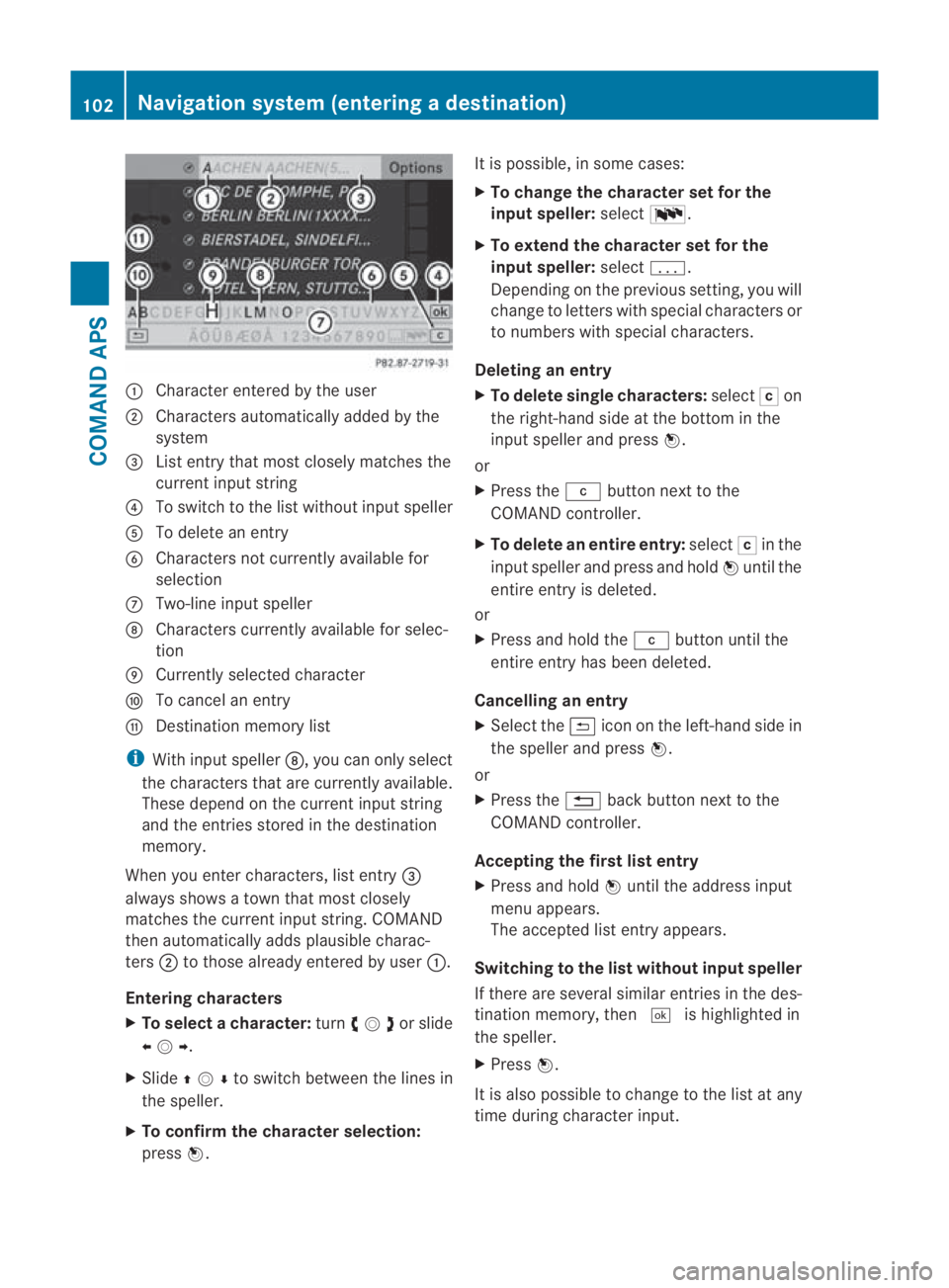
0001
Characte rentered by the user
0002 Characters automatically added by the
system
0015 List entry that most closely matches the
current input string
0014 To switch to the list withou tinpu tspeller
0012 To delete an entry
0013 Characters not currently available for
selection
000A Two-line input speller
000B Characters currently available for selec-
tion
000C Currently selected character
000D To cancel an entry
000E Destination memory list
i With input speller 000B, you can only select
the characters that are currently available.
These depend on the curren tinpu tstring
and the entries stored in the destination
memory.
When you ente rcharacters, list entry 0015
always shows a town that most closely
matches the current input string. COMAND
then automatically adds plausible charac-
ters 0002to those already entered by user 0001.
Entering characters
X To selectac haracter:turn002800130029or slide
002B0013002C .
X Slide 001F0013000D to switch between the lines in
the speller.
X To confirm the character selection:
press 0017. It is possible, in some cases:
X
To change the character set for the
input speller: select0014.
X To extend the character set for the
input speller: select0001.
Depending on the previous setting, you will
change to letters with special characters or
to numbers with special characters.
Deleting an entry
X To delete single characters: select0004on
the right-hand side at the bottom in the
input spelle rand press 0017.
or
X Press the 0013button next to the
COMAND controller.
X To delete an entire entry: select0004in the
input speller and press and hold 0017until the
entire entry is deleted.
or
X Press and hold the 0013button until the
entire entry has been deleted.
Cancelling an entry
X Select the 0002iconont he left-hand side in
the speller and press 0017.
or
X Press the 0001back button next to the
COMAND controller.
Accepting the first list entry
X Press and hold 0017until the address input
menu appears.
The accepted list entry appears.
Switching to the list without input speller
If there are several similar entries in the des-
tination memory, then 0005is highlighted in
the speller.
X Press 0017.
It is also possible to change to the list at any
time during character input. 102
Navigation system (entering
adestination)COMAND APS
BA 197 ECE RE 2010/6a; 1; 2, en-GB
sabbaeu Version: 3.0.3.6
2010-05-07T14:19:43+02:00 - Seite 102
Page 106 of 361
X
Slide 001F0013repeatedly until the list is dis-
played without the speller.
or
X Select 0005and press 0017.
If COMAND can unambiguousl yassign the
characters entered to one entry, the list with-
out speller appears automatically.
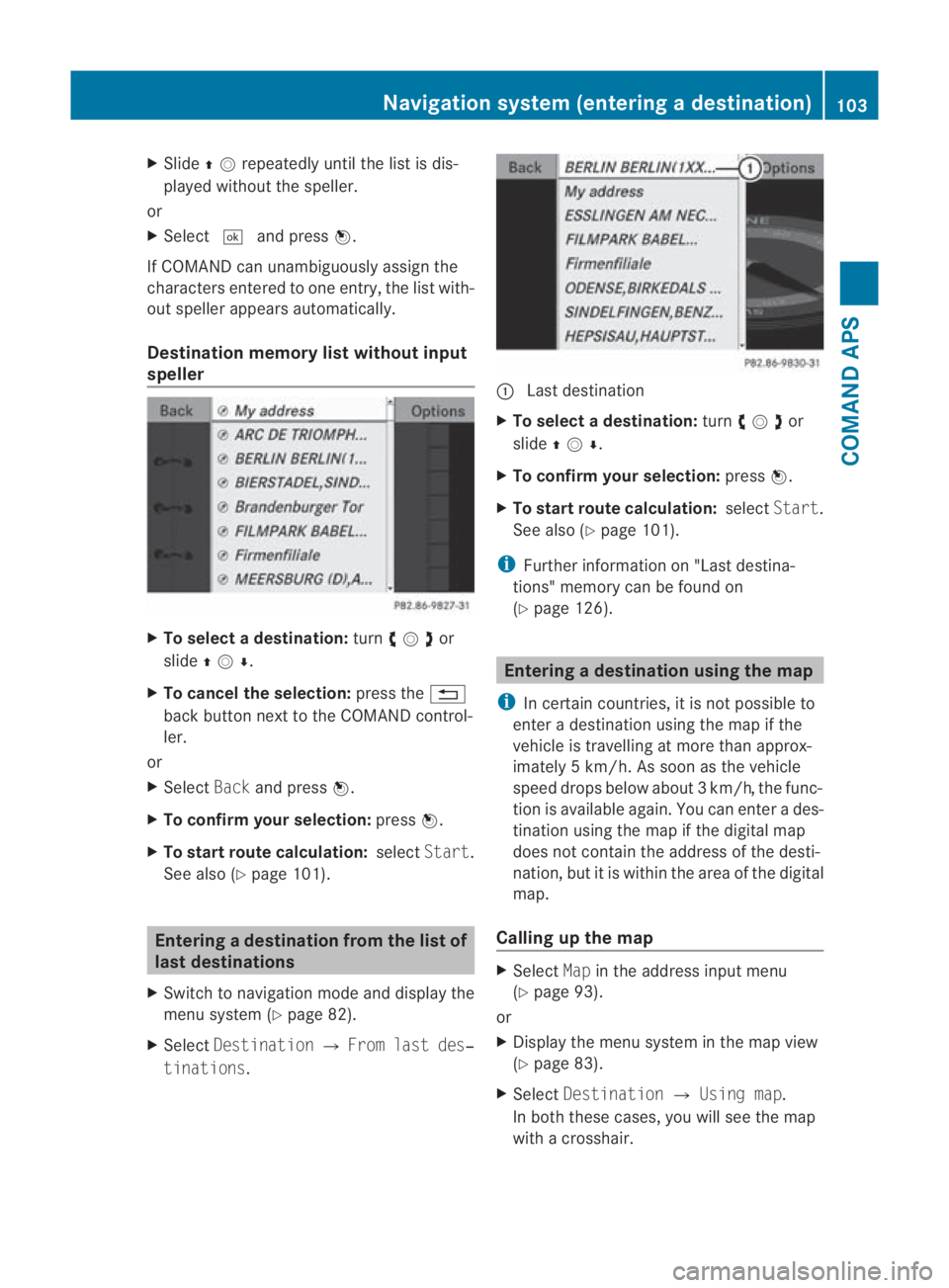
Destination memory list without input
speller X
To selectad estination:turn002800130029or
slide 001F0013000D .
X To cancel the selection: press the0001
back button next to the COMAND control-
ler.
or
X Select Backand press 0017.
X To confirm your selection: press0017.
X To start route calculation: selectStart.
See also (Y page 101). Entering
adestination from the list of
last destinations
X Switch to navigation mode and display the
menu system (Y page 82).
X Select Destination 0004From last des‐
tinations . 0001
Last destination
X To select adestination: turn002800130029or
slide 001F0013000D .
X To confirm your selection: press0017.
X To start route calculation: selectStart.
See also (Y page 101).
i Further information on "Last destina-
tions" memory can be found on
(Y page 126). Entering
adestination usin gthe map
i In certain countries, it is not possible to
enter a destination using the map if the
vehicle is travelling at more than approx-
imately 5 km/h. As soon as the vehicle
speed drops below about 3km/h, the func-
tion is available again. You can enter a des-
tination using the map if the digital map
does not contain the address of the desti-
nation, but it is withi nthe area of the digital
map.
Calling up the map X
Select Mapin the address input menu
(Y page 93).
or
X Display the menu system in the map view
(Y page 83).
X Select Destination 0004Using map.
In both these cases, you will see the map
with a crosshair. Navigation system (entering
adestination)
103COMAND APS
BA 197 ECE RE 2010/6a; 1; 2, en-GB
sabbaeu Version: 3.0.3.6 2010-05-07T14:19:43+02:00 - Seite 103 Z
Page 107 of 361
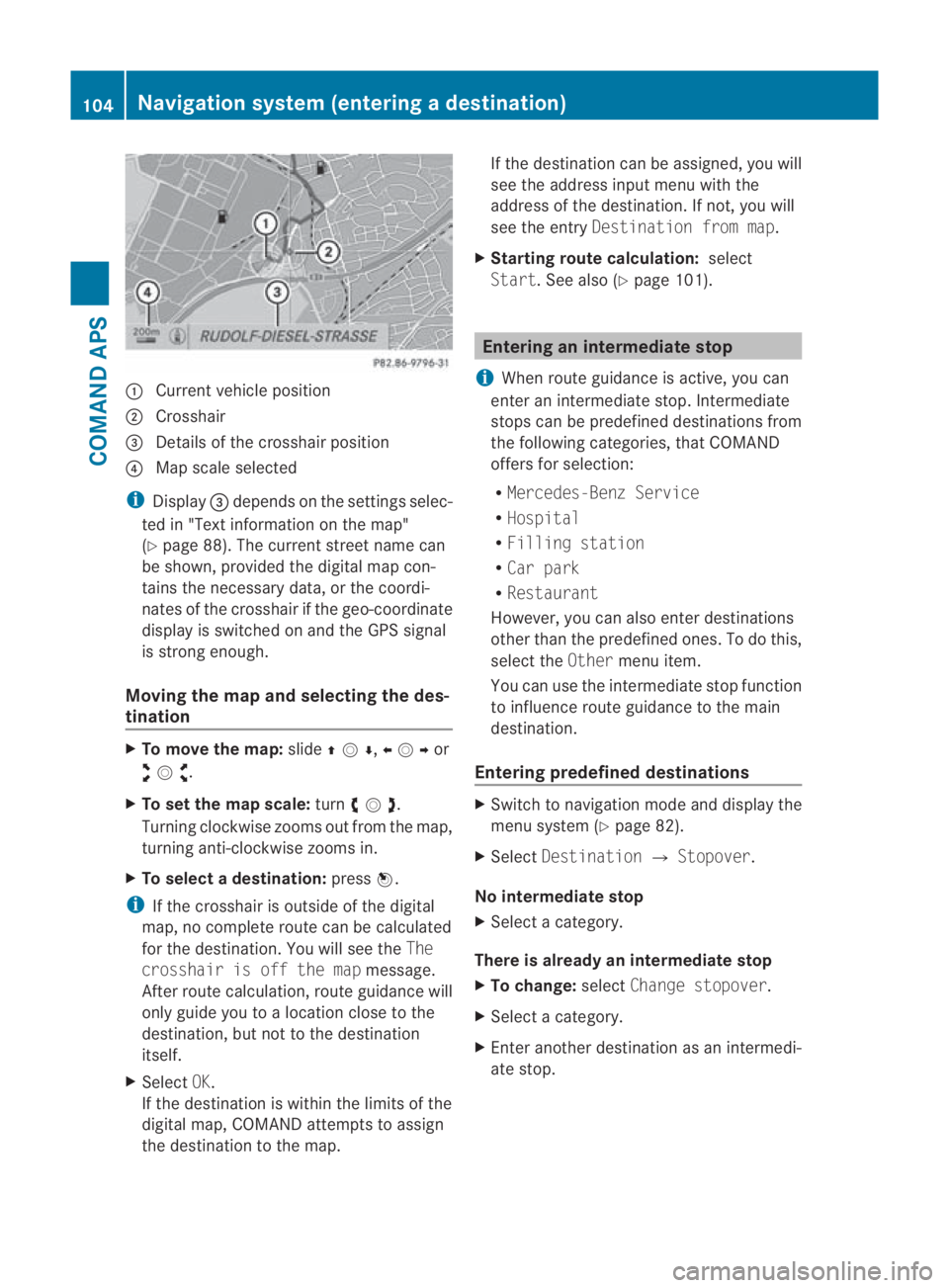
0001
Curren tvehicle position
0002 Crosshair
0015 Details of the crosshair position
0014 Map scale selected
i Display 0015depends on the settings selec-
ted in "Text information on the map"
(Y page 88). The current street name can
be shown, provided the digital map con-
tains the necessary data, or the coordi-
nates of the crosshair if the geo-coordinate
display is switched on and the GPS signal
is strong enough.
Moving the map and selecting the des-
tination X
To move the map: slide001F0013000D ,002B0013002Cor
002A00130027 .
X To set the map scale: turn002800130029 .
Turning clockwise zooms out from the map,
turning anti-clockwise zooms in.
X To select adestination: press0017.
i If the crosshair is outside of the digital
map, no complete route can be calculated
for the destination .You will see the The
crosshair is off the map message.
After route calculation, route guidance will
only guide you to a location close to the
destination, but not to the destination
itself.
X Select OK.
If the destination is within the limits of the
digital map, COMAND attempts to assign
the destination to the map. If the destination can be assigned, you will
see the address input menu with the
address of the destination .Ifnot, you will
see the entry Destination from map.
X Starting route calculation: select
Start.S ee also (Y page 101). Entering an intermediate stop
i When route guidance is active, you can
enter an intermediate stop. Intermediate
stops can be predefined destinations from
the following categories, that COMAND
offers for selection:
R Mercedes-Benz Service
R Hospital
R Filling station
R Car park
R Restaurant
However, you can also enter destinations
other than the predefined ones. To do this,
select the Othermenu item.
You can use the intermediate stop function
to influence route guidance to the main
destination.
Entering predefined destinations X
Switch to navigation mode and display the
menu system (Y page 82).
X Select Destination 0004Stopover.
No intermediate stop
X Select a category.
There is already an intermediate stop
X To change: selectChange stopover.
X Select a category.
X Enter another destination as an intermedi-
ate stop. 104
Navigation system (entering
adestination)COMAND APS
BA 197 ECE RE 2010/6a; 1; 2, en-GB
sabbaeu Version: 3.0.3.6
2010-05-07T14:19:43+02:00 - Seite 104