bluetooth MERCEDES-BENZ SLS COUPE 2010 Owner's Manual
[x] Cancel search | Manufacturer: MERCEDES-BENZ, Model Year: 2010, Model line: SLS COUPE, Model: MERCEDES-BENZ SLS COUPE 2010Pages: 361, PDF Size: 6.32 MB
Page 157 of 361
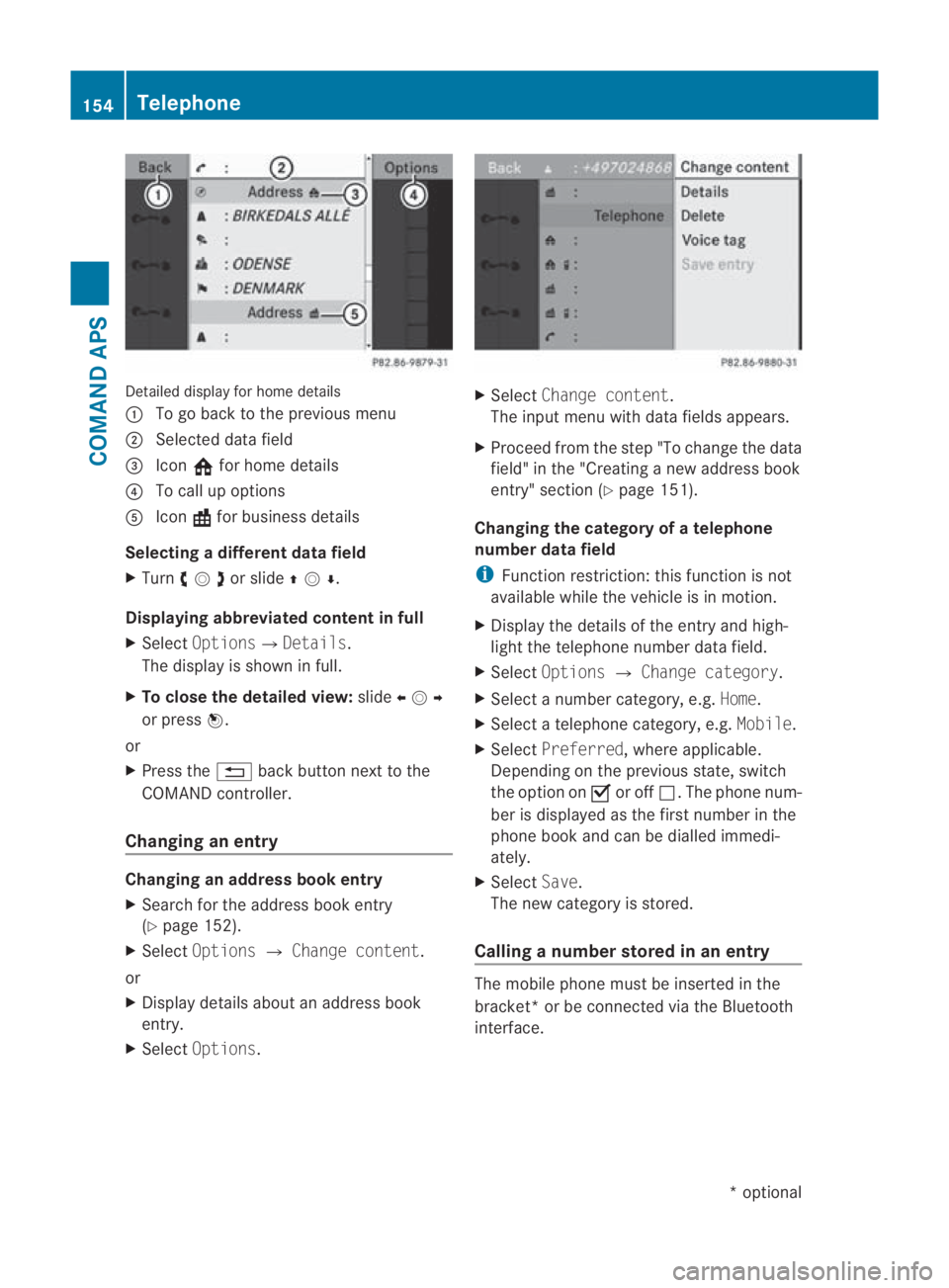
Detailed display for home details
0001
To go back to the previous menu
0002 Selected data field
0015 Icon 001Efor home details
0014 To call up options
0012 Icon \for business details
Selecting a different data field
X Turn 002800130029or slide 001F0013000D.
Displaying abbreviate dconten tin full
X Select Options0004 Details.
The display is shown in full.
X To close the detailed view: slide002B0013002C
or press 0017.
or
X Press the 0001back button next to the
COMAND controller.
Changing an entry Changing an address book entry
X
Search for the address book entry
(Y page 152).
X Select Options 0004Change content.
or
X Display details about an address book
entry.
X Select Options. X
Select Change content.
The input menu with data fields appears.
X Proceed from the step "To change the data
field" in the "Creating anew address book
entry" section (Y page 151).
Changing the category of a telephone
number data field
i Function restriction: this function is not
available while the vehicle is in motion.
X Display the details of the entry and high-
light the telephone number data field.
X Select Options 0004Change category.
X Select a number category, e.g. Home.
X Select a telephone category, e.g. Mobile.
X Select Preferred, where applicable.
Depending on the previous state, switch
the option on 0019or off 0004.The phone num-
ber is displayed as the first number in the
phone book and can be dialled immedi-
ately.
X Select Save.
The new category is stored.
Calling a number stored in an entry The mobile phone must be inserted in the
bracket* or be connected via the Bluetooth
interface.154
TelephoneCOMAND APS
*o
ptional
BA 197 ECE RE 2010/6a; 1; 2, en-GB
sabbaeu
Version: 3.0.3.6 2010-05-07T14:19:43+02:00 - Seite 154
Page 158 of 361
X
Display the details of the entry and high-
ligh tthe telephone number data field
(Y page 153).
X Press 0017.
The call is made. The displays witches to
the telephone operatio nscreen.
or
X Select Options 0004Call .
The call is made.
Starting route guidance to an entry i
You can use this function once you have
stored a destination in the destination
memory. COMAND also stores the desti-
nation with the complete navigable address
data in the address book.
X Search for an address boo kentry using the
¤ icon (Y page 152).
X Display the details abou tanentry and high-
light the address data field (Y page 153).
X Press 0017.
or
X Select Options 0004Navigate.
The address input menu appear sand the
selection ba ris positioned at the Start
menu item.
i Pressing 0017only functions and Navi‐
gate can only be selected when the
address data field contains complete, nav-
igable data. This is indicated by the ¤icon.
X Start the route calculation (Y page 101).
Voice entries i
You can make voice entries via LINGUA-
TRONIC.
Adding or changing avoice tag
i You can add one voice tag per address
book entry. X
Search for an address book entry with or
without a voice entry (¦ icon)
(Y page 152).
X Select Options 0004Voice tag 0004Add or
Change .
Subsequen toperation is voice-controlled.
LINGUATRONIC guides you through the
dialogues (see the LINGUATRONIC operat-
ing instructions).
Deleting avoice tag
X Search for the address book entry with a
voice entry (Y page 152).
X Select Options 0004Voice tag 0004
Delete .
Ad eletion prompt appears.
X Select YesorNo.
COMAND deletes the voice entry depend-
ing on your selection.
Listening to avoice tag
X Search for the address book entry with a
voice entry (Y page 152).
X Select Options 0004Voice tag 0004Lis‐
ten .
You will hear the voice tag.
Storing a phone book entry from the
mobile phone in the address book i
You can use this function to store an
external entry in the address book. If you
delete external data (Y page 156) later, the
entry remains in the address book.
X Search for the phone book entry of the
mobile phone ( 000Fdisplay) (Y page 152).
X Select Options 0004Save entry.
The Saving procedure successful
message appears .The phone book entry is
now stored as an address book entry.
Importing external data( convenience
telephony*) You can import external data from external
Bluetooth
®
devices into the address book. Telephone
155COMAND APS
*optional
BA 197 ECE RE 2010/6a; 1; 2, en-GB
sabbaeu
Version: 3.0.3.6 2010-05-07T14:19:43+02:00 - Seite 155 Z
Page 159 of 361
Please observe that:
R
Bluetooth ®
must be activated.
R The external device can send business
cards (vCards) via Bluetooth ®
.
R The external device in the vehicle must be
switched on and authorised (Y page 129).
i If Bluetooth ®
has not been activated yet,
you will see a message to this effect.
Receiving vCards
X Start data transfer on the device (see oper-
ating instructions for the respective
device).
X You are asked to enter a passkey. You have
to enter this into the external device and
into COMAND (Y page 129).
X Select Address book 0004Receive
business cards in COMAND.
Data import starts.
Importing external data
X Select Address book 0004Import exter‐
nal data in COMAND.
X Select Memory card orConvenience
phone from the selection list.
Data import starts.
i If no data suitable for importing exists,
you cannot select the relevant option.
i If you switch to another main function
during the data import, COMAND will ter-
minate the reception of the vCards.
Deleting data
X When the address book is displayed, select
Address book 0004Delete external
data.
This deletes all external data from the
address book.
i vCards are not deleted. Mercedes-Benz Contact
Mercedes-Benz Contact is ready to help at
any time, e.g. if you have queries about your vehicle or when you need help in the event of
a breakdown.
This function enables you to call the
Mercedes-Benz Service Hotline, subject to a
fee. All important vehicle data is sent at the
same time so that you receive optimum sup-
port.
The following data is sent:
R
the vehicle identification number
R the odometer reading
R the vehicle position
R the telephone number
You can make use of the function with an
operational mobile phone connected to
COMAND via the Bluetooth ®
interface or con-
venience telephony*.
i Please note that Mercedes-Benz Contact
is a Mercedes-Benz service. In emergen-
cies, be sure to use the standard national
emergency numbers first.
i Currently (as of June 2009), this service is
available in the following European coun-
tries:
R Belgium
R Germany
R France
R United Kingdom
R Ireland
R Italy
R Luxembourg
R Netherlands
R Austria
R Poland
R Switzerland
R Slovakia
R Spain
R Czech Republic
R Hungary 156
TelephoneCOMAND APS
*o
ptional
BA 197 ECE RE 2010/6a; 1; 2, en-GB
sabbaeu
Version: 3.0.3.6 2010-05-07T14:19:43+02:00 - Seite 156
Page 188 of 361
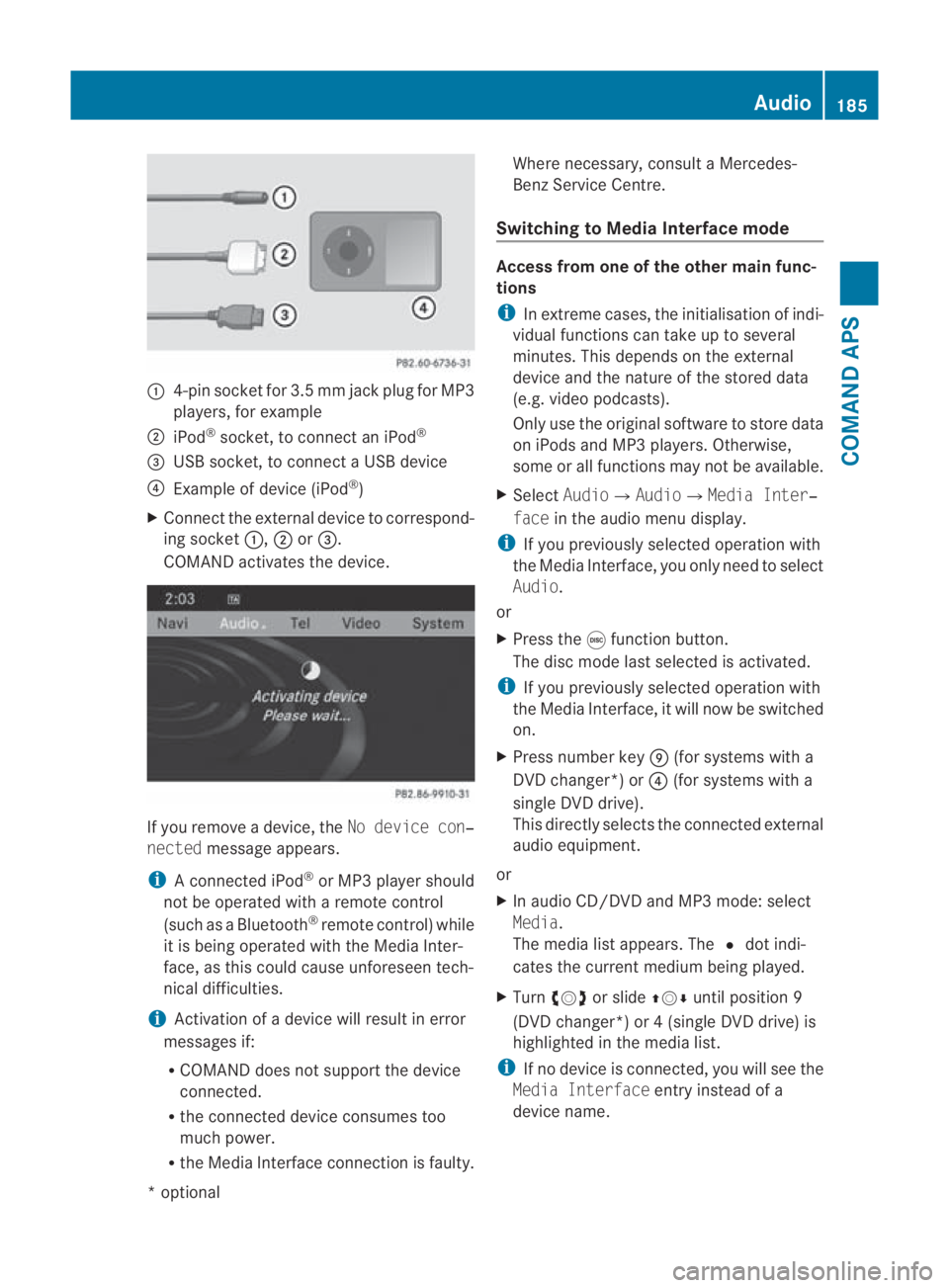
0001
4-pin socket for 3.5 mm jack plu gfor MP3
players, for example
0002 iPod ®
socket, to connect an iPod ®
0015 USB socket, to connect aUSB device
0014 Example of device (iPod ®
)
X Connect the external device to correspond-
ing socket 0001,0002or0015.
COMAND activates the device. If you remove a device, the
No device con‐
nected message appears.
i A connected iPod ®
or MP3 player should
not be operated with a remote control
(such as a Bluetooth ®
remote control) while
it is being operated with the Media Inter-
face, as this could cause unforeseen tech-
nical difficulties.
i Activation of a device will resul tinerror
messages if:
R COMAND does not support the device
connected.
R the connected device consumes too
much power.
R the Media Interface connection is faulty. Where necessary, consult a Mercedes-
Benz Service Centre.
Switching to Media Interface mode Access from one of the other main func-
tions
i
In extreme cases, the initialisation of indi-
vidual functions can take up to several
minutes. This depends on the external
device and the nature of the stored data
(e.g. video podcasts).
Only use the original software to store data
on iPods and MP3 players .Otherwise,
some or all functions may not be available.
X Select Audio0004 Audio0004Media Inter‐
face in the audio menu display.
i If you previously selected operatio nwith
the Media Interface, you only need to select
Audio.
or
X Press the 000Efunction button.
The disc mode last selected is activated.
i If you previously selected operation with
the Media Interface, it will now be switched
on.
X Press number key 000C(for systems with a
DVD changer*) or 0014(for systems with a
single DV Ddrive).
This directly selects the connected external
audio equipment.
or
X In audio CD/DVD and MP3 mode: select
Media.
The media list appears. The 0023dot indi-
cates the current medium being played.
X Turn 002800130029 or slide 001F0013000Duntil position 9
(DVD changer*) or 4 (single DVD drive) is
highlighted in the media list.
i If no device is connected, you will see the
Media Interface entry instead of a
device name. Audio
185COMAND APS
*optional
BA 197 ECE RE 2010/6a; 1; 2, en-GB
sabbaeu
Version: 3.0.3.6 2010-05-07T14:19:43+02:00 - Seite 185 Z
Page 239 of 361
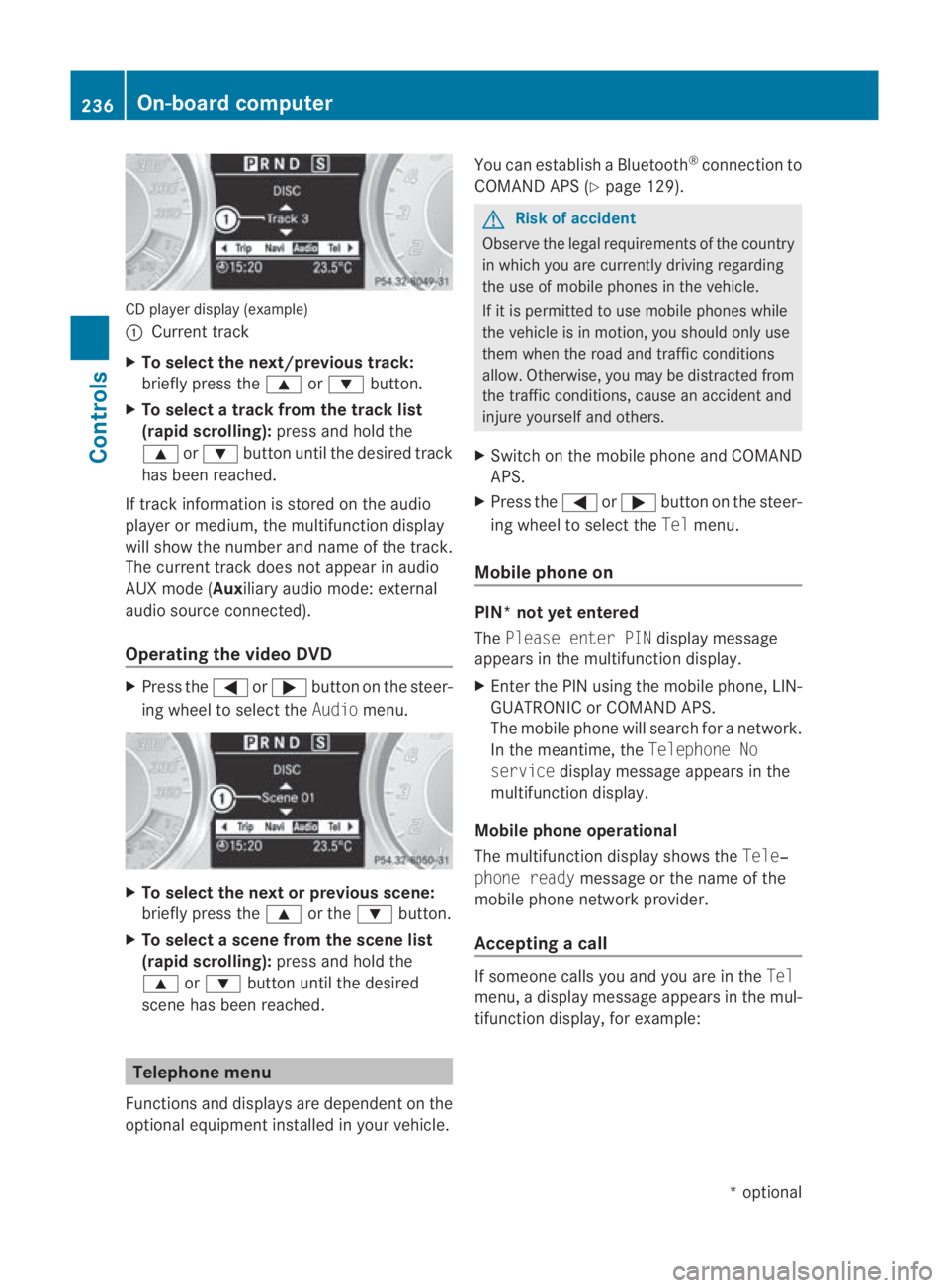
CD player display (example)
0001
Current track
X To select the next/previou strack:
briefly press the 000For000C button.
X To select a track from the track list
(rapid scrolling): press and hold the
000F or000C button until the desired track
has been reached.
If track information is stored on the audio
player or medium, the multifunctio ndisplay
will show the number and name of the track.
The current track does not appear in audio
AUX mode (Aux iliary audio mode: external
audio source connected).
Operating the video DVD X
Press the 0008or000E button on the steer-
ing wheel to selec tthe Audio menu. X
To selectt he next or previous scene:
briefly press the 000For the 000Cbutton.
X To selectas cene from the scene list
(rapid scrolling): press and hold the
000F or000C buttonuntil the desired
scene has been reached. Telephone menu
Functions and displays ar edependen tonthe
optional equipment installed in your vehicle. You can establish a Bluetooth
®
connection to
COMAND APS (Y page 129). G
Risk of accident
Observe the legal requirements of the country
in which you are currently driving regarding
the use of mobile phones in the vehicle.
If it is permitted to use mobile phones while
the vehicle is in motion, you should only use
them when the road and traffic conditions
allow.O therwise, you may be distracted from
the traffic conditions, cause an accident and
injure yourself and others.
X Switch on the mobile phone and COMAND
APS.
X Press the 0008or000E button on the steer-
ing wheel to select the Telmenu.
Mobile phone on PIN* not yet entered
The
Please enter PIN display message
appears in the multifunctio ndisplay.
X Enter the PIN using the mobile phone, LIN-
GUATRONIC or COMAND APS.
The mobile phone will search for a network.
In the meantime, the Telephone No
service display message appears in the
multifunction display.
Mobile phone operational
The multifunction display shows the Tele‐
phone ready message or the name of the
mobile phone network provider.
Accepting acall If someone calls you and you are in the
Tel
menu, a display message appears in the mul-
tifunctio ndisplay, for example: 236
On-board computerControls
*o
ptional
BA 197 ECE RE 2010/6a; 1; 2, en-GB
sabbaeu
Version: 3.0.3.6 2010-05-07T14:19:43+02:00 - Seite 236