language MERCEDES-BENZ SLS COUPE 2010 Owners Manual
[x] Cancel search | Manufacturer: MERCEDES-BENZ, Model Year: 2010, Model line: SLS COUPE, Model: MERCEDES-BENZ SLS COUPE 2010Pages: 361, PDF Size: 6.32 MB
Page 1 of 361
Disclaimer
Das folgen de PDF -Doku ment für die ses Fahrze ugmodell be zieht sich in allen
Sprachver sionen nur auf die Fahrz euge, d ie fü r den deutsche n Markt best immt
sind und die den deutschen Vorschriften entsprechen. Bitte wenden Sie sich an
Ihr en autorisierten Mer cedes-Benz Services tützpunkt, um ein gedruckt es Exem plar
für andere Fahrzeugmodelle und Fahrzeugmodelljahre zu erhalten.
Dieses PDF -Dokume nt stellt die aktuelle Version dar . Mögliche Abweic hungen zu
Ihrem konkreten Fahrzeug könnten nicht berücksichtigt sein, da Mercedes-Benz
seine Fahrzeuge st ändig dem neuest en Stand d er Technik anp asst, so wie
Änderungen in Form und Ausstattung vornimmt. Bitte beachten Sie daher, dass
dieses PDF-Dokument in keinem Fall das gedruckte Exemplar ersetzt, das mit
dem Fahrzeug ausgeliefert wurde.
Internal use only
Disclaimer
All language versions of the following PD\f document for this vehicle model
relate solel\b to vehicles intended for sale on the German market and which
correspond to German regulations.
Please contact \bour authorised Mercedes-Benz Service Centre to obtain
a printed version for other vehicle models and vehicle model \bears. This PD\f
document is the latest version. Possible variations to \bour vehicle ma\b not
be taken into account as Mercedes-Benz constantl\b updates their vehicles to
the state of the art and introduces changes in design and e\Dquipment. Please
therefore note that this PD\f document in no wa\b replaces the printed version
which was delivered with \bour vehicle.
Internal use only
Disclaimer
The following version of the Owner‘s Manual describes all models, series and
special equipment of your vehicle. Country-specific language variations are
possible. Please note that your vehicle might not be equipped with all the
described functions. This also affects safety-relevant systems and functions.
Please contact your authorised Mercedes-Benz dealership if you would like
to receive a printed Owner‘s Manual for other vehicle models and vehicle
model years.
The online Owner‘s Manual is the current and valid version. It is possible that
deviations affecting your specific vehicle could not be taken into account
as Mercedes-Benz constantly adapts its vehicles according to the latest
technology and makes changes to the form and the equipment.
Please also read the printed Owner‘s Manual, supplementary documents and
the digital Owner‘s Manual in the vehicle.
Copyright
All rights reserved. All texts, images and graphics are subject to copyright
and other laws for the protection of intellectual property. They may not be
copied or changed for any commercial use or for the purpose of being passed
on nor used on other webistes.
Page 18 of 361
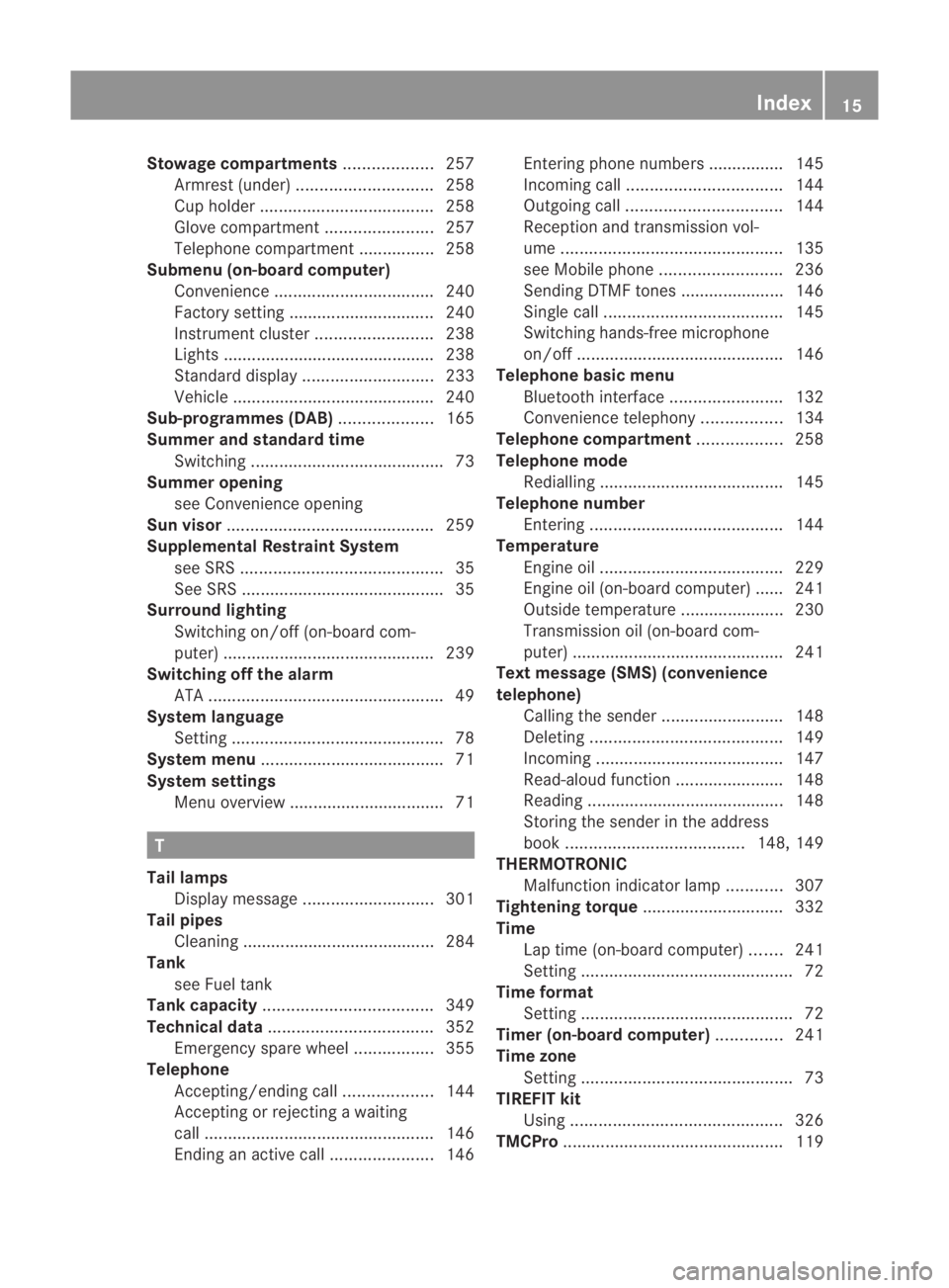
Stowage compartments
...................257
Armrest (under) ............................. 258
Cuph older..................................... 258
Glove compartment .......................257
Telephone compartment ................258
Submenu (on-board computer)
Convenience .................................. 240
Factory setting ............................... 240
Instrument cluster .........................238
Lights ............................................ .238
Standard displa y............................ 233
Vehicle .......................................... .240
Sub-programmes (DAB) ....................165
Summer and standard time Switching ......................................... 73
Summer opening
see Convenience opening
Sun visor ............................................ 259
Supplemental Restraint System see SRS ........................................... 35
See SRS ........................................... 35
Surround lighting
Switching on/off (on-board com-
puter) ............................................. 239
Switching off the alarm
ATA .................................................. 49
Syste mlanguage
Setting ............................................. 78
Syste mmenu....................................... 71
Syste msettings
Menu overview ................................ .71T
Tail lamps Display message ............................ 301
Tail pipes
Cleaning ......................................... 284
Tank
see Fuel tank
Tank capacity .................................... 349
Technical data ................................... 352
Emergency spare wheel .................355
Telephone
Accepting/ending call ...................144
Accepting or rejecting a waiting
call ................................................. 146
Ending an active call ......................146Entering phone numbers ................ 145
Incoming call
................................. 144
Outgoing call ................................. 144
Reception and transmission vol-
ume ............................................... 135
see Mobile phone .......................... 236
Sending DTMF tones ..................... .146
Single call ...................................... 145
Switching hands-free microphone
on/off ............................................ 146
Telephone basic menu
Bluetooth interface ........................132
Convenience telephony .................134
Telephone compartment ..................258
Telephone mode Redialling ....................................... 145
Telephone number
Entering ......................................... 144
Temperature
Engine oil ....................................... 229
Engine oil (on-board computer) ...... 241
Outside temperature ..................... .230
Transmissio noil (on-board com-
puter )............................................. 241
Text message (SMS) (convenience
telephone)
Calling the sende r.......................... 148
Deleting ......................................... 149
Incoming ........................................ 147
Read-aloud function .......................148
Reading .......................................... 148
Storing the sende rinthe address
book ...................................... 148, 149
THERMOTRONIC
Malfunction indicator lamp ............307
Tightening torque .............................. 332
Time Lap time (on-board computer) .......241
Setting ............................................. 72
Time format
Setting ............................................. 72
Timer (on-board computer) ..............241
Time zone Setting ............................................. 73
TIREFIT kit
Using ............................................. 326
TMCPro ............................................... 119 Index
15 BA 197 ECE RE 2010/6a; 1; 2, en-GB
sabbae uV ersion: 3.0.3.6
2010-05-07T14:19:43+02:00 - Seite 15
Page 74 of 361
System settings
Menu overview
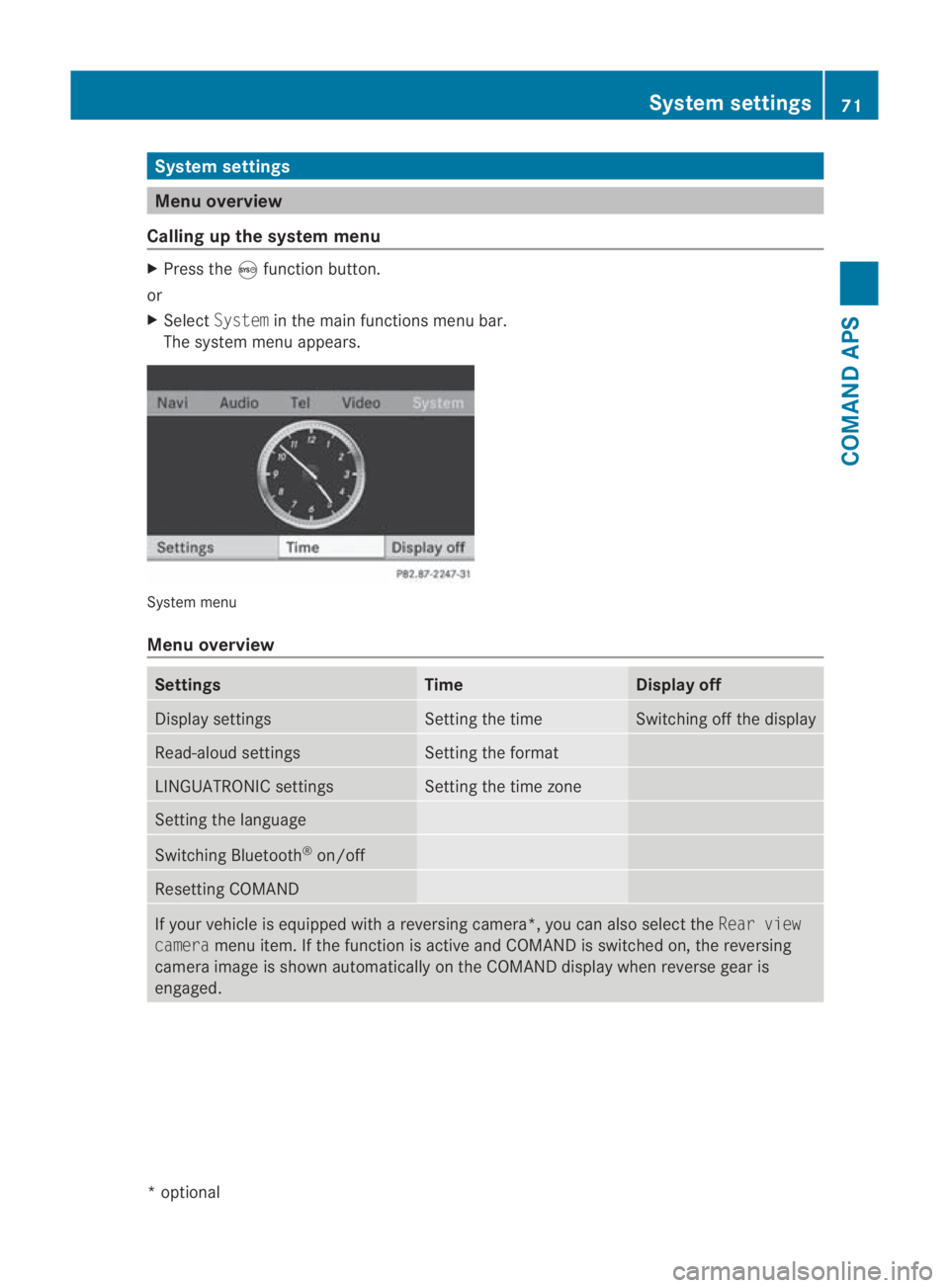
Calling up the system menu X
Press the 0023function button.
or
X Select System in the main functions menu bar.
The system menu appears. System menu
Menu overview
Settings Time Display off
Display settings Setting the time Switching off the display
Read-aloud settings Setting the format
LINGUATRONIC settings Setting the time zone
Setting the language
Switching Bluetooth
®
on/off Resetting COMAND
If your vehicle is equipped with a reversing camera*
,you can also select the Rear view
camera menu item. If the function is active and COMAND is switched on, the reversing
camera image is shown automatically on the COMAND display when reverse gear is
engaged. System settings
71COMAND APS
*optional
BA 197 ECE RE 2010/6a; 1; 2, en-GB
sabbaeu
Version: 3.0.3.6 2010-05-07T14:19:43+02:00 - Seite 71 Z
Page 81 of 361
X
Select COMAND ("MB Bluetooth").
X Whe nprompted, enter the passkey on the
Bluetooth ®
device and then on COMAND. System language settings
This function allows you to determine the lan-
guage for the menu displays and the naviga-
tion messages. The language selection
affects the inpu toptions in the editing and
smart speller.
X Select System 0004Settings0004Language .
The list of languages appears. The 0023dot
indicates the current setting.
X To select alanguage: turn002800130029 or slide
001F0013000D.
The selection moves up and down.
X To confirm the language selection: press
0017.
COMAND loads the selected language and
sets it.
i The language selection affects the input
options in the editing and smart speller.
i If you change the system language, the
language for LINGUATRONIC will be also be
changed. If the selected language is not
supported by LINGUATRONIC, "English"
will be selected.
X To cancel language selection: slide
002B0013002C. Reset
i You can reset COMAND to the factory
settings. This includes the deletion of all of
you rpersonal data.
Personal data can include the following:
R phone numbers
R address book entries
R music files in the MUSIC REGISTER
R entries in the destination memory
R station presets Resetting is recommended before selling or
transferring ownership of your vehicle, for
example.
X
Select System0004 Settings0004Reset .
Ap rompt appears asking whethe ryou wish
to reset.
X Select YesorNo.
If you select Yes, a prompt will appear again
asking whether you really wish to reset.
X Select YesorNo.
If you select Yes, a message will be shown.
COMAND is reset and restarted. Navigation system (introduction)
Safety notes
G
Risk of accident
For safety reasons, only enter a new destina-
tion when the vehicle is stationary. You may
otherwise be distracted from the traffic con-
ditions, cause an accident and injure yourself
and others.
COMAND calculates the route to the destina-
tion without taking account of the following,
for example:
R traffic lights
R stop and give way signs
R parking or stopping restrictions
R lane narrowing
R other road and traffic rules and regulations
COMAND may give incorrect driving recom-
mendations if the data on the digital map does
not correspond to the actual conditions. For
example, a route may have been diverted or
the direction of a one-way street may have
changed.
For this reason, you must always observe the
respective road and traffic rules and regula-
tions during your journey. Road and traffic
rules and regulations always have priority
over system driving recommendations. 78
Navigation system (introduction)COMAND APS
BA 197 ECE RE 2010/6a; 1; 2, en-GB
sabbaeu
Version: 3.0.3.6 2010-05-07T14:19:43+02:00 - Seite 78
Page 125 of 361
i
If menu item 0015is active, the display
switches to Cancel read-aloud func‐
tion.
X To display all messages: selectDisplay
all messages.
You will see a list of all roads, areas or
regions for which reports are available,
including those that do not affect the route.
X To display a traffic report: select a road,
area or region from the list.
X To close the list: slide002B0013002Cone or more
times.
or
X Press the 0001button next to the
COMAND controller.
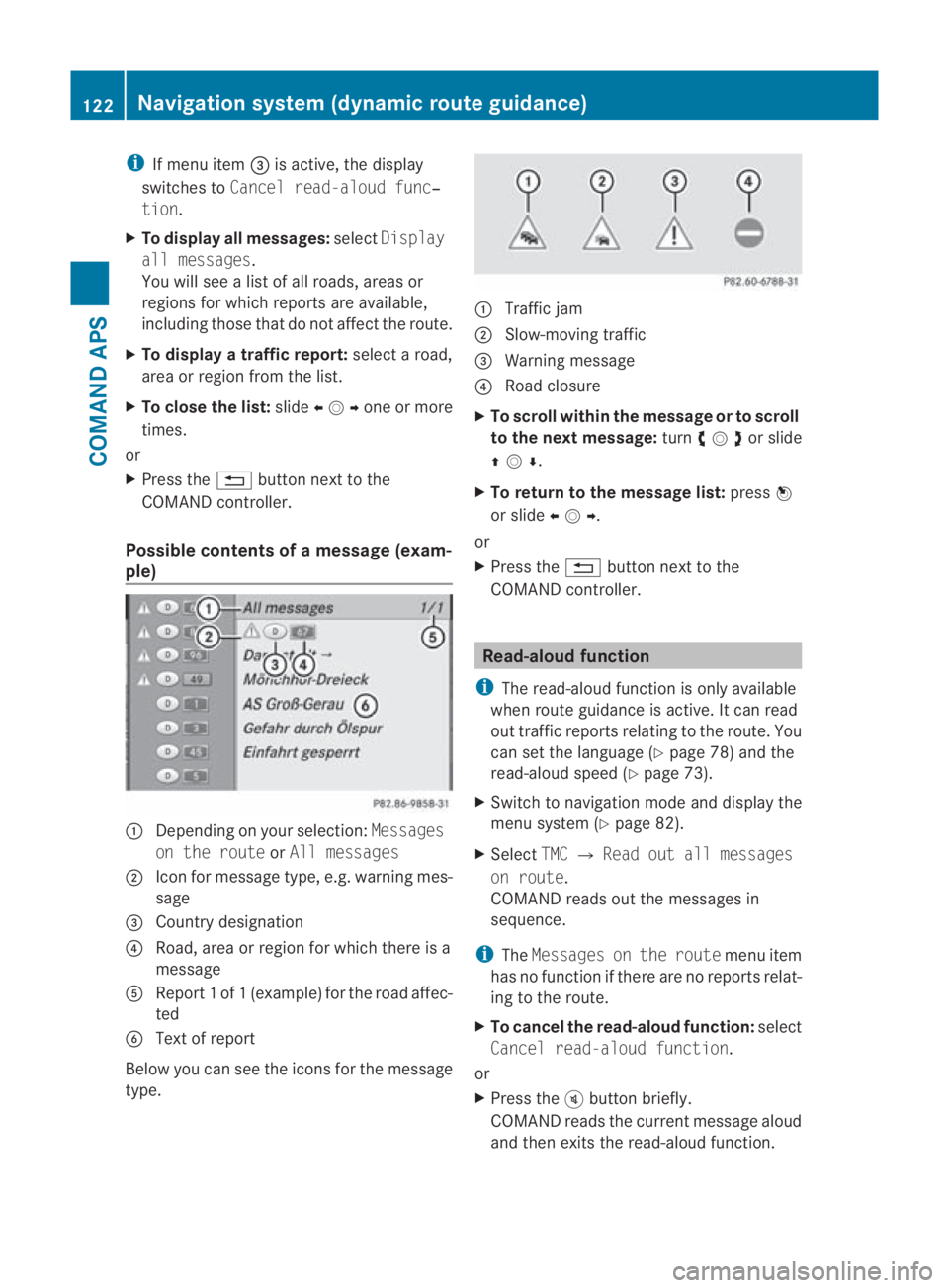
Possible contents of amessag e(exam-
ple) 0001
Depending on your selection: Messages
on the route orAll messages
0002 Icon for message type, e.g .warning mes-
sage
0015 Country designation
0014 Road, area or region for which there is a
message
0012 Repor t1of1( example) for the road affec-
ted
0013 Text of report
Below you can see the icons for the message
type. 0001
Traffic jam
0002 Slow-moving traffic
0015 Warning message
0014 Road closure
X To scroll within the message or to scroll
to the next message: turn002800130029 or slide
001F0013000D .
X To return to the message list: press0017
or slide 002B0013002C.
or
X Press the 0001button next to the
COMAND controller. Read-aloud function
i The read-aloud function is only available
when route guidance is active. It can read
out traffic reports relating to the route. You
can set the language (Y page 78) and the
read-aloud speed (Y page 73).
X Switch to navigation mode and display the
menu system (Y page 82).
X Select TMC0004Read out all messages
on route.
COMAND reads out the messages in
sequence.
i The Messages on the route menu item
has no function if there are no reports relat-
ing to the route.
X To cancel the read-aloud function: select
Cancel read-aloud function.
or
X Press the 000Bbutton briefly.
COMAND reads the current message aloud
and then exits the read-aloud function. 122
Navigation system (dynamic route guidance)COMAND APS
BA 197 ECE RE 2010/6a; 1; 2, en-GB
sabbaeu
Version: 3.0.3.6 2010-05-07T14:19:43+02:00 - Seite 122
Page 141 of 361
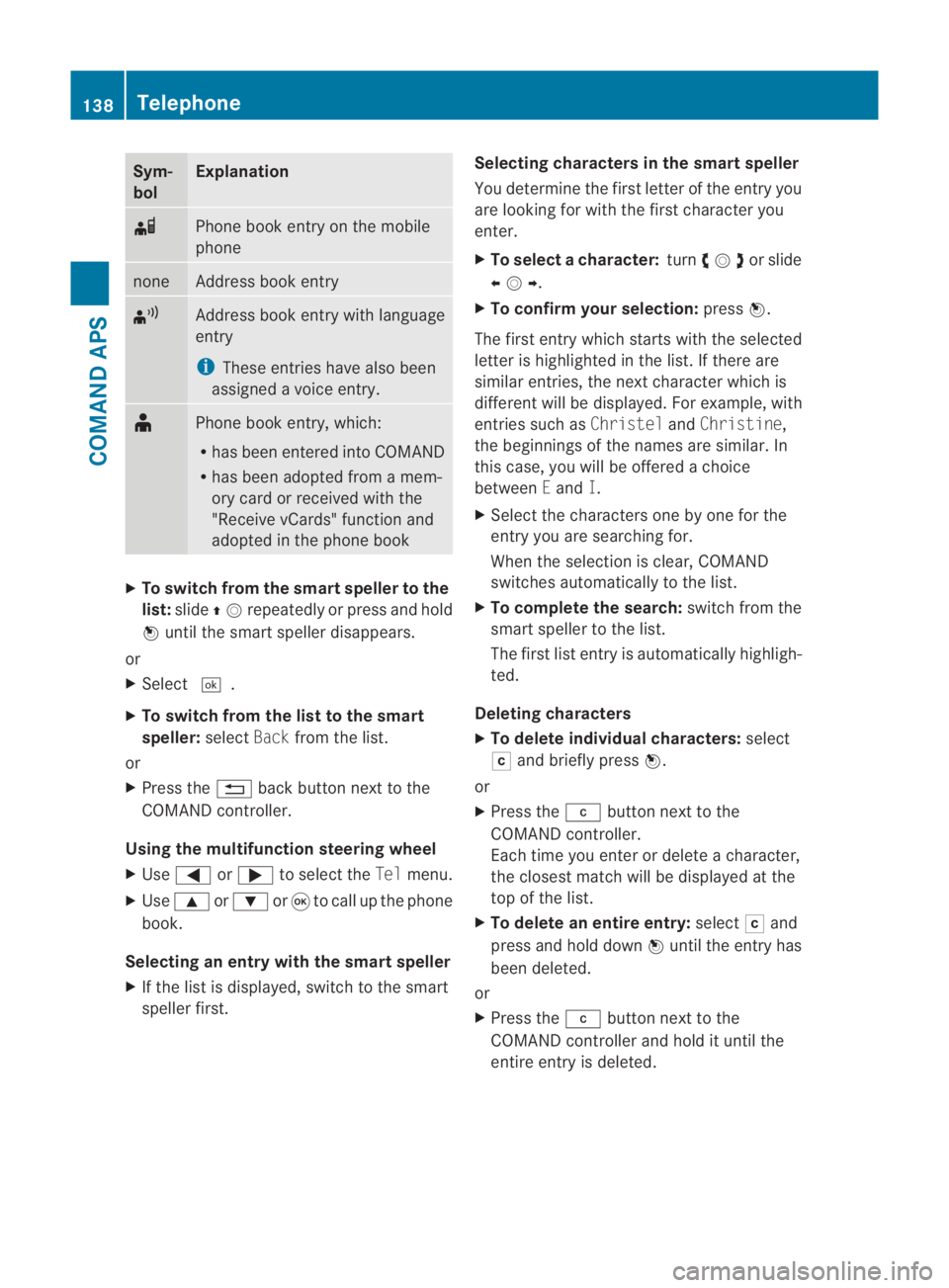
Sym-
bol Explanation
000F
Phone book entry on the mobile
phone
none Address book entry
¦
Address book entry with language
entry
i
These entries have also been
assigned a voice entry. ¥
Phone book entry, which:
R
has been entered into COMAND
R has been adopted from a mem-
ory card or received with the
"Receive vCards" function and
adopted in the phone book X
To switch from the smart speller to the
list: slide 001F0013repeatedly or press and hold
0017 until the smart speller disappears.
or
X Select 0005.
X To switch from the list to the smart
speller: selectBackfrom the list.
or
X Press the 0001back button next to the
COMAND controller.
Using the multifunction steering wheel
X Use 0008 or000E to select the Telmenu.
X Use 000F or000C or0020 to call up the phone
book.
Selecting an entry with the smart speller
X If the list is displayed, switch to the smart
speller first. Selecting characters in the smart speller
You determine the first letter of the entry you
are looking for with the first character you
enter.
X
To select a character: turn002800130029or slide
002B0013002C .
X To confirm your selection: press0017.
The first entry which starts with the selected
letter is highlighted in the list. If there are
similar entries, the next character which is
different will be displayed .For example, with
entries such as ChristelandChristine,
the beginnings of the names are similar. In
this case, you will be offered a choice
between Eand I.
X Select the characters one by one for the
entry you are searching for.
When the selection is clear, COMAND
switches automatically to the list.
X To complete the search: switch from the
smart speller to the list.
The first list entry is automatically highligh-
ted.
Deleting characters
X To delete individual characters: select
0004 and briefly press 0017.
or
X Press the 0013button next to the
COMAND controller.
Each time you enter or delete a character,
the closest match will be displayed at the
top of the list.
X To delete an entire entry: select0004and
press and hold down 0017until the entry has
been deleted.
or
X Press the 0013button next to the
COMAND controller and hold it until the
entire entry is deleted. 138
TelephoneCOMAND APS
BA 197 ECE RE 2010/6a; 1; 2, en-GB
sabbaeu
Version: 3.0.3.6 2010-05-07T14:19:43+02:00 - Seite 138
Page 142 of 361
Changing the smar
tspelle rlanguage
X Select 0014.
X Select the desired language.
Changing the smart speller character set
X Select 0001.
Depending on the previous setting, you will
change to letters with numbers or with spe-
cial characters.
Selecting an entry directly from the list
X If the lis tis displayed, switch to the smart
speller first.
X Turn 002800130029or slide 001F0013000Duntil the desired
entry is highlighted.
X To confirm you rselection: press0017.
Using the multifunction steering wheel
X Use 0008 or000E to selec tthe Tel menu.
X Use 000F or000C or0020 to call up the phone
book.
X Press the 000For000C button or press and
hold 0020until the desired entryi s highligh-
ted.
i If you press the 000For000C button for
longer than a second, the on-board com-
puter shows the names in rapid scroll.
Rapid scroll speeds up after four seconds.
It stops when you release the button again
or the end of the list is reached.
Selecting sub-entries
You can tell that an entry has several tele-
phone numbers by the 0005icon.
X Select a phone book entry with the 0005icon
and press 0017.
The sub-entries appear. The 0005icon
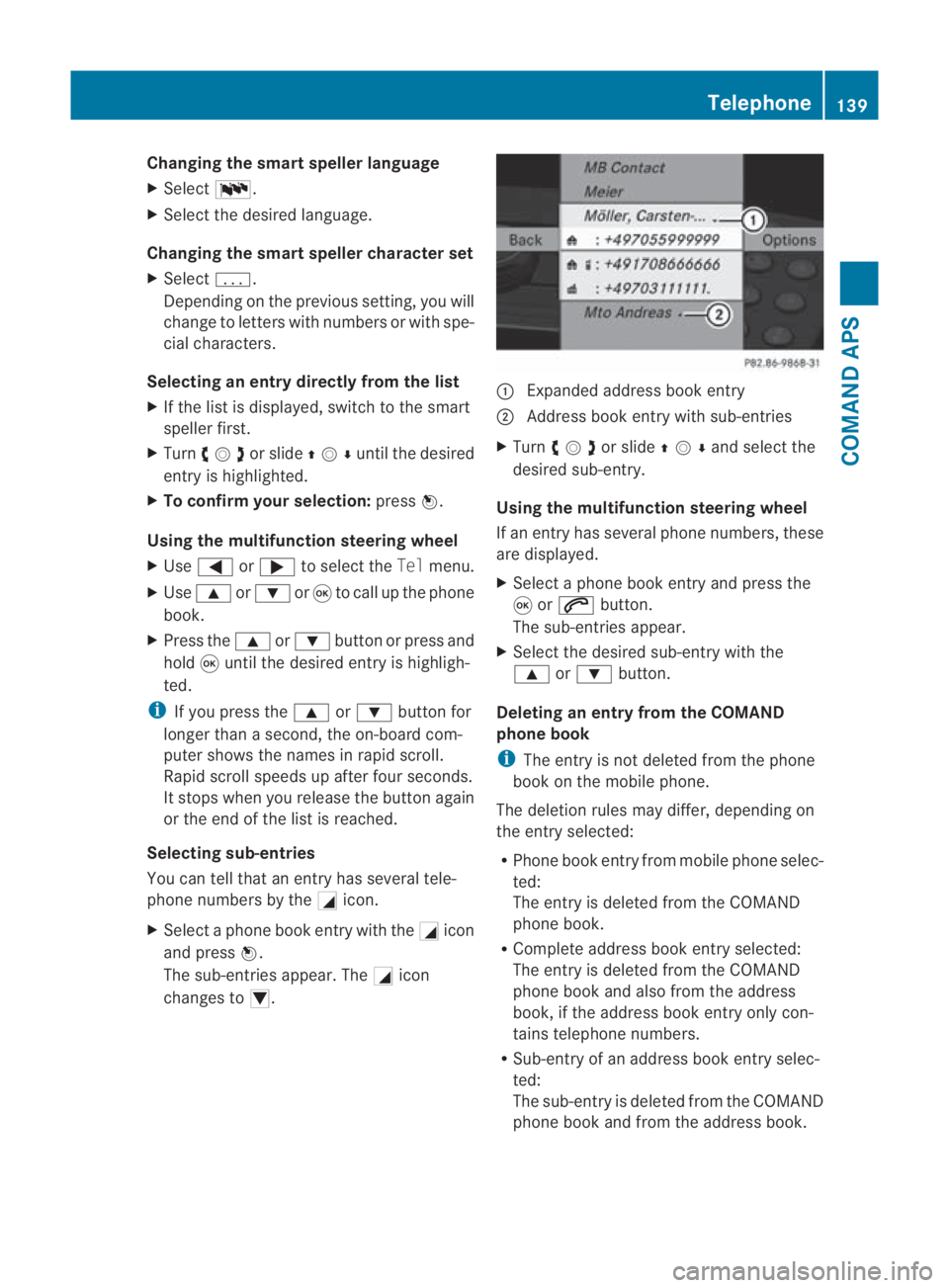
changes to 0006. 0001
Expanded address book entry
0002 Address book entry with sub-entries
X Turn 002800130029or slide 001F0013000Dand selec tthe
desired sub-entry.
Using the multifunction steering wheel
If an entry has several phone numbers, these
are displayed.
X Select a phone book entry and press the
0020 or001C button.
The sub-entries appear.
X Select the desired sub-entry with the
000F or000C button.
Deleting an entry from the COMAND
phone book
i The entry is not deleted from the phone
book on the mobile phone.
The deletion rules may differ, depending on
the entry selected:
R Phone book entry from mobile phone selec-
ted:
The entry is deleted from the COMAND
phone book.
R Complete address book entry selected:
The entry is deleted from the COMAND
phone book and also from the address
book, if the address book entry only con-
tains telephone numbers.
R Sub-entry of an address book entry selec-
ted:
The sub-entry is deleted from the COMAND
phone book and from the address book. Telephone
139COMAND APS
BA 197 ECE RE 2010/6a; 1; 2, en-GB
sabbaeu Version: 3.0.3.6 2010-05-07T14:19:43+02:00 - Seite 139 Z
Page 143 of 361
X
Select an entry from the list.
X Select Options 0004Delete .
Ap rompt appears, asking whethe rthe
entry should be deleted.
X Select YesorNo.
Yes is selected: the entryi s deleted in
accordance with the rules described above.
Displaying details about an entry
COMAND can also show a shortened entry in
full.
X Select an entry from the list.
X Select Options0004Details.
The detailed view appears.
X To close the detailed display: slide002B
0013002C repeatedly until the entry is highlighted
again.
or
X Press the 0001button next to the
COMAND controller.
Creating anew phone book entry The entry is created in the phone book and in
the address book.
X Select Options 0004New entry in the
COMAND phone book.
X Select a number category, e.g. Home.
X Select a telephone category, e.g. Mobile.
X Select Save.
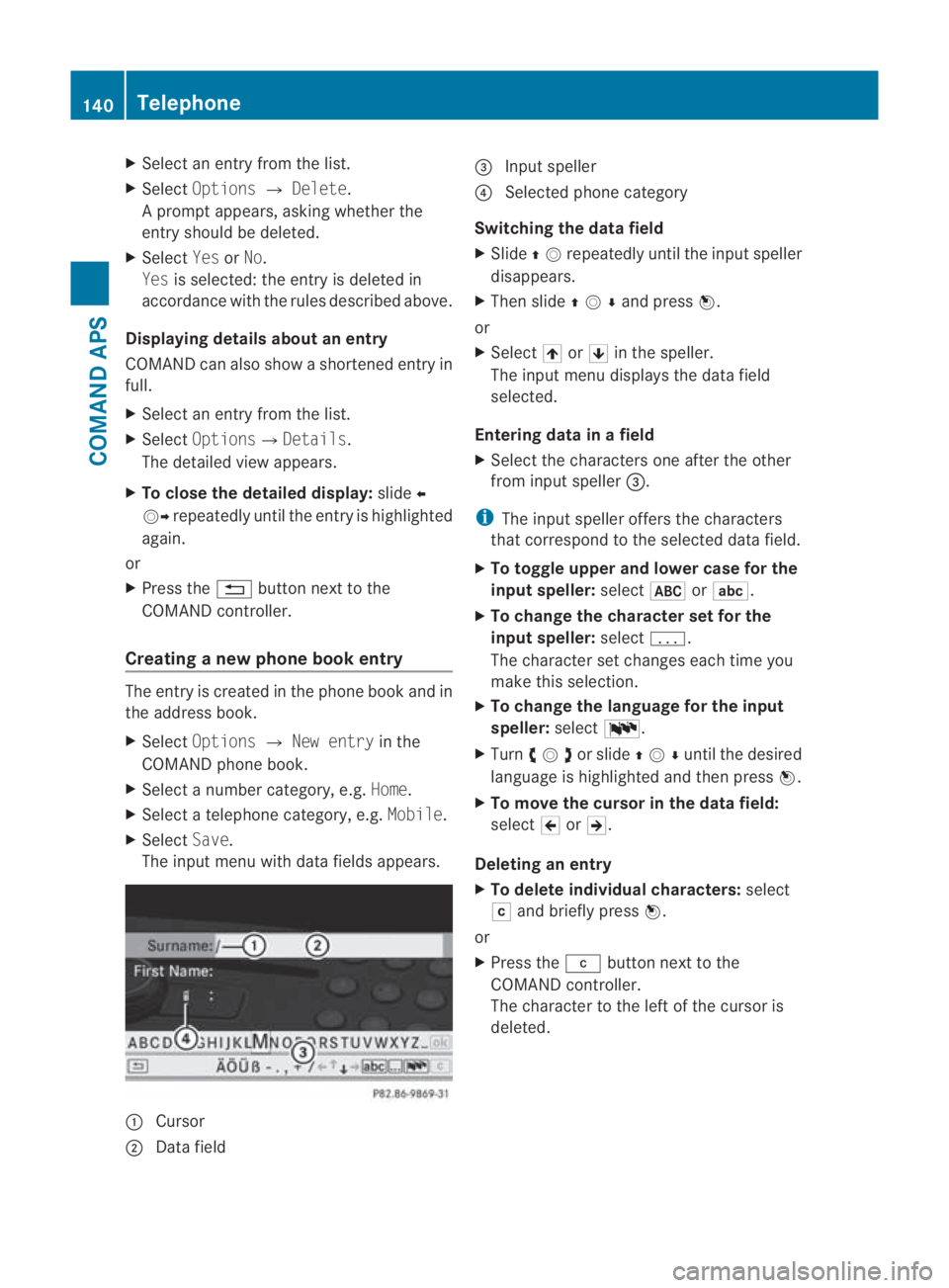
The input menu with data fields appears. 0001
Cursor
0002 Data field 0015
Input speller
0014 Selected phone category
Switching the data field
X Slide 001F0013repeatedly until the inpu tspeller
disappears.
X Then slide 001F0013000Dand press 0017.
or
X Select 001Aor001B in the speller.
The input menu displays the data field
selected.
Entering data in a field
X Select the characters one after the other
from input speller 0015.
i The input speller offers th echaracters
that correspond to the selected data field.
X To toggle upper and lower case for the
input speller: select0024or0003.
X To change the character set for the
input speller: select0001.
The character set changes each time you
make this selection.
X To change the language for the input
speller: select0014.
X Turn 002800130029or slide 001F0013000Duntil the desired
language is highlighted and then press 0017.
X To move the cursor in the data field:
select 0018or0019.
Deleting an entry
X To delete individual characters: select
0004 and briefly press 0017.
or
X Press the 0013button next to the
COMAND controller.
The character to the left of the cursor is
deleted. 140
TelephoneCOMAND APS
BA 197 ECE RE 2010/6a; 1; 2, en-GB
sabbaeu
Version: 3.0.3.6
2010-05-07T14:19:43+02:00 - Seite 140
Page 151 of 361
X
Select a text message (SMS) from the list.
X Select Options0004Details .
The detailed view appears.
X To close the detailed display: slide
002B0013002C .
or
X Press the 0001back button on the
COMAND controller.
Returning to the telephone basic menu
X Select Back.
Reading atext message X
Select a text message (SMS) from the text
message (SMS) inbo xand press 0017.
The text message appears.
X To scroll through the display or select
telephone numbers in the text: turn
002800130029or slide 001F0013000D.
The display scrolls up or down line by line,
or skips to the next or previous telephone
number and automatically highlights it.
X To return to the list: press0017and select
Back.
Listening to atext message (SMS)
i You can set the language (Y page 78)and
the speed of the read-aloud function
(Y page 73).
X While the text message (SMS) is displayed,
press 0017and select Read aloud.
COMAND reads ou tthe text message.
X To cancel the read-aloud function: press
the 000Bbutton.
or
X Press 0017and select Cancel read-aloud
function. Managing text messages Calling
atext message sender
X While the tex tmessage (SMS) is displayed,
press 0017and select Call sender.
The telephone makes the call to the sender.
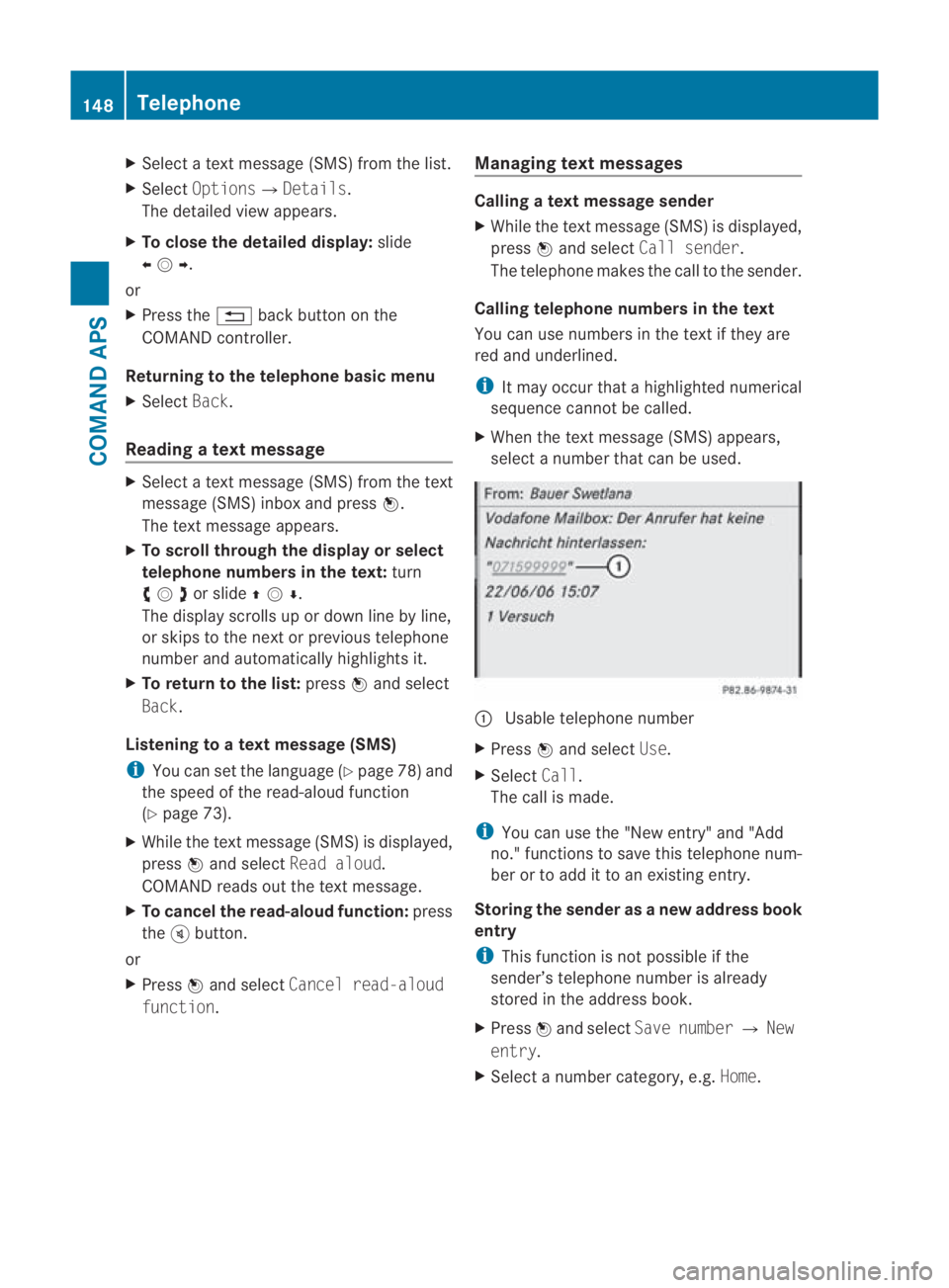
Calling telephone numbers in the text
You can use numbers in the text if they are
red and underlined.
i It may occur that ahighlighted numerical
sequence cannot be called.
X When the tex tmessage (SMS) appears,
select a number that can be used. 0001
Usable telephone number
X Press 0017and select Use.
X Select Call.
The call is made.
i You can use the "New entry" and "Add
no." functions to save this telephone num-
ber or to add it to an existing entry.
Storing the sender as anew address book
entry
i This function is not possible if the
sender’s telephone number is already
stored in the address book.
X Press 0017and select Save number 0004New
entry.
X Select a number category, e.g. Home.148
TelephoneCOMAND APS
BA 197 ECE RE 2010/6a; 1; 2, en-GB
sabbae uV ersion: 3.0.3.6
2010-05-07T14:19:43+02:00 - Seite 148
Page 155 of 361
X
To change the character set for the
input speller: select0001.
The character set changes each time you
make this selection.
X To change the language for the input
speller: select0014.
X Turn 002800130029or slide 001F0013000Duntil the desired
language is highlighted and then press 0017.
X To move the cursor in the data field:
select 0018or0019.
Deleting
X To delete individual characters: select
0004 and briefly press 0017.
or
X Press the 0013button next to the
COMAND controller.
The character to the left of the cursor is
deleted.
X To delete an entire entry: select0004and
press and hold the 0017butto nuntil the entire
entry has been deleted.
or
X Press the 0013button next to the
COMAND controller and hold it until the
entire entry is deleted.
Cancelling an entry
X Select 0002.
If one of the data fields contains new data,
a prompt will appear asking whethe ryou
wish to store the entry.
X Select YesorNo.
The entry will either be stored or not,
depending on your selection.
Storing an entry
X Select 0005.
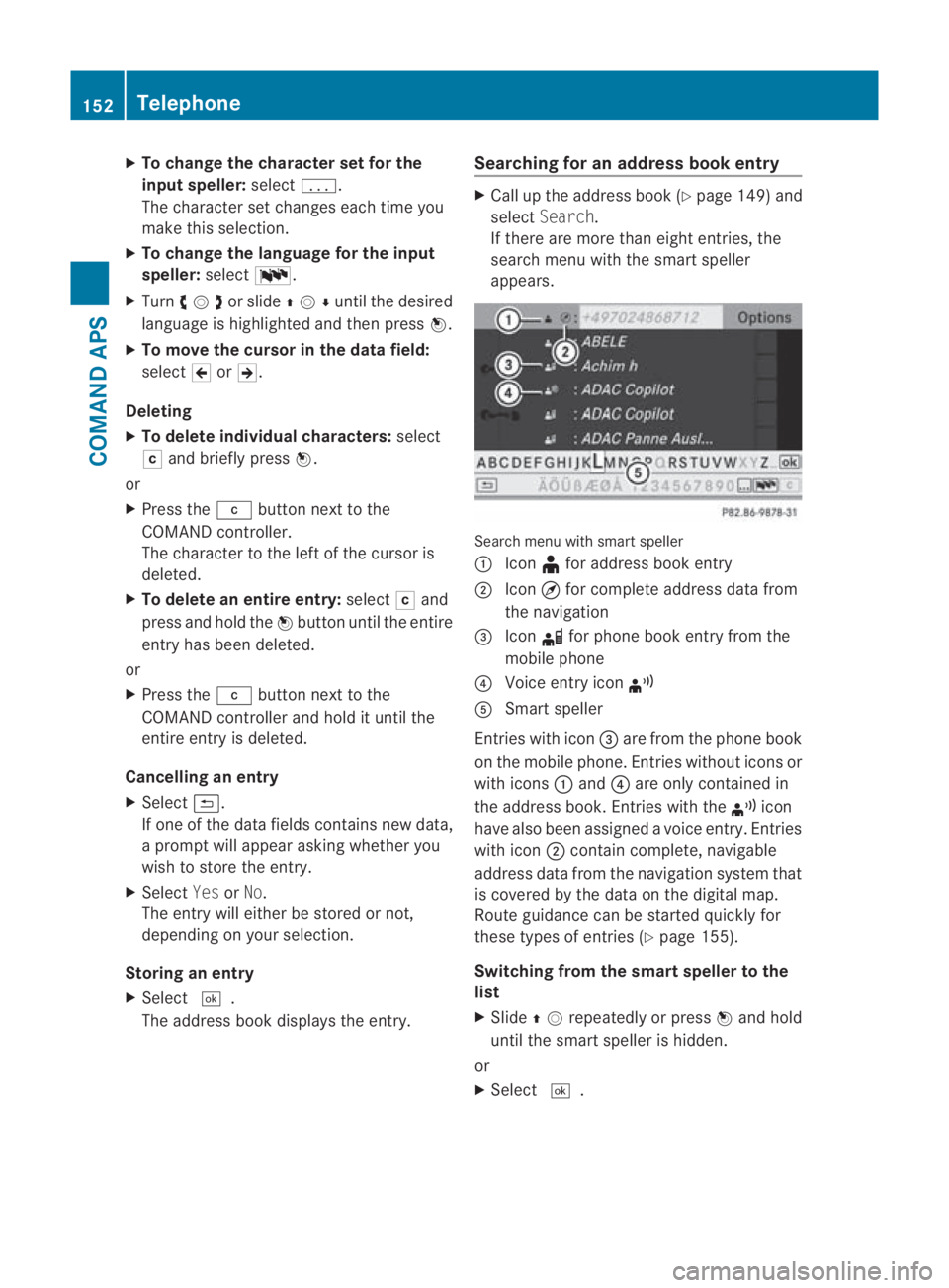
The address book displays the entry. Searching for an address book entry X
Call up the address book (Y page 149) and
select Search.
If there are more than eight entries, the
search menu with the smart speller
appears. Search menu with smart speller
0001
Icon ¥for address book entry
0002 Icon ¤for complete address data from
the navigation
0015 Icon 000Ffor phone book entry from the
mobile phone
0014 Voice entry icon ¦
0012 Smart speller
Entries with icon 0015are from the phone book
on the mobile phone. Entries without icons or
with icons 0001and 0014are only contained in
the address book. Entries with the ¦icon
have also been assigned a voice entry. Entries
with icon 0002contain complete, navigable
address data from the navigation system that
is covered by the data on the digital map.
Route guidance can be started quickly for
these types of entries (Y page 155).
Switching from the smart speller to the
list
X Slide 001F0013repeatedly or press 0017and hold
until the smart speller is hidden.
or
X Select 0005. 152
TelephoneCOMAND APS
BA 197 ECE RE 2010/6a; 1; 2, en-GB
sabbaeu Version: 3.0.3.6 2010-05-07T14:19:43+02:00 - Seite 152