audio MERCEDES-BENZ SPRINTER 2014 MY14 Operator’s Manual
[x] Cancel search | Manufacturer: MERCEDES-BENZ, Model Year: 2014, Model line: SPRINTER, Model: MERCEDES-BENZ SPRINTER 2014Pages: 338, PDF Size: 6.78 MB
Page 198 of 338
Vehicle submenu
Setting the radio station selection
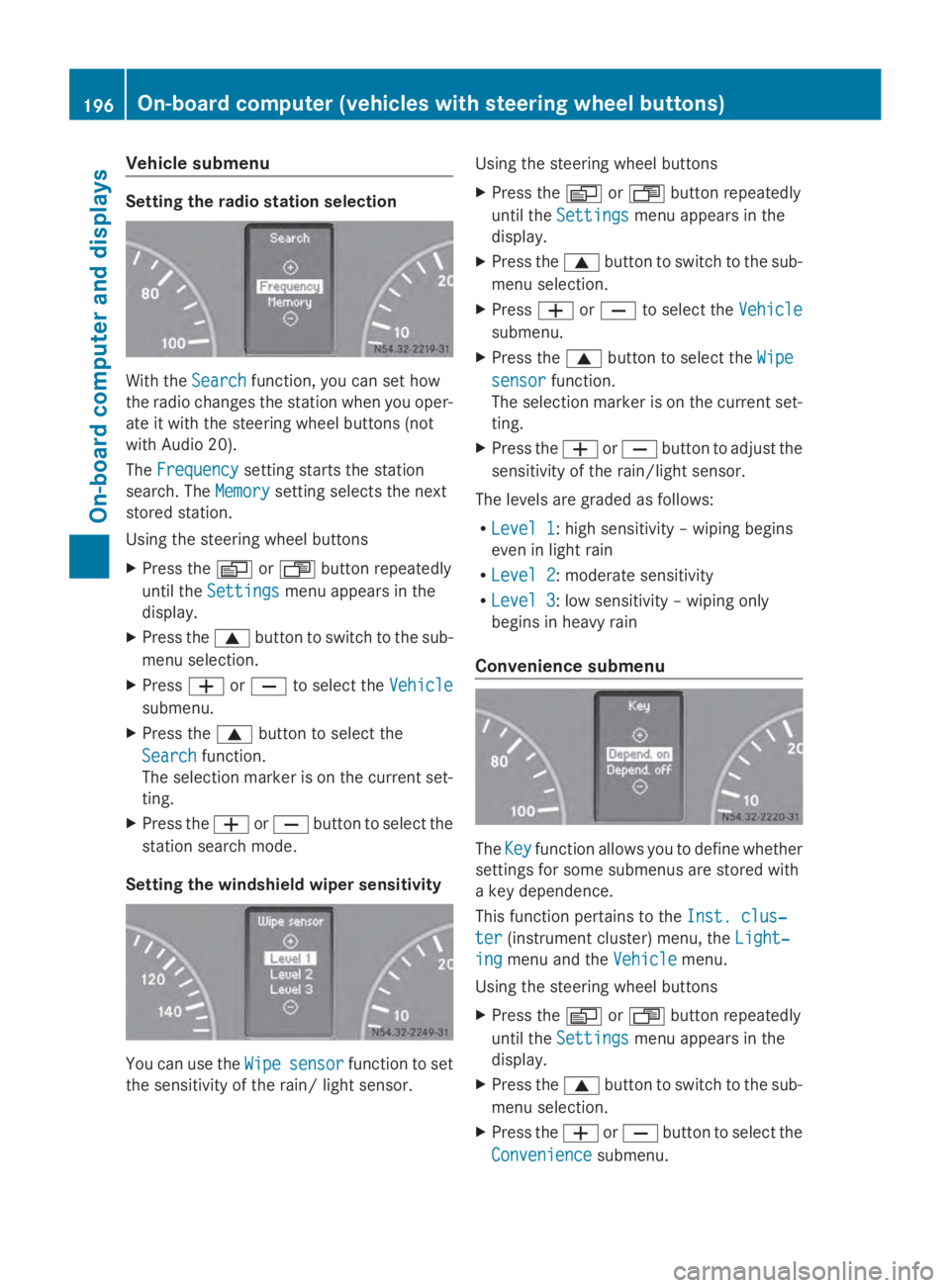
With the
Search
Searchfunction, you can set how
the radio changes the station when you oper-
ate it with the steering wheel buttons (not
with Audio 20).
The Frequency
Frequency setting starts the station
search. The Memory
Memorysetting selects the next
stored station.
Using the steering wheel buttons
X Press the 0080or007F button repeatedly
until the Settings Settings menu appears in the
display.
X Press the 0063button to switch to the sub-
menu selection.
X Press 0081or0082 to select the Vehicle
Vehicle
submenu.
X Press the 0063button to select the
Search
Search function.
The selection marker is on the current set-
ting.
X Press the 0081or0082 button to select the
station search mode.
Setting the windshield wiper sensitivity You can use the
Wipe
Wipesensor
sensor function to set
the sensitivity of the rain/ light sensor. Using the steering wheel buttons
X
Press the 0080or007F button repeatedly
until the Settings Settings menu appears in the
display.
X Press the 0063button to switch to the sub-
menu selection.
X Press 0081or0082 to select the Vehicle
Vehicle
submenu.
X Press the 0063button to select the Wipe
Wipe
sensor
sensor function.
The selection marker is on the current set-
ting.
X Press the 0081or0082 button to adjust the
sensitivity of the rain/light sensor.
The levels are graded as follows:
R Level 1 Level 1: high sensitivity – wiping begins
even in light rain
R Level 2 Level 2: moderate sensitivity
R Level 3
Level 3: low sensitivity – wiping only
begins in heavy rain
Convenience submenu The
Key Key function allows you to define whether
settings for some submenus are stored with
a key dependence.
This function pertains to the Inst. clus‐ Inst. clus‐
ter
ter (instrument cluster) menu, the Light‐
Light‐
ing
ing menu and the Vehicle
Vehiclemenu.
Using the steering wheel buttons
X Press the 0080or007F button repeatedly
until the Settings Settings menu appears in the
display.
X Press the 0063button to switch to the sub-
menu selection.
X Press the 0081or0082 button to select the
Convenience
Convenience submenu.196
On-board computer (vehicles with steering wheel buttons)On-board computer and displays
Page 200 of 338
Telephone menu
Introduction G
WARNING
If you operate information systems and com-
munication equipment integrated in the vehi-
cle while driving, you will be distracted from
traffic conditions. You could also lose control
of the vehicle. There is a risk of an accident.
Only operate the equipment when the traffic
situation permits. If you are not sure that this
is possible, park the vehicle paying attention
to traffic conditions and operate the equip-
ment when the vehicle is stationary.
You must observe the legal requirements for
the country in which you are currently driving
when operating a mobile phone in the vehicle.
If it is permitted to operate a mobile phone
while the vehicle is in motion, only operate it
when road and traffic conditions permit.
If you have connected a mobile phone to the
Sprinter hands-free system, you can operate
it using the functions in the TEL
TEL menu.
X Switch on the mobile phone (see the sep-
arate operating instructions).
X Switch on the audio equipment (see the
separate operating instructions).
X Establish a Bluetooth ®
connection
between the mobile phone and the audio
equipment (see the separate operating
instructions).
X Press the 0080or007F button on the steer-
ing wheel to select the TEL
TEL menu.
X When Please enter PIN: Please enter PIN: appears in the
display, enter the PIN using the mobile
phone or audio equipment.
The mobile phone searches for a network.
The display remains blank during this time.
You will see the mobile phone operational
readiness display once the mobile phone
has found a network.
i You can obtain further information about
suitable mobile phones and connecting mobile phones via Bluetooth
®
at any quali-
fied specialist workshop.
i If the mobile phone operational readiness
symbol goes out, your vehicle is outside of
the transmission and reception range.
Accepting a call X
Press the 0061button on the steering
wheel to accept an incoming call.
The display shows the call duration.
Rejecting or ending a call X
Press the 0076button on the steering
wheel to reject or end a call.
The caller then hears the engaged tone.
The display shows the mobile phone opera-
tional readiness symbol again.
Dialing a number from the phone book You can use the mobile phone to enter new
telephone numbers into the phone book (see
the separate operating instructions). If your
mobile phone is able to receive calls, you can
search for and dial a number from the phone
book.
Using the steering wheel buttons
X
Use the 0080or007F buttons to select the
TEL TEL menu.
The display shows the mobile phone opera-
tional readiness symbol.
X Press the 0041or0068 buttons to switch
to the phone book.
The on-board computer reads the phone
book stored on the SIM card or in the
mobile phone. This may take more than a
minute.
When the message is no longer displayed,
reading has ended. 198
On-board computer (vehicles
with steering wheel buttons)On-boardcomputer and displays
Page 235 of 338
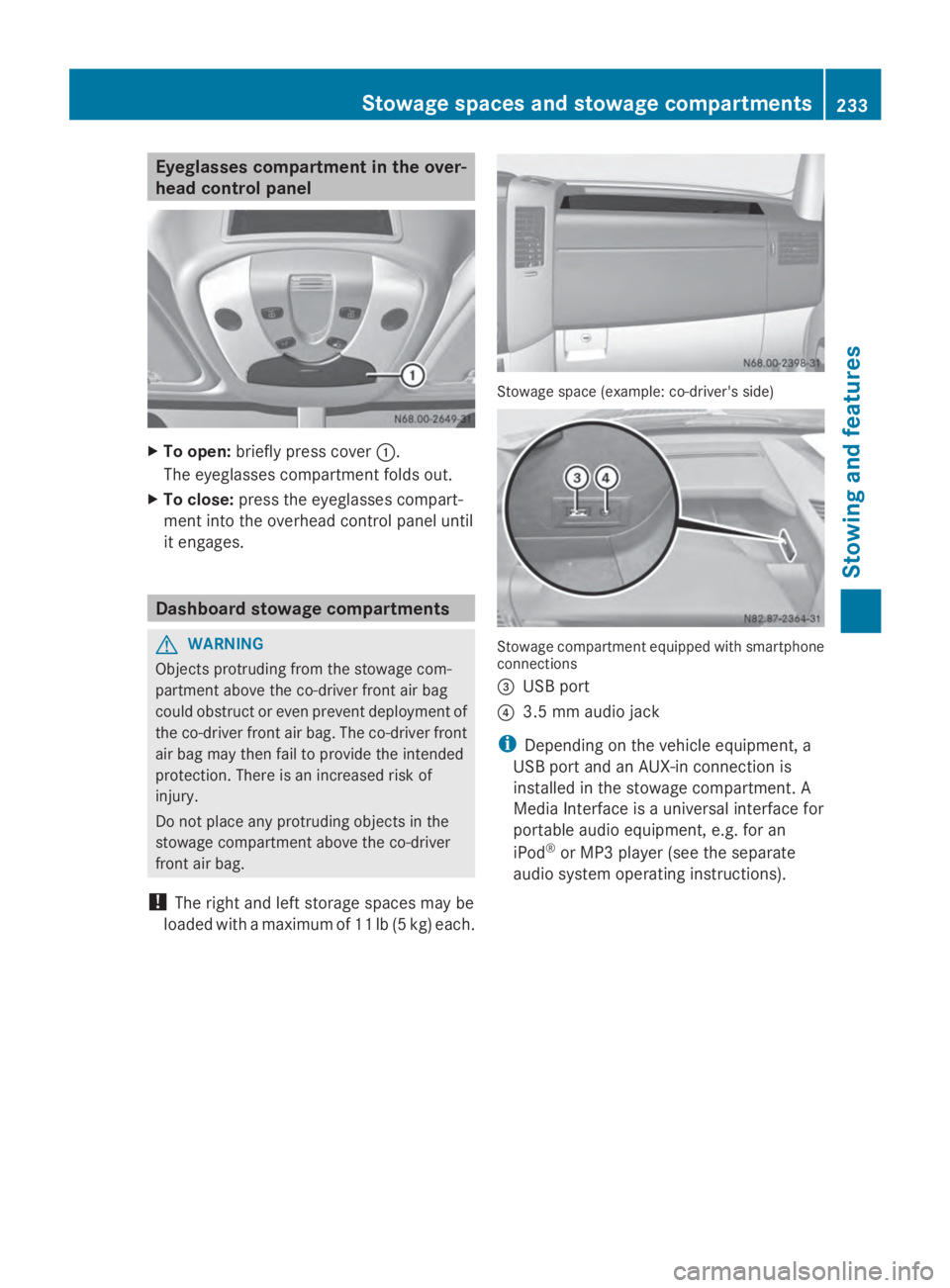
Eyeglasses compartment in the over-
head control panel X
To open: briefly press cover 0043.
The eyeglasses compartment folds out.
X To close: press the eyeglasses compart-
ment into the overhead control panel until
it engages. Dashboard stowage compartments
G
WARNING
Objects protruding from the stowage com-
partment above the co-driver front air bag
could obstruct or even prevent deployment of
the co-driver front air bag. The co-driver front
air bag may then fail to provide the intended
protection. There is an increased risk of
injury.
Do not place any protruding objects in the
stowage compartment above the co-driver
front air bag.
! The right and left storage spaces may be
loaded with a maximum of 11 lb (5 kg) each. Stowage space (example: co-driver's side)
Stowage compartment equipped with smartphone
connections
0087
USB port
0085 3.5 mm audio jack
i Depending on the vehicle equipment, a
USB port and an AUX-in connection is
installed in the stowage compartment. A
Media Interface is a universal interface for
portable audio equipment, e.g. for an
iPod ®
or MP3 player (see the separate
audio system operating instructions). Stowage spaces and stowage compartments
233Stowing and features Z
Page 242 of 338
Only operate this equipment when the vehicle
is stationary.
You must observe the legal requirements for
the country in which you are currently driving
when operating mobile communication
equipment.
Please remember, a navigation system does
not supply information on the load-bearing
capacity of bridges or the overhead clearance
of underpasses. The driver remains responsi-
ble for safety at all times.
You and others can suffer health-related dam-
age through electromagnetic radiation. By
using an exterior antenna, a possible health
risk caused by electromagnetic fields, as dis-
cussed in scientific circles, is taken into
account. Only have the exterior antenna
installed by a qualified specialist workshop.
You will find information on retrofitting elec-
trical or electronic equipment in the “Vehicle
electronics” section (Y page 318).Installation for PND mobile navigation
devices
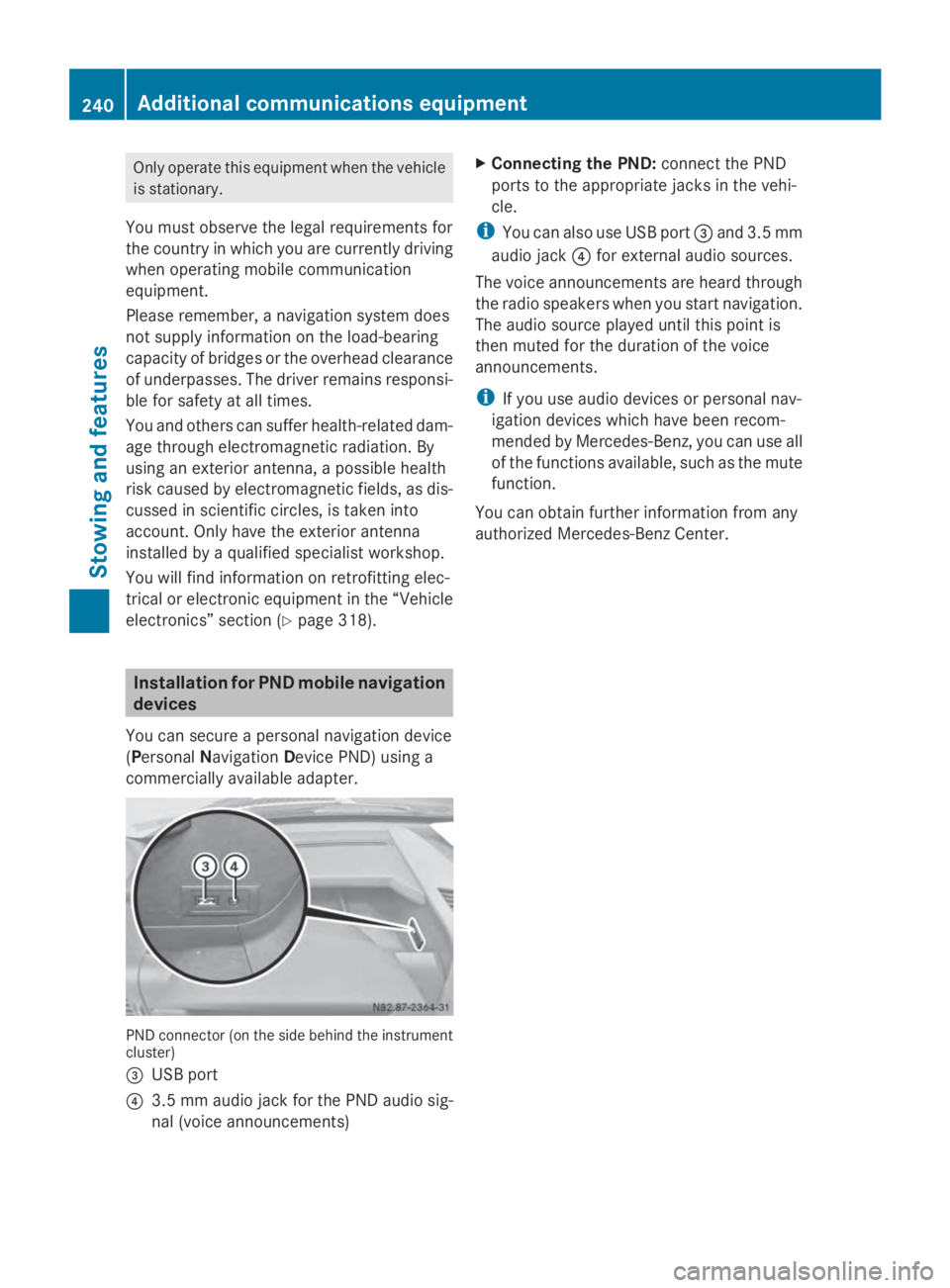
You can secure a personal navigation device
(Personal Navigation Device PND) using a
commercially available adapter. PND connector (on the side behind the instrument
cluster)
0087 USB port
0085 3.5 mm audio jack for the PND audio sig-
nal (voice announcements) X
Connecting the PND: connect the PND
ports to the appropriate jacks in the vehi-
cle.
i You can also use USB port 0087and 3.5 mm
audio jack 0085for external audio sources.
The voice announcements are heard through
the radio speakers when you start navigation.
The audio source played until this point is
then muted for the duration of the voice
announcements.
i If you use audio devices or personal nav-
igation devices which have been recom-
mended by Mercedes-Benz, you can use all
of the functions available, such as the mute
function.
You can obtain further information from any
authorized Mercedes-Benz Center. 240
Additional communications equipmentStowing and features
Page 274 of 338
R
Ensure sufficient ventilation when clean-
ing.
R Make sure that the vehicle interior is
completely dry after cleaning.
Cleaning the display !
For cleaning, do not use any of the fol-
lowing:
R alcohol-based thinner or gasoline
R abrasive cleaning agents
R commercially-available household clean-
ing agents
These may damage the display surface. Do
not put pressure on the display surface
when cleaning. This could lead to irrepara-
ble damage to the display.
X Switch off the audio equipment and let the
display cool down.
X Clean the display surface with a commer-
cially available microfiber cloth and cleaner
for TFT/LCD displays.
X Dry the display surface using a dry micro-
fiber cloth.
Cleaning the plastic trim G
WARNING
Care products and cleaning agents containing
solvents cause surfaces in the cockpit to
become porous. As a result, plastic parts may
come loose in the event of air bag deploy-
ment. There is a risk of injury.
Do not use any care products and cleaning
agents to clean the cockpit.
! Do not affix the following to plastic surfa-
ces:
R stickers
R films
R scented oil bottles or similar items
You can otherwise damage the plastic.
! Do not allow cosmetics, insect repellent
or sunscreen to come into contact with the plastic trim. This maintains the high-quality
look of the surfaces.
X Wipe the plastic trim and the cockpit with
a damp, lint-free cloth, e.g. a microfiber
cloth.
X Heavy soiling: use a mild detergent.
Cleaning the steering wheel and selec-
tor lever X
Thoroughly wipe with a damp cloth.
Cleaning the trim elements !
Do not use solvent-based cleaning agents
such as tar remover, wheel cleaners, pol-
ishes or waxes. There is otherwise a risk of
damaging the surface.
X Wipe the trim elements with a damp, lint-
free cloth, e.g. a microfiber cloth.
X Heavy soiling: use care products and
cleaning agents recommended and
approved for Sprinter vehicles.
Cleaning the seat covers !
Do not use microfiber cloths to clean arti-
ficial leather covers. If used often, a micro-
fiber cloth can damage the cover.
! Clean:
R artificial leather covers with a cloth mois-
tened with a solution containing 1%
detergent, e.g. dish washing liquid.
R cloth covers with a microfiber cloth mois-
tened with a solution containing 1%
detergent, e.g. dish washing liquid. Wipe
entire seat sections carefully to avoid
leaving visible lines. Leave the seat to dry
afterwards. Cleaning results depend on
the type of dirt and how long it has been
there. 272
CareMaintenance and care
Page 281 of 338
R
Only use jumper cables that have a suffi-
cient cross-section and insulated terminal
clamps.
R If the battery is fully discharged, attach the
battery of another vehicle for a few minutes
before attempting to start. This charges the
empty battery a little.
R Make sure that the two vehicles do not
touch.
Make sure that:
R the jumper cables are not damaged.
R bare parts of the terminal clamps do not
come into contact with other metal parts
while the jumper cables are connected to
the battery.
R the jumper cables cannot come into con-
tact with parts such as the V-belt pulley or
the fan. These parts move when the engine
is started and while it is running.
i Jumper cables and further information
regarding jump starting can be obtained at
any qualified specialist workshop. Before connecting the jumper cables
On vehicles with a battery main switch, check
whether the battery main switch is switched
on (Y page 136).
X Apply the parking brake.
X Move the selector lever of the automatic
transmission to position P.
X Switch off all electrical consumers, e.g.
audio equipment, blower.
X Turn the key to position 0in the ignition
lock and remove it (Y page 137).
X Open the hood (Y page 250). Tow-starting and towing away
Important safety notes
G
WARNING
Functions relevant to safety are restricted or
no longer available if:
R the engine is not running.
R the brake system or the power steering is
malfunctioning.
R there is a malfunction in the voltage supply
or the vehicle's electrical system.
If your vehicle is being towed, much more
force may be necessary to steer or brake.
There is a risk of an accident.
In such cases, use a tow bar. Before towing,
make sure that the steering moves freely. G
WARNING
You can no longer steer the vehicle if the
steering wheel lock has been engaged. There
is a risk of an accident.
Always switch off the ignition when towing the
vehicle with a tow cable or a tow bar. G
WARNING
If the weight of the vehicle to be towed or tow-
started is greater than the permissible gross
weight of your vehicle:
R the towing eye could detach itself
R the vehicle/trailer combination could roll-
over.
There is a risk of an accident.
When towing or tow-starting another vehicle,
its weight should not be greater than the per-
missible gross weight of your vehicle.
Information on your vehicle's gross vehicle
weight rating can be found on the vehicle
identification plate (Y page 319).
! Only secure the tow rope or tow bar at the
towing eyes. Otherwise, the vehicle could
be damaged. Tow-starting and towing away
279Breakdown assistance Z
Page 320 of 338
Genuine Sprinter parts
! Air bags and Emergency Tensioning Devi-
ces, as well as control units and sensors for
these restraint systems, may be installed in
the following areas of your vehicle:
R doors
R door pillars
R door sills
R seats
R cockpit
R instrument cluster
R center console
Do not install accessories such as audio
systems in these areas. Do not carry out
repairs or welding. You could impair the
operating efficiency of the restraint sys-
tems.
Have aftermarket accessories installed at
a qualified specialist workshop. H
Environmental note
We supply reconditioned assemblies and
parts which are of the same quality as new
parts. The same New Vehicle Limited War-
ranty applies as for new parts.
We test genuine Sprinter parts, as well as
conversion parts and accessories that have
been specifically approved for the type of
vehicle, for:
R reliability
R safety
R suitability
Despite ongoing market research, we are
unable to assess other parts. If individual or
official approval is given, we assume no
responsibility for use in Sprinter vehicles.
In some countries, certain parts are only offi-
cially approved for installation or modification
if they comply with legal requirements. All
genuine Sprinter parts satisfy these require-
ments. Make sure that all parts are suitable
for your vehicle. All authorized Sprinter Dealers maintain a
supply of genuine Sprinter parts for required
service and repair work. Also, the strategi-
cally distributed parts delivery centers pro-
vide quick and reliable parts service.
Always specify the vehicle identification num-
ber (VIN) and engine number when ordering
genuine Sprinter parts (Y page 319). Vehicle electronics
Tampering with the engine electron-
ics
G
WARNING
Always have work on the engine electronics
and related components carried out at a quali-
fied specialist workshop. Otherwise, the vehi-
cle's operating safety could be affected.
! Only have engine electronics and the cor-
responding parts, such as control units,
sensors or connector leads, serviced in a
qualified specialist workshop. Otherwise,
the vehicle parts may wear more quickly.
This can lead to loss of the New Vehicle
Limited Warranty. Installing electrical or electronic
equipment
G
WARNING
You and others may damage your health due
to excessive electromagnetic radiation. By
using an external antenna, the possible health
risks of electromagnetic fields, which are
under discussion among the scientific com-
munity, should be largely prevented.
Therefore, only have the exterior antenna
installed at a qualified specialist workshop.
Electrical and electronic devices may have a
detrimental effect on both the comfort and
the operating safety of the vehicle. If equip-
ment of this kind is retrofitted, its electro- 318
Vehicle electronicsTechnical data