USB MERCEDES-BENZ SPRINTER 2015 MY15 Audio Manual
[x] Cancel search | Manufacturer: MERCEDES-BENZ, Model Year: 2015, Model line: SPRINTER, Model: MERCEDES-BENZ SPRINTER 2015Pages: 54, PDF Size: 1.14 MB
Page 46 of 54
X
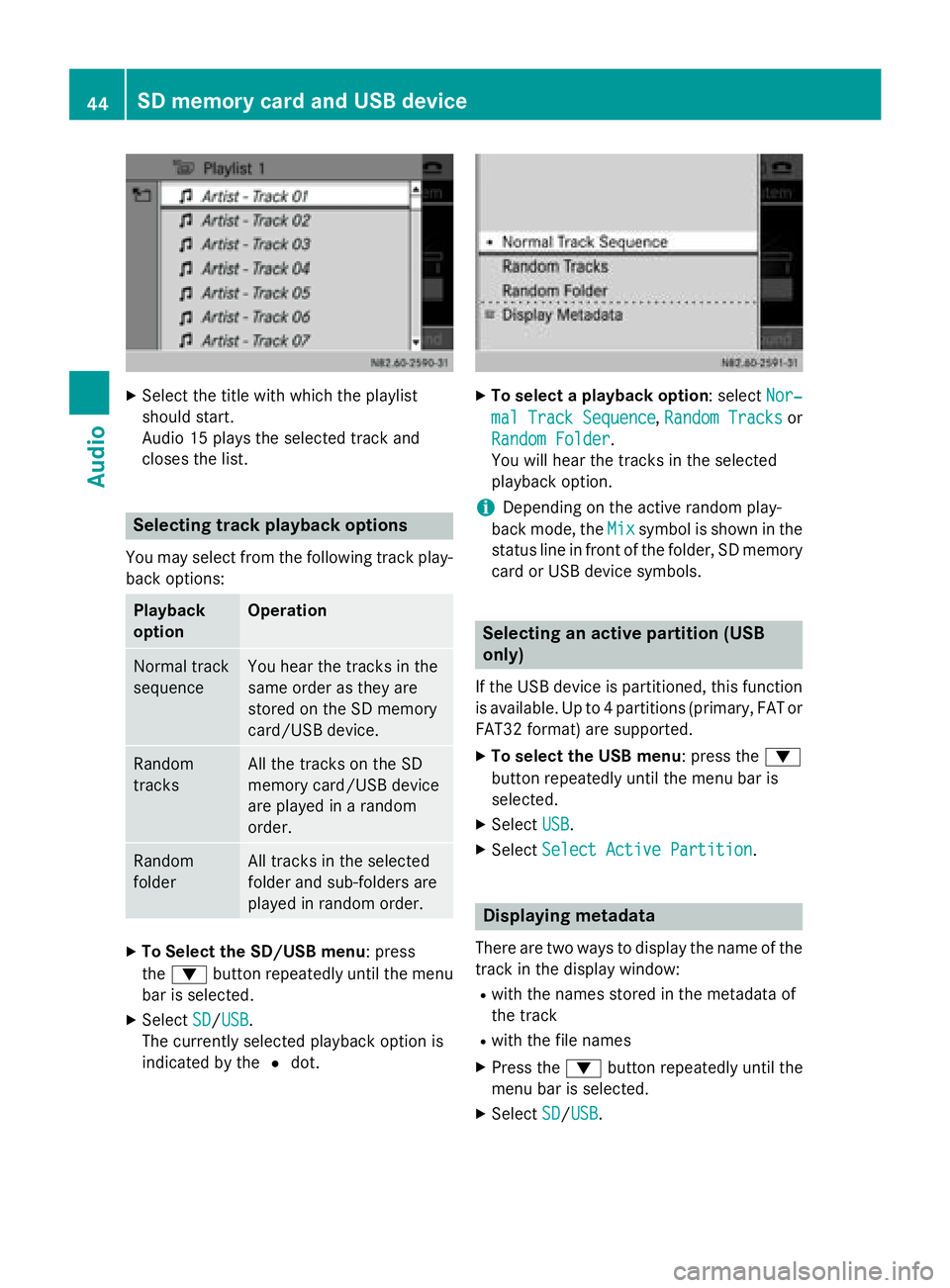
Select the title with which the playlist
should start.
Audio 15 plays the selected track and
closes the list. Selecting track playback options
You may select from the following track play- back options: Playback
option Operation
Normal track
sequence You hear the tracks in the
same order as they are
stored on the SD memory
card/USB device.
Random
tracks All the tracks on the SD
memory card/USB device
are played in a random
order. Random
folder All tracks in the selected
folder and sub-folders are
played in random order. X
To Select the SD/USB menu: press
the 0064 button repeatedly until the menu
bar is selected.
X Select SD
SD/USB USB.
The currently selected playback option is
indicated by the 0036dot. X
To select a playback option : selectNor‐ Nor‐
mal Track Sequence
mal Track Sequence ,Random Tracks
Random Tracks or
Random Folder
Random Folder .
You will hear the tracks in the selected
playback option.
i Depending on the active random play-
back mode, the Mix Mixsymbol is shown in the
status line in front of the folder, SD memory card or USB device symbols. Selecting an active partition (USB
only)
If the USB device is partitioned, this function
is available. Up to 4 partitions (primary, FAT or FAT32 format) are supported.
X To select the USB menu: press the 0064
button repeatedly until the menu bar is
selected.
X Select USB USB.
X Select Select Active Partition
Select Active Partition . Displaying metadata
There are two ways to display the name of the
track in the display window:
R with the names stored in the metadata of
the track
R with the file names
X Press the 0064button repeatedly until the
menu bar is selected.
X Select SD SD/USBUSB. 44
SD memory card and USB deviceAudio
Page 47 of 54
X
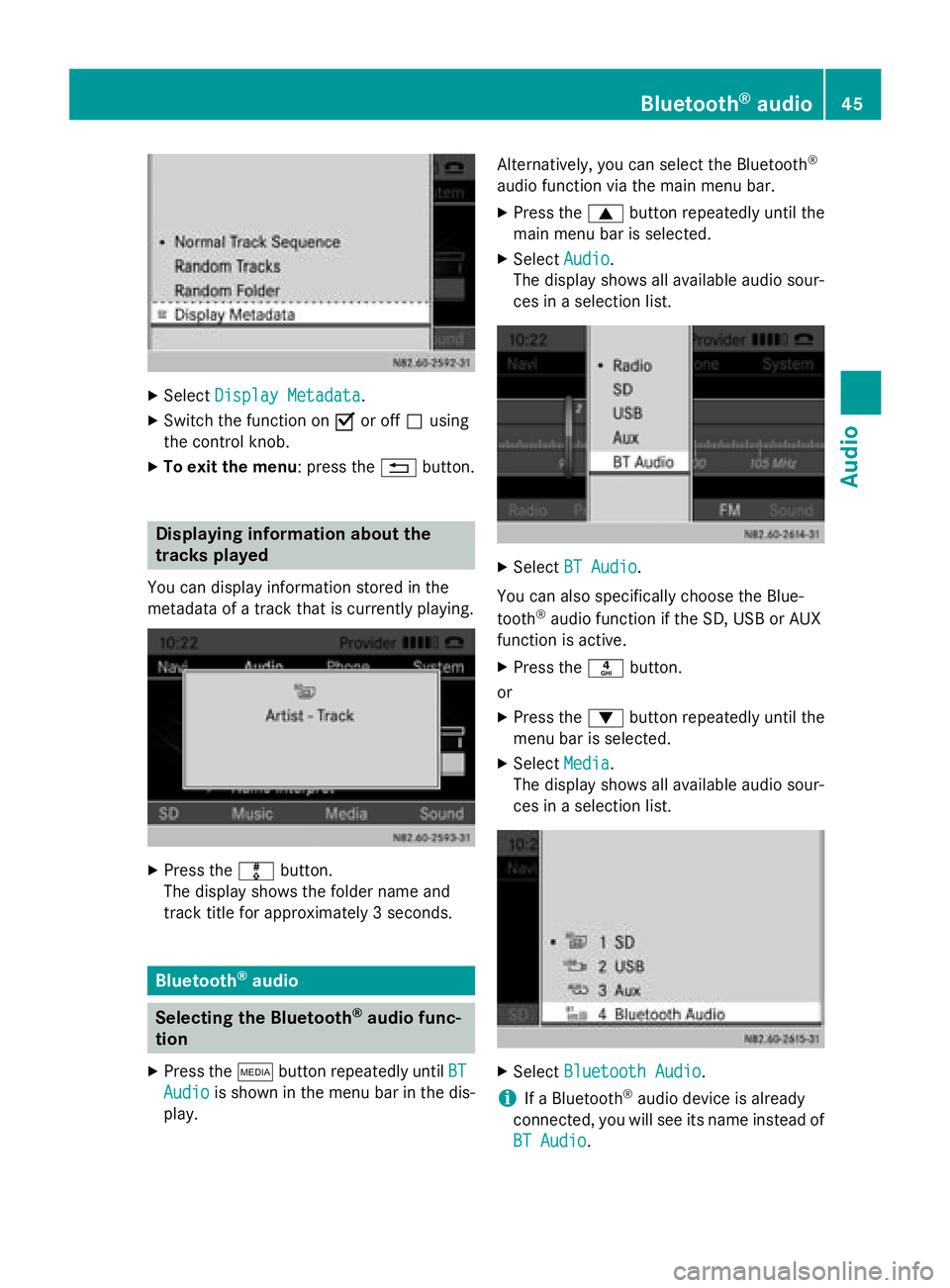
Select Display Metadata
Display Metadata.
X Switch the function on 0073or off 0053using
the control knob.
X To exit the menu : press the0038button. Displaying information about the
tracks played
You can display information stored in the
metadata of a track that is currently playing. X
Press the 003Fbutton.
The display shows the folder name and
track title for approximately 3 seconds. Bluetooth
®
audio Selecting the Bluetooth
®
audio func-
tion
X Press the 00FDbutton repeatedly until BT
BT
Audio Audio is shown in the menu bar in the dis-
play. Alternatively, you can select the Bluetooth
®
audio function via the main menu bar. X Press the 0063button repeatedly until the
main menu bar is selected.
X Select Audio Audio.
The display shows all available audio sour-
ces in a selection list. X
Select BT Audio BT Audio.
You can also specifically choose the Blue-
tooth ®
audio function if the SD, USB or AUX
function is active.
X Press the 0084button.
or X Press the 0064button repeatedly until the
menu bar is selected.
X Select Media Media.
The display shows all available audio sour-
ces in a selection list. X
Select Bluetooth Audio
Bluetooth Audio.
i If a Bluetooth ®
audio device is already
connected, you will see its name instead of
BT Audio
BT Audio. Bluetooth
®
audio 45Audio Z
Page 50 of 54
Alternatively, you can select the AUX function
in the main menu bar.
X Press the 0063button repeatedly until the
main menu bar is selected.
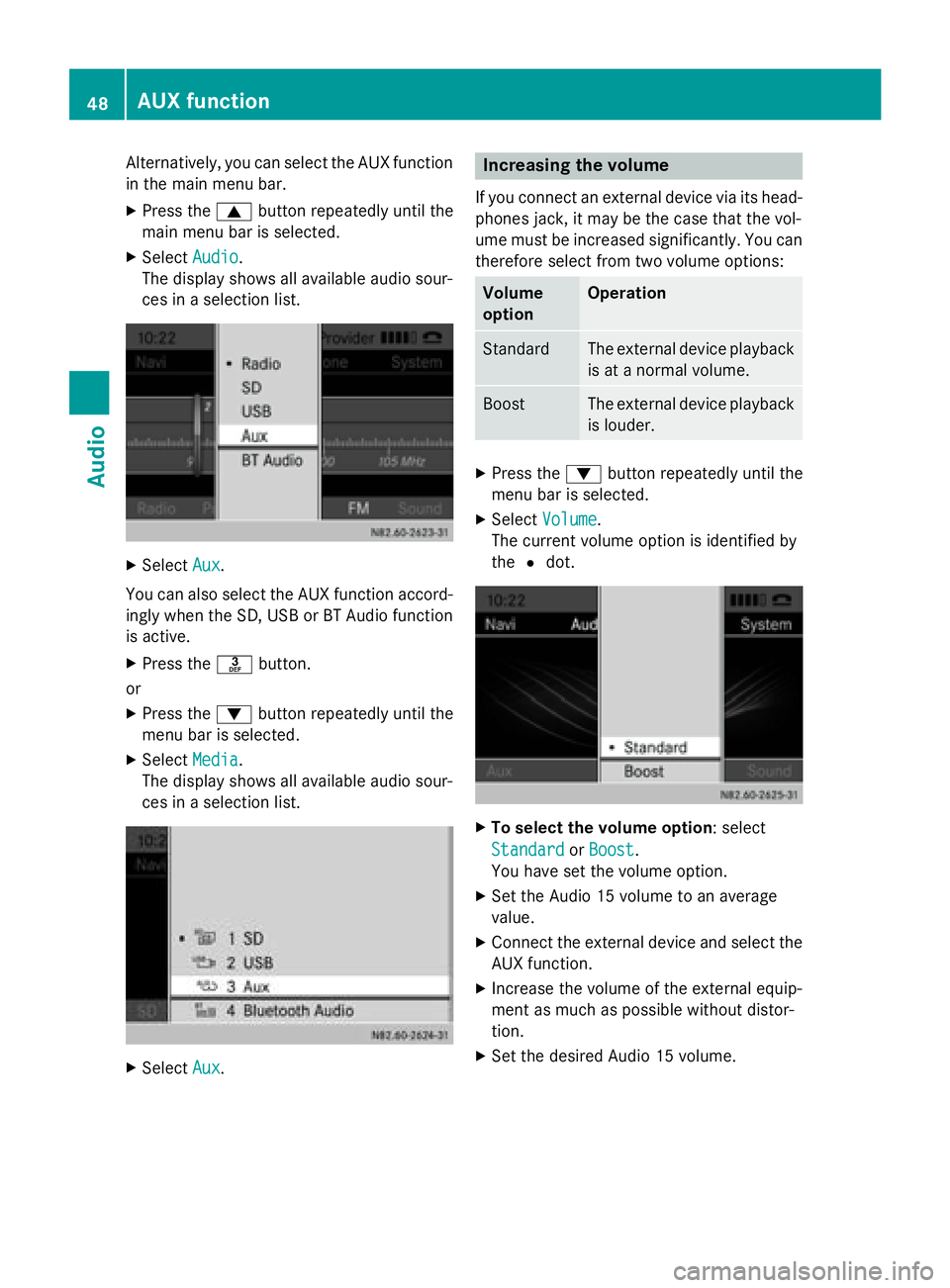
X Select Audio
Audio.
The display shows all available audio sour-
ces in a selection list. X
Select Aux
Aux.
You can also select the AUX function accord-
ingly when the SD, USB or BT Audio function
is active.
X Press the 0083button.
or
X Press the 0064button repeatedly until the
menu bar is selected.
X Select Media Media.
The display shows all available audio sour-
ces in a selection list. X
Select Aux Aux. Increasing the volume
If you connect an external device via its head-
phones jack, it may be the case that the vol-
ume must be increased significantly. You can therefore select from two volume options: Volume
option Operation
Standard The external device playback
is at a normal volume. Boost The external device playback
is louder. X
Press the 0064button repeatedly until the
menu bar is selected.
X Select Volume
Volume .
The current volume option is identified by
the 0036dot. X
To select the volume option: select
Standard Standard orBoost Boost.
You have set the volume option.
X Set the Audio 15 volume to an average
value.
X Connect the external device and select the
AUX function.
X Increase the volume of the external equip-
ment as much as possible without distor-
tion.
X Set the desired Audio 15 volume. 48
AUX functionAudio
Page 51 of 54
Requirements for SD memory
cards/USB devices
.............................50
Supported file formats .......................50
Apple device support ..........................50
SD memory card/USB device file
structure .............................................. 50 49Technical data
Page 52 of 54
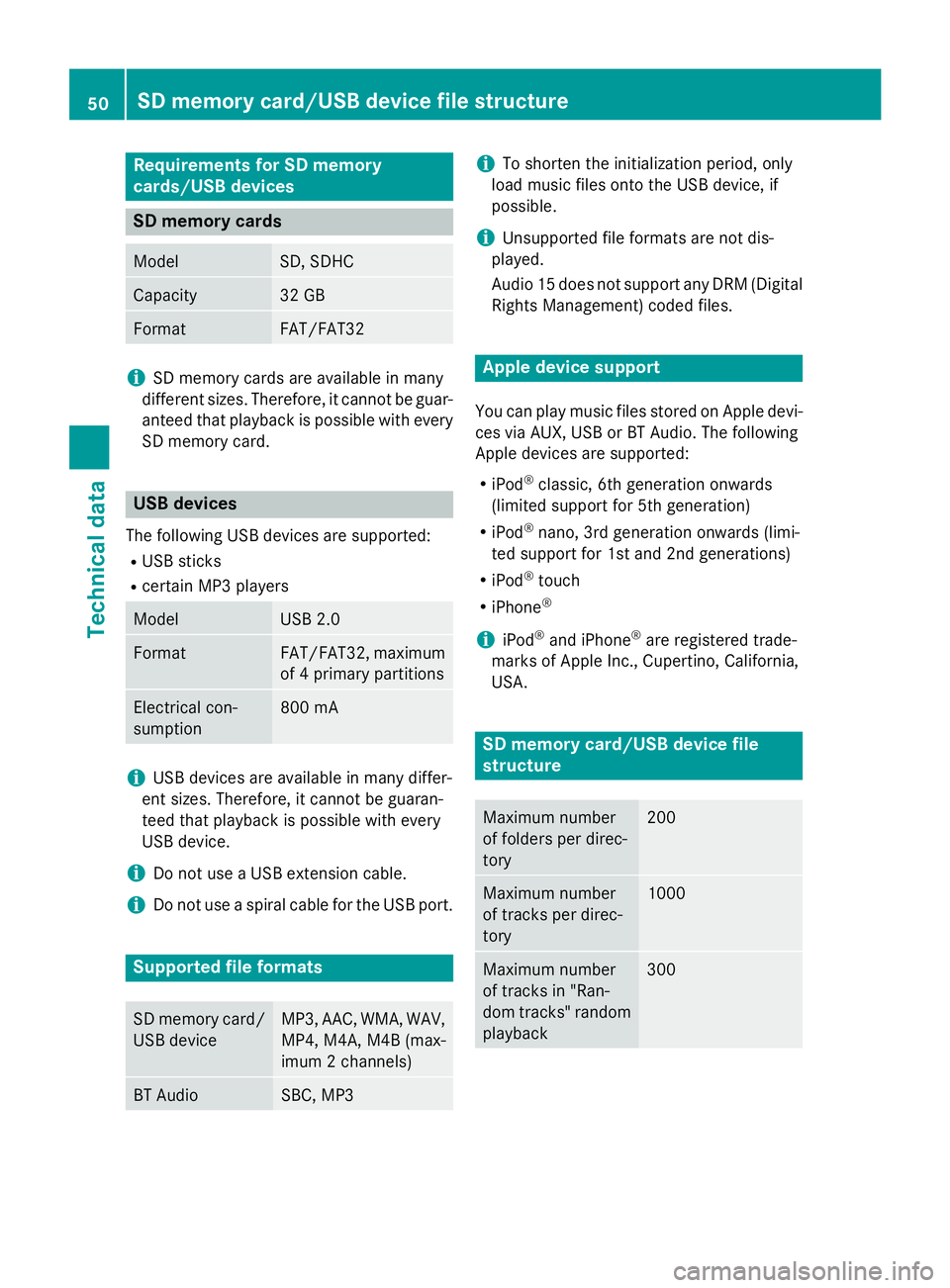
Requirements for SD memory
cards/USB devices
SD memory cards
Model SD, SDHC
Capacity 32 GB
Format FAT/FAT32
i
SD memory cards are available in many
different sizes. Therefore, it cannot be guar-
anteed that playback is possible with every SD memory card. USB devices
The following USB devices are supported: R USB sticks
R certain MP3 players Model USB 2.0
Format FAT/FAT32, maximum
of 4 primary partitions Electrical con-
sumption 800 mA
i
USB devices are available in many differ-
ent sizes. Therefore, it cannot be guaran-
teed that playback is possible with every
USB device.
i Do not use a USB extension cable.
i Do not use a spiral cable for the USB port. Supported file formats
SD memory card/
USB device MP3, AAC, WMA, WAV,
MP4, M4A, M4B (max-
imum 2 channels) BT Audio SBC, MP3 i
To shorten the initialization period, only
load music files onto the USB device, if
possible.
i Unsupported file formats are not dis-
played.
Audio 15 does not support any DRM (Digital Rights Management) coded files. Apple device support
You can play music files stored on Apple devi-
ces via AUX, USB or BT Audio. The following
Apple devices are supported:
R iPod ®
classic, 6th generation onwards
(limited support for 5th generation)
R iPod ®
nano, 3rd generation onwards (limi-
ted support for 1st and 2nd generations)
R iPod ®
touch
R iPhone ®
i iPod ®
and iPhone ®
are registered trade-
marks of Apple Inc., Cupertino, California,
USA. SD memory card/USB device file
structure
Maximum number
of folders per direc-
tory 200
Maximum number
of tracks per direc-
tory 1000
Maximum number
of tracks in "Ran-
dom tracks" random
playback 30050
SD memory card/USB device file structureTechnical data