change wheel MERCEDES-BENZ SPRINTER 2018 MY18 Operator’s Manual
[x] Cancel search | Manufacturer: MERCEDES-BENZ, Model Year: 2018, Model line: SPRINTER, Model: MERCEDES-BENZ SPRINTER 2018Pages: 294, PDF Size: 4.36 MB
Page 163 of 294
The display switches off automatically after
approximately 30 seconds if:
Rthe key is in position0in the ignition lock.
Rthe vehicle lighting is not switched on.
Instrument lighting
When the lights are switched on, you can adjust
the brightness of the instrument cluster lighting
using the fand gbuttons.
XTo brighten: press thefbutton.
XTo dim: press the gbutton.
iVehicles with automatic headlamp mode:
the instrument lighting also adapts to auto-
matic headlamp mode.
Tachometer
!
Do not drive in the overrevving range, as this
could damage the engine.
HEnvironmental note
Avoid driving at high engine speeds. This
unnecessarily increases the fuel consumption
of your vehicle and harms the environment as
a result of increased emissions.
The red band in the tachometer indicates the
engine's overrevving range.
To protect the engine, the fuel supply is inter-
rupted when the red band is reached.
Outside temperature
You should pay special attention to road condi-
tions when temperatures are around the freez-
ing point.
On vehicles without steering wheel buttons
(
Ypage 162) and on vehicles with steering
wheel buttons (Ypage 166), the outside tem-
perature display is in the display.
Changes in the outside temperature are dis-
played after a short delay.
Speedometer
The speed can also be shown in the display. You
can find information on the digital speedometer for vehicles without steering wheel buttons
under (
Ypage 162) and for vehicles with steer-
ing wheel buttons under (Ypage 166).
iIn some countries, a warning sounds when
the vehicle reaches the maximum speed limit,
e.g. at 75 mph (120 km/h).
Trip odometer
XTo reset: make sure that the display is show-
ing the trip odometer if you have a vehicle with
steering wheel buttons (
Ypage 166).
XPress and hold the 9reset button until the
trip odometer is reset to 0.0.
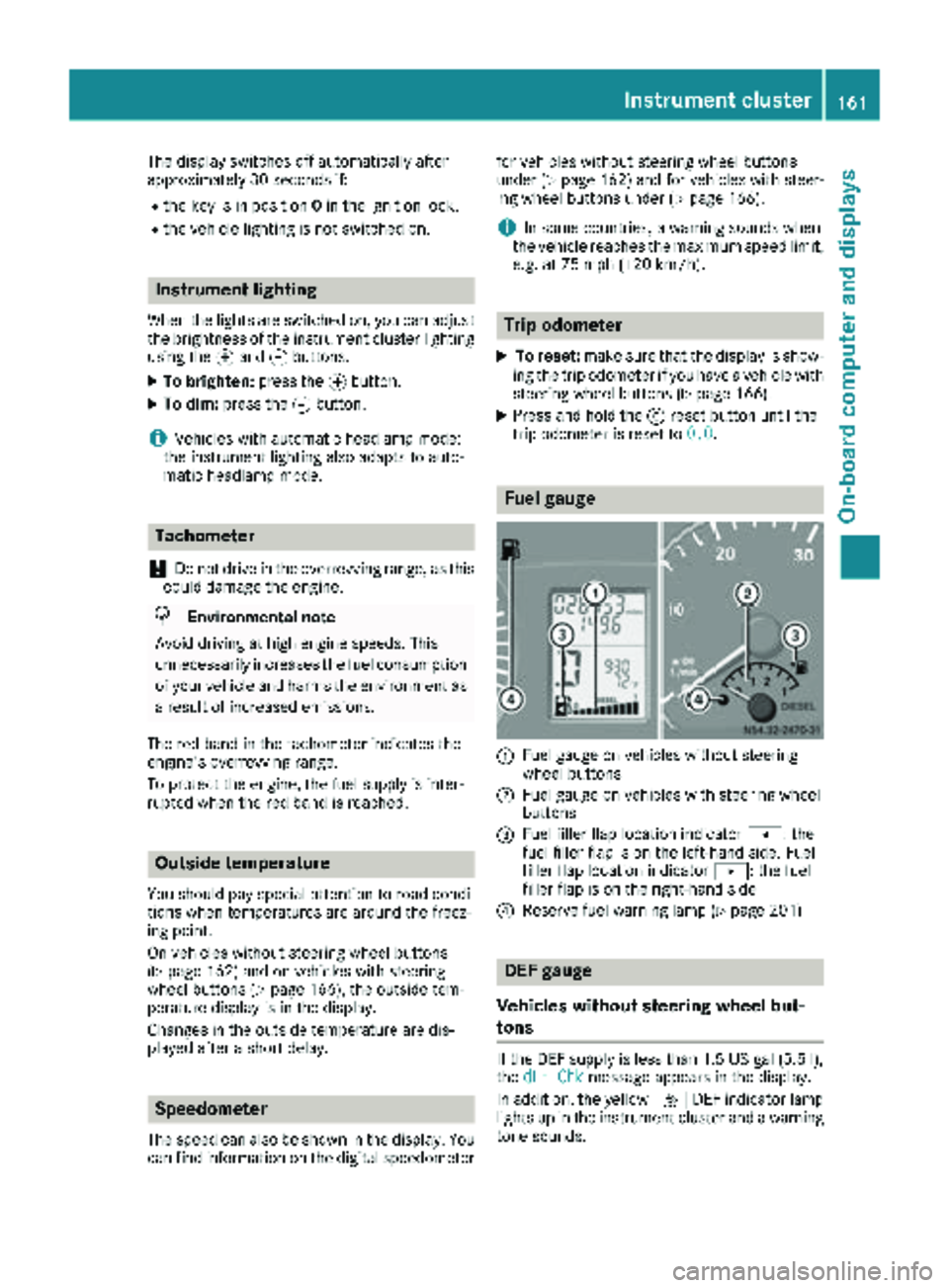
Fuel gauge
:Fuel gauge on vehicles without steering
wheel buttons
;Fuel gauge on vehicles with steering wheel
buttons
=Fuel filler flap location indicator t: the
fuel filler flap is on the left-hand side. Fuel
filler flap location indicator u: the fuel
filler flap is on the right-hand side
?Reserve fuel warning lamp (Ypage 201)
DEF gauge
Vehicles without steering wheel but-
tons
If the DEF supply is less than 1.5 US gal (5.5 l),
the dEF Chkmessage appears in the display.
In addition, the yellow åDEF indicator lamp
lights up in the instrument cluster and a warning
tone sounds.
Instrument cluster161
On-board computer and displays
Z
Page 164 of 294
If the supply of DEF falls below the reserve range
of 0.8 US gal (3.0l)the StArtS RExxmessage
appears in the display. Also, the yellow å
DEF indicator lamp lights up in the instrument
cluster and three warning tones sound.
In the display, xx
corresponds to the number of
possible remaining engine starts ( 16to0).
When the display shows that the number of
remaining starts is 0
, theStArtSIdLEmessage
appears in the display and three warning tones
sound.
In addition, the yellow åDEF indicator lamp
and the ;Check Engine indicator lamp light
up in the instrument cluster and three warning
tones sound.
The engine management only allows speeds of
up to 5 mph (8 km/h).
Add at least 1.5 US gal (5.5 l) of DEF
(
Ypage 128).
The display message only disappears when the
vehicle is stationary, at the latest after
20 second s, as soon as yo uswit ch on the igni-
tion or start the engine after refueling.
Vehicles with steering wheel buttons
If the supply of DEF is less than 1.5 US gal
(5.5 l),the Check Diesel Exhaust Fluid
See Operator's Manualmessage appears in
the display.
If the supply of DEF falls below the reserve range
of 0.8 US ga l(3.0 l),the XX
startsremainingmessage is displayed.
Three short warning tones also sound.
In the display, xx
corresponds to the number of
possible remaining engine starts ( 16to0).
When the display shows that the number of
remaining starts is 0
, theStArtSIdLEmessage
appears in the display.
The yellow ;Check Engine indicator lamp
also lights up and three short warning tones
sound.
The engine management only allows speeds of
up to 5 mph (8 km/h).
Add at least 1.5 US gal (5.5 l) of DEF
(
Ypage 128).
The display message only disappears when the
vehicle is stationary, at the latest after
20 seconds, as soon as you switch on the igni-
tion or start the engine after refueling.
On-board computer (vehicles without
steering wheel buttons)
Operating the on-board computer
General notes
The on-board computer is activated as soon as
you turn the key to position 1in the ignition lock.
The on-board computer shows vehicle informa-
tion and settings in the display.
You can control the display and the settings in
the on-board computer using the adjustment
buttons on the instrument cluster.
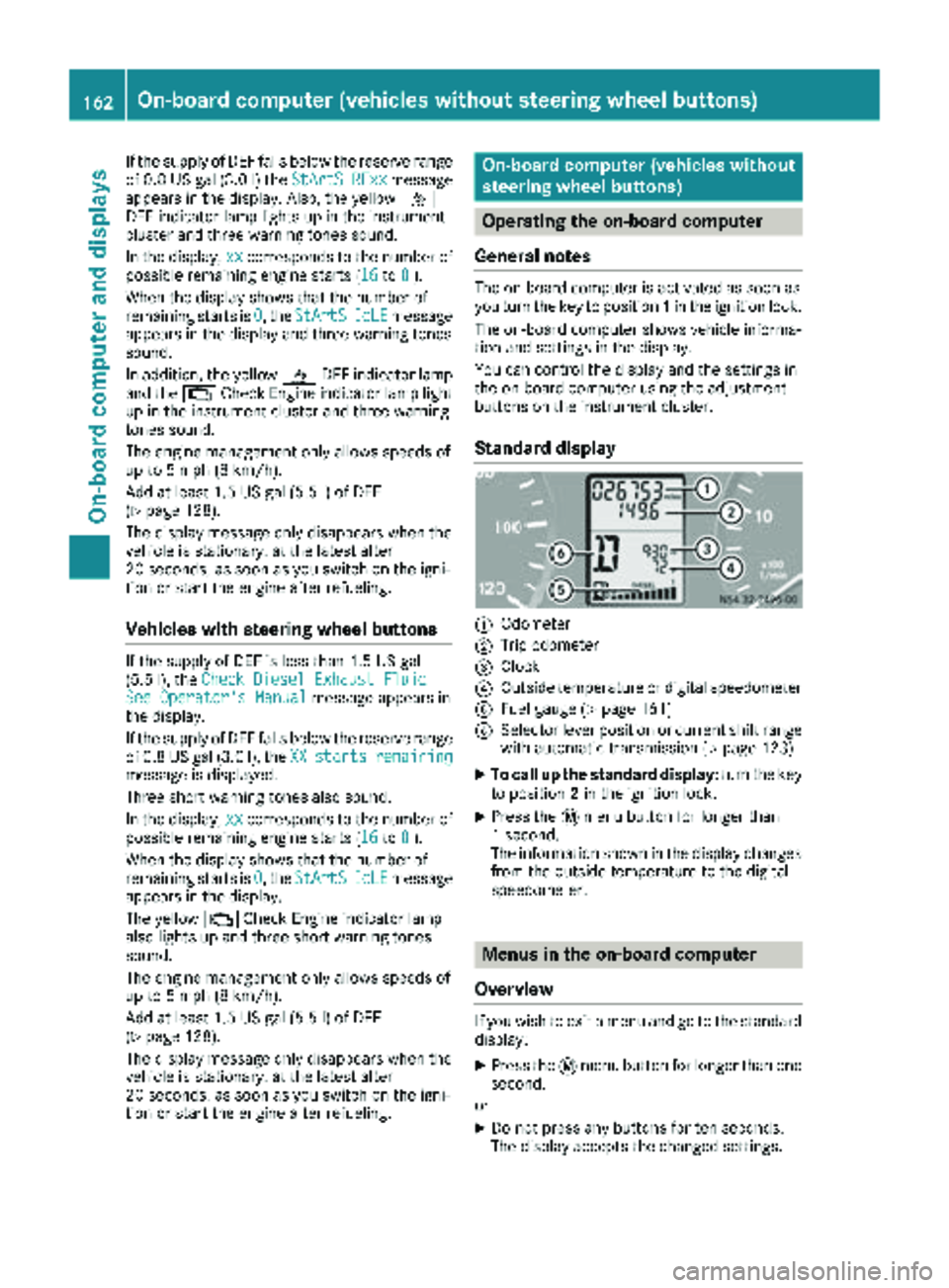
Standard display
:Odometer
;Trip odometer
=Clock
?Outside temperature or digital speedometer
AFuel gauge (Ypage 161)
BSelector lever position or current shift range
with automatic transmission (Ypage 123)
XTo call up the standard display: turn the key
to position 2in the ignition lock.
XPress the 4menu button for longer than
1 second.
The information shown in the display changes
from the outside temperature to the digital
speedometer.
Menus in the on-board computer
Overview
If you wish to exit a menu and go to the standard display:
XPress the 4menu button for longer than one
second.
or
XDo not press any buttons for ten seconds.
The display accepts the changed settings.
162On-board computer (vehicles without steering wheel buttons)
On-board computer and displays
Page 165 of 294
Using thef,g,4or9 buttons you can
select the following functions:
RCalling up the service due date
(Ypage 227)
RChecking the oil level (Ypage 221)
RChecking the DEF level (Ypage 161)
RPreselecting/setting the auxiliary heating
switch-on time (Ypage 109)
RTire pressure monitor(Ypage 254)
RSetting the time (Ypage 163)
RActivating/deactivating Highbeam Assist
(Ypage 170)
RSetting the daytime running lamps
(Ypage 82)
Setting the time
XTurn the key to position 2in the ignition lock.
XPress the 4menu button repeatedly until the
hours figure flashes.
XPress the forg button to set the hour.
XPress the 9reset button.
The minute display flashes.
XPress the forg button to set the minute.
iIf you keep the forg button pressed, the
value will change continuously.
Activating/deactivating Highbeam
Assist
XTurn the key to position 2in the ignition lock.
XPress the 4menu button repeatedly until the
_ indicator lamp flashes and the onorOFFmessage appears in the display.
XUse the forg button to switch Highbeam
Assist on/off.
Switching the daytime running lamps
on/off
If you switch the daytime running lamps on, the
daytime running lamps will automatically light
up when the engine is running.
For safety reasons, it is only possible to change
this setting when the vehicle is stationary. The
factory setting is on
in countries in which day-
time running lamp mode or daytime running
lamps are mandatory.
XTurn the key to position 2in the ignition lock.
XPress the 4menu button repeatedly until the
L indicator lamp flashes and the onorOFFmessage appears in the display.
XPress the forg button to activate or deac-
tivate the daytime running lamps.
iUSA only:
If you turn the light switch to TorL,
the corresponding light switches on. If you
turn the light switch to Ã, the daytime
running lamps remain switched on.
Canada only:
If you turn the light switch to L, the low-
beam headlamps switch on. If you turn the
light switch to TorÃ, the daytime run-
ning lamps remain switched on.
On-board computer (vehicles with
steering wheel buttons)
Operating the on-board computer
Overview
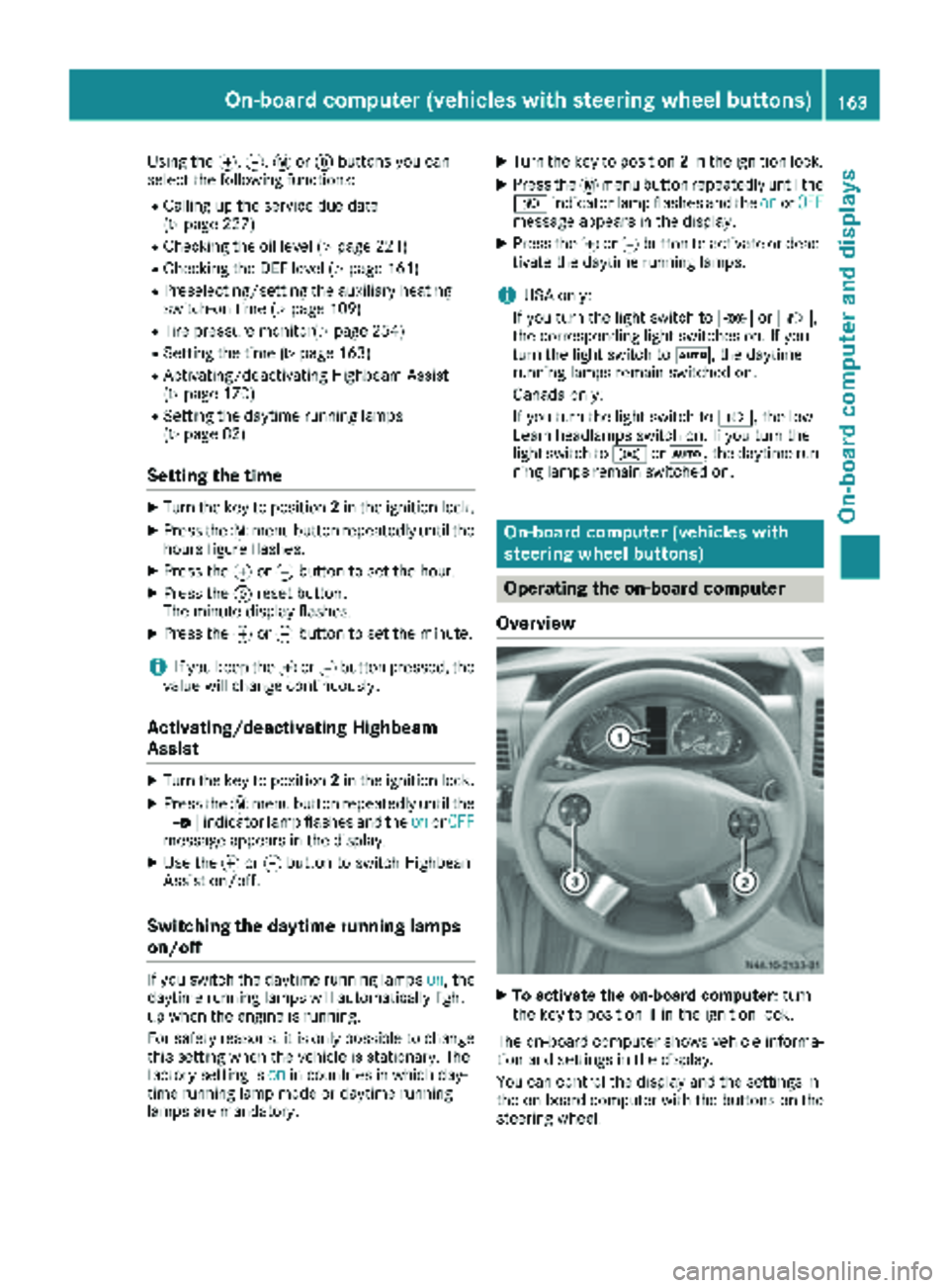
XTo activate the on-board computer: turn
the key to position 1in the ignition lock.
The on-board computer shows vehicle informa-
tion and settings in the display.
You can control the display and the settings in
the on-board computer with the buttons on the
steering wheel.
On-board computer (vehicles with steering wheel buttons)163
On-board computer and displays
Z
Page 166 of 294
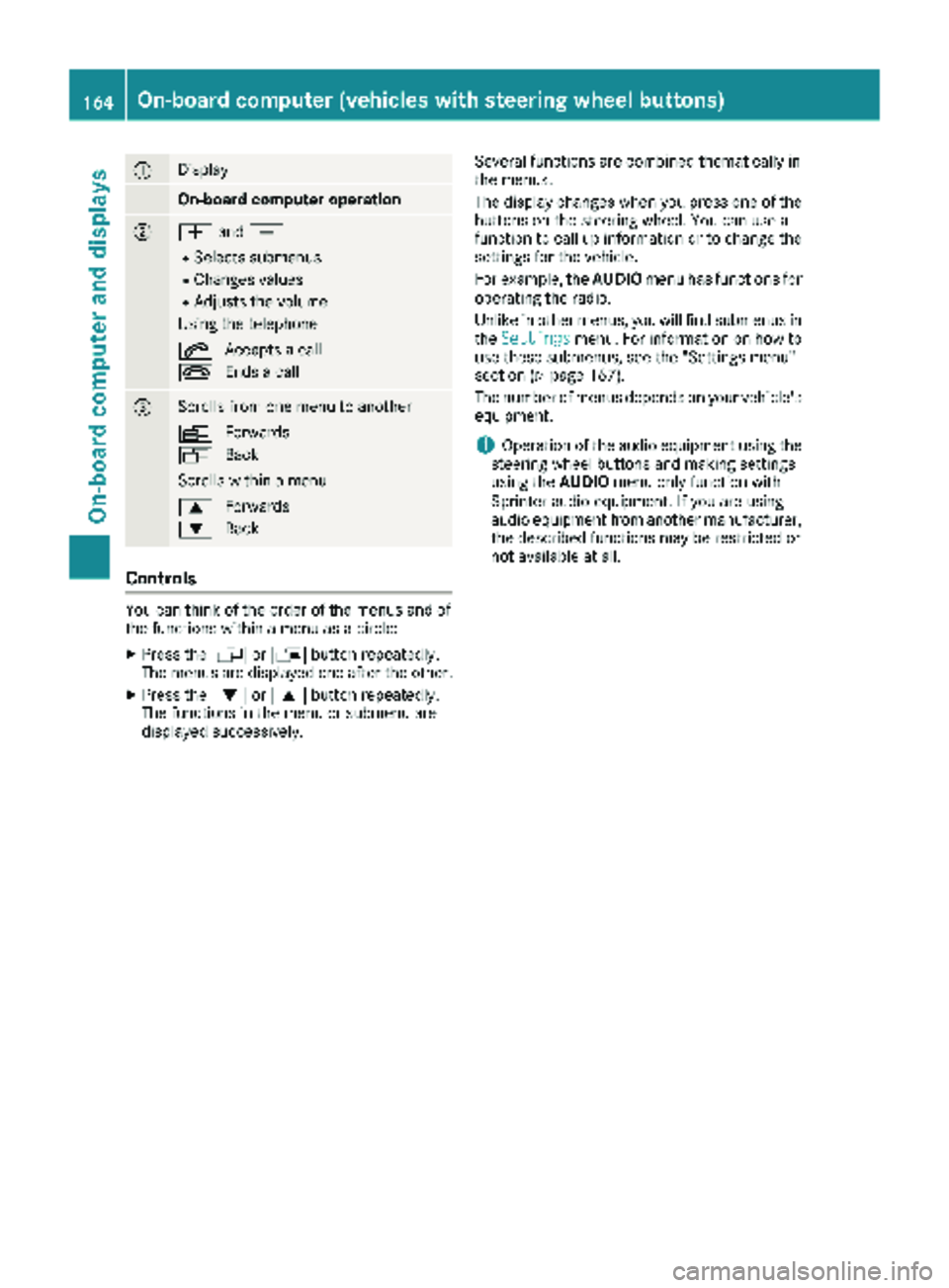
:Display
On-board computer operation
;WandX
RSelects submenus
RChanges values
RAdjusts the volume
Using the telephone
6 Accepts a call
~ Ends a call
=Scrolls from one menu to another
V Forwards
U Back
Scrolls within a menu
9 Forwards
: Back
Controls
You can think of the order of the menus and of
the functions within a menu as a circle:
XPress the VorU button repeatedly.
The menus are displayed one after the other.
XPress the :or9 button repeatedly.
The functions in the menu or submenu are
displayed successively. Several functions are combined thematically in
the menus.
The display changes when you press one of the
buttons on the steering wheel. You can use a
function to call up information or to change the
settings for the vehicle.
For example, the
AUDIOmenu has functions for
operating the radio.
Unlike in other menus, you will find submenus in
the Settings
menu. For information on how to
use these submenus, see the "Settings menu"
section (
Ypage 167).
The number of menus depends on your vehicle's
equipment.
iOperation of the audio equipment using the
steering wheel buttons and making settings
using the AUDIOmenu only function with
Sprinter audio equipment. If you are using
audio equipment from another manufacturer,
the described functions may be restricted or
not available at all.
164On-board computer (vehicles withsteering whee lbu ttons)
On-board computer and displays
Page 169 of 294
Settings menu
Introduction
In the Settings menu, the following options and
submenus are available:
RResetting all settings
RResetting the functions of a submenu
RInstrument cluster (Ypage 168)
-Units and language settings
-Status bar settings
RTime(Ypage 169)
RLighting (Ypage 170)
-Switching surround lighting on/off
-Switching the daytime running lamps
on/off
-Setting the delayed switch-off time for the
exterior lighting
-Activating/deactivating Highbeam Assist
RVehicle
-Setting the radio station selection
-Setting the windshield wiper sensitivity
RStationary heating or auxiliary heating
(Ypage 109)
RConvenience (Ypage 172)
-Key-dependent settings
iFor safety reasons, it is not possible to reset
all of the functions while the vehicle is in
motion. For example, in the Lighting
sub-
menu, the Daytime runn. lampsfunction
remains unchanged.
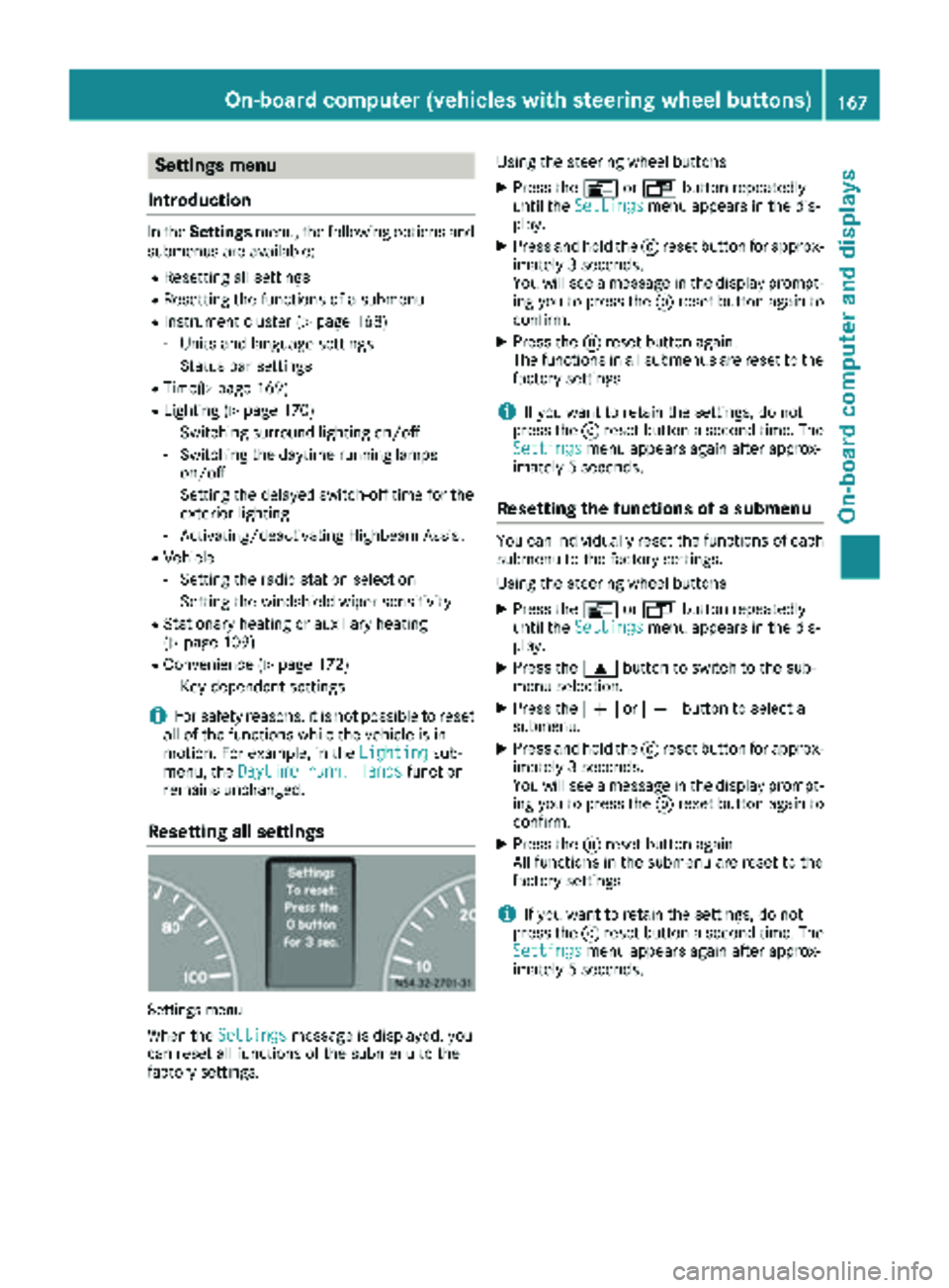
Resetting all settings
Settings menu
When the Settingsmessage is displayed, you
can reset all functions of the submenu to the
factory settings. Using the steering wheel buttons
XPress the
VorU button repeatedly
until the Settingsmenu appears in the dis-
play.
XPress and hold the 9reset button for approx-
imately 3 seconds.
You will see a message in the display prompt-
ing you to press the 9reset button again to
confirm.
XPress the 9reset button again.
The functions in all submenus are reset to the
factory settings.
iIf you want to retain the settings, do not
press the 9reset button a second time. The
Settings
menu appears again after approx-
imately 5 seconds.
Resetting the functions of a submenu
You can individually reset the functions of each
submenu to the factory settings.
Using the steering wheel buttons
XPress the VorU button repeatedly
until the Settingsmenu appears in the dis-
play.
XPress the 9button to switch to the sub-
menu selection.
XPress the WorX button to select a
submenu.
XPress and hold the 9reset button for approx-
imately 3 seconds.
You will see a message in the display prompt-
ing you to press the 9reset button again to
confirm.
XPress the 9reset button again.
All functions in the submenu are reset to the
factory settings.
iIf you want to retain the settings, do not
press the 9reset button a second time. The
Settings
menu appears again after approx-
imately 5 seconds.
On-board computer (vehicles with steering wheel buttons)167
On-board computer and displays
Z
Page 170 of 294
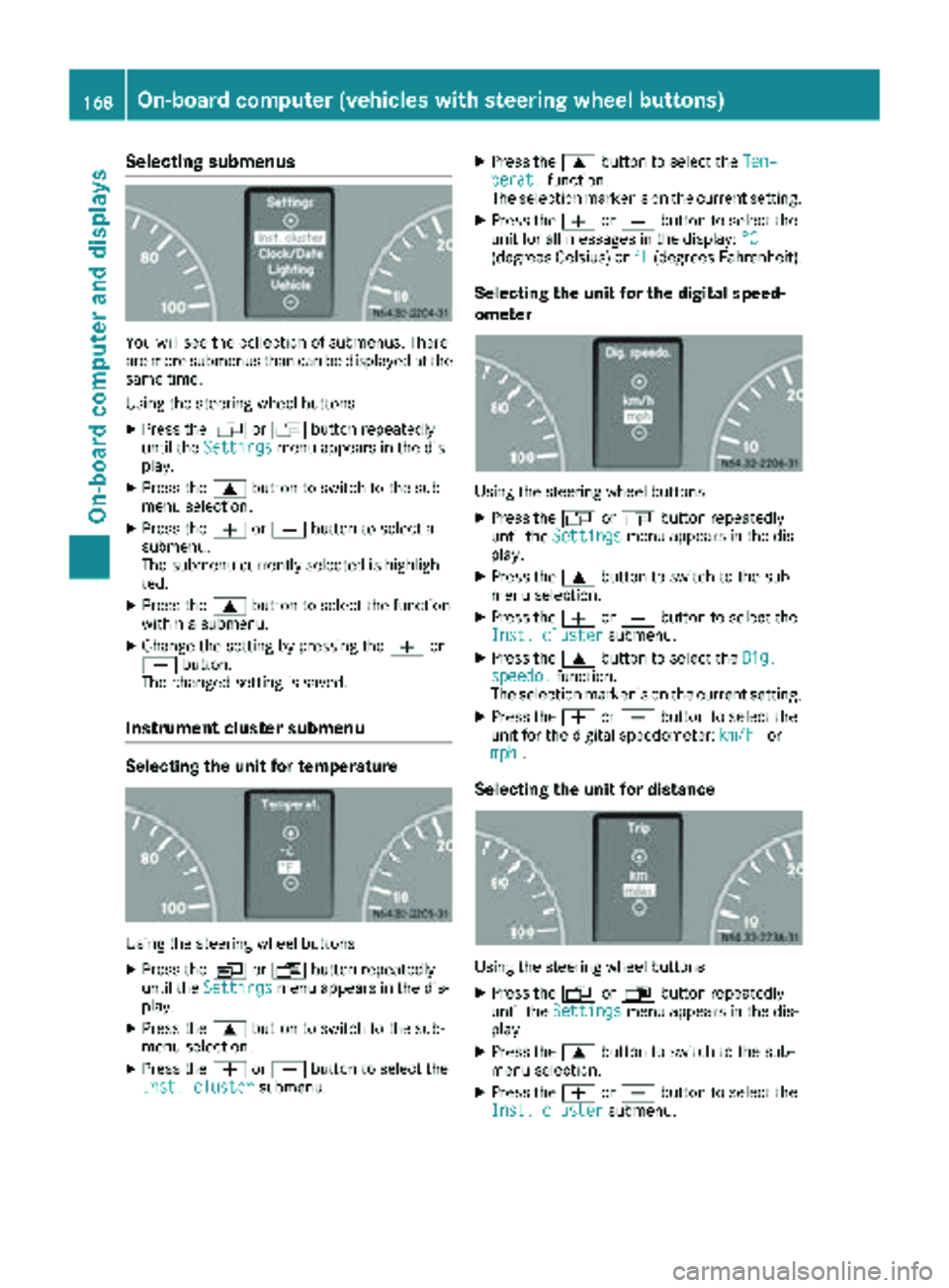
Selecting submenus
You will see the collection of submenus. There
are more submenus than can be displayed at the
same time.
Using the steering wheel buttons
XPress theVorU button repeatedly
until the Settingsmenu appears in the dis-
play.
XPress the 9button to switch to the sub-
menu selection.
XPress the WorX button to select a
submenu.
The submenu currently selected is highligh-
ted.
XPress the 9button to select the function
within a submenu.
XChange the setting by pressing the Wor
X button.
The changed setting is saved.
Instrument cluster submenu
Selecting the unit for temperature
Using the steering wheel buttons
XPress the VorU button repeatedly
until the Settingsmenu appears in the dis-
play.
XPress the 9button to switch to the sub-
menu selection.
XPress the WorX button to select the
Inst. clustersubmenu.
XPress the 9button to select the Tem‐perat.function.
The selection marker is on the current setting.
XPress the WorX button to select the
unit for all messages in the display: °C
(degrees Celsius) or°F(degrees Fahrenheit).
Selecting the unit for the digital speed-
ometer
Using the steering wheel buttons
XPress theVorU button repeatedly
until the Settingsmenu appears in the dis-
play.
XPress the 9button to switch to the sub-
menu selection.
XPress the WorX button to select the
Inst. clustersubmenu.
XPress the 9button to select the Dig.speedo.function.
The selection marker is on the current setting.
XPress the WorX button to select the
unit for the digital speedometer: km/hor
mph.
Selecting the unit for distance
Using the steering wheel buttons
XPress the VorU button repeatedly
until the Settingsmenu appears in the dis-
play.
XPress the 9button to switch to the sub-
menu selection.
XPress the WorX button to select the
Inst. clustersubmenu.
168On-board computer (vehicles with steering wheel buttons)
On-board computer and displays
Page 172 of 294
XPress theWorX button to select the
Clock/Datesubmenu.
XPress the 9button to select Set clockHoursorMinutes.
XPress the WorX button to set the val-
ues.
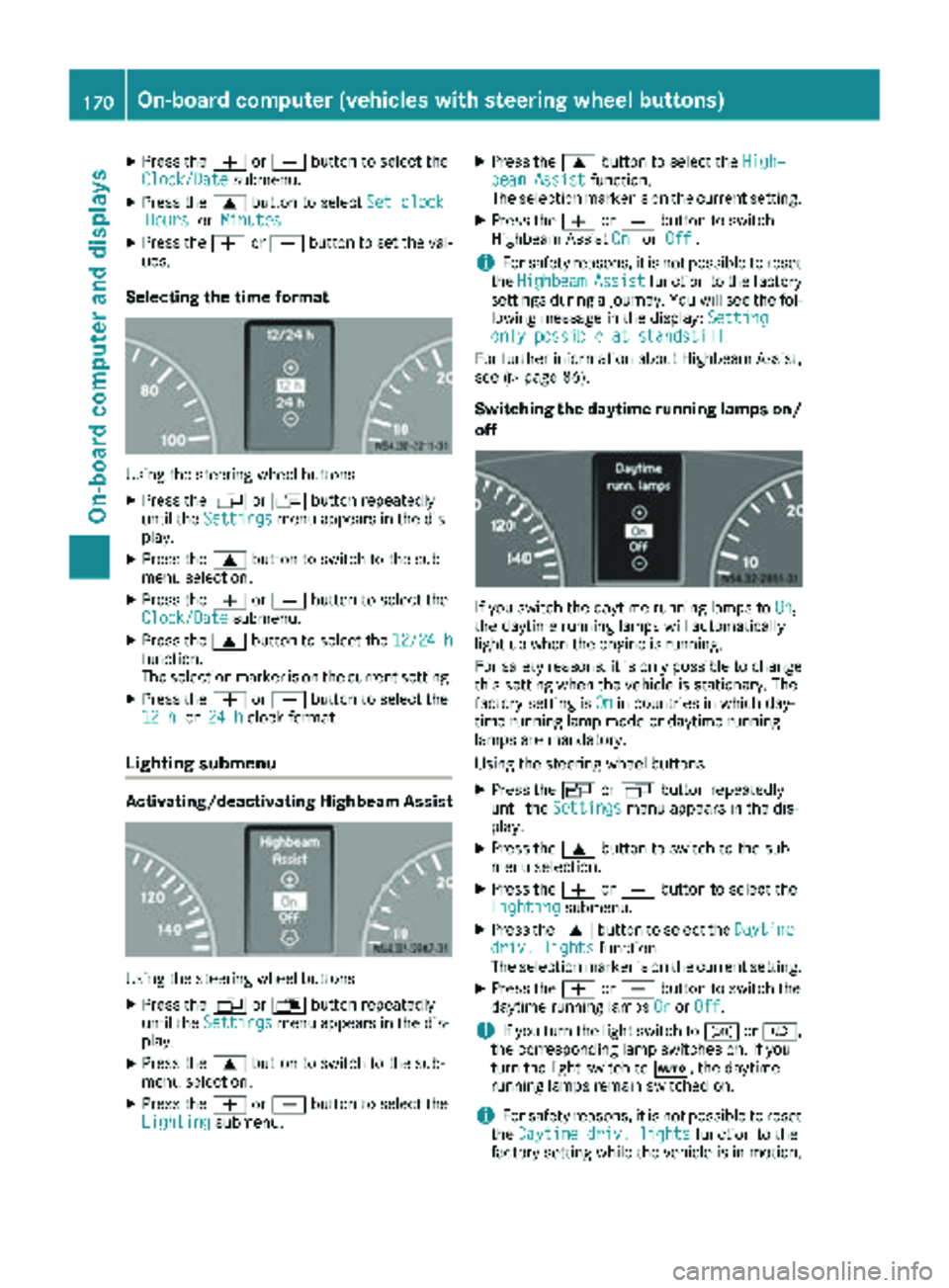
Selecting the time format
Using the steering wheel buttons
XPress the VorU button repeatedly
until the Settingsmenu appears in the dis-
play.
XPress the 9button to switch to the sub-
menu selection.
XPress the WorX button to select the
Clock/Datesubmenu.
XPress the 9button to select the 12/24 hfunction.
The selection marker is on the current setting.
XPress theWorX button to select the
12 hor 24 hclock format.
Lighting submenu
Activating/deactivating Highbeam Assist
Using the steering wheel buttons
XPress the VorU button repeatedly
until the Settingsmenu appears in the dis-
play.
XPress the 9button to switch to the sub-
menu selection.
XPress the WorX button to select the
Lightingsubmenu.
XPress the 9button to select the High‐beam Assistfunction.
The selection marker is on the current setting.
XPress the WorX button to switch
Highbeam Assist OnorOff.
iFor safety reasons, it is not possible to reset
the HighbeamAssistfunction to the factory
settings during a journey. You will see the fol-
lowing message in the display: Setting
only possible at standstill.
For further information about Highbeam Assist,
see (
Ypage 86).
Switching the daytime running lamps on/
off
If you switch the daytime running lamps to On,
the daytime running lamps will automatically
light up when the engine is running.
For safety reasons, it is only possible to change
this setting when the vehicle is stationary. The
factory setting is On
in countries in which day-
time running lamp mode or daytime running
lamps are mandatory.
Using the steering wheel buttons
XPress the VorU button repeatedly
until the Settingsmenu appears in the dis-
play.
XPress the 9button to switch to the sub-
menu selection.
XPress the WorX button to select the
Lightingsubmenu.
XPress the 9button to select the Daytimedriv. lightsfunction.
The selection marker is on the current setting.
XPress the WorX button to switch the
daytime running lamps OnorOff.
iIf you turn the light switch to TorL,
the corresponding lamp switches on. If you
turn the light switch to Ã, the daytime
running lamps remain switched on.
iFor safety reasons, it is not possible to reset
the Daytime driv. lightsfunction to the
factory setting while the vehicle is in motion.
170On-board computer (vehicles with steering wheel buttons)
On-board computer and displays
Page 195 of 294
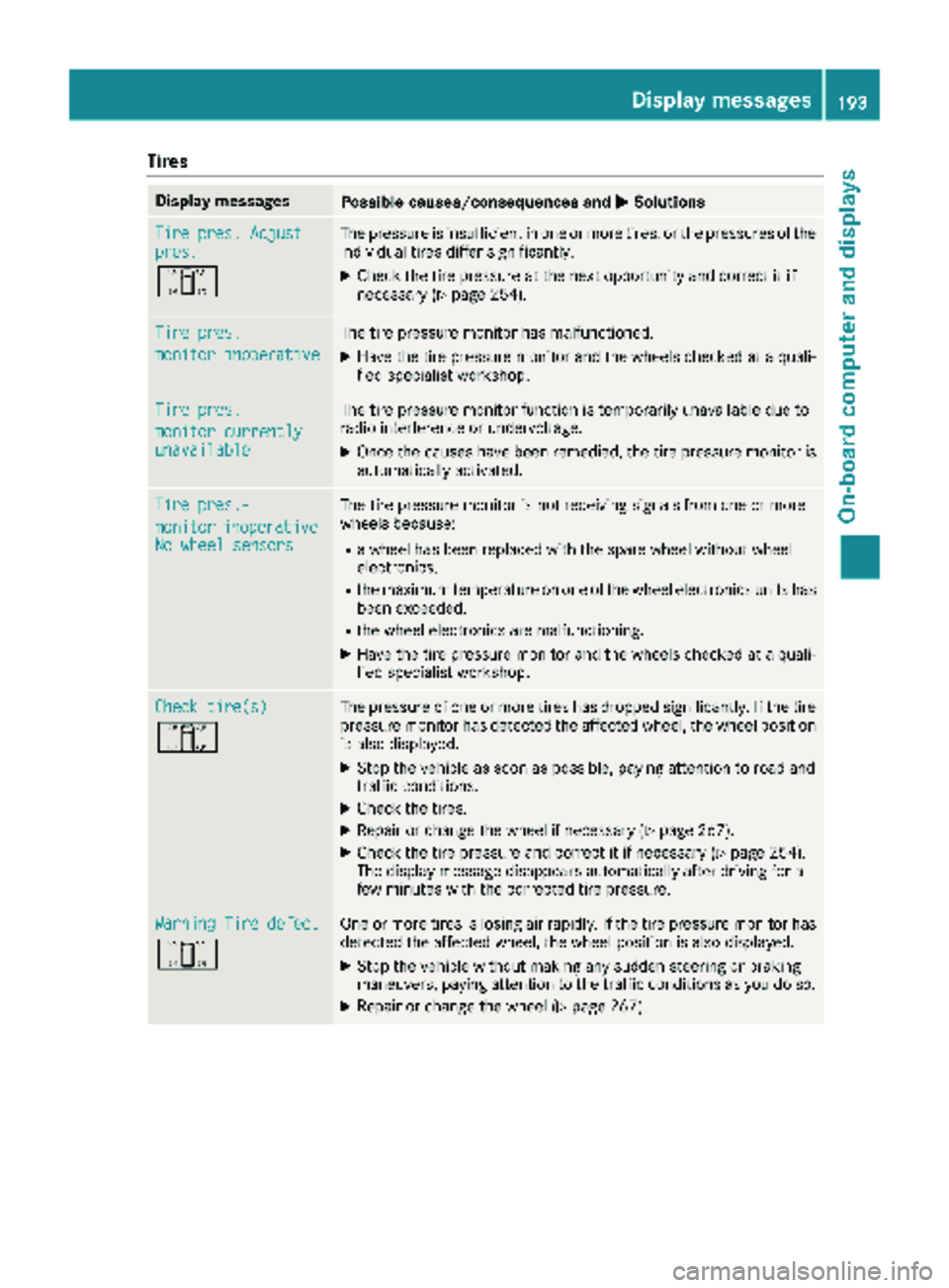
Tires
Display messagesPossible causes/consequences andMSolutions
Tire pres. Adjustpres.
O
The pressure is insufficient in one or more tires, or the pressures of the
individual tires differ significantly.
XCheck the tire pressure at the next opportunity and correct it if
necessary (Ypage 254).
Tire pres.
monitor inoperative
The tire pressure monitor has malfunctioned.
XHave the tire pressure monitor and the wheels checked at a quali-
fied specialist workshop.
Tire pres.
monitor currentlyunavailable
The tire pressure monitor function is temporarily unavailable due to
radio interference or undervoltage.
XOnce the causes have been remedied, the tire pressure monitor is
automatically activated.
Tire pres.-
monitorinoperativeNo wheel sensors
The tire pressure monitor is not receiving signals from one or more
wheels because:
Ra wheel has been replaced with the spare wheel without wheel
electronics.
Rthe maximum temperature on one of the wheel electronics units has
been exceeded.
Rthe wheel electronics are malfunctioning.
XHave the tire pressure monitor and the wheels checked at a quali-
fied specialist workshop.
Check tire(s)
O
The pressure of one or more tires has dropped significantly. If the tire
pressure monitor has detected the affected wheel, the wheel position
is also displayed.
XStop the vehicle as soon as possible, paying attention to road and
traffic conditions.
XCheck the tires.
XRepair or change the wheel if necessary (Ypage 267).
XCheck the tire pressure and correct it if necessary (Ypage 254).
The display message disappears automatically after driving for a
few minutes with the corrected tire pressure.
Warning Tire defect
O
One or more tires is losing air rapidly. If the tire pressure monitor has
detected the affected wheel, the wheel position is also displayed.
XStop the vehicle without making any sudden steering or braking
maneuvers, paying attention to the traffic conditions as you do so.
XRepair or change the wheel (Ypage 267).
Displa y messages193
On-board computer and displays
Z
Page 199 of 294
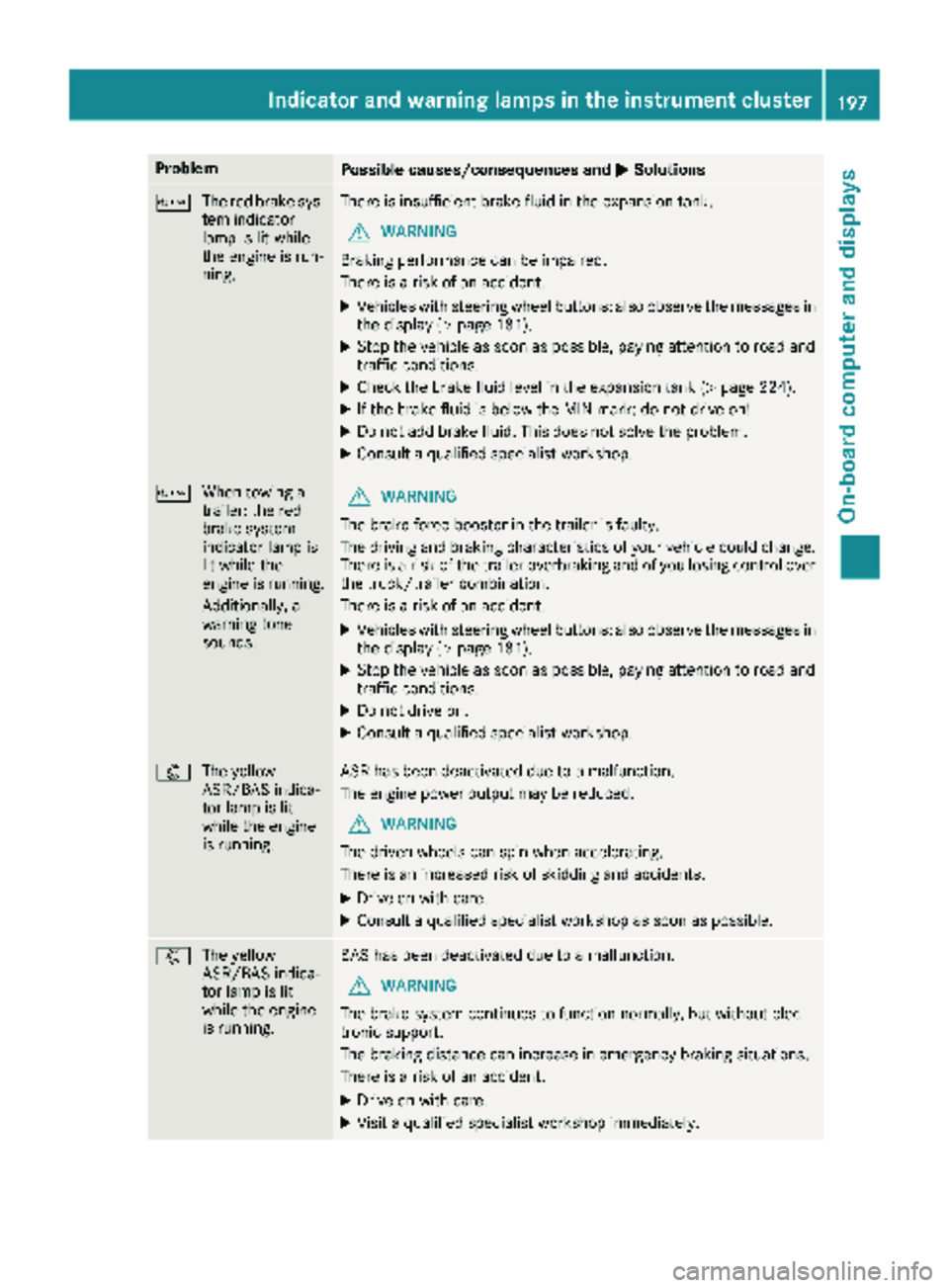
ProblemPossible causes/consequences andMSolutions
b
The red brake sys-
tem indicator
lamp is lit while
the engine is run-
ning.There is insufficient brake fluid in the expansion tank.
GWARNING
Braking performance can be impaired.
There is a risk of an accident.
XVehicles with steering wheel buttons: also observe the messages in
the display (Ypage 181).
XStop the vehicle as soon as possible, paying attention to road and
traffic conditions.
XCheck the brake fluid level in the expansion tank (Ypage 224).
XIf the brake fluid is below the MIN mark: do not drive on!
XDo not add brake fluid. This does not solve the problem.
XConsult a qualified specialist workshop.
b When towing a
trailer: the red
brake system
indicator lamp is
lit while the
engine is running.
Additionally, a
warning tone
sounds.GWARNING
The brake force booster in the trailer is faulty.
The driving and braking characteristics of your vehicle could change.
There is a risk of the trailer overbraking and of you losing control over
the truck/trailer combination.
There is a risk of an accident.
XVehicles with steering wheel buttons: also observe the messages in
the display (Ypage 181).
XStop the vehicle as soon as possible, paying attention to road and
traffic conditions.
XDo not drive on.
XConsult a qualified specialist workshop.
: The yellow
ASR/BAS indica-
tor lamp is lit
while the engine
is running.ASR has been deactivated due to a malfunction.
The engine power output may be reduced.
GWARNING
The driven wheels can spin when accelerating.
There is an increased risk of skidding and accidents.
XDrive on with care.
XConsult a qualified specialist workshop as soon as possible.
: The yellow
ASR/BAS indica-
tor lamp is lit
while the engine
is running.BAS has been deactivated due to a malfunction.
GWARNING
The brake system continues to function normally, but without elec-
tronic support.
The braking distance can increase in emergency braking situations.
There is a risk of an accident.
XDrive on with care.
XVisit a qualified specialist workshop immediately.
Indicator and warning lamps in the instrument cluster197
On-board computer and displays
Z
Page 215 of 294
Useful information
This Operator's Manual describes all models as
well as standard and optional equipment of your
vehicle that were available at the time of going
to print. Country-specific variations are possi-
ble. Note that your vehicle may not be equipped
with all of the described functions. This also
applies to systems and functions relevant to
safety.
Read the information on qualified specialist
workshops (
Ypage 27).
Loading guidelines
Important safety notes
GWARNING
As a result of improperly placed or unevenly
distributed loads, the center of gravity of the
load being transported may be too high or too
far back. This can significantly impair handling
as well as steering and braking characteris-
tics. There is a risk of an accident.
Always make sure that the center of gravity of
the load is:
Rbetween the axles
and
Ras low as possible, near the rear axle.
GWARNING
When objects are unsecured or inadequately
secured, they can slip, turn over or be thrown
about, striking vehicle occupants. This also
applies to:
Rluggage or loads
Ra rear bench seat which has been removed
and is being transported in the vehicle in an
exceptional case.
There is a risk of injury, particularly in the
event of braking maneuvers or abrupt
changes in direction.
Always stow objects in such a way that they
cannot be tossed about. Before traveling,
secure objects, luggage or loads to prevent
them slipping or tipping over. If you remove a
rear bench seat, it is advisable to store it out- side the vehicle.
GWARNING
When the permissible wheel loads, axle loads
and/or the maximum permissible gross vehi-
cle weight are exceeded, driving safety is
compromised. The handling as well as steer-
ing and braking characteristics may be signif-
icantly impaired. Overloaded tires may over-
heat, causing them to burst. There is a risk of
an accident.
When transporting a load, always observe the
permissible wheel loads, axle loads and the
maximum permissible gross vehicle weight
for the vehicle (including occupants).
GWARNING
When you load the roof, the center of gravity
of the vehicle rises and the driving character-
istics change. If you exceed the maximum roof
load, the driving characteristics, as well as
steering and braking, will be greatly impaired.
There is a risk of an accident.
Never exceed the maximum roof load and
adjust your driving style.
!If you are using a roof carrier, observe the
maximum roof load and maximum roof carrier
load.
You will find information about the maximum
roof load in the "Technical data" section
(
Ypage 287) and information about roof carri-
ers in the "Carrier systems" section
(
Ypage 217).
RDo not stack luggage or loads higher than the
backrests.
RStow objects preferably in the cargo com-
partment.
RWhen transporting luggage, always use the
cargo tie-down rings and a parcel net, if pres-
ent.
RUse cargo tie-down rings and fasteners which
are suitable for the weight and size of the
load.
Always observe the operating instructions of the respective manufacturer when using suitable
load securing aids or tie downs. In particular, the
information on service life.
Loading guidelines213
Transporting loads
Z