audio MERCEDES-BENZ WAGON 2016 User Guide
[x] Cancel search | Manufacturer: MERCEDES-BENZ, Model Year: 2016, Model line: WAGON, Model: MERCEDES-BENZ WAGON 2016Pages: 350, PDF Size: 6.71 MB
Page 42 of 350
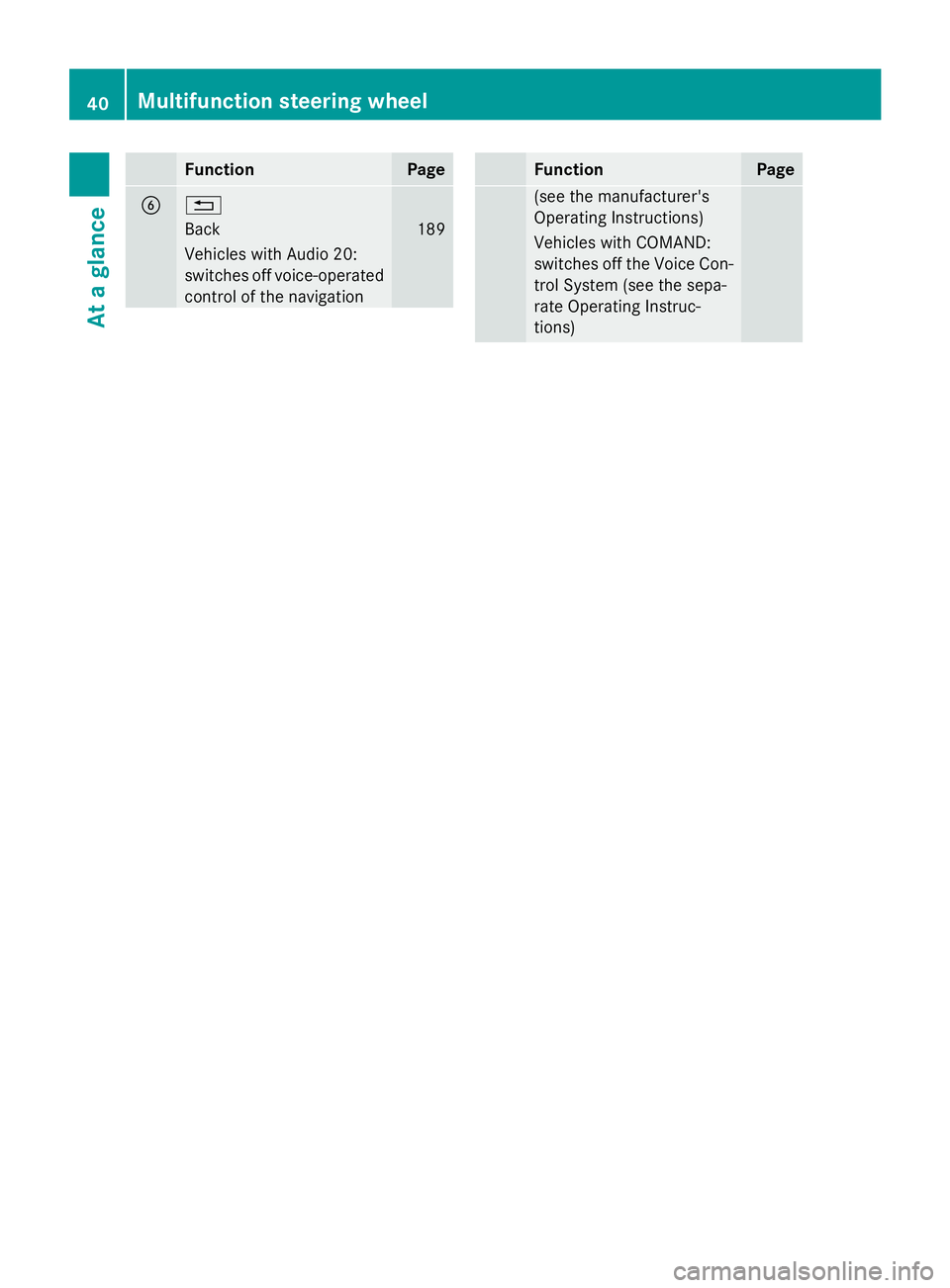
FunctionPage
B%
Back189
Vehicles with Audio 20:
switches off voice-operated
control of the navigation
FunctionPage
(see the manufacturer's
Operating Instructions)
Vehicles with COMAND:
switches off the Voice Con-
trol System (see the sepa-
rate Operating Instruc-
tions)
40Multifunction steering wheel
At a glance
Page 43 of 350
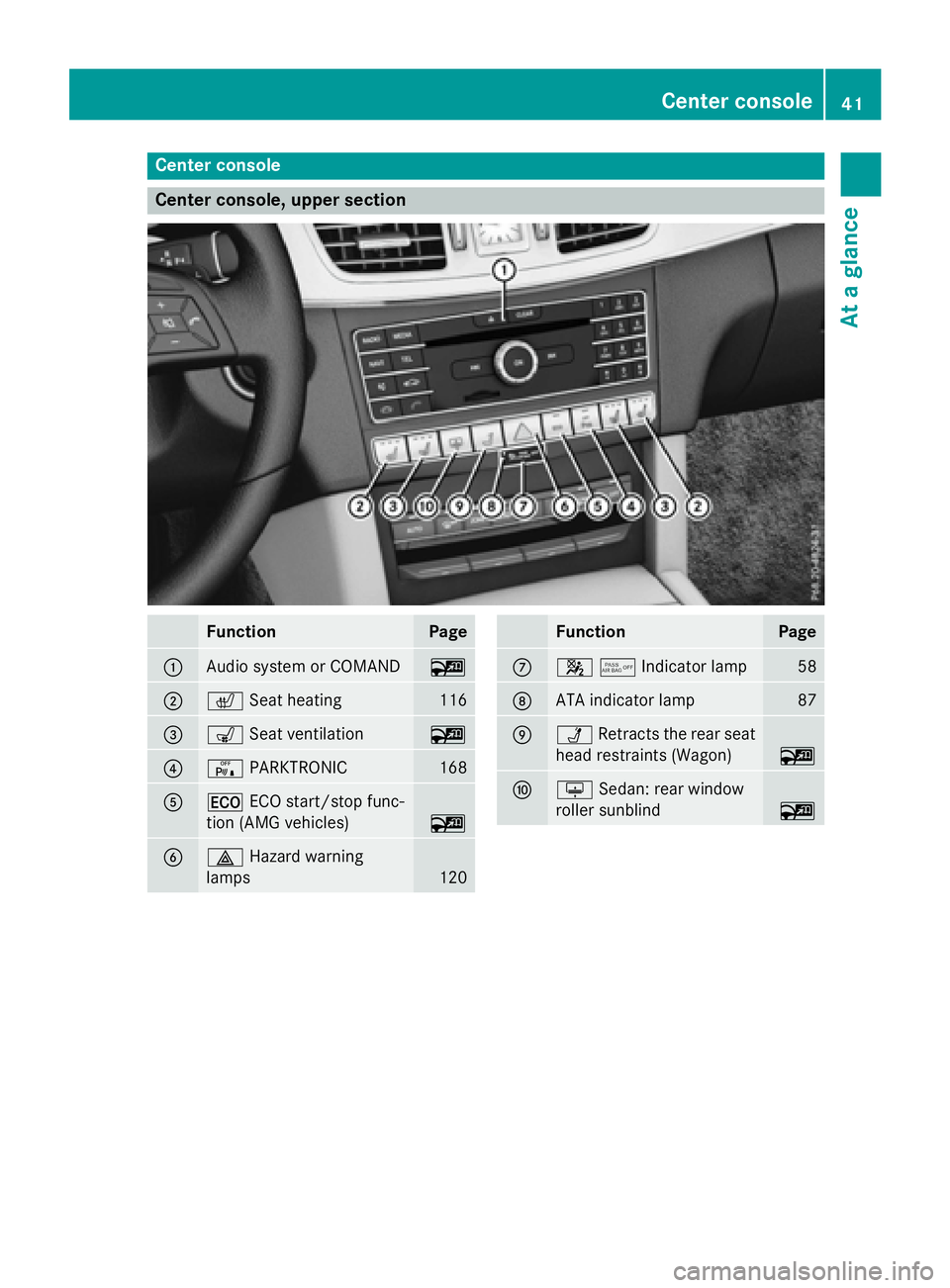
Center console
Center console, upper section
FunctionPage
:Audio system or COMAND~
;cSeat heating116
=sSeat ventilation~
?cPARKTRONIC168
A¤ECO start/stop func-
tion (AMG vehicles)
~
B£ Hazard warning
lamps
120
FunctionPage
C45Indicator lamp58
DATA indicator lamp87
EÜ Retracts the rear seat
head restraints (Wagon)
~
Fu Sedan: rear window
roller sunblind
~
Center console41
At a glance
Page 45 of 350
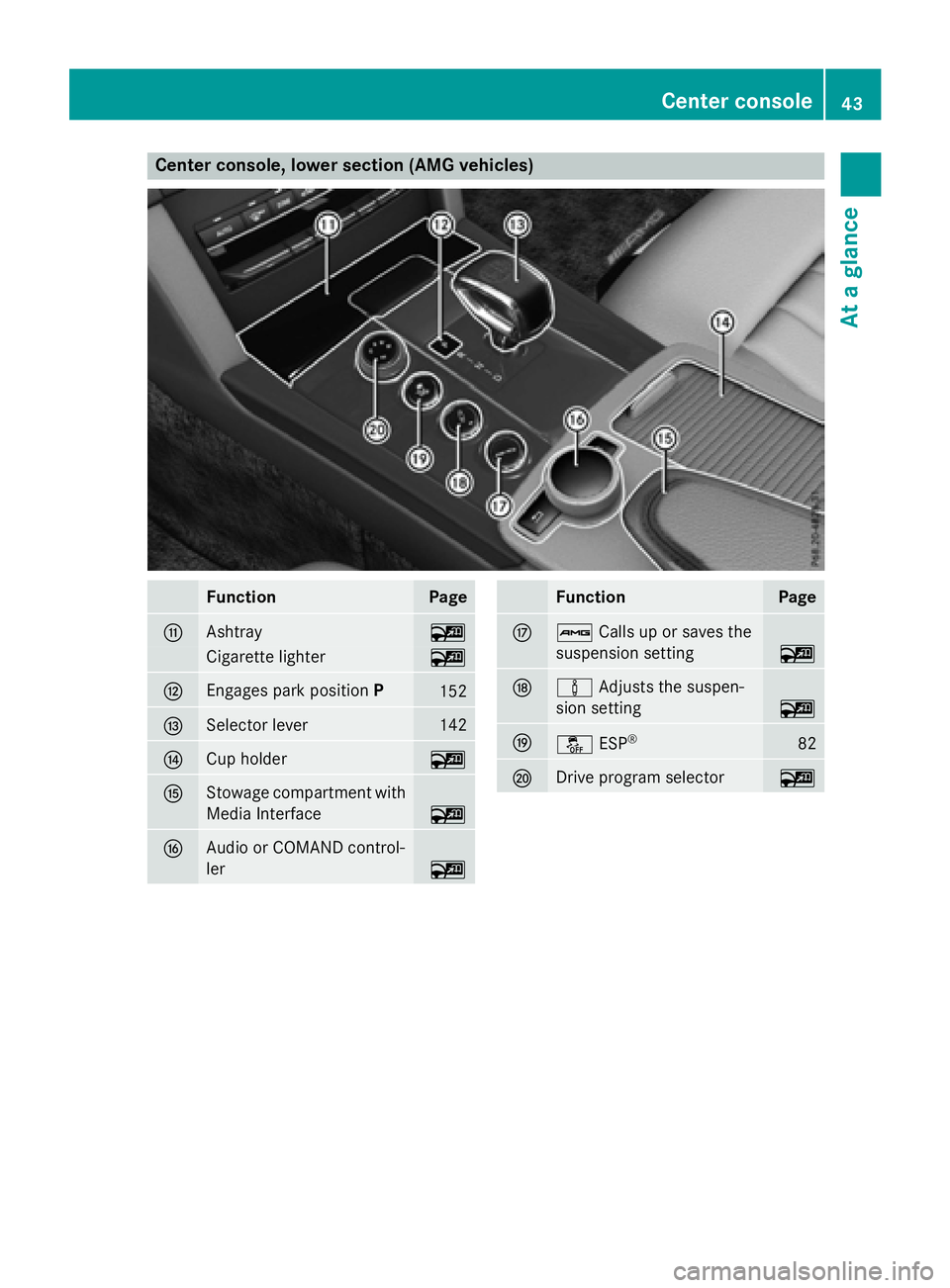
Center console, lower section (AMG vehicles)
FunctionPage
GAshtray~
Cigarette lighter~
HEngages park positionP152
ISelector lever142
JCup holder~
KStowage compartment with
Media Interface
~
LAudio or COMAND control-
ler
~
FunctionPage
MßCalls up or saves the
suspension setting
~
Nà Adjusts the suspen-
sion setting
~
Oå ESP®82
PDrive program selector~
Center console43
At a glance
Page 173 of 350
Active Parking Assist may possibly indicate
parking spaces which are not suitable for
parking, for example:
Rwhere parking or stopping is prohibited
Rin front of driveways or entrances and exits
Ron unsuitable surfaces
Parking tips:
ROn narrow roads, drive as close to the park-
ing space as possible.
RParking spaces that are littered or over-
grown might be identified or measured
incorrectly.
RParking spaces that are partially occupied
by trailer drawbars might not be identified
as such or be measured incorrectly.
RSnowfall or heavy rain may lead to a parking
space being measured inaccurately.
RPay attention to the PARKTRONIC
(
Ypage 170 )warning messages during the
parking procedure.
RYou can intervene in the steering procedure
to correct it at any time. Active Parking
Assist will then be canceled.
RWhen transporting a load which protrudes
from your vehicle, you should not use
Active Parking Assist.
RNever use Active Parking Assist when snow
chains are installed.
RMake sure that the tire pressures are
always correct. This has a direct influence
on the parking characteristics of the vehi-
cle.
Use Active Parking Assist for parking spaces:
Rparallel or at right angles to the direction of
travel
Rthat are on straight roads, not bends
Rthat are on the same level as the road, e.g.
not on the pavement
Information in the Digital Operator's
Manual
In the Digital Operator's Manual you will find
information on the following topics:
RDetecting parking spaces
RParking
RExiting a parking space
RCanceling Active Parking Assist
Rear view camera
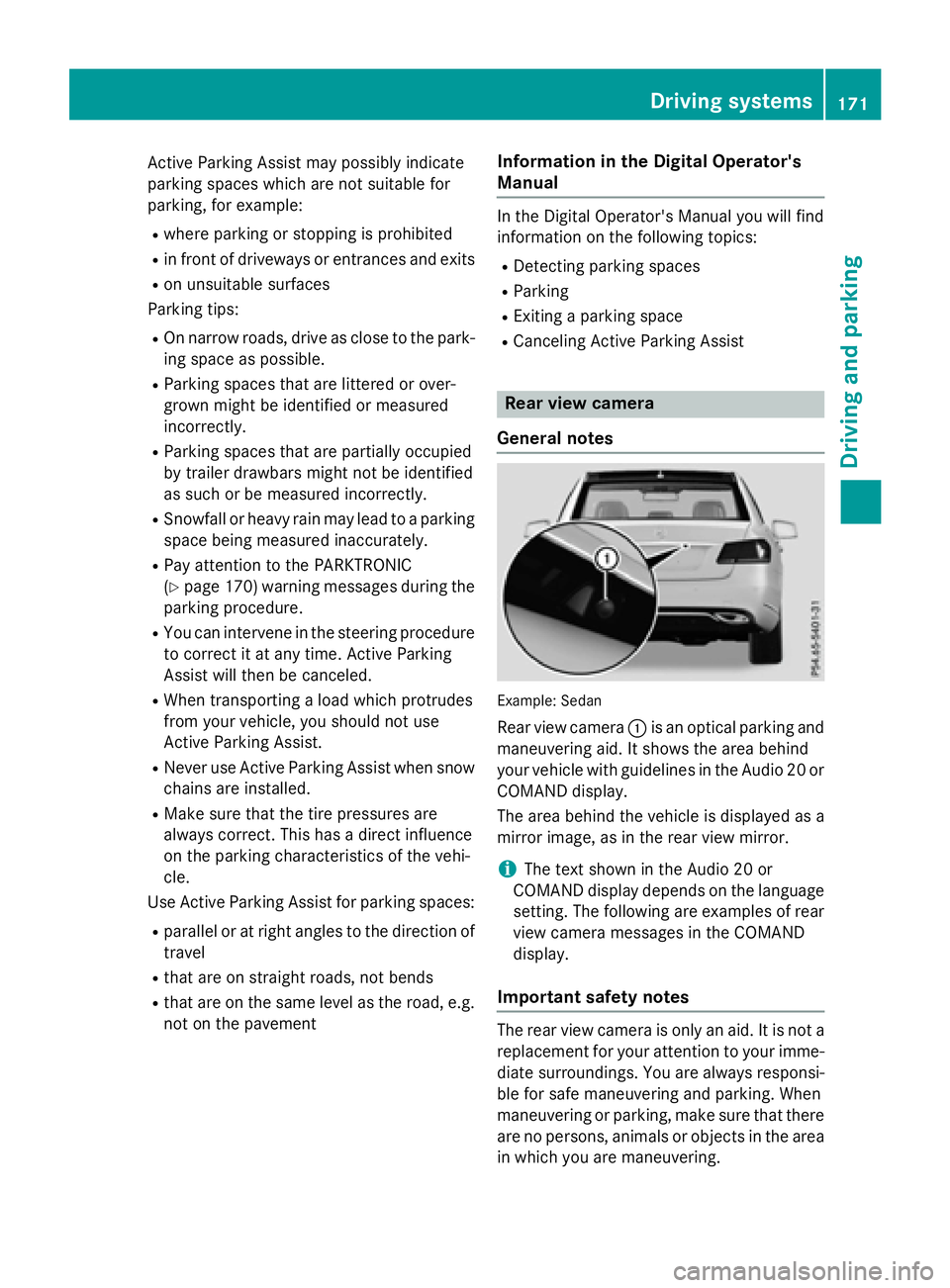
General notes
Example :Sedan
Rear view camera :is an optical parking and
maneuvering aid. It shows the area behind
your vehicle with guidelines in the Audio 20 or
COMAND display.
The area behind the vehicle is displayed as a
mirror image, as in the rear view mirror.
iThe text shown in the Audio 20 or
COMAND display depends on the language
setting. The following are examples of rear
view camera messages in the COMAND
display.
Important safety notes
The rear view camera is only an aid. It is not a
replacement for your attention to your imme- diate surroundings. You are always responsi-
ble for safe maneuvering and parking. When
maneuvering or parking, make sure that there
are no persons, animals or objects in the area
in which you are maneuvering.
Driving systems171
Driving and parking
Z
Page 174 of 350
Under the following circumstances, the rear
view camera will not function, or will function
in a limited manner:
Rif the trunk lid or tailgate is open
Rin heavy rain, snow or fog
Rat night or in very dark places
Rif the camera is exposed to very bright light
Rif the area is lit by fluorescent bulbs or LED
lighting (the display may flicker)
Rif there is a sudden change in temperature,
e.g. when driving into a heated garage in
winter
Rif the camera lens is dirty or obstructed.
Observe the notes on cleaning
(
Ypage 268)
Rif the rear of your vehicle is damaged. In this
event, have the camera position and setting
checked at a qualified specialist workshop
The field of vision and other functions of the
rear view camera may be restricted due to
additional accessories on the rear of the vehi-
cle (e.g. license plate holder, bicycle rack).
On vehicles with height-adjustable chassis,
leaving the standard height can result in inac-
curacies in the guide lines, depending on
technical conditions.
iThe rear view camera is protected from
raindrops and dust by means of a flap.
When the rear view camera is activated,
this flap opens.
The flap closes again when:
Ryou have finished the maneuvering proc-
ess
Ryou switch off the engine
Ryou open the trunk
Observe the notes on cleaning
(
Ypage 268).
For technical reasons, the flap may remain
open briefly after the rear view camera has
been deactivated.
!Objects not at ground level may appear to
be further away than they actually are, e.g.:
Rthe bumper of a parked vehicle
Rthe drawbar of a trailer
Rthe ball coupling of a trailer tow hitch
Rthe rear section of an HGV
Ra slanted post
Use the guidelines only for orientation.
Approach objects no further than the bot-
tom-most guideline.
The rear view camera may show a distorted
view of obstacles, show them incorrectly or
not at all. The rear view camera does not show
objects in the following positions:
Rvery close to the rear bumper
Runder the rear bumper
Rin the area immediately above the tailgate
handle
Activating/deactivating the rear view
camera
XTo activate: make sure that the SmartKey
is in position 2in the ignition lock.
XMake sure that the Activation by R
gearfunction is selected in Audio 20 or
COMAND, see the Digital Operator's Man-
ual.
XEngage reverse gear.
The rear view camera flap opens. The area
behind the vehicle is shown with guide lines
in the Audio 20 or COMAND display.
The image from the rear view camera is
available throughout the maneuvering
process.
To deactivate: the rear view camera deacti-
vates if you shift the transmission to Por after
driving forwards a short distance.
172Driving systems
Driving and parking
Page 175 of 350
Information in the Digital Operator's
Manual
Inthe Digital Operator's Manual you willfind
information on the following topics:
RMessages inthe Audio 20 or COMAND dis-
play
R"Reverse parking" function
RWide-ang lefunction
360° camera
General notes
The 360° camera isa system consisting of
four cameras.
The system analyzes images from the fol low-
ing cameras:
RRear view camera
RFront camera
RTwo cameras inthe exterior rear view mir-
rors
The cameras capture the immediate sur-
roun dings of the vehicle. The system sup-
ports you, e.g. when parking or if vision is
restricted at an exit.
You can show pictures from the 360° camera
in full-screen mode or in six different split-
screen views on the COMAND/A udio20 dis-
play. A split-screen view also includes a top
view of the vehicle. This view iscalculated
from the data supplied by the installed cam-
eras (virtual camera).
The six split-screen views are:
Rtop view and picture from the rear view
camera (130° viewing angle)
Rtop view and image from the front camera
(130° viewing angle without displaying the
maximum steering wheel angle)
Rtop view and enlarged rear view
Rtop view and enlarged front view
Rtop view and images from the side mirror
cameras (rear wheel view)
Rtop view and images from the sidemirror
cameras (front wheel view) When the function
isactive and you shift the
transmission from Dor Rto N, the dynamic
guidelines are hidden.
When you change between transmission
posit ionsDand R, you see the prev
iously
selected front or rear view.
Distances measured byPARKTRONIC will
also beoptical lydisplayed:
Rin split screen viewas red or yellow brack-
ets around the vehicle icon inthe top view,
or
Rat the bottom right as red or yellow brack-
ets around the vehicle symbol infull-screen
mode
The line thickness and color of the brackets
show how far the vehicle isfrom an object.
Ryellow brackets with th inlines:
PARKTRONIC isactive
Ryellow brackets with normal lines: an
object ispresent inclose range of the veh i-
cle
Rred line: an object ispresent inthe imme-
diat e close range of the vehicle
Important safety notes
The 360°camera isonly an aid and may show
a distorted viewof obstacles, show them
incorrectly or not at all. The 360°camera is
not a substitute for attenti vedriving.
You are always responsible for safe maneu-
vering and parking. When maneuvering or
parking, make sure that there are no persons,
animals or objects inthe area in which you are
maneuvering.
You are always responsible for safety, and
must always pay attention to your surround-
ings when parking and maneuvering. This
applie s to the areas behind, infront of and
beside the vehicle. You could otherwise
endanger yourself and others.
The 360° camera willnot function or will
function ina limited manner:
Rifthe doors are open
Rifthe exterior mirrors are folded in
Driving systems173
Driving and parking
Z
Page 176 of 350
Rif the trunk lid/tailgate is open
Rin heavy rain, snow or fog
Rat night or in very dark places
Rif the cameras are exposed to very bright
light
Rif the area is lit by fluorescent bulbs or LED
lighting (the display may flicker)
Rif there is a sudden change in temperature,
e.g. when driving into a heated garage in
winter
Rif the camera lenses are dirty or covered
Rif the vehicle components in which the
cameras are installed are damaged. In this
event, have the camera position and setting
checked at a qualified specialist workshop.
Do not use the 360° camera in this case. You
can otherwise injure others or cause damage to objects or the vehicle.
Guide lines are always shown at road level.
On vehicles with height-adjustable chassis,
depending on technical conditions, leaving
the standard height can result in:
Rinaccuracies in the guide lines
Rinaccuracies in the display of generated
images (top view)
Activation conditions
The 360° camera image can be displayed if:
Ryour vehicle is equipped with a 360° cam-
era
Rthe SmartKey is in position 2in the ignition
lock
RCOMAND/Audio 20 is switched on
Rthe 360° Camerafunction is switched on
Switching on the 360° camera
XPress the Øbutton in the center con-
sole for longer than two seconds.
Depending on whether position Dor Ris
engaged, the following is shown:
Ra split screen with top view and the
image from the front camera or
Ra split screen with top view and the
image from the rear view camera
or
XPress the Øbutton in the center con-
sole.
The vehicle menu is displayed.
XSelect 360° Cameraand press 7to con-
firm.
Depending on whether position Dor Ris
engaged, the following is shown:
Ra split screen with top view and the
image from the front camera or
Ra split screen with top view and the
image from the rear view camera
Activating the 360° camera using
reverse gear
The 360° camera images can be automati-
cally displayed by engaging reverse gear.
XMake sure that the SmartKey is in position
2 in the ignition lock.
XMake sure that the Activation by R
gearfunction is selected in COMAND/
Audio 20 (see the separate COMAND/
Audio 20 operating instructions).
XTo show the 360° camera image: engage
reverse gear.
The area behind the vehicle is shown in the
COMAND/Audio 20 display in split-screen
mode. You see the top view of the vehicle
and the image from the rear view camera.
Selecting the split-screen and full
screen displays
Switching between split screen views
XTo switch to the line with the vehicle icons:
slide 5the controller.
XTo select one of the vehicle icons: turn
3 the controller.
174Driving systems
Driving and parking
Page 177 of 350
XTo switch to180° View:turn 3 the
controller to select 180° View
and press
7 to confirm.
iThe 180° Viewoption is only available in
the following views:
RTop view with picture from the rear view
camera
RTop view with picture from the front cam-
era
Information in the Digital Operator's
Manual
In the Digital Operator's Manual you will find
information on the following topics:
RDisplays in the COMAND/Audio 20 display
RWide-angle function
RObject detection
Exiting 360° camera display mode
The 360° camera display is stopped
Rwhen you select transmission position P, or
Rwhen you are driving at moderate speeds
The previous display appears on the
COMAND/Audio 20 display. You can also
switch the display by selecting the &sym-
bol in the display and pressing 7the con-
troller to confirm.
ATTENTION ASSIST
General notes
ATTENTION ASSIST helps you during long,
monotonous journeys, such as on highways.
It is active in the 37 mph (60 km/h) to
125 mph (200 km/h) range. If ATTEN-
TION ASSIST detects typical indicators of fati-
gue or increasing lapses in concentration on
the part of the driver, it suggests taking a
break.
Important safety notes
ATTENTION ASSIST is only an aid to the
driver. It might not always recognize fatigue
or increasing inattentiveness in time or fail to
recognize them at all. The system is not a
substitute for a well-rested and attentive
driver.
The functionality of ATTENTION ASSIST is
restricted and warnings may be delayed or
not occur at all:
Rif the length of the journey is less than
approximately 30 minutes
Rif the road condition is poor, e.g. if the sur- face is uneven or if there are potholes
Rif there is a strong side wind
Rif you have adopted a sporty driving style
with high cornering speeds or high rates of
acceleration
Rif you are predominantly driving at a speed
below 37 mph (60 km/h) or above 124 mph
(200 km/h)
Rif you are driving with the DISTRONIC PLUS
Steering Assist activated
Rif the time has been set incorrectly
Rin active driving situations, such as when
you change lanes or change your speed
ATTENTION ASSIST is reset when you con-
tinue your journey and starts assessing your
tiredness again if:
Ryou switch off the engine
Ryou take off your seat belt and open the
driver's door, e.g. for a change of drivers or
to take a break
Displaying the attention level
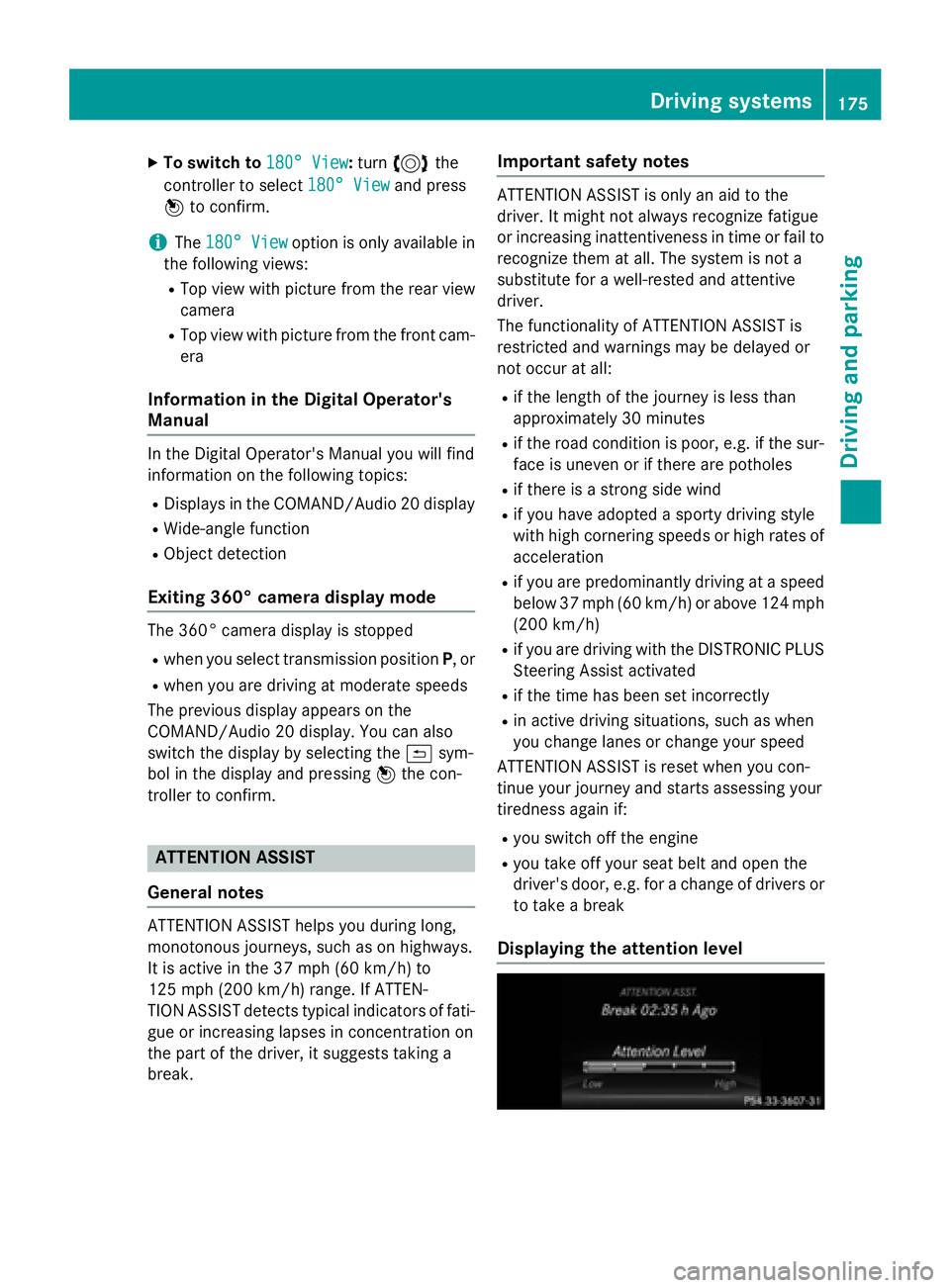
Driving systems175
Driving an d parking
Z
Page 191 of 350
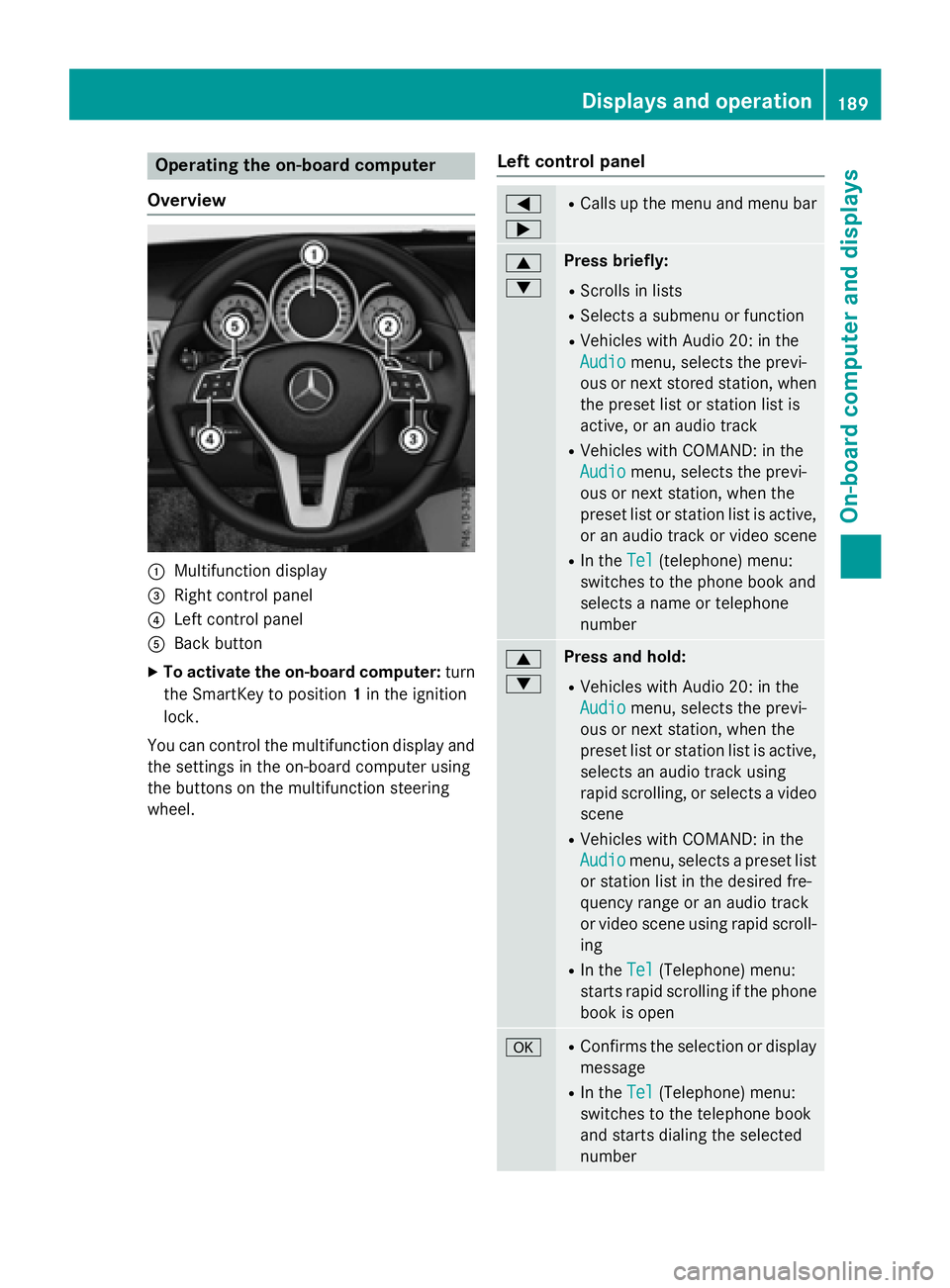
Operating the on-board computer
Overview
:Multifunction display
=Right control panel
?Left control panel
ABack button
XTo activate the on-board computer: turn
the SmartKey to position 1in the ignition
lock.
You can control the multifunction display and
the settings in the on-board computer using
the buttons on the multifunction steering
wheel.
Left control panel
=
;RCalls up the menu and menu bar
9
:Press briefly:
RScrolls in lists
RSelects a submenu or function
RVehicles with Audio 20: in the
Audio
menu, selects the previ-
ous or next stored station, when
the preset list or station list is
active, or an audio track
RVehicles with COMAND: in the
Audio
menu, selects the previ-
ous or next station, when the
preset list or station list is active,
or an audio track or video scene
RIn the Tel(telephone) menu:
switches to the phone book and
selects a name or telephone
number
9
:Press and hold:
RVehicles with Audio 20: in the
Audio
menu, selects the previ-
ous or next station, when the
preset list or station list is active,
selects an audio track using
rapid scrolling, or selects a video
scene
RVehicles with COMAND: in the
Audio
menu, selects a preset list
or station list in the desired fre-
quency range or an audio track
or video scene using rapid scroll-
ing
RIn the Tel(Telephone) menu:
starts rapid scrolling if the phone
book is open
aRConfirms the selection or display
message
RIn the Tel(Telephone) menu:
switches to the telephone book
and starts dialing the selected
number
Displays and operation189
On-board computer and displays
Z
Page 192 of 350
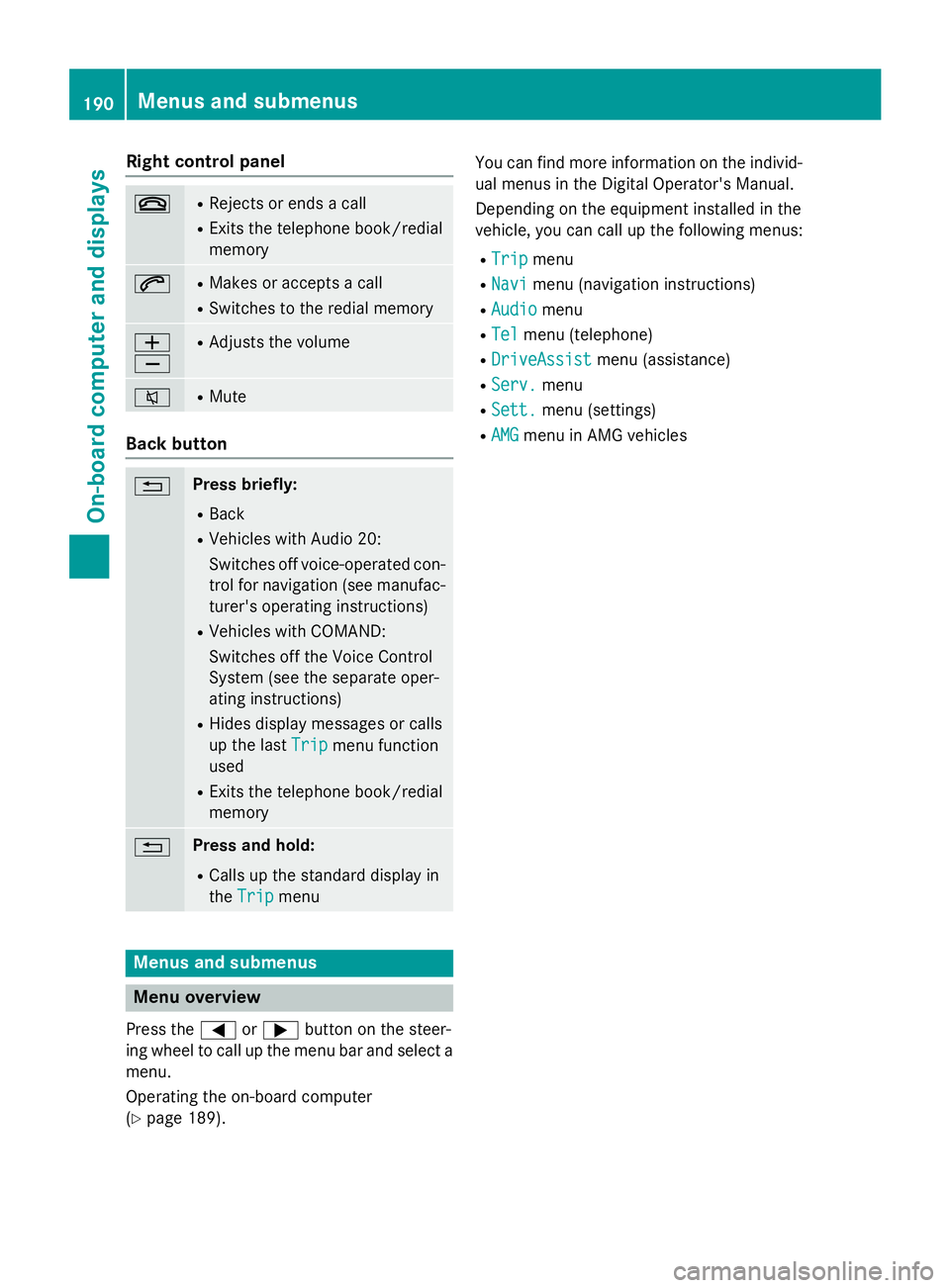
Right control panel
~RRejects or ends a call
RExits the telephone book/redial
memory
6RMakes or accepts a call
RSwitches to the redial memory
W
XRAdjusts the volume
8RMute
Back button
%Press briefly:
RBack
RVehicles with Audio 20:
Switches off voice-operated con-
trol for navigation (see manufac-
turer's operating instructions)
RVehicles with COMAND:
Switches off the Voice Control
System (see the separate oper-
ating instructions)
RHides display messages or calls
up the lastTrip
menu function
used
RExits the telephone book/redial
memory
%Press and hold:
RCalls up the standard display in
the Trip
menu
Menus and submenus
Menu overview
Press the =or; button on the steer-
ing wheel to call up the menu bar and select a
menu.
Operating the on-board computer
(
Ypage 189). You can find more information on the individ-
ual menus in the Digital Operator's Manual.
Depending on the equipment installed in the
vehicle, you can call up the following menus:
RTripmenu
RNavimenu (navigation instructions)
RAudiomenu
RTelmenu (telephone)
RDriveAssistmenu (assistance)
RServ.menu
RSett.menu (settings)
RAMGmenu in AMG vehicles
190Menus and submenus
On-board computer and displays