radio MERCEDES-BENZ WAGON 2016 User Guide
[x] Cancel search | Manufacturer: MERCEDES-BENZ, Model Year: 2016, Model line: WAGON, Model: MERCEDES-BENZ WAGON 2016Pages: 350, PDF Size: 6.71 MB
Page 140 of 350

iThe SmartKey can be turned in the igni-
tion lock even if it is not the correct Smart- Key for the vehicle. The ignition is not
switched on. The engine cannot be started.
KEYLESS-GO
General notes
Vehicles with KEYLESS-GO are equipped with
SmartKeys featuring the integrated KEYLESS-GO function and a detachable Start/Stop but-
ton.
The Start/Stop button must be inserted in the
ignition lock and the SmartKey must be in the vehicle.
When you insert the Start/Stop button into
the ignition lock, the system needs approx-
imately two seconds recognition time. You
can then use the Start/Stop button.
Pressing the Start/Stop button several times
in succession corresponds to the different
key positions in the ignition lock. This is only
the case if you are not depressing the brake
pedal.
If you depress the brake pedal and press the
Start/Stop button, the engine starts immedi-
ately.
A check which periodically establishes a radio
connection between the vehicle and the
SmartKey determines whether a valid Smart-
Key is in the vehicle. This occurs, for example,
when starting the engine.
To start the vehicle without actively using the
SmartKey:
Rthe Start/Stop button must be inserted in
the ignition lock.
Rthe SmartKey must be in the vehicle.
Rthe vehicle must not be locked with the
SmartKey or KEYLESS-GO (
Ypage 91).
Do not keep the KEYLESS-GO key:
Rwith electronic devices, e.g. a mobile
phone or another SmartKey.
Rwith metallic objects, e.g. coins or metal
foil.
Rinside metallic objects, e.g. a metal case. This can affect the functionality of KEYLESS-
GO.
If you lock the vehicle with the SmartKey's
remote control or with KEYLESS-GO, after a
short time:
Ryou will not be able to switch on the ignition
with the Start/Stop button.
Ryou will not be able to start the engine with
the Start/Stop button until the vehicle is
unlocked again.
If you lock the vehicle centrally using the but-
ton on the front door (
Ypage 95), you can
continue to start the engine with the Start/
Stop button.
The engine can be switched off while the vehi-
cle is in motion by pressing and holding the
Start/Stop button for three seconds. This
function operat
es independently of the ECO
start/stop automatic engine switch-off func-
tion.
Key positions with KEYLESS-GO
:Start/Stop button
;Ignition lock
As soon as the ignition is switched on, all the
indicator lamps in the instrument cluster light
up. Further information on situations where
an indicator lamp either fails to go out after
starting the engine or lights up while driving
(
Ypage 204).
If Start/Stop button :has not yet been
pressed, this corresponds to the key being
removed from the ignition.
138Driving
Driving and parking
Page 216 of 350
General notes
The Audio 20/COMAND section in these
operating instructions describes the basic
operating principles. More information can be
found in the Digital Operator's Manual.
Important safety notes
GWARNING
Modifications to electronic components, their software as well as wiring can impair their
function and/or the function of other net-
worked components. In particular, systems
relevant to safety could also be affected. As a
result, these may no longer function as inten-
ded and/or jeopardize the operating safety of
the vehicle. There is an increased risk of an
accident and injury.
Never tamper with the wiring as well as elec-
tronic components or their software. You
should have all work to electrical and elec-
tronic equipment carried out at a qualified
specialist workshop.
If you make any changes to the vehicle elec-
tronics, the general operating permit is ren-
dered invalid.
GWARNING
If you operate information systems and com-
munication equipment integrated in the vehi-
cle while driving, you will be distracted from
traffic conditions. You could also lose control
of the vehicle. There is a risk of an accident.
Only operate the equipment when the traffic
situation permits. If you are not sure that this
is possible, park the vehicle paying attention
to traffic conditions and operate the equip-
ment when the vehicle is stationary.
You must observe the legal requirements for
the country in which you are currently driving
when operating Audio 20/COMAND. Audio 20/COMAND calculates the route to
the destination without taking account of the
following, for example:
Rtraffic lights
Rstop and yield signs
Rmerging lanes
Rparking or stopping in a no parking/no
stopping zone
Rother road and traffic rules and regulations
Rnarrow bridges
Audio 20/COMAND can give incorrect navi-
gation commands if the actual street/traffic
situation does not correspond with the digital map's data. Digital maps do not cover all
areas nor all routes in an area. For example, a
route may have been diverted or the direction
of a one-way street may have changed.
For this reason, you must always observe
road and traffic rules and regulations during
your journey. Road and traffic rules and reg-
ulations always have priority over the sys-
tem's driving recommendations.
Navigation announcements are intended to
direct you while driving without diverting your
attention from the road and driving.
Please always use this feature instead of con-
sulting the map display for directions. Look-
ing at the icons or map display can distract
you from traffic conditions and driving, and
increase the risk of an accident.
Bear in mind that at a speed of only 30 mph
(approximately 50 km/h) your vehicle covers
a distance of 44 feet (approximately 14 m)
per second.
This equipment complies with FCC radiation
exposure limits set forth for uncontrolled
equipment and meets the FC
C radio fre-
quency (RF) Exposure Guidelines in Supple-
ment C to OET65.
This equipment has very low levels of RF
energy that is deemed to comply without
maximum permissive exposure evaluation
(MPE). But it is desirable that it should be
installed and operated with at least 8inches
(20 cm) and more between the radiator and a
214Important safety notes
Audio 20/COMAND
Page 218 of 350
Audio 20/COMAND operating system
Overview
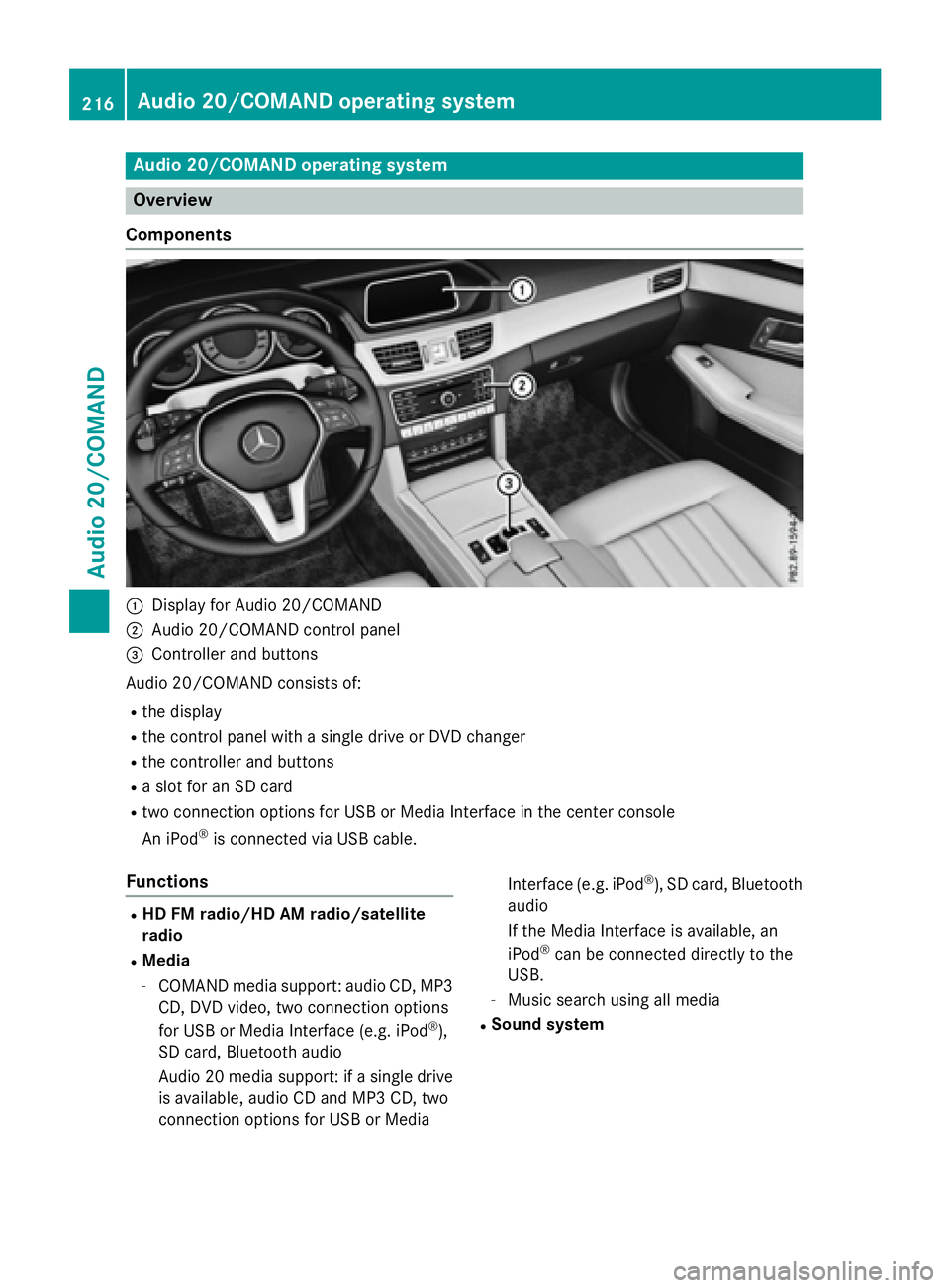
Components
:Display for Audio 20/COMAND
;Audio 20/COMAND control panel
=Controller and buttons
Audio 20/COMAND consist sof:
Rth edisplay
Rth econtrol panel wit h asingle driv eor DV Dchanger
Rthecontroller and buttons
Raslot for an SD car d
Rtwo connection option sfor US Bor Medi aInterface in th ecenter console
An iPod
®is connecte dvia US Bcable.
Functions
RHD FM radio/HD AM radio/satellit e
radio
RMedia
-COMAND media support :audio CD, MP3
CD, DV Dvideo, two connection option s
for US Bor Medi aInterface (e.g. iPod
®),
SD card, Bluetoot haudio
Audio 20 media support :if asingle driv e
is available, audio CD and MP3 CD, two
connection option sfor US Bor Medi a Interface (e.g. iPod
®), SD card, Bluetoot
h
audio
If th eMedi aInterface is available, an
iPod
®can be connecte ddirectly to th e
USB.
-Music search usin gall media
RSound system
216Audio 20/COMAND operating system
Audio 20/COMAND
Page 219 of 350
You can select from the following sound
systems:
-harman/kardon®Logic7®surround
sound system
-Bang & Olufsen BeoSound AMG sound
system (COMAND)
RNavigation system
-Navigation via the hard drive (COMAND)
-Navigation via an SD card (if available for Audio 20)
-Destination entry, e.g. using keyword
search (COMAND)
-Realistic 3D map with textured city mod-
els
-Personal POIs and routes using SD mem-
ory card (COMAND)
-Navigation functions, e.g. compass dis-
play (COMAND)
-Dynamic route guidance with traffic
reports via SIRIUS satellite radio
(COMAND)
RCommunication
-Messaging functions: text messages, e-
mail (COMAND)
-Address book (COMAND)
-Internet browser (COMAND)
-Mercedes-Benz Apps with Google™,
Local Search, Destination/Route down-
load, Facebook, Google Street View™,
stock prices, news and much more
-Mercedes-Benz mobile website
-WiFi interface for the connection of a
smartphone to COMAND
-WiFi hotspot functionality to connect a
tablet PC or notebook in order to enable
access to the Internet using the custom-
er's mobile phone (COMAND)
RSIRIUS Weather (COMAND)
-Weather data as an information chart
(current forecast, 5-day preview,
detailed information)
-Weather data on the weather map, e.g.
rain radar data, storm characteristics and the track of tropical cyclones (hurri-
canes, tornadoes)
RVehicle functions
-Vehicle settings, e.g. fuel consumption
-360° camera
-Rear view camera
-Seat functions
RFavorites button (if available)
Fast access to favorites functions using the
favorites button on the controller
Display
General notes
!Do not use the space in front of the dis-
play for storage. Objects placed here could damage the display or impair its function.
Avoid any direct contact with the display
surface. Pressure on the display surface
may result in impairments to the display,
which could be irreversible.
Wearing polarized sunglasses may impair
your ability to read the display.
The display has an automatic temperature-
controlled switch-off feature. The brightness
is automatically reduced if the temperature is
too high. The display may then temporarily
switch off completely.
Overview
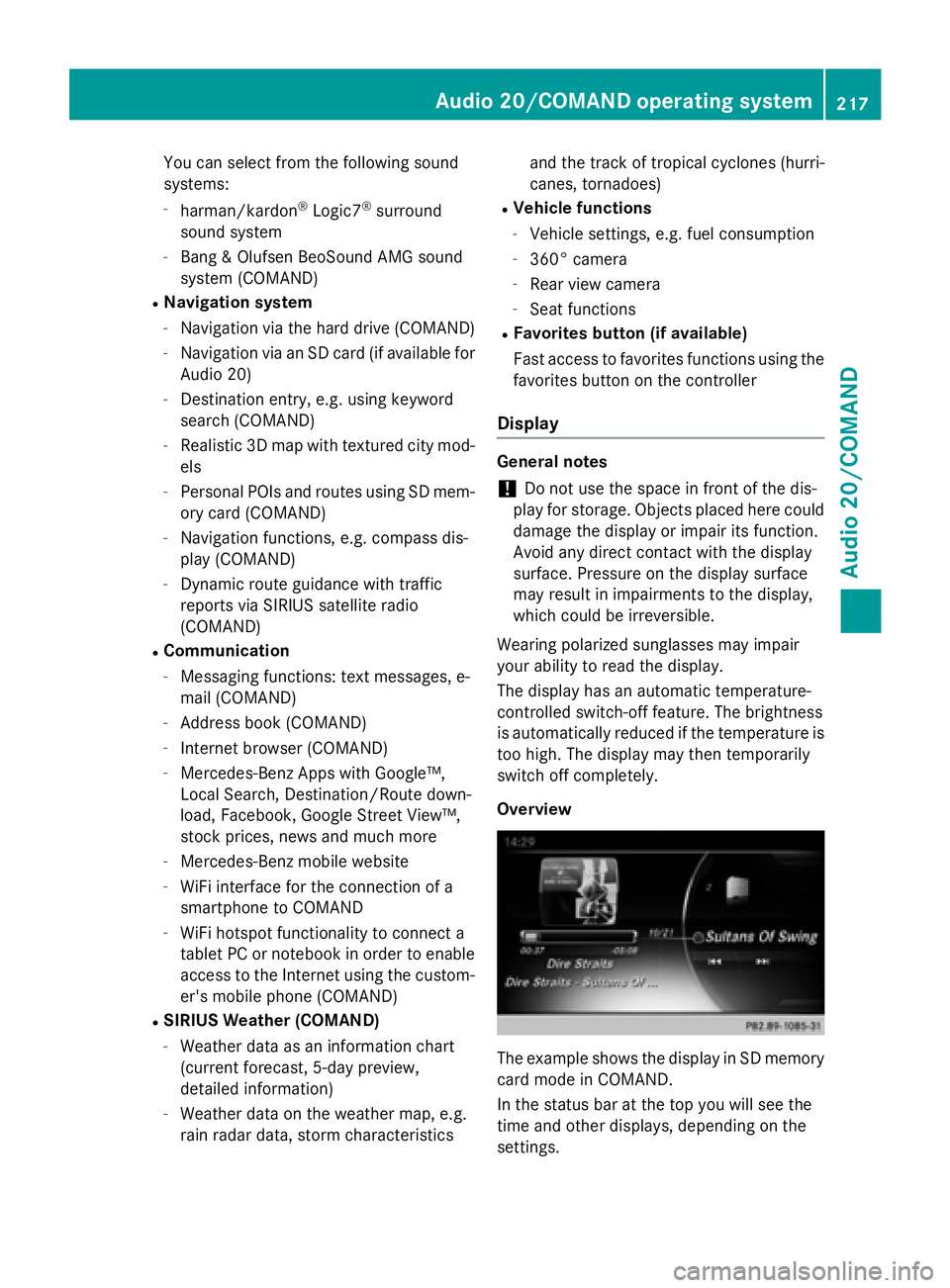
The example shows the display in SD memory
card mode in COMAND.
In the status bar at the top you will see the
time and other displays, depending on the
settings.
Audio 20/COMAND operating system217
Audio 20/COMAND
Z
Page 221 of 350
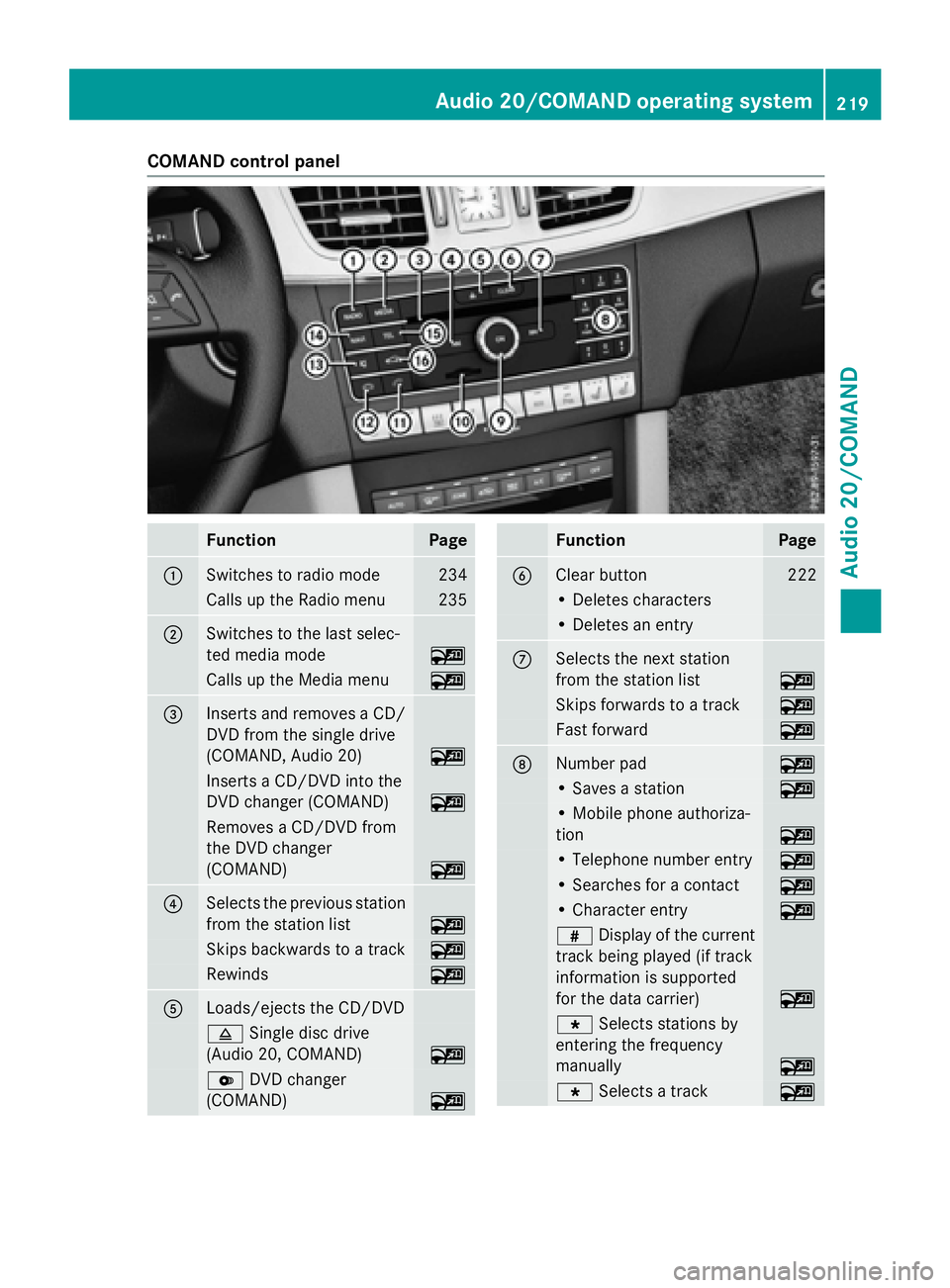
COMAND control panel
FunctionPage
:Switches to radio mode234
Calls up the Radio menu235
;Switches to the last selec-
ted media mode
~
Calls up the Media menu~
=Inserts and removes a CD/
DVD from the single drive
(COMAND, Audio 20)
~
Inserts a CD/DVD into the
DVD changer (COMAND)
~
Removes a CD/DVD from
the DVD changer
(COMAND)
~
?Selects the previous station
from the station list
~
Skips backwards to a track~
Rewinds~
ALoads/ejects the CD/DVD
8Single disc drive
(Audio 20, COMAND)
~
V DVD changer
(COMAND)
~
FunctionPage
BClear button222
• Deletes characters
• Deletes an entry
CSelects the next station
from the station list
~
Skips forwards to a track~
Fast forward~
DNumber pad~
• Saves a station~
• Mobile phone authoriza-
tion
~
• Telephone number entry~
• Searches for a contact~
• Character entry~
z Display of the current
track being played (if track
information is supported
for the data carrier)
~
g Selects stations by
entering the frequency
manually
~
g Selects a track~
Audio 20/COMAND operating system219
Audio 20/COMAND
Z
Page 223 of 350
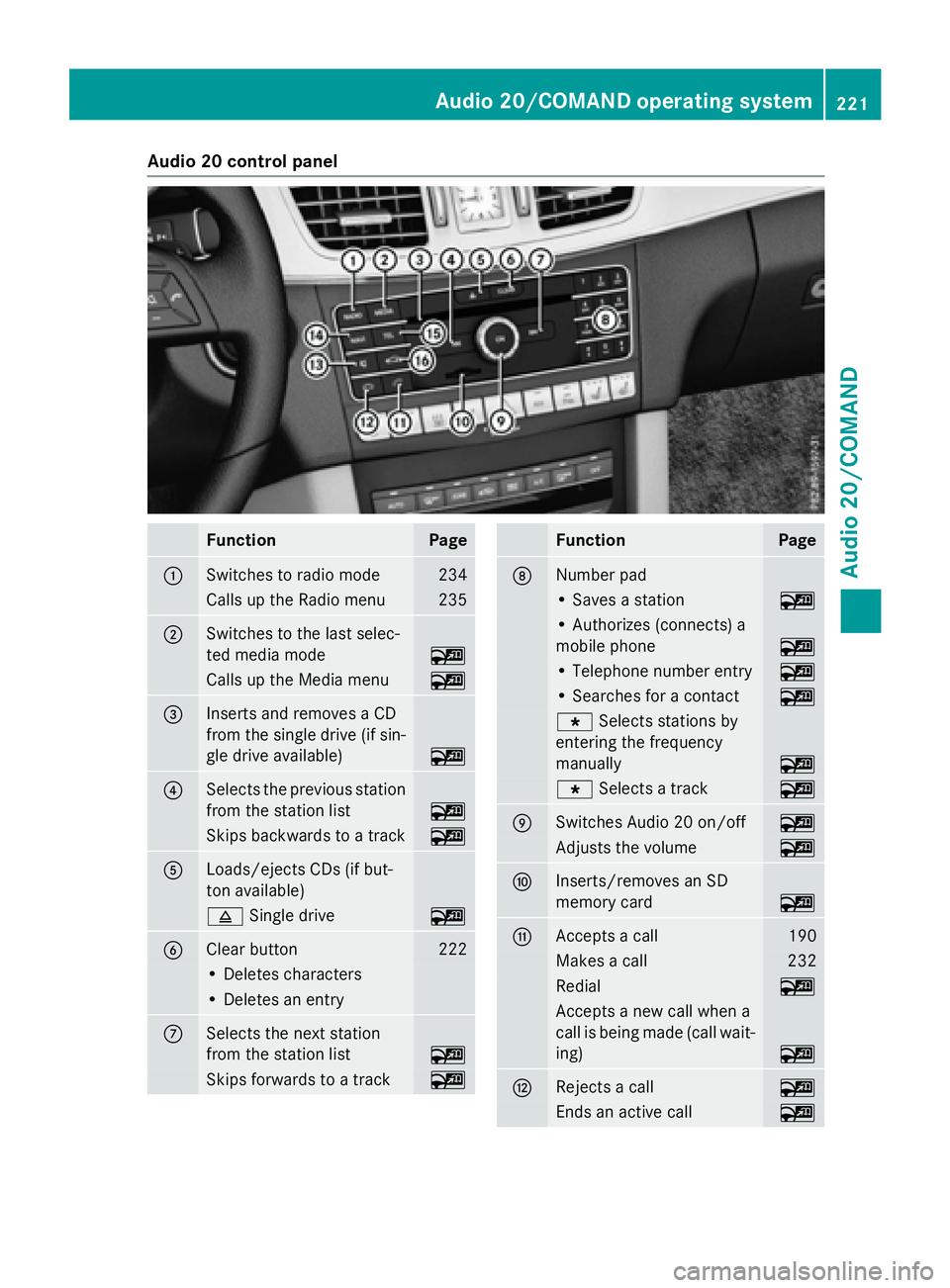
Audio20control panel
FunctionPage
:Switches to radi omod e234
Calls up th eRadio men u235
;Switches to th elast selec-
te dmedia mod e
~
Calls up theMedi amen u~
=Inserts and remove s aCD
from th esingle driv e(if sin -
gle driv eavailable)
~
?Selects th eprevious station
from th estation list
~
Skips backwards to atrack~
ALoads/ejects CDs (if but -
to navailable)
8 Single driv e~
BClear butto n222
•Deletes characters
•Deletes an entr y
CSelects thene xt station
from th estation list
~
Skips forwards to atrack~
FunctionPage
DNumber pad
• Saves astation~
• Authorizes (connects ) a
mobile phon e
~
•Telephon enumber entr y~
•Searches for acontact~
g Selects stationsby
enterin gth efrequency
manually
~
g Selects atrack~
ESwitches Audio 20 on/off~
Adjusts th evolume~
FIn serts/removes an SD
memory car d
~
GAccepts acall190
Makes acall23 2
Redial~
Accept s anewcall when a
call is bein gmade (call wait -
ing )
~
HRejects acall~
Ends an active call~
Audio 20/COMAND operating system221
Audio 20/COMAND
Z
Page 228 of 350
Calculating the route
XTo confirmStart: press the controller.
The route is calculated with the current
route type.
Selecting a route type
XShow the menu (Ypage 225).
XTo select Settings: turn and press the
controller.
XSelect Route Settings.
XSelect a route type.
The route type is used for the next route
calculation. If Dynamic Traffic Route
,
Dynamic
TRF.RouteAfterRequestor
Eco Route
has been selected, traffic
reports on the route are taken into account.
iYou can map the route to the destination
yourself with up to four intermediate stops.
Route guidance
Navigation announcements and route guid-
ance displays guide you to your destination.
The information given relating to destination
entry applies to COMAND. For information on
Audio 20, see the manufacturer's operating
instructions.
iAudio 20/COMAND can give incorrect
navigation commands if the actual street/
traffic situation does not correspond with
the digital map's data. Road and traffic
rules and regulations always have priority
over system driving recommendations.
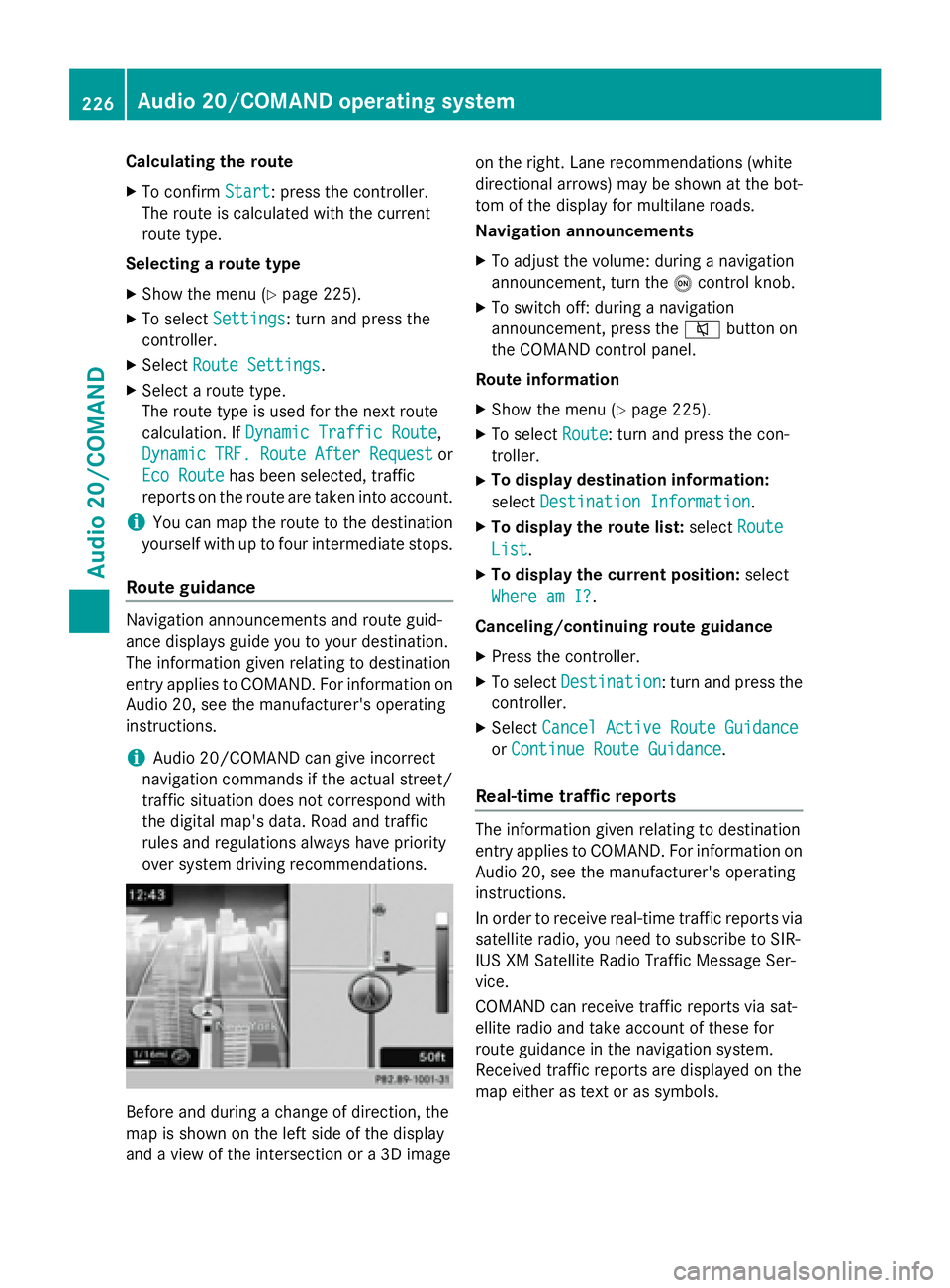
Before and during a change of direction, the
map is shown on the left side of the display
and a view of the intersection or a 3D image on the right. Lane recommendations (white
directional arrows) may be shown at the bot-
tom of the display for multilane roads.
Navigation announcements
XTo adjust the volume: during a navigation
announcement, turn the
ocontrol knob.
XTo switch off: during a navigation
announcement, press the 8button on
the COMAND control panel.
Route information
XShow the menu (Ypage 225).
XTo select Route: turn and press the con-
troller.
XTo display destination information:
select Destination Information
.
XTo display the route list: selectRoute
List.
XTo display the current position: select
Where am I?
.
Canceling/continuing route guidance
XPress the controller.
XTo select Destination: turn and press the
controller.
XSelect Cancel Active Route Guidance
orContinue Route Guidance.
Real-time traffic reports
The information given relating to destination
entry applies to COMAND. For information on
Audio 20, see the manufacturer's operating
instructions.
In order to receive real-time traffic reports via
satellite radio, you need to subscribe to SIR-
IUS XM Satellite Radio Traffic Message Ser-
vice.
COMAND can receive traffic reports via sat-
ellite radio and take account of these for
route guidance in the navigation system.
Received traffic reports are displayed on the
map either as text or as symbols.
226Audio 20/COMAND operating system
Audio 20/COMAND
Page 236 of 350
The access data for the mobile phone net-
work provider is selected once for the mobile
phone connected and is loaded again each
time the mobile phone is connected.
You must set the access data of the mobile
phone network provider who provides the
SIM card and the associated data package
(access settings) for the connected mobile
phone. The access data remains the same
when you are in a different country (roaming).
The access data of another network isnot
selected.
Setting access data
Set the access data in accordance with your
data package. You can contact your mobile
phone network provider to obtain the precise
access data.
Explanation of the access data
Input fieldMeaning
Phone Num‐
ber:
Access number for estab-
lishing the connection
The access number
depends on the mobile
phone used. For GSM/
UMTS mobile phones,
*99***1#
is used as a
standard.
Access
Point:
APN network access point
(Access PointName)
You can obtain this infor-
mation from your mobile
phone network provider.
Entry is not necessary for
all mobile phone network
providers and mobile
phones.
PDP Type:Internet protocol used.
You can obtain this infor-
mation from your mobile
phone network provider.
Input fieldMeaning
User ID:The user identification
can be obtained from your
mobile phone network
provider.
Entry is not necessary for
all mobile phone network
providers.
Password:The password can be
obtained from your
mobile phone network
provider.
Entry is not necessary for
all mobile phone network
providers.
Auto DNS:Automatic allocation of
DNS servers is activated.
If the function is deactiva-
ted, the DNS server
addresses must be
entered manually.
DNS ( Domain Name
Service)
DNS1:
DNS2:
Fields for entering the
DNS server addresses
manually. The address
can be obtained from your
mobile phone network
provider.
Radio mode
Switching to
XPress the $button.
The radio display appears. You will hear the
last station played on the last waveband
selected.
234Audio 20/COMAND operating system
Audio 20/COMAND
Page 237 of 350
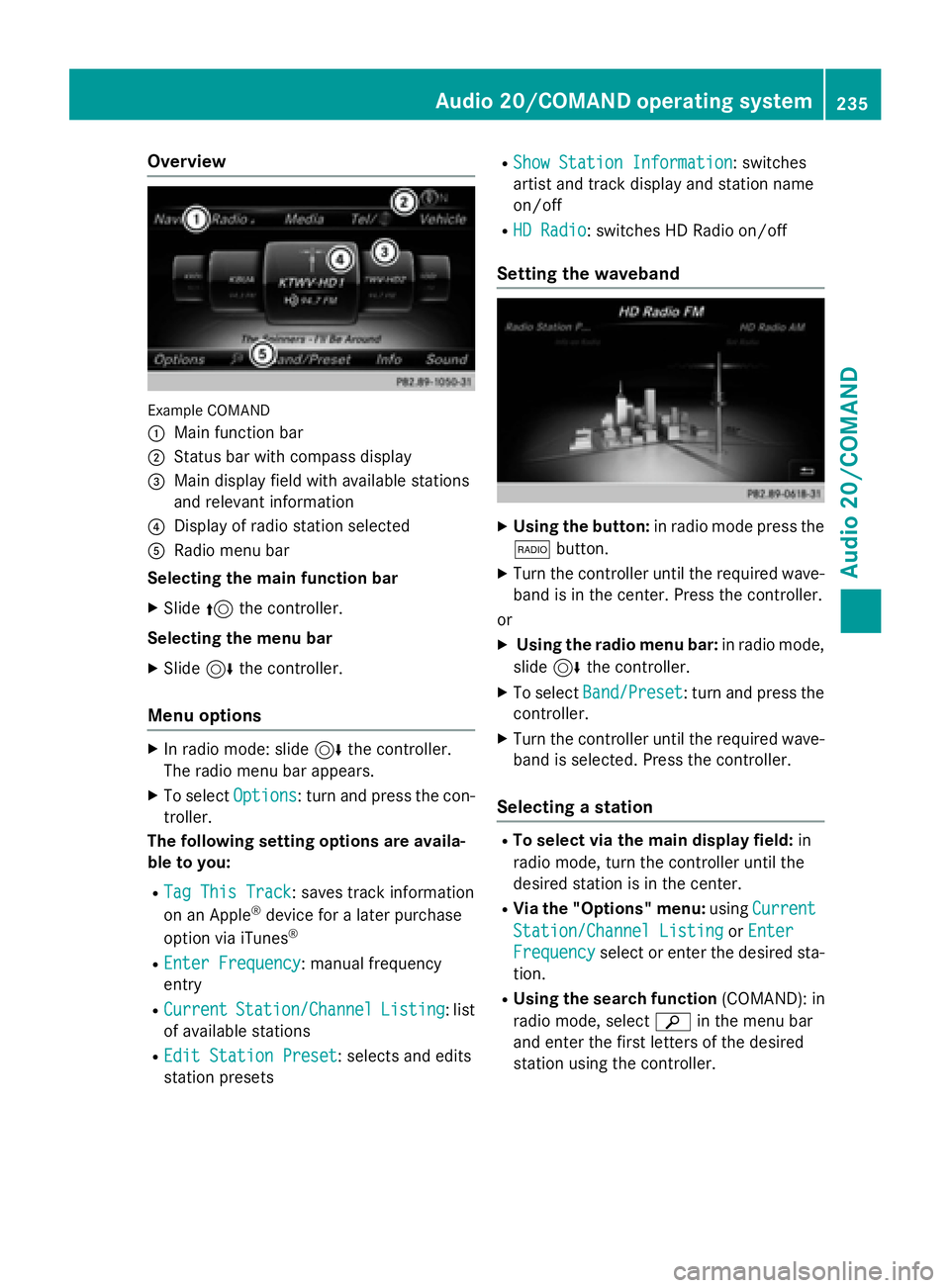
Overview
Example COMAND
:
Main function bar
;Status bar with compass display
=Main display field with available stations
and relevant information
?Display of radio station selected
ARadio menu bar
Selecting the main function bar
XSlide 5the controller.
Selecting the menu bar
XSlide 6the controller.
Menu options
XIn radio mode: slide 6the controller.
The radio menu bar appears.
XTo select Options: turn and press the con-
troller.
The following setting options are availa-
ble to you:
RTag This Track: saves track information
on an Apple®device for a later purchase
option via iTunes®
REnter Frequency: manual frequency
entry
RCurrentStation/ChannelListing: list
of available stations
REdit Station Preset: selects and edits
station presets
RShow Station Information: switches
artist and track display and station name
on/off
RHD Radio: switches HD Radio on/off
Setting the waveband
XUsing the button: in radio mode press the
$ button.
XTurn the controller until the required wave-
band is in the center. Press the controller.
or
XUsing the radio menu bar: in radio mode,
slide 6the controller.
XTo select Band/Preset: turn and press the
controller.
XTurn the controller until the required wave-
band is selected. Press the controller.
Selecting a station
RTo select via the main display field: in
radio mode, turn the controller until the
desired station is in the center.
RVia the "Options" menu: usingCurrent
Station/Channel ListingorEnter
Frequencyselect or enter the desired sta-
tion.
RUsing the search function (COMAND): in
radio mode, select èin the menu bar
and enter the first letters of the desired
station using the controller.
Audio 20/COMAND operating system235
Audio 20/COMAND
Z
Page 238 of 350
Radio text/radio text plus
This function is not available in all countries.
XTo switch on radio text:in radio mode,
select Info
in the menu bar.
Additional information from the current
station is displayed.
236Audio 20/COMAND operating system
Audio 20/COMAND