phone MINI Clubman 2011 (Mini Connected) User Guide
[x] Cancel search | Manufacturer: MINI, Model Year: 2011, Model line: Clubman, Model: MINI Clubman 2011Pages: 256, PDF Size: 3.75 MB
Page 95 of 256

Practical interior accessoriesCONTROLS
93
Connection for external
audio device
You can connect an external audio device such
as a CD or MP3 player and play audio tracks over
the vehicle's speaker system, refer to the Enter-
tainment chapter starting on page 142.
Center armrest*
Storage compartment
The center armrest between the front seats con-
tains either a compartment or the cover for the
mobile phone base plate
* or the snap-in
adapter
*.
Opening
The cover slides along guide rails and can be
opened fully by pushing it back and lifting it.
Closing
Push the cover forward.
Storage compartments
In the vehicle interior
Depending on your vehicle's equipment, you
will find storage compartments in the doors,
next to the rear seats and in the center console
*.
Nets
* are located in the passenger footwell and
on the backs of the front seat backrests.
Storage compartment on the front
passenger side*
Opening
Briefly press the bottom edge of the cover.
Closing
Push the cover back into its original position.
To prevent injury in the event of an acci-
dent, close the storage compartment after
use while the vehicle is being driven. <
Clothes hooks
There are clothes hooks on the grab handles in
the rear passenger compartment.
Items of clothing hung from the hooks
must not obstruct the driver's view. Do not
hang heavy objects from the hooks; otherwise,
they could endanger the car's occupants, e.g. in
case of heavy braking or sudden swerving. <
In the cargo area
Depending on your vehicle's equipment, you
have the following storage options:
>Umbrella holder
* under the loading sill in
front of the warning triangle
> Storage compartment under the flat load
floor
*
>Removable box with lid* under the flat load
floor, e.g. for wet or dirty items
> Storage compartment in the Split Rear Barn
Doors
> Net
* on the rear cargo well for smaller
objects; for attaching to the lashing eyes
Page 113 of 256
Destination entryNAVIGATION
111
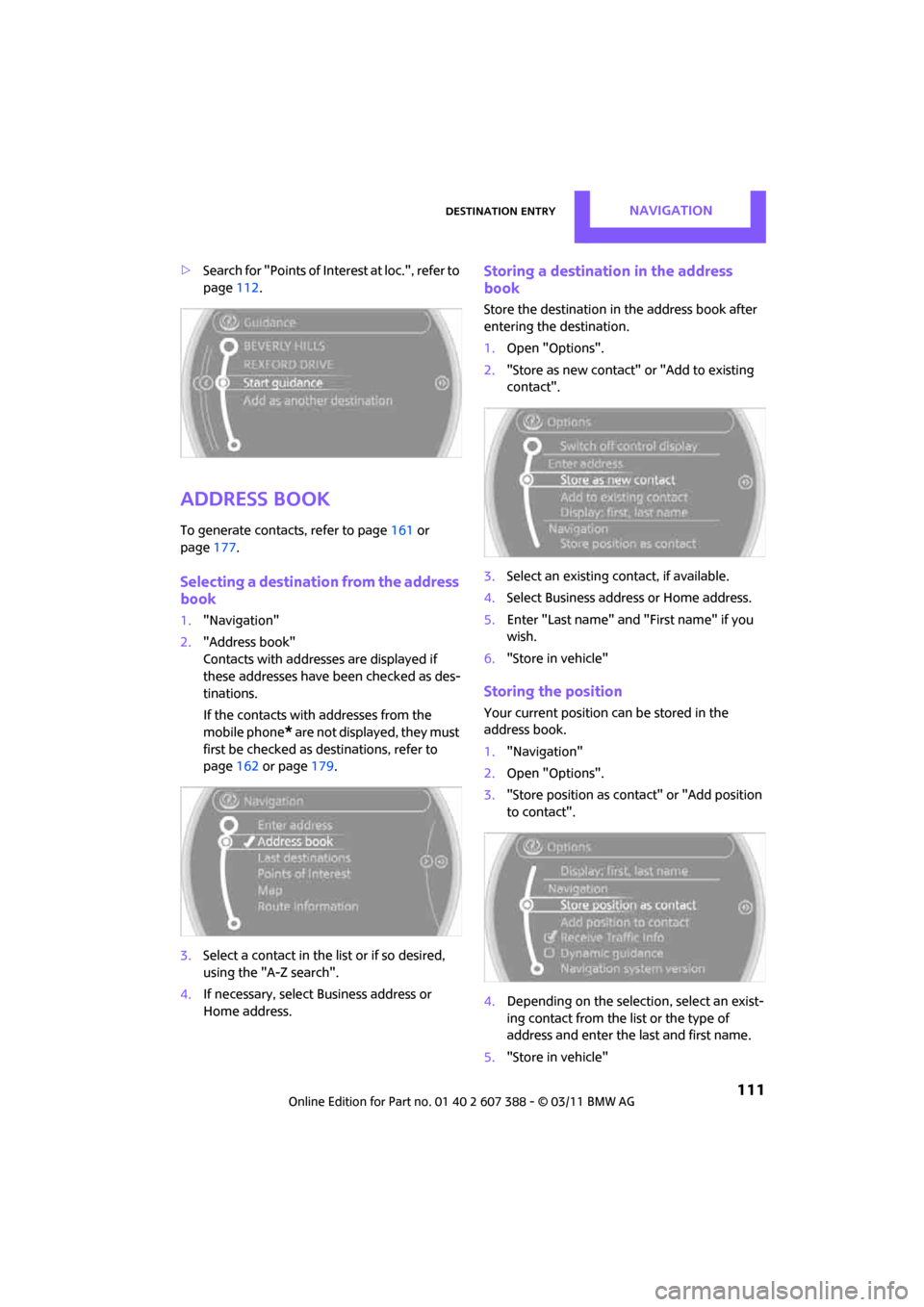
>Search for "Points of Inte rest at loc.", refer to
page 112.
Address book
To generate contacts, refer to page 161 or
page 177.
Selecting a destination from the address
book
1."Navigation"
2. "Address book"
Contacts with addresses are displayed if
these addresses have been checked as des-
tinations.
If the contacts with addresses from the
mobile phone
* are not displayed, they must
first be checked as destinations, refer to
page 162 or page 179.
3. Select a contact in the list or if so desired,
using the "A-Z search".
4. If necessary, select Business address or
Home address.
Storing a destination in the address
book
Store the destination in the address book after
entering the destination.
1. Open "Options".
2. "Store as new contact" or "Add to existing
contact".
3. Select an existing contact, if available.
4. Select Business address or Home address.
5. Enter "Last name" and "First name" if you
wish.
6. "Store in vehicle"
Storing the position
Your current position can be stored in the
address book.
1."Navigation"
2. Open "Options".
3. "Store position as cont act" or "Add position
to contact".
4. Depending on the selection, select an exist-
ing contact from the list or the type of
address and enter the last and first name.
5. "Store in vehicle"
Page 115 of 256
Destination entryNAVIGATION
113
Accessing search for special
destinations
1."Navigation"
2. Select "Points of Interest"
search.
A-Z search
1."A-Z search"
2. "Town/City"
3. "Category"
4. "Category details"
For some special destin ations, it is possible
to select several catego ry details. Move the
MINI joystick to the left to exit category
details.
or
5. "Keyword"
6. Enter keyword.
A list of the special destinations is displayed.
7. Select the special destination.
8. Select the symbol.
9. "Start guidance" or "Add as another destina-
tion".
If several details are stored, then you can
scroll through the pages.
If a phone number is available, a connection
can be established, if desired.
Category search
1."Category search"
2. "Search destination"
3. Select or enter town/city.
4. "Category"
5. Select category.
6. "Category details"
For some special destin ations, it is possible
to select several catego ry details. Move the
MINI joystick to the left to exit category
details. 7.
"Start search"
A list of the special destinations is displayed.
8. Select the special destination.
Details are displayed.
9. Select the symbol.
10. "Start guidance" or "Add as another destina-
tion".
If several details are stored, then you can scroll
through the pages. If a phone number is avail-
able, a connection can be established, if desired.
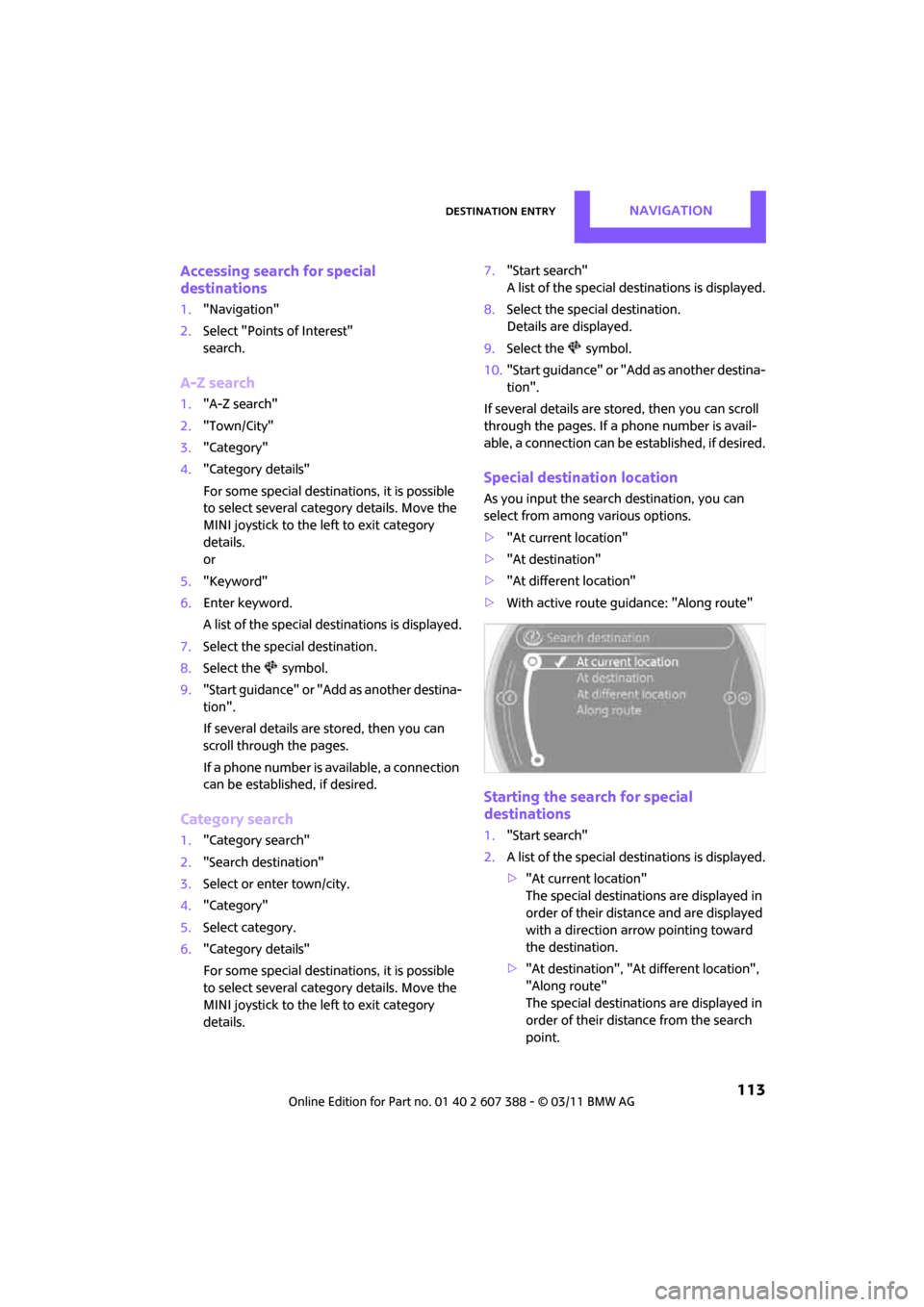
Special destination location
As you input the search destination, you can
select from among various options.
>"At current location"
> "At destination"
> "At different location"
> With active route gu idance: "Along route"
Starting the search for special
destinations
1."Start search"
2. A list of the special destinations is displayed.
>"At current location"
The special destinations are displayed in
order of their distance and are displayed
with a direction arro w pointing toward
the destination.
> "At destination", "At different location",
"Along route"
The special destinations are displayed in
order of their distance from the search
point.
Page 123 of 256
Route guidanceNAVIGATION
121
>Gray road sign: the obstruction does not
relate to the planned route or direction of
travel.
Traffic information, refer to page 122.
Planned route
After route guidance is started, the planned
route is displayed on the map.
Status boxes
Show/hide: press the MINI joystick.
>Upper status box: time, phone details, and
entertainment details.
> Lower status box: symbol for active route
guidance, traffic inform ation status, arrival
time, and distance from destination.
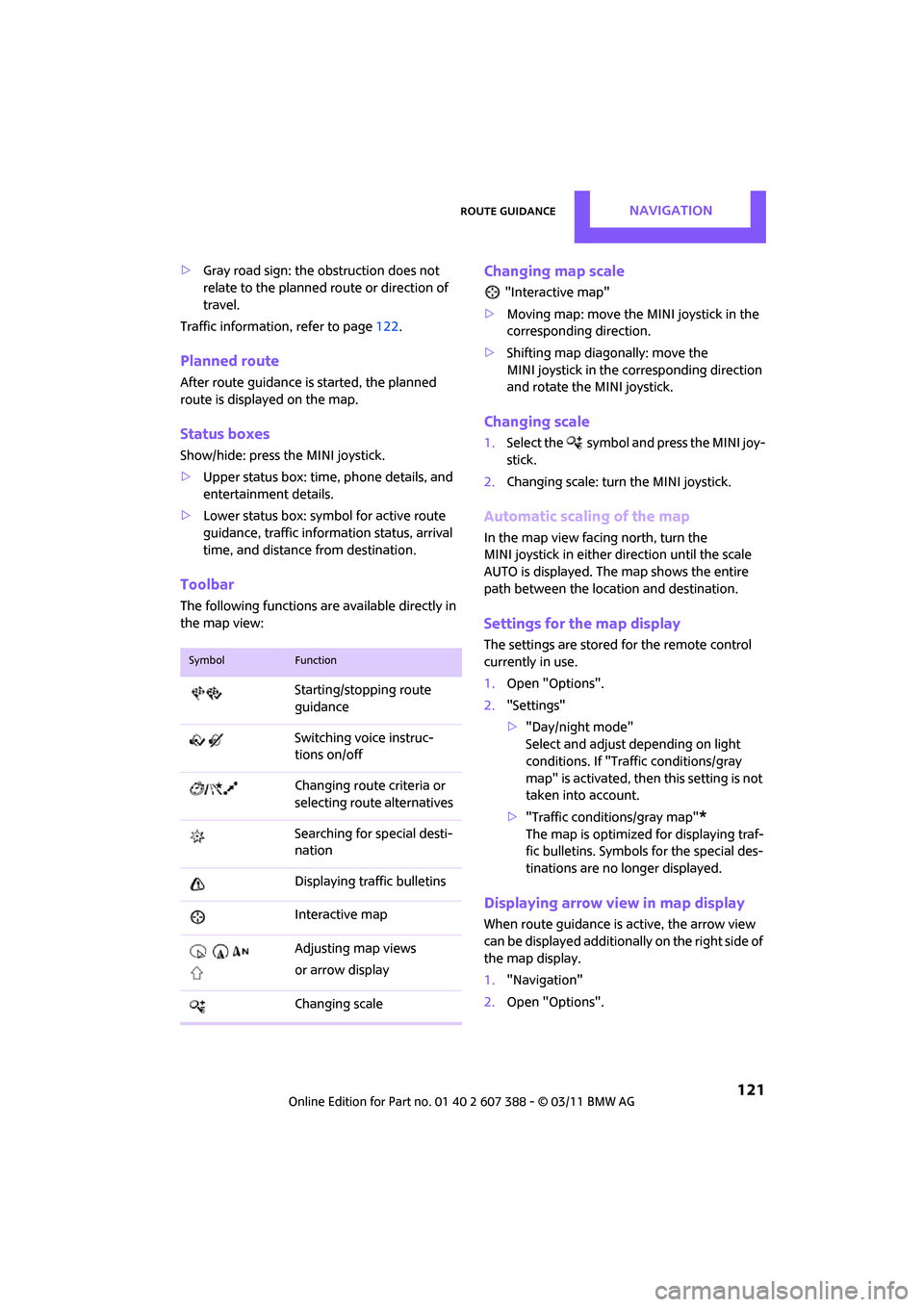
Toolbar
The following functions ar e available directly in
the map view:
Changing map scale
"Interactive map"
> Moving map: move the MINI joystick in the
corresponding direction.
> Shifting map diag onally: move the
MINI joystick in the corresponding direction
and rotate the MINI joystick.
Changing scale
1. Select the symbol and press the MINI joy-
stick.
2. Changing scale: turn the MINI joystick.
Automatic scaling of the map
In the map view facing north, turn the
MINI joystick in either direction until the scale
AUTO is displayed. The map shows the entire
path between the location and destination.
Settings for the map display
The settings are stored for the remote control
currently in use.
1.Open "Options".
2. "Settings"
>"Day/night mode"
Select and adjust depending on light
conditions. If "Traffic conditions/gray
map" is activated, then this setting is not
taken into account.
> "Traffic conditions/gray map"
*
The map is optimized for displaying traf-
fic bulletins. Symbols for the special des-
tinations are no longer displayed.
Displaying arrow view in map display
When route guidance is active, the arrow view
can be displayed additionally on the right side of
the map display.
1. "Navigation"
2. Open "Options".
SymbolFunction
Starting/stopping route
guidance
Switching voice instruc-
tions on/off
Changing route criteria or
selecting rout e alternatives
Searching for special desti-
nation
Displaying traffic bulletins
Interactive map
Adjusting map views
or arrow display
Changing scale
Page 133 of 256
On/off and toneENTERTAINMENT
131
Tone control
Various tone settings can be changed, e.g. treble
and bass or the speed-dependent volume con-
trol.
The tone settings are set for all audio sources at
once.
The settings are stored for the remote control
currently in use; refer to Personal Profile,
page 26.
Treble, bass, balance, fader
> "Treble": treble setting.
> "Bass": bass.
> "Balance": volume distribution right/left.
> "Fader": volume distribution front/back.
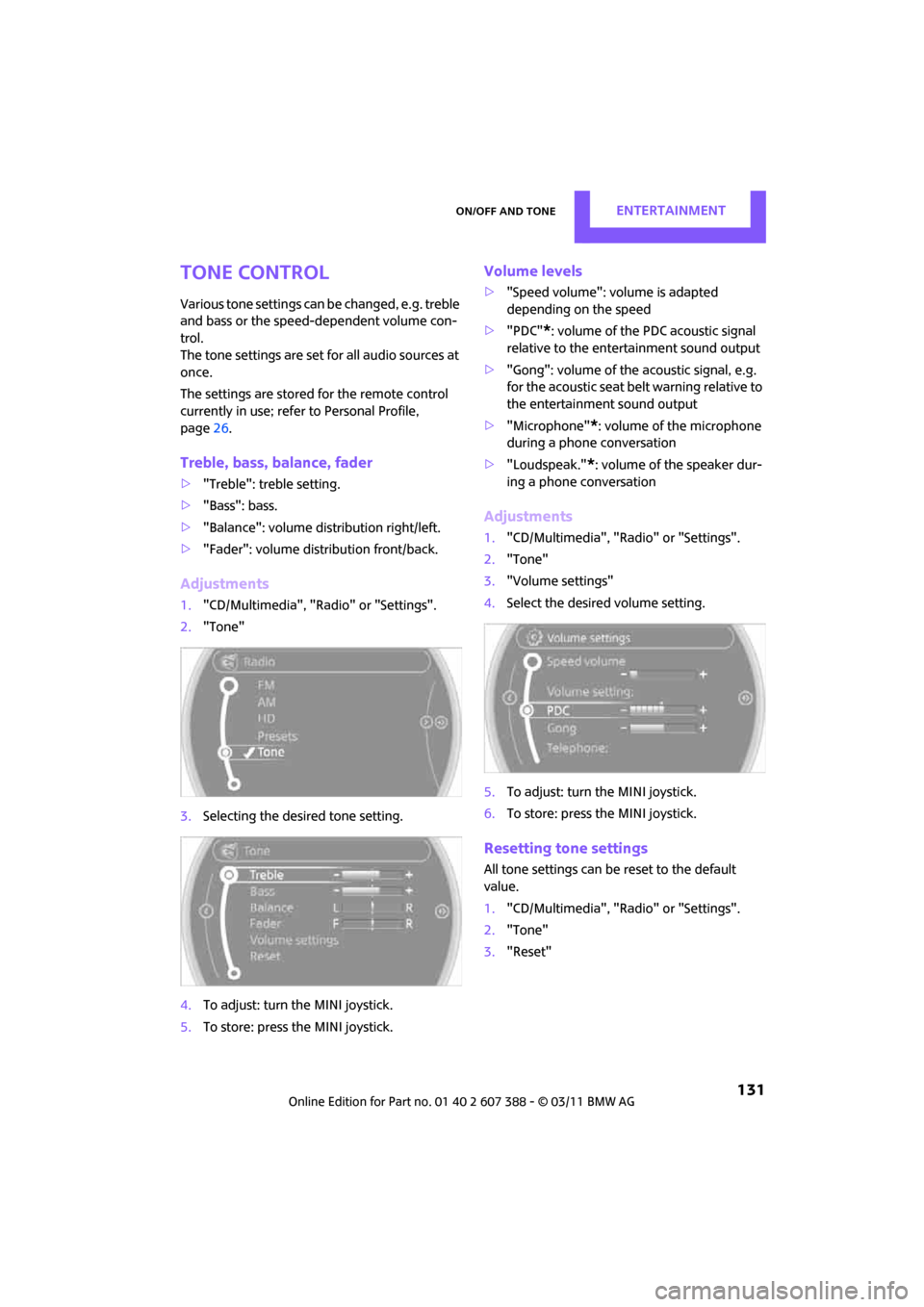
Adjustments
1."CD/Multimedia", "Rad io" or "Settings".
2. "Tone"
3. Selecting the desired tone setting.
4. To adjust: turn the MINI joystick.
5. To store: press the MINI joystick.
Volume levels
>"Speed volume": vo lume is adapted
depending on the speed
> "PDC"
*: volume of the PDC acoustic signal
relative to the entertainment sound output
> "Gong": volume of the acoustic signal, e.g.
for the acoustic seat belt warning relative to
the entertainment sound output
> "Microphone"
*: volume of the microphone
during a phone conversation
> "Loudspeak."
*: volume of the speaker dur-
ing a phone conversation
Adjustments
1. "CD/Multimedia", "Rad io" or "Settings".
2. "Tone"
3. "Volume settings"
4. Select the desired volume setting.
5. To adjust: turn the MINI joystick.
6. To store: press the MINI joystick.
Resetting tone settings
All tone settings can be reset to the default
value.
1."CD/Multimedia", "Rad io" or "Settings".
2. "Tone"
3. "Reset"
Page 136 of 256
ENTERTAINMENTRadio
134
Displaying additional information
Some stations broadcast additional information
on the current track, such as the name of the art-
ist.
1. Select the desired station.
2. Open "Options".
3. "Station info"
Selecting a substation
The symbol indicates that a main station also
broadcasts additional su bstations. The station
name of the main station ends in HD1. The sta-
tion names of the substa tions end in HD2, HD3,
etc.
1. Select the desired station.
2. Press the MINI joystick.
3. Select the substation.
When reception is poor, the substation is muted
for several seconds. If reception is interrupted
for an extended period, the radio switches back
to the main station.
Stored stations
It is possible to store up to 40 stations.
Selecting a station
1. "Radio"
2. "Presets"
3. Select the desired station.
Storing a station
The station currently selected is stored.
1. "Radio"
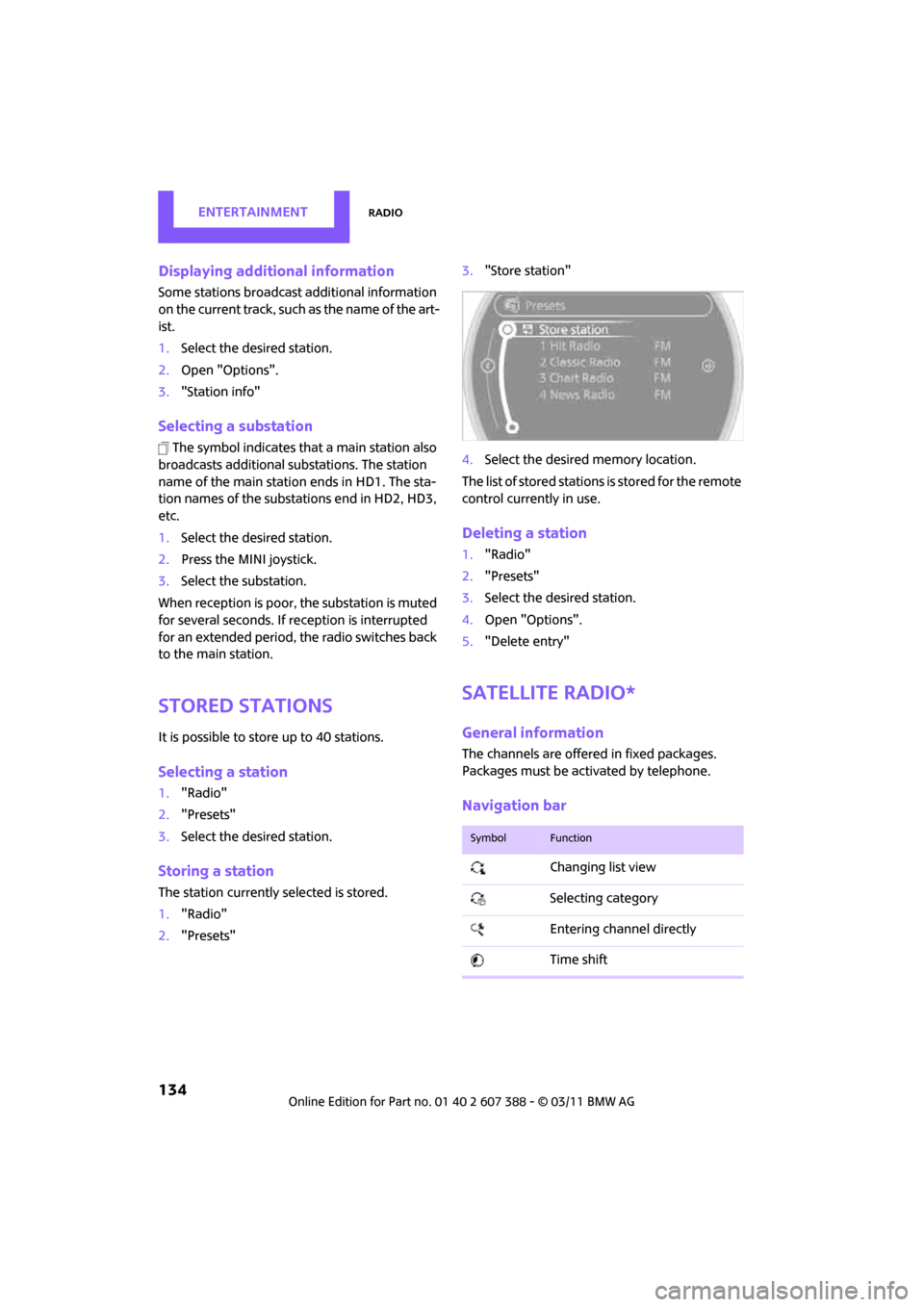
2. "Presets" 3.
"Store station"
4. Select the desired memory location.
The list of stored stations is stored for the remote
control currently in use.
Deleting a station
1. "Radio"
2. "Presets"
3. Select the desired station.
4. Open "Options".
5. "Delete entry"
Satellite radio*
General information
The channels are offered in fixed packages.
Packages must be activated by telephone.
Navigation bar
SymbolFunction
Changing list view
Selecting category
Entering channel directly
Time shift
Page 137 of 256
RadioENTERTAINMENT
135
Managing subscription
Clear reception is required for activating and
deactivating channels. Reception is best when
you have an unobstructed view to the sky. The
channel name is displayed in the status line.
Activating channels
The category Unsubscribed Channels includes all
channels that are not activated.
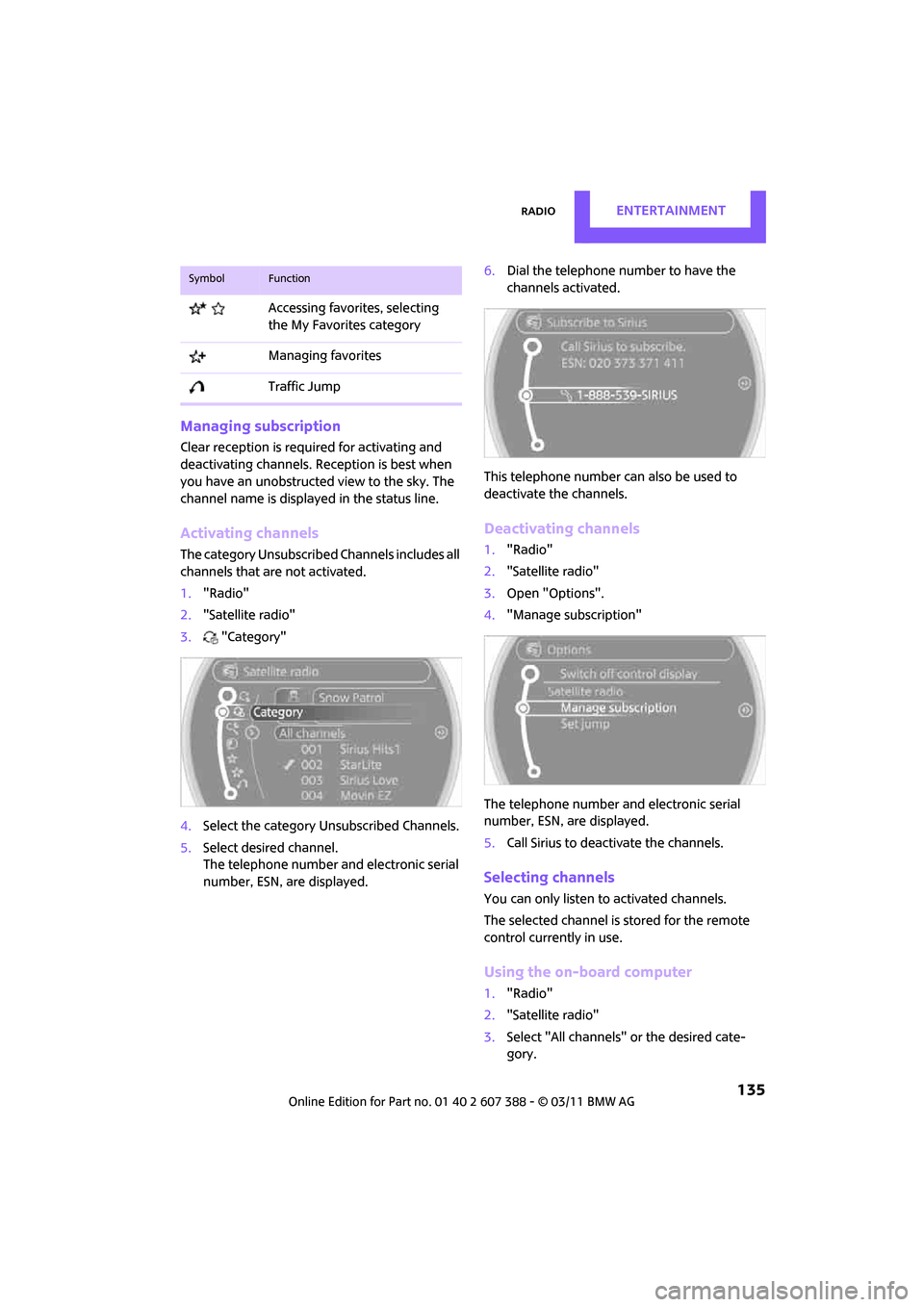
1. "Radio"
2. "Satellite radio"
3. "Category"
4. Select the category Unsubscribed Channels.
5. Select desired channel.
The telephone number and electronic serial
number, ESN, are displayed. 6.
Dial the telephone number to have the
channels activated.
This telephone number can also be used to
deactivate the channels.
Deactivating channels
1. "Radio"
2. "Satellite radio"
3. Open "Options".
4. "Manage subscription"
The telephone number and electronic serial
number, ESN, are displayed.
5. Call Sirius to deactivate the channels.
Selecting channels
You can only listen to activated channels.
The selected channel is stored for the remote
control current ly in use.
Using the on-board computer
1."Radio"
2. "Satellite radio"
3. Select "All channels" or the desired cate-
gory.
Accessing favorites, selecting
the My Favorites category
Managing favorites
Traffic Jump
SymbolFunction
Page 139 of 256
RadioENTERTAINMENT
137
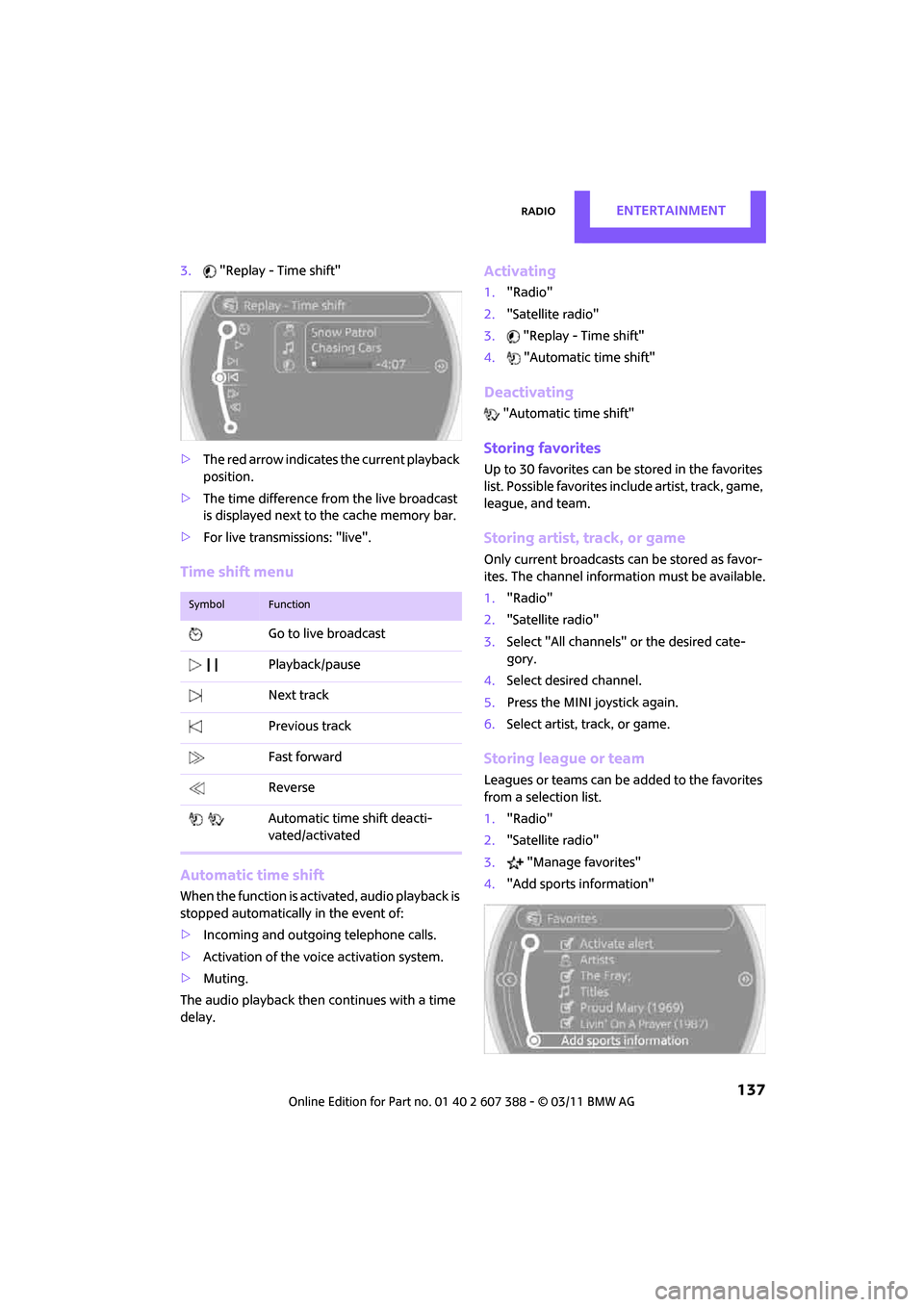
3."Replay - Time shift"
> The red arrow indicates the current playback
position.
> The time difference fr om the live broadcast
is displayed next to the cache memory bar.
> For live transmissions: "live".
Time shift menu
Automatic time shift
When the function is acti vated, audio playback is
stopped automatically in the event of:
> Incoming and outgoing telephone calls.
> Activation of the voice activation system.
> Muting.
The audio playback then continues with a time
delay.
Activating
1. "Radio"
2. "Satellite radio"
3. "Replay - Time shift"
4. "Automatic time shift"
Deactivating
"Automatic time shift"
Storing favorites
Up to 30 favorites can be stored in the favorites
list. Possible favorites include artist, track, game,
league, and team.
Storing artist, track, or game
Only current broadcasts can be stored as favor-
ites. The channel informat ion must be available.
1. "Radio"
2. "Satellite radio"
3. Select "All channels" or the desired cate-
gory.
4. Select desired channel.
5. Press the MINI joystick again.
6. Select artist, track, or game.
Storing league or team
Leagues or teams can be added to the favorites
from a selection list.
1."Radio"
2. "Satellite radio"
3. "Manage favorites"
4. "Add sports information"
SymbolFunction
Go to live broadcast
Playback/pause
Next track
Previous track
Fast forward
Reverse
Automatic time shift deacti-
vated/activated
Page 144 of 256

ENTERTAINMENTExternal devices
142
External devices
Overview
AUX-IN connection
Overview
>It is possible to connect audio devices, e.g.
MP3 players. Sound is output over the vehi-
cle speakers.
> Recommended settings: mid-level tone and
volume settings on the audio device. Tone
may depend on the quality of the audio files.
Connecting
1USB interface
2 Connection for audio playback:
TRS connector 1/8"/3.5 mm
For audio playback through the vehicle speak-
ers, connect the headphones or line-out con-
nection of the device to the AUX-IN
connection 2.
Starting audio playback
The audio device must be switched on.
1. "CD/Multimedia"
2. Or "External devices" if applicable
3. "AUX front"
Sound is output on the vehicle loudspeakers.
Volume
The volume of the sound output depends on the
audio device. If this volume differs markedly
from the volume of the other audio sources, it is
advisable to adjust the volumes.
Adjusting volume
1. "CD/Multimedia"
2. Or "External devices" if applicable
3. "AUX front"
4. "Volume"
5. Turn MINI joystick until the desired volume
is set and then press the MINI joystick.
SymbolMeaning
USB audio interface*
Mobile phone audio interface*
Bluetooth audio*
AUX-IN connection
Page 145 of 256

External devicesENTERTAINMENT
143
USB audio interface*/
mobile phone audio
interface*
Overview
It is possible to connect external audio devices.
They are operated using the on-board com-
puter. Sound is output over the vehicle speakers.
Options for connecting external devices
> Connection via USB audio interface: Apple
devices, USB devices such as MP3 players,
USB memory sticks, or mobile phones that
are supported by the USB audio interface.
> Connection via the snap-in adapter
*, when
equipped with extended connectivity of the
music player in the mobile phone: Apple
iPhone or mobile phones. Playback is only
possible if no plug is present in the USB
audio interface.
Because of the large number of audio devices
available on the market , an operation via the
vehicle cannot be guaranteed for every audio
device/mobile phone.
Ask your MINI dealer for suitable audio devices/
mobile phones.
Audio files
Playback of standard audio files is possible:
> MP3
> WMA
> WAV (PCM)
> AAC
*, M4A*
>Without voice activation system: playback
lists: M3U
> With voice activation system: playback lists:
M3U, WPL
*, PLS*
Video files*
Playback of standard vi deo files with a compati-
ble Apple device is possible:
> MPEG4
> H.264
Connect via the USB audio interface
1USB interface
2 Connection for audi o/video playback:
TRS connector 1/8"/3.5 mm
Apple device
A special adapter cable* is available for con-
necting the Apple device. The adapter cable is
required for a proper connection.
Further information:
> At: www.mini.com /connectivity.
> At your MINI dealer.
For audio playback over the vehicle speakers,
connect the Apple device using the special
adapter cable with AV-IN connection 2 and USB
interface 1 or using a flexible adapter cable
*
with a USB interface 1.
The USB audio interface supports the menu
structure of the Apple device.
USB device
To protect the USB interface and USB device
from mechanical damage, connect them with a
flexible adapter cable.
Connect the USB device to the USB interface 1.