ignition MINI Clubman 2011 (Mini Connected) Owner's Guide
[x] Cancel search | Manufacturer: MINI, Model Year: 2011, Model line: Clubman, Model: MINI Clubman 2011Pages: 256, PDF Size: 3.75 MB
Page 83 of 256
LampsCONTROLS
81
Lamps
Parking lamps/low beams
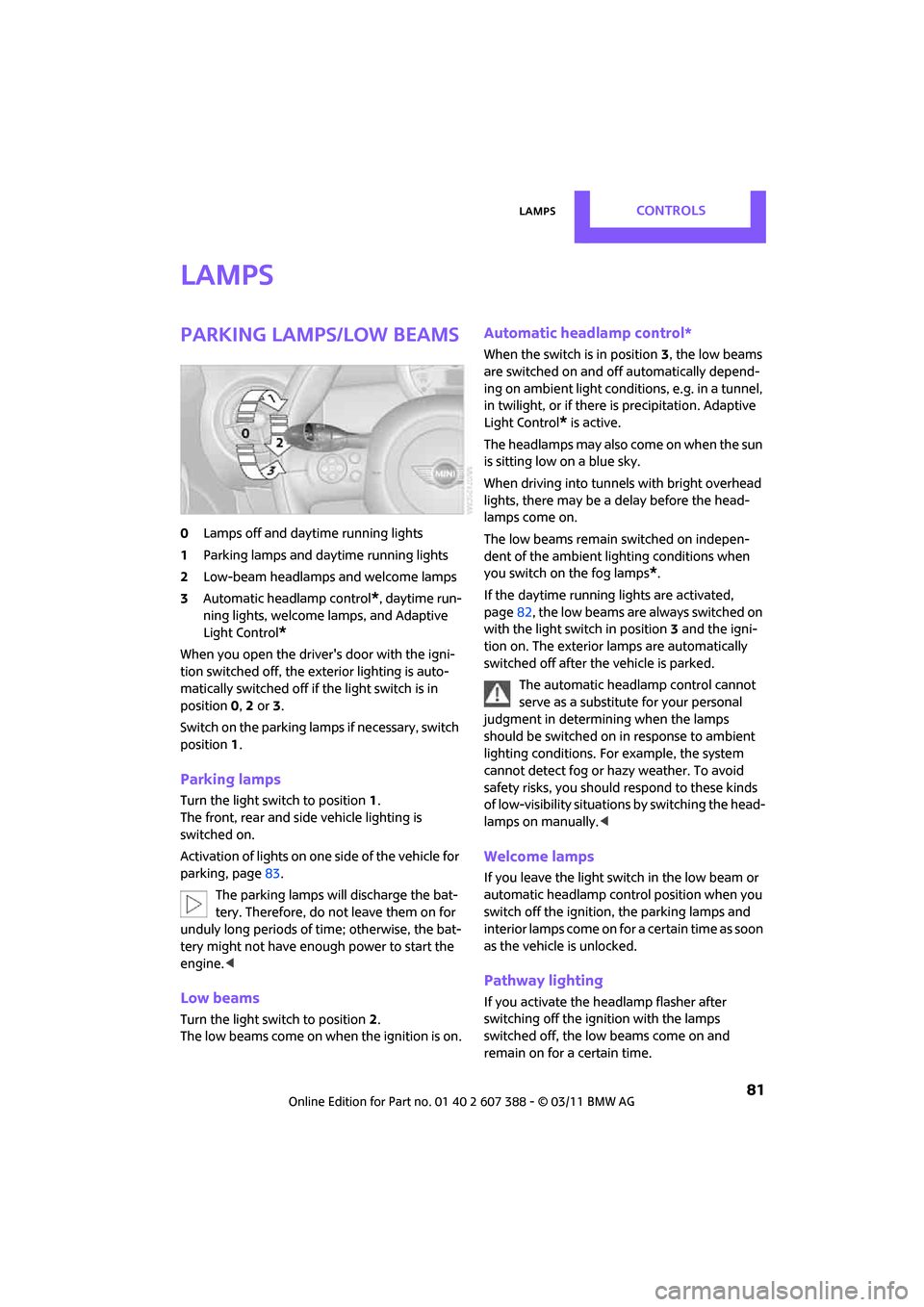
0Lamps off and daytime running lights
1 Parking lamps and daytime running lights
2 Low-beam headlamps and welcome lamps
3 Automatic headlamp control
*, daytime run-
ning lights, welcome lamps, and Adaptive
Light Control
*
When you open the driver's door with the igni-
tion switched off, the exterior lighting is auto-
matically switched off if the light switch is in
position 0, 2 or 3.
Switch on the parking lamps if necessary, switch
position 1.
Parking lamps
Turn the light switch to position 1.
The front, rear and side vehicle lighting is
switched on.
Activation of lights on one side of the vehicle for
parking, page 83.
The parking lamps will discharge the bat-
tery. Therefore, do not leave them on for
unduly long periods of time; otherwise, the bat-
tery might not have enough power to start the
engine. <
Low beams
Turn the light switch to position 2.
The low beams come on when the ignition is on.
Automatic headlamp control*
When the switch is in position 3, the low beams
are switched on and of f automatically depend-
ing on ambient light condit ions, e.g. in a tunnel,
in twilight, or if there is precipitation. Adaptive
Light Control
* is active.
The headlamps may also come on when the sun
is sitting low on a blue sky.
When driving into tunnels with bright overhead
lights, there may be a delay before the head-
lamps come on.
The low beams remain switched on indepen-
dent of the ambient lighting conditions when
you switch on the fog lamps
*.
If the daytime running lights are activated,
page 82, the low beams are al ways switched on
with the light switch in position 3 and the igni-
tion on. The exterior lamps are automatically
switched off after the vehicle is parked.
The automatic headlamp control cannot
serve as a substitute for your personal
judgment in determin ing when the lamps
should be switched on in response to ambient
lighting conditions. For example, the system
cannot detect fog or hazy weather. To avoid
safety risks, you should respond to these kinds
of low-visibility situations by switching the head-
lamps on manually. <
Welcome lamps
If you leave the light switch in the low beam or
automatic headlamp control position when you
switch off the ignition, the parking lamps and
interior lamps come on fo r a certain time as soon
as the vehicle is unlocked.
Pathway lighting
If you activate the headlamp flasher after
switching off the ignition with the lamps
switched off, the lo w beams come on and
remain on for a certain time.
Page 84 of 256
CONTROLSLamps
82
The setting is stored for the remote control in
use, refer to Personal Profile, page 26.
Setting the duration or deactivating the
function
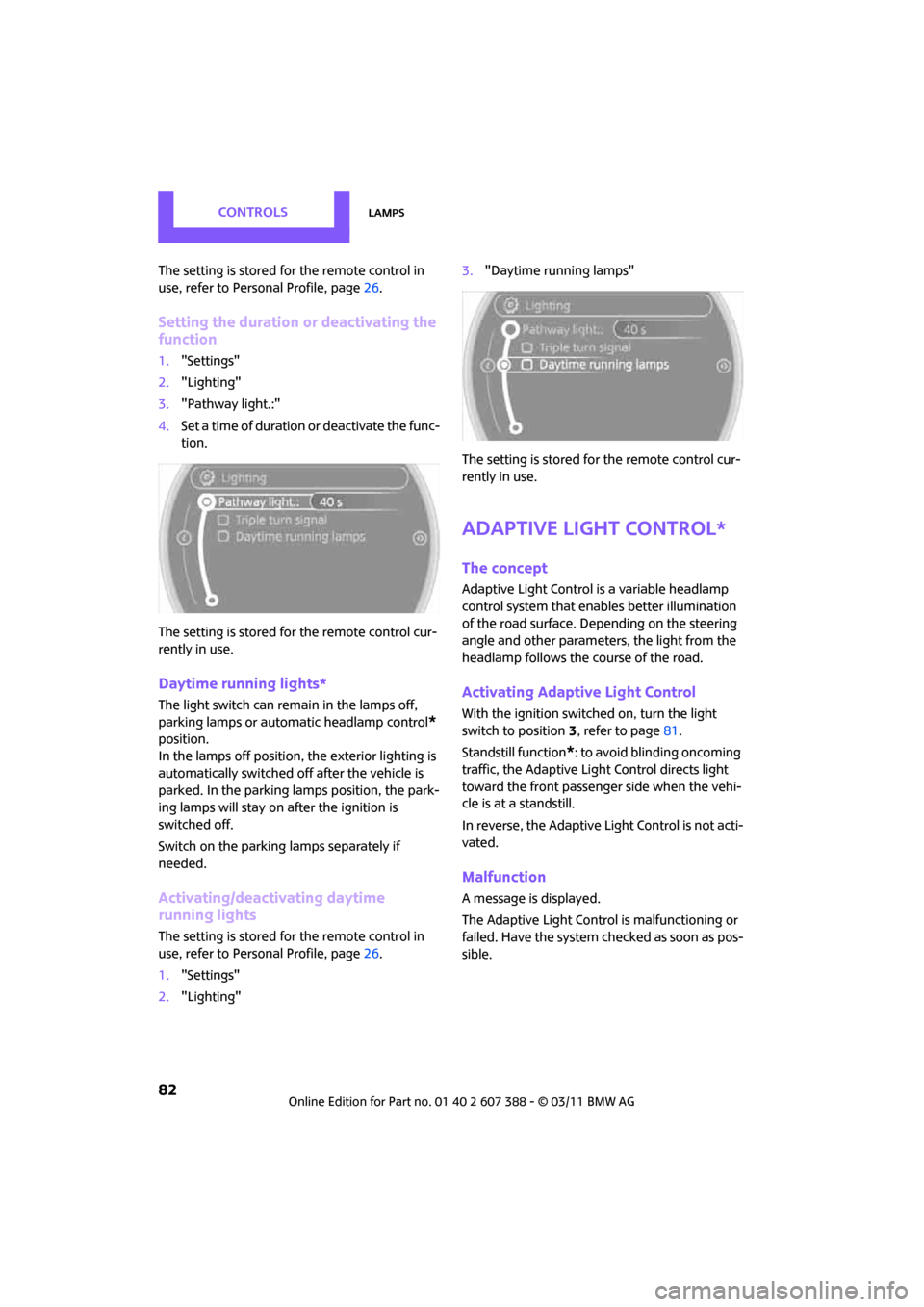
1."Settings"
2. "Lighting"
3. "Pathway light.:"
4. Set a time of duration or deactivate the func-
tion.
The setting is stored fo r the remote control cur-
rently in use.
Daytime running lights*
The light switch can remain in the lamps off,
parking lamps or automatic headlamp control
*
position.
In the lamps off position, the exterior lighting is
automatically switched off after the vehicle is
parked. In the parking lamps position, the park-
ing lamps will stay on after the ignition is
switched off.
Switch on the parking lamps separately if
needed.
Activating/deactivating daytime
running lights
The setting is stored for the remote control in
use, refer to Pers onal Profile, page 26.
1. "Settings"
2. "Lighting" 3.
"Daytime running lamps"
The setting is stored fo r the remote control cur-
rently in use.
Adaptive Light Control*
The concept
Adaptive Light Control is a variable headlamp
control system that enables better illumination
of the road surface. Depending on the steering
angle and other parameters, the light from the
headlamp follows the course of the road.
Activating Adaptive Light Control
With the ignition switched on, turn the light
switch to position 3, refer to page 81.
Standstill function
*: to avoid blinding oncoming
traffic, the Adaptive Light Control directs light
toward the front passenger side when the vehi-
cle is at a standstill.
In reverse, the Adaptive Light Control is not acti-
vated.
Malfunction
A message is displayed.
The Adaptive Light Control is malfunctioning or
failed. Have the system checked as soon as pos-
sible.
Page 86 of 256
CONTROLSLamps
84
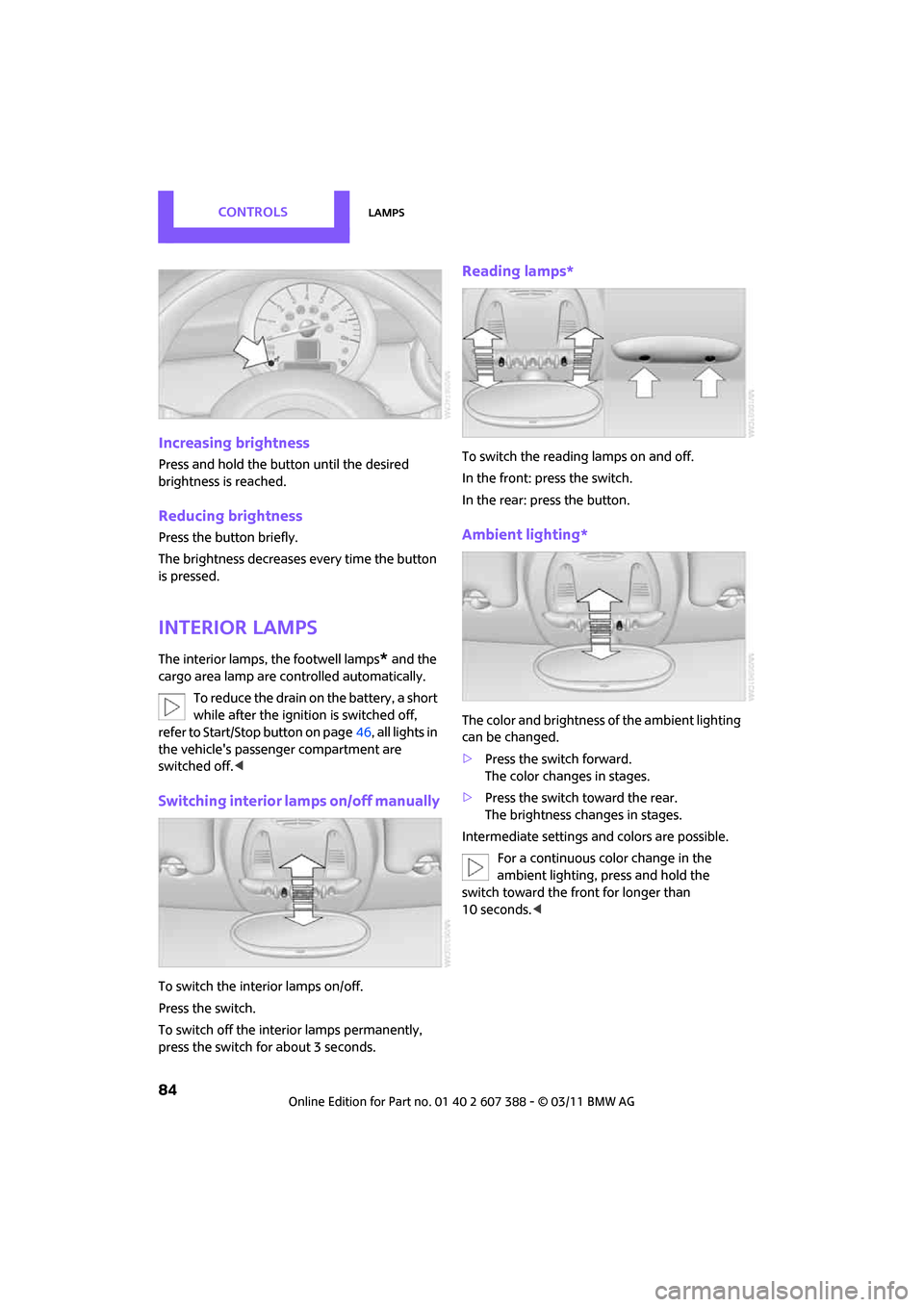
Increasing brightness
Press and hold the button until the desired
brightness is reached.
Reducing brightness
Press the button briefly.
The brightness decreases every time the button
is pressed.
Interior lamps
The interior lamps, the footwell lamps* and the
cargo area lamp are co ntrolled automatically.
To reduce the drain on the battery, a short
while after the ignition is switched off,
refer to Start/Stop button on page 46, all lights in
the vehicle's passenger compartment are
switched off. <
Switching interior lamps on/off manually
To switch the interior lamps on/off.
Press the switch.
To switch off the interior lamps permanently,
press the switch for about 3 seconds.
Reading lamps*
To switch the reading lamps on and off.
In the front: press the switch.
In the rear: press the button.
Ambient lighting*
The color and brightness of the ambient lighting
can be changed.
> Press the switch forward.
The color changes in stages.
> Press the switch toward the rear.
The brightness changes in stages.
Intermediate settings and colors are possible. For a continuous color change in the
ambient lighting, press and hold the
switch toward the front for longer than
10 seconds. <
Page 92 of 256

CONTROLSPractical interior accessories
90
Practical interior accessories
Integrated universal
remote control*
The concept
The integrated universal remote control can
replace as many as three hand-held transmitters
for various remote-controlled devices, such as
garage and gate openers and lighting systems.
The integrated universal remote control regis-
ters and stores signals from the original hand-
held transmitters.
The signal of an original hand-held transmitter
can be programmed on one of the three mem-
ory buttons 1. The system in question can then
be operated by means of the programmed
memory button 1. The LED 2 flashes to confirm
transmission of the signal.
If you decide to sell your vehicle one day, in the
interest of your own security, remember to clear
the stored programs before the vehicle leaves
your possession, page 91.
To prevent possible damage or injury,
before programming or using the inte-
grated universal remote control, always inspect
the immediate area to make certain that no
people, animals or object s are within the travel
range of the device. Comply also with the safety
instructions supplied with the original hand-held
transmitter. <
Checking compatibility
If this symbol a ppears on the package
or in the instructions supplied with the
original hand-held transmitter, you can
assume that the radio remote control device is
compatible with the integrated universal remote
control.
For additional informatio n, please contact your
MINI dealer or call: 1-800-355-3515.
You can also obtain info rmation on the Internet
at: www.homelink.com
HomeLink is a registered trademark of Johnson
Controls, Inc.
Programming
1
Memory buttons
2 LED
Fixed-code hand-held transmitters
1.Switch on the ignition, page 46.
2. When starting operation for the first time:
press both outer memory buttons 1 for
approx. 20 seconds until the LED 2 flashes
rapidly. All stored programs are cleared.
3. Hold the original hand-held transmitter at a
distance of approx. 1in/2.5cm to 3in/8cm
from the memory buttons 1.
The required distance between the
hand-held transmitter and the mem-
ory buttons 1 depends on the system of the
respective original hand-held transmitter
used. <
4. Simultaneously press the transmit key on
the original hand-hel d transmitter and the
desired memory button 1 on the integrated
universal remote control. The LED 2 flashes
slowly at first. As soon as the LED 2 flashes
rapidly, release both buttons. If the LED 2
does not flash rapidly after approx.
60 seconds, alter the distance and repeat
this step.
Page 93 of 256
Practical interior accessoriesCONTROLS
91
Canada: if the LED is not flashing rapidly
after 60 seconds, change the distance and
repeat the step or, if the programming was
interrupted by the hand-held transmitter,
press and hold the memory button and
press the button on the hand-held transmit-
ter for 2 seconds and release several times.
5. To program other original hand-held trans-
mitters, repeat steps 3 and 4.
The corresponding memory button 1 is now
programmed with the signal of the original
hand-held transmitter.
You can operate the system with the engine
running or with the ignition switched on.
If the system fails to function even after
repeated programming, check whether
the original hand-held transmitter uses an alter-
nating-code system. To do so, either read the
instructions for the original hand-held transmit-
ter or hold down the programmed memory
button 1 of the integrated universal remote con-
trol. If the LED 2 for the integrated universal
remote control quickly flashes for a short period
of time and is then continuously on, then the
original hand-held transmitter is equipped with
an alternating-code system . If it uses an alter-
nating-code system, program the memory
buttons 1 as described under Alternating-code
hand-held transmitters. <
Alternating-code hand-held
transmitters
To program the integrated universal remote
control, consult the operating instructions for
the device to be set. You will find information
there on the possibilities for synchronization or
programming of additional hand-held transmit-
ters.
When programming hand-held transmitters that
employ an alternating co de, please observe the
following supplementary instructions:
Programming will be easier with the aid of
a second person. < 1.
Park your vehicle within the range of the
remote-controlled device.
Do not exceed the 164 ft/50 m range
of the remote-controlled device.
2. Program the integrated universal remote
control as described above in the section
Fixed-code hand-held transmitters.
3. Locate the button on the receiver of the
device to be set, e.g. on the drive unit.
4. Press the button on the receiver of the
device to be set. After Step 4, there remain
approx. 30 seconds for Step 5.
5. Press and hold the programmed memory
button 1 on the integrated universal remote
control for approx. 3seconds.
If necessary, repeat the step up to three
times.
The corresponding memory button1 is now
programmed with the signal of the original
hand-held transmitter.
Clearing stored programs
Press both oute r memory buttons 1 for approx.
20 seconds until the LED 2 flashes: all stored
programs are cleared.
It is not possible to cl ear individual programs.
Reassigning individual programs
1.Hold the original hand-held transmitter at a
distance of approx. 1 in/2.5 cm to 3 in/8 cm
from the memory buttons 1.
The required distance between the
hand-held transmitter and the mem-
ory buttons 1 depends on the system of the
respective original hand-held transmitter
used. <
2. Press the desired memory button 1 of the
integrated universal remote control.
If the LED 2 flashes slowly after approx.
20 seconds, press the transmit key of the
original hand-held tr ansmitter and release
both buttons as soon as the LED 2 flashes
rapidly.
Page 96 of 256

CONTROLSPractical interior accessories
94
Cupholders and ashtray*
Cupholders
Two cupholders are located in the front of the
center console; another is in the rear at the back
of the center console.
There are two additional cupholders in the arm
rests in the rear.Use lightweight, nonbreakable containers
and do not transport hot beverages. Oth-
erwise, there is an increased risk of injury in the
event of an accident. <
Do not push unsuitable containers forcibly
into the cupholder. Otherwise, you may
damage it. <
Ashtray*
The ashtray is located in one of the cupholders in
the center console.
Emptying
Remove the entire ashtray.
Lighter
With the engine running or the ignition switched
on, press in the cigarette lighter.
The lighter can be pulled out as soon as it pops
back out.
Hold or touch the hot cigarette lighter by
the knob only. Holding or touching it in
other areas could result in burns.
When leaving the car, al ways remove the key so
that children cannot operate the cigarette
lighter and burn themselves. <
Connecting electrical
appliances
In your MINI, when the engine is running or if the
ignition is switched on, you can use electrical
devices such as flashlights, car vacuum cleaners,
etc., up to approx. 140 watts at 12 volts, as long
as one of the following sockets is available.
Avoid damaging the sockets by attempting to
insert plugs of unsui table shape or size.
Cigarette lighter socket
Remove the lighter* or cover from the socket.
Page 148 of 256
ENTERTAINMENTExternal devices
146
Information on connection
>The connected audio device is supplied with
a max. power of 500 mA if supported by the
device. Therefore, do not connect the device
to the power socket in the vehicle.
> Do not use force when plugging the connec-
tor into the USB interface.
> Do not connect any devi ces, e.g. fans or
lamps, to the USB audio interface.
> Do not connect USB hard drives.
> Do not use the USB audio interface to
recharge external devices.
Bluetooth audio*
Overview
>It is possible to use Bluetooth to play music
files from external devices, e.g. audio
devices or mobile phones.
> Bluetooth® is a regi stered trademark of
Bluetooth® SIG, Inc.
> Sound is output over the vehicle speakers.
> The volume of the sound output depends on
the device. If necessary, change the volume
setting on the device.
> Up to four external devices can be paired
with the vehicle.
Requirements
> Suitable device. Information is available at
www.mini.com/connectivity.
> Device operational.
> Ignition switched on.
> Bluetooth activated in vehicle, refer to
page 165, and in the device.
> Bluetooth presets in the device are required,
e.g. connection not confirmed or visible,
refer to Owner's Manu al for the device.
> A number with at least 4 and at most
16 digits has been established as the Blue-
tooth passkey. Only required once for pair-
ing.
Pairing and connecting
Only pair the device when the vehicle is
stopped; otherwise, inattention may lead
to endangerment of passengers or other road
users. <
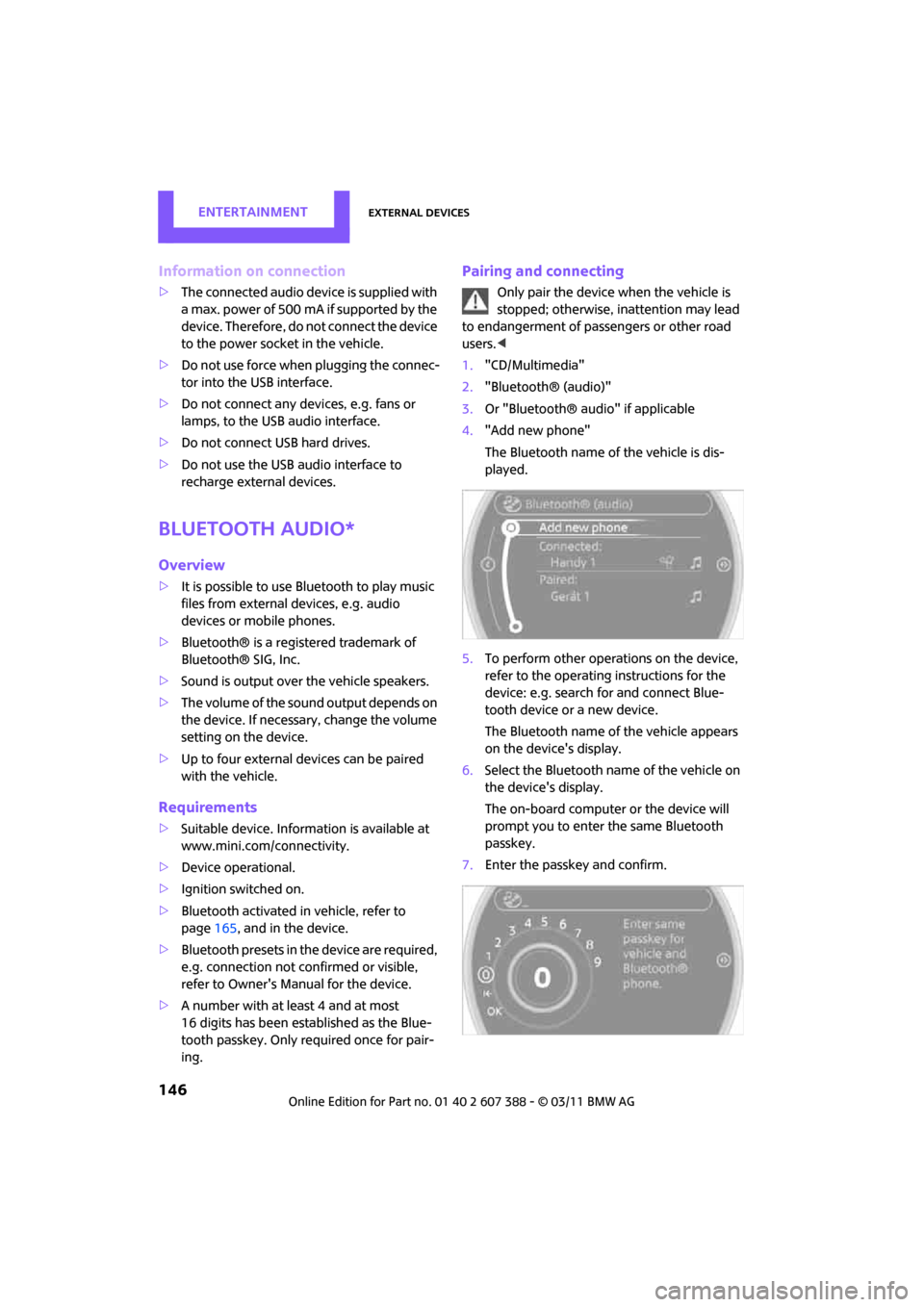
1. "CD/Multimedia"
2. "Bluetooth® (audio)"
3. Or "Bluetooth® audio" if applicable
4. "Add new phone"
The Bluetooth name of the vehicle is dis-
played.
5. To perform other operations on the device,
refer to the operating instructions for the
device: e.g. search for and connect Blue-
tooth device or a new device.
The Bluetooth name of the vehicle appears
on the device's display.
6. Select the Bluetooth name of the vehicle on
the device's display.
The on-board computer or the device will
prompt you to enter the same Bluetooth
passkey.
7. Enter the passkey and confirm.
Page 156 of 256
CommunicationsHands-free device Bluetooth
154
Hands-free device Bluetooth
Overview
The concept
Mobile phones can be connected to the vehicle
through Bluetooth.
Bluetooth® is a registered trademark of Blue-
tooth® SIG, Inc.
After being paired once, when the ignition is
switched on, these devices are automatically
detected as soon as they are present in the vehi-
cle and can be controlled via the on-board com-
puter, the buttons on the steering wheel, and by
voice
*.
Up to four mobile phones can be paired.
It may be necessary for some functions to be
activated by the mobile phone provider. Only make entries when traffic conditions
permit. Do not hold the mobile phone in
your hand while you are driving; use the hands-
free system instead. If you do not observe this
precaution, your being distracted can endanger
vehicle occupants and other road users. <
Suitable mobile phones
Precise information as to which mobile phones
are supported by the hands-free device can be
found at www.mini.com/connectivity.
With a certain software version, these suitable
mobile phones support the vehicle functions
described below.
With other mobile phones or software versions,
malfunctions may occur.
A mobile phone that is connected to the vehicle
should not be operated via the mobile phone
keypad; otherwise, ma lfunctions may occur.
Displaying vehicle identification number
and software part number
To check which mobile phones are supported by
the hands-free device, th e vehicle identification
number and the software part number will be
required. The software version of the mobile
phone may also be required.
1. "Telephone"
2. Open "Options".
3. "Bluetooth® info"
4. "Display system information"
Pairing/unpairing mobile
phone
Requirements
>Suitable mobile phone, refer to page 154.
> Mobile phone operational.
> Bluetooth activated in vehicle, refer to
page 154, and in the mobile phone.
> Bluetooth presets in the mobile phone are
required, e.g. connection not confirmed or
visible, refer to Ow ner's Manual for the
mobile phone.
> A number with at least 4 and at most
16 digits has been established as the Blue-
tooth passkey. Only required once for pair-
ing.
> Ignition switched on.
Activating/deactivating Bluetooth link
Bluetooth is not permitted everywhere. Comply
with all safety guidelines and regulations.
1."Telephone"
2. Open "Options".
*
Page 157 of 256
Hands-free device BluetoothCommunications
155
3."Bluetooth®"
Pairing and connecting
Only pair the mobile phone when the
vehicle is stopped; otherwise, inattention
may lead to endangerment of passengers or
other road users. <
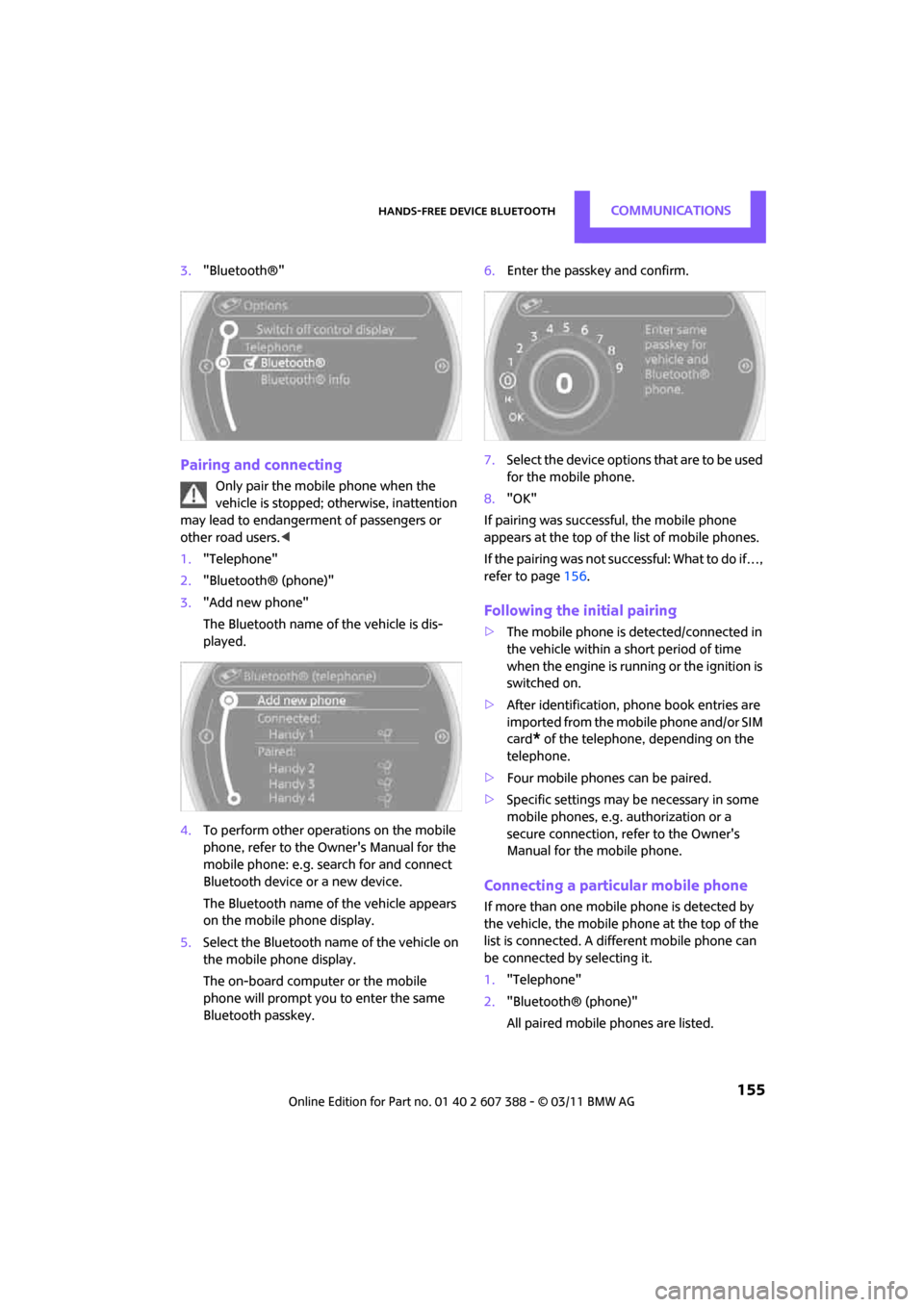
1. "Telephone"
2. "Bluetooth® (phone)"
3. "Add new phone"
The Bluetooth name of the vehicle is dis-
played.
4. To perform other operations on the mobile
phone, refer to the Ow ner's Manual for the
mobile phone: e.g. se arch for and connect
Bluetooth device or a new device.
The Bluetooth name of the vehicle appears
on the mobile phone display.
5. Select the Bluetooth name of the vehicle on
the mobile phone display.
The on-board computer or the mobile
phone will prompt you to enter the same
Bluetooth passkey. 6.
Enter the passkey and confirm.
7. Select the device options that are to be used
for the mobile phone.
8. "OK"
If pairing was successful, the mobile phone
appears at the top of the list of mobile phones.
If the pairing was not successful: What to do if…,
refer to page 156.
Following the initial pairing
>The mobile phone is detected/connected in
the vehicle within a short period of time
when the engine is running or the ignition is
switched on.
> After identification, phone book entries are
imported from the mobile phone and/or SIM
card
* of the telephone, depending on the
telephone.
> Four mobile phones can be paired.
> Specific settings may be necessary in some
mobile phones, e.g. authorization or a
secure connection, re fer to the Owner's
Manual for the mobile phone.
Connecting a particular mobile phone
If more than one mobile phone is detected by
the vehicle, the mobile phone at the top of the
list is connected. A diff erent mobile phone can
be connected by selecting it.
1. "Telephone"
2. "Bluetooth® (phone)"
All paired mobile phones are listed.
Page 163 of 256
Hands-free device BluetoothCommunications
161
Displaying messages
1."Telephone"
2. "Messages"
3. Select the desired message.
Hands-free system
General information
Calls being conducted using the hands-free sys-
tem can be continued using the mobile phone
and vice versa.
From the mobile phone to the
hands-free system
Calls that have been initiated from outside the
Bluetooth range of the vehicle can be continued
using the hands-free system if the ignition is
switched on.
Depending on the mobile phone, the call is
automatically switched to hands-free mode.
If the switch does not occur automatically, then
follow the instructions th at appear on the dis-
play of the mobile phone, also refer to the
Owner's Manual for the mobile phone.
From hands-free system to mobile
phone
Calls being conducted using the hands-free sys-
tem can also be continued using the mobile
phone if so desired, depending on the mobile
phone.
At this point, follow the instructions that appear
on the display of the mobile phone, also refer to
the Owner's Manual for the mobile phone.
Contacts*
General information
Contacts can be created and edited. The
addresses can be used as destinations for navi-
gation.
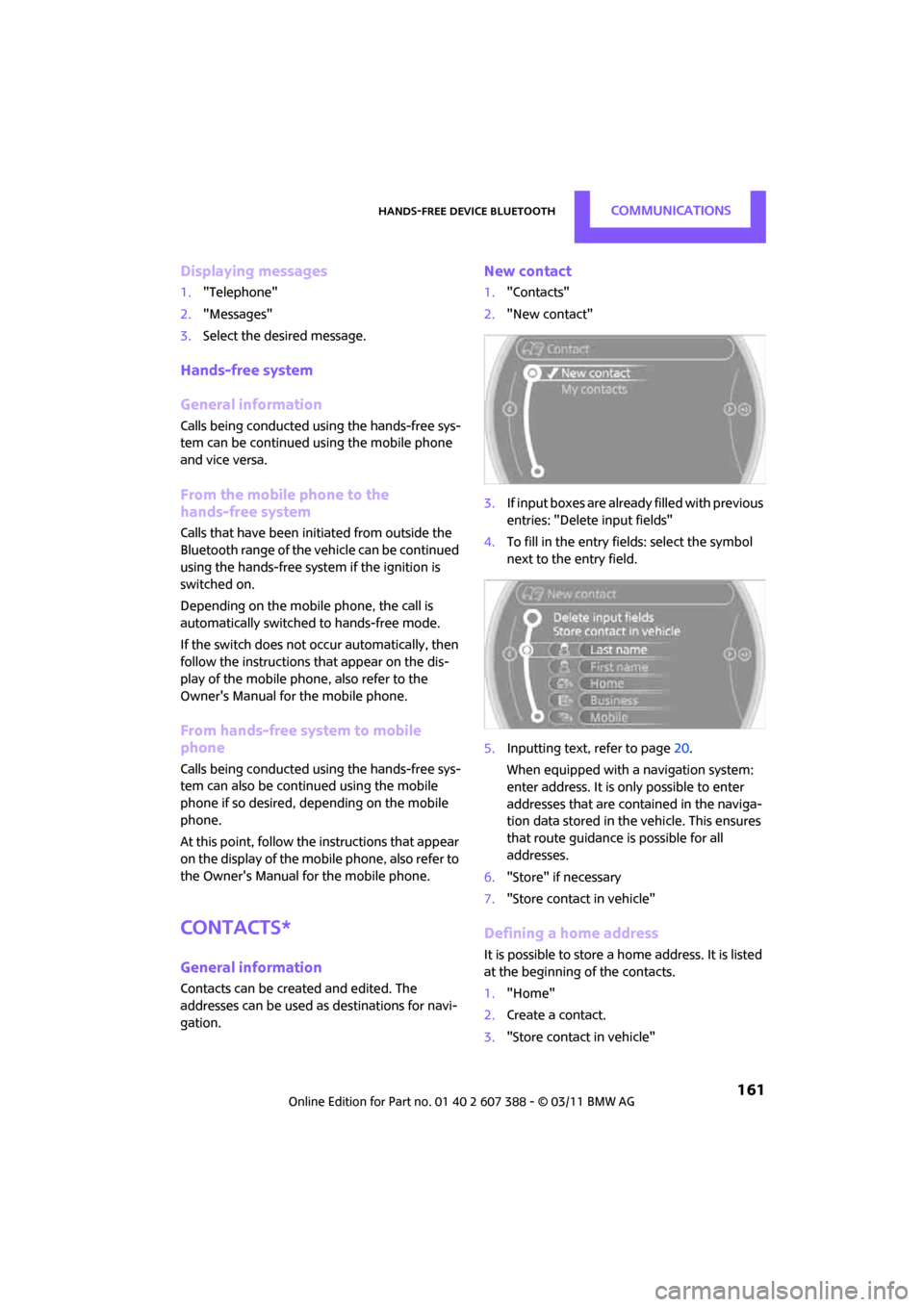
New contact
1. "Contacts"
2. "New contact"
3. If input boxes are already filled with previous
entries: "Delete input fields"
4. To fill in the entry fields: select the symbol
next to the entry field.
5. Inputting text, refer to page 20.
When equipped with a navigation system:
enter address. It is only possible to enter
addresses that are cont ained in the naviga-
tion data stored in the vehicle. This ensures
that route guidance is possible for all
addresses.
6. "Store" if necessary
7. "Store contact in vehicle"
Defining a home address
It is possible to store a ho me address. It is listed
at the beginning of the contacts.
1. "Home"
2. Create a contact.
3. "Store contact in vehicle"