reset MINI Clubman 2013 User Guide
[x] Cancel search | Manufacturer: MINI, Model Year: 2013, Model line: Clubman, Model: MINI Clubman 2013Pages: 267, PDF Size: 3.63 MB
Page 78 of 267

Technology for driving comfort and safetyCONTROLS
77
Message for unsuccessful system reset
Yellow warning lamp comes on. A mes-
sage appears on the onboard com-
puter.
The system has detected a wheel change, but
has not yet been reset. It is not possible to pro-
vide a reliable warning about the current infla-
tion pressure.
Check the tire inflation pressure and reset the
system, page 75.
Declaration according to NHTSA/
FMVSS 138 Tire Pressure Monitoring
Systems
Each tire, including the spare, should be
checked monthly when cold and inflated to the
inflation pressure recommended by the vehicle
manufacturer on the vehicle placard or tire infla-
tion pressure label. If yo ur vehicle has tires of a
different size than the size indicated on the vehi-
cle placard or tire inflat ion pressure label, you
should determine the prop er tire inflation pres-
sure for those tires. As an added safety feature,
your vehicle has been equipped with a tire pres-
sure monitoring system TPMS that illuminates a
low tire pressure telltale when one or more of
your tires are significantly underinflated.
Accordingly, when the low tire pressure telltale
illuminates, you should st op and check your tires
as soon as possible, an d inflate them to the
proper pressure. Drivin g on a significantly
underinflated tire causes the tire to overheat
and can lead to tire failure. Underinflation also
reduces fuel efficiency and tire tread life, and
may affect the vehicle's handling and stopping
ability. Please note that the TPMS is not a substi-
tute for proper tire maintenance, and it is the
driver's responsibility to maintain correct tire
pressure, even if underi nflation has not reached
the level at which the TPMS low tire pressure tell-
tale illuminates.
The TPMS malfunction indicator is combined
with the low tire pressure telltale. When the sys-
tem detects a malfunction, the telltale will flash
for approximately one minute and then remain continuously lit. This sequence will continue
upon subsequent vehicle startups as long as the
malfunction exists. When the malfunction indi-
cator is illuminated, the system may not be able
to detect or signal low tire pressure as intended.
TPMS malfunctions may occur for a variety of
reasons, including the in
stallation of replace-
ment or alternate tires or wheels on the vehicle
that prevent the TPMS from functioning prop-
erly. Always check the TP MS malfunction telltale
after replacing one or mo re tires or wheels on
your vehicle to ensure that the replacement or
alternate tires and wheels allow the TPMS to
continue to function properly.
00320051004F004C00510048000300280047004C0057004C005200510003
Page 135 of 267
ENTERTAINMENTOn/off and tone
134
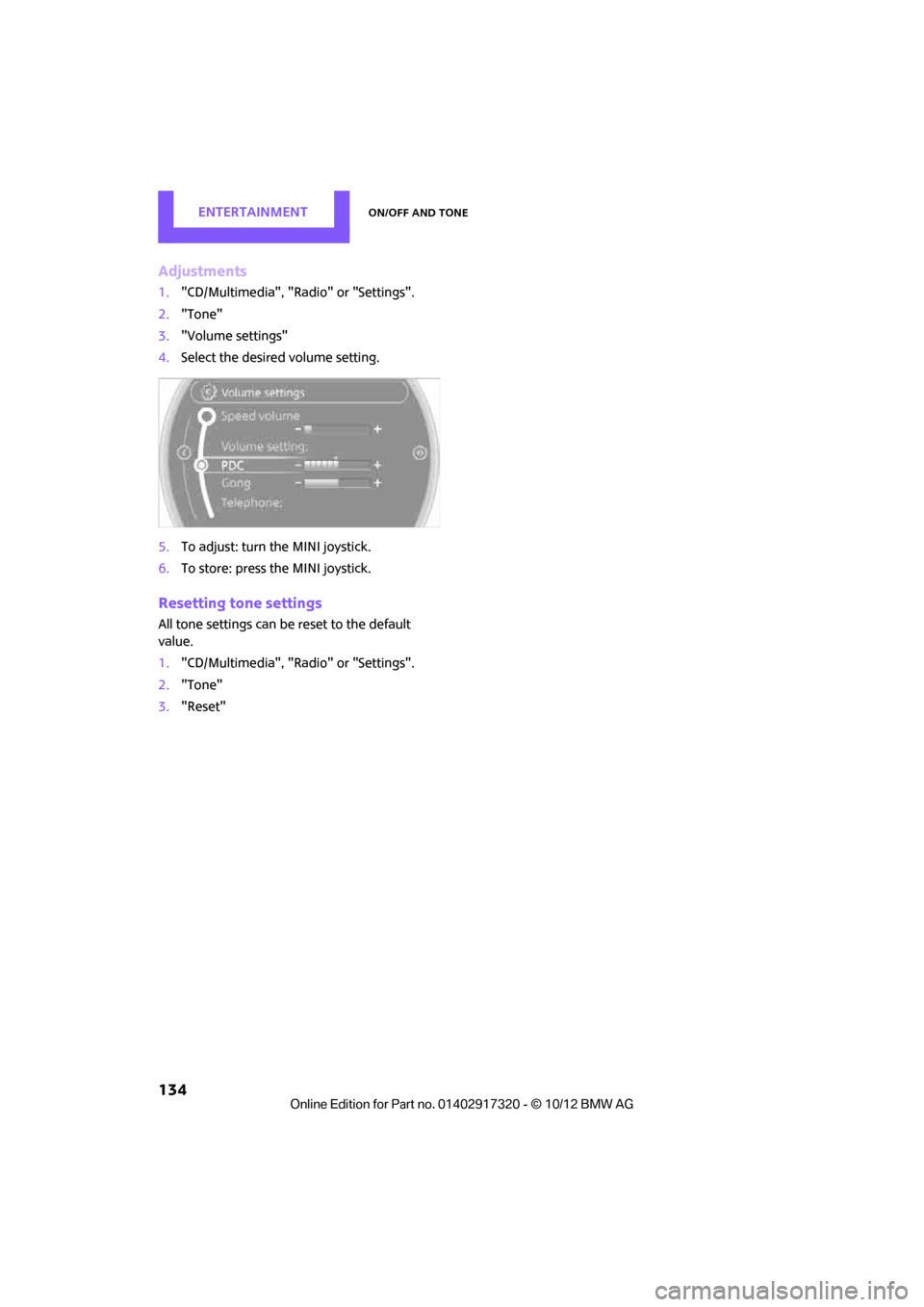
Adjustments
1."CD/Multimedia", "Radio" or "Settings".
2. "Tone"
3. "Volume settings"
4. Select the desired volume setting.
5. To adjust: turn the MINI joystick.
6. To store: press the MINI joystick.
Resetting tone settings
All tone settings can be reset to the default
value.
1."CD/Multimedia", "Radio" or "Settings".
2. "Tone"
3. "Reset"
00320051004F004C00510048000300280047004C0057004C005200510003
Page 138 of 267
RadioENTERTAINMENT
137
When setting a station with a digital signal, it
may be a few seconds until the station is repro-
duced in digital quality.
In areas in which the station is not continuously
received in digital mode, playback switches
between analog and digita l reception. In this
case, switch off digi tal radio reception.
Displaying additional information
Some stations broadcast additional information
on the current track, such as the name of the art-
ist.
1.Select the desired station.
2. Open "Options".
3. "Station info"
Selecting a substation
The symbol indicates that a main station also
broadcasts additional su bstations. The station
name of the main station ends in HD1. The sta-
tion names of the substations end in HD2, HD3,
etc.
1. Select the desired station.
2. Press the MINI joystick.
3. Select the substation.
When reception is poor, the substation is muted
for several seconds.
Stored stations
It is possible to store up to 40 stations.
Selecting a station
1. "Radio"
2. "Presets"
3. Select the desired station.
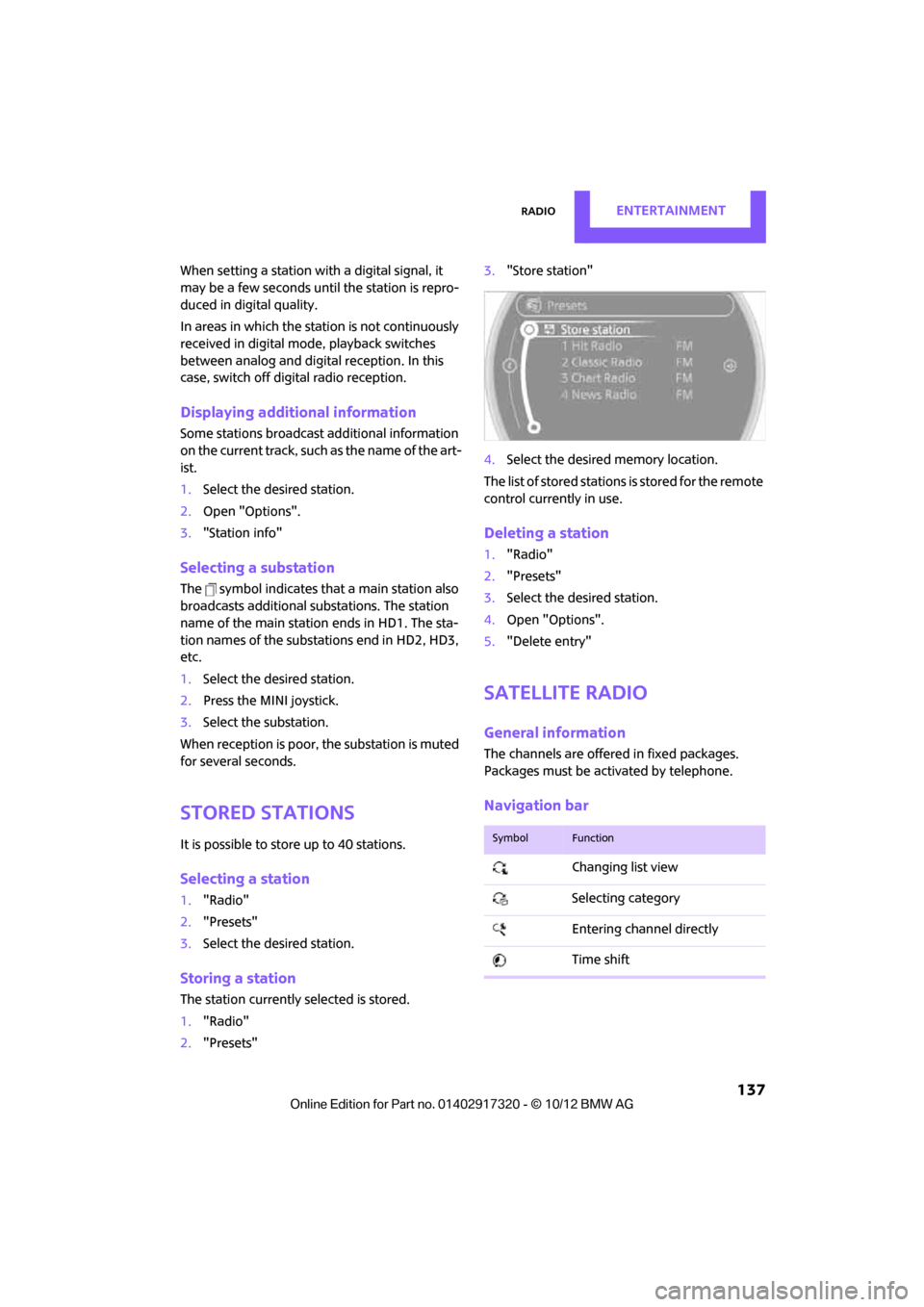
Storing a station
The station curre ntly selected is stored.
1. "Radio"
2. "Presets" 3.
"Store station"
4. Select the desired memory location.
The list of stored stations is stored for the remote
control current ly in use.
Deleting a station
1."Radio"
2. "Presets"
3. Select the desired station.
4. Open "Options".
5. "Delete entry"
Satellite radio
General information
The channels are offered in fixed packages.
Packages must be activated by telephone.
Navigation bar
SymbolFunction
Changing list view
Selecting category
Entering channel directly
Time shift
00320051004F004C00510048000300280047004C0057004C005200510003
Page 150 of 267

External devicesENTERTAINMENT
149
3.Select the or symbol and press the
MINI joystick.
4. "Video"
5. Select the desired file.
Select category in file directory, if applicable.
6. Press the MINI joystick.
The playback of the selected video file is
started.
Notes
Do not subject the audio device to
extreme environmental conditions, e.g.
extremely high temperatures, refer to the oper-
ating instructions for the audio device. Other-
wise the audio device may be damaged, impair-
ing driving safety while driving. <
Depending on the config uration of the audio
files, e.g. bit rates greater than 256 Kbit/s,
proper playback cannot always be ensured.
Audio and video playback from using a snap-in
adapter may only be possible if a there is no
cable connected to the AV-In connector.
Information on connection
> The connected audio device is supplied with
a max. power of 500 mA if supported by the
device. Therefore, do not connect the device
to the power socket in the vehicle.
> Do not use force when plugging the connec-
tor into the USB interface.
> Do not connect any devices, e.g. fans or
lamps, to the USB audio interface.
> Do not connect USB hard drives.
> Do not use the USB audio interface to
recharge external devices.
Bluetooth audio
Overview
>It is possible to use Bluetooth to play music
files from external devices, e.g. audio
devices or mobile phones.
> Bluetooth® is a registered trademark of
Bluetooth® SIG, Inc.
> Sound is output over the vehicle speakers.
> The volume of the sound output depends on
the device. If necessary, change the volume
setting on the device.
> Up to four external devices can be paired
with the vehicle.
Requirements
>Suitable device. Information is available at
www.mini.com/connectivity.
> Device operational.
> Ignition switched on.
> Bluetooth activated in vehicle, refer to
page 167, and in the device.
> Bluetooth presets in the device are required,
e.g. connection not confirmed or visible,
refer to Owner's Ma nual for the device.
> A number with at least 4 and at most
16 digits has been established as the Blue-
00320051004F004C00510048000300280047004C0057004C005200510003
Page 157 of 267

COMMUNICATIONSHands-free device Bluetooth
156
Hands-free device Bluetooth
Vehicle equipment
In this chapter, all production, country, and
optional equipment that is offered in the model
range is described. Equipment is also described
that is not available because of, for example,
selected options or coun try version. This also
applies to safety relate d functions and systems.
Overview
The concept
Mobile phones can be connected to the vehicle
through Bluetooth.
Bluetooth® is a registered trademark of Blue-
tooth® SIG, Inc.
After being paired once, when the ignition is
switched on, these devices are automatically
detected as soon as they are present in the vehi-
cle and can be controlled via the onboard com-
puter, the buttons on the steering wheel, and by
voice.
Up to four mobile phones can be paired.
It may be necessary for some functions to be
activated by the mobile phone provider.
Only make entries when traffic conditions
permit. Do not hold the mobile phone in
your hand while you are driving; use the hands-
free system instead. If you do not observe this
precaution, your being distracted can endanger
vehicle occupants and other road users. <
Suitable mobile phones
Precise information as to which mobile phones
are supported by the hands-free device can be
found at www.mini.com/connectivity.
With a certain software version, these suitable
mobile phones support the vehicle functions
described below. With other mobile phones
or software versions,
malfunctions may occur.
A mobile phone that is connected to the vehicle
should not be operated via the mobile phone
keypad; otherwise, ma lfunctions may occur.
Displaying vehicle identification number
and software part number
To check which mobile phones are supported by
the hands-free device, th e vehicle identification
number and the software part number will be
required. The software version of the mobile
phone may also be required.
1. "Telephone"
2. Open "Options".
3. "Bluetooth® info"
4. "Display system information"
Notes
Do not expose your mobile phone to extreme
ambient conditions, for example, very high tem-
peratures; otherwise, fu nctions on your mobile
phone may not work. Follow the operating
instructions for yo ur mobile phone.
Pairing/unpairing mobile
phone
Requirements
>Suitable mobile phone, refer to page 156.
> Mobile phone operational.
> Bluetooth activated in vehicle, refer to
page 157, and in the mobile phone.
> Bluetooth presets in the mobile phone are
required, e.g. connection not confirmed or
visible, refer to Ow ner's Manual for the
mobile phone.
00320051004F004C00510048000300280047004C0057004C005200510003
Page 168 of 267
Mobile phone preparation BluetoothCOMMUNICATIONS
167
Notes
Do not expose your mobile phone to extreme
ambient conditions, for example, very high tem-
peratures; otherwise, functions on your mobile
phone may not work. Follow the operating
instructions for your mobile phone.
Pairing/unpairing mobile
phone
Overview
> Using a mobile phone as a telephone.
> Using the mobile phone as an auxiliary
phone.
> Using a mobile phone as an audio source.
> Using an audio device as an audio source,
refer to page 149.
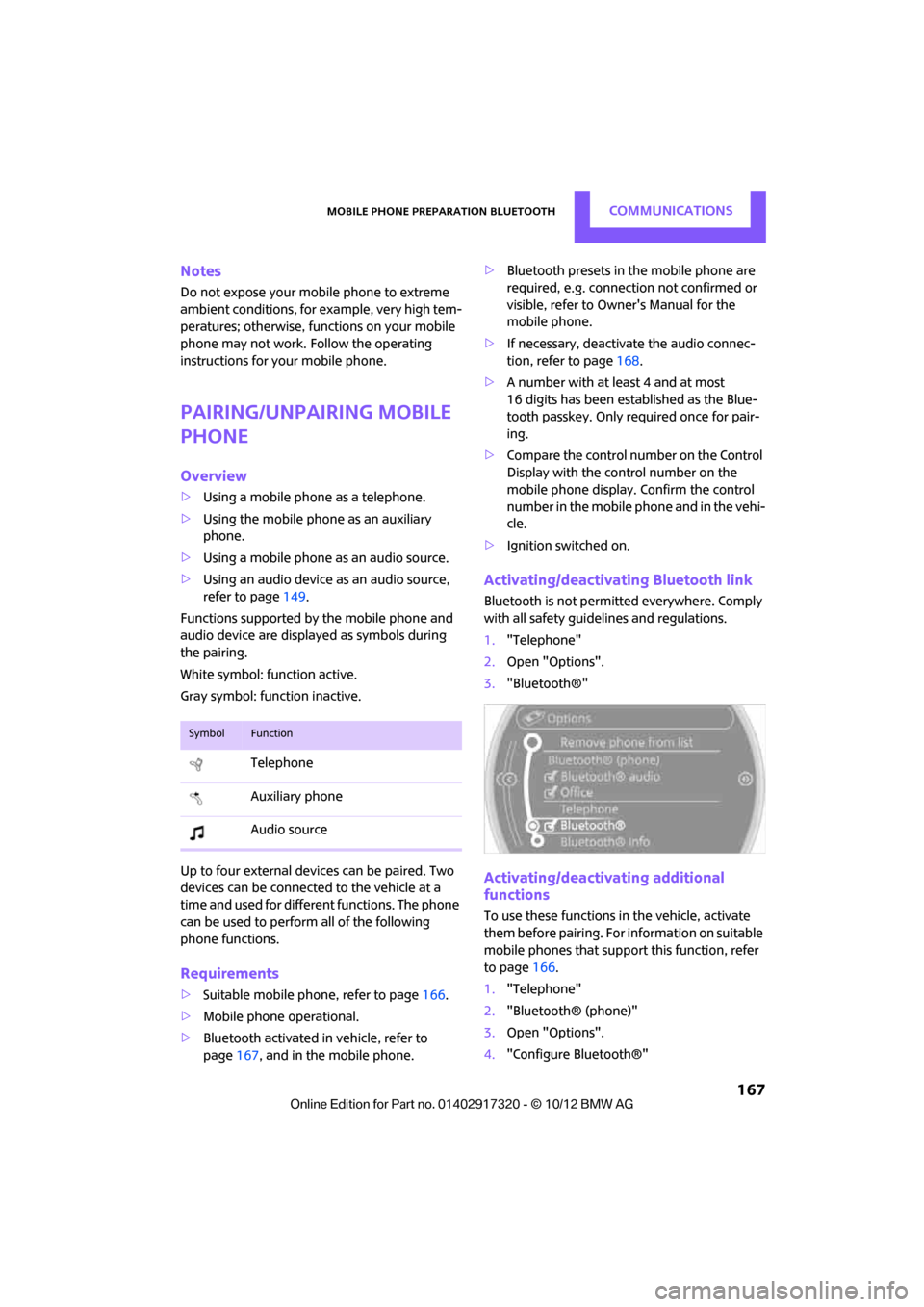
Functions supported by the mobile phone and
audio device are displayed as symbols during
the pairing.
White symbol: function active.
Gray symbol: function inactive.
Up to four external devices can be paired. Two
devices can be connecte d to the vehicle at a
time and used for different functions. The phone
can be used to perform all of the following
phone functions.
Requirements
> Suitable mobile phone, refer to page 166.
> Mobile phone operational.
> Bluetooth activated in vehicle, refer to
page 167, and in the mobile phone. >
Bluetooth presets in the mobile phone are
required, e.g. connection not confirmed or
visible, refer to Ow ner's Manual for the
mobile phone.
> If necessary, deactivate the audio connec-
tion, refer to page 168.
> A number with at least 4 and at most
16 digits has been established as the Blue-
tooth passkey. Only required once for pair-
ing.
> Compare the control number on the Control
Display with the control number on the
mobile phone display. Confirm the control
number in the mobile phone and in the vehi-
cle.
> Ignition switched on.
Activating/deactivating Bluetooth link
Bluetooth is not permitted everywhere. Comply
with all safety guidel ines and regulations.
1. "Telephone"
2. Open "Options".
3. "Bluetooth®"
Activating/deactivating additional
functions
To use these functions in the vehicle, activate
them before pairing. For information on suitable
mobile phones that suppo rt this function, refer
to page 166.
1. "Telephone"
2. "Bluetooth® (phone)"
3. Open "Options".
4. "Configure Bluetooth®"
SymbolFunction
Telephone
Auxiliary phone
Audio source
00320051004F004C00510048000300280047004C0057004C005200510003
Page 196 of 267
Wheels and tiresMOBILITY
195
Wheels and tires
Vehicle equipment
In this chapter, all production, country, and
optional equipment that is offered in the model
range is described. Equipment is also described
that is not available because of, for example,
selected options or count ry version. This also
applies to safety related functions and systems.
Tire inflation pressures
Information for your safety
It is not merely the tires' service life, but also
driving comfort and, to a great extent, driving
safety that depend on the condition of the tires
and the maintenance of the specified tire pres-
sure.
Checking pressure
Check the tire inflatio n pressure regularly
and correct it, if nece ssary: at least twice a
month and before starting long trips. If you fail
to observe this precaution you may be driving
on tires with incorrect tire pressures, a condition
that can not only compromise your vehicle's
driving stability, but also lead to tire damage and
the risk of an accident. Do not drive with
deflated, i.e. flat tires, except when using run-
flat tires. A flat tire will seriously impair your
vehicle's handling and braking response.
Attempts to drive on a flat tire can lead to loss of
control over the vehicle. <
Check the tire inflation pressures only on cold
tires. This means after a maximum of 1.25 miles/
2 km driving or when the vehicle has been
parked for at least 2 hours. When tires are warm,
the tire inflation pressure is higher. After adjusting the tire inflation pressure,
reinitialize the Flat Tire Monitor, page 72,
or reset the Tire Pressure Monitor, page 75.<
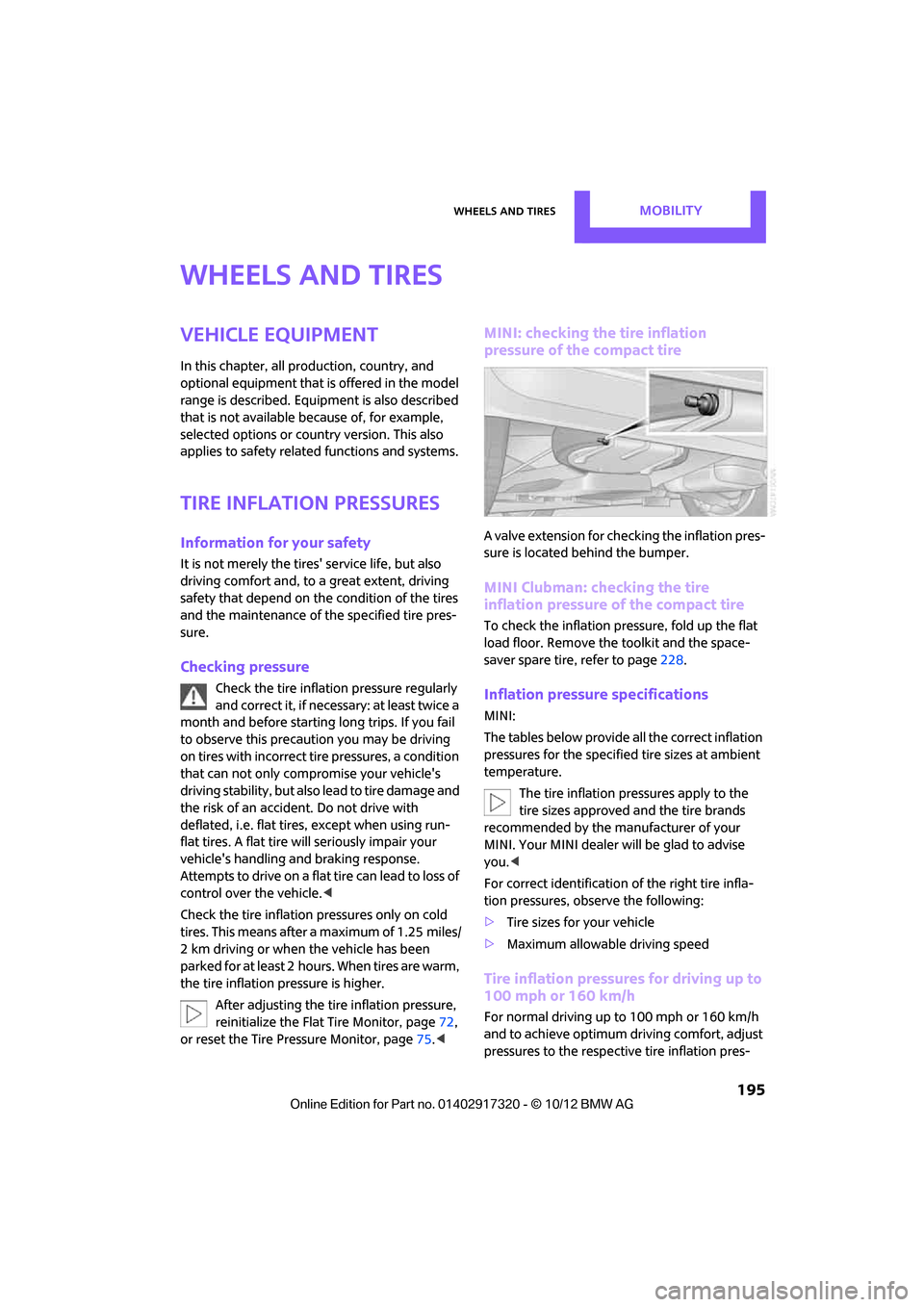
MINI: checking the tire inflation
pressure of the compact tire
A valve extension for checking the inflation pres-
sure is located behind the bumper.
MINI Clubman: checking the tire
inflation pressure of the compact tire
To check the inflation pressure, fold up the flat
load floor. Remove the toolkit and the space-
saver spare tire, refer to page 228.
Inflation pressure specifications
MINI:
The tables below provide all the correct inflation
pressures for the specified tire sizes at ambient
temperature.
The tire inflation pressures apply to the
tire sizes approved and the tire brands
recommended by the manufacturer of your
MINI. Your MINI dealer will be glad to advise
you. <
For correct identification of the right tire infla-
tion pressures, observe the following:
> Tire sizes for your vehicle
> Maximum allowable driving speed
Tire inflation pressures for driving up to
100 mph or 160 km/h
For normal driving up to 100 mph or 160 km/h
and to achieve optimum dr iving comfort, adjust
pressures to the respective tire inflation pres-
00320051004F004C00510048000300280047004C0057004C005200510003
Page 249 of 267

REFERENCEShort commands for the voice activation system
248
Stored stations
Telephone
Contacts
FunctionCommand
Selecting stored stations{Presets }
Choosing a stored station {Select preset }
Selecting a stored station {Preset … } e.g. stored station 2
FunctionCommand
Opening the Telephone menu {Telephone }
To display phone book {Phonebook }
To redial {Redial }
Displaying accepted calls {Received calls }
Dialing a phone number {Dial number }
Displaying the list of messages {Messages }
Displaying Bluetooth devices {Bluetooth }
FunctionCommand
Accessing contacts {Contacts }
My contacts {My contacts }
New contact {New contact }
00320051004F004C00510048000300280047004C0057004C005200510003
Page 261 of 267
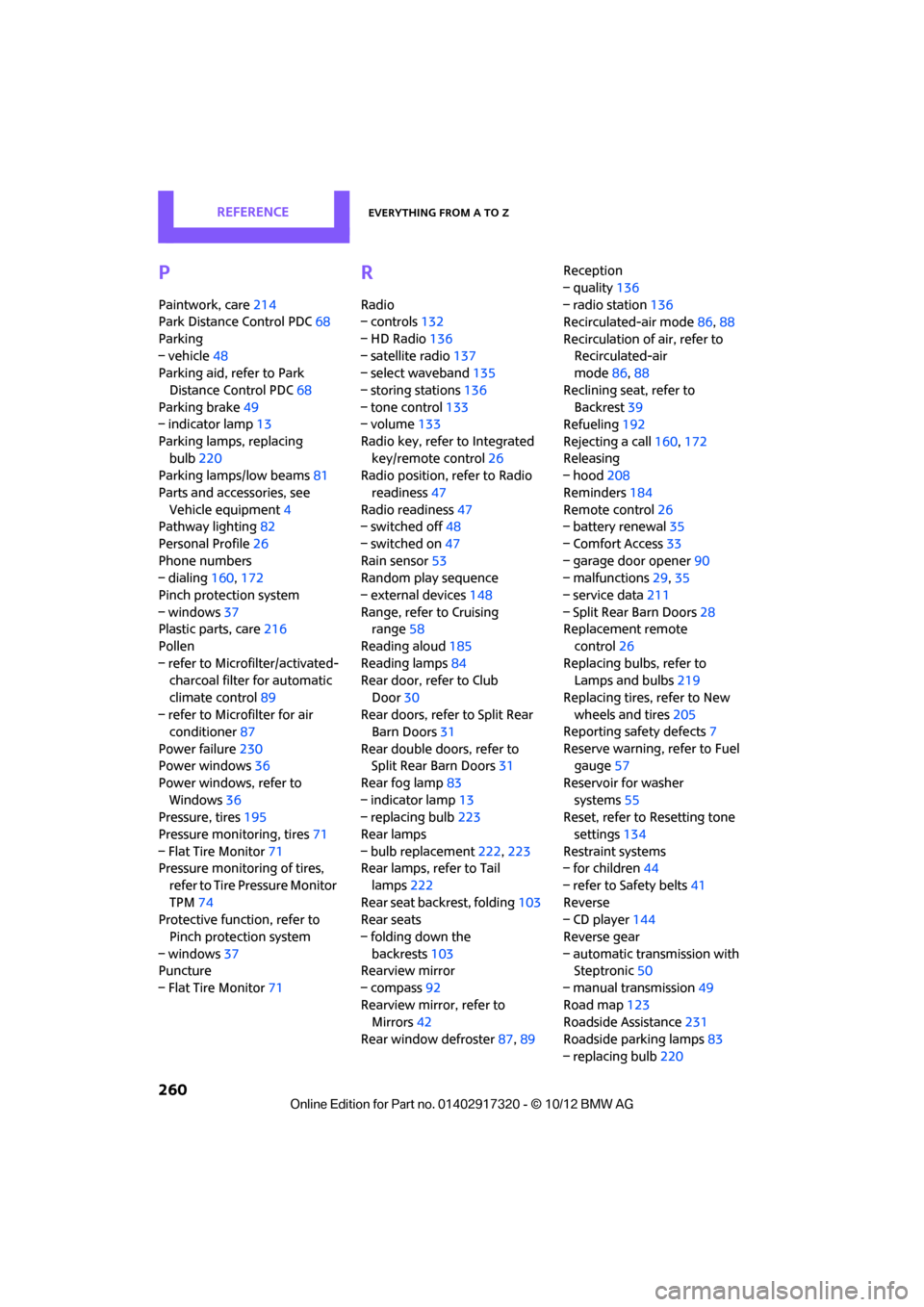
REFERENCEEverything from A to Z
260
P
Paintwork, care214
Park Distance Control PDC 68
Parking
– vehicle 48
Parking aid, refer to Park
Distance Control PDC 68
Parking brake 49
– indicator lamp 13
Parking lamps, replacing bulb 220
Parking lamps/low beams 81
Parts and accessories, see Vehicle equipment 4
Pathway lighting 82
Personal Profile 26
Phone numbers
– dialing 160,172
Pinch protection system
– windows 37
Plastic parts, care 216
Pollen
– refer to Microfilter/activated- charcoal filter for automatic
climate control 89
– refer to Microfilter for air conditioner 87
Power failure 230
Power windows 36
Power windows, refer to Windows 36
Pressure, tires 195
Pressure moni toring, tires71
– Flat Tire Monitor 71
Pressure monitoring of tires,
refer to Tire Pressure Monitor
TPM 74
Protective function, refer to
Pinch protection system
– windows 37
Puncture
– Flat Tire Monitor 71
R
Radio
– controls132
– HD Radio 136
– satellite radio 137
– select waveband 135
– storing stations 136
– tone control 133
– volume 133
Radio key, refer to Integrated key/remote control 26
Radio position, refer to Radio
readiness 47
Radio readiness 47
– switched off 48
– switched on 47
Rain sensor 53
Random play sequence
– external devices 148
Range, refer to Cruising range 58
Reading aloud 185
Reading lamps 84
Rear door, re fer to Club
Door 30
Rear doors, refer to Split Rear Barn Doors 31
Rear double doors, refer to Split Rear Barn Doors 31
Rear fog lamp 83
– indicator lamp 13
– replacing bulb 223
Rear lamps
– bulb replacement 222,223
Rear lamps, refer to Tail
lamps 222
Rear seat back rest, folding103
Rear seats
– folding down the backrests 103
Rearview mirror
– compass 92
Rearview mirror, refer to Mirrors 42
Rear window defroster 87,89 Reception
– quality
136
– radio station 136
Recirculated-air mode 86,88
Recirculation of air, refer to Recirculated-air
mode 86,88
Reclining seat , refer to
Backrest 39
Refueling 192
Rejecting a call 160,172
Rele asing
– hood 208
Reminders 184
Remote con
trol26
– battery renewal 35
– Comfort Access 33
– garage door opener 90
– malfunctions 29,35
– service data 211
– Split Rear Barn Doors 28
Replacement remote
control 26
Replacing bulbs, refer to Lamps and bulbs 219
Replacing tires, refer to New
wheels and tires 205
Reporting safety defects 7
Reserve warning, refer to Fuel gauge 57
Reservoir for washer systems 55
Reset, refer to Resetting tone
settings 134
Restraint systems
– for children 44
– refer to Safety belts 41
Reverse
– CD player 144
Reverse gear
– automatic transmission with Steptronic 50
– manual transmission 49
Road map 123
Roadside Assistance 231
Roadside parking lamps 83
– replacing bulb 220
00320051004F004C00510048000300280047004C0057004C005200510003
Page 264 of 267

Everything from A to ZREFERENCE
263
Telephone
– hands-free system163,175
– installation location, refer to Center armrest 95
– voice commands 175
Telephone receiving power, refer to Status
information 19
Temperature display
– setting the units 60
Temperature of coolant, refer to Coolant temperature 210
Temperature setting
– air conditioner 87
– automatic climate control 89
Tempomat, refer to Cruise
control 55
Tensioning straps, refer to Securing cargo 105
Text message 182
Third brake lamp, refer to Center brake lamp 224
Three-point safety belt 41
Tightening the lug bolts
– keys 217,218
– torque 229
Tightening torque, refer to Tightening lug bolts 229
Tire change set
– space-saver spare tire 217
Tire failure
– Flat Tire Monitor 73
– indicator/warning lamp 73
– MINI Mobility Kit 224
– run-flat tires 73
– space-saver spare tire 227
– Tire Pressure Monitor 74
Tire inflation pressure 195
– loss 73,74
– space-saver spare tire 195
Tire pressure monitoring, refer to Flat Tire Monitor 71
Tire Pressure Monitor TPM 74
– limitations of system 74
– resetting system 75
– warning lamp 75
Tire Quality Grading 203Tires
– age
204
– breaking in 100
– changing, refe r to Changing
wheels 227
– condition 204
– damage 204
– inflation pressure 195
– inflation pressure loss 75
– minimum tread depth 204
– new tires
205
– pressure moni toring,
refer to
Flat Tire Monitor 71
– pressure monitoring, refer to Tire Pressure Monitor
TPM 74
– puncture 73
– size 202
– wear indicators, refer to
Minimum tread depth 204
– winter tires 206
– with emergency operation
properties 205
Tires with emergency operation properties, refer to
Run-flat tires 205
Tires with safety features, refer
to Run-flat tires 205
TMC station, refer to Traffic information 125
Tone
– middle setting 134
Tone during audio playback
– adjusting 133
Toolkit 217
Tools, refer to Toolkit 217
Torque 238
– lug bolts 229
Tow bar 234
Tow fitting 233
– screw thread 233
Tow fittings for tow-starting
and towing away 233
Towing 233
– car with automatic
transmission 234
– methods 234 Tow rope
234
Tow-starting 233
TPM, refer to Tire Pressure Monitor 74
Track
– selecting on CD 143
Track width, refer to
Dimension 239
Traction control, refer to
– Dynamic Stability Control
DSC 69
Traffic bulletins
– categories 127
Traffic bulletins, filtering 127
Traffic congestion
– displaying traffic
information 125
– refer to Route, bypassing segments 122
Traffic information for navigation
– displaying 126
Traffic information in navigation
– screen display in the map
view 127
Trailer operation
– trailer loads and gross vehicle
weight 242
Transmission
– automatic transmission with Steptron ic
49
– manual transmission 49
– overriding selector lever lo ck
f
or automatic transmission
with Steptronic 51
Transporting children safely 44
Transport securing devices, refer to Securing cargo 105
Tread depth, refer to Minimum tire tread 204
Treble, refer to Tone
control 133
Trip computer 59
Trip-distance counter, refer to
Trip odometer 58
Triple turn signal activation 52
00320051004F004C00510048000300280047004C0057004C005200510003