lights MINI Clubman 2016 Owner's Manual (Mini Connected)
[x] Cancel search | Manufacturer: MINI, Model Year: 2016, Model line: Clubman, Model: MINI Clubman 2016Pages: 246, PDF Size: 5.21 MB
Page 5 of 246
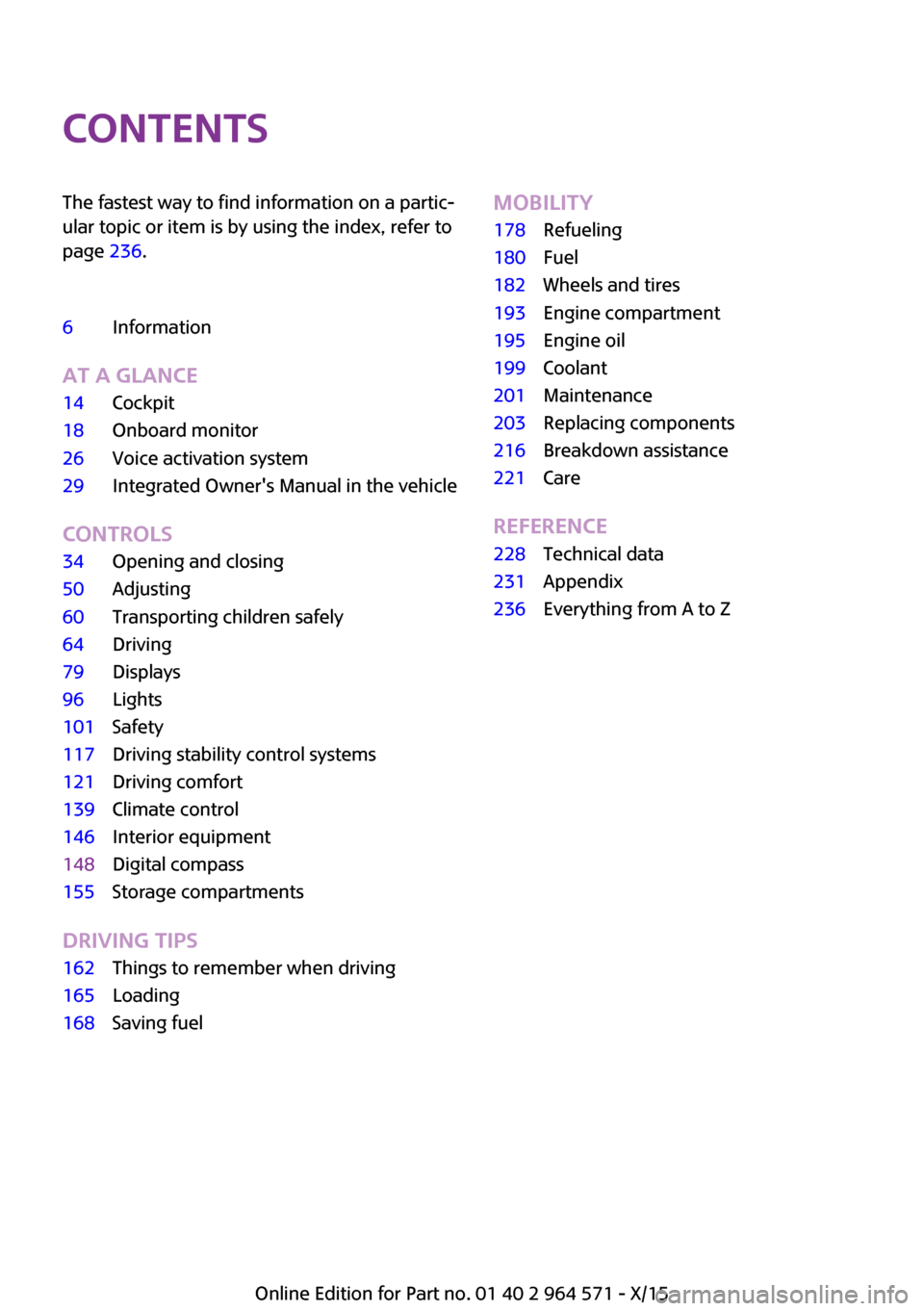
ContentsThe fastest way to find information on a partic‐
ular topic or item is by using the index, refer to
page 236.
6Information
AT A GLANCE
14Cockpit18Onboard monitor26Voice activation system29Integrated Owner's Manual in the vehicle
CONTROLS
34Opening and closing50Adjusting60Transporting children safely64Driving79Displays96Lights101Safety117Driving stability control systems121Driving comfort139Climate control146Interior equipment148Digital compass155Storage compartments
DRIVING TIPS
162Things to remember when driving165Loading168Saving fuelMOBILITY178Refueling180Fuel182Wheels and tires193Engine compartment195Engine oil199Coolant201Maintenance203Replacing components216Breakdown assistance221Care
REFERENCE
228Technical data231Appendix236Everything from A to Z
Online Edition for Part no. 01 40 2 964 571 - X/15
Page 9 of 246
Maintenance
Maintain the vehicle regularly to sustain the
road safety, operational reliability and the New
Vehicle Limited Warranty.
Specifications for required maintenance meas‐
ures:
▷MINI Maintenance system▷Service and Warranty Information Booklet
for US models
▷Warranty and Service Guide Booklet for
Canadian models
If the vehicle is not maintained according to
these specifications, this could result in serious
damage to the vehicle. Such damage is not
covered by the MINI New Vehicle Limited War‐
ranty.
Data memory
Many electronic components on your vehicle
are equipped with data memories that tempo‐
rarily or permanently store technical informa‐
tion about the condition of the vehicle, events
and faults. This technical information generally
records the state of a component, a module, a
system or the environment:
▷Operating mode of system components, fill
levels for instance.
▷Status messages for the vehicle and from its
individual components, e.g., wheel rotation
speed/vehicle speed, deceleration, trans‐
verse acceleration.
▷Malfunctions and faults in important system
components, e.g., lights and brakes.
▷Responses by the vehicle to special situa‐
tions such as airbag deployment or engag‐
ing the stability control system.
▷Ambient conditions, such as temperature.
This data is purely technical in nature and is
used to detect and correct faults and to opti‐
mize vehicle functions. Motion profiles over
routes traveled cannot be created from this
data. When service offerings are used, e.g., re‐
pair services, service processes, warranty
claims, quality assurance, this technical infor‐
mation can be read out from the event and
fault memories by employees of a dealer’s
service center or another qualified service cen‐
ter or repair shop, including the manufacturer,
using special diagnostic tools. You can obtain
further information there if you need it. After
an error is corrected, the information in the
fault memory is deleted or overwritten on a
continuous basis.
With the vehicle in use there are situations
where you can associate these technical data
with individuals if combined with other infor‐
mation, e.g., an accident report, damage to the
vehicle, eye witness accounts — possibly with
the assistance of an expert.
Additional functions that are contractually
agreed with the customer - such as vehicle
emergency locating - you can transmit certain
vehicle data from the vehicle.
Event Data Recorder EDR
This vehicle is equipped with an event data re‐
corder EDR. The main purpose of an EDR is to
record, in certain crash or near crash-like situa‐
tions, such as an air bag deployment or hitting
a road obstacle, data that will assist in under‐
standing how a vehicle’s systems performed.
The EDR is designed to record data related to
vehicle dynamics and safety systems for a short
period of time, typically 30 seconds or less.
The EDR in this vehicle is designed to record
such data as:
▷How various systems in your vehicle were
operating.
▷Whether or not the driver and passenger
safety belts were fastened.
▷How far, if at all, the driver was depressing
the accelerator and/or brake pedal.
▷How fast the vehicle was traveling.Seite 9Information9
Online Edition for Part no. 01 40 2 964 571 - X/15
Page 14 of 246
CockpitVehicle features and op‐
tions
This chapter describes all standard, country-
specific and optional features offered with the
series. It also describes features that are not
necessarily available in your car, e. g., due to
the selected options or country versions. This
also applies to safety-related functions and sys‐
tems. The respectively applicable country provi‐
sions must be observed when using the respec‐
tive features and systems.
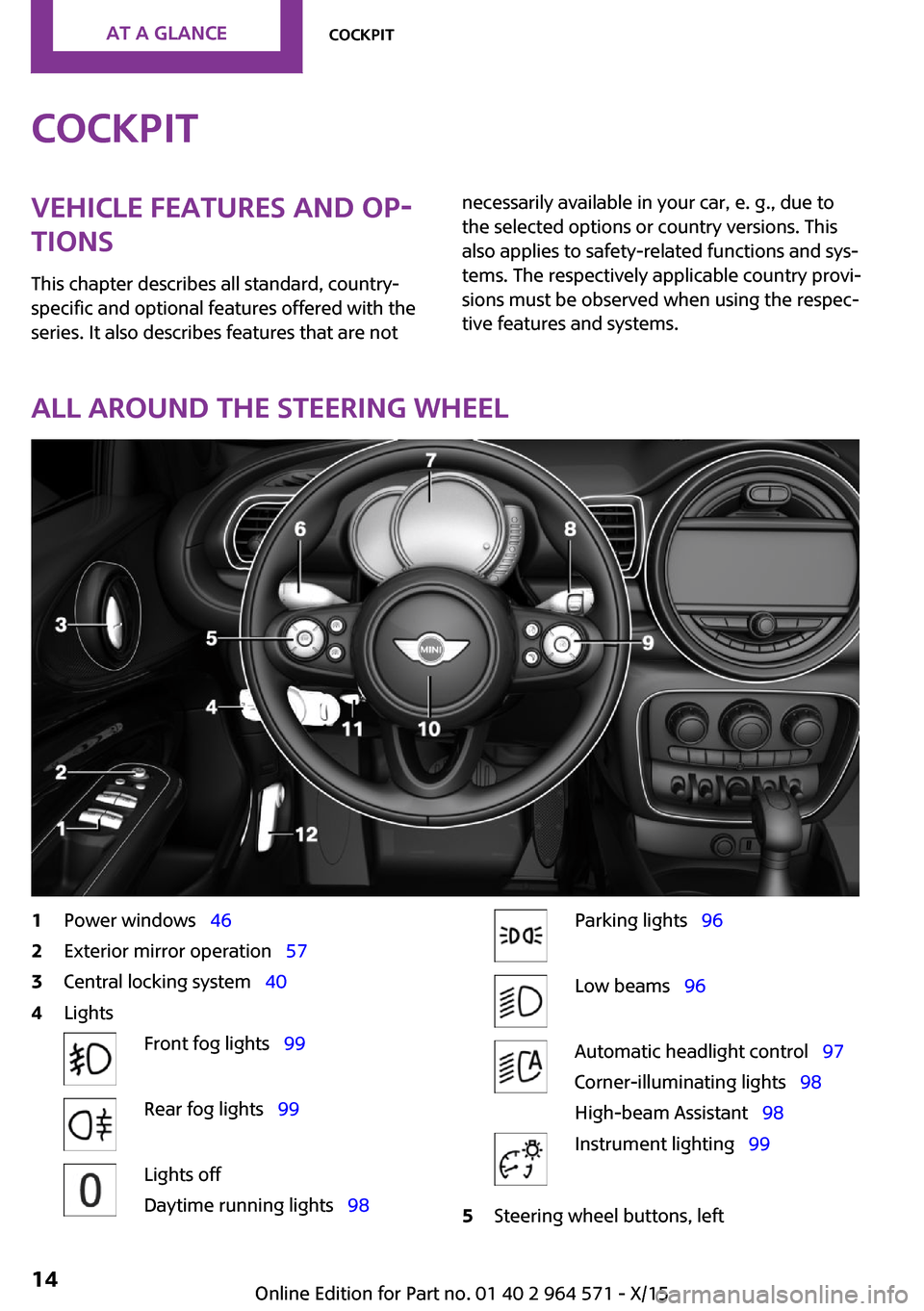
All around the steering wheel
1Power windows 462Exterior mirror operation 573Central locking system 404LightsFront fog lights 99Rear fog lights 99Lights off
Daytime running lights 98
Parking lights 96Low beams 96Automatic headlight control 97
Corner-illuminating lights 98
High-beam Assistant 98
Instrument lighting 995Steering wheel buttons, leftSeite 14AT A GLANCECockpit14
Online Edition for Part no. 01 40 2 964 571 - X/15
Page 15 of 246
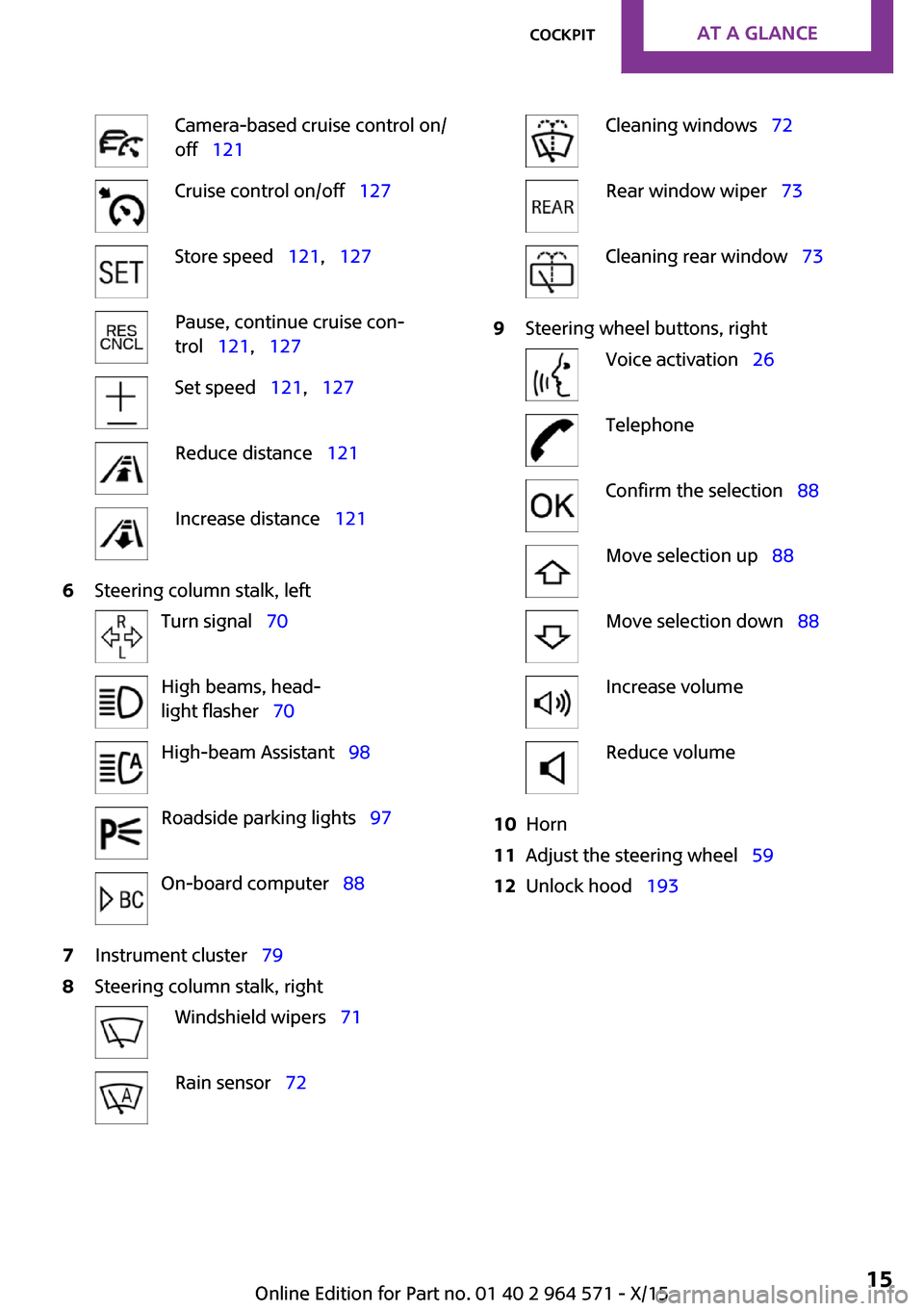
Camera-based cruise control on/
off 121
Cruise control on/off 127Store speed 121, 127Pause, continue cruise con‐
trol 121, 127
Set speed 121, 127Reduce distance 121Increase distance 1216Steering column stalk, leftTurn signal 70High beams, head‐
light flasher 70
High-beam Assistant 98Roadside parking lights 97On-board computer 887Instrument cluster 798Steering column stalk, rightWindshield wipers 71Rain sensor 72Cleaning windows 72Rear window wiper 73Cleaning rear window 739Steering wheel buttons, rightVoice activation 26TelephoneConfirm the selection 88Move selection up 88Move selection down 88Increase volumeReduce volume10Horn11Adjust the steering wheel 5912Unlock hood 193Seite 15CockpitAT A GLANCE15
Online Edition for Part no. 01 40 2 964 571 - X/15
Page 17 of 246
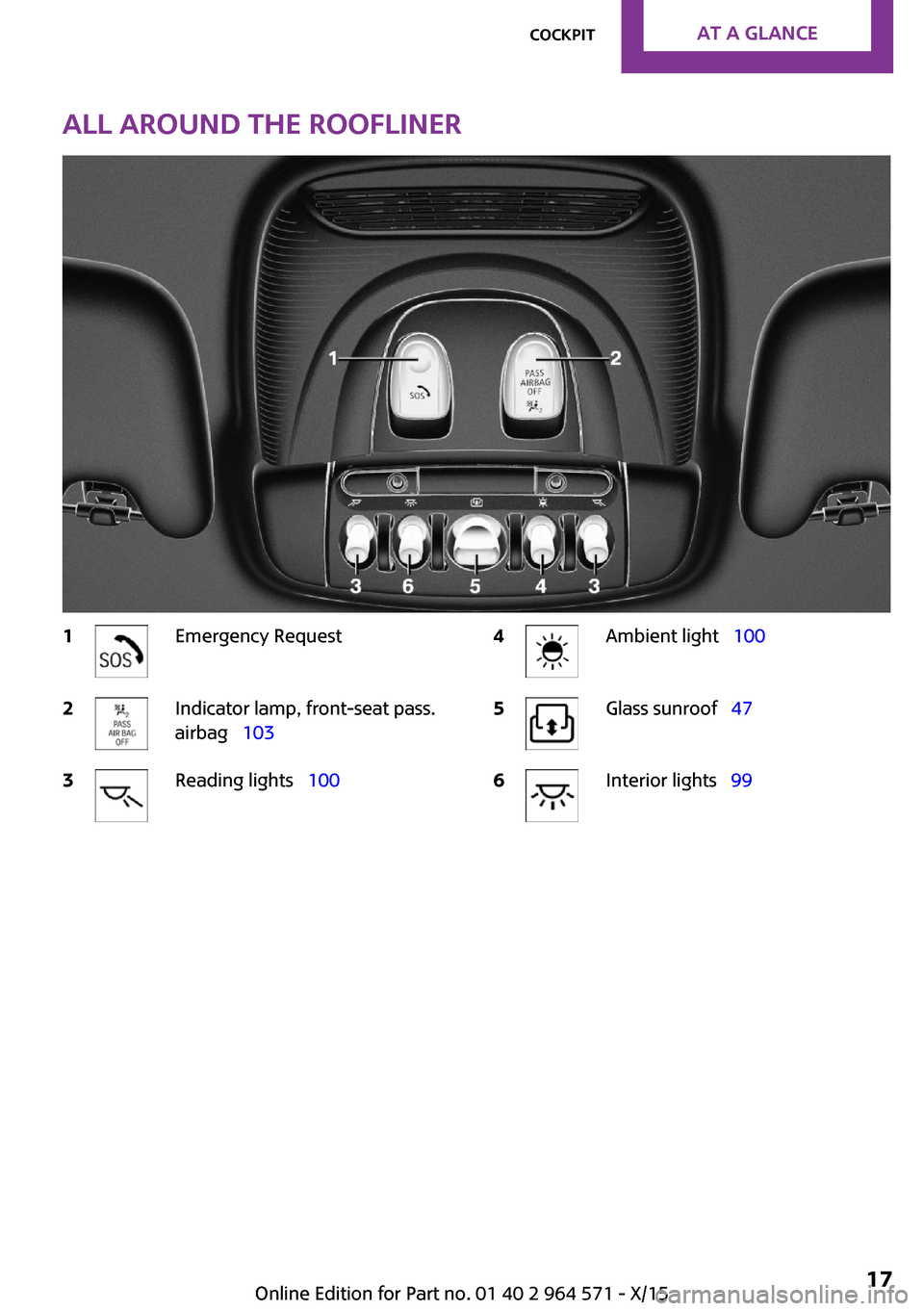
All around the roofliner1Emergency Request2Indicator lamp, front-seat pass.
airbag 103
3Reading lights 1004Ambient light 1005Glass sunroof 476Interior lights 99Seite 17CockpitAT A GLANCE17
Online Edition for Part no. 01 40 2 964 571 - X/15
Page 36 of 246
Personal Profile
The concept
Using Personal Profile, individual settings for
several drivers can be saved and called up
again at a later time.
General information
There are three profiles with which personal ve‐
hicle settings can be stored. Every remote con‐
trol has one of these profiles assigned.
If the vehicle is unlocked using a remote con‐
trol, the assigned personal profile will be acti‐
vated. All settings stored in the profile are auto‐
matically applied.
If several drivers use their own remote control,
the vehicle will adjust the personal settings dur‐
ing unlocking. These settings are also restored,
if the vehicle has been used in the meantime
by a person with a different remote control.
Changes to the settings are automatically saved
in the profile currently activated.
If another profile is selected via the onboard
monitor, the settings saved in it will be applied
automatically. The new profile is assigned to
the remote control currently used.
There is an additional profile available that is
not assigned to any remote control: It can be
used to apply settings in the vehicle without
changing the personal profiles.
Adjusting
The settings for the following systems and func‐
tions are saved in the active profile. The scope
of storable settings is country- and equipment-
dependable.
▷Unlocking and locking.▷Lights.▷Radio.▷Instrument cluster.▷Programmable memory buttons.▷Volumes, tone.▷Control Display.▷Climate control.▷Navigation.▷Park Distance Control PDC.▷Rearview camera▷Head-up Display.▷Driving Dynamics Control.▷Intelligent Safety.
Profile management
Opening profiles
Regardless of the remote control in use a differ‐
ent profile may be activated.
On the Control Display:
1. "Settings"2."Profiles"3.Select a profile.
The following functions are executed:
▷All settings stored in the called-up profile
are automatically applied.
▷The called-up profile is assigned to the re‐
mote control being used at the time.
▷If the profile is already assigned to a differ‐
ent remote control, this profile will apply to
both remote controls. It cannot be differen‐
tiated anymore between the settings for
the two remote controls.
Renaming profiles
A personal name can be assigned to every pro‐
file to avoid confusion between the profiles.
On the Control Display:
1. "Settings"2."Profiles"
The current profile is selected.
3.Open "Options".4."Rename current profile"Seite 36CONTROLSOpening and closing36
Online Edition for Part no. 01 40 2 964 571 - X/15
Page 37 of 246

Resetting profiles
The settings of the active profile are reset to
their default values.
On the Control Display:
1. "Settings"2."Profiles"
The current profile is selected.
3.Open "Options".4."Reset current profile"
Exporting profiles
Most settings of the active profile can be ex‐
ported.
This can be helpful for securing and retrieving
personal settings, before delivering the vehicle
to a workshop, for example. Profiles can be
taken to another vehicle equipped with the
Personal Profile function.
Export is made via the USB port to a USB de‐
vice.
Popular file systems for USB devices are sup‐
ported. FAT32 and exFAT are the recom‐
mended formats for profile export. Other for‐
mats may not support the export.
1. "Settings"2."Profiles"3."Export profile"4."USB device"
Importing profiles
Profiles stored on a USB device can be im‐
ported via the USB interface.
Existing settings are overwritten with the im‐
ported profile.
1. "Settings"2."Profiles"3."Import profile"4."USB device"Using the guest profile
The guest profile is for individual settings that
are saved in none of the three personal profiles.
This can be useful for drivers who are using the
vehicle temporarily and do not have their own
profile.
1. "Settings"2."Profiles"3."Guest"4.Adjust the settings.
The guest profile cannot be renamed. It is not
assigned to the current remote control.
Display profile list during start
The profile list can be displayed during each
start to select the desired profile.
1. "Settings"2."Profiles"3.Open "Options".4."Display user list at startup"
Using the remote con‐
trol
Information
WARNING
People or animals in the vehicle can lock
the doors from the inside and lock themselves
in. The vehicle can then not be opened from
the outside. There is risk of injuries. Take the
remote control along so that the vehicle can be
opened from the outside.◀
Unlocking
Press button on the remote control.
▷The vehicle is unlocked.▷The interior lights are switched on, when it
is dark outside, the courtesy lamps are also
Seite 37Opening and closingCONTROLS37
Online Edition for Part no. 01 40 2 964 571 - X/15
Page 38 of 246
switched on. This function is not available, if
the interior lamps were switched off man‐
ually.
▷The welcome lamps are switched on, if this
function was activated.
You can set how the vehicle is to be unlocked.
Create the settings, refer to page 43.
The alarm system, refer to page 44, is
switched off.
Convenient opening
Press and hold this button on the re‐
mote control after unlocking.
The windows and the glass sunroof are opened,
as long as the button on the remote control is
pressed.
Locking
WARNING
Unlocking from the inside is only possible
with special knowledge.
If people must spend a longer time in the vehi‐
cle while it is very hot or cold outside, there is
risk of injuries or danger to life. Do not lock the
vehicle from the outside when there are people
in it.◀
The driver's door must be closed.
Press button on the remote control.
The alarm system, refer to page 44, is
switched on.
If the vehicle horn honks twice when you lock
the car, this means that the engine or ignition is
still switched on. In this case, the engine or ig‐
nition must be switched off by means of the
Start/Stop button.
Switching on interior lights and
courtesy lights
Press button on the remote control
with the vehicle locked.
The courtesy lamps are only switched on when
it is dark outside. This function is not available,
if the interior lamps were switched off man‐
ually.
If the button is pressed within 10 seconds of
when the vehicle was locked Interior motion
sensor and tilt alarm sensor of the anti-theft
warning system, refer to page 45, are turned
off. After locking, wait 10 seconds before press‐
ing the button again.
Panic mode
You can trigger the alarm system if you find
yourself in a dangerous situation.
Press button on the remote control for
at least 3 seconds.
To switch off the alarm: press any button.
Opening split doors
When the split doors are opened, make sure
there is sufficient clearance to prevent damage.
1. Press button on the remote control
for approx. 1 second.
The right side of the split doors opens, re‐
gardless of whether the vehicle is locked or
unlocked.
2. Press button on the remote control
again for approx. 1 second.
The left side of the split doors opens.
To avoid locking it into the vehicle, do not place
the remote control in the cargo area.
Depending on the features and the country
version, it is also possible to have door un‐
locked. Create the settings, refer to page 43.
If the doors were not unlocked, the split doors
are locked again as soon as they close.
CAUTION
Sharp-edged or pointed objects can hit
the rear window and heat conductors while
driving. There is risk of property damage. Cover
Seite 38CONTROLSOpening and closing38
Online Edition for Part no. 01 40 2 964 571 - X/15
Page 40 of 246
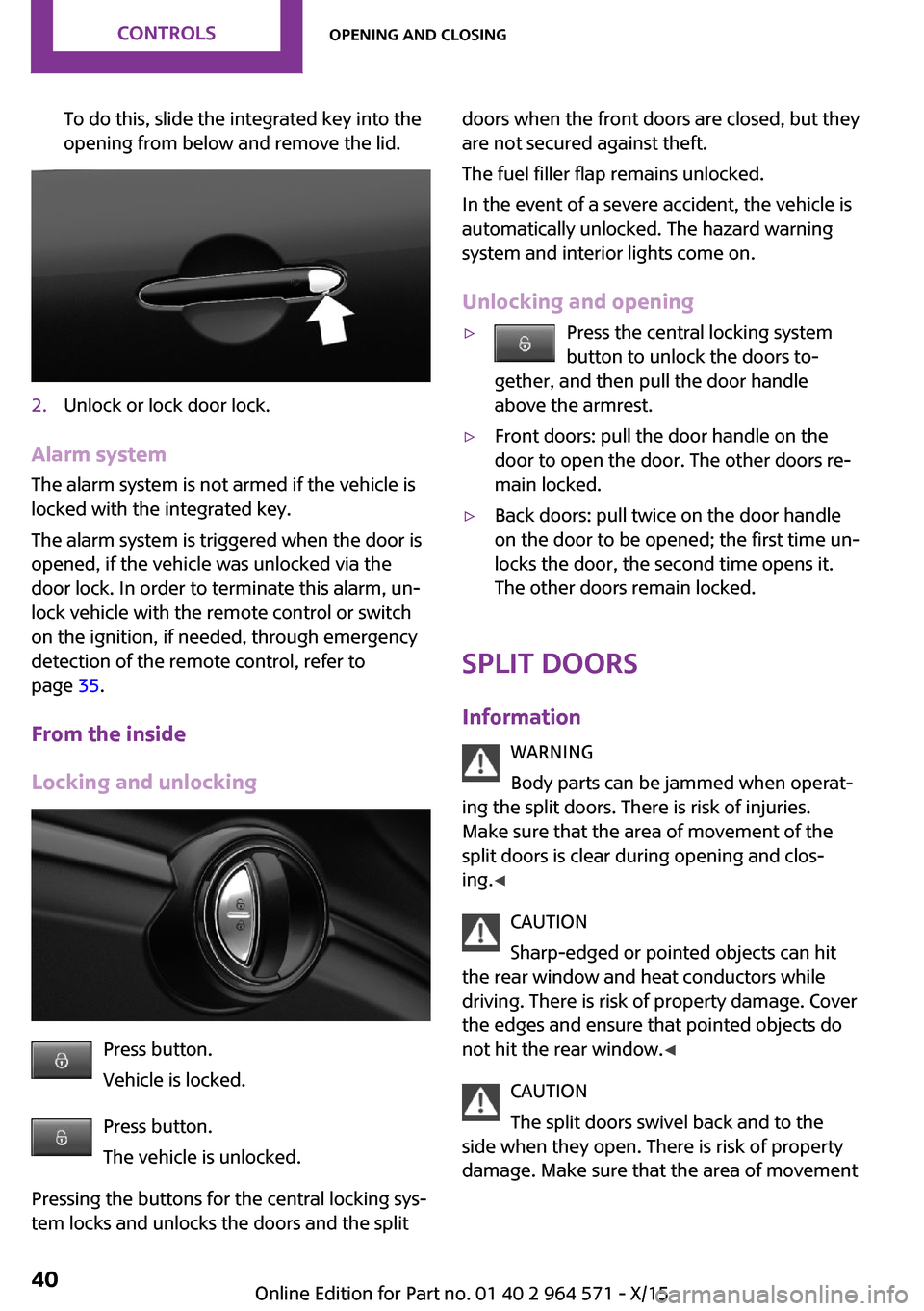
To do this, slide the integrated key into the
opening from below and remove the lid.
2.Unlock or lock door lock.
Alarm system
The alarm system is not armed if the vehicle is
locked with the integrated key.
The alarm system is triggered when the door is
opened, if the vehicle was unlocked via the
door lock. In order to terminate this alarm, un‐
lock vehicle with the remote control or switch
on the ignition, if needed, through emergency
detection of the remote control, refer to
page 35.
From the inside
Locking and unlocking
Press button.
Vehicle is locked.
Press button.
The vehicle is unlocked.
Pressing the buttons for the central locking sys‐
tem locks and unlocks the doors and the split
doors when the front doors are closed, but they
are not secured against theft.
The fuel filler flap remains unlocked.
In the event of a severe accident, the vehicle is
automatically unlocked. The hazard warning
system and interior lights come on.
Unlocking and opening
▷Press the central locking system
button to unlock the doors to‐
gether, and then pull the door handle
above the armrest.
▷Front doors: pull the door handle on the
door to open the door. The other doors re‐
main locked.
▷Back doors: pull twice on the door handle
on the door to be opened; the first time un‐
locks the door, the second time opens it.
The other doors remain locked.
Split doors
Information
WARNING
Body parts can be jammed when operat‐
ing the split doors. There is risk of injuries.
Make sure that the area of movement of the
split doors is clear during opening and clos‐
ing.◀
CAUTION
Sharp-edged or pointed objects can hit
the rear window and heat conductors while
driving. There is risk of property damage. Cover
the edges and ensure that pointed objects do
not hit the rear window.◀
CAUTION
The split doors swivel back and to the
side when they open. There is risk of property
damage. Make sure that the area of movement
Seite 40CONTROLSOpening and closing40
Online Edition for Part no. 01 40 2 964 571 - X/15
Page 44 of 246
3. Select the symbol.4.Select the desired function.▷"Driver's door only"
Only the driver's door and the fuel filler
flap are unlocked. Pressing again un‐
locks the entire vehicle.
▷"All doors"
The entire vehicle is unlocked.
Split doors
Depending on optional features and country
version, this setting is not offered in some
cases.
1. "Settings"2."Doors/key"3. Select the symbol.4.Select the desired function.▷"Split rear door"
Only the split doors are opened.
▷"Split rear door + door(s)"
The split doors are opened and the
doors unlocked.
Locking
The settings are saved in the active profile. Per‐
sonal Profile, refer to page 36.
1. "Settings"2."Doors/key"3.Select desired setting.▷"Lock if no door is opened"
The vehicle locks automatically after a
short period of time if no door is
opened after unlocking.
▷"Lock after start driving"
The vehicle locks automatically after
you drive off.
Confirmation signals from the vehicle
1. "Settings"2."Doors/key"3.Select desired setting.▷With alarm system:
"Acoustic sig. lock/unlock"
Unlocking is signaled by one honk of
the horn.
▷"Flash when lock/unlock"
Unlocking is signaled by two flashes,
locking by one.
Alarm system
The concept
When the vehicle is locked, the vehicle alarm
system responds to:
▷Opening a door, the hood or the split doors.▷Movements in the vehicle interior.▷Changes in the vehicle tilt, e. g., during at‐
tempts at stealing a wheel or when towing
the car.
▷Disconnected battery voltage.
The alarm system briefly signals tampering:
▷Acoustic alarm.▷By switching on the hazard warning system.▷By flashing the daytime running lights.
Switching on and off
When you lock or unlock the vehicle, either
with the remote control or with Comfort Access,
the alarm system is switched on and off at the
same time.
Door lock with the alarm system
switched on
The alarm system is triggered when the door is
opened, when the vehicle is unlocked via the
door lock.
Switching off the alarm, refer to page 45.
Seite 44CONTROLSOpening and closing44
Online Edition for Part no. 01 40 2 964 571 - X/15